
Knowledgebase (2417)
Children categories
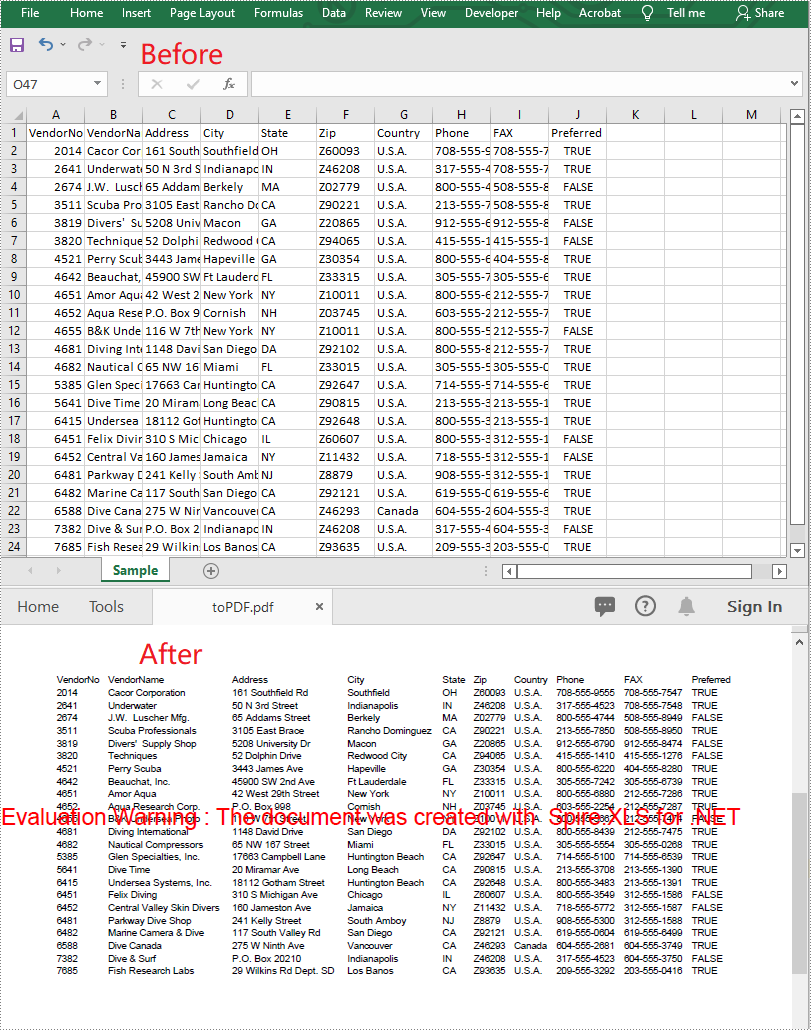
CSV is one of the commonly used file formats for exchanging tabular data between applications. However, in some circumstances, CSV may not be the most appropriate file format. For instance, if you have a CSV report that needs to be sent to an important customer, the best way to ensure the file appears as-is on the customer's device is to convert it to PDF. This article will demonstrate how to convert CSV to PDF in C# and VB.NET using Spire.XLS for .NET.
Install Spire.XLS for .NET
To begin with, you need to add the DLL files included in the Spire.XLS for .NET package as references in your .NET project. The DLL files can be either downloaded from this link or installed via NuGet.
PM> Install-Package Spire.XLS
Convert CSV to PDF in C# and VB.NET
The following are the steps to convert a CSV file to PDF:
- Create an instance of Workbook class.
- Load the CSV file using Workbook.LoadFromFile(filePath, separator) method.
- Set the Workbook.ConverterSetting.SheetFitToPage property as true to ensure the worksheet is rendered to one PDF page.
- Get the first worksheet in the Workbook using Workbook.Worksheets[0] property.
- Loop through the columns in the worksheet and auto-fit the width of each column using Worksheet.AutoFitColumn() method.
- Save the worksheet to PDF using Worksheet.SaveToPdf() method.
- C#
- VB.NET
using Spire.Xls;

namespace ConvertCsvToPdf
{
    class Program
    {
        static void Main(string[] args)
        {
            //Create a Workbook instance
            Workbook wb = new Workbook();
            //Load a CSV file
            wb.LoadFromFile("Sample.csv", ",");

            //Set SheetFitToPage property as true to ensure the worksheet is converted to 1 PDF page
            wb.ConverterSetting.SheetFitToPage = true;

            //Get the first worksheet
            Worksheet sheet = wb.Worksheets[0];

            //Loop through the columns in the worksheet
            for (int i = 1; i < sheet.Columns.Length; i++)
            {
                //AutoFit columns
                sheet.AutoFitColumn(i);
            }

            //Save the worksheet to PDF
            sheet.SaveToPdf("toPDF.pdf");
        }
    }
}
Apply for a Temporary License
If you'd like to remove the evaluation message from the generated documents, or to get rid of the function limitations, please request a 30-day trial license for yourself.
Shapes are powerful tools for improving the aesthetics and functionality of your Excel documents. Whether you're looking to add visual elements to charts, highlight important data, or create engaging presentations, mastering shape manipulation is essential. In this article, we will explore how to add, format, and remove shapes in Excel in C# using Spire.XLS for .NET, providing you with practical tips and techniques to elevate your spreadsheet.
Install Spire.XLS for .NET
To begin with, you need to add the DLL files included in the Spire.XLS for .NET package as references in your .NET project. The DLL files can be either downloaded from this link or installed via NuGet.
PM> Install-Package Spire.XLS
Add Shapes in Excel in C#
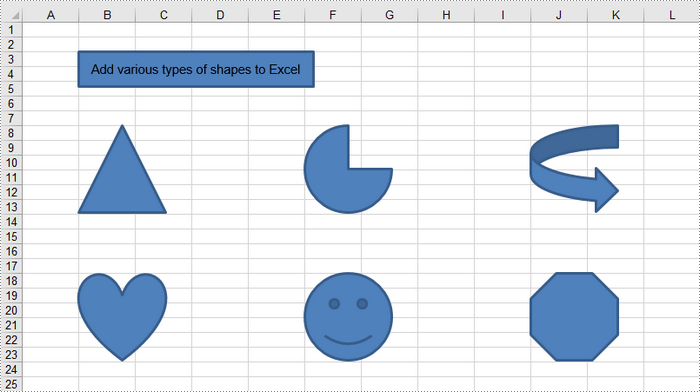
Spire.XLS for .NET provides the Worksheet.PrstGeomShapes.AddPrstGeomShape(int row, int column, int width, int height, PrstGeomShapeType shapeType) method for adding shapes to a worksheet. The first four parameters define the shape's position and dimensions, while the fifth parameter specifies the shape type. The PrstGeomShapeType enumeration includes 188 different shape types preset in Excel.
To add a specific type of shape to a worksheet in C#, follow these steps:
- Create a Workbook object.
- Get a specific worksheet using the Workbook.Worksheets[index] property.
- Add a shape to the worksheet using the Worksheet.PrstGeomShapes.AddPrstGeomShape() method, specifying the location, size and type of the shape.
- Save the workbook to an Excel file.
The following code demonstrates how to generate an Excel file and add various geometric shapes, including a rectangle, a triangle, a heart, a pie, and a smiley face, using the Spire.XLS for .NET library.
- C#
using Spire.Xls;
using Spire.Xls.Core;

namespace AddShapesInExcel
{
    class Program
    {
        static void Main(string[] args)
        {
            // Create a Workbook object
            Workbook workbook = new Workbook();

            // Get the first worksheet
            Worksheet sheet = workbook.Worksheets[0];

            // Add a rectangle
            IPrstGeomShape rectangle = sheet.PrstGeomShapes.AddPrstGeomShape(3, 2, 270, 40, PrstGeomShapeType.Rect);

            // Set text for the shape
            rectangle.Text = "Add various types of shapes to Excel";
            rectangle.TextVerticalAlignment = ExcelVerticalAlignment.MiddleCentered;

            // Add a triangle, a pie, a curved right arrow, a heart, a smile face, and an octagon to the worksheet
            sheet.PrstGeomShapes.AddPrstGeomShape(8, 2, 100, 100, PrstGeomShapeType.Triangle);
            sheet.PrstGeomShapes.AddPrstGeomShape(8, 6, 100, 100, PrstGeomShapeType.Pie);
            sheet.PrstGeomShapes.AddPrstGeomShape(8, 10, 100, 100, PrstGeomShapeType.CurvedRightArrow);

            sheet.PrstGeomShapes.AddPrstGeomShape(18, 2, 100, 100, PrstGeomShapeType.Heart);
            sheet.PrstGeomShapes.AddPrstGeomShape(18, 6, 100, 100, PrstGeomShapeType.SmileyFace);
            sheet.PrstGeomShapes.AddPrstGeomShape(18, 10, 100, 100, PrstGeomShapeType.Octagon);

            // Save the workbook to an Excel file
            workbook.SaveToFile("AddShapes.xlsx", ExcelVersion.Version2016);

            // Dispose resources
            workbook.Dispose();
        }
    }
}
Format Shapes in Excel in C#
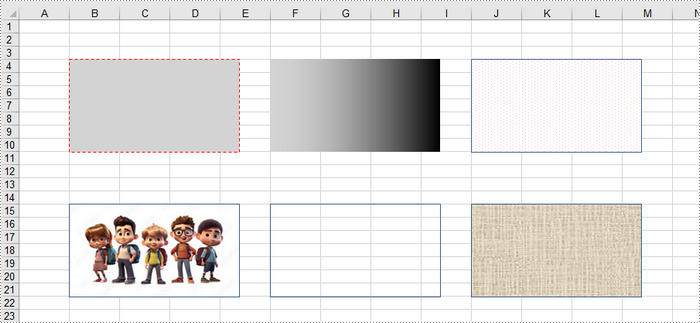
Formatting shapes enhances the visual appeal of your worksheets and improves information conveyance. Spire.XLS for Java provides interfaces such as IShapeLineFormat, IShapeFill, and IShadow, enabling users to customize the line style, line color, fill, and shadow effect of a shape.
The steps to format a shape in Excel are as follows:
- Create a Workbook object.
- Get a specific worksheet using the Workbook.Worksheets[index] property.
- Add a shape to the worksheet using the Worksheet.PrstGeomShapes.AddPrstGeomShape() method, specifying the location, size and type of the shape.
- Get the IShapeLineFormat object through the IShape.Line property.
- Set the line style, color, width and visibility using the properties under the IShapeLineFormat object.
- Get the IShapeFill object through the IShape.Fill property.
- Set the fill type, and fill color (or image, pattern, texture) using the properties under the IShapeFill object.
- Save the workbook to an Excel file.
The following code demonstrates various methods for customizing shapes in Excel, including line styles, fill types (solid, gradient, pattern, texture), and the use of images.
- C#
using Spire.Xls;
using Spire.Xls.Core;
using System.Drawing;

namespace FormatShapesInExcel
{
    class Program
    {
        static void Main(string[] args)
        {
            // Create a Workbook object
            Workbook workbook = new Workbook();

            // Get the first worksheet
            Worksheet sheet = workbook.Worksheets[0];

            // Add the first rectangle to the worksheet
            IPrstGeomShape rectangle_one = sheet.PrstGeomShapes.AddPrstGeomShape(4, 2, 220, 120, PrstGeomShapeType.Rect);

            // Set the line style, width, and color
            rectangle_one.Line.DashStyle = ShapeDashLineStyleType.Dashed;
            rectangle_one.Line.Weight = 1.0;
            rectangle_one.Line.ForeColor = Color.Red;

            // Set the fill type and fore color
            rectangle_one.Fill.FillType = ShapeFillType.SolidColor;
            rectangle_one.Fill.ForeColor = Color.LightGray;

            // Add the second rectangle and format the shape
            IPrstGeomShape rectangle_two = sheet.PrstGeomShapes.AddPrstGeomShape(4, 6, 220, 120, PrstGeomShapeType.Rect);
            rectangle_two.Line.Visible = false;
            rectangle_two.Fill.FillType = ShapeFillType.Gradient;
            rectangle_two.Fill.ForeColor = Color.LightGray;
            rectangle_two.Fill.GradientStyle = GradientStyleType.Vertical;

            // Add the third rectangle and format the shape
            IPrstGeomShape rectangle_three = sheet.PrstGeomShapes.AddPrstGeomShape(4, 10, 220, 120, PrstGeomShapeType.Rect);
            rectangle_three.Line.Weight = 1.0;
            rectangle_three.Fill.FillType = ShapeFillType.Pattern;
            rectangle_three.Fill.Pattern = GradientPatternType.Pat80Percent;
            rectangle_three.Fill.ForeColor = Color.White;
            rectangle_three.Fill.BackColor = Color.Pink;

            // Add the fourth rectangle and format the shape
            IPrstGeomShape rectangle_four = sheet.PrstGeomShapes.AddPrstGeomShape(15, 2, 220, 120, PrstGeomShapeType.Rect);
            rectangle_four.Line.Weight = 1.0;
            rectangle_four.Fill.CustomPicture("C:\\Users\\Administrator\\Desktop\\cartoon.jpeg");

            // Add the fifth rectangle and format the shape
            IPrstGeomShape rectangle_five = sheet.PrstGeomShapes.AddPrstGeomShape(15, 6, 220, 120, PrstGeomShapeType.Rect);
            rectangle_five.Line.Weight = 1.0;
            rectangle_five.Fill.FillType  = ShapeFillType.NoFill;

            // Add the sixth rectangle and format the shape
            IPrstGeomShape rectangle_six = sheet.PrstGeomShapes.AddPrstGeomShape(15, 10, 220, 120, PrstGeomShapeType.Rect);
            rectangle_six.Line.Weight = 1.0;
            rectangle_six.Fill.FillType = ShapeFillType.Texture;
            rectangle_six.Fill.Texture = GradientTextureType.Canvas;

            // Save the workbook to an Excel file
            workbook.SaveToFile("FormatShapes.xlsx", ExcelVersion.Version2016);

            // Dispose resources
            workbook.Dispose();
        }
    }
}
Remove Shapes from Excel in C#
The Worksheet.PrstGeomShapes property returns a collection of shapes within a worksheet. To remove a specific shape from the collection, use the PrstGeomShapeCollection[index].Remove() method, where the index specifies the shape's position. To delete all shapes, you can iterate through the collection and remove each shape individually.
The steps to remove a shape in an Excel worksheet are as follows:
- Create a Workbook object.
- Load an Excel file using the Workbook.LoadFromFile() method.
- Get a specific worksheet through the Workbook.Worksheets[index] property.
- Get the shape collection through the Worksheet.PrstGeomShapes property.
- Remove a specific shape using the PrstGeomShapeCollection[index].Remove() method.
- Save the workbook to a different Excel file.
The following code demonstrates how to load an existing Excel file, remove specific shapes or all shapes from a worksheet.
- C#
using Spire.Xls;
using Spire.Xls.Core.Spreadsheet.Collections;

namespace RemoveShapesFromExcel
{
    class Program
    {
        static void Main(string[] args)
        {
            // Create a Workbook object
            Workbook workbook = new Workbook();

            // Load an Excel file
            workbook.LoadFromFile("C:\\Users\\Administrator\\Desktop\\Shapes.xlsx");

            // Get a specific worksheet
            Worksheet sheet = workbook.Worksheets[0];

            // Get the shape collection from the worksheet
            PrstGeomShapeCollection shapes = sheet.PrstGeomShapes;

            // Remove a specific shape
            shapes[1].Remove();

            /*
            // Remove all shapes
            for (int i = shapes.Count - 1; i >= 0; i--)
            {
                shapes[i].Remove();
            }
            */

            // Save the workbook to an Excel file
            workbook.SaveToFile("RemoveShape.xlsx", ExcelVersion.Version2013);

            // Dispose resources
            workbook.Dispose();
        }
    }
}
Apply for a Temporary License
If you'd like to remove the evaluation message from the generated documents, or to get rid of the function limitations, please request a 30-day trial license for yourself.
Spire.Presentation has a powerful function to print PowerPoint document. From Spire.Presentation v 2.8.59, it supports to use the PrintDocument object to print the presentation slides. This example shows how to print presentation slides using C# via the following print methods:
- Print PowerPoint document to default printer.
- Print PowerPoint document to virtual printer.
- Print some pages from the PowerPoint document and set the document name, number of copies while printing the presentation slides.
Print presentation slides to default printer and print all the pages on the PowerPoint document.
using Spire.Presentation;
using System.Drawing.Printing;
namespace PrintPPT
{

    class Program
    {

        static void Main(string[] args)
        {
            Presentation ppt = new Presentation();
            ppt.LoadFromFile("Sample.pptx");

            PresentationPrintDocument document = new PresentationPrintDocument(ppt);
            document.PrintController = new StandardPrintController();

            ppt.Print(document);


        }
    }
}
Print PowerPoint document to virtual printer (Microsoft XPS Document Writer).
using Spire.Presentation;
namespace PrintPPT
{

    class Program
    {

        static void Main(string[] args)
        {
            Presentation ppt = new Presentation();
            ppt.LoadFromFile("Sample.pptx");

            PresentationPrintDocument document = new PresentationPrintDocument(ppt);
            document.PrinterSettings.PrinterName = "Microsoft XPS Document Writer";

            ppt.Print(document);


        }
    }
}
Print some pages from the PowerPoint document and set the document name, number of copies while printing the presentation slides.
using Spire.Presentation;
using System.Drawing.Printing;
namespace PrintPPT
{

    class Program
    {

        static void Main(string[] args)
        {
            Presentation ppt = new Presentation();
            ppt.LoadFromFile("Sample.pptx");

            PresentationPrintDocument document = new PresentationPrintDocument(ppt);

            //Set the document name to display while printing the document
            document.DocumentName = "Print PowerPoint";

            //Choose to print some pages from the PowerPoint document
            document.PrinterSettings.PrintRange = PrintRange.SomePages;
            document.PrinterSettings.FromPage = 1;
            document.PrinterSettings.ToPage = 2;

            //Set the number of copies of the document to print
            document.PrinterSettings.Copies = 2;

            ppt.Print(document);


        }
    }
}
