Knowledgebase (2417)
Children categories
When creating a PDF layer, Spire.PDF allows developers to set an initial visibility state for the layer. While it also supports to change the visibility of existing layers in a PDF document. This article explains how to show or hide the existing layers using Spire.PDF.
PdfLayer.Visibility property is used to change the visibility of a PDF layer. To show a hidden layer, set the PdfLayer.Visibility property to PdfVisibility.On. To hide an existing layer, set the PdfLayer.Visibility to PdfVisibility.Off.
The following example shows how to hide a specific PDF layers:
using Spire.Pdf;
using Spire.Pdf.Graphics.Layer;

namespace HideLayer
{
    class Program
    {
        static void Main(string[] args)
        {
            using (PdfDocument doc = new PdfDocument("AddLayers.pdf"))
            {
                //Hide the layer by index
                doc.Layers[1].Visibility = PdfVisibility.Off;

                //Hide the layer by Name
                //doc.Layers["BlueLine"].Visibility = PdfVisibility.Off;

                //Save the file
                doc.SaveToFile("HideLayer.pdf");
            }
        }
    }
}
To show or hide all of the layers:
using Spire.Pdf;
using Spire.Pdf.Graphics.Layer;

namespace ShowLayer
{
    class Program
    {
        static void Main(string[] args)
        {
            using (PdfDocument doc = new PdfDocument("AddLayers.pdf"))
            {
                for (int i = 0; i < doc.Layers.Count; i++)
                {
                    //Show all of the layers
                    //doc.Layers[i].Visibility = PdfVisibility.On;

                    //Hide all of the layers
                    doc.Layers[i].Visibility = PdfVisibility.Off;
                }
                //Save the file
                doc.SaveToFile("HideAllLayers.pdf");
            }
        }
    }
}
Screeshot of the sample PDF document:
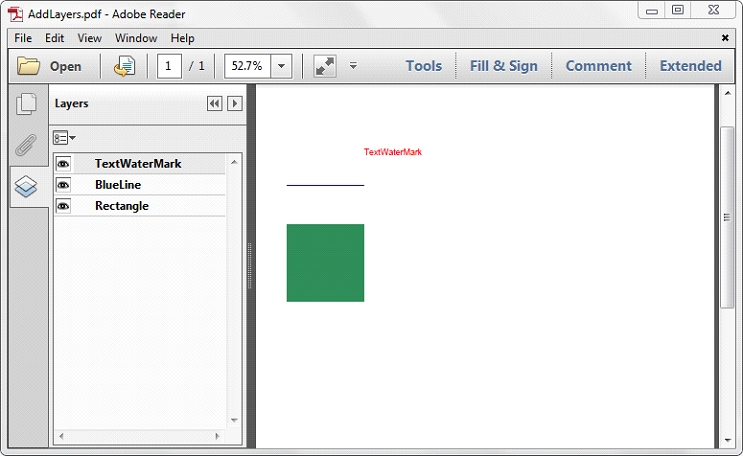
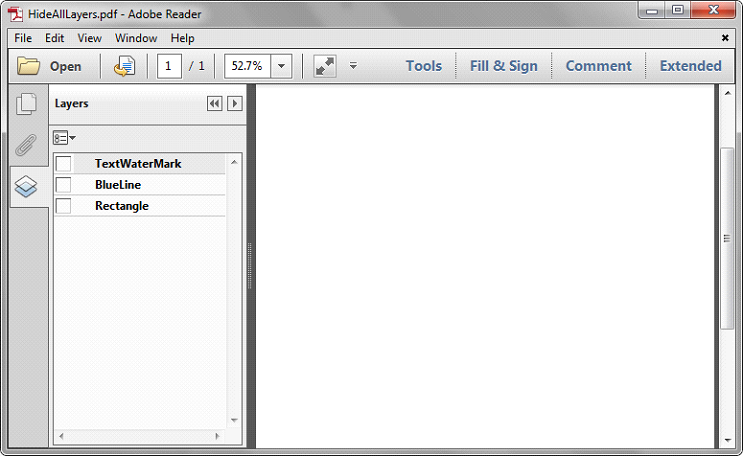
Screenshot after hiding all of the layers:
Spire.Doc supports to add new shape and shape group to the word document, it also supports to remove the shapes from the word. This article will show you how to reset the size of shape on an existing word document via Spire.Doc.
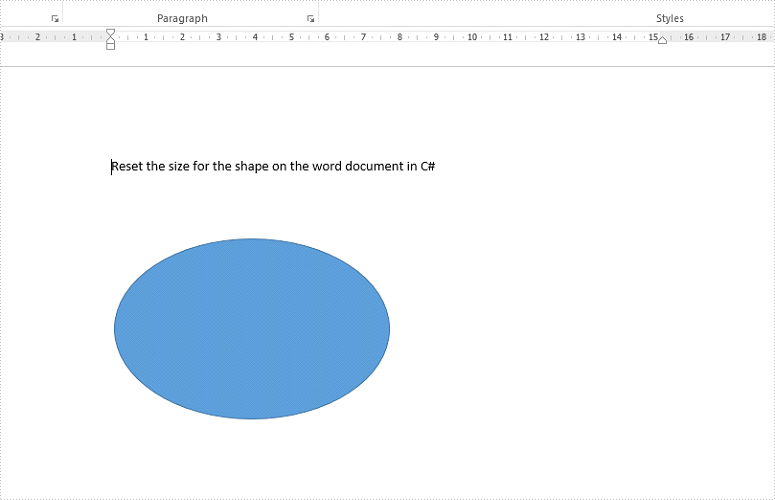
Firstly, view the original shape on the word document:
Step 1: Create a new instance of word document and load the document from file.
Document doc = new Document();
doc.LoadFromFile("Sample.docx",FileFormat.Docx2010);
Step 2: Get the first section and the third paragraph that contains the shape.
Section section = doc.Sections[0];
Paragraph para = section.Paragraphs[2];
Step 3: Get the shape and reset the width and height for the shape.
ShapeObject shape = para.ChildObjects[0] as ShapeObject;

shape.Width = 400;
shape.Height = 300;
Step 4: Save the document to file.
doc.SaveToFile("result.docx",FileFormat.Docx2010);
Effective screenshot of the shape after reset the size.
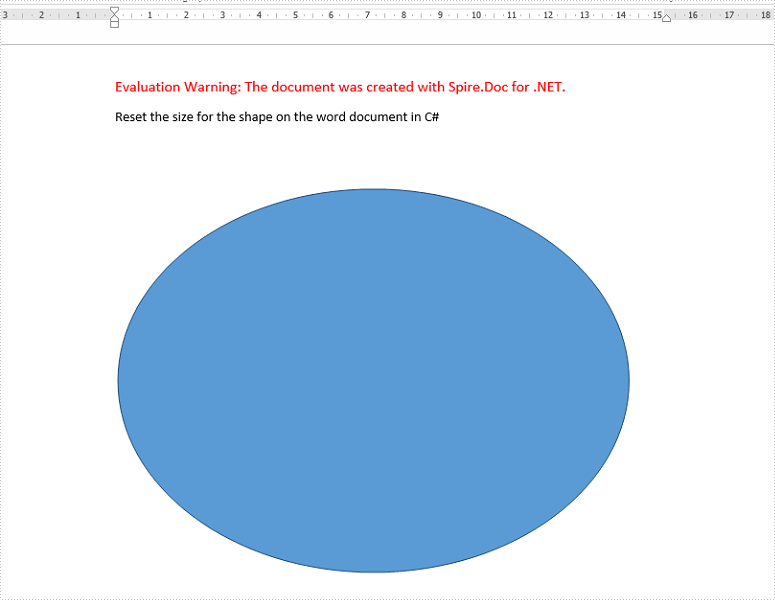
Full codes:
using Spire.Doc;
using Spire.Doc.Documents;
using Spire.Doc.Fields;
namespace Reset
{
    class Program
    {
        static void Main(string[] args)
        {
            Document doc = new Document();
            doc.LoadFromFile("Sample.docx", FileFormat.Docx2010);

            Section section = doc.Sections[0];
            Paragraph para = section.Paragraphs[2];

            ShapeObject shape = para.ChildObjects[0] as ShapeObject;

            shape.Width = 400;
            shape.Height = 300;

            doc.SaveToFile("result.docx", FileFormat.Docx2010);
        }
    }
}
Imports Spire.Doc
Imports Spire.Doc.Documents
Imports Spire.Doc.Fields
Namespace Reset
	Class Program
		Private Shared Sub Main(args As String())
			Dim doc As New Document()
			doc.LoadFromFile("Sample.docx", FileFormat.Docx2010)

			Dim section As Section = doc.Sections(0)
			Dim para As Paragraph = section.Paragraphs(2)

			Dim shape As ShapeObject = TryCast(para.ChildObjects(0), ShapeObject)

			shape.Width = 400
			shape.Height = 300

			doc.SaveToFile("result.docx", FileFormat.Docx2010)
		End Sub
	End Class
End Namespace
Print Multiple PDF Pages per Sheet and Print Single PDF Page to Multiple Sheets in C#
2017-10-24 08:04:36 Written by KoohjiWhen it comes to printing, Spire.PDF offers users a wide range of options to fulfil their printing needs. Two of these options are “print multiple PDF pages per sheet” and “print single PDF page to multiple sheets”. This article elaborates how to achieve these two options using Spire.PDF and C#.
Print Multiple PDF Pages per Sheet
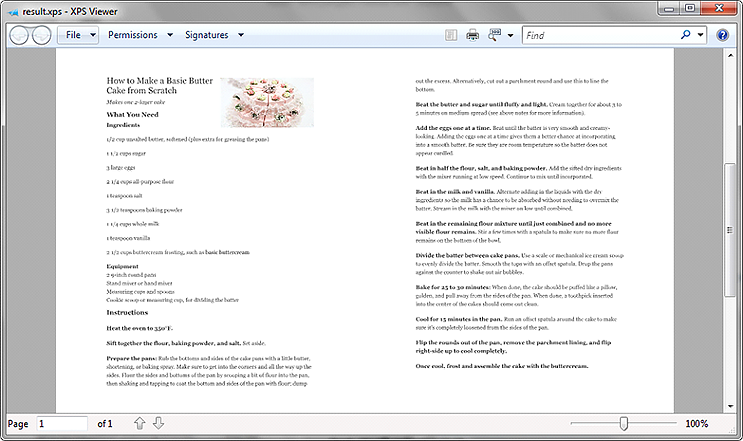
Uses can invoke the SelectMultiPageLayout(int rows, int columns) method of the PdfPrintSettings class to print multiple PDF pages per sheet of paper.
using Spire.Pdf;


namespace PrintPDF
{
    class Program
    {
        static void Main(string[] args)
        {
            //Initialize a PdfDocument object
            PdfDocument pdf = new PdfDocument();
            //Load the pdf file
            pdf.LoadFromFile("Input.pdf");

            //Print two PDF pages per sheet
            pdf.PrintSettings.SelectMultiPageLayout(1, 2);
            pdf.Print();
        }
    }
}
Below screenshot shows the sample pdf document which contains two pages:
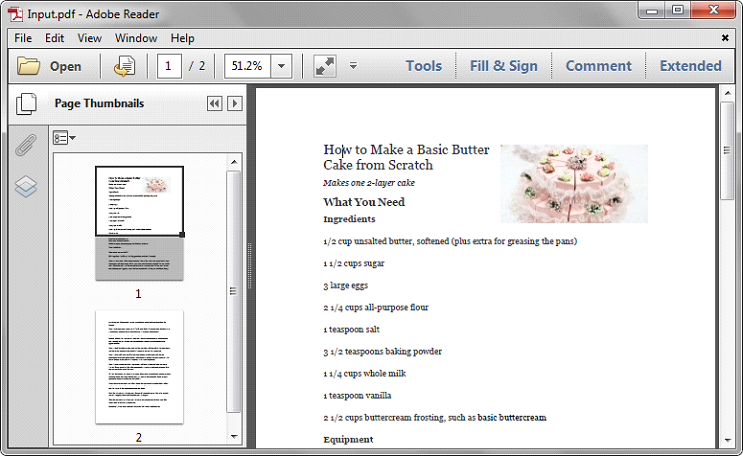
Screenshot after printing to XPS:
Print Single PDF Page to Multiple Sheets
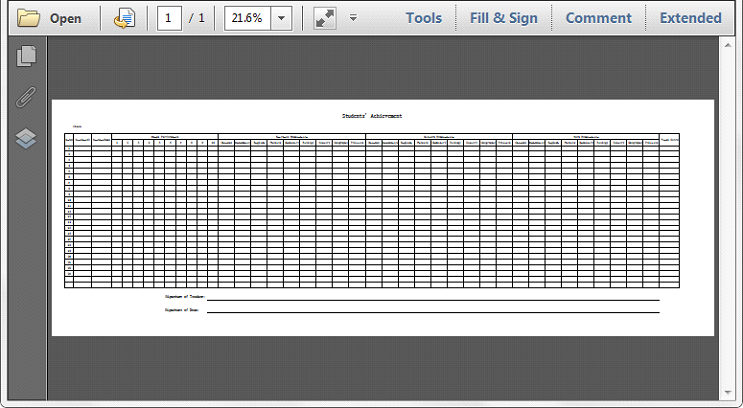
The SelectSplitPageLayout() method of the PdfPrintSettings class can be used when printing a large PDF page to multiple sheets. This method splits the PDF page to multiple pages according to the standard A4 paper size: 595pt*842pt.
using Spire.Pdf;


namespace PrintPDF2
{
    class Program
    {
        static void Main(string[] args)
        {
            //Initialize a PdfDocument object
            PdfDocument pdf = new PdfDocument();
            //Load the pdf file
            pdf.LoadFromFile("Input1.pdf");

            //Print the PDF page to multiple sheets
            pdf.PrintSettings.SelectSplitPageLayout();
            pdf.Print();
        }
    }
}
Below screenshot shows the sample pdf document which contains a single page with a size of 2100pt*750pt:
Screenshot after printing to XPS: