
Knowledgebase (2417)
Children categories
Allow users to edit ranges for the protected Excel worksheet in C#
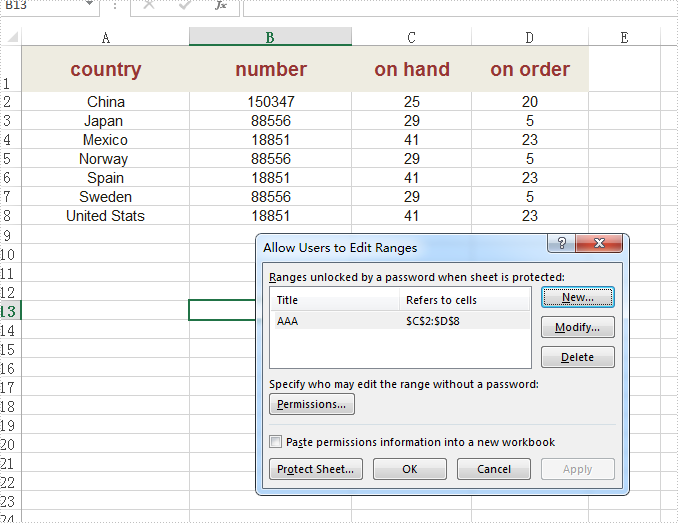
2017-02-08 06:59:17 Written by KoohjiSpire.XLS supports to protect the whole excel workbook and specified worksheet with password. When we deal with the protected worksheet, sometimes we need to allow users to edit some specified ranges of the excel worksheet. This article will focus on demonstrating how to use the AddAllowEditRange method offered by Spire.XLS to set the specified range on a protected worksheet to be editable by users.
Step 1: Initialize an instance of Workbook and load the document from file.
Workbook workbook = new Workbook();
workbook.LoadFromFile("Sample.xlsx");
Step 2: Get the first worksheet from the workbook.
Worksheet sheet = workbook.Worksheets[0];
Step 3: Define the specified ranges of Excel to allow users to edit while sheet is protected.
sheet.AddAllowEditRange("AAA", sheet.Range["C2:D8"], "");
Step 4: Protect the worksheet.
sheet.Protect("AAA", SheetProtectionType.All);
Step 5: Save the document to file.
workbook.SaveToFile("AllowEditRange.xlsx", ExcelVersion.Version2010);
Effective screenshot of Allow users to edit ranges:
Full codes:
using Spire.Xls;
namespace EditRanges
{
    class Program
    {

        static void Main(string[] args)
        {
            Workbook workbook = new Workbook();
            workbook.LoadFromFile("Sample.xlsx");

            Worksheet sheet = workbook.Worksheets[0];

            sheet.AddAllowEditRange("AAA", sheet.Range["C2:D8"], "");
            sheet.Protect("AAA", SheetProtectionType.All);

            workbook.SaveToFile("AllowEditRange.xlsx", ExcelVersion.Version2010);

        }
    }
}
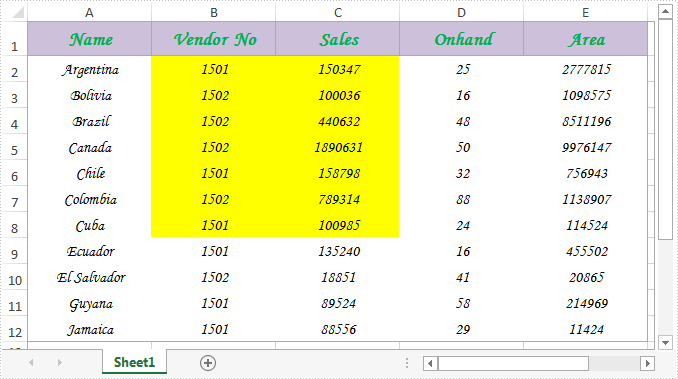
Spire.Xls.CellRange class provides a method named Intersect(CellRange range) that is used to find the intersection of certain ranges. This is very useful when we need to get the common value(s) of two ranges in an excel worksheet.
In below picture, we take range A2:C8 and range B2:D8 as an example. Cells filled in yellow color are the intersection of the two ranges.
Now refer to the following detail steps:
Step 1: Instantiate an object of Workbook class and load the Excel document.
Workbook workbook = new Workbook();
workbook.LoadFromFile("Sample.xlsx");
Step 2: Get the first worksheet.
Worksheet sheet = workbook.Worksheets[0];
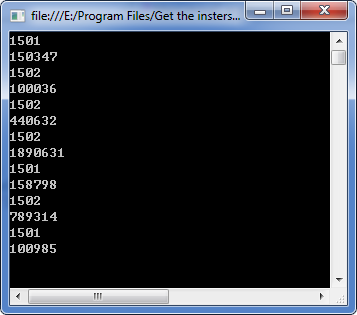
Step 3: Get the intersection of the two ranges and print the common values of them.
CellRange range = sheet.Range["A2:C8"].Intersect(sheet.Range["B2:D8"]);
foreach (CellRange r in range)
{
    Console.WriteLine(r.Value);
}
Output:
Full code:
using System;
using Spire.Xls;

namespace Get_the_instersection_of_two_ranges
{
    class Program
    {
        static void Main(string[] args)
        {
            Workbook workbook = new Workbook();
            workbook.LoadFromFile("Sample.xlsx");
            Worksheet sheet = workbook.Worksheets[0];
            CellRange range = sheet.Range["A2:C8"].Intersect(sheet.Range["B2:D8"]);
            foreach (CellRange r in range)
            {
                Console.WriteLine(r.Value);
            }
            Console.ReadKey();
        }
    }
}
Imports Spire.Xls

Namespace Get_the_instersection_of_two_ranges
	Class Program
		Private Shared Sub Main(args As String())
			Dim workbook As New Workbook()
			workbook.LoadFromFile("Sample.xlsx")
			Dim sheet As Worksheet = workbook.Worksheets(0)
			Dim range As CellRange = sheet.Range("A2:C8").Intersect(sheet.Range("B2:D8"))
			For Each r As CellRange In range
				Console.WriteLine(r.Value)
			Next
			Console.ReadKey()
		End Sub
	End Class
End Namespace
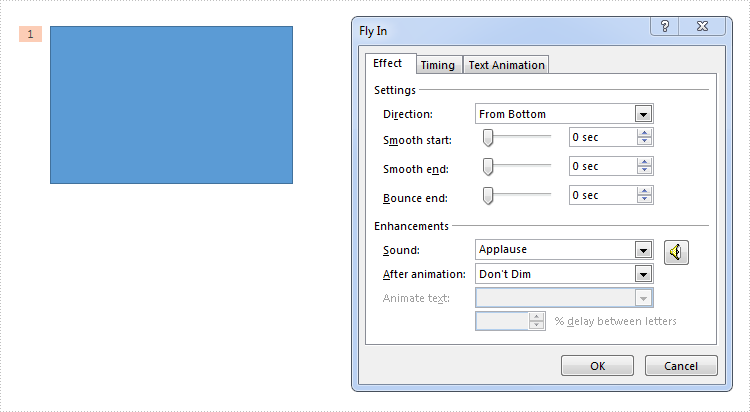
Animation is a great way to draw viewers' attention to a presentation. We can apply animation effects to text, shapes or any other objects on PowerPoint slides. To make the animations more attractive, we usually set sound effects for them. This article demonstrates how to obtain these sound effects by using Spire.Presentation and C#.
Below shape is set with a fly in animation which has a sound effect named "Applause".
Refer below steps to get the sound effect from the shape:
Step 1: Load the PowerPoint document.
Presentation ppt = new Presentation(@"test.pptx", FileFormat.Pptx2013);
Step 2: Get the audio in a time node.
ISlide slide = ppt.Slides[0];
TimeNodeAudio audio = slide.Timeline.MainSequence[0].TimeNodeAudios[0];
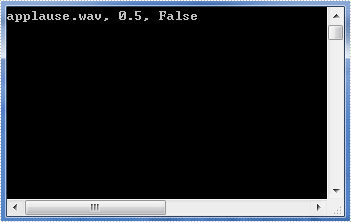
Step 3: Now we can get the properties of the audio, such as sound name, volume or detect if it's mute.
string soundName = audio.SoundName;
float volume = audio.Volume;
bool isMute = audio.IsMute;
Output:
Full code:
using System;
using Spire.Presentation;
using Spire.Presentation.Drawing.TimeLine;

namespace Get_Sound_Effect
{
    class Program
    {
        static void Main(string[] args)
        {
            Presentation ppt = new Presentation(@"test.pptx", FileFormat.Pptx2013);
            ISlide slide = ppt.Slides[0];
            TimeNodeAudio audio = slide.Timeline.MainSequence[0].TimeNodeAudios[0];
            string soundName = audio.SoundName;
            float volume = audio.Volume;
            bool isMute = audio.IsMute;
            Console.WriteLine("{0}, {1}, {2}", soundName, volume, isMute);
            Console.ReadKey();
        }
    }
}
