
Knowledgebase (2417)
Children categories
Lock Specified Sections of Word Documents in C#, VB.NET
2017-03-15 08:04:50 Written by AdministratorSection protection allows users to be able to edit only the forms (if any) rather than any other content within it. When we protect a document, we can specify that the specific sections of the document be protected. This is useful in case we want to protect parts of a Word document.
Following code snippets demonstrate the same.
Step 1: Initialize an instance of Document class.
Document doc = new Document();
Step 2: Add two sections to the document.
Section s1 = doc.AddSection();
Section s2 = doc.AddSection();
Step 3: Append some text to section 1 and section 2.
s1.AddParagraph().AppendText("section 1");
s2.AddParagraph().AppendText("section 2");
Step 4: Protect the document with AllowOnlyFormFields protection type.
doc.Protect(ProtectionType.AllowOnlyFormFields, "123");
Step 5: Unprotect section 2.
s2.ProtectForm = false;
Step 6: Save the document.
doc.SaveToFile("Protect_Section.docx");
Result:
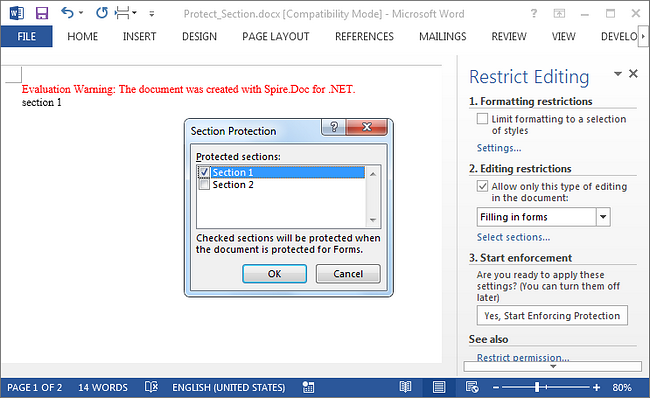
Run the program, we should get the file in which section 1 is protected to allow only editing in form fields while section 2 can be edited freely.
Full Code:
using Spire.Doc;
namespace LockSection
{
    class Program
    {
        static void Main(string[] args)
        {
            Document doc = new Document();
            Section s1 = doc.AddSection();
            Section s2 = doc.AddSection();

            s1.AddParagraph().AppendText("section 1");
            s2.AddParagraph().AppendText("section 2");

            //protect all sections
            doc.Protect(ProtectionType.AllowOnlyFormFields, "123");
            //unprotect section 2
            s2.ProtectForm = false;

            doc.SaveToFile("Protect_Section.docx");
        }
    }
}
Imports Spire.Doc
Namespace LockSection
	Class Program
		Private Shared Sub Main(args As String())
			Dim doc As New Document()
			Dim s1 As Section = doc.AddSection()
			Dim s2 As Section = doc.AddSection()

			s1.AddParagraph().AppendText("section 1")
			s2.AddParagraph().AppendText("section 2")

			'protect all sections
			doc.Protect(ProtectionType.AllowOnlyFormFields, "123")
			'unprotect section 2
			s2.ProtectForm = False

			doc.SaveToFile("Protect_Section.docx")
		End Sub
	End Class
End Namespace
A Sound action is used to embed and play a sound file in PDF document. In Spire.PDF, we can create a sound action by using the PdfSoundAction class. Attributes like sound, volume and repeat can be specified for the sound action.
Refer below code example:
Step 1: Create a new PDF document and add a page to it.
PdfDocument document = new PdfDocument();
PdfPageBase page = document.Pages.Add();
Step 2: Create a sound action and set its attributes.
PdfSoundAction soundAction = new PdfSoundAction(@"C:\Users\Administrator\Desktop\because of you.wav");
soundAction.Sound.Bits = 15;
soundAction.Sound.Channels = PdfSoundChannels.Stereo;
soundAction.Sound.Encoding = PdfSoundEncoding.Signed;
soundAction.Volume = 0.8f;
soundAction.Repeat = true;
Step 3: Set the sound action to be executed when the PDF document is opened.
document.AfterOpenAction = soundAction;
Step 4: Save and close the PDF document.
document.SaveToFile("Output.pdf");
document.Close();
Full code:
using Spire.Pdf;
using Spire.Pdf.Actions;
using Spire.Pdf.General;

namespace PDF_Sound_Action
{
    class Program
    {
        static void Main(string[] args)
        {
            //Create a new PDF document
            PdfDocument document = new PdfDocument();
            //Add a page
            PdfPageBase page = document.Pages.Add();

            //Create a sound action
            PdfSoundAction soundAction = new PdfSoundAction(@"C:\Users\Administrator\Desktop\because of you.wav");
            soundAction.Sound.Bits = 15;
            soundAction.Sound.Channels = PdfSoundChannels.Stereo;
            soundAction.Sound.Encoding = PdfSoundEncoding.Signed;
            soundAction.Volume = 0.8f;
            soundAction.Repeat = true;

            // Set the sound action to be executed when the PDF document is opened
            document.AfterOpenAction = soundAction;

            //Save and close the PDF document
            document.SaveToFile("Output.pdf");
            document.Close();
        }
    }
}
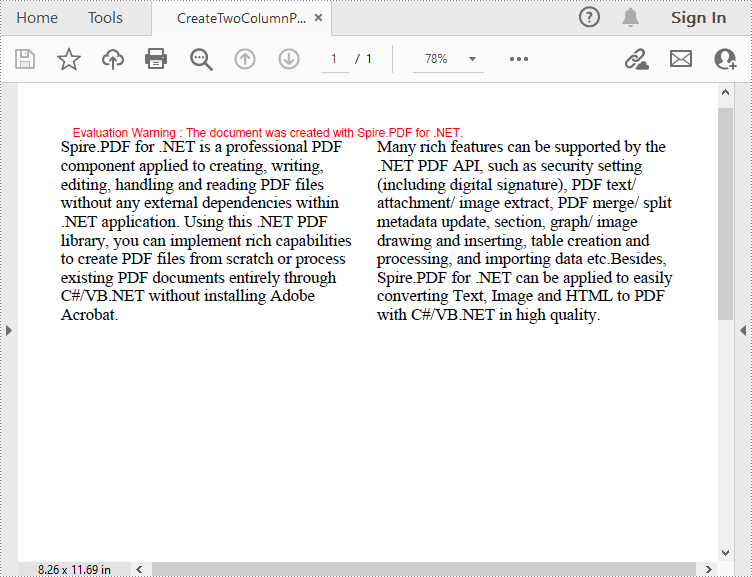
When designing magazines or newspapers, you may need to display content in multiple columns on a single page to improve readability. In this article, you will learn how to programmatically create a two-column PDF from scratch using Spire.PDF for .NET.
Install Spire.PDF for .NET
To begin with, you need to add the DLL files included in the Spire.PDF for .NET package as references in your .NET project. The DLLs files can be either downloaded from this link or installed via NuGet.
PM> Install-Package Spire.PDF
Create a Two-Column PDF from Scratch in C# and VB.NET
Spire.PDF for .NET allows you to create a two-column PDF by drawing text at two separate rectangle areas in a PDF page. Below are the detailed steps to achieve the task.
- Create a PdfDocument instance.
- Add a new page in the PDF using PdfDocument.Pages.Add() method.
- Define paragraph text, then set the text font and text alignment.
- Draw text at two separate rectangle areas in the PDF using PdfPageBase.Canvas.DrawString (String, PdfFontBase, PdfBrush, RectangleF, PdfStringFormat) method.
- Save the result file using PdfDocument.SaveToFile() method.
- C#
- VB.NET
using Spire.Pdf;
using Spire.Pdf.Graphics;
using System.Drawing;

namespace CreateTwoColumnPDF
{
    class Program
    {
        static void Main(string[] args)
        {
            //Create a PdfDocument instance
            PdfDocument doc = new PdfDocument();

            //Add a new page
            PdfPageBase page = doc.Pages.Add();

            //Define paragraph text
            string s1 = "Spire.PDF for .NET is a professional PDF component applied to creating, writing, "
                        + "editing, handling and reading PDF files without any external dependencies within "
                        + ".NET application. Using this .NET PDF library, you can implement rich capabilities "
                        + "to create PDF files from scratch or process existing PDF documents entirely through "
                        + "C#/VB.NET without installing Adobe Acrobat.";

            string s2 = "Many rich features can be supported by the .NET PDF API, such as security setting "
                        + "(including digital signature), PDF text/ attachment/ image extract, PDF merge/ split "
                        + ", metadata update, section, graph/ image drawing and inserting, table creation and "
                        + "processing, and importing data etc.Besides, Spire.PDF for .NET can be applied to easily "
                        + "converting Text, Image and HTML to PDF with C#/VB.NET in high quality.";

            //Get width and height of page
            float pageWidth = page.GetClientSize().Width;
            float pageHeight = page.GetClientSize().Height;

            //Create a PdfSolidBrush instance
            PdfSolidBrush brush = new PdfSolidBrush(new PdfRGBColor(Color.Black));

            //Create a PdfFont instance
            PdfFont font = new PdfFont(PdfFontFamily.TimesRoman, 14f);

            //Set the text alignment via PdfStringFormat class
            PdfStringFormat format = new PdfStringFormat(PdfTextAlignment.Left);

            //Draw text
            page.Canvas.DrawString(s1, font, brush, new RectangleF(0, 20, pageWidth / 2 - 8f, pageHeight),format);
            page.Canvas.DrawString(s2, font, brush, new RectangleF(pageWidth / 2 + 8f, 20, pageWidth / 2, pageHeight), format);

            //Save the result document
            doc.SaveToFile("CreateTwoColumnPDF.pdf.pdf");
        }
    }
}
Apply for a Temporary License
If you'd like to remove the evaluation message from the generated documents, or to get rid of the function limitations, please request a 30-day trial license for yourself.
