
Knowledgebase (2417)
Children categories
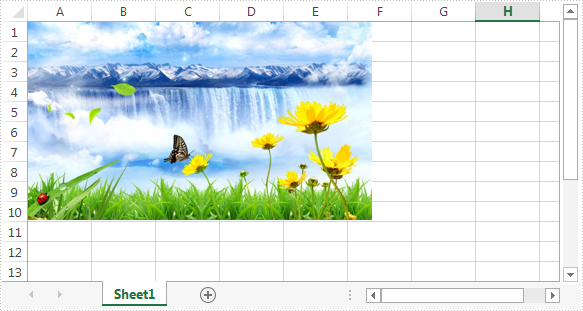
In the previous article, we've introduced how to insert image into excel worksheet. In this article, we'll demonstrate how to extract image from Excel worksheet. Please check the below screenshot of the source excel worksheet which contains an image:
Code snippet:
Step 1: Instantiate an instance of Workbook class and load the excel file.
Workbook workbook = new Workbook();
workbook.LoadFromFile(@"C:\Users\Administrator\Desktop\test.xlsx");
Step 2: Get the first worksheet.
Worksheet sheet = workbook.Worksheets[0];
Step 3: Get the first picture in the worksheet and save it to disk.
ExcelPicture picture = sheet.Pictures[0];
picture.Picture.Save(@"Image\image.png", ImageFormat.Png);
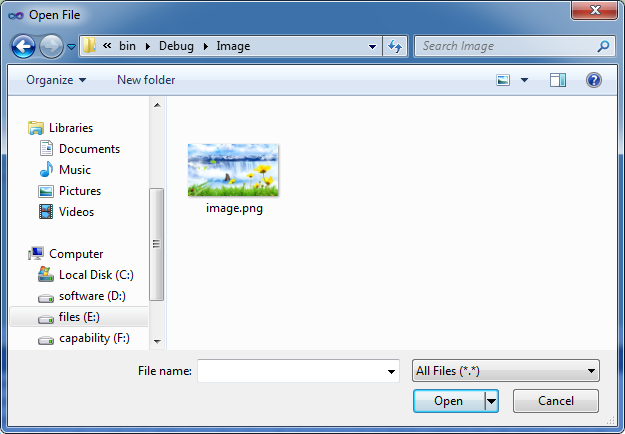
Screenshot:
Full code:
using System.Drawing.Imaging;
using Spire.Xls;

namespace Extract_Image
{
    class Program
    {
        static void Main(string[] args)
        {
            Workbook workbook = new Workbook();
            workbook.LoadFromFile(@"C:\Users\Administrator\Desktop\test.xlsx");
            Worksheet sheet = workbook.Worksheets[0];
            ExcelPicture picture = sheet.Pictures[0];
            picture.Picture.Save(@"Image\image.png", ImageFormat.Png);
        }
    }
}
Imports System.Drawing.Imaging
Imports Spire.Xls

Namespace Extract_Image
	Class Program
		Private Shared Sub Main(args As String())
			Dim workbook As New Workbook()
			workbook.LoadFromFile("C:\Users\Administrator\Desktop\test.xlsx")
			Dim sheet As Worksheet = workbook.Worksheets(0)
			Dim picture As ExcelPicture = sheet.Pictures(0)
			picture.Picture.Save("Image\image.png", ImageFormat.Png)
		End Sub
	End Class
End Namespace
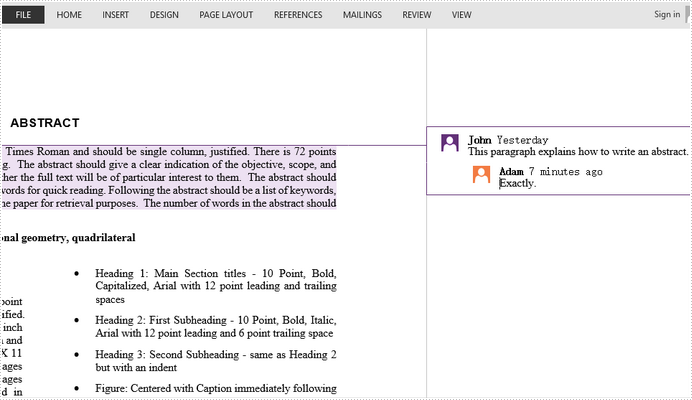
In Word 2013 and later version, you can reply to a comment, so it's easier to follow the whole conversation. Spire.Doc also allows programmers to insert a comment as a reply to a selected comment through ReplyToComment method.
Step 1: Create an object of Document and load a Word document containing comments.
Document doc = new Document();
doc.LoadFromFile("Comment.docx");
Step 2: Get the first comment.
Comment comment = doc.Comments[0];
Step 3: Create a new comment and specify the author and content.
Comment replyComment = new Comment(doc);
replyComment.Format.Author = "Adam";
replyComment.Body.AddParagraph().AppendText("Exactly.");
Step 4: Add the new comment as a reply to the selected comment.
comment.ReplyToComment(replyComment);
Step 5: Save to file.
doc.SaveToFile("ReplyToComment.docx", FileFormat.Docx2013);
Full Code:
using Spire.Doc;
using Spire.Doc.Fields;
namespace ReplyComment
{
    class Program
    {

        static void Main(string[] args)
        {

            Document doc = new Document();
            doc.LoadFromFile("Comment.docx");
            Comment comment = doc.Comments[0];

            Comment replyComment = new Comment(doc);
            replyComment.Format.Author = "Adam";
            replyComment.Body.AddParagraph().AppendText("Exactly.");
            comment.ReplyToComment(replyComment);

            doc.SaveToFile("ReplyToComment.docx", FileFormat.Docx2013);

        }
    }
}
Imports Spire.Doc
Imports Spire.Doc.Fields
Namespace ReplyComment
	Class Program

		Private Shared Sub Main(args As String())

			Dim doc As New Document()
			doc.LoadFromFile("Comment.docx")
			Dim comment As Comment = doc.Comments(0)

			Dim replyComment As New Comment(doc)
			replyComment.Format.Author = "Adam"
			replyComment.Body.AddParagraph().AppendText("Exactly.")
			comment.ReplyToComment(replyComment)

			doc.SaveToFile("ReplyToComment.docx", FileFormat.Docx2013)

		End Sub
	End Class
End Namespace
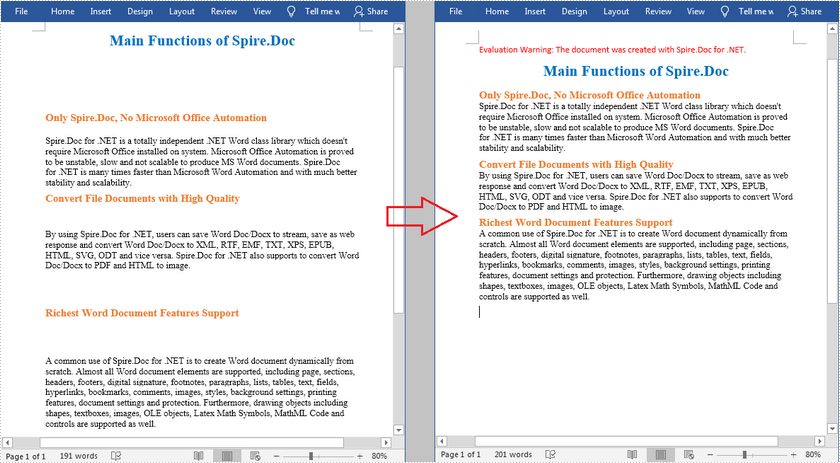
When coping content from the Internet into a Word document, you may find that there are a lot of blank lines between paragraphs, which will not only make the document look lengthier but also affect the readability. In this article, you will learn how to programmatically remove empty lines/blank paragraphs in an existing Word document using Spire.Doc for .NET.
Install Spire.Doc for .NET
To begin with, you need to add the DLL files included in the Spire.Doc for .NET package as references in your .NET project. The DLL files can be either downloaded from this link or installed via NuGet.
PM> Install-Package Spire.Doc
Remove Empty Lines in an Existing Word Document
The detailed steps are as follows:
- Create a Document instance.
- Load a sample Word document using Document.LoadFromFile() method.
- Loop through all paragraphs in the document and determine whether the paragraph is a blank paragraph.
- Remove blank paragraphs from the document using DocumentObjectCollection.Remove() method.
- Save the document to another file using Document.SaveToFile() method.
- C#
- VB.NET
using Spire.Doc;
using Spire.Doc.Documents;
using System;

namespace RemoveEmptyLines
{
    class Program
    {

        static void Main(string[] args)
        {

            //Create a Document instance
            Document doc = new Document();

            //Load a sample Word document
            doc.LoadFromFile(@"D:\Files\input.docx");

            //Loop through all paragraphs in the document
            foreach (Section section in doc.Sections)
            {
                for (int i = 0; i < section.Body.ChildObjects.Count; i++)
                {
                    if (section.Body.ChildObjects[i].DocumentObjectType == DocumentObjectType.Paragraph)
                    {
                        //Determine if the paragraph is a blank paragraph
                        if (String.IsNullOrEmpty((section.Body.ChildObjects[i] as Paragraph).Text.Trim()))
                        {
                            //Remove blank paragraphs
                            section.Body.ChildObjects.Remove(section.Body.ChildObjects[i]);
                            i--;
                        }
                    }

                }
            }

            //Save the document
            doc.SaveToFile("RemoveEmptyLines.docx", FileFormat.Docx2013);

        }

    }
}
Apply for a Temporary License
If you'd like to remove the evaluation message from the generated documents, or to get rid of the function limitations, please request a 30-day trial license for yourself.
