
Knowledgebase (2417)
Children categories
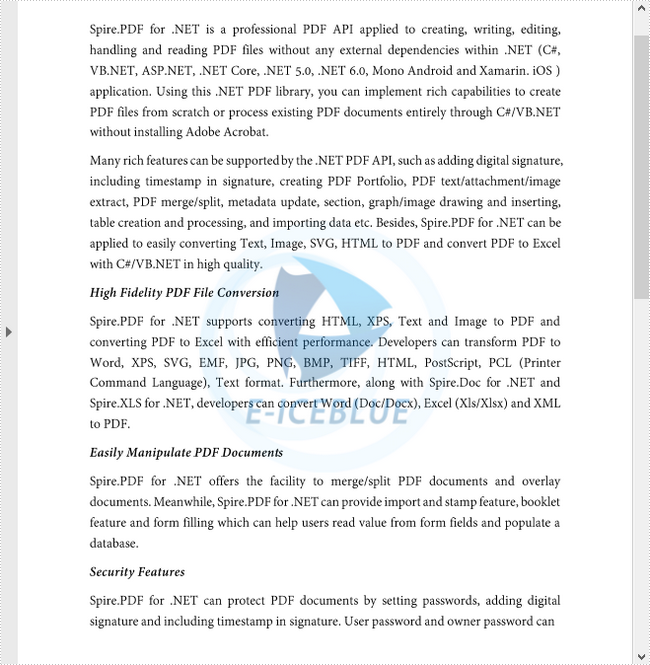
An image watermark is usually a logo or sign that appears on the background of digital documents, indicating the copyright owner of the content. Watermarking your PDF document with an image can prevent your data from being reused or modified. This article demonstrates how to add an image watermark to PDF in C# and VB.NET using Spire.PDF for .NET.
Install Spire.PDF for .NET
To begin with, you need to add the DLL files included in the Spire.PDF for.NET package as references in your .NET project. The DLLs files can be either downloaded from this link or installed via NuGet.
- Package Manager
PM> Install-Package Spire.PDF
Add an Image Watermark to PDF
The following are the main steps to add an image watermark to a PDF document.
- Create a PdfDocument object, and load a sample PDF file using PdfDocument.LoadFromFile() method.
- Load an image file using Image.FromFile() method.
- Loop through the pages in the document, and get the specific page through PdfDocument.Pages[] property.
- Set the image as background/watermark image of the current page through PdfPageBase.BackgroundImage property. Set the image position and size through PdfPageBase.BackgroundRegion property.
- Save the document to a different PDF file using PdfDocument.SaveToFile() method.
- C#
- VB.NET
using Spire.Pdf;
using System.Drawing;

namespace AddImageWatermark
{
    class Program
    {
        static void Main(string[] args)
        {
            //Create a PdfDocument object
            PdfDocument document = new PdfDocument();

            //Load a sample PDF document
            document.LoadFromFile(@"C:\Users\Administrator\Desktop\sample.pdf");

            //Load an image
            Image image = Image.FromFile(@"C:\Users\Administrator\Desktop\logo.png");

            //Get the image width and height
            int imgWidth = image.Width;
            int imgHeight = image.Height;

            //Loop through the pages
            for (int i = 0; i < document.Pages.Count; i++)
            {
                //Get the page width and height
                float pageWidth = document.Pages[i].ActualSize.Width;
                float pageHeight = document.Pages[i].ActualSize.Height;

                //Set the background opacity
                document.Pages[i].BackgroudOpacity = 0.3f;

                //Set the background image of current page
                document.Pages[i].BackgroundImage = image;

                //Position the background image at the center of the page
                Rectangle rect = new Rectangle((int)(pageWidth - imgWidth) / 2, (int)(pageHeight - imgHeight) / 2, imgWidth, imgHeight);
                document.Pages[i].BackgroundRegion = rect;
            }

            //Save the document to file
            document.SaveToFile("AddImageWatermark.pdf");
            document.Close();
        }
    }
}
Imports Spire.Pdf
Imports System.Drawing

Namespace AddImageWatermark
    Class Program
        Shared  Sub Main(ByVal args() As String)
            'Create a PdfDocument object
            Dim document As PdfDocument =  New PdfDocument()

            'Load a sample PDF document
            document.LoadFromFile("C:\Users\Administrator\Desktop\sample.pdf")

            'Load an image
            Dim image As Image =  Image.FromFile("C:\Users\Administrator\Desktop\logo.png")

            'Get the image width and height
            Dim imgWidth As Integer =  image.Width
            Dim imgHeight As Integer =  image.Height

            'Loop through the pages
            Dim i As Integer
            For  i = 0 To  document.Pages.Count- 1  Step  i + 1
                'Get the page width and height
                Dim pageWidth As single =  document.Pages(i).ActualSize.Width
                Dim pageHeight As single =  document.Pages(i).ActualSize.Height

                'Set the background opacity
                document.Pages(i).BackgroudOpacity = 0.3f

                'Set the background image of current page
                document.Pages(i).BackgroundImage = image

                Dim rect As Rectangle = New Rectangle(CInt((pageWidth - imgWidth) / 2), CInt((pageHeight - imgHeight) / 2), imgWidth, imgHeight)
                document.Pages(i).BackgroundRegion = rect
            Next

            'Save the document to file
            document.SaveToFile("AddImageWatermark.pdf")
            document.Close()
        End Sub
    End Class
End Namespace
Apply for a Temporary License
If you'd like to remove the evaluation message from the generated documents, or to get rid of the function limitations, please request a 30-day trial license for yourself.
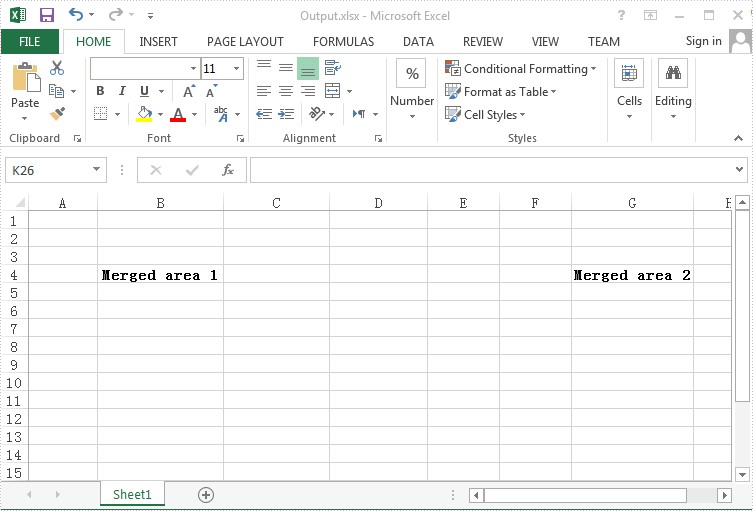
Spire.XLS provides a class named Worksheet, it contains a MergedCells property which makes it easy for us to obtain the merged cells in a worksheet. This property will return an array of the merged cell ranges, after that we can do any desired operations such as unmerge and apply formatting on the cells in the ranges. This article explains how to detect all merged cells in a worksheet and unmerge them once using Spire.XLS.
Here we used a template Excel file which has some merged cells:

Detail steps:
Step 1: Instantiate a Workbook object and load the Excel file.
Workbook workbook = new Workbook();
workbook.LoadFromFile("Sample.xlsx");
Step 2: Access the first worksheet by passing its sheet index.
Worksheet sheet = workbook.Worksheets[0];
Step 3: Get the merged cell ranges in the first worksheet and put them into a CellRange array.
CellRange[] range = sheet.MergedCells;
Step 4: Traverse through the array and unmerge the merged cells.
foreach (CellRange cell in range)
{
    cell.UnMerge();
}
Step 5: Save the file.
workbook.SaveToFile("Output.xlsx",ExcelVersion.Version2010);
After executing the code, we'll get the following output file:
Full codes:
using Spire.Xls;

namespace Detect_Merged_Cells
{
    class Program
    {
        static void Main(string[] args)
        {
            Workbook workbook = new Workbook();
            workbook.LoadFromFile("Sample.xlsx");
            Worksheet sheet = workbook.Worksheets[0];

            CellRange[] range = sheet.MergedCells;
            foreach (CellRange cell in range)
            {
                cell.UnMerge();
            }
            workbook.SaveToFile("Output.xlsx",ExcelVersion.Version2010);
        }
    }
}
Imports Spire.Xls

Namespace Detect_Merged_Cells
	Class Program
		Private Shared Sub Main(args As String())
			Dim workbook As New Workbook()
			workbook.LoadFromFile("Sample.xlsx")
			Dim sheet As Worksheet = workbook.Worksheets(0)

			Dim range As CellRange() = sheet.MergedCells
			For Each cell As CellRange In range
				cell.UnMerge()
			Next
			workbook.SaveToFile("Output.xlsx",ExcelVersion.Version2010)
		End Sub
	End Class
End Namespace
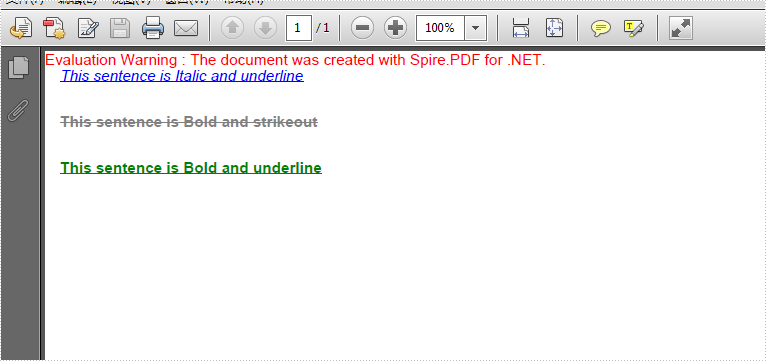
With the help of Spire.PDF, we have already demonstrated how to add text with different styles to a PDF file. By using the method canvas.drawstring offered by Spire.PDF, we can set the position, font, brush and style for the adding texts. With the PdfFontStyle, we can set the style to underline, bold, italic, regular and strikeout. Sometimes we may need to set multiple font style for the same texts within one paragraph, such as bold and italic together.
Here comes to the code snippet of how to apply two kinds of font styles together for the text on PDF in C#.
Step 1: Create a new PDF document.
PdfDocument pdf = new PdfDocument();
Step 2: Add a new page to the PDF file.
PdfPageBase page = pdf.Pages.Add(PdfPageSize.A4, new PdfMargins());
Step 3: Create the PdfFont as Helvetica with size 10f, apply two font styles for it.
PdfFont font = new PdfFont(PdfFontFamily.Helvetica,10f,PdfFontStyle.Italic | PdfFontStyle.Underline);
PdfFont font2 = new PdfFont(PdfFontFamily.Helvetica, 10f, PdfFontStyle.Bold | PdfFontStyle.Strikeout);
PdfFont font3 = new PdfFont(PdfFontFamily.Helvetica, 10f, PdfFontStyle.Bold | PdfFontStyle.Underline);
Step 4: Create a brush and set its color.
PdfSolidBrush brush = new PdfSolidBrush(Color.Blue);
PdfSolidBrush brush2 = new PdfSolidBrush(Color.Gray);
PdfSolidBrush brush3 = new PdfSolidBrush(Color.Green);
Step 5: Draw the text string at the specified location with the specified Brush and Font objects.
page.Canvas.DrawString("This sentence is Italic and underline", font, brush, new PointF(10, 10));
page.Canvas.DrawString("This sentence is Bold and strikeout", font2,brush2, new PointF(10, 40));
page.Canvas.DrawString("This sentence is Bold and underline",font3,brush3,new PointF(10, 70));
Step 6: Save the document to file.
pdf.SaveToFile("reslut.pdf");
Please check the effective screenshot as below:
Full codes:
using Spire.Pdf;
using Spire.Pdf.Graphics;
using System.Drawing;


namespace MultipleFontStyles
{
    class Program
    {
        static void Main(string[] args)
        {
            PdfDocument pdf = new PdfDocument();
            PdfPageBase page = pdf.Pages.Add(PdfPageSize.A4, new PdfMargins());

            PdfFont font = new PdfFont(PdfFontFamily.Helvetica, 10f, PdfFontStyle.Italic | PdfFontStyle.Underline);
            PdfFont font2 = new PdfFont(PdfFontFamily.Helvetica, 10f, PdfFontStyle.Bold | PdfFontStyle.Strikeout);
            PdfFont font3 = new PdfFont(PdfFontFamily.Helvetica, 10f, PdfFontStyle.Bold | PdfFontStyle.Underline);

            PdfSolidBrush brush = new PdfSolidBrush(Color.Blue);
            PdfSolidBrush brush2 = new PdfSolidBrush(Color.Gray);
            PdfSolidBrush brush3 = new PdfSolidBrush(Color.Green);

            page.Canvas.DrawString("This sentence is Italic and underline", font, brush, new PointF(10, 10));
            page.Canvas.DrawString("This sentence is Bold and strikeout", font2, brush2, new PointF(10, 40));
            page.Canvas.DrawString("This sentence is Bold and underline", font3, brush3, new PointF(10, 70));

            pdf.SaveToFile("reslut.pdf");
        }
    }
}
