
Knowledgebase (2417)
Children categories
Embed private font into Word document when save as .docx file format
2016-11-09 08:49:02 Written by KoohjiNow Spire.Doc supports to embed private fonts from font files into Word document when save as .docx file format. This article will show you the detail steps of how to accomplish this task by using Spire.Doc.
For demonstration, we used a font file DeeDeeFlowers.ttf.
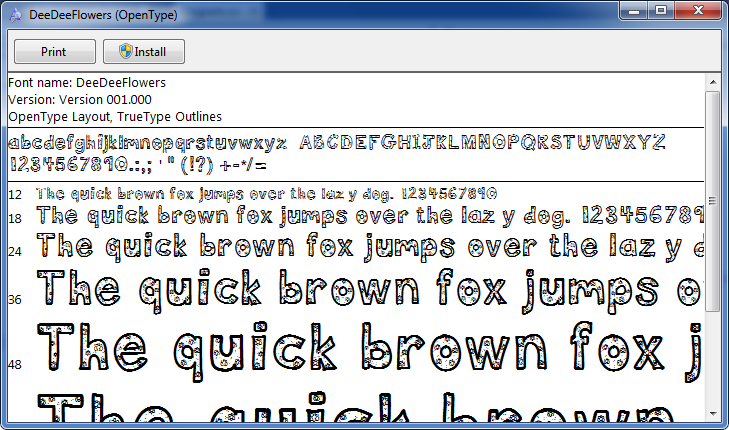
In the following part, we will embed font from above file into a Word document and use it to create text.
Step 1: Create a blank Word document.
Document document = new Document();
Step 2: Add a section and a paragraph to the document.
Section section = document.AddSection();
Paragraph p = section.AddParagraph();
Step 3: Append text to the paragraph, then set the font name and font size for the text.
TextRange range = p.AppendText("Let life be beautiful like summer flowers\n"
    +"Life, thin and light-off time and time again\n"
    + "Frivolous tireless");
range.CharacterFormat.FontName = "DeeDeeFlowers";
range.CharacterFormat.FontSize = 20;
Step 4: Allow embedding font in document by setting the Boolean value of EmbedFontsInFile property to true.
document.EmbedFontsInFile = true;
Step 5: Embed private font from font file into the document.
document.PrivateFontList.Add(new PrivateFontPath("DeeDeeFlowers", @"E:\Program Files\DeeDeeFlowers.ttf"));
Step 6: Save as .docx file format.
document.SaveToFile("result.docx", FileFormat.Docx);
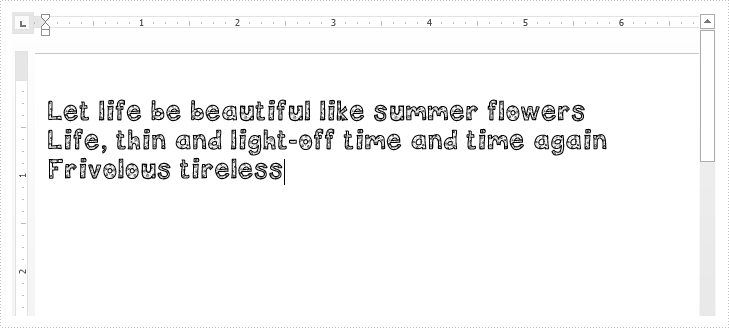
After running the code, we'll get the following output:
Full code:
using Spire.Doc;
using Spire.Doc.Documents;
using Spire.Doc.Fields;

namespace Embed_private_font_into_Word
{
    class Program
    {
        static void Main(string[] args)
        {
            Document document = new Document();
            Section section = document.AddSection();
            Paragraph p = section.AddParagraph();

            TextRange range = p.AppendText("Let life be beautiful like summer flowers\n"
                +"Life, thin and light-off time and time again\n"
                + "Frivolous tireless");
            range.CharacterFormat.FontName = "DeeDeeFlowers";
            range.CharacterFormat.FontSize = 20;

            document.EmbedFontsInFile = true;
            document.PrivateFontList.Add(new PrivateFontPath("DeeDeeFlowers", @"E:\Program Files\DeeDeeFlowers.ttf"));

            document.SaveToFile("result.docx", FileFormat.Docx);
        }
    }
}
Sometimes we only need to get the text from the word document for other use when we deal with the word documents with large amount of information. With the help of Spire.Doc, we have already demonstrated how to extract the text from the word document by traverse every paragraph on the word document and then append the text accordingly. This article will show you how to use the method of doc.GetText() to extract the text directly from the word documents with texts, images and tables. It is more convenient for developers to extract the text from the word document from code.
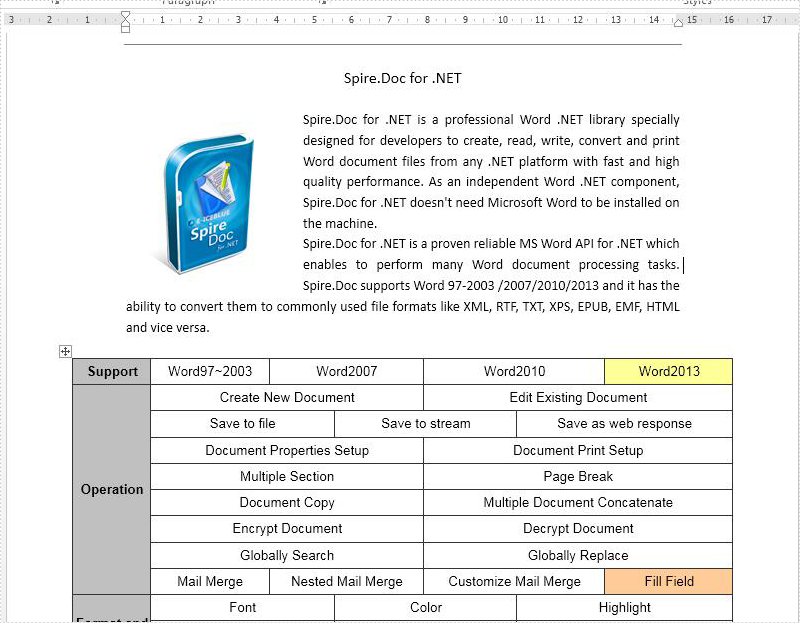
Firstly, view the sample word document which will be extracted the text firstly:
Step 1: Create a word instance and load the source word document from file.
Document doc = new Document();
doc.LoadFromFile("Sample.docx");
Step 2: Invoke the doc.GetText() method to get all the texts from the word document.
string s = doc.GetText();
Step 3: Create a New TEXT File to Save Extracted Text.
File.WriteAllText("Extract.txt", s.ToString());
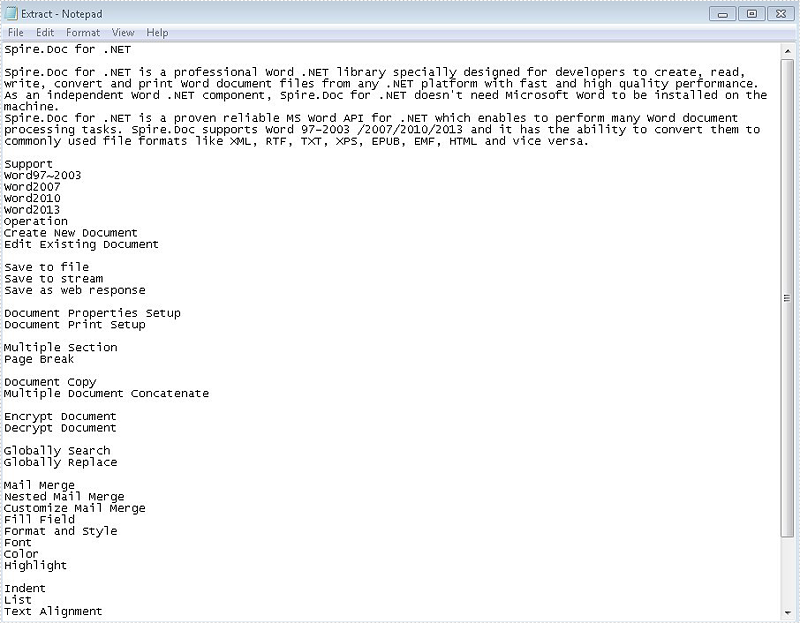
Effective screenshot after get all the text from the word document:
Full codes:
using Spire.Doc;
using System.IO;
namespace GetText
{
   class WordText
 {
   public void GetText()
   {
     Document doc = new Document();
     doc.LoadFromFile("Sample.docx");

     string s = doc.GetText();

     File.WriteAllText("Extract.txt", s.ToString());

    }
 }
}
Getting the coordinates of text or an image in a PDF is a useful task that allows precise referencing and manipulation of specific elements within the document. By extracting the coordinates, one can accurately identify the position of text or images on each page. This information proves valuable for tasks like data extraction, text recognition, or highlighting specific areas. This article introduces how to get the coordinate information of text or an image in a PDF document in C# using Spire.PDF for .NET.
Install Spire.PDF for .NET
To begin with, you need to add the DLL files included in the Spire.PDF for .NET package as references in your .NET project. You can download Spire.PDF for .NET from our website or install it directly through NuGet.
PM> Install-Package Spire.PDF
Get Coordinates of Text in PDF in C#
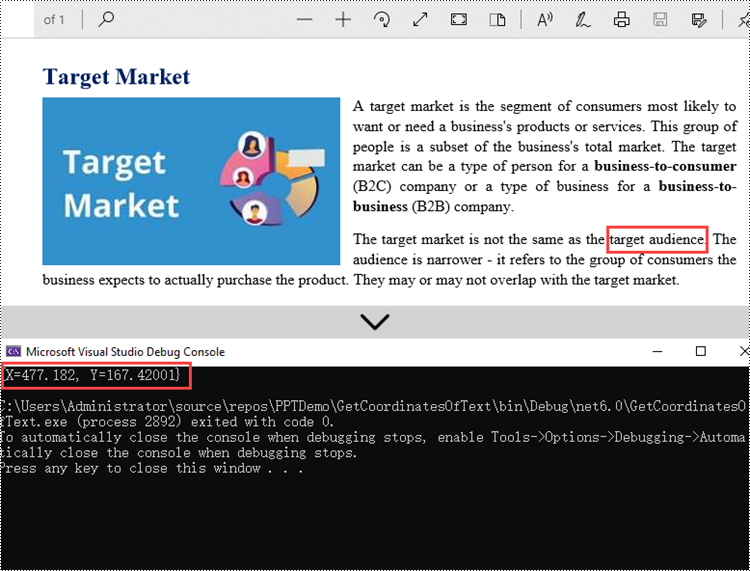
The PdfTextFinder.Find() method provided by Spire.PDF can help us find all instances of the string to be searched in a searchable PDF document. The coordinate information of a specific instance can be obtained through the PdfTextFragment.Positions property. The following are the step to get the (X, Y) coordinates of the specified text in a PDF using Spire.PDF for .NET.
- Create a PdfDocument object.
- Load a PDF file using PdfDocument.LoadFromFile() method.
- Loop through the pages in the document.
- Create a PdfTextFinder object, and get all instances of the specified text from a page using PdfTextFinder.Find() method.
- Loop through the find results and get the coordinate information of a specific result through PdfTextFragment.Positions property.
- C#
using Spire.Pdf;
using Spire.Pdf.Texts;
using System.Collections.Generic;
using System;
using System.Drawing;

namespace GetCoordinatesOfText
{
    class Program
    {
        static void Main(string[] args)
        {
            //Create a PdfDocument object
            PdfDocument doc = new PdfDocument();

            //Load a PDF file
            doc.LoadFromFile("C:\\Users\\Administrator\\Desktop\\input.pdf");

            //Loop through all pages
            foreach (PdfPageBase page in doc.Pages)
            {
                //Create a PdfTextFinder object
                PdfTextFinder finder = new PdfTextFinder(page);

                //Set the find options
                PdfTextFindOptions options = new PdfTextFindOptions();
                options.Parameter = TextFindParameter.IgnoreCase;
                finder.Options = options;

                //Find all instances of a specific text
                List<PdfTextFragment> fragments = finder.Find("target audience");

                //Loop through the instances
                foreach (PdfTextFragment fragment in fragments)
                {
                    //Get the position of a specific instance
                    PointF found = fragment.Positions[0];
                    Console.WriteLine(found);
                }
            }
        }
    }
}
Get Coordinates of an Image in PDF in C#
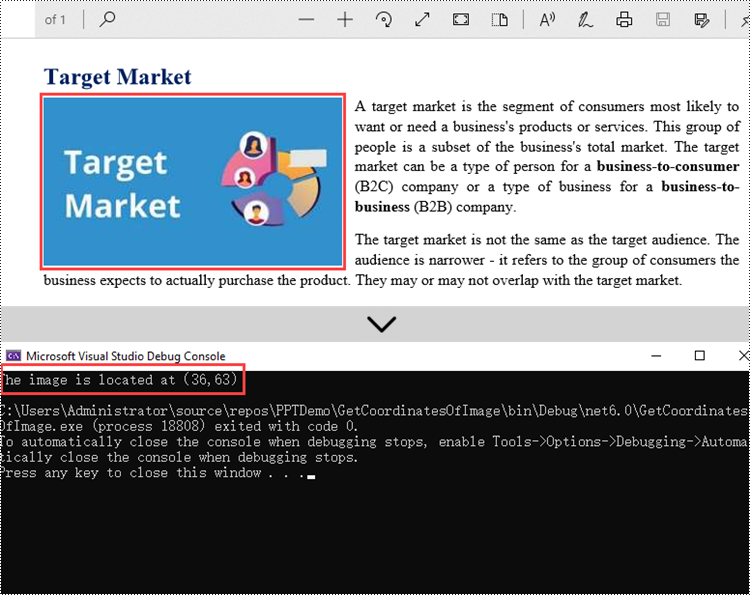
Spire.PDF provides the PdfImageHelper.GetImagesInfo() method to help us get all image information on a specific page. The coordinate information of a specific image can be obtained through the PdfImageInfo.Bounds property. The following are the steps to get the coordinates of an image in a PDF document using Spire.PDF for .NET.
- Create a PdfDocument object.
- Load a PDF file using PdfDocument.LoadFromFile() method.
- Get a specific page through PdfDocument.Pages[index] property.
- Create a PdfImageHelper object, and get all image information from the page using PdfImageHelper.GetImageInfo() method.
- Get the coordinate information of a specific image through PdfImageInfo.Bounds property.
- C#
using Spire.Pdf;
using Spire.Pdf.Utilities;

namespace GetCoordinatesOfImage
{
    class Program
    {
        static void Main(string[] args)
        {
            //Create a PdfDocument object
            PdfDocument doc = new PdfDocument();

            //Load a PDF file
            doc.LoadFromFile("C:\\Users\\Administrator\\Desktop\\input.pdf");

            //Get a specific page
            PdfPageBase page = doc.Pages[0];

            //Create a PdfImageHelper object
            PdfImageHelper helper = new PdfImageHelper();

            //Get image information from the page
            PdfImageInfo[] images = helper.GetImagesInfo(page);

            //Get X,Y coordinates of a specific image
            float xPos = images[0].Bounds.X;
            float yPos = images[0].Bounds.Y;
            Console.WriteLine("The image is located at({0},{1})", xPos, yPos);
        }
    }
}
Apply for a Temporary License
If you'd like to remove the evaluation message from the generated documents, or to get rid of the function limitations, please request a 30-day trial license for yourself.
