
Knowledgebase (2417)
Children categories
SVG (Scalable Vector Graphics) is an image file format and it has the advantage of be edited and indexed easily. It is widely used for interactivity and animation. Starts from Spire.Doc V5.8, Spire.Doc offers a method doc.SaveToFile() to enable developers to save the word document to SVG file format in C# easily. This article will focus on demonstrate how to convert word document to SVG with the help of Spire.Doc by using a simple line of code in C#.
Firstly, please view the original word document:

Step 1: Create a C# project in visual studio, then add a reference to Spire.Doc.dll and use the following namespace.
using Spire.Doc;
Step 2: Create a word instance and load the source word document from file.
Document doc = new Document();
doc.LoadFromFile("Sample.docx");
Step 3: Save the document to SVG file.
doc.SaveToFile("result.svg", FileFormat.SVG);
After running the code, we'll get the effective screenshot of the following result SVG file from word document:

Full codes:
using Spire.Doc;

namespace wordconversion.Case
{
    class WordtoSVG
    {

         public WordtoSVG()
         {
        Document doc = new Document();
        doc.LoadFromFile("Sample.docx");

        doc.SaveToFile("result.svg", FileFormat.SVG);
         }

    }
}
Videos are common elements in PowerPoint, sometimes developers need to extract videos from PowerPoint documents and save them to disk programmatically. Spire.Presentation provides developers many flexible functions to manipulate PowerPoint documents including extract Videos. This article will explain how to achieve this task in C# and VB.NET using Spire.Presentation.
Note: Before start, please download and install Spire.Presentation correctly, after that add a reference to Spire.Presentation.dll in your project.
Detail steps:
Step 1: Instantiate an object of Presentation class and load the sample document.
Presentation presentation = new Presentation();
presentation.LoadFromFile(@"C:\Users\Administrator\Desktop\Sample.pptx");
Step 2: Loop through all shapes on the slides, find out the videos and then call VideoData.SaveToFile(string fileName) method to save them to disk.
int i = 0;
foreach (ISlide slide in presentation.Slides)
{
    foreach (IShape shape in slide.Shapes)
    {
        if (shape is IVideo)
        {
            (shape as IVideo).EmbeddedVideoData.SaveToFile(string.Format(@"Video\Video-{0}.mp4",i));
            i++;
        }
    }
}
Below are the extracted videos from the PowerPoint document:

Full code:
using Spire.Presentation;

namespace Extract_Video
{
    class Program
    {
        static void Main(string[] args)
        {
            Presentation presentation = new Presentation();
            presentation.LoadFromFile(@"C:\Users\Administrator\Desktop\Sample.pptx");
            int i = 0;
            foreach (ISlide slide in presentation.Slides)
            {
                foreach (IShape shape in slide.Shapes)
                {
                    if (shape is IVideo)
                    {
                        (shape as IVideo).EmbeddedVideoData.SaveToFile(string.Format(@"Video\Video-{0}.mp4",i));
                        i++;
                    }
                }
            }

        }
    }
}
Imports Spire.Presentation

Namespace Extract_Video
	Class Program
		Private Shared Sub Main(args As String())
			Dim presentation As New Presentation()
			presentation.LoadFromFile("C:\Users\Administrator\Desktop\Sample.pptx")
			Dim i As Integer = 0
			For Each slide As ISlide In presentation.Slides
				For Each shape As IShape In slide.Shapes
					If TypeOf shape Is IVideo Then
						TryCast(shape, IVideo).EmbeddedVideoData.SaveToFile(String.Format("Video\Video-{0}.mp4", i))
						i += 1
					End If
				Next
			Next

		End Sub
	End Class
End Namespace
Required fields force the user to fill in the selected form field. If the user attempts to submit the form while a required field is blank, an error message appears and the empty required form field is highlighted.
Using Spire.PDF, we're able to enforce a form field as "Required" or determine which fields are required in an existing PDF document. This article mainly introduce how to detect the required form fields in C# and VB.NET.
Code Snippet:
Step 1: Initialize an instance of PdfDocument class and load a sample PDF file that contains some form fields.
PdfDocument doc = new PdfDocument();
doc.LoadFromFile(@"C: \Users\Administrator\Desktop\PdfFormExample.pdf");
Step 2: Get all form widgets from the PDF document.
PdfFormWidget formWidget = doc.Form as PdfFormWidget;
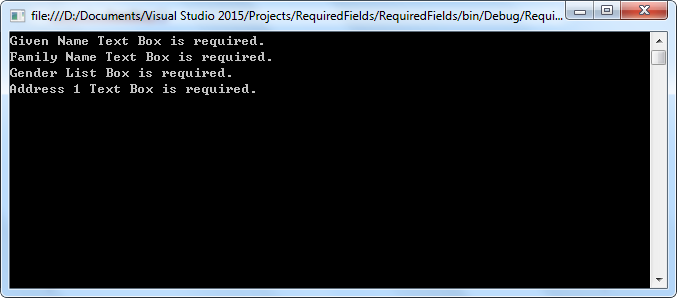
Step 3: Traverse the form widgets to find the form field that is required and print all results on console.
for (int i = 0; i < formWidget.FieldsWidget.List.Count; i++)
{
    PdfField field = formWidget.FieldsWidget.List[i] as PdfField;
    string fieldName = field.Name;
    bool isRequired = field.Required;
    if (isRequired)
    {
        Console.WriteLine(fieldName + " is required.");
    }
}
Output:
Full Code:
using Spire.Pdf;
using Spire.Pdf.Fields;
using Spire.Pdf.Widget;
using System;

namespace Detect
{
    class Program
    {
        static void Main(string []args)
        {
            PdfDocument doc = new PdfDocument();
            doc.LoadFromFile(@"C: \Users\Administrator\Desktop\PdfFormExample.pdf");

            PdfFormWidget formWidget = doc.Form as PdfFormWidget;
            for (int i = 0; i < formWidget.FieldsWidget.List.Count; i++)
            {
                PdfField field = formWidget.FieldsWidget.List[i] as PdfField;
                string fieldName = field.Name;
                bool isRequired = field.Required;
                if (isRequired)
                {
                    Console.WriteLine(fieldName + " is required.");
                }
            }
            Console.ReadKey();
        }
    }
}
Imports Spire.Pdf
Imports Spire.Pdf.Fields
Imports Spire.Pdf.Widget

Namespace Detect
	Class Program
		Private Shared Sub Main(args As String())
			Dim doc As New PdfDocument()
			doc.LoadFromFile("C: \Users\Administrator\Desktop\PdfFormExample.pdf")

			Dim formWidget As PdfFormWidget = TryCast(doc.Form, PdfFormWidget)
			For i As Integer = 0 To formWidget.FieldsWidget.List.Count - 1
				Dim field As PdfField = TryCast(formWidget.FieldsWidget.List(i), PdfField)
				Dim fieldName As String = field.Name
				Dim isRequired As Boolean = field.Required
				If isRequired Then
					Console.WriteLine(fieldName & Convert.ToString(" is required."))
				End If
			Next
			Console.ReadKey()
		End Sub
	End Class
End Namespace
