
Knowledgebase (2417)
Children categories
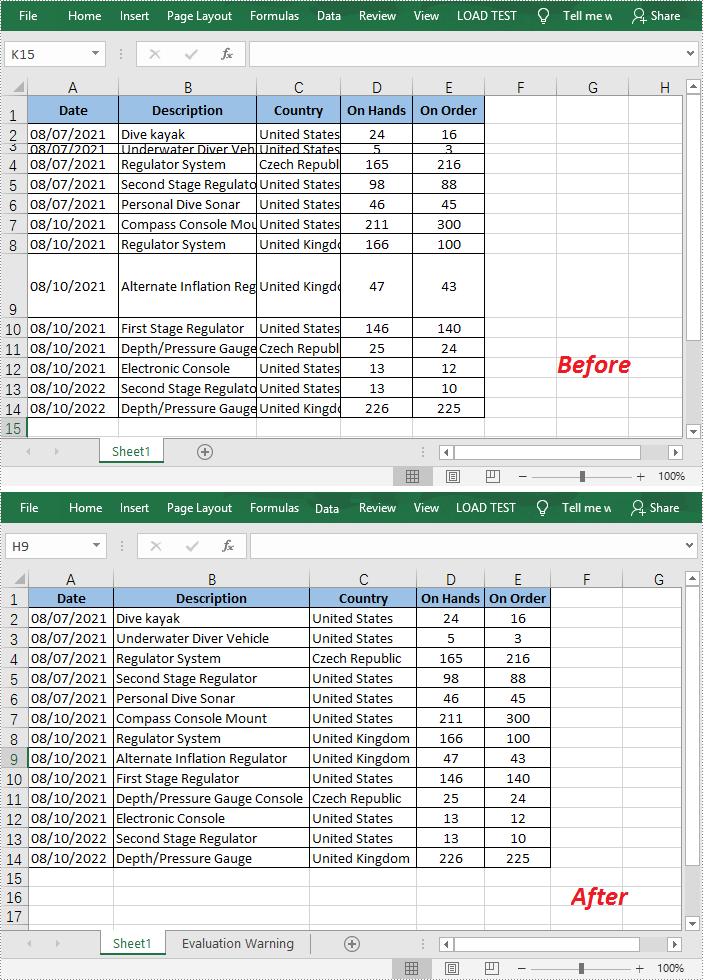
When the text entered in a cell is too long to be fully displayed in the current cell, the “AutoFit” feature in Excel allows you to quickly adjust the column width or row height to fit all the content and make the entire worksheet more readable. In this article, you will learn how to programmatically AutoFit the column width and row height in an Excel worksheet using Spire.XLS for .NET.
Install Spire.XLS for .NET
To begin with, you need to add the DLL files included in the Spire.XLS for .NET package as references in your .NET project. The DLL files can be either downloaded from this link or installed via NuGet.
PM> Install-Package Spire.XLS
AutoFit Column Width and Row Height in Excel
The detailed steps are as follows.
- Create a Workbook object.
- Load a sample Excel document using Workbook.LoadFromFile() method.
- Get a specified worksheet using Workbook.Worksheets[] property.
- Get the used range on the specified worksheet using Worksheet.AllocatedRange property.
- AutoFit column width and row height in the range using CellRange.AutoFitColumns() and CellRange.AutoFitRows() methods.
- Save the result file using Workbook.SaveToFile() method.
- C#
- VB.NET
using Spire.Xls;

namespace AutofitColumn
{
    class Program
    {
        static void Main(string[] args)
        {
            //Create a Workbook object
            Workbook workbook = new Workbook();

            //Load a sample Excel document
            workbook.LoadFromFile(@"E:\Files\Test.xlsx");

            //Get the first worksheet
            Worksheet worksheet = workbook.Worksheets[0];

            //AutoFit column width and row height
            worksheet.AllocatedRange.AutoFitColumns();
            worksheet.AllocatedRange.AutoFitRows();

            //Save the result file
            workbook.SaveToFile("AutoFit.xlsx", FileFormat.Version2010);
        }
    }
}
Apply for a Temporary License
If you'd like to remove the evaluation message from the generated documents, or to get rid of the function limitations, please request a 30-day trial license for yourself.
Trendline
A trendline is a line superimposed on a chart revealing the overall direction of the data. There are six different types of trendlines:
- linear
- logarithmic
- polynomial
- power
- exponential
- moving average
Add trendline for chart series
Spire.Presentation enables developers to add all types of the trendlines mentioned above by using Charts.ChartSeriesDataFormat.AddTrendLine() method and set the trendline type by using Charts.TrendlinesType enum.
Here comes to the detailed steps:
Step 1: Initialize a new instance of Presentation class and load the ppt file.
Presentation ppt = new Presentation();
ppt.LoadFromFile("Sample.pptx");
Step 2: Get the target chart, add trendline for the first data series of the chart and specify the trendline type.
IChart chart = ppt.Slides[0].Shapes[0] as IChart;
ITrendlines it = chart.Series[0].AddTrendLine(TrendlinesType.Linear);
//Set the trendline properties to determine what should be displayed.
it.displayEquation = false;
it.displayRSquaredValue = false;
Step 3: Save the file.
ppt.SaveToFile("output.pptx",FileFormat.Pptx2010);
Output:

Full codes:
using Spire.Presentation;
using Spire.Presentation.Charts;

namespace Add_trendline_for_chart_series
{
    class Program
    {
        static void Main(string[] args)
        {
            Presentation ppt = new Presentation();
            ppt.LoadFromFile("Sample.pptx");

            IChart chart = ppt.Slides[0].Shapes[0] as IChart;
            ITrendlines it = chart.Series[0].AddTrendLine(TrendlinesType.Linear);
            it.displayEquation = false;
            it.displayRSquaredValue = false;

            ppt.SaveToFile("output.pptx",FileFormat.Pptx2010);
        }
    }
}
A text box can be formatted to display number, currency, date, time, zip code, phone number, social security number, etc. Adobe Acrobat provides various built-in JavaScripts, such as AFNumber_Keystroke(2, 0, 0, 0, "$", true) and AFNumber_Format(2, 0, 0, 0, "$", true), to format and validate the input of text field. The script with Format suffix is used to format the input, the script with Keystroke suffix is used to validate the input.
However, Spire.PDF has offered corresponding methods to perform formatting and validation on text field. Here is the list of frequently used formats and corresponding methods in Spire.PDF.
| Description | Example | JavaScript | Method |
| Date | 01/31/2008 | AFDate_FormatEx("mm/dd/yyyy"); AFDate_KeystrokeEx("mm/dd/yyyy"); |
GetDateFormatString("mm/dd/yyyy"); GetDateKeystrokeString("mm/dd/yyyy"); |
| Date | 1/31/2008 | AFDate_FormatEx("m/d/yyyy"); AFDate_KeystrokeEx("m/d/yyyy"); |
GetDateFormatString("m/d/yyyy"); GetDateKeystrokeString("m/d/yyyy"); |
| Zip code | 12345 | AFSpecial_Format(0); AFSpecial_Keystroke(0); |
GetSpecialFormatString(0); GetSpecialKeystrokeString(0); |
| Zip+4 | 12345-1234 | AFSpecial_Format(1); AFSpecial_Keystroke(1); |
GetSpecialFormatString(1); GetSpecialKeystrokeString(1); |
| Phone number | (123) 456-7890 | AFSpecial_Format(2); AFSpecial_Keystroke(2); |
GetSpecialFormatString(2); GetSpecialKeystrokeString(2); |
| Money (minus sign if negative) | $12,345.00 -$12,345.00 |
AFNumber_Format(2, 0, 0, 0, "$", true); AFNumber_Keystroke(2, 0, 0, 0, "$", true); |
GetNumberFormatString(2, 0, 0, 0, "$", true); GetNumberKeystrokeString(2, 0, 0, 0, "$", true); |
| Validate | 1.5≤input value≤5.5 | AFRange_Validate(true,1.5,true,5.5) | GetRangeValidateString(true, 1.5, true, 5.5); |
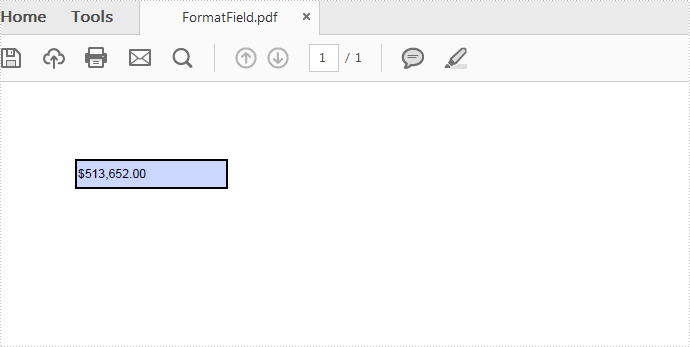
This tutorial demonstrates how to create a text box and display its contents in currency format in C# and VB.NET.
Code Snippets:
Step 1: Create an object of PdfDocument and add a page to it.
PdfDocument pdf = new PdfDocument();
PdfPageBase page = pdf.Pages.Add();
Step 2: Initialize an instance of PdfTextBoxField class and set its position, border width and border style.
PdfTextBoxField textbox = new PdfTextBoxField(page, "Number-TextBox");
textbox.Bounds = new RectangleF(10, 10, 100, 20);
textbox.BorderWidth = 0.75f;
textbox.BorderStyle = PdfBorderStyle.Solid;
Step 3: Set a JavaScript action to be performed when uses type a keystroke into a text field. This action can check the keystroke for validity and reject or modify it.
string js = PdfJavaScript.GetNumberKeystrokeString(2, 0, 0, 0, "$", true);
PdfJavaScriptAction jsAction = new PdfJavaScriptAction(js);
textbox.Actions.KeyPressed = jsAction;
Step 4: Set a JavaScript action to format the value of text field before showing it.
js = PdfJavaScript.GetNumberFormatString(2, 0, 0, 0, "$", true);
jsAction = new PdfJavaScriptAction(js);
textbox.Actions.Format = jsAction;
Step 5: Add the text box to PDF field and save the file.
pdf.Form.Fields.Add(textbox);
pdf.SaveToFile("FormatField.pdf",FileFormat.PDF);
Output:
Full Code:
using Spire.Pdf;
using Spire.Pdf.Actions;
using Spire.Pdf.Fields;
using System.Drawing;

namespace FormatTextboxField
{
    class Program
    {
        static void Main(string []args)
        {
            PdfDocument pdf = new PdfDocument();
            PdfPageBase page = pdf.Pages.Add();
            PdfTextBoxField textbox = new PdfTextBoxField(page, "Number-TextBox");
            textbox.Bounds = new RectangleF(10, 10, 100, 20);
            textbox.BorderWidth = 0.75f;
            textbox.BorderStyle = PdfBorderStyle.Solid;

            string js = PdfJavaScript.GetNumberKeystrokeString(2, 0, 0, 0, "$", true);
            PdfJavaScriptAction jsAction = new PdfJavaScriptAction(js);
            textbox.Actions.KeyPressed = jsAction;

            js = PdfJavaScript.GetNumberFormatString(2, 0, 0, 0, "$", true);
            jsAction = new PdfJavaScriptAction(js);
            textbox.Actions.Format = jsAction;

            pdf.Form.Fields.Add(textbox);
            pdf.SaveToFile("FormatField.pdf", FileFormat.PDF);
        }
    }
}
Imports Spire.Pdf
Imports Spire.Pdf.Actions
Imports Spire.Pdf.Fields
Imports System.Drawing

Namespace FormatTextboxField
	Class Program
		Private Shared Sub Main(args As String())
			Dim pdf As New PdfDocument()
			Dim page As PdfPageBase = pdf.Pages.Add()
			Dim textbox As New PdfTextBoxField(page, "Number-TextBox")
			textbox.Bounds = New RectangleF(10, 10, 100, 20)
			textbox.BorderWidth = 0.75F
			textbox.BorderStyle = PdfBorderStyle.Solid

			Dim js As String = PdfJavaScript.GetNumberKeystrokeString(2, 0, 0, 0, "$", True)
			Dim jsAction As New PdfJavaScriptAction(js)
			textbox.Actions.KeyPressed = jsAction

			js = PdfJavaScript.GetNumberFormatString(2, 0, 0, 0, "$", True)
			jsAction = New PdfJavaScriptAction(js)
			textbox.Actions.Format = jsAction

			pdf.Form.Fields.Add(textbox)
			pdf.SaveToFile("FormatField.pdf", FileFormat.PDF)
		End Sub
	End Class
End Namespace
