
Knowledgebase (2417)
Children categories
Sometimes, we may need to change the zoom factor when displaying the data on the excel worksheet to fulfil our requirements. In this article, we will demonstrate how to set the zoom factor on Excel work sheet in C# with the help of Spire.XLS.
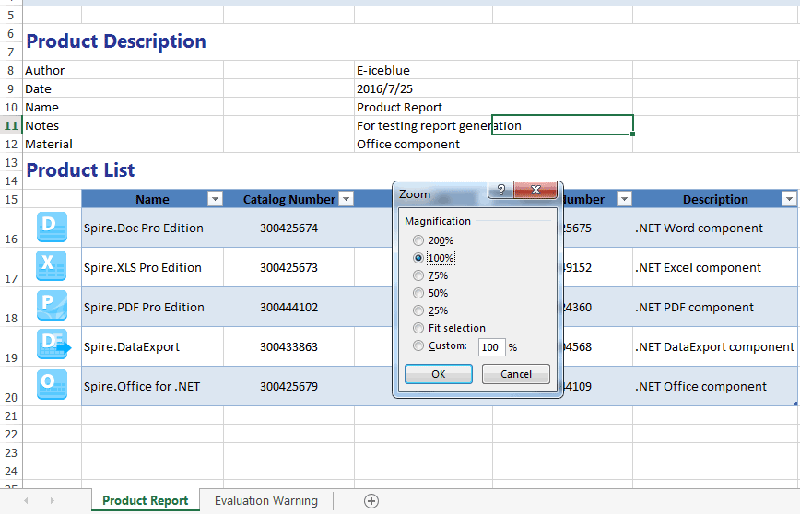
Firstly, please view the screenshot of how Microsoft Excel to set the zoom factor after click View--Zoom on the top toolbox:

Spire.XLS enables developers to set the value of worksheet’s zoom property to the specific zoom factor via sheet.Zoom. Here comes to the steps of how to control the zoom factor by Spire.XLS.
Step 1: Create a new Excel workbook and load from file.
Workbook wb = new Workbook();
wb.LoadFromFile("Sample.xlsx");
Step 2: Get the first worksheet from the Excel workbook.
Worksheet sheet = wb.Worksheets[0];
Step 3: Set the value of worksheet's zoom property to the specific zoom factor.
sheet.Zoom = 100;
Step 4: Save the document to file.
wb.SaveToFile("result.xlsx", ExcelVersion.Version2010);
Effective screenshot after setting the zoom factor:
Full codes:
using Spire.Xls;
namespace Zoom
{
    class Program
    {

        static void Main(string[] args)
        {

            Workbook wb = new Workbook();
            wb.LoadFromFile("Sample.xlsx");

            Worksheet sheet = wb.Worksheets[0];
            sheet.Zoom = 100;

            wb.SaveToFile("result.xlsx", ExcelVersion.Version2010);
        }
    }
}
Split a Word document into multiple documents by section break in C#
2016-07-25 08:45:33 Written by KoohjiIn Word, we can split a word document in an easiest way - open a copy of the original document, delete the sections that we don’t want and then save the remains to local drive. But doing this section by section is rather cumbersome and boring. This article will explain how we can use Spire.Doc for .NET to programmatically split a Word document into multiple documents by section break instead of copying and deleting manually.
Detail steps and code snippets:
Step 1: Initialize a new word document object and load the original word document which has two sections.
Document document = new Document();
document.LoadFromFile("Test.docx");
Step 2: Define another new word document object.
Document newWord;
Step 3: Traverse through all sections of the original word document, clone each section and add it to a new word document as new section, then save the document to specific path.
for (int i = 0; i < document.Sections.Count; i++)
{
    newWord = new Document();
    newWord.Sections.Add(document.Sections[i].Clone());
    newWord.SaveToFile(String.Format(@"test\out_{0}.docx", i));
}
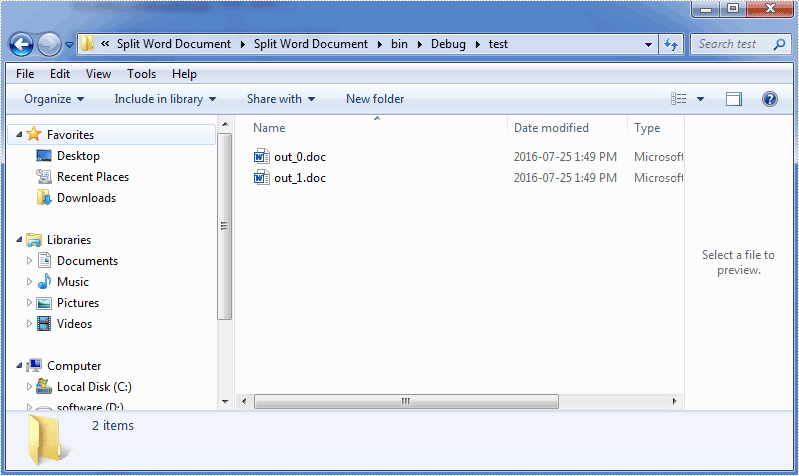
Run the project and we'll get the following output:
Full codes:
using System;
using Spire.Doc;

namespace Split_Word_Document
{
    class Program
    {
        static void Main(string[] args)
        {
            Document document = new Document();
            document.LoadFromFile("Test.doc");
            Document newWord;
            for (int i = 0; i < document.Sections.Count; i++)
            {
                newWord = new Document();
                newWord.Sections.Add(document.Sections[i].Clone());
                newWord.SaveToFile(String.Format(@"test\out_{0}.docx", i));
            }
        }
    }
}
Add simplified and traditional Chinese characters to PDF in C#/VB.NET
2016-07-21 08:02:26 Written by KoohjiSpire.PDF for .NET provides several font classes such as PdfFont, PdfTrueTypeFont and PdfCjkStandardFont which enable developers to add various fonts to PDF files. In this article we will learn how to generate fonts that support Chinese characters and use the fonts to add simplified and traditional Chinese characters to a PDF file in C# and VB.NET.
Before start, please ensure you have installed the corresponding font on system. If not, you can download it from the following link:
http://www.adobe.com/support/downloads/thankyou.jsp?ftpID=5508&fileID=5521
Detail steps and code snippets:
Step 1: Create a new PDF document and add a new page to it.
PdfDocument pdf = new PdfDocument();
PdfPageBase page = pdf.Pages.Add();
Step 2: Use PdfTrueTypeFont class and PdfCjkStandardFont class to generate fonts that support simplified and traditional Chinese characters.
PdfTrueTypeFont font = new PdfTrueTypeFont(new Font("Arial Unicode MS", 11f), true);
PdfCjkStandardFont font1 = new PdfCjkStandardFont(PdfCjkFontFamily.MonotypeSungLight, 11f);
Step 3: Use PdfCanvas.DrawString(string s, PdfFontBase font, PdfBrush brush, float x, float y) method and the generated fonts to draw Chinese characters to specified location of the PDF file.
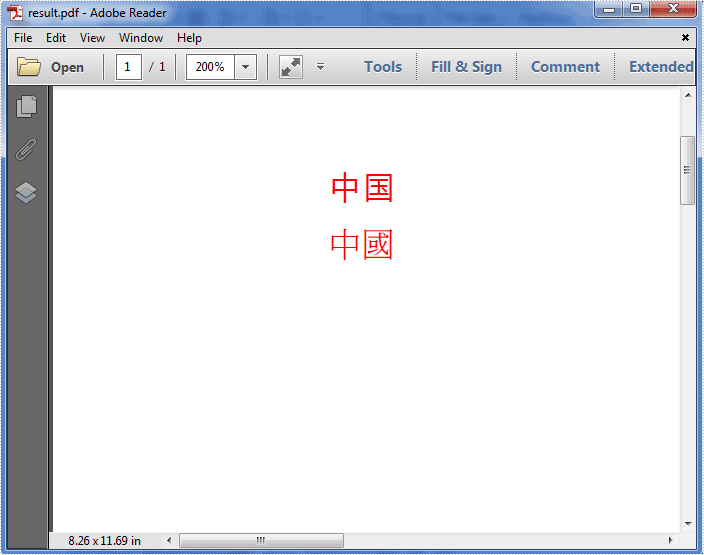
page.Canvas.DrawString("中国", font, PdfBrushes.Red, 50, 50);
page.Canvas.DrawString("中國", font1, PdfBrushes.Red, 50, 70);
Step 4: Save the PDF file to disk.
pdf.SaveToFile("result.pdf");
Run the project and we'll get the following result PDF file:
Full codes:
using Spire.Pdf;
using Spire.Pdf.Graphics;
using System.Drawing;

namespace Add_Chinese_Characters_to_PDF
{
    class Program
    {
        static void Main(string[] args)
        {
            PdfDocument pdf = new PdfDocument();
            PdfPageBase page = pdf.Pages.Add();

            PdfTrueTypeFont font = new PdfTrueTypeFont(new Font("Arial Unicode MS", 11f), true);
            PdfCjkStandardFont font1 = new PdfCjkStandardFont(PdfCjkFontFamily.MonotypeSungLight, 11f);
            page.Canvas.DrawString("中国", font, PdfBrushes.Red, 50, 50);
            page.Canvas.DrawString("中國", font1, PdfBrushes.Red, 50, 70);
            pdf.SaveToFile("result.pdf");
            System.Diagnostics.Process.Start("result.pdf");
        }
    }
}
Imports Spire.Pdf
Imports Spire.Pdf.Graphics
Imports System.Drawing

Namespace Add_Chinese_Characters_to_PDF
	Class Program
		Private Shared Sub Main(args As String())
			Dim pdf As New PdfDocument()
			Dim page As PdfPageBase = pdf.Pages.Add()
			Dim font As New PdfTrueTypeFont(New Font("Arial Unicode MS", 11F), True)
			Dim font1 As New PdfCjkStandardFont(PdfCjkFontFamily.MonotypeSungLight, 11F)
			page.Canvas.DrawString("中国", font, PdfBrushes.Red, 50, 50)
			page.Canvas.DrawString("中國", font1, PdfBrushes.Red, 50, 70)
			pdf.SaveToFile("result.pdf")
			System.Diagnostics.Process.Start("result.pdf")
		End Sub
	End Class
End Namespace
