
Knowledgebase (2417)
Children categories
Open a PDF file at a specific zoom factor/percentage in C#/VB.NET
2016-07-08 02:46:34 Written by KoohjiSometimes, we may need to change the zoom factor when displaying a PDF file to fulfil our requirements. In this article, we will demonstrate how to open a PDF file at a specific zoom factor/percentage (such as default, 100 percent or any other zoom factors as required) by using Spire.PDF for .NET.
Now, please check the original zoom factor of the PDF file as below picture:
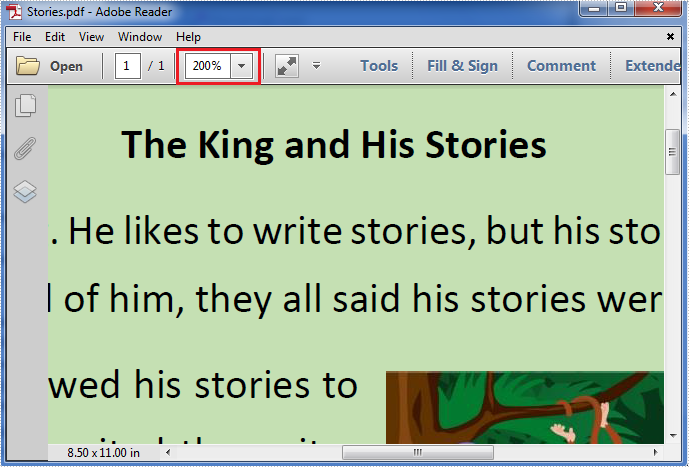
Then refer to the following detail steps:
Step 1: Create a new instance of PdfDocument class, load the original PDF file and get its first page.
PdfDocument pdf = new PdfDocument("Stories.pdf");
PdfPageBase page = pdf.Pages[0];
Step 2: Create a new PdfDestination object using the PdfDestination(PdfPageBase page, PointF location) class which has two parameters: the page and the page display location. Then set the value of its zoom property to the specific zoom factor/percentage.
PdfDestination dest = new PdfDestination(page, new PointF(-40f, -40f));
// Here we set its zoom factor to 100%. If you want to set the zoom factor to default, please set the value of zoom property to 0f.
dest.Zoom = 1f;
Step 3: Create a new instance of PdfGoToAction class and enable the zoom factor resetting action to be executed when the PDF file is opened.
PdfGoToAction gotoaction = new PdfGoToAction(dest);
pdf.AfterOpenAction = gotoaction;
Step 4: Save the PDF file.
pdf.SaveToFile("result.pdf");
The result zoom factor of the PDF file:
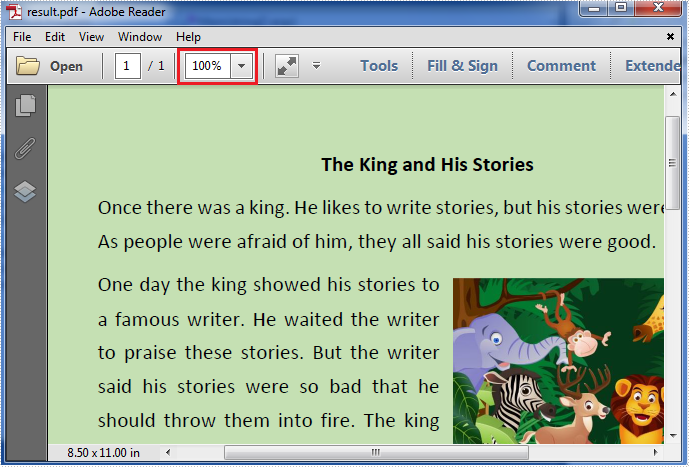
Full codes:
using Spire.Pdf;
using Spire.Pdf.Actions;
using Spire.Pdf.General;
using System.Drawing;

namespace Set_the_zoom_factor
{
    class Program
    {
        static void Main(string[] args)
        {
            PdfDocument pdf = new PdfDocument("Stories.pdf");
            PdfPageBase page = pdf.Pages[0];
            PdfDestination dest = new PdfDestination(page, new PointF(-40f, -40f));
            dest.Zoom = 1f;
            PdfGoToAction gotoaction = new PdfGoToAction(dest);
            pdf.AfterOpenAction = gotoaction;
            pdf.SaveToFile("result.pdf");
        }
    }
}
Imports Spire.Pdf
Imports Spire.Pdf.Actions
Imports Spire.Pdf.General
Imports System.Drawing

Namespace Set_the_zoom_factor
	Class Program
		Private Shared Sub Main(args As String())
			Dim pdf As New PdfDocument("Stories.pdf")
			Dim page As PdfPageBase = pdf.Pages(0)
			Dim dest As New PdfDestination(page, New PointF(-40F, -40F))
			dest.Zoom = 1F
			Dim gotoaction As New PdfGoToAction(dest)
			pdf.AfterOpenAction = gotoaction
			pdf.SaveToFile("result.pdf")
		End Sub
	End Class
End Namespace
By default, when we insert an image to a cell, the image automatically be placed at top left corner. If there are some text in the same cell, then the text will be covered by the image. To avoid the problem, we need to vertically or horizontally align the picture. This article focuses on how to align a picture within a cell using Spire.XLS with C#, VB.NET.
Code Snippet:
Step 1: Create an object of Workbook and get the first worksheet.
Workbook wb = new Workbook();
Worksheet sheet = wb.Worksheets[0];
Step 2: Insert an image to the specific cell using Pictures.Add(int topRow, int leftColumn, string filename) method.
string picPath = @"C:\Users\Administrator\Desktop\scenery.jpg";
ExcelPicture picture = sheet.Pictures.Add(1, 1, picPath);
Step 3: Adjust the column width and row height so that the cell can contain the picture.
sheet.Columns[0].ColumnWidth = 50;
sheet.Rows[0].RowHeight = 150;
Step 4: Vertically and horizontally align the image by setting values for LeftColumnOffset and TopRowOffset properties.
picture.LeftColumnOffset = 100;
picture.TopRowOffset = 25;
Step 5: Save the file.
wb.SaveToFile("AlignPicture.xlsx", ExcelVersion.Version2013);
Output:

Full Code:
using Spire.Xls;
namespace AlignPicture
{
    class Program
    {
        static void Main(string[] args)
        {
            Workbook wb = new Workbook();
            Worksheet sheet = wb.Worksheets[0];

            sheet.Range["A1"].Text = "Align Picture Within A Cell:";
            sheet.Range["A1"].Style.VerticalAlignment = VerticalAlignType.Top;

            string picPath = @"C:\Users\Administrator\Desktop\scenery.jpg";
            ExcelPicture picture = sheet.Pictures.Add(1, 1, picPath);

            sheet.Columns[0].ColumnWidth = 50;
            sheet.Rows[0].RowHeight = 150;

            picture.LeftColumnOffset = 100;
            picture.TopRowOffset = 25;

            wb.SaveToFile("AlignPicture.xlsx", ExcelVersion.Version2013);
        }
    }
}
Imports Spire.Xls
Namespace AlignPicture
	Class Program
		Private Shared Sub Main(args As String())
			Dim wb As New Workbook()
			Dim sheet As Worksheet = wb.Worksheets(0)

			sheet.Range("A1").Text = "Align Picture Within A Cell:"
			sheet.Range("A1").Style.VerticalAlignment = VerticalAlignType.Top

			Dim picPath As String = "C:\Users\Administrator\Desktop\scenery.jpg"
			Dim picture As ExcelPicture = sheet.Pictures.Add(1, 1, picPath)

			sheet.Columns(0).ColumnWidth = 50
			sheet.Rows(0).RowHeight = 150

			picture.LeftColumnOffset = 100
			picture.TopRowOffset = 25

			wb.SaveToFile("AlignPicture.xlsx", ExcelVersion.Version2013)
		End Sub
	End Class
End Namespace
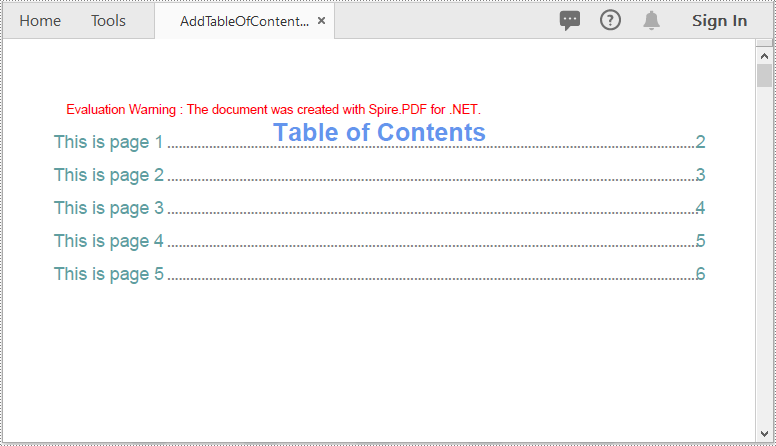
The table of contents plays a critical role in enhancing the readability and navigability of a document. It provides readers with a clear overview of the document's structure and enables them to quickly locate and access specific sections or information they are interested in. This can be especially valuable for longer documents, such as reports, books, or academic papers, where readers may need to refer back to specific sections or chapters multiple times. In this article, we'll explore how to create a table of contents in a PDF document in C# and VB.NET using Spire.PDF for .NET.
Install Spire.PDF for .NET
To begin with, you need to add the DLL files included in the Spire.PDF for.NET package as references in your .NET project. The DLL files can be either downloaded from this link or installed via NuGet.
PM> Install-Package Spire.PDF
Create a Table of Contents in PDF in C# and VB.NET
A table of contents mainly includes the TOC title (e.g. Table of Contents), TOC content, page numbers, and actions that will take you to the target pages when clicked on. To create a table of contents in PDF using Spire.PDF for .NET, you can follow these steps:
- Initialize an instance of the PdfDocument class.
- Load a PDF document using PdfDocument.LoadFromFile() method.
- Get the page count of the document using PdfDocument.Pages.Count property.
- Insert a new page into the PDF document as the first page using PdfDocument.Pages.Insert(0) method.
- Draw the TOC title, TOC content, and page numbers on the page using PdfPageBase.Canvas.DrawString() method.
- Create actions using PdfLinkAnnotation class and add the actions to the page using PdfNewPage.AnnotationsV2.Add() method.
- Save the result document using PdfDocument.SaveToFile() method.
- C#
- VB.NET
using Spire.Pdf;
using Spire.Pdf.Actions;
using Spire.Pdf.Interactive.Annotations;
using Spire.Pdf.Destinations;
using Spire.Pdf.Graphics;
using System;
using System.Drawing;

namespace TableOfContents
{
    internal class Program
    {
        static void Main(string[] args)
        {
            //Initialize an instance of the PdfDocument class
            PdfDocument doc = new PdfDocument();
            //Load a PDF document
            doc.LoadFromFile("Sample.PDF");

            //Get the page count of the document
            int pageCount = doc.Pages.Count;

            //Insert a new page into the pdf document as the first page
            PdfPageBase tocPage = doc.Pages.Insert(0);

            //Draw TOC title on the new page
            string title = "Table of Contents";
            PdfTrueTypeFont titleFont = new PdfTrueTypeFont(new Font("Arial", 20, FontStyle.Bold));
            PdfStringFormat centerAlignment = new PdfStringFormat(PdfTextAlignment.Center, PdfVerticalAlignment.Middle);
            PointF location = new PointF(tocPage.Canvas.ClientSize.Width / 2, titleFont.MeasureString(title).Height + 10);
            tocPage.Canvas.DrawString(title, titleFont, PdfBrushes.CornflowerBlue, location, centerAlignment);

            //Draw TOC content on the new page
            PdfTrueTypeFont titlesFont = new PdfTrueTypeFont(new Font("Arial", 14));
            String[] titles = new String[pageCount];
            for (int i = 0; i < titles.Length; i++)
            {
                titles[i] = string.Format("This is page {0}", i + 1);
            }
            float y = titleFont.MeasureString(title).Height + 10;
            float x = 0;

            //Draw page numbers of the target pages on the new page
            for (int i = 1; i <= pageCount; i++)
            {
                string text = titles[i - 1];
                SizeF titleSize = titlesFont.MeasureString(text);

                PdfPageBase navigatedPage = doc.Pages[i];

                string pageNumText = (i + 1).ToString();
                SizeF pageNumTextSize = titlesFont.MeasureString(pageNumText);
                tocPage.Canvas.DrawString(text, titlesFont, PdfBrushes.CadetBlue, 0, y);
                float dotLocation = titleSize.Width + 2 + x;
                float pageNumlocation = tocPage.Canvas.ClientSize.Width - pageNumTextSize.Width;
                for (float j = dotLocation; j < pageNumlocation; j++)
                {
                    if (dotLocation >= pageNumlocation)
                    {
                        break;
                    }
                    tocPage.Canvas.DrawString(".", titlesFont, PdfBrushes.Gray, dotLocation, y);
                    dotLocation += 3;
                }
                tocPage.Canvas.DrawString(pageNumText, titlesFont, PdfBrushes.CadetBlue, pageNumlocation, y);

                //Add actions that will take you to the target pages when clicked on to the new page
                location = new PointF(0, y);
                RectangleF titleBounds = new RectangleF(location, new SizeF(tocPage.Canvas.ClientSize.Width, titleSize.Height));
                PdfXYZExplicitDestination Dest = new PdfXYZExplicitDestination(navigatedPage, -doc.PageSettings.Margins.Top, -doc.PageSettings.Margins.Left);
                PdfLinkAnnotation action = new PdfLinkAnnotation(tocPage, titleBounds, new PdfGoToAction(Dest));
                action.Border.Width = 0;
                (tocPage as PdfNewPage).AnnotationsV2.Add(action);
                y += titleSize.Height + 10;
            }

            //Save the result pdf document
            doc.SaveToFile("AddTableOfContents.pdf");
            doc.Close();
        }
    }
}
Apply for a Temporary License
If you'd like to remove the evaluation message from the generated documents, or to get rid of the function limitations, please request a 30-day trial license for yourself.
