
Knowledgebase (2417)
Children categories
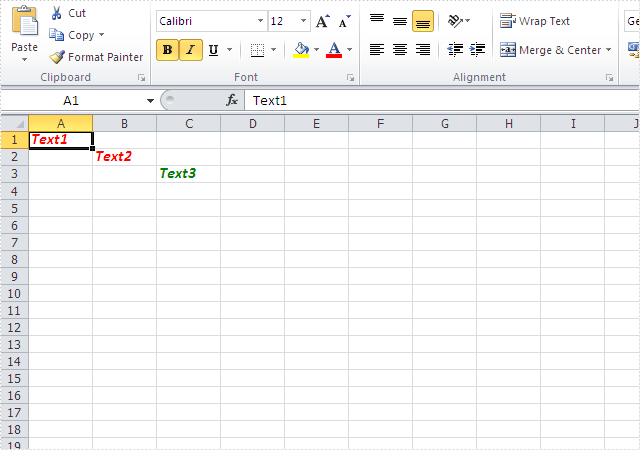
The colorful excel font makes the whole excel document attractive and it is easy to give more importance to some data we'd like to show to others. With the help of Spire.XLS, developers can easily set Excel font and copy formatting from one place and apply it to another. This article will focus on demonstrating how to clone Excel font style directly when adding the new text to Excel worksheet in C#.
Note: Before Start, please ensure that you have download the latest version of Spire.XLS (V7.8.64 or above) and add Spire.xls.dll in the bin folder as the reference of Visual Studio.
Here comes to the code snippet of how to clone cell style for the text in Excel worksheets.
Step 1: Create a new excel document instance and get the first worksheet.
Workbook book = new Workbook();
Worksheet sheet = book.Worksheets[0];
Step 2: Add the text to the Excel sheet cell range A1.
sheet.Range["A1"].Text = "Text1";
Step 3: Set A1 cell range's CellStyle.
CellStyle style = book.Styles.Add("style");
style.Font.FontName = "Calibri";
style.Font.Color = Color.Red;
style.Font.Size = 12;
style.Font.IsBold = true;
style.Font.IsItalic = true;
sheet.Range["A1"].CellStyleName = style.Name
Step 4: Use the method style.clone() to clone the same style for B2 cell range.
CellStyle csOrieign = style.clone();
sheet.Range["B2"].Text = "Text2";
sheet.Range["B2"].CellStyleName = csOrieign.Name;
Step 5: Clone the same style for C3 cell range and then reset the font color for the text.
CellStyle csGreen = style.clone();
csGreen.Font.Color = Color.Green;
sheet.Range["C3"].Text = "Text3";
sheet.Range["C3"].CellStyleName = csGreen.Name;
Step 6: Save the document to file and set the excel version.
book.SaveToFile("sample2.xlsx", ExcelVersion.Version2010);
Effective screenshots:
Full codes:
using Spire.Xls;
using System.Drawing;
namespace CloneExcelFont
{
    class Program
    {
        static void Main(string[] args)
        {
            Workbook book = new Workbook();
            Worksheet sheet = book.Worksheets[0];

            sheet.Range["A1"].Text = "Text1";
            CellStyle style = book.Styles.Add("style");

            style.Font.FontName = "Calibri";
            style.Font.Color = Color.Red;
            style.Font.Size = 12;
            style.Font.IsBold = true;
            style.Font.IsItalic = true;
            sheet.Range["A1"].CellStyleName = style.Name;

            CellStyle csOrieign = style.clone();
            sheet.Range["B2"].Text = "Text2";
            sheet.Range["B2"].CellStyleName = csOrieign.Name;

            CellStyle csGreen = style.clone();
            csGreen.Font.Color = Color.Green;
            sheet.Range["C3"].Text = "Text3";
            sheet.Range["C3"].CellStyleName = csGreen.Name;

            book.SaveToFile("sample2.xlsx", ExcelVersion.Version2010);

        }
    }
}
Retrieve data from one excel worksheet and extract to a new excel file in C#
2015-12-14 02:47:26 Written by KoohjiSearching data is a powerful data processing function of Microsoft excel, but it doesn't allow users to extract the selected data to a new excel file directly. It's almost impossible for us to copy data row by row manually from one excel file to another, so it cannot entirely meet our requirements especially when we want to retrieve and extract the interesting data from a large excel file.
This article will demonstrate how to retrieve data from one excel worksheet and extract to a new excel file with Spire.XLS in C#.
Note: Before start, please download and install Spire.XLS correctly. Then add Spire.XLS.dll file as reference of your project.
Below is the screenshot of the original excel worksheet:
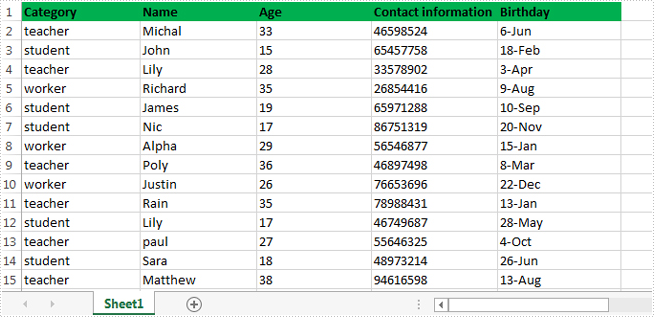
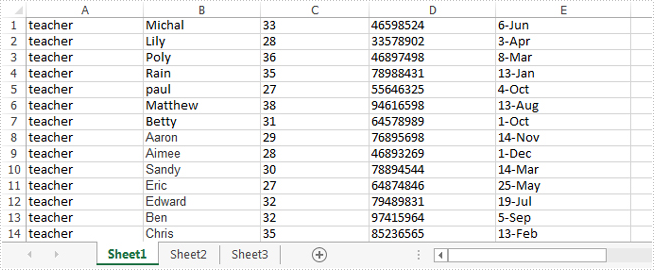
In this sample, all of the data related to teacher were extracted to a new excel file.
Detail steps overview:
Step 1: Create a new workbook instance and get the first worksheet.
Workbook newBook = new Workbook();
Worksheet newSheet = newBook.Worksheets[0];
Step 2: Create a new workbook instance and load the sample excel file.
Workbook workbook = new Workbook();
workbook.LoadFromFile("Information.xlsx");
Step 3: Get the worksheet where you want to retrieve and extract data from. In this sample, it's the first worksheet.
Worksheet sheet = workbook.Worksheets[0];
Step 4: Retrieve data and extract to the first worksheet of the new excel workbook.
int i = 1;
int columnCount = sheet.Columns.Count();
foreach (CellRange range in sheet.Columns[0])
{
    if (range.Text == "teacher")
        {
            CellRange sourceRange = sheet.Range[range.Row, 1, range.Row, columnCount];
            CellRange destRange = newSheet.Range[i, 1, i, columnCount];
            sheet.Copy(sourceRange, destRange, true);
            i++;
        }
}
Step 5: Save the target file as NewForm.xlsx.
newBook.SaveToFile("NewForm.xlsx", ExcelVersion.Version2010);
Effective screenshot:
Full codes:
using System.Linq;
using Spire.Xls;

namespace Retrieve_and_extract_data
{
    class Program
    {
        static void Main(string[] args)
        {
            Workbook newBook = new Workbook();
            Worksheet newSheet = newBook.Worksheets[0];
            Workbook workbook = new Workbook();
            workbook.LoadFromFile("Information.xlsx");
            Worksheet sheet = workbook.Worksheets[0];
            int i = 1;
            int columnCount = sheet.Columns.Count();
            foreach (CellRange range in sheet.Columns[0])
            {
                if (range.Text == "teacher")
                {
                    CellRange sourceRange = sheet.Range[range.Row, 1, range.Row, columnCount];
                    CellRange destRange = newSheet.Range[i, 1, i, columnCount];
                    sheet.Copy(sourceRange, destRange, true);
                    i++;
                }
            }
            newBook.SaveToFile("NewForm.xlsx", ExcelVersion.Version2010);

        }
    }
}
MS Word allows users to select a shape from shapes menu, drag and place it to any desired location on the page. From Spire.Doc Version 6.0 or above, we added a new feature to work with shape using code. The following section will present how to insert shapes and shape group in a Word document at the specified locations using Spire.Doc.
Code Snippets:
Step 1: Initialize a new instance of Document class.
Document doc = new Document();
Step 2: Add a new section to Word document, and add a paragraph to the section.
Section sec = doc.AddSection();
Paragraph para1 =sec.AddParagraph();
Step 3: Add shapes to the paragraph by calling AppendShape() method. In order to locate where the shape will be placed, you can just set the HorizontalPosition and VerticalPosition properties of ShapeObject class. We can also format the shape by set the FillColor,StrokeColor and LineStyle properties.
ShapeObject shape1 = para1.AppendShape(50, 50, ShapeType.Heart);

shape1.FillColor = Color.Red;
shape1.StrokeColor = Color.Red;
shape1.HorizontalPosition = 200;
shape1.VerticalPosition = 100;

ShapeObject shape2 = para1.AppendShape(100, 100, ShapeType.Arrow);

shape2.FillColor = Color.Purple;
shape2.StrokeColor = Color.Black;
shape2.LineStyle = ShapeLineStyle.Double;
shape2.StrokeWeight = 3;
shape2.HorizontalPosition = 200;
shape2.VerticalPosition = 200;
Step 4: Add a new paragraph and insert a shape group to the paragraph by calling AppendShapeGroup() method.
Paragraph para2 = sec.AddParagraph();
ShapeGroup shapegr = para2.AppendShapeGroup(200, 400);

shapegr.ChildObjects.Add(new ShapeObject(doc, ShapeType.Rectangle)
{
    Width = 500,
    Height = 300,
    LineStyle = ShapeLineStyle.ThickThin,
    StrokeColor = System.Drawing.Color.Blue,

    StrokeWeight = 1.5,
});
shapegr.ChildObjects.Add(new ShapeObject(doc, ShapeType.RightTriangle)
{
    Width = 500,
    Height = 300,
    VerticalPosition = 301,
    LineStyle = ShapeLineStyle.ThickThin,
    StrokeColor = System.Drawing.Color.Green,
    StrokeWeight = 1.5,
});
shapegr.ChildObjects.Add(new ShapeObject(doc, ShapeType.QuadArrow)
{
    Width = 500,
    Height = 300,
    VerticalPosition = 601,
    LineStyle = ShapeLineStyle.ThickThin,
    StrokeColor = System.Drawing.Color.Blue,
    StrokeWeight = 1.5,
});
Step 5: Save the document to file.
doc.SaveToFile("InsertShapes.docx", FileFormat.Docx2010);
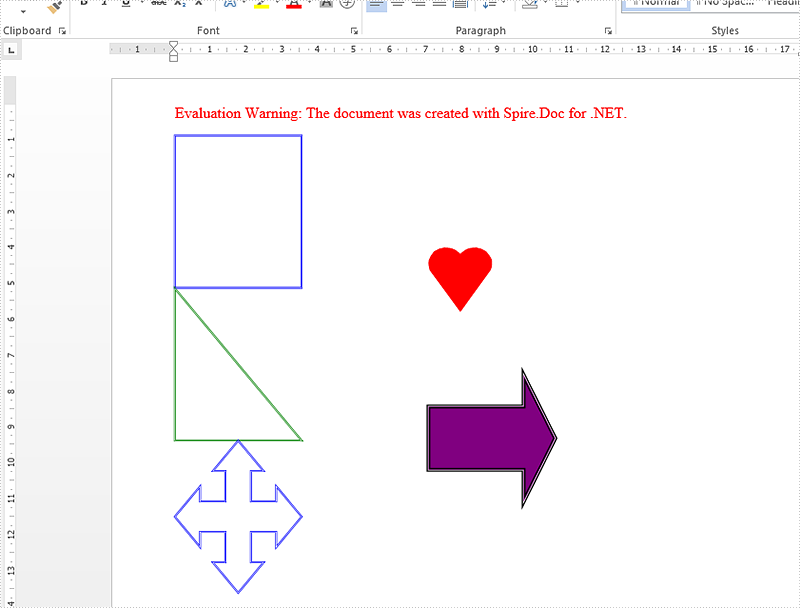
Result:
Full code:
using Spire.Doc;
using Spire.Doc.Documents;
using Spire.Doc.Fields;
using System.Drawing;
namespace InsertShape
{
    class Program
    {
        static void Main(string[] args)
        {
            Document doc = new Document();
            Section sec = doc.AddSection();
            Paragraph para1 = sec.AddParagraph();

            ShapeObject shape1 = para1.AppendShape(50, 50, ShapeType.Heart);

            shape1.FillColor = Color.Red;
            shape1.StrokeColor = Color.Red;
            shape1.HorizontalPosition = 200;
            shape1.VerticalPosition = 100;

            ShapeObject shape2 = para1.AppendShape(100, 100, ShapeType.Arrow);

            shape2.FillColor = Color.Purple;
            shape2.StrokeColor = Color.Black;
            shape2.LineStyle = ShapeLineStyle.Double;
            shape2.StrokeWeight = 3;
            shape2.HorizontalPosition = 200;
            shape2.VerticalPosition = 200;

            Paragraph para2 = sec.AddParagraph();
            ShapeGroup shapegr = para2.AppendShapeGroup(200, 400);

            shapegr.ChildObjects.Add(new ShapeObject(doc, ShapeType.Rectangle)
            {
                Width = 500,
                Height = 300,
                LineStyle = ShapeLineStyle.ThickThin,
                StrokeColor = System.Drawing.Color.Blue,

                StrokeWeight = 1.5,
            });
            shapegr.ChildObjects.Add(new ShapeObject(doc, ShapeType.RightTriangle)
            {
                Width = 500,
                Height = 300,
                VerticalPosition = 301,
                LineStyle = ShapeLineStyle.ThickThin,
                StrokeColor = System.Drawing.Color.Green,
                StrokeWeight = 1.5,
            });
            shapegr.ChildObjects.Add(new ShapeObject(doc, ShapeType.QuadArrow)
            {
                Width = 500,
                Height = 300,
                VerticalPosition = 601,
                LineStyle = ShapeLineStyle.ThickThin,
                StrokeColor = System.Drawing.Color.Blue,
                StrokeWeight = 1.5,
            });

            doc.SaveToFile("InsertShapes.docx", FileFormat.Docx2010);
        }
    }
}
Imports Spire.Doc
Imports Spire.Doc.Documents
Imports Spire.Doc.Fields
Imports System.Drawing
Namespace InsertShape
	Class Program
		Private Shared Sub Main(args As String())
			Dim doc As New Document()
			Dim sec As Section = doc.AddSection()
			Dim para1 As Paragraph = sec.AddParagraph()

			Dim shape1 As ShapeObject = para1.AppendShape(50, 50, ShapeType.Heart)

			shape1.FillColor = Color.Red
			shape1.StrokeColor = Color.Red
			shape1.HorizontalPosition = 200
			shape1.VerticalPosition = 100

			Dim shape2 As ShapeObject = para1.AppendShape(100, 100, ShapeType.Arrow)

			shape2.FillColor = Color.Purple
			shape2.StrokeColor = Color.Black
			shape2.LineStyle = ShapeLineStyle.[Double]
			shape2.StrokeWeight = 3
			shape2.HorizontalPosition = 200
			shape2.VerticalPosition = 200

			Dim para2 As Paragraph = sec.AddParagraph()
			Dim shapegr As ShapeGroup = para2.AppendShapeGroup(200, 400)


			shapegr.ChildObjects.Add(New ShapeObject(doc, ShapeType.Rectangle) With { _
				Key .Width = 500, _
				Key .Height = 300, _
				Key .LineStyle = ShapeLineStyle.ThickThin, _
				Key .StrokeColor = System.Drawing.Color.Blue, _
				Key .StrokeWeight = 1.5 _
			})
			shapegr.ChildObjects.Add(New ShapeObject(doc, ShapeType.RightTriangle) With { _
				Key .Width = 500, _
				Key .Height = 300, _
				Key .VerticalPosition = 301, _
				Key .LineStyle = ShapeLineStyle.ThickThin, _
				Key .StrokeColor = System.Drawing.Color.Green, _
				Key .StrokeWeight = 1.5 _
			})
			shapegr.ChildObjects.Add(New ShapeObject(doc, ShapeType.QuadArrow) With { _
				Key .Width = 500, _
				Key .Height = 300, _
				Key .VerticalPosition = 601, _
				Key .LineStyle = ShapeLineStyle.ThickThin, _
				Key .StrokeColor = System.Drawing.Color.Blue, _
				Key .StrokeWeight = 1.5 _
			})

			doc.SaveToFile("InsertShapes.docx", FileFormat.Docx2010)
		End Sub
	End Class
End Namespace
