
Knowledgebase (2417)
Children categories
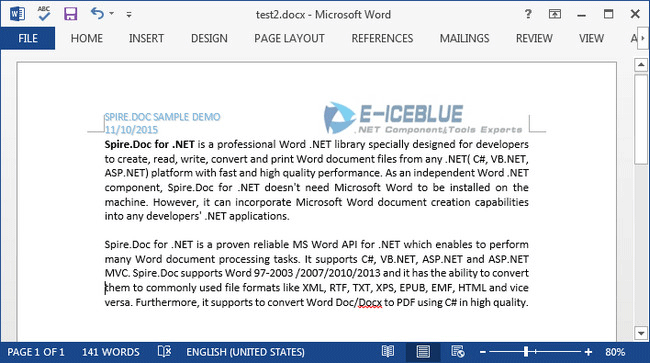
When you create several Word documents that are closely related, you may want the header or footer of one document to be used as the header or footer of other documents. For example, you're creating internal documents with your company logo or name or other material been placed in header, you only have to create the header once and copy the header to other places.
In this article, I'll introduce you a simple and efficient solution to copy the entire header (including text and graphic) from one Word document and insert it to another.
Source Document:

Detail Steps:
Step 1: Create a new instance of Document class and load the source file.
Document doc1 = new Document();
doc1.LoadFromFile("test1.docx");
Step 2: Get the header section from the source document.
HeaderFooter header = doc1.Sections[0].HeadersFooters.Header;
Step 3: Initialize a new instance of Document and load another file that you want to insert header.
Document doc2 = new Document("test2.docx");
Step 4: Call DocuentObject.Clone() method to copy each object in the header of source file, then call DocumentObjectCollection.Add() method to insert copied object into the header of destination file.
foreach (Section section in doc2.Sections)
{
    foreach (DocumentObject obj in header.ChildObjects)
    {
        section.HeadersFooters.Header.ChildObjects.Add(obj.Clone());
    }
}
Step 5: Save the changes and launch the file.
doc2.SaveToFile("test2.docx", FileFormat.Docx2013);
System.Diagnostics.Process.Start("test2.docx");
Destination Document:
Full Code:
Document doc1 = new Document();
doc1.LoadFromFile("test1.docx");
HeaderFooter header = doc1.Sections[0].HeadersFooters.Header;
Document doc2 = new Document("test2.docx");
foreach (Section section in doc2.Sections)
{
    foreach (DocumentObject obj in header.ChildObjects)
    {
        section.HeadersFooters.Header.ChildObjects.Add(obj.Clone());
    }
}
doc2.SaveToFile("test2.docx", FileFormat.Docx2013);
System.Diagnostics.Process.Start("test2.docx");
Dim doc1 As New Document()
doc1.LoadFromFile("test1.docx")
Dim header As HeaderFooter = doc1.Sections(0).HeadersFooters.Header
Dim doc2 As New Document("test2.docx")
For Each section As Section In doc2.Sections
	For Each obj As DocumentObject In header.ChildObjects
		section.HeadersFooters.Header.ChildObjects.Add(obj.Clone())
	Next
Next
doc2.SaveToFile("test2.docx", FileFormat.Docx2013)
System.Diagnostics.Process.Start("test2.docx")
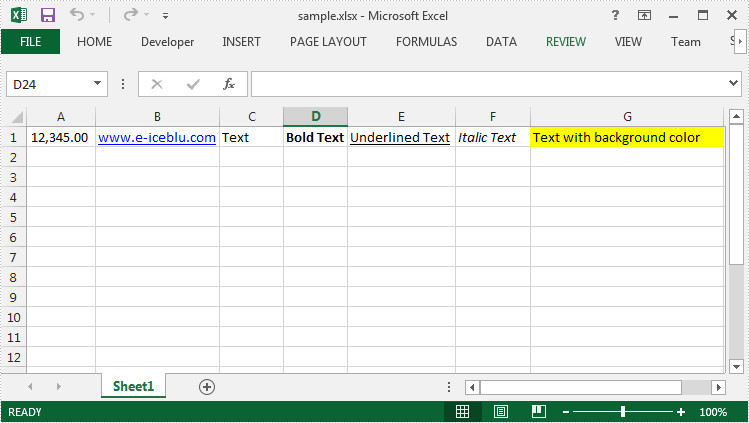
Sometimes, we need to copy the data with formatting from one cell range (a row or a column) to another. It is an extremely easy work in MS Excel, because we can select the source range and then use Copy and Paste function to insert the same data in destination cells.
In fact, Spire.XLS has provided two methods Worksheet.Copy(CellRange sourceRange, CellRange destRange, bool copyStyle) and Worksheet.Copy(CellRange sourceRange, Worksheet worksheet, int destRow, int destColumn, bool copyStyle) that allow programmers to copy rows and columns within or between workbooks. This article will present how to duplicate a row within a workbook using Spire.XLS.
Test File:
Code Snippet:
Step 1: Create a new instance of Workbook class and load the sample file.
Workbook book = new Workbook();
book.LoadFromFile("sample.xlsx", ExcelVersion.Version2010);
Step 2: Get the first worksheet.
Worksheet sheet = book.Worksheets[0];
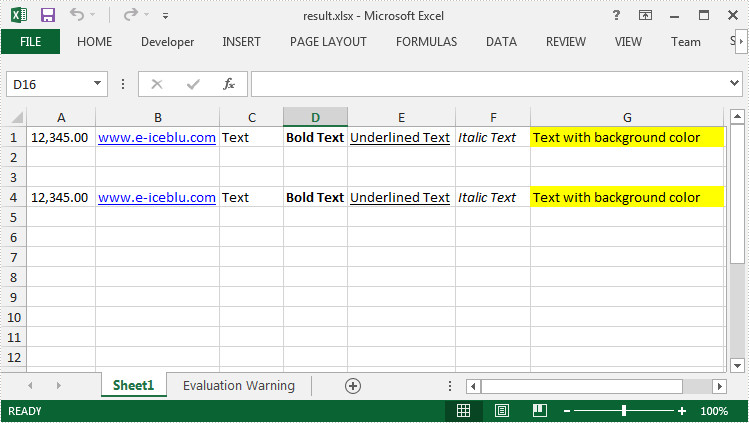
Step 3: Call Worksheet.Copy(CellRange sourceRange, CellRange destRange, bool copyStyle) method to copy data from source range (A1:G1) to destination range (A4:G4) and maintain the formatting.
sheet.Copy(sheet.Range["A1:G1"], sheet.Range["A4:G4"],true);
Step 4: Save and launch the file.
book.SaveToFile("result.xlsx", ExcelVersion.Version2010);
System.Diagnostics.Process.Start("result.xlsx");
Output:
Full Code:
using Spire.Xls;
namespace DuplicateRowExcel
{
    class Program
    {

        static void Main(string[] args)
        {
            Workbook book = new Workbook();
            book.LoadFromFile("sample.xlsx", ExcelVersion.Version2010);
            Worksheet sheet = book.Worksheets[0];

            sheet.Copy(sheet.Range["A1:G1"], sheet.Range["A4:G4"], true);

            book.SaveToFile("result.xlsx", ExcelVersion.Version2010);
            System.Diagnostics.Process.Start("result.xlsx");
        }
    }
}
Imports Spire.Xls
Namespace DuplicateRowExcel
	Class Program

		Private Shared Sub Main(args As String())
			Dim book As New Workbook()
			book.LoadFromFile("sample.xlsx", ExcelVersion.Version2010)
			Dim sheet As Worksheet = book.Worksheets(0)

			sheet.Copy(sheet.Range("A1:G1"), sheet.Range("A4:G4"), True)

			book.SaveToFile("result.xlsx", ExcelVersion.Version2010)
			System.Diagnostics.Process.Start("result.xlsx")
		End Sub
	End Class
End Namespace
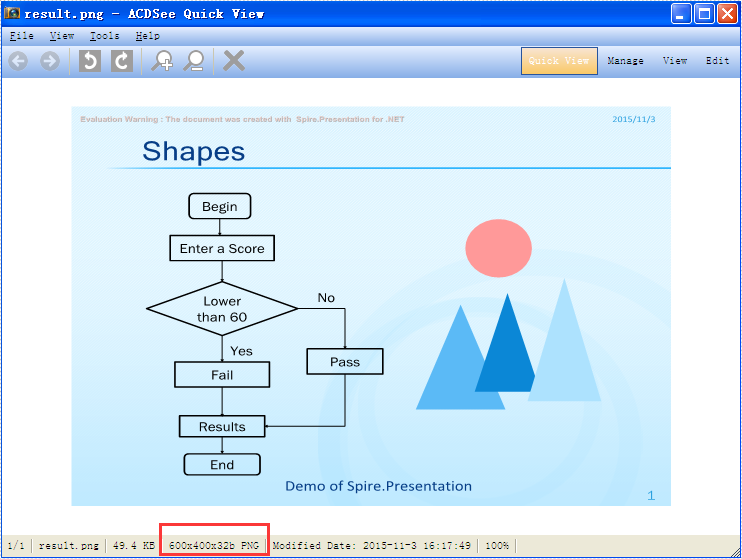
With the help of Spire.Presentation for .NET, we can easily save PowerPoint slides as image in C# and VB.NET. Sometimes, we need to use the resulted images for other purpose and the image size becomes very important. To ensure the image is easy and beautiful to use, we need to set the image with specified size beforehand. This example will demonstrate how to save a particular presentation slide as image with specified size by using Spire.Presentation for your .NET applications.
Note: Before Start, please download the latest version of Spire.Presentation and add Spire.Presentation.dll in the bin folder as the reference of Visual Studio.
Step 1: Create a presentation document and load the document from file.
Presentation presentation = new Presentation();
presentation.LoadFromFile("sample.pptx");
Step 2: Save the first slide to Image and set the image size to 600*400.
Image img = presentation.Slides[0].SaveAsImage(600, 400);
Step 3: Save image to file.
img.Save("result.png",System.Drawing.Imaging.ImageFormat.Png);
Effective screenshot of the resulted image with specified size:
Full codes:
using Spire.Presentation;
using System.Drawing;
namespace SavePowerPointSlideasImage
{
    class Program
    {
        static void Main(string[] args)
        {
            Presentation presentation = new Presentation();
            presentation.LoadFromFile("sample.pptx");

            Image img = presentation.Slides[0].SaveAsImage(600, 400);
            img.Save("result.png", System.Drawing.Imaging.ImageFormat.Png);
        }
    }
