Knowledgebase (2417)
Children categories
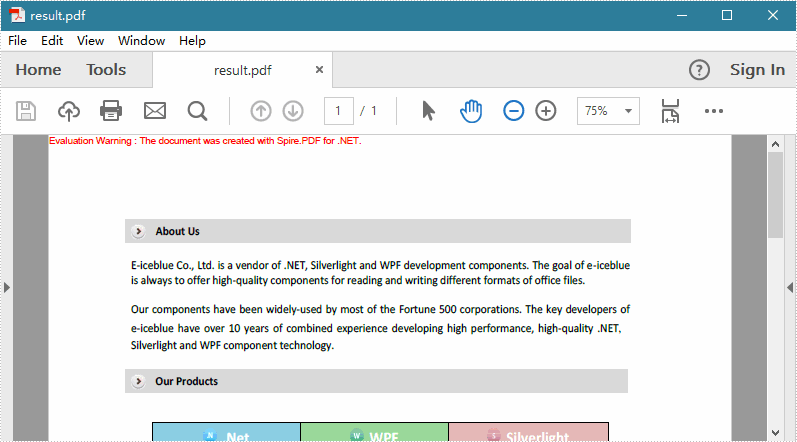
PDF margins are white spaces between body contents and page edge. Unlike Word, margins in PDF document are not easy to be modified as Adobe does not provide any functionality for users to manipulate margins freely. However, you can change the page scaling (enlarge/compress content) or crop page to get fitted margins. In this article, you will learn how to enlarge PDF margins by compressing content.
Step 1: Create a PdfDocument object to load the original PDF document.
PdfDocument origDoc = new PdfDocument();
origDoc.LoadFromFile("sample.pdf");
Step 2: Create another PdfDocument object.
PdfDocument destDoc = new PdfDocument();
Step 3: Set the increments that you want to add to the margins in the existing PDF document.
float top = 50;
float bottom = 50;
float left = 50;
float right = 50;
Step 4: Transfer the compressed content from the original document to the new PDF document.
foreach (PdfPageBase page in origDoc.Pages)
{
    PdfPageBase newPage = destDoc.Pages.Add(page.Size, new PdfMargins(0));
    newPage.Canvas.ScaleTransform((page.ActualSize.Width - left - right) / page.ActualSize.Width,
                        (page.ActualSize.Height - top - bottom) / page.ActualSize.Height);
    newPage.Canvas.DrawTemplate(page.CreateTemplate(), new PointF(left, top));
}
Step 5: Save to file.
destDoc.SaveToFile("result.pdf", FileFormat.PDF);
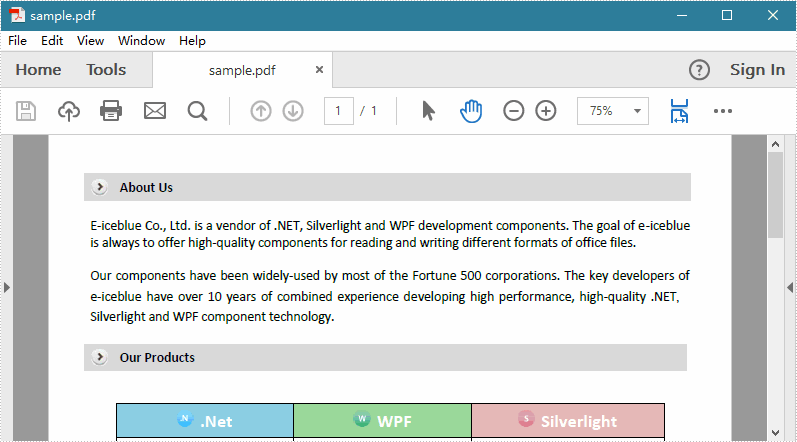
Original PDF:
Result:
Full Code:
using Spire.Pdf;
using Spire.Pdf.Graphics;
using System.Drawing;


namespace ChangeMargins
{
    class Program
    {
        static void Main(string[] args)
        {
            PdfDocument origDoc = new PdfDocument();
            origDoc.LoadFromFile("sample.pdf");
            PdfDocument destDoc = new PdfDocument();

            float top = 50;
            float bottom = 50;
            float left = 50;
            float right = 50;

            foreach (PdfPageBase page in origDoc.Pages)
            {
                PdfPageBase newPage = destDoc.Pages.Add(page.Size, new PdfMargins(0));
                newPage.Canvas.ScaleTransform((page.ActualSize.Width - left - right) / page.ActualSize.Width,
                                    (page.ActualSize.Height - top - bottom) / page.ActualSize.Height);
                newPage.Canvas.DrawTemplate(page.CreateTemplate(), new PointF(left, top));
            }

            destDoc.SaveToFile("result.pdf", FileFormat.PDF);
        }
    }
}
Imports Spire.Pdf
Imports Spire.Pdf.Graphics
Imports System.Drawing


Namespace ChangeMargins
	Class Program
		Private Shared Sub Main(args As String())
			Dim origDoc As New PdfDocument()
			origDoc.LoadFromFile("sample.pdf")
			Dim destDoc As New PdfDocument()

			Dim top As Single = 50
			Dim bottom As Single = 50
			Dim left As Single = 50
			Dim right As Single = 50

			For Each page As PdfPageBase In origDoc.Pages
				Dim newPage As PdfPageBase = destDoc.Pages.Add(page.Size, New PdfMargins(0))
				newPage.Canvas.ScaleTransform((page.ActualSize.Width - left - right) / page.ActualSize.Width, (page.ActualSize.Height - top - bottom) / page.ActualSize.Height)
				newPage.Canvas.DrawTemplate(page.CreateTemplate(), New PointF(left, top))
			Next

			destDoc.SaveToFile("result.pdf", FileFormat.PDF)
		End Sub
	End Class
End Namespace
Set the font and color for the text on PDF Combo Box field area
2015-11-25 07:33:44 Written by KoohjiWith the help of Spire.PDF, developers can easily add new text to the PDF; create form fields to both the new and existing PDF file. Spire.PDF also owns the ability to set the text formatting for the PDF fields' area. This article will show you how to set the font and color for PDF Combo Box field by the method of PdfComboBoxField.
Note: Before Start, please download the latest version of Spire.PDF and add Spire.PDF.dll in the bin folder as the reference of Visual Studio.
Here comes to the details:
Step 1: Create a new PDF document.
PdfDocument doc = new PdfDocument();
Step 2: Add a new page to the PDF document and set the page size for the page.
PdfPageBase page = doc.Pages.Add(PdfPageSize.A4, new PdfMargins());
Step 3: Draw the text to the PDF page and set the location, font and color for the text.
PdfTrueTypeFont font = new PdfTrueTypeFont(new Font("Arial", 10f, FontStyle.Bold));
RectangleF labelBounds = new RectangleF(20, 20, 40, font.Height);
page.Canvas.DrawString("My label", font, PdfBrushes.Black, labelBounds);
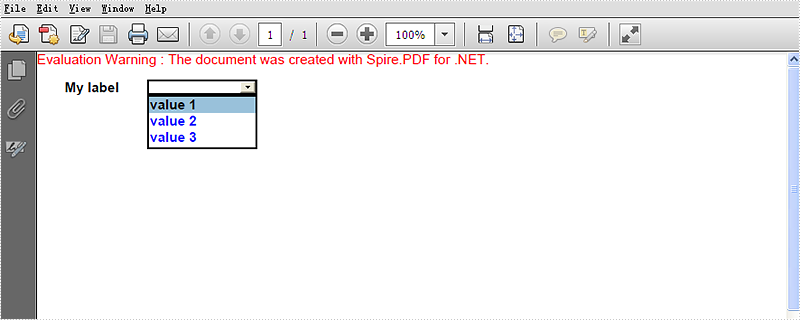
Step 4: Create a Combo Box and add value for it. Use comboBox.Font and comboBox.ForeColor to set the font and color for the text on Combo Box area.
PdfComboBoxField comboBox = new PdfComboBoxField(page, "cmb");
comboBox.Bounds = new RectangleF(80, 20, 80, font.Height);
comboBox.Font = font;
comboBox.ForeColor = Color.Blue;
comboBox.Items.Add(new PdfListFieldItem("value 1", "text 1"));
comboBox.Items.Add(new PdfListFieldItem("value 2", "text 2"));
comboBox.Items.Add(new PdfListFieldItem("value 3", "text 3"));
Step 5: Add the Combo Box to the PDF file.
doc.Form.Fields.Add(comboBox);
Step 6: Save the document to file and launch to preview it.
string file = string.Format("result.pdf", Guid.NewGuid().ToString());
doc.SaveToFile(file);
System.Diagnostics.Process.Start(file);
Effective screenshot after setting the font and color for text on the Combo Box area:
Full codes:
using Spire.Pdf;
using Spire.Pdf.Fields;
using Spire.Pdf.Graphics;
using System;
using System.Drawing;


namespace SetFontColorInComboboxField
{
    class Program
    {
        static void Main(string []args)
        {
            PdfDocument doc = new PdfDocument();

            PdfPageBase page = doc.Pages.Add(PdfPageSize.A4, new PdfMargins());

            PdfTrueTypeFont font = new PdfTrueTypeFont(new Font("Arial", 10f, FontStyle.Bold));
            RectangleF labelBounds = new RectangleF(20, 20, 40, font.Height);
            page.Canvas.DrawString("My label", font, PdfBrushes.Black, labelBounds);

            PdfComboBoxField comboBox = new PdfComboBoxField(page, "cmb");
            comboBox.Bounds = new RectangleF(80, 20, 80, font.Height);
            comboBox.Font = font;
            comboBox.ForeColor = Color.Blue;
            comboBox.Items.Add(new PdfListFieldItem("value 1", "text 1"));
            comboBox.Items.Add(new PdfListFieldItem("value 2", "text 2"));
            comboBox.Items.Add(new PdfListFieldItem("value 3", "text 3"));

            doc.Form.Fields.Add(comboBox);

            string file = string.Format("result.pdf", Guid.NewGuid().ToString());
            doc.SaveToFile(file);
            System.Diagnostics.Process.Start(file);
        }
    }
}
Spire.PDFViewer for ASP.NET contains two controls: PDFViewer and PDFDocumentViewer. Generally, PDFDocumentViewer is used for loading and viewing PDF files on website. But actually, it can also achieve other features such as zoom, fit and page after a simple design.
We've introduced the usage of PDFViewer in the previous article, so this article will illustrate how to zoom PDF File via PDFDocumentViewer in ASP.NET.
Before start, download Spire.PDFViewer for ASP.NET and install it on your system.
Step 1: Create a new ASP.NET Empty Web Application in Visual Studio. Add a new web Form to the project.
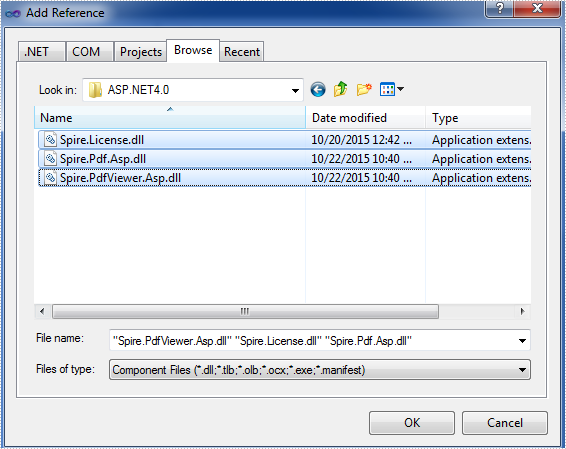
Step 2: Add the .dll files from the bin folder as the references of this project.
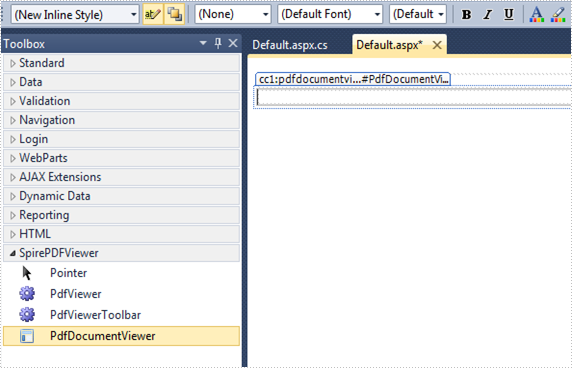
Step 3: Add the PDFDocumentViewer control into toolbox and drag it into Deafault.aspx.
(Detail manipulations of step 1, 2, 3 refer to this article: How to use Spire.PDFViewer for ASP.NET)
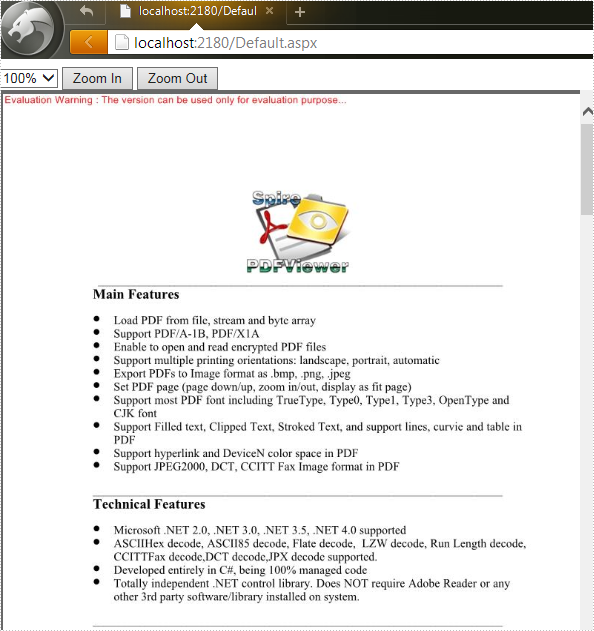
Step 4: Zoom PDF file via Spire. PDFDocumentViewer. Zoom feature is divided into three types in this article:
- Zoom: choose the zoom percentage manually.
- Zoom in: Increase the display page page zoom factor by ten percent.
- Zoom out: decrease the display page page zoom factor by ten percent.
Main codes
Section 1: Call the LoadFromFile() method of PdfDocumentViewer to load a sample PDF file in Default.aspx.cs. Note that you have to add the following if statement and !IsPostBack property before loading the pdf file.
protected void Page_Load(object sender, EventArgs e)
        {
            if (!IsPostBack)
            {
                //load the sample PDF file
                this.PdfDocumentViewer1.CacheInterval = 1000;
                this.PdfDocumentViewer1.CacheTime = 1200;
                this.PdfDocumentViewer1.CacheNumberImage = 1000;
                this.PdfDocumentViewer1.ScrollInterval = 300;
                this.PdfDocumentViewer1.ZoomFactor = 1f;
                this.PdfDocumentViewer1.CustomErrorMessages = "";
                this.PdfDocumentViewer1.LoadFromFile("files/PDFViewer.pdf");
            }
        }
Section 2: Design, Drag a DropDownList and two buttons from toolbox into Deafault.aspx, set the properties like "ID", "text" etc. as below.
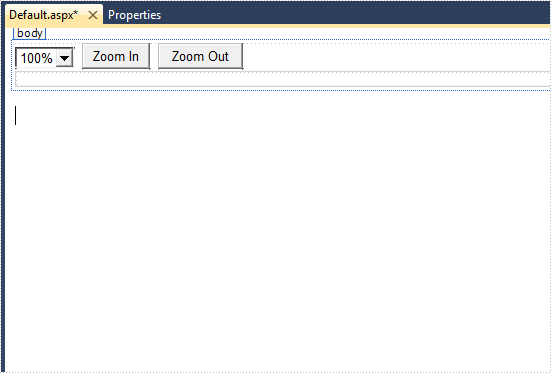
Generated source code is shown here:
<select id="PdfDocumentViewer1_SelectCurrentZoomLevel" name="PdfDocumentViewer1_SelectCurrentZoomLevel" onchange="pdfdocumentviewer1.SelectDropdownBox(this.value)">
            <option value="0.5">50%</option>
            <option value="0.75">75%</option>
            <option value="1" selected="selected">100%</option>
            <option value="1.5">150%</option>
            <option value="2">200%</option>
            <option value="4">400%</option>
        </select>
        <input type="button" id="btnZoomIn" value="Zoom In" onclick="pdfdocumentviewer1.ZoomPage()" />
        <input type="button" id="btnZoomOut" value="Zoom Out" onclick="pdfdocumentviewer1.NarrowPage()" />
Effect screenshot after designing: