
Knowledgebase (2417)
Children categories
Calculate the sum of a range of cells in a spreadsheet document
2016-01-15 06:33:57 Written by Koohji
class Program
    {
        static void Main(string[] args)
        {
            string docName = @"..\..\documents\Sheet1.xlsx";
            string worksheetName = "John";
            string firstCellName = "A1";
            string lastCellName = "A3";
            string resultCell = "A4";
            CalculateSumOfCellRange(docName, worksheetName, firstCellName, lastCellName, resultCell);
        }
        private static void CalculateSumOfCellRange(string docName, string worksheetName, string firstCellName, string lastCellName, string resultCell)
        {
            // Open the document for editing.
            using (SpreadsheetDocument document = SpreadsheetDocument.Open(docName, true))
            {
                IEnumerable sheets = document.WorkbookPart.Workbook.Descendants().Where(s => s.Name == worksheetName);
                if (sheets.Count() == 0)
                {
                    // The specified worksheet does not exist.
                    return;
                }

                WorksheetPart worksheetPart = (WorksheetPart)document.WorkbookPart.GetPartById(sheets.First().Id);
                Worksheet worksheet = worksheetPart.Worksheet;

                // Get the row number and column name for the first and last cells in the range.
                uint firstRowNum = GetRowIndex(firstCellName);
                uint lastRowNum = GetRowIndex(lastCellName);
                string firstColumn = GetColumnName(firstCellName);
                string lastColumn = GetColumnName(lastCellName);

                double sum = 0;

                // Iterate through the cells within the range and add their values to the sum.
                foreach (Row row in worksheet.Descendants().Where(r => r.RowIndex.Value >= firstRowNum && r.RowIndex.Value <= lastRowNum))
                {
                    foreach (Cell cell in row)
                    {
                        string columnName = GetColumnName(cell.CellReference.Value);
                        if (CompareColumn(columnName, firstColumn) >= 0 && CompareColumn(columnName, lastColumn) <= 0)
                        {
                            sum += double.Parse(cell.CellValue.Text);
                        }
                    }
                }

                // Get the SharedStringTablePart and add the result to it.
                // If the SharedStringPart does not exist, create a new one.
                SharedStringTablePart shareStringPart;
                if (document.WorkbookPart.GetPartsOfType().Count() > 0)
                {
                    shareStringPart = document.WorkbookPart.GetPartsOfType().First();
                }
                else
                {
                    shareStringPart = document.WorkbookPart.AddNewPart();
                }

                // Insert the result into the SharedStringTablePart.
                int index = InsertSharedStringItem("Result: " + sum, shareStringPart);

                Cell result = InsertCellInWorksheet(GetColumnName(resultCell), GetRowIndex(resultCell), worksheetPart);

                // Set the value of the cell.
                result.CellValue = new CellValue(index.ToString());
                result.DataType = new EnumValue(CellValues.SharedString);

                worksheetPart.Worksheet.Save();
            }
        }

        // Given a cell name, parses the specified cell to get the row index.
        private static uint GetRowIndex(string cellName)
        {
            // Create a regular expression to match the row index portion the cell name.
            Regex regex = new Regex(@"\d+");
            Match match = regex.Match(cellName);

            return uint.Parse(match.Value);
        }
        // Given a cell name, parses the specified cell to get the column name.
        private static string GetColumnName(string cellName)
        {
            // Create a regular expression to match the column name portion of the cell name.
            Regex regex = new Regex("[A-Za-z]+");
            Match match = regex.Match(cellName);

            return match.Value;
        }
        // Given two columns, compares the columns.
        private static int CompareColumn(string column1, string column2)
        {
            if (column1.Length > column2.Length)
            {
                return 1;
            }
            else if (column1.Length < column2.Length)
            {
                return -1;
            }
            else
            {
                return string.Compare(column1, column2, true);
            }
        }
        // Given text and a SharedStringTablePart, creates a SharedStringItem with the specified text
        // and inserts it into the SharedStringTablePart. If the item already exists, returns its index.
        private static int InsertSharedStringItem(string text, SharedStringTablePart shareStringPart)
        {
            // If the part does not contain a SharedStringTable, create it.
            if (shareStringPart.SharedStringTable == null)
            {
                shareStringPart.SharedStringTable = new SharedStringTable();
            }

            int i = 0;
            foreach (SharedStringItem item in shareStringPart.SharedStringTable.Elements())
            {
                if (item.InnerText == text)
                {
                    // The text already exists in the part. Return its index.
                    return i;
                }

                i++;
            }

            // The text does not exist in the part. Create the SharedStringItem.
            shareStringPart.SharedStringTable.AppendChild(new SharedStringItem(new DocumentFormat.OpenXml.Spreadsheet.Text(text)));
            shareStringPart.SharedStringTable.Save();

            return i;
        }
        // Given a column name, a row index, and a WorksheetPart, inserts a cell into the worksheet.
        // If the cell already exists, returns it.
        private static Cell InsertCellInWorksheet(string columnName, uint rowIndex, WorksheetPart worksheetPart)
        {
            Worksheet worksheet = worksheetPart.Worksheet;
            SheetData sheetData = worksheet.GetFirstChild();
            string cellReference = columnName + rowIndex;

            // If the worksheet does not contain a row with the specified row index, insert one.
            Row row;
            if (sheetData.Elements().Where(r => r.RowIndex == rowIndex).Count() != 0)
            {
                row = sheetData.Elements().Where(r => r.RowIndex == rowIndex).First();
            }
            else
            {
                row = new Row() { RowIndex = rowIndex };
                sheetData.Append(row);
            }

            // If there is not a cell with the specified column name, insert one.
            if (row.Elements().Where(c => c.CellReference.Value == columnName + rowIndex).Count() > 0)
            {
                return row.Elements().Where(c => c.CellReference.Value == cellReference).First();
            }
            else
            {
                // Cells must be in sequential order according to CellReference. Determine where to insert the new cell.
                Cell refCell = null;
                foreach (Cell cell in row.Elements())
                {
                    if (string.Compare(cell.CellReference.Value, cellReference, true) > 0)
                    {
                        refCell = cell;
                        break;
                    }
                }

                Cell newCell = new Cell() { CellReference = cellReference };
                row.InsertBefore(newCell, refCell);

                worksheet.Save();
                return newCell;
            }
        }
    }
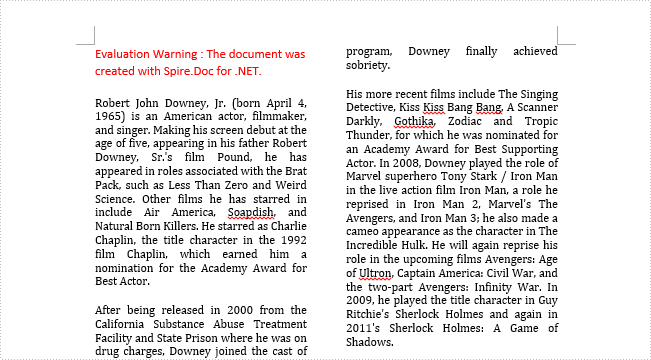
Adding column(s) in Word is a way to set page layout, which separates the whole document or selected sections into two or more columns. You can also set the column width and the spacing between columns to have the satisfied layout. This article is aimed at introducing how to add a column to Word in WPF using Spire.Doc for WPF.
Create a new project by choosing WPF Application in Visual Studio, add a button in MainWindow. Add Spire.Doc.Wpf.dll as reference to your project, then double click the button to write code.
Step 1: Initialize a new instance of Document class and load a sample Word file.
Document document = new Document();
document.LoadFromFile("sample.docx");
Step 2: Add a column to section one, set the two parameters in AddColumn() method, which stand for the width of columns and the spacing between columns.
document.Sections[0].AddColumn(200f, 20f);
Step 3: Save and launch the file.
document.SaveToFile("result.docx");
System.Diagnostics.Process.Start("result.docx");
Output:
Entire Code:
using Spire.Doc;
using System.Windows;

namespace WpfApplication1
{
    public partial class MainWindow : Window
    {
        public MainWindow()
        {
            InitializeComponent();
        }
        private void button1_Click(object sender, RoutedEventArgs e)
        {

            Document document = new Document();
            document.LoadFromFile("sample.docx");

            document.Sections[0].AddColumn(200f, 20f);

            document.SaveToFile("result.docx");
            System.Diagnostics.Process.Start("result.docx");
        }


    }
}
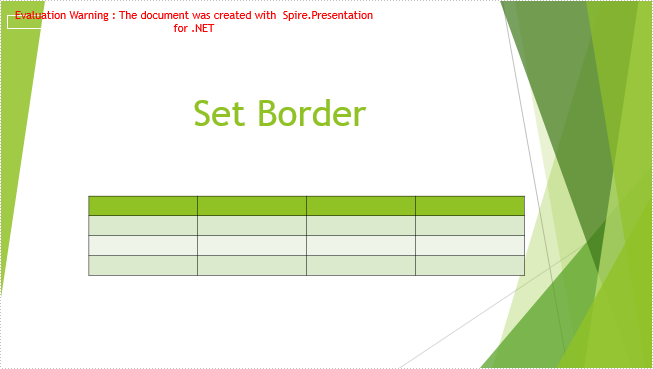
Borders can make the associative perception of a table stronger, but sometimes, especially in PowerPoint, you may want to remove them in order to achieve a better visual effect. In this part, we're going to introduce how to set and remove border of an existing table in PowerPoint by using Spire.Presentation for .NET.
Before start, please download and install Spire.Presentation correctly, after that add the Spire.Presentation.dll file as the reference of your project.
Detail steps overview:
Set table border:
Step 1: Create a new presentation instance and load the sample document from file.
Presentation presentation = new Presentation();
presentation.LoadFromFile("testTable.pptx");
Step 2: Find the table by looping through all the slides, and then set borders for it. Users can set different border styles according to their requirements.
foreach (ISlide slide in presentation.Slides)
{
    foreach (IShape shape in slide.Shapes)
    {
        if (shape is ITable)
        {
            foreach (TableRow row in (shape as ITable).TableRows)
            {
                foreach (Cell cell in row)
                {
                    cell.BorderTop.FillType = FillFormatType.Solid;
                    cell.BorderBottom.FillType = FillFormatType.Solid;
                    cell.BorderLeft.FillType = FillFormatType.Solid;
                    cell.BorderRight.FillType = FillFormatType.Solid;
                }
            }
        }
    }
}
Step 3: Save the file as Border.pptx.
presentation.SaveToFile("Border.pptx", FileFormat.Pptx2010);
Remove table border:
Remove table border is very simple, refer to the following codes:
cell.BorderTop.FillType = FillFormatType.None;
cell.BorderBottom.FillType = FillFormatType.None;
cell.BorderLeft.FillType = FillFormatType.None;
cell.BorderRight.FillType = FillFormatType.None;
Effective screenshots:
Before:

After:
Full codes:
using Spire.Presentation;
using Spire.Presentation.Drawing;

namespace Set_and_Remove_Table_Border_in_PPT
{
    class Program
    {
        static void Main(string[] args)
        {
            Presentation presentation = new Presentation();
            presentation.LoadFromFile("testTable.pptx");
            foreach (ISlide slide in presentation.Slides)
            {
                foreach (IShape shape in slide.Shapes)
                {
                    if (shape is ITable)
                    {
                        foreach (TableRow row in (shape as ITable).TableRows)
                        {
                            foreach (Cell cell in row)
                            {
                                //Add top border and set its FillType as Solid.
                                cell.BorderTop.FillType = FillFormatType.Solid;
                                //Remove top border
                                //cell.BorderTop.FillType = FillFormatType.None;

                                cell.BorderBottom.FillType = FillFormatType.Solid;
                                //cell.BorderBottom.FillType = FillFormatType.None;

                                cell.BorderLeft.FillType = FillFormatType.Solid;
                                //cell.BorderLeft.FillType = FillFormatType.None;

                                cell.BorderRight.FillType = FillFormatType.Solid;
                                //cell.BorderRight.FillType = FillFormatType.None;
                            }
                        }
                    }
                }
            }
            presentation.SaveToFile("Border.pptx", FileFormat.Pptx2010);
        }
    }
}
