
Knowledgebase (2417)
Children categories
Delete Rows and Columns from Excel with JavaScript in React
2025-01-10 02:46:07 Written by AdministratorWhen working with Excel, you might occasionally find your worksheets cluttered with unnecessary rows and columns. These might be leftover data from previous versions, temporary calculations, or placeholders that no longer serve a purpose. Removing these unnecessary or unwanted rows and columns can keep your data organized and your sheets neat. In this article, you will learn how to delete rows and columns from an Excel Worksheet in React using Spire.XLS for JavaScript.
- Delete a Specific Row and Column from Excel
- Delete Multiple Rows and Columns from Excel
- Delete Blank Rows and Columns from Excel
Install Spire.XLS for JavaScript
To get started with deleting Excel rows and columns in a React application, you can either download Spire.XLS for JavaScript from our website or install it via npm with the following command:
npm i spire.office
The downloaded product package has been integrated Spire.Doc for JavaScript,Spire.XLS for JavaScript,Spire.PDF for JavaScript,Spire.Presentation for JavaScript. To use the functionality of Spire.XLS for JavaScript, you need to copy the corresponding files (spire.xls.js, Spire.Xls.Wasm.zip, spire.common.js, Spire.Common.Wasm.zip, and _framework) to the project's "public" folder. At the same time, in order to ensure text rendering, the related font files can be added with custom paths. In the following example, the font addition path is: public\static\font.
For more details, refer to the documentation: How to Integrate Spire.XLS for JavaScript in a React Project
Delete a Specific Row and Column from Excel
Spire.XLS for JavaScript provides the Worksheet.DeleteRow() and Worksheet.DeleteColumn() methods to delete a specific row and column by index. The following are the main steps.
- Create a Workbook object using the new wasmModule.Workbook() method.
- Load an Excel file using the Workbook.LoadFromFile() method.
- Get a specific worksheet using the Workbook.Worksheets.get() method.
- Delete a specified row by its index (1-based) using the Worksheet.DeleteRow() method.
- Delete a specified column by its index (1-based) using the Worksheet.DeleteColumn() method.
- Save the result file using the Workbook.SaveToFile() method.
- JavaScript
import React, { useState, useEffect } from 'react';
function App() {
  const [wasmModule, setWasmModule] = useState(null);
  // Load Spire.XLS
  useEffect(() => {
    (async () => {
      try {
        const publicUrl = process.env.PUBLIC_URL || '';
        const spireModule = await import(/* webpackIgnore: true */ `${publicUrl}/spire.xls.js`);
        const rawModule = spireModule.default || spireModule;
        window.wasmModule = typeof rawModule === 'function'
          ? await rawModule({ locateFile: p => p.endsWith('.wasm') ? `${publicUrl}/${p}` : p })
          : rawModule;
        setWasmModule(window.wasmModule);
      } catch (error) {
        console.error('Failed to load spire.xls.js WASM module:', error);
      }
    })();
  }, []);

  // Function to delete a specified row and column
  const DeleteRowColumn = async () => {
    const wasmModule = window.wasmModule.spirexls;

    if (wasmModule) {
      // Load font into Virtual File System (VFS)
      await window.spire.FetchFileToVFS('Arial.ttf', '/Library/Fonts/', `${process.env.PUBLIC_URL}/static/font/`);


      // Load the Excel files into the virtual file system (VFS)
      let inputFileName = 'sample.xlsx';
      await window.spire.FetchFileToVFS(inputFileName, '', `${process.env.PUBLIC_URL}/static/data/`);


      // Create a new workbook
      let workbook = new wasmModule.Workbook();


      // Load an Excel document
      workbook.LoadFromFile({ fileName: inputFileName });

      // Get the first worksheet
      let sheet = workbook.Worksheets.get(0);

      //Delete the 18th row
      sheet.DeleteRow({ index: 18 });

      //Delete the 5th
      sheet.DeleteColumn({ index: 5 });

      //Save result file
      const outputFileName = 'DeleteRowAndColumn.xlsx';
      workbook.SaveToFile({ fileName: outputFileName, version: wasmModule.ExcelVersion.Version2016 });

      // Read the saved file and convert to Blob object
      const modifiedFileArray = window.dotnetRuntime.Module.FS.readFile(outputFileName);
      const modifiedFile = new Blob([modifiedFileArray], { type: 'application/vnd.openxmlformats-officedocument.spreadsheetml.sheet' });

      // Create a URL for the Blob and initiate download
      const url = URL.createObjectURL(modifiedFile);
      const a = document.createElement('a');
      a.href = url;
      a.download = outputFileName;
      document.body.appendChild(a);
      a.click();
      document.body.removeChild(a);
      URL.revokeObjectURL(url);

      // Clean up resources used by the workbook
      workbook.Dispose();
    }
  };

  return (
    <div style={{ textAlign: 'center', height: '300px' }}>
      <h1>Delete a Specified Row and Column Using JavaScript in React
      <button onClick={DeleteRowColumn} disabled={!wasmModule}>
        Delete
      </button>
    </div>
  );
}

export default App;
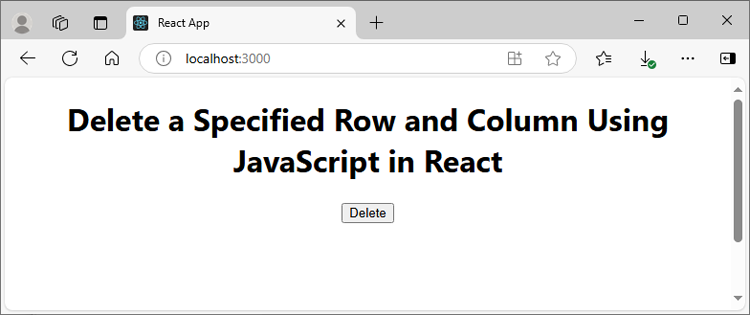
Run the code to launch the React app at localhost:3000. Once it's running, click the "Delete" button to delete the specific row and column:
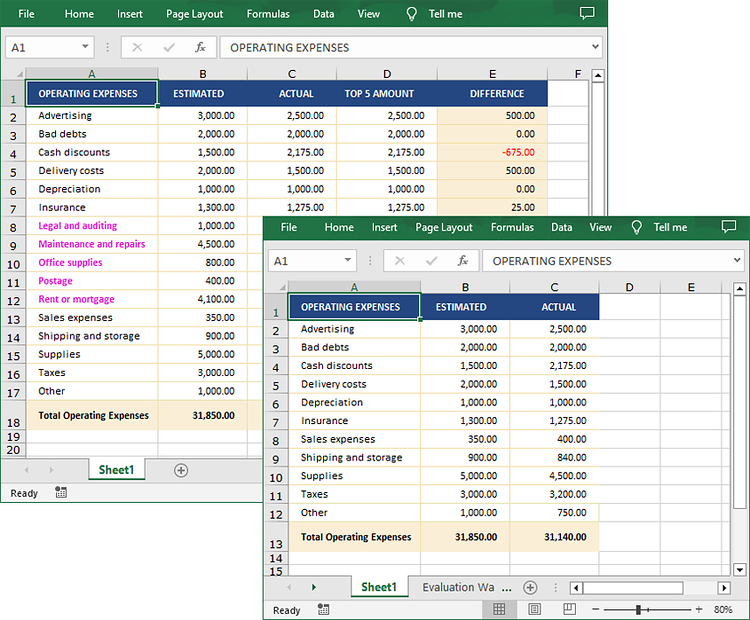
Below is the input Excel file and the result file:

Delete Multiple Rows and Columns from Excel
Spire.XLS for JavaScript also allows you to delete multiple adjacent rows and columns from an Excel worksheet at once through the Worksheet.DeleteRow(index, count) and Worksheet.DeleteColumn(index, count) methods. The following are the main steps.
- Create a Workbook object using the new wasmModule.Workbook() method.
- Load an Excel file using the Workbook.LoadFromFile() method.
- Get a specific worksheet using the Workbook.Worksheets.get() method.
- Delete multiple rows from the worksheet using the Worksheet.DeleteRow(index, count) method.
- Delete multiple columns from the worksheet using the Worksheet.DeleteColumn(index, count) method.
- Save the result file using the Workbook.SaveToFile() method.
- JavaScript
import React, { useState, useEffect } from 'react';
function App() {
  const [wasmModule, setWasmModule] = useState(null);
  // Load Spire.XLS
  useEffect(() => {
    (async () => {
      try {
        const publicUrl = process.env.PUBLIC_URL || '';
        const spireModule = await import(/* webpackIgnore: true */ `${publicUrl}/spire.xls.js`);
        const rawModule = spireModule.default || spireModule;
        window.wasmModule = typeof rawModule === 'function'
          ? await rawModule({ locateFile: p => p.endsWith('.wasm') ? `${publicUrl}/${p}` : p })
          : rawModule;
        setWasmModule(window.wasmModule);
      } catch (error) {
        console.error('Failed to load spire.xls.js WASM module:', error);
      }
    })();
  }, []);

  // Function to delete multiple rows and columns
  const DeleteMultiRowsColumns = async () => {
    const wasmModule = window.wasmModule.spirexls;

    if (wasmModule) {
      // Load font into Virtual File System (VFS)
      await window.spire.FetchFileToVFS('Arial.ttf', '/Library/Fonts/', `${process.env.PUBLIC_URL}/static/font/`);


      // Load the Excel files into the virtual file system (VFS)
      let inputFileName = 'sample.xlsx';
      await window.spire.FetchFileToVFS(inputFileName, '', `${process.env.PUBLIC_URL}/static/data/`);


      // Create a new workbook
      let workbook = new wasmModule.Workbook();

      // Load an Excel document
      workbook.LoadFromFile({ fileName: inputFileName });

      // Get the first worksheet
      let sheet = workbook.Worksheets.get(0);

      //Delete 5 rows from the 8th row
      sheet.DeleteRow({ index: 8, count: 5 });

      //Delete 2 columns from the 4th column
      sheet.DeleteColumn({ index: 4, count: 2 });

      //Save result file
      const outputFileName = 'DeleteMultiRowsAndColumns.xlsx';
      workbook.SaveToFile({ fileName: outputFileName, version: wasmModule.ExcelVersion.Version2016 });

      // Read the saved file and convert to Blob object
      const modifiedFileArray = window.dotnetRuntime.Module.FS.readFile(outputFileName);
      const modifiedFile = new Blob([modifiedFileArray], { type: 'application/vnd.openxmlformats-officedocument.spreadsheetml.sheet' });

      // Create a URL for the Blob and initiate download
      const url = URL.createObjectURL(modifiedFile);
      const a = document.createElement('a');
      a.href = url;
      a.download = outputFileName;
      document.body.appendChild(a);
      a.click();
      document.body.removeChild(a);
      URL.revokeObjectURL(url);

      // Clean up resources used by the workbook
      workbook.Dispose();
    }
  };

  return (
    <div style={{ textAlign: 'center', height: '300px' }}>
      <h1>Delete Multiple Rows and Columns Using JavaScript in React
      <button onClick={DeleteMultiRowsColumns} disabled={!wasmModule}>
        Delete
      </button>
    </div>
  );
}

export default App;
Delete Blank Rows and Columns from Excel
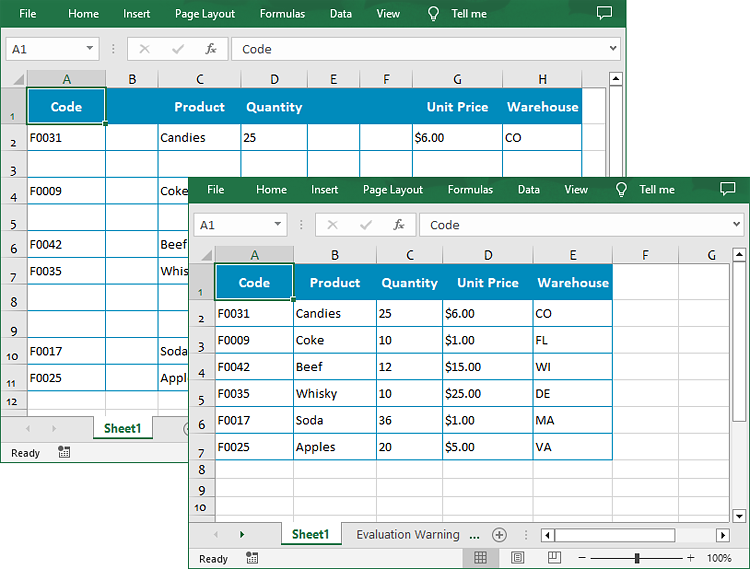
To remove the blank rows and column, you need to iterate over each row and column to detect whether they are blank or not. If yes, then remove them from the worksheet. The following are the main steps.
- Create a Workbook object using the new wasmModule.Workbook() method.
- Load an Excel file using the Workbook.LoadFromFile() method.
- Get a specific worksheet using the Workbook.Worksheets.get() method.
- Iterate through the used rows in the worksheet.
- Find the blank rows using the Worksheet.Rows.get().IsBlank property, and then delete them using the Worksheet.DeleteRow() method.
- Iterate through the used columns in the worksheet.
- Find the blank columns using the Worksheet.Columns.get().IsBlank property, and then delete them using the Worksheet.DeleteColumn() method.
- Save the result file using the Workbook.SaveToFile() method.
- JavaScript
import React, { useState, useEffect } from 'react';
function App() {
  const [wasmModule, setWasmModule] = useState(null);
  // Load Spire.XLS
  useEffect(() => {
    (async () => {
      try {
        const publicUrl = process.env.PUBLIC_URL || '';
        const spireModule = await import(/* webpackIgnore: true */ `${publicUrl}/spire.xls.js`);
        const rawModule = spireModule.default || spireModule;
        window.wasmModule = typeof rawModule === 'function'
          ? await rawModule({ locateFile: p => p.endsWith('.wasm') ? `${publicUrl}/${p}` : p })
          : rawModule;
        setWasmModule(window.wasmModule);
      } catch (error) {
        console.error('Failed to load spire.xls.js WASM module:', error);
      }
    })();
  }, []);

  // Function to delete blank rows and columns
  const DeleteBlankRowsColumns = async () => {
    const wasmModule = window.wasmModule.spirexls;

    if (wasmModule) {
      // Load font into Virtual File System (VFS)
      await window.spire.FetchFileToVFS('Arial.ttf', '/Library/Fonts/', `${process.env.PUBLIC_URL}/static/font/`);


      // Load the Excel files into the virtual file system (VFS)
      let inputFileName = 'sample.xlsx';
      await window.spire.FetchFileToVFS(inputFileName, '', `${process.env.PUBLIC_URL}/static/data/`);


      // Create a new workbook
      let workbook = new wasmModule.Workbook();


      // Load an Excel document
      workbook.LoadFromFile({ fileName: inputFileName });

      // Get the first worksheet
      let sheet = workbook.Worksheets.get(0);

      //Delete blank rows from the worksheet.
      for (let i = sheet.Rows.Count - 1; i >= 0; i--) {
        if (sheet.Rows.get(i).IsBlank) {
          sheet.DeleteRow(i + 1);
        }
      }

      //Delete blank columns from the worksheet.
      for (let j = sheet.Columns.Count - 1; j >= 0; j--) {
        if (sheet.Columns.get(j).IsBlank) {
          sheet.DeleteColumn(j + 1);
        }
      }

      //Save result file
      const outputFileName = 'DeleteBlankRowsAndColumns.xlsx';
      workbook.SaveToFile({ fileName: outputFileName, version: wasmModule.ExcelVersion.Version2016 });

      // Read the saved file and convert to Blob object
      const modifiedFileArray = window.dotnetRuntime.Module.FS.readFile(outputFileName);
      const modifiedFile = new Blob([modifiedFileArray], { type: 'application/vnd.openxmlformats-officedocument.spreadsheetml.sheet' });

      // Create a URL for the Blob and initiate download
      const url = URL.createObjectURL(modifiedFile);
      const a = document.createElement('a');
      a.href = url;
      a.download = outputFileName;
      document.body.appendChild(a);
      a.click();
      document.body.removeChild(a);
      URL.revokeObjectURL(url);

      // Clean up resources used by the workbook
      workbook.Dispose();
    }
  };

  return (
    <div style={{ textAlign: 'center', height: '300px' }}>
      <h1>Delete Blank Rows and Columns Using JavaScript in React
      <button onClick={DeleteBlankRowsColumns} disabled={!wasmModule}>
        Delete
      </button>
    </div>
  );
}

export default App;
Get a Free License
To fully experience the capabilities of Spire.XLS for JavaScript without any evaluation limitations, you can request a free 30-day trial license.
RTF files are versatile, containing text, images, and formatting information. Converting these files into PDF and HTML ensures that they are accessible and display consistently across various devices and browsers. Whether you're building a document viewer or integrating document management features into your application, mastering RTF conversion is a valuable skill.
In this article, you will learn how to convert RTF to PDF and RTF to HTML in React using Spire.Doc for JavaScript.
Install Spire.Doc for JavaScript
To get started with converting RTF to PDF and HTML in a React application, you can either download Spire.Doc for JavaScript from our website or install it via npm with the following command:
npm i spire.officeThe downloaded product package integrates Spire.Doc for JavaScript, Spire.XLS for JavaScript, Spire.PDF for JavaScript, and Spire.Presentation for JavaScript. To use the features of Spire.Doc for JavaScript, you need to copy the corresponding files (spire.doc.js, Spire.Doc.Wasm.zip, spire.common.js, Spire.Common.Wasm.zip, and the _framework folder) to the public folder of your project. To ensure proper text rendering, you can add relevant font files with a custom path. In the following example, the font is added to the path: public\static\font.
For more details, refer to the documentation: How to Integrate Spire.Doc for JavaScript in a React Project
Convert RTF to PDF with JavaScript
With Spire.Doc for JavaScript, converting RTF files to PDF is straightforward. Utilize the Document.LoadFromFile() method to load the RTF file, preserving its formatting. Then, save it as a PDF using the Document.SaveToFile() method. This process ensures high-quality output, making file format conversion easy and efficient.
Here are the steps to convert RTF to PDF in React using Spire.Doc for JavaScript:
- Load the font files used in the RTF document into the virtual file system (VFS).
- Create a new Document object using the new wasmModule.Document() method.
- Load the input RTF file using the Document.LoadFromFile() method.
- Save the document as a PDF file using the Document.SaveToFile() method.
- Generate a Blob from the PDF file, create a download link, and trigger the download.
- JavaScript
import React, { useState, useEffect } from 'react';

function App() {
  const [wasmModule, setWasmModule] = useState(null);
  // Load Spire.Doc
  useEffect(() => {
    (async () => {
      try {
        const publicUrl = process.env.PUBLIC_URL || '';
        const spireModule = await import(/* webpackIgnore: true */ `${publicUrl}/spire.doc.js`);
        const rawModule = spireModule.default || spireModule;
        window.wasmModule = typeof rawModule === 'function'
          ? await rawModule({ locateFile: p => p.endsWith('.wasm') ? `${publicUrl}/${p}` : p })
          : rawModule;
        setWasmModule(window.wasmModule);
      } catch (error) {
        console.error('Failed to load spire.doc.js WASM module:', error);
      }
    })();
  }, []);

  // Function to convert RTF to PDF
  const convertRtfToPdf = async () => {
    const wasmModule = window.wasmModule.spiredoc;

    if (wasmModule) {
      // Load the font files into the virtual file system (VFS)
      await window.spire.FetchFileToVFS('times.ttf', '/Library/Fonts/', `${process.env.PUBLIC_URL}/static/font/`);
      await window.spire.FetchFileToVFS('timesbd.ttf', '/Library/Fonts/', `${process.env.PUBLIC_URL}/static/font/`);
      await window.spire.FetchFileToVFS('timesbi.ttf', '/Library/Fonts/', `${process.env.PUBLIC_URL}/static/font/`);
      await window.spire.FetchFileToVFS('timesi.ttf', '/Library/Fonts/', `${process.env.PUBLIC_URL}/static/font/`);

      // Specify the input file name
      const inputFileName = 'input.rtf';

      // Fetch the input file and add it to the VFS
      await window.spire.FetchFileToVFS(inputFileName, '', `${process.env.PUBLIC_URL}/static/data/`);

      // Create an instance of the Document class
      const doc = new wasmModule.Document();

      // Load the RTF file
      doc.LoadFromFile(inputFileName);

      // Define the output file name
      const outputFileName = "RtfToPdf.pdf";

      // Save the document to the specified path
      doc.SaveToFile({ fileName: outputFileName, fileFormat: wasmModule.FileFormat.PDF });

      // Read the generated PDF file from VFS
      const modifiedFileArray =window.dotnetRuntime.Module.FS.readFile(outputFileName);

      // Create a Blob object from the PDF file
      const modifiedFile = new Blob([modifiedFileArray], { type: 'application/pdf' });

      // Create a URL for the Blob
      const url = URL.createObjectURL(modifiedFile);

      // Create an anchor element to trigger the download
      const a = document.createElement('a');
      a.href = url;
      a.download = outputFileName;
      document.body.appendChild(a);
      a.click();
      document.body.removeChild(a);
      URL.revokeObjectURL(url);

      // Clean up resources
      doc.Dispose();
    }
  };

  return (
    <div style={{ textAlign: 'center', height: '300px' }}>
      <h1>Convert RTF to PDF in React</h1>
      <button onClick={convertRtfToPdf} disabled={!wasmModule}>
        Convert
      </button>
    </div>
  );
}
export default App;
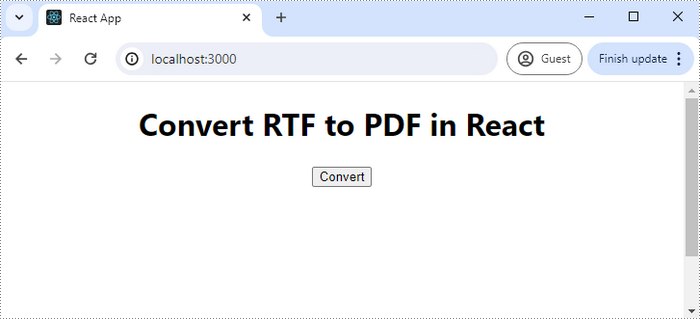
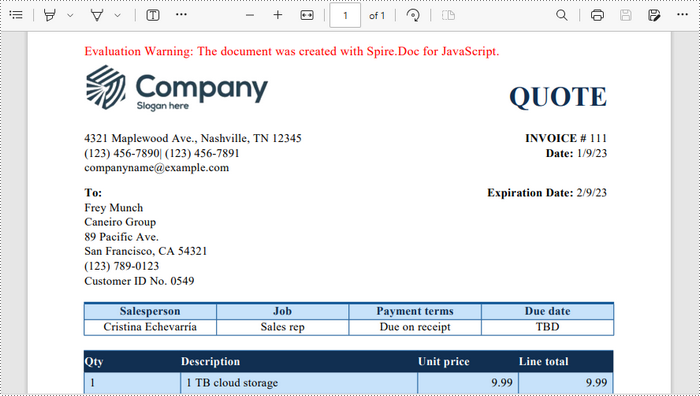
Run the code to launch the React app at localhost:3000. Click "Convert," and a "Save As" window will appear, prompting you to save the output file in your chosen folder.
Below is a screenshot of the generated PDF document:
Convert RTF to HTML with JavaScript
When converting RTF to HTML, it's crucial to decide whether to embed image files and CSS stylesheets as internal resources, as these elements significantly impact the HTML file's display.
With Spire.Doc for JavaScript, you can easily configure these settings using the Document.HtmlExportOptions.CssStyleSheetType and Document.HtmlExportOptions.ImageEmbedded properties.
Here are the steps to convert RTF to HTML with embedded images and CSS stylesheets using Spire.Doc for JavaScript:
- Load the font files used in the RTF document into the virtual file system (VFS).
- Create a new Document object using the new wasmModule.Document() method.
- Load the input RTF file using the Document.LoadFromFile() method.
- Embed CSS stylesheet in the HTML file by setting the Document.HtmlExportOptions.CssStyleSheetType as Internal.
- Embed image files in the HTML file by setting the Document.HtmlExportOptions.ImageEmbedded to true.
- Save the document as an HTML file using the Document.SaveToFile() method.
- Generate a Blob from the PDF file, create a download link, and trigger the download.
- JavaScript
import React, { useState, useEffect } from 'react';

function App() {
  const [wasmModule, setWasmModule] = useState(null);
  // Load Spire.Doc
  useEffect(() => {
    (async () => {
      try {
        const publicUrl = process.env.PUBLIC_URL || '';
        const spireModule = await import(/* webpackIgnore: true */ `${publicUrl}/spire.doc.js`);
        const rawModule = spireModule.default || spireModule;
        window.wasmModule = typeof rawModule === 'function'
          ? await rawModule({ locateFile: p => p.endsWith('.wasm') ? `${publicUrl}/${p}` : p })
          : rawModule;
        setWasmModule(window.wasmModule);
      } catch (error) {
        console.error('Failed to load spire.doc.js WASM module:', error);
      }
    })();
  }, []);

  // Function to convert RTF to HTML
  const convertRtfToHtml = async () => {
    const wasmModule = window.wasmModule.spiredoc;

    if (wasmModule) {
      // Load the font files into the virtual file system (VFS)
      await window.spire.FetchFileToVFS('times.ttf', '/Library/Fonts/', `${process.env.PUBLIC_URL}/static/font/`);
      await window.spire.FetchFileToVFS('timesbd.ttf', '/Library/Fonts/', `${process.env.PUBLIC_URL}/static/font/`);
      await window.spire.FetchFileToVFS('timesbi.ttf', '/Library/Fonts/', `${process.env.PUBLIC_URL}/static/font/`);
      await window.spire.FetchFileToVFS('timesi.ttf', '/Library/Fonts/', `${process.env.PUBLIC_URL}/static/font/`);

      // Specify the input file name
      const inputFileName = 'input.rtf';

      // Fetch the input file and add it to the VFS
      await window.spire.FetchFileToVFS(inputFileName, '', `${process.env.PUBLIC_URL}/static/data/`);

      // Create an instance of the Document class
      const doc = new wasmModule.Document();

      // Load the RTF file
      doc.LoadFromFile(inputFileName);

      // Embed CSS file in the HTML file
      doc.HtmlExportOptions.CssStyleSheetType = wasmModule.CssStyleSheetType.Internal;

      // Embed images in the HTML file
      doc.HtmlExportOptions.ImageEmbedded = true;

      // Define the output file name
      const outputFileName = "RtfToHtml.html";

      // Save the document to the specified path
      doc.SaveToFile({fileName: outputFileName, fileFormat: wasmModule.FileFormat.Html});

      // Read the generated HTML file from VFS
      const modifiedFileArray = window.dotnetRuntime.Module.FS.readFile(outputFileName);

      // Create a Blob object from the HTML file
      const modifiedFile = new Blob([modifiedFileArray], { type: 'text/html'});

      // Create a URL for the Blob
      const url = URL.createObjectURL(modifiedFile);

      // Create an anchor element to trigger the download
      const a = document.createElement('a');
      a.href = url;
      a.download = outputFileName;
      document.body.appendChild(a);
      a.click();
      document.body.removeChild(a);
      URL.revokeObjectURL(url);

      // Clean up resources
      doc.Dispose();
    }
  };

  return (
    <div style={{ textAlign: 'center', height: '300px' }}>
      <h1>Convert RTF to HTML in React</h1>
      <button onClick={convertRtfToHtml} disabled={!wasmModule}>
        Convert
      </button>
    </div>
  );
}

export default App;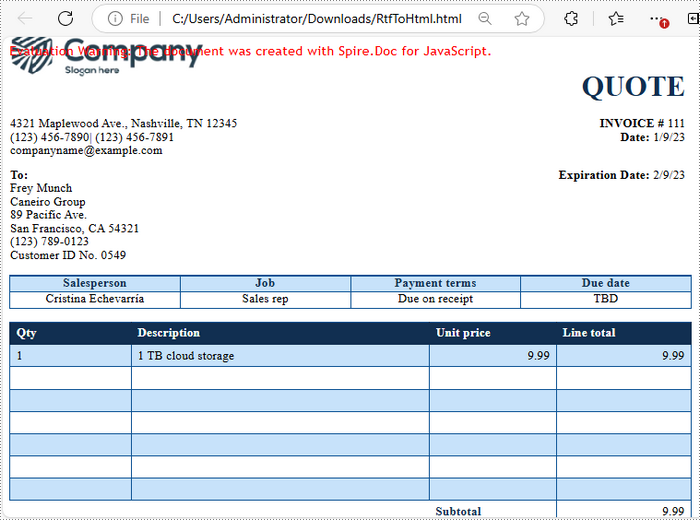
Get a Free License
To fully experience the capabilities of Spire.Doc for JavaScript without any evaluation limitations, you can request a free 30-day trial license.
In web page development, transforming Word documents into HTML allows content creators to leverage the familiar Word document editing for crafting web-ready content. This approach not only structures the content appropriately for web delivery but also streamlines content management processes. Furthermore, by harnessing the capabilities of React, developers can execute this transformation directly within the browser on the client side, thereby simplifying the development workflow and potentially reducing load times and server costs.
This article demonstrates how to use Spire.Doc for JavaScript to convert Word documents to HTML files within React applications.
- Convert Word Documents to HTML Using JavaScript
- Convert Word to HTML with Embedded CSS and Images
- Convert Word to HTML with Customized Options
Install Spire.Doc for JavaScript
To get started with converting Word documents to HTML in a React application, you can either download Spire.Doc for JavaScript from our website or install it via npm with the following command:
npm i spire.officeThe downloaded product package integrates Spire.Doc for JavaScript, Spire.XLS for JavaScript, Spire.PDF for JavaScript, and Spire.Presentation for JavaScript. To use the features of Spire.Doc for JavaScript, you need to copy the corresponding files (spire.doc.js, Spire.Doc.Wasm.zip, spire.common.js, Spire.Common.Wasm.zip, and the _framework folder) to the public folder of your project. To ensure proper text rendering, you can add relevant font files with a custom path. In the following example, the font is added to the path: public\static\font.
For more details, refer to the documentation: How to Integrate Spire.Doc for JavaScript in a React Project
Convert Word Documents to HTML Using JavaScript
With Spire.Doc for JavaScript, you can load Word documents into the WASM environment using the Document.LoadFromFile() method and convert them to HTML files with the Document.SaveToFile() method. This approach converts Word documents into HTML format with CSS files and images separated from the main HTML file, allowing developers to easily customize the HTML page.
Follow these steps to convert a Word document to HTML format using Spire.Doc for JavaScript in React:
- Load the spire.doc.js file to initialize the WebAssembly module.
- Load the Word file into the virtual file system using the window.spire.FetchFileToVFS method.
- Create a Document instance in the WASM module using the new wasmModule.Document() method.
- Load the Word document into the Document instance using the Document.LoadFromFile() method.
- Convert the Word document to HTML format using the Document.SaveToFile({ fileName: string, fileFormat: wasmModule.FileFormat.Html }) method.
- Pack and download the result files or take further actions as needed.
- JavaScript
import React, { useState, useEffect } from 'react';
import JSZip from 'jszip';

function App() {
  const [wasmModule, setWasmModule] = useState(null);
  // Load Spire.Doc
  useEffect(() => {
    (async () => {
      try {
        const publicUrl = process.env.PUBLIC_URL || '';
        const spireModule = await import(/* webpackIgnore: true */ `${publicUrl}/spire.doc.js`);
        const rawModule = spireModule.default || spireModule;
        window.wasmModule = typeof rawModule === 'function'
          ? await rawModule({ locateFile: p => p.endsWith('.wasm') ? `${publicUrl}/${p}` : p })
          : rawModule;
        setWasmModule(window.wasmModule);
      } catch (error) {
        console.error('Failed to load spire.doc.js WASM module:', error);
      }
    })();
  }, []);

  // Function to convert the Word document to HTML format
  const WordToHTMLAndZip = async () => {
    const wasmModule = window.wasmModule.spiredoc;

    if (wasmModule) {
      // Load the font files into the virtual file system (VFS)
      await window.spire.FetchFileToVFS('CALIBRI.ttf', '/Library/Fonts/', `${process.env.PUBLIC_URL}/static/font/`);

      // Specify the input file name and the output folder name
      const inputFileName = 'input.docx';
      const outputFolderName = 'WordToHTMLOutput';

      // Fetch the input file and add it to the VFS
      await window.spire.FetchFileToVFS(inputFileName, '', `${process.env.PUBLIC_URL}/static/data/`);

      // Create an instance of the Document class
      const doc = new wasmModule.Document();
      // Load the Word document
      doc.LoadFromFile({ fileName: inputFileName });

      // Save the Word document to HTML format in the output folder
      doc.SaveToFile({ fileName: `${outputFolderName}/document.html`, fileFormat: wasmModule.FileFormat.Html });

      // Release resources
      doc.Dispose();

      // Create a new JSZip object
      const zip = new JSZip();

      // Recursive function to add a directory and its contents to the ZIP
      const addFilesToZip = (folderPath, zipFolder) => {
        const items = window.dotnetRuntime.Module.FS.readdir(folderPath);
        items.filter(item => item !== "." && item !== "..").forEach((item) => {
          const itemPath = `${folderPath}/${item}`;

          try {
            // Attempt to read file data
            const fileData = window.dotnetRuntime.Module.FS.readFile(itemPath);
            zipFolder.file(item, fileData);
          } catch (error) {
            if (error.code === 'EISDIR') {
              // If it's a directory, create a new folder in the ZIP and recurse into it
              const zipSubFolder = zipFolder.folder(item);
              addFilesToZip(itemPath, zipSubFolder);
            } else {
              // Handle other errors
              console.error(`Error processing ${itemPath}:`, error);
            }
          }
        });
      };

      // Add all files in the output folder to the ZIP
      addFilesToZip(outputFolderName, zip);

      // Generate and download the ZIP file
      zip.generateAsync({ type: 'blob' }).then((content) => {
        const url = URL.createObjectURL(content);
        const a = document.createElement('a');
        a.href = url;
        a.download = `${outputFolderName}.zip`;
        document.body.appendChild(a);
        a.click();
        document.body.removeChild(a);
        URL.revokeObjectURL(url);
      });
    }
  };

  return (
      <div style={{ textAlign: 'center', height: '300px' }}>
        <h1>Convert Word File to HTML and Download as ZIP Using JavaScript in React</h1>
        <button onClick={WordToHTMLAndZip} disabled={!wasmModule}>
          Convert and Download
        </button>
      </div>
  );
}

export default App;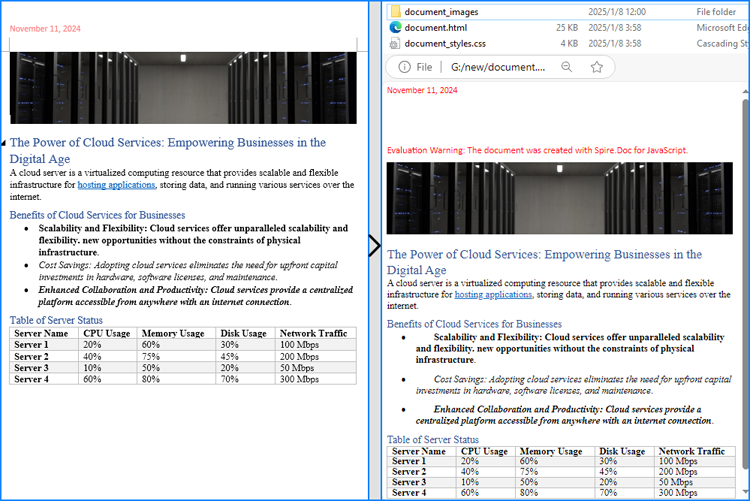
Convert Word to HTML with Embedded CSS and Images
In addition to converting Word documents to HTML with separated files, CSS and images can be embedded into a single HTML file by configuring the Document.HtmlExportOptions.CssStyleSheetType property and the Document.HtmlExportOptions.ImageEmbedded property. The steps to achieve this are as follows:
- Load the spire.doc.js file to initialize the WebAssembly module.
- Load the Word file into the virtual file system using the window.spire.FetchFileToVFS() method.
- Create a Document instance in the WASM module using the new wasmModule.Document() method.
- Load the Word document into the Document instance using the Document.LoadFromFile() method.
- Set the Document.HtmlExportOptions.CssStyleSheetType property to wasmModule.CssStyleSheetType.Internal to embed CSS styles in the resulting HTML file.
- Set the Document.HtmlExportOptions.ImageEmbedded property to true to embed images in the resulting HTML file.
- Convert the Word document to an HTML file with CSS styles and images embedded using the Document.SaveToFile({ fileName: string, fileFormat: wasmModule.FileFormat.Html }) method.
- Download the resulting HTML file or take further actions as needed.
- JavaScript
import React, { useState, useEffect } from 'react';

function App() {
  const [wasmModule, setWasmModule] = useState(null);
  // Load Spire.Doc
  useEffect(() => {
    (async () => {
      try {
        const publicUrl = process.env.PUBLIC_URL || '';
        const spireModule = await import(/* webpackIgnore: true */ `${publicUrl}/spire.doc.js`);
        const rawModule = spireModule.default || spireModule;
        window.wasmModule = typeof rawModule === 'function'
          ? await rawModule({ locateFile: p => p.endsWith('.wasm') ? `${publicUrl}/${p}` : p })
          : rawModule;
        setWasmModule(window.wasmModule);
      } catch (error) {
        console.error('Failed to load spire.doc.js WASM module:', error);
      }
    })();
  }, []);

  // Function to convert the Word document to HTML format
  const WordToHTMLAndZip = async () => {
    const wasmModule = window.wasmModule.spiredoc;

    if (wasmModule) {
      // Load the font files into the virtual file system (VFS)
      await window.spire.FetchFileToVFS('CALIBRI.ttf', '/Library/Fonts/', `${process.env.PUBLIC_URL}/static/font/`);

      // Specify the input file name and the output file name
      const inputFileName = 'input.docx';
      const outputFileName = 'ConvertedDocument.html';

      // Fetch the input file and add it to the VFS
      await window.spire.FetchFileToVFS(inputFileName, '', `${process.env.PUBLIC_URL}/static/data/`);

      // Create an instance of the Document class
      const doc = new wasmModule.Document();

      // Load the Word document
      doc.LoadFromFile({ fileName: inputFileName });

      // Embed CSS file in the HTML file
      doc.HtmlExportOptions.CssStyleSheetType = wasmModule.CssStyleSheetType.Internal;

      // Embed images in the HTML file
      doc.HtmlExportOptions.ImageEmbedded = true;

      // Save the Word document to HTML format
      doc.SaveToFile({ fileName: outputFileName, fileFormat: wasmModule.FileFormat.Html });

      // Release resources
      doc.Dispose();

      // Read the HTML file from the VFS
      const htmlFileArray = window.dotnetRuntime.Module.FS.readFile(outputFileName);

      // Generate a Blob from the HTML file array and trigger download
      const blob = new Blob([new Uint8Array(htmlFileArray)], { type: 'text/html' });
      const url = URL.createObjectURL(blob);
      const a = document.createElement("a");
      a.href = url;
      a.download = outputFileName;
      document.body.appendChild(a);
      a.click();
      document.body.removeChild(a);
      URL.revokeObjectURL(url);
    }
  };

  return (
      <div style={{ textAlign: 'center', height: '300px' }}>
        <h1>Convert Word to HTML Using JavaScript in React</h1>
        <button onClick={WordToHTMLAndZip} disabled={!wasmModule}>
          Convert and Download
        </button>
      </div>
  );
}
export default App;
Convert Word to HTML with Customized Options
Spire.Doc for JavaScript also supports customizing many other HTML export options, such as CSS file name, header and footer, form field, etc., through the Document.HtmlExportOptions property. The table below lists the properties available under Document.HtmlExportOptions, which can be used to tailor the Word-to-HTML conversion:
| Property | Description |
| CssStyleSheetType | Specifies the type of the HTML CSS style sheet (External or Internal). |
| CssStyleSheetFileName | Specifies the name of the HTML CSS style sheet file. |
| ImageEmbedded | Specifies whether to embed images in the HTML code using the Data URI scheme. |
| ImagesPath | Specifies the folder for images in the exported HTML. |
| UseSaveFileRelativePath | Specifies whether the image file path is relative to the HTML file path. |
| HasHeadersFooters | Specifies whether headers and footers should be included in the exported HTML. |
| IsTextInputFormFieldAsText | Specifies whether text-input form fields should be exported as text in HTML. |
| IsExportDocumentStyles | Specifies whether to export document styles to the HTML <head>. |
Follow these steps to customize options when converting Word documents to HTML format:
- Load the Spire.doc.js file to initialize the WebAssembly module.
- Load the Word file into the virtual file system using the wasmModule.FetchFileToVFS() method.
- Create a Document instance in the WASM module using the new wasmModule.Document() method.
- Load the Word document into the Document instance using the Document.LoadFromFile() method.
- Customize the conversion options through properties under Document.HtmlExportOptions.
- Convert the Word document to HTML format using the Document.SaveToFile({ fileName: string, fileFormat: wasmModule.FileFormat.Html }) method.
- Pack and download the result files or take further actions as needed.
- JavaScript
import React, { useState, useEffect } from 'react';
import JSZip from 'jszip';

function App() {

  // State to hold the loaded WASM module
  const [wasmModule, setWasmModule] = useState(null);

  // useEffect hook to load the WASM module when the component mounts
  useEffect(() => {
    const loadWasm = async () => {
      try {

        // Access the Module and spiredoc from the global window object
        const { Module, spiredoc } = window;

        // Set the wasmModule state when the runtime is initialized
        Module.onRuntimeInitialized = () => {
          setWasmModule(spiredoc);
        };
      } catch (err) {

        // Log any errors that occur during loading
        console.error('Failed to load WASM module:', err);
      }
    };

    // Create a script element to load the WASM JavaScript file
    const script = document.createElement('script');
    script.src = `${process.env.PUBLIC_URL}/Spire.Doc.Base.js`;
    script.onload = loadWasm;

    // Append the script to the document body
    document.body.appendChild(script);

    // Cleanup function to remove the script when the component unmounts
    return () => {
      document.body.removeChild(script);
    };
  }, []);

  // Function to convert the Word document to HTML format
  const WordToHTMLAndZip = async () => {
    if (wasmModule) {
      // Specify the input file name and the base output file name
      const inputFileName = 'Sample.docx';
      const baseOutputFileName = 'WordToHTML';
      const outputFolderName = 'WordToHTMLOutput';

      // Fetch the input file and add it to the VFS
      await wasmModule.FetchFileToVFS(inputFileName, '', `${process.env.PUBLIC_URL}/`);

      // Create an instance of the Document class
      const doc = wasmModule.Document.Create();

      // Load the Word document
      doc.LoadFromFile({ fileName: inputFileName });

      // Un-embed the CSS file and set its name
      doc.HtmlExportOptions.CssStyleSheetType = wasmModule.CssStyleSheetType.External;
      doc.HtmlExportOptions.CssStyleSheetFileName = `${baseOutputFileName}CSS.css`;

      // Un-embed the image files and set their path
      doc.HtmlExportOptions.ImageEmbedded = false;
      doc.HtmlExportOptions.ImagesPath = `/Images`;
      doc.HtmlExportOptions.UseSaveFileRelativePath = true;

      // Set to ignore headers and footers
      doc.HtmlExportOptions.HasHeadersFooters = false;

      // Set form fields flattened as text
      doc.HtmlExportOptions.IsTextInputFormFieldAsText = true;

      // Set exporting document styles in the head section
      doc.HtmlExportOptions.IsExportDocumentStyles = true;

      // Save the Word document to HTML format
      doc.SaveToFile({
        fileName: `${outputFolderName}/${baseOutputFileName}.html`,
        fileFormat: wasmModule.FileFormat.Html
      });

      // Release resources
      doc.Dispose();

      // Create a new JSZip object
      const zip = new JSZip();

      // Recursive function to add a directory and its contents to the ZIP
      const addFilesToZip = (folderPath, zipFolder) => {
        const items = wasmModule.FS.readdir(folderPath);
        items.filter(item => item !== "." && item !== "..").forEach((item) => {
          const itemPath = `${folderPath}/${item}`;

          try {
            // Attempt to read file data. If it's a directory, this will throw an error.
            const fileData = wasmModule.FS.readFile(itemPath);
            zipFolder.file(item, fileData);
          } catch (error) {
            if (error.code === 'EISDIR') {
              // If it's a directory, create a new folder in the ZIP and recurse into it
              const zipSubFolder = zipFolder.folder(item);
              addFilesToZip(itemPath, zipSubFolder);
            } else {
              // Handle other errors
              console.error(`Error processing ${itemPath}:`, error);
            }
          }
        });
      };

      // Add the contents of the output folder to the ZIP
      addFilesToZip(`${outputFolderName}`, zip);

      // Generate and download the ZIP file
      zip.generateAsync({ type: 'blob' }).then((content) => {
        const url = URL.createObjectURL(content);
        const a = document.createElement("a");
        a.href = url;
        a.download = `${baseOutputFileName}.zip`;
        document.body.appendChild(a);
        a.click();
        document.body.removeChild(a);
        URL.revokeObjectURL(url);
      });
    }
  };

  return (
      <div style={{ textAlign: 'center', height: '300px' }}>
        <h1>Convert Word File to HTML and Download as ZIP Using JavaScript in React</h1>
        <button onClick={WordToHTMLAndZip} disabled={!wasmModule}>
          Convert and Download
        </button>
      </div>
  );
}

export default App;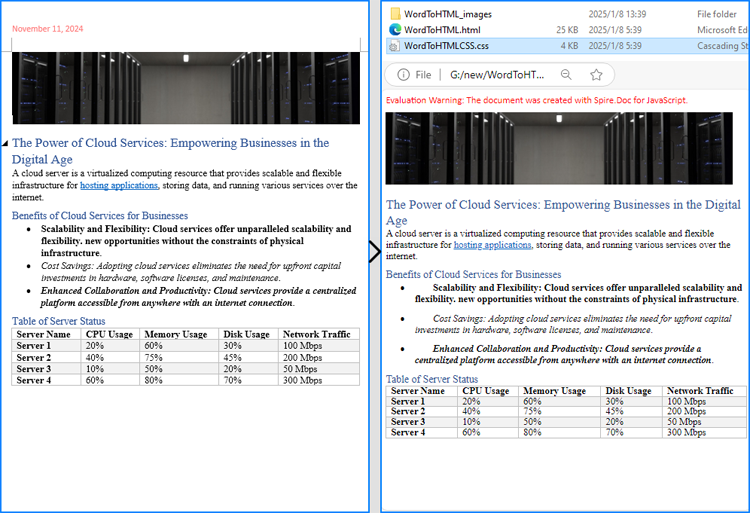
Get a Free License
To fully experience the capabilities of Spire.Doc for JavaScript without any evaluation limitations, you can request a free 30-day trial license.
