
Knowledgebase (2417)
Children categories
Adding annotations to PDFs is a common practice for adding comments, highlighting text, drawing shapes, and more. This feature is beneficial for collaborative document review, education, and professional presentations. It allows users to mark up documents digitally, enhancing communication and productivity.
In this article, you will learn how to add various types of annotations to a PDF document in Python using Spire.PDF for Python.
- Add a Text Markup Annotation to PDF
- Add a Free Text Annotation to PDF
- Add a Popup Annotation to PDF
- Add a Stamp Annotation to PDF
- Add a Shape Annotation to PDF
- Add a Web Link Annotation to PDF
- Add a File Link Annotation to PDF
- Add a Document Link Annotation to PDF
Install Spire.PDF for Python
This scenario requires Spire.PDF for Python and plum-dispatch v1.7.4. They can be easily installed in your Windows through the following pip command.
pip install Spire.PDF
If you are unsure how to install, please refer to this tutorial: How to Install Spire.PDF for Python on Windows
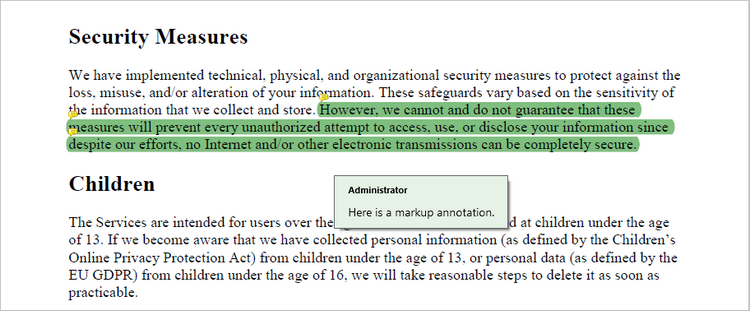
Add a Text Markup Annotation to PDF in Python
Text markup in PDF refers to the ability to emphasize important text by selecting and highlighting it. To add a text markup annotation to a PDF, you first need to locate the specific text within the document with the help of the PdfTextFinder class. Once the text is identified, you can create a PdfTextMarkupAnnotation object and apply it to the document.
The following are the steps to add a text markup annotation to PDF using Python:
- Create a PdfDocument object.
- Load a PDF file from the specified location.
- Get a page from the document.
- Find a specific piece of text within the page using PdfTextFinder class.
- Create a PdfTextMarkupAnnotation object based on the text found.
- Add the annotation to the page using PdfPageBase.AnnotationsWidget.Add() method.
- Save the modified document to a different PDF file.
- Python
from spire.pdf.common import *
from spire.pdf import *

# Create a PdfDocument object
doc = PdfDocument()

# Load a PDF file
doc.LoadFromFile("C:\\Users\\Administrator\\Desktop\\Input.pdf")

# Get a specific page
page = doc.Pages.get_Item(0)

# Create a PdfTextFinder object based on the page
finder = PdfTextFinder(page)

# Set the find options
finder.Options.Parameter = TextFindParameter.WholeWord
finder.Options.Parameter = TextFindParameter.IgnoreCase

# Find the instances of the specified text
fragments = finder.Find("However, we cannot and do not guarantee that these measures will prevent "+
                        "every unauthorized attempt to access, use, or disclose your information since "+
                         "despite our efforts, no Internet and/or other electronic transmissions can be completely secure.");

# Get the first instance
textFragment = fragments[0]

# Specify annotation text
text = "Here is a markup annotation."

# Iterate through the text bounds
for i in range(len(textFragment.Bounds)):

    # Get a specific bound
    rect = textFragment.Bounds[i]

    # Create a text markup annotation
    annotation = PdfTextMarkupAnnotation("Administrator", text, rect)

    # Set the markup color
    annotation.TextMarkupColor = PdfRGBColor(Color.get_Green())

    # Add the annotation to the collection of the annotations
    page.AnnotationsWidget.Add(annotation)

# Save result to file
doc.SaveToFile("output/MarkupAnnotation.pdf")

# Dispose resources
doc.Dispose()
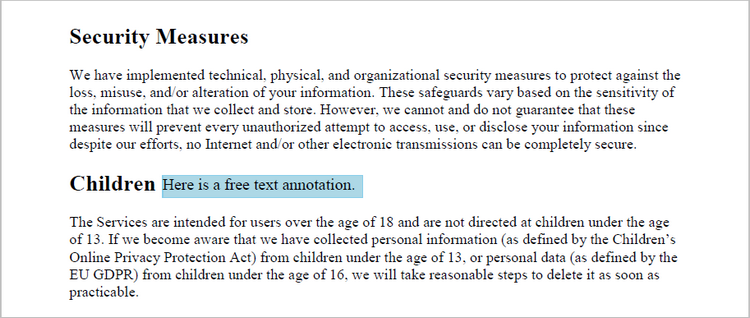
Add a Free Text Annotation to PDF in Python
Free text annotations allow adding freeform text comments directly on a PDF. To add a free text annotation at a specific location, you can use the PdfTextFinder class to obtain the coordinate information of the searched text, then create a PdfFreeTextAnnotation object based on that coordinates and add it to the document.
The following are the steps to add a free text annotation to PDF using Python:
- Create a PdfDocument object.
- Load a PDF file from the specified location.
- Get a page from the document.
- Find a specific piece of text within the page using PdfTextFinder class.
- Create a PdfFreeTextAnnotation object based on the coordinate information of the text found.
- Set the annotation content using PdfFreeTextAnnotation.Text property.
- Add the annotation to the page using PdfPageBase.AnnotationsWidget.Add() method.
- Save the modified document to a different PDF file.
- Python
from spire.pdf.common import *
from spire.pdf import *

# Create a PdfDocument object
doc = PdfDocument()

# Load a PDF file
doc.LoadFromFile("C:\\Users\\Administrator\\Desktop\\Input.pdf")

# Get a specific page
page = doc.Pages.get_Item(0)

# Create a PdfTextFinder object based on the page
finder = PdfTextFinder(page)

# Set the find options
finder.Options.Parameter = TextFindParameter.WholeWord
finder.Options.Parameter = TextFindParameter.IgnoreCase

# Find the instances of the specified text
fragments = finder.Find("Children");

# Get the first instance
textFragment = fragments[0]

# Get the text bound
rect = textFragment.Bounds[0]

# Get the coordinates to add annotation
right = bound.Right
top = bound.Top

# Create a free text annotation
rectangle = RectangleF(right + 5, top + 2, 160.0, 18.0)
textAnnotation = PdfFreeTextAnnotation(rectangle)

# Set the content of the annotation
textAnnotation.Text = "Here is a free text annotation."

# Set other properties of annotation
font = PdfFont(PdfFontFamily.TimesRoman, 13.0, PdfFontStyle.Regular)
border = PdfAnnotationBorder(1.0)
textAnnotation.Font = font
textAnnotation.Border = border
textAnnotation.BorderColor = PdfRGBColor(Color.get_SkyBlue())
textAnnotation.Color = PdfRGBColor(Color.get_LightBlue())
textAnnotation.Opacity = 1.0

# Add the annotation to the collection of the annotations
page.AnnotationsWidget.Add(textAnnotation)

# Save result to file
doc.SaveToFile("output/FreeTextAnnotation.pdf")

# Dispose resources
doc.Dispose()
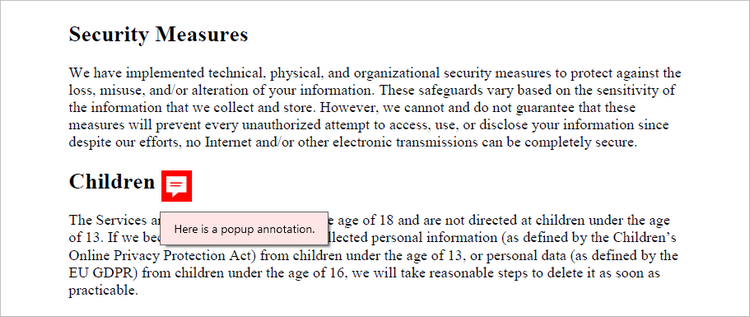
Add a Popup Annotation to PDF in Python
A popup annotation allows for the display of additional information or content in a pop-up window. To get a specific position to add a popup annotation, you can still use the PdfTextFinder class. Once the coordinate information is obtained, you can create a PdfPopupAnnotation object and add it to the document.
The steps to add a popup annotation to PDF using Python are as follows:
- Create a PdfDocument object.
- Load a PDF file from the specified location.
- Get a page from the document.
- Find a specific piece of text within the page using PdfTextFinder class.
- Create a PdfPopupAnnotation object based on the coordinate information of the text found.
- Set the annotation content using PdfPopupAnnotation.Text property.
- Add the annotation to the page using PdfPageBase.AnnotationsWidget.Add() method.
- Save the modified document to a different PDF file.
- Python
from spire.pdf.common import *
from spire.pdf import *

# Create a PdfDocument object
doc = PdfDocument()

# Load a PDF file
doc.LoadFromFile("C:\\Users\\Administrator\\Desktop\\Input.pdf")

# Get a specific page
page = doc.Pages.get_Item(0)

# Create a PdfTextFinder object based on the page
finder = PdfTextFinder(page)

# Set the find options
finder.Options.Parameter = TextFindParameter.WholeWord
finder.Options.Parameter = TextFindParameter.IgnoreCase

# Find the instances of the specified text
fragments = finder.Find("Children");

# Get the first instance
textFragment = fragments[0]

# Get the text bound
bound = textFragment.Bounds[0]

# Get the coordinates to add annotation
right = bound.Right
top = bound.Top

# Create a free text annotation
rectangle = RectangleF(right + 5, top, 30.0, 30.0)
popupAnnotation = PdfPopupAnnotation(rectangle)

# Set the content of the annotation
popupAnnotation.Text = "Here is a popup annotation."

# Set the icon and color of the annotation
popupAnnotation.Icon = PdfPopupIcon.Comment
popupAnnotation.Color = PdfRGBColor(Color.get_Red())

# Add the annotation to the collection of the annotations
page.AnnotationsWidget.Add(popupAnnotation)

# Save result to file
doc.SaveToFile("output/PopupAnnotation.pdf")

# Dispose resources
doc.Dispose()
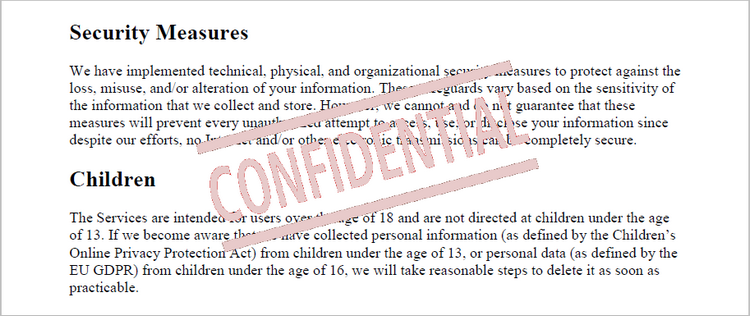
Add a Stamp Annotation to PDF in Python
Stamp annotations in PDF documents are a type of annotation that allow users to add custom "stamps" or symbols to a PDF file. To define the appearance of a stamp annotation, use the PdfTemplate class. Then, create a PdfRubberStampAnnotation object and apply the previously defined template as its appearance. Finally, add the annotation to the PDF document.
The steps to add a stamp annotation to PDF using Python are as follows:
- Create a PdfDocument object.
- Load a PDF file from the specified location.
- Get a page from the document.
- Create a PdfTemplate object and draw an image on the template.
- Create a PdfRubberStampAnnotation object and apply the template as its appearance.
- Add the annotation to the page using PdfPageBase.AnnotationsWidget.Add() method.
- Save the modified document to a different PDF file.
- Python
from spire.pdf.common import *
from spire.pdf import *

# Create a PdfDocument object
doc = PdfDocument()

# Load a PDF document
doc.LoadFromFile("C:\\Users\\Administrator\\Desktop\\Input.pdf")

# Get a specific page
page = doc.Pages.get_Item(0)

# Load an image file
image = PdfImage.FromFile("C:\\Users\\Administrator\\Desktop\\confidential.png")

# Get the width and height of the image
width = (float)(image.Width)
height = (float)(image.Height)

# Create a PdfTemplate object based on the size of the image
template = PdfTemplate(width, height, True)

# Draw image on the template
template.Graphics.DrawImage(image, 0.0, 0.0, width, height)

# Create a rubber stamp annotation, specifying its location and position
rect = RectangleF((float) (page.ActualSize.Width/2 - width/2), 90.0, width, height)
stamp = PdfRubberStampAnnotation(rect)

# Create a PdfAppearance object
pdfAppearance = PdfAppearance(stamp)

# Set the template as the normal state of the appearance
pdfAppearance.Normal = template

# Apply the appearance to the stamp
stamp.Appearance = pdfAppearance

# Add the stamp annotation to PDF
page.AnnotationsWidget.Add(stamp)

# Save the file
doc.SaveToFile("output/StampAnnotation.pdf")

# Dispose resources
doc.Dispose()
Add a Shape Annotation to PDF in Python
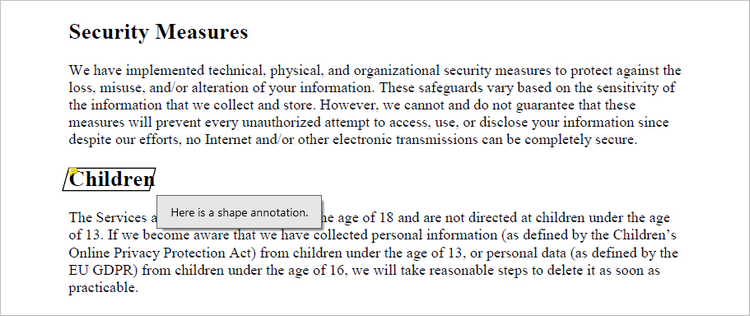
Shape annotations in PDF documents are a type of annotation that allow users to add various geometric shapes to the PDF file. Spire.PDF for Python offers the classes such as PdfPolyLineAnnotation, PdfLineAnnotation, and PdfPolygonAnnotation, allowing developers to add different types of shape annotations to PDF.
The steps to add a shape annotation to PDF using Python are as follows:
- Create a PdfDocument object.
- Load a PDF file from the specified location.
- Get a page from the document.
- Find a specific piece of text within the page using PdfTextFinder class.
- Create a PdfPolyLineAnnotation object based on the coordinate information of the text found.
- Set the annotation content using PdfPolyLineAnnotation.Text property.
- Add the annotation to the page using PdfPageBase.AnnotationsWidget.Add() method.
- Save the modified document to a different PDF file.
- Python
from spire.pdf.common import *
from spire.pdf import *

# Create a PdfDocument object
doc = PdfDocument()

# Load a PDF file
doc.LoadFromFile("C:\\Users\\Administrator\\Desktop\\Input.pdf")

# Get a specific page
page = doc.Pages.get_Item(0)

# Create a PdfTextFinder object based on the page
finder = PdfTextFinder(page)

# Set the find options
finder.Options.Parameter = TextFindParameter.WholeWord
finder.Options.Parameter = TextFindParameter.IgnoreCase

# Find the instances of the specified text
fragments = finder.Find("Children");

# Get the first instance
textFragment = fragments[0]

# Get the text bound
bound = textFragment.Bounds[0]

# Get the coordinates to add annotation
left = bound.Left
top = bound.Top
right = bound.Right
bottom = bound.Bottom

# Create a shape annotation
polyLineAnnotation = PdfPolyLineAnnotation(page, [PointF(left, top), PointF(right, top), PointF(right - 5, bottom), PointF(left - 5, bottom), PointF(left, top)])

# Set the annotation text
polyLineAnnotation.Text = "Here is a shape annotation."

# Add the annotation to the collection of the annotations
page.AnnotationsWidget.Add(polyLineAnnotation)

# Save result to file
doc.SaveToFile("output/ShapeAnnotation.pdf")

# Dispose resources
doc.Dispose()
Add a Web Link Annotation to PDF in Python
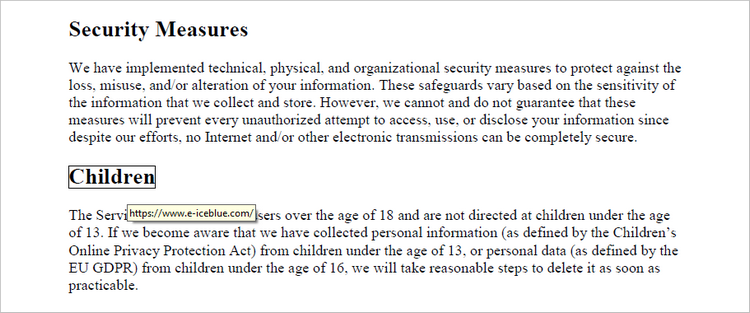
Web link annotations in PDF documents enable users to embed clickable links to webpages, providing easy access to additional resources or related information online. You can use the PdfTextFinder class to find the specified text in a PDF document, and then create a PdfUriAnnotation object based on that text.
The following are the steps to add a web link annotation to PDF using Python:
- Create a PdfDocument object.
- Load a PDF file from the specified location.
- Get a page from the document.
- Find a specific piece of text within the page using PdfTextFinder class.
- Create a PdfUriAnnotation object based on the bound of the text.
- Add the annotation to the page using PdfPageBase.AnnotationsWidget.Add() method.
- Save the modified document to a different PDF file.
- Python
from spire.pdf.common import *
from spire.pdf import *

# Create a PdfDocument object
doc = PdfDocument()

# Load a PDF file
doc.LoadFromFile("C:\\Users\\Administrator\\Desktop\\Input.pdf")

# Get a specific page
page = doc.Pages.get_Item(0)

# Create a PdfTextFinder object based on the page
finder = PdfTextFinder(page)

# Set the find options
finder.Options.Parameter = TextFindParameter.WholeWord
finder.Options.Parameter = TextFindParameter.IgnoreCase

# Find the instances of the specified text
fragments = finder.Find("Children");

# Get the first instance
textFragment = fragments[0]

# Get the text bound
bound = textFragment.Bounds[0]

# Create a Url annotation
urlAnnotation = PdfUriAnnotation(bound, "https://www.e-iceblue.com/");

# Add the annotation to the collection of the annotations
page.AnnotationsWidget.Add(urlAnnotation)

# Save result to file
doc.SaveToFile("output/WebLinkAnnotation.pdf")

# Dispose resources
doc.Dispose()
Add a File Link Annotation to PDF in Python
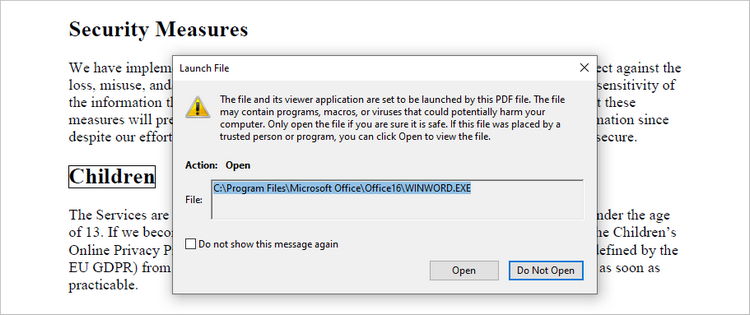
A file link annotation in a PDF document is a type of annotation that allows users to create a clickable link to an external file, such as another PDF, image, or document. Still, you can use the PdfTextFinder class to find the specified text in a PDF document, and then create a PdfFileLinkAnnotation object based on that text.
The following are the steps to add a file link annotation to PDF using Python:
- Create a PdfDocument object.
- Load a PDF file from the specified location.
- Get a page from the document.
- Find a specific piece of text within the page using PdfTextFinder class.
- Create a PdfFileLinkAnnotation object based on the bound of the text.
- Add the annotation to the page using PdfPageBase.AnnotationsWidget.Add() method.
- Save the modified document to a different PDF file.
- Python
from spire.pdf.common import *
from spire.pdf import *

# Create a PdfDocument object
doc = PdfDocument()

# Load a PDF file
doc.LoadFromFile("C:\\Users\\Administrator\\Desktop\\Input.pdf")

# Get a specific page
page = doc.Pages.get_Item(0)

# Create a PdfTextFinder object based on the page
finder = PdfTextFinder(page)

# Set the find options
finder.Options.Parameter = TextFindParameter.WholeWord
finder.Options.Parameter = TextFindParameter.IgnoreCase

# Find the instances of the specified text
fragments = finder.Find("Children");

# Get the first instance
textFragment = fragments[0]

# Get the text bound
bound = textFragment.Bounds[0]

# Create a file link annotation
fileLinkAnnotation = PdfFileLinkAnnotation(bound, "C:\\Users\\Administrator\\Desktop\\Report.docx")

# Add the annotation to the collection of the annotations
page.AnnotationsWidget.Add(fileLinkAnnotation)

# Save result to file
doc.SaveToFile("output/FileLinkAnnotation.pdf")

# Dispose resources
doc.Dispose()
Add a Document Link Annotation to PDF in Python
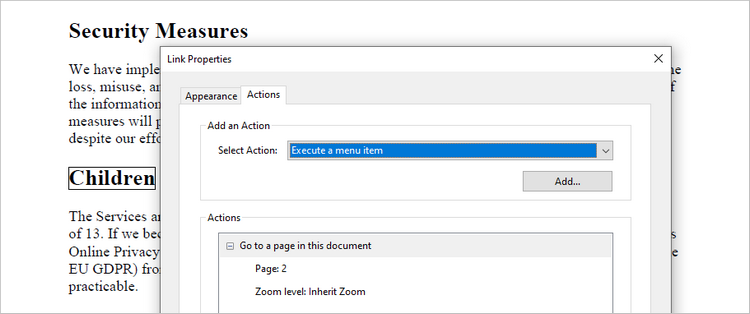
A document link annotation in a PDF document is a type of annotation that creates a clickable link to a specific location within the same PDF file. To create a document link annotation, you can first use the PdfTextFinder class to identify the target text in the PDF document. Then, a PdfDocumentLinkAnnotation object is instantiated, and its destination property is configured to redirect the user to the specified location in the PDF.
The steps to add a document link annotation to PDF using Python are as follows:
- Create a PdfDocument object.
- Load a PDF file from the specified location.
- Get a page from the document.
- Find a specific piece of text within the page using PdfTextFinder class.
- Create a PdfDocumentLinkAnnotation object based on the bound of the text.
- Set the destination of the annotation using PdfDocumentLinkAnnotation.Destination property.
- Add the annotation to the page using PdfPageBase.AnnotationsWidget.Add() method.
- Save the modified document to a different PDF file.
- Python
from spire.pdf.common import *
from spire.pdf import *

# Create a PdfDocument object
doc = PdfDocument()

# Load a PDF file
doc.LoadFromFile("C:\\Users\\Administrator\\Desktop\\Input.pdf")

# Get a specific page
page = doc.Pages.get_Item(0)

# Create a PdfTextFinder object based on the page
finder = PdfTextFinder(page)

# Set the find options
finder.Options.Parameter = TextFindParameter.WholeWord
finder.Options.Parameter = TextFindParameter.IgnoreCase

# Find the instances of the specified text
fragments = finder.Find("Children");

# Get the first instance
textFragment = fragments[0]

# Get the text bound
bound = textFragment.Bounds[0]

# Create a document link annotation
documentLinkAnnotation = PdfDocumentLinkAnnotation(bound)

# Set the destination of the annotation
documentLinkAnnotation.Destination = PdfDestination(doc.Pages[1]);

# Add the annotation to the collection of the annotations
page.AnnotationsWidget.Add(documentLinkAnnotation)

# Save result to file
doc.SaveToFile("output/DocumentLinkAnnotation.pdf")

# Dispose resources
doc.Dispose()
Apply for a Temporary License
If you'd like to remove the evaluation message from the generated documents, or to get rid of the function limitations, please request a 30-day trial license for yourself.
PowerPoint presentations often contain hyperlinks that guide audiences to additional resources or locations within the presentations. While these links can be useful for providing further information and easy navigation, there are instances where they may detract from the presentation's flow or compromise its professional appearance. Those invalid or unnecessary links in slides can be easily removed using Python, enhancing the overall quality of the presentations.
This article will show how Spire.Presentation for Python can be utilized to remove hyperlinks from PowerPoint presentations efficiently.
- Remove Hyperlinks from Text in PowerPoint Slides
- Remove Hyperlinks from All Shapes in PowerPoint Slides
- Remove Hyperlinks from Specific Types of Shapes in PowerPoint Slides
- Remove Hyperlinks from Table Text in PowerPoint Slides
Install Spire.Presentation for Python
This scenario requires Spire.Presentation for Python and plum-dispatch v1.7.4. They can be easily installed in your Windows through the following pip command.
pip install Spire.Presentation
If you are unsure how to install, please refer to: How to Install Spire.Presentation for Python on Windows
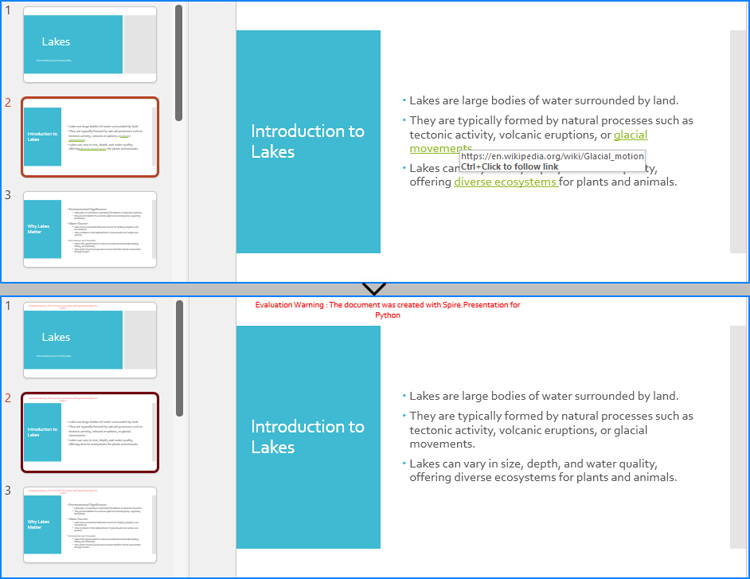
Remove Hyperlinks from Text in PowerPoint Slides
The normal text in a PowerPoint presentation is contained in auto shapes. Developers can access the text ranges within these shapes using the IAutoShape.TextFrame.Paragraphs[].TextRanges[] property and read or set the hyperlinks on them using the TextRange.ClickAction property. Hyperlinks on text can be removed by setting the TextRange.ClickAction property to None.
The detailed steps are as follows:
- Create an instance of Presentation class and load a PowerPoint presentation using Presentation.LoadFromFile() method.
- Iterate through the slides in the presentation and then iterate through the shapes in the slides.
- Check if the shape is an instance of IAutoShape. If it is, iterate through the paragraphs in the shape, and then the text ranges in the paragraphs.
- Check if the TextRange.ClickAction property of a text range is None. If it is not, remove the hyperlink by setting TextRange.ClickAction property to None.
- Save the presentation using Presentation.SaveToFile() method.
- Python
from spire.presentation import Presentation, IAutoShape, FileFormat

# Create an instance of Presentation
presentation = Presentation()

# Load a PowerPoint presentation
presentation.LoadFromFile("Sample.pptx")

# Iterate through the slides in the presentation
for slide in presentation.Slides:
    # Iterate through the shapes
    for shape in slide.Shapes:
        # Check if the shape is an AutoShape instance
        if isinstance(shape, IAutoShape):
            # Iterate through the paragraphs in the shape
            for paragraph in shape.TextFrame.Paragraphs:
                # Iterate through the text ranges in the paragraph
                for textRange in paragraph.TextRanges:
                    # Check if the text range has a hyperlink
                    if textRange.ClickAction is not None:
                        # Remove the hyperlink
                        textRange.ClickAction = None

# Save the presentation
presentation.SaveToFile("output/RemoveSlideTextHyperlink.pptx", FileFormat.Pptx2013)
presentation.Dispose()
Remove Hyperlinks from All Shapes in PowerPoint Slides
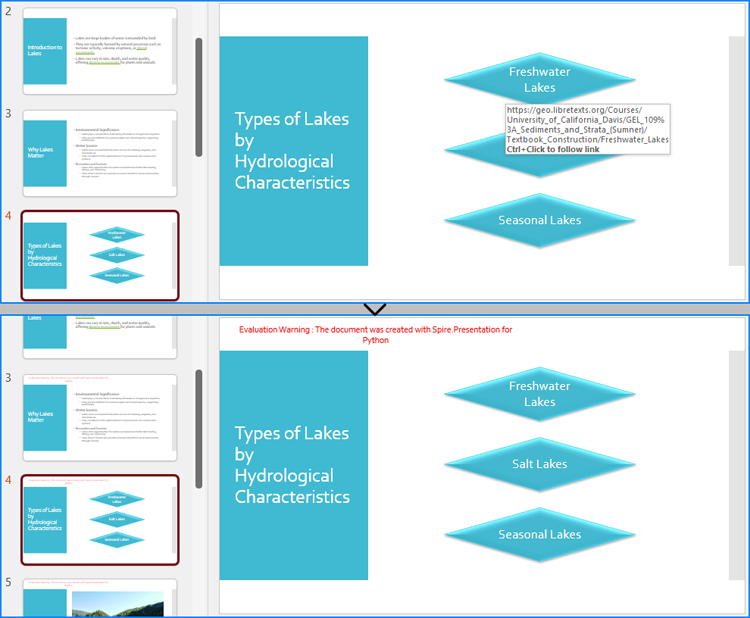
The IShape class represents all types of shapes in a presentation slide, such as auto shapes, images, tables, and more. The hyperlink on all these shapes can be removed by setting the value obtained from the IShape.Click.get_NoAction() method as the value of the shapes’ IShape.Click property. The detailed steps are as follows:
- Create an instance of Presentation class and load a PowerPoint presentation using Presentation.LoadFromFile() method.
- Iterate through the slides in the presentation and then iterate through the shapes in the slides.
- Check if the IShape.Click property is None. If it is not, remove the hyperlink by setting the property to the result of IShape.Click.get_NoAction() method.
- Save the presentation using Presentation.SaveToFile() method.
- Python
from spire.presentation import Presentation, FileFormat

# Create an instance of Presentation
presentation = Presentation()

# Load a PowerPoint presentation
presentation.LoadFromFile("Sample.pptx")

# Iterate through the slides in the presentation
for slide in presentation.Slides:
    # Iterate through the shapes in the slide
    for shape in slide.Shapes:
        # Check if the shape has a hyperlink
        if shape.Click is not None:
            # Remove the click action
            shape.Click = shape.Click.get_NoAction()

# Save the presentation
presentation.SaveToFile("output/RemoveSlideShapeHyperlink.pptx", FileFormat.Pptx2013)
presentation.Dispose()
Remove Hyperlinks from Specific Types of Shapes in PowerPoint Slides
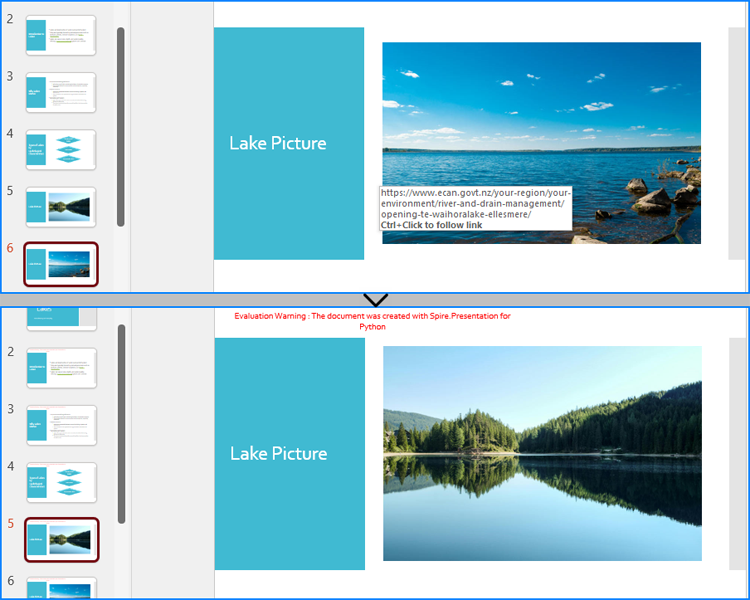
In addition to directly removing hyperlinks for all shapes, we can also determine the shape type before removing the hyperlinks to find and remove hyperlinks from shapes of the specified type. The detailed steps are as follows:
- Create an instance of Presentation class and load a PowerPoint presentation using Presentation.LoadFromFile() method.
- Iterate through the slides in the presentation and then iterate through the shapes in the slides.
- Check if the shape is an instance of IEmbedImage, ITable, or IChart. If it is, check if the IShape.Click property of the shape is None. If it is not, remove the hyperlink by setting the property to the result of IShape.Click.get_NoAction() method.
- Save the presentation using Presentation.SaveToFile() method.
- Python
from spire.presentation import Presentation, FileFormat, IEmbedImage, ITable, IChart

# Create an instance of Presentation
presentation = Presentation()

# Load a PowerPoint presentation
presentation.LoadFromFile("Sample.pptx")

# Iterate through the slides in the presentation
for slide in presentation.Slides:
    # Iterate through the shapes in the slide
    for shape in slide.Shapes:
        # Check if the shape is an embedded image
        if isinstance(shape, (IEmbedImage, ITable, IChart)):
            # check if the click action is not None
            if shape.Click is not None:
                # Remove the click action
                shape.Click = shape.Click.get_NoAction()

# Save the presentation
presentation.SaveToFile("output/RemoveSlideShapeTypeHyperlink.pptx", FileFormat.Pptx2013)
presentation.Dispose()
Remove Hyperlinks from Table Text in PowerPoint Slides
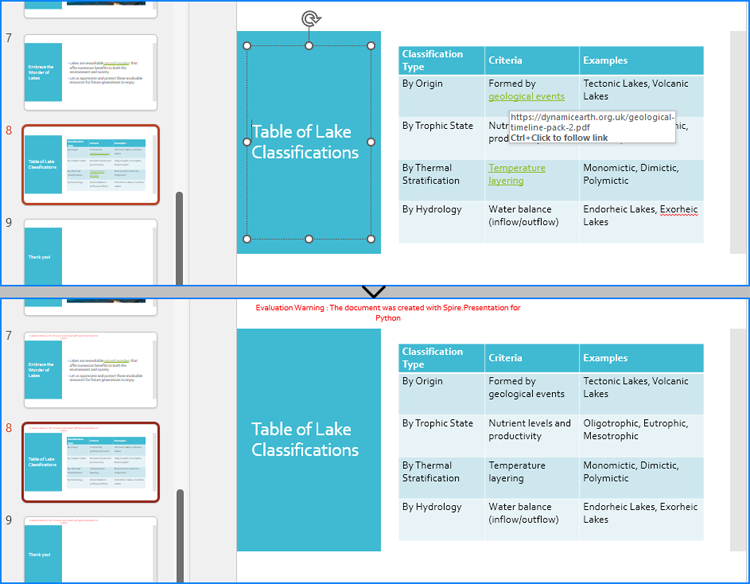
To remove hyperlinks from text within a table, it is necessary to iterate through the table's cells and the text ranges within each cell. Afterward, the hyperlinks on the text ranges in each cell can be removed by setting the TextRange.ClickAction property to None. The detailed steps are as follows:
- Create an instance of Presentation class and load a PowerPoint presentation using Presentation.LoadFromFile() method.
- Iterate through the slides in the presentation and then iterate through the shapes in the slides.
- Check if a shape is an instance of ITable class. If it is, iterate through the rows in the table and then the cells in the rows.
- Iterate through the paragraphs in the cells and then the text ranges in the paragraphs.
- Check if the TextRange.ClickAction property of a text range is None. If it is not, remove the hyperlink by setting the value of the property to None.
- Save the presentation using Presentation.SaveToFile() method.
- Python
from spire.presentation import Presentation, ITable, FileFormat

# Create an instance of Presentation
presentation = Presentation()

# Load a PowerPoint presentation
presentation.LoadFromFile("Sample.pptx")

# Iterate through the slides in the presentation
for slide in presentation.Slides:
    # Iterate through the shapes in the slide
    for shape in slide.Shapes:
        # Check if the shape is a table
        if isinstance(shape, ITable):
            # Get the table
            table = ITable(shape)
            # Iterate through the rows in the table
            for row in table.TableRows:
                # Iterate through the cells in the row
                for cell in row:
                    # Iterate through the paragraphs in the cell
                    for para in cell.TextFrame.Paragraphs:
                        # Iterate through the text ranges in the paragraph
                        for range in para.TextRanges:
                            # Check if the text run contains a hyperlink
                            if range.ClickAction is not None:
                                # Remove the hyperlink
                                range.ClickAction = None

presentation.SaveToFile("output/RemoveSlideTableTextHyperlink.pptx", FileFormat.Pptx2013)
presentation.Dispose()
Apply for a Temporary License
If you'd like to remove the evaluation message from the generated documents, or to get rid of the function limitations, please request a 30-day trial license for yourself.
Editing a Word document is a common task that many people encounter in their daily lives, whether it's for work, school, or personal projects. From correcting spelling and grammar errors to rearranging content and formatting the document, the ability to edit a Word document efficiently is a valuable skill.
In this article, you will learn how to programmatically edit or modify a Word document using Spire.Doc for Java.
- Modify Text in a Word Document
- Change Formatting of Text in a Word Document
- Add New Elements to a Word Document
- Remove Paragraphs from a Word Document
Install Spire.Doc for Java
First of all, you're required to add the Spire.Doc.jar file as a dependency in your Java program. The JAR file can be downloaded from this link. If you use Maven, you can easily import the JAR file in your application by adding the following code to your project's pom.xml file.
<repositories>
    <repository>
        <id>com.e-iceblue</id>
        <name>e-iceblue</name>
        <url>https://repo.e-iceblue.com/nexus/content/groups/public/</url>
    </repository>
</repositories>
<dependencies>
    <dependency>
        <groupId>e-iceblue</groupId>
        <artifactId>spire.doc</artifactId>
        <version>14.8.4</version>
    </dependency>
</dependencies>
Modify Text in a Word Document in Java
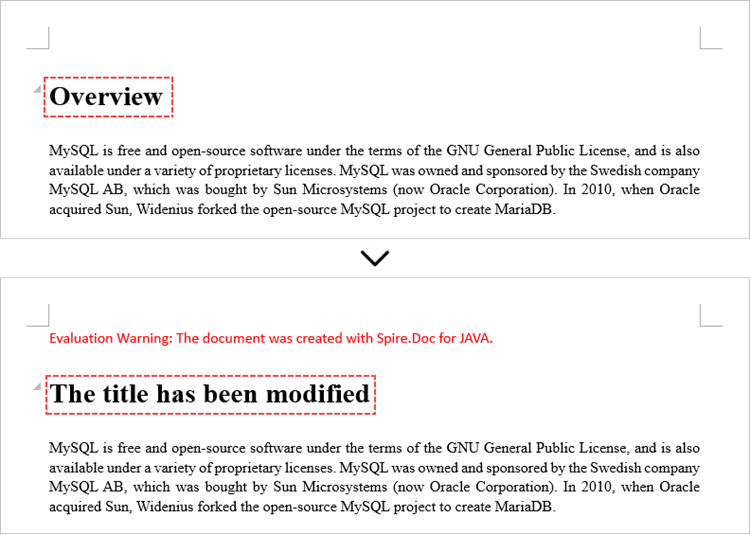
To retrieve the paragraph from a particular section, you can use the Section.getParagraphs().get() method. Once you have the target paragraph, you can then update its text content by calling the Paragraph.setText() method and passing in the new text you want to assign.
The following are the steps modify text in a Word document using Java:
- Create a Document object.
- Load a Word file from the given file path.
- Get a specific section using Document.getSections().get() method.
- Get a specific paragraph using Section.getParagraphs().get() method.
- Reset the text of the paragraph using Paragraph.setText() method.
- Save the updated document to a different Word file.
- Java
import com.spire.doc.Document;
import com.spire.doc.FileFormat;
import com.spire.doc.Section;
import com.spire.doc.documents.Paragraph;

public class ModifyText {

    public static void main(String[] args) {

        // Create a new document object
        Document document = new Document();

        // Load an existing Word file
        document.loadFromFile("C:\\Users\\Administrator\\Desktop\\input.docx");

        // Get a specific section
        Section section = document.getSections().get(0);

        // Get a specific paragraph
        Paragraph paragraph = section.getParagraphs().get(0);

        // Modify the text of the paragraph
        paragraph.setText("The title has been modified");

        // Save the document to a different Word file
        document.saveToFile("ModifyText.docx", FileFormat.Docx);

        // Dispose resource
        document.dispose();
    }
}
Change Formatting of Text in a Word Document in Java
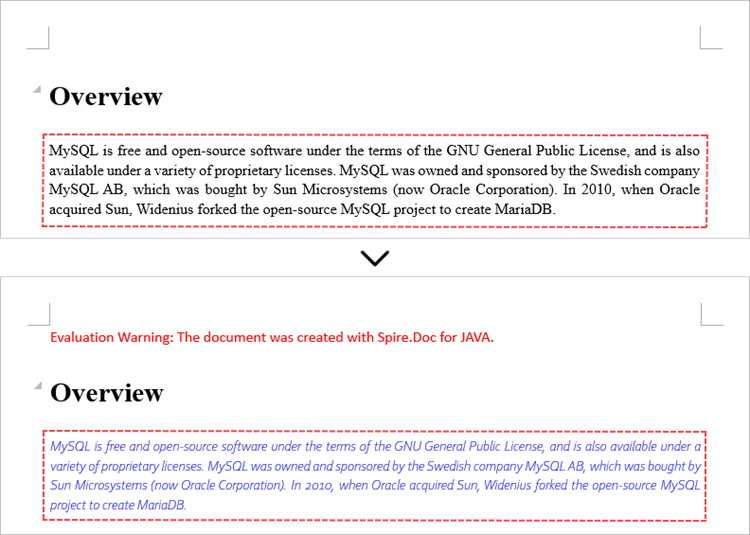
To modify the formatting of specific text within a paragraph, you first need to access the target paragraph object. Once you have the paragraph, you can then iterate through its child elements to locate the individual text ranges.
For each text range found, you can update the formatting by using the methods under the CharacterFormat object. This allows you to set properties like font name, size, color, and other text-level formatting options for the selected text.
The steps to change text formatting in a Word document are as follows:
- Create a Document object.
- Load a Word file from the given file path.
- Get a specific section using Document.getSections().get() method.
- Get a specific paragraph using Section.getParagraphs().get() method.
- Iterate through the child objects in the paragraph.
- Determine if a child object is a text range.
- Get a specific text range.
- Reset the text formatting using the methods under the CharacterFormat object.
- Save the updated document to a different Word file.
- Java
import com.spire.doc.Document;
import com.spire.doc.FileFormat;
import com.spire.doc.Section;
import com.spire.doc.documents.Paragraph;
import com.spire.doc.fields.TextRange;

import java.awt.*;

public class ChangeTextFormatting {

    public static void main(String[] args) {

        // Create a new document object
        Document document = new Document();

        // Load an existing Word file
        document.loadFromFile("C:\\Users\\Administrator\\Desktop\\input.docx");

        // Get a specific section
        Section section = document.getSections().get(0);

        // Get a specific paragraph
        Paragraph paragraph = section.getParagraphs().get(1);

        // Iterate through the child objects in the paragraph
        for (int i = 0; i < paragraph.getChildObjects().getCount(); i++)
        {
            // Determine if a child object is text range
            if (paragraph.getChildObjects().get(i) instanceof TextRange)
            {
                // Get a specific text range
                TextRange textRange = (TextRange)paragraph.getChildObjects().get(i);

                // Reset font name for it
                textRange.getCharacterFormat().setFontName("Corbel Light");

                // Reset font size for it
                textRange.getCharacterFormat().setFontSize(11);

                // Reset text color for it
                textRange.getCharacterFormat().setTextColor(Color.blue);

                // Apply italic to the text range
                textRange.getCharacterFormat().setItalic(true);
            }
        }

        // Save the document to a different Word file
        document.saveToFile("ChangeFont.docx", FileFormat.Docx);

        // Dispose resource
        document.dispose();
    }
}
Add New Elements to a Word Document in Java
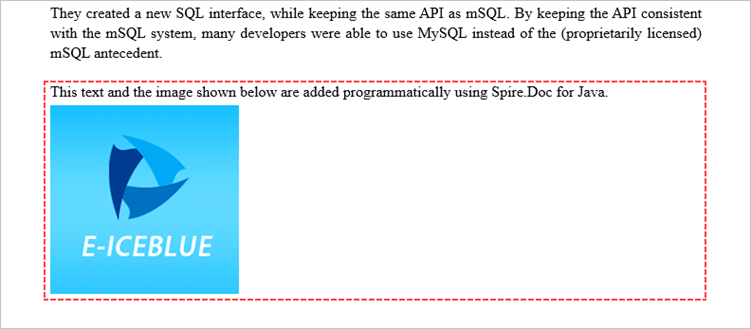
When working with Word documents, the paragraph serves as the foundational unit for incorporating diverse elements like text, images, lists, and charts. To introduce a new paragraph within a specific section, you can leverage the Section.addParagraph() method.
Once the paragraph has been added, you can then proceed to add various other elements to it by utilizing the methods available within the Paragraph object.
The following are the steps to add new elements (text and images) to a Word document using Java:
- Create a Document object.
- Load a Word file from the given file path.
- Get a specific section using Document.getSections() method.
- Add a paragraph to the section using Section.addParagraph() method.
- Add text to the paragraph using Paragraph.appendText() method.
- Add an image to the paragraph using Paragraph.appendPicture() method.
- Save the updated document to a different Word file.
- Java
import com.spire.doc.Document;
import com.spire.doc.FileFormat;
import com.spire.doc.Section;
import com.spire.doc.documents.Paragraph;
import com.spire.doc.documents.ParagraphStyle;

public class AddNewElements {

    public static void main(String[] args) {

        // Create a new document object
        Document document = new Document();

        // Load an existing Word file
        document.loadFromFile("C:\\Users\\Administrator\\Desktop\\input.docx");

        // Get the last section
        Section lastSection = document.getLastSection();

        // Add a paragraph to the section
        Paragraph paragraph = lastSection.addParagraph();

        // Add text to the paragraph
        paragraph.appendText("This text and the image shown below are added programmatically using Spire.Doc for Java.");

        // Add an image to the paragraph
        paragraph.appendPicture("C:\\Users\\Administrator\\Desktop\\logo.png");

        // Create a paragraph style
        ParagraphStyle style = new ParagraphStyle(document);
        style.setName("FontStyle");
        style.getCharacterFormat().setFontName("Times New Roman");
        style.getCharacterFormat().setFontSize(12);
        document.getStyles().add(style);

        // Apply the style to the paragraph
        paragraph.applyStyle(style.getName());

        // Save the document to a different Word file
        document.saveToFile("AddNewElements.docx", FileFormat.Docx);

        // Dispose resource
        document.dispose();
    }
}
Remove Paragraphs from a Word Document in Java
To remove a specific paragraph from the collection of paragraphs within a document, you can call the ParagraphCollection.removeAt() method. This method takes the index of the paragraph you wish to remove as an argument, allowing you to selectively delete the desired paragraph from the document.
The steps to remove paragraphs from a Word document using Java are as follows:
- Create a Document object.
- Load a Word file from the given file path.
- Get a specific section using Document.getSections().get() method.
- Remove a specific paragraph from the section using ParagraphCollection.removeAt() method.
- Save the updated document to a different Word file.
- Java
import com.spire.doc.Document;
import com.spire.doc.FileFormat;
import com.spire.doc.Section;

public class RemoveParagraph {

    public static void main(String[] args) {

        // Create a new document object
        Document document = new Document();

        // Load an existing Word file
        document.loadFromFile("C:\\Users\\Administrator\\Desktop\\input.docx");

        // Get a specific section
        Section section = document.getSections().get(0);

        // Remove a specific paragraph
        section.getParagraphs().removeAt(0);

        // Save the document to a different Word file
        document.saveToFile("RemoveParagraph.docx", FileFormat.Docx);

        // Dispose resource
        document.dispose();
    }
}
Apply for a Temporary License
If you'd like to remove the evaluation message from the generated documents, or to get rid of the function limitations, please request a 30-day trial license for yourself.
