
Knowledgebase (2417)
Children categories
Present PowerPoint Slideshows Online in Browsers (PC & Mobile Phone)
2024-07-25 08:31:50 Written by KoohjiPresenting PowerPoint slides online through a web browser represents a practical advancement in sharing information and conducting presentations. By leveraging the online editor Spire.Cloud.Presentation, users can easily showcase their slides to audiences on multiple platforms including PCs and mobile phones.
More importantly, run PowerPoint slideshows in a browser eliminates the need to install specific software, making the process simpler and more accessible. Ideal for on-the-go work scenarios and impromptu presentations, this browser-based solution provides flexibility to handle unexpected situations like not having the right computer or encountering local file corruption.
This article will show how to run PowerPoint slideshows online in browsers on both PCs and mobile phones with Spire.Cloud.Presentation to simplify the process and broaden the reach of presentations.
- Online PowerPoint Slides Editing and Presenting Tool
- Present PowerPoint Slides in PC Browsers
- Run PowerPoint Slide Show in Mobile Phone Browsers
Online PowerPoint Slides Editing and Presenting Tool
The online presentation editor Spire.Cloud.Presentation can be used in any HTML5-compliant browsers to edit, convert, print, and present PowerPoint slides. It supports creating new presentations and uploading existing presentations for processing.
Developers need to download Spire.Cloud.Presentation and install it on the Windows or Linux server, so that users can use the online editor easily in their browsers.
- Install Spire.Cloud.Presentation on a Windows Server
- Install Spire.Cloud.Presentation on a Ubuntu Server
- Install Spire.Cloud.Presentation on a CentOS Server
After installing Spire.Cloud.Presentation on the server, developers can try out the features of the editor via port 3000 or integrate the editor into HTML pages via JavaScript.
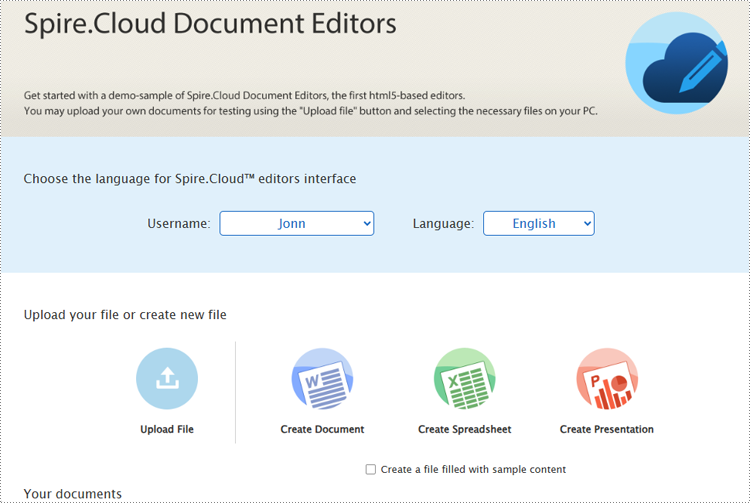
Present PowerPoint Slides in PC Browsers
Spire.Cloud.Presentation supports creating new PowerPoint presentations, selecting existing presentation files on the server, and uploading presentations for display. It supports uploading presentation formats including PPT, PPTX, POTX, PPTM, POTM, PPS, PPSX, XPS, PCL, PS, DPS, and DPT. The uploaded presentation files will be automatically converted to Open XML format for quick editing and viewing.
Steps for presenting a PowerPoint presentation online in a PC browser:
Create a new presentation to display
1. Open the home page and click "Create Presentation".
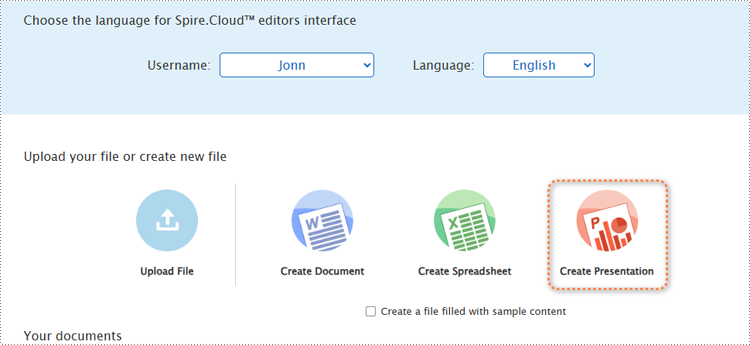
2. Once the demo file is created, the editor interface will automatically pop up.
3. After editing the slides, select the starting position or click the play button in the bottom left corner to present the file.
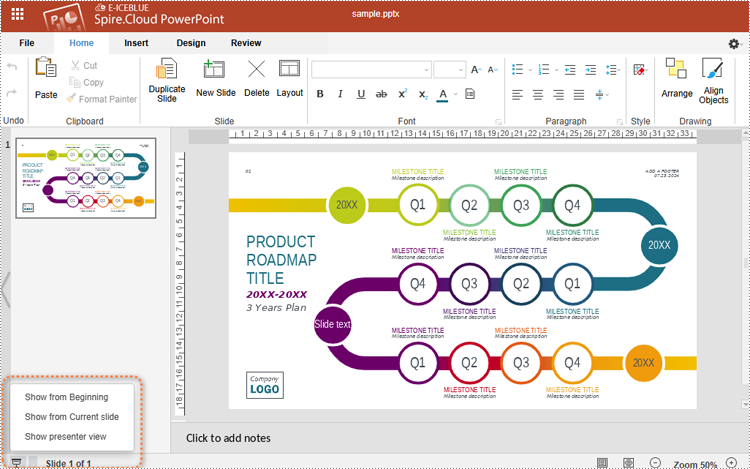
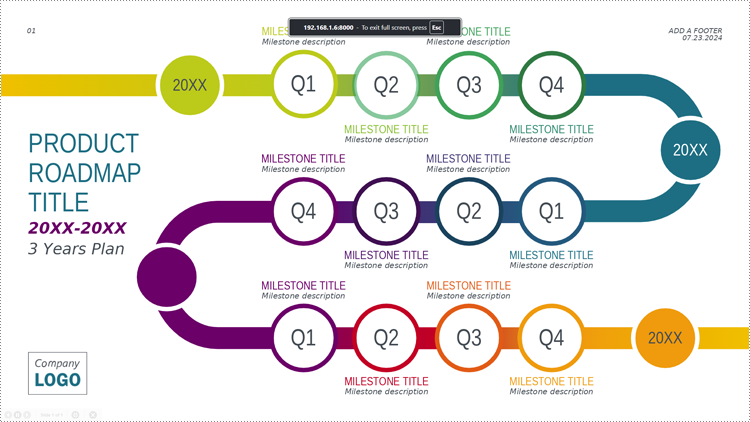
4. Use the spacebar, left or right arrow keys, or click to turn pages.
Upload a presentation file to display
1. Open the product home page and click "Upload File".
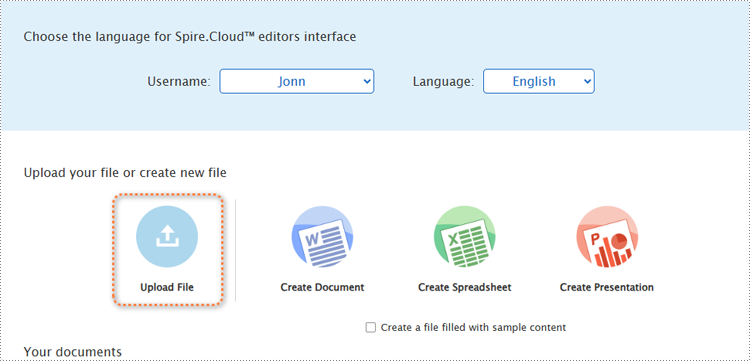
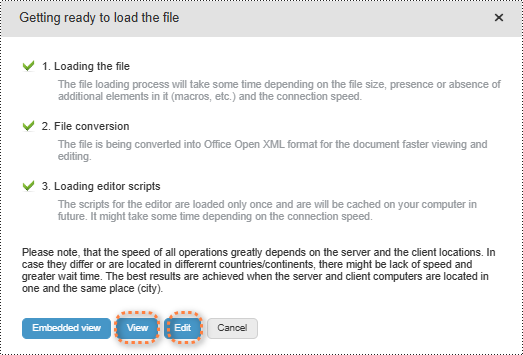
2. Select a file and upload it. Wait for the format conversion to complete and select "Edit" or "View" to open the presentation.
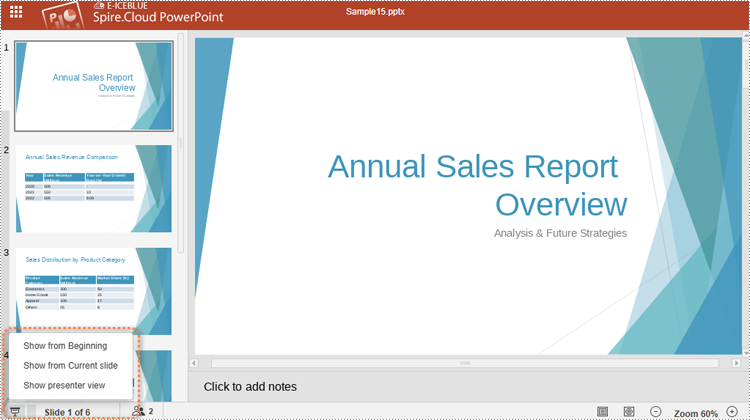
3. In both modes, users can either select the starting position or simply click the play button in the lower right corner to start presenting.
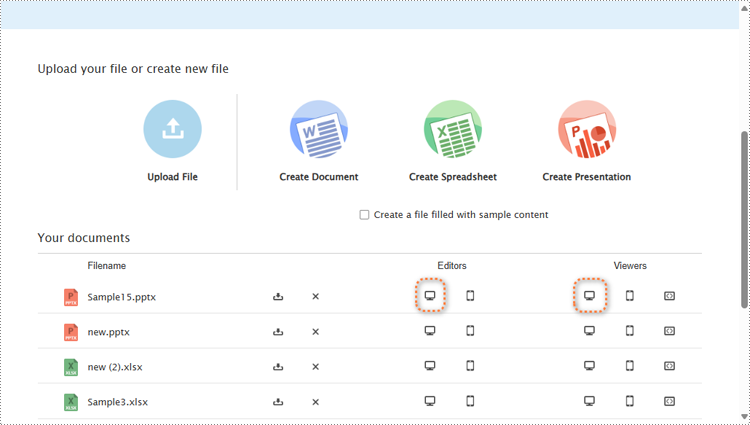
Choose a presentation file from the server’s file list to display.
Open the home page and scroll to "Your documents". Choose a file and click the computer icon in the "Editors" or the "Viewers" column to open the file in the editor mode or viewer mode. Then, the presenting can be started as above.
Run PowerPoint Slide Show in Mobile Phone Browsers
In the demo site, users can open the same webpage on a mobile device and create, upload, or select presentation files to start presenting in the same way as on PCs.
However, it's important to note that in the viewer mode on mobile devices, users can not run the slide show. Slide presentation on mobile devices can only be conducted in editor mode.
Steps for presenting a PowerPoint presentation online in a mobile device browser:
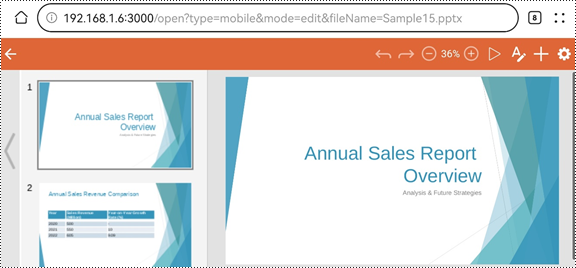
1. Open a presentation file in the editor mode on a mobile device. To ensure that the presentation content is fully displayed, users can open the presentation file in landscape mode on small-screen mobile devices.
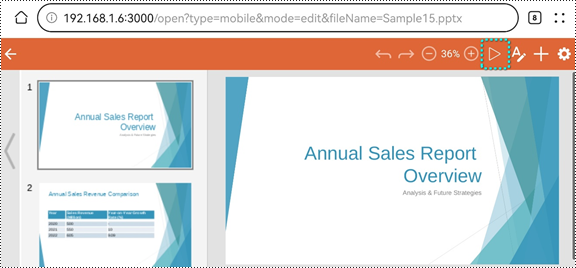
2. Click the play button in the upper left corner to start the slide show.
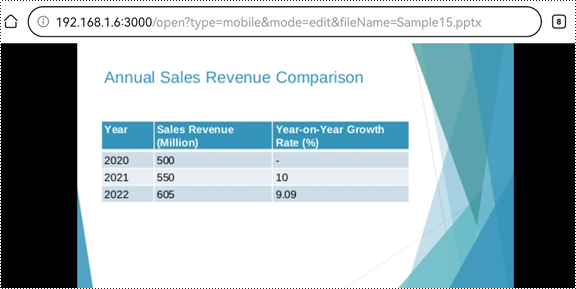
3. During the presentation, tap the screen to switch slides.
Conclusion
This article introduces the online PowerPoint presentation processing tool Spire.Cloud.Presentation and provide step-by-step guides for presenting PowerPoint slide shows online in PC or mobile phone browsers. This tool also allows users to edit, convert, and print PowerPoint presentations directly from their browsers, eliminating the need for any additional software installations.
The PDF (Portable Document Format) has become a standard for sharing and preserving documents across various platforms. Converting your Word, Excel, and PowerPoint files to PDF ensures that the formatting and layout remain intact, regardless of the device or software used to view them. With Spire.Cloud.Office, a powerful online Office suite, you can effortlessly convert your documents to PDF online and enjoy the benefits of this universal format. In this article, we will explore how to convert Word, Excel, and PowerPoint Files to PDF online using Spire.Cloud.Office.
- Spire.Cloud.Office Document Editor
- The Benefits of Using Spire.Cloud.Office for Online Document Conversion
- Convert Word to PDF Online
- Convert Excel to PDF Online
- Convert PowerPoint to PDF Online
Spire.Cloud.Office Document Editor
Spire.Cloud.Office is a powerful online Office suite that provides a comprehensive set of tools for processing Office (Word, Excel, and PowerPoint) documents. It allows users to effortlessly generate, view, edit, and convert popular Office file formats, such as DOC, DOCX, XLS, XLSX, PPT, and PPTX, within any web browser that supports HTML 5.
Some of the key features of Spire.Cloud.Office include:
- Document Editor: The document editor allows users to create, edit, and format Word documents with a wide range of formatting options. It supports collaborative editing, tracking changes, commenting, and version history, enabling multiple users to work on the same document simultaneously.
- Spreadsheet Editor: The spreadsheet editor provides powerful tools for data analysis, calculations, and visualization. It includes a variety of formulas, functions, and formatting options to manipulate and present data effectively. Like the document editor, it supports collaborative editing and real-time collaboration.
- Presentation Editor: The presentation editor offers a comprehensive set of features for creating visually appealing slideshows. Users can add images, videos, charts, tables, and more to their presentations, enhancing their overall impact. The editor supports collaboration, allowing multiple users to work on presentations simultaneously.
- PDF Viewer: The PDF viewer allows users to view PDF files within their web browsers without the need for additional software.
- Self-hosting: Spire.Cloud.Office can be self-hosted, allowing organizations to maintain complete control over their data and documents. This is particularly useful for businesses or institutions that require a higher level of data privacy and security.
To utilize the services offered by Spire.Cloud.Office, you first need to install it on your system:
- Install Spire.Cloud.Office for .NET on Windows
- Install Spire.Cloud.Office for Linux on Ubuntu
- Install Spire.Cloud.Office for Linux on CentOS
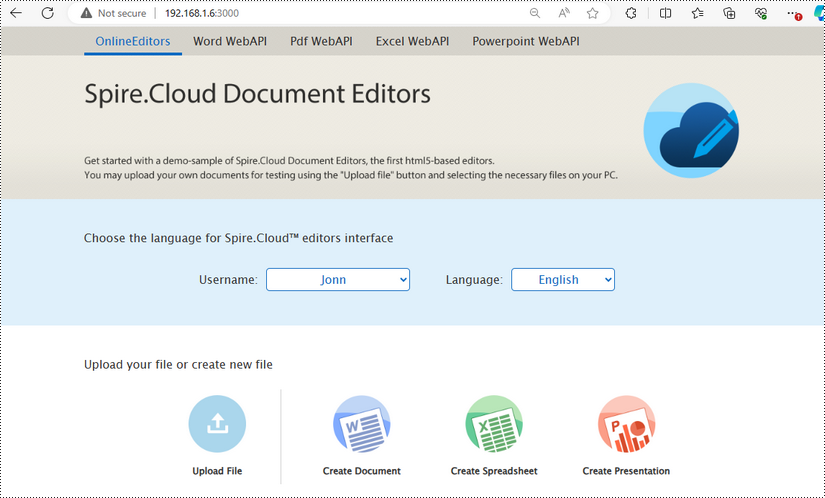
After the installation is complete, you can integrate Spire.Cloud.Office editor in your own web application or visit the example application hosted on port 3000 (as shown in the image below) to explore the editor’s functionality.
The Benefits of Using Spire.Cloud.Office for Online Document Conversion
Spire.Cloud.Office offers several advantages when it comes to converting Word, Excel, and PowerPoint files to PDF online:
- Convenience: Spire.Cloud.Office is a web-based solution that allows you to convert your files to PDF without the need for any additional software installation.
- Preservation of Formatting: The conversion process in Spire.Cloud.Office ensures that the original formatting and layout of your documents are accurately preserved in the resulting PDF files.
- Compatibility: PDF files created with Spire.Cloud.Office can be opened and viewed on any device or operating system without any compatibility issues.
- Security: Spire.Cloud.Office can be installed on your device or integrated into your own web application, ensuring the confidentiality and integrity of your documents during the conversion process.
- Additional Features: Besides document conversion, Spire.Cloud.Office offers a comprehensive set of editing and collaboration tools for Word, Excel, and PowerPoint files, making it a versatile office suite for all your document needs.
Convert Word to PDF Online
With Spire.Cloud.Office, you can load a Word document in DOC or DOCX format and convert it to PDF online with high speed and quality. Besides, you can also save the Word document to other file formats such as ODT, TXT, DOTX, PDF/A, OTT, RTF, and HTML.
The steps below explain how to convert a Word document to PDF format:
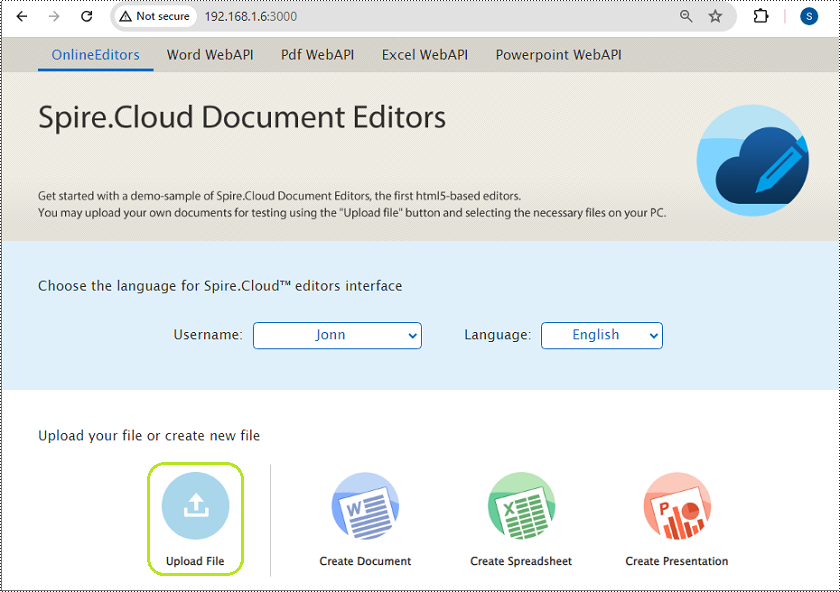
1. Click the "Upload File" button on the example page and select the Word document you want to convert.
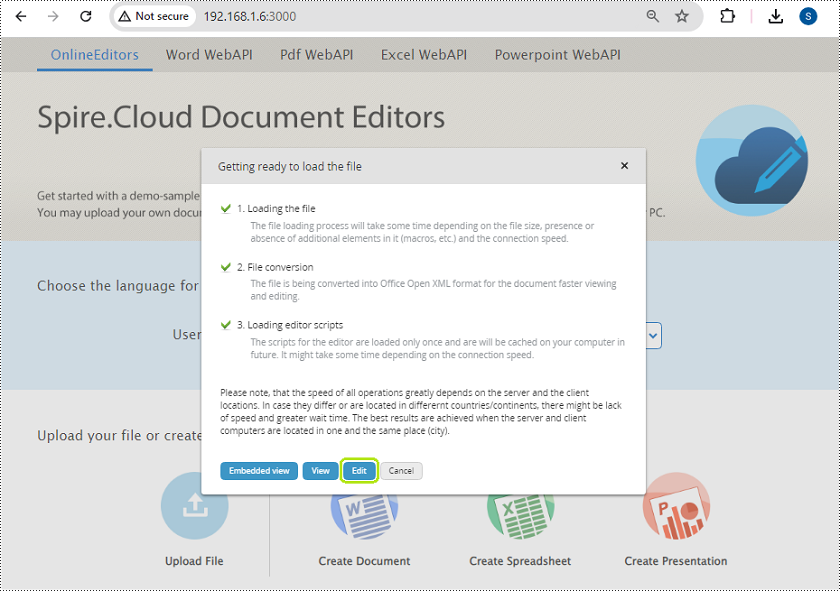
2. Once the document is uploaded, click the "Edit" button to open it in the Document Editor of Spire.Cloud.Office.
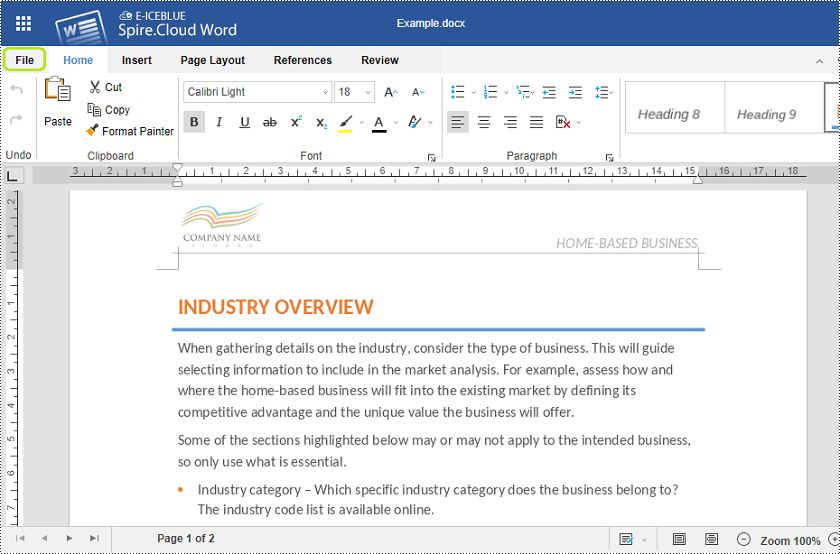
3. Click the "File" menu at the top left corner of the editor, select the "Download As" option, and choose "PDF" as the target format.
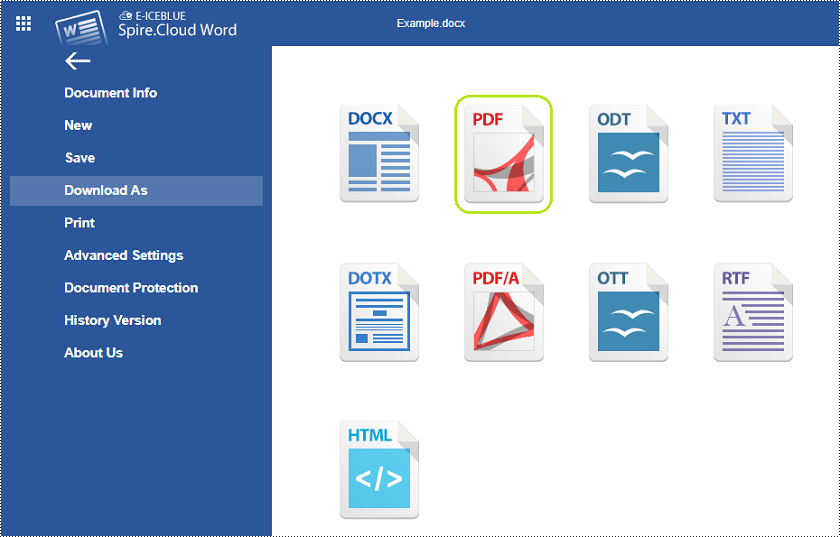
4. Your Word document will be converted and downloaded as a PDF to your computer.
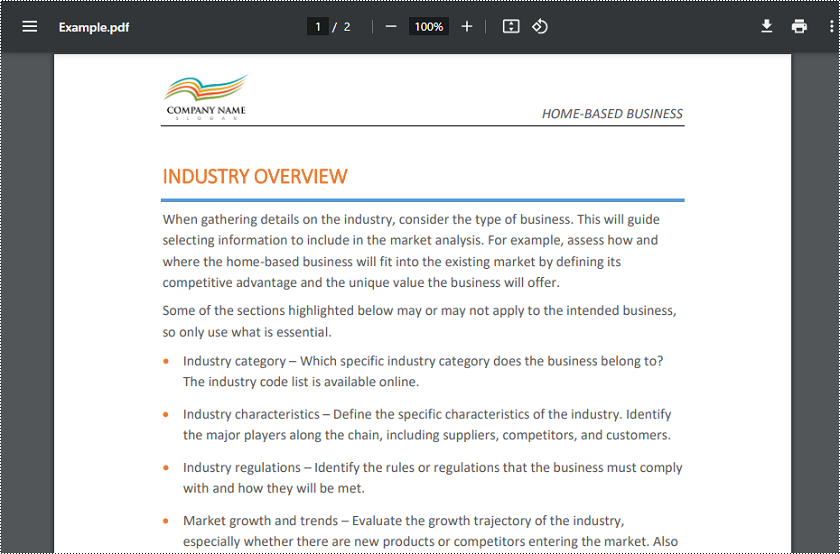
Convert Excel to PDF Online
Spire.Cloud.Office supports loading an Excel file in XLS or XLSX format and converting it to PDF online. Additionally, it also supports converting Excel files to other file formats such as XLSX, CSV, XLTX, PDF/A, and OTS.
The process of converting an Excel spreadsheet to PDF is very similar to the process of converting Word to PDF:
1. Click the "Upload File" button on the example page and select the Excel file you want to convert.
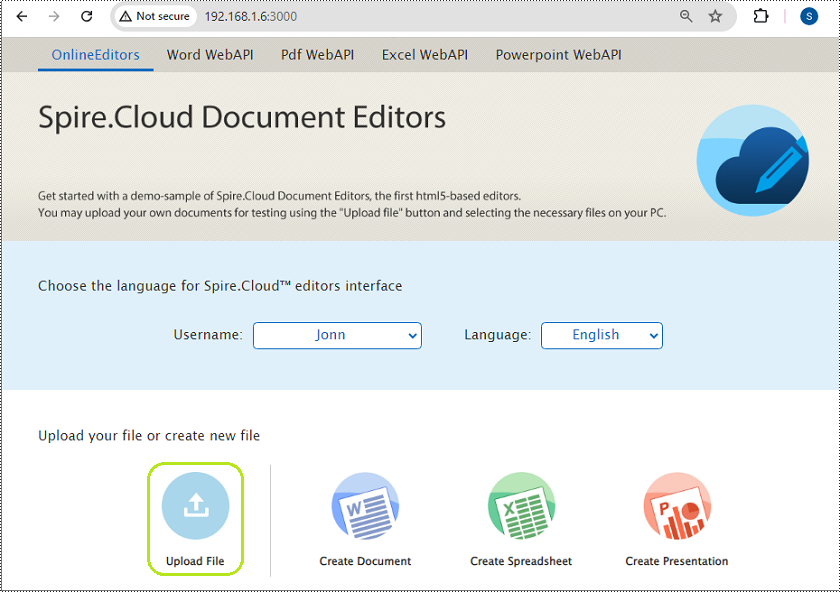
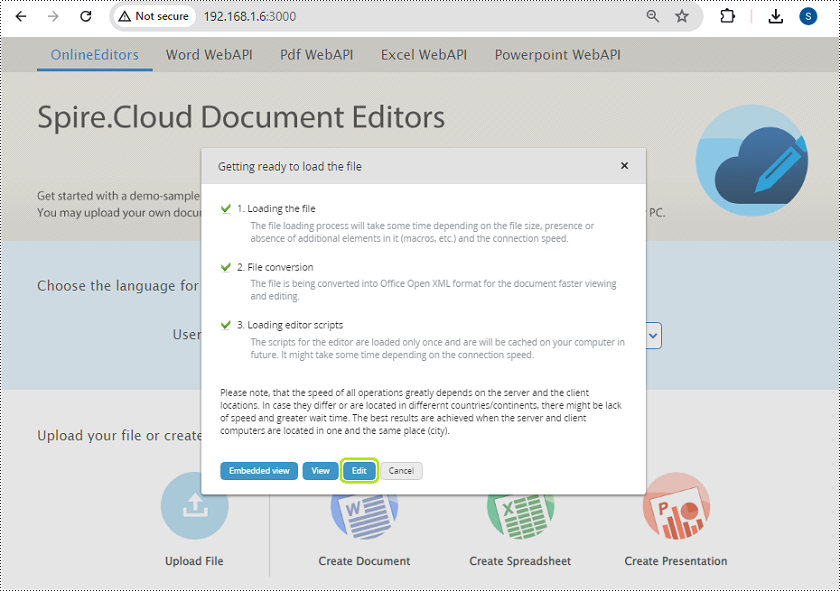
2. Once the file is uploaded, click the "Edit" button to open it in the Spreadsheet Editor of Spire.Cloud.Office.
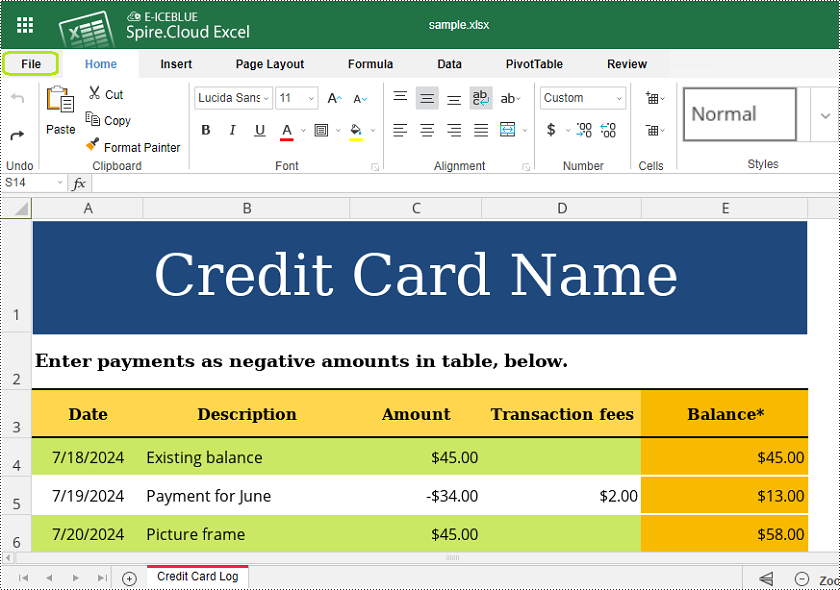
3. Click the "File" menu at the top left corner of the editor, select the "Download as" option, and choose "PDF" as the target format.
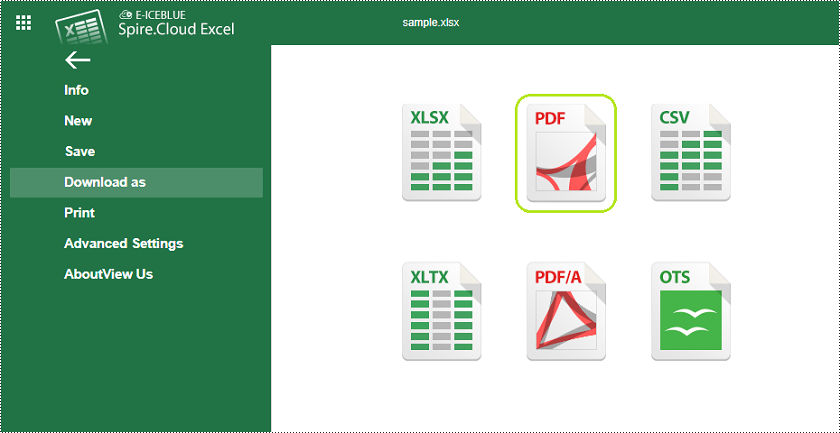
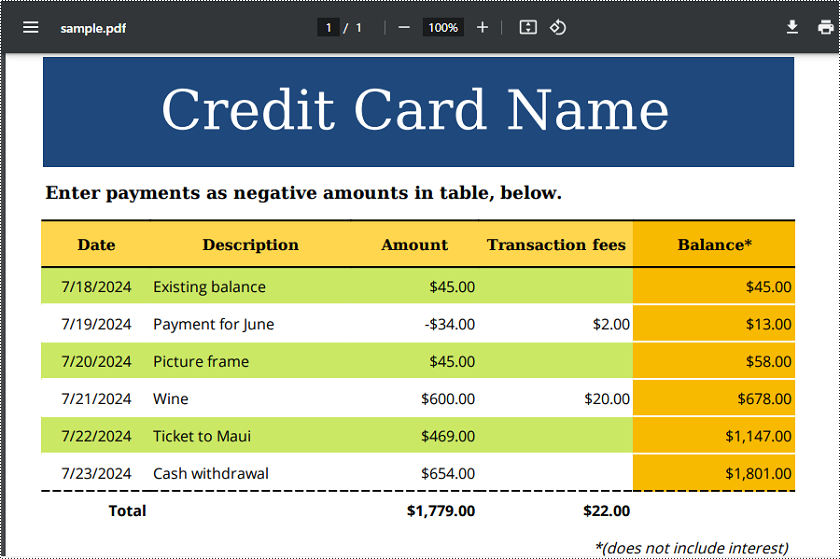
4. Your Excel file will be converted and downloaded as a PDF to your computer.
Convert PowerPoint to PDF Online
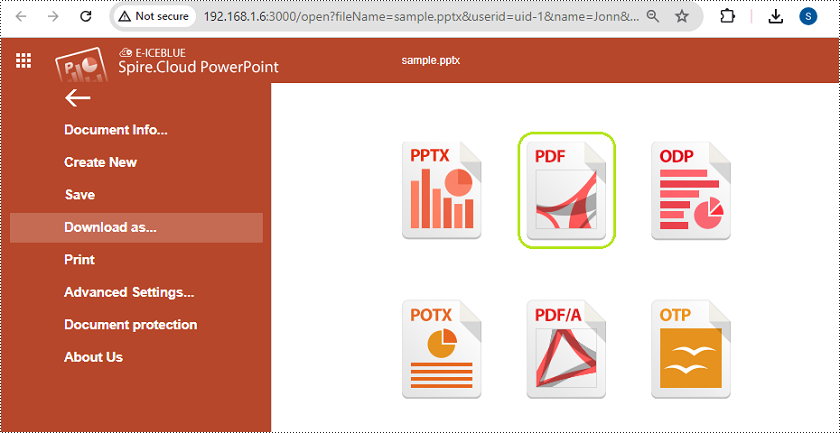
PowerPoint presentations can also be easily converted to PDF and other file formats such as PPTX, ODP, POTX, PDF/A, and OTP online using Spire.Cloud.Office.
The steps below explain how to convert a PowerPoint presentation to PDF format:
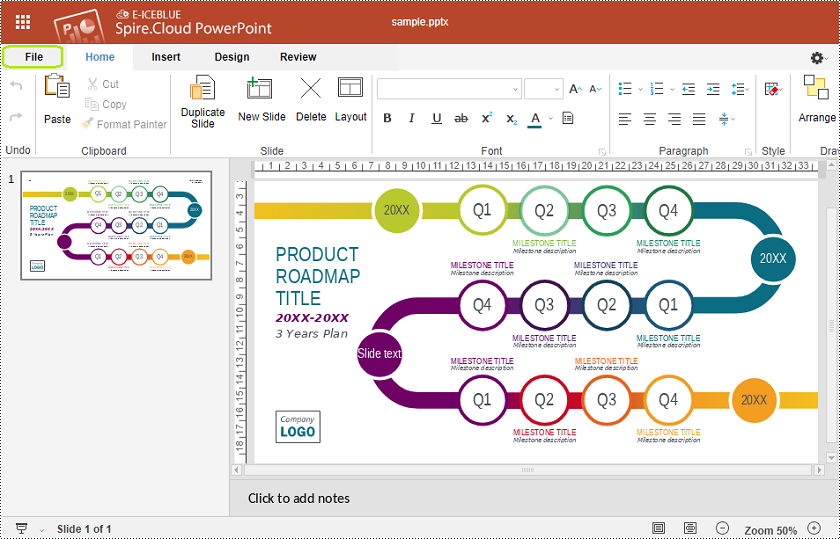
1. Click the "Upload File" button on the example page and select the PowerPoint presentation you want to convert.
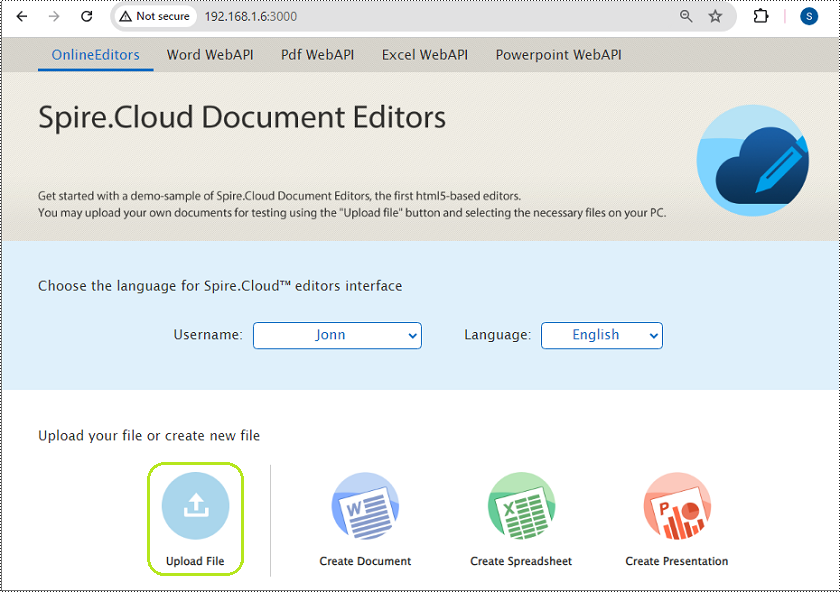
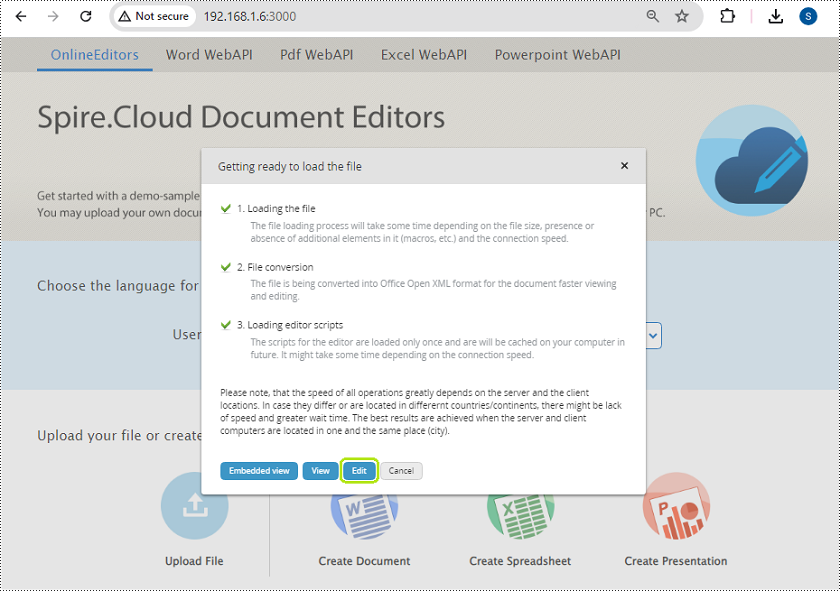
2. Once the presentation is uploaded, click the "Edit" button to open it in the Presentation Editor of Spire.Cloud.Office.
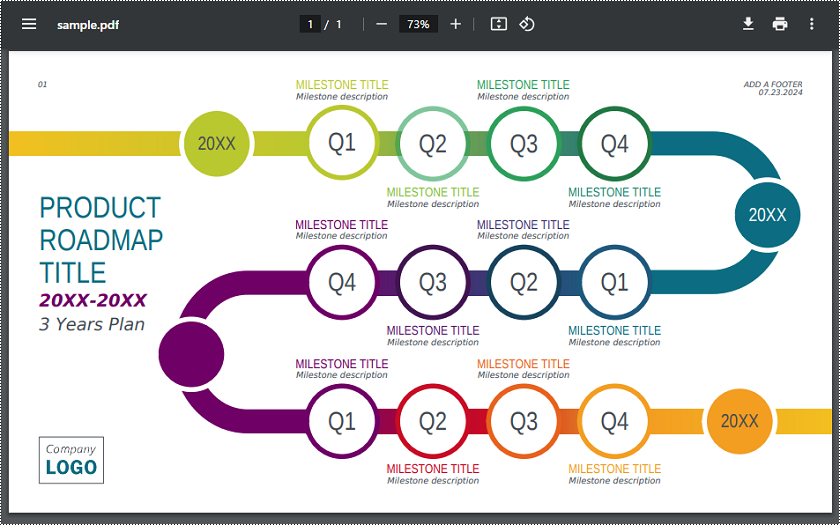
3. Click the "File" menu at the top left corner of the editor, select the "Download as" option, and choose "PDF" as the target format.
4. Your presentation will be converted and downloaded as a PDF to your computer.
Converting between presentation documents is a common task, especially when dealing with different versions of Microsoft PowerPoint. PPS is used to display presentations directly as finalized documents. PPT is an older format compatible with PowerPoint 97-2003. PPTX, the default editable format in the latest version of PowerPoint, offers better data recovery capabilities, smaller file sizes, and enhanced security.
Whether you need to edit PPS documents or ensure compatibility with modern tools and features, converting them to PPTX is essential. This article will demonstrate how to convert PPS and PPT to PPTX documents using Python with Spire.Presentation for Python. Read on to learn more.
Install Spire.Presentation
This scenario requires Spire.Presentation for Python and plum-dispatch v1.7.4. They can be easily installed in your Windows through the following pip commands.
pip install Spire.Presentation
If you are unsure how to install, please refer to this tutorial: How to Install Spire.Presentation for Python on Windows.
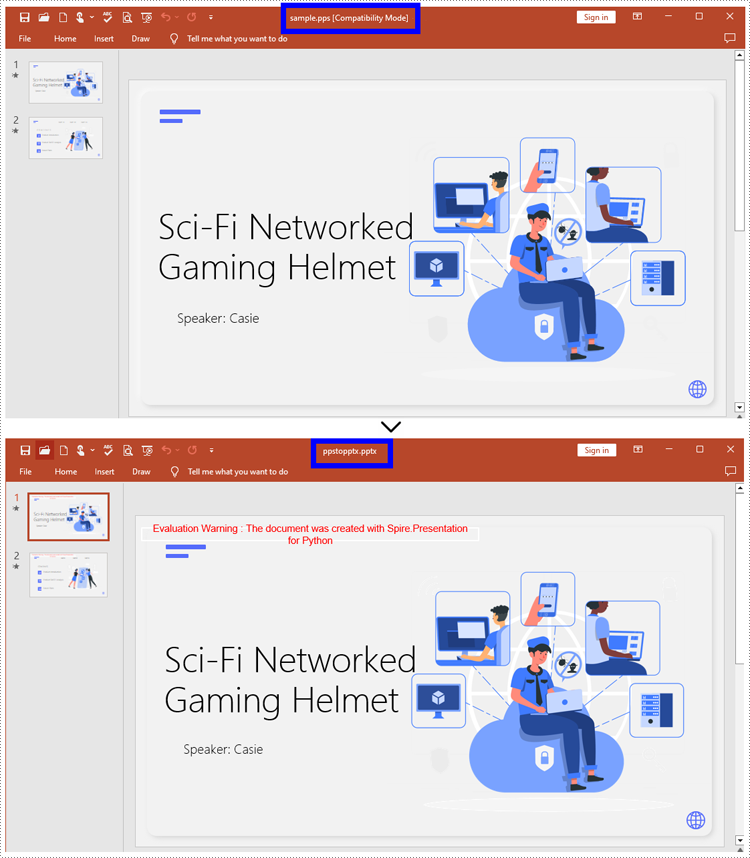
How to Convert PPS to PPTX with Python
To convert PPS to PPTX format, you can call Document.SaveToFile() method offered by Spire.Presentation for Python. It supports converting various formats to PPT(X), such as PPS and PPT, as well as converting PPT documents to other formats like PDF and images (PNG, JPG, BMP, SVG).
Steps to convert PPS to PPTX:
- Create an object for the Presentation class.
- Import the document to be converted with Document.LoadFromFile() method.
- Convert it to a PPTX document using Document.SaveToFile() method.
Here is the code example for you:
- Python
from spire.presentation.common import *
from spire.presentation import *
# Create a Presentation document object
pre = Presentation()
# Load the file from the disk
pre.LoadFromFile("input/sample.pps")
# Save the document as PPTX
pre.SaveToFile("ppstopptx.pptx", FileFormat.Pptx2010)
pre.Dispose()
How to Convert PPT to PPTX with Python
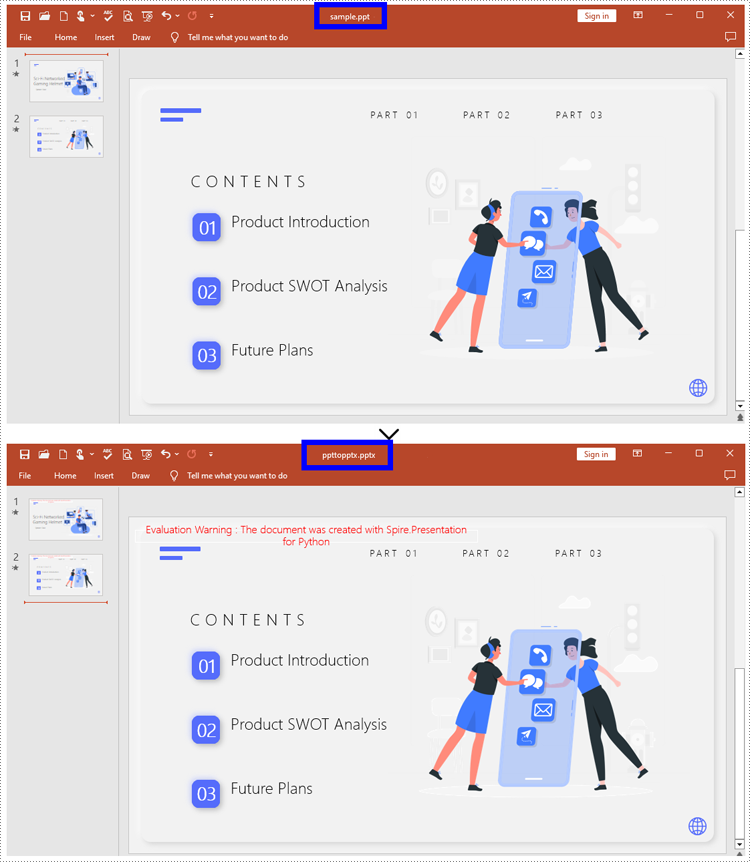
Compared with PPT, PPTX has many advantages. Despite being mentioned above, it supports inserting more multimedia content and advanced formats, thereby improving the overall quality and performance of presentations. Spire.Presentation for Python provides Document.SaveToFile() to convert PPT to PPTX without data loss.
Steps to convert PPT to PPTX:
- Instantiate a new Presentation object.
- Load the document from the files with Document.LoadFromFile().
- Save the PPT document as a PPTX document by Document.SaveToFile().
Below is the code example to refer to:
- Python
from spire.presentation.common import *
from spire.presentation import *

# Create an instance of the Presentation class
pre = Presentation()

# Load the file to be converted
pre.LoadFromFile("input/Sample1.ppt")

# Convert the document to PPTX format
pre.SaveToFile("ppttopptx.pptx", FileFormat.Pptx2010)

pre.Dispose()
Apply for a Temporary License
If you'd like to remove the evaluation message from the generated documents, or to get rid of the function limitations, please request a 30-day trial license for yourself.
