
Knowledgebase (2417)
Children categories
Tables in Word documents often contain valuable information, ranging from financial data and research results to survey results and statistical records. Extracting the data contained within these tables can unlock a wealth of opportunities, empowering you to leverage it for a variety of purposes, such as in-depth data analysis, trend identification, and seamless integration with other tools or databases. In this article, we will demonstrate how to extract tables from Word documents in C# using Spire.Doc for .NET.
Install Spire.Doc for .NET
To begin with, you need to add the DLL files included in the Spire.Doc for .NET package as references in your .NET project. The DLL files can be either downloaded from this link or installed via NuGet.
PM> Install-Package Spire.Doc
Extract Tables from Word in C#
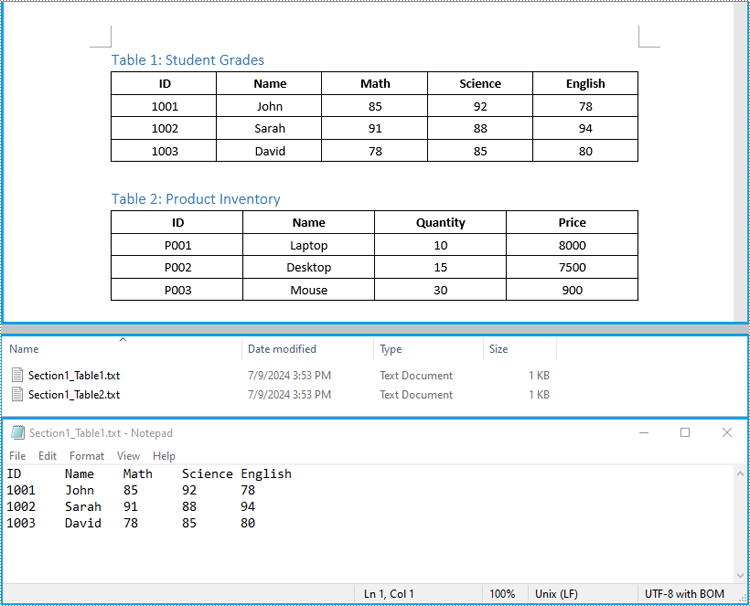
In Spire.Doc for .NET, the Section.Tables property is used to access the tables contained within a section of a Word document. This property returns a collection of ITable objects, where each object represents a distinct table in the section. Once you have the ITable objects, you can iterate through their rows and cells, and then retrieve the textual content of each cell using cell.Paragraphs[index].Text property.
The detailed steps to extract tables from a Word document are as follows:
- Create an object of the Document class and load a Word document using Document.LoadFromFile() method.
- Iterate through the sections in the document and get the table collection of each section through Section.Tables property.
- Iterate through the tables in each section and create a string object for each table.
- Iterate through the rows in each table and the cells in each row, then get the text of each cell through TableCell.Paragraphs[index].Text property and add the cell text to the string.
- Save each string to a text file.
- C#
using Spire.Doc;
using Spire.Doc.Collections;
using Spire.Doc.Interface;
using System.IO;
using System.Text;

namespace ExtractWordTable
{
    internal class Program
    {
        static void Main(string[] args)
        {
            // Create an object of the Document class
            Document doc = new Document();
            // Load a Word document
            doc.LoadFromFile("Tables.docx");

            // Iterate through the sections in the document
            for (int sectionIndex = 0; sectionIndex < doc.Sections.Count; sectionIndex++)
            {
                // Get the current section
                Section section = doc.Sections[sectionIndex];

                // Get the table collection of the section
                TableCollection tables = section.Tables;

                // Iterate through the tables in the section
                for (int tableIndex = 0; tableIndex < tables.Count; tableIndex++)
                {
                    // Get the current table
                    ITable table = tables[tableIndex];

                    // Initialize a string to store the table data
                    string tableData = "";

                    // Iterate through the rows in the table
                    for (int rowIndex = 0; rowIndex < table.Rows.Count; rowIndex++)
                    {
                        // Get the current row
                        TableRow row = table.Rows[rowIndex];
                        // Iterate through the cells in the row
                        for (int cellIndex = 0; cellIndex < row.Cells.Count; cellIndex++)
                        {
                            // Get the current cell
                            TableCell cell = table.Rows[rowIndex].Cells[cellIndex];

                            // Get the text in the cell
                            string cellText = "";
                            for (int paraIndex = 0; paraIndex < cell.Paragraphs.Count; paraIndex++)
                            {
                                cellText += (cell.Paragraphs[paraIndex].Text.Trim() + " ");
                            }

                            // Add the text to the string
                            tableData += cellText.Trim();
                            if (cellIndex < table.Rows[rowIndex].Cells.Count - 1)
                            {
                                tableData += "\t";
                            }
                        }

                        // Add a new line
                        tableData += "\n";
                    }

                    // Save the table data to a text file
                    string filePath = Path.Combine("Tables", $"Section{sectionIndex + 1}_Table{tableIndex + 1}.txt");

                    File.WriteAllText(filePath, tableData, Encoding.UTF8);
                }
            }

            doc.Close();
        }
    }
}
Extract Tables from Word to Excel in C#
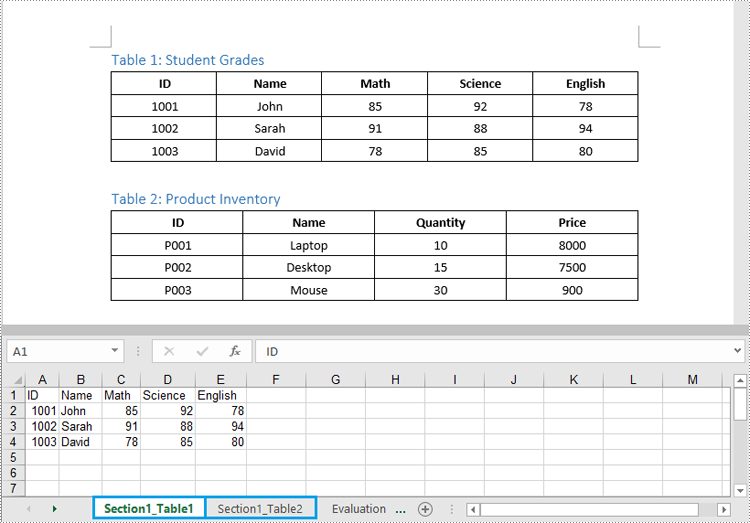
In addition to saving the extracted table data to text files, you can also write the data directly into Excel worksheets by using the Spire.XLS for .NET library. However, before you can use Spire.XLS, you need to install it via NuGet:
Install-Package Spire.XLS
The detailed steps to extract tables from Word documents to Excel worksheets are as follows:
- Create an object of the Document class and load a Word document using the Document.LoadFromFile() method.
- Create an object of the Workbook class and clear the default worksheets using Workbook.Worksheets.Clear() method.
- Iterate through the sections in the document and get the table collection of each section through Section.Tables property.
- Iterate through the tables in the section and add a worksheet for each table to the workbook using Workbook.Worksheets.Add() method.
- Iterate through the rows in each table and the cells in each row, then get the text of each cell through TableCell.Paragraphs[index].Text property and write the text to the worksheet using Worksheet.SetCellValue() method.
- Save the workbook to an Excel file using Workbook.SaveToFile() method.
- C#
using Spire.Doc;
using Spire.Doc.Interface;
using Spire.Xls;

namespace ExtractWordTableToExcel
{
    internal class Program
    {
        static void Main(string[] args)
        {
            // Create an object of the Document class
            Document doc = new Document();
            // Load a Word document
            doc.LoadFromFile("Tables.docx");

            // Create an object of the Workbook class
            Workbook wb = new Workbook();
            // Remove the default worksheets
            wb.Worksheets.Clear();

            // Iterate through the sections in the document
            for (int sectionIndex = 0; sectionIndex < doc.Sections.Count; sectionIndex++)
            {
                // Get the current section
                Section section = doc.Sections[sectionIndex];
                // Iterate through the tables in the section
                for (int tableIndex = 0; tableIndex < section.Tables.Count; tableIndex++)
                {
                    // Get the current table
                    ITable table = section.Tables[tableIndex];
                    // Add a worksheet to the workbook
                    Worksheet ws = wb.Worksheets.Add($"Section{sectionIndex + 1}_Table{tableIndex + 1}");

                    // Iterate through the rows in the table
                    for (int rowIndex = 0; rowIndex < table.Rows.Count; rowIndex++)
                    {
                        // Get the current row
                        TableRow row = table.Rows[rowIndex];
                        // Iterate through the cells in the row
                        for (int cellIndex = 0; cellIndex < row.Cells.Count; cellIndex++)
                        {
                            // Get the current cell
                            TableCell cell = row.Cells[cellIndex];
                            // Get the text in the cell
                            string cellText = "";
                            for (int paraIndex = 0; paraIndex < cell.Paragraphs.Count; paraIndex++)
                            {
                                cellText += (cell.Paragraphs[paraIndex].Text.Trim() + " ");
                            }
                            // Write the cell text to the worksheet
                            ws.SetCellValue(rowIndex + 1, cellIndex + 1, cellText);
                        }
                        // Autofit the width of the columns in the worksheet
                        ws.Range.AutoFitColumns();
                    }
                }
            }

            // Save the workbook to an Excel file
            wb.SaveToFile("Tables/WordTableToExcel.xlsx", ExcelVersion.Version2016);
            doc.Close();
            wb.Dispose();
        }
    }
}
Apply for a Temporary License
If you'd like to remove the evaluation message from the generated documents, or to get rid of the function limitations, please request a 30-day trial license for yourself.
Tables in Word documents can sometimes disrupt the flow of text or the visual balance of a page. Removing these tables can help in creating a more aesthetically pleasing document, which is crucial for reports, presentations, or publications where appearance is important. In this article, you will learn how to remove tables from a Word document in Python using Spire.Doc for Python.
Install Spire.Doc for Python
This scenario requires Spire.Doc for Python and plum-dispatch v1.7.4. They can be easily installed in your Windows through the following pip commands.
pip install Spire.Doc
If you are unsure how to install, please refer to this tutorial: How to Install Spire.Doc for Python on Windows
Remove a Specified Table in Word in Python
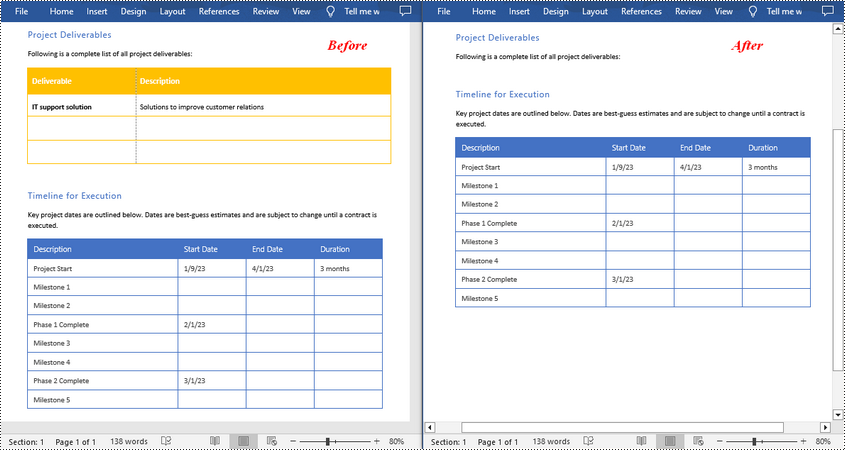
Spire.Doc for Python provides the Section.Tables.RemoveAt(int index) method to delete a specified table in a Word document by index. The following are the detailed steps.
- Create a Document instance.
- Load a Word document using Document.LoadFromFile() method.
- Get a specified section using Document.Sections[] property.
- Delete a specified table by index using Section.Tables.RemoveAt() method.
- Save the result document using Document.SaveToFile() method.
- Python
from spire.doc import *
from spire.doc.common import *

inputFile = "Tables.docx"
outputFile = "RemoveTable.docx"

# Create a Document instance
doc = Document()

# Load a Word document
doc.LoadFromFile(inputFile)

# Get the first section in the document
sec = doc.Sections[0]

# Remove the first table in the section
sec.Tables.RemoveAt(0)

# Save the result document
doc.SaveToFile(outputFile, FileFormat.Docx)
doc.Close()
Remove All Tables in Word in Python
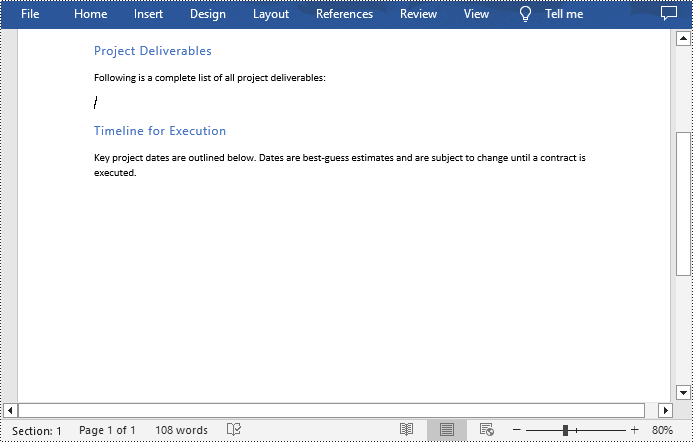
To delete all tables from a Word document, you need to iterate through all sections in the document, then iterate through all tables in each section and remove them through the Section.Tables.Remove() method. The following are the detailed steps.
- Create a Document instance.
- Load a Word document using Document.LoadFromFile() method.
- Iterate through all sections in the document.
- Iterate through all tables in each section.
- Delete the tables using Section.Tables.Remove() method.
- Save the result document using Document.SaveToFile() method.
- Python
from spire.doc import *
from spire.doc.common import *

inputFile = "Tables.docx"
outputFile = "RemoveAllTables.docx"

# Create a Document instance
doc = Document()

# Load a Word document
doc.LoadFromFile(inputFile)

# Iterate through all sections in the document
for i in range(doc.Sections.Count):
    sec = doc.Sections.get_Item(i)

    # Iterate through all tables in each section
    for j in range(sec.Tables.Count):
        table = sec.Tables.get_Item(j)
        # Remove the table
        sec.Tables.Remove(table)

# Save the result document
doc.SaveToFile(outputFile, FileFormat.Docx)
doc.Close()
Apply for a Temporary License
If you'd like to remove the evaluation message from the generated documents, or to get rid of the function limitations, please request a 30-day trial license for yourself.
Markdown has become a popular choice for writing structured text due to its simplicity and readability, making it widely used for documentation, README files, and note-taking. However, sometimes there arises a need to present this content in a more universal and polished format, such as PDF, which is compatible across various devices and platforms without formatting inconsistencies. Converting Markdown files to PDF documents not only enhances portability but also adds a professional touch, enabling easier distribution for reports, manuals, or sharing content with non-technical audiences who may not be familiar with Markdown syntax.
This article will demonstrate how to convert Markdown files to PDF documents using Spire.Doc for Python to automate the conversion process.
- Convert Markdown Files to PDF Documents with Python
- Convert Markdown to PDF and Customize Page Settings
Install Spire.Doc for Python
This scenario requires Spire.Doc for Python and plum-dispatch v1.7.4. They can be easily installed in your Windows through the following pip command.
pip install Spire.Doc
If you are unsure how to install, please refer to: How to Install Spire.Doc for Python on Windows
Convert Markdown Files to PDF Documents with Python
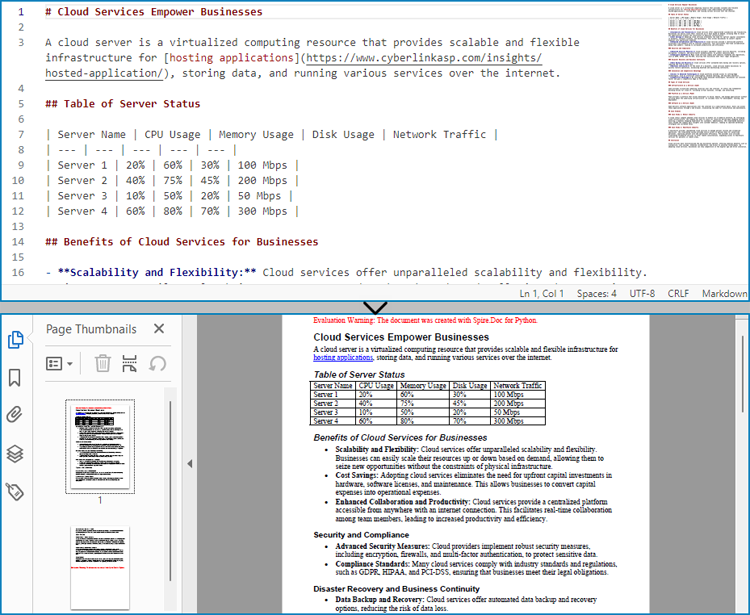
With Spire.Doc for Python, developers can load Markdown files using Document.LoadFromFile(string: fileName, FileFormat.Markdown) method, and then save the files to PDF documents using Document.SaveToFile(string: fileName, FileFormat.PDF) method. Besides, developers can also convert Markdown files to HTML, XPS, and SVG formats by specifying enumeration items of the FileFormat enumeration class.
The detailed steps for converting a Markdown file to a PDF document are as follows:
- Create an instance of Document class.
- Load a Markdown file using Document.LoadFromFile(string: fileName, FileFormat.Markdown) method.
- Convert the Markdown file to a PDF document and save it using Document.SaveToFile(string: fileName, FileFormat.PDF) method.
- Python
from spire.doc import *
from spire.doc.common import *

# Create an object of Document class
doc = Document()

# Load a Markdown file
doc.LoadFromFile("Sample.md", FileFormat.Markdown)

# Save the file to a PDF document
doc.SaveToFile("output/MarkdownToPDF.pdf", FileFormat.PDF)

doc.Dispose()
Convert Markdown to PDF and Customize Page Settings
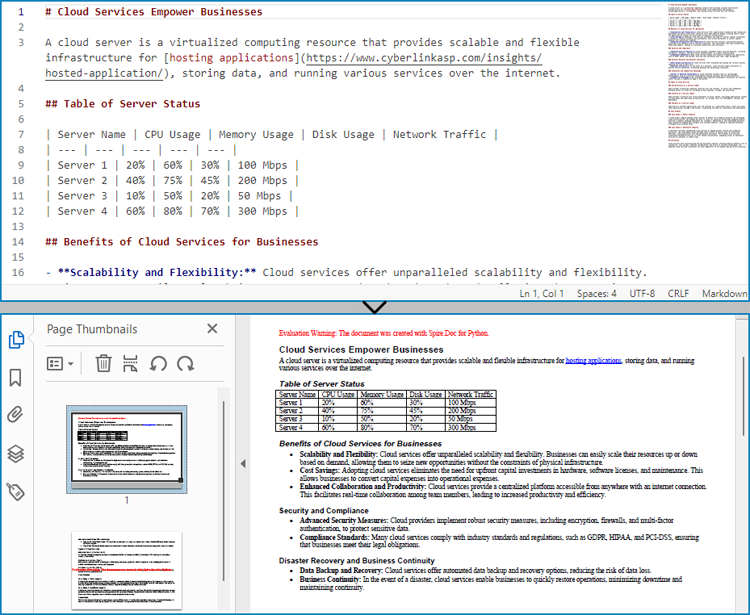
Spire.Doc for Python supports performing basic page setup before converting Markdown files to formats like PDF, allowing for control over the appearance of the converted document.
The detailed steps to convert a Markdown file to a PDF document and customize the page settings are as follows:
- Create an instance of Document class.
- Load a Markdown file using Document.LoadFromFile(string: fileName, FileFormat.Markdown) method.
- Get the default section using Document.Sections.get_Item() method.
- Get the page settings through Section.PageSetup property and set the page size, orientation, and margins through properties under PageSetup class.
- Convert the Markdown file to a PDF document and save it using Document.SaveToFile(string: fileName, FileFormat.PDF) method.
- Python
from spire.doc import *
from spire.doc.common import *

# Create an instance of Document class
doc = Document()
# Load a Word document
doc.LoadFromFile("Sample.md", FileFormat.Markdown)

# Get the default section
section = doc.Sections.get_Item(0)

# Get the page settings
pageSetup = section.PageSetup

# Customize the page settings
pageSetup.PageSize = PageSize.A4()
pageSetup.Orientation = PageOrientation.Landscape
pageSetup.Margins.All = 50

# Save the Markdown document to a PDF file
doc.SaveToFile("output/MarkdownToPDFPageSetup.pdf", FileFormat.PDF)

doc.Dispose()
Get a Free License
To fully experience the capabilities of Spire.Doc for Python without any evaluation limitations, you can request a free 30-day trial license.
