
Knowledgebase (2417)
Children categories
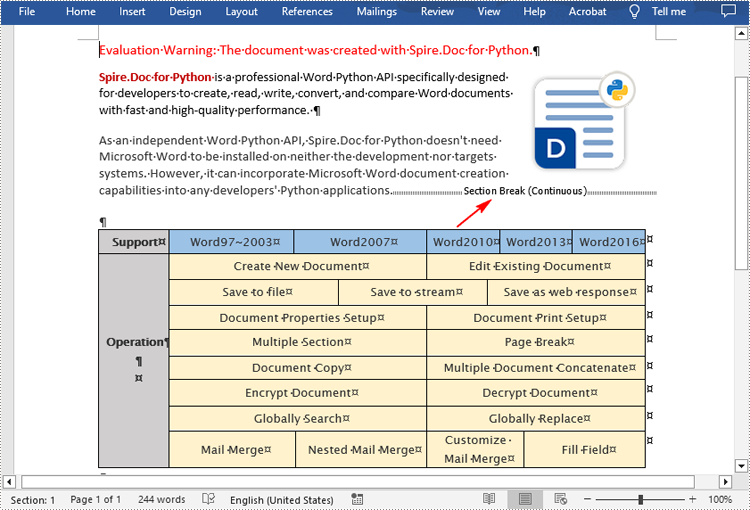
Section breaks in Word allow users to divide a document into sections, each with unique formatting options. This is especially useful when working with long documents where you want to apply different layouts, headers, footers, margins or page orientations within the same document. In this article, you will learn how to insert or remove section breaks in Word in Python using Spire.Doc for Python.
Install Spire.Doc for Python
This scenario requires Spire.Doc for Python and plum-dispatch v1.7.4. They can be easily installed in your Windows through the following pip commands.
pip install Spire.Doc
If you are unsure how to install, please refer to this tutorial: How to Install Spire.Doc for Python on Windows
Insert Section Breaks in Word in Python
Spire.Doc for Python provides the Paragraph.InsertSectionBreak(breakType: SectionBreakType) method to insert a specified type of section break to a paragraph. The following table provides an overview of the supported section break types, along with their corresponding Enums and descriptions:
| Section Break | Enum | Description |
| New page | SectionBreakType.New_Page | Start the new section on a new page. |
| Continuous | SectionBreakType.No_Break | Start the new section on the same page, allowing for continuous content flow. |
| Odd page | SectionBreakType.Odd_Page | Start the new section on the next odd-numbered page. |
| Even page | SectionBreakType.Even_Page | Start the new section on the next even-numbered page. |
| New column | SectionBreakType.New_Column | Start the new section in the next column if columns are enabled. |
The following are the detailed steps to insert a continuous section break:
- Create a Document instance.
- Load a Word document using Document.LoadFromFile() method.
- Get a specified section using Document.Sections[] property.
- Get a specified paragraph of the section using Section.Paragraphs[] property.
- Add a section break to the end of the paragraph using Paragraph.InsertSectionBreak() method.
- Save the result document using Document.SaveToFile() method.
- Python
from spire.doc import *
from spire.doc.common import *

inputFile = "sample.docx"
outputFile = "InsertSectionBreak.docx"

# Create a Document instance
document = Document()

# Load a Word document
document.LoadFromFile(inputFile)

# Get a specific section
section = document.Sections.get_Item(0)

# Get a specific paragraph
paragraph = section.Paragraphs.get_Item(0)

# Insert a continuous section break
paragraph.InsertSectionBreak(SectionBreakType.NoBreak)

# Save the result document
document.SaveToFile(outputFile, FileFormat.Docx2016)
document.Close()
Remove Section Breaks in Word in Python
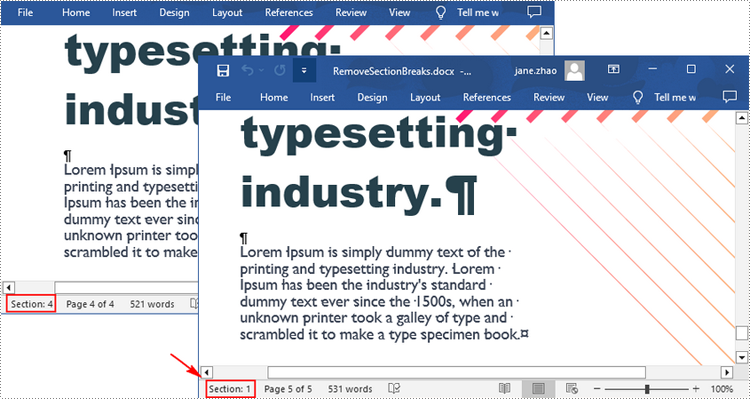
To delete all sections breaks in a Word document, we need to access the first section in the document, then copy the contents of the other sections to the first section and delete them. The following are the detailed steps:
- Create a Document instance.
- Load a Word document using Document.LoadFromFile() method.
- Get the first section using Document.Sections[] property.
- Iterate through other sections in the document.
- Get the second section, and then iterate through to get its child objects.
- Clone the child objects of the second section and add them to the first section using Section.Body.ChildObjects.Add() method.
- Delete the second section using Document.Sections.Remove() method.
- Repeat the process to copy and delete the remaining sections.
- Save the result document using Document.SaveToFile() method.
- Python
from spire.doc import *
from spire.doc.common import *

inputFile = "Report.docx"
outputFile = "RemoveSectionBreaks.docx"

# Create a Document instance
document = Document()

# Load a Word document
document.LoadFromFile(inputFile)

# Get a specific section
section = document.Sections.get_Item(0)

# Iterate through other sections in the document
for i in range(document.Sections.Count - 1):
    # Get the second section in the document
    section = document.Sections[1]

    # Iterate through all child objects of the second section
    for j in range(section.Body.ChildObjects.Count):
        # Get the child objects
        obj = section.Body.ChildObjects.get_Item(j)
        # Clone the child objects to the first section
        sec.Body.ChildObjects.Add(obj.Clone())
        # Remove the second section
        document.Sections.Remove(section)

# Save the result document
document.SaveToFile(outputFile, FileFormat.Docx2016)
document.Close()
Apply for a Temporary License
If you'd like to remove the evaluation message from the generated documents, or to get rid of the function limitations, please request a 30-day trial license for yourself.
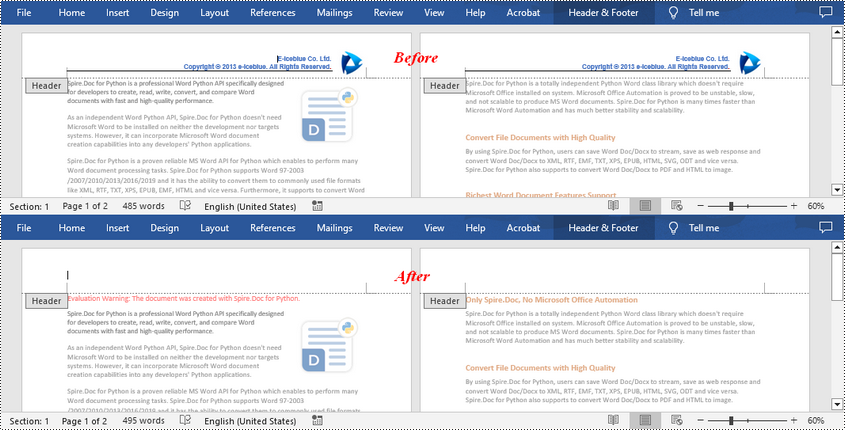
Knowing how to remove headers or footers in Word is an essential skill as there may be times you need to change the formatting of your document or collaborate with others who do not need the headers or footers. In this article, you will learn how to remove headers or footers in Word in Python using Spire.Doc for Python.
Install Spire.Doc for Python
This scenario requires Spire.Doc for Python and plum-dispatch v1.7.4. They can be easily installed in your Windows through the following pip commands.
pip install Spire.Doc
If you are unsure how to install, please refer to this tutorial: How to Install Spire.Doc for Python on Windows
Remove Headers in a Word Document in Python
Spire.Doc for Python supports getting different headers in the first pages, odd pages, and even pages, and then delete all of them through the HeaderFooter.ChildObjects.Clear() method. The following are the detailed steps:
- Create a Document instance.
- Load a Word document using Document.LoadFromFile() method.
- Get a specified section using Document.Sections[] property.
- Iterate through all paragraphs in the section, and then all child objects in each paragraph.
- Get the headers for the first, odd, and even pages using Section.HeadersFooters[hfType: HeaderFooterType] property, and then delete them using HeaderFooter.ChildObjects.Clear() method.
- Save the result document using Document.SaveToFile() method.
- Python
from spire.doc import *
from spire.doc.common import *

inputFile = "HeaderFooter.docx"
outputFile = "RemoveHeaders.docx"

# Create a Document instance
doc = Document()

# Load a Word document
doc.LoadFromFile(inputFile)

# Get the first section
section = doc.Sections[0]

# Iterate through all paragraphs in the section
for i in range(section.Paragraphs.Count):
    para = section.Paragraphs.get_Item(i)

    # Iterate through all child objects in each paragraph
    for j in range(para.ChildObjects.Count):
        obj = para.ChildObjects.get_Item(j)

        # Delete header in the first page
        header = None
        header = section.HeadersFooters[HeaderFooterType.HeaderFirstPage]
        if header is not None:
            header.ChildObjects.Clear()

        # Delete headers in the odd pages
        header = section.HeadersFooters[HeaderFooterType.HeaderOdd]
        if header is not None:
            header.ChildObjects.Clear()

        # Delete headers in the even pages
        header = section.HeadersFooters[HeaderFooterType.HeaderEven]
        if header is not None:
            header.ChildObjects.Clear()

# Save the result document
doc.SaveToFile(outputFile, FileFormat.Docx)
doc.Close()
Remove Footers in a Word Document in Python
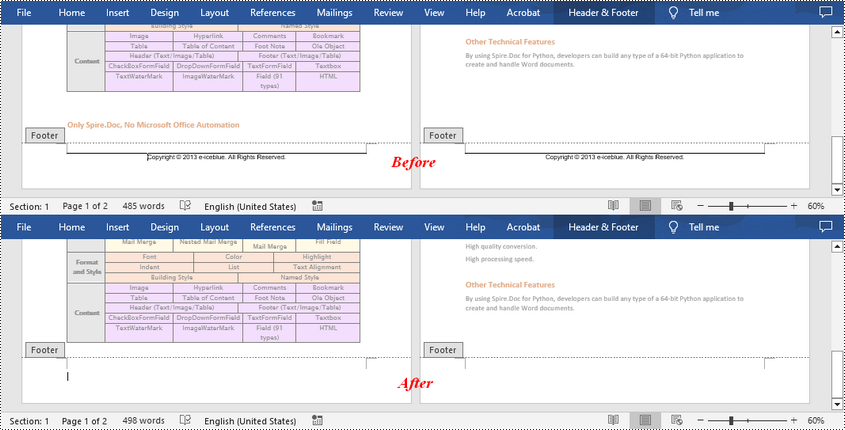
Deleting footers is similar to that of deleting headers, you can also get the footers on different pages first and then delete them at once. The following are the detailed steps:
- Create a Document instance.
- Load a Word document using Document.LoadFromFile() method.
- Get a specified section using Document.Sections[] property.
- Iterate through all paragraphs in the section, and then all child objects in each paragraph.
- Get the footers for the first, odd, and even pages using Section.HeadersFooters[hfType: HeaderFooterType] property, and then delete them using HeaderFooter.ChildObjects.Clear() method.
- Save the result document using Document.SaveToFile() method.
- Python
from spire.doc import *
from spire.doc.common import *

inputFile = "HeaderFooter.docx"
outputFile = "RemoveFooters.docx"

# Create a Document instance
doc = Document()

# Load a Word document
doc.LoadFromFile(inputFile)

# Get the first section
section = doc.Sections[0]

# Iterate through all paragraphs in the section
for i in range(section.Paragraphs.Count):
    para = section.Paragraphs.get_Item(i)

    # Iterate through all child objects in each paragraph
    for j in range(para.ChildObjects.Count):
        obj = para.ChildObjects.get_Item(j)

        # Delete footer in the first page
        footer = None
        footer = section.HeadersFooters[HeaderFooterType.FooterFirstPage]
        if footer is not None:
            footer.ChildObjects.Clear()

        # Delete footers in the odd pages
        footer = section.HeadersFooters[HeaderFooterType.FooterOdd]
        if footer is not None:
            footer.ChildObjects.Clear()

        # Delete footers in the even pages
        footer = section.HeadersFooters[HeaderFooterType.FooterEven]
        if footer is not None:
            footer.ChildObjects.Clear()

# Save the result document
doc.SaveToFile(outputFile, FileFormat.Docx)
doc.Close()
Apply for a Temporary License
If you'd like to remove the evaluation message from the generated documents, or to get rid of the function limitations, please request a 30-day trial license for yourself.
Comments in Word documents are often used for collaborative review and feedback purposes. They may contain text and images that provide valuable information to guide document improvements. Extracting the text and images from comments allows you to analyze and evaluate the feedback provided by reviewers, helping you gain a comprehensive understanding of the strengths, weaknesses, and suggestions related to the document. In this article, we will demonstrate how to extract text and images from Word comments in Python using Spire.Doc for Python.
Install Spire.Doc for Python
This scenario requires Spire.Doc for Python and plum-dispatch v1.7.4. They can be easily installed in your Windows through the following pip command.
pip install Spire.Doc
If you are unsure how to install, please refer to this tutorial: How to Install Spire.Doc for Python on Windows
Extract Text from Word Comments in Python
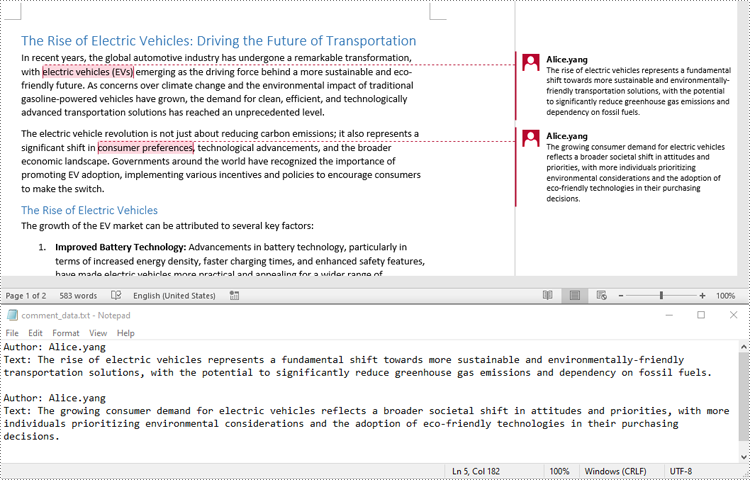
You can easily retrieve the author and text of a Word comment using the Comment.Format.Author and Comment.Body.Paragraphs[index].Text properties provided by Spire.Doc for Python. The detailed steps are as follows.
- Create an object of the Document class.
- Load a Word document using the Document.LoadFromFile() method.
- Create a list to store the extracted comment data.
- Iterate through the comments in the document.
- For each comment, iterate through the paragraphs of the comment body.
- For each paragraph, get the text using the Comment.Body.Paragraphs[index].Text property.
- Get the author of the comment using the Comment.Format.Author property.
- Add the text and author of the comment to the list.
- Save the content of the list to a text file.
- Python
from spire.doc import *
from spire.doc.common import *

# Create an object of the Document class
document = Document()
# Load a Word document containing comments
document.LoadFromFile("Comments.docx")

# Create a list to store the extracted comment data
comments = []

# Iterate through the comments in the document
for i in range(document.Comments.Count):
    comment = document.Comments[i]
    comment_text = ""

    # Iterate through the paragraphs in the comment body
    for j in range(comment.Body.Paragraphs.Count):
        paragraph = comment.Body.Paragraphs[j]
        comment_text += paragraph.Text + "\n"

    # Get the comment author
    comment_author = comment.Format.Author

    # Append the comment data to the list
    comments.append({
        "author": comment_author,
        "text": comment_text
    })

# Write the comment data to a file
with open("comment_data.txt", "w", encoding="utf-8") as file:
    for comment in comments:
        file.write(f"Author: {comment['author']}\nText: {comment['text']}\n\n")
Extract Images from Word Comments in Python
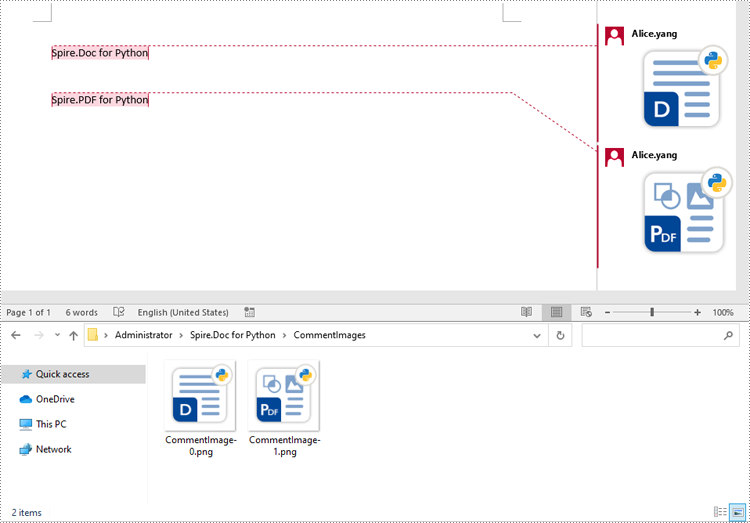
To extract images from Word comments, you need to iterate through the child objects in the paragraphs of the comments to find the DocPicture objects, then get the image data using DocPicture.ImageBytes property, finally save the image data to image files.
- Create an object of the Document class.
- Load a Word document using the Document.LoadFromFile() method.
- Create a list to store the extracted image data.
- Iterate through the comments in the document.
- For each comment, iterate through the paragraphs of the comment body.
- For each paragraph, iterate through the child objects of the paragraph.
- Check if the object is a DocPicture object.
- If the object is a DocPicture, get the image data using the DocPicture.ImageBytes property and add it to the list.
- Save the image data in the list to individual image files.
- Python
from spire.doc import *
from spire.doc.common import *

# Create an object of the Document class
document = Document()
# Load a Word document containing comments
document.LoadFromFile("Comments.docx")

# Create a list to store the extracted image data
images = []

# Iterate through the comments in the document
for i in range(document.Comments.Count):
    comment = document.Comments.get_Item(i)
    # Iterate through the paragraphs in the comment body
    for j in range(comment.Body.Paragraphs.Count):
        paragraph = comment.Body.Paragraphs.get_Item(j)
        # Iterate through the child objects in the paragraph
        for o in range(paragraph.ChildObjects.Count):
            obj = paragraph.ChildObjects.get_Item(o)
            # Find the images
            if isinstance(obj, DocPicture):
                picture = obj
                # Get the image data and add it to the list
                data_bytes = picture.ImageBytes
                images.append(data_bytes)

# Save the image data to image files
for i, image_data in enumerate(images):
    file_name = f"CommentImage-{i}.png"
    with open(os.path.join("CommentImages/", file_name), 'wb') as image_file:
        image_file.write(image_data)
Apply for a Temporary License
If you'd like to remove the evaluation message from the generated documents, or to get rid of the function limitations, please request a 30-day trial license for yourself.
