
Knowledgebase (2417)
Children categories
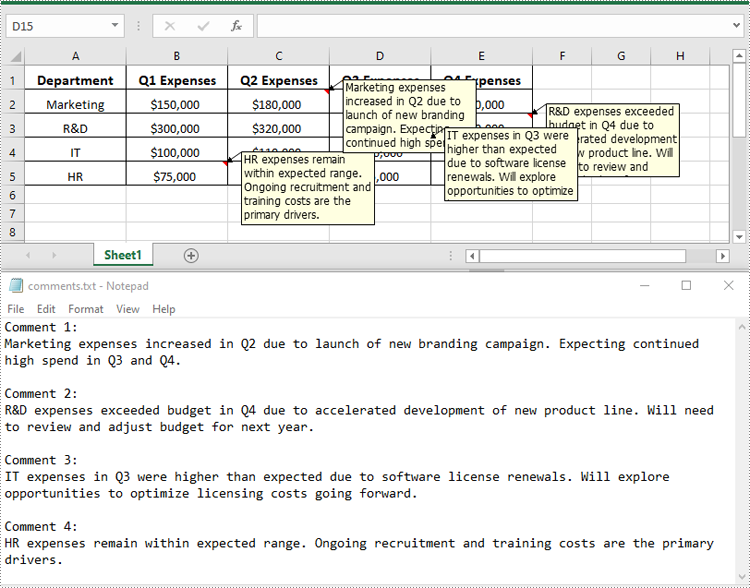
Excel files often contain a wealth of comments that can provide valuable context and insights. These comments may include important text notes, instructions, or even embedded images that can be incredibly useful for various data analysis and reporting tasks. Extracting this information from the comments can be a valuable step in unlocking the full potential of the data. In this article, we will demonstrate how to effectively extract text and images from comments in Excel files in Python using Spire.XLS for Python.
Install Spire.XLS for Python
This scenario requires Spire.XLS for Python and plum-dispatch v1.7.4. They can be easily installed in your Windows through the following pip command.
pip install Spire.XLS
If you are unsure how to install, please refer to this tutorial: How to Install Spire.XLS for Python on Windows
Extract Text from Comments in Excel in Python
You can get the text of comments using the ExcelCommentObject.Text property. The detailed steps are as follows.
- Create an object of the Workbook class.
- Load an Excel file using Workbook.LoadFromFile() method.
- Create a list to store the extracted comment text.
- Get the comments in the worksheet using Worksheet.Comments property.
- Traverse through the comments.
- Get the text of each comment using ExcelCommentObject.Text property and append it to the list.
- Save the content of the list to a text file.
- Python
from spire.xls import *
from spire.xls.common import *

# Create a Workbook object
workbook = Workbook()

# Load an Excel file
workbook.LoadFromFile("Comments.xlsx")

# Get the first worksheet
worksheet = workbook.Worksheets[0]

# Create a list to store the comment text
comment_text = []

# Get all the comments in the worksheet
comments = worksheet.Comments

# Extract the text from each comment and add it to the list
for i, comment in enumerate(comments, start=1):
    comment_text.append(f"Comment {i}:")
    text = comment.Text
    comment_text.append(text)
    comment_text.append("")

# Write the comment text to a file
with open("comments.txt", "w", encoding="utf-8") as file:
    file.write("\n".join(comment_text))
Extract Images from Comments in Excel in Python
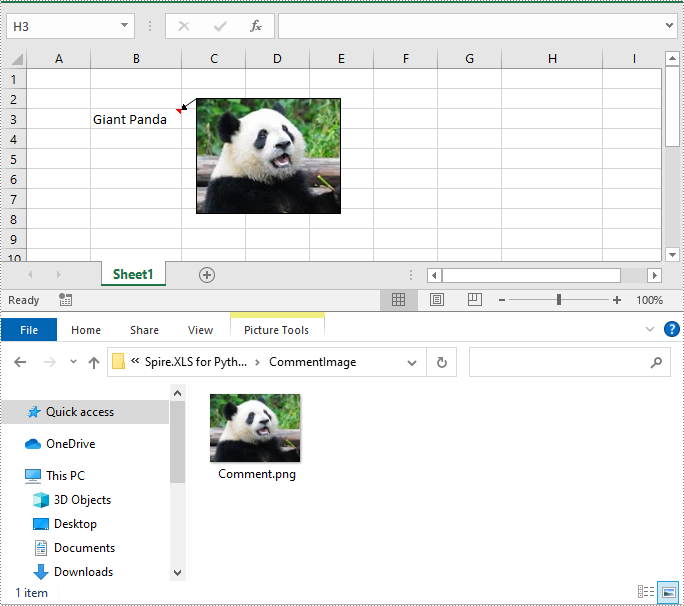
To get the images embedded in Excel comments, you can use the ExcelCommentObject.Fill.Picture property. The detailed steps are as follows.
- Create an object of the Workbook class.
- Load an Excel file using Workbook.LoadFromFile() method.
- Get a specific comment in the worksheet using Worksheet.Comments[index] property.
- Get the embedded image in the comment using ExcelCommentObject.Fill.Picture property.
- Save the image to an image file.
- Python
from spire.xls import *
from spire.xls.common import *

# Create a Workbook object
workbook = Workbook()

# Load an Excel file
workbook.LoadFromFile("ImageComment.xlsx")

# Get the first worksheet
worksheet = workbook.Worksheets[0]

# Get a specific comment in the worksheet
comment = worksheet.Comments[0]

# Extract the image from the comment and save it to an image file
image = comment.Fill.Picture
image.Save("CommentImage/Comment.png")
Apply for a Temporary License
If you'd like to remove the evaluation message from the generated documents, or to get rid of the function limitations, please request a 30-day trial license for yourself.
Excel has been a widely used tool for data organization and analysis for many years. Over time, Microsoft has introduced different file formats for storing Excel data, the most common being the older XLS format and the more modern XLSX format.
The XLS format, introduced in the late 1990s, had certain limitations, such as a file size limit of 65,536 rows and 256 columns, and a maximum of 65,000 unique styles. The XLSX format, introduced in 2007, addressed these limitations by allowing for larger file sizes, more rows and columns, and expanded style capabilities. While XLSX is now the standard format, there are still many existing XLS files that need to be accessed and used, which makes the ability to convert between these formats an essential skill. In this article, we will explain how to convert Excel XLS to XLSX and vice versa in Python using Spire.XLS for Python.
Install Spire.XLS for Python
This scenario requires Spire.XLS for Python and plum-dispatch v1.7.4. They can be easily installed in your Windows through the following pip command.
pip install Spire.XLS
If you are unsure how to install, please refer to this tutorial: How to Install Spire.XLS for Python on Windows
Convert XLSX to XLS in Python
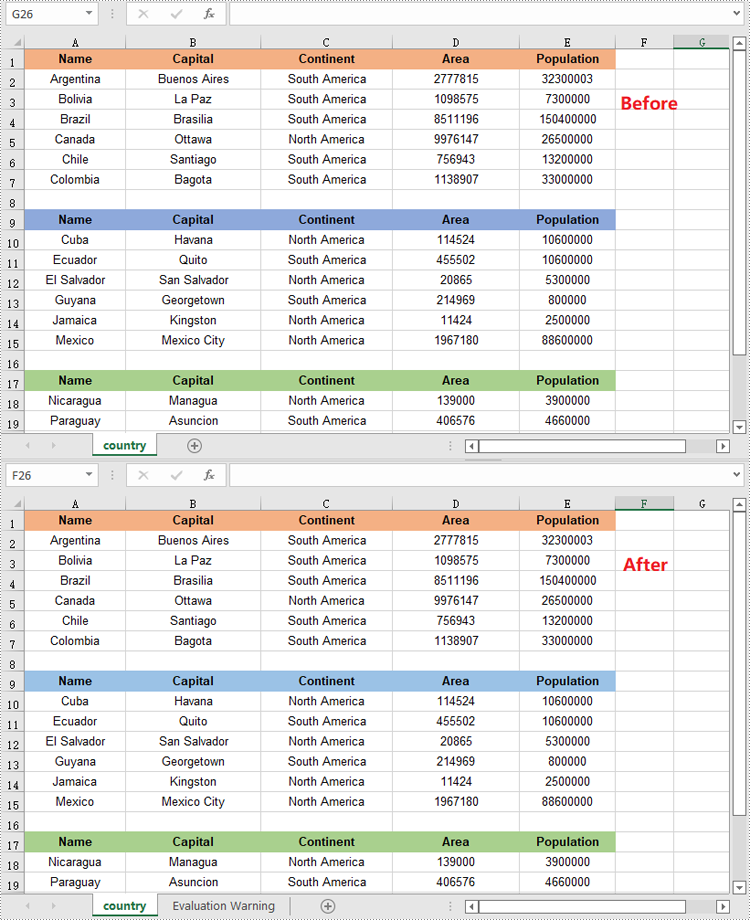
To convert an XLSX file to XLS format, you can use the Workbook.SaveToFile(fileName, ExcelVersion.Version97to2003) method. The ExcelVersion.Version97to2003 parameter specifies that the workbook should be saved in the Excel 97-2003 (XLS) format. The detailed steps are as follows.
- Create an object of the Workbook class.
- Load an XLSX file using the Workbook.LoadFromFile() method.
- Save the XLSX file to XLS format using the Workbook.SaveToFile(fileName, ExcelVersion.Version97to2003) method.
- Python
from spire.xls import *
from spire.xls.common import *

# Specify the input and output file paths
inputFile = "Sample1.xlsx"
outputFile = "XlsxToXls.xls"

# Create a Workbook object
workbook = Workbook()
# Load the XLSX file
workbook.LoadFromFile(inputFile)

# Save the XLSX file to XLS format
workbook.SaveToFile(outputFile, ExcelVersion.Version97to2003)
workbook.Dispose()
Convert XLS to XLSX in Python
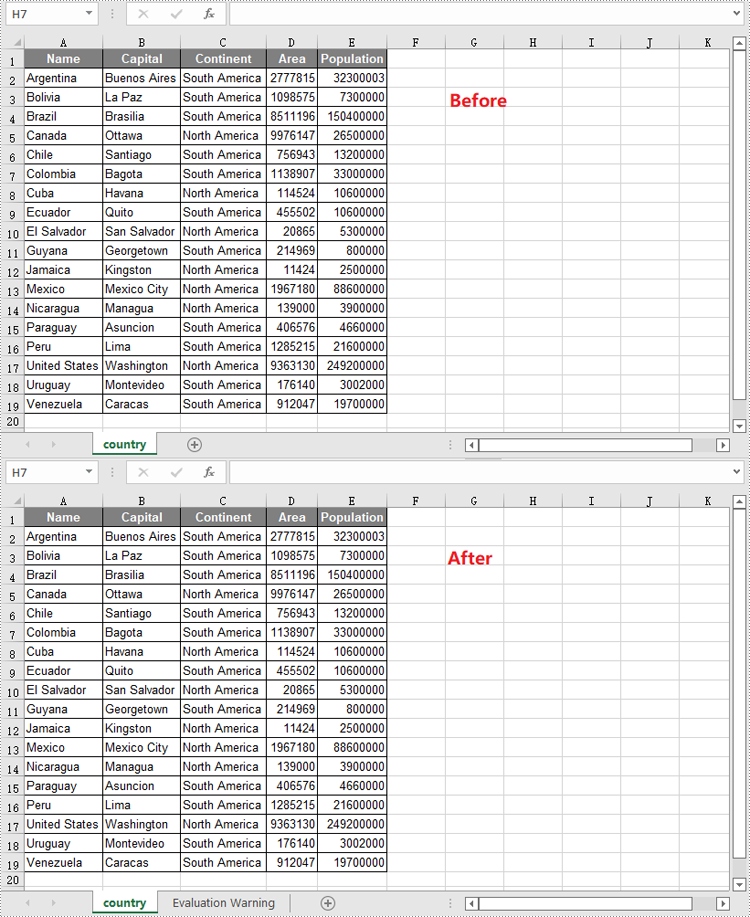
To convert an XLS file to XLSX format, you need to specify the target Excel version to a version higher than 97-2003, such as 2007 (ExcelVersion.Version2007), 2010 (ExcelVersion.Version2010), 2013 (ExcelVersion.Version2013), or 2016 (ExcelVersion.Version2016). The detailed steps are as follows.
- Create an object of the Workbook class.
- Load an XLS file using the Workbook.LoadFromFile() method.
- Save the XLS file to an Excel 2016 (XLSX) file using the Workbook.SaveToFile(fileName, ExcelVersion.Version2016) method.
- Python
from spire.xls import *
from spire.xls.common import *

# Specify the input and output file paths
inputFile = "Sample2.xls"
outputFile = "XlsToXlsx.xlsx"

# Create a Workbook object
workbook = Workbook()
# Load the XLS file
workbook.LoadFromFile(inputFile)

# Save the XLS file to XLSX format
workbook.SaveToFile(outputFile, ExcelVersion.Version2016)
workbook.Dispose()
Apply for a Temporary License
If you'd like to remove the evaluation message from the generated documents, or to get rid of the function limitations, please request a 30-day trial license for yourself.
Word documents leverage Content Control technology to infuse dynamic vitality into document content, offering users enhanced flexibility and convenience when editing and managing documents. These controls, serving as interactive elements, empower users to freely add, remove, or adjust specified content sections while preserving the integrity of the document structure, thereby facilitating agile iterations and personalized customization of document content. This article will guide you how to use Spire.Doc for Python to modify content controls in Word documents within a Python project.
- Modify Content Controls in the Body using Python
- Modify Content Controls within Paragraphs using Python
- Modify Content Controls Wrapping Table Rows using Python
- Modify Content Controls Wrapping Table Cells using Python
- Modify Content Controls within Table Cells using Python
Install Spire.Doc for Python
This scenario requires Spire.Doc for Python and plum-dispatch v1.7.4. They can be easily installed in your VS Code through the following pip command.
pip install Spire.Doc
If you are unsure how to install, please refer to this tutorial: How to Install Spire.Doc for Python on Windows
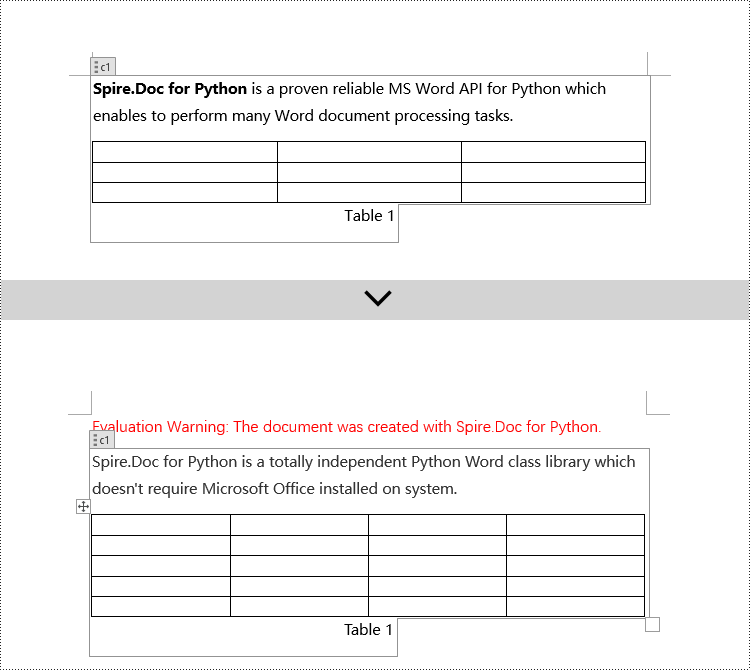
Modify Content Controls in the Body using Python
In Spire.Doc, the object type for the body content control is StructureDocumentTag. To modify these controls, one needs to traverse the Section.Body.ChildObjects collection to locate objects of type StructureDocumentTag. Below are the detailed steps:
- Create a Document object.
- Use the Document.LoadFromFile() method to load a Word document into memory.
- Retrieve the body of a section in the document using Section.Body.
- Traverse the collection of child objects within Body.ChildObjects, identifying those that are of type StructureDocumentTag.
- Within the StructureDocumentTag.ChildObjects sub-collection, perform modifications based on the type of each child object.
- Finally, utilize the Document.SaveToFile() method to save the changes back to the Word document.
- Python
from spire.doc import *
from spire.doc.common import *

# Create a new document object
doc = Document()

# Load the document content from a file
doc.LoadFromFile("Sample1.docx")

# Get the body of the document
body = doc.Sections.get_Item(0).Body

# Create lists for paragraphs and tables
paragraphs = []
tables = []

for i in range(body.ChildObjects.Count):
        obj = body.ChildObjects.get_Item(i)
        # If it is a StructureDocumentTag object
        if obj.DocumentObjectType == DocumentObjectType.StructureDocumentTag:
            sdt = (StructureDocumentTag)(obj)

            # If the tag is "c1" or the alias is "c1"
            if sdt.SDTProperties.Tag == "c1" or sdt.SDTProperties.Alias == "c1":
                for j in range(sdt.ChildObjects.Count):
                    child_obj = sdt.ChildObjects.get_Item(j)

                    # If it is a paragraph object
                    if child_obj.DocumentObjectType == DocumentObjectType.Paragraph:
                        paragraphs.append(child_obj)

                    # If it is a table object
                    elif child_obj.DocumentObjectType == DocumentObjectType.Table:
                        tables.append(child_obj)

# Modify the text content of the first paragraph
if paragraphs:
    (Paragraph)(paragraphs[0]).Text = "Spire.Doc for Python is a totally independent Python Word class library which doesn't require Microsoft Office installed on system."

if tables:
    # Reset the cells of the first table
    (Table)(tables[0]).ResetCells(5, 4)

# Save the modified document to a file
doc.SaveToFile("ModifyBodyContentControls.docx", FileFormat.Docx2016)

# Release document resources
doc.Close()
doc.Dispose()
Modify Content Controls within Paragraphs using Python
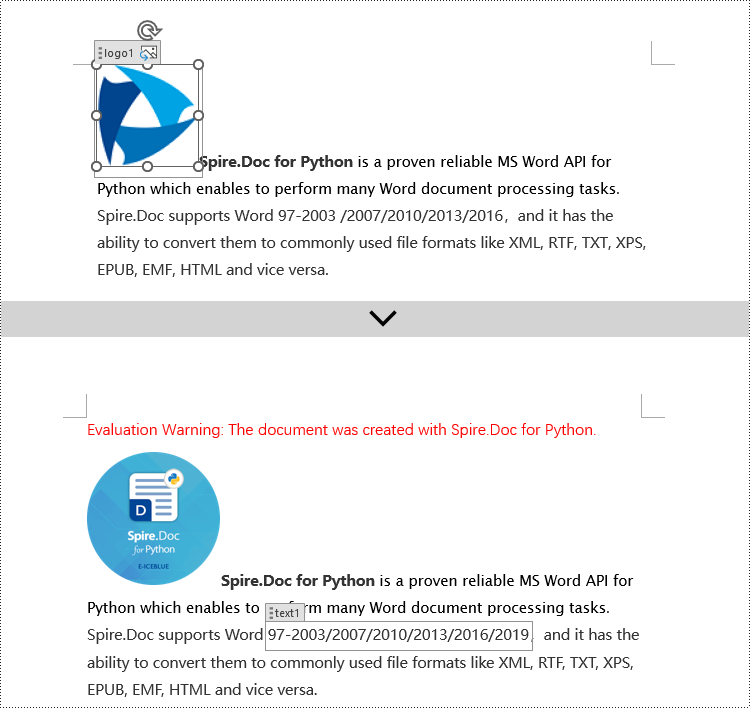
In Spire.Doc, the object type for content controls within paragraphs is StructureDocumentTagInline. To modify these, you would traverse the Paragraph.ChildObjects collection to locate objects of type StructureDocumentTagInline. Here are the detailed steps:
- Instantiate a Document object.
- Load a Word document using the Document.LoadFromFile() method.
- Get the body of a section in the document via Section.Body.
- Retrieve the first paragraph of the text body using Body.Paragraphs.get_Item(0).
- Traverse the collection of child objects within Paragraph.ChildObjects, identifying those that are of type StructureDocumentTagInline.
- Within the StructureDocumentTagInline.ChildObjects sub-collection, execute modification operations according to the type of each child object.
- Save the changes back to the Word document using the Document.SaveToFile() method.
- Python
from spire.doc import *
from spire.doc.common import *

 # Create a new Document object
doc = Document()

# Load document content from a file
doc.LoadFromFile("Sample2.docx")

# Get the body of the document
body = doc.Sections.get_Item(0).Body

# Get the first paragraph in the body
paragraph = body.Paragraphs.get_Item(0)

# Iterate through child objects in the paragraph
for i in range(paragraph.ChildObjects.Count):
    obj = paragraph.ChildObjects.get_Item(i)

    # Check if the child object is StructureDocumentTagInline
    if obj.DocumentObjectType == DocumentObjectType.StructureDocumentTagInline:

       # Convert the child object to StructureDocumentTagInline type
       structure_document_tag_inline = (StructureDocumentTagInline)(obj)

       # Check if the Tag or Alias property is "text1"
       if structure_document_tag_inline.SDTProperties.Tag == "text1":

            # Iterate through child objects in the StructureDocumentTagInline object
            for j in range(structure_document_tag_inline.ChildObjects.Count):
                obj2 = structure_document_tag_inline.ChildObjects.get_Item(j)

                # Check if the child object is a TextRange object
                if obj2.DocumentObjectType == DocumentObjectType.TextRange:

                    # Convert the child object to TextRange type
                    range = (TextRange)(obj2)

                    # Set the text content to a specified content
                    range.Text = "97-2003/2007/2010/2013/2016/2019"

       # Check if the Tag or Alias property is "logo1"
       if structure_document_tag_inline.SDTProperties.Tag == "logo1":

            # Iterate through child objects in the StructureDocumentTagInline object
            for j in range(structure_document_tag_inline.ChildObjects.Count):
                obj2 = structure_document_tag_inline.ChildObjects.get_Item(j)

                # Check if the child object is an image
                if obj2.DocumentObjectType == DocumentObjectType.Picture:

                    # Convert the child object to DocPicture type
                    doc_picture = (DocPicture)(obj2)

                    # Load a specified image
                    doc_picture.LoadImage("DOC-Python.png")

                    # Set the width and height of the image
                    doc_picture.Width = 100
                    doc_picture.Height = 100

# Save the modified document to a new file
doc.SaveToFile("ModifiedContentControlsInParagraph.docx", FileFormat.Docx2016)

# Release resources of the Document object
doc.Close()
doc.Dispose()
Modify Content Controls Wrapping Table Rows using Python
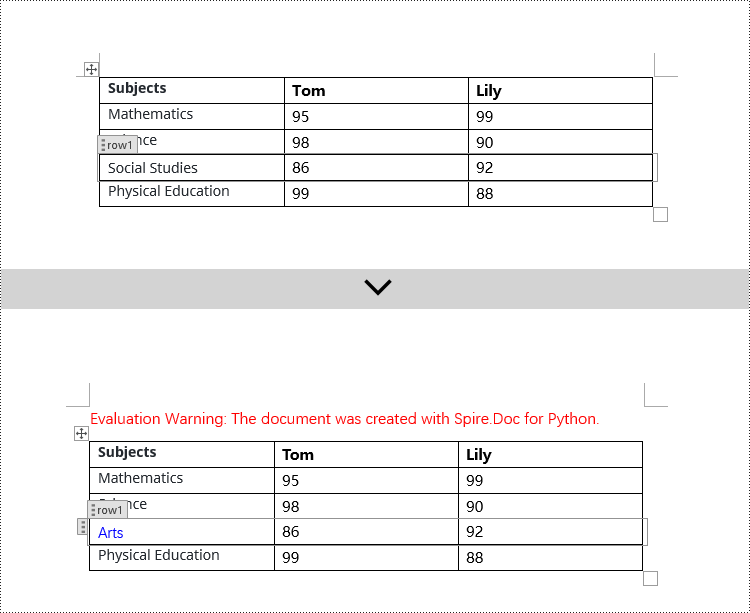
In Spire.Doc, the object type for content controls within table rows is StructureDocumentTagRow. To modify these controls, you need to traverse the Table.ChildObjects collection to find objects of type StructureDocumentTagRow. Here are the detailed steps:
- Create a Document object.
- Load a Word document using the Document.LoadFromFile() method.
- Retrieve the body of a section within the document using Section.Body.
- Obtain the first table in the text body via Body.Tables.get_Item(0).
- Traverse the collection of child objects within Table.ChildObjects, identifying those that are of type StructureDocumentTagRow.
- Access StructureDocumentTagRow.Cells collection to iterate through the cells within this controlled row, and then execute the appropriate modification actions on the cell contents.
- Lastly, use the Document.SaveToFile() method to persist the changes made to the document.
- Python
from spire.doc import *
from spire.doc.common import *

# Create a new document object
doc = Document()

# Load the document from a file
doc.LoadFromFile("Sample3.docx")

# Get the body of the document
body = doc.Sections.get_Item(0).Body

# Get the first table
table = body.Tables.get_Item(0)

# Iterate through the child objects in the table
for i in range(table.ChildObjects.Count):
    obj = table.ChildObjects.get_Item(i)

    # Check if the child object is of type StructureDocumentTagRow
    if obj.DocumentObjectType == DocumentObjectType.StructureDocumentTagRow:

        # Convert the child object to a StructureDocumentTagRow object
        structureDocumentTagRow = (StructureDocumentTagRow)(obj)

        # Check if the Tag or Alias property of the StructureDocumentTagRow is "row1"
        if structureDocumentTagRow.SDTProperties.Tag == "row1":

            # Clear the paragraphs in the cell
            structureDocumentTagRow.Cells.get_Item(0).Paragraphs.Clear()

            # Add a paragraph in the cell and set the text
            textRange = structureDocumentTagRow.Cells.get_Item(0).AddParagraph().AppendText("Arts")
            textRange.CharacterFormat.TextColor = Color.get_Blue()

# Save the modified document to a file
doc.SaveToFile("ModifiedTableRowContentControl.docx",  FileFormat.Docx2016)

# Release document resources
doc.Close()
doc.Dispose()
Modify Content Controls Wrapping Table Cells using Python
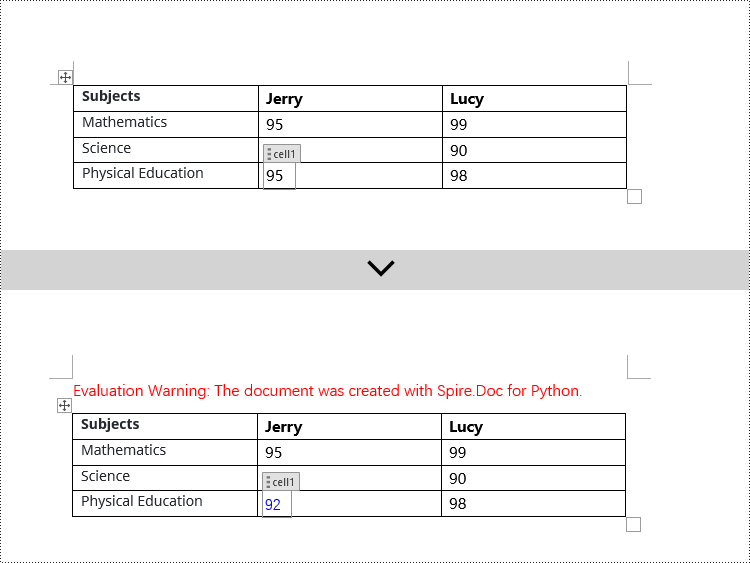
In Spire.Doc, the object type for content controls within table cells is StructureDocumentTagCell. To manipulate these controls, you need to traverse the TableRow.ChildObjects collection to locate objects of type StructureDocumentTagCell. Here are the detailed steps:
- Create a Document object.
- Load a Word document using the Document.LoadFromFile() method.
- Retrieve the body of a section in the document using Section.Body.
- Obtain the first table in the body using Body.Tables.get_Item(0).
- Traverse the collection of rows in the table.
- Within each TableRow, traverse its child objects TableRow.ChildObjects to identify those of type StructureDocumentTagCell.
- Access StructureDocumentTagCell.Paragraphs collection. This allows you to iterate through the paragraphs within the cell and apply the necessary modification operations to the content.
- Finally, use the Document.SaveToFile() method to save the modified document.
- Python
from spire.doc import *
from spire.doc.common import *

# Create a new document object
doc = Document()

# Load the document from a file
doc.LoadFromFile("Sample4.docx")

# Get the body of the document
body = doc.Sections.get_Item(0).Body

# Get the first table in the document
table = body.Tables.get_Item(0)

# Iterate through the rows of the table
for i in range(table.Rows.Count):
    row = table.Rows.get_Item(i)

    # Iterate through the child objects in each row
    for j in range(row.ChildObjects.Count):
        obj = row.ChildObjects.get_Item(j)

        # Check if the child object is a StructureDocumentTagCell
        if obj.DocumentObjectType == DocumentObjectType.StructureDocumentTagCell:

            # Convert the child object to StructureDocumentTagCell type
            structureDocumentTagCell = (StructureDocumentTagCell)(obj)

            # Check if the Tag or Alias property of structureDocumentTagCell is "cell1"
            if structureDocumentTagCell.SDTProperties.Tag == "cell1":

                # Clear the paragraphs in the cell
                structureDocumentTagCell.Paragraphs.Clear()

                # Add a new paragraph and add text to it
                textRange = structureDocumentTagCell.AddParagraph().AppendText("92")
                textRange.CharacterFormat.TextColor = Color.get_Blue()

# Save the modified document to a new file
doc.SaveToFile("ModifiedTableCellContentControl.docx", FileFormat.Docx2016)

# Dispose of the document object
doc.Close()
doc.Dispose()
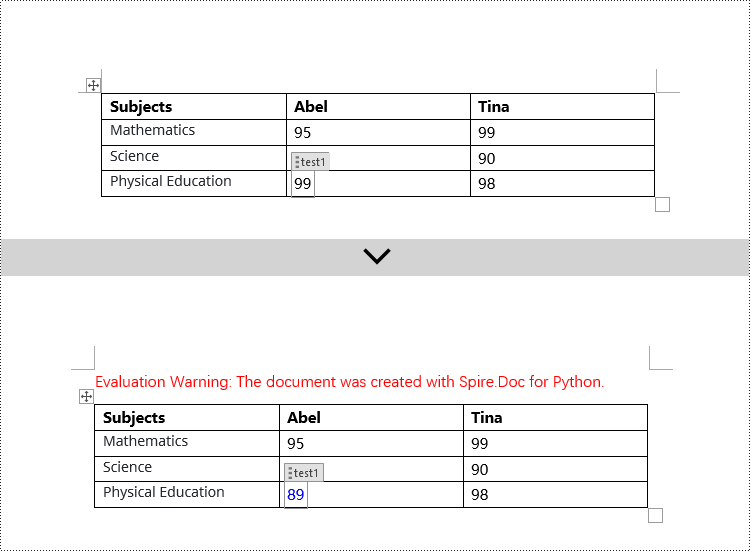
Modify Content Controls within Table Cells using Python
This case demonstrates modifying content controls within paragraphs inside table cells. The process involves navigating to the paragraph collection TableCell.Paragraphs within each cell, then iterating through each paragraph's child objects (Paragraph.ChildObjects) to locate StructureDocumentTagInline objects for modification. Here are the detailed steps:
- Initiate a Document instance.
- Use the Document.LoadFromFile() method to load a Word document.
- Retrieve the body of a section in the document with Section.Body.
- Obtain the first table in the body via Body.Tables.get_Item(0).
- Traverse the table rows collection (Table.Rows), engaging with each TableRow object.
- For each TableRow, navigate its cells collection (TableRow.Cells), entering each TableCell object.
- Within each TableCell, traverse its paragraph collection (TableCell.Paragraphs), examining each Paragraph object.
- In each paragraph, traverse its child objects (Paragraph.ChildObjects), identifying StructureDocumentTagInline instances for modification.
- Within the StructureDocumentTagInline.ChildObjects collection, apply the appropriate edits based on the type of each child object.
- Finally, utilize Document.SaveToFile() to commit the changes to the document.
- Python
from spire.doc import *
from spire.doc.common import *

 # Create a new Document object
doc = Document()

# Load document content from file
doc.LoadFromFile("Sample5.docx")

# Get the body of the document
body = doc.Sections.get_Item(0).Body

# Get the first table
table = body.Tables.get_Item(0)

# Iterate through the rows of the table
for r in range(table.Rows.Count):
    row = table.Rows.get_Item(r)
    for c in range(row.Cells.Count):
        cell = row.Cells.get_Item(c)
        for p in range(cell.Paragraphs.Count):
            paragraph = cell.Paragraphs.get_Item(p)
            for i in range(paragraph.ChildObjects.Count):
                obj = paragraph.ChildObjects.get_Item(i)

                # Check if the child object is of type StructureDocumentTagInline
                if obj.DocumentObjectType == DocumentObjectType.StructureDocumentTagInline:

                    # Convert to StructureDocumentTagInline object
                    structure_document_tag_inline = (StructureDocumentTagInline)(obj)

                    # Check if the Tag or Alias property of StructureDocumentTagInline is "test1"
                    if structure_document_tag_inline.SDTProperties.Tag == "test1":

                        # Iterate through the child objects of StructureDocumentTagInline
                        for j in range(structure_document_tag_inline.ChildObjects.Count):
                            obj2 = structure_document_tag_inline.ChildObjects.get_Item(j)

                            # Check if the child object is of type TextRange
                            if obj2.DocumentObjectType == DocumentObjectType.TextRange:

                                # Convert to TextRange object
                                textRange = (TextRange)(obj2)

                                # Set the text content
                                textRange.Text = "89"

                                # Set text color
                                textRange.CharacterFormat.TextColor = Color.get_Blue()

# Save the modified document to a new file
doc.SaveToFile("ModifiedContentControlInParagraphOfTableCell.docx", FileFormat.Docx2016)

# Dispose of the Document object resources
doc.Close()
doc.Dispose()
Apply for a Temporary License
If you'd like to remove the evaluation message from the generated documents, or to get rid of the function limitations, please request a 30-day trial license for yourself.
