
Knowledgebase (2414)
Children categories
Detect and Remove Digital Signatures in Excel with JavaScript in React
2026-07-28 09:35:47 Written by jie zouDigital signatures ensure the authenticity of an Excel file's source and verify that its content has not been tampered with. Spire.XLS for JavaScript runs entirely in the browser via WebAssembly, using a virtual file system (VFS) to manage input and output files — no backend server required.
This article covers two core features:
For installation and project setup, refer to Integrating Spire.XLS for JavaScript in a React Project. The examples below assume Spire.XLS is installed and the WebAssembly module is initialized.
Detect Whether an Excel File Is Signed
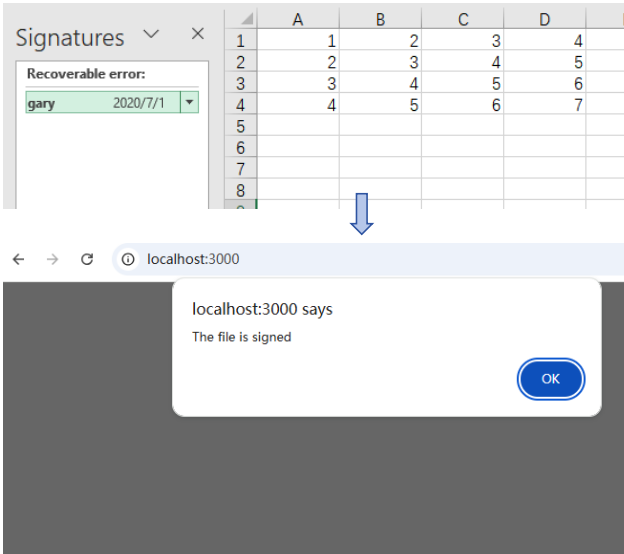
Before processing a signed Excel file, checking its signature status can prevent unintended operations. Spire.XLS provides the IsDigitallySigned property to determine whether a workbook contains digital signatures. The core process consists of three stages: first, load the font files and the target Excel file into the WASM virtual file system via FetchFileToVFS; then, instantiate a Workbook and load the file; finally, retrieve the signature status through the IsDigitallySigned property.
function App() {
  const detectDigitalSignature = async () => {
    // Get the Spire.XLS WASM module
    const xlsModule = window.wasmModule?.spirexls;

    // Check if the module is ready
    if (!xlsModule) {
      alert('Spire.Xls is not ready yet');
      return;
    }

    // Load fonts and Excel file into VFS
    await window.spire.FetchFileToVFS('arial.ttf', '/Library/Fonts/', `${process.env.PUBLIC_URL}/font/`);
    const inputFileName = 'Sample.xlsx';
    await window.spire.FetchFileToVFS(inputFileName, '', `${process.env.PUBLIC_URL}data/`);

    // Load the workbook
    const workbook = new xlsModule.Workbook();
    workbook.LoadFromFile({ fileName: inputFileName });

    // Detect if the workbook contains digital signatures
    const isSigned = workbook.IsDigitallySigned;

    // Dispose of the workbook object to release resources
    workbook.Dispose();

    // Show the detection result
    alert(isSigned ? 'The file is signed' : 'The file is not signed');
  };

  return (
    <div style={{ textAlign: 'center', height: '300px' }}>
      <h1>Detect Digital Signature</h1>
      <button onClick={detectDigitalSignature}>
        Detect
      </button>
    </div>
  );
}

export default App;
Detection result dialog showing whether the file is signed
Remove Digital Signatures from an Excel File
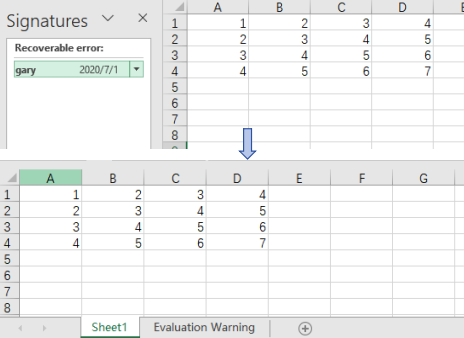
In cases where signature information needs to be updated, certificates replaced, or digital authentication canceled, the existing digital signatures must be removed from the Excel file. Using Spire.XLS, the core process consists of three stages: first, load the font files and the signed Excel file into the WASM virtual file system via FetchFileToVFS; then, instantiate a Workbook and load the file, calling RemoveAllDigitalSignatures to remove all digital signatures from the workbook at once; finally, save the workbook file with signatures removed via SaveToFile.
function App() {
  const removeDigitalSignatures = async () => {
    // Get the Spire.XLS WASM module
    const xlsModule = window.wasmModule?.spirexls;

    // Check if the module is ready
    if (!xlsModule) {
      alert('Spire.Xls is not ready yet');
      return;
    }

    // Load fonts and Excel file into VFS
    await window.spire.FetchFileToVFS('arial.ttf', '/Library/Fonts/', `${process.env.PUBLIC_URL}/font/`);
    const inputFileName = 'Sample.xlsx';
    await window.spire.FetchFileToVFS(inputFileName, '', `${process.env.PUBLIC_URL}data/`);

    // Load the signed workbook
    const workbook = new xlsModule.Workbook();
    workbook.LoadFromFile({ fileName: inputFileName });

    // Remove all digital signatures
    workbook.RemoveAllDigitalSignatures();

    // Save the workbook without signatures
    const outputFileName = 'SignatureRemoved.xlsx';
    workbook.SaveToFile({ fileName: outputFileName, version: xlsModule.ExcelVersion.Version2010 });

    // Dispose of the workbook object to release resources
    workbook.Dispose();

    // Read the file from VFS and trigger download
    const fileArray = window.dotnetRuntime.Module.FS.readFile(outputFileName);
    const blob = new Blob([fileArray], { type: 'application/vnd.openxmlformats-officedocument.spreadsheetml.sheet' });
    const url = URL.createObjectURL(blob);
    const a = document.createElement('a');
    a.href = url;
    a.download = outputFileName;
    a.click();
    URL.revokeObjectURL(url);
  };

  return (
    <div style={{ textAlign: 'center', height: '300px' }}>
      <h1>Remove Digital Signatures</h1>
      <button onClick={removeDigitalSignatures}>
        Remove Signatures
      </button>
    </div>
  );
}

export default App;
Output document after removing digital signatures
FAQ
Can I detect a signature on a specific worksheet instead of the entire workbook?
Cause: Digital signatures are applied to the entire workbook, not individual worksheets.
Solution: Digital signatures operate at the workbook level. It is not possible to detect or remove signatures on a single worksheet. Both IsDigitallySigned and RemoveAllDigitalSignatures are workbook-level methods.
How do I batch detect or remove signatures from multiple Excel files?
Cause: Real-world projects often involve processing large numbers of files, making manual processing inefficient.
Solution: Use a loop to process files in batch:
const files = ['report1.xlsx', 'report2.xlsx', 'report3.xlsx'];
for (const file of files) {
  await window.spire.FetchFileToVFS(file, '', dataPath);
  const wb = new xlsModule.Workbook();
  wb.LoadFromFile({ fileName: file });
  if (wb.IsDigitallySigned) {
    wb.RemoveAllDigitalSignatures();
  }
  wb.SaveToFile({ fileName: `unsigned_${file}`, version: xlsModule.ExcelVersion.Version2016 });
  wb.Dispose();
}
Get a Free License
Spire.XLS for JavaScript offers a 30-day full-featured free trial license with no functional limitations. Apply here to evaluate before purchasing.
Word templates are the foundation of enterprise business workflows. HR needs standard employment contracts and offer letters, sales teams need professional quotation and report templates, and administration needs unified meeting notices and certification documents. With the Word AI capabilities of Spire.Agent.Office, you simply describe the desired template style and content structure in natural language — for example, "Create a contract template with mail merge fields for 'Name, Position, Department, Salary, Start Date, End Date, Contract Type, Probation Period (months), Location'" and AI delivers the template directly.
Comparison with Traditional SDK API Approach
| Traditional Spire.Office for .NET API | Spire.Agent.Office | |
|---|---|---|
| Development Approach | Call APIs to build document structure line by line, paragraph by paragraph | Describe template style and structure in natural language; AI automatically composes and generates the complete template document |
| Code Volume | Hundreds of lines of document-building code per template | Just 1 natural language instruction |
| Style Adjustment | Font, color, border, and other styles require complex code-based formatting | Simply describe in natural language |
| Template Flexibility | Template structure changes require rewriting underlying document-building logic — high maintenance cost | Adjust the instruction description, AI regenerates — flexibly responds to changing requirements |
Several typical business scenario Word template examples:
- Word Employment Contract Template
- Word Quotation Template
- Word Certificate Template
- Budget Report Template
For product installation and SpireToken configuration, please refer to Integrating Spire.Agent.Office in a .NET Project. The examples below assume Spire.Agent.Office is already installed and SpireToken is configured.
Word Employment Contract Template
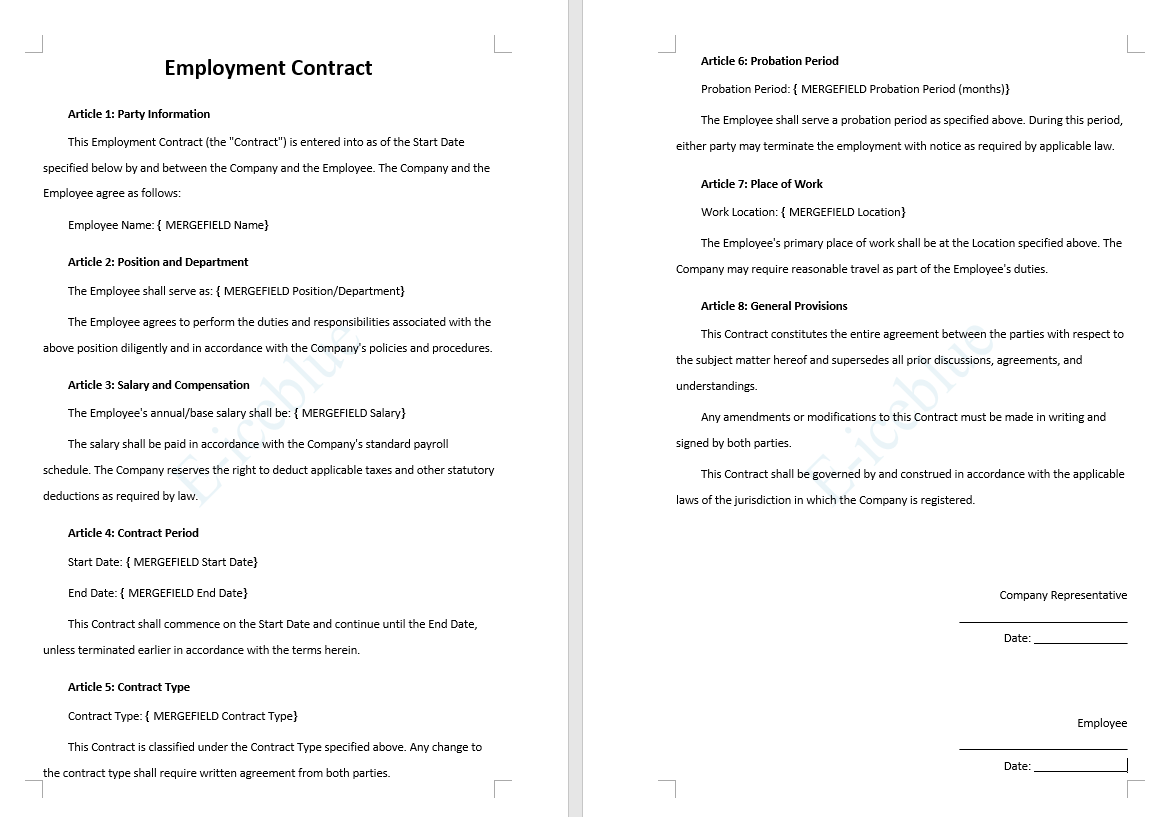
The most commonly used employment contracts in HR departments all share a relatively fixed structure: title, party information, main body clauses, signature section, etc.
using Spire.Agent.Office.AI;
using Spire.Agent.Office.Extensions;
using Spire.Doc;

string inputPath = @"";
// Result document path
string savePath = @"employmentContract.docx"; ;
// SpireToken Key
string key = "s******************************r";
// Natural language instruction
string instruction =
    "Generate a Word employment contract template. " +
    "The main title is 'Employment Contract', in No. 2 font size, bold, and centered. " +
    "The body text uses Arial font throughout, in Small No. 4 font size (12pt), with a first-line indent of 2 characters per paragraph. " +
    "Add a light blue watermark with the text 'E-iceblue' throughout the entire document. " +
    "Include the following fields as mail merge fields: Name, Position/Department, Salary, Start Date, End Date, Contract Type, Probation Period (months), and Location. " +
    "The overall style should be formal and professional, suitable for legal document scenarios.";
// AI generation
AIResult result = ExecuteAIWord(instruction, inputPath, savePath, key);

// Word AI processing
static AIResult ExecuteAIWord(string instruction, string inputPath, string savePath, string key)
{
    // Create AI processor options instance
    AIOptions options = new AIOptions();
    options.SpireToken = key;
    // Create Word document object
    using (Document doc = new Document())
    {
        if (!string.IsNullOrEmpty(inputPath) && File.Exists(inputPath))
        {
            doc.LoadFromFile(inputPath);
        }
        // Create AI document processor instance
         AIDocumentProcessor processor = doc.AI(options);

        // Process the document according to the instruction and save the result to the specified path
        return processor.ExecuteInstruction(doc, instruction, savePath);
    }
}
Word Quotation Template
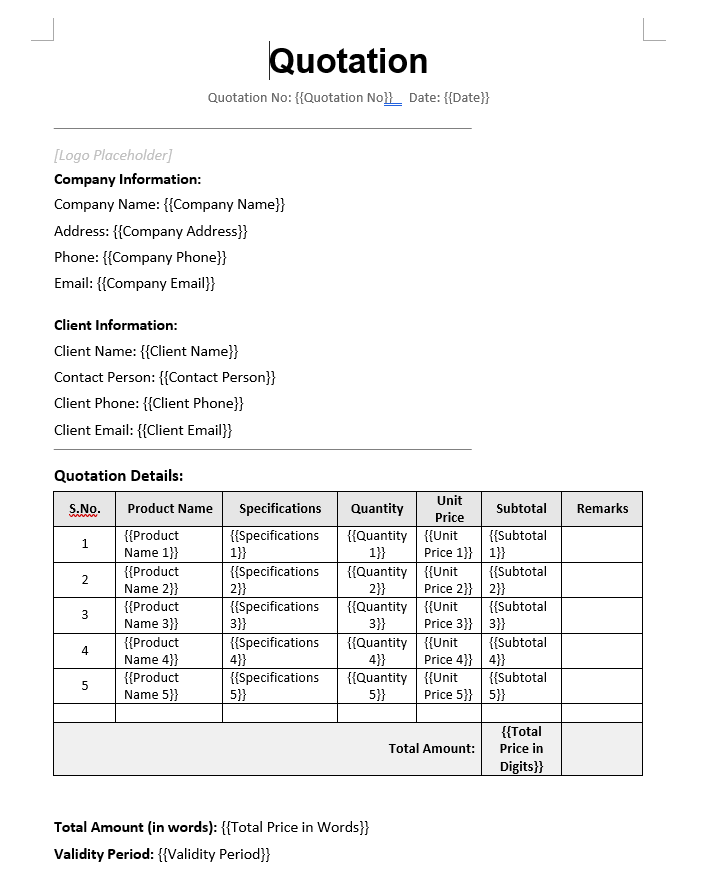
The most commonly used quotation templates in sales and business departments all share a relatively fixed structure: title, company information, client information, product quotation table, amount summary, quotation terms, signature section, etc.
using Spire.Agent.Office.AI;
using Spire.Agent.Office.Extensions;
using Spire.Doc;

string inputPath = @"";
// Result document path
string savePath = @"QuotationTemplate.docx"; ;
// SpireToken Key
string key = "s******************************r";
// Natural language instruction
string instruction =
    "Generate a professional quotation template with the following styling requirements: " +
    "Main title: 'Quotation' , font size equivalent to  26pt, bold, centered, using 'Arial' font. " +
    "Body text: Calibri font, size 12pt , with 1.5× line spacing. " +
    "Template structure must include: Company logo placeholder area, company information (address, phone number, email), client information (client name, contact person), product quotation table (including Serial Number, Product Name, Specifications, Quantity, Unit Price, Subtotal, Remarks), total price (in words + in digits), quotation validity period, company stamp/seal area. \n" +
    "Use {{ }} as placeholder markers throughout the template, for example: {{Company Name}}, {{Client Name}}, {{Product Name}}, {{Unit Price}}, {{Quantity}}, {{Subtotal}}, {{Total Price in Words}}, {{Total Price in Digits}}.";

// AI generation
AIResult result = ExecuteAIWord(instruction, inputPath, savePath, key);

// Word AI processing
static AIResult ExecuteAIWord(string instruction, string inputPath, string savePath, string key)
{
    // Create AI processor options instance
    AIOptions options = new AIOptions();
    options.SpireToken = key;
    // Create Word document object
    using (Document doc = new Document())
    {
        if (!string.IsNullOrEmpty(inputPath) && File.Exists(inputPath))
        {
            doc.LoadFromFile(inputPath);
        }
        // Create AI document processor instance
         AIDocumentProcessor processor = doc.AI(options);

        // Process the document according to the instruction and save the result to the specified path
        return processor.ExecuteInstruction(doc, instruction, savePath);
    }
}
Word Certificate Template
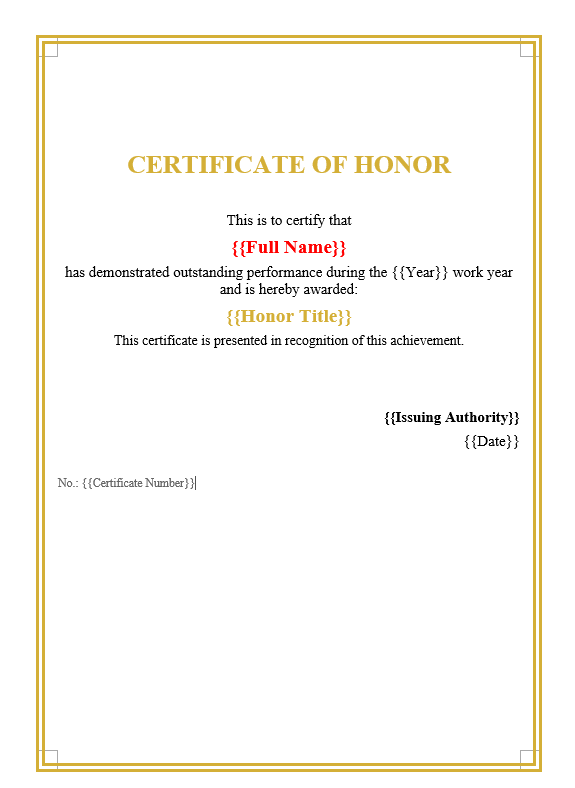
Certificate templates are widely used in scenarios such as training certification, commendation and awards, event participation, etc. Their core structure typically includes: certificate title (e.g., "Certificate of Honor", "Certificate of Completion"), certificate number, etc.
using Spire.Agent.Office.AI;
using Spire.Agent.Office.Extensions;
using Spire.Doc;

string inputPath = @"";
// Result document path
string savePath = @"WordCertificateTemplate.docx"; ;
// SpireToken Key
string key = "s******************************r";
// Natural language instruction
string instruction =
"Generate a one-page honor certificate template with the following style requirements: " +
"Overall classical and solemn style, with a gold double-line border, using Times New Roman font." +
"Centered at the top: certificate title 'CERTIFICATE OF HONOR' — 24pt, bold, gold color." +
"Center-aligned body layout with the following structure:" +
"  Line 1: 'This is to certify that';" +
"  Line 2: '{{Full Name}}' — bold, red color;" +
"  Line 3: 'has demonstrated outstanding performance during the {{Year}} work year and is hereby awarded:';" +
"  Line 4: '{{Honor Title}}' — bold, gold color;" +
"  Line 5: 'This certificate is presented in recognition of this achievement.'." +
"Signatory area: bottom right, two lines right-aligned: '{{Issuing Authority}}' and '{{Date}}'." +
"Bottom left: certificate number displayed as 'No.: {{Certificate Number}}'." +
"Overall style: formal, solemn, and dignified, suitable for government or corporate honorary certificate presentations.";

// AI generation
AIResult result = ExecuteAIWord(instruction, inputPath, savePath, key);

// Word AI processing
static AIResult ExecuteAIWord(string instruction, string inputPath, string savePath, string key)
{
    // Create AI processor options instance
    AIOptions options = new AIOptions();
    options.SpireToken = key;
    // Create Word document object
    using (Document doc = new Document())
    {
        if (!string.IsNullOrEmpty(inputPath) && File.Exists(inputPath))
        {
            doc.LoadFromFile(inputPath);
        }
        // Create AI document processor instance
         AIDocumentProcessor processor = doc.AI(options);

        // Process the document according to the instruction and save the result to the specified path
        return processor.ExecuteInstruction(doc, instruction, savePath);
    }
}
Budget Report Template
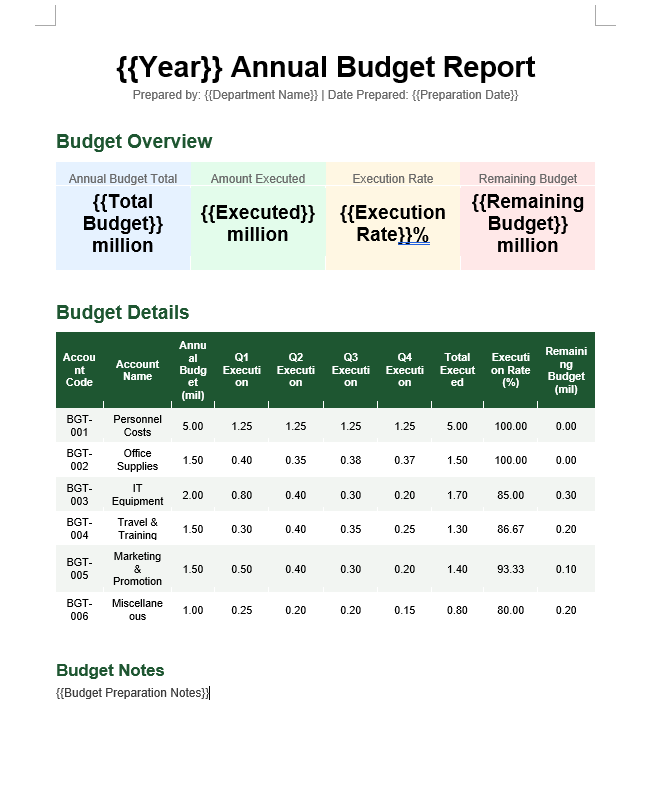
Budget report templates are commonly used document tools in enterprises or organizations for financial planning, project proposals, and annual planning. Their core structure typically includes: report title (e.g., "XX Annual Budget Report", "XX Project Budget Plan"), preparing unit and date, budget preparation notes, etc.
using Spire.Agent.Office.AI;
using Spire.Agent.Office.Extensions;
using Spire.Doc;

string inputPath = @"";
// Result document path
string savePath = @"BudgetReportTemplate.docx"; ;
// SpireToken Key
string key = "s******************************r";
// Natural language instruction
string instruction =
"Generate a professional budget report template with the following style requirements:" +
"Main title: '{{Year}} Annual Budget Report' — font size No.1 (approx. 26pt), bold, centered, using Arial." +
"Add a subtitle below the title: 'Prepared by: {{Department Name}} | Date: {{Preparation Date}}', font size No.4 small (approx. 12pt), centered." +
"The body is divided into four sections:\n" +
"  Section 1 (Budget Overview): At the top, display four key metrics in a card-style horizontal layout with light background shading — 'Annual Budget Total: {{Total Budget}} ten-thousand yuan', 'Amount Executed: {{Executed Amount}} ten-thousand yuan', 'Execution Rate: {{Execution Rate}}%', 'Remaining Budget: {{Remaining Budget}} ten-thousand yuan'. The four data cards are placed side by side with numeric values bolded and enlarged.\n" +
"  Section 2 (Detailed Budget Table): A detailed budget table with columns — Account Code, Account Name, Annual Budget (ten-thousand yuan), Q1 Execution, Q2 Execution, Q3 Execution, Q4 Execution, Total Executed, Execution Rate (%), Remaining Budget (ten-thousand yuan). Table header: dark green background (#1E5631), white bold font; all numeric columns: retain two decimal places; data rows: alternating row colors.\n" +
"  Section 4 (Budget Notes): At the bottom of the page, add a 'Budget Notes' section — '{{Budget Preparation Notes}}'." +
"Overall style: formal, professional, and elegant — suitable for a formal budget report presented to management.";

// AI generation
AIResult result = ExecuteAIWord(instruction, inputPath, savePath, key);

// Word AI processing
static AIResult ExecuteAIWord(string instruction, string inputPath, string savePath, string key)
{
    // Create AI processor options instance
    AIOptions options = new AIOptions();
    options.SpireToken = key;
    // Create Word document object
    using (Document doc = new Document())
    {
        if (!string.IsNullOrEmpty(inputPath) && File.Exists(inputPath))
        {
            doc.LoadFromFile(inputPath);
        }
        // Create AI document processor instance
         AIDocumentProcessor processor = doc.AI(options);

        // Process the document according to the instruction and save the result to the specified path
        return processor.ExecuteInstruction(doc, instruction, savePath);
    }
}
Frequently Asked Questions
Generated template style does not fully match expectations
Cause: The style description in the instruction is not specific enough.
Solution: Specify details such as font name explicitly in the instruction.
Already generated template needs modification
Cause: Business requirements have changed, requiring template adjustments.
Solution: Directly describe the modifications in the instruction and regenerate, or use the current document as input for AI secondary processing.
Generated template shows garbled Chinese characters or incorrect fonts
Cause: The font specified in the instruction is not installed on the system.
Solution: Ensure the font mentioned in the instruction is installed on the system, or use common system fonts in the instruction.
Getting a SpireToken Key
- Contact sales@e-iceblue.com or visit https://www.e-iceblue.com/TemLicense.html to obtain a trial/commercial API key
Configure in code:
AIOptions options = new AIOptions();
options.SpireToken = key;
Convert PDF to PDF/A and Vice Versa with JavaScript in React
2026-07-17 02:47:13 Written by Nina TangPDF/A is an ISO-standardized long-term archival format that embeds fonts, color profiles, and metadata into a unified compliance level, ensuring documents remain faithfully reproducible for decades regardless of the PDF reader used. In contrast, standard PDF offers greater flexibility for everyday editing and content extraction. Real-world business often requires switching between these two formats: converting contracts to PDF/A for regulatory compliance during archiving, and restoring them to standard PDF for text extraction during audit review.
Spire.PDF for JavaScript performs bidirectional PDF/PDF/A conversion entirely in the browser via WebAssembly, managing input and output files through a virtual file system (VFS) with no backend server required.
This article covers two core features:
For installation and project setup, refer to Integrating Spire.PDF for JavaScript in a React Project. The examples below assume Spire.PDF is installed and the WebAssembly module is initialized.
Convert PDF to PDF/A
The core of PDF/A archival conversion is to consolidate fonts, color profiles, and metadata in a standard PDF into ISO-compliant levels. Spire.PDF handles this in one step through the PdfStandardsConverter component, supporting multiple compliance levels including PDF/A-1a, PDF/A-1b, PDF/A-2a, PDF/A-2b, PDF/A-3a, and PDF/A-3b.
The conversion standards supported by PdfStandardsConverter and their use cases are as follows:
| Method | Standard | Description |
|---|---|---|
ToPdfA1B |
PDF/A-1b | Based on PDF 1.4, guarantees visual appearance reproducibility only — the most commonly used archival level |
ToPdfA1A |
PDF/A-1a | Requires document tags and structure information on top of 1b, supports accessible reading |
ToPdfA2A |
PDF/A-2a | Based on PDF 1.7, requires tags and structure info, supports layers and transparency |
ToPdfA2B |
PDF/A-2b | PDF/A-2 basic conformance level, allows transparency, layers, and embedded OLE objects |
ToPdfA3A |
PDF/A-3a | Allows embedding XML, Excel, and other arbitrary format files as attachments on top of 2a |
ToPdfA3B |
PDF/A-3b | PDF/A-3 basic conformance level, supports embedding arbitrary format attachments |
ToPdfX1A2001 |
PDF/X-1a:2001 | Print exchange standard, suitable for publishing and printing workflows |
The following example demonstrates converting a PDF to PDF/A-2B using ToPdfA2B:
function App() {
  const convertToPDFA = async () => {
    // Get the Spire.PDF WASM module
    const pdfModule = window.wasmModule?.spirepdf;

    // Check if the WASM module is ready
    if (!pdfModule) {
      alert('Spire.PDF is not ready yet');
      return;
    }

    // Load fonts and PDF file into VFS
    await window.spire.FetchFileToVFS('arial.ttf', '/Library/Fonts/', `${process.env.PUBLIC_URL}/font/`);
    const inputFileName = 'MovieCatalog.pdf';
    await window.spire.FetchFileToVFS(inputFileName, "", `${process.env.PUBLIC_URL}/data/`);

    // Create PdfStandardsConverter
    let converter = new pdfModule.PdfStandardsConverter({ filePath: inputFileName });

    // Convert to PDF/A-2B format
    const outputFileName = 'ToPDFA_result.pdf';
    converter.ToPdfA2B({ filePath: outputFileName });

    // // Convert to PDF/A-1a
    // converter.ToPdfA1A({ filePath: outputFileName });

    // // Convert to PDF/A-2a
    // converter.ToPdfA2A({ filePath: outputFileName });

    // // Convert to PDF/A-2b
    // converter.ToPdfA2B({ filePath: outputFileName });

    // // Convert to PDF/A-3a
    // converter.ToPdfA3A({ filePath: outputFileName });

    // // Convert to PDF/A-3b
    // converter.ToPdfA3B({ filePath: outputFileName });

    // // Convert to PDF/X-1a:2001
    // converter.ToPdfX1A2001({ filePath: outputFileName });

    // Read the converted file from VFS and trigger download
    const fileArray = window.dotnetRuntime.Module.FS.readFile(outputFileName);
    const blob = new Blob([fileArray], { type: 'application/pdf' });
    const url = URL.createObjectURL(blob);
    const a = document.createElement('a');
    a.href = url;
    a.download = outputFileName;
    a.click();
    URL.revokeObjectURL(url);

    // Release resources
    converter.Dispose();
  };

  return (
    <div style={{ textAlign: 'center', height: '300px' }}>
      <h1>Convert PDF To PDF/A</h1>
      <button onClick={convertToPDFA}>
        Generate
      </button>
    </div>
  );
}

export default App;
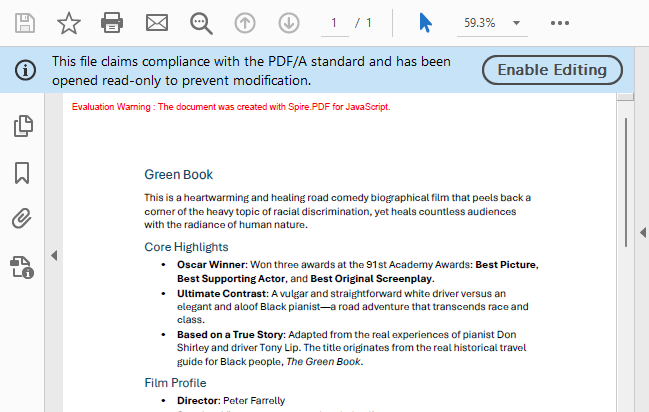
PDF/A output generated after conversion via PdfStandardsConverter
Convert PDF/A to PDF
PDF/A is the standard format for long-term archiving, but in everyday editing and content extraction scenarios, you may need to restore PDF/A back to standard PDF. Spire.PDF for JavaScript achieves this reverse conversion by loading the PDF/A document and copying content page by page into a new document, ensuring the output standard PDF is free of PDF/A compliance constraints.
function App() {
  const convertToNormalPDF = async () => {
    // Get the Spire.PDF WASM module
    const pdfModule = window.wasmModule?.spirepdf;

    // Check if the WASM module is ready
    if (!pdfModule) {
      alert('Spire.PDF is not ready yet');
      return;
    }

    // Load fonts and PDF file into VFS
    await window.spire.FetchFileToVFS('arial.ttf', '/Library/Fonts/', `${process.env.PUBLIC_URL}/font/`);
    const inputFileName = 'PDFA_Sample.pdf';
    await window.spire.FetchFileToVFS(inputFileName, "", `${process.env.PUBLIC_URL}/data/`);

    // Create PdfDocument object
    let doc = new pdfModule.PdfDocument();
    doc.LoadFromFile(inputFileName);

    // Create a new PDF document to draw content onto
    let newDoc = new pdfModule.PdfNewDocument();
    newDoc.CompressionLevel = pdfModule.PdfCompressionLevel.None;

    // Iterate through each page in the original document
    for (let i = 0; i < doc.Pages.Count; i++) {
      let page = doc.Pages.get_Item(i);
      // Get the current page size
      let size = page.Size;

      // Add a new page with the same size and no margins
      let newPage = newDoc.Pages.Add({ size: size, margins: new pdfModule.PdfMargins() });

      // Draw the original page content onto the new page
      let template = page.CreateTemplate();
      let layoutWidget = new pdfModule.PdfLayoutWidget(template.H);
      layoutWidget.Draw({ page: newPage, x: 0, y: 0 });
      // page.CreateTemplate().Draw({page: newPage, x: 0, y: 0});
    }

    // Define the output file name
    const outputFileName = "PDFAToPdf_result.pdf";

    // Save the document to the specified path
    newDoc.Save(outputFileName);

    // Read the generated file from VFS and trigger download
    const fileArray = window.dotnetRuntime.Module.FS.readFile(outputFileName);
    const blob = new Blob([fileArray], { type: 'application/pdf' });
    const url = URL.createObjectURL(blob);
    const a = document.createElement('a');
    a.href = url;
    a.download = outputFileName;
    a.click();
    URL.revokeObjectURL(url);

    // Release resources
    newDoc.Dispose();
    doc.Dispose();
  };

  return (
    <div style={{ textAlign: 'center', height: '300px' }}>
      <h1>Convert PDF/A To Normal PDF</h1>
      <button onClick={convertToNormalPDF}>
        Generate
      </button>
    </div>
  );
}

export default App;
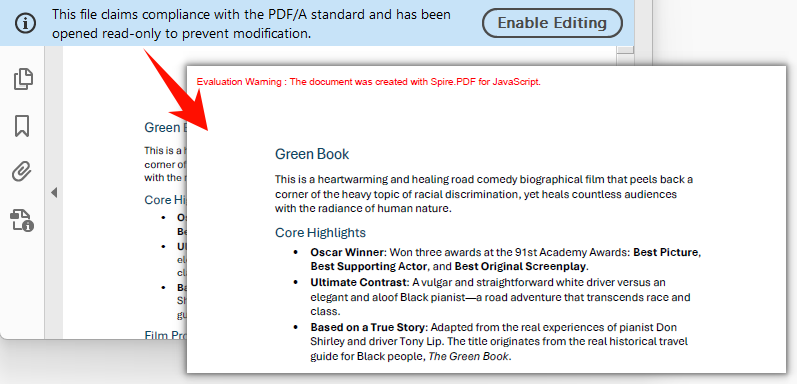
Standard PDF output generated by creating a new document and copying pages
FAQ
Converted PDF/A file size is much larger than the original
PDF/A requires all fonts used in the document to be fully embedded to ensure correct rendering on any device. If the original document uses non-embedded system fonts, the font data will be written completely into the output file during conversion, resulting in a larger file size. This is an inherent requirement of PDF/A compliance. To minimize file size, consider using font subsetting (embedding only the characters actually used) or compressing image content before generating the source PDF.
Can encrypted PDFs be converted to PDF/A?
Encrypted PDFs that require a password to open cannot be processed directly by PdfStandardsConverter. The password must be provided when loading the document.
The PdfStandardsConverter constructor supports a password parameter for converting password-protected PDFs to PDF/A:
// Create PdfStandardsConverter with password
let converter = new pdfModule.PdfStandardsConverter({ filePath: inputFileName, password: "123456" });
converter.ToPdfA2A({ filePath: outputFileName });
converter.Dispose();
"File not found" or "Invalid PDF format" error when loading PDF/A
PDF/A documents must first be converted via PdfStandardsConverter, or properly loaded into the virtual file system (VFS) via FetchFileToVFS. Common mistakes include passing the wrong file name or path, or executing subsequent operations before the file has finished loading. Verify that the file has been loaded into VFS via FetchFileToVFS and that the file name (including extension) matches exactly. Use await to ensure the file is ready before proceeding.
Get a Free License
Spire.PDF for JavaScript offers a 30-day full-featured free trial license with no functional limitations. Apply here to evaluate before purchasing.
More...
