
Knowledgebase (2407)
Children categories
Merging and splitting table cells is one of the most common table editing operations in Word document development — whether creating report headers with cross-column titles or grouping products across rows, cell merging makes table structures clearer and more organized. Spire.Doc for JavaScript runs entirely in the browser via WebAssembly, using a virtual file system (VFS) to manage fonts and file resources — no backend server required.
This article covers three core features:
For installation and project setup, refer to Integrating Spire.Doc for JavaScript in a React Project. The examples below assume Spire.Doc is installed and the WebAssembly module is initialized.
Merge and Split Cells
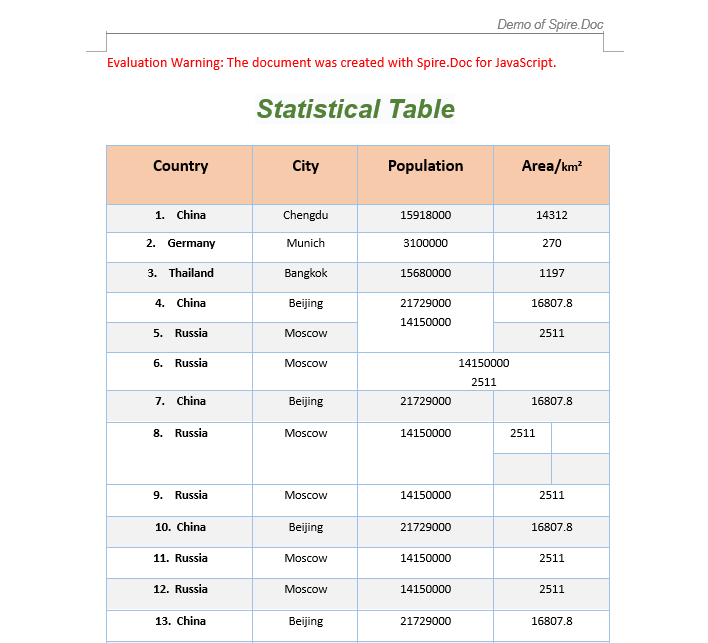
A common task in real-world development is adjusting the structure of an existing table: merging adjacent cells into one, or splitting a single cell into multiple rows and columns. Spire.Doc provides ApplyHorizontalMerge, ApplyVerticalMerge, and SplitCell methods for horizontal merging, vertical merging, and splitting respectively. The workflow involves three steps: first, load font files and the target Word file into the WASM virtual file system via FetchFileToVFS; then instantiate a Document, load the file, retrieve the target table, and call the merge or split methods; finally, save the document, read the generated file from VFS, wrap it as a Blob, and trigger a browser download.
function App() {
  const MergeAndSplitTableCell = async () => {
    // Get the Spire.Doc WASM module
    const wasmModule = window.wasmModule?.spiredoc;

    // Check if the module is ready
    if (!wasmModule) {
      alert('Spire.Doc is not ready yet');
      return;
    }

    // Load the sample Word file into VFS
    let inputFileName = "TableSample.docx";
    await window.spire.FetchFileToVFS(inputFileName, "", `${process.env.PUBLIC_URL}/data/`);

    // Load the document
    let doc = new wasmModule.Document();
    doc.LoadFromFile(inputFileName);
    let section = doc.Sections.get_Item(0);
    let table = section.Tables.get_Item(0);

    // Horizontal merge: merge columns 2 and 3 in row 6
    table.ApplyHorizontalMerge(6, 2, 3);
    // Vertical merge: merge rows 4 and 5 in column 2
    table.ApplyVerticalMerge(2, 4, 5);
    // Split cell: split the cell at row 8, column 3 into 2 rows and 2 columns
    table.Rows.get_Item(8).Cells.get_Item(3).SplitCell(2, 2);

    // Define the output file name
    const outputFileName = "MergeAndSplitTableCell_output.docx";

    // Save the document
    doc.SaveToFile({ fileName: outputFileName, fileFormat: wasmModule.FileFormat.Docx2013 });

    // Release resources
    doc.Dispose();

    // Read the generated file from VFS and trigger download
    const modifiedFileArray = window.dotnetRuntime.Module.FS.readFile(outputFileName);
    const blob = new Blob([modifiedFileArray], { type: 'application/vnd.openxmlformats-officedocument.wordprocessingml.document' });
    const url = URL.createObjectURL(blob);
    const a = document.createElement('a');
    a.href = url;
    a.download = outputFileName;
    a.click();
    URL.revokeObjectURL(url);
  };

  return (
    <div style={{ textAlign: 'center', height: '300px' }}>
      <h1>Merge and Split Table Cells</h1>
      <button onClick={MergeAndSplitTableCell}>
        Generate
      </button>
    </div>
  );
}

export default App;
Format Merged Cells
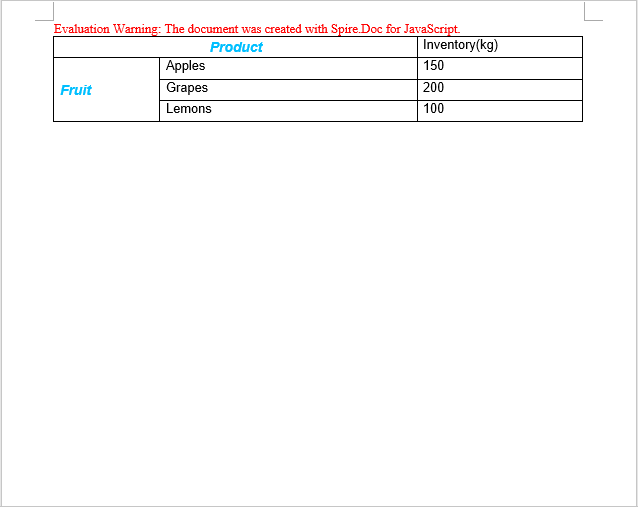
After merging cells, you typically need to format the merged area — setting font styles, alignment, and background colors — to improve table readability and visual appeal. The following example demonstrates how to create a product price table, merge the "Product" header cell and the version category cells on the left, and apply custom styling.
function AddTable(section) {
  let wasmModule = window.wasmModule.spiredoc;
  let table = section.AddTable({ showBorder: true });
  table.ResetCells(4, 3);
  // Table data
  let dt = [["Product", "", "Inventory(kg)"],
  ["Fruit", "Apples", "150"],
  ["", "Grapes", "200"],
  ["", "Lemons", "100"]];

  for (let r = 0; r < dt.length; r++) {
    let dataRow = table.Rows.get_Item(r);
    dataRow.Height = 20;
    dataRow.HeightType = wasmModule.TableRowHeightType.Exactly;
    for (let i = 0; i < dataRow.Cells.Count; i++) {
      dataRow.Cells.get_Item(i).CellFormat.Shading.BackgroundPatternColor = wasmModule.Color.Empty;
    }
    for (let c = 0; c < dataRow.Cells.Count; c++) {
      if (dt[r][c] !== "") {
        let range = dataRow.Cells.get_Item(c).AddParagraph().AppendText(dt[r][c]);
        range.CharacterFormat.FontName = "Arial";
      }
    }
  }
  return table;
}

function App() {
  const FormatMergedCells = async () => {
    // Get the Spire.Doc WASM module
    const wasmModule = window.wasmModule?.spiredoc;

    // Check if the module is ready
    if (!wasmModule) {
      alert('Spire.Doc is not ready yet');
      return;
    }

    // Create a Word document
    let doc = new wasmModule.Document();
    let section = doc.AddSection();

    // Add a table
    let table = AddTable(section);

    // Create a custom style
    let style = new wasmModule.ParagraphStyle(doc);
    style.Name = "Style";
    style.CharacterFormat.TextColor = wasmModule.Color.get_DeepSkyBlue();
    style.CharacterFormat.Italic = true;
    style.CharacterFormat.Bold = true;
    style.CharacterFormat.FontSize = 13;
    doc.Styles.Add(style);

    // Horizontal merge: merge columns 0 and 1 in row 0
    table.ApplyHorizontalMerge(0, 0, 1);
    // Apply the style
    table.Rows.get_Item(0).Cells.get_Item(0).Paragraphs.get_Item(0).ApplyStyle(style.Name);
    // Set vertical and horizontal alignment
    table.Rows.get_Item(0).Cells.get_Item(0).CellFormat.VerticalAlignment = wasmModule.VerticalAlignment.Middle;
    table.Rows.get_Item(0).Cells.get_Item(0).Paragraphs.get_Item(0).Format.HorizontalAlignment = wasmModule.HorizontalAlignment.Center;

    // Vertical merge: merge rows 1, 2, and 3 in column 0
    table.ApplyVerticalMerge(0, 1, 3);
    // Apply the style
    table.Rows.get_Item(1).Cells.get_Item(0).Paragraphs.get_Item(0).ApplyStyle(style.Name);
    // Set vertical and horizontal alignment
    table.Rows.get_Item(1).Cells.get_Item(0).CellFormat.VerticalAlignment = wasmModule.VerticalAlignment.Middle;
    table.Rows.get_Item(1).Cells.get_Item(0).Paragraphs.get_Item(0).Format.HorizontalAlignment = wasmModule.HorizontalAlignment.Left;
    // Set column width
    table.Rows.get_Item(1).Cells.get_Item(0).SetCellWidth(20, wasmModule.CellWidthType.Percentage);

    // Define the output file name
    const outputFileName = "FormatMergedCells_output.docx";

    // Save the document
    doc.SaveToFile({ fileName: outputFileName, fileFormat: wasmModule.FileFormat.Docx2013 });

    // Release resources
    doc.Dispose();

    // Read the generated file from VFS and trigger download
    const modifiedFileArray = window.dotnetRuntime.Module.FS.readFile(outputFileName);
    const blob = new Blob([modifiedFileArray], { type: 'application/vnd.openxmlformats-officedocument.wordprocessingml.document' });
    const url = URL.createObjectURL(blob);
    const a = document.createElement('a');
    a.href = url;
    a.download = outputFileName;
    a.click();
    URL.revokeObjectURL(url);
  };

  return (
    <div style={{ textAlign: 'center', height: '300px' }}>
      <h1>Format Merged Cells</h1>
      <button onClick={FormatMergedCells}>
        Generate
      </button>
    </div>
  );
}

export default App;
Check Cell Merge Status
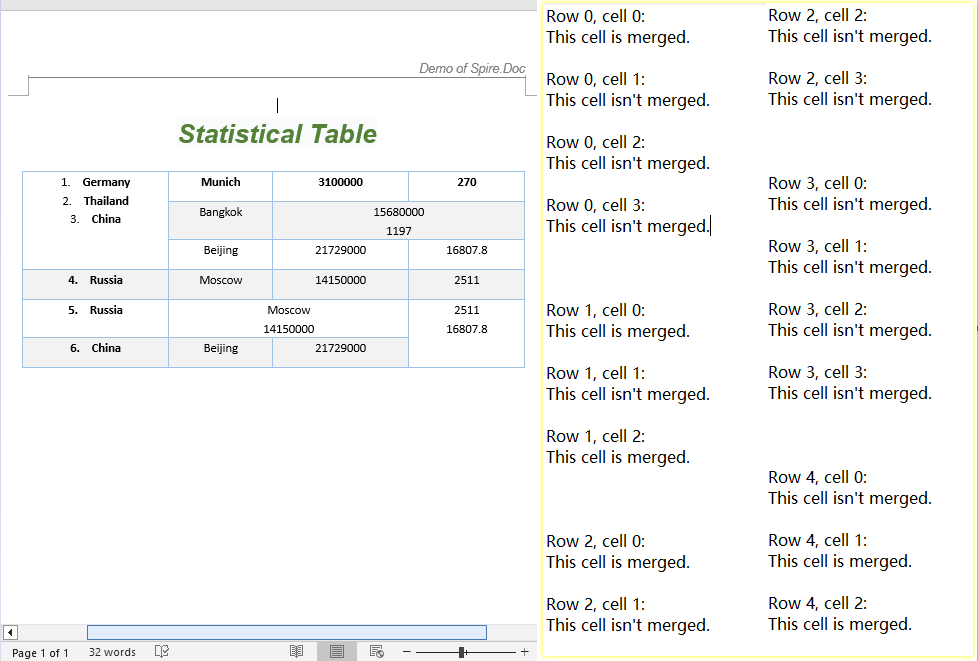
When working with tables created by others or generated by automated processes, you often need to identify which cells have been merged to avoid index-out-of-bounds errors. Spire.Doc provides two properties — CellFormat.VerticalMerge and Cell.GridSpan — to detect cell merge status: VerticalMerge indicates vertical merging, and GridSpan indicates the number of columns a cell spans horizontally.
function App() {
  const CellMergeStatus = async () => {
    // Get the Spire.Doc WASM module
    const wasmModule = window.wasmModule?.spiredoc;

    // Check if the module is ready
    if (!wasmModule) {
      alert('Spire.Doc is not ready yet');
      return;
    }

    // Load the sample file into VFS
    let inputFileName = "CellMergeStatus.docx";
    await window.spire.FetchFileToVFS(inputFileName, "", `${process.env.PUBLIC_URL}/data/`);

    // Load the document
    let doc = new wasmModule.Document();
    doc.LoadFromFile(inputFileName);

    // Get the first section and first table
    let section = doc.Sections.get_Item(0);
    let table = section.Tables.get_Item(0);

    // Iterate through all cells to detect merge status
    let stringBuidler = [];
    for (let i = 0; i < table.Rows.Count; i++) {
      let tableRow = table.Rows.get_Item(i);
      for (let j = 0; j < tableRow.Cells.Count; j++) {
    let tableCell = tableRow.Cells.get_Item(j);
    let verticalMerge = tableCell.CellFormat.VerticalMerge;
    let horizontalMerge = tableCell.GridSpan;
    if (verticalMerge === wasmModule.CellMerge.None && horizontalMerge === 1) {
      stringBuidler.push("Row " + i + ", cell " + j + ": ");
      stringBuidler.push("This cell isn't merged.\n");
    } else {
      stringBuidler.push("Row " + i + ", cell " + j + ": ");
      stringBuidler.push("This cell is merged.\n");
    }
      }
      stringBuidler.push("\n");
    }

    // Define the output file name
    const outputFileName = "CellMergeStatus_output.txt";

    // Write the detection result to a text file
    window.dotnetRuntime.Module.FS.writeFile(outputFileName, stringBuidler.join('\n'));

    // Read the generated file from VFS and trigger download
    const modifiedFileArray = window.dotnetRuntime.Module.FS.readFile(outputFileName);
    const blob = new Blob([modifiedFileArray], { type: "text/plain" });
    const url = URL.createObjectURL(blob);
    const a = document.createElement('a');
    a.href = url;
    a.download = outputFileName;
    a.click();
    URL.revokeObjectURL(url);
  };

  return (
    <div style={{ textAlign: 'center', height: '300px' }}>
      <h1>Check Cell Merge Status</h1>
      <button onClick={CellMergeStatus}>
        Generate
      </button>
    </div>
  );
}

export default App;
FAQ
How to verify if a cell merge was successful
Cause: Merge operations do not return a status value — you need to read cell properties to confirm.
Solution: Use CellFormat.VerticalMerge to check the vertical merge type (CellMerge.None means not merged), and Cell.GridSpan to check the number of columns spanned horizontally (a value of 1 means not merged):
let verticalMerge = tableCell.CellFormat.VerticalMerge;
let horizontalMerge = tableCell.GridSpan;
if (verticalMerge === wasmModule.CellMerge.None && horizontalMerge === 1) {
  // Not merged
} else {
  // Merged
}
Content lost after splitting a cell
Cause: When SplitCell splits a cell into multiple sub-cells, the original content remains in the first sub-cell by default.
Solution: Manually iterate through the sub-cells to redistribute content after splitting, or back up the cell text via the Paragraphs collection beforehand:
// Back up the content
let cell = table.Rows.get_Item(row).Cells.get_Item(col);
let text = cell.Paragraphs.get_Item(0).Text;

// Split into 2 rows and 2 columns
cell.SplitCell(2, 2);

// Write the content to the new cell
table.Rows.get_Item(row).Cells.get_Item(col).Paragraphs.get_Item(0).AppendText(text);
Index out of range when merging cells
Cause: ApplyHorizontalMerge(row, startCol, endCol) and ApplyVerticalMerge(col, startRow, endRow) use zero-based indexing. Passing indices that exceed the table's actual row or column count will throw an error.
Solution: Check the table dimensions before merging to ensure the end index does not exceed Rows.Count - 1 and Cells.Count - 1:
if (endCol < table.Rows.get_Item(row).Cells.Count && endRow < table.Rows.Count) {
  table.ApplyHorizontalMerge(row, startCol, endCol);
}
Get a Free License
Spire.Doc for JavaScript offers a 30-day full-featured free trial license with no functional limitations. Apply here to evaluate before purchasing.
Traditional Spire.Office for .NET workflows often require developers to have in-depth API knowledge and write extensive boilerplate code for tasks like formatting, extraction, and conversion. Spire.Agent.Office introduces an AI layer that abstracts this complexity, enabling you to accomplish these tasks using plain natural language instructions.
This tutorial walks you through integrating Spire.Agent.Office into a .NET 10 project, enabling natural-language-powered document processing with minimal code.
- Why Choose Spire.Agent.Office
- Project Setup and Library Reference
- AI-Powered Document Processing
- Frequently Asked Questions
- Apply for SpireToken Key
Why Choose Spire.Agent.Office
Spire.Agent.Office is an AI agent built on top of the traditional Spire.Office for .NET document engine. The core differences are:
| Traditional Spire.Office for .NET | Spire.Agent.Office | |
|---|---|---|
| Operation | Manual coding (calling APIs, iterating document data, processing, saving results) | Natural language instructions (e.g., "Review this contract") |
| Low Learning Curve | Requires detailed API knowledge and object structure | Simply describe the requirements, AI executes automatically |
| Flexibility | API code may not suit all documents | Universal AI instructions handle all documents |
How It Works
Natural Language Instruction → Spire.Agent.Office AI Layer → Spire.Office Document Engine → Output File
Spire.Agent.Office parses your natural language instructions, converts them into internal calls to the Spire.Office document engine for processing, and ultimately generates the desired document. It supports processing and conversion of Word, Excel, PowerPoint, PDF, and other document formats.
Core Advantages
| Advantage | Description |
|---|---|
| AI-Native Experience | Replace complex API call chains with natural language for direct document processing |
| Stability and Reliability | Built on the mature Spire.Office document engine, ensuring reliable document processing |
| Seamless Integration | Cross-platform support, easy integration, flexible adaptation to business logic |
| Flexible AI Model Support | Compatible with mainstream AI infrastructure, ensuring accurate AI code generation |
| Accelerated Delivery | Reduces development time for document processing tasks |
Typical Use Cases
- Automated internal report generation and formatting
- Batch contract processing and data extraction
- Intelligent multi-format document conversion and distribution
- Automated meeting slide layout and export
Project Setup and Library Reference
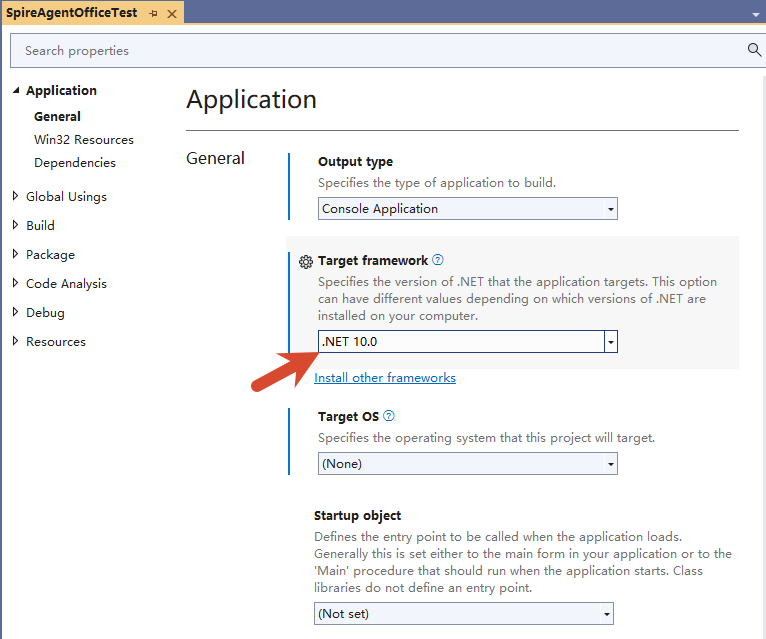
Creating a .NET 10 Project
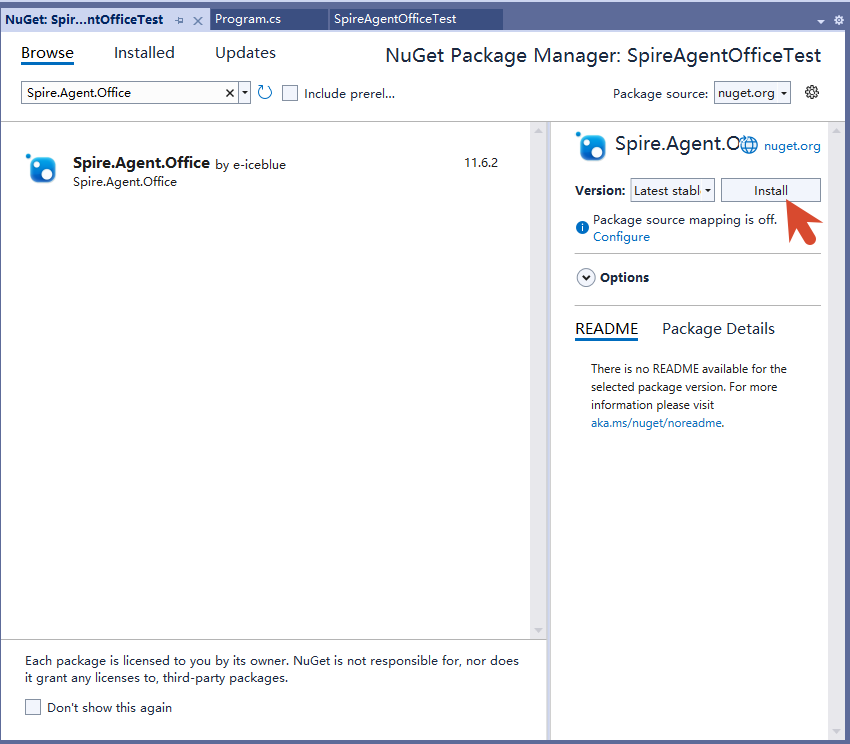
Installing Spire.Agent.Office via NuGet
After installing Spire.Agent.Office via NuGet, dependencies are installed automatically.
Importing Spire.Agent.Office Assemblies Locally
Download Spire.Agent.Office from the website, extract it to a local directory, and import it into the project.
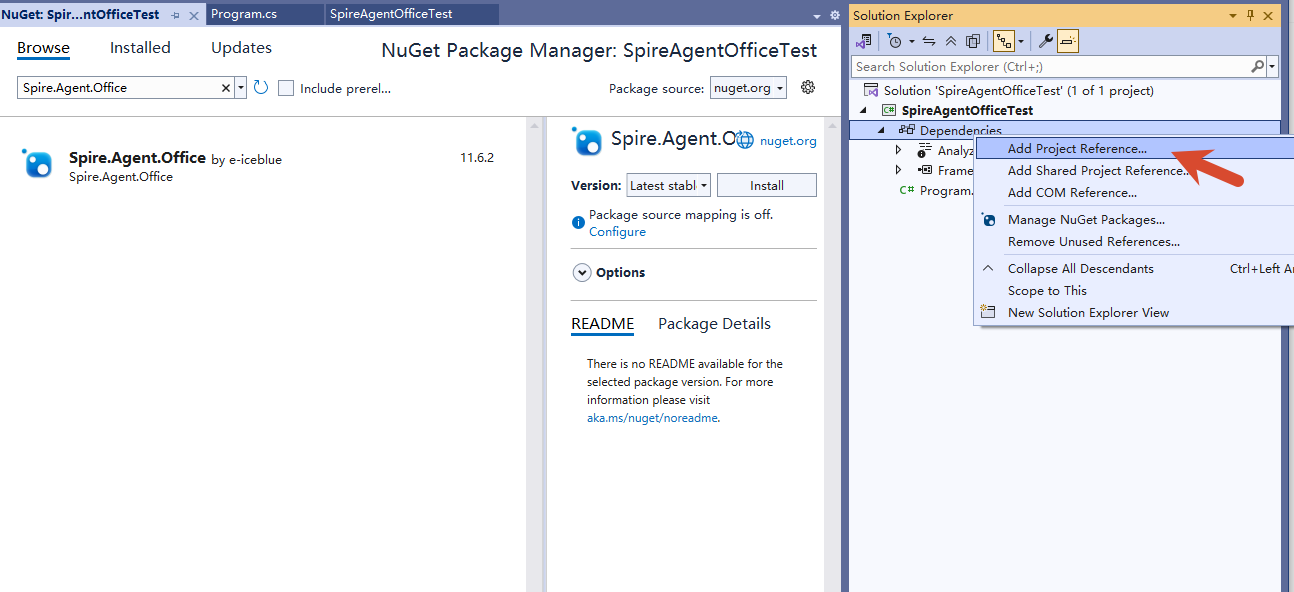
When adding via local DLLs, the following dependencies are also required for optimal performance:
| Dependency Package | Minimum Version |
|---|---|
| Microsoft.Win32.Registry | >= 5.0.0 |
| System.Drawing.Common | >= 10.0.0 |
| System.Text.Encoding.CodePages | >= 10.0.0 |
| HarfBuzzSharp | >= 8.3.0.1 |
| coverlet.collector | >= 6.0.2 |
| Microsoft.Extensions.DependencyInjection | >= 10.0.3 |
| Microsoft.Extensions.DependencyInjection.Abstractions | >= 10.0.3 |
| Microsoft.Extensions.Logging | >= 10.0.3 |
| Microsoft.Extensions.Logging.Abstractions | >= 10.0.3 |
| Microsoft.Extensions.Logging.Console | >= 10.0.3 |
| Microsoft.Extensions.Options | >= 10.0.3 |
| Microsoft.Extensions.Hosting | >= 10.0.3 |
| Microsoft.Extensions.Caching.Memory | >= 10.0.3 |
| Microsoft.Extensions.Http | >= 10.0.3 |
| Microsoft.Extensions.Http.Polly | >= 10.0.3 |
| Microsoft.DotNet.Interactive | >= 1.0.0-beta.23403.1 |
| Microsoft.DotNet.Interactive.CSharp | >= 1.0.0-beta.23403.1 |
| Microsoft.CodeAnalysis.CSharp | >= 4.5.0 |
| Microsoft.CodeAnalysis.CSharp.Workspaces | >= 4.5.0 |
| Microsoft.CodeAnalysis.CSharp.Scripting | >= 4.5.0 |
| Microsoft.CodeAnalysis.Workspaces.MSBuild | >= 4.5.0 |
| Microsoft.Extensions.Configuration.EnvironmentVariables | >= 10.0.8 |
| Microsoft.Extensions.Configuration.Json | >= 10.0.8 |
| Microsoft.NET.Test.Sdk | >= 17.12.0 |
| Polly | >= 8.5.0 |
| Polly.Extensions.Http | >= 3.0.0 |
| Serilog | >= 4.2.0 |
| Serilog.Sinks.File | >= 7.0.0 |
| Serilog.Extensions.Logging | >= 10.0.0 |
| Microsoft.Data.Sqlite | >= 8.0.0 |
| Dapper | >= 2.1.35 |
| Microsoft.ML.OnnxRuntime | >= 1.17.3 |
| SkiaSharp | >= 3.116.1 |
| System.Text.Json | >= 10.0.0 |
| xunit | >= 2.9.2 |
| xunit.runner.visualstudio | >= 2.8.2 |
| FluentAssertions | >= 7.1.0 |
| Spire.Doc for.NETStandard | >= 14.6.13 |
| Spire.PDF for.NETStandard | >= 12.6.9 |
| Spire.Presentation for.NETStandard | >= 16.6.3 |
| Spire.XLS for.NETStandard | >= 11.6.11 |
AI-Powered Document Processing
Core Workflow
Document AI processing follows this pattern:
- Create a document object (Workbook / Document / PdfDocument / Presentation)
- Load a preset document (optional; can start with an empty document)
- Configure AIOptions (set SpireToken)
- Call
.AI(options)to obtain an AIDocumentProcessor - Execute AI instructions and monitor execution status:
- Processing existing documents: Call
AIDocumentProcessor.ExecuteInstruction(), returnsAIResult - Generating PPT documents: Call
AIDocumentProcessor.GeneratePresentation(), returnsGenerationResult
- Processing existing documents: Call
Core Code
using Spire.Agent.Office.AI;
using Spire.Agent.Office.Extensions;
using Spire.Pdf;
using Spire.Doc;
using Spire.Presentation;
using Spire.Xls;

// Excel Processing
static AIResult ExecuteDemoXls(string instruction, string inputPath, string savePath, string key, string[] attachmentPaths)
{
    AIOptions options = new AIOptions();
    options.SpireToken = key;

    using (Workbook workbook = new Workbook())
    {
        // Load the document if the input path exists and the file is accessible
        if (!string.IsNullOrEmpty(inputPath) && File.Exists(inputPath))
        {
            workbook.LoadFromFile(inputPath);
        }
        // Otherwise, use an empty Workbook
        AIDocumentProcessor processor = workbook.AI(options);
        return processor.ExecuteInstruction(workbook, instruction, savePath, attachmentPaths);
    }
}

// Word Processing
static AIResult ExecuteDemoWord(string instruction, string inputPath, string savePath, string key, string[] attachmentPaths)
{
    AIOptions options = new AIOptions();
    options.SpireToken = key;

    using (Document doc = new Document())
    {
        // Load the document if the input path exists and the file is accessible
        if (!string.IsNullOrEmpty(inputPath) && File.Exists(inputPath))
        {
            doc.LoadFromFile(inputPath);
        }
        // Otherwise, use an empty Document
        AIDocumentProcessor processor = doc.AI(options);
        return processor.ExecuteInstruction(doc, instruction, savePath, attachmentPaths);
    }
}

// PDF Processing
static AIResult ExecuteDemoPDF(string instruction, string inputPath, string savePath, string key, string[] attachmentPaths)
{
    AIOptions options = new AIOptions();
    options.SpireToken = key;

    using (PdfDocument pdf = new PdfDocument())
    {
        // Load the document if the input path exists and the file is accessible
        if (!string.IsNullOrEmpty(inputPath) && File.Exists(inputPath))
        {
            pdf.LoadFromFile(inputPath);
        }
        // Otherwise, use an empty PdfDocument
        AIDocumentProcessor processor = pdf.AI(options);
        return processor.ExecuteInstruction(pdf, instruction, savePath, attachmentPaths);
    }
}

// PPT Generation
static PPTGenerationResult GeneratPPT(string input, string instruction, string savePath, string key)
{
    AIOptions options = new AIOptions();
    options.SpireToken = key;

    using (Presentation ppt = new Presentation())
    {
        AIDocumentProcessor processor = ppt.AI(options);
        return processor.GeneratePresentation(input, instruction, savePath);
    }
}

// Based on existing PPT processing
static AIResult ExecuteDemoPPT(string inputPath, string instruction, string savePath, string key, string[] attachmentPaths)
{
    AIOptions options = new AIOptions();
    options.SpireToken = key;

    using (Presentation ppt = new Presentation())
    {
        // Load the document if the input path exists and the file is accessible
        if (!string.IsNullOrEmpty(inputPath) && File.Exists(inputPath))
        {
            ppt.LoadFromFile(inputPath);
        }
        // Otherwise, use an empty Presentation
        AIDocumentProcessor processor = ppt.AI(options);
        return processor.ExecuteInstruction(ppt, instruction, savePath, attachmentPaths);
    }
}

// Write execution log
static void WriteLog(dynamic? aiResult, string taskName, string basePath)
{
    string logFilePath = Path.Combine(basePath, $"{taskName}.txt");
    string? logDir = Path.GetDirectoryName(logFilePath);
    if (!string.IsNullOrEmpty(logDir) && !Directory.Exists(logDir))
        Directory.CreateDirectory(logDir);

    var logBuilder = new System.Text.StringBuilder();

    // Determine execution status: Success/Failure/Skipped
    string status = aiResult == null ? "SKIPPED" :
        aiResult.Success ? "SUCCESS" : $"FAILED: {aiResult.ErrorMessage}";

    logBuilder.AppendLine($"[{DateTime.Now:yyyy-MM-dd HH:mm:ss}] [{taskName}] {status}");

    if (aiResult != null)
    {
        // Log execution duration
        logBuilder.AppendLine($" | Duration: {aiResult.Duration.TotalSeconds:F2}s");

        // Log token usage statistics
        var tu = aiResult.TokenUsage;
        if (tu != null)
        {
            logBuilder.Append($" | In: {tu.InputTokens:N0}");           // Input tokens
            logBuilder.Append($" | Out: {tu.OutputTokens:N0}");         // Output tokens
            logBuilder.Append($" | CacheR: {tu.CacheReadTokens:N0}");   // Cache read tokens
            logBuilder.Append($" | CacheW: {tu.CacheWriteTokens:N0}");  // Cache write tokens
            logBuilder.Append($" | CacheT: {tu.TotalCacheTokens:N0}");  // Total cache tokens
            logBuilder.Append($" | Total: {tu.TotalTokens:N0}");        // Total tokens
        }
    }

    logBuilder.AppendLine();
    File.AppendAllText(logFilePath, logBuilder.ToString());
}
Calling AI Processing
The following examples demonstrate using natural language interaction to leverage the system's powerful document processing capabilities for various complex document tasks.
// Multiple document paths
string[] attachmentPaths = new string[] { };

// Word Processing
string inputPath = @"in.docx";
string savePath = @"out.pdf";
string key = "SpireToken key";
string instruction = "Find '****' and highlight it, save result to PDF";
AIResult result = ExecuteDemoWord(instruction, inputPath, savePath, key, attachmentPaths);
WriteLog(result, "word", @"log\");

// PPT Processing
string inputPath = @"in.pptx";
string savePath = @"out.pptx";
string key = "SpireToken key";
string instruction = "Add notes description to each slide";
AIResult result = ExecuteDemoPPT(instruction, inputPath, savePath, key, attachmentPaths);
WriteLog(result, "ppt", @"log\");

// PPT Generation
string inputPath = @"AI.md";
string savePath = @"out.pptx";
string key = "SpireToken key";
string instruction = "Generate a PPT based on AI.md";
PPTGenerationResult result = GeneratPPT(inputPath, instruction, savePath, key);
WriteLog(result, "ppt", @"log\");

// PDF Processing
string inputPath = @"in.pdf";
string savePath = @"out.md";
string key = "SpireToken key";
string instruction = "Extract table data and save as standard markdown format";
AIResult result = ExecuteDemoPDF(instruction, inputPath, savePath, key, attachmentPaths);
WriteLog(result, "pdf", @"log\");

// Excel Processing
string inputPath = @"in.xlsx";
string savePath = @"out.pdf";
string key = "SpireToken key";
string instruction = "Delete empty rows in the document";
AIResult result = ExecuteDemoXls(instruction, inputPath, savePath, key, attachmentPaths);
WriteLog(result, "xls", @"log\");
Frequently Asked Questions
SpireToken Key Not Configured Properly
If the SpireToken Key is not configured, is incorrect, or has expired, Spire.Agent.Office will throw an exception and the program will abort. Ensure the SpireToken Key is valid before proceeding.
AI Instruction Execution Failed
The AIResult returned by ExecuteInstruction may contain failure information. Check the Success property.
AIResult result = processor.ExecuteInstruction(doc, instruction, outputPath);

if (result == null || !result.Success)
{
    throw new InvalidOperationException(
        $"AI instruction failed: {result?.ErrorMessage ?? "Unknown error"}");
}
Incorrect Document Path
If processing an existing document, an incorrect file path will cause document loading to fail:
- Ensure the document path is correct
- For multi-document operations (e.g., document merging), additional documents can be defined in
attachmentPaths
Apply for SpireToken Key
Spire.Agent.Office requires a valid SpireToken Key to experience full functionality:
- Contact sales@e-iceblue.com or visit https://www.e-iceblue.com/TemLicense.html to obtain a trial or commercial API key
Configure it in your code:
AIOptions options = new AIOptions();
options.SpireToken = key;
Copy, Remove, and Lock Headers and Footers in Word with JavaScript in React
2026-07-06 08:33:20 Written by Amy ZhaoIn real-world document development workflows, maintaining headers and footers is just as important as adding them — copying headers and footers from a template document for quick reuse, removing old headers and footers for document cleanup, and locking headers to prevent content tampering are all common daily requirements. Spire.Doc for JavaScript leverages WebAssembly to process Word documents directly in the browser, managing fonts and file resources through a virtual file system (VFS) with no backend server required.
This article covers three core features:
For installation and project setup, refer to Integrating Spire.Doc for JavaScript in a React Project. The examples below assume Spire.Doc is installed and the WebAssembly module is initialized.
Copy Headers and Footers
In enterprise document production, a standard template document typically defines unified headers (company logo + document title) and footers (page number + copyright notice). When creating new documents, the headers and footers from the template need to be copied over to maintain consistent corporate document styling. Spire.Doc uses the ChildObjects collection and the Clone method to copy header objects across documents. The core workflow has three phases: first, load font files and two Word files (source and destination documents) into the WASM virtual file system via FetchFileToVFS; then instantiate two Document objects, retrieve the header's child objects from the source document, iterate and clone them into each section's header of the destination document; finally, save the destination document, read the generated file from VFS, wrap it as a Blob, and trigger a browser download.
function App() {
  const CopyHeaderAndFooter = async () => {
    // Get the Spire.Doc WASM module
    const wasmModule = window.wasmModule?.spiredoc;

    // Check if the module is ready
    if (!wasmModule) {
      alert('Spire.Doc is not ready yet');
      return;
    }

    // Load fonts and the document files into VFS
    await window.spire.FetchFileToVFS('ARIALUNI.TTF', '/Library/Fonts/', `${process.env.PUBLIC_URL}/font/`);

    // Load the source and destination files into VFS
    let inputFileName = "HeaderAndFooter.docx";
    await window.spire.FetchFileToVFS(inputFileName, "", `${process.env.PUBLIC_URL}/data/`);
    const inputFileName_1 = "Template.docx";
    await window.spire.FetchFileToVFS(inputFileName_1, "", `${process.env.PUBLIC_URL}/data/`);

    // Load the source document
    let doc1 = new wasmModule.Document();
    doc1.LoadFromFile(inputFileName);

    // Get the header from the source document
    let header = doc1.Sections.get_Item(0).HeadersFooters.Header;

    // Load the destination document
    let doc2 = new wasmModule.Document();
    doc2.LoadFromFile(inputFileName_1);

    // Clone each child object from the source header into all sections of the destination document
    for (let i = 0; i < doc2.Sections.Count; i++) {
      let section = doc2.Sections.get_Item(i);
      for (let j = 0; j < header.ChildObjects.Count; j++) {
        let obj = header.ChildObjects.get_Item(j);
        section.HeadersFooters.Header.ChildObjects.Add(obj.Clone());
      }
    }

    // Define the output file name
    const outputFileName = "CopyHeaderAndFooter_output.docx";

    // Save the document
    doc2.SaveToFile({ fileName: outputFileName, fileFormat: wasmModule.FileFormat.Docx2013 });

    // Release resources
    doc1.Close();
    doc2.Close();
    doc1.Dispose();
    doc2.Dispose();

    // Read the generated file from VFS and trigger download
    const modifiedFileArray = window.dotnetRuntime.Module.FS.readFile(outputFileName);
    const blob = new Blob([modifiedFileArray], { type: 'application/vnd.openxmlformats-officedocument.wordprocessingml.document'});
    const url = URL.createObjectURL(blob);
    const a = document.createElement('a');
    a.href = url;
    a.download = outputFileName;
    a.click();
    URL.revokeObjectURL(url);
  };

  return (
    <div style={{ textAlign: 'center', height: '300px' }}>
      <h1>Copy Headers And Footers To Another Word Document</h1>
      <button onClick={CopyHeaderAndFooter}>
        Generate
      </button>
    </div>
  );
}

export default App;
The code above clones the header content from the source document into all sections of the destination document.
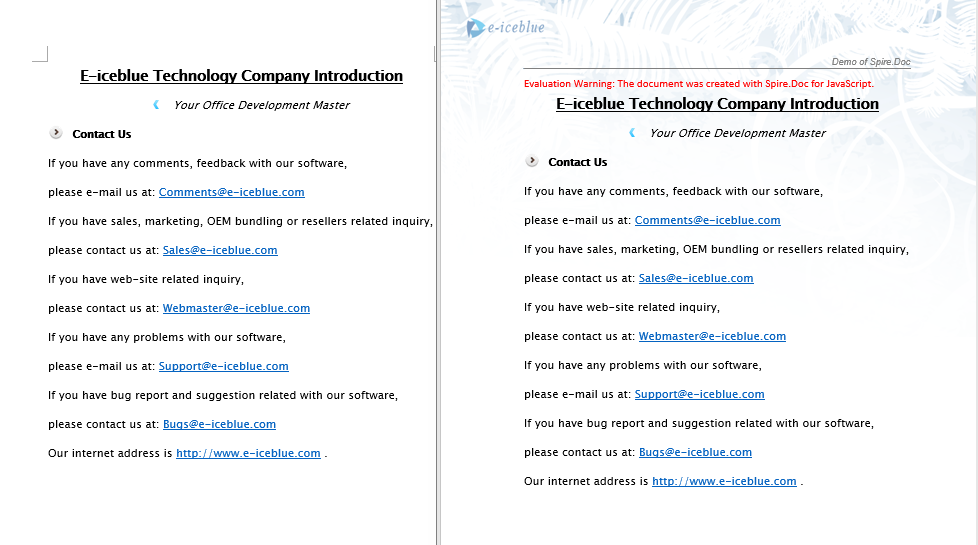
Remove Headers and Footers
In document cleanup or template replacement scenarios, it is often necessary to remove existing headers or footers from a document. For example, when taking over someone else's document and needing to redesign the headers and footers, clearing the original content first; or when documents exported from a customer system contain default headers that need to be removed before replacing with corporate templates. Spire.Doc uses HeadersFooters.get_Item to retrieve header or footer objects by type (first page, odd page, even page), and then calls ChildObjects.Clear() to remove all their content.
function App() {
  const RemoveHeaderFooter = async () => {
    // Get the Spire.Doc WASM module
    const wasmModule = window.wasmModule?.spiredoc;

    // Check if the module is ready
    if (!wasmModule) {
      alert('Spire.Doc is not ready yet');
      return;
    }

    // Load fonts and the document file into VFS
    await window.spire.FetchFileToVFS('ARIALUNI.TTF', '/Library/Fonts/', `${process.env.PUBLIC_URL}/font/`);

    // Load the sample file into VFS
    let inputFileName = "HeaderAndFooter.docx";
    await window.spire.FetchFileToVFS(inputFileName, "", `${process.env.PUBLIC_URL}/data/`);

    // Load the document
    let doc = new wasmModule.Document();
    doc.LoadFromFile(inputFileName);

    // Get the first section
    let section = doc.Sections.get_Item(0);

    // Clear all types of header content (first page, odd page, even page)
    let header;
    header = section.HeadersFooters.get_Item({ hfType: wasmModule.HeaderFooterType.HeaderFirstPage });
    if (header != null)
      header.ChildObjects.Clear();

    header = section.HeadersFooters.get_Item({ hfType: wasmModule.HeaderFooterType.HeaderOdd });
    if (header != null)
      header.ChildObjects.Clear();

    header = section.HeadersFooters.get_Item({ hfType: wasmModule.HeaderFooterType.HeaderEven });
    if (header != null)
      header.ChildObjects.Clear();

    // Clear all types of footer content (first page, odd page, even page)
    let footer;
    footer = section.HeadersFooters.get_Item({ hfType: wasmModule.HeaderFooterType.FooterFirstPage });
    if (footer != null)
      footer.ChildObjects.Clear();

    footer = section.HeadersFooters.get_Item({ hfType: wasmModule.HeaderFooterType.FooterOdd });
    if (footer != null)
      footer.ChildObjects.Clear();

    footer = section.HeadersFooters.get_Item({ hfType: wasmModule.HeaderFooterType.FooterEven });
    if (footer != null)
      footer.ChildObjects.Clear();

    // Define the output file name
    const outputFileName = "RemoveHeaderFooter_output.docx";

    // Save the document
    doc.SaveToFile({ fileName: outputFileName, fileFormat: wasmModule.FileFormat.Docx2013 });

    // Release resources
    doc.Close();
    doc.Dispose();

    // Read the generated file from VFS and trigger download
    const modifiedFileArray = window.dotnetRuntime.Module.FS.readFile(outputFileName);
    const blob = new Blob([modifiedFileArray], { type: 'application/vnd.openxmlformats-officedocument.wordprocessingml.document'});
    const url = URL.createObjectURL(blob);
    const a = document.createElement('a');
    a.href = url;
    a.download = outputFileName;
    a.click();
    URL.revokeObjectURL(url);
  };

  return (
    <div style={{ textAlign: 'center', height: '300px' }}>
      <h1>Remove Headers And Footers From Word Document</h1>
      <button onClick={RemoveHeaderFooter}>
        Generate
      </button>
    </div>
  );
}

export default App;
The document after removing the header.

Lock Headers to Prevent Editing
When distributing documents to clients or team members, it is often desirable to prevent fixed information such as the company logo and document number in the header from being modified, while allowing the body text to remain editable. Spire.Doc achieves this through document protection: set the protection type to AllowOnlyFormFields, then set the section's ProtectForm property to false, so the body area stays editable while the header area is protected from modification.
function App() {
  const LockHeader = async () => {
    // Get the Spire.Doc WASM module
    const wasmModule = window.wasmModule?.spiredoc;

    // Check if the module is ready
    if (!wasmModule) {
      alert('Spire.Doc is not ready yet');
      return;
    }

    // Load fonts and the document file into VFS
    await window.spire.FetchFileToVFS('ARIALUNI.TTF', '/Library/Fonts/', `${process.env.PUBLIC_URL}/font/`);

    // Load the sample file into VFS
    let inputFileName = "HeaderAndFooter.docx";
    await window.spire.FetchFileToVFS(inputFileName, "", `${process.env.PUBLIC_URL}/data/`);

      // Load the document
    let doc = new wasmModule.Document();
    doc.LoadFromFile(inputFileName);

    // Get the first section
    let section = doc.Sections.get_Item(0);

    // Protect the document with AllowOnlyFormFields type
    doc.Protect({ type: wasmModule.ProtectionType.AllowOnlyFormFields, password: "123" });

    // Set the section as editable, so the body area is not locked
    section.ProtectForm = false;

    // Define the output file name
    const outputFileName = "LockHeader_output.docx";

    // Save the document
    doc.SaveToFile({ fileName: outputFileName, fileFormat: wasmModule.FileFormat.Docx2013 });

    // Release resources
    doc.Close();
    doc.Dispose();

    // Read the generated file from VFS and trigger download
    const modifiedFileArray = window.dotnetRuntime.Module.FS.readFile(outputFileName);
    const blob = new Blob([modifiedFileArray], { type: 'application/vnd.openxmlformats-officedocument.wordprocessingml.document'});
    const url = URL.createObjectURL(blob);
    const a = document.createElement('a');
    a.href = url;
    a.download = outputFileName;
    a.click();
    URL.revokeObjectURL(url);
  };

  return (
    <div style={{ textAlign: 'center', height: '300px' }}>
      <h1>Lock Header In Word Document</h1>
      <button onClick={LockHeader}>
        Generate
      </button>
    </div>
  );
}

export default App;
When the header is locked, the header area cannot be edited when opening the document in Word, while the body area remains modifiable.
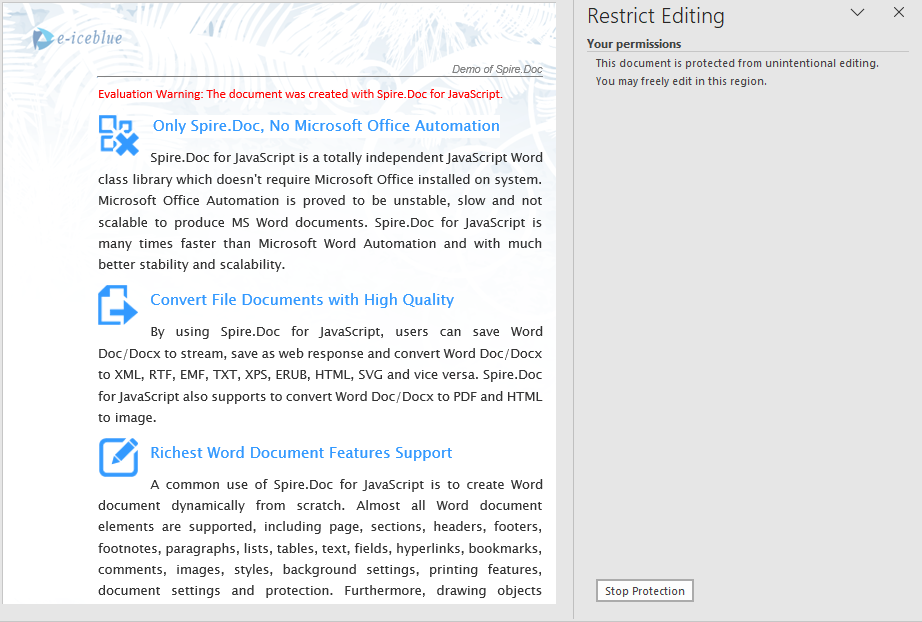
FAQ
Copied header content does not display in the destination document
Cause: The destination document contains multiple sections, but the copy operation only processes the first section's header, leaving headers in other sections unchanged.
Solution: Iterate through all sections of the destination document and copy the source header content to each section:
for (let i = 0; i < doc2.Sections.Count; i++) {
  let section = doc2.Sections.get_Item(i);
  for (let j = 0; j < header.ChildObjects.Count; j++) {
    let obj = header.ChildObjects.get_Item(j);
    section.HeadersFooters.Header.ChildObjects.Add(obj.Clone());
  }
}
The entire document becomes uneditable after locking the header
Cause: doc.Protect({ type: AllowOnlyFormFields }) locks the entire document by default, including the body area.
Solution: After applying protection, set the section's ProtectForm property to false to keep the body area editable:
doc.Protect({ type: wasmModule.ProtectionType.AllowOnlyFormFields, password: "123" });
section.ProtectForm = false;
Footer content is also cleared when removing headers
Cause: The header removal logic is mistakenly applied to the footer, or the same ChildObjects.Clear() operation is used on the wrong object.
Solution: Use different HeaderFooterType parameters for removing headers versus removing footers, ensuring the correct object is targeted:
// Use Header type when removing headers
section.HeadersFooters.get_Item({ hfType: wasmModule.HeaderFooterType.HeaderFirstPage });
// Use Footer type when removing footers
section.HeadersFooters.get_Item({ hfType: wasmModule.HeaderFooterType.FooterFirstPage });
Get a Free License
If you wish to remove the evaluation message from the resulting document, or to eliminate functional limitations, please contact our sales team to request a 30-day temporary license.
