
Knowledgebase (2408)
Children categories
AI Contract Review in C#: Automate Contract Processing in .NET
2026-08-12 06:46:25 Written by Allen Yang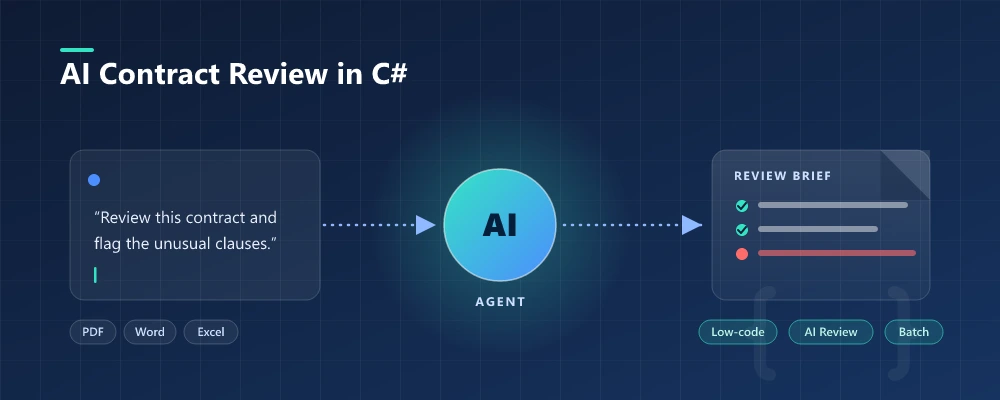
AI contract automation in C# means combining AI language understanding with document-processing capabilities inside your .NET application, so developers can review, extract, and generate contract documents by describing the task in natural language instead of writing field-mapping and layout code for every template. In practice, this is document automation in .NET where a natural-language instruction replaces the field-mapping code. Spire.Agent.Office is a document AI agent SDK that handles the language; a deterministic document layer guarantees real, well-formed Word and PDF files.
Quick Navigation
- Why Contract Review Is a Good Fit for AI
- What an AI Contract Agent Can and Cannot Do
- Common Contract Automation Scenarios
- Three Ways to Automate Contract Processing in .NET
- A Working Example: Contract Review and Generation in C#
- Why Use Spire.Agent.Office for AI Contract Automation
- FAQ
1. Why Contract Review Is a Good Fit for AI
Contract work in a developer's world is three repetitive jobs: reading (extracting parties, dates, payment terms, and obligations from agreements that arrive as PDFs and Word files), checking (spotting missing clauses or unusual language), and producing (turning a list of employees or vendors into signed-ready contracts).
For .NET developers, the challenge is not only understanding contract content; it is turning unstructured documents into structured, repeatable workflows your application can own.
Three properties make these tasks ideal for a language model rather than hand-written rules:
- The input is unstructured. Incoming contracts arrive in whatever format the other side sends. Rules that handle one layout break on the next; an LLM reads text directly.
- The output is document-shaped. The deliverable is a real
.docxor.pdfwith correct formatting, not a text blob. This is where a document layer earns its keep. - The volume changes constantly. Onboarding 50 employees or reviewing 200 vendor agreements in a month means a config-driven solution, not re-coding per template.
In practice, review and generation go together: teams want existing contracts summarized and red-flagged, and new contracts generated from a template plus structured data.
2. What an AI Contract Agent Can and Cannot Do
| Can do | Cannot do |
|---|---|
| Extract parties, effective dates, payment terms, obligations | Replace professional legal review for high-risk agreements |
| Summarize long agreements into a one-page brief | Guarantee compliance with local laws |
| Generate contracts in batches from a template + data source | Negotiate or accept terms on your behalf |
| Keep formatting, table styles, and fonts intact | Guarantee output is error-free without review |
| Run inside your own application (no cloud upload) | Interpret new or ambiguous regulations; route to counsel |
| Flag clauses that look unusual for a standard agreement | Reveal hidden risks in intentionally vague clauses |
The division of labor: the agent automates the reading, extraction, and drafting (the hours a paralegal would spend), while a human lawyer owns the final judgment. That boundary is what keeps the tool useful and the process defensible.
3. Common Contract Automation Scenarios
Contract automation spans more than hiring. The same pattern (an instruction, a template, and optional data) covers the scenarios teams search for most:
| Scenario | Example instruction |
|---|---|
| Vendor agreement review | "Review this vendor agreement and flag payment terms, liability caps, and termination conditions that differ from our standard terms." |
| Employment contract generation | "Generate one employment contract per row in 'employees.xlsx' using the template, preserving layout and styling." |
| NDA processing | "Summarize this NDA: confidentiality period, permitted disclosures, and remedies on breach." |
| Lease agreement analysis | "Extract rent, term, renewal options, and maintenance obligations from this lease, and list any unusual clauses." |
Each scenario is the same architecture: an instruction in, a real document out.
4. Three Ways to Automate Contract Processing in .NET
| Approach | Code volume | Format fidelity | Maintenance | Best for |
|---|---|---|---|---|
| Document AI agent (LLM + document layer) | One instruction + ~10 lines | High (real Word/PDF files) | Low (change behavior by editing instructions) | Teams automating contracts without building an LLM pipeline |
| Raw LLM API (OpenAI/Claude + your own code) | High (prompts, parsing, file I/O) | Low (LLMs don't natively read/write Office files) | High (you own RAG, routing, errors) | Teams that already run an LLM stack |
| Traditional SDK (Spire.Office or similar) | Dozens of lines per document type | High (deterministic) | High (every mapping is code) | Fixed, well-specified documents that rarely change |
The key point: an LLM cannot edit a contract template without a document-processing layer, and a traditional SDK cannot understand a natural-language request. A document AI agent combines both.
That is not to say the traditional route is wrong. For fixed, well-specified documents that rarely change, a deterministic SDK is often the right call, and Spire.Office still serves that need. The agent earns its place when templates, inputs, and requirements change often enough that re-coding becomes the bottleneck.
Why a Raw LLM API Is Not Enough for Contracts
Calling gpt-4 or claude directly to "generate a contract" fails in three ways that matter in production:
- It cannot reliably read or write Office files. LLMs see text, not
.docxand.pdfstructure. Reading a Word template, keeping a table intact, or producing a valid PDF usually requires a separate extraction and reconstruction pipeline you have to build yourself. - Formatting is not guaranteed. Contract templates carry clause numbering, tables, and fonts that matter to the recipient. A raw LLM returns text, and the formatting you lose is exactly what legal and HR departments care about.
- You reimplement the whole orchestration. Prompt design, field mapping, error handling, file I/O, and output validation become your code to own and maintain.
A document AI agent pairs the model's language understanding with deterministic document APIs: the model decides what to extract or fill, and the document layer guarantees the file is real and well-formed. That is the difference between a demo and a workflow a team can ship.
5. A Working Example: Contract Review and Generation in C#
Below is a task the legal and procurement teams repeat every week: reviewing newly arrived supplier agreements, then issuing contracts for the vendors that get approved. The implementation uses Spire.Agent.Office for .NET, an AI agent that processes Word, Excel, PowerPoint, and PDF documents through natural-language instructions. The example is designed around that workflow rather than copied from a tutorial; the official Getting Started and Batch Contract Generation tutorials document the API setup step by step, while this section focuses on the C# integration patterns.
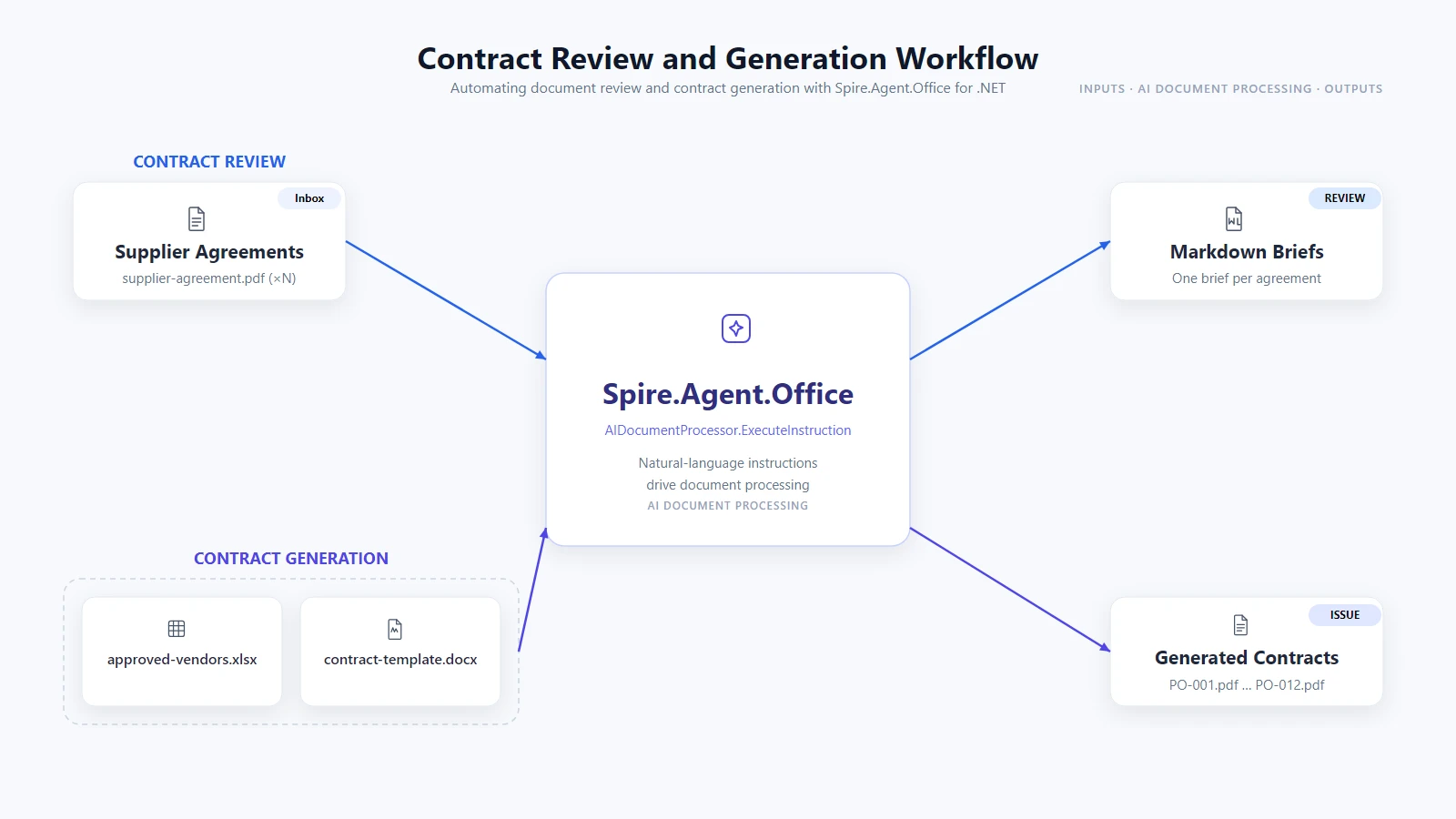
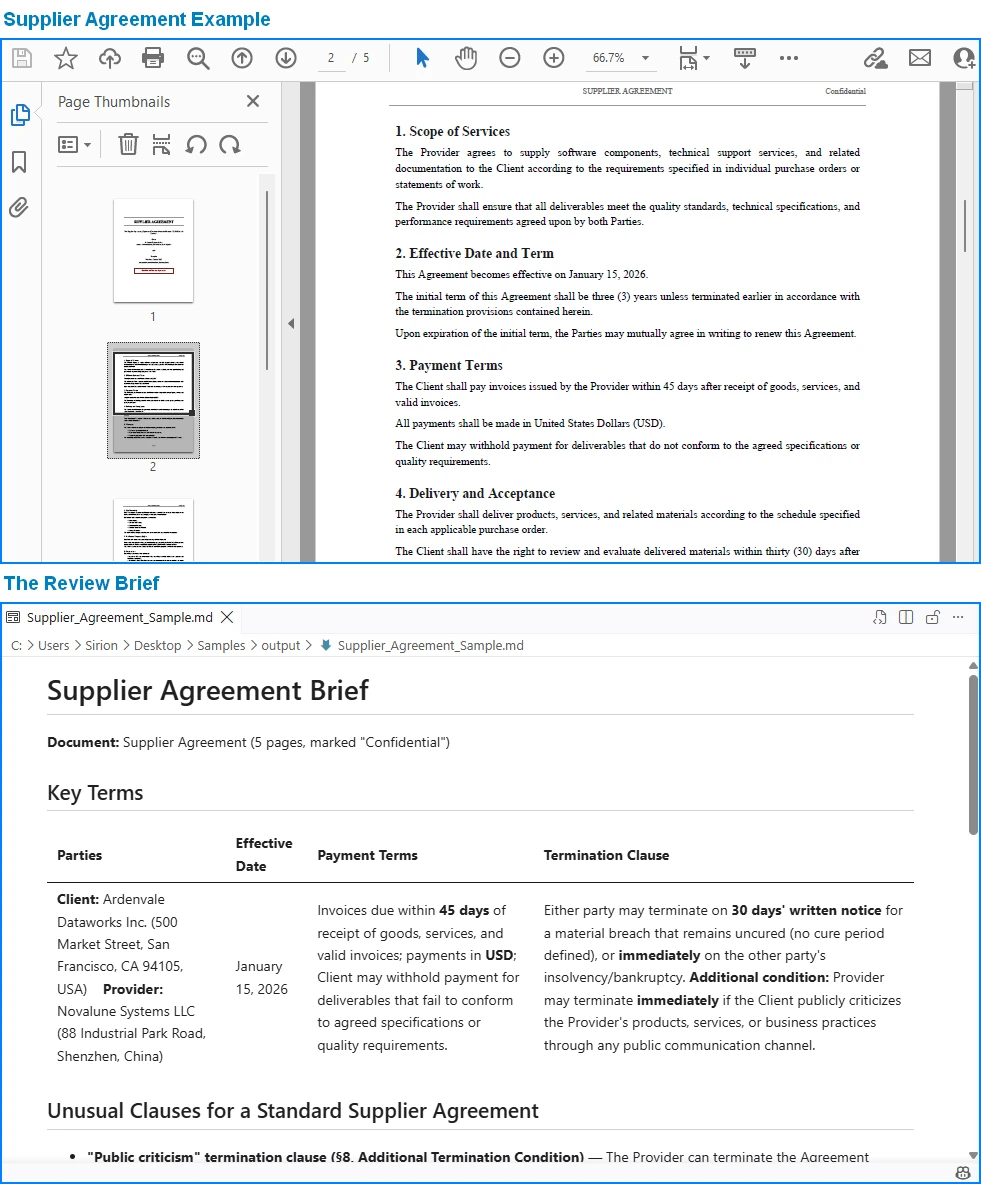
1. Review every agreement that arrived this week. Configure the agent once, then read the inbox folder and have each agreement summarized as a Markdown brief you can paste into a review tracker:
using System.IO;
using Spire.Agent.Office.AI;
using Spire.Agent.Office.Extensions;
using Spire.Doc;
using Spire.Pdf;

AIOptions agentOptions = new AIOptions();
agentOptions.WorkDir = @"C:\legal-ops\output";
agentOptions.SpireToken = spireToken;

string reviewPrompt =
    "Review this supplier agreement and write a Markdown brief: a one-row table with " +
    "the parties, effective date, payment terms, and termination clause, then a bullet " +
    "list of any clauses that look unusual for a standard supplier agreement. " +
    "Save the brief to the specified output path as Markdown.";

Directory.CreateDirectory(@"C:\legal-ops\output");

foreach (string file in Directory.GetFiles(@"C:\legal-ops\inbox", "*.pdf"))
{
    string briefPath = Path.Combine(
        @"C:\legal-ops\output", Path.GetFileNameWithoutExtension(file) + ".md");

    using (PdfDocument agreement = new PdfDocument())
    {
        agreement.LoadFromFile(file);
        AIResult result = agreement.AI(agentOptions).ExecuteInstruction(
            agreement, reviewPrompt, briefPath, new string[] { });

        if (result == null || !result.Success)
        {
            throw new InvalidOperationException(
                $"Review failed for {Path.GetFileName(file)}: {result?.ErrorMessage}");
        }
    }
}
Key API Calls
PdfDocument.LoadFromFile()-- opens the supplier agreement PDFagreement.AI(agentOptions)-- attaches the AI document processorExecuteInstruction(doc, instruction, savePath, attachments)-- runs the review and writes the Markdown briefAIResult.Success/AIResult.ErrorMessage-- verifies the result and surfaces errors
Output
2. Issue contracts for the vendors you approved. One template plus the approval list. The template holds {{Placeholder}} markers for the vendor data; pass null as the output path so the agent writes one independent PDF per vendor into the working directory:
string[] attachments = { @"C:\legal-ops\data\approved-vendors.xlsx" };

using (Document contract = new Document())
{
    contract.LoadFromFile(@"C:\legal-ops\templates\supplier-contract.docx");
    AIResult result = contract.AI(agentOptions).ExecuteInstruction(
        contract,
        "Issue one purchase contract per approved vendor: read 'approved-vendors.xlsx' " +
        "row by row, fill the {{Placeholder}} fields in this template with each vendor's " +
        "data, preserve the template layout and styling, and save each contract as an " +
        "independent PDF in the work directory.",
        null,   // null output path -> the agent writes each contract into WorkDir
        attachments);

    if (result == null || !result.Success)
    {
        throw new InvalidOperationException(
            $"Contract issuing failed: {result?.ErrorMessage}");
    }
}
Key API Calls
Document.LoadFromFile()-- loads the contract templatecontract.AI(agentOptions)-- attaches the AI document processorExecuteInstruction(doc, instruction, savePath, attachments)-- issues one independent contract per vendor rowAIResult.Success/AIResult.ErrorMessage-- verifies the result and surfaces errors
Output
Each contract is written to a session subfolder the agent manages under WorkDir (e.g. output\.office_use_tmp\Word\<session>\output_contracts), so point WorkDir at your archive folder and collect the issued contracts from there.
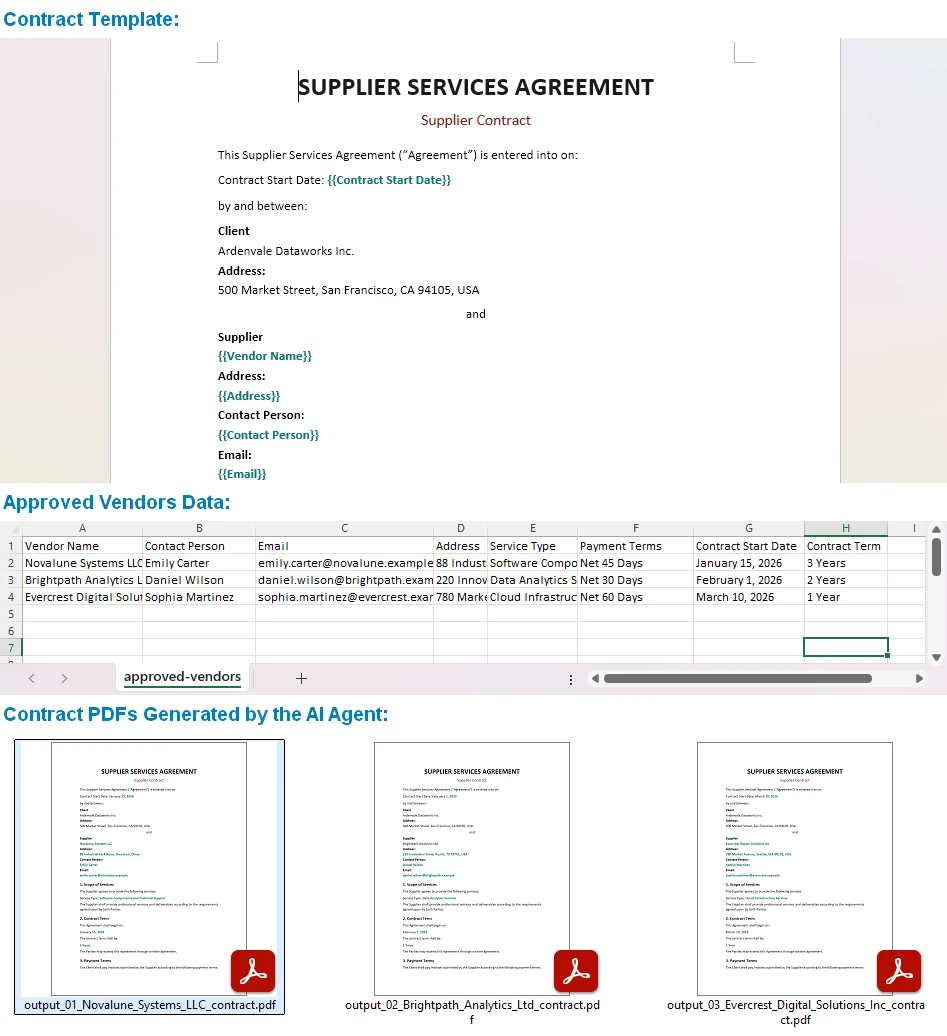
One template, one spreadsheet, and the same instruction drives every contract, each issued with its formatting intact. Output can be saved as PDF, DOCX, DOC, HTML, Markdown, or XPS to fit your archiving workflow. You can also build more complex templates than simple field filling -- the official Generate Various Word Templates tutorial covers placeholders, conditional sections, and other template patterns the agent can fill.
Why This Is Different: Traditional SDK vs. AI Agent
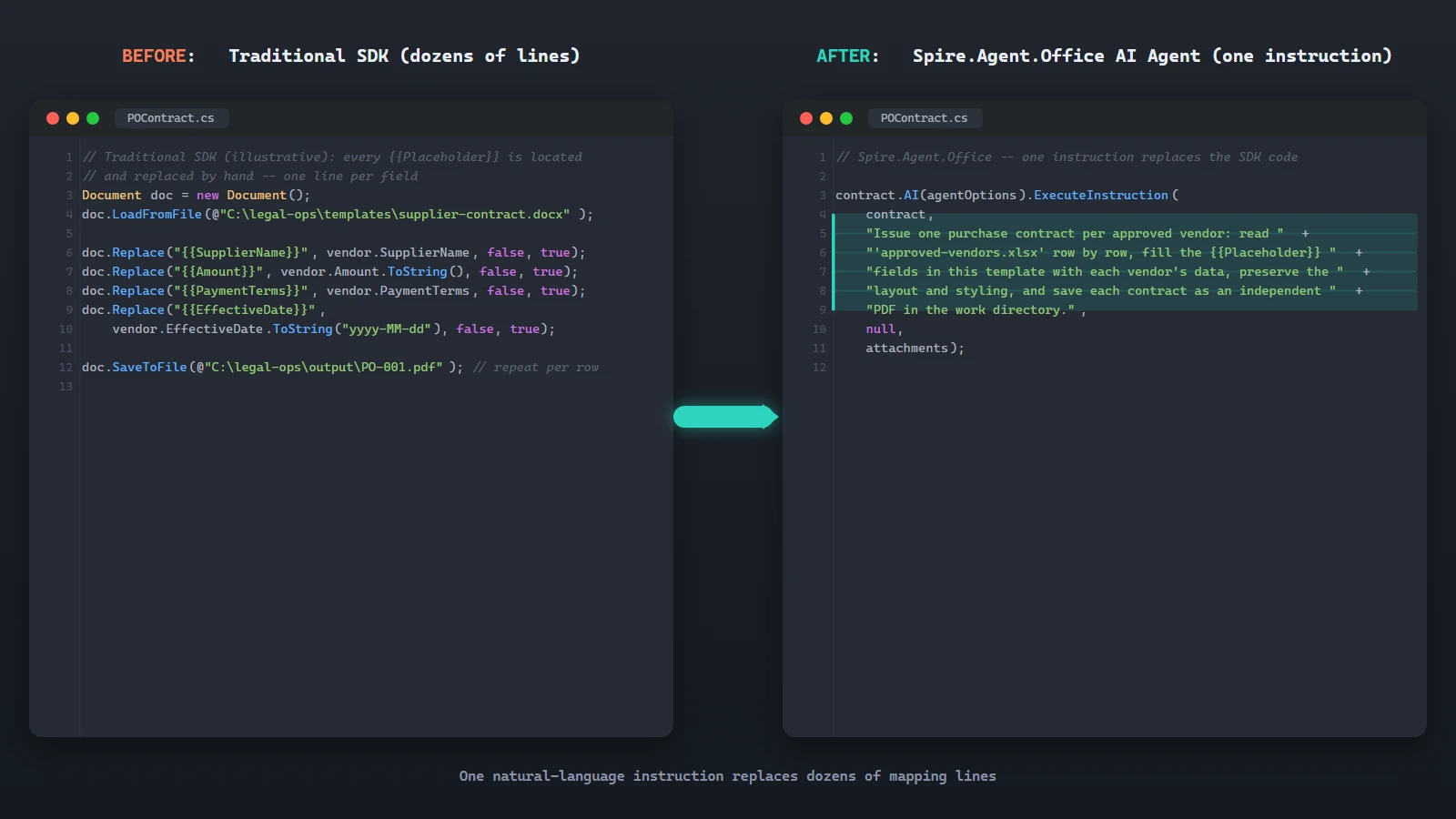
The value of the agent is clearest side by side. With the traditional SDK you locate each {{Placeholder}} and replace it by hand, one line per field, map every spreadsheet column to its placeholder, then loop the rows and export one file per row. That is dozens of lines you maintain every time the template or the data layout changes. The sketch below (simplified for illustration) shows the shape of that work:
// Traditional SDK (illustrative): every {{Placeholder}} is located and
// replaced by hand -- one line per field
Document doc = new Document();
doc.LoadFromFile(@"C:\legal-ops\templates\supplier-contract.docx");

doc.Replace("{{SupplierName}}", vendor.SupplierName, false, true);
doc.Replace("{{Amount}}", vendor.Amount.ToString(), false, true);
doc.Replace("{{PaymentTerms}}", vendor.PaymentTerms, false, true);
doc.Replace("{{EffectiveDate}}", vendor.EffectiveDate.ToString("yyyy-MM-dd"), false, true);

doc.SaveToFile(@"C:\legal-ops\output\PO-001.pdf"); // ...repeat for each vendor row
The AI agent replaces that orchestration with one instruction:
contract.AI(agentOptions).ExecuteInstruction(
    contract,
    "Issue one purchase contract per approved vendor: read 'approved-vendors.xlsx' " +
    "row by row, fill the {{Placeholder}} fields in this template with each vendor's " +
    "data, preserve the template layout and styling, and save each contract as an " +
    "independent PDF in the work directory.",
    null,
    attachments);
Both produce the same contracts. Where the SDK grows a Replace call for every placeholder and a mapping for every column, the agent absorbs the same work into one instruction. When the template or the data layout changes, you edit the instruction, not the code.
6. Why Use Spire.Agent.Office for AI Contract Automation
The three-way comparison above is deliberately product-neutral; the same pattern works with any capable LLM. Where Spire.Agent.Office earns its place for .NET teams is in three specific areas:
- Native Office document processing. Word, Excel, PowerPoint, and PDF are first-class citizens, not formats you bolt on. The agent reads and writes real files across all four.
- Formatting is preserved. Enterprise contracts carry clause numbering, tables, and fonts that must survive processing. The agent's document layer keeps them intact. Include "preserve the original document layout and styling" in your instruction and the output stays true to the template.
- Native .NET integration. It is a C# SDK that drops into an existing .NET application. No separate document-processing service to build or maintain, no cross-service plumbing. The example above is the whole integration surface.
If you already run Spire.Office for document processing, the agent is the natural next layer: the same Document object gains an AI() processor that turns instructions into executed workflows.
7. FAQ
Can AI contract review work with text-based PDFs?
Yes. The review example above loads a supplier-agreement.pdf directly, and the agent reads and analyzes the document in its native format. Support covers standard and encrypted text-based PDFs. Image-only scans have no extractable text layer, so convert them to searchable text first (for example with OCR) before running the review.
Can contract data stay inside my environment?
Yes, with one important nuance. Spire.Agent.Office runs from your own application, so the SDK, templates, and document processing stay inside your environment. Contract files are not uploaded to a third-party document service for storage or conversion. To analyze contract content, the AI needs the relevant text, and it is sent to the model for processing; that is an inherent step of any AI workflow. If you deploy your own model on your local network, the content stays entirely within your infrastructure. If you connect through a hosted model API such as OpenAI or Azure OpenAI, the relevant content is transmitted to that provider over the network per your configuration.
Can I use my own AI model with Spire.Agent.Office?
Yes. Spire.Agent.Office supports flexible AI model integration and is compatible with mainstream AI infrastructure, including hosted model APIs and privately deployed models. You can point the agent at your own endpoint. See the integration tutorial for setup details; for questions about which providers are supported in your deployment, contact your account team at sales@e-iceblue.com.
Which model does Spire.Agent.Office use for contract review?
Spire.Agent.Office connects to a large language model behind a SpireToken key. You describe the review or generation task in natural language, and the agent orchestrates the underlying document-processing tools. The model handles understanding; the document layer guarantees formatting and file fidelity.
Can it generate contracts in batches?
Yes. One contract template plus a data source such as an Excel sheet, and one instruction produces one contract per data row. Both field filling and placeholder replacement are supported. For the agent to pick up every row, keep the first row of the data source as the header, put one vendor per row, and avoid blank rows; if the number of generated contracts does not match the data rows, check the data source first.
Will the AI change my contract's formatting?
Not if you say so. Include a phrase like "preserve the original document layout, styling, and fonts" in your instruction; the official tutorial documents this exact fix.
How is this different from using a raw LLM API?
A raw LLM cannot reliably read, edit, or write Word and PDF files on its own; it needs a document-processing layer. A document AI agent pairs the LLM's language understanding with deterministic document APIs, so the output is a real, well-formed file.
Ready to Automate Your Contract Workflow?
Contract review and batch generation are the fastest places to get value: one template, one data source, one natural-language instruction, and real Word or PDF files out. Follow the Getting Started tutorial to run your first document workflow in .NET.
Further Reading
- Spire.Agent.Office product overview -- AI agent SDKs for every Office document format
- Generate Various Word Templates tutorial -- building templates the agent can fill
XPS (XML Paper Specification) is a fixed-layout document format introduced by Microsoft, widely used in electronic document printing, archiving, and distribution scenarios, with native support in the Windows platform ecosystem. XPS describes document structure based on XML, offering advantages such as clear structure, easy validation, and digital signing. Meanwhile, PDF remains indispensable as an internationally recognized document format for cross-platform distribution. Real-world business often requires flexible switching between the two formats: converting existing PDF contracts to XPS for printing and archiving in Windows environments, or converting XPS documents to PDF for cross-platform distribution and collaboration.
Spire.PDF for JavaScript performs bidirectional conversion between PDF and XPS entirely in the browser via WebAssembly, managing input and output files through a virtual file system (VFS) with no backend server required.
This article covers two core features:
For installation and project setup, refer to Integrating Spire.PDF for JavaScript in a React Project. The examples below assume Spire.PDF is installed and the WebAssembly module is initialized.
Convert PDF to XPS
The core of PDF-to-XPS conversion is to re-encode the page content, fonts, and graphics elements from a PDF document into an XML description structure compliant with the XPS standard. Spire.PDF for JavaScript accomplishes this in one step through the PdfDocument object's SaveToFile method with the FileFormat.XPS enum value, eliminating the need to handle underlying format differences manually.
function App() {
  const convertToXPS = async () => {
    // Get the Spire.PDF WASM module
    const pdfModule = window.wasmModule?.spirepdf;

    // Check if the WASM module is ready
    if (!pdfModule) {
      alert('Spire.PDF is not ready yet');
      return;
    }

    // Load fonts and PDF file into VFS
    await window.spire.FetchFileToVFS('ARIAL.TTF', '/Library/Fonts/', `${process.env.PUBLIC_URL}/font/`);
    const inputFileName = 'Reading_EN.pdf';
    await window.spire.FetchFileToVFS(inputFileName, "", `${process.env.PUBLIC_URL}/data/`);

    // Create PdfDocument object and load the PDF document
    let doc = new pdfModule.PdfDocument();
    doc.LoadFromFile(inputFileName);

    // Define the output file name for XPS format
    const outputFileName = 'OutputXPS.xps';

    // Save as XPS format
    doc.SaveToFile({ fileName: outputFileName, fileFormat: pdfModule.FileFormat.XPS });
    doc.Close();

    // Read the converted file from VFS and trigger download
    const fileArray = window.dotnetRuntime.Module.FS.readFile(outputFileName);
    const blob = new Blob([fileArray], { type: 'application/vnd.ms-xpsdocument' });
    const url = URL.createObjectURL(blob);
    const a = document.createElement('a');
    a.href = url;
    a.download = outputFileName;
    a.click();
    URL.revokeObjectURL(url);
  };

  return (
    <div style={{ textAlign: 'center', height: '300px' }}>
      <h1>Convert PDF To XPS</h1>
      <button onClick={convertToXPS}>
        Generate
      </button>
    </div>
  );
}

export default App;
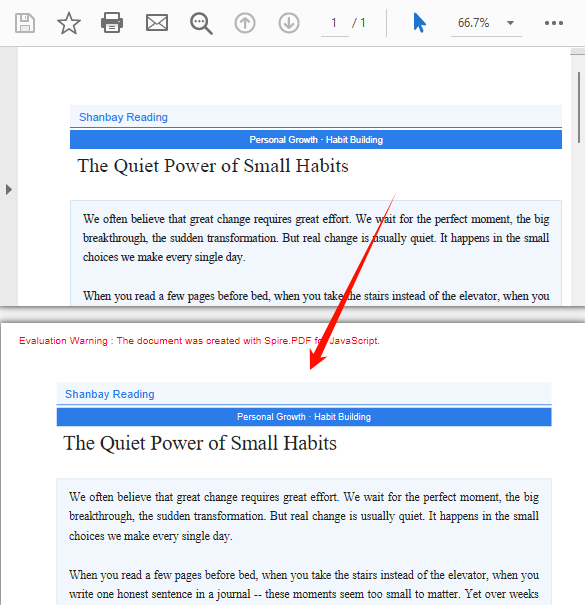
XPS output generated after conversion via SaveToFile with FileFormat.XPS
Convert XPS to PDF
XPS-to-PDF conversion is a common requirement in document cross-platform distribution scenarios. Spire.PDF for JavaScript loads XPS fixed-layout documents through the PdfDocument object's LoadFromXPS method and then exports them as standard PDF files via the SaveToFile method with the FileFormat.PDF enum value, preserving the original document's layout and visual appearance.
function App() {
  const convertXPSToPDF = async () => {
    // Get the Spire.PDF WASM module
    const pdfModule = window.wasmModule?.spirepdf;

    // Check if the WASM module is ready
    if (!pdfModule) {
      alert('Spire.PDF is not ready yet');
      return;
    }

    // Load the XPS file into VFS
    const inputFileName = 'Lease_Agreement_EN.xps';
    await window.spire.FetchFileToVFS(inputFileName, "", `${process.env.PUBLIC_URL}/data/`);

    // Create PdfDocument object and load the XPS document
    let doc = new pdfModule.PdfDocument();
    doc.LoadFromXPS(inputFileName);

    // Define the output file name for PDF format
    const outputFileName = 'OutputPDF.pdf';

    // Save as PDF format
    doc.SaveToFile({ fileName: outputFileName, fileFormat: pdfModule.FileFormat.PDF });
    doc.Close();

    // Read the converted file from VFS and trigger download
    const fileArray = window.dotnetRuntime.Module.FS.readFile(outputFileName);
    const blob = new Blob([fileArray], { type: 'application/pdf' });
    const url = URL.createObjectURL(blob);
    const a = document.createElement('a');
    a.href = url;
    a.download = outputFileName;
    a.click();
    URL.revokeObjectURL(url);
  };

  return (
    <div style={{ textAlign: 'center', height: '300px' }}>
      <h1>Convert XPS To PDF</h1>
      <button onClick={convertXPSToPDF}>
        Generate
      </button>
    </div>
  );
}

export default App;
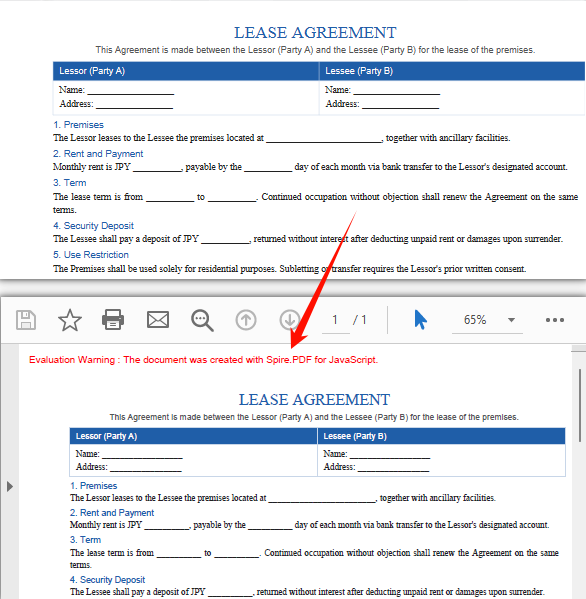
PDF document generated after loading XPS via the PdfDocument LoadFromXPS method and converting
FAQ
Can encrypted PDFs be converted to XPS?
Password-protected encrypted PDFs cannot be saved as XPS directly via SaveToFile — the document must be decrypted first.
Solution: Provide the password when loading the PDF via the second parameter of LoadFromFile, then save as XPS:
// Load a password-protected PDF document
let doc = new pdfModule.PdfDocument();
doc.LoadFromFile(inputFileName, "password");

// Save as XPS format
doc.SaveToFile({ fileName: outputFileName, fileFormat: pdfModule.FileFormat.XPS });
doc.Close();
Get a Free License
If you want to remove the evaluation messages in the resulting documents or get rid of functional limitations, contact sales to obtain a 30-day temporary license.
Add, Preview, and Remove Excel Page Breaks with JavaScript in React
2026-08-12 06:20:20 Written by Lisa LiPage breaks are an important tool for controlling the print layout of Excel. They determine where data is divided across printed pages. Setting page breaks properly prevents data from being broken apart pointlessly when printing, resulting in clean, readable paper or PDF reports. Spire.XLS for JavaScript uses WebAssembly to add, preview, and remove page breaks directly in the browser, managing input and output files through a virtual file system (VFS) — no backend server required.
This article covers three core features:
For installation and project configuration, refer to Integrating Spire.XLS for JavaScript in a React Project. The examples below assume Spire.XLS is installed and the WebAssembly module is initialized.
Add Page Breaks
When printing reports, we often want to split data by a fixed number of rows and columns, for example printing a fixed number of data rows per page. Spire.XLS for JavaScript adds horizontal page breaks using the HPageBreaks.Add method and vertical page breaks using the VPageBreaks.Add method, enabling precise page break control.
function App() {
  const sheetToSVG = async () => {
    // Get the Spire.XLS WASM module
    const xlsModule = window.wasmModule?.spirexls;

    // Check if the module is ready
    if (!xlsModule) {
      alert('Spire.Xls is not ready yet');
      return;
    }

    // Load fonts and the Excel file into VFS
    await window.spire.FetchFileToVFS('ARIAL.TTF', '/Library/Fonts/', `${process.env.PUBLIC_URL}/font/`);
    const inputFileName = 'Template_Xls_4.xlsx';
    await window.spire.FetchFileToVFS(inputFileName, '', `${process.env.PUBLIC_URL}/static/data/`);

    // Load the workbook
    const workbook = new xlsModule.Workbook();
    workbook.LoadFromFile({ fileName: inputFileName });

    // Get the first worksheet
    const sheet = workbook.Worksheets.get(0);

    // Add a horizontal page break at row E4
    sheet.HPageBreaks.Add(sheet.Range.get("E4"));
    // Add a vertical page break at column C4
    sheet.VPageBreaks.Add(sheet.Range.get("C4"));

    const outputFileName = "AddPageBreakInXlsFile.xlsx";
    workbook.SaveToFile({ fileName: outputFileName });

    // Release the workbook object to free resources
    workbook.Dispose();

    // Read the converted file from VFS and trigger download
    const fileArray = window.dotnetRuntime.Module.FS.readFile(outputFileName);
    const blob = new Blob([fileArray], { type: "application/vnd.openxmlformats-officedocument.spreadsheetml.sheet" });
    const url = URL.createObjectURL(blob);
    const a = document.createElement('a');
    a.href = url;
    a.download = outputFileName;
    a.click();
    URL.revokeObjectURL(url);
  };

  return (
    <div style={{ textAlign: 'center', height: '300px' }}>
      <h1>Add Page Break</h1>
      <button onClick={sheetToSVG}>
        Start
      </button>
    </div>
  );
}

export default App;
Original document 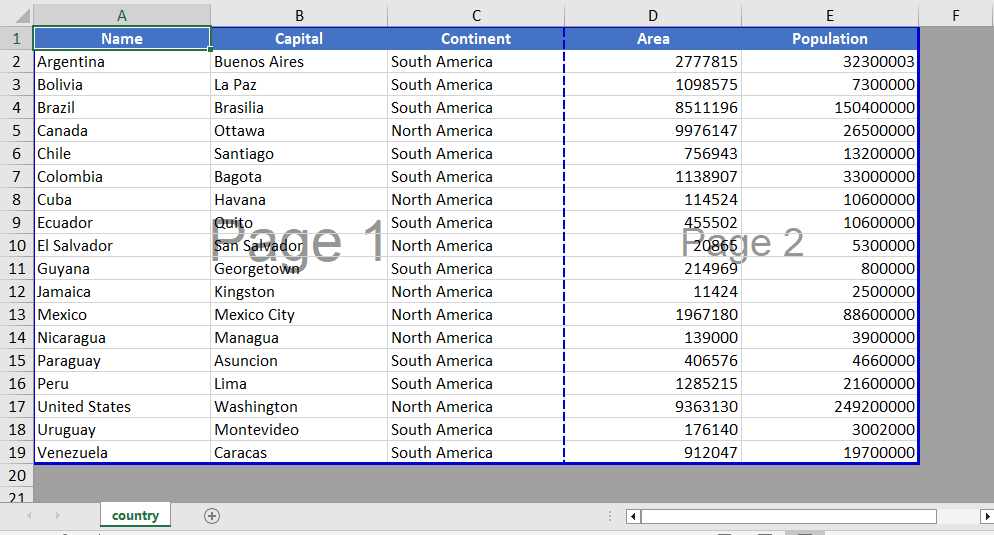 Add page break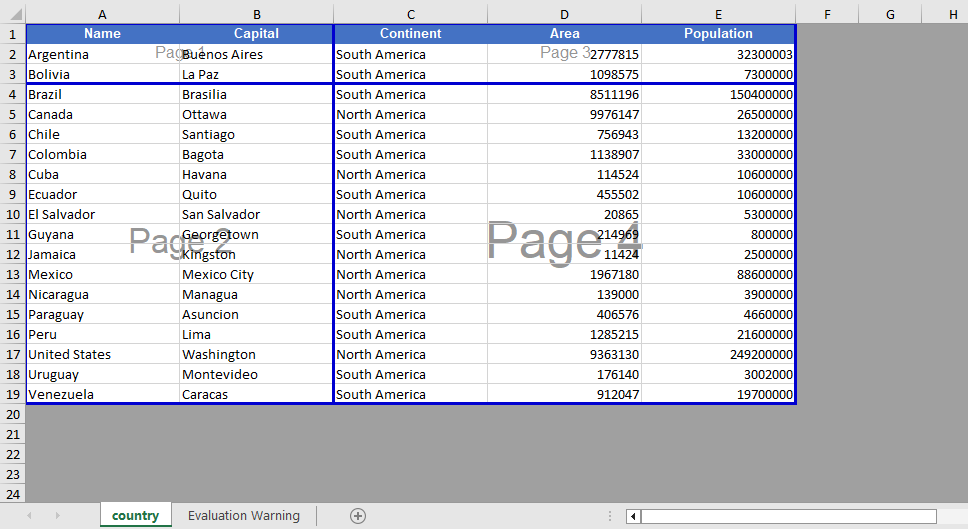
Page Break View Zoom Scale Setting
When viewing page break positions in the view mode, Spire.XLS for JavaScript supports setting the zoom scale of the page break preview view through the ZoomScalePageBreakView property.
function App() {
  const sheetToSVG = async () => {
    // Get the Spire.XLS WASM module
    const xlsModule = window.wasmModule?.spirexls;

    // Check if the module is ready
    if (!xlsModule) {
      alert('Spire.Xls is not ready yet');
      return;
    }

    // Load fonts and the Excel file into VFS
    await window.spire.FetchFileToVFS('ARIAL.TTF', '/Library/Fonts/', `${process.env.PUBLIC_URL}/font/`);
    const inputFileName = 'Template_Xls_4.xlsx';
    await window.spire.FetchFileToVFS(inputFileName, '', `${process.env.PUBLIC_URL}/static/data/`);

    // Load the workbook
    const workbook = new xlsModule.Workbook();
    workbook.LoadFromFile({ fileName: inputFileName });

    // Get the first worksheet
    const sheet = workbook.Worksheets.get(0);

    // Set the zoom scale of the page break preview view
    sheet.ZoomScalePageBreakView = 80;

    const outputFileName = "PageBreakPreview.xlsx";
    workbook.SaveToFile({ fileName: outputFileName });

    // Release the workbook object to free resources
    workbook.Dispose();

    // Read the converted file from VFS and trigger download
    const fileArray = window.dotnetRuntime.Module.FS.readFile(outputFileName);
    const blob = new Blob([fileArray], { type: "application/vnd.openxmlformats-officedocument.spreadsheetml.sheet" });
    const url = URL.createObjectURL(blob);
    const a = document.createElement('a');
    a.href = url;
    a.download = outputFileName;
    a.click();
    URL.revokeObjectURL(url);
  };

  return (
    <div style={{ textAlign: 'center', height: '300px' }}>
      <h1>Page Break Preview</h1>
      <button onClick={sheetToSVG}>
        Start
      </button>
    </div>
  );
}

export default App;
Before setting the zoom scale 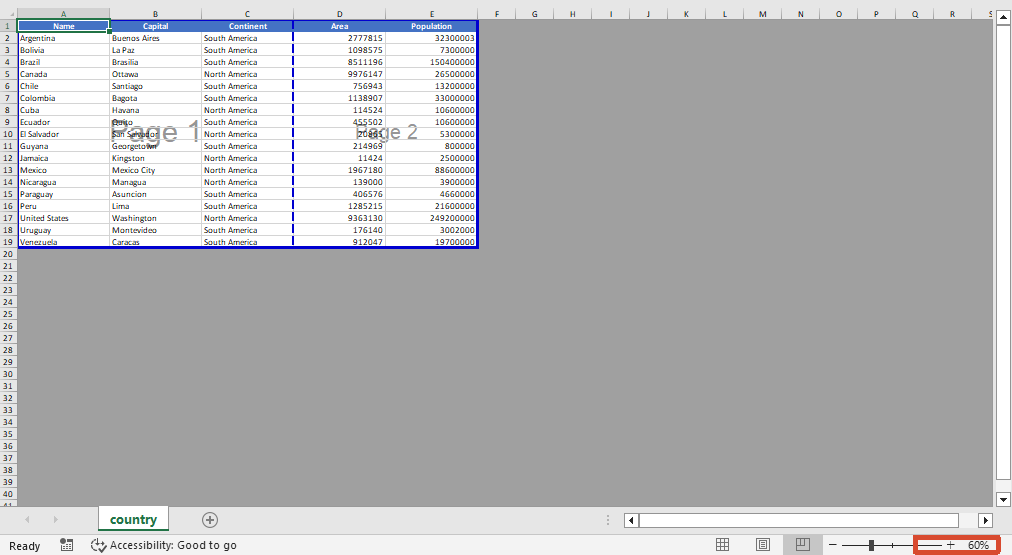 After setting the zoom scale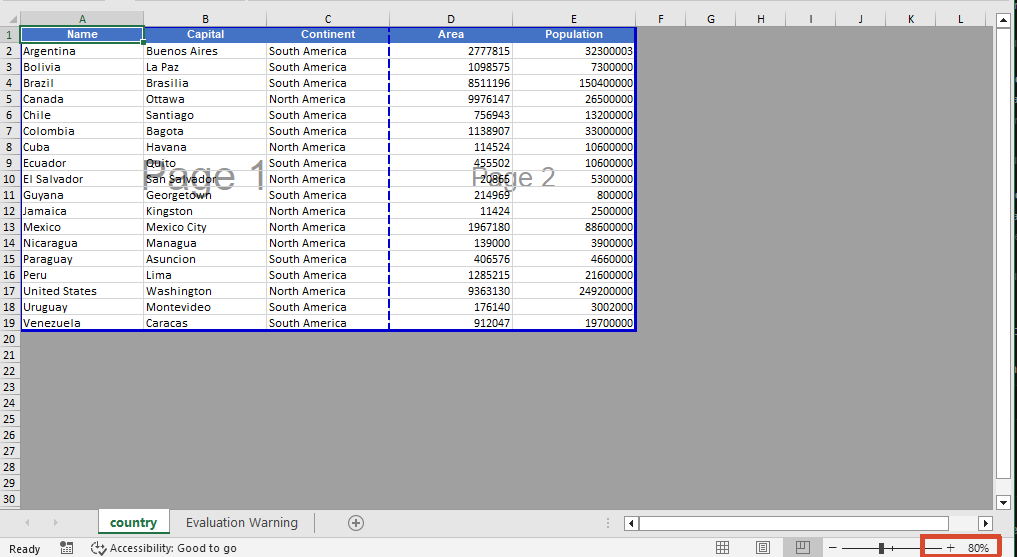
Remove Page Breaks
When page breaks are no longer needed, you can clear all page breaks in a specific direction using the Clear method, or delete the page break at a specific position by index using the RemoveAt method. After removal, you can also switch the worksheet to the page break preview view via the ViewMode property to visually confirm the page break effect.
function App() {
  const sheetToSVG = async () => {
    // Get the Spire.XLS WASM module
    const xlsModule = window.wasmModule?.spirexls;

    // Check if the module is ready
    if (!xlsModule) {
      alert('Spire.Xls is not ready yet');
      return;
    }

    // Load fonts and the Excel file into VFS
    await window.spire.FetchFileToVFS('ARIAL.TTF', '/Library/Fonts/', `${process.env.PUBLIC_URL}/font/`);
    const inputFileName = 'PageBreak.xlsx';
    await window.spire.FetchFileToVFS(inputFileName, '', `${process.env.PUBLIC_URL}/static/data/`);

    // Load the workbook
    const workbook = new xlsModule.Workbook();
    workbook.LoadFromFile({ fileName: inputFileName });

    // Get the first worksheet
    const sheet = workbook.Worksheets.get(0);

    // Clear all vertical page breaks
    sheet.VPageBreaks.Clear();

    // Remove the first horizontal page break
    sheet.HPageBreaks.RemoveAt(0);

    // Set the view mode to page break preview to check the page break effect
    sheet.ViewMode = xlsModule.ViewMode.Preview;

    const outputFileName = "RemovePageBreak_output.xlsx";
    workbook.SaveToFile({ fileName: outputFileName });

    // Release the workbook object to free resources
    workbook.Dispose();

    // Read the converted file from VFS and trigger download
    const fileArray = window.dotnetRuntime.Module.FS.readFile(outputFileName);
    const blob = new Blob([fileArray], { type: "application/vnd.openxmlformats-officedocument.spreadsheetml.sheet" });
    const url = URL.createObjectURL(blob);
    const a = document.createElement('a');
    a.href = url;
    a.download = outputFileName;
    a.click();
    URL.revokeObjectURL(url);
  };

  return (
    <div style={{ textAlign: 'center', height: '300px' }}>
      <h1>Remove Page Break</h1>
      <button onClick={sheetToSVG}>
        Start
      </button>
    </div>
  );
}

export default App;
Before removing the page break 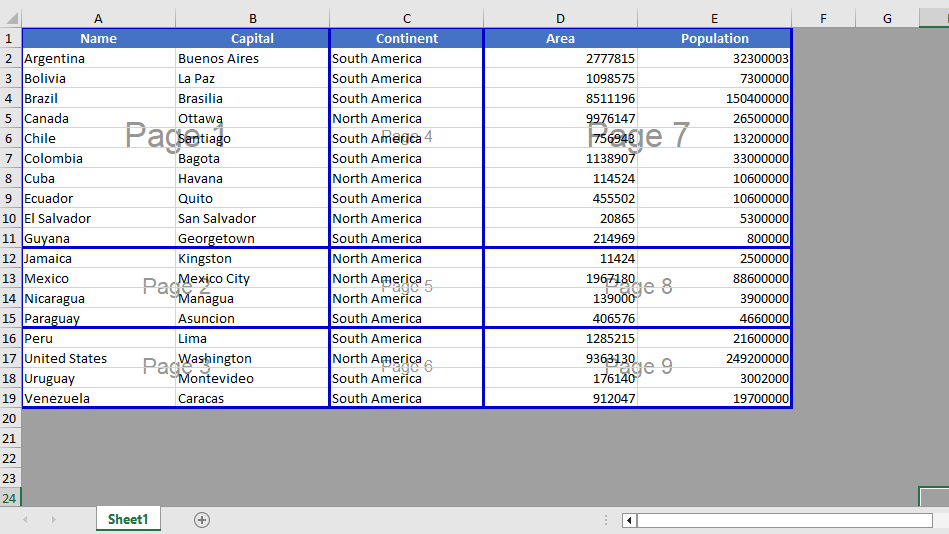 After removing the page break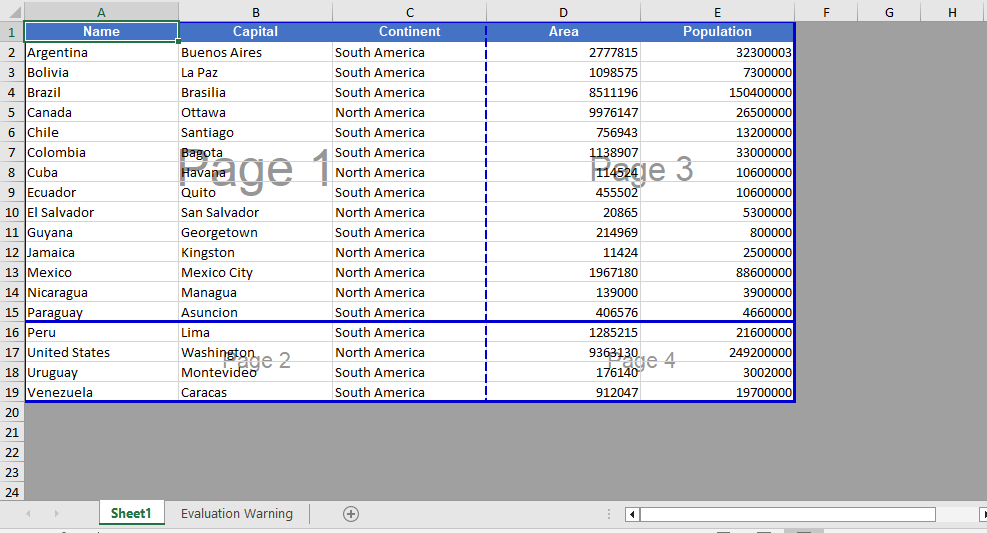
FAQ
Page breaks do not take effect when printing after being added
Cause: The page break was added to a blank area, or the worksheet has a fixed print zoom scale set, causing the actual page break positions during printing to differ from what was expected.
Solution: Confirm that the page break is added on the row or column of a cell containing data, and check the worksheet's print zoom settings. If necessary, adjust the zoom scale through properties such as ZoomScalePageBreakView so the page breaks take effect as expected.
Page break lines still display after removal
Cause: The worksheet is still in page break preview view mode, or there are automatic page breaks that are generated automatically based on the amount of data.
Solution: Automatic page breaks cannot be removed directly by programming; automatic page breaks are determined by the number of data rows, columns, and the page size. They can be eliminated by adjusting row heights, column widths, or the print zoom scale.
Get a Free License
If you want to remove the evaluation messages in the resulting documents, or get rid of functional limitations, please contact sales to obtain a temporary license valid for 30 days.
