
Knowledgebase (2407)
Children categories
Create and Save Excel Files through Streams with JavaScript in React
2026-08-14 08:13:24 Written by jie zouOperating Excel files as streams in web applications allows developers to dynamically create, load, modify, and save Excel files, enabling flexible and efficient data processing. Spire.XLS for JavaScript runs entirely in the browser via WebAssembly, using a virtual file system (VFS) to manage input and output files — no backend server is required. It provides a simple, easy-to-use Stream API that makes creating and saving Excel files through streams more convenient.
Working with streams greatly reduces direct disk I/O operations, improving application performance and responsiveness, especially in scenarios that involve real-time data processing or limited storage. With Spire.XLS for JavaScript, you can dynamically create an Excel file and save it to a stream, load and read workbook data from a stream, or modify content in a stream and save it as a new Excel file — all directly in the browser, simplifying data exchange and system integration.
This article covers three core features:
- Dynamically Create an Excel File and Save It to a Stream
- Load and Read an Excel File from a Stream
- Modify and Save an Excel File in a Stream
For installation and project setup, refer to Integrating Spire.XLS for JavaScript in a React Project. The examples below assume Spire.XLS is installed and the WebAssembly module is initialized.
Dynamically Create an Excel File and Save It to a Stream
With Spire.XLS for JavaScript, you can dynamically create an Excel file in the browser, fill it with data and formatting, and then save the workbook to a file stream via the SaveToStream() method. This approach eliminates the need to store files directly on disk while improving application performance and responsiveness. The steps are as follows:
- Create a
Workbookinstance to generate a new Excel workbook, clear the default worksheets, and add a new worksheet. - Access a specific worksheet using the
Worksheets.get()method. - Define the data to write to the worksheet, for example, organizing data with a two-dimensional array.
- Use the
Range.get_Item()method to access cells and set their values one by one. - Format the worksheet cells, such as setting colors, fonts, borders, or adjusting column widths.
- Create a
Streamobject and save the workbook to the file stream using theSaveToStream()method. The saved stream can be used for further processing, such as downloading as a file or transferring over the network.
Below is a complete code example demonstrating how to dynamically create an Excel file and save it to a stream in React:
function App() {
  const createAndSaveToStream = async () => {
    // Get the Spire.XLS WASM module
    const xlsModule = window.wasmModule?.spirexls;

    // Check if the module is ready
    if (!xlsModule) {
      alert('Spire.Xls is not ready yet');
      return;
    }

    // Load the font file to ensure proper text rendering
    await window.spire.FetchFileToVFS('ARIAL.TTF', '/Library/Fonts/', `${process.env.PUBLIC_URL}font/`);

    // Create a new workbook instance
    const workbook = new xlsModule.Workbook();

    // Clear the default worksheets and add a new worksheet
    workbook.Worksheets.Clear();
    const sheet = workbook.Worksheets.Add('Data');

    // Define the sample data to write to the worksheet (two-dimensional array)
    const headers = ['ID', 'Name', 'Age', 'Country', 'Salary (¥)'];
    const data = [
      [1, 'Zhang Wei', 29, 'China', 8000],
      [2, 'Li Na', 35, 'China', 12000],
      [3, 'Wang Qiang', 42, 'China', 15000],
      [4, 'Jack', 26, 'USA', 9500],
      [5, 'Chen Si', 31, 'China', 11000],
      [6, 'Ishihara Yasuko', 28, 'Japan', 8800]
    ];

    // Write the headers to the first row
    for (let col = 0; col < headers.length; col++) {
      sheet.Range.get_Item({ row: 1, column: col + 1 }).Text = headers[col];
    }

    // Write the data to the following rows
    for (let row = 0; row < data.length; row++) {
      for (let col = 0; col < data[row].length; col++) {
        sheet.Range.get_Item({ row: row + 2, column: col + 1 }).Text = String(data[row][col]);
      }
    }

    // Format the header row
    sheet.Range.get('A1:E1').Style.Color = xlsModule.Color.get_LightSkyBlue();
    sheet.Range.get('A1:E1').Style.Font.FontName = 'Arial';
    sheet.Range.get('A1:E1').Style.Font.Size = 12;
    sheet.Range.get('A1:E1').Style.Font.IsBold = true;

    // Format the data rows
    for (let i = 2; i <= data.length + 1; i++) {
      const dataRange = sheet.Range.get({
        row: i, column: 1,
        lastRow: i, lastColumn: headers.length
      });
      dataRange.Style.Color = xlsModule.Color.get_LightGray();
      dataRange.Style.Font.FontName = 'Arial';
      dataRange.Style.Font.Size = 11;
    }

    // Add borders to the header and all data cells
    const usedRange = sheet.Range.get({
      row: 1, column: 1,
      lastRow: data.length + 1,
      lastColumn: headers.length
    });
    usedRange.Borders.LineStyle = xlsModule.LineStyleType.Thin;
    usedRange.Borders.Color = xlsModule.Color.get_LightSteelBlue();

    // Adjust column widths to fit the content
    for (let col = 1; col <= headers.length; col++) {
      sheet.AutoFitColumn(col);
    }

    // Create a stream and save the workbook to it
    const outputFileName = 'CreateExcelToStream.xlsx';
    const fileStream = new xlsModule.Stream(outputFileName);
    workbook.SaveToStream(fileStream, xlsModule.FileFormat.Version2010);

    // Dispose of the workbook object to release resources
    workbook.Dispose();

    // Read the file from VFS and trigger download
    const fileArray = window.dotnetRuntime.Module.FS.readFile(outputFileName);
    const blob = new Blob([fileArray], { type: 'application/vnd.openxmlformats-officedocument.spreadsheetml.sheet' });
    const url = URL.createObjectURL(blob);
    const a = document.createElement('a');
    a.href = url;
    a.download = outputFileName;
    a.click();
    URL.revokeObjectURL(url);
  };

  return (
    <div style={{ textAlign: 'center', height: '300px' }}>
      <h1>Create Excel and Save to Stream</h1>
      <button onClick={createAndSaveToStream}>
        Generate
      </button>
    </div>
  );
}

export default App;
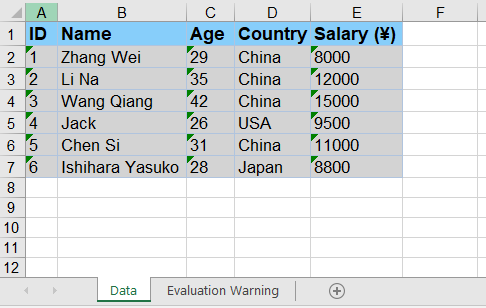
Excel file dynamically created and saved to a stream with Spire.XLS for JavaScript
Load and Read an Excel File from a Stream
With Spire.XLS for JavaScript, you can load an Excel file directly from a stream using the LoadFromStream() method. Once loaded, the cell data of the Excel file in the stream can be easily read, enabling fast and flexible data processing without file I/O operations. The steps are as follows:
- Create a
Streamobject pointing to the Excel file to be loaded. - Create a
Workbookobject and load the file from the stream using theLoadFromStream()method. - Get the first worksheet using the
Worksheets.get()method. - Iterate through the rows and columns of the worksheet and extract cell data using the
Range.get()method. - Display the extracted data on the page, or use it for other operations.
Below is a complete code example demonstrating how to load and read an Excel file from a stream in React:
import React, { useState } from 'react';

function App() {
  const [extractedData, setExtractedData] = useState('');

  const loadAndReadFromStream = async () => {
    // Get the Spire.XLS WASM module
    const xlsModule = window.wasmModule?.spirexls;

    // Check if the module is ready
    if (!xlsModule) {
      alert('Spire.Xls is not ready yet');
      return;
    }

    // Load the font file to ensure proper text rendering
    await window.spire.FetchFileToVFS('ARIAL.TTF', '/Library/Fonts/', `${process.env.PUBLIC_URL}font/`);

    // Load the sample Excel file into VFS
    await window.spire.FetchFileToVFS('Sample.xlsx', '', `${process.env.PUBLIC_URL}data/`);

    // Create a workbook object and load the Excel file from a stream
    const workbook = new xlsModule.Workbook();
    const fileStream = new xlsModule.Stream('Sample.xlsx');
    workbook.LoadFromStream(fileStream, xlsModule.FileFormat.Auto);

    // Get the first worksheet of the workbook
    const sheet = workbook.Worksheets.get(0);

    // Iterate through the rows and columns to extract cell data
    const data = [];
    for (let row = sheet.FirstRow; row <= sheet.LastRow; row++) {
      const line = [];
      for (let col = sheet.FirstColumn; col <= sheet.LastColumn; col++) {
        line.push(sheet.Range.get({ row: row, column: col }).Text);
      }
      data.push(line.join(' | '));
    }

    // Dispose of the workbook object to release resources
    workbook.Dispose();

    // Display the extracted data on the page
    setExtractedData(data.join('\n'));
  };

  return (
    <div style={{ textAlign: 'center', height: '300px' }}>
      <h1>Load and Read Excel Data from Stream</h1>
      <button onClick={loadAndReadFromStream}>
        Read
      </button>
      <pre style={{ marginTop: '20px', textAlign: 'left' }}>{extractedData}</pre>
    </div>
  );
}

export default App;
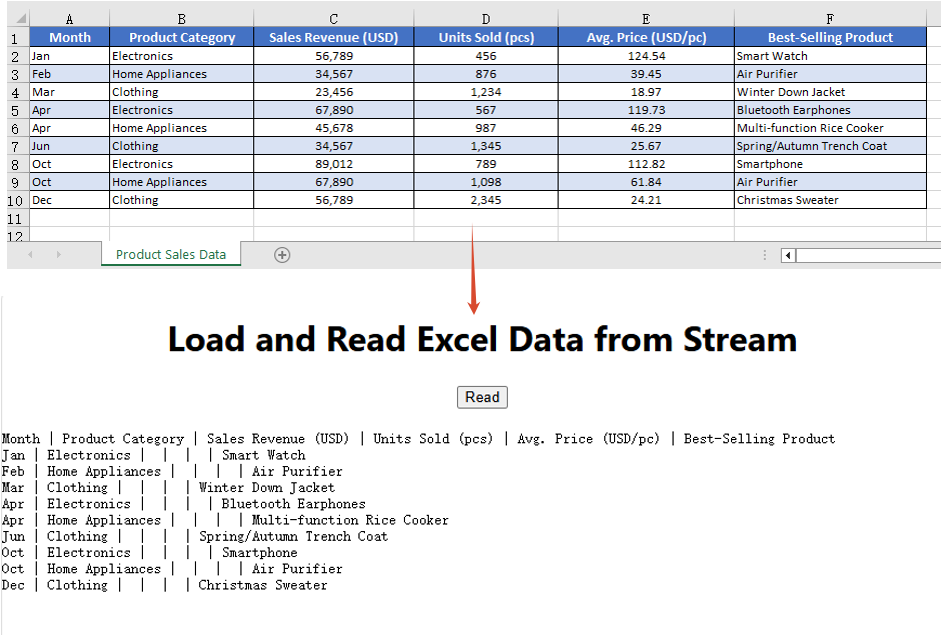
Excel file loaded and read from a stream with Spire.XLS for JavaScript
Modify and Save an Excel File in a Stream
With Spire.XLS for JavaScript, you can modify an Excel file in memory. First load the Excel file in the stream into a Workbook object via the LoadFromStream() method; after completing modifications such as changing cell styles or content, save the file back to a stream using the SaveToStream() method. This enables real-time changes to Excel file data without relying on direct file storage operations. The steps are as follows:
- Create a
Streamobject pointing to the Excel file and load the file from the stream via theLoadFromStream()method. - Access the worksheet using the
Worksheets.get()method. - Modify the styles of the header row and data rows (font name, size, background color, etc.) through the
CellRange.Styleproperty. - Use the
AutoFitColumn()method to automatically adjust column widths to fit the content. - Set the border style of the cells.
- Create a new
Streamobject, save the modified workbook to the stream using theSaveToStream()method, read the result file from VFS, and trigger the download.
Below is a complete code example demonstrating how to modify and save an Excel file in a stream in React:
function App() {
  const modifyAndSaveInStream = async () => {
    // Get the Spire.XLS WASM module
    const xlsModule = window.wasmModule?.spirexls;

    // Check if the module is ready
    if (!xlsModule) {
      alert('Spire.Xls is not ready yet');
      return;
    }

    // Load the font file to ensure proper text rendering
    await window.spire.FetchFileToVFS('ARIAL.TTF', '/Library/Fonts/', `${process.env.PUBLIC_URL}font/`);

    // Load the sample Excel file into VFS
    await window.spire.FetchFileToVFS('Sample.xlsx', '', `${process.env.PUBLIC_URL}data/`);

    // Create a workbook object and load the Excel file from a stream
    const workbook = new xlsModule.Workbook();
    const fileStream = new xlsModule.Stream('Sample.xlsx');
    workbook.LoadFromStream(fileStream, xlsModule.FileFormat.Auto);

    // Get the first worksheet of the workbook
    const sheet = workbook.Worksheets.get(0);

    // Modify the style of the header row
    const headerRow = sheet.Range.get({
      row: sheet.FirstRow, column: sheet.FirstColumn,
      lastRow: sheet.FirstRow, lastColumn: sheet.LastColumn
    });
    headerRow.Style.Font.FontName = 'Arial';
    headerRow.Style.Font.Size = 12;
    headerRow.Style.Font.IsBold = true;
    headerRow.Style.Color = xlsModule.Color.get_LightSkyBlue();

    // Modify the styles of the data rows, with alternating colors (even rows)
    for (let i = sheet.FirstRow + 1; i <= sheet.LastRow; i++) {
      const dataRow = sheet.Range.get({
        row: i, column: sheet.FirstColumn,
        lastRow: i, lastColumn: sheet.LastColumn
      });
      dataRow.Style.Font.FontName = 'Arial';
      dataRow.Style.Font.Size = 10;
      dataRow.Style.Color = xlsModule.Color.get_LightGray();
      if (i % 2 === 0) {
        dataRow.Style.Color = xlsModule.Color.get_DarkGray();
      }
    }

    // Adjust column widths to fit the content
    for (let col = sheet.FirstColumn; col <= sheet.LastColumn; col++) {
      sheet.AutoFitColumn(col);
    }

    // Set the border color
    sheet.AllocatedRange.Borders.Color = xlsModule.Color.get_White();

    // Save the modified workbook to a new stream
    const outputFileName = 'ModifyExcelInStream.xlsx';
    const outStream = new xlsModule.Stream(outputFileName);
    workbook.SaveToStream(outStream, xlsModule.FileFormat.Version2010);

    // Dispose of the workbook object to release resources
    workbook.Dispose();

    // Read the file from VFS and trigger download
    const fileArray = window.dotnetRuntime.Module.FS.readFile(outputFileName);
    const blob = new Blob([fileArray], { type: 'application/vnd.openxmlformats-officedocument.spreadsheetml.sheet' });
    const url = URL.createObjectURL(blob);
    const a = document.createElement('a');
    a.href = url;
    a.download = outputFileName;
    a.click();
    URL.revokeObjectURL(url);
  };

  return (
    <div style={{ textAlign: 'center', height: '300px' }}>
      <h1>Modify and Save Excel in Stream</h1>
      <button onClick={modifyAndSaveInStream}>
        Generate
      </button>
    </div>
  );
}

export default App;
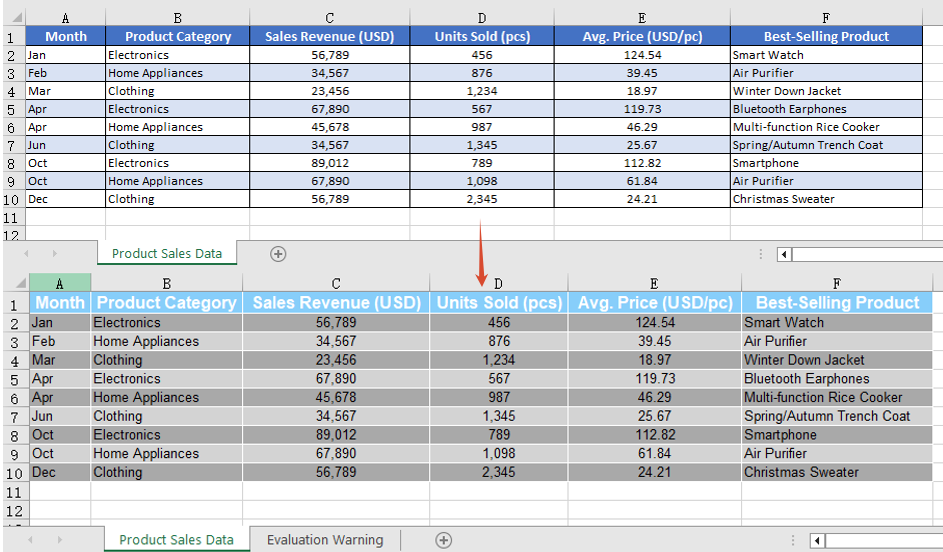
Excel file modified and saved in a stream with Spire.XLS for JavaScript
FAQ
How to handle the stream-saved file being unable to open in Excel?
Cause: When saving a workbook via the SaveToStream() method, if the correct output file format is not specified through the FileFormat parameter, the generated file format may not match its extension, causing it to fail to open properly.
Solution: Specify a concrete file format enum value when saving to a stream, such as xlsModule.FileFormat.Version2010:
const fileStream = new xlsModule.Stream(outputFileName);
workbook.SaveToStream(fileStream, xlsModule.FileFormat.Version2010);
How to ensure the workbook loaded from a stream correctly recognizes the file format?
Cause: The LoadFromStream() method needs to identify the file type based on the actual format of the stream data. If the format parameter is set incorrectly, loading may fail or data parsing may produce errors.
Solution: Use xlsModule.FileFormat.Auto when loading so that the library automatically detects the format of the file in the stream:
const fileStream = new xlsModule.Stream('Sample.xlsx');
workbook.LoadFromStream(fileStream, xlsModule.FileFormat.Auto);
Get a Free License
Spire.XLS for JavaScript offers a 30-day full-featured free trial license with no functional limitations. Apply here to evaluate before purchasing.
Convert Excel to Markdown or Markdown to Excel with JavaScript in React
2026-08-14 08:08:14 Written by jie zouIn daily office work, data often needs to be exchanged between Excel spreadsheets and Markdown files. Markdown is a lightweight markup language widely used for documentation, blogs, and technical notes. Spire.XLS for JavaScript runs entirely in the browser via WebAssembly, using a virtual file system (VFS) to manage input and output files — no backend server is required. It provides simple, easy-to-use APIs that make format conversion more convenient.
With Spire.XLS for JavaScript, you can export Excel worksheet data as well-structured, easy-to-read Markdown tables, or import Markdown files containing table syntax to create fully formatted Excel workbooks. This makes data migration between different applications more convenient and efficient.
This article covers two core features:
For installation and project setup, refer to Integrating Spire.XLS for JavaScript in a React Project. The examples below assume Spire.XLS is installed and the WebAssembly module is initialized.
Convert Excel Workbook to Markdown File
Exporting Excel data as a Markdown table makes it convenient to read and share spreadsheet data directly in documents, blogs, or version control systems. With Spire.XLS for JavaScript, you can save an entire workbook as a Markdown file, and the resulting table is well-structured and easy to maintain. The steps are as follows:
- Create a
Workbookobject and load an existing Excel file. - Call the workbook's
SaveToFile()method, specifying the output filename and theFileFormat.Markdownfile format. - Dispose of the workbook resources, read the result file from VFS, and trigger the download.
Below is a complete code example demonstrating how to convert Excel to Markdown in React:
function App() {
  const convertToMarkdown = async () => {
    // Get the Spire.XLS WASM module
    const xlsModule = window.wasmModule?.spirexls;

    // Check if the module is ready
    if (!xlsModule) {
      alert('Spire.Xls is not ready yet');
      return;
    }

    // Load the sample Excel file into VFS
    await window.spire.FetchFileToVFS('Sample.xlsx', '', `${process.env.PUBLIC_URL}data/`);

    // Load the font file to ensure proper text rendering
    await window.spire.FetchFileToVFS('ARIAL.TTF', '/Library/Fonts/', `${process.env.PUBLIC_URL}font/`);

    // Create a workbook object and load the Excel file
    const workbook = new xlsModule.Workbook();
    workbook.LoadFromFile({ fileName: 'Sample.xlsx' });

    // Save the workbook as a Markdown file
    const outputFileName = 'ExcelToMarkdown.md';
    workbook.SaveToFile({ fileName: outputFileName, fileFormat: xlsModule.FileFormat.Markdown });
    workbook.Dispose();

    // Read the file from VFS and trigger download
    const fileArray = window.dotnetRuntime.Module.FS.readFile(outputFileName);
    const blob = new Blob([fileArray], { type: 'text/markdown' });
    const url = URL.createObjectURL(blob);
    const a = document.createElement('a');
    a.href = url;
    a.download = outputFileName;
    a.click();
    URL.revokeObjectURL(url);
  };

  return (
    <div style={{ textAlign: 'center', height: '300px' }}>
      <h1>Convert Excel to Markdown</h1>
      <button onClick={convertToMarkdown}>
        Generate
      </button>
    </div>
  );
}

export default App;
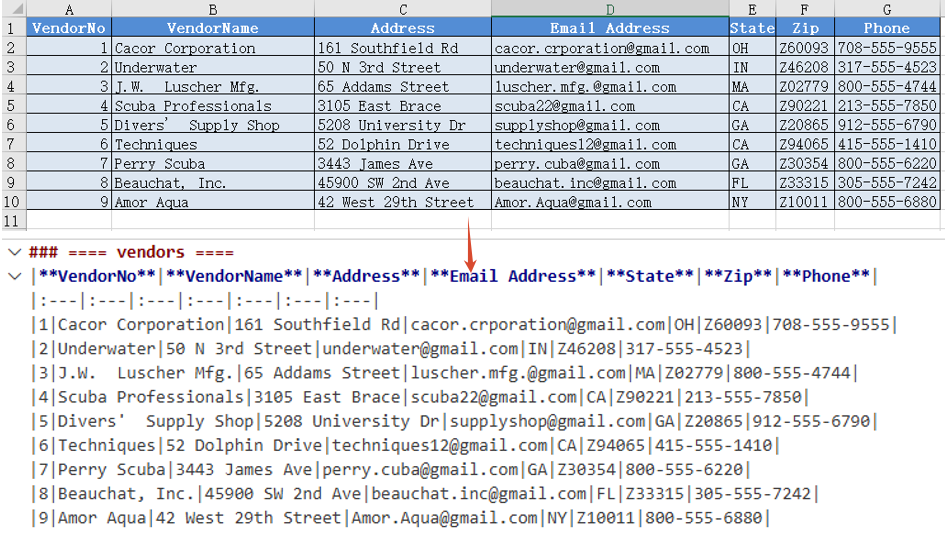
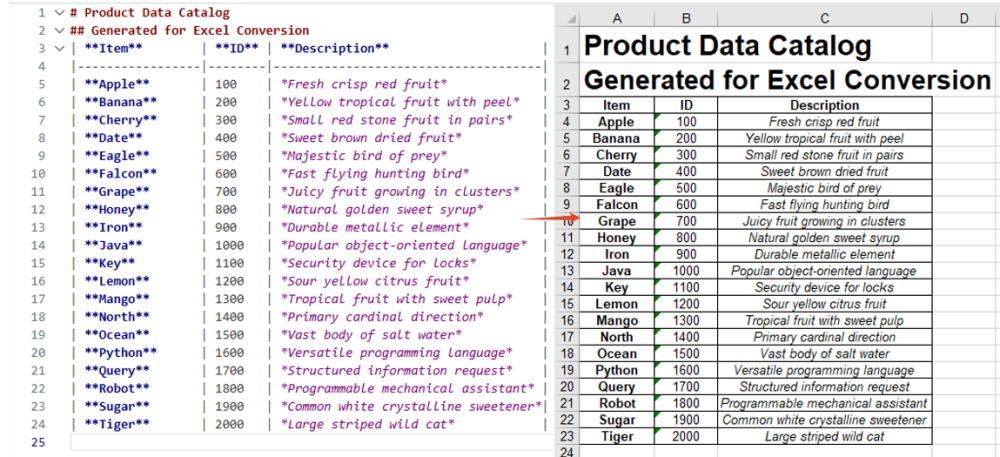
Excel converted to Markdown with Spire.XLS for JavaScript
Convert Markdown File to Excel Workbook
Importing a Markdown file into an Excel spreadsheet allows you to take full advantage of Excel's formatting, calculation, and charting capabilities. Spire.XLS for JavaScript supports loading a Markdown file directly via the LoadFromMarkdown() method and converting its table data into worksheet cells. The steps are as follows:
- Load the font file and Markdown sample file into the VFS.
- Create a
Workbookobject and load the Markdown file via theLoadFromMarkdown()method. - Save the workbook as an Excel file and trigger the download.
Below is a complete code example demonstrating how to convert Markdown to Excel in React:
function App() {
  const convertToExcel = async () => {
    // Get the Spire.XLS WASM module
    const xlsModule = window.wasmModule?.spirexls;

    // Check if the module is ready
    if (!xlsModule) {
      alert('Spire.Xls is not ready yet');
      return;
    }

    // Load the font file to ensure proper text rendering
    await window.spire.FetchFileToVFS('ARIAL.TTF', '/Library/Fonts/', `${process.env.PUBLIC_URL}font/`);

    // Load the Markdown sample file into VFS
    await window.spire.FetchFileToVFS('Sample.md', '', `${process.env.PUBLIC_URL}data/`);

    // Create a workbook object and load the Markdown file
    const workbook = new xlsModule.Workbook();
    workbook.LoadFromMarkdown('Sample.md');

    // Save the workbook and release resources
    const outputFileName = 'MarkdownToExcel.xlsx';
    workbook.SaveToFile({ fileName: outputFileName, version: xlsModule.ExcelVersion.Version2010 });
    workbook.Dispose();

    // Read the file from VFS and trigger download
    const fileArray = window.dotnetRuntime.Module.FS.readFile(outputFileName);
    const blob = new Blob([fileArray], { type: 'application/vnd.openxmlformats-officedocument.spreadsheetml.sheet' });
    const url = URL.createObjectURL(blob);
    const a = document.createElement('a');
    a.href = url;
    a.download = outputFileName;
    a.click();
    URL.revokeObjectURL(url);
  };

  return (
    <div style={{ textAlign: 'center', height: '300px' }}>
      <h1>Convert Markdown to Excel</h1>
      <button onClick={convertToExcel}>
        Generate
      </button>
    </div>
  );
}

export default App;
Markdown converted to Excel with Spire.XLS for JavaScript
FAQ
How to handle font file missing issues during conversion?
Cause: If font files are not loaded into the WASM virtual file system (VFS), the exported Markdown content or imported cell text may not render correctly, especially when it contains non-ASCII characters such as Chinese.
Solution: Load the font files into VFS via FetchFileToVFS before conversion:
await window.spire.FetchFileToVFS(
  'ARIAL.TTF', '/Library/Fonts/', `${process.env.PUBLIC_URL}font/`
);
How to handle the downloaded Markdown file being opened as another type or showing garbled text?
Cause: The MIME type is not set correctly when creating the Blob, so the browser cannot recognize the downloaded file as Markdown text, which may cause it to open as another type or display garbled text.
Solution: Specify the correct MIME type when downloading and make sure the download filename ends with .md:
const blob = new Blob([fileArray], { type: 'text/markdown' });
const a = document.createElement('a');
a.href = URL.createObjectURL(blob);
a.download = 'ExcelToMarkdown.md';
a.click();
Get a Free License
Spire.XLS for JavaScript offers a 30-day full-featured free trial license with no functional limitations. Apply here to evaluate before purchasing.
Shapes are graphic elements in Excel that enhance the visual appeal of a worksheet and convey information intuitively, such as arrows, rectangles, ovals, and stars. With shapes, you can add annotations, process-flow indicators, or decorative elements next to your data, making reports more vivid and easier to read. Spire.XLS for JavaScript runs entirely in the browser via WebAssembly, using a virtual file system (VFS) to manage input and output files — no backend server required. It provides a complete API for adding shapes and customizing their appearance (such as fill, rotation angle, text, and shadow), reading text and images from shapes, and deleting specified or all shapes.
This article covers three core features:
For installation and project setup, refer to Integrating Spire.XLS for JavaScript in a React Project. The examples below assume Spire.XLS is installed and the WebAssembly module is initialized.
Add Shapes to Excel
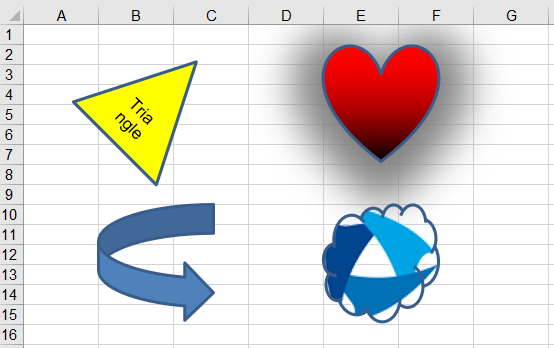
Adding shapes to Excel can highlight key data and beautify the layout of a worksheet. With Spire.XLS for JavaScript, you can add a shape and set its position (row, column) and size (width, height) at once using the PrstGeomShapes.AddPrstGeomShape() method, and then customize its appearance through the shape's properties — set solid, gradient, texture, or picture fill via Fill, add text via Text, set the rotation angle via Rotation, apply a shadow effect via Shadow, and control visibility via Visible. The steps are as follows:
- Create a
Workbookobject and get the default worksheet. - Add shapes using
PrstGeomShapes.AddPrstGeomShape(), setting the shape type, position, and size through the parameters. - Set solid, gradient, texture, or picture fill for the shapes via the
Fillproperty. - Add text to a shape via the
Textproperty, and set the rotation angle via theRotationproperty. - Set a shadow effect for a shape via the
Shadowproperty. - Save the workbook to an Excel file using
SaveToFile().
Below is a complete code example demonstrating how to add and customize various shapes in React:
function App() {
  const addShapes = async () => {
    // Get the Spire.XLS WASM module
    const xlsModule = window.wasmModule?.spirexls;

    // Check if the module is ready
    if (!xlsModule) {
      alert('Spire.Xls is not ready yet');
      return;
    }

    // Load the picture into the virtual file system (VFS)
    await window.spire.FetchFileToVFS('SpireXls.png', '', `${process.env.PUBLIC_URL}/image/`);

    // Create a new workbook and get the default worksheet
    const workbook = new xlsModule.Workbook();
    let sheet = workbook.Worksheets.get(0);

    // Add a triangle shape and fill it with a solid color
    let triangle = sheet.PrstGeomShapes.AddPrstGeomShape(2, 2, 100, 100, xlsModule.PrstGeomShapeType.Triangle);
    triangle.Fill.ForeColor = xlsModule.Color.get_Yellow();
    triangle.Fill.FillType = xlsModule.ShapeFillType.SolidColor;
    // Add text to the triangle and set its rotation angle
    triangle.Text = 'Triangle';
    triangle.Rotation = 45;

    // Add a heart shape and fill it with a gradient color
    let heart = sheet.PrstGeomShapes.AddPrstGeomShape(2, 5, 100, 100, xlsModule.PrstGeomShapeType.Heart);
    heart.Fill.ForeColor = xlsModule.Color.get_Red();
    heart.Fill.FillType = xlsModule.ShapeFillType.Gradient;
    // Set the shadow style for the heart
    heart.Shadow.Angle = 90;
    heart.Shadow.Distance = 10;
    heart.Shadow.Size = 150;
    heart.Shadow.Color = xlsModule.Color.get_Gray();
    heart.Shadow.Blur = 30;
    heart.Shadow.Transparency = 1;
    heart.Shadow.HasCustomStyle = true;

    // Add an arrow shape
    let arrow = sheet.PrstGeomShapes.AddPrstGeomShape(10, 2, 100, 100, xlsModule.PrstGeomShapeType.CurvedRightArrow);

    // Add a cloud shape and fill it with a picture
    let cloud = sheet.PrstGeomShapes.AddPrstGeomShape(10, 5, 100, 100, xlsModule.PrstGeomShapeType.Cloud);
    cloud.Fill.CustomPicture({ im: new xlsModule.Stream('SpireXls.png'), name: 'SpireXls.png' });

    // Save the workbook
    const outputFileName = 'AddShapes.xlsx';
    workbook.SaveToFile(outputFileName);
    workbook.Dispose();

    // Read the file from VFS and trigger download
    const fileArray = window.dotnetRuntime.Module.FS.readFile(outputFileName);
    const blob = new Blob([fileArray], { type: 'application/vnd.openxmlformats-officedocument.spreadsheetml.sheet' });
    const url = URL.createObjectURL(blob);
    const a = document.createElement('a');
    a.href = url;
    a.download = outputFileName;
    a.click();
    URL.revokeObjectURL(url);
  };

  return (
    <div style={{ textAlign: 'center', height: '300px' }}>
      <h1>Add Shapes</h1>
      <button onClick={addShapes}>
        Generate
      </button>
    </div>
  );
}

export default App;
Shapes added to Excel with Spire.XLS for JavaScript
Read Text and Images from Excel Shapes
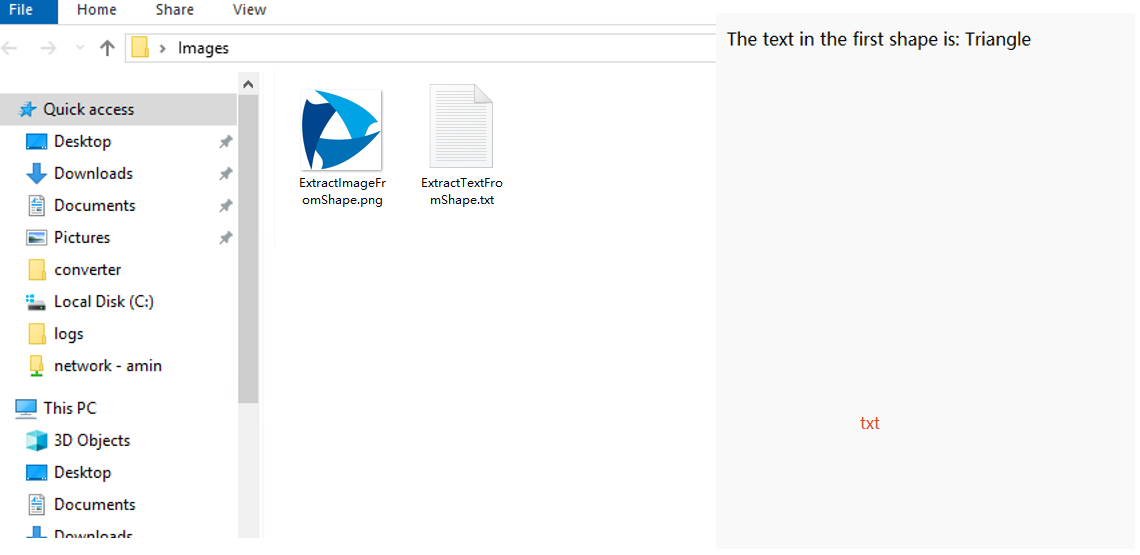
Reading the text and images from shapes helps you extract the data inside shapes in batch, or reuse and archive shape resources. With Spire.XLS for JavaScript, you can load an Excel file containing shapes, get a specified shape by index via PrstGeomShapes.get(), then read its text content via the Text property and get its fill picture via Fill.Picture. The steps are as follows:
- Create a
Workbookobject and load an existing Excel file containing shapes. - Get the worksheet via
workbook.Worksheets.get(). - Get a specified shape by index using
sheet.PrstGeomShapes.get(). - Read the text in the shape via the
Textproperty. - Read the fill picture in the shape via the
Fill.Pictureproperty. - Save the read text and image as txt and png files.
Below is a complete code example demonstrating how to read text and images from shapes in React (the example loads the AddShapes.xlsx file generated in the previous section):
function App() {
  const readShapes = async () => {
    // Get the Spire.XLS WASM module
    const xlsModule = window.wasmModule?.spirexls;

    // Check if the module is ready
    if (!xlsModule) {
      alert('Spire.Xls is not ready yet');
      return;
    }

    // Load the sample file containing shapes into the virtual file system (VFS)
    let excelFileName = 'AddShapes.xlsx';
    await window.spire.FetchFileToVFS(excelFileName, '', `${process.env.PUBLIC_URL}data/`);

    // Create a workbook object and load the existing file
    const workbook = new xlsModule.Workbook();
    workbook.LoadFromFile({ fileName: excelFileName });

    // Get the first worksheet
    let sheet = workbook.Worksheets.get(0);

    // Get the first shape (triangle) and read the text inside it
    let triangle = sheet.PrstGeomShapes.get(0);
    let text = triangle.Text;

    // Get the fourth shape (cloud) and read the picture inside it
    let cloud = sheet.PrstGeomShapes.get(3);
    let image = cloud.Fill.Picture;
    const imageFileName = 'ExtractImageFromShape.png';
    image.Save(imageFileName);

    workbook.Dispose();

    // Save the read text to a txt file and trigger download
    const textFileName = 'ExtractTextFromShape.txt';
    const textBlob = new Blob([`The text in the first shape is: ${text}`], { type: 'text/plain;charset=utf-8' });
    const textUrl = URL.createObjectURL(textBlob);
    const a1 = document.createElement('a');
    a1.href = textUrl;
    a1.download = textFileName;
    a1.click();
    URL.revokeObjectURL(textUrl);

    // Read the image file from VFS and trigger download
    const fileArray = window.dotnetRuntime.Module.FS.readFile(imageFileName);
    const blob = new Blob([fileArray], { type: 'application/png' });
    const url = URL.createObjectURL(blob);
    const a = document.createElement('a');
    a.href = url;
    a.download = imageFileName;
    a.click();
    URL.revokeObjectURL(url);
  };

  return (
    <div style={{ textAlign: 'center', height: '300px' }}>
      <h1>Read Text and Image from Shapes</h1>
      <button onClick={readShapes}>
        Generate
      </button>
    </div>
  );
}

export default App;
Text and images read from Excel shapes with Spire.XLS for JavaScript
Delete Shapes in Excel
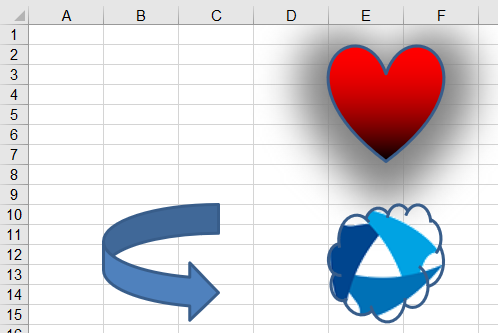
When shapes are no longer needed, deleting them in time keeps the worksheet clean and reduces the file size. With Spire.XLS for JavaScript, you can delete a specified shape via the Remove() method, or iterate through the shape collection and call Remove() on each shape to clear all shapes in a worksheet. The steps are as follows:
- Create a
Workbookobject and load an existing Excel file containing shapes. - Get the worksheet via
workbook.Worksheets.get(). - Get a specified shape using
sheet.PrstGeomShapes.get(), and call itsRemove()method to delete the shape. - Save the workbook to an Excel file using
SaveToFile().
Below is a complete code example demonstrating how to delete shapes in React (the example loads the AddShapes.xlsx file generated in the previous section):
function App() {
  const deleteShapes = async () => {
    // Get the Spire.XLS WASM module
    const xlsModule = window.wasmModule?.spirexls;

    // Check if the module is ready
    if (!xlsModule) {
      alert('Spire.Xls is not ready yet');
      return;
    }

    // Load the sample file containing shapes into the virtual file system (VFS)
    let excelFileName = 'AddShapes.xlsx';
    await window.spire.FetchFileToVFS(excelFileName, '', `${process.env.PUBLIC_URL}data/`);

    // Create a workbook object and load the existing file
    const workbook = new xlsModule.Workbook();
    workbook.LoadFromFile({ fileName: excelFileName });

    // Get the first worksheet
    let sheet = workbook.Worksheets.get(0);

    // Delete the first shape in the worksheet
    sheet.PrstGeomShapes.get(0).Remove();

    // Delete all the shapes in the worksheet
    // for (let i = sheet.PrstGeomShapes.Count - 1; i >= 0; i--) {
    //   sheet.PrstGeomShapes.get(i).Remove();
    // }

    // Save the workbook
    const outputFileName = 'DeleteShapes.xlsx';
    workbook.SaveToFile(outputFileName);
    workbook.Dispose();

    // Read the file from VFS and trigger download
    const fileArray = window.dotnetRuntime.Module.FS.readFile(outputFileName);
    const blob = new Blob([fileArray], { type: 'application/vnd.openxmlformats-officedocument.spreadsheetml.sheet' });
    const url = URL.createObjectURL(blob);
    const a = document.createElement('a');
    a.href = url;
    a.download = outputFileName;
    a.click();
    URL.revokeObjectURL(url);
  };

  return (
    <div style={{ textAlign: 'center', height: '300px' }}>
      <h1>Delete Shapes</h1>
      <button onClick={deleteShapes}>
        Generate
      </button>
    </div>
  );
}

export default App;
Specified shape deleted from Excel with Spire.XLS for JavaScript
FAQ
How to get the name and type of a shape?
Cause: When a worksheet contains many shapes, you may need to identify and locate shapes by their name or type rather than by index.
Solution: Read the Name and PrstShapeType properties of the shape to get its name and type:
// Get the worksheet
let sheet = workbook.Worksheets.get(0);
// Get the first shape
let shape = sheet.PrstGeomShapes.get(0);
// Get the name of the shape
let shapeName = shape.Name;
// Get the type of the shape
let shapeType = shape.PrstShapeType;
How to check whether a shape is currently visible?
Cause: After loading shapes from a file, you may need to determine whether a shape is hidden so that you can decide whether to process it further.
Solution: Read the Visible property of the shape to know its visibility state:
// Get the worksheet
let sheet = workbook.Worksheets.get(0);
// Get the first shape
let shape = sheet.PrstGeomShapes.get(0);
// Check whether the shape is visible
let isVisible = shape.Visible;
Get a Free License
Spire.XLS for JavaScript offers a 30-day full-featured free trial license with no functional limitations. Apply here to evaluate before purchasing.
