
Knowledgebase (2410)
Children categories
Merging Word documents is a common requirement in web applications — combining multiple contract attachments into a single document, appending supplementary content at the end of a report, or merging multi-chapter documents for output. Spire.Doc for JavaScript handles document merging entirely in the browser via WebAssembly, using a virtual file system (VFS) to manage input and output files — no backend server required.
This article covers two core features:
For installation and project setup, refer to Integrating Spire.Doc for JavaScript in a React Project. The examples below assume Spire.Doc is installed and the WebAssembly module is initialized.
Merge by Section
Merging by section follows a three-stage process: first, load font files and both Word documents into the WASM virtual file system via FetchFileToVFS; then instantiate Document to load the target and source documents, iterate through all sections of the source document, and clone each section to the target document using Sections.Add(section.Clone()); finally, read the merged file from VFS, wrap it as a Blob, and trigger a browser download. This approach preserves each section's independent structure — every section starts on a new page in the merged document.
function App() {
  const mergeBySection = async () => {
    // Get the Spire.Doc WASM module
    const docModule = window.wasmModule?.spiredoc;

    // Check if the module is ready
    if (!docModule) {
      alert('Spire.Doc is not ready yet');
      return;
    }

    const inputFileName1 = 'Template_Docx_1.docx';
    await window.spire.FetchFileToVFS(inputFileName1, '', `${process.env.PUBLIC_URL}data/`);
    const inputFileName2 = 'Template_Docx_2.docx';
    await window.spire.FetchFileToVFS(inputFileName2, '', `${process.env.PUBLIC_URL}data/`);

    // Load the target document
    const TarDoc = new docModule.Document();
    TarDoc.LoadFromFile(inputFileName1);

    // Load the source document
    const SouDoc = new docModule.Document();
    SouDoc.LoadFromFile(inputFileName2);

    // Clone all sections from the source document and append them to the target
    for (let i = 0; i < SouDoc.Sections.Count; i++) {
      let section = SouDoc.Sections.get_Item(i);
      TarDoc.Sections.Add(section.Clone());
    }

    // Define the output file name
    const outputFileName = 'MergeBySection_out.docx';

    // Save the merged document
    TarDoc.SaveToFile({ fileName: outputFileName, fileFormat: docModule.FileFormat.Docx2013 });

    // Read the merged file from VFS and trigger download
    const modifiedFileArray = window.dotnetRuntime.Module.FS.readFile(outputFileName);
    const blob = new Blob([modifiedFileArray], { type: 'application/vnd.openxmlformats-officedocument.wordprocessingml.document' });
    const url = URL.createObjectURL(blob);
    const a = document.createElement('a');
    a.href = url;
    a.download = outputFileName;
    a.click();
    URL.revokeObjectURL(url);

    // Release resources
    TarDoc.Dispose();
    SouDoc.Dispose();
  };

  return (
    <div style={{ textAlign: 'center', height: '300px' }}>
      <h1>Merge Word By Section</h1>
      <button onClick={mergeBySection}>
        Generate
      </button>
    </div>
  );
}

export default App;
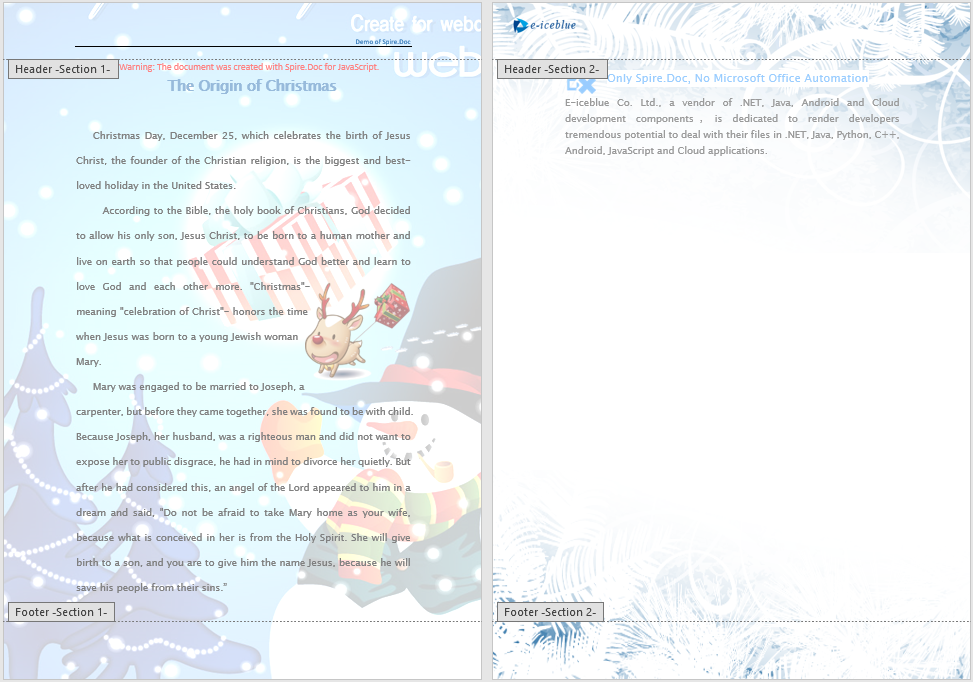
Each section from the source document appears as an independent page in the merged document after section-by-section merging
Merge on Same Page
Unlike section-by-section merging, same-page merging does not create new sections from the source document. Instead, it clones individual document elements — paragraphs, tables, images, and other content — from the source and appends them to the same section of the target document. The process also has three stages: first, load font files and both Word documents into the WASM virtual file system via FetchFileToVFS; then load the target and source documents, iterate through Body.ChildObjects under each section of the source, and append each element to the target document's first section using ChildObjects.Add(obj.Clone()); finally, read the merged file from VFS, wrap it as a Blob, and trigger a browser download. This approach keeps content flowing continuously on the same page without introducing section breaks.
function App() {
  const mergeOnSamePage = async () => {
    // Get the Spire.Doc WASM module
    const docModule = window.wasmModule?.spiredoc;

    // Check if the module is ready
    if (!docModule) {
      alert('Spire.Doc is not ready yet');
      return;
    }

    const inputFileName1 = 'Template_Docx_1.docx';
    await window.spire.FetchFileToVFS(inputFileName1, '', `${process.env.PUBLIC_URL}data/`);
    const inputFileName2 = 'Template_Docx_2.docx';
    await window.spire.FetchFileToVFS(inputFileName2, '', `${process.env.PUBLIC_URL}data/`);

    // Load the target document
    const destinationDocument = new docModule.Document();
    destinationDocument.LoadFromFile(inputFileName1);

    let count = destinationDocument.Sections.Count;

    // Load the source document
    const doc = new docModule.Document();
    doc.LoadFromFile(inputFileName2);

    // Iterate through all content elements in the source document
    // and clone them into the first section of the target document
    for (let i = 0; i < doc.Sections.Count; i++) {
      let section = doc.Sections.get_Item(i);
      for (let j = 0; j < section.Body.ChildObjects.Count; j++) {
        let obj = section.Body.ChildObjects.get_Item(j);
        destinationDocument.Sections.get_Item(count-1).Body.ChildObjects.Add(obj.Clone());
      }
    }

    // Define the output file name
    const outputFileName = 'MergeOnSamePage_out.docx';

    // Save the merged document
    destinationDocument.SaveToFile({ fileName: outputFileName, fileFormat: docModule.FileFormat.Docx2013 });

    // Read the merged file from VFS and trigger download
    const modifiedFileArray = window.dotnetRuntime.Module.FS.readFile(outputFileName);
    const blob = new Blob([modifiedFileArray], { type: 'application/vnd.openxmlformats-officedocument.wordprocessingml.document' });
    const url = URL.createObjectURL(blob);
    const a = document.createElement('a');
    a.href = url;
    a.download = outputFileName;
    a.click();
    URL.revokeObjectURL(url);

    // Release resources
    destinationDocument.Dispose();
    doc.Dispose();
  };

  return (
    <div style={{ textAlign: 'center', height: '300px' }}>
      <h1>Merge On Same Page</h1>
      <button onClick={mergeOnSamePage}>
        Generate
      </button>
    </div>
  );
}

export default App;
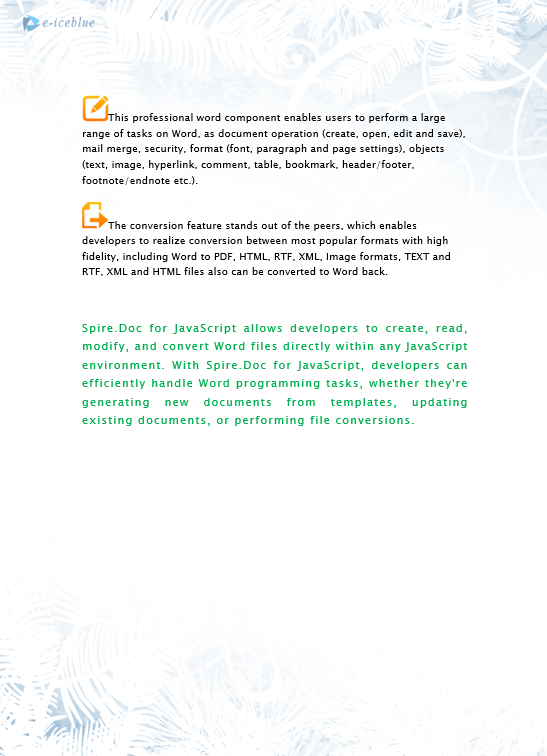
Source content is appended continuously to the same section of the target document without page breaks after same-page merging
FAQ
Formatting issues after merging
Cause: Style definitions (fonts, sizes, paragraph styles) differ between the source and target documents, causing style conflicts after merging. When merging by section, each section retains its own style settings, but cross-section style references may be lost.
Solution: Preserve the source document's original formatting by setting KeepSameFormat before merging:
srcDoc.KeepSameFormat = true;
Merged document cannot be opened
Cause: The MIME type or file extension of the output file is incorrect, preventing the browser or Word from properly identifying the file format. Alternatively, resources may not have been released correctly after saving, leaving VFS file handles open.
Solution: Use the correct DOCX MIME type:
const blob = new Blob([data], {
  type: 'application/vnd.openxmlformats-officedocument.wordprocessingml.document'
});
Also ensure that Dispose() is called on each Document object after every merge operation to avoid WASM memory leaks.
Get a Free License
Spire.Doc for JavaScript offers a 30-day full-featured free trial license with no functional limitations. If you would like to remove the evaluation message from the output document, contact sales to apply for a temporary license.
Tables are core elements for organizing and presenting data in Word documents, and proper table layout directly impacts readability and professionalism. Spire.Doc for JavaScript runs entirely in the browser via WebAssembly, enabling you to auto-fit tables directly using a virtual file system (VFS) to manage fonts and files — no backend server required.
This article covers three core features:
For installation and project setup, refer to Integrating Spire.Doc for JavaScript in a React Project. The examples below assume Spire.Doc is installed and the WebAssembly module is initialized.
1. AutoFit to Contents
Auto-fitting a table to its contents involves three steps: first, load the font files and the target document into the WASM virtual file system via FetchFileToVFS; then instantiate a Document, load the file, retrieve the target table, and call AutoFit with the AutoFitToContents parameter; finally, save the document, read the generated file from VFS, wrap it as a Blob, and trigger a browser download.
function App() {
  const autoFitToContents = async () => {
    // Get the Spire.Doc WASM module
    const docModule = window.wasmModule?.spiredoc;

    // Check if the module is ready
    if (!docModule) {
      alert('Spire.Doc is not ready yet');
      return;
    }

    // Load fonts and the document file into VFS
    await window.spire.FetchFileToVFS('ARIALUNI.TTF', '/Library/Fonts/', `${process.env.PUBLIC_URL}/font/`);

    const inputFileName = 'TableSample.docx';
    await window.spire.FetchFileToVFS(inputFileName, '', `${process.env.PUBLIC_URL}/data/`);

    // Load the document
    const doc = new docModule.Document();
    doc.LoadFromFile(inputFileName);

    // Get the first table in the first section
    let section = doc.Sections.get_Item(0);
    let table = section.Tables.get_Item(0);

    // Auto-fit column widths based on cell content
    table.AutoFit(docModule.AutoFitBehaviorType.AutoFitToContents);

    // Define the output file name
    const outputFileName = "AutoFitToContents_output.docx";

    // Save the document
    doc.SaveToFile({ fileName: outputFileName, fileFormat: docModule.FileFormat.Docx2013 });

    // Release resources
    doc.Dispose();

    // Read the generated file from VFS and trigger download
    const modifiedFileArray = window.dotnetRuntime.Module.FS.readFile(outputFileName);
    const blob = new Blob([modifiedFileArray], { type: 'application/vnd.openxmlformats-officedocument.wordprocessingml.document' });
    const url = URL.createObjectURL(blob);
    const a = document.createElement('a');
    a.href = url;
    a.download = outputFileName;
    a.click();
    URL.revokeObjectURL(url);
  };

  return (
    <div style={{ textAlign: 'center', height: '300px' }}>
      <h1>AutoFit to Contents</h1>
      <button onClick={autoFitToContents}>
        Generate
      </button>
    </div>
  );
}

export default App;
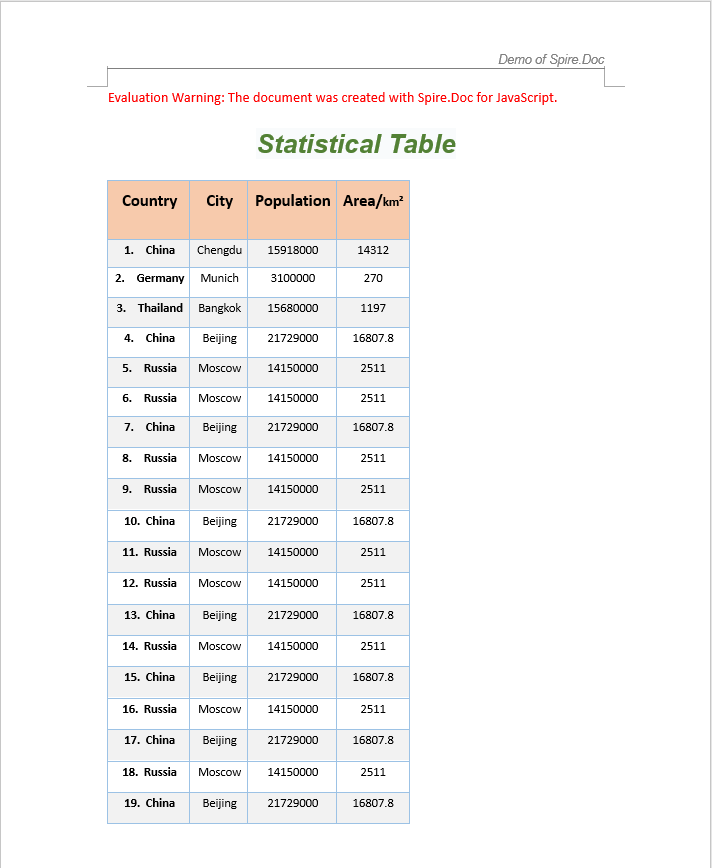
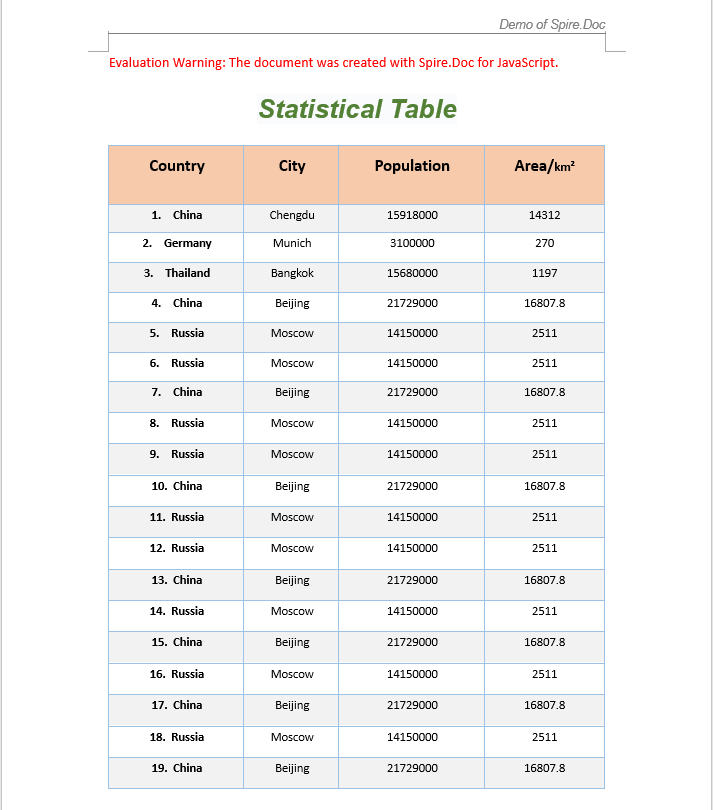
After applying the AutoFitToContents mode, each column width shrinks to match the actual length of its cell content, resulting in a compact table with no extra whitespace.
2. AutoFit to Window
Auto-fitting a table to the window allows the table width to adapt to the page width, which is ideal for scenarios where the table should fill the full page width.
function App() {
  const autoFitToWindow = async () => {
    // Get the Spire.Doc WASM module
    const docModule = window.wasmModule?.spiredoc;

    // Check if the module is ready
    if (!docModule) {
      alert('Spire.Doc is not ready yet');
      return;
    }

    // Load fonts and the document file into VFS
    await window.spire.FetchFileToVFS('ARIALUNI.TTF', '/Library/Fonts/', `${process.env.PUBLIC_URL}/font/`);

    const inputFileName = 'TableSample.docx';
    await window.spire.FetchFileToVFS(inputFileName, '', `${process.env.PUBLIC_URL}/data/`);

    // Load the document
    const doc = new docModule.Document();
    doc.LoadFromFile(inputFileName);

    // Get the first table in the first section
    let section = doc.Sections.get_Item(0);
    let table = section.Tables.get_Item(0);

    // Auto-fit the table to the page width
    table.AutoFit(docModule.AutoFitBehaviorType.AutoFitToWindow);

    // Define the output file name
    const outputFileName = "AutoFitToWindow_output.docx";

    // Save the document
    doc.SaveToFile({ fileName: outputFileName, fileFormat: docModule.FileFormat.Docx2013 });

    // Release resources
    doc.Dispose();

    // Read the generated file from VFS and trigger download
    const modifiedFileArray = window.dotnetRuntime.Module.FS.readFile(outputFileName);
    const blob = new Blob([modifiedFileArray], { type: 'application/vnd.openxmlformats-officedocument.wordprocessingml.document' });
    const url = URL.createObjectURL(blob);
    const a = document.createElement('a');
    a.href = url;
    a.download = outputFileName;
    a.click();
    URL.revokeObjectURL(url);
  };

  return (
    <div style={{ textAlign: 'center', height: '300px' }}>
      <h1>AutoFit to Window</h1>
      <button onClick={autoFitToWindow}>
        Generate
      </button>
    </div>
  );
}

export default App;
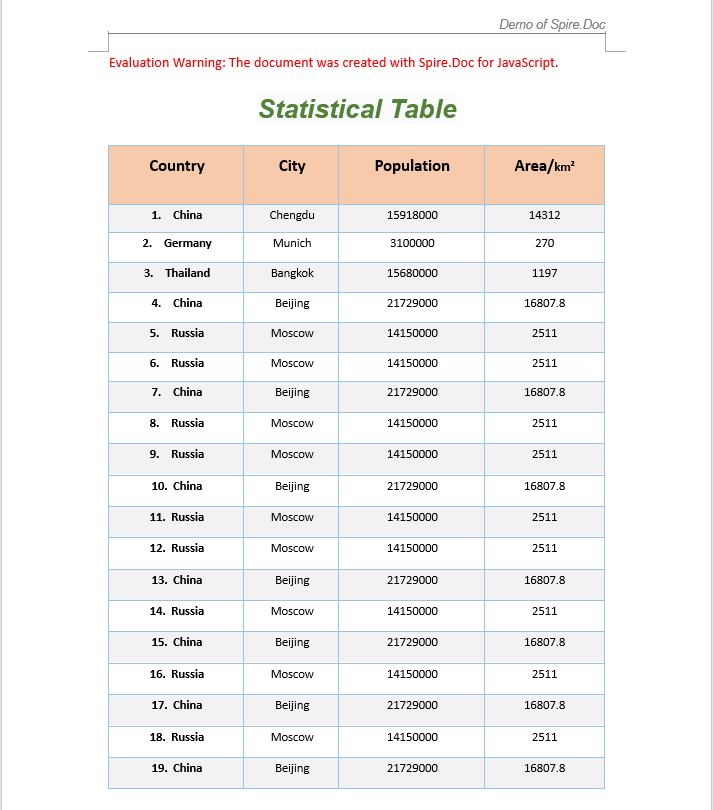
After applying the AutoFitToWindow mode, the table width expands to match the page width, with columns distributed proportionally.
3. Fixed Column Widths
When a table already has carefully designed column widths that should not change as content is added or removed, you can use the fixed column widths mode to prevent Word from automatically resizing columns.
function App() {
  const fixedColumnWidths = async () => {
    // Get the Spire.Doc WASM module
    const docModule = window.wasmModule?.spiredoc;

    // Check if the module is ready
    if (!docModule) {
      alert('Spire.Doc is not ready yet');
      return;
    }

    // Load fonts and the document file into VFS
    await window.spire.FetchFileToVFS('ARIALUNI.TTF', '/Library/Fonts/', `${process.env.PUBLIC_URL}/font/`);

    const inputFileName = 'TableSample.docx';
    await window.spire.FetchFileToVFS(inputFileName, '', `${process.env.PUBLIC_URL}/data/`);

    // Load the document
    const doc = new docModule.Document();
    doc.LoadFromFile(inputFileName);

    // Get the first table in the first section
    let section = doc.Sections.get_Item(0);
    let table = section.Tables.get_Item(0);

    // Fix column widths to prevent auto-resizing
    table.AutoFit(docModule.AutoFitBehaviorType.FixedColumnWidths);

    // Define the output file name
    const outputFileName = "FixedColumnWidths_output.docx";

    // Save the document
    doc.SaveToFile({ fileName: outputFileName, fileFormat: docModule.FileFormat.Docx2013 });

    // Release resources
    doc.Dispose();

    // Read the generated file from VFS and trigger download
    const modifiedFileArray = window.dotnetRuntime.Module.FS.readFile(outputFileName);
    const blob = new Blob([modifiedFileArray], { type: 'application/vnd.openxmlformats-officedocument.wordprocessingml.document' });
    const url = URL.createObjectURL(blob);
    const a = document.createElement('a');
    a.href = url;
    a.download = outputFileName;
    a.click();
    URL.revokeObjectURL(url);
  };

  return (
    <div style={{ textAlign: 'center', height: '300px' }}>
      <h1>Fixed Column Widths</h1>
      <button onClick={fixedColumnWidths}>
        Generate
      </button>
    </div>
  );
}

export default App;
With fixed column widths enabled, the column sizes remain unchanged regardless of changes to cell content, ensuring consistent layout.
FAQ
AutoFit method does not change the table layout
Cause: The parameter type passed to the AutoFit method is incorrect, or the table is locked and does not allow layout adjustments.
Solution: Ensure you use the correct AutoFitBehaviorType enum value:
// AutoFit to contents
table.AutoFit(docModule.AutoFitBehaviorType.AutoFitToContents);

// AutoFit to window
table.AutoFit(docModule.AutoFitBehaviorType.AutoFitToWindow);

// Fixed column widths
table.AutoFit(docModule.AutoFitBehaviorType.FixedColumnWidths);
Index out of range when accessing a table
Cause: The document does not contain a section or table at the specified index. Indexing starts from 0, but the document may have no corresponding object.
Solution: Check the section and table counts before accessing them:
if (document.Sections.Count > 0 && document.Sections.get_Item(0).Tables.Count > 0) {
  let section = document.Sections.get_Item(0);
  let table = section.Tables.get_Item(0);
  table.AutoFit(docModule.AutoFitBehaviorType.AutoFitToContents);
}
Get a Free License
Spire.Doc for JavaScript offers a 30-day full-featured free trial license with no functional limitations. Apply here to evaluate before purchasing.
Creating tables in Word documents is one of the most common requirements in daily office development — whether for data reports, product catalogs, or statistical analysis, tables present information clearly in a structured format. Spire.Doc for JavaScript runs entirely in the browser via WebAssembly, using a virtual file system (VFS) to manage font and file resources — no backend server required.
This article covers three core features:
For installation and project setup, refer to Integrating Spire.Doc for JavaScript in a React Project. The examples below assume Spire.Doc is installed and the WebAssembly module is initialized.
Create a Formatted Data Table
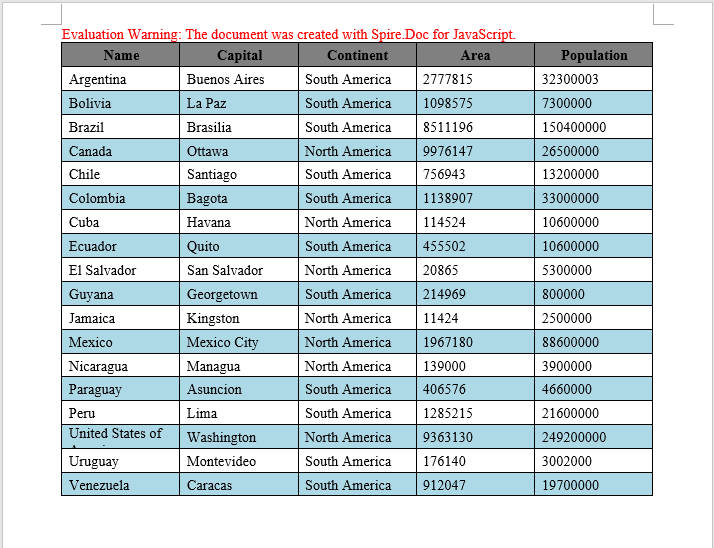
In real-world development, the most common scenario is writing data returned from a backend into a Word document as a table. The core workflow involves three steps: first, load font files into the WASM virtual file system via FetchFileToVFS; then instantiate a Document to create the document, add a table via AddTable, populate it with data, and configure header rows, alignment, and alternating row colors; finally, save the document, read the generated file from VFS, wrap it as a Blob, and trigger a browser download.
function addTable(section) {
  let docModule = window.wasmModule.spiredoc;
  let header = ["Name", "Capital", "Continent", "Area", "Population"];
  let data =
    [
      ["Argentina", "Buenos Aires", "South America", "2777815", "32300003"],
      ["Bolivia", "La Paz", "South America", "1098575", "7300000"],
      ["Brazil", "Brasilia", "South America", "8511196", "150400000"],
      ["Canada", "Ottawa", "North America", "9976147", "26500000"],
      ["Chile", "Santiago", "South America", "756943", "13200000"],
      ["Colombia", "Bagota", "South America", "1138907", "33000000"],
      ["Cuba", "Havana", "North America", "114524", "10600000"],
      ["Ecuador", "Quito", "South America", "455502", "10600000"],
      ["El Salvador", "San Salvador", "North America", "20865", "5300000"],
      ["Guyana", "Georgetown", "South America", "214969", "800000"],
      ["Jamaica", "Kingston", "North America", "11424", "2500000"],
      ["Mexico", "Mexico City", "North America", "1967180", "88600000"],
      ["Nicaragua", "Managua", "North America", "139000", "3900000"],
      ["Paraguay", "Asuncion", "South America", "406576", "4660000"],
      ["Peru", "Lima", "South America", "1285215", "21600000"],
      ["United States of America", "Washington", "North America", "9363130", "249200000"],
      ["Uruguay", "Montevideo", "South America", "176140", "3002000"],
      ["Venezuela", "Caracas", "South America", "912047", "19700000"]
    ];
  let table = section.AddTable({ showBorder: true });
  table.ResetCells(data.length + 1, header.length);

  // Set up the header row
  let row = table.Rows.get_Item(0);
  row.IsHeader = true;
  row.Height = 20;
  row.HeightType = docModule.TableRowHeightType.Exactly;
  for (let i = 0; i < row.Cells.Count; i++) {
    row.Cells.get_Item(i).CellFormat.Shading.BackgroundPatternColor = docModule.Color.get_Gray();
  }

  for (let i = 0; i < header.length; i++) {
    row.Cells.get_Item(i).CellFormat.VerticalAlignment = docModule.VerticalAlignment.Middle;
    let p = row.Cells.get_Item(i).AddParagraph();
    p.Format.HorizontalAlignment = docModule.HorizontalAlignment.Center;
    let txtRange = p.AppendText(header[i]);
    txtRange.CharacterFormat.Bold = true;
  }

  // Populate data rows with alternating row colors
  for (let r = 0; r < data.length; r++) {
    let dataRow = table.Rows.get_Item(r + 1);
    dataRow.Height = 20;
    dataRow.HeightType = docModule.TableRowHeightType.Exactly;
    for (let i = 0; i < dataRow.Cells.Count; i++) {
      dataRow.Cells.get_Item(i).CellFormat.Shading.BackgroundPatternColor = docModule.Color.Empty();
    }
    for (let c = 0; c < data[r].length; c++) {
      dataRow.Cells.get_Item(c).CellFormat.VerticalAlignment = docModule.VerticalAlignment.Middle;
      dataRow.Cells.get_Item(c).AddParagraph().AppendText(data[r][c]);
    }
  }

  // Apply light blue background to even rows
  for (let j = 1; j < table.Rows.Count; j++) {
    if (j % 2 == 0) {
      let row2 = table.Rows.get_Item(j);
      for (let f = 0; f < row2.Cells.Count; f++) {
        row2.Cells.get_Item(f).CellFormat.Shading.BackgroundPatternColor = docModule.Color.get_LightBlue();
      }
    }
  }
}

function App() {
  const CreateTable = async () => {
    // Get the Spire.Doc WASM module
    const docModule = window.wasmModule?.spiredoc;

    // Check if the module is ready
    if (!docModule) {
      alert('Spire.Doc is not ready yet');
      return;
    }

    // Load font files into VFS
    await window.spire.FetchFileToVFS('ARIALUNI.TTF', '/Library/Fonts/', `${process.env.PUBLIC_URL}/font/`);

    // Create a blank document
    let doc = new docModule.Document();
    let section = doc.AddSection();

    // Add the table
    addTable(section);

    // Define the output file name
    const outputFileName = "CreateTable_output.docx";

    // Save the document
    doc.SaveToFile({ fileName: outputFileName, fileFormat: docModule.FileFormat.Docx2013 });

    // Release resources
    doc.Dispose();

    // Read the generated file from VFS and trigger download
    const modifiedFileArray = window.dotnetRuntime.Module.FS.readFile(outputFileName);
    const blob = new Blob([modifiedFileArray], { type: 'application/vnd.openxmlformats-officedocument.wordprocessingml.document' });
    const url = URL.createObjectURL(blob);
    const a = document.createElement('a');
    a.href = url;
    a.download = outputFileName;
    a.click();
    URL.revokeObjectURL(url);
  };

  return (
    <div style={{ textAlign: 'center', height: '300px' }}>
      <h1>Click the button below to create a table in a Word document.</h1>
      <button onClick={CreateTable}>
        Generate
      </button>
    </div>
  );
}

export default App;
Word output generated from a formatted data table
Create a Table from HTML
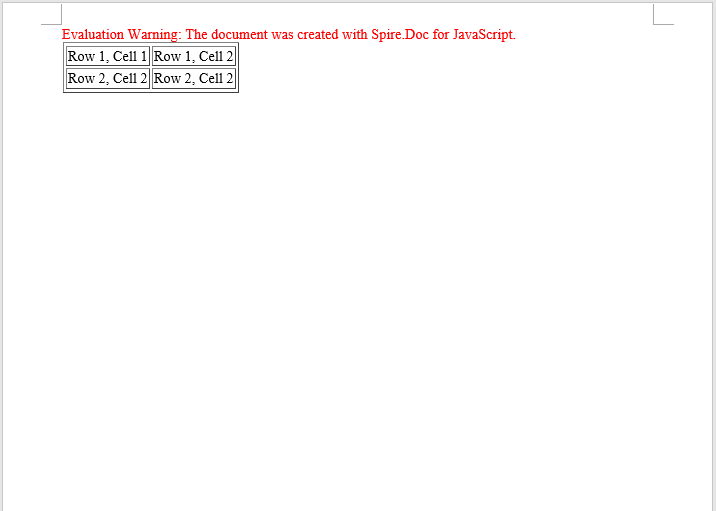
In web development, HTML tables are a universal format for displaying data. Spire.Doc provides the AppendHTML method, which can parse an HTML string directly into a Word document table, greatly simplifying the conversion from web content to Word documents. This is particularly useful for scenarios where you need to export table data from a web page to a Word document.
function App() {
  const CreateTableFromHTML = async () => {
    // Get the Spire.Doc WASM module
    const docModule = window.wasmModule?.spiredoc;

    // Check if the module is ready
    if (!docModule) {
      alert('Spire.Doc is not ready yet');
      return;
    }

    // Load font files into VFS
    await window.spire.FetchFileToVFS('ARIALUNI.TTF', '/Library/Fonts/', `${process.env.PUBLIC_URL}/font/`);

    // HTML string
    let HTML = "<table border='2px'>" +
      "<tr>" +
      "<td>Row 1, Cell 1</td>" +
      "<td>Row 1, Cell 2</td>" +
      "</tr>" +
      "<tr>" +
      "<td>Row 2, Cell 2</td>" +
      "<td>Row 2, Cell 2</td>" +
      "</tr>" +
      "</table>";

    // Create a Word document
    let doc = new docModule.Document();

    // Add a section
    let section = doc.AddSection();

    // Add a paragraph and append the HTML string
    section.AddParagraph().AppendHTML(HTML);

    // Define the output file name
    const outputFileName = "CreateTableFromHTML_output.docx";

    // Save the document
    doc.SaveToFile({ fileName: outputFileName, fileFormat: docModule.FileFormat.Docx2013 });

    // Release resources
    doc.Dispose();

    // Read the generated file from VFS and trigger download
    const modifiedFileArray = window.dotnetRuntime.Module.FS.readFile(outputFileName);
    const blob = new Blob([modifiedFileArray], { type: 'application/vnd.openxmlformats-officedocument.wordprocessingml.document' });
    const url = URL.createObjectURL(blob);
    const a = document.createElement('a');
    a.href = url;
    a.download = outputFileName;
    a.click();
    URL.revokeObjectURL(url);
  };

  return (
    <div style={{ textAlign: 'center', height: '300px' }}>
      <h1>Click the button below to create a table from HTML in a Word document.</h1>
      <button onClick={CreateTableFromHTML}>
        Generate
      </button>
    </div>
  );
}

export default App;
Word table created from HTML
Create a Nested Table
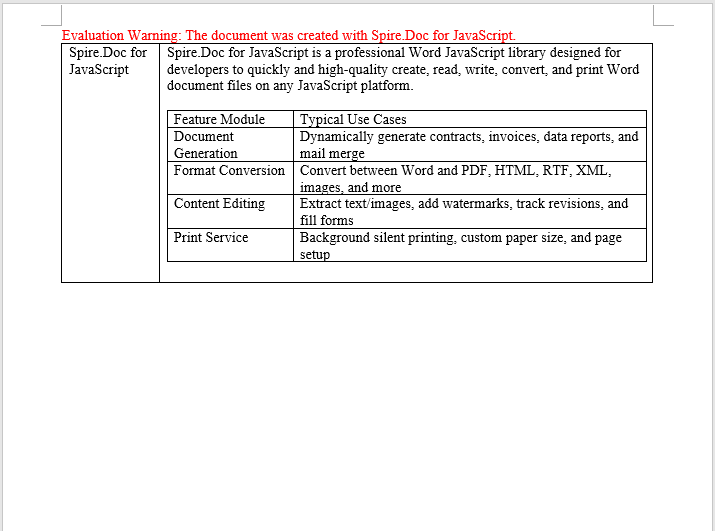
A nested table is a table inserted within a cell of another table. This is commonly used for complex document layouts — for example, in a product catalog, the main table displays product names and descriptions, while a sub-table containing specification parameters (number, item, price) is embedded inside the description cell. Spire.Doc makes nested table creation easy with the Cell.AddTable method.
function App() {
  const CreateNestedTable = async () => {
    // Get the Spire.Doc WASM module
    const docModule = window.wasmModule?.spiredoc;

    // Check if the module is ready
    if (!docModule) {
      alert('Spire.Doc is not ready yet');
      return;
    }

   // Load font and document files into VFS
    await window.spire.FetchFileToVFS('ARIALUNI.TTF', '/Library/Fonts/', `${process.env.PUBLIC_URL}/font/`);

    // Create a new document
    let doc = new docModule.Document();
    let section = doc.AddSection();

    // Add main table (2 rows, 2 columns)
    let table = section.AddTable({ showBorder: true });
    table.ResetCells(1, 2);

    // Set column widths
    table.Rows.get_Item(0).Cells.get_Item(0).SetCellWidth(70, docModule.CellWidthType.Point);
    table.Rows.get_Item(0).Cells.get_Item(1).SetCellWidth(150, docModule.CellWidthType.Point);
    table.Rows.get_Item(0).Height=200;
    table.AutoFit(docModule.AutoFitBehaviorType.AutoFitToWindow);

    // Insert content into cells
    table.Rows.get_Item(0).Cells.get_Item(0).AddParagraph().AppendText("Spire.Doc for JavaScript");
    let text = "Spire.Doc for JavaScript is a professional Word " +
      "JavaScript library designed for developers to quickly and " +
      "high-quality create, read, write, convert, and print Word " +
      "document files on any JavaScript platform.";
    table.Rows.get_Item(0).Cells.get_Item(1).AddParagraph().AppendText(text);

    table.Rows.get_Item(0).Cells.get_Item(1).AddParagraph();

    // Add a nested table in the cell (first row, second column)
    let nestedTable = table.Rows.get_Item(0).Cells.get_Item(1).AddTable({ showBorder: true });
    nestedTable.ResetCells(5, 2);
    nestedTable.AutoFit(docModule.AutoFitBehaviorType.AutoFitToContents);

    // Fill nested table content
    nestedTable.Rows.get_Item(0).Cells.get_Item(0).AddParagraph().AppendText("Feature Module");
    nestedTable.Rows.get_Item(0).Cells.get_Item(1).AddParagraph().AppendText("Typical Use Cases");

    nestedTable.Rows.get_Item(1).Cells.get_Item(0).AddParagraph().AppendText("Document Generation");
    nestedTable.Rows.get_Item(2).Cells.get_Item(0).AddParagraph().AppendText("Format Conversion");
    nestedTable.Rows.get_Item(3).Cells.get_Item(0).AddParagraph().AppendText("Content Editing");
    nestedTable.Rows.get_Item(4).Cells.get_Item(0).AddParagraph().AppendText("Print Service");

    nestedTable.Rows.get_Item(1).Cells.get_Item(1).AddParagraph().AppendText("Dynamically generate contracts, invoices, data reports, and mail merge");
    nestedTable.Rows.get_Item(2).Cells.get_Item(1).AddParagraph().AppendText("Convert between Word and PDF, HTML, RTF, XML, images, and more");
    nestedTable.Rows.get_Item(3).Cells.get_Item(1).AddParagraph().AppendText("Extract text/images, add watermarks, track revisions, and fill forms");
    nestedTable.Rows.get_Item(4).Cells.get_Item(1).AddParagraph().AppendText("Background silent printing, custom paper size, and page setup");

    // Define the output file name
    const outputFileName = "CreateNestedTable_output-en.docx";

    // Save the document
    doc.SaveToFile({ fileName: outputFileName, fileFormat: docModule.FileFormat.Docx2013 });

    // Release resources
    doc.Dispose();

    // Read the generated file from VFS and trigger download
    const modifiedFileArray = window.dotnetRuntime.Module.FS.readFile(outputFileName);
    const blob = new Blob([modifiedFileArray], { type: 'application/vnd.openxmlformats-officedocument.wordprocessingml.document' });
    const url = URL.createObjectURL(blob);
    const a = document.createElement('a');
    a.href = url;
    a.download = outputFileName;
    a.click();
    URL.revokeObjectURL(url);
  };

  return (
    <div style={{ textAlign: 'center', height: '300px' }}>
      <h1>Click the button below to create a nested table in a Word document.</h1>
      <button onClick={CreateNestedTable}>
        Generate
      </button>
    </div>
  );
}

export default App;
Nested table output in Word
FAQ
The downloaded file cannot be opened or appears corrupted
Cause: The MIME type is incorrect when creating the Blob, so the browser cannot properly identify the file format.
Solution: Use the correct Word document MIME type:
const modifiedFile = new Blob([fileArray], {
  type: "application/vnd.openxmlformats-officedocument.wordprocessingml.document"
});
Table borders are missing or inconsistent
Cause: When adding a table with AddTable({ showBorder: true }), borders are enabled by default, but tables created directly via the Table constructor need borders set manually.
Solution: When creating a table via the constructor, explicitly set the border type:
let table = new wasmModule.Table(doc, false);
table.Format.Borders.BorderType = wasmModule.BorderStyle.Single;
Get a Free License
If you want to remove the evaluation message from the result document, or eliminate functional limitations, contact our sales team to request a 30-day temporary license.
