
Knowledgebase (2417)
Children categories
RTF is a flexible file format that preserves formatting and basic styling while offering compatibility with various word processing software. Converting Word to RTF enables users to retain document structure, fonts, hyperlinks, and other essential elements without the need for specialized software. Similarly, converting RTF back to Word format provides the flexibility to edit and enhance documents using the powerful features of Microsoft Word. In this article, you will learn how to convert Word to RTF and vice versa in Python using Spire.Doc for Python.
Install Spire.Doc for Python
This scenario requires Spire.Doc for Python and plum-dispatch v1.7.4. They can be easily installed in your Windows through the following pip command.
pip install Spire.Doc
If you are unsure how to install, please refer to this tutorial: How to Install Spire.Doc for Python on Windows
Convert Word to RTF in Python
With Spire.Doc for Python, you can load a Word file using the Document.LoadFromFile() method and convert it to a different format, such as RTF, using the Document.SaveToFile() method; Conversely, you can load an RTF file in the same way and save it as a Word file.
The following are the steps to convert Word to RTF using Spire.Doc for Python.
- Create a Document object.
- Load a Word file using Document.LoadFromFile() method.
- Convert it to an RTF file using Document.SaveToFile() method.
- Python
from spire.doc import *
from spire.doc.common import *

# Create a Document object
document = Document()

# Load a Word file
document.LoadFromFile("C:\\Users\\Administrator\\Desktop\\input.docx")

# Convert to a RTF file
document.SaveToFile("output/ToRtf.rtf", FileFormat.Rtf)
document.Close()
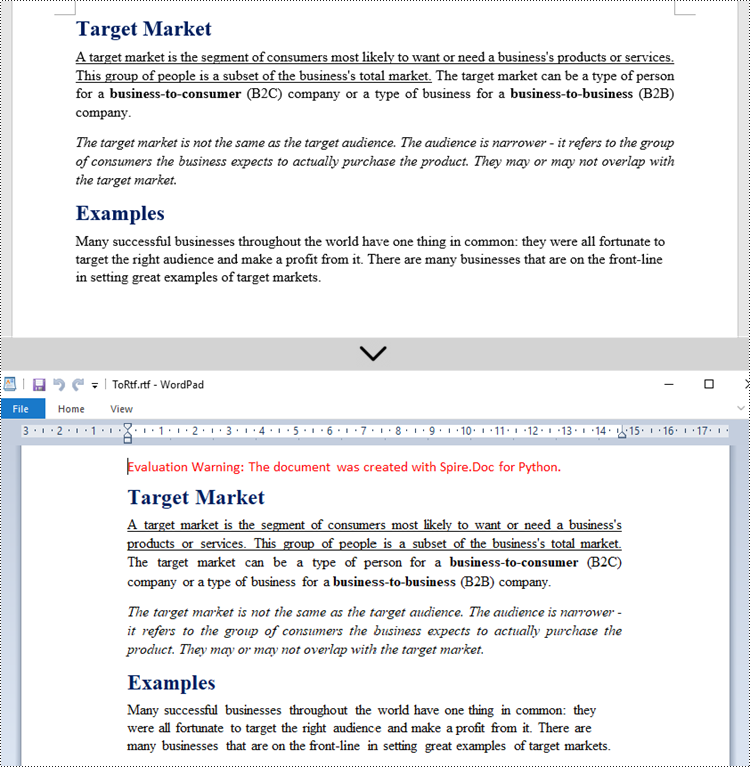
Convert RTF to Word in Python
The code for converting RTF to Word is quite simply, too. Follow the steps below.
- Create a Document object.
- Load an RTF file using Document.LoadFromFile() method.
- Convert it to a Word file using Document.SaveToFile() method.
- Python
from spire.doc import *
from spire.doc.common import *

# Create a Document object
document = Document()

# Load a Rtf file
document.LoadFromFile("C:\\Users\\Administrator\\Desktop\\input.rtf")

# Convert to a Word file
document.SaveToFile("output/ToWord.docx", FileFormat.Docx2019)
document.Close()
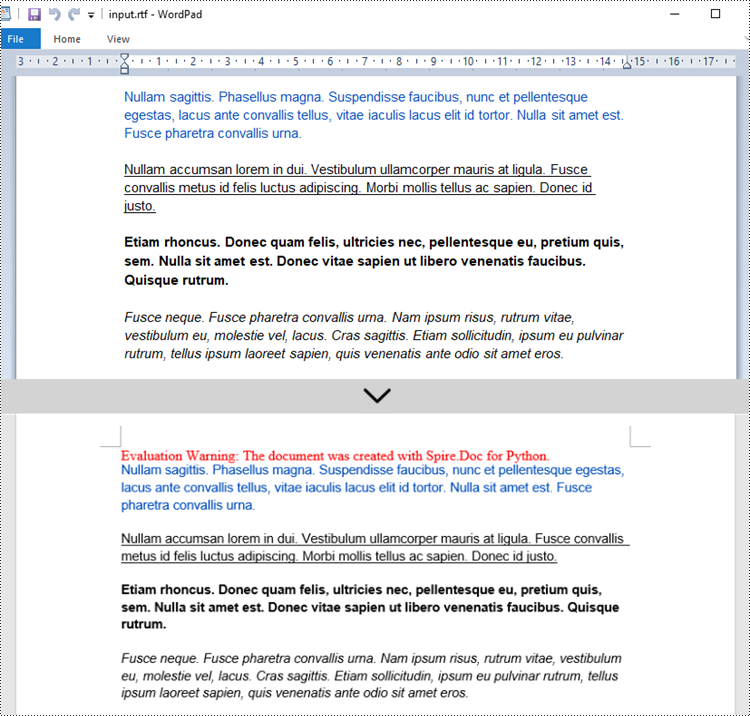
Get a Free License
To fully experience the capabilities of Spire.Doc for Python without any evaluation limitations, you can request a free 30-day trial license.
Converting PowerPoint to Html is a way to share your presentations with others online. By converting to Html, you can publish the document content on a web page, making it universally accessible and appealing to diverse audiences. In this article, you will learn how to convert PowerPoint presentations to HTML format in Python using Spire.Presentation for Python.
Install Spire.Presentation for Python
This scenario requires Spire.Presentation for Python and plum-dispatch v1.7.4. They can be easily installed in your Windows through the following pip command.
pip install Spire.Presentation
If you are unsure how to install, please refer to this tutorial: How to Install Spire.Presentation for Python on Windows
Convert a PowerPoint Presentation to HTML in Python
The Presentation.SaveToFile() method offered by Spire.Presentation for Python supports converting a PowerPoint presentation to HTML format. The following are the detailed steps:
- Create a Presentation instance.
- Load a PowerPoint document using Presentation.LoadFromFile() method.
- Save the PowerPoint document to HTML format using Presentation.SaveToFile() method.
- Python
from spire.presentation.common import *
from spire.presentation import *

inputFile ="Input.pptx"
outputFile = "ToHTML.html"

# Create a Presentation instance
ppt = Presentation()

# Load a PowerPoint document
ppt.LoadFromFile(inputFile)

#Save the document to HTML format
ppt.SaveToFile(outputFile, FileFormat.Html)
ppt.Dispose()
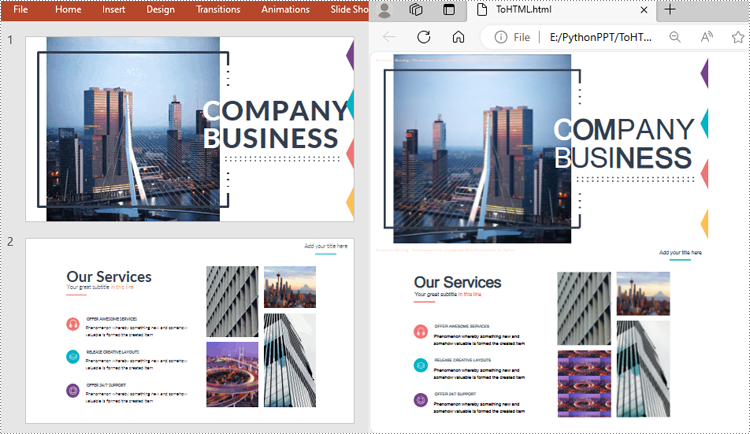
Convert a Specific PowerPoint Slide to HTML in Python
If you only need to convert a specific presentation slide to HTML, you can use the ISlide.SaveToFile(String, FileFormat) method. The following are the detailed steps.
- Create a Presentation instance.
- Load a PowerPoint document using Presentation.LoadFromFile() method.
- Get a specific slide by its index using Presentation.Slides[] property.
- Save the presentation slide to HTML format using ISlide.SaveToFile() method.
- Python
from spire.presentation.common import *
from spire.presentation import *

inputFile ="Input.pptx"
outputFile = "SlideToHTML.html"

# Create a Presentation instance
ppt = Presentation()

# Load a PowerPoint document
ppt.LoadFromFile(inputFile)

# Get the second slide
slide = ppt.Slides[1]

# Save the slide to HTML format
slide.SaveToFile(outputFile, FileFormat.Html)
ppt.Dispose()
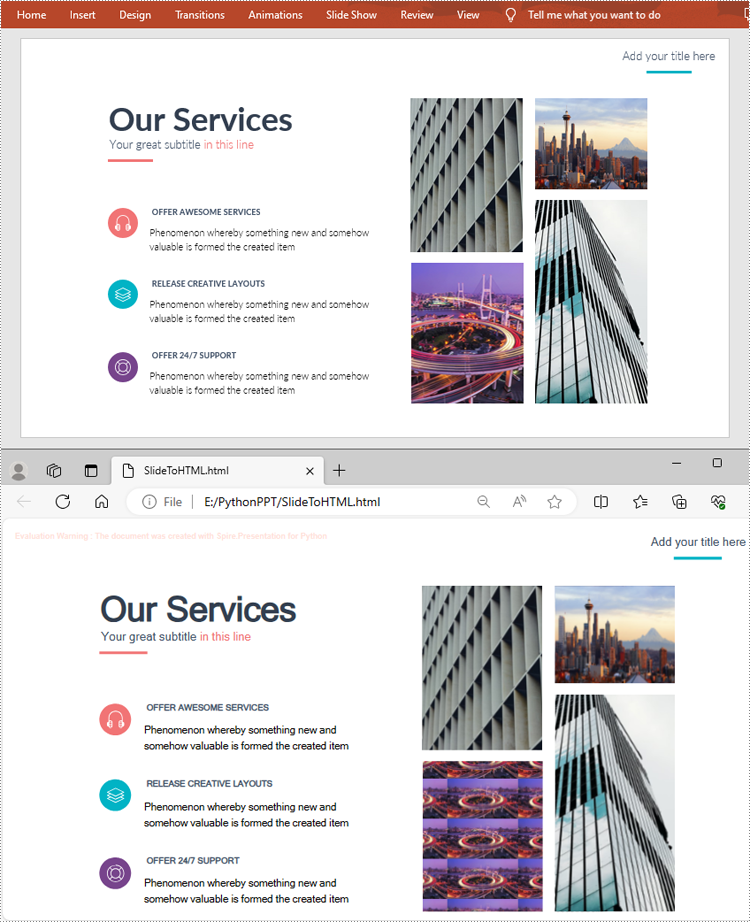
Apply for a Temporary License
If you'd like to remove the evaluation message from the generated documents, or to get rid of the function limitations, please request a 30-day trial license for yourself.
In PDF, you can change the page size to make the document meet different needs. For example, a smaller page size is required when creating handouts or compact versions of documents, while a larger page size could be useful for designing posters or graphics-intensive materials. In some cases, you may also need to get the page dimensions (width and height) to determine if the document is resized optimally. In this article, you will learn how to change or get PDF page size programmatically in Python using Spire.PDF for Python.
- Change PDF Page Size to a Standard Paper Size with Python
- Change PDF Page Size to a Custom Paper Size with Python
- Get PDF Page Size with Python
Install Spire.PDF for Python
This scenario requires Spire.PDF for Python and plum-dispatch v1.7.4. They can be easily installed in your Windows through the following pip command.
pip install Spire.PDF
If you are unsure how to install, please refer to this tutorial: How to Install Spire.PDF for Python on Windows
Change PDF Page Size to a Standard Paper Size with Python
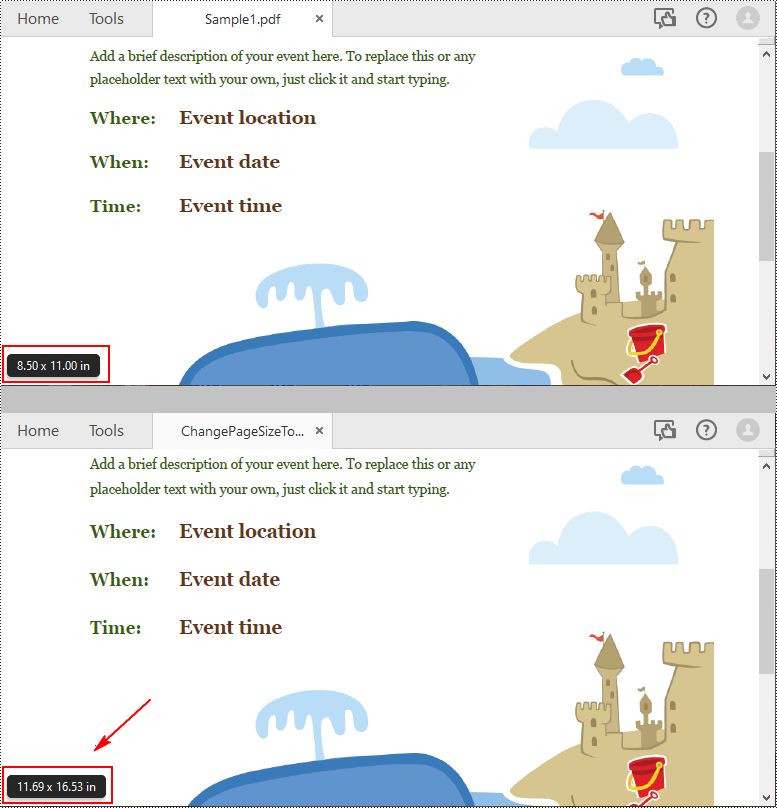
The way to change the page size of a PDF file is to create a new PDF file and add pages of the desired size to it, then create templates based on the pages in the original PDF file and draw the templates onto the pages in the new PDF file. This process will preserve text, images, and other elements present in the original PDF file.
Spire.PDF for Python supports a variety of standard paper size, such as letter, legal, A0, A1, A2, A3, A4, B0, B1, B2, B3, B4 and so on. The following are the steps to change the page size of a PDF file to a standard paper size:
- Initialize a PdfDocument instance and load the original PDF file using PdfDocument.LoadFromFile() method.
- Initialize another PdfDocument instance to create a new PDF file.
- Loop through the pages in the original PDF.
- Add pages of the desired size to the new PDF file using PdfDocument.Pages.Add() method.
- Initialize a PdfTextLayout instance and set the text layout as one page through PdfTextLayout.Layout property.
- Create templates based on the pages in the original PDF using PdfPageBase.CreateTemplate() method.
- Draw the templates onto the pages in the new PDF file with the specified text layout using PdfTemplate.Draw() method.
- Save the result file using PdfDocument.SaveToFile() method.
- Python
from spire.pdf.common import *
from spire.pdf import *

inputFile = "Sample1.pdf"
outputFile = "ChangePageSizeToA3.pdf"

# Create a PdfDocument instance
originalPdf = PdfDocument()

# Load the original PDF document
originalPdf.LoadFromFile(inputFile)

# Create a new PDF document
newPdf = PdfDocument()

# Loop through the pages in the original PDF
for i in range(originalPdf.Pages.Count):
    page = originalPdf.Pages.get_Item(i)

    # Add pages of size A3 to the new PDF
    newPage = newPdf.Pages.Add(PdfPageSize.A3(), PdfMargins(0.0))

    # Create a PdfTextLayout instance
    layout = PdfTextLayout()

    # Set text layout as one page (if not set the content will not scale to fit page size)
    layout.Layout = PdfLayoutType.OnePage

    # Create templates based on the pages in the original PDF
    template = page.CreateTemplate()

    # Draw the templates onto the pages in the new PDF
    template.Draw(newPage, PointF.Empty(), layout)

# Save the result document
newPdf.SaveToFile(outputFile)
newPdf.Close()
Change PDF Page Size to a Custom Paper Size with Python
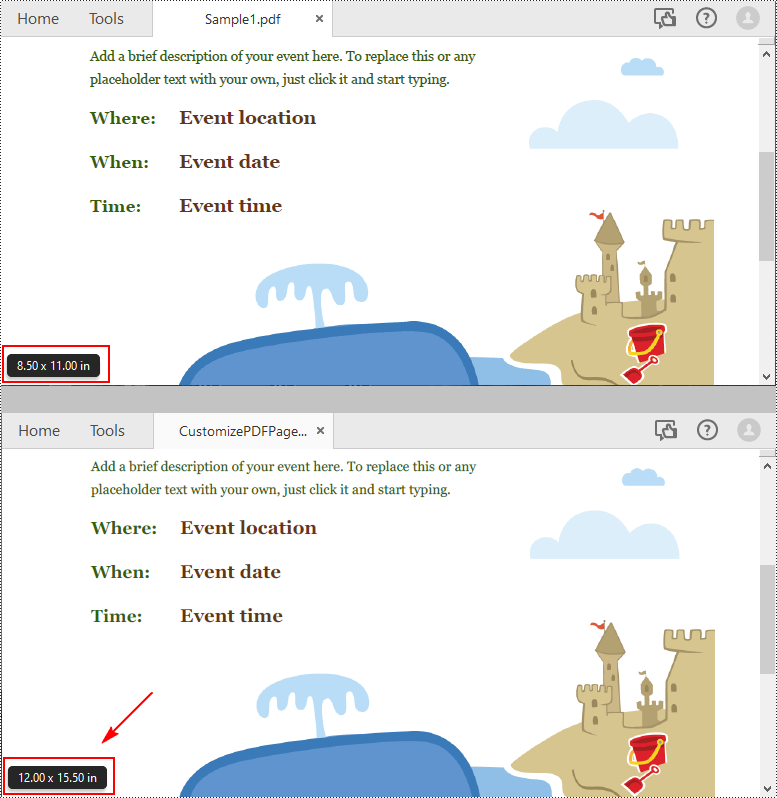
Spire.PDF for Python uses point (1/72 of an inch) as the unit of measure. If you need to change the page size of a PDF to a custom paper size in other units of measure like inches or millimeters, you can use the PdfUnitConvertor class to convert them to points.
The following are steps to change the page size of a PDF file to a custom paper size in inches:
- Initialize a PdfDocument instance and load the original PDF file using PdfDocument.LoadFromFile() method.
- Initialize another PdfDocument instance to create a new PDF file.
- Initialize a PdfUnitConvertor instance, then convert the custom size in inches to points using PdfUnitConvertor.ConvertUnits() method.
- Initialize a SizeF instance from the custom size.
- Loop through the pages in the original PDF.
- Add pages of the custom size to the new PDF file using PdfDocument.Pages.Add() method.
- Initialize a PdfTextLayout instance and set the text layout as one page through PdfTextLayout.Layout property.
- Create templates based on the pages in the original PDF using PdfPageBase.CreateTemplate() method.
- Draw the templates onto the pages in the new PDF file with the specified text layout using PdfTemplate.Draw() method.
- Save the result file using PdfDocument.SaveToFile() method.
- Python
from spire.pdf.common import *
from spire.pdf import *

inputFile = "Sample1.pdf"
outputFile = "CustomizePdfPageSize.pdf"

# Create a PdfDocument instance
originalPdf = PdfDocument()

# Load the original PDF document
originalPdf.LoadFromFile(inputFile)

# Create a new PDF document
newPdf = PdfDocument()

# Create a PdfUnitConvertor instance
unitCvtr = PdfUnitConvertor()

# Convert the custom size in inches to points
width = unitCvtr.ConvertUnits(12.0, PdfGraphicsUnit.Inch, PdfGraphicsUnit.Point)
height = unitCvtr.ConvertUnits(15.5, PdfGraphicsUnit.Inch, PdfGraphicsUnit.Point)

#Create a new SizeF instance from the custom size, then it will be used as the page size of the new PDF
size = SizeF(width, height)

# Loop through the pages in the original PDF
for i in range(originalPdf.Pages.Count):
    page = originalPdf.Pages.get_Item(i)

    # Add pages of the custom size (12.0*15.5 inches) to the new PDF
    newPage = newPdf.Pages.Add(size, PdfMargins(0.0))

    # Create a PdfTextLayout instance
    layout = PdfTextLayout()

    # Set text layout as one page (if not set the content will not scale to fit page size)
    layout.Layout = PdfLayoutType.OnePage

    # Create templates based on the pages in the original PDF
    template = page.CreateTemplate()

    # Draw the templates onto the pages in the new PDF
    template.Draw(newPage, PointF.Empty(), layout)

# Save the result document
newPdf.SaveToFile(outputFile)
newPdf.Close()
Get PDF Page Size with Python
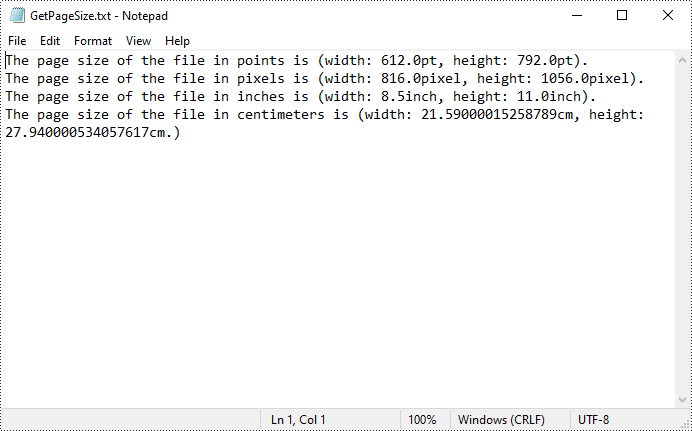
Spire.PDF for Python offers the PdfPageBase.Size.Width and PdfPageBase.Size.Height properties to get the width and height of a PDF page in points. If you want to convert the default unit of measure to other units, you can use the PdfUnitConvertor class.
The following are the steps to get the PDF page size:
- Initialize a PdfDocument instance.
- Load a PDF file using PdfDocument.LoadFromFile() method.
- Get a specified page using PdfDocument.Pages[] property.
- Get the width and height of the PDF page using PdfPageBase.Size.Width and PdfPageBase.Size.Height properties.
- Initialize a PdfUnitConvertor instance, and then convert the size units from points to other units of measure using PdfUnitConvertor.ConvertUnits() method.
- Add the size information to a StringBuilder instance, and then save the result to a TXT file.
- Python
from spire.pdf.common import *
from spire.pdf import *

def AppendAllText(fname: str, text: List[str]):
    fp = open(fname, "w")
    for s in text:
        fp.write(s + "\n")
    fp.close()

inputFile = "Sample1.pdf"
outputFile = "GetPageSize.txt"

# Create a PdfDocument instance
pdf = PdfDocument()

# Load a sample PDF from disk
pdf.LoadFromFile(inputFile)

# Get the first page of the file
page = pdf.Pages[0]

# Get the width and height of page based on "point"
pointWidth = page.Size.Width
pointHeight = page.Size.Height

# Create PdfUnitConvertor to convert the unit
unitCvtr = PdfUnitConvertor()

# Convert size units from points to pixels
pixelWidth = unitCvtr.ConvertUnits(pointWidth, PdfGraphicsUnit.Point, PdfGraphicsUnit.Pixel)
pixelHeight = unitCvtr.ConvertUnits(pointHeight, PdfGraphicsUnit.Point, PdfGraphicsUnit.Pixel)

# Convert size units from points to inches
inchWidth = unitCvtr.ConvertUnits(pointWidth, PdfGraphicsUnit.Point, PdfGraphicsUnit.Inch)
inchHeight = unitCvtr.ConvertUnits(pointHeight, PdfGraphicsUnit.Point, PdfGraphicsUnit.Inch)

# Convert size units from points to centimeters
centimeterWidth = unitCvtr.ConvertUnits(pointWidth, PdfGraphicsUnit.Point, PdfGraphicsUnit.Centimeter)
centimeterHeight = unitCvtr.ConvertUnits(pointHeight, PdfGraphicsUnit.Point, PdfGraphicsUnit.Centimeter)

# Add the size information to a StringBuilder instance
content = []
content.append("The page size of the file in points is (width: " +
               str(pointWidth) + "pt, height: " + str(pointHeight) + "pt).")
content.append("The page size of the file in pixels is (width: " +
               str(pixelWidth) + "pixel, height: " + str(pixelHeight) + "pixel).")
content.append("The page size of the file in inches is (width: " +
               str(inchWidth) + "inch, height: " + str(inchHeight) + "inch).")
content.append("The page size of the file in centimeters is (width: " +
               str(centimeterWidth) + "cm, height: " + str(centimeterHeight) + "cm.)")

# Save to a txt file
AppendAllText(outputFile, content)
pdf.Close()
Apply for a Temporary License
If you'd like to remove the evaluation message from the generated documents, or to get rid of the function limitations, please request a 30-day trial license for yourself.
