
Knowledgebase (2417)
Children categories
Captions play multiple important roles in a document. They not only provide explanations for images or tables but also help in organizing the document structure, referencing specific content, and ensuring consistency and standardization. They serve as guides, summaries, and emphasis within the document, enhancing readability and assisting readers in better understanding and utilizing the information presented in the document. This article will demonstrate how to use Spire.Doc for Java to add or remove captions in Word documents within a Java project.
- Add Image Captions to a Word document in Java
- Add Table Captions to a Word document in Java
- Remove Captions from a Word document in Java
Install Spire.Doc for Java
First, you're required to add the Spire.Doc.jar file as a dependency in your Java program. The JAR file can be downloaded from this link. If you use Maven, you can easily import the JAR file in your application by adding the following code to your project's pom.xml file.
<repositories>
    <repository>
        <id>com.e-iceblue</id>
        <name>e-iceblue</name>
        <url>https://repo.e-iceblue.com/nexus/content/groups/public/</url>
    </repository>
</repositories>
<dependencies>
    <dependency>
        <groupId>e-iceblue</groupId>
        <artifactId>spire.doc</artifactId>
        <version>14.8.4</version>
    </dependency>
</dependencies>
Add Image Captions to a Word document in Java
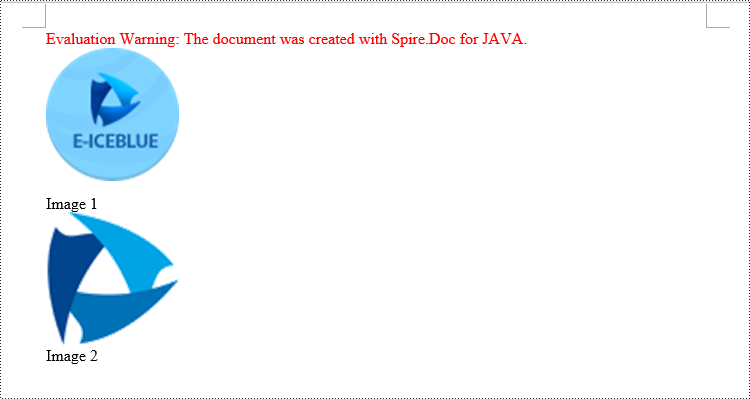
By using the DocPicture.addCaption(String name, CaptionNumberingFormat format, CaptionPosition captionPosition) method, you can easily add descriptive captions to images within a Word document. The following are the detailed steps:
- Create an object of the Document class.
- Use the Document.addSection() method to add a section.
- Add a paragraph using Section.addParagraph() method.
- Use the Paragraph.appendPicture(String filePath) method to add a DocPicture image object to the paragraph.
- Add a caption using the DocPicture.addCaption(String name, CaptionNumberingFormat format, CaptionPosition captionPosition) method, numbering the captions in CaptionNumberingFormat.Number format.
- Update all fields using the Document.isUpdateFields(true) method.
- Save the resulting document using the Document.saveToFile() method.
- Java
import com.spire.doc.*;
import com.spire.doc.documents.*;
import com.spire.doc.fields.*;
public class addPictureCaption {
    public static void main(String[] args) {

        // Create a Word document object
        Document document = new Document();

        // Add a section to the document
        Section section = document.addSection();

        // Add a new paragraph and insert an image into it
        Paragraph pictureParagraphCaption = section.addParagraph();
        pictureParagraphCaption.getFormat().setAfterSpacing(10);
        DocPicture pic1 = pictureParagraphCaption.appendPicture("Data\\1.png");
        pic1.setHeight(100);
        pic1.setWidth(100);

        // Add a caption to the image
        CaptionNumberingFormat format = CaptionNumberingFormat.Number;
        pic1.addCaption("Image", format, CaptionPosition.Below_Item);

        // Add another paragraph and insert another image into it
        pictureParagraphCaption = section.addParagraph();
        DocPicture pic2 = pictureParagraphCaption.appendPicture("Data\\2.png");
        pic2.setHeight(100);
        pic2.setWidth(100);

        // Add a caption to the second image
        pic2.addCaption("Image", format, CaptionPosition.Below_Item);

        // Update all fields in the document
        document.isUpdateFields(true);

        // Save the document as a docx file
        String result = "AddImageCaption.docx";
        document.saveToFile(result, FileFormat.Docx_2016);

        // Close and dispose the document object to release resources
        document.close();
        document.dispose();
    }
}
Add Table Captions to a Word document in Java
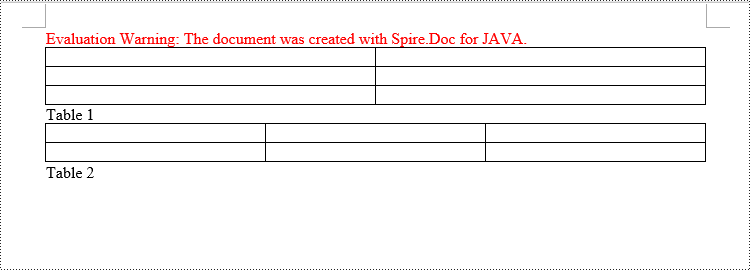
Similar to adding captions to images, to add a caption to a table, you need to call the Table.addCaption(String name, CaptionNumberingFormat format, CaptionPosition captionPosition) method. The detailed steps are as follows:
- Create an object of the Document class.
- Use the Document.addSection() method to add a section.
- Create a Table object and add it to the specified section in the document.
- Use the Table.resetCells(int rowsNum, int columnsNum) method to set the number of rows and columns in the table.
- Add a caption using the Table.addCaption(String name, CaptionNumberingFormat format, CaptionPosition captionPosition) method, numbering the captions in CaptionNumberingFormat.Number format.
- Update all fields using the Document.isUpdateFields(true) method.
- Save the resulting document using the Document.saveToFile() method.
- Java
import com.spire.doc.*;
public class addTableCaption {
    public static void main(String[] args) {

        // Create a Word document object
        Document document = new Document();

        // Add a section to the document
        Section section = document.addSection();

        // Add a table to the section
        Table tableCaption = section.addTable(true);
        tableCaption.resetCells(3, 2);

        // Add a caption to the table
        tableCaption.addCaption("Table", CaptionNumberingFormat.Number, CaptionPosition.Below_Item);

        // Add another table to the section
        tableCaption = section.addTable(true);
        tableCaption.resetCells(2, 3);

        // Add a caption to the second table
        tableCaption.addCaption("Table", CaptionNumberingFormat.Number, CaptionPosition.Below_Item);

        // Update all fields in the document
        document.isUpdateFields(true);

        // Save the document as a docx file
        String result = "AddTableCaption.docx";
        document.saveToFile(result, FileFormat.Docx_2016);

        // Close and dispose the document object to release resources
        document.close();
        document.dispose();
    }
}
Remove Captions from a Word document in Java
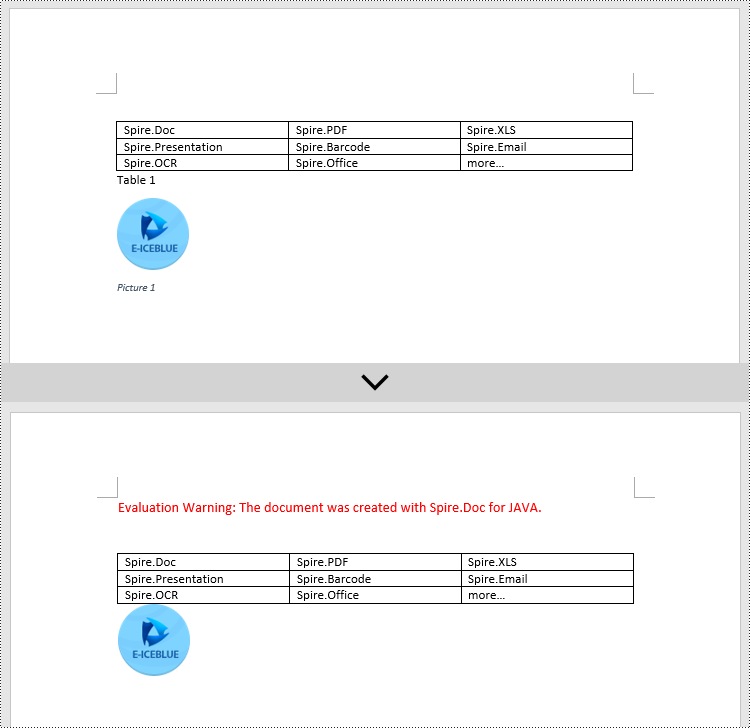
In addition to adding captions, Spire.Doc for Java also supports deleting captions from a Word document. The steps involved are as follows:
- Create an object of the Document class.
- Use the Document.loadFromFile() method to load a Word document.
- Create a custom method named DetectCaptionParagraph(Paragraph paragraph), to determine if the paragraph contains a caption.
- Iterate through all the Paragraph objects in the document using a loop and use the custom method, DetectCaptionParagraph(Paragraph paragraph), to identify the paragraphs that contain captions and delete them.
- Save the resulting document using the Document.saveToFile() method.
- Java
import com.spire.doc.*;
import com.spire.doc.documents.*;
import com.spire.doc.fields.*;

public class deleteCaptions {
    public static void main(String[] args) {

        // Create a Word document object
        Document document = new Document();

        // Load the sample.docx file
        document.loadFromFile("Data/sample.docx");

        Section section;

        // Iterate through all sections
        for (int i = 0; i < document.getSections().getCount(); i++) {
            section = document.getSections().get(i);

        // Iterate through paragraphs in reverse order
            for (int j = section.getBody().getParagraphs().getCount() - 1; j >= 0; j--) {
                // Check if the paragraph is a caption paragraph
                if (DetectCaptionParagraph(section.getBody().getParagraphs().get(j))) {
                    // If it is a caption paragraph, remove it
                    section.getBody().getParagraphs().removeAt(j);
                }
            }
        }

        // Save the document after removing captions
        String result = "RemoveCaptions.docx";
        document.saveToFile(result, FileFormat.Docx_2016);

        // Close and dispose the document object to release resources
        document.close();
        document.dispose();
    }

    // Method to detect if a paragraph is a caption paragraph
    static Boolean DetectCaptionParagraph(Paragraph paragraph) {
        Boolean tag = false;
        Field field;

        // Iterate through child objects of the paragraph
        for (int i = 0; i < paragraph.getChildObjects().getCount(); i++) {
            if (paragraph.getChildObjects().get(i).getDocumentObjectType().equals(DocumentObjectType.Field)) {
                // Check if the child object is of type Field
                field = (Field) paragraph.getChildObjects().get(i);
                if (field.getType().equals(FieldType.Field_Sequence)) {
                    // Check if the Field type is FieldSequence, indicating a caption field
                    return true;
                }
            }
        }

        return tag;
    }
}
Apply for a Temporary License
If you'd like to remove the evaluation message from the generated documents, or to get rid of the function limitations, please request a 30-day trial license for yourself.
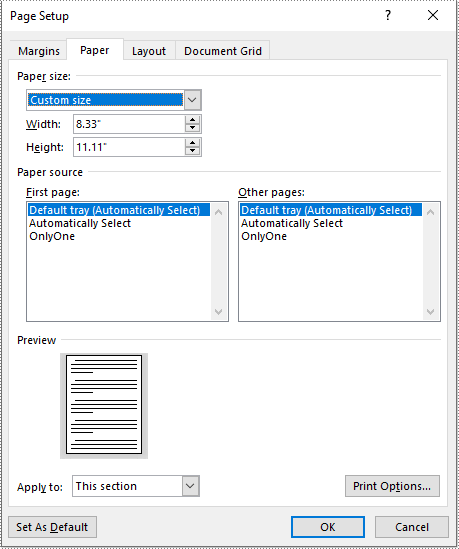
Page size refers to the dimensions of a document's page. It determines the width and height of the printable area and plays a crucial role in the overall layout and design of the document. Different types of documents may require specific page sizes, such as standard letter size (8.5 x 11 inches) for business letters or A4 size (210 x 297 mm) for international correspondence. Adjusting the page size ensures that your document is compatible with the intended output or presentation medium. In this article, we will demonstrate how to adjust the page size of a Word document in Python using Spire.Doc for Python.
- Adjust the Page Size of a Word Document to a Standard Page Size in Python
- Adjust the Page Size of a Word Document to a Custom Page Size in Python
Install Spire.Doc for Python
This scenario requires Spire.Doc for Python and plum-dispatch v1.7.4. They can be easily installed in your Windows through the following pip commands.
pip install Spire.Doc
If you are unsure how to install, please refer to this tutorial: How to Install Spire.Doc for Python on Windows
Adjust the Page Size of a Word Document to a Standard Page Size in Python
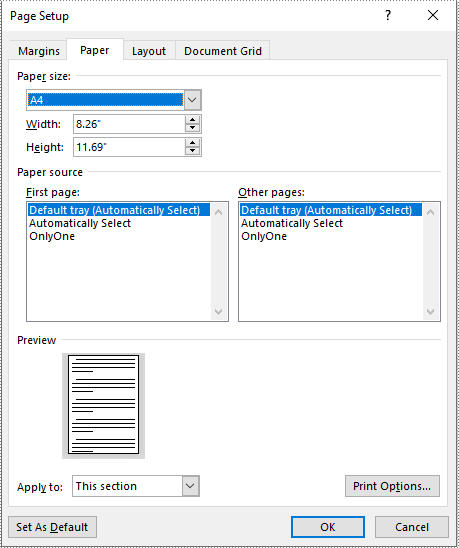
With Spire.Doc for Python, you can easily adjust the page sizes of Word documents to a variety of standard page sizes, such as A3, A4, A5, A6, B4, B5, B6, letter, legal, and tabloid. The following steps explain how to change the page size of a Word document to a standard page size using Spire.Doc for Python:
- Create an instance of the Document class.
- Load a Word document using the Document.LoadFromFile() method.
- Iterate through the sections in the document.
- Set the page size of each section to a standard page size, such as A4, by setting the Section.PageSetup.PageSize property to PageSize.A4().
- Save the result document using the Document.SaveToFile() method.
- Python
from spire.doc import *
from spire.doc.common import *

# Create an instance of the Document class
doc = Document()
# Load a Word document
doc.LoadFromFile("Input.docx")

# Iterate through the sections in the document
for i in range(doc.Sections.Count):
    section = doc.Sections.get_Item(i)
    # Change the page size of each section to A4
    section.PageSetup.PageSize = PageSize.A4()

# Save the result document
doc.SaveToFile("StandardSize.docx", FileFormat.Docx2016)
doc.Close()
Adjust the Page Size of a Word Document to a Custom Page Size in Python
If you plan to print your document on paper with dimensions that don't match any standard paper size, you can change the page size of your document to a custom page size that matches the exact dimensions of the paper. The following steps explain how to change the page size of a Word document to a custom page size using Spire.Doc for Python:
- Create an instance of the Document class.
- Load a Word document using the Document.LoadFromFile() method.
- Create an instance of the SizeF class with customized dimensions.
- Iterate through the sections in the document.
- Set the page size of each section to a custom page size by assigning the SizeF instance to the Section.PageSetup.PageSize property.
- Save the result document using the Document.SaveToFile() method.
- Python
from spire.doc import *
from spire.doc.common import *

# Create an instance of the Document class
doc = Document()
# Load a Word document
doc.LoadFromFile("Input.docx")

# Create an instance of the SizeF class with customized dimensions
customSize = SizeF(600.0, 800.0)

# Iterate through the sections in the document
for i in range(doc.Sections.Count):
    section = doc.Sections.get_Item(i)
    # Change the page size of each section to the specified dimensions
    section.PageSetup.PageSize = customSize

# Save the result document
doc.SaveToFile("CustomSize.docx", FileFormat.Docx2016)
doc.Close()
Apply for a Temporary License
If you'd like to remove the evaluation message from the generated documents, or to get rid of the function limitations, please request a 30-day trial license for yourself.
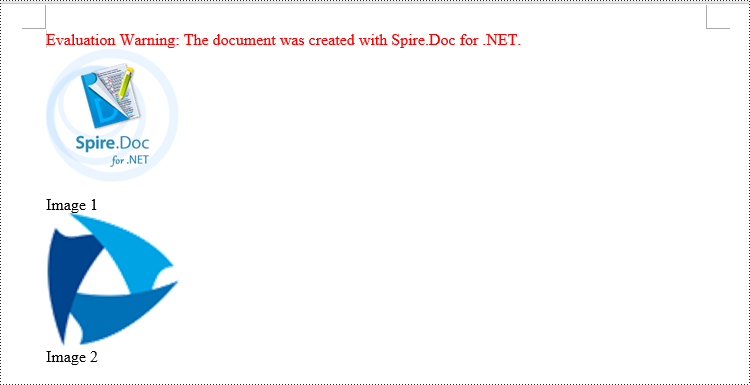
Captions are important elements in a Word document that enhance readability and organizational structure. They provide explanations and supplementary information for images, tables, and other content, improving the clarity and comprehensibility of the document. Captions are also used to emphasize key points and essential information, facilitating referencing and indexing of specific content. By using captions effectively, readers can better understand and interpret data and images within the document while quickly locating the desired information. This article will demonstrate how to use Spire.Doc for .NET to add or remove captions in a Word document within a C# project.
- Add Image Captions to a Word document in C#
- Add Table Captions to a Word document in C#
- Remove Captions from a Word document in C#
Install Spire.Doc for .NET
To begin with, you need to add the DLL files included in the Spire.Doc for .NET package as references in your .NET project. The DLL files can be either downloaded from this link or installed via NuGet.
PM> Install-Package Spire.Doc
Add Image Captions to a Word document in C#
To add captions to images in a Word document, you can achieve it by creating a paragraph, adding an image, and calling the method DocPicture.AddCaption(string name, CaptionNumberingFormat format, CaptionPosition captionPosition) to generate the caption with a specified name, numbering format, and caption position. The following are the detailed steps:
- Create an object of the Document class.
- Use the Document.AddSection() method to add a section.
- Add a paragraph using Section.AddParagraph() method.
- Use the Paragraph.AppendPicture(Image image) method to add a DocPicture image object to the paragraph.
- Use the DocPicture.AddCaption(string name, CaptionNumberingFormat format, CaptionPosition captionPosition) method to add a caption with numbering format as CaptionNumberingFormat.Number.
- Set the Document.IsUpdateFields property to true to update all fields.
- Use the Document.SaveToFile() method to save the resulting document.
- C#
using Spire.Doc;
using Spire.Doc.Documents;
using Spire.Doc.Fields;
using System.Drawing;
namespace AddPictureCaption
{
    internal class Program
    {
        static void Main(string[] args)
        {
            // Create a Word document object
            Document document = new Document();

            // Add a section
            Section section = document.AddSection();

            // Add a new paragraph and insert an image
            Paragraph pictureParagraphCaption = section.AddParagraph();
            pictureParagraphCaption.Format.AfterSpacing = 10;
            DocPicture pic1 = pictureParagraphCaption.AppendPicture(Image.FromFile("Data\\1.png"));
            pic1.Height = 100;
            pic1.Width = 100;

            // Add a caption to the image
            CaptionNumberingFormat format = CaptionNumberingFormat.Number;
            pic1.AddCaption("Image", format, CaptionPosition.BelowItem);

            // Add another paragraph and insert another image
            pictureParagraphCaption = section.AddParagraph();
            DocPicture pic2 = pictureParagraphCaption.AppendPicture(Image.FromFile("Data\\2.png"));
            pic2.Height = 100;
            pic2.Width = 100;

            // Add a caption to the second image
            pic2.AddCaption("Image", format, CaptionPosition.BelowItem);

            // Update all fields in the document
            document.IsUpdateFields = true;

            // Save to a docx document
            string result = "AddImageCaption.docx";
            document.SaveToFile(result, Spire.Doc.FileFormat.Docx2016);

            // Close and dispose of the document object to release resources
            document.Close();
            document.Dispose();
        }
    }
}
Add Table Captions to a Word document in C#
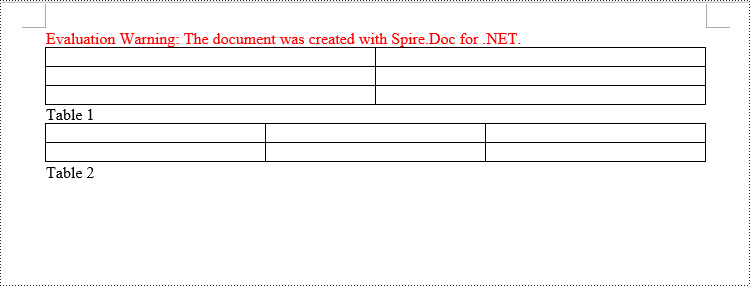
To add captions to a table in a Word document, you can achieve this by creating the table and using the Table.AddCaption(string name, CaptionNumberingFormat format, CaptionPosition captionPosition) method to generate a numbered caption. The steps involved are as follows:
- Create an object of the Document class.
- Use the Document.AddSection() method to add a section.
- Create a Table object and add it to the specified section in the document.
- Use the Table.ResetCells(int rowsNum, int columnsNum) method to set the number of rows and columns in the table.
- Add a caption to the table using the Table.AddCaption(string name, CaptionNumberingFormat format, CaptionPosition captionPosition) method, specifying the caption numbering format as CaptionNumberingFormat.Number.
- Set the Document.IsUpdateFields property to true to update all fields.
- Use the Document.SaveToFile() method to save the resulting document.
- C#
using Spire.Doc;
namespace AddTableCation
{
    internal class Program
    {
        static void Main(string[] args)
        {
            // Create a Word document object
            Document document = new Document();

            // Add a section
            Section section = document.AddSection();

            // Add a table
            Table tableCaption = section.AddTable(true);
            tableCaption.ResetCells(3, 2);

            // Add a caption to the table
            tableCaption.AddCaption("Table", CaptionNumberingFormat.Number, CaptionPosition.BelowItem);

            // Add another table and caption
            tableCaption = section.AddTable(true);
            tableCaption.ResetCells(2, 3);
            tableCaption.AddCaption("Table", CaptionNumberingFormat.Number, CaptionPosition.BelowItem);

            // Update all fields in the document
            document.IsUpdateFields = true;

            // Save to a docx document
            string result = "AddTableCaption.docx";
            document.SaveToFile(result, Spire.Doc.FileFormat.Docx2016);

            // Close and dispose of the document object to release resources
            document.Close();
            document.Dispose();
        }
    }
}
Remove Captions from a Word document in C#
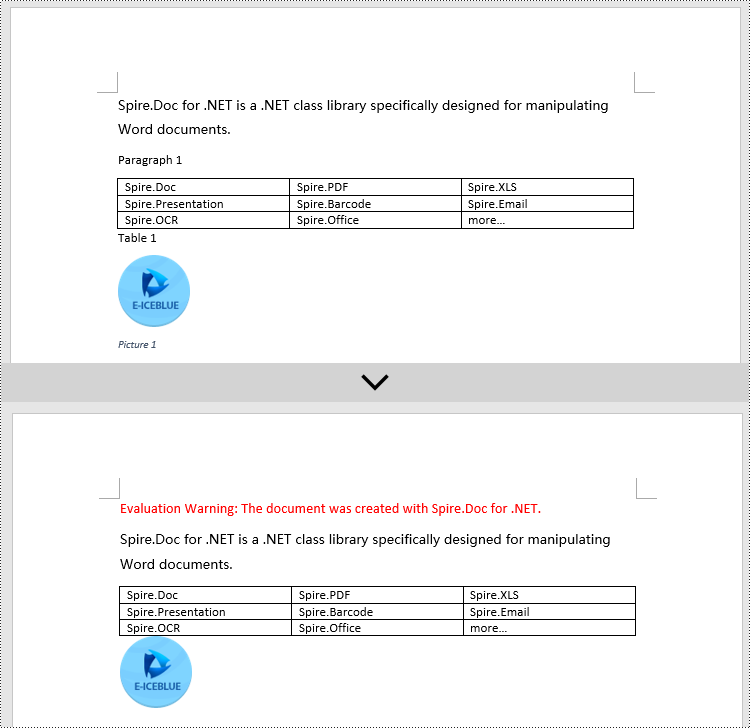
Spire.Doc for .NET can also facilitate the removal of captions from an existing Word document. Here are the detailed steps:
- Create an object of the Document class.
- Use the Document.LoadFromFile() method to load a Word document.
- Create a custom method, named DetectCaptionParagraph(Paragraph paragraph), to determine if a paragraph contains a caption.
- Iterate through all the Paragraph objects in the document using a loop and utilize the custom method, DetectCaptionParagraph(Paragraph paragraph), to identify and delete paragraphs that contain captions.
- Use the Document.SaveToFile() method to save the resulting document.
- C#
using Spire.Doc;
using Spire.Doc.Documents;
using Spire.Doc.Fields;
namespace DeleteCaptions
{
    internal class Program
    {
        static void Main(string[] args)
        {
            // Create a Word document object
            Document document = new Document();

            // Load the example.docx file
            document.LoadFromFile("Data/Sample.docx");
            Section section;

            // Iterate through all sections
            for (int i = 0; i < document.Sections.Count; i++)
            {
                section = document.Sections[i];

                // Iterate through paragraphs in reverse order
                for (int j = section.Body.Paragraphs.Count - 1; j >= 0; j--)
                {
                    // Check if the paragraph is a caption paragraph
                    if (DetectCaptionParagraph(section.Body.Paragraphs[j]))
                    {
                        // If it's a caption paragraph, remove it
                        section.Body.Paragraphs.RemoveAt(j);
                    }
                }
            }

            // Save the document after removing captions
            string result = "RemoveCaptions.docx";
            document.SaveToFile(result, Spire.Doc.FileFormat.Docx2016);

            // Close and dispose of the document object to release resources
            document.Close();
            document.Dispose();
        }
        // Method to detect if a paragraph is a caption paragraph
        static bool DetectCaptionParagraph(Paragraph paragraph)
        {
            bool tag = false;
            Field field;

            // Iterate through the child objects in the paragraph
            for (int i = 0; i < paragraph.ChildObjects.Count; i++)
            {
                if (paragraph.ChildObjects[i].DocumentObjectType == DocumentObjectType.Field)
                {
                    // Check if the child object is of Field type
                    field = (Field)paragraph.ChildObjects[i];
                    if (field.Type == FieldType.FieldSequence)
                    {
                        // Check if the Field type is FieldSequence, indicating a caption field type
                        return true;
                    }
                }
            }
            return tag;
        }
    }
}
Apply for a Temporary License
If you'd like to remove the evaluation message from the generated documents, or to get rid of the function limitations, please request a 30-day trial license for yourself.
