
Knowledgebase (2417)
Children categories
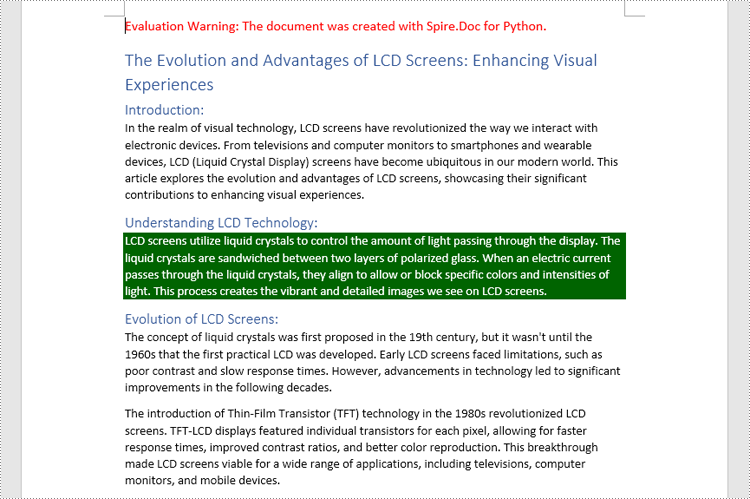
Setting the background colors for paragraphs and text in Word documents can significantly enhance the presentation and readability of content. Customizing background color is an effective approach to emphasize key information, categorize content, and add a personalized touch, thereby making it easy to create polished and professional documents. By carefully selecting and applying background colors, documents can be transformed into visually appealing works that effectively convey information and engage the reader. This article shows how to use Spire.Doc for Python to set background colors for paragraphs and text in Word documents, unlocking new possibilities for document styling and customization.
- Set Background Colors for Paragraphs Using Python
- Set Background Colors for Selected Text Using Python
Install Spire.Doc for Python
This scenario requires Spire.Doc for Python and plum-dispatch v1.7.4. They can be easily installed in your Windows through the following pip command.
pip install Spire.Doc
If you are unsure how to install, please refer to this tutorial: How to Install Spire.Doc for Python on Windows
Set Background Color for Paragraphs Using Python
By using Spire.Doc for Python, developers can get any paragraph in any section. After getting a paragraph, developers can apply a background color to it by assigning a Color object to Paragraph.Format.BackColor property. Below are the detailed steps:
- Create an instance of Document class and load a Word document using Document.LoadFromFile() method.
- Get a section using Document.Sections.get_Item() method.
- Get a paragraph in the section using Section.Paragraphs.get_Item() method.
- Set the background color of the paragraph through Paragraph.Format.BackColor property.
- Save the document using Document.SaveToFile() method.
- Python
from spire.doc import *
from spire.doc.common import *

# Create an instance of Document class and load a Word document
doc = Document()
doc.LoadFromFile("Sample.docx")

# Get the first section
section = doc.Sections.get_Item(0)

# Get the fifth paragraph
paragraph = section.Paragraphs.get_Item(4)

# Set background color for the paragraph
paragraph.Format.BackColor = Color.get_DarkGreen()

# Save the document
doc.SaveToFile("output/ParagraphBackground.docx")
doc.Close()
Set Background Colors for Selected Text Using Python
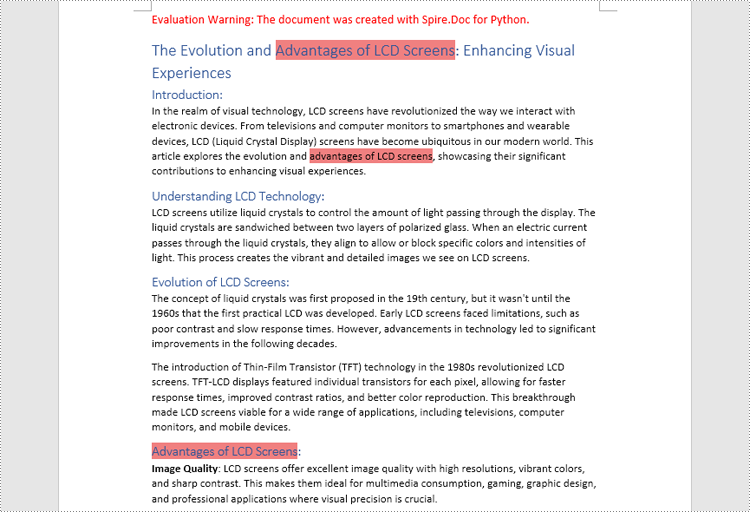
Spire.Doc for Python enables developers to find all the occurrences of specific text in a Word document with Document.FindAllString() method. After getting the finding results, developers can set the background for them through TextRange.CharacterFormat.TextBackgroundColor property. The detailed steps are as follows:
- Create an instance of Document class and load a Word document using Document.LoadFromFile() method.
- Find all the occurrences of specific text using Document.FindAllString() method.
- Loop through the occurrences, get each occurrence as a text range using TextSelection.GetAsOneRange(True) method, and set the background color of each occurrence through TextRange.CharacterFormat.TextBackgroundColor property. It is also possible to get only one occurrence from the result list and set the background color for the occurrence.
- Save the document using Document.SaveToFile() method.
- Python
from spire.doc import *
from spire.doc.common import *

# Create an instance of Document class and load a Word document
doc = Document()
doc.LoadFromFile("Sample.docx")

# Find text in the Word document
findResults = doc.FindAllString("advantages of LCD screens", False, False)

# Loop through the finding results to set background color for all occurrences
for text in findResults:
    # Get an occurrence as a text range
    textRange = text.GetAsOneRange(True)
    # Set the background color of the text range
    textRange.CharacterFormat.TextBackgroundColor = Color.get_LightCoral()

# Set the background color of a sepecified occurrence
# Get an occurrence as one text range
# textRange = findResults[1].GetAsOneRange()
# Set the background color of the text range
# textRange.CharacterFormat.BackgroundColor = Color.get_DarkCyan()

# Save the document
doc.SaveToFile("output/TextBackground.docx")
doc.Close()
Apply for a Temporary License
If you'd like to remove the evaluation message from the generated documents, or to get rid of the function limitations, please request a 30-day trial license for yourself.
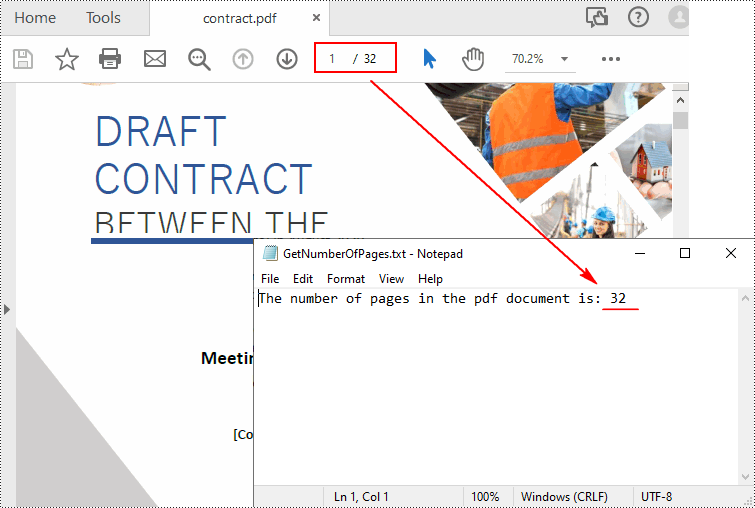
To get the number of pages in a PDF file, you can open the file in a PDF viewer such as Adobe, which has a built-in page count feature. However, when there is a batch of PDF files, opening each file to check how many pages it contains is a time-consuming task. In this article, you will learn how to quicky count the number of pages in a PDF file through programming using Spire.PDF for Python.
Install Spire.PDF for Python
This scenario requires Spire.PDF for Python and plum-dispatch v1.7.4. They can be easily installed in your Windows through the following pip command.
pip install Spire.PDF
If you are unsure how to install, please refer to this tutorial: How to Install Spire.PDF for Python on Windows
Count the Number of Pages in a PDF File in Python
Spire.PDF for Python offers the PdfDocument.Pages.Count property to quickly count the number of pages in a PDF file without opening it. The following are the detailed steps.
- Create a PdfDocument object.
- Load a sample PDF document using PdfDocument.LoadFromFile() method.
- Count the number of pages in the PDF document using PdfDocument.Pages.Count property.
- Write the result to a TXT file or print it out directly.
- Python
from spire.pdf.common import *
from spire.pdf import *

def AppendText(fname: str, text: str):
    fp = open(fname, "w")
    fp.write(text + "\n")
    fp.close()

# Specify the input and output files
inputFile = "contract.pdf"
outputFile = "GetNumberOfPages.txt"

# Create a PdfDocument object
pdf = PdfDocument()

# Load a PDF document from disk
pdf.LoadFromFile(inputFile)

# Count the number of pages in the document
count = pdf.Pages.Count
# Print the result
print("Total Pages:", count)

# Write the result to a TXT file
AppendText(
    outputFile, "The number of pages in the pdf document is: " + str(count))
pdf.Close()
Apply for a Temporary License
If you'd like to remove the evaluation message from the generated documents, or to get rid of the function limitations, please request a 30-day trial license for yourself.
Hyperlinks in PDF are interactive elements that, when clicked, can jump to a specific location in the document, to an external website, or to other resources. By inserting hyperlinks in a PDF document, you can provide supplementary information and enhance the overall integrity of the document. This article will demonstrate how to add hyperlinks to PDF files in Python using Spire.PDF for Python.
Install Spire.PDF for Python
This scenario requires Spire.PDF for Python and plum-dispatch v1.7.4. They can be easily installed in your Windows through the following pip command.
pip install Spire.PDFIf you are unsure how to install, please refer to this tutorial: How to Install Spire.PDF for Python on Windows
Add Hyperlinks to a PDF Document in Python
With Spire.PDF for Python, you can add web links, email links and file links to a PDF document. The following are the detailed steps:
- Create a pdf document and add a page to it.
- Specify a URL address and draw it directly on the page using PdfPageBase.Canvas.DrawString() method.
- Create a PdfTextWebLink object.
- Set the link's display text, URL address, and the font and brush used to draw it using properties of PdfTextWebLink class.
- Draw the link on the page using PdfTextWebLink.DrawTextWebLink() method.
- Create a PdfFileLinkAnnotation object and with a specified file.
- Add the file link to the page annotations using PdfPageBase.AnnotationsWidget.Add(PdfFileLinkAnnotation) method.
- Draw hypertext of the file link using PdfPageBase.Canvas.DrawString() method.
- Save the result file using PdfDocument.SaveToFile() method.
- Python
from spire.pdf.common import *
from spire.pdf import *

# Create a PdfDocument instance
pdf = PdfDocument()

# Add a page
page = pdf.Pages.Add()

# Initialize x, y coordinates
y = 30.0
x = 10.0

# Create true type fonts
font = PdfTrueTypeFont("Arial", 14.0,PdfFontStyle.Regular,True)
font1 = PdfTrueTypeFont("Arial", 14.0, PdfFontStyle.Underline,True)

# Add a simply link
label = "Simple Text Link: "
format = PdfStringFormat()
format.MeasureTrailingSpaces = True
page.Canvas.DrawString(label, font, PdfBrushes.get_Orange(), 0.0, y, format)
x = font.MeasureString(label, format).Width
url = "http://www.e-iceblue.com"
page.Canvas.DrawString(url, font1, PdfBrushes.get_Blue(), x, y)
y = y + 28

# Add a hypertext link
label = "Hypertext Link: "
page.Canvas.DrawString(label, font, PdfBrushes.get_Orange(), 0.0, y, format)
x = font.MeasureString(label, format).Width
webLink = PdfTextWebLink()
webLink.Text = "Home Page"
webLink.Url = url
webLink.Font = font1
webLink.Brush = PdfBrushes.get_Blue()
webLink.DrawTextWebLink(page.Canvas, PointF(x, y))
y = y + 28

# Add an Email link
label = "Email Link:  "
page.Canvas.DrawString(label, font, PdfBrushes.get_Orange(), 0.0, y, format)
x = font.MeasureString(label, format).Width
link = PdfTextWebLink()
link.Text = "Contact Us"
link.Url = "mailto:support@e-iceblue.com"
link.Font = font1
link.Brush = PdfBrushes.get_Blue()
link.DrawTextWebLink(page.Canvas, PointF(x, y))
y = y + 28

# Add a file link
label = "Document Link: "
page.Canvas.DrawString(label, font, PdfBrushes.get_Orange(), 0.0, y, format)
x = font.MeasureString(label, format).Width
text = "Open File"
location = PointF(x, y)
size = font1.MeasureString(text)
linkBounds = RectangleF(location, size)
fileLink = PdfFileLinkAnnotation(linkBounds,"C:\\Users\\Administrator\\Desktop\\Report.xlsx")
fileLink.Border = PdfAnnotationBorder(0.0)
page.AnnotationsWidget.Add(fileLink)
page.Canvas.DrawString(text, font1, PdfBrushes.get_Blue(), x, y)

#Save the result pdf file
pdf.SaveToFile("AddLinkstoPDF.pdf")
pdf.Close()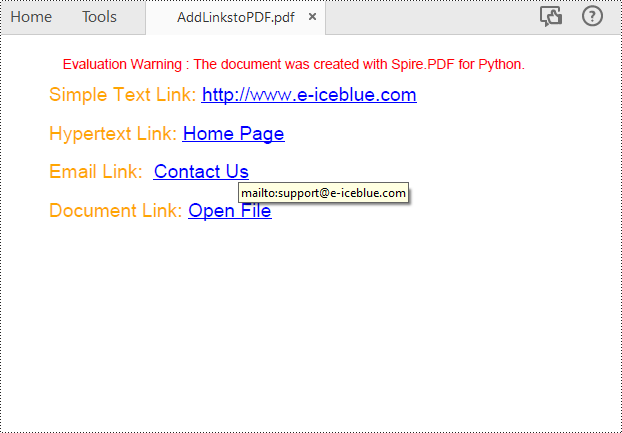
Insert Hyperlinks into Existing Text in PDF in Python
Adding a hyperlink to existing text in a PDF document requires locating the text first. Once the location has been obtained, an object of PdfUriAnnotation class with the link can be created and added to the position. The following are the detailed steps:
- Create a PdfDocument instance.
- Load a PDF file using PdfDocument.LoadFromFile() method.
- Get the first page using PdfDocument.Pages.get_Item() method.
- Create a PdfTextFinder object for the page and set the search parameter using finds.Options.Parameter.
- Find all occurrences of the specified text on the page using PdfTextFinder.Find() method.
- Loop through all occurrences of the found text and create a PdfUriAnnotation instance based on the bounds of each occurrence.
- Set the hyperlink URL, border, and border color using properties under PdfUriAnnotation class.
- Insert the hyperlink to the page annotations using PdfPageBase.AnnotationsWidget.Add(PdfUriAnnotation) method.
- Save the PDF file using PdfDocument.SaveToFile() method.
- Python
from spire.pdf.common import *
from spire.pdf import *

# Create a PdfDocument instance
pdf = PdfDocument()

# Load a PDF file
pdf.LoadFromFile("input.pdf")

# Get the first page
page = pdf.Pages.get_Item(0)

# Create a PdfTextFinder object for the current page
finds = PdfTextFinder(page)

# Set the search parameter to find exact matches
finds.Options.Parameter = TextFindParameter.IgnoreCase

# Find all occurrences of the specified text in the page
fragments  = finds.Find("big O notation")

# Iterate through the found text fragments and create hyperlink annotations for each occurrence
for fragment in fragments:
    # Get the bounds of the found text
    bounds = fragment.Bounds
    for bound in bounds:
        # Create a PdfUriAnnotation for the found text and set its properties
        uri = PdfUriAnnotation(bound)
        uri.Uri = "https://en.wikipedia.org/wiki/Big_O_notation"
        uri.Border = PdfAnnotationBorder(1.0)
        uri.Color = PdfRGBColor(Color.get_Blue())
        page.AnnotationsWidget.Add(uri)

#Save the result file
pdf.SaveToFile("SearchTextAndAddHyperlink1.pdf")
pdf.Close()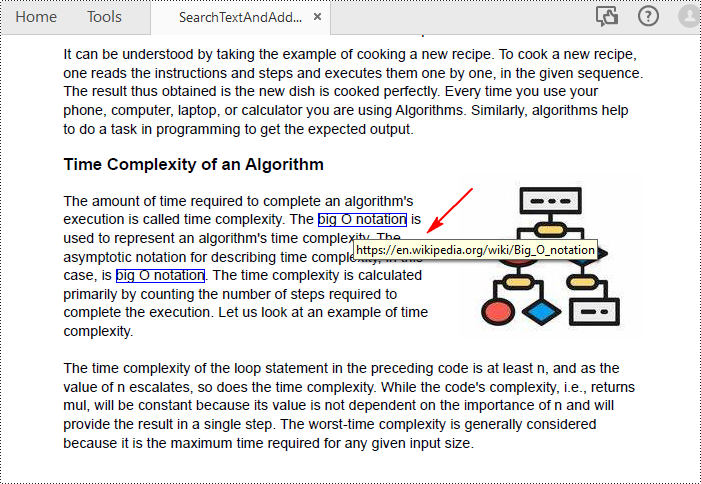
Apply for a Temporary License
If you'd like to remove the evaluation message from the generated documents, or to get rid of the function limitations, please request a 30-day trial license for yourself.
