
Knowledgebase (2417)
Children categories
When editing or updating a large presentation, manually locating and modifying specific text elements can be a tedious and time-consuming process. By using the replace feature in PowerPoint, you can quickly and accurately make updates throughout the presentation, ensuring that the information remains accurate and consistent. In this article, we will demonstrate how to replace text in PowerPoint presentations in Python using Spire.Presentation for Python.
- Replace the First Occurrence of a Specific Text in PowerPoint in Python
- Replace All Occurrences of a Specific Text in PowerPoint in Python
- Replace Text Using a Regular Expression in PowerPoint in Python
Install Spire.Presentation for Python
This scenario requires Spire.Presentation for Python and plum-dispatch v1.7.4. They can be easily installed in your Windows through the following pip command.
pip install Spire.Presentation
If you are unsure how to install, please refer to this tutorial: How to Install Spire.Presentation for Python on Windows
Replace the First Occurrence of a Specific Text in PowerPoint in Python
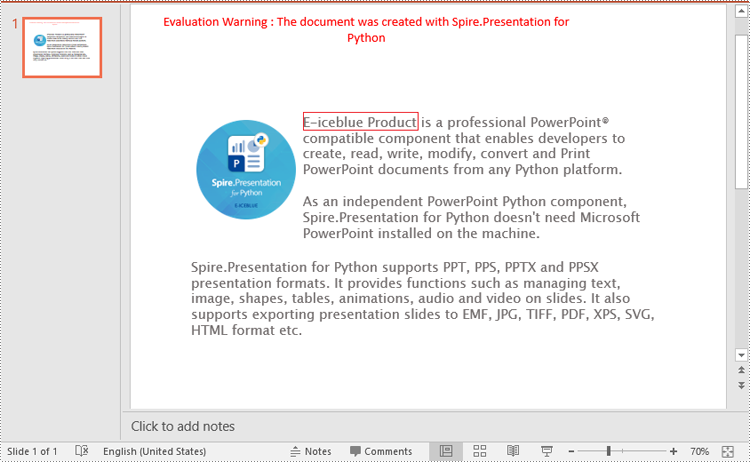
To replace the first occurrence of a specific text in a PowerPoint document, you can loop through all slides in the document, and then call the ISlide.ReplaceFirstText() method. The detailed steps are as follows.
- Create an object of the Presentation class.
- Load a PowerPoint document using Presentation.LoadFromFile() method.
- Loop through all slides in the PowerPoint document.
- Replace the first occurrence of a specific text with new text using ISlide.ReplaceFirstText() method.
- Save the result document using Presentation.SaveToFile() method.
- Python
from spire.presentation.common import *
from spire.presentation import *

# Create an object of the Presentation class
ppt = Presentation()
# Load a PowerPoint document
ppt.LoadFromFile("Sample.pptx")

# Loop through all slides in the document
for slide in ppt.Slides:
    # Replace the first occurrence of "Spire.Presentation for Python" with "E-iceblue Product"
    slide.ReplaceFirstText("Spire.Presentation for Python", "E-iceblue Product", False)
    break

# Save the result document
ppt.SaveToFile("ReplaceFirstTextOccurrence.pptx", FileFormat.Pptx2013)
ppt.Dispose()
Replace All Occurrences of a Specific Text in PowerPoint in Python
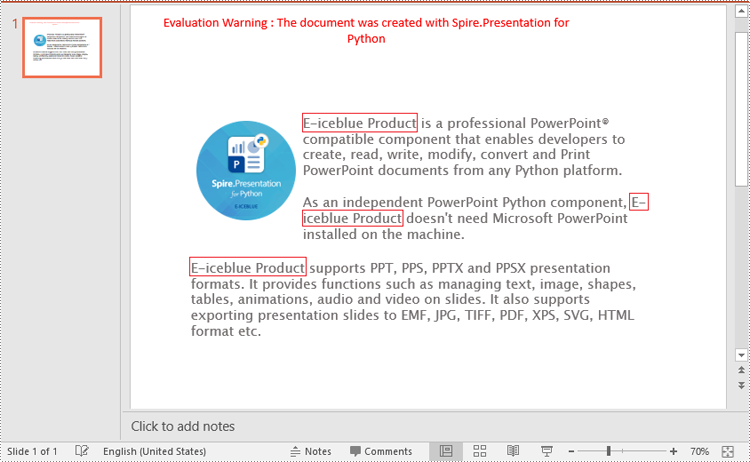
To replace all occurrences of a specific text in a PowerPoint document, you can loop through all slides in the document, and then use the ISlide.ReplaceAllText() method. The detailed steps are as follows.
- Create an object of the Presentation class.
- Load a PowerPoint document using Presentation.LoadFromFile() method.
- Loop through all slides in the PowerPoint document.
- Replace all occurrences of a specific text with new text using ISlide.ReplaceAllText() method.
- Save the result document using Presentation.SaveToFile() method.
- Python
from spire.presentation.common import *
from spire.presentation import *

# Create an object of the Presentation class
ppt = Presentation()
# Load a PowerPoint document
ppt.LoadFromFile("Sample.pptx")

# Loop through all slides in the document
for slide in ppt.Slides:
    # Replace all occurrences of "Spire.Presentation for Python" with "E-iceblue Product"
    slide.ReplaceAllText("Spire.Presentation for Python", "E-iceblue Product", False)

# Save the result document
ppt.SaveToFile("ReplaceAllTextOccurrences.pptx", FileFormat.Pptx2013)
ppt.Dispose()
Replace Text Using a Regular Expression in PowerPoint in Python
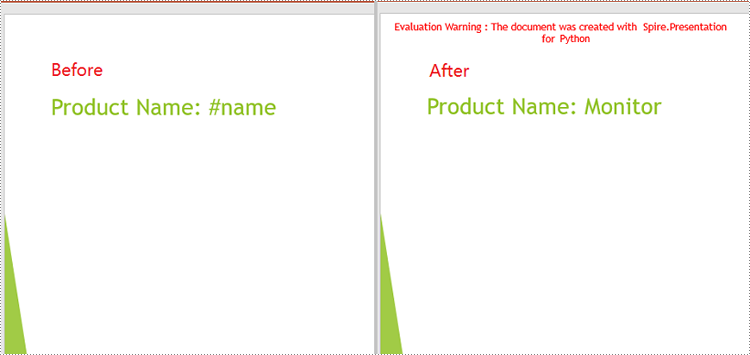
Spire.Presentation for Python provides the IShape.ReplaceTextWithRegex() method to replace text matching a regular expression pattern. The detailed steps are as follows.
- Create an object of the Presentation class.
- Load a PowerPoint document using Presentation.LoadFromFile() method.
- Loop through all slides in the PowerPoint document.
- Loop through all shapes on each slide.
- Replace text matching a regular expression pattern using IShape.ReplaceTextWithRegex() method.
- Save the result document using Presentation.SaveToFile() method.
- Python
from spire.presentation.common import *
from spire.presentation import *

# Create an object of the Presentation class
ppt = Presentation()
# Load a PowerPoint document
ppt.LoadFromFile("Sample1.pptx")

# Loop through all slides in the document
for slide in ppt.Slides:
    # Loop through all shapes on each slide
    for shape in slide.Shapes:
        # Replace text starting with # on the slide to "Monitor"
        shape.ReplaceTextWithRegex(Regex("#\w+"), "Monitor")

# Save the result document
ppt.SaveToFile("ReplaceTextUsingRegex.pptx", FileFormat.Pptx2013)
ppt.Dispose()
Apply for a Temporary License
If you'd like to remove the evaluation message from the generated documents, or to get rid of the function limitations, please request a 30-day trial license for yourself.
Creating a form in PDF not only ensures a professional appearance but also allows users to fill out and submit data electronically, streamlining data entry processes. Whether you are collecting survey responses, gathering client information, or creating employment applications, the ability to generate interactive PDF forms offers a seamless and organized way to capture, store, and manage valuable data. In this article, you will learn how to create a fillable PDF form as well as how to fill in a PDF form using Spire.PDF for Python.
Install Spire.PDF for Python
This scenario requires Spire.PDF for Python and plum-dispatch v1.7.4. They can be easily installed in your Windows through the following pip command.
pip install Spire.PDF
If you are unsure how to install, please refer to this tutorial: How to Install Spire.PDF for Python on Windows
Create a Fillable Form in PDF in Python
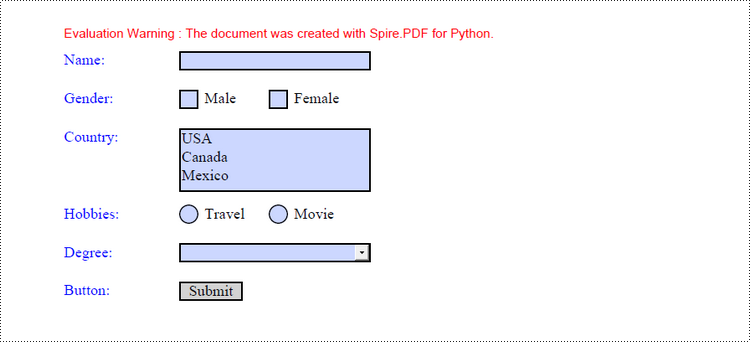
Spire.PDF for Python provides a range of helpful classes that enable programmers to generate and modify different types of form fields in PDF files. These include text boxes, check boxes, combo boxes, list boxes, and radio buttons. The table below lists some of the classes involved in this tutorial.
| Class | Description |
| PdfForm | Represents interactive form of the PDF document. |
| PdfField | Represents field of the PDF document's interactive form. |
| PdfTextBoxField | Represents text box field in the PDF form. |
| PdfCheckBoxField | Represents check box field in the PDF form. |
| PdfComboBoxField | Represents combo box field in the PDF Form. |
| PdfListBoxField | Represents list box field of the PDF form. |
| PdfListFieldItem | Represents an item of a list field. |
| PdfRadioButtonListField | Represents radio button field in the PDF form. |
| PdfRadioButtonListItem | Represents an item of a radio button list. |
| PdfButtonField | Represents button field in the PDF form. |
To generate a PDF form, start by creating an instance of the respective field class. Set the field's size and position in the document using the Bounds property, and finally, add it to the PDF using the PdfFormFieldCollection.Add() method. The following are the main steps to create various types of form fields in a PDF document using Spire.PDF for Python.
- Create a PdfDocument object.
- Add a page using PdfDocuemnt.Pages.Add() method.
- Create a PdfTextBoxField object, set the properties of the field including Bounds, Font and Text, and then add it to the document using PdfFormFieldCollection.Add() method.
- Repeat the step 3 to add check box, combo box, list box, radio button, and button to the document.
- Save the document to a PDF file using PdfDocument.SaveToFile() method.
- Python
from spire.pdf.common import *
from spire.pdf import *

# Create a PdfDocument object
doc = PdfDocument()

# Add a page
page = doc.Pages.Add()

# Initialize x and y coordinates
baseX = 100.0
baseY = 30.0

# Create two brush objects
brush1 = PdfSolidBrush(PdfRGBColor(Color.get_Blue()))
brush2 = PdfSolidBrush(PdfRGBColor(Color.get_Black()))

# Create a font
font = PdfFont(PdfFontFamily.TimesRoman, 12.0, PdfFontStyle.Regular)

# Add a textbox
page.Canvas.DrawString("Name:", font, brush1, PointF(10.0, baseY))
tbxBounds = RectangleF(baseX, baseY, 150.0, 15.0)
textBox = PdfTextBoxField(page, "name")
textBox.Bounds = tbxBounds
textBox.Font = font
doc.Form.Fields.Add(textBox)
baseY += 30.0

# add two checkboxes
page.Canvas.DrawString("Gender:", font, brush1, PointF(10.0, baseY));
checkboxBound1 = RectangleF(baseX, baseY, 15.0, 15.0)
checkBoxField1 = PdfCheckBoxField(page, "male")
checkBoxField1.Bounds = checkboxBound1
checkBoxField1.Checked = False
page.Canvas.DrawString("Male", font, brush2, PointF(baseX + 20.0, baseY))

checkboxBound2 = RectangleF(baseX + 70.0, baseY, 15.0, 15.0)
checkBoxField2 = PdfCheckBoxField(page, "female")
checkBoxField2.Bounds = checkboxBound2
checkBoxField2.Checked = False
page.Canvas.DrawString("Female", font, brush2, PointF(baseX + 90.0, baseY))
doc.Form.Fields.Add(checkBoxField1)
doc.Form.Fields.Add(checkBoxField2)
baseY += 30.0

# Add a listbox
page.Canvas.DrawString("Country:", font, brush1, PointF(10.0, baseY))
listboxBound = RectangleF(baseX, baseY, 150.0, 50.0)
listBoxField = PdfListBoxField(page, "country")
listBoxField.Items.Add(PdfListFieldItem("USA", "usa"))
listBoxField.Items.Add(PdfListFieldItem("Canada", "canada"))
listBoxField.Items.Add(PdfListFieldItem("Mexico", "mexico"))
listBoxField.Bounds = listboxBound
listBoxField.Font = font
doc.Form.Fields.Add(listBoxField)
baseY += 60.0

# Add two radio buttons
page.Canvas.DrawString("Hobbies:", font, brush1, PointF(10.0, baseY))
radioButtonListField = PdfRadioButtonListField(page, "hobbies")
radioItem1 = PdfRadioButtonListItem("travel")
radioBound1 = RectangleF(baseX, baseY, 15.0, 15.0)
radioItem1.Bounds = radioBound1
page.Canvas.DrawString("Travel", font, brush2, PointF(baseX + 20.0, baseY))
radioItem2 = PdfRadioButtonListItem("movie")
radioBound2 = RectangleF(baseX + 70.0, baseY, 15.0, 15.0)
radioItem2.Bounds = radioBound2
page.Canvas.DrawString("Movie", font, brush2, PointF(baseX + 90.0, baseY))
radioButtonListField.Items.Add(radioItem1)
radioButtonListField.Items.Add(radioItem2)
doc.Form.Fields.Add(radioButtonListField)
baseY += 30.0

# Add a combobox
page.Canvas.DrawString("Degree:", font, brush1, PointF(10.0, baseY))
cmbBounds = RectangleF(baseX, baseY, 150.0, 15.0)
comboBoxField = PdfComboBoxField(page, "degree")
comboBoxField.Bounds = cmbBounds
comboBoxField.Items.Add(PdfListFieldItem("Bachelor", "bachelor"))
comboBoxField.Items.Add(PdfListFieldItem("Master", "master"))
comboBoxField.Items.Add(PdfListFieldItem("Doctor", "doctor"))
comboBoxField.Font = font
doc.Form.Fields.Add(comboBoxField)
baseY += 30.0

# Add a button
page.Canvas.DrawString("Button:", font, brush1, PointF(10.0, baseY))
btnBounds = RectangleF(baseX, baseY, 50.0, 15.0)
buttonField = PdfButtonField(page, "button")
buttonField.Bounds = btnBounds
buttonField.Text = "Submit"
buttonField.Font = font
submitAction = PdfSubmitAction("https://www.e-iceblue.com/getformvalues.php")
buttonField.Actions.MouseDown = submitAction
doc.Form.Fields.Add(buttonField)

# Save to file
doc.SaveToFile("output/Form.pdf", FileFormat.PDF)
Fill in a PDF Form in Python
In order to fill in a form, the necessary steps include obtaining all form fields from the PDF document, locating a specific field based on its type and name, and subsequently entering or selecting a value from a predetermined list. The following are the detailed steps.
- Create a PdfDocument object.
- Load a sample PDF document using PdfDocument.LoadFromFile() method.
- Get the form from the document through PdfDocument.Form property.
- Get the form widget collection through PdfFormWidget.FieldsWidget property.
- Get a specific form field by its type and name.
- Enter a value or select a value from the predefined list for the field.
- Save the document to a PDF file using PdfDocument.SaveToFile() method.
- Python
from spire.pdf.common import *
from spire.pdf import *

# Create a PdfDocument object
doc = PdfDocument()

# Load a PDF document contaning form fields
doc.LoadFromFile("C:\\Users\\Administrator\\Desktop\\Form.pdf")

# Get form from the document
form = doc.Form
formWidget = PdfFormWidget(form)

# Get form widget collection
formWidgetCollection = formWidget.FieldsWidget

# If the collection is nut null
if formWidgetCollection.Count > 0:

    # Loop through the elements in the form widget collection
    for i in range(formWidgetCollection.Count):

        # Get a specific field
        field = formWidgetCollection.get_Item(i)

        # Determine if a field is a textbox
        if isinstance(field, PdfTextBoxFieldWidget):
            textBoxField = field if isinstance(field, PdfTextBoxFieldWidget) else None

            # Determine if the name of the text box is "name"
            if textBoxField.Name == "name":

                # Add text to the text box
                textBoxField.Text = "Jackson Green"

        # Choose an item from the list box
        if isinstance(field, PdfListBoxWidgetFieldWidget):
            listBoxField = field if isinstance(field, PdfListBoxWidgetFieldWidget) else None
            if listBoxField.Name == "country":
                index = [1]
                listBoxField.SelectedIndex = index

        # Choose an item from the combo box
        if isinstance(field, PdfComboBoxWidgetFieldWidget):
            comBoxField = field if isinstance(field, PdfComboBoxWidgetFieldWidget) else None
            if comBoxField.Name == "degree":
                items = [0]
                comBoxField.SelectedIndex = items

        # Select an item in the radio buttons
        if isinstance(field, PdfRadioButtonListFieldWidget):
            radioBtnField = field if isinstance(field, PdfRadioButtonListFieldWidget) else None
            if radioBtnField.Name == "hobbies":
                radioBtnField.SelectedIndex = 1

        # Check the specified check box
        if isinstance(field, PdfCheckBoxWidgetFieldWidget):
            checkBoxField = field if isinstance(field, PdfCheckBoxWidgetFieldWidget) else None
            if checkBoxField.Name == "male":
                checkBoxField.Checked = True

# Save the document
doc.SaveToFile("output/FillForm.pdf")
doc.Close()
Apply for a Temporary License
If you'd like to remove the evaluation message from the generated documents, or to get rid of the function limitations, please request a 30-day trial license for yourself.
Lists are a fundamental data structure in PDF documents as they allow users to efficiently store and arrange collections of items. The three most commonly utilized list types in PDFs are ordered lists, unordered lists (also known as bulleted lists), and nested lists. These lists facilitate the presentation of information in a well-organized and visually appealing manner within PDF documents. In this article, we will explore how to use Spire.PDF for Python to create ordered, unordered, and nested lists in PDF documents for generating professional-looking PDF documents.
- Create Ordered Lists in PDF with Python
- Create Unordered Lists with Symbol Markers in PDF Using Python
- Create Unordered Lists with Image Markers in PDF Using Python
- Create Nested Lists in PDF with Python
In Spire.PDF for Python, the PdfSortedList class and PdfList class are available for generating various types of lists in PDF documents, such as ordered lists, unordered lists, and nested lists. By utilizing the functionalities provided by Spire.PDF for Python, developers can easily format and incorporate these lists into their PDF pages. The following are the key classes and properties that are particularly useful for creating lists within PDF documents:
| Class or property | Description |
| PdfSortedList class | Represents an ordered list in a PDF document. |
| PdfList class | Represents an unordered list in a PDF document. |
| Brush property | Gets or sets a list's brush. |
| Font property | Gets or sets a list's font. |
| Indent property | Gets or sets a list's indent. |
| TextIndent property | Gets or sets the indent from the marker to the list item text. |
| Items property | Gets items of a list. |
| Marker property | Gets or sets the marker of a list. |
| Draw() method | Draw list on the canvas of a page at the specified location. |
| PdfOrderedMarker class | Represents the marker style of an ordered list, such as numbers, letters, and roman numerals. |
| PdfMarker class | Represents bullet style for an unordered list. |
Install Spire.PDF for Python
This scenario requires Spire.PDF for Python and plum-dispatch v1.7.4. They can be easily installed in your Windows through the following pip commands.
pip install Spire.PDF
If you are unsure how to install, please refer to this tutorial: How to Install Spire.PDF for Python on Windows
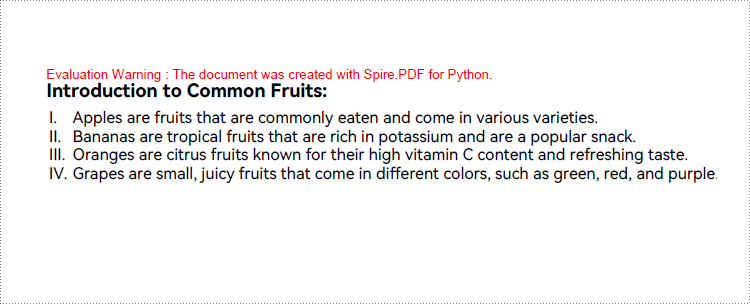
Create Ordered Lists in PDF with Python
Developers can use the PdfSortedList class in Spire.PDF for Python to create ordered lists and format them using the properties available under this class. Afterwards, the list can be drawn on a PDF page using the PdfSortedList.Draw() method. Here is a detailed step-by-step guide for how to create ordered lists in PDF documents:
- Create an object of PdfDocument class and load a PDF document using PdfDocument.LoadFromFile() method.
- Add a page to the document using PdfDocument.Pages.Add() method.
- Create fonts and the brush for the title and the list and draw the list title on the page using PdfPageBase.Canvas.DrawString() method.
- Initialize an instance of PdfSortedList class to create an ordered list with specified items.
- Initialize an instance of PdfOrderedMarker class to create an ordered marker for the list.
- Set the font, item indent, text-indent, brush, and marker for the list using properties under PdfSortedList class.
- Draw the list on the page using PdfSortedList.Draw() method.
- Save the document using PdfDocument.SaveToFile() method.
- Python
from spire.pdf import *
from spire.pdf.common import *

# Create an object of PdfDocument class
pdf = PdfDocument()

# Add a page to the document with specified page size and margins
page = pdf.Pages.Add()

# Create tile font and list font
titleFont = PdfTrueTypeFont("HarmonyOS Sans SC", 14.0, 1, True)
listFont = PdfTrueTypeFont("HarmonyOS Sans SC", 12.0, 0, True)

# Create a brush to draw the list
brush = PdfBrushes.get_Black()

# Specify the initial coordinate
x = 10.0
y = 20.0

# Draw the title
title = "Introduction to Common Fruits:"
page.Canvas.DrawString(title, titleFont, brush, x, y)

# Create a numbered list
listItems = "Apples are fruits that are commonly eaten and come in various varieties.\n" \
    + "Bananas are tropical fruits that are rich in potassium and are a popular snack.\n" \
        + "Oranges are citrus fruits known for their high vitamin C content and refreshing taste.\n"\
            + "Grapes are small, juicy fruits that come in different colors, such as green, red, and purple."
list = PdfSortedList(listItems)

# Create a marker for the list
marker = PdfOrderedMarker(PdfNumberStyle.UpperRoman, listFont)

# Format the list
list.Font = listFont
list.Indent = 2
list.TextIndent = 4
list.Brush = brush
list.Marker = marker

# Draw the list on the page
list.Draw(page.Canvas, x, y + float(titleFont.MeasureString(title).Height + 5))

# Save the document
pdf.SaveToFile("output/CreateNumberedList.pdf")
pdf.Close()
Create Unordered Lists with Symbol Markers in PDF Using Python
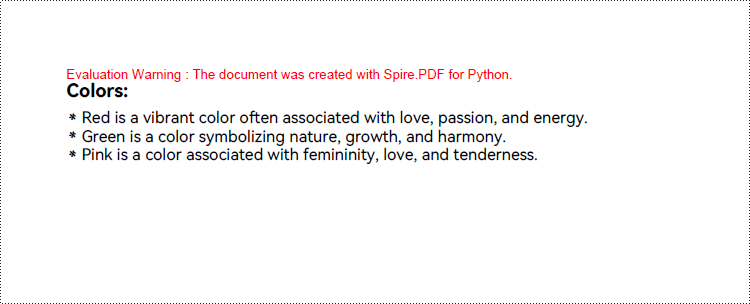
Creating an unordered list in a PDF document with Spire.PDF for Python involves PdfList class and the properties under this class. When creating an unordered list, developers need to set the marker style and font for the unordered list using the PdfList.Marker.Style and PdfList.Marker.Font properties. The detailed steps are as follows:
- Create an object of PdfDocument class and load a PDF document using PdfDocument.LoadFromFile() method.
- Add a page to the document using PdfDocument.Pages.Add() method.
- Create fonts and the brush for the title, the marker, and the list, and draw the list title on the page using PdfPageBase.Canvas.DrawString() method.
- Initialize an instance of PdfList class to create an unordered list with specified items.
- Set the font, item indent, text indent, and brush for the list using properties under PdfList class.
- Set the marker style and font through PdfList.Marker.Style property and PdfList.Marker.Font property.
- Draw the list on the page using PdfList.Draw() method.
- Save the document using PdfDocument.SaveToFile() method.
- Python
from spire.pdf import *
from spire.pdf.common import *

# Create an object of PdfDocument class
pdf = PdfDocument()

# Add a page to the document with specified page size and margins
page = pdf.Pages.Add()

# Create tile font and list font
titleFont = PdfTrueTypeFont("HarmonyOS Sans SC", 14.0, 1, True)
listFont = PdfTrueTypeFont("HarmonyOS Sans SC", 12.0, 0, True)
markerFont = PdfTrueTypeFont("HarmonyOS Sans SC", 8.0, 0, True)

# Create a brush to draw the list
brush = PdfBrushes.get_Black()

# Specify the initial coordinate
x = 10.0
y = 20.0

# Draw the title
title = "Colors:"
page.Canvas.DrawString(title, titleFont, brush, x, y)

# Create an unordered list
listContent = "Red is a vibrant color often associated with love, passion, and energy.\n" \
    + "Green is a color symbolizing nature, growth, and harmony.\n" \
        + "Pink is a color associated with femininity, love, and tenderness."
list = PdfList(listContent)

# Format the list
list.Font = listFont
list.Indent = 2
list.TextIndent = 4
list.Brush = brush

# Format the marker
list.Marker.Style = PdfUnorderedMarkerStyle.Asterisk
list.Marker.Font = markerFont

# Draw the list on the page
list.Draw(page.Canvas, x, float(y + titleFont.MeasureString(title).Height + 5))

# Save the document
pdf.SaveToFile("output/CreateSymbolBulletedList.pdf")
pdf.Close()
Create Unordered Lists with Image Markers in PDF Using Python
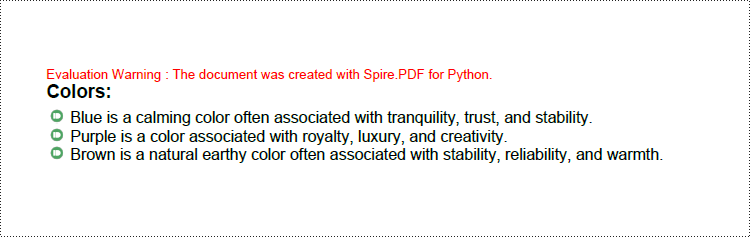
Creating an unordered list with image markers follows similar steps to creating a list with symbol markers. Developers just need to set the item marker style to an image through PdfList.Marker.Style property. Here are the detailed steps:
- Create an object of PdfDocument class and load a PDF document using PdfDocument.LoadFromFile() method.
- Add a page to the document using PdfDocument.Pages.Add() method.
- Create fonts and the brush for the title, the marker, and the list, and draw the list title on the page using PdfPageBase.Canvas.DrawString() method.
- Initialize an instance of PdfList class to create an unordered list with specified items.
- Set the font, item indent, text-indent, and brush for the list using properties under PdfList class.
- Load an image using PdfImage.LoadFromFile() method.
- Set the marker style as PdfUnorderedMarkerStyle.CustomImage through PdfList.Marker.Style property and set the loaded image as the marker through PdfList.Marker.Image property.
- Draw the list on the page using PdfList.Draw() method.
- Save the document using PdfDocument.SaveToFile() method.
- Python
from spire.pdf import *
from spire.pdf.common import *

# Create an object of PdfDocument class
pdf = PdfDocument()

# Add a page to the document with specified page size and margins
page = pdf.Pages.Add()

# Create tile font and list font
titleFont = PdfFont(PdfFontFamily.Helvetica, 14.0, PdfFontStyle.Bold)
listFont = PdfFont(PdfFontFamily.Helvetica, 12.0, PdfFontStyle.Regular)

# Create a brush to draw the list
brush = PdfBrushes.get_Black()

# Specify the initial coordinate
x = 10.0
y = 20.0

# Draw the title
title = "Colors:"
page.Canvas.DrawString(title, titleFont, brush, x, y)

# Create an unordered list
listContent = "Blue is a calming color often associated with tranquility, trust, and stability.\n" \
    + "Purple is a color associated with royalty, luxury, and creativity.\n" \
        + "Brown is a natural earthy color often associated with stability, reliability, and warmth."
list = PdfList(listContent)

# Format the list
list.Font = listFont
list.Indent = 2
list.TextIndent = 4
list.Brush = brush

# Load an image
image = PdfImage.FromFile("Marker.png")

# Set the marker as a custom image
list.Marker.Style = PdfUnorderedMarkerStyle.CustomImage
list.Marker.Image = image

# Draw the list on the page
list.Draw(page.Canvas, x, float(y + titleFont.MeasureString(title).Height + 5))

# Save the document
pdf.SaveToFile("output/CreateImageBulletedList.pdf")
pdf.Close()
Create Nested Lists in PDF with Python
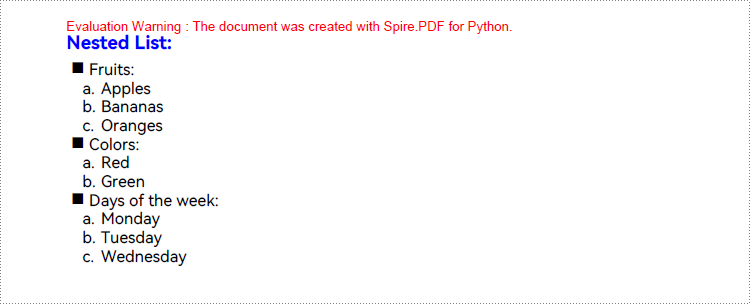
When creating a nested list, both the parent list and each level of sublists can be created as either unordered or ordered lists. Once the lists at each level are created, the PdfListItem.Sublist property can be used to set a list as the sublist of a corresponding item in the parent list. Here are the steps to create a nested list:
- Create an object of PdfDocument class and load a PDF document using PdfDocument.LoadFromFile() method.
- Add a page to the document using PdfDocument.Pages.Add() method.
- Create fonts and the brush for the title, the marker, and the list, and draw the list title on the page using PdfPageBase.Canvas.DrawString() method.
- Create an unordered list as the parent list and format the list and the marker.
- Create three sublists for the items in the parent list and format the list.
- Get an item in the parent list using PdfList.Items.get_Item() method.
- Set a specified list as the sublist of the item through PdfListItem.SubList property.
- Draw the list on the page using PdfList.Draw() method.
- Save the document using PdfDocument.SaveToFile() method.
- Python
from spire.pdf import *
from spire.pdf.common import *

# Create an object of PdfDocument class
pdf = PdfDocument()

# Add a page to the document with specified page size and margins
page = pdf.Pages.Add()

# Create tile font and list font
titleFont = PdfTrueTypeFont("HarmonyOS Sans SC", 14.0, 1, True)
listFont = PdfTrueTypeFont("HarmonyOS Sans SC", 12.0, 0, True)
markerFont = PdfTrueTypeFont("HarmonyOS Sans SC", 12.0, 0, True)

# Create brushs to draw the title and lists
titleBrush = PdfBrushes.get_Blue()
firstListBrush = PdfBrushes.get_Purple()
secondListBrush = PdfBrushes.get_Black()

# Specify the initial coordinate
x = 10.0
y = 20.0

# Draw the title
title = "Nested List:"
page.Canvas.DrawString(title, titleFont, titleBrush, x, y)

# Create a parent list
parentListContent = "Fruits:\n" + "Colors:\n" + "Days of the week:"
parentList = PdfList(parentListContent)

# Format the parent list
indent = 4
textIndent = 4
parentList.Font = listFont
parentList.Indent = indent
parentList.TextIndent = textIndent
# Set the parent list marker
parentList.Marker.Style = PdfUnorderedMarkerStyle.Square
parentList.Marker.Font = markerFont

# Create nested sublists and format them
subListMarker = PdfOrderedMarker(PdfNumberStyle.LowerLatin, markerFont)
subList1Content = "Apples\n" + "Bananas\n" + "Oranges"
subList1 = PdfSortedList(subList1Content, subListMarker)
subList1.Font = listFont
subList1.Indent = indent * 2
subList1.TextIndent = textIndent

subList2Content = "Red\n" + "Green"
subList2 = PdfSortedList(subList2Content, subListMarker)
subList2.Font = listFont
subList2.Indent = indent * 2
subList2.TextIndent = textIndent

subList3Content = "Monday\n" + "Tuesday\n" + "Wednesday"
subList3 = PdfSortedList(subList3Content, subListMarker)
subList3.Font = listFont
subList3.Indent = indent * 2
subList3.TextIndent = textIndent

# Set the created list as the nested sublist of each item in the parent list
item1 = parentList.Items.get_Item(0)
item1.SubList = subList1

item2 = parentList.Items.get_Item(1)
item2.SubList = subList2

item3 = parentList.Items.get_Item(2)
item3.SubList = subList3

# Draw the list
parentList.Draw(page.Canvas, x, float(y + titleFont.MeasureString(title).Height + 5))

# Save the document
pdf.SaveToFile("output/CreateNestedList.pdf")
pdf.Close()
Apply for a Temporary License
If you'd like to remove the evaluation message from the generated documents, or to get rid of the function limitations, please request a 30-day trial license for yourself.
