
Knowledgebase (2417)
Children categories
Python: Add, Read, or Remove Document Properties in PowerPoint
2024-02-23 07:10:20 Written by KoohjiManaging document properties in PowerPoint is an essential aspect of presentation creation. These properties serve as metadata that provides important information about the file, such as the author, subject, and keywords. By being able to add, retrieve, or remove document properties, users gain control over the organization and customization of their presentations. Whether it's adding relevant tags for easy categorization, accessing authorship details, or removing sensitive data, effectively managing document properties in PowerPoint ensures seamless collaboration and professionalism in your slide decks.
In this article, you will learn how to add, read, and remove document properties in a PowerPoint file in Python by using the Spire.Presentation for Python library.
- Add Document Properties to a PowerPoint File
- Read Document Properties of a PowerPoint File
- Remove Document Properties from a PowerPoint File
Install Spire.Presentation for Python
This scenario requires Spire.Presentation for Python and plum-dispatch v1.7.4. They can be easily installed in your Windows through the following pip commands.
pip install Spire.Presentation
If you are unsure how to install, please refer to this tutorial: How to Install Spire.Presentation for Python on Windows
Prerequisite Knowledge
Document properties can be divided into two types: standard document properties and custom document properties.
- Standard document properties are pre-defined properties that are commonly used across various PowerPoint presentations. Some examples of standard document properties include title, author, subject, keywords and company. Standard document properties are useful for providing general information and metadata about the presentation.
- Custom document properties are user-defined properties that allow you to add specific information to a PowerPoint presentation. Unlike standard document properties, custom properties are not predefined and can be tailored to suit your specific needs. Custom properties usually provide information relevant to your presentation that may not be covered by the default properties.
Spire.Presentation for Python offers the DocumentProperty class to work with both standard document properties and custom document properties. The standard document properties can be accessed using the properties like Title, Subject, Author, Manager, Company, etc. of the DocumentProperty class. To add or retrieve custom properties, you can use the set_Item() method and the GetPropertyName() method of the DocumentProperty class.
Add Document Properties to a PowerPoint File in Python
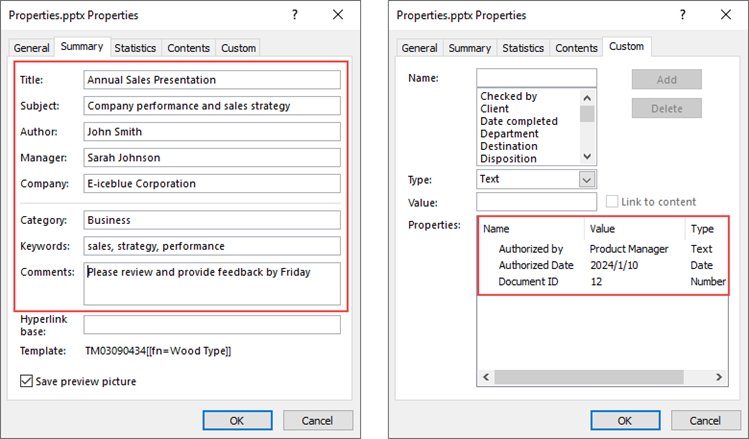
To add or change the standard document properties, you can assign values to the DocumentProperty.Title proerpty, DocumentProperty.Subject property and other similar properties. To add custom properties to a presentation, use the DocumentProperty.set_Item(name: str, value: SpireObject) method. The detailed steps are as follows.
- Create a Presentation object.
- Load a PowerPoint document using Presentation.LoadFromFile() method.
- Get the DocumentProperty object.
- Add standard document properties to the presentation by assigning values to the Title, Subject, Author, Manager, Company and Keywords properties of the object.
- Add custom properties to the presentation using set_Item() of the object.
- Save the presentation to a PPTX file using Presentation.SaveToFile() method.
- Python
from spire.presentation.common import *
from spire.presentation import *

# Create a Presentation object
presentation = Presentation()

# Load a PowerPoint document
presentation.LoadFromFile("C:\\Users\\Administrator\\Desktop\\input.pptx")

# Get the DocumentProperty object
documentProperty = presentation.DocumentProperty

# Set built-in document properties
documentProperty.Title = "Annual Sales Presentation"
documentProperty.Subject = "Company performance and sales strategy"
documentProperty.Author = "John Smith"
documentProperty.Manager = "Sarah Johnson"
documentProperty.Company = "E-iceblue Corporation"
documentProperty.Category = "Business"
documentProperty.Keywords = "sales, strategy, performance"
documentProperty.Comments = "Please review and provide feedback by Friday"

# Add custom document properties
documentProperty.set_Item("Document ID", Int32(12))
documentProperty.set_Item("Authorized by", String("Product Manager"))
documentProperty.set_Item("Authorized Date", DateTime(2024, 1, 10, 0, 0, 0, 0))

# Save to file
presentation.SaveToFile("output/Properties.pptx", FileFormat.Pptx2019)
presentation.Dispose()
Read Document Properties of a PowerPoint File in Python
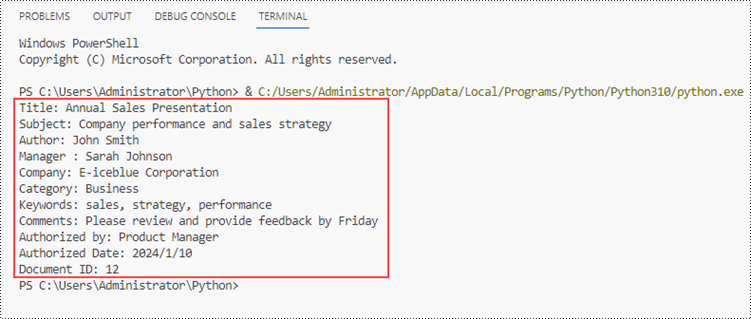
The DocumentProperty.Title and the similar properties are not only used to set standard properties but can return the values of standard properties as well. Since the name of a custom property is not constant, we need to get the name using the DocumentProperty.GetPropertyName(index: int) method. And then, we're able to get the property's value using the DocumentProperty.get_Item(name: str) method.
The steps to read document properties of a PowerPoint file are as follows.
- Create a Presentation object.
- Load a PowerPoint document using Presentation.LoadFromFile() method.
- Get the DocumentProperty object.
- Get the standard document properties by using the Title, Subject, Author, Manager, Company, and Keywords properties of the object.
- Get the count of the custom properties, and iterate through the custom properties.
- Get the name of a specific custom property by its index using DocumentProperty.GetPropertyName() method.
- Get the value of the property using DocumentProperty.get_Item() method.
- Python
from spire.presentation.common import *
from spire.presentation import *

# Create a Presentation object
presentation = Presentation()

# Load a PowerPoint document
presentation.LoadFromFile("C:\\Users\\Administrator\\Desktop\\Properties.pptx")

# Get the DocumentProperty object
documentProperty = presentation.DocumentProperty

# Get the built-in document properties
print("Title: " + documentProperty.Title)
print("Subject: " + documentProperty.Subject)
print("Author: " + documentProperty.Author)
print("Manager : " + documentProperty.Manager)
print("Company: " + documentProperty.Company)
print("Category: " + documentProperty.Category)
print("Keywords: " + documentProperty.Keywords)
print("Comments: " + documentProperty.Comments)

# Get the count of the custom document properties
count = documentProperty.Count

# Iterate through the custom properties
for i in range(count):

    # Get the name of a specific custom property
    customPropertyName = documentProperty.GetPropertyName(i)

    # Get the value of the custom property
    customPropertyValue = documentProperty.get_Item(customPropertyName)

    # Print the result
    print(customPropertyName + ": " + str(customPropertyValue))
Remove Document Properties from a PowerPoint File in Python
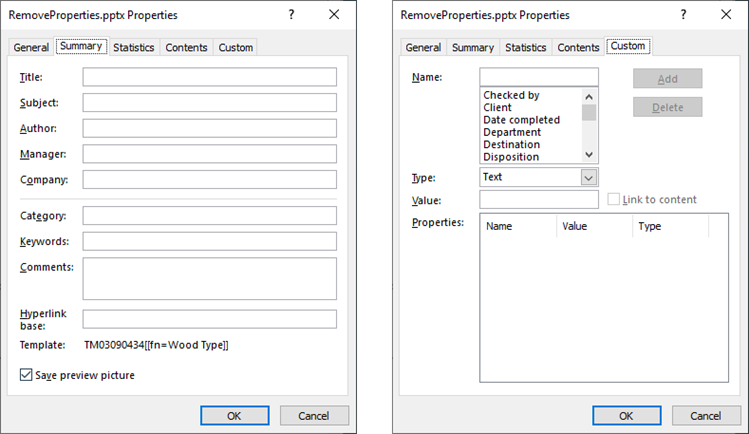
Removing a standard property means assigning an empty string to a property like DocumentProperty.Title. To remove the custom properties, Spire.Presentation provides the DocumentProperty.Remove(name: str) method. The following are the steps to remove document properties from a PowerPoint file in Python.
- Create a Presentation object.
- Load a PowerPoint document using Presentation.LoadFromFile() method.
- Get the DocumentProperty object.
- Set the Title, Subject, Author, Manager, Company, and Keywords properties of the object to empty strings.
- Get the count of the custom properties.
- Get the name of a specific custom property by its index using DocumentProperty.GetPropertyName() method.
- Remove the custom property using DocumentProperty.Remove() method.
- Save the presentation to a PPTX file using Presentation.SaveToFile() method.
- Python
from spire.presentation.common import *
from spire.presentation import *

# Create a Presentation object
presentation = Presentation()

# Load a PowerPoint document
presentation.LoadFromFile("C:\\Users\\Administrator\\Desktop\\Properties.pptx")

# Get the DocumentProperty object
documentProperty = presentation.DocumentProperty

# Set built-in document properties to empty strings
documentProperty.Title = ""
documentProperty.Subject = ""
documentProperty.Author = ""
documentProperty.Manager = ""
documentProperty.Company = ""
documentProperty.Category = ""
documentProperty.Keywords = ""
documentProperty.Comments = ""

# Get the count of the custom document properties
i = documentProperty.Count
while i > 0:

    # Get the name of a specific custom property
    customPropertyName = documentProperty.GetPropertyName(i - 1)

    # Remove the custom property
    documentProperty.Remove(customPropertyName)
    i = i - 1

# Save the presentation to a different pptx file
presentation.SaveToFile("Output/RemoveProperties.pptx",FileFormat.Pptx2019)
Apply for a Temporary License
If you'd like to remove the evaluation message from the generated documents, or to get rid of the function limitations, please request a 30-day trial license for yourself.
Images are an effective tool for conveying complex information. By inserting images into tables, you can enhance data presentation with charts, graphs, diagrams, illustrations, and more. This not only enables readers to easily comprehend the information being presented but also adds visual appeal to your document. In certain cases, you may also come across situations where you need to extract images from tables for various purposes. For example, you might want to reuse an image in a presentation, website, or another document. Extracting images allows you to repurpose them, streamlining your content creation process and increasing efficiency. In this article, we will explore how to insert and extract images in Word tables in Python using Spire.Doc for Python.
Install Spire.Doc for Python
This scenario requires Spire.Doc for Python and plum-dispatch v1.7.4. They can be easily installed in your Windows through the following pip commands.
pip install Spire.Doc
If you are unsure how to install, please refer to this tutorial: How to Install Spire.Doc for Python on Windows
Insert Images into a Word Table in Python
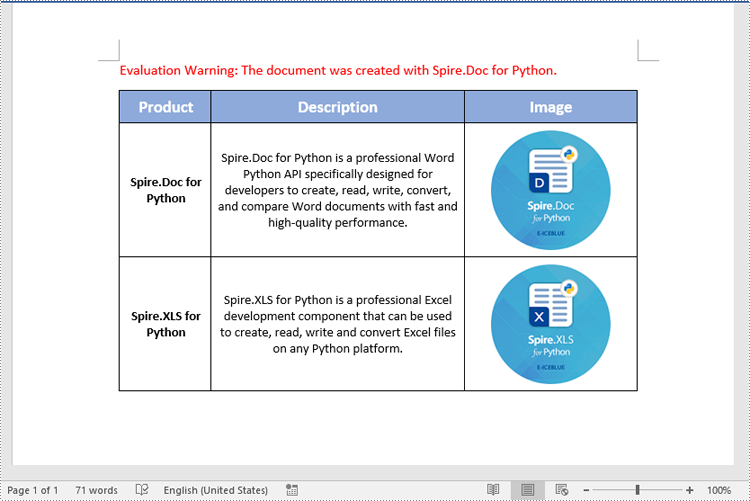
Spire.Doc for Python provides the TableCell.Paragraphs[index].AppendPicture() method to add an image to a specific table cell. The detailed steps are as follows.
- Create an object of the Document class.
- Load a Word document using the Document.LoadFromFile() method.
- Get a specific section in the document using the Document.Sections[index] property.
- Get a specific table in the section using the Section.Tables[index] property.
- Access a specific cell in the table using the Table.Row[index].Cells[index] property.
- Add an image to the cell using the TableCell.Paragraphs[index].AppendPicture() method and set the image width and height.
- Save the result document using the Document.SaveToFile() method.
- Python
from spire.doc import *
from spire.doc.common import *

# Create an object of the Document class
doc = Document()
# Load a Word document
doc.LoadFromFile("Table2.docx")

# Get the first section
section = doc.Sections.get_Item(0)

# Get the first table in the section
table = section.Tables.get_Item(0)

# Add an image to the 3rd cell of the second row in the table
cell = table.Rows[1].Cells[2]
picture = cell.Paragraphs[0].AppendPicture("doc.png")
# Set image width and height
picture.Width = 100
picture.Height = 100

# Add an image to the 3rd cell of the 3rd row in the table
cell = table.Rows[2].Cells[2]
picture = cell.Paragraphs[0].AppendPicture("xls.png")
# Set image width and height
picture.Width = 100
picture.Height = 100

# Save the result document
doc.SaveToFile("AddImagesToTable.docx", FileFormat.Docx2013)
doc.Close()
Extract Images from a Word Table in Python
To extract images from a Word table, you need to iterate through all objects in the table and identify the ones of the DocPicture type. Once the DocPicture objects are found, you can access their image bytes using the DocPicture.ImageBytes property, and then save the image bytes to image files. The detailed steps are as follows.
- Create an object of the Document class.
- Load a Word document using the Document.LoadFromFile() method.
- Get a specific section in the document using the Document.Sections[index] property.
- Get a specific table in the section using the Section.Tables[index] property.
- Create a list to store the extracted image data.
- Iterate through all rows in the table.
- Iterate through all cells in each row.
- Iterate through all paragraphs in each cell.
- Iterate through all child objects in each paragraph.
- Check if the current child object is of DocPicture type.
- Get the image bytes of the DocPicture object using the DocPicture.ImageBytes property and append them to the list.
- Save the image bytes in the list to image files.
- Python
from spire.doc import *
from spire.doc.common import *

# Create an object of the Document class
doc = Document()
# Load a Word document
doc.LoadFromFile("AddImagesToTable.docx")

# Get the first section
section = doc.Sections.get_Item(0)

# Get the first table in the section
table = section.Tables.get_Item(0)

# Create a list to store image bytes
image_data = []

# Iterate through all rows in the table
for i in range(table.Rows.Count):
    row = table.Rows.get_Item(i)
    # Iterate through all cells in each row
    for j in range(row.Cells.Count):
        cell = row.Cells[j]
        # Iterate through all paragraphs in each cell
        for k in range(cell.Paragraphs.Count):
            paragraph = cell.Paragraphs[k]
            # Iterate through all child objects in each paragraph
            for o in range(paragraph.ChildObjects.Count):
                child_object = paragraph.ChildObjects[o]
                # Check if the current child object is of DocPicture type
                if isinstance(child_object, DocPicture):
                    picture = child_object
                    # Get the image bytes
                    bytes = picture.ImageBytes
                    # Append the image bytes to the list
                    image_data.append(bytes)

# Save the image bytes in the list to image files
for index, item in enumerate(image_data):
    image_Name = f"Images/Image-{index}.png"
    with open(image_Name, 'wb') as imageFile:
        imageFile.write(item)

doc.Close()

Apply for a Temporary License
If you'd like to remove the evaluation message from the generated documents, or to get rid of the function limitations, please request a 30-day trial license for yourself.
Python: Add or Extract Audio and Video from PowerPoint Documents
2024-02-21 00:56:54 Written by KoohjiAdding or extracting audio and video in a PowerPoint document can greatly enrich the presentation content, enhance audience engagement, and improve comprehension. By adding audio, you can include background music, narration, or sound effects to make the content more lively and emotionally engaging. Inserting videos allows you to showcase dynamic visuals, demonstrate processes, or explain complex concepts, helping the audience to understand the content more intuitively. Extracting audio and video can help preserve important information or resources for reuse when needed. This article will introduce how to use Python and Spire.Presentation for Python to add or extract audio and video in PowerPoint.
- Add Audio in PowerPoint Documents in Python
- Extract Audio from PowerPoint Documents in Python
- Add Video in PowerPoint Documents in Python
- Extract Video from PowerPoint Documents in Python
Install Spire.Presentation for Python
This scenario requires Spire.Presentation for Python and plum-dispatch v1.7.4. They can be easily installed in your Windows through the following pip command.
pip install Spire.Presentation
If you are unsure how to install, please refer to this tutorial: How to Install Spire.Presentation for Python on Windows
Add Audio in PowerPoint Documents in Python
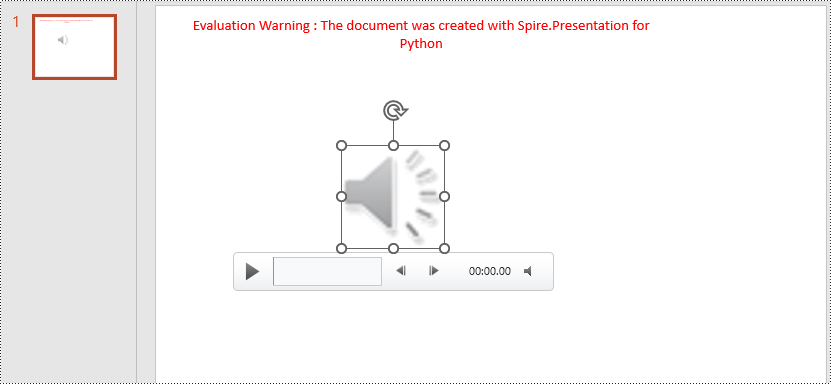
Spire.Presentation for Python provides the Slide.Shapes.AppendAudioMedia() method, which can be used to add audio files to slides. The specific steps are as follows:
- Create an object of the Presentation class.
- Use the RectangleF.FromLTRB() method to create a rectangle.
- In the shapes collection of the first slide, use the Slide.Shapes.AppendAudioMedia() method to add the audio file to the previously created rectangle.
- Use the Presentation.SaveToFile() method to save the document as a PowerPoint file.
- Python
from spire.presentation.common import *
from spire.presentation import *

# Create a presentation object
presentation = Presentation()

# Create an audio rectangle
audioRect = RectangleF.FromLTRB(200, 150, 310, 260)

# Add audio
presentation.Slides[0].Shapes.AppendAudioMedia("data/Music.wav", audioRect)

# Save the presentation to a file
presentation.SaveToFile("AddAudio.pptx", FileFormat.Pptx2016)

# Release resources
presentation.Dispose()
Extract Audio from PowerPoint Documents in Python
To determine if a shape is of audio type, you can check if its type is IAudio. If the shape is of audio type, you can use the IAudio.Data property to retrieve audio data. The specific steps are as follows:
- Create an object of the Presentation class.
- Use the Presentation.LoadFromFile() method to load the PowerPoint document.
- Iterate through the shapes collection on the first slide, checking if each shape is of type IAudio.
- If the shape is of type IAudio, use IAudio.Data property to retrieve the audio data from the audio object.
- Use the AudioData.SaveToFile() method to save the audio data to a file.
- Python
from spire.presentation.common import *
from spire.presentation import *

# Create a presentation object
presentation = Presentation()

# Load a presentation from a file
presentation.LoadFromFile("Audio.pptx")

# Initialize a counter
i = 1

# Iterate through shapes in the first slide
for shape in presentation.Slides[0].Shapes:

    # Check if the shape is of audio type
    if isinstance(shape, IAudio):

        # Get the audio data and save it to a file
        AudioData = shape.Data
        AudioData.SaveToFile("ExtractAudio_"+str(i)+".wav")
        i = i + 1

# Release resources
presentation.Dispose()

Add Video in PowerPoint Documents in Python
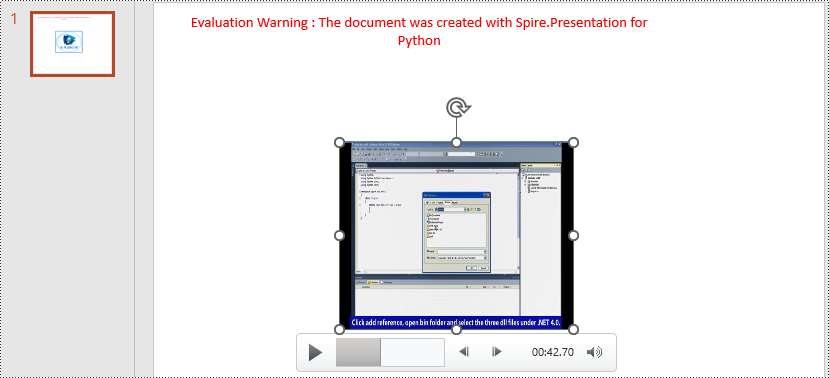
Using the Slide.Shapes.AppendVideoMedia() method, you can add video files to slides. The specific steps are as follows:
- Create an object of the Presentation class.
- Use the RectangleF.FromLTRB() method to create a rectangle.
- In the shapes collection of the first slide, use the Slide.Shapes.AppendVideoMedia() method to add the video file to the previously created rectangle.
- Use the video.PictureFill.Picture.Url property to set the cover image of the video.
- Use the Presentation.SaveToFile() method to save the document as a PowerPoint file.
- Python
from spire.presentation.common import *
from spire.presentation import *

# Create a presentation object
presentation = Presentation()

# Create a video rectangle
videoRect = RectangleF.FromLTRB(200, 150, 450, 350)

# Add video
video = presentation.Slides[0].Shapes.AppendVideoMedia("data/Video.mp4", videoRect)
video.PictureFill.Picture.Url = "data/Video.png"

# Save the presentation to a file
presentation.SaveToFile("AddVideo.pptx", FileFormat.Pptx2016)

# Release resources
presentation.Dispose()
Extract Video from PowerPoint Documents in Python
The video type is IVideo. If the shape is of type IVideo, you can use the IVideo.EmbeddedVideoData property to retrieve video data. The specific steps are as follows:
- Create an object of the Presentation class.
- Use the Presentation.LoadFromFile() method to load the PowerPoint presentation.
- Iterate through the shapes collection on the first slide, checking if each shape is of type IVideo.
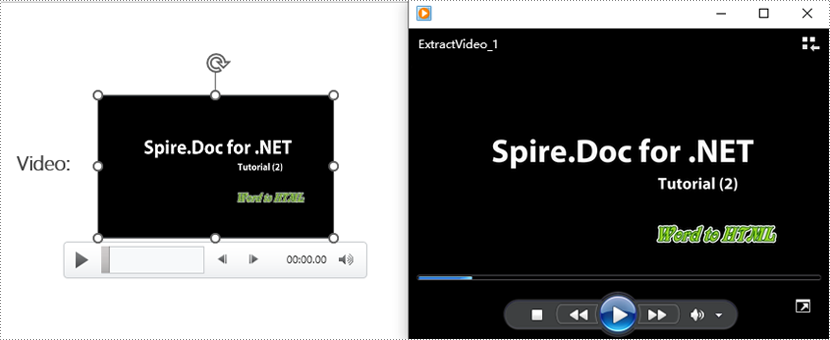
- If the shape is of type IVideo, use the IVideo.EmbeddedVideoData property to retrieve the video data from the video object.
- Use the VideoData.SaveToFile() method to save the video data to a file.
- Python
from spire.presentation.common import *
from spire.presentation import *

# Create a presentation object
presentation = Presentation()

# Load a presentation from a file
presentation.LoadFromFile("Video.pptx")

# Initialize a counter
i = 1

# Iterate through each slide in the presentation
for slide in presentation.Slides:

    # Iterate through shapes in each slide
    for shape in slide.Shapes:

        # Check if the shape is of video type
        if isinstance(shape, IVideo):

            # Get the video data and save it to a file
            VideoData = shape.EmbeddedVideoData
            VideoData.SaveToFile("ExtractVideo_"+str(i)+".avi")
            i = i + 1

# Release resources
presentation.Dispose()
Apply for a Temporary License
If you'd like to remove the evaluation message from the generated documents, or to get rid of the function limitations, please request a 30-day trial license for yourself.
