How to Extract Images from PowerPoint – 4 Easy Ways
Table of Contents
- Method 1. Save Individual Images (Right-Click → Save as Picture)
- Method 2. Extract Images by Renaming PPTX to ZIP
- Method 3. Use Online PowerPoint Image Extractors
- Method 4. Extract Images Programmatically (Python – Spire.Presentation)
- Comparison: Which Method Should You Choose?
- Summary
- FAQs About Extracting Images from PowerPoint
Extracting images from a PowerPoint presentation is a common need—whether you're repurposing design assets, reusing photos for reports, or processing slides in bulk for automation. However, PowerPoint doesn’t offer a single-click option to extract all embedded images at once, which can make the process tedious if you don’t know the right tools.
In this guide, you’ll learn four practical and easy ways to extract images from PowerPoint, ranging from built-in methods to automated Python scripts. Whether you prefer manual control or want a fully automated workflow, you’ll find a method that fits your needs.
Method Overview:
- Method 1. Save Individual Images (Save as Picture)
- Method 2. Extract Images by Renaming PPTX to ZIP
- Method 3. Use Online PowerPoint Image Extractors
- Method 4. Extract Images Programmatically (Python – Spire.Presentation)
Method 1. Save Individual Images (Save as Picture)
Extract single images directly from the slide using PowerPoint’s built-in Save as Picture feature. This method is ideal when you only need a few images and want precise control over which ones to save. It preserves high quality and supports multiple formats, making it perfect for quick, manual operations without any extra tools.
Here is how :
- Open your PowerPoint file.
- Right-click the image you want to save.
- Select Save as Picture…
- Choose the output format (PNG, JPG, SVG, etc.) and click Save.


Pros
- Very easy and requires no tools
- Preserves the image in good quality
- Works well for one-off extractions
Cons
- Not suitable for bulk extraction
- Must save images one at a time
Method 2. Extract Images by Renaming PPTX to ZIP
Because PPTX files are essentially compressed ZIP archives, you can unlock all embedded media—images, icons, thumbnails, and even videos—by simply renaming the file extension. This method is one of the quickest ways to retrieve every original asset in a presentation without opening PowerPoint, ensuring no quality loss and making it perfect for bulk extraction.
How to do it :
- Duplicate your PowerPoint file (recommended).
- Rename the copy from filename.pptx to filename.zip.

- Unzip the ZIP file using 7-Zip or WinZip.
- Navigate to ppt → media.
- You’ll find all embedded images (PNG, JPG, GIF, EMF, etc.).

Pros
- Extracts all images at once
- Retrieves original quality with no compression
- Fast and doesn’t require installing PowerPoint
Cons
- Only works for PPTX files (not old PPT)
- Folder includes all media without slide-based organization
Method 3. Use Online PowerPoint Image Extractors
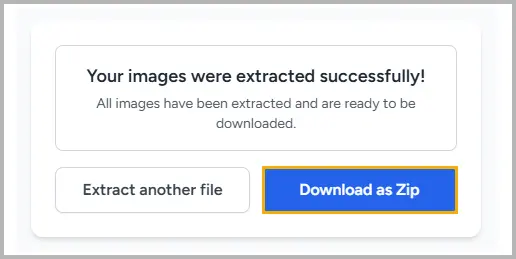
Online extraction tools automatically unpack your PowerPoint file and convert all embedded images into a downloadable ZIP package. This method requires no installation and works on any device, making it convenient for users who need a fast, tool-free solution. It’s great for occasional extractions, especially when you're not working with sensitive or confidential files.
Extract images using SlideSpeak :
- Upload your PowerPoint file to the website.

- Click Start to initiate the process.
- Download the resulting ZIP file containing the images.

Pros
- No software installation needed
- Fast and beginner-friendly
- Works for both PPT and PPTX
Cons
- Privacy risks for confidential files
- File size/upload limits
- Some tools compress images, reducing quality
Method 4. Extract Images Programmatically (Python – Spire.Presentation)
For users who work with large numbers of presentations or need fully automated processing, a Python-based solution offers the most scalable approach. Using Spire.Presentation for Python, you can extract every embedded image with a short script, maintain original quality, and integrate the process into broader data pipelines or automated workflows. This method is ideal for developers and advanced users who want speed, precision, and repeatability.
Code example :
from spire.presentation.common import *
from spire.presentation import *

# Create a Presentation instance
ppt = Presentation()

# Load a PowerPoint document
ppt.LoadFromFile("sample.pptx")

# Iterate through all images in the document
for i, image inenumerate(ppt.Images):
# Extract the images
    ImageName = "ExtractImage/Images_"+str(i)+".png"
    image.Image.Save(ImageName)

ppt.Dispose()
How it works :
- Import Libraries: Required classes are imported from spire.presentation.common and spire.presentation.
- Create a Presentation: A Presentation object is instantiated.
- Load File: The PowerPoint file (sample.pptx) is loaded using LoadFromFile.
- Get Image Collection: The Presentation.Images property returns a collection of images embedded in the document.
- Extract Images: The code iterates through all images in the presentation, saving each as a PNG file with a sequential name (e.g., Images_0.png).
Read Further: Reading PowerPoint Files in Python: Extract Text, Images & More
Pros
- Full automation
- Retains original image quality
- Perfect for large-scale image processing
Cons
- Requires Python and a library installation
- Slight learning curve for beginners
In addition to extracting embedded images, Spire.Presentation offers a full suite of PowerPoint processing features—including creating presentations from scratch, modifying existing slides, manipulating shapes and animations, and converting PowerPoint files to images or other formats. This makes it a versatile automation tool for both simple tasks and complex PowerPoint workflows.
Comparison: Which Method Should You Choose?
| Method | Best For | Difficulty | Output Quality | Batch Extraction |
|---|---|---|---|---|
| Save as Picture | Extracting a few images manually | Easy | High | No |
| Rename to ZIP | Accessing original embedded files | Easy | Original | Yes |
| Online Extractors | Quick, no-install extraction | Easy | Medium–High | Yes |
| Python Script | Automation, bulk operations | Medium | Original | Yes |
Summary
Extracting images from PowerPoint is a hassle-free process. For quick, one-off tasks, PowerPoint’s built-in “Save as Picture” feature works well. For retrieving all original images at once, renaming PPTX to ZIP is the most reliable method. If you prefer online tools, extractors offer a convenient option—just be cautious with sensitive files.
For developers or users needing automation, Spire.Presentation for Python provides a powerful and efficient way to extract images programmatically and preserve top image quality.
FAQs About Extracting Images from PowerPoint
Q1. Can I extract all images from PowerPoint at once?
Yes. Use PPTX → ZIP, online extractors, or a Python script for bulk extraction.
Q2. Does exporting reduce image quality?
Right-click → Save as Picture may reduce quality; PPTX → ZIP and Python extraction preserve original resolution.
Q3. Will the ZIP method work for .ppt files?
No. Convert .ppt to .pptx first or use online/Python methods.
Q4. Can I extract other media besides images?
Yes. PPTX → ZIP exposes images, videos, audio, and more.
Q5. Are online extraction tools safe?
Safe for non-sensitive files; avoid confidential files.
Q6. Why are some extracted images low resolution?
They were either inserted at low resolution or recompressed during export.
You May Also Be Interested In
Como converter DOC para DOCX: 5 maneiras fáceis
Índice

Converter DOC para DOCX é uma tarefa essencial para quem procura modernizar seus arquivos ou melhorar a compatibilidade entre plataformas. O formato DOC, usado no Word 97-2003, foi substituído pelo DOCX nas versões mais recentes do Word. O DOCX oferece várias vantagens, incluindo melhor compressão de arquivos, segurança mais forte e compatibilidade com os recursos mais recentes do Word.
Seja para atualizar um documento antigo ou tornar seus arquivos mais acessíveis, entender como transformar DOC em DOCX é crucial. Neste guia, mostraremos cinco métodos fáceis para converter DOC em DOCX, incluindo métodos manuais com o Microsoft Word, ferramentas online, Google Docs e automação usando scripts de Python e PowerShell.
Navegação dos Métodos
- Converter DOC para DOCX Usando o Microsoft Word
- Converter DOC para DOCX com Ferramentas Online Gratuitas
- Converter DOC para DOCX Usando o Google Docs
- Automatizar a Conversão de DOC para DOCX com Python
- Converter em Lote DOC para DOCX Usando o PowerShell
1. Converter DOC para DOCX Usando o Microsoft Word
O método mais comum e confiável para converter DOC para DOCX é usando o próprio Microsoft Word. Este método é perfeito para conversões de arquivo único e garante que o formato do arquivo seja atualizado corretamente.
Passos para Converter DOC para DOCX com o Microsoft Word:
-
Abra o Arquivo DOC no Word
-
Abra o Microsoft Word.
-
Vá para Arquivo > Abrir e selecione o arquivo DOC que deseja converter para DOCX.

-
-
Salve o Arquivo DOC como DOCX
-
Depois que o arquivo abrir, vá para Arquivo > Salvar Como.

-
-
Escolha um local para salvar o novo arquivo.
-
No menu suspenso Salvar como tipo, selecione Documento do Word (*.docx).

-
Clique em Salvar para concluir o processo de conversão.
-
Seu arquivo agora está convertido para o formato DOCX e pronto para ser compartilhado, editado ou arquivado.
Prós:
- Método simples e fácil de usar, sem a necessidade de ferramentas adicionais.
- Ideal para converter um pequeno número de arquivos DOC para DOCX.
- Preserva toda a formatação e recursos do arquivo original.
Contras:
- Este método não é adequado para conversão em lote.
- Requer que o Microsoft Word esteja instalado no seu computador.
2. Converter DOC para DOCX com Ferramentas Online Gratuitas
Se você não tem o Microsoft Word ou prefere uma solução mais rápida, ferramentas online como Zamzar e Convertio oferecem conversões gratuitas de DOC para DOCX sem a necessidade de instalar nenhum software.

Passos para Converter DOC para DOCX Online Gratuitamente (Usando o Zamzar como Exemplo):
- Abra a Ferramenta de Conversão Zamzar
- Acesse Zamzar no seu navegador.
- Envie seu Arquivo DOC
- Clique no botão Escolher Arquivos e selecione o arquivo DOC que deseja converter. Ou arraste e solte o arquivo na área designada.
- Selecione DOCX como o Formato de Saída
- Nas opções de formato, escolha docx como o formato de saída.
- Converta o Arquivo DOC
- Clique em Converter Agora para iniciar o processo. O Zamzar converterá o arquivo rapidamente.
- Baixe o Arquivo DOCX Convertido
- Após a conclusão da conversão, clique no botão Baixar para salvar o arquivo DOCX no seu dispositivo.
Prós:
- Nenhuma instalação de software necessária - totalmente baseado na web.
- Rápido e fácil de usar.
- Acessível em qualquer dispositivo com acesso à internet.
Contras:
- Restrições de tamanho de arquivo ou conversões gratuitas limitadas.
- Requer uma conexão com a internet para funcionar.
- Não é ideal para conversões em massa.
3. Converter DOC para DOCX Usando o Google Docs
Se você está procurando uma alternativa para ferramentas online como Zamzar ou Convertio, o Google Docs oferece uma solução gratuita baseada na nuvem que não requer instalação de software. É particularmente conveniente para titulares de contas Google ou equipes que trabalham de forma colaborativa.
Passos para Converter DOC para DOCX com o Google Docs:
-
Envie seu Arquivo DOC para o Google Drive
-
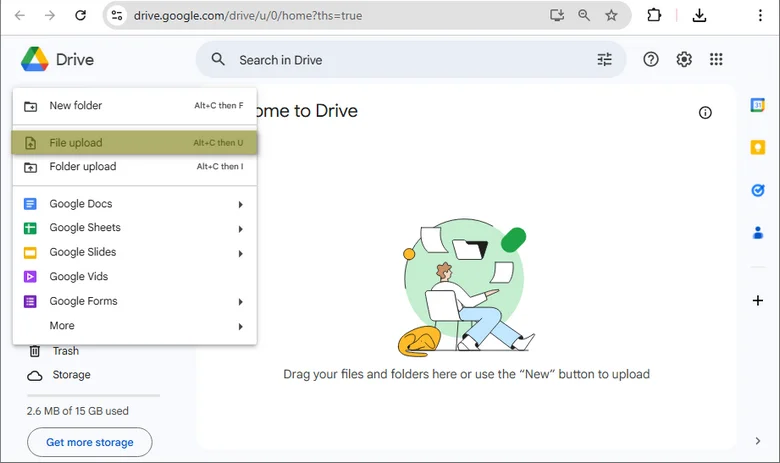
Faça login na sua conta do Google Drive.
-
Clique em Novo > Upload de arquivo para enviar seu arquivo DOC para o Google Drive, ou simplesmente arraste e solte o arquivo na janela.
-
-
Abra o Arquivo DOC no Google Docs
-
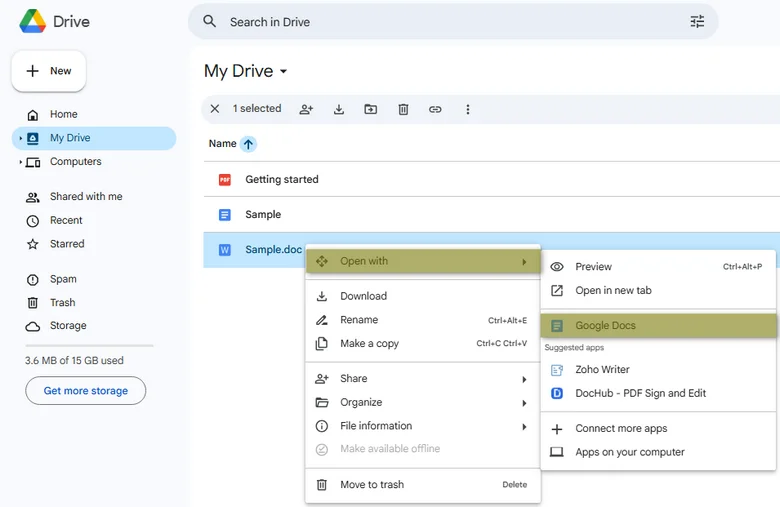
Clique com o botão direito no arquivo DOC enviado no Google Drive e selecione Abrir com > Google Docs. Isso abre o arquivo no Google Docs, onde você pode fazer edições, se necessário.
-
-
Salvar como Formato Google Docs
-
Assim que o arquivo estiver aberto no Google Docs, clique em Arquivo > Salvar como Google Docs para convertê-lo para o formato Google Docs.

-
-
Baixar como DOCX
-
Depois que o arquivo for salvo no formato Google Docs, vá para Arquivo > Baixar e selecione Microsoft Word (.docx).

-
Seu arquivo DOC será baixado como um arquivo DOCX, que pode ser aberto ou compartilhado em diferentes dispositivos e plataformas.
-
Prós:
- Solução gratuita e baseada na web.
- Funciona em qualquer sistema operacional.
- Fácil de colaborar com outras pessoas, se necessário.
Contras:
- Requer uma conta do Google e uma conexão com a internet.
4. Automatizar a Conversão de DOC para DOCX com Python
Se você é um desenvolvedor que procura automatizar conversões de DOC para DOCX, bibliotecas Python como Spire.Doc for Python podem economizar tempo e esforço significativos, especialmente para processamento em lote. O Spire.Doc não requer o Microsoft Word e suporta múltiplas conversões, incluindo DOC para DOCX, PDF, HTML, e mais.

Passos para Automatizar a Conversão de DOC para DOCX com Python:
-
Instale o Spire.Doc for Python
-
Instale o Spire.Doc do PyPI usando o seguinte comando:
pip install spire-doc
-
-
Adicione o Script Python para automatizar a Conversão de DOC para DOCX
-
Uma vez que a biblioteca esteja instalada, adicione o seguinte código Python para salvar seu arquivo DOC como um arquivo DOCX:
from spire.doc import *

def convert_doc_to_docx(doc_file, docx_file):
    # Abra o arquivo .doc
    document = Document()
    document.LoadFromFile(doc_file)

    # Salve o arquivo .doc em um arquivo .docx
    document.SaveToFile(docx_file, FileFormat.Docx2016)
    document.Close()

# Exemplo de uso
convert_doc_to_docx('caminho_para_seu_arquivo_doc.doc', 'caminho_para_salvar_o_arquivo_docx')
-
Prós:
- Adequado para automatizar a conversão de múltiplos arquivos.
- Opções de script flexíveis e personalizáveis.
- Pode ser integrado em projetos ou fluxos de trabalho maiores.
Contras:
- Requer conhecimento de programação e configuração do Python.
5. Converter em Lote DOC para DOCX Usando o PowerShell
Para usuários do Windows que precisam converter DOC para DOCX em massa, o PowerShell oferece uma solução com script que pode automatizar esse processo.
Passos:
- Abra o PowerShell
- Pressione Win + X e escolha Windows PowerShell (Admin).
- Execute o Script do PowerShell para converter em lote múltiplos arquivos DOC em uma pasta específica para o formato DOCX:
-
Copie e cole o seguinte script na janela do PowerShell e pressione enter:
$word = New-Object -ComObject Word.Application
$word.Visible = $false  # Manter o aplicativo Word oculto
$word.DisplayAlerts = 0  # Desativar alertas do Word para evitar interrupções

# Obter todos os arquivos .doc na pasta
$files = Get-ChildItem "C:\caminho_para_sua_pasta" -Filter *.doc

foreach ($file in $files) {
    try {
        # Abrir o documento
        $doc = $word.Documents.Open($file.FullName)

        # Definir o caminho de saída para o arquivo .docx
        $outputPath = [System.IO.Path]::Combine($file.DirectoryName, ($file.BaseName + ".docx"))

        # Salvar como formato .docx (16 = wdFormatXMLDocument)
        $doc.SaveAs([ref]$outputPath, 16)

        # Fechar o documento
        $doc.Close()

        Write-Host "Convertido com sucesso: $($file.Name)"
    } catch {
        Write-Host "Erro ao converter $($file.Name): $_"
    }
}

# Sair do aplicativo Word
$word.Quit()
-
Prós:
- Automatiza a conversão em massa de DOC para DOCX.
- Utiliza a instalação existente do Microsoft Word.
- Pode ser usado para várias outras manipulações de documentos do Word.
Contras:
- Disponível apenas no Windows.
- Requer conhecimento de script do PowerShell.
Conclusão: Escolha o Melhor Método para Suas Necessidades
Existem várias maneiras de converter DOC para DOCX, cada uma atendendo a diferentes necessidades e preferências:
- Microsoft Word: Ideal para conversões rápidas e únicas.
- Ferramentas online: Perfeito para usuários sem o Microsoft Word ou aqueles que precisam de uma solução rápida e baseada na nuvem.
- Google Docs: Uma alternativa online e gratuita para conversões de documentos baseadas na nuvem.
- Scripts Python e PowerShell: Melhor para conversões em lote ou automatizadas de DOC para DOCX.
Escolha o melhor método para suas necessidades e comece a converter seus arquivos DOC para DOCX hoje mesmo!
Perguntas Frequentes (FAQs)
P1. Por que devo converter DOC para DOCX?
R1: Converter DOC para DOCX melhora a compressão de arquivos, aumenta a segurança e garante a compatibilidade com os recursos mais recentes do Microsoft Word. O DOCX também é mais eficiente para armazenamento e compartilhamento devido ao seu tamanho de arquivo menor.
P2. Posso converter DOC para DOCX sem o Microsoft Word?
R2: Sim, você pode usar ferramentas online gratuitas como Zamzar ou Convertio, ou soluções baseadas na nuvem como o Google Docs. Além disso, você pode automatizar a conversão usando scripts Python com Spire.Doc for Python.
P3. Qual é o melhor método para converter em lote DOC para DOCX?
R3: Para conversões em lote, o PowerShell (no Windows) ou scripts Python usando Spire.Doc for Python são ideais. Esses métodos permitem automatizar a conversão de múltiplos arquivos DOC para DOCX de uma só vez.
P4. Existem ferramentas online gratuitas para converter DOC para DOCX?
R4: Sim, ferramentas como Zamzar e Convertio oferecem conversões gratuitas de DOC para DOCX. Essas ferramentas online são fáceis de usar e não requerem instalação de software, tornando-as uma opção conveniente para conversões ocasionais.
Veja Também
DOC를 DOCX로 변환하는 방법: 5가지 쉬운 방법
DOC를 DOCX로 변환하는 것은 파일을 현대화하거나 플랫폼 간 호환성을 개선하려는 모든 사람에게 필수적인 작업입니다. Word 97-2003에서 사용되던 DOC 형식은 최신 버전의 Word에서 DOCX로 대체되었습니다. DOCX는 더 나은 파일 압축, 더 강력한 보안 및 최신 Word 기능과의 호환성을 포함하여 여러 가지 이점을 제공합니다.
오래된 문서를 업그레이드하든 파일을 더 쉽게 접근할 수 있도록 하든, DOC를 DOCX로 변환하는 방법을 이해하는 것이 중요합니다. 이 가이드에서는 Microsoft Word를 사용한 수동 방법, 온라인 도구, Google Docs, Python 및 PowerShell 스크립트를 사용한 자동화를 포함하여 DOC를 DOCX로 변환하는 다섯 가지 쉬운 방법을 보여줍니다.
방법 탐색
- Microsoft Word를 사용하여 DOC를 DOCX로 변환
- 무료 온라인 도구로 DOC를 DOCX로 변환
- Google Docs를 사용하여 DOC를 DOCX로 변환
- Python으로 DOC에서 DOCX로의 변환 자동화
- PowerShell을 사용하여 DOC를 DOCX로 일괄 변환
1. Microsoft Word를 사용하여 DOC를 DOCX로 변환
DOC를 DOCX로 변환하는 가장 일반적이고 신뢰할 수 있는 방법은 Microsoft Word 자체를 사용하는 것입니다. 이 방법은 단일 파일 변환에 적합하며 파일 형식이 올바르게 업데이트되도록 보장합니다.
Microsoft Word로 DOC를 DOCX로 변환하는 단계:
-
Word에서 DOC 파일 열기
-
Microsoft Word를 엽니다.
-
파일 > 열기로 이동하여 DOCX로 변환하려는 DOC 파일을 선택합니다.
-
-
DOC 파일을 DOCX로 저장
-
파일이 열리면 파일 > 다른 이름으로 저장으로 이동합니다.
-
-
새 파일을 저장할 위치를 선택합니다.
-
다른 이름으로 저장 유형 드롭다운에서 Word 문서 (*.docx)를 선택합니다.
-
저장을 클릭하여 변환 프로세스를 완료합니다.
-
이제 파일이 DOCX 형식으로 변환되어 공유, 편집 또는 보관할 준비가 되었습니다.
장점:
- 추가 도구 없이 간단하고 사용하기 쉬운 방법입니다.
- 적은 수의 DOC 파일을 DOCX로 변환하는 데 이상적입니다.
- 원본 파일의 모든 서식과 기능을 보존합니다.
단점:
- 이 방법은 일괄 변환에 적합하지 않습니다.
- 컴퓨터에 Microsoft Word가 설치되어 있어야 합니다.
2. 무료 온라인 도구로 DOC를 DOCX로 변환
Microsoft Word가 없거나 더 빠른 솔루션을 선호하는 경우 Zamzar 및 Convertio와 같은 온라인 도구는 소프트웨어 설치 없이 무료로 DOC를 DOCX로 변환할 수 있습니다.
온라인에서 무료로 DOC를 DOCX로 변환하는 단계(Zamzar 예시):
- Zamzar 변환 도구 열기
- 브라우저에서 Zamzar로 이동합니다.
- DOC 파일 업로드
- 파일 선택 버튼을 클릭하고 변환하려는 DOC 파일을 선택합니다. 또는 지정된 영역으로 파일을 끌어다 놓습니다.
- 출력 형식으로 DOCX 선택
- 형식 옵션에서 출력 형식으로 docx를 선택합니다.
- DOC 파일 변환
- 지금 변환을 클릭하여 프로세스를 시작합니다. Zamzar가 파일을 빠르게 변환합니다.
- 변환된 DOCX 파일 다운로드
- 변환이 완료되면 다운로드 버튼을 클릭하여 DOCX 파일을 장치에 저장합니다.
장점:
- 소프트웨어 설치가 필요 없는 완전한 웹 기반입니다.
- 빠르고 사용하기 쉽습니다.
- 인터넷에 연결된 모든 장치에서 액세스할 수 있습니다.
단점:
- 파일 크기 제한 또는 제한된 무료 변환.
- 작동하려면 인터넷 연결이 필요합니다.
- 대량 변환에는 이상적이지 않습니다.
3. Google Docs를 사용하여 DOC를 DOCX로 변환
Zamzar 또는 Convertio와 같은 온라인 도구의 대안을 찾고 있다면 Google Docs는 소프트웨어 설치가 필요 없는 무료 클라우드 기반 솔루션을 제공합니다. Google 계정 소유자나 공동으로 작업하는 팀에게 특히 편리합니다.
Google Docs로 DOC를 DOCX로 변환하는 단계:
-
Google Drive에 DOC 파일 업로드
-
Google Drive 계정에 로그인합니다.
-
새로 만들기 > 파일 업로드를 클릭하여 DOC 파일을 Google Drive에 업로드하거나 파일을 창으로 끌어다 놓습니다.
-
-
Google Docs에서 DOC 파일 열기
-
Google Drive에서 업로드된 DOC 파일을 마우스 오른쪽 버튼으로 클릭하고 연결 프로그램 > Google Docs를 선택합니다. 그러면 Google Docs에서 파일이 열리고 필요한 경우 편집할 수 있습니다.
-
-
Google Docs 형식으로 저장
-
Google Docs에서 파일이 열리면 파일 > Google Docs로 저장을 클릭하여 Google Docs 형식으로 변환합니다.
-
-
DOCX로 다운로드
-
파일이 Google Docs 형식으로 저장되면 파일 > 다운로드로 이동하여 Microsoft Word (.docx)를 선택합니다.
-
이제 DOC 파일이 DOCX 파일로 다운로드되어 다른 장치 및 플랫폼에서 열거나 공유할 수 있습니다.
-
장점:
- 무료 웹 기반 솔루션입니다.
- 모든 운영 체제에서 작동합니다.
- 필요한 경우 다른 사람들과 쉽게 공동 작업할 수 있습니다.
단점:
- Google 계정과 인터넷 연결이 필요합니다.
4. Python으로 DOC에서 DOCX로의 변환 자동화
DOC에서 DOCX로의 변환을 자동화하려는 개발자라면 Spire.Doc for Python과 같은 Python 라이브러리를 사용하면 특히 일괄 처리의 경우 상당한 시간과 노력을 절약할 수 있습니다. Spire.Doc은 Microsoft Word가 필요 없으며 DOC에서 DOCX, PDF, HTML 등으로의 여러 변환을 지원합니다.
Python으로 DOC에서 DOCX로의 변환을 자동화하는 단계:
-
Spire.Doc for Python 설치
-
다음 명령을 사용하여 PyPI에서 Spire.Doc을 설치합니다.
pip install spire-doc
-
-
DOC에서 DOCX로의 변환을 자동화하는 Python 스크립트 추가
-
라이브러리가 설치되면 다음 Python 코드를 추가하여 DOC 파일을 DOCX 파일로 저장합니다.
from spire.doc import *

def convert_doc_to_docx(doc_file, docx_file):
    # .doc 파일 열기
    document = Document()
    document.LoadFromFile(doc_file)

    # .doc 파일을 .docx 파일로 저장
    document.SaveToFile(docx_file, FileFormat.Docx2016)
    document.Close()

# 예시 사용법
convert_doc_to_docx('path_to_your_doc_file.doc', 'path_to_save_the_docx_file')
-
장점:
- 여러 파일의 변환을 자동화하는 데 적합합니다.
- 유연하고 사용자 정의 가능한 스크립트 옵션.
- 더 큰 프로젝트나 워크플로에 통합할 수 있습니다.
단점:
- 프로그래밍 지식과 Python 설정이 필요합니다.
5. PowerShell을 사용하여 DOC를 DOCX로 일괄 변환
DOC를 DOCX로 대량 변환해야 하는 Windows 사용자를 위해 PowerShell은 이 프로세스를 자동화할 수 있는 스크립트 가능한 솔루션을 제공합니다.
단계:
- PowerShell 열기
- Win + X를 누르고 Windows PowerShell(관리자)을 선택합니다.
- PowerShell 스크립트를 실행하여 특정 폴더의 여러 DOC 파일을 DOCX 형식으로 일괄 변환합니다.
-
다음 스크립트를 복사하여 PowerShell 창에 붙여넣고 Enter 키를 누릅니다.
$word = New-Object -ComObject Word.Application
$word.Visible = $false  # Word 응용 프로그램을 숨김
$word.DisplayAlerts = 0  # 중단을 방지하기 위해 Word 알림 비활성화

# 폴더의 모든 .doc 파일 가져오기
$files = Get-ChildItem "C:\path_to_your_folder" -Filter *.doc

foreach ($file in $files) {
    try {
        # 문서 열기
        $doc = $word.Documents.Open($file.FullName)

        # .docx 파일의 출력 경로 설정
        $outputPath = [System.IO.Path]::Combine($file.DirectoryName, ($file.BaseName + ".docx"))

        # .docx 형식으로 저장 (16 = wdFormatXMLDocument)
        $doc.SaveAs([ref]$outputPath, 16)

        # 문서 닫기
        $doc.Close()

        Write-Host "성공적으로 변환됨: $($file.Name)"
    } catch {
        Write-Host "변환 오류 $($file.Name): $_"
    }
}

# Word 응용 프로그램 종료
$word.Quit()
-
장점:
- 대량 DOC에서 DOCX로의 변환을 자동화합니다.
- 기존 Microsoft Word 설치를 활용합니다.
- 다른 다양한 Word 문서 조작에 사용할 수 있습니다.
단점:
- Windows에서만 사용할 수 있습니다.
- PowerShell 스크립팅에 대한 지식이 필요합니다.
결론: 필요에 가장 적합한 방법 선택
DOC를 DOCX로 변환하는 방법에는 여러 가지가 있으며, 각각 다른 요구와 선호도에 맞춰져 있습니다.
- Microsoft Word: 빠르고 일회성 변환에 이상적입니다.
- 온라인 도구: Microsoft Word가 없거나 빠르고 클라우드 기반 솔루션이 필요한 사용자에게 적합합니다.
- Google Docs: 클라우드 기반 문서 변환을 위한 무료 온라인 대안입니다.
- Python 스크립트 및 PowerShell: 일괄 또는 자동화된 DOC에서 DOCX로의 변환에 가장 적합합니다.
필요에 가장 적합한 방법을 선택하고 오늘 바로 DOC 파일을 DOCX로 변환해 보세요!
자주 묻는 질문(FAQ)
Q1. 왜 DOC를 DOCX로 변환해야 하나요?
A1: DOC를 DOCX로 변환하면 파일 압축이 향상되고 보안이 강화되며 최신 Microsoft Word 기능과의 호환성이 보장됩니다. DOCX는 파일 크기가 작아 저장 및 공유에도 더 효율적입니다.
Q2. Microsoft Word 없이 DOC를 DOCX로 변환할 수 있나요?
A2: 예, Zamzar 또는 Convertio와 같은 무료 온라인 도구나 Google Docs와 같은 클라우드 기반 솔루션을 사용할 수 있습니다. 또한 Spire.Doc for Python을 사용하여 Python 스크립트로 변환을 자동화할 수 있습니다.
Q3. DOC를 DOCX로 일괄 변환하는 가장 좋은 방법은 무엇인가요?
A3: 일괄 변환의 경우 PowerShell(Windows) 또는 Spire.Doc for Python을 사용하는 Python 스크립트가 이상적입니다. 이러한 방법을 사용하면 여러 DOC 파일을 한 번에 DOCX로 변환하는 작업을 자동화할 수 있습니다.
Q4. DOC를 DOCX로 변환하는 무료 온라인 도구가 있나요?
A4: 예, Zamzar 및 Convertio와 같은 도구는 무료 DOC에서 DOCX로의 변환을 제공합니다. 이러한 온라인 도구는 사용하기 쉽고 소프트웨어 설치가 필요 없어 가끔씩 변환할 때 편리한 옵션입니다.
참고 항목
Come convertire DOC in DOCX: 5 semplici modi
Indice
La conversione da DOC a DOCX è un'attività essenziale per chiunque desideri modernizzare i propri file o migliorare la compatibilità tra piattaforme. Il formato DOC, utilizzato in Word 97-2003, è stato sostituito da DOCX nelle versioni più recenti di Word. DOCX offre numerosi vantaggi, tra cui una migliore compressione dei file, una maggiore sicurezza e la compatibilità con le funzionalità più recenti di Word.
Che tu stia aggiornando un vecchio documento o rendendo i tuoi file più accessibili, capire come trasformare DOC in DOCX è fondamentale. In questa guida, ti mostreremo cinque metodi semplici per convertire DOC in DOCX, inclusi metodi manuali con Microsoft Word, strumenti online, Google Docs e l'automazione tramite script Python e PowerShell.
Navigazione dei Metodi
- Convertire DOC in DOCX usando Microsoft Word
- Convertire DOC in DOCX con strumenti online gratuiti
- Convertire DOC in DOCX usando Google Docs
- Automatizzare la conversione da DOC a DOCX con Python
- Conversione in blocco da DOC a DOCX usando PowerShell
1. Convertire DOC in DOCX usando Microsoft Word
Il metodo più comune e affidabile per convertire DOC in DOCX è utilizzare Microsoft Word stesso. Questo metodo è perfetto per le conversioni di singoli file e garantisce che il formato del file venga aggiornato correttamente.
Passaggi per convertire DOC in DOCX con Microsoft Word:
-
Apri il file DOC in Word
-
Apri Microsoft Word.
-
Vai su File > Apri e seleziona il file DOC che desideri convertire in DOCX.
-
-
Salva il file DOC come DOCX
-
Dopo l'apertura del file, vai su File > Salva con nome.
-
-
Scegli una posizione per salvare il nuovo file.
-
Nel menu a discesa Salva come, seleziona Documento di Word (*.docx).
-
Fai clic su Salva per completare il processo di conversione.
-
Il tuo file è ora convertito in formato DOCX ed è pronto per essere condiviso, modificato o archiviato.
Vantaggi:
- Metodo semplice e facile da usare senza bisogno di strumenti aggiuntivi.
- Ideale per convertire un piccolo numero di file DOC in DOCX.
- Conserva tutta la formattazione e le funzionalità del file originale.
Svantaggi:
- Questo metodo non è adatto per la conversione in blocco.
- Richiede che Microsoft Word sia installato sul tuo computer.
2. Convertire DOC in DOCX con strumenti online gratuiti
Se non hai Microsoft Word o preferisci una soluzione più rapida, strumenti online come Zamzar e Convertio offrono conversioni gratuite da DOC a DOCX senza alcuna installazione di software.
Passaggi per convertire DOC in DOCX online gratuitamente (usando Zamzar come esempio):
- Apri lo strumento di conversione Zamzar
- Vai su Zamzar nel tuo browser.
- Carica il tuo file DOC
- Fai clic sul pulsante Scegli file e seleziona il file DOC che desideri convertire. Oppure trascina e rilascia il file nell'area designata.
- Seleziona DOCX come formato di output
- Dalle opzioni di formato, scegli docx come formato di output.
- Converti il file DOC
- Fai clic su Converti ora per avviare il processo. Zamzar convertirà rapidamente il file.
- Scarica il file DOCX convertito
- Al termine della conversione, fai clic sul pulsante Scarica per salvare il file DOCX sul tuo dispositivo.
Vantaggi:
- Nessuna installazione di software richiesta, completamente basato sul web.
- Veloce e facile da usare.
- Accessibile su qualsiasi dispositivo con accesso a Internet.
Svantaggi:
- Restrizioni sulla dimensione dei file o conversioni gratuite limitate.
- Richiede una connessione Internet per funzionare.
- Non ideale per conversioni in blocco.
3. Convertire DOC in DOCX usando Google Docs
Se stai cercando un'alternativa a strumenti online come Zamzar o Convertio, Google Docs offre una soluzione gratuita basata su cloud che non richiede l'installazione di software. È particolarmente conveniente per i titolari di un account Google o per i team che lavorano in modo collaborativo.
Passaggi per convertire DOC in DOCX con Google Docs:
-
Carica il tuo file DOC su Google Drive
-
Accedi al tuo account Google Drive.
-
Fai clic su Nuovo > Caricamento file per caricare il tuo file DOC su Google Drive, o semplicemente trascina e rilascia il file nella finestra.
-
-
Apri il file DOC in Google Docs
-
Fai clic con il pulsante destro del mouse sul file DOC caricato in Google Drive e seleziona Apri con > Documenti Google. Questo apre il file in Documenti Google, dove puoi apportare modifiche se necessario.
-
-
Salva come formato Documenti Google
-
Una volta aperto il file in Documenti Google, fai clic su File > Salva come Documenti Google per convertirlo nel formato Documenti Google.
-
-
Scarica come DOCX
-
Dopo che il file è stato salvato nel formato Documenti Google, vai su File > Scarica e seleziona Microsoft Word (.docx).
-
Il tuo file DOC verrà ora scaricato come file DOCX, che può essere aperto o condiviso su diversi dispositivi e piattaforme.
-
Vantaggi:
- Soluzione gratuita e basata sul web.
- Funziona su qualsiasi sistema operativo.
- Facile collaborare con altri se necessario.
Svantaggi:
- Richiede un account Google e una connessione Internet.
4. Automatizzare la conversione da DOC a DOCX con Python
Se sei uno sviluppatore che cerca di automatizzare le conversioni da DOC a DOCX, le librerie Python come Spire.Doc for Python possono farti risparmiare tempo e fatica significativi, specialmente per l'elaborazione in blocco. Spire.Doc non richiede Microsoft Word e supporta conversioni multiple, tra cui DOC in DOCX, PDF, HTML e altro.
Passaggi per automatizzare la conversione da DOC a DOCX con Python:
-
Installa Spire.Doc for Python
-
Installa Spire.Doc da PyPI usando il seguente comando:
pip install spire-doc
-
-
Aggiungi lo script Python per automatizzare la conversione da DOC a DOCX
-
Una volta installata la libreria, aggiungi il seguente codice Python per salvare il tuo file DOC come file DOCX:
from spire.doc import *

def convert_doc_to_docx(doc_file, docx_file):
    # Apri il file .doc
    document = Document()
    document.LoadFromFile(doc_file)

    # Salva il file .doc in un file .docx
    document.SaveToFile(docx_file, FileFormat.Docx2016)
    document.Close()

# Esempio di utilizzo
convert_doc_to_docx('percorso_del_tuo_file.doc', 'percorso_per_salvare_il_file_docx')
-
Vantaggi:
- Adatto per automatizzare la conversione di più file.
- Opzioni di script flessibili e personalizzabili.
- Può essere integrato in progetti o flussi di lavoro più ampi.
Svantaggi:
- Richiede conoscenze di programmazione e configurazione di Python.
5. Conversione in blocco da DOC a DOCX usando PowerShell
Per gli utenti Windows che necessitano di convertire DOC in DOCX in blocco, PowerShell offre una soluzione scriptabile in grado di automatizzare questo processo.
Passaggi:
- Apri PowerShell
- Premi Win + X e scegli Windows PowerShell (Admin).
- Esegui lo script di PowerShell per convertire in blocco più file DOC in una cartella specifica nel formato DOCX:
-
Copia e incolla il seguente script nella finestra di PowerShell e premi invio:
$word = New-Object -ComObject Word.Application
$word.Visible = $false  # Mantieni l'applicazione Word nascosta
$word.DisplayAlerts = 0  # Disabilita gli avvisi di Word per evitare interruzioni

# Ottieni tutti i file .doc nella cartella
$files = Get-ChildItem "C:\percorso_della_tua_cartella" -Filter *.doc

foreach ($file in $files) {
    try {
        # Apri il documento
        $doc = $word.Documents.Open($file.FullName)

        # Imposta il percorso di output per il file .docx
        $outputPath = [System.IO.Path]::Combine($file.DirectoryName, ($file.BaseName + ".docx"))

        # Salva come formato .docx (16 = wdFormatXMLDocument)
        $doc.SaveAs([ref]$outputPath, 16)

        # Chiudi il documento
        $doc.Close()

        Write-Host "Convertito con successo: $($file.Name)"
    } catch {
        Write-Host "Errore durante la conversione di $($file.Name): $_"
    }
}

# Esci dall'applicazione Word
$word.Quit()
-
Vantaggi:
- Automatizza la conversione in blocco da DOC a DOCX.
- Utilizza l'installazione esistente di Microsoft Word.
- Può essere utilizzato per varie altre manipolazioni di documenti Word.
Svantaggi:
- Disponibile solo su Windows.
- Richiede la conoscenza dello scripting di PowerShell.
Conclusione: scegli il metodo migliore per le tue esigenze
Esistono diversi modi per convertire DOC in DOCX, ognuno adatto a esigenze e preferenze diverse:
- Microsoft Word: ideale per conversioni rapide e una tantum.
- Strumenti online: perfetti per gli utenti senza Microsoft Word o per coloro che necessitano di una soluzione rapida basata su cloud.
- Google Docs: un'alternativa online gratuita per le conversioni di documenti basate su cloud.
- Script Python e PowerShell: ideali per conversioni batch o automatizzate da DOC a DOCX.
Scegli il metodo migliore per le tue esigenze e inizia a convertire i tuoi file DOC in DOCX oggi stesso!
Domande frequenti (FAQ)
D1. Perché dovrei convertire DOC in DOCX?
R1: La conversione da DOC a DOCX migliora la compressione dei file, aumenta la sicurezza e garantisce la compatibilità con le funzionalità più recenti di Microsoft Word. DOCX è anche più efficiente per l'archiviazione e la condivisione grazie alle sue dimensioni di file ridotte.
D2. Posso convertire DOC in DOCX senza Microsoft Word?
R2: Sì, puoi utilizzare strumenti online gratuiti come Zamzar o Convertio, o soluzioni basate su cloud come Google Docs. Inoltre, puoi automatizzare la conversione utilizzando script Python con Spire.Doc for Python.
D3. Qual è il metodo migliore per la conversione in blocco da DOC a DOCX?
R3: Per le conversioni in blocco, PowerShell (su Windows) o gli script Python che utilizzano Spire.Doc for Python sono ideali. Questi metodi consentono di automatizzare la conversione di più file DOC in DOCX in una sola volta.
D4. Esistono strumenti online gratuiti per la conversione da DOC a DOCX?
R4: Sì, strumenti come Zamzar e Convertio offrono conversioni gratuite da DOC a DOCX. Questi strumenti online sono facili da usare e non richiedono l'installazione di software, rendendoli un'opzione conveniente per conversioni occasionali.
Vedi anche
Comment convertir DOC en DOCX : 5 méthodes simples
Table des matières
La conversion de DOC en DOCX est une tâche essentielle pour quiconque cherche à moderniser ses fichiers ou à améliorer la compatibilité entre les plateformes. Le format DOC, utilisé dans Word 97-2003, a été remplacé par le format DOCX dans les versions plus récentes de Word. Le format DOCX offre plusieurs avantages, notamment une meilleure compression des fichiers, une sécurité renforcée et une compatibilité avec les dernières fonctionnalités de Word.
Que vous mettiez à niveau un ancien document ou que vous rendiez vos fichiers plus accessibles, il est crucial de comprendre comment transformer un DOC en DOCX. Dans ce guide, nous vous présenterons cinq méthodes simples pour convertir un DOC en DOCX, y compris des méthodes manuelles avec Microsoft Word, des outils en ligne, Google Docs, et l'automatisation à l'aide de scripts Python et PowerShell.
Navigation des méthodes
- Convertir DOC en DOCX avec Microsoft Word
- Convertir DOC en DOCX avec des outils en ligne gratuits
- Convertir DOC en DOCX avec Google Docs
- Automatiser la conversion de DOC en DOCX avec Python
- Conversion par lots de DOC en DOCX avec PowerShell
1. Convertir DOC en DOCX avec Microsoft Word
La méthode la plus courante et la plus fiable pour convertir un DOC en DOCX consiste à utiliser Microsoft Word lui-même. Cette méthode est parfaite pour les conversions de fichiers uniques et garantit que le format de fichier est correctement mis à jour.
Étapes pour convertir un DOC en DOCX avec Microsoft Word :
-
Ouvrir le fichier DOC dans Word
-
Ouvrez Microsoft Word.
-
Allez dans Fichier > Ouvrir et sélectionnez le fichier DOC que vous souhaitez convertir en DOCX.
-
-
Enregistrer le fichier DOC en tant que DOCX
-
Une fois le fichier ouvert, allez dans Fichier > Enregistrer sous.
-
-
Choisissez un emplacement pour enregistrer le nouveau fichier.
-
Dans le menu déroulant Type de fichier, sélectionnez Document Word (*.docx).
-
Cliquez sur Enregistrer pour terminer le processus de conversion.
-
Votre fichier est maintenant converti au format DOCX et est prêt à être partagé, modifié ou archivé.
Avantages :
- Méthode simple et facile à utiliser sans avoir besoin d'outils supplémentaires.
- Idéal pour convertir un petit nombre de fichiers DOC en DOCX.
- Préserve toute la mise en forme et les fonctionnalités du fichier d'origine.
Inconvénients :
- Cette méthode n'est pas adaptée à la conversion par lots.
- Nécessite que Microsoft Word soit installé sur votre ordinateur.
2. Convertir DOC en DOCX avec des outils en ligne gratuits
Si vous n'avez pas Microsoft Word ou si vous préférez une solution plus rapide, des outils en ligne comme Zamzar et Convertio proposent des conversions gratuites de DOC en DOCX sans aucune installation de logiciel.
Étapes pour convertir un DOC en DOCX en ligne gratuitement (en utilisant Zamzar comme exemple) :
- Ouvrir l'outil de conversion Zamzar
- Allez sur Zamzar dans votre navigateur.
- Téléchargez votre fichier DOC
- Cliquez sur le bouton Choisir les fichiers et sélectionnez le fichier DOC que vous souhaitez convertir. Ou faites glisser et déposez le fichier dans la zone désignée.
- Sélectionnez DOCX comme format de sortie
- Parmi les options de format, choisissez docx comme format de sortie.
- Convertir le fichier DOC
- Cliquez sur Convertir maintenant pour démarrer le processus. Zamzar convertira le fichier rapidement.
- Télécharger le fichier DOCX converti
- Une fois la conversion terminée, cliquez sur le bouton Télécharger pour enregistrer le fichier DOCX sur votre appareil.
Avantages :
- Aucune installation de logiciel requise - entièrement basé sur le Web.
- Rapide et facile à utiliser.
- Accessible sur n'importe quel appareil avec un accès Internet.
Inconvénients :
- Restrictions de taille de fichier ou conversions gratuites limitées.
- Nécessite une connexion Internet pour fonctionner.
- Pas idéal pour les conversions en masse.
3. Convertir DOC en DOCX avec Google Docs
Si vous cherchez une alternative aux outils en ligne comme Zamzar ou Convertio, Google Docs offre une solution gratuite basée sur le cloud qui ne nécessite aucune installation de logiciel. C'est particulièrement pratique pour les titulaires de comptes Google ou les équipes travaillant en collaboration.
Étapes pour convertir un DOC en DOCX avec Google Docs :
-
Téléchargez votre fichier DOC sur Google Drive
-
Connectez-vous à votre compte Google Drive.
-
Cliquez sur Nouveau > Importer un fichier pour télécharger votre fichier DOC dans Google Drive, ou faites simplement glisser et déposez le fichier dans la fenêtre.
-
-
Ouvrir le fichier DOC dans Google Docs
-
Faites un clic droit sur le fichier DOC téléchargé dans Google Drive et sélectionnez Ouvrir avec > Google Docs. Cela ouvre le fichier dans Google Docs, où vous pouvez apporter des modifications si nécessaire.
-
-
Enregistrer au format Google Docs
-
Une fois le fichier ouvert dans Google Docs, cliquez sur Fichier > Enregistrer au format Google Docs pour le convertir au format Google Docs.
-
-
Télécharger en tant que DOCX
-
Une fois le fichier enregistré au format Google Docs, allez dans Fichier > Télécharger et sélectionnez Microsoft Word (.docx).
-
Votre fichier DOC sera maintenant téléchargé en tant que fichier DOCX, qui peut être ouvert ou partagé sur différents appareils et plateformes.
-
Avantages :
- Solution gratuite et basée sur le Web.
- Fonctionne sur n'importe quel système d'exploitation.
- Facile à collaborer avec d'autres si nécessaire.
Inconvénients :
- Nécessite un compte Google et une connexion Internet.
4. Automatiser la conversion de DOC en DOCX avec Python
Si vous êtes un développeur cherchant à automatiser les conversions de DOC en DOCX, des bibliothèques Python comme Spire.Doc for Python peuvent vous faire gagner beaucoup de temps et d'efforts, en particulier pour le traitement par lots. Spire.Doc ne nécessite pas Microsoft Word et prend en charge plusieurs conversions, y compris DOC en DOCX, PDF, HTML, et plus encore.
Étapes pour automatiser la conversion de DOC en DOCX avec Python :
-
Installer Spire.Doc for Python
-
Installez Spire.Doc depuis PyPI en utilisant la commande suivante :
pip install spire-doc
-
-
Ajouter le script Python pour automatiser la conversion de DOC en DOCX
-
Une fois la bibliothèque installée, ajoutez le code Python suivant pour enregistrer votre fichier DOC en tant que fichier DOCX :
from spire.doc import *

def convert_doc_to_docx(doc_file, docx_file):
    # Open the .doc file
    document = Document()
    document.LoadFromFile(doc_file)

    # Save the .doc file to a .docx file
    document.SaveToFile(docx_file, FileFormat.Docx2016)
    document.Close()

# Example usage
convert_doc_to_docx('path_to_your_doc_file.doc', 'path_to_save_the_docx_file')
-
Avantages :
- Convient pour automatiser la conversion de plusieurs fichiers.
- Options de script flexibles et personnalisables.
- Peut être intégré dans des projets ou des flux de travail plus importants.
Inconvénients :
- Nécessite des connaissances en programmation et une configuration de Python.
5. Conversion par lots de DOC en DOCX avec PowerShell
Pour les utilisateurs de Windows qui ont besoin de convertir des DOC en DOCX en masse, PowerShell offre une solution scriptable qui peut automatiser ce processus.
Étapes :
- Ouvrir PowerShell
- Appuyez sur Win + X et choisissez Windows PowerShell (Admin).
- Exécutez le script PowerShell pour convertir par lots plusieurs fichiers DOC d'un dossier spécifique au format DOCX :
-
Copiez et collez le script suivant dans la fenêtre PowerShell et appuyez sur Entrée :
$word = New-Object -ComObject Word.Application
$word.Visible = $false  # Keep Word application hidden
$word.DisplayAlerts = 0  # Disable Word alerts to prevent interruptions

# Get all .doc files in the folder
$files = Get-ChildItem "C:\path_to_your_folder" -Filter *.doc

foreach ($file in $files) {
    try {
        # Open the document
        $doc = $word.Documents.Open($file.FullName)

        # Set the output path for the .docx file
        $outputPath = [System.IO.Path]::Combine($file.DirectoryName, ($file.BaseName + ".docx"))

        # Save as .docx format (16 = wdFormatXMLDocument)
        $doc.SaveAs([ref]$outputPath, 16)

        # Close the document
        $doc.Close()

        Write-Host "Successfully converted: $($file.Name)"
    } catch {
        Write-Host "Error converting $($file.Name): $_"
    }
}

# Quit Word application
$word.Quit()
-
Avantages :
- Automatise la conversion en masse de DOC en DOCX.
- Utilise l'installation existante de Microsoft Word.
- Peut être utilisé pour diverses autres manipulations de documents Word.
Inconvénients :
- Disponible uniquement sur Windows.
- Nécessite des connaissances en script PowerShell.
Conclusion : Choisissez la meilleure méthode pour vos besoins
Il existe plusieurs façons de convertir un DOC en DOCX, chacune répondant à des besoins et des préférences différents :
- Microsoft Word : Idéal pour les conversions rapides et ponctuelles.
- Outils en ligne : Parfait pour les utilisateurs sans Microsoft Word ou ceux qui ont besoin d'une solution rapide basée sur le cloud.
- Google Docs : Une alternative gratuite en ligne pour les conversions de documents basées sur le cloud.
- Scripts Python et PowerShell : Idéal pour les conversions par lots ou automatisées de DOC en DOCX.
Choisissez la meilleure méthode pour vos besoins et commencez à convertir vos fichiers DOC en DOCX dès aujourd'hui !
Foire aux questions (FAQ)
Q1. Pourquoi devrais-je convertir un DOC en DOCX ?
R1 : La conversion de DOC en DOCX améliore la compression des fichiers, renforce la sécurité et garantit la compatibilité avec les dernières fonctionnalités de Microsoft Word. Le format DOCX est également plus efficace pour le stockage et le partage en raison de sa taille de fichier plus petite.
Q2. Puis-je convertir un DOC en DOCX sans Microsoft Word ?
R2 : Oui, vous pouvez utiliser des outils en ligne gratuits comme Zamzar ou Convertio, ou des solutions basées sur le cloud comme Google Docs. De plus, vous pouvez automatiser la conversion à l'aide de scripts Python avec Spire.Doc for Python.
Q3. Quelle est la meilleure méthode pour convertir par lots des DOC en DOCX ?
R3 : Pour les conversions par lots, PowerShell (sous Windows) ou les scripts Python utilisant Spire.Doc for Python sont idéaux. Ces méthodes vous permettent d'automatiser la conversion de plusieurs fichiers DOC en DOCX en une seule fois.
Q4. Existe-t-il des outils en ligne gratuits pour convertir des DOC en DOCX ?
R4 : Oui, des outils comme Zamzar et Convertio proposent des conversions gratuites de DOC en DOCX. Ces outils en ligne sont faciles à utiliser et ne nécessitent aucune installation de logiciel, ce qui en fait une option pratique pour les conversions occasionnelles.
Voir aussi
Cómo convertir DOC a DOCX: 5 formas sencillas
Tabla de Contenidos
Convertir de DOC a DOCX es una tarea esencial para cualquiera que busque modernizar sus archivos o mejorar la compatibilidad entre plataformas. El formato DOC, utilizado en Word 97-2003, ha sido reemplazado por DOCX en las versiones más recientes de Word. DOCX ofrece varias ventajas, incluyendo una mejor compresión de archivos, mayor seguridad y compatibilidad con las últimas características de Word.
Ya sea que estés actualizando un documento antiguo o haciendo tus archivos más accesibles, entender cómo transformar de DOC a DOCX es crucial. En esta guía, te mostraremos cinco métodos sencillos para convertir de DOC a DOCX, incluyendo métodos manuales con Microsoft Word, herramientas en línea, Google Docs y la automatización mediante scripts de Python y PowerShell.
Navegación de Métodos
- Convertir DOC a DOCX Usando Microsoft Word
- Convertir DOC a DOCX con Herramientas Gratuitas en Línea
- Convertir DOC a DOCX Usando Google Docs
- Automatizar la Conversión de DOC a DOCX con Python
- Convertir por Lotes DOC a DOCX Usando PowerShell
1. Convertir DOC a DOCX Usando Microsoft Word
El método más común y fiable para convertir de DOC a DOCX es usando el propio Microsoft Word. Este método es perfecto para conversiones de un solo archivo y asegura que el formato del archivo se actualice correctamente.
Pasos para Convertir de DOC a DOCX con Microsoft Word:
-
Abrir el Archivo DOC en Word
-
Abre Microsoft Word.
-
Ve a Archivo > Abrir y selecciona el archivo DOC que deseas convertir a DOCX.
-
-
Guardar el Archivo DOC como DOCX
-
Después de que se abra el archivo, ve a Archivo > Guardar como.
-
-
Elige una ubicación para guardar el nuevo archivo.
-
En el menú desplegable Guardar como tipo, selecciona Documento de Word (*.docx).
-
Haz clic en Guardar para completar el proceso de conversión.
-
Tu archivo ahora está convertido al formato DOCX y está listo para ser compartido, editado o archivado.
Ventajas:
- Método simple y fácil de usar sin necesidad de herramientas adicionales.
- Ideal para convertir un número pequeño de archivos DOC a DOCX.
- Conserva todo el formato y las características del archivo original.
Desventajas:
- Este método no es adecuado para la conversión por lotes.
- Requiere que Microsoft Word esté instalado en tu computadora.
2. Convertir DOC a DOCX con Herramientas Gratuitas en Línea
Si no tienes Microsoft Word o prefieres una solución más rápida, herramientas en línea como Zamzar y Convertio ofrecen conversiones gratuitas de DOC a DOCX sin necesidad de instalar ningún software.
Pasos para Convertir de DOC a DOCX en Línea Gratis (Usando Zamzar como Ejemplo):
- Abrir la Herramienta de Conversión de Zamzar
- Ve a Zamzar en tu navegador.
- Sube tu Archivo DOC
- Haz clic en el botón Elegir Archivos y selecciona el archivo DOC que deseas convertir. O arrastra y suelta el archivo en el área designada.
- Selecciona DOCX como Formato de Salida
- De las opciones de formato, elige docx como formato de salida.
- Convertir el Archivo DOC
- Haz clic en Convertir Ahora para iniciar el proceso. Zamzar convertirá el archivo rápidamente.
- Descargar el Archivo DOCX Convertido
- Una vez finalizada la conversión, haz clic en el botón Descargar para guardar el archivo DOCX en tu dispositivo.
Ventajas:
- No se requiere instalación de software, es completamente basado en la web.
- Rápido y fácil de usar.
- Accesible en cualquier dispositivo con acceso a internet.
Desventajas:
- Restricciones de tamaño de archivo o conversiones gratuitas limitadas.
- Requiere una conexión a internet para funcionar.
- No es ideal para conversiones masivas.
3. Convertir DOC a DOCX Usando Google Docs
Si buscas una alternativa a herramientas en línea como Zamzar o Convertio, Google Docs ofrece una solución gratuita basada en la nube que no requiere instalación de software. Es especialmente conveniente para los titulares de cuentas de Google o equipos que trabajan en colaboración.
Pasos para Convertir de DOC a DOCX con Google Docs:
-
Sube tu Archivo DOC a Google Drive
-
Inicia sesión en tu cuenta de Google Drive.
-
Haz clic en Nuevo > Subir archivo para subir tu archivo DOC a Google Drive, o simplemente arrastra y suelta el archivo en la ventana.
-
-
Abrir el Archivo DOC en Google Docs
-
Haz clic derecho en el archivo DOC subido en Google Drive y selecciona Abrir con > Documentos de Google. Esto abre el archivo en Documentos de Google, donde puedes hacer ediciones si es necesario.
-
-
Guardar como Formato de Documentos de Google
-
Una vez que el archivo esté abierto en Documentos de Google, haz clic en Archivo > Guardar como Documentos de Google para convertirlo al formato de Documentos de Google.
-
-
Descargar como DOCX
-
Después de que el archivo se guarde en formato de Documentos de Google, ve a Archivo > Descargar y selecciona Microsoft Word (.docx).
-
Tu archivo DOC ahora se descargará como un archivo DOCX, que se puede abrir o compartir en diferentes dispositivos y plataformas.
-
Ventajas:
- Solución gratuita y basada en la web.
- Funciona en cualquier sistema operativo.
- Fácil de colaborar con otros si es necesario.
Desventajas:
- Requiere una cuenta de Google y una conexión a internet.
4. Automatizar la Conversión de DOC a DOCX con Python
Si eres un desarrollador que busca automatizar las conversiones de DOC a DOCX, las bibliotecas de Python como Spire.Doc for Python pueden ahorrarte mucho tiempo y esfuerzo, especialmente para el procesamiento por lotes. Spire.Doc no requiere Microsoft Word y admite múltiples conversiones, incluyendo DOC a DOCX, PDF, HTML, y más.
Pasos para Automatizar la Conversión de DOC a DOCX con Python:
-
Instalar Spire.Doc for Python
-
Instala Spire.Doc desde PyPI usando el siguiente comando:
pip install spire-doc
-
-
Añadir el Script de Python para automatizar la Conversión de DOC a DOCX
-
Una vez instalada la biblioteca, añade el siguiente código de Python para guardar tu archivo DOC como un archivo DOCX:
from spire.doc import *

def convert_doc_to_docx(doc_file, docx_file):
    # Open the .doc file
    document = Document()
    document.LoadFromFile(doc_file)

    # Save the .doc file to a .docx file
    document.SaveToFile(docx_file, FileFormat.Docx2016)
    document.Close()

# Example usage
convert_doc_to_docx('path_to_your_doc_file.doc', 'path_to_save_the_docx_file')
-
Ventajas:
- Adecuado para automatizar la conversión de múltiples archivos.
- Opciones de script flexibles y personalizables.
- Se puede integrar en proyectos o flujos de trabajo más grandes.
Desventajas:
- Requiere conocimientos de programación y configuración de Python.
5. Convertir por Lotes DOC a DOCX Usando PowerShell
Para los usuarios de Windows que necesitan convertir DOC a DOCX en masa, PowerShell ofrece una solución programable que puede automatizar este proceso.
Pasos:
- Abrir PowerShell
- Presiona Win + X y elige Windows PowerShell (Administrador).
- Ejecuta el Script de PowerShell para convertir por lotes múltiples archivos DOC en una carpeta específica al formato DOCX:
-
Copia y pega el siguiente script en la ventana de PowerShell y presiona enter:
$word = New-Object -ComObject Word.Application
$word.Visible = $false  # Keep Word application hidden
$word.DisplayAlerts = 0  # Disable Word alerts to prevent interruptions

# Get all .doc files in the folder
$files = Get-ChildItem "C:\path_to_your_folder" -Filter *.doc

foreach ($file in $files) {
    try {
        # Open the document
        $doc = $word.Documents.Open($file.FullName)

        # Set the output path for the .docx file
        $outputPath = [System.IO.Path]::Combine($file.DirectoryName, ($file.BaseName + ".docx"))

        # Save as .docx format (16 = wdFormatXMLDocument)
        $doc.SaveAs([ref]$outputPath, 16)

        # Close the document
        $doc.Close()

        Write-Host "Successfully converted: $($file.Name)"
    } catch {
        Write-Host "Error converting $($file.Name): $_"
    }
}

# Quit Word application
$word.Quit()
-
Ventajas:
- Automatiza la conversión masiva de DOC a DOCX.
- Utiliza la instalación existente de Microsoft Word.
- Se puede utilizar para varias otras manipulaciones de documentos de Word.
Desventajas:
- Disponible solo en Windows.
- Requiere conocimientos de scripting de PowerShell.
Conclusión: Elige el Mejor Método para tus Necesidades
Existen varias formas de convertir de DOC a DOCX, cada una adaptada a diferentes necesidades y preferencias:
- Microsoft Word: Ideal para conversiones rápidas y únicas.
- Herramientas en línea: Perfectas para usuarios sin Microsoft Word o aquellos que necesitan una solución rápida basada en la nube.
- Google Docs: Una alternativa gratuita en línea para conversiones de documentos basadas en la nube.
- Scripts de Python y PowerShell: Lo mejor para conversiones por lotes o automatizadas de DOC a DOCX.
¡Elige el mejor método para tus necesidades y comienza a convertir tus archivos DOC a DOCX hoy mismo!
Preguntas Frecuentes (FAQs)
P1. ¿Por qué debería convertir de DOC a DOCX?
R1: Convertir de DOC a DOCX mejora la compresión de archivos, aumenta la seguridad y garantiza la compatibilidad con las últimas características de Microsoft Word. DOCX también es más eficiente para el almacenamiento y el intercambio debido a su menor tamaño de archivo.
P2. ¿Puedo convertir de DOC a DOCX sin Microsoft Word?
R2: Sí, puedes usar herramientas gratuitas en línea como Zamzar o Convertio, o soluciones basadas en la nube como Google Docs. Además, puedes automatizar la conversión usando scripts de Python con Spire.Doc for Python.
P3. ¿Cuál es el mejor método para convertir por lotes de DOC a DOCX?
R3: Para conversiones por lotes, PowerShell (en Windows) o scripts de Python usando Spire.Doc for Python son ideales. Estos métodos te permiten automatizar la conversión de múltiples archivos DOC a DOCX de una sola vez.
P4. ¿Existen herramientas gratuitas en línea para convertir de DOC a DOCX?
R4: Sí, herramientas como Zamzar y Convertio ofrecen conversiones gratuitas de DOC a DOCX. Estas herramientas en línea son fáciles de usar y no requieren instalación de software, lo que las convierte en una opción conveniente para conversiones ocasionales.
Ver También
Wie man DOC in DOCX konvertiert: 5 einfache Wege
Inhaltsverzeichnis
Die Konvertierung von DOC in DOCX ist eine wesentliche Aufgabe für jeden, der seine Dateien modernisieren oder die Kompatibilität zwischen verschiedenen Plattformen verbessern möchte. Das DOC-Format, das in Word 97-2003 verwendet wurde, wurde in neueren Versionen von Word durch DOCX ersetzt. DOCX bietet mehrere Vorteile, darunter eine bessere Dateikomprimierung, höhere Sicherheit und Kompatibilität mit den neuesten Word-Funktionen.
Egal, ob Sie ein altes Dokument aktualisieren oder Ihre Dateien zugänglicher machen möchten, es ist entscheidend zu verstehen, wie man DOC in DOCX umwandelt. In dieser Anleitung zeigen wir Ihnen fünf einfache Methoden zur Konvertierung von DOC in DOCX, einschließlich manueller Methoden mit Microsoft Word, Online-Tools, Google Docs und der Automatisierung mit Python- und PowerShell-Skripten.
Methoden-Navigation
- DOC in DOCX umwandeln mit Microsoft Word
- DOC in DOCX umwandeln mit kostenlosen Online-Tools
- DOC in DOCX umwandeln mit Google Docs
- DOC-zu-DOCX-Konvertierung mit Python automatisieren
- Stapelkonvertierung von DOC in DOCX mit PowerShell
1. DOC in DOCX umwandeln mit Microsoft Word
Die gebräuchlichste und zuverlässigste Methode zur Konvertierung von DOC in DOCX ist die Verwendung von Microsoft Word selbst. Diese Methode ist perfekt für die Konvertierung einzelner Dateien und stellt sicher, dass das Dateiformat ordnungsgemäß aktualisiert wird.
Schritte zur Konvertierung von DOC in DOCX mit Microsoft Word:
-
Öffnen Sie die DOC-Datei in Word
-
Öffnen Sie Microsoft Word.
-
Gehen Sie zu Datei > Öffnen und wählen Sie die DOC-Datei aus, die Sie in DOCX konvertieren möchten.
-
-
Speichern Sie die DOC-Datei als DOCX
-
Nachdem die Datei geöffnet ist, gehen Sie zu Datei > Speichern unter.
-
-
Wählen Sie einen Speicherort für die neue Datei.
-
Wählen Sie im Dropdown-Menü Speichern unter Typ den Eintrag Word-Dokument (*.docx) aus.
-
Klicken Sie auf Speichern, um den Konvertierungsprozess abzuschließen.
-
Ihre Datei ist jetzt in das DOCX-Format konvertiert und kann geteilt, bearbeitet oder archiviert werden.
Vorteile:
- Einfache, benutzerfreundliche Methode ohne zusätzliche Tools.
- Ideal für die Konvertierung einer kleinen Anzahl von DOC-Dateien in DOCX.
- Behält alle Formatierungen und Funktionen der Originaldatei bei.
Nachteile:
- Diese Methode ist nicht für die Stapelkonvertierung geeignet.
- Erfordert, dass Microsoft Word auf Ihrem Computer installiert ist.
2. DOC in DOCX umwandeln mit kostenlosen Online-Tools
Wenn Sie kein Microsoft Word haben oder eine schnellere Lösung bevorzugen, bieten Online-Tools wie Zamzar und Convertio kostenlose Konvertierungen von DOC in DOCX ohne Softwareinstallation an.
Schritte zur kostenlosen Online-Konvertierung von DOC in DOCX (am Beispiel von Zamzar):
- Öffnen Sie das Zamzar-Konvertierungstool
- Gehen Sie in Ihrem Browser zu Zamzar.
- Laden Sie Ihre DOC-Datei hoch
- Klicken Sie auf die Schaltfläche Dateien auswählen und wählen Sie die DOC-Datei aus, die Sie konvertieren möchten. Oder ziehen Sie die Datei per Drag & Drop in den dafür vorgesehenen Bereich.
- Wählen Sie DOCX als Ausgabeformat
- Wählen Sie aus den Formatoptionen docx als Ausgabeformat.
- Konvertieren Sie die DOC-Datei
- Klicken Sie auf Jetzt konvertieren, um den Vorgang zu starten. Zamzar wird die Datei schnell konvertieren.
- Laden Sie die konvertierte DOCX-Datei herunter
- Nach Abschluss der Konvertierung klicken Sie auf die Schaltfläche Herunterladen, um die DOCX-Datei auf Ihrem Gerät zu speichern.
Vorteile:
- Keine Softwareinstallation erforderlich – vollständig webbasiert.
- Schnell und einfach zu bedienen.
- Auf jedem Gerät mit Internetzugang zugänglich.
Nachteile:
- Dateigrößenbeschränkungen oder begrenzte kostenlose Konvertierungen.
- Erfordert eine Internetverbindung, um zu funktionieren.
- Nicht ideal für Massenkonvertierungen.
3. DOC in DOCX umwandeln mit Google Docs
Wenn Sie eine Alternative zu Online-Tools wie Zamzar oder Convertio suchen, bietet Google Docs eine kostenlose, cloudbasierte Lösung, die keine Softwareinstallation erfordert. Es ist besonders praktisch für Inhaber eines Google-Kontos oder für Teams, die zusammenarbeiten.
Schritte zur Konvertierung von DOC in DOCX mit Google Docs:
-
Laden Sie Ihre DOC-Datei auf Google Drive hoch
-
Melden Sie sich bei Ihrem Google Drive-Konto an.
-
Klicken Sie auf Neu > Datei-Upload, um Ihre DOC-Datei in Google Drive hochzuladen, oder ziehen Sie die Datei einfach per Drag & Drop in das Fenster.
-
-
Öffnen Sie die DOC-Datei in Google Docs
-
Klicken Sie mit der rechten Maustaste auf die hochgeladene DOC-Datei in Google Drive und wählen Sie Öffnen mit > Google Docs. Dadurch wird die Datei in Google Docs geöffnet, wo Sie bei Bedarf Änderungen vornehmen können.
-
-
Als Google Docs-Format speichern
-
Sobald die Datei in Google Docs geöffnet ist, klicken Sie auf Datei > Als Google Docs speichern, um sie in das Google Docs-Format zu konvertieren.
-
-
Als DOCX herunterladen
-
Nachdem die Datei im Google Docs-Format gespeichert wurde, gehen Sie zu Datei > Herunterladen und wählen Sie Microsoft Word (.docx).
-
Ihre DOC-Datei wird nun als DOCX-Datei heruntergeladen, die auf verschiedenen Geräten und Plattformen geöffnet oder geteilt werden kann.
-
Vorteile:
- Kostenlose und webbasierte Lösung.
- Funktioniert auf jedem Betriebssystem.
- Einfache Zusammenarbeit mit anderen bei Bedarf.
Nachteile:
- Erfordert ein Google-Konto und eine Internetverbindung.
4. DOC-zu-DOCX-Konvertierung mit Python automatisieren
Wenn Sie als Entwickler die Konvertierung von DOC in DOCX automatisieren möchten, können Ihnen Python-Bibliotheken wie Spire.Doc for Python erheblich Zeit und Mühe sparen, insbesondere bei der Stapelverarbeitung. Spire.Doc erfordert kein Microsoft Word und unterstützt mehrere Konvertierungen, einschließlich DOC in DOCX, PDF, HTML und mehr.
Schritte zur Automatisierung der DOC-zu-DOCX-Konvertierung mit Python:
-
Installieren Sie Spire.Doc für Python
-
Installieren Sie Spire.Doc von PyPI mit dem folgenden Befehl:
pip install spire-doc
-
-
Fügen Sie das Python-Skript zur Automatisierung der DOC-zu-DOCX-Konvertierung hinzu
-
Sobald die Bibliothek installiert ist, fügen Sie den folgenden Python-Code hinzu, um Ihre DOC-Datei als DOCX-Datei zu speichern:
from spire.doc import *

def convert_doc_to_docx(doc_file, docx_file):
    # Open the .doc file
    document = Document()
    document.LoadFromFile(doc_file)

    # Save the .doc file to a .docx file
    document.SaveToFile(docx_file, FileFormat.Docx2016)
    document.Close()

# Example usage
convert_doc_to_docx('path_to_your_doc_file.doc', 'path_to_save_the_docx_file')
-
Vorteile:
- Geeignet zur Automatisierung der Konvertierung mehrerer Dateien.
- Flexible und anpassbare Skriptoptionen.
- Kann in größere Projekte oder Arbeitsabläufe integriert werden.
Nachteile:
- Erfordert Programmierkenntnisse und eine Python-Einrichtung.
5. Stapelkonvertierung von DOC in DOCX mit PowerShell
Für Windows-Benutzer, die DOC-Dateien massenhaft in DOCX konvertieren müssen, bietet PowerShell eine skriptfähige Lösung, die diesen Prozess automatisieren kann.
Schritte:
- Öffnen Sie PowerShell
- Drücken Sie Win + X und wählen Sie Windows PowerShell (Admin).
- Führen Sie das PowerShell-Skript aus, um mehrere DOC-Dateien in einem bestimmten Ordner stapelweise in das DOCX-Format zu konvertieren:
-
Kopieren Sie das folgende Skript, fügen Sie es in das PowerShell-Fenster ein und drücken Sie die Eingabetaste:
$word = New-Object -ComObject Word.Application
$word.Visible = $false  # Keep Word application hidden
$word.DisplayAlerts = 0  # Disable Word alerts to prevent interruptions

# Get all .doc files in the folder
$files = Get-ChildItem "C:\path_to_your_folder" -Filter *.doc

foreach ($file in $files) {
    try {
        # Open the document
        $doc = $word.Documents.Open($file.FullName)

        # Set the output path for the .docx file
        $outputPath = [System.IO.Path]::Combine($file.DirectoryName, ($file.BaseName + ".docx"))

        # Save as .docx format (16 = wdFormatXMLDocument)
        $doc.SaveAs([ref]$outputPath, 16)

        # Close the document
        $doc.Close()

        Write-Host "Successfully converted: $($file.Name)"
    } catch {
        Write-Host "Error converting $($file.Name): $_"
    }
}

# Quit Word application
$word.Quit()
-
Vorteile:
- Automatisiert die Massenkonvertierung von DOC in DOCX.
- Nutzt die vorhandene Microsoft Word-Installation.
- Kann für verschiedene andere Word-Dokumentmanipulationen verwendet werden.
Nachteile:
- Nur unter Windows verfügbar.
- Erfordert Kenntnisse in der PowerShell-Skripterstellung.
Fazit: Wählen Sie die beste Methode für Ihre Bedürfnisse
Es gibt mehrere Möglichkeiten, DOC in DOCX zu konvertieren, die jeweils auf unterschiedliche Bedürfnisse und Vorlieben zugeschnitten sind:
- Microsoft Word: Ideal für schnelle, einmalige Konvertierungen.
- Online-Tools: Perfekt für Benutzer ohne Microsoft Word oder diejenigen, die eine schnelle, cloudbasierte Lösung benötigen.
- Google Docs: Eine kostenlose Online-Alternative für cloudbasierte Dokumentenkonvertierungen.
- Python-Skripte und PowerShell: Am besten für Stapel- oder automatisierte DOC-zu-DOCX-Konvertierungen.
Wählen Sie die beste Methode für Ihre Bedürfnisse und beginnen Sie noch heute mit der Konvertierung Ihrer DOC-Dateien in DOCX!
Häufig gestellte Fragen (FAQs)
F1. Warum sollte ich DOC in DOCX konvertieren?
A1: Die Konvertierung von DOC in DOCX verbessert die Dateikomprimierung, erhöht die Sicherheit und gewährleistet die Kompatibilität mit den neuesten Microsoft Word-Funktionen. DOCX ist aufgrund seiner geringeren Dateigröße auch effizienter für die Speicherung und den Austausch.
F2. Kann ich DOC ohne Microsoft Word in DOCX konvertieren?
A2: Ja, Sie können kostenlose Online-Tools wie Zamzar oder Convertio oder cloudbasierte Lösungen wie Google Docs verwenden. Darüber hinaus können Sie die Konvertierung mit Python-Skripten mit Spire.Doc for Python automatisieren.
F3. Was ist die beste Methode für die Stapelkonvertierung von DOC in DOCX?
A3: Für Stapelkonvertierungen sind PowerShell (unter Windows) oder Python-Skripte mit Spire.Doc for Python ideal. Mit diesen Methoden können Sie die Konvertierung mehrerer DOC-Dateien in DOCX in einem Durchgang automatisieren.
F4. Gibt es kostenlose Online-Tools zum Konvertieren von DOC in DOCX?
A4: Ja, Tools wie Zamzar und Convertio bieten kostenlose Konvertierungen von DOC in DOCX an. Diese Online-Tools sind einfach zu bedienen und erfordern keine Softwareinstallation, was sie zu einer bequemen Option für gelegentliche Konvertierungen macht.
Siehe auch
Как конвертировать DOC в DOCX: 5 простых способов
Содержание
Преобразование DOC в DOCX — важная задача для всех, кто хочет модернизировать свои файлы или улучшить совместимость между платформами. Формат DOC, использовавшийся в Word 97-2003, был заменен на DOCX в новых версиях Word. DOCX предлагает несколько преимуществ, включая лучшее сжатие файлов, повышенную безопасность и совместимость с последними функциями Word.
Независимо от того, обновляете ли вы старый документ или делаете свои файлы более доступными, понимание того, как преобразовать DOC в DOCX, имеет решающее значение. В этом руководстве мы покажем вам пять простых способов преобразования DOC в DOCX, включая ручные методы с помощью Microsoft Word, онлайн-инструменты, Google Docs и автоматизацию с использованием скриптов Python и PowerShell.
Навигация по методам
- Конвертировать DOC в DOCX с помощью Microsoft Word
- Конвертировать DOC в DOCX с помощью бесплатных онлайн-инструментов
- Конвертировать DOC в DOCX с помощью Google Docs
- Автоматизировать конвертацию DOC в DOCX с помощью Python
- Пакетное преобразование DOC в DOCX с помощью PowerShell
1. Конвертировать DOC в DOCX с помощью Microsoft Word
Самый распространенный и надежный способ конвертировать DOC в DOCX — использовать сам Microsoft Word. Этот метод идеально подходит для преобразования отдельных файлов и гарантирует правильное обновление формата файла.
Шаги по преобразованию DOC в DOCX с помощью Microsoft Word:
-
Откройте файл DOC в Word
-
Откройте Microsoft Word.
-
Перейдите в Файл > Открыть и выберите файл DOC, который вы хотите преобразовать в DOCX.
-
-
Сохраните файл DOC как DOCX
-
После открытия файла перейдите в Файл > Сохранить как.
-
-
Выберите место для сохранения нового файла.
-
В раскрывающемся списке Тип файла выберите Документ Word (*.docx).
-
Нажмите Сохранить, чтобы завершить процесс преобразования.
-
Ваш файл теперь преобразован в формат DOCX и готов к совместному использованию, редактированию или архивированию.
Плюсы:
- Простой, легкий в использовании метод, не требующий дополнительных инструментов.
- Идеально подходит для преобразования небольшого количества файлов DOC в DOCX.
- Сохраняет все форматирование и функции исходного файла.
Минусы:
- Этот метод не подходит для пакетного преобразования.
- Требует установки Microsoft Word на вашем компьютере.
2. Конвертировать DOC в DOCX с помощью бесплатных онлайн-инструментов
Если у вас нет Microsoft Word или вы предпочитаете более быстрое решение, онлайн-инструменты, такие как Zamzar и Convertio, предлагают бесплатное преобразование DOC в DOCX без установки какого-либо программного обеспечения.
Шаги по бесплатному онлайн-преобразованию DOC в DOCX (на примере Zamzar):
- Откройте инструмент конвертации Zamzar
- Перейдите на сайт Zamzar в вашем браузере.
- Загрузите ваш файл DOC
- Нажмите кнопку Выбрать файлы и выберите файл DOC, который хотите преобразовать. Или перетащите файл в указанную область.
- Выберите DOCX в качестве выходного формата
- Из предложенных вариантов выберите docx в качестве выходного формата.
- Конвертируйте файл DOC
- Нажмите Конвертировать сейчас, чтобы начать процесс. Zamzar быстро преобразует файл.
- Скачайте преобразованный файл DOCX
- После завершения преобразования нажмите кнопку Скачать, чтобы сохранить файл DOCX на свое устройство.
Плюсы:
- Не требуется установка программного обеспечения — полностью веб-решение.
- Быстро и просто в использовании.
- Доступно на любом устройстве с доступом в Интернет.
Минусы:
- Ограничения на размер файла или ограниченное количество бесплатных преобразований.
- Для работы требуется подключение к Интернету.
- Не идеально для массовых преобразований.
3. Конвертировать DOC в DOCX с помощью Google Docs
Если вы ищете альтернативу онлайн-инструментам, таким как Zamzar или Convertio, Google Docs предоставляет бесплатное облачное решение, не требующее установки программного обеспечения. Это особенно удобно для владельцев учетных записей Google или команд, работающих совместно.
Шаги по преобразованию DOC в DOCX с помощью Google Docs:
-
Загрузите ваш файл DOC на Google Диск
-
Войдите в свою учетную запись Google Диска.
-
Нажмите Создать > Загрузить файлы, чтобы загрузить файл DOC на Google Диск, или просто перетащите файл в окно.
-
-
Откройте файл DOC в Google Docs
-
Щелкните правой кнопкой мыши по загруженному файлу DOC на Google Диске и выберите Открыть с помощью > Google Документы. Это откроет файл в Google Документах, где при необходимости вы сможете внести правки.
-
-
Сохранить в формате Google Документов
-
Когда файл откроется в Google Документах, нажмите Файл > Сохранить как Google Документ, чтобы преобразовать его в формат Google Документов.
-
-
Скачать как DOCX
-
После того как файл будет сохранен в формате Google Документов, перейдите в Файл > Скачать и выберите Microsoft Word (.docx).
-
Ваш файл DOC будет загружен как файл DOCX, который можно открывать или передавать на разных устройствах и платформах.
-
Плюсы:
- Бесплатное и веб-решение.
- Работает на любой операционной системе.
- Легко сотрудничать с другими при необходимости.
Минусы:
- Требуется учетная запись Google и подключение к Интернету.
4. Автоматизировать конвертацию DOC в DOCX с помощью Python
Если вы разработчик и хотите автоматизировать преобразование DOC в DOCX, библиотеки Python, такие как Spire.Doc for Python, могут сэкономить вам значительное время и усилия, особенно при пакетной обработке. Spire.Doc не требует Microsoft Word и поддерживает множество преобразований, включая DOC в DOCX, PDF, HTML и другие.
Шаги по автоматизации преобразования DOC в DOCX с помощью Python:
-
Установите Spire.Doc for Python
-
Установите Spire.Doc из PyPI с помощью следующей команды:
pip install spire-doc
-
-
Добавьте скрипт Python для автоматизации преобразования DOC в DOCX
-
После установки библиотеки добавьте следующий код Python, чтобы сохранить ваш файл DOC как файл DOCX:
from spire.doc import *

def convert_doc_to_docx(doc_file, docx_file):
    # Open the .doc file
    document = Document()
    document.LoadFromFile(doc_file)

    # Save the .doc file to a .docx file
    document.SaveToFile(docx_file, FileFormat.Docx2016)
    document.Close()

# Example usage
convert_doc_to_docx('path_to_your_doc_file.doc', 'path_to_save_the_docx_file')
-
Плюсы:
- Подходит для автоматизации преобразования нескольких файлов.
- Гибкие и настраиваемые параметры скрипта.
- Может быть интегрирован в более крупные проекты или рабочие процессы.
Минусы:
- Требуются знания в области программирования и настройка Python.
5. Пакетное преобразование DOC в DOCX с помощью PowerShell
Для пользователей Windows, которым необходимо массово конвертировать DOC в DOCX, PowerShell предлагает скриптовое решение, которое может автоматизировать этот процесс.
Шаги:
- Откройте PowerShell
- Нажмите Win + X и выберите Windows PowerShell (администратор).
- Запустите скрипт PowerShell для пакетного преобразования нескольких файлов DOC в определенной папке в формат DOCX:
-
Скопируйте и вставьте следующий скрипт в окно PowerShell и нажмите Enter:
$word = New-Object -ComObject Word.Application
$word.Visible = $false  # Keep Word application hidden
$word.DisplayAlerts = 0  # Disable Word alerts to prevent interruptions

# Get all .doc files in the folder
$files = Get-ChildItem "C:\path_to_your_folder" -Filter *.doc

foreach ($file in $files) {
    try {
        # Open the document
        $doc = $word.Documents.Open($file.FullName)

        # Set the output path for the .docx file
        $outputPath = [System.IO.Path]::Combine($file.DirectoryName, ($file.BaseName + ".docx"))

        # Save as .docx format (16 = wdFormatXMLDocument)
        $doc.SaveAs([ref]$outputPath, 16)

        # Close the document
        $doc.Close()

        Write-Host "Successfully converted: $($file.Name)"
    } catch {
        Write-Host "Error converting $($file.Name): $_"
    }
}

# Quit Word application
$word.Quit()
-
Плюсы:
- Автоматизирует массовое преобразование DOC в DOCX.
- Использует существующую установку Microsoft Word.
- Может использоваться для различных других манипуляций с документами Word.
Минусы:
- Доступно только в Windows.
- Требуются знания в области написания скриптов PowerShell.
Заключение: выберите лучший метод для ваших нужд
Существует несколько способов конвертировать DOC в DOCX, каждый из которых отвечает различным потребностям и предпочтениям:
- Microsoft Word: идеально подходит для быстрых одноразовых преобразований.
- Онлайн-инструменты: идеально подходят для пользователей без Microsoft Word или тех, кому нужно быстрое облачное решение.
- Google Docs: бесплатная онлайн-альтернатива для преобразования документов в облаке.
- Скрипты Python и PowerShell: лучше всего подходят для пакетных или автоматизированных преобразований DOC в DOCX.
Выберите лучший метод для ваших нужд и начните конвертировать ваши файлы DOC в DOCX уже сегодня!
Часто задаваемые вопросы (FAQ)
В1. Зачем мне конвертировать DOC в DOCX?
О1: Преобразование DOC в DOCX улучшает сжатие файлов, повышает безопасность и обеспечивает совместимость с последними функциями Microsoft Word. DOCX также более эффективен для хранения и обмена благодаря меньшему размеру файла.
В2. Могу ли я конвертировать DOC в DOCX без Microsoft Word?
О2: Да, вы можете использовать бесплатные онлайн-инструменты, такие как Zamzar или Convertio, или облачные решения, такие как Google Docs. Кроме того, вы можете автоматизировать преобразование с помощью скриптов Python с Spire.Doc for Python.
В3. Какой лучший метод для пакетного преобразования DOC в DOCX?
О3: Для пакетных преобразований идеально подходят PowerShell (в Windows) или скрипты Python с использованием Spire.Doc for Python. Эти методы позволяют автоматизировать преобразование нескольких файлов DOC в DOCX за один раз.
В4. Существуют ли бесплатные онлайн-инструменты для преобразования DOC в DOCX?
О4: Да, такие инструменты, как Zamzar и Convertio, предлагают бесплатное преобразование DOC в DOCX. Эти онлайн-инструменты просты в использовании и не требуют установки программного обеспечения, что делает их удобным вариантом для периодических преобразований.
Смотрите также
Como converter imagens em texto: As melhores ferramentas OCR para iniciantes
Índice
- Por que converter uma imagem para TXT? Principais casos de uso
- Como funciona o conversor de imagem para texto: os fundamentos do OCR
- Principais ferramentas gratuitas para converter imagens em texto online
- Conversor gratuito de imagem para texto para desktop: Microsoft OneNote
- Biblioteca Python OCR: extraia texto de imagem usando Spire.OCR
- Perguntas Frequentes (FAQs)
Você já precisou editar o texto de uma captura de tela, um PDF digitalizado ou a foto de um documento? Redigitar tudo manualmente é um processo tedioso e sujeito a erros. Felizmente, você pode converter imagens em texto usando uma tecnologia poderosa conhecida como Reconhecimento Óptico de Caracteres (OCR).
Neste guia abrangente, exploraremos as melhores ferramentas e métodos gratuitos para extrair texto de imagens instantaneamente, atendendo tanto a usuários casuais quanto a desenvolvedores.
- Por que converter uma imagem para TXT? Principais casos de uso
- Como funciona o conversor de imagem para texto: os fundamentos do OCR
- Principais ferramentas gratuitas para converter imagens em texto online
- Conversor gratuito de imagem para texto para desktop: Microsoft OneNote
- Biblioteca Python OCR: extraia texto de imagem usando Spire.OCR
- Perguntas Frequentes (FAQs)
Por que converter uma imagem para TXT? Principais casos de uso
A capacidade de converter imagens como PNG ou JPG em arquivos TXT é mais útil do que você imagina. Aqui estão alguns cenários comuns:
- Editar Documentos Digitalizados: Transforme documentos antigos em papel, contratos ou cartas em arquivos editáveis do Word ou Google Docs.
- Capturar Texto de Capturas de Tela: Obtenha rapidamente o texto de um tutorial de software, uma postagem de mídia social ou uma mensagem de erro sem redigitar.
- Traduzir Texto em Imagens: Use uma ferramenta de OCR para extrair o texto e, em seguida, cole-o em um tradutor como o Google Tradutor.
- Melhorar a Acessibilidade: Torne o texto dentro das imagens legível por leitores de tela para usuários com deficiência visual.
Como funciona o conversor de imagem para texto: os fundamentos do OCR
A maioria das ferramentas gratuitas usa OCR baseado em nuvem (não é necessário baixar software) ou aplicativos de desktop leves. O processo é simples:

As ferramentas modernas de OCR suportam vários idiomas (inglês, espanhol, chinês, etc.), texto manuscrito (com precisão variável) e podem até lidar com imagens de baixa qualidade - embora imagens mais nítidas produzam melhores resultados.
Dica Profissional: Para obter os melhores resultados de OCR, use imagens de alta resolução com boa iluminação, brilho mínimo e texto reto (evite fotos inclinadas).
Principais ferramentas gratuitas para converter imagens em texto online
Você não precisa de software caro. Aqui estão as melhores ferramentas de OCR online gratuitas que funcionam diretamente no seu navegador.
1. Google Drive (Google Docs)
Esta é uma das soluções de OCR gratuitas mais poderosas e muitas vezes esquecidas.
Como usar:
- Acesse drive.google.com.
- Faça o upload da sua imagem (JPG, PNG) ou PDF digitalizado para o seu Drive.
- Clique com o botão direito no arquivo e selecione “Abrir com > Google Docs”.
- O Google Docs criará instantaneamente um novo documento. O texto extraído estará na parte inferior da imagem incorporada.
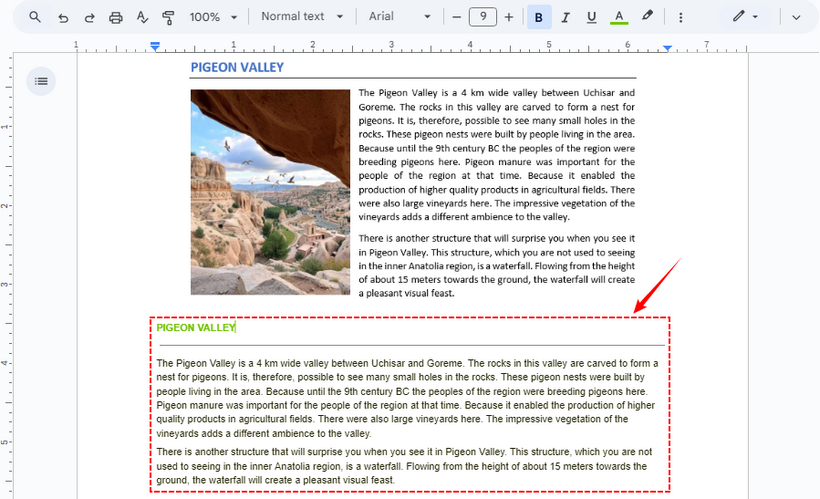
✔ Prós: Altamente preciso, integra-se perfeitamente ao seu ecossistema Google e lida com várias páginas.
✘ Contras: A formatação às vezes pode ser imperfeita.
2. Ferramenta de OCR Online
O Online OCR é uma ferramenta da web dedicada para conversão gratuita de imagem em texto. Ele suporta JPG, PNG, TIFF e PDF (até 15 MB por arquivo gratuitamente).
Como usar:
- Acesse Online OCR (não é necessário se inscrever).
- Faça o upload da sua imagem ou arraste e solte-a na ferramenta.
- Selecione o idioma de origem (por exemplo, inglês, francês) e o formato de saída (Word, TXT, Excel).
- Clique em “Converter” e baixe o arquivo editável com o texto extraído.

✔ Prós: Não é necessário registro para uso básico; suporta uma ampla variedade de idiomas e formatos de saída.
✘ Contras: A versão gratuita tem limites de tamanho de arquivo; anúncios no site.
Precisa exportar texto como PDF? Consulte: Converta texto para PDF facilmente: 4 métodos rápidos e profissionais
Conversor gratuito de imagem para texto para desktop: Microsoft OneNote
Se você usa o Windows ou o Microsoft Office, a ferramenta de OCR integrada do OneNote é perfeita e gratuita. Funciona com imagens, PDFs digitalizados e até capturas de tela que você cola nas notas.
Como usar:
- Abra o Microsoft OneNote e crie uma nova página.
- Cole uma imagem na página ou insira uma via “Inserir > Imagens”.
- Clique com o botão direito na imagem e selecione “Copiar Texto da Imagem”.
- Cole o texto extraído em qualquer lugar (Word, Excel, etc.).
Nota: Se precisar reconhecer outros idiomas, lembre-se de clicar com o botão direito na imagem, selecionar “Tornar o texto na imagem pesquisável” e escolher o idioma exato do seu texto.

✔ Prós: Integra-se perfeitamente com o Office; suporta texto manuscrito; funciona offline.
✘ Contras: Requer que o aplicativo de desktop seja instalado; menos intuitivo para usuários de Mac.
Biblioteca Python OCR: extraia texto de imagem usando Spire.OCR
Para usuários com habilidades básicas em Python, a biblioteca Spire.OCR para Python permite a conversão automatizada de imagem em texto. Ele suporta processamento em lote, vários idiomas e formatos de imagem (JPG, PNG, BMP, etc.) - perfeito para otimizar tarefas repetitivas de OCR (por exemplo, extrair texto de 100 imagens de produtos de uma vez).
1. Instale a biblioteca Spire.OCR: Abra seu prompt de comando ou terminal e execute o seguinte comando pip:
pip install spire.ocr
2. Baixe o modelo de OCR: Baixe o modelo pré-treinado para o seu sistema operacional nos links abaixo e extraia os arquivos para um diretório conhecido (por exemplo, F:\OCR\win-x64).
3. Escreva o script Python
Crie um novo arquivo Python (por exemplo, image_to_text.py) e cole o código a seguir. Este script carrega uma imagem, executa o OCR e salva o texto extraído em um arquivo.
from spire.ocr import *

# Create OCR scanner instance
scanner = OcrScanner()

# Configure OCR model path and language
configureOptions = ConfigureOptions()
configureOptions.ModelPath = "F:\\OCR Model\\win-x64"
configureOptions.Language = "English"
scanner.ConfigureDependencies(configureOptions)

# Perform OCR on the image
scanner.Scan("Sample.png")

# Save extracted text to file
text = scanner.Text.ToString()
with open("ImageText.txt", "a", encoding="utf-8") as file:
    file.write(text)
Etapas principais:
- Criar um scanner de OCR: Inicializa um objeto OcrScanner principal, que é responsável por todas as operações relacionadas ao OCR (configuração, digitalização de imagem, extração de texto).
- Configurar caminho do modelo & Idioma:
- ConfigureOptions: Uma classe para definir os parâmetros de OCR.
- ModelPath: Caminho para os arquivos do modelo de OCR extraídos (crítico para o reconhecimento preciso do texto).
- Idioma: Especifica o idioma de reconhecimento de texto (suporta inglês, chinês, francês, etc).
- Executar OCR na imagem: Usa o método Scan() para processar a imagem de destino, acionando o mecanismo de OCR para extrair o texto da imagem.
O texto extraído:
✔ Prós: Perfeito para automação e processamento em lote; altamente personalizável através de código.
✘ Contras: Requer conhecimento básico de Python e configuração inicial.
Para PDF digitalizado, verifique isto: Execute OCR em PDF com Python (Extraia texto de PDF digitalizado)
Considerações Finais
Converter uma imagem em texto gratuitamente não é mais uma tarefa complexa reservada a profissionais. Com ferramentas poderosas e acessíveis como Google Drive, OnlineOCR, e Microsoft OneNote, você pode extrair texto de qualquer imagem em segundos. Para desenvolvedores e usuários avançados que procuram automatizar tarefas repetitivas, as bibliotecas Python OCR fornecem uma solução robusta e escalável.
Perguntas Frequentes (FAQs)
P: Essas ferramentas podem extrair texto de anotações manuscritas?
R: Sim, mas com precisão variável. O texto impresso é reconhecido com alta precisão, enquanto o sucesso da caligrafia depende de sua clareza e das capacidades da ferramenta.
P: As ferramentas de OCR online gratuitas são seguras de usar?
R: Ferramentas respeitáveis como o Google Drive e o OnlineOCR são geralmente seguras para documentos não confidenciais. No entanto, para arquivos confidenciais, usar uma ferramenta de desktop como o OneNote ou um script Python local é mais seguro, pois não carrega seus dados para um servidor.
P: Posso converter imagens em texto offline?
R: Sim. Você pode usar o Microsoft OneNote ou a biblioteca Spire.OCR para Python sem uma conexão com a internet.
P: O Spire.OCR pode extrair as coordenadas do texto na imagem?
R: Sim. O Spire.OCR captura as coordenadas do texto retornando as informações da caixa delimitadora de cada região de texto reconhecida.
# Extract block-level text with position
block_text = ""
for block in text.Blocks:
    rectangle = block.Box
    block_info = f'{block.Text} -> x: {rectangle.X}, y: {rectangle.Y}, w: {rectangle.Width}, h: {rectangle.Height}'
    block_text += block_info + '\n'
Veja também
이미지를 텍스트로 변환하는 방법: 초보자를 위한 최고의 OCR 도구
스크린샷, 스캔한 PDF 또는 문서 사진의 텍스트를 편집해야 한 적이 있습니까? 모든 것을 수동으로 다시 입력하는 것은 지루하고 오류가 발생하기 쉬운 프로세스입니다. 다행히도 광학 문자 인식(OCR)이라는 강력한 기술을 사용하여 이미지를 텍스트로 변환할 수 있습니다.
이 종합 가이드에서는 일반 사용자와 개발자 모두를 위해 이미지에서 텍스트를 추출하는 최고의 무료 도구와 방법을 즉시 살펴보겠습니다.
- 이미지를 TXT로 변환하는 이유? 주요 사용 사례
- 이미지-텍스트 변환기 작동 방식: OCR의 기본
- 온라인에서 이미지를 텍스트로 변환하는 최고의 무료 도구
- 사진-텍스트 무료 데스크톱 변환기: Microsoft OneNote
- Python OCR 라이브러리: Spire.OCR을 사용하여 이미지에서 텍스트 추출
- 자주 묻는 질문 (FAQ)
이미지를 TXT로 변환하는 이유? 주요 사용 사례
PNG 또는 JPG와 같은 이미지를 TXT 파일로 변환하는 기능은 생각보다 유용합니다. 다음은 몇 가지 일반적인 시나리오입니다.
- 스캔한 문서 편집: 오래된 종이 문서, 계약서 또는 편지를 편집 가능한 Word 또는 Google Docs 파일로 변환합니다.
- 스크린샷에서 텍스트 캡처: 다시 입력하지 않고도 소프트웨어 튜토리얼, 소셜 미디어 게시물 또는 오류 메시지에서 텍스트를 빠르게 가져옵니다.
- 이미지 속 텍스트 번역: OCR 도구를 사용하여 텍스트를 추출한 다음 Google 번역과 같은 번역기에 붙여넣습니다.
- 접근성 향상: 시각 장애가 있는 사용자를 위해 스크린 리더가 이미지 내의 텍스트를 읽을 수 있도록 합니다.
이미지-텍스트 변환기 작동 방식: OCR의 기본
대부분의 무료 도구는 클라우드 기반 OCR(소프트웨어 다운로드 필요 없음) 또는 경량 데스크톱 앱을 사용합니다. 과정은 간단합니다.
최신 OCR 도구는 여러 언어(영어, 스페인어, 중국어 등), 필기 텍스트(정확도 다양)를 지원하며 저화질 이미지도 처리할 수 있습니다. 물론 선명한 이미지일수록 더 나은 결과를 얻을 수 있습니다.
전문가 팁: 최상의 OCR 결과를 얻으려면 조명이 좋고 눈부심이 적으며 텍스트가 똑바른(기울어진 사진 피하기) 고해상도 이미지를 사용하십시오.
온라인에서 이미지를 텍스트로 변환하는 최고의 무료 도구
비싼 소프트웨어가 필요하지 않습니다. 브라우저에서 직접 작동하는 최고의 무료 온라인 OCR 도구는 다음과 같습니다.
1. Google Drive (Google Docs)
이것은 가장 강력하면서도 종종 간과되는 무료 OCR 솔루션 중 하나입니다.
사용 방법:
- drive.google.com으로 이동합니다.
- 이미지(JPG, PNG) 또는 스캔한 PDF를 Drive에 업로드합니다.
- 파일을 마우스 오른쪽 버튼으로 클릭하고 “연결 프로그램 > Google Docs”를 선택합니다.
- Google Docs가 즉시 새 문서를 만듭니다. 추출된 텍스트는 삽입된 이미지 하단에 표시됩니다.
✔ 장점: 매우 정확하고 Google 생태계와 원활하게 통합되며 여러 페이지를 처리합니다.
✘ 단점: 서식이 때때로 불완전할 수 있습니다.
2. 온라인 OCR 도구
Online OCR은 무료 이미지-텍스트 변환을 위한 전용 웹 도구입니다. JPG, PNG, TIFF 및 PDF(무료 파일당 최대 15MB)를 지원합니다.
사용 방법:
- Online OCR로 이동합니다(가입 필요 없음).
- 이미지를 업로드하거나 도구로 드래그 앤 드롭합니다.
- 소스 언어(예: 영어, 프랑스어)와 출력 형식(Word, TXT, Excel)을 선택합니다.
- “변환”을 클릭하고 추출된 텍스트가 포함된 편집 가능한 파일을 다운로드합니다.
✔ 장점: 기본 사용에 등록이 필요하지 않음; 다양한 언어와 출력 형식을 지원합니다.
✘ 단점: 무료 버전에는 파일 크기 제한이 있습니다. 사이트에 광고가 있습니다.
텍스트를 PDF로 내보내야 합니까? 참조: 텍스트를 PDF로 쉽게 변환: 4가지 빠르고 전문적인 방법
사진-텍스트 무료 데스크톱 변환기: Microsoft OneNote
Windows 또는 Microsoft Office를 사용하는 경우 OneNote의 내장 OCR 도구는 원활하고 무료입니다. 이미지, 스캔한 PDF, 노트에 붙여넣는 스크린샷에서도 작동합니다.
사용 방법:
- Microsoft OneNote를 열고 새 페이지를 만듭니다.
- 페이지에 이미지를 붙여넣거나 “삽입 > 그림”을 통해 삽입합니다.
- 이미지를 마우스 오른쪽 버튼으로 클릭하고 “그림에서 텍스트 복사”를 선택합니다.
- 추출된 텍스트를 아무 곳에나(Word, Excel 등) 붙여넣습니다.
참고: 다른 언어를 인식해야 하는 경우 이미지를 마우스 오른쪽 버튼으로 클릭하고 “이미지에서 텍스트를 검색 가능하게 만들기”를 선택한 다음 텍스트의 정확한 언어를 선택해야 합니다.
✔ 장점: Office와 완벽하게 통합됩니다. 필기 텍스트를 지원합니다. 오프라인으로 작동합니다.
✘ 단점: 데스크톱 앱을 설치해야 합니다. Mac 사용자에게는 덜 직관적입니다.
Python OCR 라이브러리: Spire.OCR을 사용하여 이미지에서 텍스트 추출
기본적인 Python 기술을 가진 사용자를 위해 Spire.OCR for Python 라이브러리는 자동화된 이미지-텍스트 변환을 가능하게 합니다. 일괄 처리, 여러 언어 및 이미지 형식(JPG, PNG, BMP 등)을 지원하므로 반복적인 OCR 작업(예: 한 번에 100개 제품 이미지에서 텍스트 추출)을 간소화하는 데 적합합니다.
1. Spire.OCR 라이브러리 설치: 명령 프롬프트 또는 터미널을 열고 다음 pip 명령을 실행합니다.
pip install spire.ocr
2. OCR 모델 다운로드: 아래 링크에서 운영 체제에 맞는 사전 훈련된 모델을 다운로드하고 알려진 디렉터리(예: F:\OCR\win-x64)에 파일의 압축을 풉니다.
3. Python 스크립트 작성
새 Python 파일(예: image_to_text.py)을 만들고 다음 코드를 붙여넣습니다. 이 스크립트는 이미지를 로드하고 OCR을 수행한 다음 추출된 텍스트를 파일에 저장합니다.
from spire.ocr import *

# OCR 스캐너 인스턴스 생성
scanner = OcrScanner()

# OCR 모델 경로 및 언어 구성
configureOptions = ConfigureOptions()
configureOptions.ModelPath = "F:\\OCR Model\\win-x64"
configureOptions.Language = "English"
scanner.ConfigureDependencies(configureOptions)

# 이미지에서 OCR 수행
scanner.Scan("Sample.png")

# 추출된 텍스트를 파일에 저장
text = scanner.Text.ToString()
with open("ImageText.txt", "a", encoding="utf-8") as file:
    file.write(text)
주요 단계:
- OCR 스캐너 생성: 모든 OCR 관련 작업(구성, 이미지 스캔, 텍스트 추출)을 담당하는 핵심 OcrScanner 개체를 초기화합니다.
- 모델 경로 및 언어 구성:
- ConfigureOptions: OCR 매개변수를 설정하는 클래스입니다.
- ModelPath: 추출된 OCR 모델 파일의 경로(정확한 텍스트 인식을 위해 중요).
- Language: 텍스트 인식 언어를 지정합니다(영어, 중국어, 프랑스어 등 지원).
- 이미지에서 OCR 수행: Scan() 메서드를 사용하여 대상 이미지를 처리하고 OCR 엔진을 트리거하여 이미지에서 텍스트를 추출합니다.
추출된 텍스트:
✔ 장점: 자동화 및 일괄 처리에 적합합니다. 코드를 통해 고도로 사용자 정의할 수 있습니다.
✘ 단점: 기본적인 Python 지식과 초기 설정이 필요합니다.
스캔한 PDF의 경우 다음을 확인하십시오: Python으로 PDF OCR 수행 (스캔한 PDF에서 텍스트 추출)
마지막 생각들
이미지를 텍스트로 무료로 변환하는 것은 더 이상 전문가에게만 국한된 복잡한 작업이 아닙니다. Google Drive, OnlineOCR, 및 Microsoft OneNote와 같은 강력하고 접근 가능한 도구를 사용하면 모든 이미지에서 몇 초 만에 텍스트를 추출할 수 있습니다. 반복적인 작업을 자동화하려는 개발자와 고급 사용자를 위해 Python OCR 라이브러리는 강력하고 확장 가능한 솔루션을 제공합니다.
자주 묻는 질문 (FAQ)
Q: 이 도구들이 필기 노트에서 텍스트를 추출할 수 있습니까?
A: 예, 하지만 정확도는 다양합니다. 인쇄된 텍스트는 높은 정밀도로 인식되는 반면, 필기 성공 여부는 선명도와 도구의 기능에 따라 달라집니다.
Q: 무료 온라인 OCR 도구는 사용하기에 안전한가요?
A: Google Drive 및 OnlineOCR과 같은 평판이 좋은 도구는 일반적으로 민감하지 않은 문서에 대해 안전합니다. 그러나 기밀 파일의 경우 OneNote와 같은 데스크톱 도구나 로컬 Python 스크립트를 사용하는 것이 데이터를 서버에 업로드하지 않으므로 더 안전합니다.
Q: 오프라인에서 이미지를 텍스트로 변환할 수 있나요?
A: 예. 인터넷 연결 없이 Microsoft OneNote 또는 Spire.OCR for Python 라이브러리를 사용할 수 있습니다.
Q: Spire.OCR이 이미지에서 텍스트 좌표를 추출할 수 있나요?
A: 예. Spire.OCR은 인식된 각 텍스트 영역의 경계 상자 정보를 반환하여 텍스트 좌표를 캡처합니다.
# 위치와 함께 블록 수준 텍스트 추출
block_text = ""
for block in text.Blocks:
    rectangle = block.Box
    block_info = f'{block.Text} -> x: {rectangle.X}, y: {rectangle.Y}, w: {rectangle.Width}, h: {rectangle.Height}'
    block_text += block_info + '\n'