HTML in Text umwandeln: Einfache Lösungen für Anfänger & Entwickler
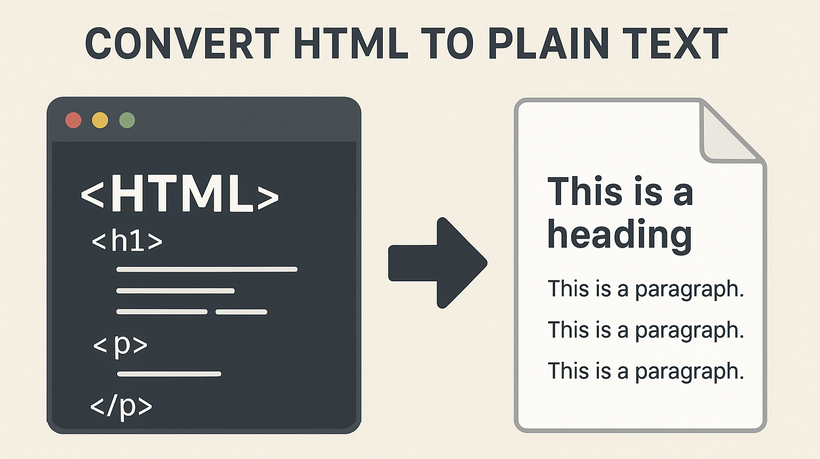
In der heutigen digitalen Welt ist HTML (HyperText Markup Language) das Rückgrat von Webinhalten. Es gibt jedoch unzählige Szenarien, in denen Sie stattdessen sauberen, unformatierten reinen Text benötigen. Ob Sie Daten zur Analyse extrahieren, Inhalte für eine E-Mail vereinfachen oder Text für die SEO-Analyse vorbereiten, das Wissen, wie man HTML in Text umwandelt, ist eine wesentliche Fähigkeit.
Dieser umfassende Leitfaden führt Sie durch die effektivsten Methoden zur Konvertierung von HTML in reinen Text, von einfachen Online-Tools für Anfänger bis hin zu leistungsstarken Code-Bibliotheken für Entwickler.
- Wesentliche Vorteile der HTML-zu-Text-Konvertierung
- Zwei einfache Methoden zur Konvertierung von HTML in reinen Text
- Fortgeschritten: HTML mit Code in Text umwandeln (für Entwickler)
- Häufig gestellte Fragen (FAQs)
Wesentliche Vorteile der HTML-zu-Text-Konvertierung
Das Entfernen des HTML-Markups, um sauberen, lesbaren Text zu erhalten, dient mehreren entscheidenden Zwecken:
- Datenverarbeitung und -analyse: Für Datenwissenschaftler und Analysten ist reiner Text der Ausgangspunkt für die Verarbeitung natürlicher Sprache (NLP), die Stimmungsanalyse und die Extraktion von Schlüsselwörtern. HTML-Tags sind für diese Algorithmen nur Rauschen.
- Suchmaschinenoptimierung (SEO): Wenn Suchmaschinen Ihre Website crawlen, indizieren sie hauptsächlich den reinen Textinhalt. Sicherzustellen, dass Ihre Kernbotschaft leicht aus dem HTML extrahiert werden kann, hilft bei der On-Page-SEO und dem Ranking.
- Wiederverwendung von Inhalten: Reiner Text ist leicht und vielseitig, perfekt für E-Mail-Newsletter, App-Benachrichtigungen, Social-Media-Vorschauen oder Dokumentausschnitte.
- Effizienz beim Web Scraping: Web Scraper sind darauf ausgelegt, spezifische Daten zu extrahieren. Die Konvertierung der rohen HTML-Antwort in Text ist oft der erste Schritt, um die wesentlichen Informationen aus der Präsentationsschicht herauszufiltern.
Zwei einfache Methoden zur Konvertierung von HTML in reinen Text
Für nicht-technische Benutzer liefern diese benutzerfreundlichen Tools schnelle Ergebnisse ohne manuelle Tag-Entfernung.
1. Online-HTML-zu-Text-Konverter
Für schnelle, einmalige Konvertierungen automatisieren Online-Tools das Entfernen von Markup mit minimalem Aufwand.
Top-Tools:
CLOUDXDOCS, Convertio, CodeBeautify (alle kostenlos, keine Anmeldung erforderlich).
Allgemeine Schritte:
- Laden Sie Ihre HTML-Datei hoch.
- Wählen Sie „Konvertieren“ oder „Text extrahieren“.
- Laden Sie die reine Textausgabe herunter (normalerweise als .txt-Datei).
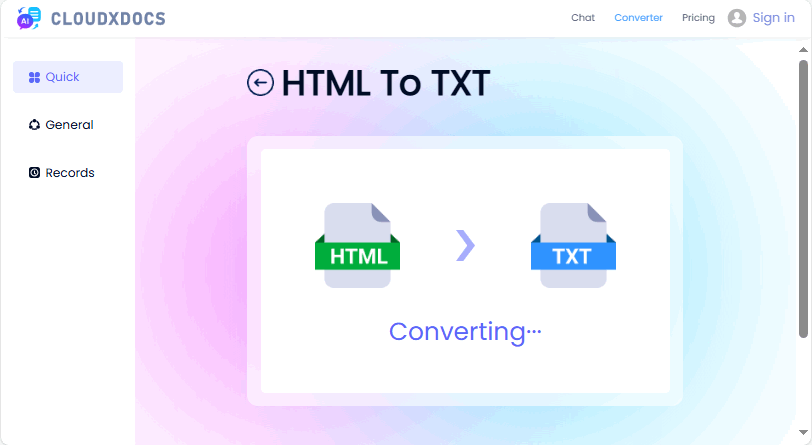
Beispiel für die Verwendung von CLOUDXDOCS:
Vorteile: Schnell, erfordern keine technischen Fähigkeiten und erhalten oft grundlegende Formatierungen wie Zeilenumbrüche.
Nachteile: Nicht für die Stapelverarbeitung geeignet; Datenschutzbedenken bei sensiblen Daten.
Das könnte Ihnen auch gefallen: Die 5 besten kostenlosen HTML-zu-Word-Konverter (getestet & empfohlen)
2. Textverarbeitungsprogramme (Microsoft Word, Google Docs)
Nutzen Sie vertraute Office-Tools, um HTML effektiv in Text umzuwandeln – keine zusätzliche Software erforderlich.
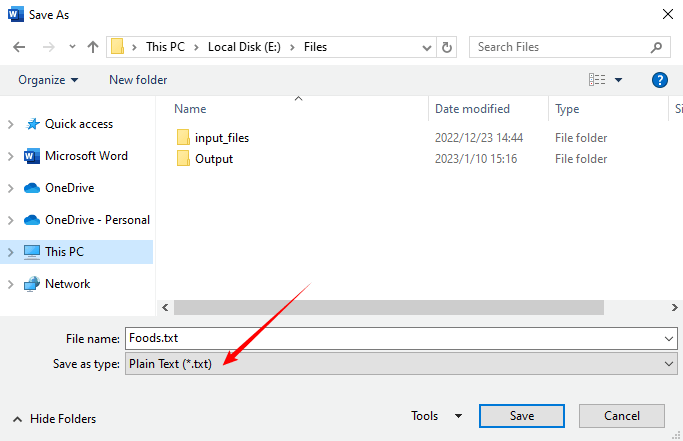
Microsoft Word:
- Öffnen Sie Word und gehen Sie zu „Datei > Öffnen“
- Wählen Sie Ihre HTML-Datei aus (wählen Sie „Alle Dateien“ aus dem Dropdown-Menü, um sie anzuzeigen).
- Word konvertiert das HTML in ein bearbeitbares Dokument.
- Gehen Sie zu „Datei > Speichern unter“ und wählen Sie „Reiner Text (*.txt)“ als Format.
Google Docs:
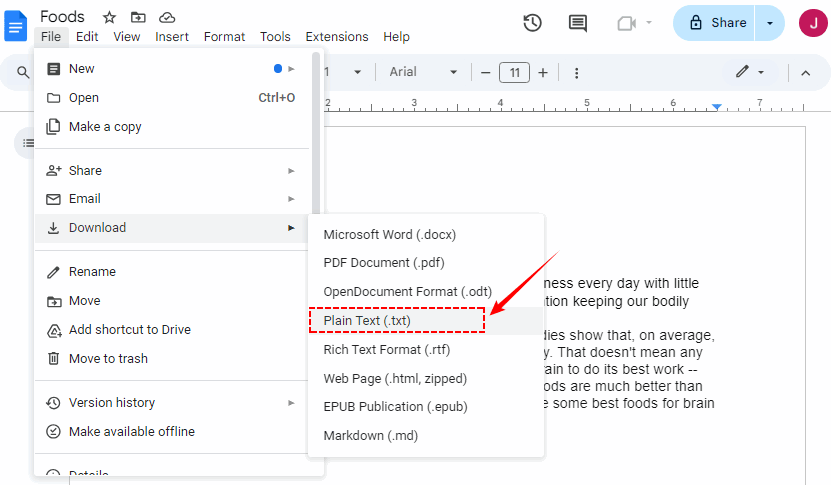
- Laden Sie die HTML-Datei auf Google Drive hoch.
- Klicken Sie mit der rechten Maustaste auf die Datei und wählen Sie „Öffnen mit > Google Docs“
- Google Docs rendert das HTML als Text.
- Laden Sie es als „Reiner Text (.txt)“ über „Datei > Herunterladen“ herunter.
Am besten geeignet für: Benutzer, die bereits mit diesen Anwendungen vertraut sind und diese Aufgabe nur selten ausführen müssen.
Fortgeschritten: HTML mit Code in Text umwandeln (für Entwickler)
Wenn Sie Konvertierungen automatisieren müssen (z. B. Stapelverarbeitung, Web Scraping), ist die Verwendung von Programmiersprachen wie Python oder C# der leistungsstärkste Ansatz.
1. HTML in Text in Python umwandeln
Die Spire.Doc for Python-Bibliothek bietet die SaveToFile-Methode zum direkten Speichern von HTML-Dateien als TXT-Dateien.
- Über Pypi installieren:
pip install Spire.Doc
- Schreiben Sie das Python-Skript:
from spire.doc import *
from spire.doc.common import *

# Load an HTML file
document = Document()
document.LoadFromFile("sample.html", FileFormat.Html, XHTMLValidationType.none)
# Save as a plain text file
document.SaveToFile("HtmlToText.txt", FileFormat.Txt)
document.Close()
Wenn Sie HTML-Strings verarbeiten müssen, lesen Sie dies: So konvertieren Sie einen HTML-String in Text in Python
2. HTML in reinen Text in C# umwandeln
Für .NET-Anwendungen ist Spire.Doc for .NET eine robuste Lösung zum Extrahieren von Text aus HTML.
- Über Nuget installieren:
Install-Package Spire.Doc
- Beispiel-C#-Code:
using Spire.Doc;
using Spire.Doc.Documents;

namespace HtmlToText
{
    class Program
    {
        static void Main()
        {
            // Create a Document object
            Document doc = new Document();

            // Load an HTML file
            doc.LoadFromFile("sample.html", FileFormat.Html, XHTMLValidationType.None);

            // Convert HTML to plain text
            doc.SaveToFile("HTMLtoText.txt", FileFormat.Txt);
            doc.Dispose();
        }
    }
}
Die konvertierte TXT-Datei:

Am besten geeignet für: Entwickler, Datenwissenschaftler und alle, die eine automatisierte, skalierbare oder benutzerdefinierte Textextraktion benötigen.
Fazit
Das Wissen, wie man HTML in Text umwandelt, ist eine grundlegende Fähigkeit, die die Lücke zwischen Webinhalten und nutzbaren Daten schließt. Anfänger können Online-Tools oder Textverarbeitungsprogramme für schnelle Aufgaben verwenden, während Entwickler mit Code für Massen- oder benutzerdefinierte Arbeitsabläufe automatisieren können. Unabhängig von Ihrem Kenntnisstand ist das Ziel, sauberen, nutzbaren Text zu erhalten, der zu Ihrem Anwendungsfall passt.
Indem Sie diese Methoden befolgen, sparen Sie Zeit, vermeiden Formatierungsprobleme und schöpfen das volle Potenzial von reinem Text in Ihrem digitalen Arbeitsablauf aus.
Häufig gestellte Fragen (FAQs)
F: Warum kann ich nicht einfach Text von einer Website kopieren und einfügen?
A: Das direkte Kopieren und Einfügen von einer Webseite zieht oft versteckte Formatierungen, zusätzliche Leerzeichen oder teilweise HTML-Tags mit sich. Dies führt zu unordentlichem Text, der manuell bereinigt werden muss. HTML-zu-Text-Tools/-Methoden entfernen nur das Markup, während der Kerninhalt erhalten bleibt, was Ihnen Zeit spart.
F: Kann ich HTML anstelle von reinem Text in Rich Text (RTF) konvertieren?
A: Ja, die meisten Online-Tools (z. B. Convertio) und Textverarbeitungsprogramme unterstützen die RTF-Ausgabe. Verwenden Sie zum Codieren Spire.Doc, um HTML als RTF zu speichern und dabei Formatierungen wie Fett, Kursiv und Überschriften beizubehalten.
F: Was ist die beste Methode, um mehrere HTML-Dateien gleichzeitig zu konvertieren?
A: Für die Massenkonvertierung ist die Verwendung eines Skripts die effizienteste Methode. Sie können ein einfaches Python- oder C#-Skript schreiben, um alle Dateien in einem Verzeichnis zu durchlaufen und sie nacheinander zu konvertieren.
F: Sind Online-HTML-zu-Text-Konverter sicher in der Anwendung?
A: Sie sollten es vermeiden, sensiblen, vertraulichen oder proprietären HTML-Code in Online-Tools einzufügen. Obwohl die meisten seriösen Websites sicher sind, besteht das Risiko, dass Ihre Daten abgefangen oder gespeichert werden könnten. Verwenden Sie für sensible Informationen immer eine lokale Methode wie ein Skript auf Ihrem eigenen Computer.
Siehe auch
Конвертировать HTML в текст: простые решения для начинающих и разработчиков
В современном цифровом мире HTML (HyperText Markup Language) является основой веб-контента. Однако существует бесчисленное множество сценариев, когда вам вместо этого нужен чистый, неформатированный обычный текст. Независимо от того, извлекаете ли вы данные для анализа, упрощаете контент для электронной почты или готовите текст для SEO-анализа, знание того, как преобразовать HTML в текст, является важным навыком.
Это подробное руководство познакомит вас с наиболее эффективными методами преобразования HTML в обычный текст, от простых онлайн-инструментов для начинающих до мощных библиотек кода для разработчиков.
- Основные преимущества преобразования HTML в текст
- Два простых способа преобразования HTML в обычный текст
- Продвинутый уровень: преобразование HTML в текст с помощью кода (для разработчиков)
- Часто задаваемые вопросы (FAQ)
Основные преимущества преобразования HTML в текст
Удаление HTML-разметки для получения чистого, читаемого текста служит нескольким важным целям:
- Обработка и анализ данных: для специалистов по данным и аналитиков обычный текст является отправной точкой для обработки естественного языка (NLP), анализа настроений и извлечения ключевых слов. HTML-теги — это просто шум для этих алгоритмов.
- Поисковая оптимизация (SEO): когда поисковые системы сканируют ваш сайт, они в основном индексируют текстовое содержимое. Убедившись, что ваше основное сообщение легко извлекается из HTML, вы помогаете с SEO на странице и ранжированием.
- Перепрофилирование контента: обычный текст является легким и универсальным, идеально подходит для рассылок по электронной почте, уведомлений приложений, превью в социальных сетях или фрагментов документов.
- Эффективность веб-скрапинга: веб-скраперы предназначены для извлечения определенных данных. Преобразование необработанного ответа HTML в текст часто является первым шагом в отфильтровывании важной информации от уровня представления.
Два простых способа преобразования HTML в обычный текст
Для нетехнических пользователей эти удобные инструменты обеспечивают быстрые результаты без ручного удаления тегов.
1. Онлайн-конвертеры HTML в текст
Для быстрых одноразовых преобразований онлайн-инструменты автоматизируют удаление разметки с минимальными усилиями.
Лучшие инструменты:
CLOUDXDOCS, Convertio, CodeBeautify (все бесплатно, без регистрации).
Общие шаги:
- Загрузите свой HTML-файл.
- Выберите «Конвертировать» или «Извлечь текст».
- Загрузите вывод в виде обычного текста (обычно в виде файла .txt).
Пример использования CLOUDXDOCS:
Плюсы: быстро, не требует технических навыков и часто сохраняет базовое форматирование, такое как разрывы строк.
Минусы: не подходит для пакетной обработки; проблемы конфиденциальности с конфиденциальными данными.
Вам также может понравиться: 5 лучших бесплатных конвертеров HTML в Word (протестировано и рекомендовано)
2. Текстовые процессоры (Microsoft Word, Google Docs)
Используйте знакомые офисные инструменты для эффективного преобразования HTML в текст — дополнительное программное обеспечение не требуется.
Microsoft Word:
- Откройте Word и перейдите в «Файл > Открыть»
- Выберите свой HTML-файл (выберите «Все файлы» в раскрывающемся списке, чтобы увидеть его).
- Word преобразует HTML в редактируемый документ.
- Перейдите в «Файл > Сохранить как» и выберите «Обычный текст (*.txt)» в качестве формата.
Google Docs:
- Загрузите HTML-файл в Google Drive.
- Щелкните файл правой кнопкой мыши и выберите «Открыть с помощью > Google Docs»
- Google Docs отобразит HTML как текст.
- Загрузите как «Обычный текст (.txt)» через «Файл > Загрузить»
Лучше всего подходит для: пользователей, которые уже знакомы с этими приложениями и которым необходимо выполнять эту задачу нечасто.
Продвинутый уровень: преобразование HTML в текст с помощью кода (для разработчиков)
Если вам нужно автоматизировать преобразования (например, пакетную обработку, веб-скрапинг), использование языков программирования, таких как Python или C#, является самым мощным подходом.
1. Преобразование HTML в текст на Python
Библиотека Spire.Doc for Python предоставляет метод SaveToFile для прямого сохранения HTML-файлов в виде TXT-файлов.
- Установить через Pypi:
pip install Spire.Doc
- Напишите скрипт на Python:
from spire.doc import *
from spire.doc.common import *

# Загрузить HTML-файл
document = Document()
document.LoadFromFile("sample.html", FileFormat.Html, XHTMLValidationType.none)
# Сохранить как текстовый файл
document.SaveToFile("HtmlToText.txt", FileFormat.Txt)
document.Close()
Если вам нужно обрабатывать строки HTML, проверьте это: Как преобразовать строку HTML в текст на Python
2. Преобразование HTML в обычный текст на C#
Для приложений .NET Spire.Doc for .NET является надежным решением для извлечения текста из HTML.
- Установить через Nuget:
Install-Package Spire.Doc
- Пример кода на C#:
using Spire.Doc;
using Spire.Doc.Documents;

namespace HtmlToText
{
    class Program
    {
        static void Main()
        {
            // Создать объект Document
            Document doc = new Document();

            // Загрузить HTML-файл
            doc.LoadFromFile("sample.html", FileFormat.Html, XHTMLValidationType.None);

            // Преобразовать HTML в обычный текст
            doc.SaveToFile("HTMLtoText.txt", FileFormat.Txt);
            doc.Dispose();
        }
    }
}
Преобразованный TXT-файл:
Лучше всего подходит для: разработчиков, специалистов по данным и всех, кому требуется автоматизированное, масштабируемое или настраиваемое извлечение текста.
Заключение
Знание того, как преобразовать HTML в текст, является фундаментальным навыком, который устраняет разрыв между веб-контентом и полезными данными. Новички могут использовать онлайн-инструменты или текстовые процессоры для быстрых задач, в то время как разработчики могут автоматизировать с помощью кода для массовых или настраиваемых рабочих процессов. Независимо от вашего уровня квалификации, цель состоит в том, чтобы получить чистый, пригодный для использования текст, который соответствует вашему варианту использования.
Следуя этим методам, вы сэкономите время, избежите головной боли с форматированием и раскроете весь потенциал обычного текста в своем цифровом рабочем процессе.
Часто задаваемые вопросы (FAQ)
В: Почему я не могу просто скопировать и вставить текст с веб-сайта?
О: Копирование и вставка непосредственно с веб-страницы часто приводит к скрытому форматированию, лишним пробелам или частичным HTML-тегам. Это приводит к беспорядочному тексту, который требует ручной очистки. Инструменты/методы преобразования HTML в текст удаляют только разметку, сохраняя основное содержимое, что экономит ваше время.
В: Могу ли я преобразовать HTML в форматированный текст (RTF) вместо обычного текста?
О: Да, большинство онлайн-инструментов (например, Convertio) и текстовых процессоров поддерживают вывод в формате RTF. Для кодирования используйте Spire.Doc для сохранения HTML в формате RTF с сохранением форматирования, такого как полужирный шрифт, курсив и заголовки.
В: Какой лучший метод для одновременного преобразования нескольких HTML-файлов?
О: Для массового преобразования наиболее эффективным методом является использование скрипта. Вы можете написать простой скрипт на Python или C#, чтобы перебрать все файлы в каталоге и преобразовать их один за другим.
В: Безопасно ли использовать онлайн-конвертеры HTML в текст?
О: Вам следует избегать вставки конфиденциального, конфиденциального или проприетарного HTML-кода в онлайн-инструменты. Хотя большинство авторитетных сайтов безопасны, существует риск того, что ваши данные могут быть перехвачены или сохранены. Для конфиденциальной информации всегда используйте локальный метод, например скрипт на вашем собственном компьютере.
Смотрите также
Come convertire Word in Markdown con immagini e tabelle

La conversione di documenti Word in Markdown (MD) è sempre più importante per sviluppatori, redattori tecnici e team di documentazione che lavorano con flussi di lavoro basati su Git o generatori di siti statici come Hugo, Jekyll e MkDocs. Markdown è leggero, leggibile e compatibile con il controllo di versione, rendendolo ideale per le pipeline di documentazione moderne.
Questa guida copre tutti i modi pratici per convertire Word in Markdown, inclusi strumenti online, utilità a riga di comando come Pandoc e la conversione automatizzata con Python. Imparerai anche come preservare immagini, tabelle e formattazione per file Markdown puliti e pronti per la pubblicazione.
Panoramica dei Metodi
| Metodo | Ideale Per | Vantaggi | Limitazioni |
|---|---|---|---|
| Strumenti Online | Conversioni rapide ad-hoc | Nessuna installazione, facile da usare | Precisione di formattazione limitata, problemi di privacy |
| Software Desktop | File di media complessità | Migliore stabilità, uso offline | Nessuna automazione, potrebbe perdere stili/tabelle |
| Automazione con Python | Flussi di lavoro su larga scala o precisi | Controllo completo, immagini Base64, preserva la struttura, scriptabile | Richiede conoscenze di base di scripting |
Perché Convertire Documenti Word in Markdown?
Markdown è un formato di testo semplice, leggibile dall'uomo e compatibile con Git, perfetto per la documentazione tecnica e la scrittura collaborativa.
Migliore Integrazione con Git
A differenza dei file DOCX, Markdown consente:
- Diff puliti e leggibili nelle pull request
- Risoluzione più semplice dei conflitti di unione
- Compatibilità perfetta con GitHub, GitLab e Bitbucket
Supporto Nativo nei Generatori di Siti Statici
Piattaforme come Hugo, Jekyll, MkDocs e Docusaurus si aspettano Markdown. La conversione di file Word elimina la necessità di riformattazione manuale.
Automazione su Larga Scala
Una volta che il contenuto è in Markdown, può essere:
- Elaborato tramite pipeline CI/CD
- Tradotto o localizzato
- Indicizzato, convalidato, analizzato o aggiornato in batch facilmente
Questo rende un flusso di lavoro affidabile DOCX → MD essenziale per molti team.
Sfide Comuni nella Conversione da Word a Markdown
I documenti Word contengono spesso elementi che non si mappano correttamente a Markdown:
- Tabelle complesse o celle unite
- Immagini incorporate con posizionamento personalizzato
- Stili di intestazione incoerenti
- Note a piè di pagina, intestazioni/piè di pagina, caselle di testo
- Revisioni o formattazione nascosta
Scegliere il metodo di conversione giusto riduce al minimo la pulizia manuale.
Metodo 1: Convertire Word in Markdown Online
Gli strumenti online sono il modo più veloce per convertire DOC/DOCX in Markdown senza installare software.
Cosa Cercare in un Convertitore Online
Scegli strumenti online che:
- Supportano sia DOC che DOCX
- Preservano i livelli di intestazione e le strutture degli elenchi corretti
- Mantengono la formattazione (grassetto, corsivo, link, tabelle)
- Salvano le immagini come base64 o le estraggono in una cartella separata
CLOUDXDOCS è un'opzione che produce Markdown pulito con supporto per le immagini.
Passo dopo Passo: Utilizzo di CLOUDXDOCS
- Visita il convertitore da Word a Markdown di CLOUDXDOCS.
- Carica il tuo file .doc o .docx.
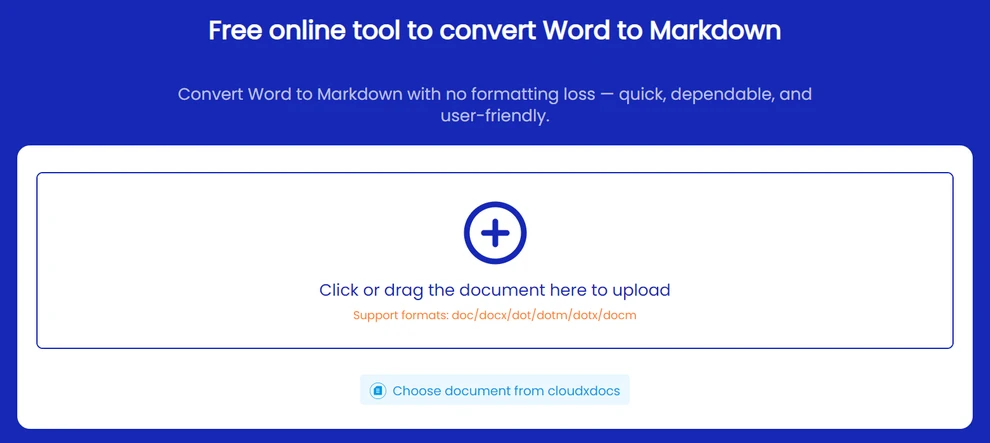
- Seleziona Markdown (.md).
- Avvia la conversione.
- Scarica il file .md generato.
Suggerimento: evita di caricare documenti riservati: utilizza strumenti locali o offline per contenuti sensibili.
Dopo la conversione in Markdown, puoi anche convertirlo in HTML.
Metodo 2: Convertire DOCX in Markdown con Pandoc (Offline)
Pandoc è uno strumento a riga di comando leggero che viene eseguito localmente e può convertire i moderni file DOCX in Markdown. È adatto quando si preferisce non caricare documenti online.
Come Usare Pandoc
- Installa Pandoc dal sito ufficiale.
- Apri un terminale (Windows: Prompt dei comandi o PowerShell; macOS / Linux: Terminale).
- Inserisci il comando di conversione.
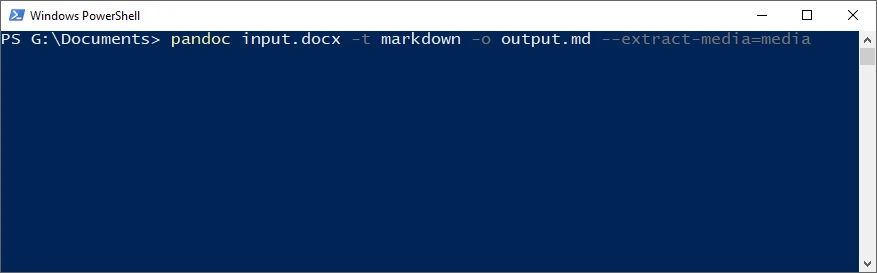
Conversione Base DOCX → Markdown
pandoc input.docx -t markdown -o output.md
Questo crea un file Markdown con intestazioni, elenchi, link e formattazione comune preservati.
Esporta Immagini
pandoc input.docx -t markdown -o output.md --extract-media=media
Pandoc salverà tutte le immagini in una cartella locale media e aggiornerà automaticamente i riferimenti Markdown.
Nota: Pandoc non può convertire i file .doc legacy e non incorpora le immagini come contenuto Markdown base64.
Se desideri pubblicare il tuo documento su una pagina web, puoi anche convertire Word direttamente in HTML.
Metodo 3: Convertire Word in Markdown Usando Python
Per l'elaborazione di documenti su larga scala, come processi batch, script di automazione o pipeline CI/CD, una soluzione programmatica offre la massima efficienza e coerenza. Le librerie open source funzionano per il testo di base, ma spesso non riescono a preservare accuratamente la formattazione in documenti complessi.
Se hai bisogno di un output Markdown ad alta fedeltà, Spire.Doc for Python offre un modo diretto e senza desktop per convertire sia i file .doc che .docx con una conservazione affidabile della formattazione.
Perché Considerare Spire.Doc for Python?
- Conversione diretta di DOC e DOCX
- Immagini codificate automaticamente come Base64 e incorporate
- Nessun Microsoft Office o LibreOffice richiesto
- Gestisce stili, elenchi, tabelle, intestazioni/piè di pagina
- Ideale per flussi di lavoro automatizzati o lato server
Installa Spire.Doc for Python
Puoi installare Spire.Doc for Python tramite pip:
pip install spire.doc
In alternativa, è possibile ottenere la libreria tramite un download manuale, inclusa l'edizione gratuita Free Spire.Doc for Python per progetti con requisiti più leggeri.
Conversione Base da DOC/DOCX a Markdown
Prima di eseguire il codice, assicurati che il tuo script disponga dell'autorizzazione di lettura per il file di input e dell'autorizzazione di scrittura per la directory di output.
from spire.doc import Document, FileFormat

doc = Document()
doc.LoadFromFile("input.docx")   # supportato anche .doc
doc.SaveToFile("output.md", FileFormat.Markdown)
doc.Close()
Questo produce un file Markdown con struttura preservata e immagini codificate in Base64.
Classi e Metodi Chiave
- Document: Classe principale per l'apertura e la conversione di file Word.
- LoadFromFile(): Carica automaticamente .doc o .docx.
- SaveToFile(..., FileFormat.Markdown): Converte in Markdown con immagini incorporate.
- FileFormat.Markdown: Il valore del formato di esportazione.
Di seguito è riportato un esempio del documento Word e del suo output Markdown:
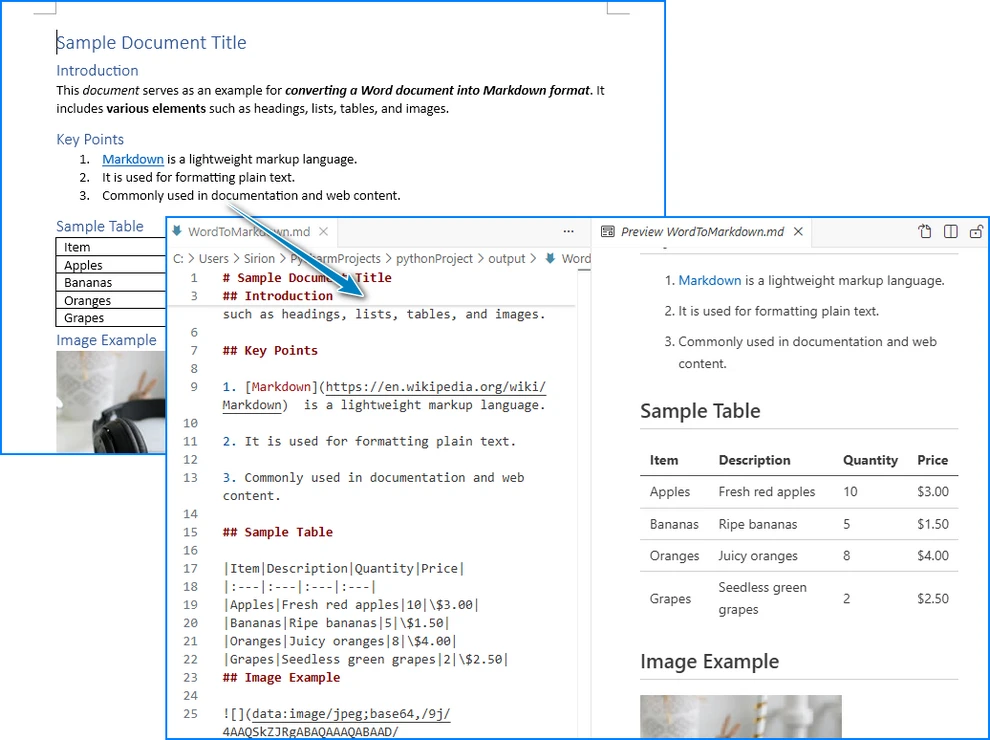
Conversione Batch: Più File Word in Markdown
Se devi convertire più documenti Word in Markdown contemporaneamente, puoi utilizzare un semplice script Python per automatizzare il processo, preservando la formattazione e le immagini per tutti i file in una cartella.
import os
from spire.doc import Document, FileFormat

input_folder = "input_docs"
output_folder = "output_md"

# Assicurati che la cartella di output esista
os.makedirs(output_folder, exist_ok=True)

for filename in os.listdir(input_folder):
    if filename.endswith(".docx") or filename.endswith(".doc"):
        doc = Document()
        doc.LoadFromFile(os.path.join(input_folder, filename))
        output_path = os.path.join(output_folder, filename.rsplit(".", 1)[0] + ".md")
        doc.SaveToFile(output_path, FileFormat.Markdown)
        doc.Close()
        print(f"Convertito: {filename} → {output_path}")
Suggerimenti:
- Mantieni le autorizzazioni di lettura/scrittura appropriate per le cartelle di input/output.
- I file vengono salvati automaticamente con lo stesso nome di base e l'estensione .md.
- Le immagini codificate in Base64 vengono preservate in ogni file Markdown.
Per esempi dettagliati sulla conversione tra Word e Markdown in Python, consulta il nostro tutorial: Conversione Python Word ↔ Markdown.
Migliori Pratiche per un Output Markdown Pulito
Per garantire che i tuoi file Markdown siano coerenti, leggibili e di facile manutenzione:
- Mantieni una gerarchia di intestazioni coerente in tutto il documento.
- Conferma i percorsi delle immagini o il contenuto Base64 per garantire che le immagini vengano visualizzate correttamente.
- Evita le celle di tabella unite ove possibile: le tabelle più semplici si convertono in modo più affidabile.
- Accetta le revisioni e rimuovi i commenti in Word prima della conversione.
- Visualizza l'anteprima del Markdown in editor come VS Code, Typora o GitHub prima della pubblicazione.
- Testa elenchi, link e formattazione per assicurarti che vengano visualizzati come previsto nella tua piattaforma di destinazione.
Risoluzione dei Problemi Comuni
| Problema | Soluzione |
|---|---|
| Immagini mancanti | Controlla se le immagini sono salvate come Base64 o verifica la cartella dei media. |
| Tabelle non allineate | Semplifica la struttura della tabella in Word o regolala manualmente. |
| Il file DOC non funziona | Converti prima in DOCX, specialmente quando usi Pandoc. |
| Problemi di codifica | Assicurati che l'output utilizzi la codifica UTF-8. |
| Elenchi o intestazioni non corretti | Usa una formattazione Word coerente; evita interruzioni di riga manuali. |
Suggerimento: testa sempre l'output Markdown nell'ambiente in cui verrà utilizzato, specialmente per i generatori di siti statici.
FAQ: Conversione da Word a Markdown
D1: Posso convertire documenti Word con immagini in Markdown?
Sì. Utilizza strumenti che supportano l'estrazione e l'incorporamento di immagini, come CLOUDXDOCS, Pandoc (--extract-media) o Spire.Doc for Python.
D2: Come converto i file .DOC legacy?
La maggior parte degli strumenti online e delle librerie come Spire.Doc for Python supporta direttamente i file .DOC. Se si utilizza Pandoc, tuttavia, è necessario prima convertire .DOC in .DOCX.
D3: Pandoc è gratuito?
Sì, Pandoc è uno strumento open source e gratuito. Funziona bene per i file DOCX, ma non può incorporare immagini come Base64 per impostazione predefinita.
D4: Quale metodo fornisce i risultati più accurati per documenti complessi?
Per un output ad alta fedeltà, Spire.Doc for Python generalmente preserva stili, tabelle, intestazioni e immagini in modo più affidabile.
Conclusione
La conversione di documenti Word in Markdown è essenziale per i team che lavorano con Git, generatori di siti statici e flussi di lavoro di documentazione automatizzati. Che tu preferisca una rapida conversione online, la flessibilità di Pandoc o l'affidabilità di una soluzione programmatica Python, gli strumenti moderni rendono facile produrre un output Markdown pulito e strutturato. Scegliendo il metodo che si adatta al tuo flusso di lavoro e convalidando il file .md finale, puoi mantenere una formattazione coerente, preservare immagini e tabelle e ottimizzare la pubblicazione dei contenuti su tutte le piattaforme.
Vedi Anche
Como converter Word para Markdown com imagens e tabelas
Converter documentos do Word para Markdown (MD) é cada vez mais importante para desenvolvedores, redatores técnicos e equipes de documentação que trabalham com fluxos de trabalho baseados em Git ou geradores de sites estáticos como Hugo, Jekyll e MkDocs. O Markdown é leve, legível e amigável ao controle de versão, tornando-o ideal para pipelines de documentação modernos.
Este guia aborda todas as maneiras práticas de converter Word para Markdown — incluindo ferramentas online, utilitários de linha de comando como o Pandoc e conversão automatizada com Python. Você também aprenderá como preservar imagens, tabelas e formatação para obter arquivos Markdown limpos e prontos para publicação.
Visão Geral dos Métodos
| Método | Ideal Para | Prós | Limitações |
|---|---|---|---|
| Ferramentas Online | Conversões rápidas e ad-hoc | Sem instalação, fácil de usar | Precisão de formatação limitada, preocupações com privacidade |
| Software de Desktop | Arquivos de complexidade média | Melhor estabilidade, uso offline | Sem automação, pode perder estilos/tabelas |
| Automação com Python | Fluxos de trabalho em grande escala ou precisos | Controle total, imagens em Base64, preserva a estrutura, programável | Requer conhecimento básico de script |
Por que Converter Documentos do Word para Markdown?
Markdown é um formato de texto simples, legível por humanos e amigável ao Git — perfeito para documentação técnica e escrita colaborativa.
Melhor Integração com Git
Ao contrário dos arquivos DOCX, o Markdown permite:
- Diferenças limpas e legíveis em pull requests
- Resolução mais fácil de conflitos de mesclagem
- Compatibilidade perfeita com GitHub, GitLab e Bitbucket
Suporte Nativo em Geradores de Sites Estáticos
Plataformas como Hugo, Jekyll, MkDocs e Docusaurus esperam Markdown. A conversão de arquivos do Word elimina a necessidade de reformatação manual.
Automação em Escala
Uma vez que o conteúdo está em Markdown, ele pode ser:
- Processado através de pipelines de CI/CD
- Traduzido ou localizado
- Indexado, validado, verificado (linted) ou atualizado em lote facilmente
Isso torna um fluxo de trabalho confiável de DOCX → MD essencial para muitas equipes.
Desafios Comuns na Conversão de Word para Markdown
Documentos do Word frequentemente contêm elementos que não são mapeados de forma limpa para o Markdown:
- Tabelas complexas ou células mescladas
- Imagens incorporadas com posicionamento personalizado
- Estilos de cabeçalho inconsistentes
- Notas de rodapé, cabeçalhos/rodapés, caixas de texto
- Alterações controladas ou formatação oculta
Escolher o método de conversão correto minimiza a limpeza manual.
Método 1: Converter Word para Markdown Online
As ferramentas online são a maneira mais rápida de converter DOC/DOCX para Markdown sem instalar software.
O que Procurar em um Conversor Online
Escolha ferramentas online que:
- Suportam tanto DOC quanto DOCX
- Preservam os níveis de cabeçalho e as estruturas de lista adequados
- Mantêm a formatação (negrito, itálico, links, tabelas)
- Salvam imagens como base64 ou as extraem para uma pasta separada
CLOUDXDOCS é uma opção que produz Markdown limpo com suporte a imagens.
Passo a Passo: Usando o CLOUDXDOCS
- Visite o conversor de Word para Markdown do CLOUDXDOCS.
- Envie seu arquivo .doc ou .docx.
- Selecione Markdown (.md).
- Inicie a conversão.
- Baixe o arquivo .md gerado.
Dica: Evite enviar documentos confidenciais — use ferramentas locais ou offline para conteúdo sensível.
Depois de converter para Markdown, você também pode convertê-lo para HTML.
Método 2: Converter DOCX para Markdown com Pandoc (Offline)
Pandoc é uma ferramenta de linha de comando leve que é executada localmente e pode converter arquivos DOCX modernos em Markdown. É adequado quando você prefere não enviar documentos online.
Como Usar o Pandoc
- Instale o Pandoc a partir do site oficial.
- Abra um terminal (Windows: Prompt de Comando ou PowerShell; macOS / Linux: Terminal).
- Digite o comando de conversão.
Conversão Básica de DOCX → Markdown
pandoc input.docx -t markdown -o output.md
Isso cria um arquivo Markdown com cabeçalhos, listas, links e formatação comum preservados.
Exportar Imagens
pandoc input.docx -t markdown -o output.md --extract-media=media
O Pandoc salvará todas as imagens em uma pasta local media e atualizará as referências do Markdown automaticamente.
Nota: O Pandoc não pode converter arquivos .doc legados e não incorpora imagens como conteúdo Markdown em base64.
Se você deseja publicar seu documento em uma página da web, também pode converter o Word diretamente para HTML.
Método 3: Converter Word para Markdown Usando Python
Para processamento de documentos em grande escala — como trabalhos em lote, scripts de automação ou pipelines de CI/CD — uma solução programática oferece a mais alta eficiência e consistência. Bibliotecas de código aberto funcionam para texto básico, mas muitas vezes falham em preservar a formatação com precisão em documentos complexos.
Se você precisa de uma saída Markdown de alta fidelidade, o Spire.Doc for Python oferece uma maneira direta e sem a necessidade de desktop para converter arquivos .doc e .docx com preservação confiável da formatação.
Por que Considerar o Spire.Doc for Python?
- Conversão direta de DOC e DOCX
- Imagens codificadas automaticamente como Base64 e incorporadas
- Não é necessário Microsoft Office ou LibreOffice
- Lida com estilos, listas, tabelas, cabeçalhos/rodapés
- Ideal para fluxos de trabalho automatizados ou do lado do servidor
Instalar o Spire.Doc for Python
Você pode instalar o Spire.Doc for Python via pip:
pip install spire.doc
Alternativamente, você pode obter a biblioteca através de um download manual, incluindo a edição gratuita Free Spire.Doc for Python para projetos com requisitos mais leves.
Conversão Básica de DOC/DOCX para Markdown
Antes de executar o código, certifique-se de que seu script tenha permissão de leitura para o arquivo de entrada e permissão de escrita para o diretório de saída.
from spire.doc import Document, FileFormat

doc = Document()
doc.LoadFromFile("input.docx")   # .doc também é suportado
doc.SaveToFile("output.md", FileFormat.Markdown)
doc.Close()
Isso gera um arquivo Markdown com a estrutura preservada e imagens codificadas em Base64.
Classes e Métodos Chave
- Document: Classe principal para abrir e converter arquivos do Word.
- LoadFromFile(): Carrega .doc ou .docx automaticamente.
- SaveToFile(..., FileFormat.Markdown): Converte para Markdown com imagens incorporadas.
- FileFormat.Markdown: O valor do formato de exportação.
Abaixo está um exemplo do documento do Word e sua saída em Markdown:
Conversão em Lote: Vários Arquivos do Word para Markdown
Se você precisa converter vários documentos do Word para Markdown de uma só vez, pode usar um script Python simples para automatizar o processo, preservando a formatação e as imagens de todos os arquivos em uma pasta.
import os
from spire.doc import Document, FileFormat

input_folder = "input_docs"
output_folder = "output_md"

# Garantir que a pasta de saída exista
os.makedirs(output_folder, exist_ok=True)

for filename in os.listdir(input_folder):
    if filename.endswith(".docx") or filename.endswith(".doc"):
        doc = Document()
        doc.LoadFromFile(os.path.join(input_folder, filename))
        output_path = os.path.join(output_folder, filename.rsplit(".", 1)[0] + ".md")
        doc.SaveToFile(output_path, FileFormat.Markdown)
        doc.Close()
        print(f"Convertido: {filename} → {output_path}")
Dicas:
- Mantenha as permissões de leitura/escrita adequadas para as pastas de entrada/saída.
- Os arquivos são salvos automaticamente com o mesmo nome base e a extensão .md.
- Imagens codificadas em Base64 são preservadas em cada arquivo Markdown.
Para exemplos detalhados de conversão entre Word e Markdown em Python, consulte nosso tutorial: Conversão Python Word ↔ Markdown.
Melhores Práticas para uma Saída Markdown Limpa
Para garantir que seus arquivos Markdown sejam consistentes, legíveis e fáceis de manter:
- Mantenha uma hierarquia de cabeçalhos consistente em todo o documento.
- Confirme os caminhos das imagens ou o conteúdo Base64 para garantir que as imagens sejam exibidas corretamente.
- Evite células de tabela mescladas sempre que possível — tabelas mais simples são convertidas de forma mais confiável.
- Aceite as alterações controladas e remova os comentários no Word antes da conversão.
- Visualize o Markdown em editores como VS Code, Typora ou GitHub antes de publicar.
- Teste listas, links e formatação para garantir que sejam renderizados como esperado na sua plataforma de destino.
Solução de Problemas Comuns
| Problema | Solução |
|---|---|
| Imagens ausentes | Verifique se as imagens estão salvas como Base64 ou verifique a pasta de mídia. |
| Tabelas desalinhadas | Simplifique a estrutura da tabela no Word ou ajuste manualmente. |
| Falha no arquivo DOC | Converta para DOCX primeiro, especialmente ao usar o Pandoc. |
| Problemas de codificação | Garanta que a saída use a codificação UTF-8. |
| Listas ou cabeçalhos incorretos | Use formatação consistente do Word; evite quebras de linha manuais. |
Dica: Sempre teste o Markdown de saída no ambiente onde ele será usado, especialmente para geradores de sites estáticos.
Perguntas Frequentes: Conversão de Word para Markdown
Q1: Posso converter documentos do Word com imagens para Markdown?
Sim. Use ferramentas que suportam extração e incorporação de imagens, como CLOUDXDOCS, Pandoc (--extract-media) ou Spire.Doc for Python.
Q2: Como converto arquivos .DOC legados?
A maioria das ferramentas online e bibliotecas como o Spire.Doc for Python suportam arquivos .DOC diretamente. Se estiver usando o Pandoc, no entanto, você precisa converter .DOC para .DOCX primeiro.
Q3: O Pandoc é gratuito?
Sim, o Pandoc é uma ferramenta de código aberto e gratuita. Funciona bem para arquivos DOCX, mas não pode incorporar imagens como Base64 por padrão.
Q4: Qual método oferece os resultados mais precisos para documentos complexos?
Para uma saída de alta fidelidade, o Spire.Doc for Python geralmente preserva estilos, tabelas, cabeçalhos e imagens de forma mais confiável.
Conclusão
Converter documentos do Word para Markdown é essencial para equipes que trabalham com Git, geradores de sites estáticos e fluxos de trabalho de documentação automatizados. Quer você prefira uma conversão online rápida, a flexibilidade do Pandoc ou a confiabilidade de uma solução programática em Python, as ferramentas modernas facilitam a produção de uma saída Markdown limpa e estruturada. Ao escolher o método que se adapta ao seu fluxo de trabalho e validar o arquivo .md final, você pode manter a formatação consistente, preservar imagens e tabelas e otimizar a publicação de conteúdo em várias plataformas.
Veja Também
이미지와 표가 포함된 Word를 Markdown으로 변환하는 방법
Word 문서를 Markdown(MD)으로 변환하는 것은 Git 기반 워크플로우 또는 Hugo, Jekyll, MkDocs와 같은 정적 사이트 생성기로 작업하는 개발자, 기술 작가 및 문서화 팀에게 점점 더 중요해지고 있습니다. Markdown은 가볍고 읽기 쉬우며 버전 제어에 친화적이어서 최신 문서화 파이프라인에 이상적입니다.
이 가이드는 온라인 도구, Pandoc과 같은 명령줄 유틸리티, 자동화된 Python 변환을 포함하여 Word를 Markdown으로 변환하는 모든 실용적인 방법을 다룹니다. 또한 이미지, 표, 서식을 보존하여 깨끗하고 게시 준비가 된 Markdown 파일을 만드는 방법도 배우게 됩니다.
방법 개요
| 방법 | 최적 대상 | 장점 | 제한 사항 |
|---|---|---|---|
| 온라인 도구 | 빠른 임시 변환 | 설치 불필요, 사용 용이 | 제한된 서식 정확도, 개인 정보 보호 문제 |
| 데스크톱 소프트웨어 | 중간 복잡도의 파일 | 더 나은 안정성, 오프라인 사용 | 자동화 없음, 스타일/표 손실 가능 |
| Python 자동화 | 대규모 또는 정밀한 워크플로우 | 완전한 제어, Base64 이미지, 구조 보존, 스크립트 가능 | 기본적인 스크립팅 지식 필요 |
Word 문서를 Markdown으로 변환해야 하는 이유는 무엇인가요?
Markdown은 사람이 읽을 수 있고 Git에 친화적인 일반 텍스트 형식으로, 기술 문서 및 공동 작업에 적합합니다.
더 나은 Git 통합
DOCX 파일과 달리 Markdown은 다음을 가능하게 합니다:
- 풀 리퀘스트에서 깨끗하고 읽기 쉬운 diff
- 더 쉬운 병합 충돌 해결
- GitHub, GitLab, Bitbucket과의 원활한 호환성
정적 사이트 생성기에서의 기본 지원
Hugo, Jekyll, MkDocs 및 Docusaurus와 같은 플랫폼은 Markdown을 기대합니다. Word 파일을 변환하면 수동으로 다시 서식을 지정할 필요가 없습니다.
대규모 자동화
콘텐츠가 Markdown에 있으면 다음을 수행할 수 있습니다:
- CI/CD 파이프라인을 통해 처리
- 번역 또는 현지화
- 쉽게 색인, 유효성 검사, 린트 또는 일괄 업데이트
이로 인해 신뢰할 수 있는 DOCX → MD 워크플로우는 많은 팀에게 필수적입니다.
Word에서 Markdown으로 변환 시 일반적인 과제
Word 문서는 종종 Markdown에 깔끔하게 매핑되지 않는 요소를 포함합니다:
- 복잡한 표 또는 병합된 셀
- 사용자 지정 위치가 지정된 포함된 이미지
- 일관성 없는 제목 스타일
- 각주, 머리글/바닥글, 텍스트 상자
- 변경 내용 추적 또는 숨겨진 서식
올바른 변환 방법을 선택하면 수동 정리가 최소화됩니다.
방법 1: 온라인에서 Word를 Markdown으로 변환
온라인 도구는 소프트웨어를 설치하지 않고 DOC/DOCX를 Markdown으로 변환하는 가장 빠른 방법입니다.
온라인 변환기에서 찾아야 할 것
다음을 지원하는 온라인 도구를 선택하세요:
- DOC 및 DOCX 모두 지원
- 적절한 제목 수준 및 목록 구조 보존
- 서식 유지 (굵게, 기울임꼴, 링크, 표)
- 이미지를 base64로 저장하거나 별도 폴더로 추출
CLOUDXDOCS는 이미지 지원과 함께 깨끗한 Markdown을 생성하는 한 가지 옵션입니다.
단계별: CLOUDXDOCS 사용하기
- CLOUDXDOCS Word-to-Markdown 변환기를 방문하세요.
- .doc 또는 .docx 파일을 업로드하세요.
- Markdown (.md)을 선택하세요.
- 변환을 시작하세요.
- 생성된 .md 파일을 다운로드하세요.
팁: 기밀 문서를 업로드하지 마세요—민감한 콘텐츠에는 로컬 또는 오프라인 도구를 사용하세요.
Markdown으로 변환한 후에는 HTML로 변환할 수도 있습니다.
방법 2: Pandoc을 사용하여 DOCX를 Markdown으로 변환 (오프라인)
Pandoc은 로컬에서 실행되며 최신 DOCX 파일을 Markdown으로 변환할 수 있는 경량 명령줄 도구입니다. 문서를 온라인에 업로드하고 싶지 않을 때 적합합니다.
Pandoc 사용 방법
- 공식 웹사이트에서 Pandoc을 설치하세요.
- 터미널을 엽니다 (Windows: 명령 프롬프트 또는 PowerShell; macOS / Linux: 터미널).
- 변환 명령을 입력하세요.
기본 DOCX → Markdown 변환
pandoc input.docx -t markdown -o output.md
이렇게 하면 제목, 목록, 링크 및 일반적인 서식이 보존된 Markdown 파일이 생성됩니다.
이미지 내보내기
pandoc input.docx -t markdown -o output.md --extract-media=media
Pandoc은 모든 이미지를 로컬 media 폴더에 저장하고 Markdown 참조를 자동으로 업데이트합니다.
참고: Pandoc은 레거시 .doc 파일을 변환할 수 없으며 이미지를 base64 Markdown 콘텐츠로 포함하지 않습니다.
문서를 웹페이지에 게시하려면 Word를 HTML로 직접 변환할 수도 있습니다.
방법 3: Python을 사용하여 Word를 Markdown으로 변환
대규모 문서 처리(예: 배치 작업, 자동화 스크립트 또는 CI/CD 파이프라인)의 경우 프로그래밍 방식 솔루션이 최고의 효율성과 일관성을 제공합니다. 오픈 소스 라이브러리는 기본 텍스트에는 작동하지만 복잡한 문서에서는 서식을 정확하게 보존하지 못하는 경우가 많습니다.
고품질 Markdown 출력이 필요한 경우, Spire.Doc for Python은 .doc 및 .docx 파일을 모두 신뢰할 수 있는 서식 보존 기능으로 변환하는 직접적이고 데스크톱이 필요 없는 방법을 제공합니다.
Spire.Doc for Python을 고려해야 하는 이유
- 직접적인 DOC 및 DOCX 변환
- 이미지가 자동으로 Base64로 인코딩되어 포함됨
- Microsoft Office 또는 LibreOffice 불필요
- 스타일, 목록, 표, 머리글/바닥글 처리
- 자동화된 또는 서버 측 워크플로우에 이상적
Spire.Doc for Python 설치
pip를 통해 Spire.Doc for Python을 설치할 수 있습니다:
pip install spire.doc
또는 수동 다운로드를 통해 라이브러리를 얻을 수 있으며, 여기에는 가벼운 요구 사항의 프로젝트를 위한 무료 버전인 Free Spire.Doc for Python이 포함됩니다.
기본 DOC/DOCX를 Markdown으로 변환
코드를 실행하기 전에 스크립트가 입력 파일에 대한 읽기 권한과 출력 디렉토리에 대한 쓰기 권한을 가지고 있는지 확인하세요.
from spire.doc import Document, FileFormat

doc = Document()
doc.LoadFromFile("input.docx")   # .doc also supported
doc.SaveToFile("output.md", FileFormat.Markdown)
doc.Close()
이렇게 하면 구조가 보존되고 Base64로 인코딩된 이미지가 포함된 Markdown 파일이 출력됩니다.
주요 클래스 및 메서드
- Document: Word 파일을 열고 변환하기 위한 기본 클래스입니다.
- LoadFromFile(): .doc 또는 .docx를 자동으로 로드합니다.
- SaveToFile(..., FileFormat.Markdown): 포함된 이미지와 함께 Markdown으로 변환합니다.
- FileFormat.Markdown: 내보내기 형식 값입니다.
아래는 Word 문서와 그 Markdown 출력의 예입니다:
일괄 변환: 여러 Word 파일을 Markdown으로 변환
만약 한 번에 여러 Word 문서를 Markdown으로 변환해야 한다면, 간단한 Python 스크립트를 사용하여 프로세스를 자동화하고 폴더 내 모든 파일의 서식과 이미지를 보존할 수 있습니다.
import os
from spire.doc import Document, FileFormat

input_folder = "input_docs"
output_folder = "output_md"

# Ensure output folder exists
os.makedirs(output_folder, exist_ok=True)

for filename in os.listdir(input_folder):
    if filename.endswith(".docx") or filename.endswith(".doc"):
        doc = Document()
        doc.LoadFromFile(os.path.join(input_folder, filename))
        output_path = os.path.join(output_folder, filename.rsplit(".", 1)[0] + ".md")
        doc.SaveToFile(output_path, FileFormat.Markdown)
        doc.Close()
        print(f"변환됨: {filename} → {output_path}")
팁:
- 입력/출력 폴더에 대한 적절한 읽기/쓰기 권한을 유지하세요.
- 파일은 동일한 기본 이름과 .md 확장자로 자동 저장됩니다.
- Base64로 인코딩된 이미지는 각 Markdown 파일에 보존됩니다.
Python에서 Word와 Markdown 간 변환에 대한 자세한 예는 다음 튜토리얼을 참조하세요: Python Word ↔ Markdown 변환.
깨끗한 Markdown 출력을 위한 모범 사례
Markdown 파일이 일관성 있고 읽기 쉬우며 유지 관리가 용이하도록 하려면:
- 문서 전체에 걸쳐 일관된 제목 계층 구조를 유지하세요.
- 이미지가 올바르게 표시되도록 이미지 경로 또는 Base64 콘텐츠를 확인하세요.
- 가능한 한 병합된 표 셀을 피하세요—더 간단한 표가 더 안정적으로 변환됩니다.
- 변환 전에 Word에서 변경 내용 추적을 수락하고 메모를 제거하세요.
- 게시하기 전에 VS Code, Typora 또는 GitHub와 같은 편집기에서 Markdown을 미리 보세요.
- 목록, 링크 및 서식을 테스트하여 대상 플랫폼에서 예상대로 렌더링되는지 확인하세요.
일반적인 문제 해결
| 문제 | 해결책 |
|---|---|
| 누락된 이미지 | 이미지가 Base64로 저장되었는지 확인하거나 미디어 폴더를 확인하세요. |
| 정렬되지 않은 표 | Word에서 표 구조를 단순화하거나 수동으로 조정하세요. |
| DOC 파일 실패 | 특히 Pandoc을 사용할 때 먼저 DOCX로 변환하세요. |
| 인코딩 문제 | 출력이 UTF-8 인코딩을 사용하는지 확인하세요. |
| 목록 또는 제목이 잘못됨 | 일관된 Word 서식을 사용하고 수동 줄 바꿈을 피하세요. |
팁: 항상 출력된 Markdown을 사용될 환경, 특히 정적 사이트 생성기에서 테스트하세요.
자주 묻는 질문: Word를 Markdown으로 변환
Q1: 이미지가 포함된 Word 문서를 Markdown으로 변환할 수 있나요?
네. CLOUDXDOCS, Pandoc(--extract-media) 또는 Spire.Doc for Python과 같이 이미지 추출 및 포함을 지원하는 도구를 사용하세요.
Q2: 레거시 .DOC 파일은 어떻게 변환하나요?
대부분의 온라인 도구와 Spire.Doc for Python과 같은 라이브러리는 .DOC 파일을 직접 지원합니다. 그러나 Pandoc을 사용하는 경우 먼저 .DOC를 .DOCX로 변환해야 합니다.
Q3: Pandoc은 무료로 사용할 수 있나요?
네, Pandoc은 오픈 소스 무료 도구입니다. DOCX 파일에 잘 작동하지만 기본적으로 이미지를 Base64로 포함할 수는 없습니다.
Q4: 복잡한 문서에 대해 가장 정확한 결과를 제공하는 방법은 무엇인가요?
고품질 출력을 위해서는 일반적으로 Spire.Doc for Python이 스타일, 표, 제목 및 이미지를 가장 안정적으로 보존합니다.
결론
Word 문서를 Markdown으로 변환하는 것은 Git, 정적 사이트 생성기 및 자동화된 문서 워크플로우로 작업하는 팀에게 필수적입니다. 빠른 온라인 변환, Pandoc의 유연성 또는 프로그래밍 방식 Python 솔루션의 신뢰성 중 어느 것을 선호하든, 최신 도구를 사용하면 깨끗하고 구조화된 Markdown 출력을 쉽게 생성할 수 있습니다. 워크플로우에 맞는 방법을 선택하고 최종 .md 파일을 검증함으로써 일관된 서식을 유지하고 이미지와 표를 보존하며 플랫폼 전반에 걸쳐 콘텐츠 게시를 간소화할 수 있습니다.
더 보기
Comment convertir Word en Markdown avec des images et des tableaux
La conversion de documents Word en Markdown (MD) est de plus en plus importante pour les développeurs, les rédacteurs techniques et les équipes de documentation travaillant avec des flux de travail basés sur Git ou des générateurs de sites statiques comme Hugo, Jekyll et MkDocs. Markdown est léger, lisible et compatible avec le contrôle de version, ce qui le rend idéal pour les pipelines de documentation modernes.
Ce guide couvre toutes les manières pratiques de convertir Word en Markdown, y compris les outils en ligne, les utilitaires de ligne de commande comme Pandoc et la conversion automatisée avec Python. Vous apprendrez également à préserver les images, les tableaux et la mise en forme pour obtenir des fichiers Markdown propres et prêts à être publiés.
Aperçu des méthodes
| Méthode | Idéal pour | Avantages | Limites |
|---|---|---|---|
| Outils en ligne | Conversions rapides ad-hoc | Aucune installation, facile à utiliser | Précision de formatage limitée, problèmes de confidentialité |
| Logiciel de bureau | Fichiers de complexité moyenne | Meilleure stabilité, utilisation hors ligne | Pas d'automatisation, peut perdre des styles/tableaux |
| Automatisation Python | Flux de travail à grande échelle ou précis | Contrôle total, images Base64, préserve la structure, scriptable | Nécessite des connaissances de base en script |
Pourquoi convertir des documents Word en Markdown ?
Markdown est un format de texte brut lisible par l'homme et compatible avec Git, parfait pour la documentation technique et l'écriture collaborative.
Meilleure intégration Git
Contrairement aux fichiers DOCX, Markdown permet :
- Des diffs propres et lisibles dans les pull requests
- Résolution plus facile des conflits de fusion
- Compatibilité transparente avec GitHub, GitLab et Bitbucket
Prise en charge native dans les générateurs de sites statiques
Des plateformes comme Hugo, Jekyll, MkDocs et Docusaurus attendent du Markdown. La conversion de fichiers Word élimine le besoin de reformatage manuel.
Automatisation à grande échelle
Une fois le contenu en Markdown, il peut être :
- Traité via des pipelines CI/CD
- Traduit ou localisé
- Indexé, validé, linté ou mis à jour par lots facilement
Cela rend un flux de travail fiable DOCX → MD essentiel pour de nombreuses équipes.
Défis courants de la conversion Word vers Markdown
Les documents Word contiennent souvent des éléments qui ne correspondent pas proprement à Markdown :
- Tableaux complexes ou cellules fusionnées
- Images intégrées avec positionnement personnalisé
- Styles de titres incohérents
- Notes de bas de page, en-têtes/pieds de page, zones de texte
- Suivi des modifications ou formatage masqué
Choisir la bonne méthode de conversion minimise le nettoyage manuel.
Méthode 1 : Convertir Word en Markdown en ligne
Les outils en ligne sont le moyen le plus rapide de convertir DOC/DOCX en Markdown sans installer de logiciel.
Que rechercher dans un convertisseur en ligne
Choisissez des outils en ligne qui :
- Prennent en charge à la fois DOC et DOCX
- Préservent les niveaux de titres et les structures de listes appropriés
- Maintiennent la mise en forme (gras, italique, liens, tableaux)
- Enregistrent les images en base64 ou les extraient dans un dossier séparé
CLOUDXDOCS est une option qui produit du Markdown propre avec prise en charge des images.
Étape par étape : Utilisation de CLOUDXDOCS
- Visitez le convertisseur Word vers Markdown de CLOUDXDOCS.
- Téléchargez votre fichier .doc ou .docx.
- Sélectionnez Markdown (.md).
- Démarrez la conversion.
- Téléchargez le fichier .md généré.
Conseil : Évitez de télécharger des documents confidentiels — utilisez des outils locaux ou hors ligne pour le contenu sensible.
Après la conversion en Markdown, vous pouvez également le convertir en HTML.
Méthode 2 : Convertir DOCX en Markdown avec Pandoc (hors ligne)
Pandoc est un outil de ligne de commande léger qui s'exécute localement et peut convertir les fichiers DOCX modernes en Markdown. Il convient lorsque vous préférez ne pas télécharger de documents en ligne.
Comment utiliser Pandoc
- Installez Pandoc depuis le site officiel.
- Ouvrez un terminal (Windows : Invite de commandes ou PowerShell ; macOS / Linux : Terminal).
- Entrez la commande de conversion.
Conversion de base DOCX → Markdown
pandoc input.docx -t markdown -o output.md
Cela crée un fichier Markdown avec les titres, listes, liens et formatages courants préservés.
Exporter les images
pandoc input.docx -t markdown -o output.md --extract-media=media
Pandoc enregistrera toutes les images dans un dossier local media et mettra à jour automatiquement les références Markdown.
Remarque : Pandoc ne peut pas convertir les anciens fichiers .doc et n'intègre pas les images en tant que contenu Markdown base64.
Si vous souhaitez publier votre document sur une page Web, vous pouvez également convertir Word directement en HTML.
Méthode 3 : Convertir Word en Markdown en utilisant Python
Pour le traitement de documents à grande échelle, comme les tâches par lots, les scripts d'automatisation ou les pipelines CI/CD, une solution programmatique offre la plus grande efficacité et cohérence. Les bibliothèques open-source fonctionnent pour le texte de base mais échouent souvent à préserver avec précision la mise en forme dans les documents complexes.
Si vous avez besoin d'une sortie Markdown haute fidélité, Spire.Doc for Python offre un moyen direct, sans bureau, de convertir les fichiers .doc et .docx avec une préservation fiable de la mise en forme.
Pourquoi considérer Spire.Doc for Python ?
- Conversion directe de DOC et DOCX
- Images automatically encoded as Base64 and embedded
- Aucun Microsoft Office ou LibreOffice requis
- Gère les styles, listes, tableaux, en-têtes/pieds de page
- Idéal pour les flux de travail automatisés ou côté serveur
Installer Spire.Doc for Python
Vous pouvez installer Spire.Doc for Python via pip :
pip install spire.doc
Alternativement, vous pouvez obtenir la bibliothèque via un téléchargement manuel, y compris l'édition gratuite Free Spire.Doc for Python pour les projets ayant des exigences plus légères.
Conversion de base DOC/DOCX vers Markdown
Avant d'exécuter le code, assurez-vous que votre script dispose des autorisations de lecture pour le fichier d'entrée et d'écriture pour le répertoire de sortie.
from spire.doc import Document, FileFormat

doc = Document()
doc.LoadFromFile("input.docx")   # .doc également pris en charge
doc.SaveToFile("output.md", FileFormat.Markdown)
doc.Close()
Cela génère un fichier Markdown avec une structure préservée et des images encodées en Base64.
Classes et méthodes clés
- Document : Classe principale pour ouvrir et convertir des fichiers Word.
- LoadFromFile() : Charge automatically .doc or .docx.
- SaveToFile(..., FileFormat.Markdown) : Convertit en Markdown avec des images intégrées.
- FileFormat.Markdown : La valeur du format d'exportation.
Voici un exemple du document Word et de sa sortie Markdown :
Conversion par lots : Plusieurs fichiers Word en Markdown
Si vous devez convertir plusieurs documents Word en Markdown en une seule fois, vous pouvez utiliser un simple script Python pour automatiser le processus, en préservant la mise en forme et les images pour tous les fichiers d'un dossier.
import os
from spire.doc import Document, FileFormat

input_folder = "input_docs"
output_folder = "output_md"

# S'assurer que le dossier de sortie existe
os.makedirs(output_folder, exist_ok=True)

for filename in os.listdir(input_folder):
    if filename.endswith(".docx") or filename.endswith(".doc"):
        doc = Document()
        doc.LoadFromFile(os.path.join(input_folder, filename))
        output_path = os.path.join(output_folder, filename.rsplit(".", 1)[0] + ".md")
        doc.SaveToFile(output_path, FileFormat.Markdown)
        doc.Close()
        print(f"Converti: {filename} → {output_path}")
Conseils :
- Maintenez les autorisations de lecture/écriture appropriées pour les dossiers d'entrée/sortie.
- Les fichiers sont automatically saved with the same base name and .md extension.
- Les images encodées en Base64 sont préservées dans chaque fichier Markdown.
Pour des exemples détaillés de conversion entre Word et Markdown en Python, consultez notre tutoriel : Conversion Python Word ↔ Markdown.
Meilleures pratiques pour une sortie Markdown propre
Pour vous assurer que vos fichiers Markdown sont cohérents, lisibles et faciles à maintenir :
- Maintenez une hiérarchie de titres cohérente dans tout le document.
- Confirmez les chemins des images ou le contenu Base64 pour vous assurer que les images s'affichent correctement.
- Évitez les cellules de tableau fusionnées lorsque cela est possible — les tableaux plus simples se convertissent de manière plus fiable.
- Acceptez les modifications suivies et supprimez les commentaires dans Word avant la conversion.
- Prévisualisez le Markdown dans des éditeurs comme VS Code, Typora ou GitHub avant de publier.
- Testez les listes, les liens et la mise en forme pour vous assurer qu'ils s'affichent comme prévu sur votre plateforme cible.
Dépannage des problèmes courants
| Problème | Solution |
|---|---|
| Images manquantes | Vérifiez si les images sont enregistrées en Base64 ou vérifiez le dossier multimédia. |
| Tableaux mal alignés | Simplifiez la structure du tableau dans Word ou ajustez manuellement. |
| Le fichier DOC échoue | Convertissez d'abord en DOCX, surtout si vous utilisez Pandoc. |
| Problèmes d'encodage | Assurez-vous que la sortie utilise l'encodage UTF-8. |
| Listes ou titres incorrects | Utilisez une mise en forme Word cohérente ; évitez les sauts de ligne manuels. |
Conseil : Testez toujours le Markdown de sortie dans l'environnement où il sera utilisé, en particulier pour les générateurs de sites statiques.
FAQ : Conversion de Word en Markdown
Q1 : Puis-je convertir des documents Word avec des images en Markdown ?
Oui. Utilisez des outils qui prennent en charge l'extraction et l'intégration d'images, tels que CLOUDXDOCS, Pandoc (--extract-media) ou Spire.Doc for Python.
Q2 : Comment convertir les anciens fichiers .DOC ?
La plupart des outils en ligne et des bibliothèques comme Spire.Doc for Python prennent en charge directement les fichiers .DOC. Si vous utilisez Pandoc, cependant, vous devez d'abord convertir .DOC en .DOCX.
Q3 : Pandoc est-il gratuit ?
Oui, Pandoc est un outil open-source et gratuit. Il fonctionne bien pour les fichiers DOCX, mais ne peut pas intégrer les images en Base64 par défaut.
Q4 : Quelle méthode donne les résultats les plus précis pour les documents complexes ?
Pour une sortie haute fidélité, Spire.Doc for Python préserve généralement les styles, les tableaux, les titres et les images de la manière la plus fiable.
Conclusion
La conversion de documents Word en Markdown est essentielle pour les équipes travaillant avec Git, les générateurs de sites statiques et les flux de travail de documentation automatisés. Que vous préfériez une conversion en ligne rapide, la flexibilité de Pandoc ou la fiabilité d'une solution Python programmatique, les outils modernes facilitent la production d'une sortie Markdown propre et structurée. En choisissant la méthode qui correspond à votre flux de travail et en validant le fichier .md final, vous pouvez maintenir une mise en forme cohérente, préserver les images et les tableaux, et rationaliser la publication de contenu sur toutes les plateformes.
Voir aussi
Cómo convertir Word a Markdown con imágenes y tablas
Tabla de Contenidos
Convertir documentos de Word a Markdown (MD) es cada vez más importante para desarrolladores, redactores técnicos y equipos de documentación que trabajan con flujos de trabajo basados en Git o generadores de sitios estáticos como Hugo, Jekyll и MkDocs. Markdown es ligero, legible y compatible con el control de versiones, lo que lo hace ideal para los flujos de trabajo de documentación modernos.
Esta guía cubre todas las formas prácticas de convertir Word a Markdown, incluyendo herramientas en línea, utilidades de línea de comandos como Pandoc y la conversión automatizada con Python. También aprenderá a preservar imágenes, tablas y formato para obtener archivos Markdown limpios y listos para publicar.
Resumen de Métodos
| Método | Ideal para | Ventajas | Limitaciones |
|---|---|---|---|
| Herramientas en Línea | Conversiones rápidas y puntuales | Sin instalación, fácil de usar | Precisión de formato limitada, problemas de privacidad |
| Software de Escritorio | Archivos de complejidad media | Mejor estabilidad, uso sin conexión | Sin automatización, puede perder estilos/tablas |
| Automatización con Python | Flujos de trabajo a gran escala o precisos | Control total, imágenes en Base64, preserva la estructura, programable | Requiere conocimientos básicos de scripting |
¿Por Qué Convertir Documentos de Word a Markdown?
Markdown es un formato de texto plano legible por humanos y compatible con Git, perfecto para la documentación técnica y la escritura colaborativa.
Mejor Integración con Git
A diferencia de los archivos DOCX, Markdown permite:
- Diferencias limpias y legibles en las solicitudes de extracción (pull requests)
- Resolución más fácil de conflictos de fusión
- Compatibilidad perfecta con GitHub, GitLab y Bitbucket
Soporte Nativo en Generadores de Sitios Estáticos
Plataformas como Hugo, Jekyll, MkDocs y Docusaurus esperan Markdown. Convertir archivos de Word elimina la necesidad de reformatear manualmente.
Automatización a Escala
Una vez que el contenido está en Markdown, puede ser:
- Procesado a través de pipelines de CI/CD
- Traducido o localizado
- Indexado, validado, analizado (linted) o actualizado por lotes fácilmente
Esto hace que un flujo de trabajo fiable de DOCX → MD sea esencial para muchos equipos.
Desafíos Comunes en la Conversión de Word a Markdown
Los documentos de Word a menudo contienen elementos que no se corresponden limpiamente con Markdown:
- Tablas complejas o celdas combinadas
- Imágenes incrustadas con posicionamiento personalizado
- Estilos de encabezado inconsistentes
- Notas al pie, encabezados/pies de página, cuadros de texto
- Cambios registrados o formato oculto
Elegir el método de conversión adecuado minimiza la limpieza manual.
Método 1: Convertir Word a Markdown en Línea
Las herramientas en línea son la forma más rápida de convertir DOC/DOCX a Markdown sin instalar software.
Qué Buscar en un Conversor en Línea
Elija herramientas en línea que:
- Soporten tanto DOC como DOCX
- Preserven los niveles de encabezado y las estructuras de lista adecuados
- Mantengan el formato (negrita, cursiva, enlaces, tablas)
- Guarden las imágenes como base64 o las extraigan a una carpeta separada
CLOUDXDOCS es una opción que produce Markdown limpio con soporte para imágenes.
Paso a Paso: Usando CLOUDXDOCS
- Visite el conversor de Word a Markdown de CLOUDXDOCS.
- Suba su archivo .doc o .docx.
- Seleccione Markdown (.md).
- Inicie la conversión.
- Descargue el archivo .md generado.
Consejo: Evite subir documentos confidenciales; utilice herramientas locales o sin conexión para contenido sensible.
Después de convertir a Markdown, también puede convertirlo a HTML.
Método 2: Convertir DOCX a Markdown con Pandoc (Sin Conexión)
Pandoc es una herramienta de línea de comandos ligera que se ejecuta localmente y puede convertir archivos DOCX modernos a Markdown. Es adecuada cuando prefiere no subir documentos en línea.
Cómo Usar Pandoc
- Instale Pandoc desde el sitio web oficial.
- Abra una terminal (Windows: Símbolo del sistema o PowerShell; macOS / Linux: Terminal).
- Ingrese el comando de conversión.
Conversión Básica de DOCX → Markdown
pandoc input.docx -t markdown -o output.md
Esto crea un archivo Markdown con encabezados, listas, enlaces y formato común preservados.
Exportar Imágenes
pandoc input.docx -t markdown -o output.md --extract-media=media
Pandoc guardará todas las imágenes en una carpeta local de medios y actualizará las referencias de Markdown automáticamente.
Nota: Pandoc no puede convertir archivos .doc heredados y no incrusta imágenes como contenido Markdown en base64.
Si desea publicar su documento en una página web, también puede convertir Word directamente a HTML.
Método 3: Convertir Word a Markdown Usando Python
Para el procesamiento de documentos a gran escala, como trabajos por lotes, scripts de automatización o pipelines de CI/CD, una solución programática proporciona la mayor eficiencia y consistencia. Las bibliotecas de código abierto funcionan para texto básico, pero a menudo no logran preservar el formato con precisión en documentos complejos.
Si necesita una salida de Markdown de alta fidelidad, Spire.Doc for Python ofrece una forma directa y sin necesidad de escritorio para convertir archivos .doc y .docx con una preservación fiable del formato.
¿Por Qué Considerar Spire.Doc for Python?
- Conversión directa de DOC y DOCX
- Imágenes codificadas automáticamente como Base64 e incrustadas
- No se requiere Microsoft Office ni LibreOffice
- Maneja estilos, listas, tablas, encabezados/pies de página
- Ideal para flujos de trabajo automatizados o del lado del servidor
Instalar Spire.Doc for Python
Puede instalar Spire.Doc for Python a través de pip:
pip install spire.doc
Alternativamente, puede obtener la biblioteca a través de una descarga manual, incluida la edición gratuita Free Spire.Doc for Python para proyectos con requisitos más ligeros.
Conversión Básica de DOC/DOCX a Markdown
Antes de ejecutar el código, asegúrese de que su script tenga permiso de lectura para el archivo de entrada y permiso de escritura para el directorio de salida.
from spire.doc import Document, FileFormat

doc = Document()
doc.LoadFromFile("input.docx")   # .doc also supported
doc.SaveToFile("output.md", FileFormat.Markdown)
doc.Close()
Esto genera un archivo Markdown con la estructura preservada y las imágenes codificadas en Base64.
Clases y Métodos Clave
- Document: Clase principal para abrir y convertir archivos de Word.
- LoadFromFile(): Carga .doc o .docx automáticamente.
- SaveToFile(..., FileFormat.Markdown): Convierte a Markdown con imágenes incrustadas.
- FileFormat.Markdown: El valor del formato de exportación.
A continuación se muestra un ejemplo del documento de Word y su salida en Markdown:
Conversión por Lotes: Múltiples Archivos de Word a Markdown
Si necesita convertir varios documentos de Word a Markdown a la vez, puede usar un script simple de Python para automatizar el proceso, preservando el formato y las imágenes de todos los archivos en una carpeta.
import os
from spire.doc import Document, FileFormat

input_folder = "input_docs"
output_folder = "output_md"

# Ensure output folder exists
os.makedirs(output_folder, exist_ok=True)

for filename in os.listdir(input_folder):
    if filename.endswith(".docx") or filename.endswith(".doc"):
        doc = Document()
        doc.LoadFromFile(os.path.join(input_folder, filename))
        output_path = os.path.join(output_folder, filename.rsplit(".", 1)[0] + ".md")
        doc.SaveToFile(output_path, FileFormat.Markdown)
        doc.Close()
        print(f"Converted: {filename} → {output_path}")
Consejos:
- Mantenga los permisos de lectura/escritura adecuados para las carpetas de entrada/salida.
- Los archivos se guardan automáticamente con el mismo nombre base y la extensión .md.
- Las imágenes codificadas en Base64 se conservan en cada archivo Markdown.
Para ejemplos detallados de conversión entre Word y Markdown en Python, consulte nuestro tutorial: Conversión de Word ↔ Markdown en Python.
Mejores Prácticas para una Salida de Markdown Limpia
Para garantizar que sus archivos Markdown sean consistentes, legibles y fáciles de mantener:
- Mantenga una jerarquía de encabezados consistente en todo el documento.
- Confirme las rutas de las imágenes o el contenido en Base64 para asegurarse de que las imágenes se muestren correctamente.
- Evite las celdas de tabla combinadas siempre que sea posible; las tablas más simples se convierten de manera más fiable.
- Acepte los cambios registrados y elimine los comentarios en Word antes de la conversión.
- Previsualice el Markdown en editores como VS Code, Typora o GitHub antes de publicar.
- Pruebe las listas, los enlaces y el formato para asegurarse de que se representen como se espera en su plataforma de destino.
Solución de Problemas Comunes
| Problema | Solución |
|---|---|
| Imágenes faltantes | Compruebe si las imágenes se guardan como Base64 o verifique la carpeta de medios. |
| Tablas desalineadas | Simplifique la estructura de la tabla en Word o ajústela manually. |
| Fallo en archivo DOC | Convierta a DOCX primero, especialmente si usa Pandoc. |
| Problemas de codificación | Asegúrese de que la salida utilice la codificación UTF-8. |
| Listas o encabezados incorrectos | Use un formato de Word consistente; evite los saltos de línea manuales. |
Consejo: Pruebe siempre el Markdown de salida en el entorno donde se utilizará, especialmente para los generadores de sitios estáticos.
Preguntas Frecuentes: Conversión de Word a Markdown
P1: ¿Puedo convertir documentos de Word con imágenes a Markdown?
Sí. Use herramientas que admitan la extracción e incrustación de imágenes, como CLOUDXDOCS, Pandoc (--extract-media) o Spire.Doc for Python.
P2: ¿Cómo convierto archivos .DOC heredados?
La mayoría de las herramientas en línea y bibliotecas como Spire.Doc for Python admiten archivos .DOC directamente. Sin embargo, si usa Pandoc, primero debe convertir .DOC a .DOCX.
P3: ¿Es Pandoc de uso gratuito?
Sí, Pandoc es una herramienta gratuita y de código abierto. Funciona bien para archivos DOCX, pero no puede incrustar imágenes como Base64 por defecto.
P4: ¿Qué método ofrece los resultados más precisos para documentos complejos?
Para una salida de alta fidelidad, Spire.Doc for Python generalmente preserva los estilos, tablas, encabezados e imágenes de la manera más fiable.
Conclusión
Convertir documentos de Word a Markdown es esencial para los equipos que trabajan con Git, generadores de sitios estáticos y flujos de trabajo de documentación automatizados. Ya sea que prefiera una conversión rápida en línea, la flexibilidad de Pandoc o la fiabilidad de una solución programática con Python, las herramientas modernas facilitan la producción de una salida de Markdown limpia y estructurada. Al elegir el método que se adapte a su flujo de trabajo y validar el archivo .md final, puede mantener un formato consistente, preservar imágenes y tablas, y agilizar la publicación de contenido en todas las plataformas.
Ver También
Wie man Word in Markdown mit Bildern und Tabellen umwandelt
Die Konvertierung von Word-Dokumenten in Markdown (MD) wird für Entwickler, technische Redakteure und Dokumentationsteams, die mit Git-basierten Workflows oder statischen Seitengeneratoren wie Hugo, Jekyll und MkDocs arbeiten, immer wichtiger. Markdown ist leichtgewichtig, lesbar und versionskontrollfreundlich, was es ideal für moderne Dokumentations-Pipelines macht.
Diese Anleitung behandelt alle praktischen Möglichkeiten zur Konvertierung von Word in Markdown – einschließlich Online-Tools, Befehlszeilen-Dienstprogrammen wie Pandoc und automatisierter Python-Konvertierung. Sie erfahren auch, wie Sie Bilder, Tabellen und Formatierungen für saubere, veröffentlichungsfertige Markdown-Dateien beibehalten.
Methodenübersicht
| Methode | Am besten geeignet für | Vorteile | Einschränkungen |
|---|---|---|---|
| Online-Tools | Schnelle Ad-hoc-Konvertierungen | Keine Installation, einfach zu bedienen | Begrenzte Formatierungsgenauigkeit, Datenschutzbedenken |
| Desktop-Software | Dateien mittlerer Komplexität | Bessere Stabilität, Offline-Nutzung | Keine Automatisierung, kann Stile/Tabellen verlieren |
| Python-Automatisierung | Groß angelegte oder präzise Workflows | Volle Kontrolle, Base64-Bilder, erhält die Struktur, skriptfähig | Erfordert grundlegende Skriptkenntnisse |
Warum Word-Dokumente in Markdown konvertieren?
Markdown ist ein für Menschen lesbares, Git-freundliches reines Textformat – perfekt für technische Dokumentation und gemeinsames Schreiben.
Bessere Git-Integration
Im Gegensatz zu DOCX-Dateien ermöglicht Markdown:
- Saubere, lesbare Diffs in Pull-Requests
- Einfachere Lösung von Merge-Konflikten
- Nahtlose Kompatibilität mit GitHub, GitLab und Bitbucket
Native Unterstützung in statischen Seitengeneratoren
Plattformen wie Hugo, Jekyll, MkDocs und Docusaurus erwarten Markdown. Die Konvertierung von Word-Dateien macht eine manuelle Neuformatierung überflüssig.
Automatisierung im großen Stil
Sobald der Inhalt in Markdown vorliegt, kann er:
- Durch CI/CD-Pipelines verarbeitet werden
- Übersetzt oder lokalisiert werden
- Einfach indiziert, validiert, gelintet oder stapelweise aktualisiert werden
Dies macht einen zuverlässigen DOCX → MD-Workflow für viele Teams unerlässlich.
Häufige Herausforderungen bei der Konvertierung von Word in Markdown
Word-Dokumente enthalten oft Elemente, die sich nicht sauber auf Markdown abbilden lassen:
- Komplexe Tabellen oder verbundene Zellen
- Eingebettete Bilder mit benutzerdefinierter Positionierung
- Inkonsistente Überschriftenstile
- Fußnoten, Kopf-/Fußzeilen, Textfelder
- Nachverfolgte Änderungen oder versteckte Formatierungen
Die Wahl der richtigen Konvertierungsmethode minimiert den manuellen Aufräumarbeiten.
Methode 1: Word online in Markdown konvertieren
Online-Tools sind der schnellste Weg, um DOC/DOCX in Markdown zu konvertieren, ohne Software zu installieren.
Worauf bei einem Online-Konverter zu achten ist
Wählen Sie Online-Tools, die:
- Sowohl DOC als auch DOCX unterstützen
- Korrekte Überschriftenebenen und Listenstrukturen beibehalten
- Formatierungen beibehalten (fett, kursiv, Links, Tabellen)
- Bilder als Base64 speichern oder in einen separaten Ordner extrahieren
CLOUDXDOCS ist eine Option, die sauberes Markdown mit Bildunterstützung erzeugt.
Schritt-für-Schritt: Verwendung von CLOUDXDOCS
- Besuchen Sie den CLOUDXDOCS Word-zu-Markdown-Konverter.
- Laden Sie Ihre .doc- oder .docx-Datei hoch.
- Wählen Sie Markdown (.md).
- Starten Sie die Konvertierung.
- Laden Sie die generierte .md-Datei herunter.
Tipp: Vermeiden Sie das Hochladen vertraulicher Dokumente – verwenden Sie lokale oder Offline-Tools für sensible Inhalte.
Nach der Konvertierung in Markdown können Sie es auch in HTML konvertieren.
Methode 2: DOCX mit Pandoc (Offline) in Markdown konvertieren
Pandoc ist ein leichtes Befehlszeilen-Tool, das lokal ausgeführt wird und moderne DOCX-Dateien in Markdown konvertieren kann. Es eignet sich, wenn Sie es vorziehen, Dokumente nicht online hochzuladen.
Wie man Pandoc benutzt
- Installieren Sie Pandoc von der offiziellen Website.
- Öffnen Sie ein Terminal (Windows: Eingabeaufforderung oder PowerShell; macOS / Linux: Terminal).
- Geben Sie den Konvertierungsbefehl ein.
Grundlegende DOCX → Markdown-Konvertierung
pandoc input.docx -t markdown -o output.md
Dies erstellt eine Markdown-Datei, in der Überschriften, Listen, Links und gängige Formatierungen erhalten bleiben.
Bilder exportieren
pandoc input.docx -t markdown -o output.md --extract-media=media
Pandoc speichert alle Bilder in einem lokalen media-Ordner und aktualisiert die Markdown-Referenzen automatisch.
Hinweis: Pandoc kann keine alten .doc-Dateien konvertieren und bettet Bilder nicht als Base64-Markdown-Inhalt ein.
Wenn Sie Ihr Dokument auf einer Webseite veröffentlichen möchten, können Sie auch Word direkt in HTML konvertieren.
Methode 3: Word mit Python in Markdown konvertieren
Für die Verarbeitung von Dokumenten im großen Stil – wie Stapelverarbeitungen, Automatisierungsskripte oder CI/CD-Pipelines – bietet eine programmatische Lösung die höchste Effizienz und Konsistenz. Open-Source-Bibliotheken funktionieren für einfachen Text, scheitern aber oft daran, die Formatierung in komplexen Dokumenten genau beizubehalten.
Wenn Sie eine hochpräzise Markdown-Ausgabe benötigen, bietet Spire.Doc for Python eine direkte, desktop-freie Möglichkeit, sowohl .doc- als auch .docx-Dateien mit zuverlässiger Beibehaltung der Formatierung zu konvertieren.
Warum Spire.Doc for Python in Betracht ziehen?
- Direkte DOC- und DOCX-Konvertierung
- Bilder werden automatisch als Base64 kodiert und eingebettet
- Kein Microsoft Office oder LibreOffice erforderlich
- Verarbeitet Stile, Listen, Tabellen, Kopf-/Fußzeilen
- Ideal für automatisierte oder serverseitige Workflows
Spire.Doc for Python installieren
Sie können Spire.Doc for Python über pip installieren:
pip install spire.doc
Alternativ können Sie die Bibliothek durch einen manuellen Download erhalten, einschließlich der kostenlosen Edition Free Spire.Doc for Python für Projekte mit geringeren Anforderungen.
Grundlegende DOC/DOCX-zu-Markdown-Konvertierung
Stellen Sie vor dem Ausführen des Codes sicher, dass Ihr Skript Leseberechtigung für die Eingabedatei und Schreibberechtigung für das Ausgabeverzeichnis hat.
from spire.doc import Document, FileFormat

doc = Document()
doc.LoadFromFile("input.docx")   # .doc wird ebenfalls unterstützt
doc.SaveToFile("output.md", FileFormat.Markdown)
doc.Close()
Dies gibt eine Markdown-Datei mit erhaltener Struktur und Base64-kodierten Bildern aus.
Wichtige Klassen und Methoden
- Document: Hauptklasse zum Öffnen und Konvertieren von Word-Dateien.
- LoadFromFile(): Lädt .doc oder .docx automatisch.
- SaveToFile(..., FileFormat.Markdown): Konvertiert in Markdown mit eingebetteten Bildern.
- FileFormat.Markdown: Der Wert für das Exportformat.
Unten sehen Sie ein Beispiel für das Word-Dokument und seine Markdown-Ausgabe:
Stapelkonvertierung: Mehrere Word-Dateien in Markdown
Wenn Sie mehrere Word-Dokumente auf einmal in Markdown konvertieren müssen, können Sie ein einfaches Python-Skript verwenden, um den Prozess zu automatisieren und dabei Formatierungen und Bilder für alle Dateien in einem Ordner beizubehalten.
import os
from spire.doc import Document, FileFormat

input_folder = "input_docs"
output_folder = "output_md"

# Sicherstellen, dass der Ausgabeordner existiert
os.makedirs(output_folder, exist_ok=True)

for filename in os.listdir(input_folder):
    if filename.endswith(".docx") or filename.endswith(".doc"):
        doc = Document()
        doc.LoadFromFile(os.path.join(input_folder, filename))
        output_path = os.path.join(output_folder, filename.rsplit(".", 1)[0] + ".md")
        doc.SaveToFile(output_path, FileFormat.Markdown)
        doc.Close()
        print(f"Konvertiert: {filename} → {output_path}")
Tipps:
- Sorgen Sie für die richtigen Lese-/Schreibberechtigungen für die Eingabe-/Ausgabeordner.
- Dateien werden automatisch mit demselben Basisnamen und der .md-Erweiterung gespeichert.
- Base64-kodierte Bilder bleiben in jeder Markdown-Datei erhalten.
Detaillierte Beispiele für die Konvertierung zwischen Word und Markdown in Python finden Sie in unserem Tutorial: Python Word ↔ Markdown-Konvertierung.
Beste Vorgehensweisen für eine saubere Markdown-Ausgabe
Um sicherzustellen, dass Ihre Markdown-Dateien konsistent, lesbar und einfach zu pflegen sind:
- Behalten Sie eine konsistente Überschriftenhierarchie im gesamten Dokument bei.
- Bestätigen Sie Bildpfade oder Base64-Inhalte, um sicherzustellen, dass Bilder korrekt angezeigt werden.
- Vermeiden Sie nach Möglichkeit verbundene Tabellenzellen – einfachere Tabellen werden zuverlässiger konvertiert.
- Akzeptieren Sie nachverfolgte Änderungen und entfernen Sie Kommentare in Word vor der Konvertierung.
- Sehen Sie sich das Markdown in Editoren wie VS Code, Typora oder GitHub vor der Veröffentlichung in der Vorschau an.
- Testen Sie Listen, Links und Formatierungen, um sicherzustellen, dass sie auf Ihrer Zielplattform wie erwartet gerendert werden.
Fehlerbehebung bei häufigen Problemen
| Problem | Lösung |
|---|---|
| Fehlende Bilder | Prüfen Sie, ob Bilder als Base64 gespeichert sind, oder überprüfen Sie den Medienordner. |
| Falsch ausgerichtete Tabellen | Vereinfachen Sie die Tabellenstruktur in Word oder passen Sie sie manuell an. |
| DOC-Datei schlägt fehl | Konvertieren Sie zuerst in DOCX, insbesondere bei Verwendung von Pandoc. |
| Kodierungsprobleme | Stellen Sie sicher, dass die Ausgabe die UTF-8-Kodierung verwendet. |
| Listen oder Überschriften inkorrekt | Verwenden Sie eine konsistente Word-Formatierung; vermeiden Sie manuelle Zeilenumbrüche. |
Tipp: Testen Sie das ausgegebene Markdown immer in der Umgebung, in der es verwendet wird, insbesondere bei statischen Seitengeneratoren.
FAQ: Word-zu-Markdown-Konvertierung
F1: Kann ich Word-Dokumente mit Bildern in Markdown konvertieren?
Ja. Verwenden Sie Tools, die die Extraktion und Einbettung von Bildern unterstützen, wie CLOUDXDOCS, Pandoc (--extract-media) oder Spire.Doc for Python.
F2: Wie konvertiere ich alte .DOC-Dateien?
Die meisten Online-Tools und Bibliotheken wie Spire.Doc for Python unterstützen .DOC-Dateien direkt. Wenn Sie jedoch Pandoc verwenden, müssen Sie .DOC zuerst in .DOCX konvertieren.
F3: Ist die Nutzung von Pandoc kostenlos?
Ja, Pandoc ist ein kostenloses Open-Source-Tool. Es funktioniert gut für DOCX-Dateien, kann aber standardmäßig keine Bilder als Base64 einbetten.
F4: Welche Methode liefert die genauesten Ergebnisse für komplexe Dokumente?
Für eine hochpräzise Ausgabe bewahrt Spire.Doc for Python im Allgemeinen Stile, Tabellen, Überschriften und Bilder am zuverlässigsten.
Fazit
Die Konvertierung von Word-Dokumenten in Markdown ist für Teams, die mit Git, statischen Seitengeneratoren und automatisierten Dokumentations-Workflows arbeiten, unerlässlich. Ob Sie eine schnelle Online-Konvertierung, die Flexibilität von Pandoc oder die Zuverlässigkeit einer programmatischen Python-Lösung bevorzugen, moderne Tools machen es einfach, eine saubere und strukturierte Markdown-Ausgabe zu erstellen. Indem Sie die Methode wählen, die zu Ihrem Workflow passt, und die endgültige .md-Datei validieren, können Sie eine konsistente Formatierung beibehalten, Bilder und Tabellen erhalten und die Veröffentlichung von Inhalten über Plattformen hinweg optimieren.
Siehe auch
Как конвертировать Word в Markdown с изображениями и таблицами
```html
Преобразование документов Word в Markdown (MD) становится все более важным для разработчиков, технических писателей и команд по документированию, работающих с рабочими процессами на основе Git или генераторами статических сайтов, такими как Hugo, Jekyll и MkDocs. Markdown — это легкий, читаемый и удобный для контроля версий формат, что делает его идеальным для современных конвейеров документации.
Это руководство охватывает все практические способы преобразования Word в Markdown, включая онлайн-инструменты, утилиты командной строки, такие как Pandoc, и автоматическое преобразование с помощью Python. Вы также узнаете, как сохранить изображения, таблицы и форматирование для получения чистых, готовых к публикации файлов Markdown.
Обзор методов
| Метод | Лучше всего подходит для | Плюсы | Ограничения |
|---|---|---|---|
| Онлайн-инструменты | Быстрых разовых преобразований | Не требует установки, прост в использовании | Ограниченная точность форматирования, проблемы с конфиденциальностью |
| Настольное ПО | Файлов средней сложности | Более высокая стабильность, использование в автономном режиме | Нет автоматизации, возможна потеря стилей/таблиц |
| Автоматизация на Python | Крупномасштабных или точных рабочих процессов | Полный контроль, изображения в Base64, сохранение структуры, возможность написания скриптов | Требуются базовые знания в написании скриптов |
Зачем конвертировать документы Word в Markdown?
Markdown — это удобочитаемый, дружественный к Git формат обычного текста, идеально подходящий для технической документации и совместного написания.
Улучшенная интеграция с Git
В отличие от файлов DOCX, Markdown позволяет:
- Чистые, читаемые различия в запросах на слияние
- Более простое разрешение конфликтов слияния
- Бесшовная совместимость с GitHub, GitLab и Bitbucket
Встроенная поддержка в генераторах статических сайтов
Платформы, такие как Hugo, Jekyll, MkDocs и Docusaurus, ожидают Markdown. Преобразование файлов Word устраняет необходимость в ручном переформатировании.
Масштабная автоматизация
Как только контент находится в Markdown, его можно:
- Обрабатывать через конвейеры CI/CD
- Переводить или локализовать
- Легко индексировать, проверять, анализировать или обновлять пакетами
Это делает надежный рабочий процесс DOCX → MD необходимым для многих команд.
Основные трудности при преобразовании Word в Markdown
Документы Word часто содержат элементы, которые не всегда корректно преобразуются в Markdown:
- Сложные таблицы или объединенные ячейки
- Встроенные изображения с настраиваемым позиционированием
- Непоследовательные стили заголовков
- Сноски, колонтитулы, текстовые поля
- Отслеживаемые изменения или скрытое форматирование
Выбор правильного метода преобразования минимизирует ручную очистку.
Метод 1: Преобразование Word в Markdown онлайн
Онлайн-инструменты — это самый быстрый способ преобразовать DOC/DOCX в Markdown без установки программного обеспечения.
На что обращать внимание в онлайн-конвертере
Выбирайте онлайн-инструменты, которые:
- Поддерживают как DOC, так и DOCX
- Сохраняют правильные уровни заголовков и структуры списков
- Сохраняют форматирование (жирный, курсив, ссылки, таблицы)
- Сохраняют изображения в формате base64 или извлекают их в отдельную папку
CLOUDXDOCS — один из вариантов, который создает чистый Markdown с поддержкой изображений.
Пошаговая инструкция: Использование CLOUDXDOCS
- Посетите конвертер Word в Markdown от CLOUDXDOCS.
- Загрузите ваш файл .doc или .docx.
- Выберите Markdown (.md).
- Начните преобразование.
- Загрузите сгенерированный файл .md.
Совет: Избегайте загрузки конфиденциальных документов — используйте локальные или офлайн-инструменты для чувствительного контента.
После преобразования в Markdown вы также можете преобразовать его в HTML.
Метод 2: Преобразование DOCX в Markdown с помощью Pandoc (офлайн)
Pandoc — это легкая утилита командной строки, которая работает локально и может преобразовывать современные файлы DOCX в Markdown. Она подходит, если вы предпочитаете не загружать документы в интернет.
Как использовать Pandoc
- Установите Pandoc с официального сайта.
- Откройте терминал (Windows: Command Prompt или PowerShell; macOS / Linux: Terminal).
- Введите команду преобразования.
Базовое преобразование DOCX → Markdown
pandoc input.docx -t markdown -o output.md
Это создает файл Markdown с сохраненными заголовками, списками, ссылками и общим форматированием.
Экспорт изображений
pandoc input.docx -t markdown -o output.md --extract-media=media
Pandoc сохранит все изображения в локальную папку media и автоматически обновит ссылки в Markdown.
Примечание: Pandoc не может преобразовывать устаревшие файлы .doc и не встраивает изображения в виде содержимого Base64 Markdown.
Если вы хотите опубликовать свой документ на веб-странице, вы также можете преобразовать Word напрямую в HTML.
Метод 3: Преобразование Word в Markdown с использованием Python
Для крупномасштабной обработки документов, такой как пакетные задания, скрипты автоматизации или конвейеры CI/CD, программное решение обеспечивает наивысшую эффективность и согласованность. Библиотеки с открытым исходным кодом подходят для основного текста, но часто не могут точно сохранить форматирование в сложных документах.
Если вам нужен высококачественный вывод в формате Markdown, Spire.Doc for Python предлагает прямой, не требующий настольных приложений способ преобразования файлов .doc и .docx с надежным сохранением форматирования.
Почему стоит рассмотреть Spire.Doc for Python?
- Прямое преобразование DOC и DOCX
- Изображения автоматически кодируются в Base64 и встраиваются
- Не требуется Microsoft Office или LibreOffice
- Обрабатывает стили, списки, таблицы, колонтитулы
- Идеально подходит для автоматизированных или серверных рабочих процессов
Установка Spire.Doc for Python
Вы можете установить Spire.Doc for Python через pip:
pip install spire.doc
Кроме того, вы можете получить библиотеку путем ручной загрузки, включая бесплатную версию Free Spire.Doc for Python для проектов с меньшими требованиями.
Базовое преобразование DOC/DOCX в Markdown
Перед запуском кода убедитесь, что у вашего скрипта есть разрешение на чтение входного файла и разрешение на запись в выходной каталог.
from spire.doc import Document, FileFormat

doc = Document()
doc.LoadFromFile("input.docx")   # .doc также поддерживается
doc.SaveToFile("output.md", FileFormat.Markdown)
doc.Close()
Это выводит файл Markdown с сохраненной структурой и изображениями, закодированными в Base64.
Ключевые классы и методы
- Document: Основной класс для открытия и преобразования файлов Word.
- LoadFromFile(): Автоматически загружает .doc или .docx.
- SaveToFile(..., FileFormat.Markdown): Преобразует в Markdown со встроенными изображениями.
- FileFormat.Markdown: Значение формата экспорта.
Ниже приведен пример документа Word и его вывода в формате Markdown:
Пакетное преобразование: несколько файлов Word в Markdown
Если вам нужно преобразовать несколько документов Word в Markdown одновременно, вы можете использовать простой скрипт на Python для автоматизации процесса, сохраняя форматирование и изображения для всех файлов в папке.
import os
from spire.doc import Document, FileFormat

input_folder = "input_docs"
output_folder = "output_md"

# Убедитесь, что выходная папка существует
os.makedirs(output_folder, exist_ok=True)

for filename in os.listdir(input_folder):
    if filename.endswith(".docx") or filename.endswith(".doc"):
        doc = Document()
        doc.LoadFromFile(os.path.join(input_folder, filename))
        output_path = os.path.join(output_folder, filename.rsplit(".", 1)[0] + ".md")
        doc.SaveToFile(output_path, FileFormat.Markdown)
        doc.Close()
        print(f"Преобразовано: {filename} → {output_path}")
Советы:
- Поддерживайте надлежащие разрешения на чтение/запись для входных/выходных папок.
- Файлы автоматически сохраняются с тем же базовым именем и расширением .md.
- Изображения, закодированные в Base64, сохраняются в каждом файле Markdown.
Для получения подробных примеров преобразования между Word и Markdown на Python см. наше руководство: Преобразование Python Word ↔ Markdown.
Лучшие практики для чистого вывода Markdown
Чтобы ваши файлы Markdown были последовательными, читаемыми и простыми в обслуживании:
- Поддерживайте последовательную иерархию заголовков во всем документе.
- Проверяйте пути к изображениям или содержимое Base64, чтобы убедиться, что изображения отображаются правильно.
- Избегайте объединенных ячеек таблиц, где это возможно — более простые таблицы преобразуются надежнее.
- Примите отслеживаемые изменения и удалите комментарии в Word перед преобразованием.
- Предварительно просмотрите Markdown в редакторах, таких как VS Code, Typora или GitHub, перед публикацией.
- Проверьте списки, ссылки и форматирование, чтобы убедиться, что они отображаются так, как ожидается на вашей целевой платформе.
Устранение распространенных проблем
| Проблема | Решение |
|---|---|
| Отсутствующие изображения | Проверьте, сохранены ли изображения в формате Base64, или проверьте папку с медиафайлами. |
| Неправильно выровненные таблицы | Упростите структуру таблицы в Word или настройте вручную. |
| Ошибка с файлом DOC | Сначала преобразуйте в DOCX, особенно при использовании Pandoc. |
| Проблемы с кодировкой | Убедитесь, что на выходе используется кодировка UTF-8. |
| Неправильные списки или заголовки | Используйте последовательное форматирование в Word; избегайте ручных разрывов строк. |
Совет: Всегда тестируйте выходной Markdown в среде, где он будет использоваться, особенно для генераторов статических сайтов.
Часто задаваемые вопросы: Преобразование Word в Markdown
В1: Могу ли я преобразовать документы Word с изображениями в Markdown?
Да. Используйте инструменты, поддерживающие извлечение и встраивание изображений, такие как CLOUDXDOCS, Pandoc (--extract-media) или Spire.Doc for Python.
В2: Как мне преобразовать устаревшие файлы .DOC?
Большинство онлайн-инструментов и библиотек, таких как Spire.Doc for Python, поддерживают файлы .DOC напрямую. Однако при использовании Pandoc вам необходимо сначала преобразовать .DOC в .DOCX.
В3: Является ли Pandoc бесплатным для использования?
Да, Pandoc — это бесплатный инструмент с открытым исходным кодом. Он хорошо работает с файлами DOCX, но по умолчанию не может встраивать изображения в формате Base64.
В4: Какой метод дает наиболее точные результаты для сложных документов?
Для получения высококачественного вывода Spire.Doc for Python обычно наиболее надежно сохраняет стили, таблицы, заголовки и изображения.
Заключение
Преобразование документов Word в Markdown необходимо для команд, работающих с Git, генераторами статических сайтов и автоматизированными рабочими процессами документирования. Независимо от того, предпочитаете ли вы быстрое онлайн-преобразование, гибкость Pandoc или надежность программного решения на Python, современные инструменты позволяют легко создавать чистый и структурированный вывод в формате Markdown. Выбирая метод, который соответствует вашему рабочему процессу, и проверяя конечный файл .md, вы можете поддерживать последовательное форматирование, сохранять изображения и таблицы и оптимизировать публикацию контента на разных платформах.
Смотрите также
```
How to Convert Word to Markdown with Images and Tables
Table of Contents
Converting Word documents to Markdown (MD) is increasingly important for developers, technical writers, and documentation teams working with Git-based workflows or static site generators like Hugo, Jekyll, and MkDocs. Markdown is lightweight, readable, and version-control-friendly, making it ideal for modern documentation pipelines.
This guide covers all practical ways to convert Word to Markdown—including online tools, command-line utilities like Pandoc, and automated Python conversion. You will also learn how to preserve images, tables, and formatting for clean, ready-to-publish Markdown files.
Methods Overview
| Method | Best For | Pros | Limitations |
|---|---|---|---|
| Online Tools | Quick ad-hoc conversions | No installation, easy to use | Limited formatting accuracy, privacy concerns |
| Desktop Software | Medium complexity files | Better stability, offline use | No automation, may lose styles/tables |
| Python Automation | Large-scale or precise workflows | Full control, Base64 images, preserves structure, scriptable | Requires basic scripting knowledge |
Why Convert Word Documents to Markdown?
Markdown is a human-readable, Git-friendly plain-text format—perfect for technical documentation and collaborative writing.
Better Git Integration
Unlike DOCX files, Markdown enables:
- Clean, readable diffs in pull requests
- Easier merge conflict resolution
- Seamless compatibility with GitHub, GitLab, and Bitbucket
Native Support in Static Site Generators
Platforms like Hugo, Jekyll, MkDocs, and Docusaurus expect Markdown. Converting Word files removes the need for manual reformatting.
Automation at Scale
Once content is in Markdown, it can be:
- Processed through CI/CD pipelines
- Translated or localized
- Indexed, validated, linted, or batch-updated easily
This makes a reliable DOCX → MD workflow essential for many teams.
Common Challenges in Word-to-Markdown Conversion
Word documents often contain elements that don’t map cleanly to Markdown:
- Complex tables or merged cells
- Embedded images with custom positioning
- Inconsistent heading styles
- Footnotes, headers/footers, text boxes
- Tracked changes or hidden formatting
Choosing the right conversion method minimizes manual cleanup.
Method 1: Convert Word to Markdown Online
Online tools are the fastest way to convert DOC/DOCX to Markdown without installing software.
What to Look for in an Online Converter
Choose online tools that:
- Support both DOC and DOCX
- Preserve proper heading levels and list structures
- Maintain formatting (bold, italics, links, tables)
- Save images as base64 or extract them to a separate folder
CLOUDXDOCS is one option that produces clean Markdown with image support.
Step-by-Step: Using CLOUDXDOCS
- Visit the CLOUDXDOCS Word-to-Markdown converter.
- Upload your .doc or .docx file.
- Select Markdown (.md).
- Start the conversion.
- Download the generated .md file.
Tip: Avoid uploading confidential documents—use local or offline tools for sensitive content.
After converting to Markdown, you can also convert it to HTML.
Method 2: Convert DOCX to Markdown with Pandoc (Offline)
Pandoc is a lightweight command-line tool that runs locally and can convert modern DOCX files into Markdown. It is suitable when you prefer not to upload documents online.
How to Use Pandoc
- Install Pandoc from the official website.
- Open a terminal (Windows: Command Prompt or PowerShell; macOS / Linux: Terminal).
- Enter the conversion command.
Basic DOCX → Markdown Conversion
pandoc input.docx -t markdown -o output.md
This creates a Markdown file with headings, lists, links, and common formatting preserved.
Export Images
pandoc input.docx -t markdown -o output.md --extract-media=media
Pandoc will save all images into a local media folder and update the Markdown references automatically.
Note: Pandoc cannot convert legacy .doc files and does not embed images as base64 Markdown content.
If you want to publish your document on a webpage, you can also convert Word directly to HTML.
Method 3: Convert Word to Markdown Using Python
For large-scale document processing—such as batch jobs, automation scripts, or CI/CD pipelines—a programmatic solution provides the highest efficiency and consistency. Open-source libraries work for basic text but often fail to preserve formatting accurately in complex documents.
If you need high-fidelity Markdown output, Spire.Doc for Python offers a direct, desktop-free way to convert both .doc and .docx files with reliable formatting preservation.
Why Consider Spire.Doc for Python?
- Direct DOC and DOCX conversion
- Images automatically encoded as Base64 and embedded
- No Microsoft Office or LibreOffice required
- Handles styles, lists, tables, headers/footers
- Ideal for automated or server-side workflows
Install Spire.Doc for Python
You can install Spire.Doc for Python via pip:
pip install spire.doc
Alternatively, you may obtain the library through a manual download, including the free edition Free Spire.Doc for Python for projects with lighter requirements.
Basic DOC/DOCX to Markdown Conversion
Before running the code, ensure your script has read permission for the input file and write permission for the output directory.
from spire.doc import Document, FileFormat

doc = Document()
doc.LoadFromFile("input.docx")   # .doc also supported
doc.SaveToFile("output.md", FileFormat.Markdown)
doc.Close()
This outputs a Markdown file with preserved structure and Base64-encoded images.
Key Classes and Methods
- Document: Main class for opening and converting Word files.
- LoadFromFile(): Loads .doc or .docx automatically.
- SaveToFile(..., FileFormat.Markdown): Converts to Markdown with embedded images.
- FileFormat.Markdown: The export format value.
Below is an example of the Word document and its Markdown output:
Batch Conversion: Multiple Word Files to Markdown
If you need to convert multiple Word documents to Markdown at once, you can use a simple Python script to automate the process, preserving formatting and images for all files in a folder.
import os
from spire.doc import Document, FileFormat

input_folder = "input_docs"
output_folder = "output_md"

# Ensure output folder exists
os.makedirs(output_folder, exist_ok=True)

for filename in os.listdir(input_folder):
    if filename.endswith(".docx") or filename.endswith(".doc"):
        doc = Document()
        doc.LoadFromFile(os.path.join(input_folder, filename))
        output_path = os.path.join(output_folder, filename.rsplit(".", 1)[0] + ".md")
        doc.SaveToFile(output_path, FileFormat.Markdown)
        doc.Close()
        print(f"Converted: {filename} → {output_path}")
Tips:
- Maintain proper read/write permissions for input/output folders.
- Files are automatically saved with the same base name and .md extension.
- Base64-encoded images are preserved in each Markdown file.
For detailed examples of converting between Word and Markdown in Python, see our tutorial: Python Word ↔ Markdown Conversion.
Best Practices for Clean Markdown Output
To ensure your Markdown files are consistent, readable, and easy to maintain:
- Maintain a consistent heading hierarchy throughout the document.
- Confirm image paths or Base64 content to ensure images display correctly.
- Avoid merged table cells where possible—simpler tables convert more reliably.
- Accept tracked changes and remove comments in Word before conversion.
- Preview the Markdown in editors like VS Code, Typora, or GitHub before publishing.
- Test lists, links, and formatting to ensure they render as expected in your target platform.
Troubleshooting Common Issues
| Issue | Solution |
|---|---|
| Missing images | Check if images are saved as Base64 or verify media folder. |
| Misaligned tables | Simplify table structure in Word or adjust manually. |
| DOC file fails | Convert to DOCX first, especially when using Pandoc. |
| Encoding issues | Ensure the output uses UTF-8 encoding. |
| Lists or headings incorrect | Use consistent Word formatting; avoid manual line breaks. |
Tip: Always test the output Markdown in the environment where it will be used, especially for static site generators.
FAQ: Word to Markdown Conversion
Q1: Can I convert Word documents with images to Markdown?
Yes. Use tools that support image extraction and embedding, such as CLOUDXDOCS, Pandoc (--extract-media), or Spire.Doc for Python.
Q2: How do I convert legacy .DOC files?
Most online tools and libraries like Spire.Doc for Python support .DOC files directly. If using Pandoc, however, you need to convert .DOC to .DOCX first.
Q3: Is Pandoc free to use?
Yes, Pandoc is an open-source, free tool. It works well for DOCX files, but cannot embed images as Base64 by default.
Q4: Which method gives the most accurate results for complex documents?
For high-fidelity output, Spire.Doc for Python generally preserves styles, tables, headings, and images most reliably.
Conclusion
Converting Word documents to Markdown is essential for teams working with Git, static site generators, and automated documentation workflows. Whether you prefer a quick online conversion, the flexibility of Pandoc, or the reliability of a programmatic Python solution, modern tools make it easy to produce clean and structured Markdown output. By choosing the method that fits your workflow and validating the final .md file, you can maintain consistent formatting, preserve images and tables, and streamline content publishing across platforms.