Comment copier une feuille de calcul dans Excel (Manuel, VBA et Python)
Table des matières
Copier une feuille de calcul dans Excel est une tâche courante, que vous dupliquiez des données, créiez des sauvegardes ou configuriez des modèles. Excel propose plusieurs méthodes pour copier rapidement et facilement des feuilles de calcul. Dans cet article, nous aborderons différentes méthodes, des actions manuelles par clic droit ou glisser-déposer aux options plus avancées utilisant VBA et Python. Que vous soyez un débutant ou un utilisateur avancé cherchant à automatiser le processus, vous trouverez la méthode adaptée à vos besoins.
Ce que vous apprendrez
- Pourquoi copier une feuille de calcul dans Excel
- Comment copier une feuille de calcul dans Excel
- Comment copier plusieurs feuilles de calcul dans Excel à la fois
- Comment copier automatiquement des feuilles de calcul dans Excel
- Conseils de pro pour copier une feuille de calcul dans Excel
Pourquoi devriez-vous copier une feuille de calcul dans Excel ?
La copie d'une feuille de calcul dans Excel est essentielle pour de nombreuses raisons, telles que :
- Sauvegarde : Protégez votre travail en dupliquant les feuilles importantes.
- Modèles : Créez des modèles réutilisables sans modifier les données d'origine.
- Analyse de données : Dupliquez une feuille de calcul pour manipuler les données tout en conservant l'original intact.
- Collaboration : Partagez une copie de votre feuille sans affecter la version principale.
Maintenant que vous comprenez les avantages de la duplication d'une feuille, explorons comment le faire.
Comment copier une feuille de calcul dans Excel ?
Il existe plusieurs méthodes pour copier une feuille de calcul dans Excel, chacune répondant à des besoins et des préférences différents. Vous trouverez ci-dessous certaines des techniques les plus couramment utilisées.
Copier une feuille de calcul par clic droit
Le clic droit sur l'onglet de la feuille de calcul est l'un des moyens les plus courants et intuitifs de dupliquer une feuille de calcul dans Excel. Cette méthode est simple et idéale pour les copies uniques ou occasionnelles. Voici comment vous pouvez le faire :
-
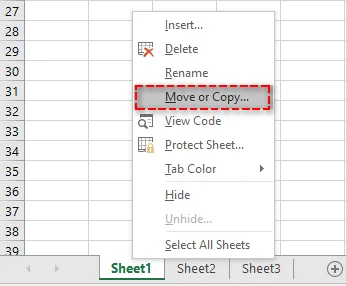
Faites un clic droit sur l'onglet de la feuille de calcul que vous souhaitez dupliquer.
-
Dans le menu contextuel, sélectionnez Déplacer ou copier. Cela ouvrira la boîte de dialogue Déplacer ou copier.
-
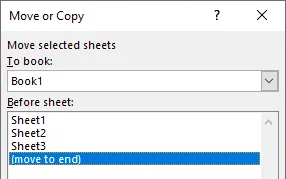
Dans la liste Avant la feuille, sélectionnez l'endroit où vous souhaitez que la feuille copiée apparaisse (par exemple, avant la Feuille2 ou déplacez-la à la fin).
-
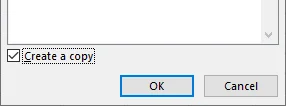
Cochez la case Créer une copie pour vous assurer que vous copiez la feuille et non que vous la déplacez.
-
Cliquez sur OK pour terminer le processus.
Votre feuille de calcul sera maintenant copiée à l'emplacement sélectionné et apparaîtra avec le même nom suivi de « (2) » (par exemple, Feuille1 (2)). Si nécessaire, vous pouvez renommer la feuille de calcul copiée en faisant un clic droit sur l'onglet et en sélectionnant Renommer.
Vous pourriez également être intéressé par : Comment diviser des feuilles Excel en plusieurs fichiers (3 façons).
Dupliquer une feuille de calcul en la faisant glisser
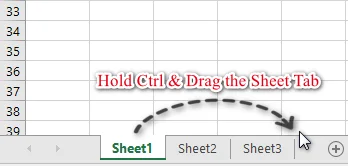
Une autre façon simple et rapide de dupliquer une feuille de calcul consiste à la faire glisser et à la déposer. Cette méthode est parfaite lorsque vous souhaitez que la nouvelle feuille soit placée à proximité de l'originale. Suivez ces étapes :
-
Maintenez la touche Ctrl de votre clavier enfoncée.
-
Cliquez et faites glisser l'onglet de la feuille de calcul vers l'emplacement souhaité dans la zone des onglets.
-
Relâchez le bouton de la souris, puis la touche Ctrl.
Copier un onglet de feuille à l'aide du ruban
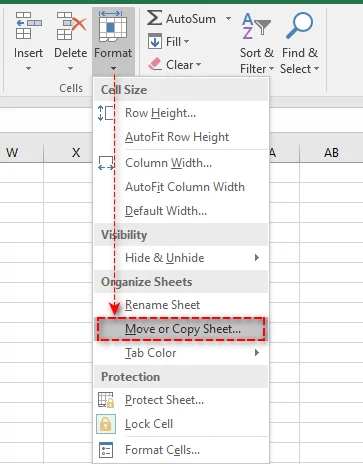
Si vous préférez utiliser l'interface du ruban, la copie d'une feuille de calcul via les commandes du ruban est simple. Voici comment :
- Sélectionnez l'onglet de la feuille de calcul que vous souhaitez copier.
- Accédez à l'onglet Accueil du ruban.
- Cliquez sur Format dans le groupe Cellules.
- Dans le menu déroulant, sélectionnez Déplacer ou copier une feuille.
- Dans la boîte de dialogue Déplacer ou copier, cochez la case Créer une copie et choisissez où vous souhaitez placer la feuille de calcul copiée.
- Cliquez sur OK pour terminer le processus.
Copier une feuille Excel dans un autre classeur
La copie d'une feuille de calcul dans un autre classeur est une tâche courante lorsque vous devez consolider des données provenant de plusieurs fichiers. Voici comment le faire de manière transparente :
- Ouvrez les classeurs source et de destination.
- Faites un clic droit sur l'onglet de la feuille de calcul que vous souhaitez copier.
- Sélectionnez Déplacer ou copier dans le menu contextuel.
- Dans le menu déroulant Dans le classeur, sélectionnez le classeur de destination.
- Dans la liste Avant la feuille, choisissez où vous souhaitez placer la feuille copiée.
- Cochez la case Créer une copie et cliquez sur OK pour terminer le processus.
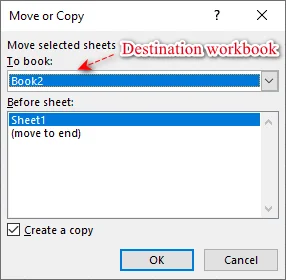
Votre feuille de calcul est maintenant dupliquée dans le classeur de destination, en conservant toutes les données et la mise en forme d'origine.
Conseil : Vous pouvez également obtenir le même résultat en maintenant la touche Ctrl enfoncée et en faisant glisser l'onglet de la feuille du classeur source vers le classeur de destination.
Comment copier plusieurs feuilles de calcul dans Excel à la fois
Lorsque vous travaillez avec plusieurs feuilles de calcul, vous pouvez les copier en une seule fois pour gagner du temps. Voici comment :
-
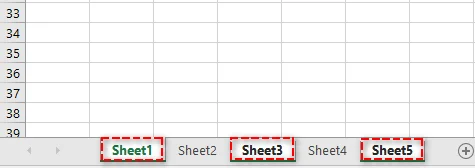
Maintenez la touche Ctrl enfoncée pour les feuilles non adjacentes, ou la touche Maj pour les feuilles adjacentes.
-
Sélectionnez les onglets des feuilles que vous souhaitez copier.
-
Faites un clic droit sur l'un des onglets de feuille sélectionnés et choisissez Déplacer ou copier.
-
Dans la boîte de dialogue Déplacer ou copier, choisissez le classeur de destination et l'emplacement cible pour placer la copie.
-
Cochez la case Créer une copie et cliquez sur OK. Excel créera des copies de toutes les feuilles de calcul sélectionnées à la fois.
Comment copier automatiquement des feuilles de calcul dans Excel
Pour les utilisateurs avancés ou ceux qui copient fréquemment des feuilles de calcul, l'automatisation du processus avec VBA (Visual Basic for Applications) ou Python peut considérablement faire gagner du temps et garantir la cohérence.
Copier une feuille de calcul avec VBA
VBA est parfait pour automatiser les tâches répétitives dans Excel, en particulier les tâches qui nécessitent une interaction de l'utilisateur via des boutons ou des menus.
Voici comment utiliser une simple macro VBA pour copier une feuille :
-
Appuyez sur Alt + F11 pour ouvrir l'éditeur VBA.
-
Dans l'éditeur, allez dans Insertion > Module.
-
Collez le code VBA suivant dans la fenêtre du module. Ce code copie la Feuille1 et place la copie après la Feuille3.
Sub CopyWorksheet() ' Modifiez "Feuille1" par le nom de votre feuille Worksheets("Sheet1").Copy After:=Worksheets("Sheet3") End Sub -
Appuyez sur F5 pour exécuter la macro. La copie sera créée instantanément.
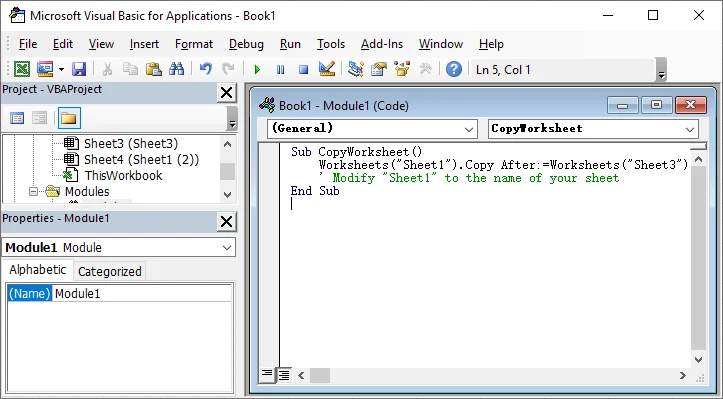
Pour plus de détails sur la méthode Worksheet.Copy utilisée dans ce script VBA, consultez la documentation officielle de Microsoft : Méthode Worksheet.Copy (Excel).
Copier une feuille de calcul avec Python
Alternativement, vous pouvez utiliser Python avec des bibliothèques comme Spire.XLS pour Python pour créer une copie d'une feuille. Cette méthode est idéale pour automatiser des tâches Excel à grande échelle, le traitement côté serveur ou l'intégration des opérations Excel avec des systèmes externes.
Voici comment utiliser Python pour copier une feuille de calcul :
-
Installez Spire.XLS pour Python depuis PyPI en utilisant la commande suivante :
pip install spire-xls -
Utilisez le script Python ci-dessous pour copier une feuille dans un classeur.
from spire.xls import *

# Initialize an instance of the Workbook class
workbook = Workbook()

# Load an Excel workbook
workbook.LoadFromFile("Input.xlsx")

# Get the first worksheet
sourceSheet = workbook.Worksheets[0]

# Create a new sheet with a specific name
sheetName = sourceSheet.Name + "_Copy"
destSheet = workbook.Worksheets.Add(sheetName)

# Copy the first worksheet to the newly added sheet
destSheet.CopyFrom(sourceSheet)

# Save the result workbook with the copied sheet
workbook.SaveToFile("CopySheet.xlsx", ExcelVersion.Version2013)

# Dispose of the workbook to release resources
workbook.Dispose()
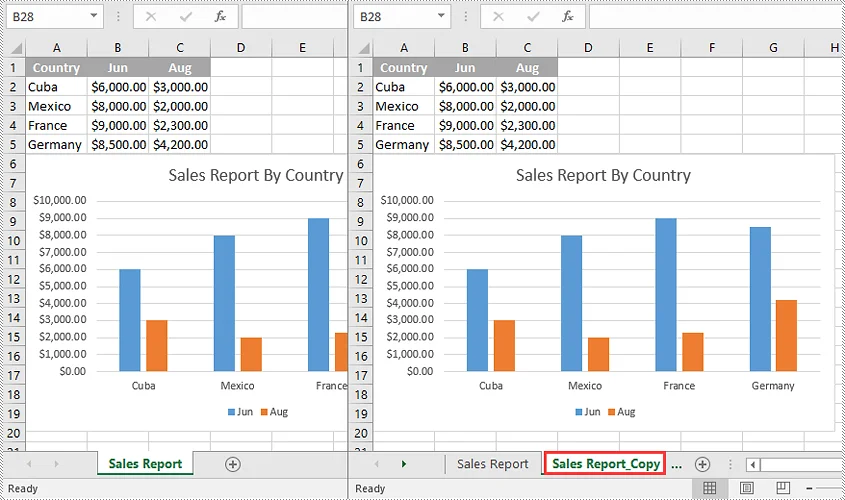
Pour des techniques supplémentaires comme la copie de la feuille entre les classeurs, consultez le guide officiel de Spire.XLS : Python : Copier des feuilles de calcul dans Excel.
Conseils de pro pour copier une feuille de calcul dans Excel
Pour maintenir l'intégrité des données et éviter les erreurs lors de la copie d'une feuille de calcul, suivez ces conseils de pro :
- Gestion des tableaux Excel : lors de la copie d'une feuille de calcul contenant un tableau Excel, Excel renommera automatiquement le tableau (par exemple, Tableau1 devient Tableau2). Si vous avez des formules faisant référence à Tableau1, mettez-les à jour manuellement ou utilisez des références structurées pour plus de flexibilité.
- Gestion des sources de données de graphique : les graphiques de la feuille copiée feront généralement référence aux données de la feuille copiée. Si vos graphiques reposent sur des données externes, vérifiez et mettez à jour la source de données après la copie.
- Gestion des données masquées : les lignes, colonnes ou données filtrées masquées seront également copiées. Si vous souhaitez uniquement copier les données visibles, utilisez la fonction Atteindre (Spécial) (sous Rechercher et sélectionner dans l'onglet Accueil) pour sélectionner les cellules visibles avant de copier.
- Correction des liens rompus : après avoir copié une feuille de calcul dans un nouveau classeur, recherchez les liens rompus à l'aide de la fonction « Modifier les liens » (sous l'onglet Données). Mettez à jour les références externes si nécessaire.
Conclusion : Choisissez la bonne méthode pour une efficacité maximale
La copie de feuilles de calcul dans Excel peut être rapide et simple lorsque vous utilisez la bonne méthode. En sélectionnant l'approche la plus efficace, vous pouvez gagner du temps et augmenter votre productivité. Voici un guide rapide pour vous aider à choisir la meilleure option pour vos besoins :
- Copies uniques rapides : pour les copies occasionnelles, la méthode du clic droit ou Ctrl + Glisser offre une solution simple et rapide.
- Automatisation des tâches répétitives : si vous copiez souvent des feuilles de calcul, VBA peut automatiser le processus, garantissant la cohérence et un gain de temps.
- Automatisation avancée : pour les projets à plus grande échelle ou les intégrations de données complexes, Python offre des capacités d'automatisation robustes qui vont au-delà des fonctionnalités intégrées d'Excel.
Choisissez la méthode qui correspond le mieux à votre flux de travail et commencez à optimiser vos tâches Excel dès aujourd'hui !
FAQ
Q1 : Puis-je copier une feuille de calcul Excel dans un autre classeur ?
R1 : Oui. Utilisez la boîte de dialogue Déplacer ou copier : faites un clic droit sur l'onglet de la feuille, sélectionnez le classeur cible dans le menu déroulant Dans le classeur, cochez Créer une copie et cliquez sur OK.
Q2 : Comment copier plusieurs feuilles de calcul dans Excel ?
R2 : Sélectionnez plusieurs feuilles en maintenant la touche Ctrl (pour les feuilles non adjacentes) ou Maj (pour les feuilles adjacentes). Ensuite, faites un clic droit sur n'importe quel onglet sélectionné et choisissez Déplacer ou copier. Assurez-vous que la case Créer une copie est cochée.
Q3 : Comment copier uniquement la mise en forme d'une feuille de calcul sans copier ses données ?
R3 : Sélectionnez toutes les cellules de la feuille d'origine (Ctrl+A) et copiez (Ctrl+C). Dans une nouvelle feuille de calcul, faites un clic droit sur n'importe quelle cellule, choisissez Collage spécial -> Formats pour appliquer uniquement la mise en forme.
Q4 : Existe-t-il un moyen d'automatiser la copie de plusieurs feuilles dans Excel ?
R4 : Oui. Pour l'automatisation, utilisez VBA pour les tâches dans Excel, ou Python avec des bibliothèques comme Spire.XLS pour le traitement externe à grande échelle.
Voir aussi
Cómo copiar una hoja de cálculo en Excel (Manual, VBA y Python)
Tabla de Contenidos
Copiar una hoja de cálculo en Excel es una tarea común, ya sea que estés duplicando datos, creando copias de seguridad o configurando plantillas. Excel ofrece varios métodos para copiar hojas de cálculo de forma rápida y sencilla. En este artículo, cubriremos varios métodos, desde acciones manuales con el botón derecho o de arrastrar y soltar hasta opciones más avanzadas usando VBA y Python. Ya seas un principiante o un usuario avanzado que busca automatizar el proceso, encontrarás el método adecuado para tus necesidades.
Lo Que Aprenderás
- Por Qué Deberías Copiar una Hoja de Cálculo en Excel
- Cómo Copiar una Hoja de Cálculo en Excel
- Cómo Copiar Múltiples Hojas de Cálculo en Excel a la Vez
- Cómo Copiar Hojas de Cálculo en Excel Automáticamente
- Consejos Profesionales para Copiar una Hoja de Cálculo en Excel
¿Por Qué Deberías Copiar una Hoja de Cálculo en Excel?
Copiar una hoja de cálculo en Excel es esencial por muchas razones, como:
- Copia de seguridad: Protege tu trabajo duplicando hojas importantes.
- Plantillas: Crea plantillas reutilizables sin alterar los datos originales.
- Análisis de datos: Duplica una hoja de cálculo para manipular datos manteniendo intacta la original.
- Colaboración: Comparte una copia de tu hoja sin afectar la versión maestra.
Ahora que entiendes los beneficios de duplicar una hoja, exploremos cómo hacerlo.
¿Cómo Copiar una Hoja de Cálculo en Excel?
Existen varios métodos para copiar una hoja de cálculo en Excel, cada uno adaptado a diferentes necesidades y preferencias. A continuación se presentan algunas de las técnicas más utilizadas.
Copiar una Hoja de Cálculo Haciendo Clic con el Botón Derecho
Hacer clic con el botón derecho en la pestaña de la hoja de cálculo es una de las formas más comunes e intuitivas de duplicar una hoja de cálculo en Excel. Este método es simple e ideal para copias únicas u ocasionales. Así es como puedes hacerlo:
-
Haz clic con el botón derecho en la pestaña de la hoja de cálculo que deseas duplicar.
-
En el menú contextual, selecciona Mover o Copiar. Esto abrirá el cuadro de diálogo Mover o Copiar.
-
En la lista Antes de la hoja, selecciona dónde quieres que aparezca la hoja copiada (como antes de la Hoja2 o moverla al final).
-
Marca la casilla Crear una copia para asegurarte de que estás copiando la hoja, no moviéndola.
-
Haz clic en Aceptar para completar el proceso.
Tu hoja de cálculo ahora se copiará en la ubicación seleccionada y aparecerá con el mismo nombre seguido de "(2)" (por ejemplo, Hoja1 (2)). Si es necesario, puedes cambiar el nombre de la hoja de cálculo copiada haciendo clic con el botón derecho en la pestaña y seleccionando Cambiar nombre.
También te puede interesar: Cómo Dividir Hojas de Excel en Varios Archivos (3 Formas).
Duplicar una Hoja de Cálculo Arrastrando
Otra forma simple y rápida de duplicar una hoja de cálculo es arrastrándola y soltándola. Este método es perfecto cuando quieres que la nueva hoja se coloque cerca de la original. Sigue estos pasos:
-
Mantén presionada la tecla Ctrl en tu teclado.
-
Haz clic y arrastra la pestaña de la hoja de cálculo a la ubicación deseada dentro del área de pestañas.
-
Suelta el botón del mouse y luego la tecla Ctrl.
Copiar una Pestaña de Hoja Usando la Cinta de Opciones
Si prefieres usar la interfaz de la Cinta de Opciones, copiar una hoja de cálculo a través de los controles de la Cinta de Opciones es sencillo. Aquí te explicamos cómo:
- Selecciona la pestaña de la hoja de cálculo que deseas copiar.
- Navega a la pestaña Inicio en la Cinta de Opciones.
- Haz clic en Formato en el grupo Celdas.
- En el menú desplegable, selecciona Mover o Copiar hoja.
- En el cuadro de diálogo Mover o Copiar, marca la casilla Crear una copia y elige dónde quieres que se coloque la hoja de cálculo copiada.
- Haz clic en Aceptar para completar el proceso.
Copiar una Hoja de Excel a Otro Libro de Trabajo
Copiar una hoja de cálculo a un libro de trabajo diferente es una tarea común cuando necesitas consolidar datos de múltiples archivos. Aquí te explicamos cómo hacerlo sin problemas:
- Abre tanto el libro de trabajo de origen como el de destino.
- Haz clic con el botón derecho en la pestaña de la hoja de cálculo que deseas copiar.
- Selecciona Mover o Copiar en el menú contextual.
- En el menú desplegable Al libro, selecciona el libro de trabajo de destino.
- En la lista Antes de la hoja, elige dónde quieres colocar la hoja copiada.
- Marca la casilla Crear una copia y haz clic en Aceptar para completar el proceso.
Tu hoja de cálculo ahora está duplicada en el libro de trabajo de destino, conservando todos los datos y el formato originales.
Consejo: También puedes lograr lo mismo manteniendo presionada la tecla Ctrl y arrastrando la pestaña de la hoja desde el libro de trabajo de origen al libro de trabajo de destino.
Cómo Copiar Múltiples Hojas de Cálculo en Excel a la Vez
Cuando trabajas con múltiples hojas de cálculo, puedes copiarlas todas a la vez para ahorrar tiempo. Aquí te explicamos cómo:
-
Mantén presionada la tecla Ctrl para hojas no adyacentes, o la tecla Shift para hojas adyacentes.
-
Selecciona las pestañas de las hojas que deseas copiar.
-
Haz clic con el botón derecho en una de las pestañas de hoja seleccionadas y elige Mover o Copiar.
-
En el cuadro de diálogo Mover o Copiar, elige el libro de trabajo de destino y la ubicación de destino para colocar la copia.
-
Marca la casilla Crear una copia y haz clic en Aceptar. Excel creará copias de todas las hojas de cálculo seleccionadas a la vez.
Cómo Copiar Hojas de Cálculo en Excel Automáticamente
Para usuarios avanzados o aquellos que copian hojas de cálculo con frecuencia, automatizar el proceso con VBA (Visual Basic for Applications) o Python puede ahorrar significativamente tiempo y garantizar la coherencia.
Copiar una Hoja de Cálculo con VBA
VBA es perfecto para automatizar tareas repetitivas dentro de Excel, especialmente tareas que requieren la interacción del usuario a través de botones o menús.
Aquí te explicamos cómo usar una macro simple de VBA para copiar una hoja:
-
Presiona Alt + F11 para abrir el editor de VBA.
-
En el editor, ve a Insertar > Módulo.
-
Pega el siguiente código VBA en la ventana del módulo. Este código copia la Hoja1 y coloca la copia después de la Hoja3.
Sub CopyWorksheet() ' Modifica "Sheet1" al nombre de tu hoja Worksheets("Sheet1").Copy After:=Worksheets("Sheet3") End Sub -
Presiona F5 para ejecutar la macro. La copia se creará instantáneamente.
Para obtener más detalles sobre el método Worksheet.Copy utilizado en este script de VBA, consulta la documentación oficial de Microsoft: Método Worksheet.Copy (Excel).
Copiar una Hoja de Cálculo con Python
Alternativamente, puedes usar Python con bibliotecas como Spire.XLS for Python para crear una copia de una hoja. Este método es ideal para automatizar tareas de Excel a gran escala, procesamiento del lado del servidor o integrar operaciones de Excel con sistemas externos.
Aquí te explicamos cómo usar Python para copiar una hoja de cálculo:
-
Instala Spire.XLS for Python desde PyPI usando el siguiente comando:
pip install spire-xls -
Usa el siguiente script de Python para copiar una hoja dentro de un libro de trabajo.
from spire.xls import *

# Inicializa una instancia de la clase Workbook
workbook = Workbook()

# Carga un libro de trabajo de Excel
workbook.LoadFromFile("Input.xlsx")

# Obtiene la primera hoja de cálculo
sourceSheet = workbook.Worksheets[0]

# Crea una nueva hoja con un nombre específico
sheetName = sourceSheet.Name + "_Copy"
destSheet = workbook.Worksheets.Add(sheetName)

# Copia la primera hoja de cálculo a la hoja recién agregada
destSheet.CopyFrom(sourceSheet)

# Guarda el libro de trabajo resultante con la hoja copiada
workbook.SaveToFile("CopySheet.xlsx", ExcelVersion.Version2013)

# Descarta el libro de trabajo para liberar recursos
workbook.Dispose()
Para técnicas adicionales como copiar la hoja entre libros de trabajo, consulta la guía oficial de Spire.XLS: Python: Copiar Hojas de Cálculo en Excel.
Consejos Profesionales para Copiar una Hoja de Cálculo en Excel
Para mantener la integridad de los datos y evitar errores al copiar una hoja de cálculo, sigue estos consejos profesionales:
- Manejo de Tablas de Excel: Al copiar una hoja de cálculo que contiene una Tabla de Excel, Excel renombrará automáticamente la tabla (por ejemplo, Tabla1 se convierte en Tabla2). Si tienes fórmulas que hacen referencia a Tabla1, actualízalas manualmente o usa referencias estructuradas para mayor flexibilidad.
- Gestión de Fuentes de Datos de Gráficos: Los gráficos en la hoja copiada generalmente harán referencia a datos de la hoja copiada. Si tus gráficos dependen de datos externos, verifica y actualiza la fuente de datos después de copiar.
- Manejo de Datos Ocultos: Las filas, columnas o datos filtrados ocultos también se copiarán. Si solo deseas copiar los datos visibles, usa la función Ir a Especial (en Buscar y seleccionar en la pestaña Inicio) para seleccionar las celdas visibles antes de copiar.
- Reparación de Vínculos Rotos: Después de copiar una hoja de cálculo a un nuevo libro de trabajo, verifica si hay vínculos rotos usando la función "Editar vínculos" (en la pestaña Datos). Actualiza las referencias externas según sea necesario.
Conclusión: Elige el Método Correcto para una Máxima Eficiencia
Copiar hojas de cálculo en Excel puede ser rápido y sencillo cuando usas el método correcto. Al seleccionar el enfoque más eficiente, puedes ahorrar tiempo y aumentar tu productividad. Aquí tienes una guía rápida para ayudarte a elegir la mejor opción para tus necesidades:
- Copias Rápidas y Únicas: Para copias ocasionales, el método de clic derecho o Ctrl + Arrastrar ofrece una solución rápida y sencilla.
- Automatización de Tareas Repetitivas: Si copias hojas de cálculo con frecuencia, VBA puede automatizar el proceso, garantizando la coherencia y ahorrando tiempo.
- Automatización Avanzada: Para proyectos a mayor escala o integraciones de datos complejas, Python proporciona capacidades de automatización robustas que van más allá de las funciones integradas de Excel.
¡Elige el método que mejor se adapte a tu flujo de trabajo y comienza a optimizar tus tareas de Excel hoy mismo!
Preguntas Frecuentes
P1: ¿Puedo copiar una hoja de cálculo de Excel a otro libro de trabajo?
R1: Sí. Usa el diálogo Mover o Copiar: haz clic con el botón derecho en la pestaña de la hoja, selecciona el libro de trabajo de destino en el menú desplegable Al libro, marca Crear una copia y haz clic en Aceptar.
P2: ¿Cómo copio múltiples hojas de cálculo en Excel?
R2: Selecciona múltiples hojas manteniendo presionada la tecla Ctrl (para hojas no adyacentes) o Shift (para hojas adyacentes). Luego, haz clic con el botón derecho en cualquier pestaña seleccionada y elige Mover o Copiar. Asegúrate de que la casilla Crear una copia esté marcada.
P3: ¿Cómo copio solo el formato de una hoja de cálculo sin copiar sus datos?
R3: Selecciona todas las celdas de la hoja original (Ctrl+A) y copia (Ctrl+C). En una nueva hoja de cálculo, haz clic con el botón derecho en cualquier celda, elige Pegado Especial -> Formatos para aplicar solo el formato.
P4: ¿Hay alguna forma de automatizar la copia de múltiples hojas en Excel?
R4: Sí. Para la automatización, usa VBA para tareas dentro de Excel, o Python con bibliotecas como Spire.XLS para procesamiento externo a gran escala.
Ver También
Wie man ein Arbeitsblatt in Excel kopiert (Manuell, VBA & Python)
Inhaltsverzeichnis
Das Kopieren eines Arbeitsblatts in Excel ist eine häufige Aufgabe, egal ob Sie Daten duplizieren, Sicherungen erstellen oder Vorlagen einrichten. Excel bietet mehrere Methoden zum schnellen und einfachen Kopieren von Arbeitsblättern. In diesem Artikel werden wir verschiedene Methoden behandeln – von manuellen Rechtsklick- oder Drag-and-Drop-Aktionen bis hin zu fortgeschritteneren Optionen mit VBA und Python. Egal, ob Sie Anfänger oder fortgeschrittener Benutzer sind, der den Prozess automatisieren möchte, Sie werden die richtige Methode für Ihre Bedürfnisse finden.
Was Sie lernen werden
- Warum sollten Sie ein Arbeitsblatt in Excel kopieren
- So kopieren Sie ein Arbeitsblatt in Excel
- So kopieren Sie mehrere Arbeitsblätter in Excel auf einmal
- So kopieren Sie Arbeitsblätter in Excel automatisch
- Profi-Tipps zum Kopieren eines Arbeitsblatts in Excel
Warum sollten Sie ein Arbeitsblatt in Excel kopieren?
Das Kopieren eines Arbeitsblatts in Excel ist aus vielen Gründen unerlässlich, wie zum Beispiel:
- Sicherung: Schützen Sie Ihre Arbeit, indem Sie wichtige Blätter duplizieren.
- Vorlagen: Erstellen Sie wiederverwendbare Vorlagen, ohne die Originaldaten zu verändern.
- Datenanalyse: Duplizieren Sie ein Arbeitsblatt, um Daten zu bearbeiten, während das Original erhalten bleibt.
- Zusammenarbeit: Teilen Sie eine Kopie Ihres Blattes, ohne die Master-Version zu beeinträchtigen.
Nachdem Sie nun die Vorteile des Duplizierens eines Blattes verstanden haben, wollen wir uns ansehen, wie man es macht.
Wie kopiert man ein Arbeitsblatt in Excel?
Es gibt verschiedene Methoden, ein Arbeitsblatt in Excel zu kopieren, die jeweils auf unterschiedliche Bedürfnisse und Vorlieben zugeschnitten sind. Im Folgenden finden Sie einige der am häufigsten verwendeten Techniken.
Ein Arbeitsblatt per Rechtsklick kopieren
Das Klicken mit der rechten Maustaste auf den Arbeitsblatt-Tab ist eine der häufigsten und intuitivsten Möglichkeiten, ein Arbeitsblatt in Excel zu duplizieren. Diese Methode ist einfach und ideal für einmalige oder gelegentliche Kopien. So geht's:
-
Klicken Sie mit der rechten Maustaste auf den Tab des Arbeitsblatts, das Sie duplizieren möchten.
-
Wählen Sie im Kontextmenü Verschieben oder Kopieren. Dadurch wird das Dialogfeld Verschieben oder Kopieren geöffnet.
-
Wählen Sie in der Liste Vor Blatt aus, wo das kopierte Blatt erscheinen soll (z. B. vor Tabelle2 oder an das Ende verschieben).
-
Aktivieren Sie das Kontrollkästchen Kopie erstellen, um sicherzustellen, dass Sie das Blatt kopieren und nicht verschieben.
-
Klicken Sie auf OK, um den Vorgang abzuschließen.
Ihr Arbeitsblatt wird nun an den ausgewählten Speicherort kopiert und erscheint mit demselben Namen, gefolgt von „(2)“ (z. B. Tabelle1 (2)). Bei Bedarf können Sie das kopierte Arbeitsblatt umbenennen, indem Sie mit der rechten Maustaste auf den Tab klicken und Umbenennen auswählen.
Das könnte Sie auch interessieren: So teilen Sie Excel-Blätter in mehrere Dateien auf (3 Wege).
Ein Arbeitsblatt durch Ziehen duplizieren
Eine weitere einfache und schnelle Möglichkeit, ein Arbeitsblatt zu duplizieren, ist das Ziehen und Ablegen. Diese Methode ist perfekt, wenn Sie das neue Blatt in der Nähe des Originals platzieren möchten. Befolgen Sie diese Schritte:
-
Halten Sie die Strg-Taste auf Ihrer Tastatur gedrückt.
-
Klicken und ziehen Sie den Tab des Arbeitsblatts an die gewünschte Stelle im Tab-Bereich.
-
Lassen Sie die Maustaste und dann die Strg-Taste los.
Ein Arbeitsblatt-Tab über das Menüband kopieren
Wenn Sie die Menüband-Oberfläche bevorzugen, ist das Kopieren eines Arbeitsblatts über die Menüband-Steuerelemente unkompliziert. So geht's:
- Wählen Sie den Arbeitsblatt-Tab aus, den Sie kopieren möchten.
- Navigieren Sie zum Start-Tab im Menüband.
- Klicken Sie in der Gruppe Zellen auf Format.
- Wählen Sie aus dem Dropdown-Menü Blatt verschieben oder kopieren.
- Aktivieren Sie im Dialogfeld Verschieben oder Kopieren das Kontrollkästchen Kopie erstellen und wählen Sie aus, wo das kopierte Arbeitsblatt platziert werden soll.
- Klicken Sie auf OK, um den Vorgang abzuschließen.
Ein Excel-Blatt in eine andere Arbeitsmappe kopieren
Das Kopieren eines Arbeitsblatts in eine andere Arbeitsmappe ist eine häufige Aufgabe, wenn Sie Daten aus mehreren Dateien konsolidieren müssen. So geht's nahtlos:
- Öffnen Sie sowohl die Quell- als auch die Zielarbeitsmappe.
- Klicken Sie mit der rechten Maustaste auf den Tab des Arbeitsblatts, das Sie kopieren möchten.
- Wählen Sie im Kontextmenü Verschieben oder Kopieren.
- Wählen Sie im Dropdown-Menü Zur Mappe die Zielarbeitsmappe aus.
- Wählen Sie in der Liste Vor Blatt aus, wo Sie das kopierte Blatt platzieren möchten.
- Aktivieren Sie das Kontrollkästchen Kopie erstellen und klicken Sie auf OK, um den Vorgang abzuschließen.
Ihr Arbeitsblatt wird nun in der Zielarbeitsmappe dupliziert, wobei alle ursprünglichen Daten und Formatierungen erhalten bleiben.
Tipp: Dasselbe können Sie auch erreichen, indem Sie die Strg-Taste gedrückt halten und den Blatt-Tab von der Quellarbeitsmappe in die Zielarbeitsmappe ziehen.
So kopieren Sie mehrere Arbeitsblätter in Excel auf einmal
Wenn Sie mit mehreren Arbeitsblättern arbeiten, können Sie diese auf einmal kopieren, um Zeit zu sparen. So geht's:
-
Halten Sie die Strg-Taste für nicht benachbarte Blätter oder die Umschalttaste für benachbarte Blätter gedrückt.
-
Wählen Sie die Tabs der Blätter aus, die Sie kopieren möchten.
-
Klicken Sie mit der rechten Maustaste auf einen der ausgewählten Blatt-Tabs und wählen Sie Verschieben oder Kopieren.
-
Wählen Sie im Dialogfeld Verschieben oder Kopieren die Zielarbeitsmappe und den Zielort für die Kopie aus.
-
Aktivieren Sie das Kontrollkästchen Kopie erstellen und klicken Sie auf OK. Excel erstellt dann auf einmal Kopien aller ausgewählten Arbeitsblätter.
So kopieren Sie Arbeitsblätter in Excel automatisch
Für fortgeschrittene Benutzer oder diejenigen, die häufig Arbeitsblätter kopieren, kann die Automatisierung des Prozesses mit VBA (Visual Basic for Applications) oder Python erheblich Zeit sparen und die Konsistenz gewährleisten.
Ein Arbeitsblatt mit VBA kopieren
VBA ist perfekt für die Automatisierung sich wiederholender Aufgaben in Excel, insbesondere für Aufgaben, die eine Benutzerinteraktion über Schaltflächen oder Menüs erfordern.
So verwenden Sie ein einfaches VBA-Makro, um ein Blatt zu kopieren:
-
Drücken Sie Alt + F11, um den VBA-Editor zu öffnen.
-
Gehen Sie im Editor zu Einfügen > Modul.
-
Fügen Sie den folgenden VBA-Code in das Modulfenster ein. Dieser Code kopiert Tabelle1 und platziert die Kopie nach Tabelle3.
Sub CopyWorksheet() ' Ändern Sie "Tabelle1" in den Namen Ihres Blattes Worksheets("Tabelle1").Copy After:=Worksheets("Tabelle3") End Sub -
Drücken Sie F5, um das Makro auszuführen. Die Kopie wird sofort erstellt.
Weitere Details zur in diesem VBA-Skript verwendeten Worksheet.Copy-Methode finden Sie in der offiziellen Microsoft-Dokumentation: Worksheet.Copy-Methode (Excel).
Ein Arbeitsblatt mit Python kopieren
Alternativ können Sie Python mit Bibliotheken wie Spire.XLS for Python verwenden, um eine Kopie eines Blattes zu erstellen. Diese Methode eignet sich am besten für die Automatisierung umfangreicher Excel-Aufgaben, die serverseitige Verarbeitung oder die Integration von Excel-Operationen in externe Systeme.
So verwenden Sie Python, um ein Arbeitsblatt zu kopieren:
-
Installieren Sie Spire.XLS for Python von PyPI mit dem folgenden Befehl:
pip install spire-xls -
Verwenden Sie das folgende Python-Skript, um ein Blatt innerhalb einer Arbeitsmappe zu kopieren.
from spire.xls import *

# Initialisieren Sie eine Instanz der Workbook-Klasse
workbook = Workbook()

# Laden Sie eine Excel-Arbeitsmappe
workbook.LoadFromFile("Input.xlsx")

# Holen Sie sich das erste Arbeitsblatt
sourceSheet = workbook.Worksheets[0]

# Erstellen Sie ein neues Blatt mit einem bestimmten Namen
sheetName = sourceSheet.Name + "_Copy"
destSheet = workbook.Worksheets.Add(sheetName)

# Kopieren Sie das erste Arbeitsblatt in das neu hinzugefügte Blatt
destSheet.CopyFrom(sourceSheet)

# Speichern Sie die Ergebnisarbeitsmappe mit dem kopierten Blatt
workbook.SaveToFile("CopySheet.xlsx", ExcelVersion.Version2013)

# Entsorgen Sie die Arbeitsmappe, um Ressourcen freizugeben
workbook.Dispose()
Für zusätzliche Techniken wie das Kopieren des Blattes zwischen Arbeitsmappen, lesen Sie die offizielle Anleitung von Spire.XLS: Python: Arbeitsblätter in Excel kopieren.
Profi-Tipps zum Kopieren eines Arbeitsblatts in Excel
Um die Datenintegrität zu wahren und Fehler beim Kopieren eines Arbeitsblatts zu vermeiden, befolgen Sie diese Profi-Tipps:
- Umgang mit Excel-Tabellen: Beim Kopieren eines Arbeitsblatts, das eine Excel-Tabelle enthält, benennt Excel die Tabelle automatisch um (z. B. wird aus Tabelle1 Tabelle2). Wenn Sie Formeln haben, die auf Tabelle1 verweisen, aktualisieren Sie diese manuell oder verwenden Sie strukturierte Verweise für mehr Flexibilität.
- Verwalten von Diagrammdatenquellen: Diagramme im kopierten Blatt verweisen im Allgemeinen auf Daten aus dem kopierten Blatt. Wenn Ihre Diagramme auf externen Daten basieren, überprüfen und aktualisieren Sie die Datenquelle nach dem Kopieren.
- Umgang mit ausgeblendeten Daten: Ausgeblendete Zeilen, Spalten oder gefilterte Daten werden ebenfalls kopiert. Wenn Sie nur sichtbare Daten kopieren möchten, verwenden Sie die Funktion Gehe zu Spezial (unter Suchen & Auswählen auf der Registerkarte Start), um sichtbare Zellen vor dem Kopieren auszuwählen.
- Beheben fehlerhafter Verknüpfungen: Überprüfen Sie nach dem Kopieren eines Arbeitsblatts in eine neue Arbeitsmappe mit der Funktion „Verknüpfungen bearbeiten“ (auf der Registerkarte Daten) auf fehlerhafte Verknüpfungen. Aktualisieren Sie bei Bedarf alle externen Verweise.
Fazit: Wählen Sie die richtige Methode für maximale Effizienz
Das Kopieren von Arbeitsblättern in Excel kann schnell und unkompliziert sein, wenn Sie die richtige Methode anwenden. Durch die Wahl des effizientesten Ansatzes können Sie Zeit sparen und Ihre Produktivität steigern. Hier ist eine kurze Anleitung, die Ihnen hilft, die beste Option für Ihre Bedürfnisse zu wählen:
- Schnelle einmalige Kopien: Für gelegentliche Kopien bietet die Rechtsklick-Methode oder Strg + Ziehen eine schnelle und einfache Lösung.
- Automatisierung sich wiederholender Aufgaben: Wenn Sie häufig Arbeitsblätter kopieren, kann VBA den Prozess automatisieren, was für Konsistenz sorgt und Zeit spart.
- Erweiterte Automatisierung: Für größere Projekte oder komplexe Datenintegrationen bietet Python robuste Automatisierungsfunktionen, die über die integrierten Funktionen von Excel hinausgehen.
Wählen Sie die Methode, die am besten zu Ihrem Arbeitsablauf passt, und beginnen Sie noch heute mit der Optimierung Ihrer Excel-Aufgaben!
FAQs
F1: Kann ich ein Excel-Arbeitsblatt in eine andere Arbeitsmappe kopieren?
A1: Ja. Verwenden Sie das Dialogfeld Verschieben oder Kopieren: Klicken Sie mit der rechten Maustaste auf den Blatt-Tab, wählen Sie die Zielarbeitsmappe aus dem Dropdown-Menü Zur Mappe aus, aktivieren Sie Kopie erstellen und klicken Sie auf OK.
F2: Wie kopiere ich mehrere Arbeitsblätter in Excel?
A2: Wählen Sie mehrere Blätter aus, indem Sie Strg (für nicht benachbarte Blätter) oder Umschalt (für benachbarte Blätter) gedrückt halten. Klicken Sie dann mit der rechten Maustaste auf einen ausgewählten Tab und wählen Sie Verschieben oder Kopieren. Stellen Sie sicher, dass das Kontrollkästchen Kopie erstellen aktiviert ist.
F3: Wie kopiere ich nur die Formatierung eines Arbeitsblatts, ohne die Daten zu kopieren?
A3: Wählen Sie alle Zellen im Originalblatt aus (Strg+A) und kopieren Sie sie (Strg+C). Klicken Sie in einem neuen Arbeitsblatt mit der rechten Maustaste auf eine beliebige Zelle und wählen Sie Inhalte einfügen -> Formate, um nur die Formatierung anzuwenden.
F4: Gibt es eine Möglichkeit, das Kopieren mehrerer Blätter in Excel zu automatisieren?
A4: Ja. Zur Automatisierung verwenden Sie VBA für Aufgaben innerhalb von Excel oder Python mit Bibliotheken wie Spire.XLS für die externe, umfangreiche Verarbeitung.
Siehe auch
Как скопировать лист в Excel (Вручную, VBA и Python)
Копирование листа в Excel — это обычная задача, независимо от того, дублируете ли вы данные, создаете резервные копии или настраиваете шаблоны. Excel предоставляет несколько методов для быстрого и простого копирования листов. В этой статье мы рассмотрим различные методы — от ручных действий с помощью щелчка правой кнопкой мыши или перетаскивания до более продвинутых вариантов с использованием VBA и Python. Независимо от того, являетесь ли вы новичком или опытным пользователем, желающим автоматизировать процесс, вы найдете подходящий метод для своих нужд.
Что вы узнаете
- Зачем копировать лист в Excel
- Как скопировать лист в Excel
- Как скопировать несколько листов в Excel одновременно
- Как автоматически копировать листы в Excel
- Профессиональные советы по копированию листа в Excel
Зачем копировать лист в Excel?
Копирование листа в Excel необходимо по многим причинам, таким как:
- Резервное копирование: Защитите свою работу, дублируя важные листы.
- Шаблоны: Создавайте многоразовые шаблоны, не изменяя исходные данные.
- Анализ данных: Дублируйте лист для обработки данных, сохраняя оригинал нетронутым.
- Сотрудничество: Делитесь копией своего листа, не затрагивая основную версию.
Теперь, когда вы понимаете преимущества дублирования листа, давайте рассмотрим, как это сделать.
Как скопировать лист в Excel?
Существует несколько методов копирования листа в Excel, каждый из которых отвечает различным потребностям и предпочтениям. Ниже приведены некоторые из наиболее часто используемых техник.
Копирование листа щелчком правой кнопкой мыши
Щелчок правой кнопкой мыши по вкладке листа — один из самых распространенных и интуитивно понятных способов дублирования листа в Excel. Этот метод прост и идеален для одноразовых или редких копий. Вот как это можно сделать:
-
Щелкните правой кнопкой мыши вкладку листа, который хотите дублировать.
-
В контекстном меню выберите Переместить или скопировать. Это откроет диалоговое окно Переместить или скопировать.
-
В списке Перед листом выберите, где должен появиться скопированный лист (например, перед Листом2 или переместить его в конец).
-
Установите флажок Создать копию, чтобы убедиться, что вы копируете лист, а не перемещаете его.
-
Нажмите OK, чтобы завершить процесс.
Ваш лист будет скопирован в выбранное место и появится с тем же именем, за которым следует "(2)" (например, Лист1 (2)). При необходимости вы можете переименовать скопированный лист, щелкнув правой кнопкой мыши по вкладке и выбрав Переименовать.
Вам также может быть интересно: Как разделить листы Excel на несколько файлов (3 способа).
Дублирование листа перетаскиванием
Еще один простой и быстрый способ дублировать лист — перетащить его. Этот метод идеален, когда вы хотите, чтобы новый лист располагался близко к исходному. Выполните следующие шаги:
-
Удерживайте клавишу Ctrl на клавиатуре.
-
Нажмите и перетащите вкладку листа в нужное место в области вкладок.
-
Отпустите кнопку мыши, а затем клавишу Ctrl.
Копирование вкладки листа с помощью ленты
Если вы предпочитаете использовать интерфейс ленты, копирование листа с помощью элементов управления ленты очень просто. Вот как:
- Выберите вкладку листа, который хотите скопировать.
- Перейдите на вкладку Главная на ленте.
- Нажмите на Формат в группе Ячейки.
- В раскрывающемся меню выберите Переместить или скопировать лист.
- В диалоговом окне Переместить или скопировать установите флажок Создать копию и выберите, куда вы хотите поместить скопированный лист.
- Нажмите OK, чтобы завершить процесс.
Копирование листа Excel в другую книгу
Копирование листа в другую книгу — обычная задача, когда необходимо объединить данные из нескольких файлов. Вот как это сделать без проблем:
- Откройте как исходную, так и целевую книги.
- Щелкните правой кнопкой мыши вкладку листа, который хотите скопировать.
- Выберите Переместить или скопировать из контекстного меню.
- В раскрывающемся меню В книгу выберите целевую книгу.
- В списке Перед листом выберите, куда вы хотите поместить скопированный лист.
- Установите флажок Создать копию и нажмите OK, чтобы завершить процесс.
Ваш лист теперь дублирован в целевой книге, сохранив все исходные данные и форматирование.
Совет: Вы также можете добиться того же, удерживая клавишу Ctrl и перетаскивая вкладку листа из исходной книги в целевую.
Как скопировать несколько листов в Excel одновременно
При работе с несколькими листами вы можете скопировать их все сразу, чтобы сэкономить время. Вот как:
-
Удерживайте клавишу Ctrl для несмежных листов или клавишу Shift для смежных листов.
-
Выберите вкладки листов, которые хотите скопировать.
-
Щелкните правой кнопкой мыши по одной из выбранных вкладок листов и выберите Переместить или скопировать.
-
В диалоговом окне Переместить или скопировать выберите целевую книгу и место для размещения копии.
-
Установите флажок Создать копию и нажмите OK. Excel создаст копии всех выбранных листов одновременно.
Как автоматически копировать листы в Excel
Для опытных пользователей или тех, кто часто копирует листы, автоматизация процесса с помощью VBA (Visual Basic for Applications) или Python может значительно сэкономить время и обеспечить согласованность.
Копирование листа с помощью VBA
VBA идеально подходит для автоматизации повторяющихся задач в Excel, особенно задач, требующих взаимодействия с пользователем через кнопки или меню.
Вот как использовать простой макрос VBA для копирования листа:
-
Нажмите Alt + F11, чтобы открыть редактор VBA.
-
В редакторе перейдите в Insert > Module.
-
Вставьте следующий код VBA в окно модуля. Этот код копирует Лист1 и помещает копию после Листа3.
Sub CopyWorksheet() ' Измените "Sheet1" на имя вашего листа Worksheets("Sheet1").Copy After:=Worksheets("Sheet3") End Sub -
Нажмите F5, чтобы запустить макрос. Копия будет создана мгновенно.
Для получения дополнительной информации о методе Worksheet.Copy, используемом в этом скрипте VBA, см. официальную документацию Microsoft: Метод Worksheet.Copy (Excel).
Копирование листа с помощью Python
В качестве альтернативы вы можете использовать Python с библиотеками, такими как Spire.XLS for Python, для создания копии листа. Этот метод лучше всего подходит для автоматизации крупномасштабных задач Excel, обработки на стороне сервера или интеграции операций Excel с внешними системами.
Вот как использовать Python для копирования листа:
-
Установите Spire.XLS for Python из PyPI с помощью следующей команды:
pip install spire-xls -
Используйте приведенный ниже скрипт Python для копирования листа в книге.
from spire.xls import *

# Инициализировать экземпляр класса Workbook
workbook = Workbook()

# Загрузить книгу Excel
workbook.LoadFromFile("Input.xlsx")

# Получить первый лист
sourceSheet = workbook.Worksheets[0]

# Создать новый лист с определенным именем
sheetName = sourceSheet.Name + "_Copy"
destSheet = workbook.Worksheets.Add(sheetName)

# Скопировать первый лист на только что добавленный лист
destSheet.CopyFrom(sourceSheet)

# Сохранить результирующую книгу со скопированным листом
workbook.SaveToFile("CopySheet.xlsx", ExcelVersion.Version2013)

# Освободить ресурсы книги
workbook.Dispose()
Для получения дополнительных техник, таких как копирование листа между книгами, ознакомьтесь с официальным руководством Spire.XLS: Python: Копирование листов в Excel.
Профессиональные советы по копированию листа в Excel
Чтобы сохранить целостность данных и избежать ошибок при копировании листа, следуйте этим профессиональным советам:
- Работа с таблицами Excel: При копировании листа, содержащего таблицу Excel, Excel автоматически переименует таблицу (например, Table1 станет Table2). Если у вас есть формулы, ссылающиеся на Table1, обновите их вручную или используйте структурированные ссылки для гибкости.
- Управление источниками данных диаграмм: Диаграммы на скопированном листе обычно ссылаются на данные со скопированного листа. Если ваши диаграммы зависят от внешних данных, проверьте и обновите источник данных после копирования.
- Работа со скрытыми данными: Скрытые строки, столбцы или отфильтрованные данные также будут скопированы. Если вы хотите скопировать только видимые данные, используйте функцию Перейти к выделению (в разделе Найти и выделить на вкладке Главная), чтобы выбрать видимые ячейки перед копированием.
- Исправление неработающих ссылок: После копирования листа в новую книгу проверьте наличие неработающих ссылок с помощью функции «Изменить связи» (на вкладке Данные). При необходимости обновите все внешние ссылки.
Заключение: выберите правильный метод для максимальной эффективности
Копирование листов в Excel может быть быстрым и простым, если вы используете правильный метод. Выбрав наиболее эффективный подход, вы можете сэкономить время и повысить свою производительность. Вот краткое руководство, которое поможет вам выбрать лучший вариант для ваших нужд:
- Быстрые одноразовые копии: Для редких копий метод щелчка правой кнопкой мыши или Ctrl + перетаскивание предлагает быстрое и простое решение.
- Автоматизация повторяющихся задач: Если вы часто копируете листы, VBA может автоматизировать процесс, обеспечивая согласованность и экономя время.
- Продвинутая автоматизация: Для крупномасштабных проектов или сложных интеграций данных Python предоставляет надежные возможности автоматизации, которые выходят за рамки встроенных функций Excel.
Выберите метод, который лучше всего подходит для вашего рабочего процесса, и начните оптимизировать свои задачи в Excel уже сегодня!
Часто задаваемые вопросы
В1: Могу ли я скопировать лист Excel в другую книгу?
О1: Да. Используйте диалоговое окно Переместить или скопировать: щелкните правой кнопкой мыши вкладку листа, выберите целевую книгу из раскрывающегося списка В книгу, установите флажок Создать копию и нажмите OK.
В2: Как скопировать несколько листов в Excel?
О2: Выберите несколько листов, удерживая Ctrl (для несмежных листов) или Shift (для смежных листов). Затем щелкните правой кнопкой мыши любую выбранную вкладку и выберите Переместить или скопировать. Убедитесь, что флажок Создать копию установлен.
В3: Как скопировать только форматирование листа, не копируя его данные?
О3: Выделите все ячейки на исходном листе (Ctrl+A) и скопируйте (Ctrl+C). На новом листе щелкните правой кнопкой мыши любую ячейку, выберите Специальная вставка -> Форматы, чтобы применить только форматирование.
В4: Есть ли способ автоматизировать копирование нескольких листов в Excel?
О4: Да. Для автоматизации используйте VBA для задач в Excel или Python с библиотеками, такими как Spire.XLS, для внешней, крупномасштабной обработки.
Смотрите также
5 semplici metodi per bloccare righe e colonne in Excel
Indice
- Metodo 1. Usa preimpostazioni di blocco rapido (riga superiore / prima colonna)
- Metodo 2. Blocca righe e colonne qualsiasi usando Blocca riquadri
- Metodo 3. Usa la scorciatoia da tastiera (Alt + W + F + …)
- Metodo 4. Usa l'automazione VBA
- Metodo 5. Usa l'automazione Python (Spire.XLS)
- Tabella di confronto: scegli il modo giusto
- Riepilogo
- Domande frequenti sul blocco dei riquadri in Excel
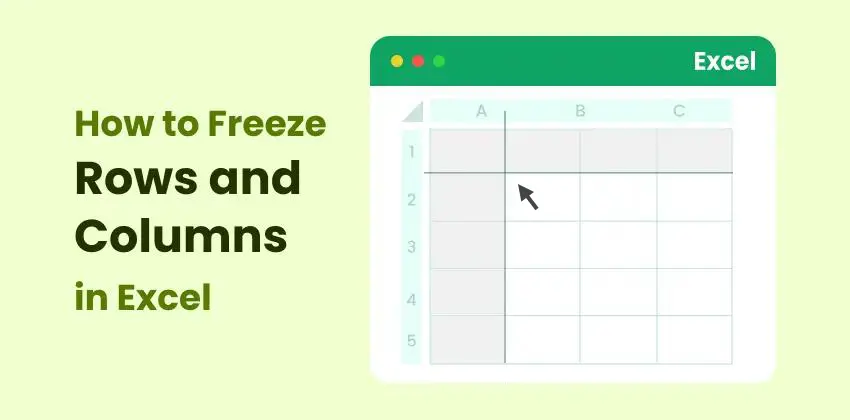
Lavorare con grandi set di dati in Excel significa spesso scorrere centinaia o addirittura migliaia di righe. Quando ciò accade, è facile perdere di vista le intestazioni o le etichette di riferimento chiave, il che rallenta l'analisi e aumenta la possibilità di errori. Mantenere visibili righe e colonne importanti può migliorare notevolmente l'efficienza e la precisione.
Fortunatamente, Excel fornisce diversi strumenti integrati che consentono di bloccare parti specifiche del foglio di lavoro. Che tu abbia bisogno di mantenere una riga di intestazione al suo posto, bloccare una colonna di identificazione chiave o creare una combinazione di sezioni bloccate, Excel ha opzioni flessibili per ogni scenario.
In questa guida, esamineremo cinque semplici metodi per bloccare righe e colonne in Excel—dai semplici predefiniti con un clic alle soluzioni completamente automatizzate che utilizzano VBA e Python (Spire.XLS). Alla fine, saprai esattamente quale metodo si adatta al tuo flusso di lavoro e come applicarlo con sicurezza.
Panoramica dei metodi:
- Metodo 1. Usa preimpostazioni di blocco rapido (riga superiore / prima colonna)
- Metodo 2. Blocca righe e colonne qualsiasi usando Blocca riquadri
- Metodo 3. Usa la scorciatoia da tastiera (Alt + W + F + …)
- Metodo 4. Usa l'automazione VBA
- Metodo 5. Usa l'automazione Python (Spire.XLS)
Metodo 1. Usa preimpostazioni di blocco rapido (riga superiore / prima colonna)
Excel fornisce due preimpostazioni istantanee che consentono di bloccare le aree più comunemente utilizzate—la riga superiore e la prima colonna. Queste opzioni sono ideali quando il set di dati utilizza una singola riga o colonna di intestazione.
Come utilizzare le preimpostazioni di blocco rapido
-
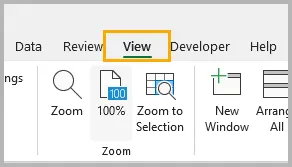
Vai alla scheda Visualizza sulla barra multifunzione.
-
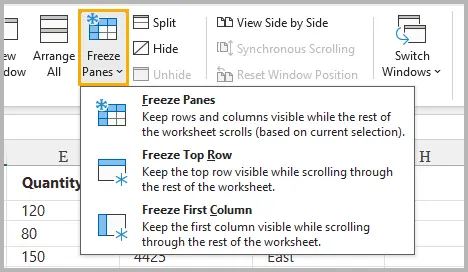
Fai clic su Blocca riquadri.
-
Scegli una delle seguenti opzioni:
- Blocca riga superiore – mantiene visibile la riga 1 durante lo scorrimento verso il basso.
- Blocca prima colonna – mantiene visibile la colonna A durante lo scorrimento orizzontale.
Una volta selezionato, Excel aggiunge una linea sottile (orizzontale o verticale) che indica che la riga o la colonna è bloccata.
Quando utilizzare queste preimpostazioni
- Il tuo set di dati ha una singola riga di intestazione che deve rimanere visibile.
- I tuoi identificatori chiave (ad es. ID, Nome, SKU) si trovano nella prima colonna.
- Vuoi il modo più veloce possibile per bloccare il contenuto senza selezionare alcuna cella.
Queste opzioni coprono gli scenari di blocco più comuni e sono ideali per una rapida navigazione nel foglio di lavoro.
Metodo 2. Blocca righe e colonne qualsiasi usando Blocca riquadri
Sebbene le preimpostazioni rapide siano comode, a volte è necessario bloccare più righe, più colonne, o entrambe contemporaneamente. È qui che entra in gioco la funzione completa Blocca riquadri.
Come funziona
Excel blocca:
- Tutto ciò che si trova sopra la cella selezionata
- Tutto ciò che si trova a sinistra della cella selezionata
Ciò consente di bloccare intestazioni complesse o strutture di righe/colonne combinate.
Esempio: blocca le righe 1–2 e la colonna A
-
Seleziona la cella B3 (perché si trova sotto la riga 2 e a destra della colonna A).

-
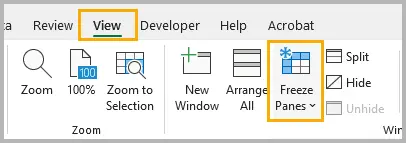
Vai a Visualizza → Blocca riquadri.
-
Scegli Blocca riquadri.

Ora le righe 1–2 e la colonna A sono bloccate mentre il resto del foglio rimane scorrevole.
Altri esempi
- Blocca solo le righe 1–3: seleziona A4 → Blocca riquadri.
- Blocca solo le colonne A–B: seleziona C1 → Blocca riquadri.
- Blocca le prime 2 righe e le prime 3 colonne: seleziona D3 → Blocca riquadri.
Quando questo metodo è il migliore
- Il tuo set di dati contiene intestazioni a più livelli.
- Hai bisogno di flessibilità.
- Hai bisogno che sia le righe che le colonne siano bloccate contemporaneamente.
Questo è l'approccio manuale più potente e quello utilizzato più spesso nei report professionali.
Metodo 3. Usa la scorciatoia da tastiera (Alt + W + F + …)
Se preferisci tenere le mani sulla tastiera, l'utilizzo della sequenza di scorciatoie integrata di Excel può essere un'alternativa più rapida. Queste scorciatoie imitano i passaggi attivati nella barra multifunzione, consentendo un accesso rapido.
Sequenze di scorciatoie
- Alt → W → F → F = Blocca riquadri
- Alt → W → F → T = Blocca riga superiore
- Alt → W → F → C = Blocca prima colonna
Queste sono scorciatoie sequenziali (non premute contemporaneamente). Funzionano su tutte le versioni moderne di Excel per Windows.
Perché le scorciatoie sono importanti
- Flusso di lavoro più rapido per gli utenti esperti di Excel
- Utile durante la pulizia e l'analisi dei dati
- Risparmia tempo quando si attiva/disattiva ripetutamente il blocco
Se stai sviluppando competenze in Excel per un lavoro professionale con i fogli di calcolo, vale la pena memorizzare queste scorciatoie.
Metodo 4. Usa l'automazione VBA
Se prepari regolarmente modelli, report o esportazioni di dati, l'automazione del blocco dei riquadri con VBA può farti risparmiare molto tempo. Una singola macro può bloccare intervalli specifici su più fogli o cartelle di lavoro.
Come applicare il codice VBA per bloccare i riquadri
-
Premi Alt + F11 per aprire l'editor VBA.
-
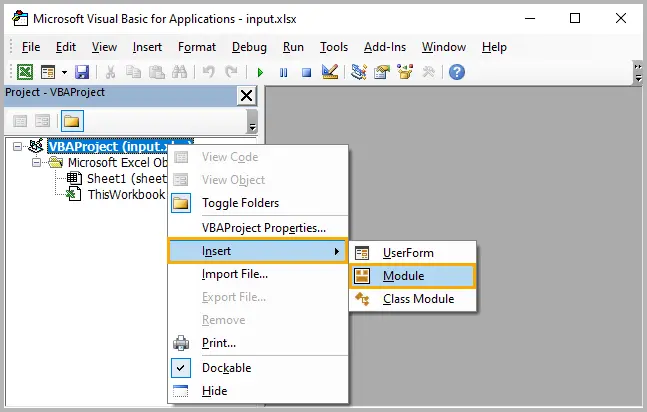
Nel pannello di sinistra, fai clic con il pulsante destro del mouse su VBAProject (LaTuaCartellaDiLavoro) e scegli Inserisci → Modulo.
-
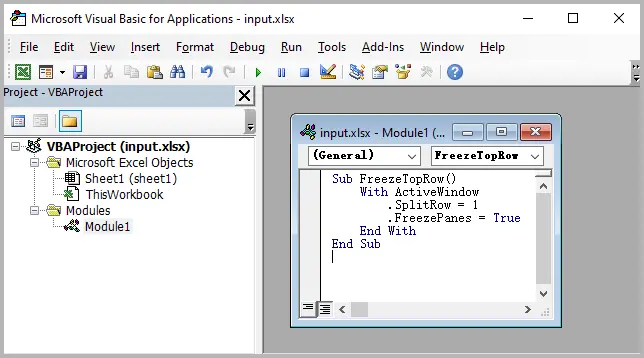
Copia e incolla lo snippet di codice VBA nel modulo.
-
Chiudi l'editor VBA.
-
Premi Alt + F8, seleziona la macro (ad es.
BloccaRigaSuperiore), e fai clic su Esegui.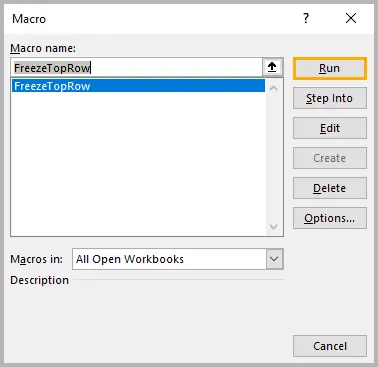
-
Torna al foglio di lavoro e conferma che le impostazioni di blocco dei riquadri sono state applicate.
Esempio 1: blocca la riga superiore
Sub FreezeTopRow()
    With ActiveWindow
        .SplitRow = 1
        .FreezePanes = True
    End With
End Sub
Esempio 2: blocca le righe 1–2 e la colonna A
Sub FreezeCustom()
    With ActiveWindow
        .SplitRow = 2
        .SplitColumn = 1
        .FreezePanes = True
    End With
End Sub
Esempio 3: sblocca riquadri
Sub UnfreezePanes()
    ActiveWindow.FreezePanes = False
End Sub
Quando l'automazione VBA è utile
- Generi report per più reparti.
- Lavori con strutture di cartelle di lavoro standardizzate.
- Hai bisogno che il blocco dei riquadri venga applicato automaticamente all'apertura di un file.
- Crei strumenti o modelli basati su Excel condivisi tra i team.
VBA rende la formattazione ripetibile, affidabile e coerente.
Metodo 5. Usa l'automazione Python (Spire.XLS)
Per gli sviluppatori che creano sistemi di reporting automatizzati—specialmente in ambienti aziendali—il blocco dei riquadri con Python fornisce una soluzione scalabile e basata su codice. La libreria Spire.XLS per Python consente di manipolare i file di Excel senza che Excel sia installato.
Installa Spire.XLS
pip install spire.xls
Esempio: blocca le righe 1–2 e la colonna A
from spire.xls import *

workbook = Workbook()
workbook.LoadFromFile("input.xlsx")

sheet = workbook.Worksheets[0]
sheet.FreezePanes(3, 2)  # Blocca sopra la riga 3 e a sinistra della colonna 2

workbook.SaveToFile("output.xlsx", ExcelVersion.Version2016)
Blocca solo la riga superiore
sheet.FreezePanes(2, 1)
Sblocca
sheet.UnfreezePanes()
Leggi di più: Bloccare o sbloccare i riquadri in Excel usando Python
Quando l'automazione Python è ideale
- Generi centinaia di report Excel automaticamente.
- Il tuo flusso di lavoro è integrato con applicazioni web o sistemi backend.
- Devi applicare impostazioni di blocco coerenti a livello di codice.
- Vuoi l'automazione di Excel senza fare affidamento su COM o Windows.
Spire.XLS offre ampie funzionalità di Excel, tra cui formattazione avanzata delle celle, personalizzazione di caratteri e stili, automazione delle formule, convalida dei dati, e generazione di report, rendendolo uno strumento potente per l'automazione di Excel a livello aziendale e l'ottimizzazione del flusso di lavoro.
Tabella di confronto: scegli il modo giusto
| Metodo | Livello di abilità | Ideale per | Supporta blocco righe | Supporta blocco colonne | Automazione | Velocità |
|---|---|---|---|---|---|---|
| Preimpostazioni blocco rapido | Principiante | Blocco intestazione semplice | ✔ Riga superiore | ✔ Prima colonna | ✘ | ★★★★★ |
| Blocca riquadri (personalizzato) | Principiante–Intermedio | Blocco flessibile (righe e colonne) | ✔ | ✔ | ✘ | ★★★★☆ |
| Scorciatoia da tastiera | Intermedio | Lavoro manuale veloce | ✔ | ✔ | ✘ | ★★★★★ |
| Automazione VBA | Intermedio–Avanzato | Blocchi ripetuti nei modelli | ✔ | ✔ | ✔ | ★★★★☆ |
| Python (Spire.XLS) | Sviluppatore | Automazione su larga scala e reporting di backend | ✔ | ✔ | ✔ | ★★★★★ |
Riepilogo
Il blocco di righe e colonne è essenziale per la navigazione in fogli di lavoro Excel di grandi dimensioni ed Excel fornisce diversi strumenti facili e flessibili per farlo. Le preimpostazioni di blocco rapido sono perfette per le attività comuni, mentre Blocca riquadri ti dà il pieno controllo su quali parti del tuo foglio di lavoro rimangono visibili. Le scorciatoie da tastiera sono ideali per flussi di lavoro manuali veloci e, per gli utenti più avanzati, l'automazione VBA e Python fornisce modi per applicare i blocchi su molti fogli o file generati automaticamente.
Che tu sia un analista, uno sviluppatore, un contabile o un professionista dei dati, la scelta del metodo giusto ti aiuterà a lavorare in modo più efficiente e a mantenere i tuoi dati più facili da interpretare.
Domande frequenti sul blocco dei riquadri in Excel
D1. Perché "Blocca riquadri" è disattivato in Excel?
Questo di solito accade quando:
- Stai attualmente modificando una cella.
- Il foglio di lavoro è protetto.
- Sei in visualizzazione Layout di pagina (passa alla visualizzazione Normale).
D2. Posso bloccare i riquadri in Excel Online?
Sì, Excel Online supporta il blocco della riga superiore e della prima colonna, nonché il blocco personalizzato dei riquadri.
D3. Posso bloccare più di una riga o colonna?
Sì. Utilizza la funzione Blocca riquadri completa e seleziona il riferimento di cella corretto sotto/accanto alle righe e alle colonne che desideri bloccare.
D4. Le impostazioni di blocco dei riquadri vengono salvate con il file?
Sì. Una volta salvata la cartella di lavoro, le impostazioni di blocco rimangono attive alla successiva apertura.
D5. Posso bloccare i riquadri su più fogli contemporaneamente?
Non manualmente. È necessario ripetere l'azione di blocco su ogni foglio o automatizzarla con VBA o Python.
Potrebbe interessarti anche
5 maneiras fáceis de congelar linhas e colunas no Excel
Índice
- Método 1. Usar Predefinições Rápidas de Congelamento (Linha Superior / Primeira Coluna)
- Método 2. Congelar Quaisquer Linhas e Colunas Usando Congelar Painéis
- Método 3. Usar Atalho de Teclado (Alt + W + F + …)
- Método 4. Usar Automação com VBA
- Método 5. Usar Automação com Python (Spire.XLS)
- Tabela de Comparação: Escolha a Maneira Certa
- Resumo
- Perguntas Frequentes Sobre Congelar Painéis no Excel
Trabalhar com grandes conjuntos de dados no Excel muitas vezes significa rolar por centenas ou até milhares de linhas. Quando isso acontece, é fácil perder o controle de seus cabeçalhos ou rótulos de referência importantes, o que retarda a análise e aumenta a chance de erros. Manter linhas e colunas importantes visíveis pode melhorar drasticamente sua eficiência e precisão.
Felizmente, o Excel oferece várias ferramentas integradas que permitem congelar partes específicas de sua planilha. Se você precisa manter uma linha de cabeçalho no lugar, bloquear uma coluna de identificador chave ou criar uma combinação de seções congeladas, o Excel tem opções flexíveis para cada cenário.
Neste guia, vamos percorrer cinco métodos fáceis para congelar linhas e colunas no Excel—desde predefinições simples de um clique até soluções totalmente automatizadas usando VBA e Python (Spire.XLS). Ao final, você saberá exatamente qual método se adapta ao seu fluxo de trabalho e como aplicá-lo com confiança.
Visão geral do método:
- Método 1. Usar Predefinições Rápidas de Congelamento (Linha Superior / Primeira Coluna)
- Método 2. Congelar Quaisquer Linhas e Colunas Usando Congelar Painéis
- Método 3. Usar Atalho de Teclado (Alt + W + F + …)
- Método 4. Usar Automação com VBA
- Método 5. Usar Automação com Python (Spire.XLS)
Método 1. Usar Predefinições Rápidas de Congelamento (Linha Superior / Primeira Coluna)
O Excel oferece duas predefinições instantâneas que permitem congelar as áreas mais comumente usadas—a linha superior e a primeira coluna. Essas opções são ideais quando seu conjunto de dados usa uma única linha ou coluna de cabeçalho.
Como Usar as Predefinições Rápidas de Congelamento
-
Vá para a guia Exibir na faixa de opções.
-
Clique em Congelar Painéis.
-
Escolha uma das seguintes opções:
- Congelar Linha Superior – mantém a Linha 1 visível ao rolar para baixo.
- Congelar Primeira Coluna – mantém a Coluna A visível ao rolar horizontalmente.
Uma vez selecionado, o Excel adiciona uma linha fina (horizontal ou vertical) indicando que a linha ou coluna está travada no lugar.
Quando Usar Essas Predefinições
- Seu conjunto de dados tem uma única linha de cabeçalho que deve permanecer visível.
- Seus identificadores principais (por exemplo, ID, Nome, SKU) estão na primeira coluna.
- Você quer a maneira mais rápida possível de congelar conteúdo sem selecionar nenhuma célula.
Essas opções cobrem os cenários de congelamento mais comuns e são ideais para uma navegação rápida na planilha.
Método 2. Congelar Quaisquer Linhas e Colunas Usando Congelar Painéis
Embora as predefinições rápidas sejam convenientes, às vezes você precisa congelar várias linhas, várias colunas, ou ambas ao mesmo tempo. É aí que entra o recurso completo de Congelar Painéis.
Como Funciona
O Excel congela:
- Tudo acima da célula selecionada
- Tudo à esquerda da célula selecionada
Isso torna possível congelar cabeçalhos complexos ou estruturas combinadas de linha/coluna.
Exemplo: Congelar Linhas 1–2 e Coluna A
-
Selecione a célula B3 (porque está abaixo da Linha 2 e à direita da Coluna A).
-
Vá para Exibir → Congelar Painéis.
-
Escolha Congelar Painéis.
Agora as Linhas 1–2 e a Coluna A estão travadas no lugar enquanto o resto da planilha permanece rolável.
Mais Exemplos
- Congelar apenas as linhas 1–3: Selecione A4 → Congelar Painéis.
- Congelar apenas as colunas A–B: Selecione C1 → Congelar Painéis.
- Congelar as 2 primeiras linhas e as 3 primeiras colunas: Selecione D3 → Congelar Painéis.
Quando Este Método é Melhor
- Seu conjunto de dados contém cabeçalhos de vários níveis.
- Você precisa de flexibilidade.
- Você precisa que linhas e colunas sejam congeladas ao mesmo tempo.
Esta é a abordagem manual mais poderosa e a mais usada em relatórios profissionais.
Método 3. Usar Atalho de Teclado (Alt + W + F + …)
Se você prefere manter as mãos no teclado, usar a sequência de atalhos integrada do Excel pode ser uma alternativa mais rápida. Esses atalhos imitam as etapas acionadas na faixa de opções, permitindo acesso rápido.
Sequências de Atalho
- Alt → W → F → F = Congelar Painéis
- Alt → W → F → T = Congelar Linha Superior
- Alt → W → F → C = Congelar Primeira Coluna
Estes são atalhos sequenciais (não pressionados de uma vez). Eles funcionam em todas as versões modernas do Excel para Windows.
Por Que os Atalhos São Importantes
- Fluxo de trabalho mais rápido para usuários intensivos do Excel
- Útil durante a limpeza e análise de dados
- Economiza tempo ao alternar congelar/descongelar repetidamente
Se você está desenvolvendo habilidades no Excel para trabalho profissional com planilhas, memorizar esses atalhos vale o esforço.
Método 4. Usar Automação com VBA
Se você prepara regularmente modelos, relatórios ou exportações de dados, automatizar o congelamento de painéis com VBA pode economizar um tempo significativo. Uma única macro pode congelar intervalos específicos em várias planilhas ou pastas de trabalho.
Como Aplicar Código VBA para Congelar Painéis
-
Pressione Alt + F11 para abrir o editor do VBA.
-
No painel esquerdo, clique com o botão direito em VBAProject (SuaPastaDeTrabalho) e escolha Inserir → Módulo.
-
Copie e cole o trecho de código VBA no módulo.
-
Feche o editor do VBA.
-
Pressione Alt + F8, selecione a macro (por exemplo,
CongelarLinhaSuperior) e clique em Executar. -
Retorne à planilha e confirme que as configurações de congelamento de painéis foram aplicadas.
Exemplo 1: Congelar a Linha Superior
Sub FreezeTopRow()
    With ActiveWindow
        .SplitRow = 1
        .FreezePanes = True
    End With
End Sub
Exemplo 2: Congelar Linhas 1–2 e Coluna A
Sub FreezeCustom()
    With ActiveWindow
        .SplitRow = 2
        .SplitColumn = 1
        .FreezePanes = True
    End With
End Sub
Exemplo 3: Descongelar Painéis
Sub UnfreezePanes()
    ActiveWindow.FreezePanes = False
End Sub
Quando a Automação com VBA é Útil
- Você gera relatórios para vários departamentos.
- Você trabalha com estruturas de pasta de trabalho padronizadas.
- Você precisa que o congelamento de painéis seja aplicado automaticamente ao abrir um arquivo.
- Você cria ferramentas ou modelos baseados no Excel compartilhados entre equipes.
O VBA torna sua formatação repetível, confiável e consistente.
Método 5. Usar Automação com Python (Spire.XLS)
Para desenvolvedores que constroem sistemas de relatórios automatizados — especialmente em ambientes empresariais — congelar painéis com Python oferece uma solução escalável e orientada por código. A biblioteca Spire.XLS for Python permite manipular arquivos do Excel sem a necessidade de ter o Excel instalado.
Instalar Spire.XLS
pip install spire.xls
Exemplo: Congelar Linhas 1–2 e Coluna A
from spire.xls import *

workbook = Workbook()
workbook.LoadFromFile("input.xlsx")

sheet = workbook.Worksheets[0]
sheet.FreezePanes(3, 2)  # Freeze above row 3 and left of column 2

workbook.SaveToFile("output.xlsx", ExcelVersion.Version2016)
Congelar apenas a linha superior
sheet.FreezePanes(2, 1)
Descongelar
sheet.UnfreezePanes()
Leia mais: Congelar ou Descongelar Painéis no Excel Usando Python
Quando a Automação com Python é Ideal
- Você gera centenas de relatórios do Excel automaticamente.
- Seu fluxo de trabalho está integrado com aplicativos da web ou sistemas de backend.
- Você precisa aplicar configurações de congelamento consistentes programaticamente.
- Você quer automação do Excel sem depender de COM ou Windows.
O Spire.XLS oferece amplas capacidades do Excel, incluindo formatação avançada de células, personalização de fontes e estilos, automação de fórmulas, validação de dados e geração de relatórios, tornando-o uma ferramenta poderosa para automação do Excel em nível empresarial e otimização do fluxo de trabalho.
Tabela de Comparação: Escolha a Maneira Certa
| Método | Nível de Habilidade | Melhor Para | Suporta Congelar Linhas | Suporta Congelar Colunas | Automação | Velocidade |
|---|---|---|---|---|---|---|
| Predefinições Rápidas de Congelamento | Iniciante | Congelamento simples de cabeçalho | ✔ Linha superior | ✔ Primeira coluna | ✘ | ★★★★★ |
| Congelar Painéis (Personalizado) | Iniciante–Intermediário | Congelamento flexível (linhas e colunas) | ✔ | ✔ | ✘ | ★★★★☆ |
| Atalho de Teclado | Intermediário | Trabalho manual rápido | ✔ | ✔ | ✘ | ★★★★★ |
| Automação com VBA | Intermediário–Avançado | Congelamentos repetidos em modelos | ✔ | ✔ | ✔ | ★★★★☆ |
| Python (Spire.XLS) | Desenvolvedor | Automação em larga escala e relatórios de backend | ✔ | ✔ | ✔ | ★★★★★ |
Resumo
Congelar linhas e colunas é essencial para navegar em grandes planilhas do Excel, e o Excel oferece várias ferramentas fáceis e flexíveis para fazer isso. As Predefinições de Congelamento Rápido são perfeitas para tarefas comuns, enquanto Congelar Painéis oferece controle total sobre quais partes de sua planilha permanecem visíveis. Atalhos de teclado são ideais para fluxos de trabalho manuais rápidos e, para usuários mais avançados, a automação com VBA e Python oferece maneiras de aplicar congelamentos em muitas planilhas ou arquivos gerados automaticamente.
Seja você um analista, desenvolvedor, contador ou profissional de dados, escolher o método certo o ajudará a trabalhar com mais eficiência e a manter seus dados mais fáceis de interpretar.
Perguntas Frequentes Sobre Congelar Painéis no Excel
P1. Por que "Congelar Painéis" está desativado no Excel?
Isso geralmente acontece quando:
- Você está editando uma célula no momento.
- A planilha está protegida.
- Você está no modo de Exibição de Layout de Página (mude para o modo de exibição Normal).
P2. Posso congelar painéis no Excel Online?
Sim, o Excel Online suporta o congelamento da linha superior e da primeira coluna, bem como painéis de congelamento personalizados.
P3. Posso congelar mais de uma linha ou coluna?
Sim. Use a função completa de Congelar Painéis e selecione a referência de célula correta abaixo/ao lado das linhas e colunas que você deseja congelar.
P4. As configurações de congelamento de painel são salvas com o arquivo?
Sim. Depois de salvar a pasta de trabalho, as configurações de congelamento permanecem ativas na próxima vez que você a abrir.
P5. Posso congelar painéis em várias planilhas de uma vez?
Não manualmente. Você deve repetir a ação de congelamento em cada planilha ou automatizá-la com VBA ou Python.
Você Também Pode se Interessar Por
Excel에서 행 및 열을 고정하는 5가지 쉬운 방법
Excel에서 대규모 데이터 세트로 작업하는 것은 종종 수백 또는 수천 개의 행을 스크롤하는 것을 의미합니다. 이 경우 헤더나 주요 참조 레이블을 놓치기 쉬워 분석 속도가 느려지고 실수할 가능성이 높아집니다. 중요한 행과 열을 계속 보이게 하면 효율성과 정확성을 크게 향상시킬 수 있습니다.
다행히 Excel은 워크시트의 특정 부분을 고정할 수 있는 여러 가지 기본 제공 도구를 제공합니다. 헤더 행을 제자리에 유지해야 하거나, 주요 식별자 열을 잠그거나, 고정된 섹션의 조합을 만들어야 하는 경우 등 모든 시나리오에 대해 Excel에는 유연한 옵션이 있습니다.
이 가이드에서는 간단한 원클릭 사전 설정부터 VBA 및 Python(Spire.XLS)을 사용한 완전 자동화 솔루션에 이르기까지 Excel에서 행과 열을 고정하는 다섯 가지 쉬운 방법을 안내합니다. 이 가이드를 마치면 어떤 방법이 자신의 워크플로에 적합하고 자신 있게 적용하는 방법을 정확히 알게 될 것입니다.
방법 개요:
- 방법 1. 빠른 틀 고정 사전 설정 사용 (상단 행 / 첫 번째 열)
- 방법 2. 틀 고정을 사용하여 모든 행 및 열 고정
- 방법 3. 키보드 단축키 사용 (Alt + W + F + …)
- 방법 4. VBA 자동화 사용
- 방법 5. Python 자동화 사용 (Spire.XLS)
방법 1. 빠른 틀 고정 사전 설정 사용 (상단 행 / 첫 번째 열)
Excel은 가장 일반적으로 사용되는 영역인 상단 행과 첫 번째 열을 고정할 수 있는 두 가지 즉석 사전 설정을 제공합니다. 이러한 옵션은 데이터 세트가 단일 헤더 행이나 열을 사용할 때 이상적입니다.
빠른 틀 고정 사전 설정 사용 방법
-
리본에서 보기 탭으로 이동합니다.
-
틀 고정을 클릭합니다.
-
다음 옵션 중 하나를 선택합니다:
- 상단 행 고정 – 아래로 스크롤할 때 1행을 계속 보이게 합니다.
- 첫 번째 열 고정 – 가로로 스크롤할 때 A열을 계속 보이게 합니다.
선택하면 Excel은 행이나 열이 제자리에 고정되었음을 나타내는 얇은 선(가로 또는 세로)을 추가합니다.
이 사전 설정을 사용하는 경우
- 데이터 세트에 계속 보여야 하는 단일 헤더 행이 있습니다.
- 주요 식별자(예: ID, 이름, SKU)가 첫 번째 열에 있습니다.
- 셀을 선택하지 않고 콘텐츠를 가장 빠르게 고정하고 싶습니다.
이러한 옵션은 가장 일반적인 틀 고정 시나리오를 다루며 빠른 워크시트 탐색에 이상적입니다.
방법 2. 틀 고정을 사용하여 모든 행 및 열 고정
빠른 사전 설정은 편리하지만 때로는 여러 행, 여러 열 또는 둘 다 한 번에 고정해야 할 때가 있습니다. 바로 이때 전체 틀 고정 기능이 유용합니다.
작동 방식
Excel 고정:
- 선택한 셀 위의 모든 것
- 선택한 셀 왼쪽의 모든 것
이를 통해 복잡한 헤더나 결합된 행/열 구조를 고정할 수 있습니다.
예: 1-2행과 A열 고정
-
셀 B3을 선택합니다 (2행 아래, A열 오른쪽에 있기 때문입니다).
-
보기 → 틀 고정으로 이동합니다.
-
틀 고정을 선택합니다.
이제 1-2행과 A열이 제자리에 고정되고 나머지 시트는 스크롤할 수 있습니다.
추가 예
- 1-3행만 고정: A4 선택 → 틀 고정.
- A-B열만 고정: C1 선택 → 틀 고정.
- 상단 2개 행과 첫 3개 열 고정: D3 선택 → 틀 고정.
이 방법이 가장 좋은 경우
- 데이터 세트에 다단계 헤더가 포함되어 있습니다.
- 유연성이 필요합니다.
- 행과 열을 동시에 고정해야 합니다.
이것은 가장 강력한 수동 접근 방식이며 전문 보고서에서 가장 자주 사용되는 방법입니다.
방법 3. 키보드 단축키 사용 (Alt + W + F + …)
키보드에서 손을 떼지 않으려면 Excel의 기본 제공 단축키 시퀀스를 사용하는 것이 더 빠른 대안이 될 수 있습니다. 이 단축키는 리본에서 트리거되는 단계를 모방하여 빠른 액세스를 허용합니다.
단축키 시퀀스
- Alt → W → F → F = 틀 고정
- Alt → W → F → T = 상단 행 고정
- Alt → W → F → C = 첫 번째 열 고정
이것은 순차적인 단축키입니다(한 번에 누르지 않음). Windows용 모든 최신 버전의 Excel에서 작동합니다.
단축키가 중요한 이유
- Excel을 많이 사용하는 사용자를 위한 더 빠른 워크플로
- 데이터 정리 및 분석 중에 유용
- 틀 고정/해제를 반복적으로 전환할 때 시간 절약
전문적인 스프레드시트 작업을 위해 Excel 기술을 쌓고 있다면 이러한 단축키를 외울 가치가 있습니다.
방법 4. VBA 자동화 사용
템플릿, 보고서 또는 데이터 내보내기를 정기적으로 준비하는 경우 VBA로 틀 고정을 자동화하면 상당한 시간을 절약할 수 있습니다. 단일 매크로로 여러 시트나 통합 문서에 걸쳐 특정 범위를 고정할 수 있습니다.
틀 고정에 VBA 코드 적용 방법
-
Alt + F11을 눌러 VBA 편집기를 엽니다.
-
왼쪽 패널에서 VBAProject (YourWorkbook)를 마우스 오른쪽 버튼으로 클릭하고 삽입 → 모듈을 선택합니다.
-
VBA 코드 스니펫을 모듈에 복사하여 붙여넣습니다.
-
VBA 편집기를 닫습니다.
-
Alt + F8을 누르고 매크로(예:
FreezeTopRow)를 선택한 다음 실행을 클릭합니다. -
워크시트로 돌아가서 틀 고정 설정이 적용되었는지 확인합니다.
예 1: 상단 행 고정
Sub FreezeTopRow()
    With ActiveWindow
        .SplitRow = 1
        .FreezePanes = True
    End With
End Sub
예 2: 1-2행과 A열 고정
Sub FreezeCustom()
    With ActiveWindow
        .SplitRow = 2
        .SplitColumn = 1
        .FreezePanes = True
    End With
End Sub
예 3: 틀 고정 해제
Sub UnfreezePanes()
    ActiveWindow.FreezePanes = False
End Sub
VBA 자동화가 유용한 경우
- 여러 부서에 대한 보고서를 생성합니다.
- 표준화된 통합 문서 구조로 작업합니다.
- 파일을 열 때 틀 고정이 자동으로 적용되어야 합니다.
- 팀 간에 공유되는 Excel 기반 도구나 템플릿을 만듭니다.
VBA는 서식을 반복 가능하고 신뢰할 수 있으며 일관성 있게 만듭니다.
방법 5. Python 자동화 사용 (Spire.XLS)
자동화된 보고 시스템을 구축하는 개발자, 특히 기업 환경에서는 Python으로 틀을 고정하는 것이 확장 가능하고 코드 중심적인 솔루션을 제공합니다. Spire.XLS for Python 라이브러리를 사용하면 Excel을 설치하지 않고도 Excel 파일을 조작할 수 있습니다.
Spire.XLS 설치
pip install spire.xls
예: 1-2행과 A열 고정
from spire.xls import *

workbook = Workbook()
workbook.LoadFromFile("input.xlsx")

sheet = workbook.Worksheets[0]
sheet.FreezePanes(3, 2)  # 3행 위와 2열 왼쪽을 고정

workbook.SaveToFile("output.xlsx", ExcelVersion.Version2016)
상단 행만 고정
sheet.FreezePanes(2, 1)
틀 고정 해제
sheet.UnfreezePanes()
더 읽어보기: Python을 사용하여 Excel에서 틀 고정 또는 고정 해제
Python 자동화가 이상적인 경우
- 수백 개의 Excel 보고서를 자동으로 생성합니다.
- 워크플로가 웹 애플리케이션 또는 백엔드 시스템과 통합되어 있습니다.
- 프로그래밍 방식으로 일관된 틀 고정 설정을 적용해야 합니다.
- COM이나 Windows에 의존하지 않고 Excel 자동화를 원합니다.
Spire.XLS는 고급 셀 서식, 글꼴 및 스타일 사용자 지정, 수식 자동화, 데이터 유효성 검사 및 보고서 생성을 포함한 광범위한 Excel 기능을 제공하여 엔터프라이즈 수준의 Excel 자동화 및 워크플로 최적화를 위한 강력한 도구입니다.
비교표: 올바른 방법 선택
| 방법 | 기술 수준 | 최적 대상 | 행 고정 지원 | 열 고정 지원 | 자동화 | 속도 |
|---|---|---|---|---|---|---|
| 빠른 틀 고정 사전 설정 | 초급 | 간단한 헤더 고정 | ✔ 상단 행 | ✔ 첫 번째 열 | ✘ | ★★★★★ |
| 틀 고정 (사용자 지정) | 초급–중급 | 유연한 고정 (행 및 열) | ✔ | ✔ | ✘ | ★★★★☆ |
| 키보드 단축키 | 중급 | 빠른 수동 작업 | ✔ | ✔ | ✘ | ★★★★★ |
| VBA 자동화 | 중급–고급 | 템플릿에서 반복적인 틀 고정 | ✔ | ✔ | ✔ | ★★★★☆ |
| Python (Spire.XLS) | 개발자 | 대규모 자동화 및 백엔드 보고 | ✔ | ✔ | ✔ | ★★★★★ |
요약
행과 열을 고정하는 것은 대규모 Excel 워크시트를 탐색하는 데 필수적이며, Excel은 이를 위한 몇 가지 쉽고 유연한 도구를 제공합니다. 빠른 틀 고정 사전 설정은 일반적인 작업에 적합하며, 틀 고정은 워크시트의 어느 부분이 계속 표시될지 완벽하게 제어할 수 있게 해줍니다. 키보드 단축키는 빠른 수동 워크플로에 이상적이며, 고급 사용자를 위해 VBA 및 Python 자동화는 여러 시트나 자동으로 생성된 파일에 틀 고정을 적용하는 방법을 제공합니다.
분석가, 개발자, 회계사 또는 데이터 전문가이든 관계없이 올바른 방법을 선택하면 더 효율적으로 작업하고 데이터를 더 쉽게 해석할 수 있습니다.
Excel에서 틀 고정에 대한 자주 묻는 질문
Q1. Excel에서 "틀 고정"이 회색으로 표시되는 이유는 무엇입니까?
이것은 일반적으로 다음과 같은 경우에 발생합니다:
- 현재 셀을 편집하고 있습니다.
- 워크시트가 보호되어 있습니다.
- 페이지 레이아웃 보기에 있습니다 (기본 보기로 전환).
Q2. Excel Online에서 틀을 고정할 수 있습니까?
예, Excel Online은 상단 행과 첫 번째 열 고정 및 사용자 지정 틀 고정을 지원합니다.
Q3. 둘 이상의 행이나 열을 고정할 수 있습니까?
예. 전체 틀 고정 기능을 사용하고 고정하려는 행과 열 아래/옆에 있는 올바른 셀 참조를 선택하십시오.
Q4. 틀 고정 설정이 파일과 함께 저장됩니까?
예. 통합 문서를 저장하면 다음에 열 때 틀 고정 설정이 활성 상태로 유지됩니다.
Q5. 한 번에 여러 시트에서 틀을 고정할 수 있습니까?
수동으로는 안 됩니다. 각 시트에서 틀 고정 작업을 반복하거나 VBA 또는 Python으로 자동화해야 합니다.
관심 있을 만한 다른 문서
5 méthodes simples pour figer des lignes et des colonnes dans Excel
Table des matières
- Méthode 1. Utiliser les préréglages de figeage rapide (ligne supérieure / première colonne)
- Méthode 2. Figer des lignes et des colonnes à l'aide de Figer les volets
- Méthode 3. Utiliser le raccourci clavier (Alt + W + F + …)
- Méthode 4. Utiliser l'automatisation VBA
- Méthode 5. Utiliser l'automatisation Python (Spire.XLS)
- Tableau comparatif : choisir la bonne méthode
- Résumé
- FAQ sur le figeage des volets dans Excel
Travailler avec de grands ensembles de données dans Excel signifie souvent faire défiler des centaines, voire des milliers de lignes. Lorsque cela se produit, il est facile de perdre de vue vos en-têtes ou vos étiquettes de référence clés, ce qui ralentit l'analyse et augmente le risque d'erreurs. Garder les lignes et les colonnes importantes visibles peut considérablement améliorer votre efficacité et votre précision.
Heureusement, Excel fournit plusieurs outils intégrés qui vous permettent de figer des parties spécifiques de votre feuille de calcul. Que vous ayez besoin de maintenir une ligne d'en-tête en place, de verrouiller une colonne d'identifiant clé ou de créer une combinaison de sections figées, Excel propose des options flexibles pour chaque scénario.
Dans ce guide, nous passerons en revue cinq méthodes simples pour figer des lignes et des colonnes dans Excel, des préréglages simples en un clic aux solutions entièrement automatisées utilisant VBA et Python (Spire.XLS). À la fin, vous saurez exactement quelle méthode correspond à votre flux de travail et comment l'appliquer en toute confiance.
Aperçu des méthodes :
- Méthode 1. Utiliser les préréglages de figeage rapide (ligne supérieure / première colonne)
- Méthode 2. Figer des lignes et des colonnes à l'aide de Figer les volets
- Méthode 3. Utiliser le raccourci clavier (Alt + W + F + …)
- Méthode 4. Utiliser l'automatisation VBA
- Méthode 5. Utiliser l'automatisation Python (Spire.XLS)
Méthode 1. Utiliser les préréglages de figeage rapide (ligne supérieure / première colonne)
Excel propose deux préréglages instantanés qui vous permettent de figer les zones les plus couramment utilisées : la ligne supérieure et la première colonne. Ces options sont idéales lorsque votre ensemble de données utilise une seule ligne ou colonne d'en-tête.
Comment utiliser les préréglages de figeage rapide
-
Allez dans l'onglet Affichage du ruban.
-
Cliquez sur Figer les volets.
-
Choisissez l'une des options suivantes :
- Figer la ligne supérieure – maintient la ligne 1 visible lors du défilement vers le bas.
- Figer la première colonne – maintient la colonne A visible lors du défilement horizontal.
Une fois sélectionné, Excel ajoute une fine ligne (horizontale ou verticale) indiquant que la ligne ou la colonne est verrouillée.
Quand utiliser ces préréglages
- Votre ensemble de données a une seule ligne d'en-tête qui doit rester visible.
- Vos identifiants clés (par exemple, ID, Nom, SKU) se trouvent dans la première colonne.
- Vous voulez le moyen le plus rapide possible de figer du contenu sans sélectionner de cellules.
Ces options couvrent les scénarios de figeage les plus courants et sont idéales pour une navigation rapide dans la feuille de calcul.
Méthode 2. Figer des lignes et des colonnes à l'aide de Figer les volets
Bien que les préréglages rapides soient pratiques, vous devez parfois figer plusieurs lignes, plusieurs colonnes ou les deux à la fois. C'est là que la fonctionnalité complète Figer les volets entre en jeu.
Comment ça marche
Excel fige :
- Tout ce qui se trouve au-dessus de la cellule sélectionnée
- Tout ce qui se trouve à gauche de la cellule sélectionnée
Cela permet de figer des en-têtes complexes ou des structures de lignes/colonnes combinées.
Exemple : Figer les lignes 1–2 et la colonne A
-
Sélectionnez la cellule B3 (car elle se trouve en dessous de la ligne 2 et à droite de la colonne A).
-
Allez dans Affichage → Figer les volets.
-
Choisissez Figer les volets.
Maintenant, les lignes 1–2 et la colonne A sont verrouillées tandis que le reste de la feuille reste défilable.
Plus d'exemples
- Figer uniquement les lignes 1–3 : sélectionnez A4 → Figer les volets.
- Figer uniquement les colonnes A–B : sélectionnez C1 → Figer les volets.
- Figer les 2 premières lignes et les 3 premières colonnes : sélectionnez D3 → Figer les volets.
Quand cette méthode est-elle la meilleure
- Votre ensemble de données contient des en-têtes à plusieurs niveaux.
- Vous avez besoin de flexibilité.
- Vous avez besoin que les lignes et les colonnes soient figées en même temps.
C'est l'approche manuelle la plus puissante et celle qui est le plus souvent utilisée dans les rapports professionnels.
Méthode 3. Utiliser le raccourci clavier (Alt + W + F + …)
Si vous préférez garder les mains sur le clavier, l'utilisation de la séquence de raccourcis intégrée d'Excel peut être une alternative plus rapide. Ces raccourcis imitent les étapes déclenchées dans le ruban, permettant un accès rapide.
Séquences de raccourcis
- Alt → W → F → F = Figer les volets
- Alt → W → F → T = Figer la ligne supérieure
- Alt → W → F → C = Figer la première colonne
Ce sont des raccourcis séquentiels (non pressés en même temps). Ils fonctionnent sur toutes les versions modernes d'Excel pour Windows.
Pourquoi les raccourcis sont importants
- Flux de travail plus rapide pour les utilisateurs intensifs d'Excel
- Utile lors du nettoyage et de l'analyse des données
- Gain de temps lors du basculement répété entre figer/libérer
Si vous développez des compétences Excel pour un travail professionnel sur tableur, la mémorisation de ces raccourcis en vaut la peine.
Méthode 4. Utiliser l'automatisation VBA
Si vous préparez régulièrement des modèles, des rapports ou des exportations de données, l'automatisation du figeage des volets avec VBA peut vous faire gagner un temps considérable. Une seule macro peut figer des plages spécifiques sur plusieurs feuilles ou classeurs.
Comment appliquer le code VBA pour figer les volets
-
Appuyez sur Alt + F11 pour ouvrir l'éditeur VBA.
-
Dans le panneau de gauche, cliquez avec le bouton droit sur VBAProject (VotreClasseur) et choisissez Insertion → Module.
-
Copiez et collez l'extrait de code VBA dans le module.
-
Fermez l'éditeur VBA.
-
Appuyez sur Alt + F8, sélectionnez la macro (par exemple,
FreezeTopRow) et cliquez sur Exécuter. -
Retournez à la feuille de calcul et confirmez que les paramètres de figeage des volets ont été appliqués.
Exemple 1 : Figer la ligne supérieure
Sub FreezeTopRow()
    With ActiveWindow
        .SplitRow = 1
        .FreezePanes = True
    End With
End Sub
Exemple 2 : Figer les lignes 1–2 et la colonne A
Sub FreezeCustom()
    With ActiveWindow
        .SplitRow = 2
        .SplitColumn = 1
        .FreezePanes = True
    End With
End Sub
Exemple 3 : Libérer les volets
Sub UnfreezePanes()
    ActiveWindow.FreezePanes = False
End Sub
Quand l'automatisation VBA est-elle utile
- Vous générez des rapports pour plusieurs départements.
- Vous travaillez avec des structures de classeur standardisées.
- Vous avez besoin que les volets soient figés automatiquement à l'ouverture d'un fichier.
- Vous créez des outils ou des modèles basés sur Excel partagés entre les équipes.
VBA rend votre mise en forme reproductible, fiable et cohérente.
Méthode 5. Utiliser l'automatisation Python (Spire.XLS)
Pour les développeurs qui créent des systèmes de reporting automatisés, en particulier dans les environnements d'entreprise, le figeage des volets avec Python fournit une solution évolutive et pilotée par le code. La bibliothèque Spire.XLS for Python vous permet de manipuler des fichiers Excel sans avoir besoin d'installer Excel.
Installer Spire.XLS
pip install spire.xls
Exemple : Figer les lignes 1–2 et la colonne A
from spire.xls import *

workbook = Workbook()
workbook.LoadFromFile("input.xlsx")

sheet = workbook.Worksheets[0]
sheet.FreezePanes(3, 2)  # Freeze above row 3 and left of column 2

workbook.SaveToFile("output.xlsx", ExcelVersion.Version2016)
Figer uniquement la ligne supérieure
sheet.FreezePanes(2, 1)
Libérer
sheet.UnfreezePanes()
Lire la suite : Figer ou libérer les volets dans Excel en utilisant Python
Quand l'automatisation Python est-elle idéale
- Vous générez automatiquement des centaines de rapports Excel.
- Votre flux de travail est intégré à des applications Web ou à des systèmes backend.
- Vous devez appliquer des paramètres de figeage cohérents par programme.
- Vous voulez une automatisation Excel sans dépendre de COM ou de Windows.
Spire.XLS offre de larges capacités Excel, y compris la mise en forme avancée des cellules, la personnalisation des polices et des styles, l'automatisation des formules, la validation des données et la génération de rapports, ce qui en fait un outil puissant pour l'automatisation Excel au niveau de l'entreprise et l'optimisation des flux de travail.
Tableau comparatif : choisir la bonne méthode
| Méthode | Niveau de compétence | Idéal pour | Supporte le figeage des lignes | Supporte le figeage des colonnes | Automatisation | Vitesse |
|---|---|---|---|---|---|---|
| Préréglages de figeage rapide | Débutant | Figeage simple de l'en-tête | ✔ Ligne supérieure | ✔ Première colonne | ✘ | ★★★★★ |
| Figer les volets (personnalisé) | Débutant–Intermédiaire | Figeage flexible (lignes & colonnes) | ✔ | ✔ | ✘ | ★★★★☆ |
| Raccourci clavier | Intermédiaire | Travail manuel rapide | ✔ | ✔ | ✘ | ★★★★★ |
| Automatisation VBA | Intermédiaire–Avancé | Figeages répétés dans les modèles | ✔ | ✔ | ✔ | ★★★★☆ |
| Python (Spire.XLS) | Développeur | Automatisation à grande échelle & reporting backend | ✔ | ✔ | ✔ | ★★★★★ |
Résumé
Figer les lignes et les colonnes est essentiel pour naviguer dans de grandes feuilles de calcul Excel, et Excel fournit plusieurs outils simples et flexibles pour le faire. Les préréglages Figeage rapide sont parfaits pour les tâches courantes, tandis que Figer les volets vous donne un contrôle total sur les parties de votre feuille de calcul qui restent visibles. Les raccourcis clavier sont idéaux pour les flux de travail manuels rapides, et pour les utilisateurs plus avancés, l'automatisation VBA et Python offre des moyens d'appliquer des figeages sur de nombreuses feuilles ou des fichiers générés automatiquement.
Que vous soyez analyste, développeur, comptable ou professionnel des données, choisir la bonne méthode vous aidera à travailler plus efficacement et à garder vos données plus faciles à interpréter.
FAQ sur le figeage des volets dans Excel
Q1. Pourquoi « Figer les volets » est-il grisé dans Excel ?
Cela se produit généralement lorsque :
- Vous êtes en train de modifier une cellule.
- La feuille de calcul est protégée.
- Vous êtes en mode Mise en page (passez en mode Normal).
Q2. Puis-je figer les volets dans Excel Online ?
Oui, Excel Online prend en charge le figeage de la ligne supérieure et de la première colonne, ainsi que le figeage personnalisé des volets.
Q3. Puis-je figer plus d'une ligne ou d'une colonne ?
Oui. Utilisez la fonction Figer les volets complète et sélectionnez la référence de cellule correcte en dessous/à côté des lignes et des colonnes que vous souhaitez figer.
Q4. Les paramètres de figeage des volets sont-ils enregistrés avec le fichier ?
Oui. Une fois que vous avez enregistré le classeur, les paramètres de figeage restent actifs la prochaine fois que vous l'ouvrez.
Q5. Puis-je figer les volets sur plusieurs feuilles à la fois ?
Pas manuellement. Vous devez répéter l'action de figeage sur chaque feuille ou l'automatiser avec VBA ou Python.
Vous pourriez aussi être intéressé par
5 métodos fáciles para inmovilizar filas y columnas en Excel
Tabla de Contenidos
- Método 1. Usar preajustes de inmovilización rápida (Fila superior / Primera columna)
- Método 2. Inmovilizar cualquier fila y columna usando Inmovilizar paneles
- Método 3. Usar atajo de teclado (Alt + W + F + …)
- Método 4. Usar automatización con VBA
- Método 5. Usar automatización con Python (Spire.XLS)
- Tabla de comparación: Elija la forma correcta
- Resumen
- Preguntas frecuentes sobre la inmovilización de paneles en Excel
Trabajar con grandes conjuntos de datos en Excel a menudo significa desplazarse por cientos o incluso miles de filas. Cuando esto sucede, es fácil perder de vista los encabezados o las etiquetas de referencia clave, lo que ralentiza el análisis y aumenta la posibilidad de cometer errores. Mantener visibles las filas y columnas importantes puede mejorar drásticamente su eficiencia y precisión.
Afortunadamente, Excel proporciona varias herramientas integradas que le permiten inmovilizar partes específicas de su hoja de trabajo. Ya sea que necesite mantener un encabezado de fila en su lugar, bloquear una columna de identificador clave o crear una combinación de secciones inmovilizadas, Excel tiene opciones flexibles para cada escenario.
En esta guía, recorreremos cinco métodos sencillos para inmovilizar filas y columnas en Excel, desde preajustes simples de un solo clic hasta soluciones totalmente automatizadas usando VBA y Python (Spire.XLS). Al final, sabrá exactamente qué método se adapta a su flujo de trabajo y cómo aplicarlo con confianza.
Resumen del método:
- Método 1. Usar preajustes de inmovilización rápida (Fila superior / Primera columna)
- Método 2. Inmovilizar cualquier fila y columna usando Inmovilizar paneles
- Método 3. Usar atajo de teclado (Alt + W + F + …)
- Método 4. Usar automatización con VBA
- Método 5. Usar automatización con Python (Spire.XLS)
Método 1. Usar preajustes de inmovilización rápida (Fila superior / Primera columna)
Excel proporciona dos preajustes instantáneos que le permiten inmovilizar las áreas más utilizadas: la fila superior y la primera columna. Estas opciones son ideales cuando su conjunto de datos utiliza una sola fila o columna de encabezado.
Cómo usar los preajustes de inmovilización rápida
-
Vaya a la pestaña Vista en la cinta de opciones.
-
Haga clic en Inmovilizar paneles.
-
Elija una de las siguientes opciones:
- Inmovilizar fila superior: mantiene visible la Fila 1 al desplazarse hacia abajo.
- Inmovilizar primera columna: mantiene visible la Columna A al desplazarse horizontalmente.
Una vez seleccionado, Excel agrega una línea delgada (horizontal o vertical) que indica que la fila o columna está bloqueada en su lugar.
Cuándo usar estos preajustes
- Su conjunto de datos tiene una sola fila de encabezado que debe permanecer visible.
- Sus identificadores clave (por ejemplo, ID, Nombre, SKU) están en la primera columna.
- Desea la forma más rápida posible de inmovilizar contenido sin seleccionar ninguna celda.
Estas opciones cubren los escenarios de inmovilización más comunes y son ideales para una navegación rápida por la hoja de trabajo.
Método 2. Inmovilizar cualquier fila y columna usando Inmovilizar paneles
Si bien los preajustes rápidos son convenientes, a veces necesita inmovilizar varias filas, varias columnas o ambas a la vez. Ahí es donde entra en juego la función completa de Inmovilizar paneles.
Cómo funciona
Excel inmoviliza:
- Todo lo que está arriba de la celda seleccionada
- Todo lo que está a la izquierda de la celda seleccionada
Esto hace posible inmovilizar encabezados complejos o estructuras combinadas de filas/columnas.
Ejemplo: Inmovilizar las filas 1–2 y la columna A
-
Seleccione la celda B3 (porque está debajo de la Fila 2 y a la derecha de la Columna A).
-
Vaya a Vista → Inmovilizar paneles.
-
Elija Inmovilizar paneles.
Ahora las filas 1–2 y la columna A están bloqueadas en su lugar mientras que el resto de la hoja permanece desplazable.
Más ejemplos
- Inmovilizar solo las filas 1–3: Seleccione A4 → Inmovilizar paneles.
- Inmovilizar solo las columnas A–B: Seleccione C1 → Inmovilizar paneles.
- Inmovilizar las 2 filas superiores y las 3 primeras columnas: Seleccione D3 → Inmovilizar paneles.
Cuándo es mejor este método
- Su conjunto de datos contiene encabezados de varios niveles.
- Necesita flexibilidad.
- Necesita inmovilizar filas y columnas al mismo tiempo.
Este es el enfoque manual más potente y el que se utiliza con más frecuencia en los informes profesionales.
Método 3. Usar atajo de teclado (Alt + W + F + …)
Si prefiere mantener las manos en el teclado, usar la secuencia de atajos integrada de Excel puede ser una alternativa más rápida. Estos atajos imitan los pasos que se activan en la cinta de opciones, lo que permite un acceso rápido.
Secuencias de atajos
- Alt → W → F → F = Inmovilizar paneles
- Alt → W → F → T = Inmovilizar fila superior
- Alt → W → F → C = Inmovilizar primera columna
Estos son atajos secuenciales (no se presionan a la vez). Funcionan en todas las versiones modernas de Excel para Windows.
Por qué son importantes los atajos
- Flujo de trabajo más rápido para usuarios intensivos de Excel
- Útil durante la limpieza y el análisis de datos
- Ahorra tiempo al alternar entre inmovilizar/movilizar repetidamente
Si está desarrollando habilidades de Excel para el trabajo profesional con hojas de cálculo, vale la pena el esfuerzo de memorizar estos atajos.
Método 4. Usar automatización con VBA
Si prepara regularmente plantillas, informes o exportaciones de datos, la automatización de la inmovilización de paneles con VBA puede ahorrar un tiempo significativo. Una sola macro puede inmovilizar rangos específicos en varias hojas o libros de trabajo.
Cómo aplicar código VBA para inmovilizar paneles
-
Presione Alt + F11 para abrir el editor de VBA.
-
En el panel izquierdo, haga clic con el botón derecho en VBAProject (SuLibroDeTrabajo) y elija Insertar → Módulo.
-
Copie y pegue el fragmento de código VBA en el módulo.
-
Cierre el editor de VBA.
-
Presione Alt + F8, seleccione la macro (p. ej.,
FreezeTopRow) y haga clic en Ejecutar. -
Vuelva a la hoja de trabajo y confirme que se han aplicado los ajustes de inmovilización de paneles.
Ejemplo 1: Inmovilizar la fila superior
Sub FreezeTopRow()
    With ActiveWindow
        .SplitRow = 1
        .FreezePanes = True
    End With
End Sub
Ejemplo 2: Inmovilizar las filas 1–2 y la columna A
Sub FreezeCustom()
    With ActiveWindow
        .SplitRow = 2
        .SplitColumn = 1
        .FreezePanes = True
    End With
End Sub
Ejemplo 3: Movilizar paneles
Sub UnfreezePanes()
    ActiveWindow.FreezePanes = False
End Sub
Cuándo es útil la automatización con VBA
- Genera informes para varios departamentos.
- Trabaja con estructuras de libros de trabajo estandarizadas.
- Necesita que los paneles se inmovilicen automáticamente al abrir un archivo.
- Crea herramientas o plantillas basadas en Excel que se comparten entre equipos.
VBA hace que su formato sea repetible, fiable y coherente.
Método 5. Usar automatización con Python (Spire.XLS)
Para los desarrolladores que crean sistemas de informes automatizados, especialmente en entornos empresariales, inmovilizar paneles con Python proporciona una solución escalable y basada en código. La biblioteca Spire.XLS for Python le permite manipular archivos de Excel sin necesidad de tener Excel instalado.
Instalar Spire.XLS
pip install spire.xls
Ejemplo: Inmovilizar las filas 1–2 y la columna A
from spire.xls import *

workbook = Workbook()
workbook.LoadFromFile("input.xlsx")

sheet = workbook.Worksheets[0]
sheet.FreezePanes(3, 2)  # Freeze above row 3 and left of column 2

workbook.SaveToFile("output.xlsx", ExcelVersion.Version2016)
Inmovilizar solo la fila superior
sheet.FreezePanes(2, 1)
Movilizar
sheet.UnfreezePanes()
Leer más: Inmovilizar o movilizar paneles en Excel usando Python
Cuándo es ideal la automatización con Python
- Genera cientos de informes de Excel automáticamente.
- Su flujo de trabajo está integrado con aplicaciones web o sistemas de backend.
- Necesita aplicar configuraciones de inmovilización coherentes mediante programación.
- Desea la automatización de Excel sin depender de COM o Windows.
Spire.XLS ofrece amplias capacidades de Excel, que incluyen formato de celda avanzado, personalización de fuentes y estilos, automatización de fórmulas, validación de datos y generación de informes, lo que lo convierte en una herramienta poderosa para la automatización de Excel a nivel empresarial y la optimización del flujo de trabajo.
Tabla de comparación: Elija la forma correcta
| Método | Nivel de habilidad | Ideal para | Admite inmovilizar filas | Admite inmovilizar columnas | Automatización | Velocidad |
|---|---|---|---|---|---|---|
| Preajustes de inmovilización rápida | Principiante | Inmovilización de encabezado simple | ✔ Fila superior | ✔ Primera columna | ✘ | ★★★★★ |
| Inmovilizar paneles (personalizado) | Principiante–Intermedio | Inmovilización flexible (filas y columnas) | ✔ | ✔ | ✘ | ★★★★☆ |
| Atajo de teclado | Intermedio | Trabajo manual rápido | ✔ | ✔ | ✘ | ★★★★★ |
| Automatización con VBA | Intermedio–Avanzado | Inmovilizaciones repetidas en plantillas | ✔ | ✔ | ✔ | ★★★★☆ |
| Python (Spire.XLS) | Desarrollador | Automatización a gran escala e informes de backend | ✔ | ✔ | ✔ | ★★★★★ |
Resumen
Inmovilizar filas y columnas es esencial para navegar por grandes hojas de cálculo de Excel, y Excel proporciona varias herramientas fáciles y flexibles para hacerlo. Los preajustes de Inmovilización rápida son perfectos para tareas comunes, mientras que Inmovilizar paneles le da un control total sobre qué partes de su hoja de trabajo permanecen visibles. Los atajos de teclado son ideales para flujos de trabajo manuales rápidos y, para usuarios más avanzados, la automatización con VBA y Python proporciona formas de aplicar inmovilizaciones en muchas hojas o archivos generados automáticamente.
Ya sea que sea un analista, desarrollador, contador o profesional de datos, elegir el método correcto lo ayudará a trabajar de manera más eficiente y a mantener sus datos más fáciles de interpretar.
Preguntas frecuentes sobre la inmovilización de paneles en Excel
P1. ¿Por qué "Inmovilizar paneles" está atenuado en Excel?
Esto suele ocurrir cuando:
- Actualmente está editando una celda.
- La hoja de trabajo está protegida.
- Está en la vista Diseño de página (cambie a la vista Normal).
P2. ¿Puedo inmovilizar paneles en Excel Online?
Sí, Excel Online admite la inmovilización de la fila superior y la primera columna, así como paneles de inmovilización personalizados.
P3. ¿Puedo inmovilizar más de una fila o columna?
Sí. Use la función completa Inmovilizar paneles y seleccione la referencia de celda correcta debajo/al lado de las filas y columnas que desea inmovilizar.
P4. ¿Se guardan los ajustes de inmovilización de paneles con el archivo?
Sí. Una vez que guarda el libro de trabajo, la configuración de inmovilización permanece activa la próxima vez que lo abre.
P5. ¿Puedo inmovilizar paneles en varias hojas a la vez?
No manualmente. Debe repetir la acción de inmovilización en cada hoja o automatizarla con VBA o Python.
También le puede interesar
5 einfache Methoden, Zeilen und Spalten in Excel einzufrieren
```html
Inhaltsverzeichnis
- Methode 1. Schnelle Fixierungsvoreinstellungen verwenden (Oberste Zeile / Erste Spalte)
- Methode 2. Beliebige Zeilen und Spalten mit „Fenster fixieren“ fixieren
- Methode 3. Tastenkombination verwenden (Alt + W + F + …)
- Methode 4. VBA-Automatisierung verwenden
- Methode 5. Python-Automatisierung verwenden (Spire.XLS)
- Vergleichstabelle: Wählen Sie den richtigen Weg
- Zusammenfassung
- FAQs zum Fixieren von Fenstern in Excel
Die Arbeit mit großen Datensätzen in Excel bedeutet oft, durch Hunderte oder sogar Tausende von Zeilen zu scrollen. Dabei verliert man leicht den Überblick über Kopfzeilen oder wichtige Referenzbezeichnungen, was die Analyse verlangsamt und die Fehlerwahrscheinlichkeit erhöht. Wichtige Zeilen und Spalten sichtbar zu halten, kann Ihre Effizienz und Genauigkeit drastisch verbessern.
Glücklicherweise bietet Excel mehrere integrierte Werkzeuge, mit denen Sie bestimmte Teile Ihres Arbeitsblatts fixieren können. Ob Sie eine Kopfzeile an Ort und Stelle halten, eine wichtige Identifikationsspalte sperren oder eine Kombination aus fixierten Abschnitten erstellen müssen, Excel bietet flexible Optionen für jedes Szenario.
In diesem Leitfaden werden wir fünf einfache Methoden zum Fixieren von Zeilen und Spalten in Excel durchgehen – von einfachen Ein-Klick-Voreinstellungen bis hin zu vollautomatisierten Lösungen mit VBA und Python (Spire.XLS). Am Ende werden Sie genau wissen, welche Methode zu Ihrem Arbeitsablauf passt und wie Sie sie sicher anwenden können.
Methodenübersicht:
- Methode 1. Schnelle Fixierungsvoreinstellungen verwenden (Oberste Zeile / Erste Spalte)
- Methode 2. Beliebige Zeilen und Spalten mit „Fenster fixieren“ fixieren
- Methode 3. Tastenkombination verwenden (Alt + W + F + …)
- Methode 4. VBA-Automatisierung verwenden
- Methode 5. Python-Automatisierung verwenden (Spire.XLS)
Methode 1. Schnelle Fixierungsvoreinstellungen verwenden (Oberste Zeile / Erste Spalte)
Excel bietet zwei sofortige Voreinstellungen, mit denen Sie die am häufigsten verwendeten Bereiche fixieren können – die oberste Zeile und die erste Spalte. Diese Optionen sind ideal, wenn Ihr Datensatz eine einzelne Kopfzeile oder -spalte verwendet.
So verwenden Sie schnelle Fixierungsvoreinstellungen
-
Gehen Sie zum Tab Ansicht im Menüband.
-
Klicken Sie auf Fenster fixieren.
-
Wählen Sie eine der folgenden Optionen:
- Oberste Zeile fixieren – hält Zeile 1 beim Scrollen nach unten sichtbar.
- Erste Spalte fixieren – hält Spalte A beim horizontalen Scrollen sichtbar.
Nach der Auswahl fügt Excel eine dünne Linie (horizontal oder vertikal) hinzu, die anzeigt, dass die Zeile oder Spalte fixiert ist.
Wann diese Voreinstellungen zu verwenden sind
- Ihr Datensatz hat eine einzelne Kopfzeile, die sichtbar bleiben muss.
- Ihre Schlüsselidentifikatoren (z. B. ID, Name, SKU) befinden sich in der ersten Spalte.
- Sie möchten den schnellstmöglichen Weg, um Inhalte zu fixieren, ohne Zellen auszuwählen.
Diese Optionen decken die häufigsten Fixierungsszenarien ab und sind ideal für eine schnelle Navigation im Arbeitsblatt.
Methode 2. Beliebige Zeilen und Spalten mit „Fenster fixieren“ fixieren
Obwohl die schnellen Voreinstellungen praktisch sind, müssen Sie manchmal mehrere Zeilen, mehrere Spalten oder beides gleichzeitig fixieren. Hier kommt die volle Funktion Fenster fixieren ins Spiel.
Wie es funktioniert
Excel fixiert:
- Alles über der ausgewählten Zelle
- Alles links von der ausgewählten Zelle
Dies ermöglicht es, komplexe Kopfzeilen oder kombinierte Zeilen-/Spaltenstrukturen zu fixieren.
Beispiel: Zeilen 1–2 und Spalte A fixieren
-
Wählen Sie die Zelle B3 aus (weil sie unter Zeile 2 und rechts von Spalte A liegt).
-
Gehen Sie zu Ansicht → Fenster fixieren.
-
Wählen Sie Fenster fixieren.
Jetzt sind die Zeilen 1–2 und Spalte A fixiert, während der Rest des Blattes scrollbar bleibt.
Weitere Beispiele
- Nur Zeilen 1–3 fixieren: Wählen Sie A4 → Fenster fixieren.
- Nur Spalten A–B fixieren: Wählen Sie C1 → Fenster fixieren.
- Oberste 2 Zeilen und erste 3 Spalten fixieren: Wählen Sie D3 → Fenster fixieren.
Wann diese Methode am besten ist
- Ihr Datensatz enthält mehrstufige Kopfzeilen.
- Sie benötigen Flexibilität.
- Sie müssen sowohl Zeilen als auch Spalten gleichzeitig fixieren.
Dies ist der leistungsstärkste manuelle Ansatz und derjenige, der am häufigsten in professionellen Berichten verwendet wird.
Methode 3. Tastenkombination verwenden (Alt + W + F + …)
Wenn Sie es vorziehen, Ihre Hände auf der Tastatur zu lassen, kann die Verwendung der integrierten Tastenkombinationssequenz von Excel eine schnellere Alternative sein. Diese Tastenkombinationen ahmen die im Menüband ausgelösten Schritte nach und ermöglichen einen schnellen Zugriff.
Tastenkombinationssequenzen
- Alt → A → F → F = Fenster fixieren
- Alt → A → F → O = Oberste Zeile fixieren
- Alt → A → F → E = Erste Spalte fixieren
Dies sind sequentielle Tastenkombinationen (nicht gleichzeitig gedrückt). Sie funktionieren in allen modernen Versionen von Excel für Windows.
Warum Tastenkombinationen wichtig sind
- Schnellerer Arbeitsablauf für intensive Excel-Benutzer
- Nützlich bei der Datenbereinigung und -analyse
- Spart Zeit beim wiederholten Ein- und Ausschalten der Fixierung
Wenn Sie Ihre Excel-Fähigkeiten für professionelle Tabellenkalkulationsarbeit ausbauen, lohnt es sich, diese Tastenkombinationen auswendig zu lernen.
Methode 4. VBA-Automatisierung verwenden
Wenn Sie regelmäßig Vorlagen, Berichte oder Datenexporte vorbereiten, kann die Automatisierung der Fensterfixierung mit VBA erheblich Zeit sparen. Ein einziges Makro kann bestimmte Bereiche über mehrere Blätter oder Arbeitsmappen hinweg fixieren.
So wenden Sie VBA-Code zum Fixieren von Fenstern an
-
Drücken Sie Alt + F11, um den VBA-Editor zu öffnen.
-
Klicken Sie im linken Bereich mit der rechten Maustaste auf VBAProject (IhreArbeitsmappe) und wählen Sie Einfügen → Modul.
-
Kopieren Sie den VBA-Codeausschnitt und fügen Sie ihn in das Modul ein.
-
Schließen Sie den VBA-Editor.
-
Drücken Sie Alt + F8, wählen Sie das Makro (z. B.
ObersteZeileFixieren) und klicken Sie auf Ausführen. -
Kehren Sie zum Arbeitsblatt zurück und bestätigen Sie, dass die Einstellungen für die Fensterfixierung angewendet wurden.
Beispiel 1: Oberste Zeile fixieren
Sub ObersteZeileFixieren()
    With ActiveWindow
        .SplitRow = 1
        .FreezePanes = True
    End With
End Sub
Beispiel 2: Zeilen 1–2 und Spalte A fixieren
Sub BenutzerdefiniertFixieren()
    With ActiveWindow
        .SplitRow = 2
        .SplitColumn = 1
        .FreezePanes = True
    End With
End Sub
Beispiel 3: Fixierung aufheben
Sub FixierungAufheben()
    ActiveWindow.FreezePanes = False
End Sub
Wann VBA-Automatisierung nützlich ist
- Sie erstellen Berichte für mehrere Abteilungen.
- Sie arbeiten mit standardisierten Arbeitsmappenstrukturen.
- Sie benötigen eine automatische Anwendung der Fensterfixierung beim Öffnen einer Datei.
- Sie erstellen Excel-basierte Werkzeuge oder Vorlagen, die teamübergreifend genutzt werden.
VBA macht Ihre Formatierung wiederholbar, zuverlässig und konsistent.
Methode 5. Python-Automatisierung verwenden (Spire.XLS)
Für Entwickler, die automatisierte Berichtssysteme erstellen – insbesondere in Unternehmensumgebungen – bietet das Fixieren von Fenstern mit Python eine skalierbare, code-gesteuerte Lösung. Die Bibliothek Spire.XLS for Python ermöglicht es Ihnen, Excel-Dateien zu bearbeiten, ohne dass Excel installiert sein muss.
Spire.XLS installieren
pip install spire.xls
Beispiel: Zeilen 1–2 und Spalte A fixieren
from spire.xls import *

workbook = Workbook()
workbook.LoadFromFile("input.xlsx")

sheet = workbook.Worksheets[0]
sheet.FreezePanes(3, 2)  # Fixiert über Zeile 3 und links von Spalte 2

workbook.SaveToFile("output.xlsx", ExcelVersion.Version2016)
Nur die oberste Zeile fixieren
sheet.FreezePanes(2, 1)
Fixierung aufheben
sheet.UnfreezePanes()
Lesen Sie weiter: Fenster in Excel mit Python fixieren oder Fixierung aufheben
Wann Python-Automatisierung ideal ist
- Sie generieren automatisch Hunderte von Excel-Berichten.
- Ihr Arbeitsablauf ist in Webanwendungen oder Backend-Systeme integriert.
- Sie müssen konsistente Fixierungseinstellungen programmatisch anwenden.
- Sie möchten Excel-Automatisierung ohne Abhängigkeit von COM oder Windows.
Spire.XLS bietet umfassende Excel-Funktionen, einschließlich erweiterter Zellenformatierung, Anpassung von Schriftarten und Stilen, Formelautomatisierung, Datenvalidierung und Berichterstellung, was es zu einem leistungsstarken Werkzeug für die Excel-Automatisierung auf Unternehmensebene und die Optimierung von Arbeitsabläufen macht.
Vergleichstabelle: Wählen Sie den richtigen Weg
| Methode | Fähigkeitslevel | Am besten für | Unterstützt Zeilenfixierung | Unterstützt Spaltenfixierung | Automatisierung | Geschwindigkeit |
|---|---|---|---|---|---|---|
| Schnelle Fixierungsvoreinstellungen | Anfänger | Einfache Kopfzeilenfixierung | ✔ Oberste Zeile | ✔ Erste Spalte | ✘ | ★★★★★ |
| Fenster fixieren (Benutzerdefiniert) | Anfänger–Mittel | Flexible Fixierung (Zeilen & Spalten) | ✔ | ✔ | ✘ | ★★★★☆ |
| Tastenkombination | Mittel | Schnelle manuelle Arbeit | ✔ | ✔ | ✘ | ★★★★★ |
| VBA-Automatisierung | Mittel–Fortgeschritten | Wiederholte Fixierungen in Vorlagen | ✔ | ✔ | ✔ | ★★★★☆ |
| Python (Spire.XLS) | Entwickler | Groß angelegte Automatisierung & Backend-Berichterstattung | ✔ | ✔ | ✔ | ★★★★★ |
Zusammenfassung
Das Fixieren von Zeilen und Spalten ist für die Navigation in großen Excel-Arbeitsblättern unerlässlich, und Excel bietet dafür mehrere einfache und flexible Werkzeuge. Die Schnellfixierungs-Voreinstellungen sind perfekt für gängige Aufgaben, während Fenster fixieren Ihnen die volle Kontrolle darüber gibt, welche Teile Ihres Arbeitsblatts sichtbar bleiben. Tastenkombinationen sind ideal für schnelle manuelle Arbeitsabläufe, und für fortgeschrittene Benutzer bieten VBA- und Python-Automatisierung Möglichkeiten, Fixierungen über viele Blätter oder automatisch generierte Dateien hinweg anzuwenden.
Ob Sie Analyst, Entwickler, Buchhalter oder Datenprofi sind, die Wahl der richtigen Methode wird Ihnen helfen, effizienter zu arbeiten und Ihre Daten leichter interpretierbar zu halten.
FAQs zum Fixieren von Fenstern in Excel
F1. Warum ist „Fenster fixieren“ in Excel ausgegraut?
Dies geschieht normalerweise, wenn:
- Sie gerade eine Zelle bearbeiten.
- Das Arbeitsblatt geschützt ist.
- Sie sich in der Seitenlayout-Ansicht befinden (wechseln Sie zur Normalansicht).
F2. Kann ich Fenster in Excel Online fixieren?
Ja, Excel Online unterstützt das Fixieren der obersten Zeile und der ersten Spalte sowie benutzerdefinierte Fensterfixierungen.
F3. Kann ich mehr als eine Zeile oder Spalte fixieren?
Ja. Verwenden Sie die volle Funktion „Fenster fixieren“ und wählen Sie die richtige Zellreferenz unter/neben den Zeilen und Spalten aus, die Sie fixieren möchten.
F4. Werden die Einstellungen für die Fensterfixierung mit der Datei gespeichert?
Ja. Sobald Sie die Arbeitsmappe speichern, bleiben die Fixierungseinstellungen beim nächsten Öffnen aktiv.
F5. Kann ich Fenster auf mehreren Blättern gleichzeitig fixieren?
Nicht manuell. Sie müssen die Fixierungsaktion auf jedem Blatt wiederholen oder sie mit VBA oder Python automatisieren.
Das könnte Sie auch interessieren
```