Buscar y reemplazar texto en documentos de Word: 5 métodos fáciles
Tabla de Contenidos
- Método 1: Usar la herramienta integrada de Buscar y Reemplazar de Word
- Método 2: Usar la Búsqueda y Reemplazo Avanzados de Word
- Método 3: Buscar y Reemplazar Formato en Word
- Método 4: Buscar y Reemplazar por Lotes Usando Macros de Word
- Método 5: Automatizar Búsqueda y Reemplazo con Python
- Comparación: ¿Qué Método Deberías Usar?
- Conclusión
- Preguntas Frecuentes (FAQ)
Buscar y reemplazar texto es una de las tareas más comunes al trabajar con documentos de Word. Ya sea que estés corrigiendo errores tipográficos, actualizando nombres, cambiando formatos o procesando documentos en masa, Word —y las herramientas modernas— ofrecen varias formas fiables de hacer el trabajo de manera rápida y precisa.
Esta guía cubre las cinco formas más prácticas de buscar y reemplazar texto en documentos de Word, desde las funciones integradas simples hasta la automatización completa con Python.
Resumen de Métodos:
- Método 1: Usar la herramienta integrada de Buscar y Reemplazar de Word
- Método 2: Usar la Búsqueda y Reemplazo Avanzados de Word
- Método 3: Buscar y Reemplazar Formato en Word
- Método 4: Buscar y Reemplazar por Lotes Usando Macros de Word
- Método 5: Automatizar Búsqueda y Reemplazo con Python
Método 1: Usar la herramienta integrada de Buscar y Reemplazar de Word
Esta es la forma más rápida de actualizar palabras o frases en un solo documento. Resalta cada coincidencia y te permite reemplazar elementos individualmente o todos a la vez, lo que lo hace ideal para ediciones simples y rápidas sin necesidad de pasos técnicos.
Cómo hacerlo
-
Abre el documento de Word.
-
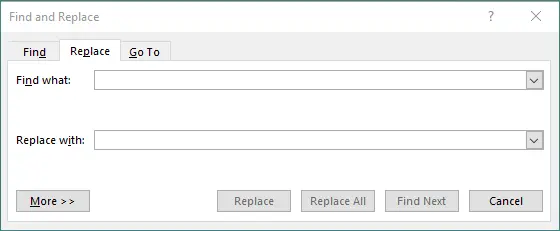
Presiona Ctrl + H (Windows) o Comando + H (Mac).
-
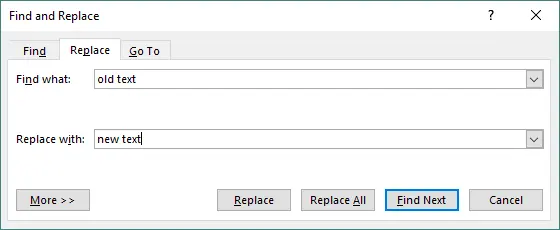
En el cuadro de diálogo:
- Introduce el texto que quieres buscar.
- Introduce el texto con el que quieres reemplazarlo.
-
Haz clic en Buscar Siguiente, Reemplazar, o Reemplazar Todos.
Ejemplos de uso
- Corregir errores de ortografía.
- Reemplazar nombres de productos obsoletos.
- Actualizar marcadores de posición como [Nombre] o [Fecha].
- Cambiar frases repetidas en todo el documento.
Método 2: Usar la Búsqueda y Reemplazo Avanzados de Word (Patrones, Opciones y Caracteres Especiales)
La Búsqueda y Reemplazo Avanzados ofrecen un control preciso con comodines, distinción entre mayúsculas y minúsculas, coincidencia de palabras completas y búsqueda de caracteres especiales. Es ideal para refinar documentos complejos, corregir inconsistencias de diseño o aplicar cambios estructurados.
Cómo hacerlo
-
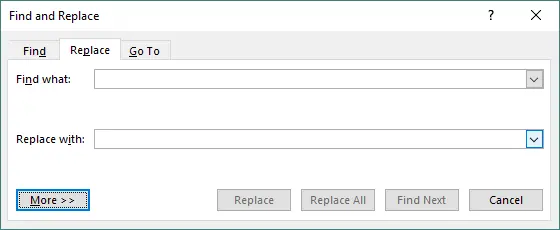
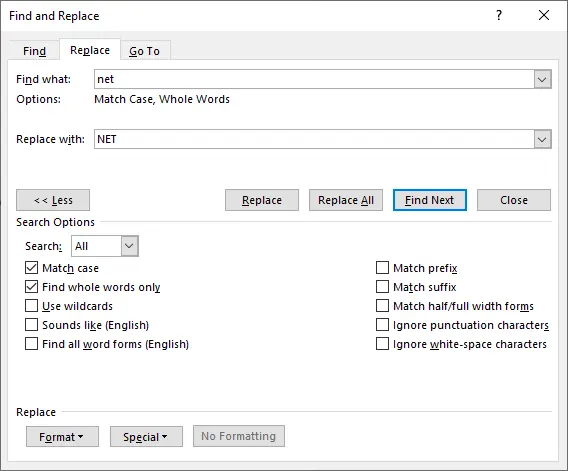
Abre Buscar y Reemplazar → haz clic en Más >>.
-
Usa opciones como:
- Coincidir mayúsculas y minúsculas
- Solo palabras completas
- Usar caracteres comodín
- Especial (tabulaciones, saltos de línea, marcas de párrafo)
-
Haz clic en Buscar Siguiente, Reemplazar, o Reemplazar Todos.
Ejemplos de uso
- Encontrar direcciones de correo electrónico o fechas usando patrones de comodines.
- Reemplazar espacios dobles por espacios simples.
- Eliminar saltos de párrafo adicionales.
- Cambiar solo texto en mayúsculas o minúsculas.
Método 3: Buscar y Reemplazar Formato en Word
Este método se centra en la consistencia visual. Puedes cambiar estilos de fuente, colores, resaltados o incluso cambiar texto de un estilo a otro. Es perfecto para actualizar el formato de un documento o alinear el contenido con las directrices de la marca.
Cómo hacerlo
-
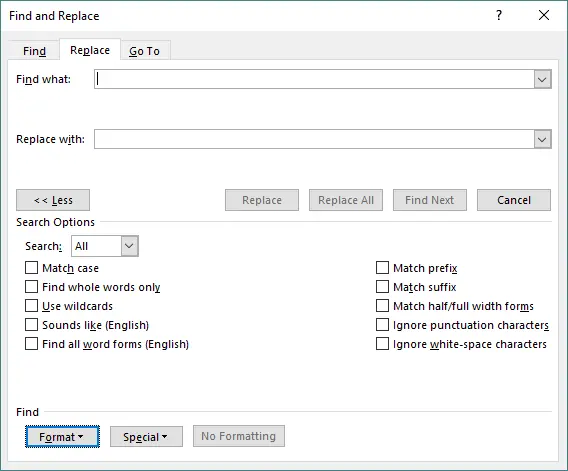
Abre Buscar y Reemplazar → haz clic en Más >>.
-
Haz clic en Formato debajo del cuadro Buscar o Reemplazar.
-
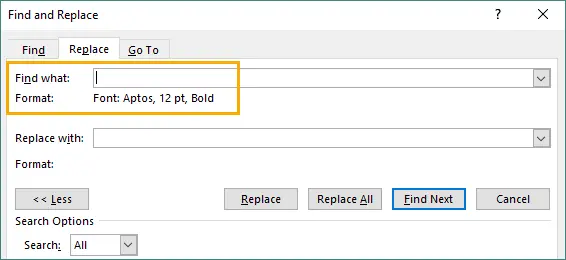
Selecciona el formato a buscar (p. ej., negrita, tamaño, color).
-
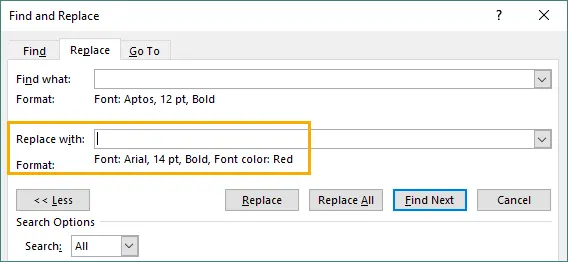
Elige el formato a aplicar O deja el texto de Reemplazar en blanco para mantener las mismas palabras.
-
Haz clic en Reemplazar Todos.
Ejemplos de uso
- Cambiar todo el texto en negrita a normal.
- Actualizar todo el texto de 11pt a 12pt.
- Eliminar colores de resaltado no deseados.
- Cambiar estilos antiguos a un nuevo estilo de marca.
Método 4: Buscar y Reemplazar por Lotes Usando Macros de Word (VBA)
VBA Las macros de VBA te permiten automatizar tareas repetitivas de búsqueda y reemplazo en uno o varios documentos. Es eficiente para ediciones recurrentes, actualizaciones de plantillas o migraciones de versiones donde el trabajo manual sería demasiado lento.
Cómo hacerlo
-
Presiona Alt + F11 para abrir el editor de VBA.
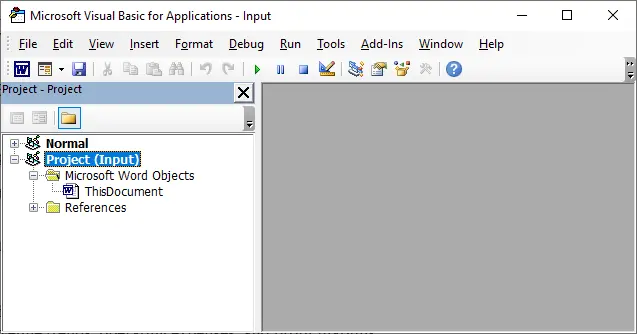
-
Ve a Insertar → Módulo.
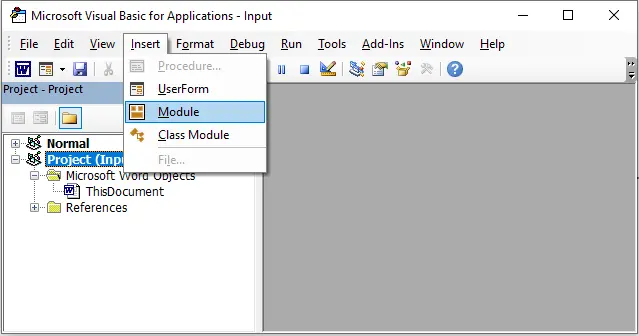
-
Pega tu código de macro.
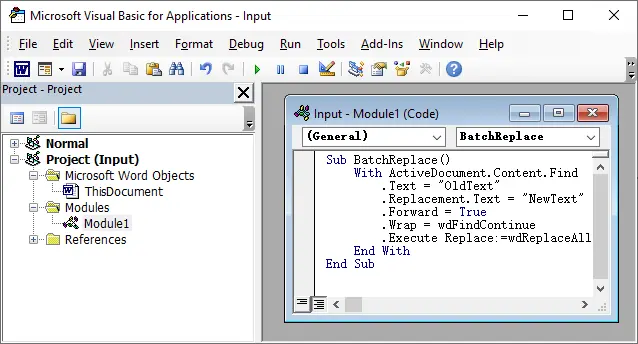
-
Ejecuta la macro (Alt+F8) para realizar los reemplazos automáticamente.

Ejemplo de VBA
Sub BatchReplace()
    With ActiveDocument.Content.Find
        .Text = "OldText"
        .Replacement.Text = "NewText"
        .Forward = True
        .Wrap = wdFindContinue
        .Execute Replace:=wdReplaceAll
    End With
End Sub
Ejemplos de uso
- Actualizar la terminología de los informes mensuales.
- Reemplazar nombres de empresas en todas las plantillas.
- Corregir problemas de formato en múltiples archivos.
- Automatizar tareas editoriales repetitivas.
Método 5: Automatizar Búsqueda y Reemplazo con Python (Usando Spire.Doc)
Para flujos de trabajo a gran escala o de backend, usar Python proporciona un reemplazo de texto automatizado y de alta velocidad sin necesidad de abrir Word. Es ideal para procesar cientos de documentos, generar informes o integrar ediciones de documentos en sistemas de software. Entre las muchas bibliotecas disponibles, Spire.Doc for Python es una API potente y con todas las funciones que funciona sin tener Microsoft Word instalado.
Cómo hacerlo
-
Instala Spire.Doc for Python.
pip install spire.doc -
Carga el documento en Python.
-
Llama al método Replace() para sustituciones de texto.
-
Guarda el documento actualizado.
Ejemplo de Python
from spire.doc import *

# Load the Word file
doc = Document()
doc.LoadFromFile("input.docx")

# Replace simple text
doc.Replace("OldText", "NewText", True, True) # Los dos parámetros True habilitan la coincidencia sin distinción de mayúsculas y minúsculas y de palabras completas.

# Save the updated file
doc.SaveToFile("output.docx", FileFormat.Docx)
doc.Close()
Ejemplos de reemplazo avanzado
-
Reemplazar texto usando regex
regex = Regex("""\\#\\w+\\b""") document.Replace(regex, "NewText") -
Reemplazar múltiples palabras clave dinámicamente
replacements = {
"CompanyName": "TechNova",
"Year": "2025",
"Product": "VisionX"
}

for key, value in replacements.items():
    doc.Replace(key, value, True, True)
Leer más: Buscar y Reemplazar Texto en Word Usando Python
¿Por qué elegir el método de Python/automatización?
- Extremadamente rápido para grandes lotes.
- No se necesita interacción del usuario.
- Funciona en servidores, pipelines de CI/CD y entornos en la nube.
- Admite formato avanzado y reemplazo basado en patrones.
- Ideal para flujos de trabajo de documentos a escala empresarial.
Comparación: ¿Qué Método Deberías Usar?
| Método | Ideal Para | Facilidad de Uso | Automatización | Flexibilidad | Limitaciones |
|---|---|---|---|---|---|
| Buscar y Reemplazar Integrado de Word | Ediciones rápidas; reemplazos simples | Muy fácil | Ninguna | Media — admite comodines y formato | No es ideal para procesamiento por lotes o lógica compleja |
| Búsqueda y Reemplazo Avanzados | Localizar muchas ocurrencias visualmente | Fácil | Ninguna | Baja — principalmente visual | No es adecuado para reemplazos masivos |
| Reemplazar Contenido Específico de Formato | Actualizar estilos, fuentes, atributos de formato | Media | Ninguna | Media — funciona bien para cambios basados en estilos | Sigue siendo manual; lógica limitada |
| Macro VBA (Búsqueda y Reemplazo Automatizados) | Reemplazos repetitivos; cambios por lotes; lógica basada en reglas | Media | Automatización semi/completa | Alta — admite bucles, condiciones, reglas personalizadas | Requiere scripting; no es apto para principiantes |
| Automatizar con Python (Spire.Doc) | Procesamiento masivo; tareas repetitivas; automatización a gran escala | Media | Automatización completa | Muy alta — control sobre contenido, formato, bucles, registros | Requiere Python; se necesita instalación de la biblioteca |
Conclusión
Buscar y reemplazar texto en documentos de Word es una tarea fundamental, pero el método que elijas afecta en gran medida tu velocidad y eficiencia. Para ediciones pequeñas y cotidianas, las herramientas integradas de Word son más que suficientes. Para ajustes de formato complejos, las funciones avanzadas te dan un control preciso. Y para necesidades empresariales o a gran escala, la automatización con VBA o Python proporciona una potencia y escalabilidad inigualables.
Al comprender las fortalezas de cada enfoque, puedes elegir el método que mejor se adapte a tu flujo de trabajo, ya sea que estés editando una sola página o generando miles de documentos automáticamente.
Preguntas Frecuentes (FAQ)
P1. ¿Puede Word buscar y reemplazar texto dentro de encabezados, pies de página o cuadros de texto?
Sí, pero a veces se omiten los cuadros de texto. Para una cobertura completa, utiliza la automatización con VBA o Python.
P2. ¿Cómo busco y reemplazo texto con formato en Word?
Usa Más > Formato en Buscar y Reemplazar para coincidir o aplicar formato como negrita, fuente y color.
P3. ¿Cuál es la mejor manera de reemplazar texto en múltiples archivos de Word a la vez?
Usa la automatización con VBA o Python, ya que la herramienta integrada de Word no puede procesar múltiples archivos automáticamente.
P4. ¿Es mejor Python o VBA para automatizar la búsqueda y reemplazo?
VBA es más rápido para tareas de escritorio simples. Python es mejor para operaciones a gran escala, por lotes o del lado del servidor.
También te puede interesar
Text in Word-Dokumenten suchen und ersetzen: 5 einfache Methoden
Inhaltsverzeichnis
- Methode 1: Verwenden Sie das integrierte Suchen-und-Ersetzen-Tool von Word
- Methode 2: Verwenden Sie die erweiterte Suchen- und Ersetzen-Funktion von Word
- Methode 3: Suchen und Ersetzen von Formatierungen in Word
- Methode 4: Stapelverarbeitung von Suchen und Ersetzen mit Word-Makros
- Methode 5: Automatisieren Sie das Suchen und Ersetzen mit Python
- Vergleich: Welche Methode sollten Sie verwenden?
- Fazit
- Häufig gestellte Fragen (FAQ)
Das Suchen und Ersetzen von Text ist eine der häufigsten Aufgaben bei der Arbeit mit Word-Dokumenten. Ob Sie Tippfehler korrigieren, Namen aktualisieren, Formatierungen ändern oder Dokumente in großen Mengen verarbeiten – Word und moderne Tools bieten mehrere zuverlässige Möglichkeiten, die Arbeit schnell und genau zu erledigen.
Dieser Leitfaden behandelt die fünf praktischsten Methoden, um Text in Word-Dokumenten zu suchen und zu ersetzen, von einfachen integrierten Funktionen bis hin zur vollständigen Automatisierung mit Python.
Methodenübersicht:
- Methode 1: Verwenden Sie das integrierte Suchen-und-Ersetzen-Tool von Word
- Methode 2: Verwenden Sie die erweiterte Suchen- und Ersetzen-Funktion von Word
- Methode 3: Suchen und Ersetzen von Formatierungen in Word
- Methode 4: Stapelverarbeitung von Suchen und Ersetzen mit Word-Makros
- Methode 5: Automatisieren Sie das Suchen und Ersetzen mit Python
Methode 1: Verwenden Sie das integrierte Suchen-und-Ersetzen-Tool von Word
Dies ist der schnellste Weg, um Wörter oder Phrasen in einem einzelnen Dokument zu aktualisieren. Es hebt jede Übereinstimmung hervor und ermöglicht es Ihnen, Elemente einzeln oder alle auf einmal zu ersetzen, was es ideal für einfache, schnelle Bearbeitungen ohne technische Schritte macht.
Wie es geht
-
Öffnen Sie das Word-Dokument.
-
Drücken Sie Strg + H (Windows) oder Befehl + H (Mac).
-
Im Dialogfeld:
- Geben Sie den Text ein, den Sie suchen möchten.
- Geben Sie den Text ein, durch den Sie ihn ersetzen möchten.
-
Klicken Sie auf Weitersuchen, Ersetzen oder Alle ersetzen.
Anwendungsbeispiele
- Rechtschreibfehler korrigieren.
- Veraltete Produktnamen ersetzen.
- Platzhalter wie [Name] oder [Datum] aktualisieren.
- Wiederholte Phrasen im gesamten Dokument ändern.
Methode 2: Verwenden Sie die erweiterte Suchen- und Ersetzen-Funktion von Word (Muster, Optionen und Sonderzeichen)
Die erweiterte Suchen- und Ersetzen-Funktion bietet präzise Kontrolle mit Platzhaltern, Berücksichtigung der Groß-/Kleinschreibung, Suche nach ganzen Wörtern und Suche nach Sonderzeichen. Sie eignet sich hervorragend zur Verfeinerung komplexer Dokumente, zur Behebung von Layout-Inkonsistenzen oder zur Anwendung strukturierter Änderungen.
Wie es geht
-
Öffnen Sie Suchen und Ersetzen → klicken Sie auf Mehr >>.
-
Verwenden Sie Optionen wie:
- Groß-/Kleinschreibung beachten
- Nur ganze Wörter suchen
- Platzhalter verwenden
- Sonderzeichen (Tabstopps, Zeilenumbrüche, Absatzmarken)
-
Klicken Sie auf Weitersuchen, Ersetzen oder Alle ersetzen.
Anwendungsbeispiele
- E-Mail-Adressen oder Daten mit Platzhaltermustern finden.
- Doppelte Leerzeichen durch einfache Leerzeichen ersetzen.
- Zusätzliche Absatzumbrüche entfernen.
- Nur groß- oder kleingeschriebenen Text ändern.
Methode 3: Suchen und Ersetzen von Formatierungen in Word
Diese Methode konzentriert sich auf die visuelle Konsistenz. Sie können Schriftstile, Farben, Hervorhebungen ändern oder sogar Text von einem Stil in einen anderen umwandeln. Sie ist perfekt, um die Formatierung von Dokumenten aufzufrischen oder Inhalte an Markenrichtlinien anzupassen.
Wie es geht
-
Öffnen Sie Suchen und Ersetzen → klicken Sie auf Mehr >>.
-
Klicken Sie unter dem Feld „Suchen“ oder „Ersetzen“ auf Format.
-
Wählen Sie die zu suchende Formatierung aus (z. B. fett, Größe, Farbe).
-
Wählen Sie die anzuwendende Formatierung ODER lassen Sie das Feld „Ersetzen durch“ leer, um die gleichen Wörter beizubehalten.
-
Klicken Sie auf Alle ersetzen.
Anwendungsbeispiele
- Allen fettgedruckten Text in normalen Text ändern.
- Allen 11-Punkt-Text in 12-Punkt-Text ändern.
- Unerwünschte Hervorhebungsfarben entfernen.
- Alte Stile auf einen neuen Markenstil umstellen.
Methode 4: Stapelverarbeitung von Suchen und Ersetzen mit Word-Makros (VBA)
VBA-Makros ermöglichen es Ihnen, wiederholte Suchen-und-Ersetzen-Aufgaben in einem oder mehreren Dokumenten zu automatisieren. Dies ist effizient für wiederkehrende Bearbeitungen, Vorlagenaktualisierungen oder Versionsmigrationen, bei denen manuelle Arbeit zu langsam wäre.
Wie es geht
-
Drücken Sie Alt + F11, um den VBA-Editor zu öffnen.
-
Gehen Sie zu Einfügen → Modul.
-
Fügen Sie Ihren Makro-Code ein.
-
Führen Sie das Makro aus (Alt+F8), um die Ersetzungen automatisch durchzuführen.
Beispiel VBA
Sub BatchReplace()
    With ActiveDocument.Content.Find
        .Text = "AlterText"
        .Replacement.Text = "NeuerText"
        .Forward = True
        .Wrap = wdFindContinue
        .Execute Replace:=wdReplaceAll
    End With
End Sub
Anwendungsbeispiele
- Terminologie in monatlichen Berichten aktualisieren.
- Firmennamen in Vorlagen ersetzen.
- Formatierungsprobleme in mehreren Dateien beheben.
- Wiederholte redaktionelle Aufgaben automatisieren.
Methode 5: Automatisieren Sie das Suchen und Ersetzen mit Python (mit Spire.Doc)
Für groß angelegte oder Backend-Workflows bietet die Verwendung von Python eine schnelle, automatisierte Textersetzung, ohne Word öffnen zu müssen. Es ist ideal für die Verarbeitung von Hunderten von Dokumenten, die Erstellung von Berichten oder die Integration von Dokumentenbearbeitungen in Softwaresysteme. Unter den vielen verfügbaren Bibliotheken ist Spire.Doc for Python eine leistungsstarke, voll funktionsfähige API, die ohne installierte Microsoft Word funktioniert.
Wie es geht
-
Installieren Sie Spire.Doc for Python.
pip install spire.doc -
Laden Sie das Dokument in Python.
-
Rufen Sie die Methode Replace() für Textersetzungen auf.
-
Speichern Sie das aktualisierte Dokument.
Python-Beispiel
from spire.doc import *

# Laden Sie die Word-Datei
doc = Document()
doc.LoadFromFile("input.docx")

# Ersetzen Sie einfachen Text
doc.Replace("AlterText", "NeuerText", True, True) # Die beiden True-Parameter aktivieren die Groß-/Kleinschreibung-unabhängige und die Suche nach ganzen Wörtern.

# Speichern Sie die aktualisierte Datei
doc.SaveToFile("output.docx", FileFormat.Docx)
doc.Close()
Beispiele für erweiterte Ersetzungen
-
Text mit Regex ersetzen
regex = Regex("""\\#\\w+\\b""") document.Replace(regex, "NeuerText") -
Mehrere Schlüsselwörter dynamisch ersetzen
ersetzungen = {
"Firmenname": "TechNova",
"Jahr": "2025",
"Produkt": "VisionX"
}

for schluessel, wert in ersetzungen.items():
    doc.Replace(schluessel, wert, True, True)
Lesen Sie weiter: Text in Word mit Python suchen und ersetzen
Warum die Python/Automatisierungsmethode wählen?
- Extrem schnell für große Stapel.
- Keine Benutzerinteraktion erforderlich.
- Funktioniert auf Servern, in CI/CD-Pipelines und Cloud-Umgebungen.
- Unterstützt erweiterte Formatierungen und musterbasierte Ersetzungen.
- Ideal für unternehmensweite Dokumenten-Workflows.
Vergleich: Welche Methode sollten Sie verwenden?
| Methode | Am besten geeignet für | Benutzerfreundlichkeit | Automatisierung | Flexibilität | Einschränkungen |
|---|---|---|---|---|---|
| Integriertes Suchen & Ersetzen von Word | Schnelle Bearbeitungen; einfache Ersetzungen | Sehr einfach | Keine | Mittel — unterstützt Platzhalter & Formatierung | Nicht ideal für Stapelverarbeitung oder komplexe Logik |
| Erweitertes Suchen & Ersetzen | Visuelles Auffinden vieler Vorkommen | Einfach | Keine | Gering — meist visuell | Nicht für Massenersetzungen geeignet |
| Formatierungsspezifische Inhalte ersetzen | Aktualisierung von Stilen, Schriftarten, Formatierungsattributen | Mittel | Keine | Mittel — funktioniert gut für stilbasierte Änderungen | Immer noch manuell; begrenzte Logik |
| VBA-Makro (Automatisiertes Suchen & Ersetzen) | Wiederholte Ersetzungen; Stapeländerungen; regelbasierte Logik | Mittel | Halb-/Vollautomatisierung | Hoch — unterstützt Schleifen, Bedingungen, benutzerdefinierte Regeln | Erfordert Skripting; nicht anfängerfreundlich |
| Automatisierung mit Python (Spire.Doc) | Massenverarbeitung; wiederholte Aufgaben; groß angelegte Automatisierung | Mittel | Vollautomatisierung | Sehr hoch — Kontrolle über Inhalt, Formatierung, Schleifen, Protokolle | Erfordert Python; Bibliotheksinstallation erforderlich |
Fazit
Das Suchen und Ersetzen von Text in Word-Dokumenten ist eine grundlegende Aufgabe, doch die gewählte Methode beeinflusst Ihre Geschwindigkeit und Effizienz erheblich. Für kleine, alltägliche Bearbeitungen sind die integrierten Werkzeuge von Word mehr als ausreichend. Für komplexe Formatierungsanpassungen geben Ihnen die erweiterten Funktionen eine feine Kontrolle. Und für unternehmensweite oder groß angelegte Anforderungen bietet die Automatisierung mit VBA oder Python unübertroffene Leistung und Skalierbarkeit.
Indem Sie die Stärken jedes Ansatzes verstehen, können Sie die Methode wählen, die am besten zu Ihrem Arbeitsablauf passt – egal, ob Sie eine einzelne Seite bearbeiten oder Tausende von Dokumenten automatisch erstellen.
Häufig gestellte Fragen (FAQ)
F1. Kann Word Text in Kopfzeilen, Fußzeilen oder Textfeldern suchen und ersetzen?
Ja, aber Textfelder werden manchmal übersprungen. Für eine vollständige Abdeckung verwenden Sie VBA- oder Python-Automatisierung.
F2. Wie suche und ersetze ich Text mit Formatierung in Word?
Verwenden Sie Mehr > Format in Suchen & Ersetzen, um Formatierungen wie Fett, Schriftart und Farbe abzugleichen oder anzuwenden.
F3. Was ist der beste Weg, um Text in mehreren Word-Dateien gleichzeitig zu ersetzen?
Verwenden Sie VBA- oder Python-Automatisierung, da das integrierte Tool von Word nicht mehrere Dateien automatisch verarbeiten kann.
F4. Ist Python oder VBA besser zur Automatisierung von Suchen-und-Ersetzen-Vorgängen?
VBA ist schneller für einfache Desktop-Aufgaben. Python ist besser für groß angelegte, Stapel- oder serverseitige Operationen.
Das könnte Sie auch interessieren
Найти и заменить текст в документах Word: 5 простых методов
Содержание
- Способ 1: Используйте встроенный инструмент поиска и замены в Word
- Способ 2: Используйте расширенный поиск и замену в Word
- Способ 3: Поиск и замена форматирования в Word
- Способ 4: Пакетный поиск и замена с использованием макросов Word
- Способ 5: Автоматизация поиска и замены с помощью Python
- Сравнение: какой метод следует использовать?
- Заключение
- Часто задаваемые вопросы (FAQ)
Поиск и замена текста — одна из самых распространенных задач при работе с документами Word. Независимо от того, исправляете ли вы опечатки, обновляете имена, изменяете форматирование или обрабатываете документы в большом количестве, Word — и современные инструменты — предлагают несколько надежных способов быстро и точно выполнить эту работу.
В этом руководстве рассматриваются пять наиболее практичных способов поиска и замены текста в документах Word, от простых встроенных функций до полной автоматизации с помощью Python.
Обзор методов:
- Способ 1: Используйте встроенный инструмент поиска и замены в Word
- Способ 2: Используйте расширенный поиск и замену в Word
- Способ 3: Поиск и замена форматирования в Word
- Способ 4: Пакетный поиск и замена с использованием макросов Word
- Способ 5: Автоматизация поиска и замены с помощью Python
Способ 1: Используйте встроенный инструмент поиска и замены в Word
Это самый быстрый способ обновить слова или фразы в одном документе. Он выделяет каждое совпадение и позволяет заменять элементы по отдельности или все сразу, что делает его идеальным для простых и быстрых правок, не требующих технических действий.
Как это сделать
-
Откройте документ Word.
-
Нажмите Ctrl + H (Windows) или Command + H (Mac).
-
В диалоговом окне:
- Введите текст, который хотите найти.
- Введите текст, на который хотите его заменить.
-
Нажмите Найти далее, Заменить или Заменить все.
Примеры использования
- Исправление орфографических ошибок.
- Замена устаревших названий продуктов.
- Обновление заполнителей, таких как [Имя] или [Дата].
- Изменение повторяющихся фраз по всему документу.
Способ 2: Используйте расширенный поиск и замену в Word (шаблоны, параметры и специальные символы)
Расширенный поиск и замена предлагает точный контроль с помощью подстановочных знаков, учета регистра, сопоставления целых слов и поиска специальных символов. Это отлично подходит для уточнения сложных документов, исправления несоответствий макета или применения структурированных изменений.
Как это сделать
-
Откройте Найти и заменить → нажмите Больше >>.
-
Используйте такие параметры, как:
- Учитывать регистр
- Только целые слова
- Использовать подстановочные знаки
- Специальный (табуляции, разрывы строк, знаки абзаца)
-
Нажмите Найти далее, Заменить или Заменить все.
Примеры использования
- Поиск адресов электронной почты или дат с использованием шаблонов с подстановочными знаками.
- Замена двойных пробелов одинарными.
- Удаление лишних разрывов абзацев.
- Изменение только текста в верхнем или нижнем регистре.
Способ 3: Поиск и замена форматирования в Word
Этот метод фокусируется на визуальной согласованности. Вы можете изменять стили шрифтов, цвета, выделение или даже переключать текст с одного стиля на другой. Это идеально подходит для обновления форматирования документа или приведения контента в соответствие с рекомендациями по брендингу.
Как это сделать
-
Откройте Найти и заменить → нажмите Больше >>.
-
Нажмите Формат под полем «Найти» или «Заменить на».
-
Выберите форматирование для поиска (например, полужирный, размер, цвет).
-
Выберите форматирование для применения ИЛИ оставьте поле «Заменить на» пустым, чтобы сохранить те же слова.
-
Нажмите Заменить все.
Примеры использования
- Изменить весь полужирный текст на обычный.
- Обновить весь текст размером 11 пт до 12 пт.
- Удалить нежелательные цвета выделения.
- Переключить старые стили на новый стиль бренда.
Способ 4: Пакетный поиск и замена с использованием макросов Word (VBA)
Макросы VBA позволяют автоматизировать повторяющиеся задачи поиска и замены в одном или нескольких документах. Это эффективно для повторяющихся правок, обновлений шаблонов или миграции версий, где ручная работа была бы слишком медленной.
Как это сделать
-
Нажмите Alt + F11, чтобы открыть редактор VBA.
-
Перейдите в Insert → Module.
-
Вставьте код вашего макроса.
-
Запустите макрос (Alt+F8), чтобы выполнить замены автоматически.
Пример VBA
Sub BatchReplace()
    With ActiveDocument.Content.Find
        .Text = "OldText"
        .Replacement.Text = "NewText"
        .Forward = True
        .Wrap = wdFindContinue
        .Execute Replace:=wdReplaceAll
    End With
End Sub
Примеры использования
- Обновление терминологии в ежемесячных отчетах.
- Замена названий компаний в шаблонах.
- Исправление проблем с форматированием в нескольких файлах.
- Автоматизация повторяющихся редакционных задач.
Способ 5: Автоматизация поиска и замены с помощью Python (с использованием Spire.Doc)
Для крупномасштабных или серверных рабочих процессов использование Python обеспечивает высокоскоростную автоматическую замену текста без открытия Word. Это идеально подходит для обработки сотен документов, создания отчетов или интеграции правок документов в программные системы. Среди множества доступных библиотек Spire.Doc for Python — это мощный, полнофункциональный API, который работает без установленного Microsoft Word.
Как это сделать
-
Установите Spire.Doc for Python.
pip install spire.doc -
Загрузите документ в Python.
-
Вызовите метод Replace() для замены текста.
-
Сохраните обновленный документ.
Пример на Python
from spire.doc import *

# Загрузить файл Word
doc = Document()
doc.LoadFromFile("input.docx")

# Заменить простой текст
doc.Replace("OldText", "NewText", True, True) # Два параметра True включают сопоставление без учета регистра и по всему слову.

# Сохранить обновленный файл
doc.SaveToFile("output.docx", FileFormat.Docx)
doc.Close()
Примеры расширенной замены
-
Замена текста с использованием регулярных выражений
regex = Regex("""\\#\\w+\\b""") document.Replace(regex, "NewText") -
Динамическая замена нескольких ключевых слов
replacements = {
"CompanyName": "TechNova",
"Year": "2025",
"Product": "VisionX"
}

for key, value in replacements.items():
    doc.Replace(key, value, True, True)
Читать далее: Поиск и замена текста в Word с использованием Python
Почему стоит выбрать метод с Python/автоматизацией?
- Чрезвычайно быстро для больших партий.
- Не требуется вмешательство пользователя.
- Работает на серверах, в конвейерах CI/CD и в облачных средах.
- Поддерживает расширенное форматирование и замену на основе шаблонов.
- Идеально подходит для документооборота в масштабах предприятия.
Сравнение: какой метод следует использовать?
| Метод | Лучше всего подходит для | Простота использования | Автоматизация | Гибкость | Ограничения |
|---|---|---|---|---|---|
| Встроенный поиск и замена в Word | Быстрые правки; простые замены | Очень просто | Нет | Средняя — поддерживает подстановочные знаки и форматирование | Не идеально для пакетной обработки или сложной логики |
| Расширенный поиск и замена | Визуальный поиск множества вхождений | Просто | Нет | Низкая — в основном визуальная | Не подходит для массовых замен |
| Замена содержимого с определенным форматированием | Обновление стилей, шрифтов, атрибутов форматирования | Средняя | Нет | Средняя — хорошо работает для изменений, основанных на стиле | Все еще вручную; ограниченная логика |
| Макрос VBA (автоматический поиск и замена) | Повторяющиеся замены; пакетные изменения; логика на основе правил | Средняя | Частичная/полная автоматизация | Высокая — поддерживает циклы, условия, пользовательские правила | Требует написания скриптов; не для новичков |
| Автоматизация с помощью Python (Spire.Doc) | Массовая обработка; повторяющиеся задачи; крупномасштабная автоматизация | Средняя | Полная автоматизация | Очень высокая — контроль над содержимым, форматированием, циклами, журналами | Требуется Python; необходима установка библиотеки |
Заключение
Поиск и замена текста в документах Word — это фундаментальная задача, однако выбранный вами метод сильно влияет на вашу скорость и эффективность. Для небольших повседневных правок встроенных инструментов Word более чем достаточно. Для сложных настроек форматирования расширенные функции дают вам точный контроль. А для корпоративных или крупномасштабных нужд автоматизация с помощью VBA или Python обеспечивает непревзойденную мощность и масштабируемость.
Понимая сильные стороны каждого подхода, вы можете выбрать метод, который наилучшим образом соответствует вашему рабочему процессу — редактируете ли вы одну страницу или автоматически создаете тысячи документов.
Часто задаваемые вопросы (FAQ)
В1. Может ли Word находить и заменять текст внутри колонтитулов или текстовых полей?
Да, но текстовые поля иногда пропускаются. Для полного охвата используйте автоматизацию с помощью VBA или Python.
В2. Как найти и заменить текст с форматированием в Word?
Используйте «Больше» > «Формат» в окне «Найти и заменить», чтобы сопоставить или применить форматирование, такое как полужирный шрифт, шрифт и цвет.
В3. Какой лучший способ заменить текст в нескольких файлах Word одновременно?
Используйте автоматизацию с помощью VBA или Python, так как встроенный инструмент Word не может автоматически обрабатывать несколько файлов.
В4. Что лучше для автоматизации поиска и замены: Python или VBA?
VBA быстрее для простых задач на рабочем столе. Python лучше подходит для крупномасштабных, пакетных или серверных операций.
Вам также может быть интересно
Come estrarre immagini da PowerPoint – 4 metodi semplici
Indice dei contenuti
- Metodo 1. Salva immagini singole (clic destro → Salva come immagine)
- Metodo 2. Estrai immagini rinominando PPTX in ZIP
- Metodo 3. Usa estrattori di immagini online per PowerPoint
- Metodo 4. Estrai immagini programmaticamente (Python – Spire.Presentation)
- Confronto: quale metodo scegliere?
- Riepilogo
- Domande frequenti sull'estrazione di immagini da PowerPoint
Estrarre immagini da una presentazione di PowerPoint è una necessità comune, sia che tu stia riutilizzando risorse di design, usando foto per report o elaborando diapositive in blocco per l'automazione. Tuttavia, PowerPoint non offre un'opzione con un solo clic per estrarre tutte le immagini incorporate in una volta, il che può rendere il processo noioso se non conosci gli strumenti giusti.
In questa guida, imparerai quattro modi pratici e semplici per estrarre immagini da PowerPoint, che vanno dai metodi integrati agli script Python automatizzati. Che tu preferisca il controllo manuale o desideri un flusso di lavoro completamente automatizzato, troverai un metodo adatto alle tue esigenze.
Panoramica dei metodi:
- Metodo 1. Salva immagini singole (Salva come immagine)
- Metodo 2. Estrai immagini rinominando PPTX in ZIP
- Metodo 3. Usa estrattori di immagini online per PowerPoint
- Metodo 4. Estrai immagini programmaticamente (Python – Spire.Presentation)
Metodo 1. Salva immagini singole (Salva come immagine)
Estrai singole immagini direttamente dalla diapositiva utilizzando la funzione integrata di PowerPoint Salva come immagine. Questo metodo è ideale quando hai bisogno solo di alcune immagini e desideri un controllo preciso su quali salvare. Conserva l'alta qualità e supporta più formati, rendendolo perfetto per operazioni manuali rapide senza strumenti aggiuntivi.
Ecco come fare:
- Apri il tuo file PowerPoint.
- Fai clic con il pulsante destro del mouse sull'immagine che desideri salvare.
- Seleziona Salva come immagine…
- Scegli il formato di output (PNG, JPG, SVG, ecc.) e fai clic su Salva.


Vantaggi
- Molto facile e non richiede strumenti
- Conserva l'immagine in buona qualità
- Funziona bene per estrazioni una tantum
Svantaggi
- Non adatto per l'estrazione in blocco
- È necessario salvare le immagini una alla volta
Metodo 2. Estrai immagini rinominando PPTX in ZIP
Poiché i file PPTX sono essenzialmente archivi ZIP compressi, puoi sbloccare tutti i media incorporati — immagini, icone, miniature e persino video — semplicemente rinominando l'estensione del file. Questo metodo è uno dei modi più rapidi per recuperare ogni risorsa originale in una presentazione senza aprire PowerPoint, garantendo nessuna perdita di qualità e rendendolo perfetto per l'estrazione in blocco.
Come farlo:
- Duplica il tuo file PowerPoint (consigliato).
- Rinomina la copia da nomefile.pptx a nomefile.zip.

- Decomprimi il file ZIP usando 7-Zip o WinZip.
- Vai a ppt → media.
- Troverai tutte le immagini incorporate (PNG, JPG, GIF, EMF, ecc.).

Vantaggi
- Estrae tutte le immagini in una volta
- Recupera la qualità originale senza compressione
- Veloce e non richiede l'installazione di PowerPoint
Svantaggi
- Funziona solo per file PPTX (non per i vecchi PPT)
- La cartella include tutti i media senza un'organizzazione basata sulle diapositive
Metodo 3. Usa estrattori di immagini online per PowerPoint
Gli strumenti di estrazione online decomprimono automaticamente il tuo file PowerPoint e convertono tutte le immagini incorporate in un pacchetto ZIP scaricabile. Questo metodo non richiede installazione e funziona su qualsiasi dispositivo, rendendolo comodo per gli utenti che necessitano di una soluzione rapida e senza strumenti. È ottimo per estrazioni occasionali, specialmente quando non lavori con file sensibili o confidenziali.
Estrai immagini usando SlideSpeak:
- Carica il tuo file PowerPoint sul sito web.

- Fai clic su Avvia per iniziare il processo.
- Scarica il file ZIP risultante contenente le immagini.


Vantaggi
- Nessuna installazione di software necessaria
- Veloce e adatto ai principianti
- Funziona sia per PPT che per PPTX
Svantaggi
- Rischi per la privacy per i file confidenziali
- Limiti di dimensione/caricamento dei file
- Alcuni strumenti comprimono le immagini, riducendone la qualità
Metodo 4. Estrai immagini programmaticamente (Python – Spire.Presentation)
Per gli utenti che lavorano con un gran numero di presentazioni o necessitano di un'elaborazione completamente automatizzata, una soluzione basata su Python offre l'approccio più scalabile. Utilizzando Spire.Presentation for Python, puoi estrarre ogni immagine incorporata con un breve script, mantenere la qualità originale e integrare il processo in pipeline di dati più ampie o flussi di lavoro automatizzati. Questo metodo è ideale per sviluppatori e utenti avanzati che desiderano velocità, precisione e ripetibilità.
Esempio di codice:
from spire.presentation.common import *
from spire.presentation import *

# Create a Presentation instance
ppt = Presentation()

# Load a PowerPoint document
ppt.LoadFromFile("sample.pptx")

# Iterate through all images in the document
for i, image inenumerate(ppt.Images):
# Extract the images
    ImageName = "ExtractImage/Images_"+str(i)+".png"
    image.Image.Save(ImageName)

ppt.Dispose()
Come funziona:
- Importa librerie: le classi richieste vengono importate da spire.presentation.common e spire.presentation.
- Crea una presentazione: viene istanziato un oggetto Presentation.
- Carica file: il file PowerPoint (sample.pptx) viene caricato utilizzando LoadFromFile.
- Ottieni raccolta di immagini: la proprietà Presentation.Images restituisce una raccolta di immagini incorporate nel documento.
- Estrai immagini: il codice scorre tutte le immagini nella presentazione, salvando ciascuna come file PNG con un nome sequenziale (ad es. Images_0.png).
Leggi anche: Leggere file PowerPoint in Python: estrarre testo, immagini e altro
Vantaggi
- Automazione completa
- Mantiene la qualità originale dell'immagine
- Perfetto per l'elaborazione di immagini su larga scala
Svantaggi
- Richiede l'installazione di Python e di una libreria
- Leggera curva di apprendimento per i principianti
Oltre all'estrazione di immagini incorporate, Spire.Presentation offre una suite completa di funzionalità di elaborazione di PowerPoint, tra cui la creazione di presentazioni da zero, la modifica di diapositive esistenti, la manipolazione di forme e animazioni e la conversione di file PowerPoint in immagini o altri formati. Ciò lo rende uno strumento di automazione versatile sia per attività semplici che per flussi di lavoro complessi di PowerPoint.
Confronto: quale metodo scegliere?
| Metodo | Ideale per | Difficoltà | Qualità output | Estrazione in blocco |
|---|---|---|---|---|
| Salva come immagine | Estrarre manualmente alcune immagini | Facile | Alta | No |
| Rinomina in ZIP | Accedere ai file originali incorporati | Facile | Originale | Sì |
| Estrattori online | Estrazione rapida, senza installazione | Facile | Media–Alta | Sì |
| Script Python | Automazione, operazioni in blocco | Media | Originale | Sì |
Riepilogo
Estrarre immagini da PowerPoint è un processo senza problemi. Per attività rapide e una tantum, la funzione integrata di PowerPoint "Salva come immagine" funziona bene. Per recuperare tutte le immagini originali in una volta, rinominare PPTX in ZIP è il metodo più affidabile. Se preferisci gli strumenti online, gli estrattori offrono un'opzione conveniente: fai solo attenzione con i file sensibili.
Per gli sviluppatori o gli utenti che necessitano di automazione, Spire.Presentation for Python fornisce un modo potente ed efficiente per estrarre immagini programmaticamente e preservare la massima qualità dell'immagine.
Domande frequenti sull'estrazione di immagini da PowerPoint
D1. Posso estrarre tutte le immagini da PowerPoint in una volta?
Sì. Usa PPTX → ZIP, estrattori online o uno script Python per l'estrazione in blocco.
D2. L'esportazione riduce la qualità dell'immagine?
Clic destro → Salva come immagine potrebbe ridurre la qualità; PPTX → ZIP e l'estrazione con Python preservano la risoluzione originale.
D3. Il metodo ZIP funzionerà per i file .ppt?
No. Converti prima .ppt in .pptx o usa metodi online/Python.
D4. Posso estrarre altri media oltre alle immagini?
p>Sì. PPTX → ZIP espone immagini, video, audio e altro.
D5. Gli strumenti di estrazione online sono sicuri?
Sicuri per file non sensibili; evita i file confidenziali.
D6. Perché alcune immagini estratte hanno una bassa risoluzione?
Sono state inserite a bassa risoluzione o ricompresse durante l'esportazione.
Como extrair imagens do PowerPoint – 4 maneiras fáceis
Índice
- Método 1. Salvar Imagens Individuais (Clique com o Botão Direito → Salvar como Imagem)
- Método 2. Extrair Imagens Renomeando PPTX para ZIP
- Método 3. Usar Extratores de Imagens Online para PowerPoint
- Método 4. Extrair Imagens Programaticamente (Python – Spire.Presentation)
- Comparação: Qual Método Você Deve Escolher?
- Resumo
- Perguntas Frequentes Sobre a Extração de Imagens do PowerPoint
Extrair imagens de uma apresentação do PowerPoint é uma necessidade comum, seja para reaproveitar recursos de design, reutilizar fotos para relatórios ou processar slides em massa para automação. No entanto, o PowerPoint não oferece uma opção de um clique para extrair todas as imagens incorporadas de uma vez, o que pode tornar o processo tedioso se você não conhecer as ferramentas certas.
Neste guia, você aprenderá quatro maneiras práticas e fáceis de extrair imagens do PowerPoint, desde métodos integrados até scripts Python automatizados. Se você prefere controle manual ou deseja um fluxo de trabalho totalmente automatizado, encontrará um método que atenda às suas necessidades.
Visão Geral dos Métodos:
- Método 1. Salvar Imagens Individuais (Salvar como Imagem)
- Método 2. Extrair Imagens Renomeando PPTX para ZIP
- Método 3. Usar Extratores de Imagens Online para PowerPoint
- Método 4. Extrair Imagens Programaticamente (Python – Spire.Presentation)
Método 1. Salvar Imagens Individuais (Salvar como Imagem)
Extraia imagens únicas diretamente do slide usando o recurso integrado do PowerPoint Salvar como Imagem. Este método é ideal quando você precisa de apenas algumas imagens e deseja controle preciso sobre quais salvar. Ele preserva a alta qualidade e suporta vários formatos, tornando-o perfeito para operações manuais rápidas sem ferramentas extras.
Veja como:
- Abra seu arquivo do PowerPoint.
- Clique com o botão direito na imagem que deseja salvar.
- Selecione Salvar como Imagem…
- Escolha o formato de saída (PNG, JPG, SVG, etc.) e clique em Salvar.
Prós
- Muito fácil e não requer ferramentas
- Preserva a imagem em boa qualidade
- Funciona bem para extrações únicas
Contras
- Não é adequado para extração em massa
- É preciso salvar as imagens uma de cada vez
Método 2. Extrair Imagens Renomeando PPTX para ZIP
Como os arquivos PPTX são essencialmente arquivos ZIP compactados, você pode desbloquear toda a mídia incorporada — imagens, ícones, miniaturas e até vídeos — simplesmente renomeando a extensão do arquivo. Este método é uma das maneiras mais rápidas de recuperar todos os ativos originais de uma apresentação sem abrir o PowerPoint, garantindo que não haja perda de qualidade e tornando-o perfeito para extração em massa.
Como fazer:
- Duplique seu arquivo do PowerPoint (recomendado).
- Renomeie a cópia de nome_do_arquivo.pptx para nome_do_arquivo.zip.
- Descompacte o arquivo ZIP usando 7-Zip ou WinZip.
- Navegue até ppt → media.
- Você encontrará todas as imagens incorporadas (PNG, JPG, GIF, EMF, etc.).
Prós
- Extrai todas as imagens de uma vez
- Recupera a qualidade original sem compressão
- Rápido e não requer a instalação do PowerPoint
Contras
- Funciona apenas para arquivos PPTX (não para o antigo PPT)
- A pasta inclui toda a mídia sem organização baseada em slides
Método 3. Usar Extratores de Imagens Online para PowerPoint
As ferramentas de extração online descompactam automaticamente seu arquivo do PowerPoint e convertem todas as imagens incorporadas em um pacote ZIP para download. Este método não requer instalação e funciona em qualquer dispositivo, tornando-o conveniente para usuários que precisam de uma solução rápida e sem ferramentas. É ótimo para extrações ocasionais, especialmente quando você não está trabalhando com arquivos sensíveis ou confidenciais.
Extrair imagens usando o SlideSpeak:
- Faça o upload do seu arquivo do PowerPoint para o site.
- Clique em Iniciar para começar o processo.
- Baixe o arquivo ZIP resultante contendo as imagens.
Prós
- Nenhuma instalação de software necessária
- Rápido e amigável para iniciantes
- Funciona tanto para PPT quanto para PPTX
Contras
- Riscos de privacidade para arquivos confidenciais
- Limites de tamanho/upload de arquivo
- Algumas ferramentas comprimem as imagens, reduzindo a qualidade
Método 4. Extrair Imagens Programaticamente (Python – Spire.Presentation)
Para usuários que trabalham com um grande número de apresentações ou precisam de processamento totalmente automatizado, uma solução baseada em Python oferece a abordagem mais escalável. Usando o Spire.Presentation for Python, você pode extrair todas as imagens incorporadas com um script curto, manter a qualidade original e integrar o processo em pipelines de dados mais amplos ou fluxos de trabalho automatizados. Este método é ideal para desenvolvedores e usuários avançados que desejam velocidade, precisão e repetibilidade.
Exemplo de código:
from spire.presentation.common import *
from spire.presentation import *

# Create a Presentation instance
ppt = Presentation()

# Load a PowerPoint document
ppt.LoadFromFile("sample.pptx")

# Iterate through all images in the document
for i, image inenumerate(ppt.Images):
# Extract the images
    ImageName = "ExtractImage/Images_"+str(i)+".png"
    image.Image.Save(ImageName)

ppt.Dispose()
Como funciona:
- Importar Bibliotecas: As classes necessárias são importadas de spire.presentation.common e spire.presentation.
- Criar uma Apresentação: Um objeto Presentation é instanciado.
- Carregar Arquivo: O arquivo do PowerPoint (sample.pptx) é carregado usando LoadFromFile.
- Obter Coleção de Imagens: A propriedade Presentation.Images retorna uma coleção de imagens incorporadas no documento.
- Extrair Imagens: O código itera por todas as imagens na apresentação, salvando cada uma como um arquivo PNG com um nome sequencial (por exemplo, Images_0.png).
Leia Mais: Lendo Arquivos do PowerPoint em Python: Extrair Texto, Imagens e Mais
Prós
- Automação completa
- Mantém a qualidade original da imagem
- Perfeito para processamento de imagens em grande escala
Contras
- Requer Python e a instalação de uma biblioteca
- Leve curva de aprendizado para iniciantes
Além de extrair imagens incorporadas, o Spire.Presentation oferece um conjunto completo de recursos de processamento do PowerPoint — incluindo criar apresentações do zero, modificar slides existentes, manipular formas e animações e converter arquivos do PowerPoint para imagens ou outros formatos. Isso o torna uma ferramenta de automação versátil tanto para tarefas simples quanto para fluxos de trabalho complexos do PowerPoint.
Comparação: Qual Método Você Deve Escolher?
| Método | Ideal Para | Dificuldade | Qualidade de Saída | Extração em Lote |
|---|---|---|---|---|
| Salvar como Imagem | Extrair algumas imagens manualmente | Fácil | Alta | Não |
| Renomear para ZIP | Acessar arquivos incorporados originais | Fácil | Original | Sim |
| Extratores Online | Extração rápida, sem instalação | Fácil | Média–Alta | Sim |
| Script Python | Automação, operações em massa | Média | Original | Sim |
Resumo
Extrair imagens do PowerPoint é um processo sem complicações. Para tarefas rápidas e únicas, o recurso integrado do PowerPoint “Salvar como Imagem” funciona bem. Para recuperar todas as imagens originais de uma vez, renomear PPTX para ZIP é o método mais confiável. Se você prefere ferramentas online, os extratores oferecem uma opção conveniente — apenas tenha cuidado com arquivos sensíveis.
Para desenvolvedores ou usuários que precisam de automação, o Spire.Presentation for Python oferece uma maneira poderosa e eficiente de extrair imagens programaticamente e preservar a mais alta qualidade de imagem.
Perguntas Frequentes Sobre a Extração de Imagens do PowerPoint
P1. Posso extrair todas as imagens do PowerPoint de uma vez?
Sim. Use PPTX → ZIP, extratores online ou um script Python para extração em massa.
P2. A exportação reduz a qualidade da imagem?
Clicar com o botão direito → Salvar como Imagem pode reduzir a qualidade; a extração por PPTX → ZIP e Python preserva a resolução original.
P3. O método ZIP funcionará para arquivos .ppt?
Não. Converta .ppt para .pptx primeiro ou use métodos online/Python.
P4. Posso extrair outras mídias além de imagens?
Sim. O método PPTX → ZIP expõe imagens, vídeos, áudio e muito mais.
P5. As ferramentas de extração online são seguras?
Seguras para arquivos não sensíveis; evite arquivos confidenciais.
P6. Por que algumas imagens extraídas têm baixa resolução?
Elas foram inseridas em baixa resolução ou recompactadas durante a exportação.
PowerPoint에서 이미지를 추출하는 4가지 쉬운 방법
PowerPoint 프레젠테이션에서 이미지를 추출하는 것은 디자인 자산을 재활용하거나, 보고서용 사진을 재사용하거나, 자동화를 위해 슬라이드를 대량으로 처리하는 등 일반적인 요구 사항입니다. 그러나 PowerPoint는 모든 포함된 이미지를 한 번에 추출하는 단일 클릭 옵션을 제공하지 않아 올바른 도구를 모르는 경우 프로세스가 지루해질 수 있습니다.
이 가이드에서는 내장된 방법부터 자동화된 Python 스크립트에 이르기까지 PowerPoint에서 이미지를 추출하는 네 가지 실용적이고 쉬운 방법을 배웁니다. 수동 제어를 선호하든 완전히 자동화된 워크플로를 원하든 필요에 맞는 방법을 찾을 수 있습니다.
방법 개요:
- 방법 1. 개별 이미지 저장 (다른 이름으로 그림 저장)
- 방법 2. PPTX를 ZIP으로 이름 변경하여 이미지 추출
- 방법 3. 온라인 PowerPoint 이미지 추출기 사용
- 방법 4. 프로그래밍 방식으로 이미지 추출 (Python – Spire.Presentation)
방법 1. 개별 이미지 저장 (다른 이름으로 그림 저장)
PowerPoint의 내장된 다른 이름으로 그림 저장 기능을 사용하여 슬라이드에서 직접 단일 이미지를 추출합니다. 이 방법은 몇 개의 이미지만 필요하고 저장할 이미지를 정밀하게 제어하려는 경우에 이상적입니다. 고품질을 유지하고 여러 형식을 지원하므로 추가 도구 없이 빠른 수동 작업에 적합합니다.
방법은 다음과 같습니다 :
- PowerPoint 파일을 엽니다.
- 저장하려는 이미지를 마우스 오른쪽 버튼으로 클릭합니다.
- 다른 이름으로 그림 저장…을 선택합니다.
- 출력 형식(PNG, JPG, SVG 등)을 선택하고 저장을 클릭합니다.
장점
- 매우 쉽고 도구가 필요 없습니다
- 이미지를 좋은 품질로 보존합니다
- 일회성 추출에 적합합니다
단점
- 대량 추출에는 적합하지 않습니다
- 이미지를 한 번에 하나씩 저장해야 합니다
방법 2. PPTX를 ZIP으로 이름 변경하여 이미지 추출
PPTX 파일은 본질적으로 압축된 ZIP 아카이브이므로 파일 확장자 이름을 바꾸는 것만으로 이미지, 아이콘, 썸네일, 심지어 비디오까지 모든 포함된 미디어를 잠금 해제할 수 있습니다. 이 방법은 PowerPoint를 열지 않고도 프레젠테이션의 모든 원본 자산을 검색하는 가장 빠른 방법 중 하나이며, 품질 손실 없이 대량 추출에 적합합니다.
방법은 다음과 같습니다 :
- PowerPoint 파일을 복제합니다(권장).
- 사본의 이름을 filename.pptx에서 filename.zip으로 변경합니다.
- 7-Zip 또는 WinZip을 사용하여 ZIP 파일의 압축을 풉니다.
- ppt → media로 이동합니다.
- 모든 포함된 이미지(PNG, JPG, GIF, EMF 등)를 찾을 수 있습니다.
장점
- 한 번에 모든 이미지를 추출합니다
- 압축 없이 원본 품질을 검색합니다
- 빠르고 PowerPoint를 설치할 필요가 없습니다
단점
- PPTX 파일에서만 작동합니다(이전 PPT 제외)
- 폴더에는 슬라이드 기반 구성 없이 모든 미디어가 포함됩니다
방법 3. 온라인 PowerPoint 이미지 추출기 사용
온라인 추출 도구는 PowerPoint 파일을 자동으로 압축 해제하고 모든 포함된 이미지를 다운로드 가능한 ZIP 패키지로 변환합니다. 이 방법은 설치가 필요 없으며 모든 장치에서 작동하므로 빠르고 도구가 필요 없는 솔루션이 필요한 사용자에게 편리합니다. 특히 민감하거나 기밀 파일로 작업하지 않을 때 가끔씩 추출하는 데 적합합니다.
SlideSpeak을 사용하여 이미지 추출 :
- PowerPoint 파일을 웹사이트에 업로드합니다.
- 프로세스를 시작하려면 시작을 클릭합니다.
- 이미지가 포함된 결과 ZIP 파일을 다운로드합니다.
장점
- 소프트웨어 설치가 필요 없습니다
- 빠르고 초보자에게 친숙합니다
- PPT 및 PPTX 모두에서 작동합니다
단점
- 기밀 파일에 대한 개인 정보 보호 위험
- 파일 크기/업로드 제한
- 일부 도구는 이미지를 압축하여 품질을 저하시킵니다
방법 4. 프로그래밍 방식으로 이미지 추출 (Python – Spire.Presentation)
많은 수의 프레젠테이션으로 작업하거나 완전히 자동화된 처리가 필요한 사용자에게는 Python 기반 솔루션이 가장 확장 가능한 접근 방식을 제공합니다. Spire.Presentation for Python을 사용하면 짧은 스크립트로 모든 포함된 이미지를 추출하고 원본 품질을 유지하며 프로세스를 더 넓은 데이터 파이프라인 또는 자동화된 워크플로에 통합할 수 있습니다. 이 방법은 속도, 정밀도 및 반복성을 원하는 개발자 및 고급 사용자에게 이상적입니다.
코드 예제 :
from spire.presentation.common import *
from spire.presentation import *

# Create a Presentation instance
ppt = Presentation()

# Load a PowerPoint document
ppt.LoadFromFile("sample.pptx")

# Iterate through all images in the document
for i, image inenumerate(ppt.Images):
# Extract the images
    ImageName = "ExtractImage/Images_"+str(i)+".png"
    image.Image.Save(ImageName)

ppt.Dispose()
작동 방식 :
- 라이브러리 가져오기: spire.presentation.common 및 spire.presentation에서 필요한 클래스를 가져옵니다.
- 프레젠테이션 만들기: Presentation 개체가 인스턴스화됩니다.
- 파일 로드: LoadFromFile을 사용하여 PowerPoint 파일(sample.pptx)을 로드합니다.
- 이미지 컬렉션 가져오기: Presentation.Images 속성은 문서에 포함된 이미지 컬렉션을 반환합니다.
- 이미지 추출: 코드는 프레젠테이션의 모든 이미지를 반복하여 각각을 순차적인 이름(예: Images_0.png)의 PNG 파일로 저장합니다.
추가 정보: Python에서 PowerPoint 파일 읽기: 텍스트, 이미지 등 추출
장점
- 완전 자동화
- 원본 이미지 품질 유지
- 대규모 이미지 처리에 적합
단점
- Python 및 라이브러리 설치 필요
- 초보자를 위한 약간의 학습 곡선
포함된 이미지 추출 외에도 Spire.Presentation은 처음부터 프레젠테이션 만들기, 기존 슬라이드 수정, 도형 및 애니메이션 조작, PowerPoint 파일을 이미지로 변환 또는 다른 형식으로 변환하는 등 전체 PowerPoint 처리 기능을 제공합니다. 따라서 간단한 작업과 복잡한 PowerPoint 워크플로 모두에 다용도 자동화 도구가 됩니다.
비교: 어떤 방법을 선택해야 할까요?
| 방법 | 최적 대상 | 난이도 | 출력 품질 | 일괄 추출 |
|---|---|---|---|---|
| 다른 이름으로 그림 저장 | 수동으로 몇 개의 이미지 추출 | 쉬움 | 높음 | 아니요 |
| ZIP으로 이름 변경 | 원본 포함 파일에 액세스 | 쉬움 | 원본 | 예 |
| 온라인 추출기 | 빠른, 설치 없는 추출 | 쉬움 | 중-높음 | 예 |
| Python 스크립트 | 자동화, 대량 작업 | 중간 | 원본 | 예 |
요약
PowerPoint에서 이미지를 추출하는 것은 번거롭지 않은 과정입니다. 빠른 일회성 작업의 경우 PowerPoint의 내장된 "다른 이름으로 그림 저장" 기능이 잘 작동합니다. 모든 원본 이미지를 한 번에 검색하려면 PPTX를 ZIP으로 이름 변경하는 것이 가장 신뢰할 수 있는 방법입니다. 온라인 도구를 선호하는 경우 추출기는 편리한 옵션을 제공하지만 민감한 파일에는 주의해야 합니다.
자동화가 필요한 개발자나 사용자에게는 Spire.Presentation for Python이 프로그래밍 방식으로 이미지를 추출하고 최상의 이미지 품질을 보존하는 강력하고 효율적인 방법을 제공합니다.
PowerPoint에서 이미지 추출에 대한 FAQ
Q1. PowerPoint에서 모든 이미지를 한 번에 추출할 수 있나요?
예. 대량 추출을 위해 PPTX → ZIP, 온라인 추출기 또는 Python 스크립트를 사용하세요.
Q2. 내보내면 이미지 품질이 저하되나요?
마우스 오른쪽 버튼 클릭 → 다른 이름으로 그림 저장은 품질을 저하시킬 수 있습니다. PPTX → ZIP 및 Python 추출은 원본 해상도를 보존합니다.
Q3. ZIP 방법이 .ppt 파일에서도 작동하나요?
아니요. 먼저 .ppt를 .pptx로 변환하거나 온라인/Python 방법을 사용하세요.
Q4. 이미지 외에 다른 미디어도 추출할 수 있나요?
예. PPTX → ZIP은 이미지, 비디오, 오디오 등을 노출합니다.
Q5. 온라인 추출 도구는 안전한가요?
민감하지 않은 파일에는 안전합니다. 기밀 파일은 피하세요.
Q6. 일부 추출된 이미지가 저해상도인 이유는 무엇인가요?
낮은 해상도로 삽입되었거나 내보내는 동안 다시 압축되었기 때문입니다.
Comment extraire des images de PowerPoint – 4 méthodes simples
Table des matières
- Méthode 1. Enregistrer des images individuelles (clic droit → Enregistrer en tant qu'image)
- Méthode 2. Extraire des images en renommant PPTX en ZIP
- Méthode 3. Utiliser des extracteurs d'images PowerPoint en ligne
- Méthode 4. Extraire des images par programmation (Python – Spire.Presentation)
- Comparaison : Quelle méthode choisir ?
- Résumé
- FAQ sur l'extraction d'images de PowerPoint
L'extraction d'images d'une présentation PowerPoint est un besoin courant, que ce soit pour réutiliser des éléments de conception, des photos pour des rapports ou pour traiter des diapositives en masse à des fins d'automatisation. Cependant, PowerPoint n'offre pas d'option en un seul clic pour extraire toutes les images intégrées en une seule fois, ce qui peut rendre le processus fastidieux si vous ne connaissez pas les bons outils.
Dans ce guide, vous apprendrez quatre façons pratiques et faciles d'extraire des images de PowerPoint, allant des méthodes intégrées aux scripts Python automatisés. Que vous préfériez un contrôle manuel ou un flux de travail entièrement automatisé, vous trouverez une méthode qui correspond à vos besoins.
Aperçu des méthodes :
- Méthode 1. Enregistrer des images individuelles (Enregistrer en tant qu'image)
- Méthode 2. Extraire des images en renommant PPTX en ZIP
- Méthode 3. Utiliser des extracteurs d'images PowerPoint en ligne
- Méthode 4. Extraire des images par programmation (Python – Spire.Presentation)
Méthode 1. Enregistrer des images individuelles (Enregistrer en tant qu'image)
Extrayez des images uniques directement de la diapositive à l'aide de la fonction intégrée de PowerPoint Enregistrer en tant qu'image. Cette méthode est idéale lorsque vous n'avez besoin que de quelques images et que vous souhaitez un contrôle précis sur celles à enregistrer. Elle préserve une haute qualité et prend en charge plusieurs formats, ce qui la rend parfaite pour des opérations manuelles rapides sans aucun outil supplémentaire.
Voici comment faire :
- Ouvrez votre fichier PowerPoint.
- Faites un clic droit sur l'image que vous souhaitez enregistrer.
- Sélectionnez Enregistrer en tant qu'image…
- Choisissez le format de sortie (PNG, JPG, SVG, etc.) et cliquez sur Enregistrer.
Avantages
- Très facile et ne nécessite aucun outil
- Préserve l'image en bonne qualité
- Fonctionne bien pour les extractions ponctuelles
Inconvénients
- Ne convient pas à l'extraction en masse
- Il faut enregistrer les images une par une
Méthode 2. Extraire des images en renommant PPTX en ZIP
Parce que les fichiers PPTX sont essentiellement des archives ZIP compressées, vous pouvez déverrouiller tous les médias intégrés — images, icônes, vignettes et même vidéos — en renommant simplement l'extension du fichier. Cette méthode est l'un des moyens les plus rapides de récupérer chaque ressource originale d'une présentation sans ouvrir PowerPoint, garantissant aucune perte de qualité et la rendant parfaite pour l'extraction en masse.
Comment faire :
- Dupliquez votre fichier PowerPoint (recommandé).
- Renommez la copie de nomdefichier.pptx en nomdefichier.zip.
- Décompressez le fichier ZIP à l'aide de 7-Zip ou WinZip.
- Naviguez vers ppt → media.
- Vous y trouverez toutes les images intégrées (PNG, JPG, GIF, EMF, etc.).
Avantages
- Extrait toutes les images en une seule fois
- Récupère la qualité originale sans compression
- Rapide et ne nécessite pas l'installation de PowerPoint
Inconvénients
- Ne fonctionne que pour les fichiers PPTX (pas les anciens PPT)
- Le dossier inclut tous les médias sans organisation par diapositive
Méthode 3. Utiliser des extracteurs d'images PowerPoint en ligne
Les outils d'extraction en ligne décompressent automatiquement votre fichier PowerPoint et convertissent toutes les images intégrées en un package ZIP téléchargeable. Cette méthode ne nécessite aucune installation et fonctionne sur n'importe quel appareil, ce qui la rend pratique pour les utilisateurs qui ont besoin d'une solution rapide et sans outil. C'est idéal pour les extractions occasionnelles, surtout lorsque vous ne travaillez pas avec des fichiers sensibles ou confidentiels.
Extraire des images avec SlideSpeak :
- Téléchargez votre fichier PowerPoint sur le site web.
- Cliquez sur Démarrer pour lancer le processus.
- Téléchargez le fichier ZIP résultant contenant les images.
Avantages
- Aucune installation de logiciel requise
- Rapide et convivial pour les débutants
- Fonctionne pour PPT et PPTX
Inconvénients
- Risques de confidentialité pour les fichiers confidentiels
- Limites de taille/téléchargement de fichiers
- Certains outils compressent les images, réduisant la qualité
Méthode 4. Extraire des images par programmation (Python – Spire.Presentation)
Pour les utilisateurs qui travaillent avec un grand nombre de présentations ou qui ont besoin d'un traitement entièrement automatisé, une solution basée sur Python offre l'approche la plus évolutive. En utilisant Spire.Presentation for Python, vous pouvez extraire chaque image intégrée avec un court script, maintenir la qualité originale et intégrer le processus dans des pipelines de données plus larges ou des flux de travail automatisés. Cette méthode est idéale pour les développeurs et les utilisateurs avancés qui veulent de la vitesse, de la précision et de la répétabilité.
Exemple de code :
from spire.presentation.common import *
from spire.presentation import *

# Create a Presentation instance
ppt = Presentation()

# Load a PowerPoint document
ppt.LoadFromFile("sample.pptx")

# Iterate through all images in the document
for i, image inenumerate(ppt.Images):
# Extract the images
    ImageName = "ExtractImage/Images_"+str(i)+".png"
    image.Image.Save(ImageName)

ppt.Dispose()
Comment ça marche :
- Importer les bibliothèques : Les classes requises sont importées de spire.presentation.common et spire.presentation.
- Créer une présentation : Un objet Presentation est instancié.
- Charger le fichier : Le fichier PowerPoint (sample.pptx) est chargé à l'aide de LoadFromFile.
- Obtenir la collection d'images : La propriété Presentation.Images renvoie une collection d'images intégrées dans le document.
- Extraire les images : Le code parcourt toutes les images de la présentation, enregistrant chacune sous forme de fichier PNG avec un nom séquentiel (par exemple, Images_0.png).
Lire la suite : Lire des fichiers PowerPoint en Python : Extraire du texte, des images et plus encore
Avantages
- Automatisation complète
- Conserve la qualité d'image originale
- Parfait pour le traitement d'images à grande échelle
Inconvénients
- Nécessite Python et l'installation d'une bibliothèque
- Légère courbe d'apprentissage pour les débutants
En plus de l'extraction d'images intégrées, Spire.Presentation offre une suite complète de fonctionnalités de traitement PowerPoint, y compris la création de présentations à partir de zéro, la modification de diapositives existantes, la manipulation de formes et d'animations, et la conversion de fichiers PowerPoint en images ou autres formats. Cela en fait un outil d'automatisation polyvalent pour les tâches simples et les flux de travail PowerPoint complexes.
Comparaison : Quelle méthode choisir ?
| Méthode | Idéal pour | Difficulté | Qualité de sortie | Extraction par lots |
|---|---|---|---|---|
| Enregistrer en tant qu'image | Extraire quelques images manuellement | Facile | Élevée | Non |
| Renommer en ZIP | Accéder aux fichiers intégrés originaux | Facile | Originale | Oui |
| Extracteurs en ligne | Extraction rapide, sans installation | Facile | Moyenne–Élevée | Oui |
| Script Python | Automatisation, opérations en masse | Moyenne | Originale | Oui |
Résumé
L'extraction d'images de PowerPoint est un processus sans tracas. Pour les tâches rapides et ponctuelles, la fonction intégrée de PowerPoint « Enregistrer en tant qu'image » fonctionne bien. Pour récupérer toutes les images originales en une seule fois, renommer PPTX en ZIP est la méthode la plus fiable. Si vous préférez les outils en ligne, les extracteurs offrent une option pratique — soyez simplement prudent avec les fichiers sensibles.
Pour les développeurs ou les utilisateurs ayant besoin d'automatisation, Spire.Presentation for Python offre un moyen puissant et efficace d'extraire des images par programmation et de préserver une qualité d'image optimale.
FAQ sur l'extraction d'images de PowerPoint
Q1. Puis-je extraire toutes les images de PowerPoint en une seule fois ?
Oui. Utilisez PPTX → ZIP, des extracteurs en ligne ou un script Python pour une extraction en masse.
Q2. L'exportation réduit-elle la qualité de l'image ?
Le clic droit → Enregistrer en tant qu'image peut réduire la qualité ; l'extraction PPTX → ZIP et Python préserve la résolution originale.
Q3. La méthode ZIP fonctionnera-t-elle pour les fichiers .ppt ?
Non. Convertissez d'abord .ppt en .pptx ou utilisez des méthodes en ligne/Python.
Q4. Puis-je extraire d'autres médias que des images ?
Oui. PPTX → ZIP expose les images, les vidéos, l'audio et plus encore.
Q5. Les outils d'extraction en ligne sont-ils sûrs ?
Sûrs pour les fichiers non sensibles ; évitez les fichiers confidentiels.
Q6. Pourquoi certaines images extraites sont-elles en basse résolution ?
Elles ont été soit insérées en basse résolution, soit recompressées lors de l'exportation.
Cómo extraer imágenes de PowerPoint: 4 maneras fáciles
Tabla de Contenidos
- Método 1. Guardar Imágenes Individuales (Clic Derecho → Guardar como Imagen)
- Método 2. Extraer Imágenes Renombrando PPTX a ZIP
- Método 3. Usar Extractores de Imágenes de PowerPoint en Línea
- Método 4. Extraer Imágenes Programáticamente (Python – Spire.Presentation)
- Comparación: ¿Qué Método Deberías Elegir?
- Resumen
- Preguntas Frecuentes Sobre la Extracción de Imágenes de PowerPoint
Extraer imágenes de una presentación de PowerPoint es una necesidad común, ya sea para reutilizar activos de diseño, usar fotos para informes o procesar diapositivas en masa para la automatización. Sin embargo, PowerPoint no ofrece una opción de un solo clic para extraer todas las imágenes incrustadas a la vez, lo que puede hacer que el proceso sea tedioso si no conoces las herramientas adecuadas.
En esta guía, aprenderás cuatro formas prácticas y fáciles de extraer imágenes de PowerPoint, que van desde métodos integrados hasta scripts automatizados de Python. Ya sea que prefieras el control manual o desees un flujo de trabajo completamente automatizado, encontrarás un método que se adapte a tus necesidades.
Resumen de Métodos:
- Método 1. Guardar Imágenes Individuales (Guardar como Imagen)
- Método 2. Extraer Imágenes Renombrando PPTX a ZIP
- Método 3. Usar Extractores de Imágenes de PowerPoint en Línea
- Método 4. Extraer Imágenes Programáticamente (Python – Spire.Presentation)
Método 1. Guardar Imágenes Individuales (Guardar como Imagen)
Extrae imágenes individuales directamente de la diapositiva utilizando la función integrada de PowerPoint Guardar como Imagen. Este método es ideal cuando solo necesitas unas pocas imágenes y quieres un control preciso sobre cuáles guardar. Conserva una alta calidad y admite múltiples formatos, lo que lo hace perfecto para operaciones manuales rápidas sin necesidad de herramientas adicionales.
Así es como se hace:
- Abre tu archivo de PowerPoint.
- Haz clic derecho en la imagen que deseas guardar.
- Selecciona Guardar como Imagen…
- Elige el formato de salida (PNG, JPG, SVG, etc.) y haz clic en Guardar.
Ventajas
- Muy fácil y no requiere herramientas
- Conserva la imagen en buena calidad
- Funciona bien para extracciones puntuales
Desventajas
- No es adecuado para la extracción masiva
- Debes guardar las imágenes una por una
Método 2. Extraer Imágenes Renombrando PPTX a ZIP
Debido a que los archivos PPTX son esencialmente archivos ZIP comprimidos, puedes desbloquear todos los medios incrustados (imágenes, iconos, miniaturas e incluso videos) simplemente cambiando la extensión del archivo. Este método es una de las formas más rápidas de recuperar todos los activos originales de una presentación sin abrir PowerPoint, asegurando que no haya pérdida de calidad y haciéndolo perfecto para la extracción masiva.
Cómo hacerlo:
- Duplica tu archivo de PowerPoint (recomendado).
- Renombra la copia de nombrearchivo.pptx a nombrearchivo.zip.
- Descomprime el archivo ZIP usando 7-Zip o WinZip.
- Navega a ppt → media.
- Encontrarás todas las imágenes incrustadas (PNG, JPG, GIF, EMF, etc.).
Ventajas
- Extrae todas las imágenes a la vez
- Recupera la calidad original sin compresión
- Rápido y no requiere instalar PowerPoint
Desventajas
- Solo funciona para archivos PPTX (no para el antiguo PPT)
- La carpeta incluye todos los medios sin organización por diapositiva
Método 3. Usar Extractores de Imágenes de PowerPoint en Línea
Las herramientas de extracción en línea desempaquetan automáticamente tu archivo de PowerPoint y convierten todas las imágenes incrustadas en un paquete ZIP descargable. Este método no requiere instalación y funciona en cualquier dispositivo, lo que lo hace conveniente para usuarios que necesitan una solución rápida y sin herramientas. Es ideal para extracciones ocasionales, especialmente cuando no trabajas con archivos sensibles o confidenciales.
Extraer imágenes usando SlideSpeak:
- Sube tu archivo de PowerPoint al sitio web.
- Haz clic en Iniciar para comenzar el proceso.
- Descarga el archivo ZIP resultante que contiene las imágenes.
Ventajas
- No se necesita instalación de software
- Rápido y amigable para principiantes
- Funciona tanto para PPT como para PPTX
Desventajas
- Riesgos de privacidad para archivos confidenciales
- Límites de tamaño de archivo/subida
- Algunas herramientas comprimen las imágenes, reduciendo la calidad
Método 4. Extraer Imágenes Programáticamente (Python – Spire.Presentation)
Para los usuarios que trabajan con un gran número de presentaciones o necesitan un procesamiento totalmente automatizado, una solución basada en Python ofrece el enfoque más escalable. Usando Spire.Presentation for Python, puedes extraer cada imagen incrustada con un script corto, mantener la calidad original e integrar el proceso en flujos de trabajo de datos más amplios o automatizados. Este método es ideal para desarrolladores y usuarios avanzados que desean velocidad, precisión y repetibilidad.
Ejemplo de código:
from spire.presentation.common import *
from spire.presentation import *

# Create a Presentation instance
ppt = Presentation()

# Load a PowerPoint document
ppt.LoadFromFile("sample.pptx")

# Iterate through all images in the document
for i, image inenumerate(ppt.Images):
# Extract the images
    ImageName = "ExtractImage/Images_"+str(i)+".png"
    image.Image.Save(ImageName)

ppt.Dispose()
Cómo funciona:
- Importar Bibliotecas: Se importan las clases requeridas de spire.presentation.common y spire.presentation.
- Crear una Presentación: Se instancia un objeto Presentation.
- Cargar Archivo: Se carga el archivo de PowerPoint (sample.pptx) usando LoadFromFile.
- Obtener Colección de Imágenes: La propiedad Presentation.Images devuelve una colección de imágenes incrustadas en el documento.
- Extraer Imágenes: El código itera a través de todas las imágenes en la presentación, guardando cada una como un archivo PNG con un nombre secuencial (por ejemplo, Images_0.png).
Leer más: Leer Archivos de PowerPoint en Python: Extraer Texto, Imágenes y Más
Ventajas
- Automatización completa
- Conserva la calidad de imagen original
- Perfecto para el procesamiento de imágenes a gran escala
Desventajas
- Requiere Python y la instalación de una biblioteca
- Ligera curva de aprendizaje para principiantes
Además de extraer imágenes incrustadas, Spire.Presentation ofrece un conjunto completo de funciones de procesamiento de PowerPoint, incluyendo crear presentaciones desde cero, modificar diapositivas existentes, manipular formas y animaciones, y convertir archivos de PowerPoint a imágenes u otros formatos. Esto lo convierte en una herramienta de automatización versátil tanto para tareas simples como para flujos de trabajo complejos de PowerPoint.
Comparación: ¿Qué Método Deberías Elegir?
| Método | Ideal para | Dificultad | Calidad de Salida | Extracción por Lotes |
|---|---|---|---|---|
| Guardar como Imagen | Extraer unas pocas imágenes manualmente | Fácil | Alta | No |
| Renombrar a ZIP | Acceder a los archivos originales incrustados | Fácil | Original | Sí |
| Extractores en Línea | Extracción rápida sin instalación | Fácil | Media–Alta | Sí |
| Script de Python | Automatización, operaciones masivas | Media | Original | Sí |
Resumen
Extraer imágenes de PowerPoint es un proceso sin complicaciones. Para tareas rápidas y puntuales, la función integrada de PowerPoint “Guardar como Imagen” funciona bien. Para recuperar todas las imágenes originales a la vez, renombrar de PPTX a ZIP es el método más fiable. Si prefieres herramientas en línea, los extractores ofrecen una opción conveniente, solo ten cuidado con los archivos sensibles.
Para desarrolladores o usuarios que necesitan automatización, Spire.Presentation for Python proporciona una forma potente y eficiente de extraer imágenes programáticamente y preservar la máxima calidad de imagen.
Preguntas Frecuentes Sobre la Extracción de Imágenes de PowerPoint
P1. ¿Puedo extraer todas las imágenes de PowerPoint a la vez?
Sí. Usa el método PPTX → ZIP, extractores en línea o un script de Python para la extracción masiva.
P2. ¿La exportación reduce la calidad de la imagen?
Clic derecho → Guardar como Imagen puede reducir la calidad; la extracción mediante PPTX → ZIP y Python preserva la resolución original.
P3. ¿Funcionará el método ZIP para archivos .ppt?
No. Primero convierte .ppt a .pptx o usa métodos en línea o con Python.
P4. ¿Puedo extraer otros medios además de imágenes?
Sí. El método PPTX → ZIP expone imágenes, videos, audio y más.
P5. ¿Son seguras las herramientas de extracción en línea?
Son seguras para archivos no sensibles; evita los archivos confidenciales.
P6. ¿Por qué algunas imágenes extraídas tienen baja resolución?
Fueron insertadas con baja resolución o recomprimidas durante la exportación.
Как извлечь изображения из PowerPoint — 4 простых способа
Inhaltsverzeichnis
- Methode 1. Einzelne Bilder speichern (Rechtsklick → Als Bild speichern)
- Methode 2. Bilder extrahieren durch Umbenennen von PPTX in ZIP
- Methode 3. Online-PowerPoint-Bildextraktoren verwenden
- Methode 4. Bilder programmatisch extrahieren (Python – Spire.Presentation)
- Vergleich: Welche Methode sollten Sie wählen?
- Zusammenfassung
- FAQs zum Extrahieren von Bildern aus PowerPoint
Das Extrahieren von Bildern aus einer PowerPoint-Präsentation ist eine häufige Anforderung – sei es zur Wiederverwendung von Design-Assets, zur Nutzung von Fotos für Berichte oder zur Stapelverarbeitung von Folien für die Automatisierung. PowerPoint bietet jedoch keine Ein-Klick-Option, um alle eingebetteten Bilder auf einmal zu extrahieren, was den Prozess mühsam machen kann, wenn man nicht die richtigen Werkzeuge kennt.
In dieser Anleitung lernen Sie vier praktische und einfache Möglichkeiten kennen, Bilder aus PowerPoint zu extrahieren, die von integrierten Methoden bis hin zu automatisierten Python-Skripten reichen. Egal, ob Sie die manuelle Kontrolle bevorzugen oder einen vollständig automatisierten Arbeitsablauf wünschen, Sie werden eine Methode finden, die Ihren Anforderungen entspricht.
Methodenübersicht:
- Methode 1. Einzelne Bilder speichern (Als Bild speichern)
- Methode 2. Bilder extrahieren durch Umbenennen von PPTX in ZIP
- Methode 3. Online-PowerPoint-Bildextraktoren verwenden
- Methode 4. Bilder programmatisch extrahieren (Python – Spire.Presentation)
Methode 1. Einzelne Bilder speichern (Als Bild speichern)
Extrahieren Sie einzelne Bilder direkt von der Folie mit der integrierten Funktion Als Bild speichern von PowerPoint. Diese Methode ist ideal, wenn Sie nur wenige Bilder benötigen und eine präzise Kontrolle darüber wünschen, welche gespeichert werden sollen. Sie bewahrt eine hohe Qualität und unterstützt mehrere Formate, was sie perfekt für schnelle, manuelle Vorgänge ohne zusätzliche Werkzeuge macht.
So geht's:
- Öffnen Sie Ihre PowerPoint-Datei.
- Klicken Sie mit der rechten Maustaste auf das Bild, das Sie speichern möchten.
- Wählen Sie Als Bild speichern…
- Wählen Sie das Ausgabeformat (PNG, JPG, SVG usw.) und klicken Sie auf Speichern.
Vorteile
- Sehr einfach und erfordert keine Werkzeuge
- Bewahrt das Bild in guter Qualität
- Funktioniert gut für einmalige Extraktionen
Nachteile
- Nicht für die Massenextraktion geeignet
- Bilder müssen einzeln gespeichert werden
Methode 2. Bilder extrahieren durch Umbenennen von PPTX in ZIP
Da PPTX-Dateien im Wesentlichen komprimierte ZIP-Archive sind, können Sie alle eingebetteten Medien – Bilder, Symbole, Miniaturansichten und sogar Videos – freischalten, indem Sie einfach die Dateierweiterung umbenennen. Diese Methode ist eine der schnellsten Möglichkeiten, jedes ursprüngliche Asset in einer Präsentation abzurufen, ohne PowerPoint zu öffnen, was keinen Qualitätsverlust gewährleistet und sie perfekt für die Massenextraktion macht.
So wird's gemacht:
- Duplizieren Sie Ihre PowerPoint-Datei (empfohlen).
- Benennen Sie die Kopie von dateiname.pptx in dateiname.zip um.
- Entpacken Sie die ZIP-Datei mit 7-Zip oder WinZip.
- Navigieren Sie zu ppt → media.
- Sie finden alle eingebetteten Bilder (PNG, JPG, GIF, EMF usw.).
Vorteile
- Extrahiert alle Bilder auf einmal
- Ruft die Originalqualität ohne Komprimierung ab
- Schnell und erfordert keine Installation von PowerPoint
Nachteile
- Funktioniert nur für PPTX-Dateien (nicht für alte PPT-Dateien)
- Der Ordner enthält alle Medien ohne folienbasierte Organisation
Methode 3. Online-PowerPoint-Bildextraktoren verwenden
Online-Extraktionstools entpacken Ihre PowerPoint-Datei automatisch und konvertieren alle eingebetteten Bilder in ein herunterladbares ZIP-Paket. Diese Methode erfordert keine Installation und funktioniert auf jedem Gerät, was sie für Benutzer praktisch macht, die eine schnelle, werkzeuglose Lösung benötigen. Sie eignet sich hervorragend für gelegentliche Extraktionen, insbesondere wenn Sie nicht mit sensiblen oder vertraulichen Dateien arbeiten.
Bilder mit SlideSpeak extrahieren:
- Laden Sie Ihre PowerPoint-Datei auf die Webseite hoch.
- Klicken Sie auf Start, um den Vorgang zu starten.
- Laden Sie die resultierende ZIP-Datei mit den Bildern herunter.
Vorteile
- Keine Softwareinstallation erforderlich
- Schnell und anfängerfreundlich
- Funktioniert sowohl für PPT als auch für PPTX
Nachteile
- Datenschutzrisiken bei vertraulichen Dateien
- Dateigrößen-/Upload-Beschränkungen
- Einige Werkzeuge komprimieren Bilder, was die Qualität verringert
Methode 4. Bilder programmatisch extrahieren (Python – Spire.Presentation)
Für Benutzer, die mit einer großen Anzahl von Präsentationen arbeiten oder eine vollständig automatisierte Verarbeitung benötigen, bietet eine Python-basierte Lösung den skalierbarsten Ansatz. Mit Spire.Presentation for Python können Sie jedes eingebettete Bild mit einem kurzen Skript extrahieren, die Originalqualität beibehalten und den Prozess in breitere Datenpipelines oder automatisierte Arbeitsabläufe integrieren. Diese Methode ist ideal für Entwickler und fortgeschrittene Benutzer, die Geschwindigkeit, Präzision und Wiederholbarkeit wünschen.
Codebeispiel:
from spire.presentation.common import *
from spire.presentation import *

# Create a Presentation instance
ppt = Presentation()

# Load a PowerPoint document
ppt.LoadFromFile("sample.pptx")

# Iterate through all images in the document
for i, image inenumerate(ppt.Images):
# Extract the images
    ImageName = "ExtractImage/Images_"+str(i)+".png"
    image.Image.Save(ImageName)

ppt.Dispose()
So funktioniert es:
- Bibliotheken importieren: Erforderliche Klassen werden aus spire.presentation.common und spire.presentation importiert.
- Präsentation erstellen: Ein Presentation-Objekt wird instanziiert.
- Datei laden: Die PowerPoint-Datei (sample.pptx) wird mit LoadFromFile geladen.
- Bildersammlung abrufen: Die Eigenschaft Presentation.Images gibt eine Sammlung von im Dokument eingebetteten Bildern zurück.
- Bilder extrahieren: Der Code durchläuft alle Bilder in der Präsentation und speichert jedes als PNG-Datei mit einem sequenziellen Namen (z. B. Images_0.png).
Weiterlesen: PowerPoint-Dateien in Python lesen: Text, Bilder & mehr extrahieren
Vorteile
- Vollständige Automatisierung
- Behält die ursprüngliche Bildqualität bei
- Perfekt für die Verarbeitung großer Bildmengen
Nachteile
- Erfordert Python und eine Bibliotheksinstallation
- Leichte Lernkurve für Anfänger
Zusätzlich zum Extrahieren eingebetteter Bilder bietet Spire.Presentation eine vollständige Suite von PowerPoint-Verarbeitungsfunktionen – einschließlich dem Erstellen von Präsentationen von Grund auf, dem Ändern vorhandener Folien, dem Bearbeiten von Formen und Animationen und dem Konvertieren von PowerPoint-Dateien in Bilder oder andere Formate. Dies macht es zu einem vielseitigen Automatisierungswerkzeug für sowohl einfache Aufgaben als auch komplexe PowerPoint-Arbeitsabläufe.
Vergleich: Welche Methode sollten Sie wählen?
| Methode | Am besten geeignet für | Schwierigkeit | Ausgabequalität | Stapel-Extraktion |
|---|---|---|---|---|
| Als Bild speichern | Manuelles Extrahieren einiger weniger Bilder | Einfach | Hoch | Nein |
| Umbenennen in ZIP | Zugriff auf original eingebettete Dateien | Einfach | Original | Ja |
| Online-Extraktoren | Schnelle Extraktion ohne Installation | Einfach | Mittel–Hoch | Ja |
| Python-Skript | Automatisierung, Massenoperationen | Mittel | Original | Ja |
Zusammenfassung
Das Extrahieren von Bildern aus PowerPoint ist ein unkomplizierter Prozess. Für schnelle, einmalige Aufgaben funktioniert die integrierte Funktion „Als Bild speichern“ von PowerPoint gut. Um alle Originalbilder auf einmal abzurufen, ist das Umbenennen von PPTX in ZIP die zuverlässigste Methode. Wenn Sie Online-Tools bevorzugen, bieten Extraktoren eine bequeme Option – seien Sie nur vorsichtig bei sensiblen Dateien.
Für Entwickler oder Benutzer, die eine Automatisierung benötigen, bietet Spire.Presentation for Python eine leistungsstarke und effiziente Möglichkeit, Bilder programmatisch zu extrahieren und höchste Bildqualität zu bewahren.
FAQs zum Extrahieren von Bildern aus PowerPoint
F1. Kann ich alle Bilder auf einmal aus PowerPoint extrahieren?
Ja. Verwenden Sie PPTX → ZIP, Online-Extraktoren oder ein Python-Skript für die Massenextraktion.
F2. Verringert das Exportieren die Bildqualität?
Rechtsklick → Als Bild speichern kann die Qualität verringern; PPTX → ZIP und die Python-Extraktion bewahren die ursprüngliche Auflösung.
F3. Funktioniert die ZIP-Methode für .ppt-Dateien?
Nein. Konvertieren Sie .ppt zuerst in .pptx oder verwenden Sie Online-/Python-Methoden.
F4. Kann ich außer Bildern auch andere Medien extrahieren?
Ja. PPTX → ZIP legt Bilder, Videos, Audio und mehr frei.
F5. Sind Online-Extraktionstools sicher?
Sicher für nicht-sensible Dateien; vermeiden Sie vertrauliche Dateien.
F6. Warum haben einige extrahierte Bilder eine niedrige Auflösung?
Sie wurden entweder mit niedriger Auflösung eingefügt oder beim Export neu komprimiert.
Как извлечь изображения из PowerPoint — 4 простых способа
```html
Содержание
- Метод 1. Сохранение отдельных изображений (Щелчок правой кнопкой мыши → Сохранить как изображение)
- Метод 2. Извлечение изображений путем переименования PPTX в ZIP
- Метод 3. Использование онлайн-инструментов для извлечения изображений из PowerPoint
- Метод 4. Программное извлечение изображений (Python – Spire.Presentation)
- Сравнение: какой метод выбрать?
- Резюме
- Часто задаваемые вопросы об извлечении изображений из PowerPoint
Извлечение изображений из презентации PowerPoint — обычная потребность, будь то перепрофилирование дизайнерских активов, повторное использование фотографий для отчетов или массовая обработка слайдов для автоматизации. Однако в PowerPoint нет опции для извлечения всех встроенных изображений одним щелчком мыши, что может сделать процесс утомительным, если вы не знаете правильных инструментов.
В этом руководстве вы узнаете четыре практичных и простых способа извлечения изображений из PowerPoint, от встроенных методов до автоматизированных скриптов на Python. Независимо от того, предпочитаете ли вы ручное управление или хотите полностью автоматизированный рабочий процесс, вы найдете метод, который соответствует вашим потребностям.
Обзор методов:
- Метод 1. Сохранение отдельных изображений (Сохранить как изображение)
- Метод 2. Извлечение изображений путем переименования PPTX в ZIP
- Метод 3. Использование онлайн-инструментов для извлечения изображений из PowerPoint
- Метод 4. Программное извлечение изображений (Python – Spire.Presentation)
Метод 1. Сохранение отдельных изображений (Сохранить как изображение)
Извлекайте отдельные изображения прямо со слайда с помощью встроенной функции PowerPoint Сохранить как изображение. Этот метод идеален, когда вам нужно всего несколько изображений и вы хотите точно контролировать, какие из них сохранить. Он сохраняет высокое качество и поддерживает несколько форматов, что делает его идеальным для быстрых ручных операций без каких-либо дополнительных инструментов.
Вот как это сделать:
- Откройте ваш файл PowerPoint.
- Щелкните правой кнопкой мыши по изображению, которое хотите сохранить.
- Выберите Сохранить как изображение…
- Выберите формат вывода (PNG, JPG, SVG и т.д.) и нажмите Сохранить.
Плюсы
- Очень просто и не требует никаких инструментов
- Сохраняет изображение в хорошем качестве
- Хорошо подходит для единичных извлечений
Минусы
- Не подходит для массового извлечения
- Необходимо сохранять изображения по одному
Метод 2. Извлечение изображений путем переименования PPTX в ZIP
Поскольку файлы PPTX по сути являются сжатыми архивами ZIP, вы можете разблокировать все встроенные медиафайлы — изображения, иконки, миниатюры и даже видео — просто переименовав расширение файла. Этот метод является одним из самых быстрых способов получить каждый оригинальный актив в презентации, не открывая PowerPoint, обеспечивая отсутствие потери качества и делая его идеальным для массового извлечения.
Как это сделать:
- Сделайте дубликат вашего файла PowerPoint (рекомендуется).
- Переименуйте копию с filename.pptx на filename.zip.
- Распакуйте ZIP-файл с помощью 7-Zip или WinZip.
- Перейдите в ppt → media.
- Вы найдете все встроенные изображения (PNG, JPG, GIF, EMF и т.д.).
Плюсы
- Извлекает все изображения сразу
- Получает оригинальное качество без сжатия
- Быстро и не требует установки PowerPoint
Минусы
- Работает только для файлов PPTX (не для старых PPT)
- Папка включает все медиафайлы без организации по слайдам
Метод 3. Использование онлайн-инструментов для извлечения изображений из PowerPoint
Онлайн-инструменты для извлечения автоматически распаковывают ваш файл PowerPoint и преобразуют все встроенные изображения в загружаемый ZIP-пакет. Этот метод не требует установки и работает на любом устройстве, что делает его удобным для пользователей, которым нужно быстрое решение без инструментов. Он отлично подходит для периодических извлечений, особенно когда вы не работаете с конфиденциальными файлами.
Извлечение изображений с помощью SlideSpeak:
- Загрузите ваш файл PowerPoint на веб-сайт.
- Нажмите Начать, чтобы запустить процесс.
- Загрузите полученный ZIP-файл с изображениями.
Плюсы
- Не требуется установка программного обеспечения
- Быстро и удобно для начинающих
- Работает как с PPT, так и с PPTX
Минусы
- Риски конфиденциальности для секретных файлов
- Ограничения на размер/загрузку файлов
- Некоторые инструменты сжимают изображения, снижая качество
Метод 4. Программное извлечение изображений (Python – Spire.Presentation)
Для пользователей, которые работают с большим количеством презентаций или нуждаются в полностью автоматизированной обработке, решение на основе Python предлагает наиболее масштабируемый подход. Используя Spire.Presentation for Python, вы можете извлечь каждое встроенное изображение с помощью короткого скрипта, сохранить оригинальное качество и интегрировать процесс в более широкие конвейеры данных или автоматизированные рабочие процессы. Этот метод идеален для разработчиков и продвинутых пользователей, которым нужна скорость, точность и повторяемость.
Пример кода:
from spire.presentation.common import *
from spire.presentation import *

# Create a Presentation instance
ppt = Presentation()

# Load a PowerPoint document
ppt.LoadFromFile("sample.pptx")

# Iterate through all images in the document
for i, image inenumerate(ppt.Images):
# Extract the images
    ImageName = "ExtractImage/Images_"+str(i)+".png"
    image.Image.Save(ImageName)

ppt.Dispose()
Как это работает:
- Импорт библиотек: Необходимые классы импортируются из spire.presentation.common и spire.presentation.
- Создание презентации: Создается экземпляр объекта Presentation.
- Загрузка файла: Файл PowerPoint (sample.pptx) загружается с помощью LoadFromFile.
- Получение коллекции изображений: Свойство Presentation.Images возвращает коллекцию изображений, встроенных в документ.
- Извлечение изображений: Код перебирает все изображения в презентации, сохраняя каждое как PNG-файл с последовательным именем (например, Images_0.png).
Читать далее: Чтение файлов PowerPoint на Python: извлечение текста, изображений и многого другого
Плюсы
- Полная автоматизация
- Сохраняет оригинальное качество изображения
- Идеально подходит для крупномасштабной обработки изображений
Минусы
- Требуется установка Python и библиотеки
- Небольшая кривая обучения для начинающих
В дополнение к извлечению встроенных изображений, Spire.Presentation предлагает полный набор функций для обработки PowerPoint, включая создание презентаций с нуля, изменение существующих слайдов, манипулирование формами и анимациями, а также преобразование файлов PowerPoint в изображения или другие форматы. Это делает его универсальным инструментом автоматизации как для простых задач, так и для сложных рабочих процессов с PowerPoint.
Сравнение: какой метод выбрать?
| Метод | Лучше всего подходит для | Сложность | Качество вывода | Пакетное извлечение |
|---|---|---|---|---|
| Сохранить как изображение | Извлечение нескольких изображений вручную | Легко | Высокое | Нет |
| Переименовать в ZIP | Доступ к оригинальным встроенным файлам | Легко | Оригинальное | Да |
| Онлайн-экстракторы | Быстрое извлечение без установки | Легко | Среднее–Высокое | Да |
| Скрипт на Python | Автоматизация, массовые операции | Средне | Оригинальное | Да |
Резюме
Извлечение изображений из PowerPoint — это простой процесс. Для быстрых, одноразовых задач хорошо подходит встроенная функция PowerPoint «Сохранить как изображение». Для извлечения всех оригинальных изображений сразу самым надежным методом является переименование PPTX в ZIP. Если вы предпочитаете онлайн-инструменты, экстракторы предлагают удобный вариант — просто будьте осторожны с конфиденциальными файлами.
Для разработчиков или пользователей, нуждающихся в автоматизации, Spire.Presentation for Python предоставляет мощный и эффективный способ программного извлечения изображений и сохранения высочайшего качества изображения.
Часто задаваемые вопросы об извлечении изображений из PowerPoint
В1. Могу ли я извлечь все изображения из PowerPoint сразу?
Да. Используйте метод PPTX → ZIP, онлайн-экстракторы или скрипт на Python для массового извлечения.
В2. Снижает ли экспорт качество изображения?
Щелчок правой кнопкой мыши → Сохранить как изображение может снизить качество; методы PPTX → ZIP и извлечение с помощью Python сохраняют оригинальное разрешение.
В3. Будет ли метод с ZIP работать для файлов .ppt?
Нет. Сначала преобразуйте .ppt в .pptx или используйте онлайн-методы или методы на Python.
В4. Могу ли я извлечь другие медиафайлы, кроме изображений?
Да. Метод PPTX → ZIP позволяет получить доступ к изображениям, видео, аудио и многому другому.
В5. Безопасны ли онлайн-инструменты для извлечения?
Безопасны для неконфиденциальных файлов; избегайте использования с конфиденциальными файлами.
В6. Почему некоторые извлеченные изображения имеют низкое разрешение?
Они либо были вставлены с низким разрешением, либо были повторно сжаты во время экспорта.
```