Wie man doppelte Zeilen in Excel entfernt – 6 einfache Wege
Das Entfernen doppelter Zeilen aus Excel kann eine herausfordernde Aufgabe sein, insbesondere bei großen Datensätzen. Ob Sie eine Kontaktliste bereinigen, Verkaufsdaten analysieren oder Forschungsergebnisse organisieren, das Entfernen von Duplikaten ist entscheidend für die Verbesserung der Datenqualität und die Gewährleistung einer genauen Analyse.
In diesem Leitfaden zeigen wir Ihnen 6 einfache Methoden, um doppelte Zeilen aus Excel zu entfernen. Von der Verwendung des integrierten Tools "Duplikate entfernen" von Excel für schnelle Korrekturen bis hin zur Nutzung fortgeschrittener Techniken wie Power Query und C#-Automatisierung lernen Sie, wie Sie Ihren Arbeitsablauf optimieren und Ihre Daten sauber und organisiert halten.
Was Sie lernen werden
- Warum doppelte Zeilen aus Excel entfernen?
- Wie entfernt man doppelte Zeilen aus Excel?
- Doppelte Zeilen mit dem Tool "Duplikate entfernen" entfernen
- Doppelte Zeilen mit dem erweiterten Filter entfernen
- Duplikate in Excel mit einer Hilfsspalte für bedingte Formatierung finden und entfernen
- Doppelte Daten in Excel mit Power Query entfernen
- Duplikate mit der UNIQUE-Funktion in Excel 365 eliminieren
- Automatisieren Sie das Entfernen doppelter Zeilen in Excel mit C#
- Welche Methode sollten Sie wählen, um doppelte Zeilen in Excel zu entfernen
- Beste Praktiken zum Entfernen von Duplikaten in Excel
Warum doppelte Zeilen aus Excel entfernen?
Bevor wir uns mit den Methoden befassen, lassen Sie uns zunächst erörtern, warum das Entfernen doppelter Zeilen aus Excel unerlässlich ist:
- Datengenauigkeit: Stellen Sie sicher, dass Berechnungen wie Summen und Durchschnittswerte genau und zuverlässig sind.
- Sauberes Reporting: Erstellen Sie präzise Pivot-Tabellen, Diagramme und Dashboards ohne das Risiko von Doppelzählungen.
- Professionalität: Liefern Sie saubere, fehlerfreie Daten an Ihr Team oder Ihre Kunden und steigern Sie so Ihre Glaubwürdigkeit.
- Effizienz: Reduzieren Sie die Dateigröße und verbessern Sie die Leistung von Tabellenkalkulationen für schnelleres Laden und Verarbeiten.
Wie entfernt man doppelte Zeilen aus Excel?
Wenn es darum geht, doppelte Zeilen in Excel zu entfernen, gibt es mehrere Methoden, die Sie je nach Ihren spezifischen Anforderungen anwenden können. In diesem Abschnitt werden wir 6 Möglichkeiten zur Bereinigung doppelter Daten in Excel untersuchen, die jeweils auf unterschiedliche Situationen zugeschnitten sind:
- Verwendung des Tools "Duplikate entfernen"
- Verwendung des erweiterten Filters
- Verwendung einer Hilfsspalte für bedingte Formatierung
- Verwendung von Power Query
- Verwendung der UNIQUE-Funktion in Excel 365
- Automatisierung des Prozesses mit C#
Lassen Sie uns jede Methode durchgehen, damit Sie einfach die beste Option auswählen können, um Duplikate schnell und effizient aus Excel zu entfernen.
Doppelte Zeilen mit dem Tool "Duplikate entfernen" entfernen
Die Funktion "Duplikate entfernen" von Excel ist der schnellste und einfachste Weg, um Ihre Daten zu bereinigen. Mit diesem Tool können Sie Duplikate basierend auf ganzen Zeilen oder bestimmten Spalten entfernen.
Am besten für: Schnelle, einmalige Bereinigung eines gesamten Datensatzes.
Schritt-für-Schritt-Anleitung:
Schritt 1: Wählen Sie Ihre Daten aus
Klicken Sie auf eine beliebige Zelle in Ihrem Datensatz. Excel erkennt und wählt automatisch den gesamten zusammenhängenden Datenbereich aus. Wenn Sie Duplikate aus einem bestimmten Bereich entfernen möchten, wählen Sie diesen Bereich manuell aus, bevor Sie fortfahren.
Schritt 2: Navigieren Sie zum Tool "Duplikate entfernen"
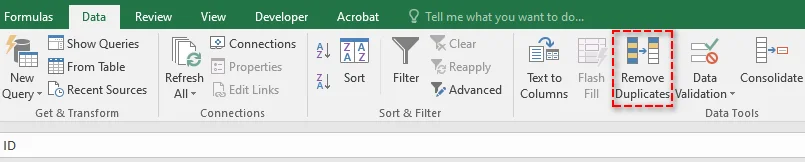
Gehen Sie zur Registerkarte Daten im Menüband und klicken Sie auf die Schaltfläche Duplikate entfernen, die sich in der Gruppe Datentools befindet.
Schritt 3: Wählen Sie Ihre Spalten aus
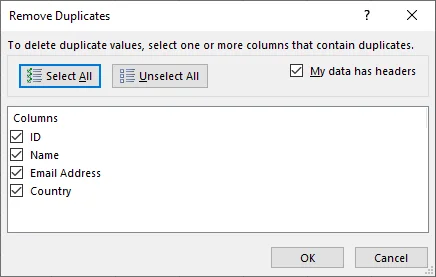
Nachdem Sie auf die Schaltfläche "Duplikate entfernen" geklickt haben, wird ein Dialogfeld angezeigt:
- Wenn Ihre Daten Überschriften haben, stellen Sie sicher, dass das Kontrollkästchen Meine Daten haben Überschriften aktiviert ist. Dadurch behandelt Excel die erste Zeile als Überschriften und nicht als Daten.
- Standardmäßig wählt Excel alle Spalten zur Duplikatsprüfung aus. Wenn Sie nur Duplikate in bestimmten Spalten (z. B. "E-Mail-Adresse") finden möchten, deaktivieren Sie die Spalten, die Sie nicht benötigen.
Schritt 4: Ausführen und Bestätigen
Klicken Sie auf OK. Excel verarbeitet die Daten und zeigt eine Meldung an, wie viele doppelte Werte gefunden und entfernt wurden und wie viele eindeutige Werte verbleiben.

Das könnte Ihnen auch gefallen: Datenüberprüfung in Excel entfernen: Daten behalten, Einschränkungen aufheben
Doppelte Zeilen mit dem erweiterten Filter entfernen
Die Methode des erweiterten Filters bietet mehr Kontrolle über Ihre Daten. Im Gegensatz zum Tool "Duplikate entfernen" werden Duplikate nicht automatisch gelöscht, sondern eine Liste eindeutiger Datensätze an einen neuen Speicherort extrahiert. Dieser Ansatz ist ideal, wenn Sie die eindeutige Liste überprüfen möchten, bevor Sie Änderungen an den Originaldaten vornehmen.
Am besten für: Wenn Sie die Originaldaten intakt halten und die Ergebnisse überprüfen möchten, bevor Sie Löschungen vornehmen.
Schritt-für-Schritt-Anleitung:
Schritt 1: Wählen Sie Ihre Daten aus
Klicken Sie auf eine beliebige Zelle in Ihrem Datenbereich.
Schritt 2: Öffnen Sie den erweiterten Filter
Gehen Sie zur Registerkarte Daten und klicken Sie auf die Schaltfläche Erweitert, die sich in der Gruppe Sortieren & Filtern befindet.

Schritt 3: Konfigurieren Sie den Filter
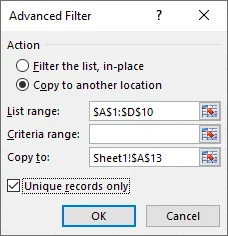
Im Pop-up-Fenster:
- Wählen Sie die Schaltfläche An eine andere Stelle kopieren.
- Der Listenbereich sollte bereits mit Ihrem Datenbereich gefüllt sein.
- Lassen Sie den Kriterienbereich leer.
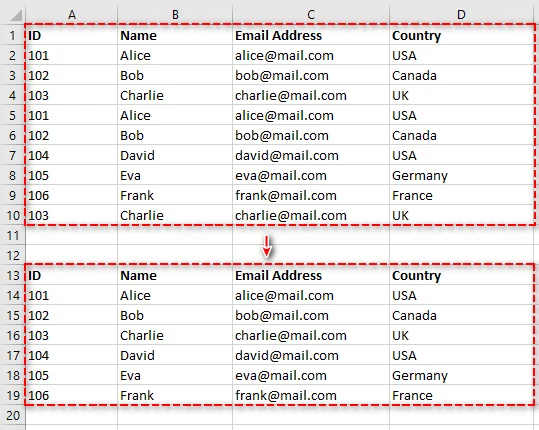
- Klicken Sie in das Feld Kopieren nach und wählen Sie dann eine Zelle aus, in die die eindeutige Liste kopiert werden soll (z. B. $A$13).
- Aktivieren Sie unbedingt das Kontrollkästchen für "Nur eindeutige Datensätze".
Schritt 4: Ausführen und Bestätigen
Klicken Sie auf OK. Excel kopiert alle eindeutigen Zeilen aus Ihrem ursprünglichen Datenbereich an den von Ihnen angegebenen neuen Speicherort. Sie können diese eindeutige Liste nun mit Ihren Originaldaten vergleichen.
Duplikate in Excel mit einer Hilfsspalte für bedingte Formatierung finden und entfernen
Wenn Sie es vorziehen, nichts sofort zu löschen, sondern Duplikate zur manuellen Überprüfung identifizieren und hervorheben möchten, ist diese Methode perfekt. Sie ermöglicht es Ihnen, Duplikate mit einer Formel zu markieren und sie dann nach Bedarf zu filtern und zu löschen.
Am besten für: Sorgfältiges Überprüfen und manuelles Entfernen von Duplikaten ohne sofortige endgültige Löschung.
Schritt-für-Schritt-Anleitung:
Schritt 1: Fügen Sie eine Hilfsspalte hinzu
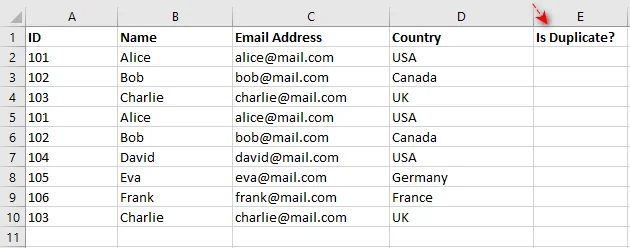
Fügen Sie rechts neben Ihren Daten eine neue Spalte ein und geben Sie ihr eine beschreibende Überschrift wie "Ist Duplikat?". Diese Spalte wird verwendet, um doppelte Einträge zur einfachen Identifizierung zu markieren.
Schritt 2: Geben Sie die Formel ein
Geben Sie in die erste Zelle der neuen Spalte die folgende Formel ein. Stellen Sie sicher, dass Sie die Bereiche an Ihre Daten anpassen:
=ZÄHLENWENNS($A$2:$A2; A2; $B$2:$B2; B2; $C$2:$C2; C2; $D$2:$D2; D2) > 1
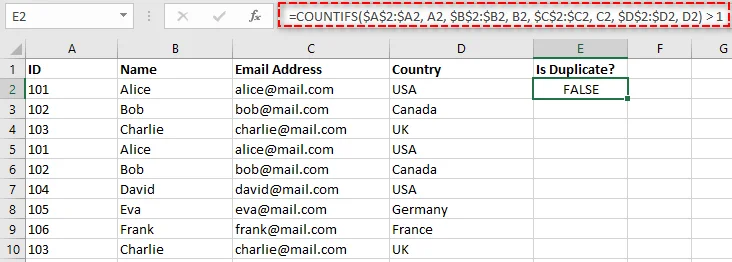
Dies ist eine "laufende Zählung"-Formel, die prüft, wie oft die Wertekombination der aktuellen Zeile (aus den Spalten A, B, C und D) bisher erschienen ist. Wenn die Zählung größer als 1 ist, wird WAHR zurückgegeben, was auf ein Duplikat hinweist.
Hinweis: Eine modernere Alternative ist die UNIQUE-Funktion in Excel 365, aber diese ZÄHLENWENNS-Methode funktioniert in allen Versionen von Excel.
Schritt 3: Kopieren Sie die Formel nach unten
Um die Formel auf die restlichen Zeilen anzuwenden, doppelklicken Sie auf das Füllkästchen (das kleine Quadrat unten rechts in der Zelle). Dadurch wird die Formel in die gesamte Spalte kopiert und alle Duplikate markiert.

Schritt 4: Filtern und Löschen
-
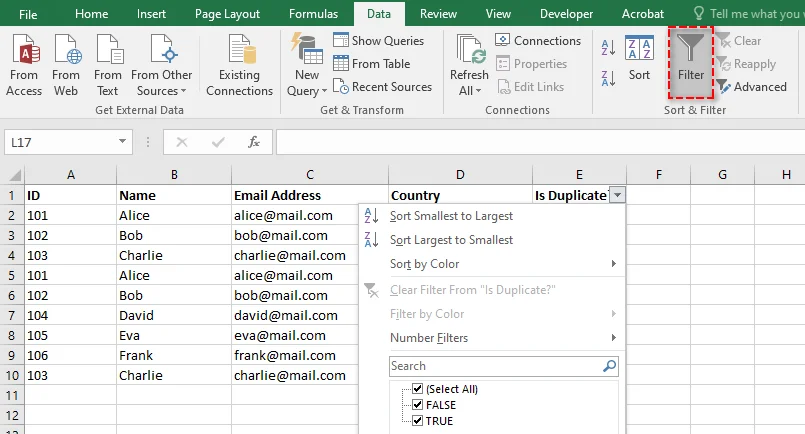
Wenden Sie einen Filter an auf Ihre Daten, indem Sie Ihre Kopfzeile auswählen und auf Daten > Filtern klicken.
-
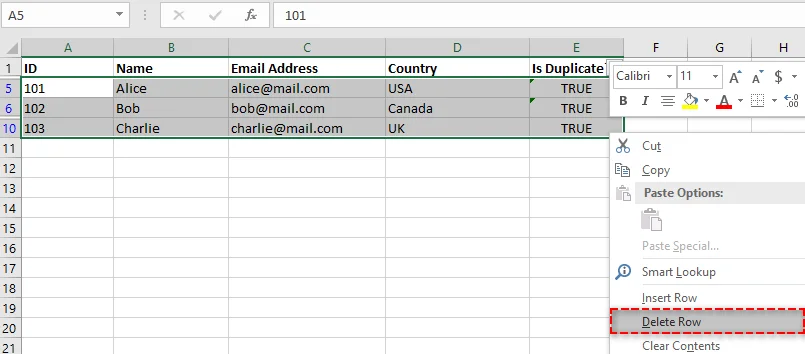
Filtern Sie die Spalte "Ist Duplikat?", um nur WAHR-Werte anzuzeigen. Dadurch werden alle doppelten Zeilen angezeigt (wobei die erste Instanz beibehalten wird).
-
Wählen Sie alle sichtbaren Zeilen aus, klicken Sie mit der rechten Maustaste und wählen Sie Zeile löschen, um die Duplikate zu entfernen.
-
Löschen Sie den Filter, um Ihre saubere, eindeutige Datenliste anzuzeigen.
Doppelte Daten in Excel mit Power Query entfernen
Für diejenigen, die regelmäßig mit Daten arbeiten, ist Power Query (auch bekannt als Abrufen & Transformieren) ein entscheidender Vorteil. Es ist ein nicht-destruktiver und vollständig umkehrbarer Prozess, mit dem Sie Daten bereinigen können, ohne das Original dauerhaft zu verändern. Außerdem kann Power Query mit einem einzigen Klick aktualisiert werden, wenn sich Ihre Quelldaten ändern, was es ideal für die laufende Datenverwaltung macht.
Am besten für: Bereinigung regelmäßig aktualisierter Daten und Erstellung eines wiederholbaren Datenbereinigungsprozesses.
Schritt-für-Schritt-Anleitung:
Schritt 1: Laden Sie Ihre Daten in Power Query
-
Wählen Sie Ihren Datenbereich aus.
-
Gehen Sie zur Registerkarte Daten und klicken Sie in der Gruppe Abrufen & Transformieren auf Aus Tabelle.

-
Stellen Sie im Dialogfeld sicher, dass das Kontrollkästchen Meine Tabelle hat Überschriften aktiviert ist, und klicken Sie dann auf OK. Dadurch wird das Fenster des Power Query-Editors geöffnet, in dem Sie Ihre Daten bereinigen und transformieren können.
Schritt 2: Duplikate entfernen
Im Power Query-Editor können Sie Duplikate basierend auf ausgewählten Spalten entfernen:
-
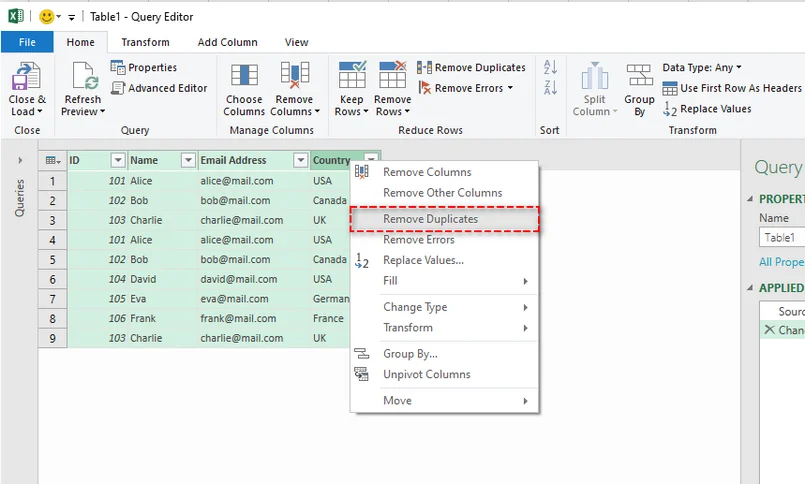
Wählen Sie die Spalten aus, auf denen die Duplikatsprüfung basieren soll. Halten Sie Strg gedrückt, um mehrere Spalten auszuwählen.
-
Klicken Sie mit der rechten Maustaste auf eine der ausgewählten Spaltenüberschriften und wählen Sie Duplikate entfernen aus dem Kontextmenü.
- Tipp: Um Duplikate basierend auf der gesamten Zeile zu entfernen, wählen Sie alle Spalten aus, bevor Sie auf Duplikate entfernen klicken.
Schritt 3: Schließen und Laden
Sobald Ihre Duplikate entfernt sind, klicken Sie auf Schließen & Laden auf der Registerkarte Start. Power Query erstellt ein neues Arbeitsblatt mit Ihren bereinigten, duplikatfreien Daten.
Duplikate mit der UNIQUE-Funktion in Excel 365 eliminieren
Wenn Sie Microsoft 365 haben, haben Sie Zugriff auf die revolutionären dynamischen Array-Funktionen. Die UNIQUE-Funktion ist der einfachste Weg, eine Liste eindeutiger Werte in Excel zu extrahieren, ohne die Originaldaten zu verändern.
Am besten für: Sofortiges Extrahieren einer eindeutigen Liste, die sich dynamisch aktualisiert.
Schritt-für-Schritt-Anleitung:
Schritt 1: Wählen Sie eine einzelne Zelle aus
Klicken Sie auf eine leere Zelle, in der die eindeutige Liste erscheinen soll. Dies ist der Ausgangspunkt, an dem die eindeutigen Werte "überlaufen" werden.
Schritt 2: Geben Sie die UNIQUE-Formel ein
Geben Sie in die ausgewählte Zelle die folgende Formel ein:
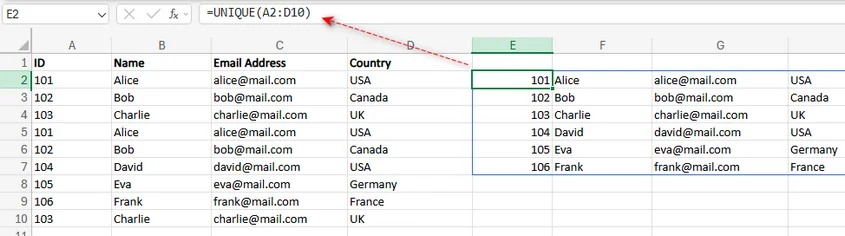
=UNIQUE(A2:D10)
Dies setzt voraus, dass sich Ihre Daten im Bereich A2:D10 befinden. Passen Sie den Bereich entsprechend Ihrem Datensatz an.
Schritt 3: Drücken Sie die Eingabetaste
Sobald Sie die Formel eingegeben haben, drücken Sie einfach die Eingabetaste. Excel füllt automatisch die gesamte Liste der eindeutigen Zeilen in die Zellen darunter. Diese neue Liste ist dynamisch. Wenn Sie Daten in Ihrem ursprünglichen Bereich ändern, wird die eindeutige Liste automatisch aktualisiert.
Weitere Informationen zur UNIQUE-Funktion finden Sie in der offiziellen Microsoft-Dokumentation: UNIQUE-Funktion.
Automatisieren Sie das Entfernen doppelter Zeilen in Excel mit C#
Wenn Sie mit großen Excel-Dateien arbeiten und das Entfernen doppelter Zeilen in Excel automatisieren müssen, kann die Verwendung von C# mit einer Bibliothek wie Spire.XLS for .NET den Prozess vereinfachen. Mit diesem Tool können Sie Excel-Dateien programmgesteuert erstellen, lesen und bearbeiten, ohne dass Excel auf Ihrem System installiert sein muss.
Mit Spire.XLS können Sie doppelte Zeilen aus Excel-Dateien mit nur wenigen Zeilen C#-Code einfach entfernen, was Ihnen Zeit spart und Ihren Datenmanagement-Workflow verbessert.
Am besten für: Entwickler oder alle, die die Datenbereinigung automatisieren möchten, insbesondere bei großen Datensätzen.
Schritt-für-Schritt-Anleitung:
Schritt 1: Installieren Sie Spire.XLS über NuGet
Um zu beginnen, müssen Sie die Bibliothek herunterladen oder von NuGet installieren, indem Sie den folgenden Befehl in der NuGet-Paket-Manager-Konsole ausführen:
PM> Install-Package Spire.XLS
Dadurch wird die Spire.XLS-Bibliothek zu Ihrem Projekt hinzugefügt, sodass Sie Excel-Dateien programmgesteuert bearbeiten können.
Schritt 2: Verwenden Sie die RemoveDuplicates-Methode
Verwenden Sie in Ihrer C#-Anwendung die RemoveDuplicates-Methode von Spire.XLS, um das Entfernen doppelter Zeilen zu automatisieren. Hier ist ein einfaches Code-Snippet zum Entfernen doppelter Zeilen aus Excel in C#:
using Spire.Xls;

namespace RemoveDuplicateRows
{
    internal class Program
    {
        static void Main(string[] args)
        {
            // Öffnen Sie die Excel-Datei
            Workbook workbook = new Workbook();
            workbook.LoadFromFile("input.xlsx");

            // Holen Sie sich das gewünschte Arbeitsblatt
            Worksheet sheet = workbook.Worksheets[0];

            // Entfernen Sie Duplikate aus dem angegebenen Zellbereich (wenn Sie alle Duplikate im Arbeitsblatt entfernen möchten, setzen Sie die Parameter nicht)
            sheet.RemoveDuplicates(2, 1, 10, 4);

            // Speichern Sie die geänderte Datei
            workbook.SaveToFile("RemoveDuplicates.xlsx", ExcelVersion.Version2016);
            workbook.Dispose();
        }
    }
}
Dieser Code entfernt doppelte Zeilen im angegebenen Zellbereich und speichert die bereinigte Arbeitsmappe in einer neuen Datei.

Welche Methode sollten Sie wählen, um doppelte Zeilen in Excel zu entfernen?
Nachdem Sie nun mit verschiedenen Techniken zum Entfernen doppelter Zeilen aus Excel vertraut sind, ist es wichtig zu verstehen, welche Methode Ihren spezifischen Anforderungen am besten entspricht. Die folgende Tabelle vergleicht jede Methode hinsichtlich ihres idealen Anwendungsfalls, ihrer Vorteile und potenziellen Nachteile und hilft Ihnen, eine fundierte Entscheidung auf der Grundlage Ihrer Anforderungen zu treffen.
| Methode | Am besten für | Vorteile | Nachteile |
|---|---|---|---|
| Duplikate entfernen | Schnelle, einmalige Bereinigung. | Schnell, integriert, einfach. | Destruktiv (kein Rückgängigmachen). |
| Erweiterter Filter | Überprüfung eindeutiger Listen vor dem Löschen. | Nicht-destruktiv, gibt Kontrolle. | Etwas mehr Schritte. |
| Hilfsspalte | Manuelle Überprüfung und komplexe Kriterien. | Sehr flexibel, visuell. | Erfordert Formelkenntnisse. |
| Power Query | Wiederholung des Prozesses bei aktualisierten Daten. | Wiederverwendbar, leistungsstark, nicht-destruktiv. | Steilere Lernkurve. |
| UNIQUE-Funktion | Dynamische Extraktion (Excel 365). | Sofortige, dynamische, einfache Formel. | Löscht keine Quelldaten. |
| C#-Automatisierung | Automatisierung sich wiederholender Aufgaben. | Vollautomatisch, hochgradig anpassbar, integrierbar in andere Prozesse. | Erfordert Programmierkenntnisse, Einrichtungskomplexität. |
Beste Praktiken zum Entfernen von Duplikaten in Excel
Während die Wahl der richtigen Methode zum Entfernen von Duplikaten entscheidend ist, kann die Befolgung bewährter Verfahren die Genauigkeit und Effizienz Ihres Datenbereinigungsprozesses weiter verbessern. Hier sind einige wichtige Tipps, die Sie beim Entfernen doppelter Daten aus Ihren Excel-Dateien beachten sollten.
-
Sichern Sie Ihre Daten
Erstellen Sie immer eine Sicherungskopie Ihrer Daten, bevor Sie Duplikate entfernen, um einen versehentlichen Verlust wichtiger Informationen zu vermeiden.
-
Achten Sie auf versteckte Duplikate
Manchmal sind Duplikate aufgrund von zusätzlichen Leerzeichen oder der Groß-/Kleinschreibung nicht sofort sichtbar. Verwenden Sie die GLÄTTEN-Funktion, um unerwünschte Leerzeichen zu entfernen, und normalisieren Sie die Groß-/Kleinschreibung mit den Funktionen KLEIN oder GROSS.
-
Duplikate aus bestimmten Spalten entfernen
Wenn Duplikate nur für bestimmte Spalten relevant sind (wie E-Mail-Adressen), wählen Sie nur diese Spalten aus, wenn Sie Duplikate entfernen, anstatt die gesamte Zeile zu überprüfen.
-
Überprüfen Sie die Daten vor dem Löschen
Wenn Sie nicht-destruktive Methoden verwenden (wie Erweiterter Filter oder Power Query), überprüfen Sie die Ergebnisse vor dem Löschen, um sicherzustellen, dass keine wertvollen Daten verloren gehen.
-
Testen Sie Methoden an einem kleinen Datensatz
Testen Sie Ihre gewählte Methode immer an einem kleinen Datensatz, um sicherzustellen, dass sie wie erwartet funktioniert, bevor Sie sie auf den gesamten Datensatz anwenden.
Fazit
Unabhängig von der Größe Ihres Datensatzes ist das Entfernen doppelter Zeilen aus Excel ein entscheidender Schritt zur Aufrechterhaltung sauberer und genauer Daten. Ob Sie die integrierten Tools von Excel verwenden, Power Query für die erweiterte Datentransformation nutzen, die dynamische UNIQUE-Funktion in Excel 365 anwenden oder den Prozess mit C# unter Verwendung von Spire.XLS automatisieren, diese Methoden können Ihnen helfen, doppelte Zeilen effizient aus Excel zu entfernen und Ihr Datenmanagement zu optimieren.
Beginnen Sie noch heute mit der Bereinigung Ihrer Daten mit diesen leistungsstarken Techniken und bringen Sie Ihre Excel-Produktivität auf die nächste Stufe!
FAQs: Doppelte Zeilen aus Excel entfernen
F1. Was ist der einfachste Weg, doppelte Zeilen aus Excel zu entfernen?
A1: Der einfachste Weg, doppelte Zeilen aus Excel zu entfernen, ist die Verwendung des integrierten Duplikate entfernen-Tools. Wählen Sie einfach Ihren Datenbereich aus, und Excel entfernt Duplikate mit wenigen Klicks.
F2. Wie kann ich Duplikate entfernen, ohne die Originaldaten zu ändern?
A2: Verwenden Sie Power Query oder den Erweiterten Filter, um eindeutige Datensätze an einen neuen Speicherort zu extrahieren und die Originaldaten intakt zu halten.
F3. Wie hilft die UNIQUE-Funktion in Excel 365 beim Entfernen von Duplikaten?
A3: Die UNIQUE-Funktion in Excel 365 entfernt Duplikate dynamisch, indem sie eindeutige Werte extrahiert, und sie wird automatisch aktualisiert, wenn sich die Daten ändern.
F4. Kann ich das Entfernen von Duplikaten in Excel mit C# automatisieren?
A4: Ja, Sie können den Prozess mit Spire.XLS for .NET automatisieren. Nur wenige Zeilen C#-Code können Ihnen helfen, Duplikate programmgesteuert zu entfernen und so bei großen Datensätzen Zeit zu sparen.
F5. Sollte ich meine Daten sichern, bevor ich Duplikate entferne?
A5: Ja, sichern Sie Ihre Daten immer, bevor Sie Duplikate entfernen, insbesondere wenn Sie das Duplikate entfernen-Tool verwenden, um einen versehentlichen Verlust zu vermeiden.
Siehe auch
Как удалить дубликаты строк в Excel — 6 простых способов
Удаление дублирующихся строк из Excel может быть сложной задачей, особенно при работе с большими наборами данных. Независимо от того, чистите ли вы список контактов, анализируете данные о продажах или организуете результаты исследований, удаление дубликатов имеет решающее значение для улучшения качества данных и обеспечения точного анализа.
В этом руководстве мы покажем вам 6 простых методов удаления дублирующихся строк из Excel. От использования встроенного в Excel инструмента «Удалить дубликаты» для быстрых исправлений до использования передовых методов, таких как Power Query и автоматизация на C#, вы узнаете, как оптимизировать свой рабочий процесс и поддерживать чистоту и порядок в данных.
Что вы узнаете
- Зачем удалять дублирующиеся строки из Excel?
- Как удалить дублирующиеся строки из Excel?
- Удаление дублирующихся строк с помощью инструмента «Удалить дубликаты»
- Удаление дублирующихся строк с помощью расширенного фильтра
- Поиск и удаление дубликатов в Excel с помощью вспомогательного столбца условного форматирования
- Удаление дублирующихся данных в Excel с помощью Power Query
- Устранение дубликатов с помощью функции UNIQUE в Excel 365
- Автоматизация удаления дублирующихся строк в Excel с помощью C#
- Какой метод выбрать для удаления дублирующихся строк в Excel
- Лучшие практики по удалению дубликатов в Excel
Зачем удалять дублирующиеся строки из Excel?
Прежде чем мы углубимся в методы, давайте сначала обсудим, почему удаление дублирующихся строк из Excel так важно:
- Точность данных: Обеспечьте точность и надежность вычислений, таких как суммы и средние значения.
- Чистая отчетность: создавайте точные сводные таблицы, диаграммы и информационные панели без риска двойного учета.
- Профессионализм: предоставляйте своей команде или клиентам чистые, безошибочные данные, повышая свой авторитет.
- Эффективность: уменьшите размер файла и повысьте производительность электронных таблиц для более быстрой загрузки и обработки.
Как удалить дублирующиеся строки из Excel?
Когда дело доходит до удаления дублирующихся строк в Excel, существует несколько методов, которые вы можете использовать в зависимости от ваших конкретных потребностей. В этом разделе мы рассмотрим 6 способов очистки дублирующихся данных в Excel, каждый из которых предназначен для разных ситуаций:
- Использование инструмента «Удалить дубликаты»
- Использование расширенного фильтра
- Использование вспомогательного столбца условного форматирования
- Использование Power Query
- Использование функции UNIQUE в Excel 365
- Автоматизация процесса с помощью C#
Давайте рассмотрим каждый метод, чтобы вы могли легко выбрать лучший вариант для быстрого и эффективного удаления дубликатов из Excel.
Удаление дублирующихся строк с помощью инструмента «Удалить дубликаты»
Функция «Удалить дубликаты» в Excel — это самый быстрый и простой способ очистить ваши данные. Этот инструмент позволяет удалять дубликаты на основе целых строк или определенных столбцов.
Лучше всего подходит для: быстрой одноразовой очистки всего набора данных.
Пошаговые инструкции:
Шаг 1: Выберите свои данные
Щелкните любую ячейку в наборе данных. Excel автоматически обнаружит и выберет весь непрерывный диапазон данных. Если вы хотите удалить дубликаты из определенного диапазона, выберите этот диапазон вручную, прежде чем продолжить.
Шаг 2: Перейдите к инструменту «Удалить дубликаты»
Перейдите на вкладку Данные на ленте и нажмите кнопку Удалить дубликаты, которая находится в группе Инструменты данных.
Шаг 3: Выберите столбцы
После нажатия кнопки «Удалить дубликаты» появится диалоговое окно:
- Если ваши данные имеют заголовки, убедитесь, что установлен флажок Мои данные имеют заголовки. Это позволяет Excel рассматривать первую строку как заголовки, а не как данные.
- По умолчанию Excel выбирает все столбцы для проверки на наличие дубликатов. Если вы хотите найти дубликаты только в определенных столбцах (например, "Адрес электронной почты"), снимите флажки со столбцов, которые вам не нужны.
Шаг 4: Выполните и подтвердите
Нажмите ОК. Excel обработает данные и отобразит сообщение о том, сколько дублирующихся значений было найдено и удалено, а также сколько уникальных значений осталось.
Вам также может понравиться: Удаление проверки данных в Excel: сохранение данных, снятие ограничений
Удаление дублирующихся строк с помощью расширенного фильтра
Метод расширенного фильтра обеспечивает больший контроль над вашими данными. В отличие от инструмента «Удалить дубликаты», он не удаляет дубликаты автоматически, а извлекает список уникальных записей в новое место. Этот подход идеален, если вы хотите просмотреть уникальный список перед внесением каких-либо изменений в исходные данные.
Лучше всего подходит для: случаев, когда вы хотите сохранить исходные данные в целости и просмотреть результаты перед внесением каких-либо удалений.
Пошаговые инструкции:
Шаг 1: Выберите свои данные
Щелкните любую ячейку в диапазоне данных.
Шаг 2: Откройте расширенный фильтр
Перейдите на вкладку Данные и нажмите кнопку Дополнительно, которая находится в группе Сортировка и фильтр.
Шаг 3: Настройте фильтр
Во всплывающем окне:
- Нажмите кнопку Копировать в другое место.
- Диапазон списка уже должен быть заполнен вашим диапазоном данных.
- Оставьте диапазон критериев пустым.
- Щелкните в поле Копировать в, затем выберите ячейку, в которую вы хотите скопировать уникальный список (например, $A$13).
- Важно: установите флажок для "Только уникальные записи".
Шаг 4: Выполните и подтвердите
Нажмите ОК. Excel скопирует все уникальные строки из исходного диапазона данных в указанное вами новое место. Теперь вы можете сравнить этот уникальный список с исходными данными.
Поиск и удаление дубликатов в Excel с помощью вспомогательного столбца условного форматирования
Если вы предпочитаете не удалять ничего сразу, а вместо этого хотите выявить и выделить дубликаты для ручной проверки, этот метод идеален. Он позволяет помечать дубликаты с помощью формулы, а затем фильтровать и удалять их по мере необходимости.
Лучше всего подходит для: тщательного просмотра и ручного удаления дубликатов без немедленного окончательного удаления.
Пошаговые инструкции:
Шаг 1: Добавьте вспомогательный столбец
Вставьте новый столбец справа от ваших данных и дайте ему описательный заголовок, например "Дубликат?". Этот столбец будет использоваться для пометки дублирующихся записей для легкой идентификации.
Шаг 2: Введите формулу
В первую ячейку нового столбца введите следующую формулу. Обязательно настройте диапазоны в соответствии с вашими данными:
=COUNTIFS($A$2:$A2, A2, $B$2:$B2, B2, $C$2:$C2, C2, $D$2:$D2, D2) > 1
Это формула "текущего подсчета", которая проверяет, сколько раз комбинация значений текущей строки (из столбцов A, B, C и D) встречалась до сих пор. Если счетчик больше 1, она вернет TRUE, указывая на дубликат.
Примечание: более современной альтернативой является функция UNIQUE в Excel 365, но этот метод COUNTIFS работает во всех версиях Excel.
Шаг 3: Скопируйте формулу вниз
Чтобы применить формулу к остальным строкам, дважды щелкните маркер заполнения (маленький квадрат в правом нижнем углу ячейки). Это скопирует формулу вниз по всему столбцу, помечая все дубликаты.
Шаг 4: Отфильтруйте и удалите
-
Примените фильтр к своим данным, выбрав строку заголовка и нажав Данные > Фильтр.
-
Отфильтруйте столбец "Дубликат?", чтобы отображались только значения TRUE. Это отобразит все дублирующиеся строки (сохраняя первый экземпляр).
-
Выберите все видимые строки, щелкните правой кнопкой мыши и выберите Удалить строку, чтобы удалить дубликаты.
-
Очистите фильтр, чтобы просмотреть чистый, уникальный список данных.
Удаление дублирующихся данных в Excel с помощью Power Query
Для тех, кто регулярно работает с данными, Power Query (также известный как Get & Transform) меняет правила игры. Это неразрушающий и полностью обратимый процесс, позволяющий очищать данные без необратимого изменения оригинала. Кроме того, Power Query можно обновить одним щелчком мыши, если исходные данные изменятся, что делает его идеальным для текущего управления данными.
Лучше всего подходит для: очистки регулярно обновляемых данных и создания повторяемого процесса очистки данных.
Пошаговые инструкции:
Шаг 1: Загрузите данные в Power Query
-
Выберите диапазон данных.
-
Перейдите на вкладку Данные и нажмите Из таблицы в группе Получить и преобразовать.
-
В диалоговом окне убедитесь, что установлен флажок Моя таблица имеет заголовки, затем нажмите ОК. Откроется окно редактора Power Query, где вы сможете очищать и преобразовывать свои данные.
Шаг 2: Удалите дубликаты
В редакторе Power Query вы можете удалять дубликаты на основе выбранных столбцов:
-
Выберите столбцы, на основе которых вы хотите проверять наличие дубликатов. Удерживайте Ctrl, чтобы выбрать несколько столбцов.
-
Щелкните правой кнопкой мыши один из выбранных заголовков столбцов и выберите Удалить дубликаты в контекстном меню.
- Совет: чтобы удалить дубликаты на основе всей строки, выберите все столбцы, прежде чем нажимать Удалить дубликаты.
Шаг 3: Закройте и загрузите
После удаления дубликатов нажмите Закрыть и загрузить на вкладке Главная. Power Query создаст новый рабочий лист с вашими очищенными данными без дубликатов.
Устранение дубликатов с помощью функции UNIQUE в Excel 365
Если у вас есть Microsoft 365, у вас есть доступ к революционным функциям динамических массивов. Функция UNIQUE — это самый простой способ извлечь список уникальных значений в Excel без изменения исходных данных.
Лучше всего подходит для: мгновенного извлечения уникального списка, который обновляется динамически.
Пошаговые инструкции:
Шаг 1: Выберите одну ячейку
Щелкните пустую ячейку, в которой вы хотите, чтобы появился уникальный список. Это будет начальная точка, куда будут "выливаться" уникальные значения.
Шаг 2: Введите формулу UNIQUE
В выбранной ячейке введите следующую формулу:
=UNIQUE(A2:D10)
Это предполагает, что ваши данные находятся в диапазоне A2:D10. Измените диапазон в соответствии с вашим набором данных.
Шаг 3: Нажмите Enter
После ввода формулы просто нажмите Enter. Excel автоматически выведет весь список уникальных строк в ячейки ниже. Этот новый список является динамическим. Если вы измените данные в исходном диапазоне, уникальный список обновится автоматически.
Для получения дополнительной информации о функции UNIQUE см. официальную документацию Microsoft: функция UNIQUE.
Автоматизация удаления дублирующихся строк в Excel с помощью C#
Если вы работаете с большими файлами Excel и вам необходимо автоматизировать удаление дублирующихся строк в Excel, использование C# с библиотекой, такой как Spire.XLS for .NET, может упростить этот процесс. Этот инструмент позволяет создавать, читать и управлять файлами Excel программно, без необходимости установки Excel в вашей системе.
С помощью Spire.XLS вы можете легко удалять дублирующиеся строки из файлов Excel, используя всего несколько строк кода C#, что сэкономит ваше время и улучшит рабочий процесс управления данными.
Лучше всего подходит для: разработчиков или всех, кто хочет автоматизировать очистку данных, особенно для больших наборов данных.
Пошаговые инструкции:
Шаг 1: Установите Spire.XLS через NuGet
Для начала вам необходимо загрузить библиотеку или установить ее из NuGet, выполнив следующую команду в консоли диспетчера пакетов NuGet:
PM> Install-Package Spire.XLS
Это добавит библиотеку Spire.XLS в ваш проект, что позволит вам программно управлять файлами Excel.
Шаг 2: Используйте метод RemoveDuplicates
В своем приложении C# используйте метод RemoveDuplicates, предоставляемый Spire.XLS, для автоматизации удаления дублирующихся строк. Вот простой фрагмент кода для удаления дублирующихся строк из Excel на C#:
using Spire.Xls;

namespace RemoveDuplicateRows
{
    internal class Program
    {
        static void Main(string[] args)
        {
            // Open the Excel file
            Workbook workbook = new Workbook();
            workbook.LoadFromFile("input.xlsx");

            // Get the desired worksheet
            Worksheet sheet = workbook.Worksheets[0];

            // Remove duplicates from the specified cell range (if you want to remove all duplicates in the worksheet, do not set the parameters)
            sheet.RemoveDuplicates(2, 1, 10, 4);

            // Save the modified file
            workbook.SaveToFile("RemoveDuplicates.xlsx", ExcelVersion.Version2016);
            workbook.Dispose();
        }
    }
}
Этот код удалит дублирующиеся строки в указанном диапазоне ячеек и сохранит очищенную книгу в новый файл.
Какой метод выбрать для удаления дублирующихся строк в Excel?
Теперь, когда вы знакомы с различными методами удаления дублирующихся строк из Excel, важно понять, какой метод лучше всего соответствует вашим конкретным потребностям. В следующей таблице сравнивается каждый метод с точки зрения его идеального варианта использования, преимуществ и потенциальных недостатков, что поможет вам принять обоснованное решение на основе ваших требований.
| Метод | Лучше всего подходит для | Плюсы | Минусы |
|---|---|---|---|
| Удалить дубликаты | Быстрая, разовая очистка. | Быстро, встроенный, просто. | Разрушительный (без отмены). |
| Расширенный фильтр | Просмотр уникальных списков перед удалением. | Неразрушающий, дает контроль. | Немного больше шагов. |
| Вспомогательный столбец | Ручной просмотр и сложные критерии. | Очень гибкий, наглядный. | Требуются знания формул. |
| Power Query | Повторение процесса на обновленных данных. | Многоразовый, мощный, неразрушающий. | Более крутая кривая обучения. |
| Функция UNIQUE | Динамическое извлечение (Excel 365). | Мгновенная, динамическая, простая формула. | Не удаляет исходные данные. |
| Автоматизация на C# | Автоматизация повторяющихся задач. | Полностью автоматизированный, легко настраиваемый, интегрируется с другими процессами. | Требуются знания в области программирования, сложность настройки. |
Лучшие практики по удалению дубликатов в Excel
Хотя выбор правильного метода удаления дубликатов имеет решающее значение, соблюдение лучших практик может еще больше повысить точность и эффективность процесса очистки данных. Вот несколько важных советов, которые следует учитывать при удалении дублирующихся данных из файлов Excel.
-
Резервное копирование ваших данных
Всегда создавайте резервную копию своих данных перед удалением дубликатов, чтобы избежать случайной потери важной информации.
-
Остерегайтесь скрытых дубликатов
Иногда дубликаты не видны сразу из-за лишних пробелов или чувствительности к регистру. Используйте функцию TRIM для удаления ненужных пробелов и нормализуйте регистр с помощью функций LOWER или UPPER.
-
Удаление дубликатов из определенных столбцов
Если дубликаты относятся только к определенным столбцам (например, адресам электронной почты), выберите только эти столбцы при удалении дубликатов, а не проверяйте всю строку.
-
Просмотрите данные перед удалением
Если вы используете неразрушающие методы (например, Расширенный фильтр или Power Query), просмотрите результаты перед удалением, чтобы убедиться, что ценные данные не будут потеряны.
-
Протестируйте методы на небольшом наборе данных
Всегда тестируйте выбранный вами метод на небольшом наборе данных, чтобы убедиться, что он работает должным образом, прежде чем применять его ко всему набору данных.
Заключение
Независимо от размера вашего набора данных, удаление дублирующихся строк из Excel является важным шагом в поддержании чистых и точных данных. Независимо от того, используете ли вы встроенные инструменты Excel, используете Power Query для расширенного преобразования данных, применяете динамическую функцию UNIQUE в Excel 365 или автоматизируете процесс с помощью C# с использованием Spire.XLS, эти методы могут помочь вам эффективно удалить дублирующиеся строки из Excel и оптимизировать управление данными.
Начните очищать свои данные уже сегодня с помощью этих мощных методов и поднимите свою производительность в Excel на новый уровень!
Часто задаваемые вопросы: удаление дублирующихся строк из Excel
В1. Какой самый простой способ удалить дублирующиеся строки из Excel?
О1: Самый простой способ удалить дублирующиеся строки из Excel — использовать встроенный инструмент Удалить дубликаты. Просто выберите диапазон данных, и Excel удалит дубликаты за несколько кликов.
В2. Как удалить дубликаты, не изменяя исходные данные?
О2: Используйте Power Query или Расширенный фильтр, чтобы извлечь уникальные записи в новое место, сохранив исходные данные в целости.
В3. Как функция UNIQUE в Excel 365 помогает удалять дубликаты?
О3: Функция UNIQUE в Excel 365 динамически удаляет дубликаты, извлекая уникальные значения, и она автоматически обновляется при изменении данных.
В4. Могу ли я автоматизировать удаление дубликатов в Excel с помощью C#?
О4: Да, вы можете автоматизировать этот процесс с помощью Spire.XLS for .NET. Всего несколько строк кода C# помогут вам программно удалить дубликаты, сэкономив время на больших наборах данных.
В5. Следует ли мне создавать резервную копию своих данных перед удалением дубликатов?
О5: Да, всегда создавайте резервную копию своих данных перед удалением дубликатов, особенно при использовании инструмента Удалить дубликаты, чтобы избежать случайной потери.
Смотрите также
4 modi pratici per unire facilmente le presentazioni PowerPoint
Indice

Quando si crea una presentazione PowerPoint professionale, potrebbe essere spesso necessario combinare contenuti da più mazzi di diapositive, ad esempio quando si collabora con i compagni di squadra, si riutilizzano diapositive da progetti più vecchi o si consolidano i rapporti dipartimentali. In tali casi, imparare come unire le presentazioni di PowerPoint in modo efficiente può far risparmiare tempo significativo e garantire la coerenza tra le diapositive.
Questa guida illustra cinque modi pratici per unire i file di PowerPoint. Che tu preferisca usare Microsoft PowerPoint stesso, strumenti di unione online, software desktop gratuiti o script Python automatizzati, troverai il metodo che meglio si adatta al tuo flusso di lavoro.
Contenuti:
- Unire File PowerPoint Utilizzando Microsoft PowerPoint
- Combinare File PowerPoint Online
- Unire File PowerPoint Utilizzando Software Desktop Gratuito
- Automatizzare l'Unione di PowerPoint con Python
Perché Unire le Presentazioni di PowerPoint?
L'unione di mazzi di diapositive PowerPoint è una necessità comune sia in ambito aziendale che educativo. Ti permette di:
- Collaborare in modo efficiente: combina le diapositive di più collaboratori in un'unica presentazione unificata.
- Riutilizzare i contenuti: integra le diapositive di progetti passati senza doverle ricostruire.
- Semplificare la reportistica: raccogli aggiornamenti settimanali, mensili o dipartimentali in un unico file organizzato.
Tuttavia, la combinazione di file PowerPoint diversi può portare a incongruenze, come temi non corrispondenti o animazioni interrotte. I seguenti metodi ti aiuteranno a unire le presentazioni senza problemi mantenendo intatto il tuo design.
Metodo 1 – Unire File PowerPoint Utilizzando Microsoft PowerPoint
Se hai già installato Microsoft PowerPoint, puoi unire le presentazioni direttamente all'interno dell'applicazione utilizzando la funzione Riutilizza diapositive. Questo metodo fornisce il pieno controllo su layout, animazioni e formattazione.
Guida passo passo
-
Apri la presentazione in cui desideri importare altre diapositive.
-
Vai su Home > Nuova diapositiva > Riutilizza diapositive.

-
Sfoglia e seleziona il file PowerPoint di origine.
-
Fai clic su diapositive specifiche da inserire o seleziona Inserisci tutte le diapositive per aggiungere l'intero file.
-
Seleziona Mantieni formattazione originale se desideri preservare il design di ciascuna presentazione.

Suggerimenti
- Dopo l'unione, apri Visualizza > Schema diapositiva per regolare caratteri e colori.
- Rivedi transizioni e animazioni per coerenza.
- Salva il mazzo unito con un nuovo nome (ad es. Unito_Finale.pptx).
Pro: affidabile, preserva le animazioni e offre un controllo preciso del design.
Contro: processo manuale, non ideale per combinare molti file.
Per gli utenti aziendali di Microsoft 365: è anche possibile automatizzare determinate attività, come la raccolta di presentazioni da cartelle di SharePoint o OneDrive, utilizzando Power Automate. Tuttavia, questo flusso di lavoro è più adatto alla gestione dei file e alla pianificazione dei report piuttosto che all'unione diretta delle diapositive di PowerPoint.
Articolo consigliato: Come convertire le presentazioni di PowerPoint in documenti Word
Metodo 2 – Combinare File PowerPoint Online
Se non hai installato PowerPoint o hai solo bisogno di unire rapidamente alcuni file, i programmi di unione di PowerPoint online sono una scelta conveniente. Strumenti come Choladeck, PPT PowerMerge, o SlideSpeak ti consentono di combinare le diapositive di PowerPoint direttamente nel tuo browser.
In questa sezione, prenderemo come esempio PPT Choladeck.
Come fare
-
Visita un sito web di unione di PowerPoint online, come Choladeck.
-
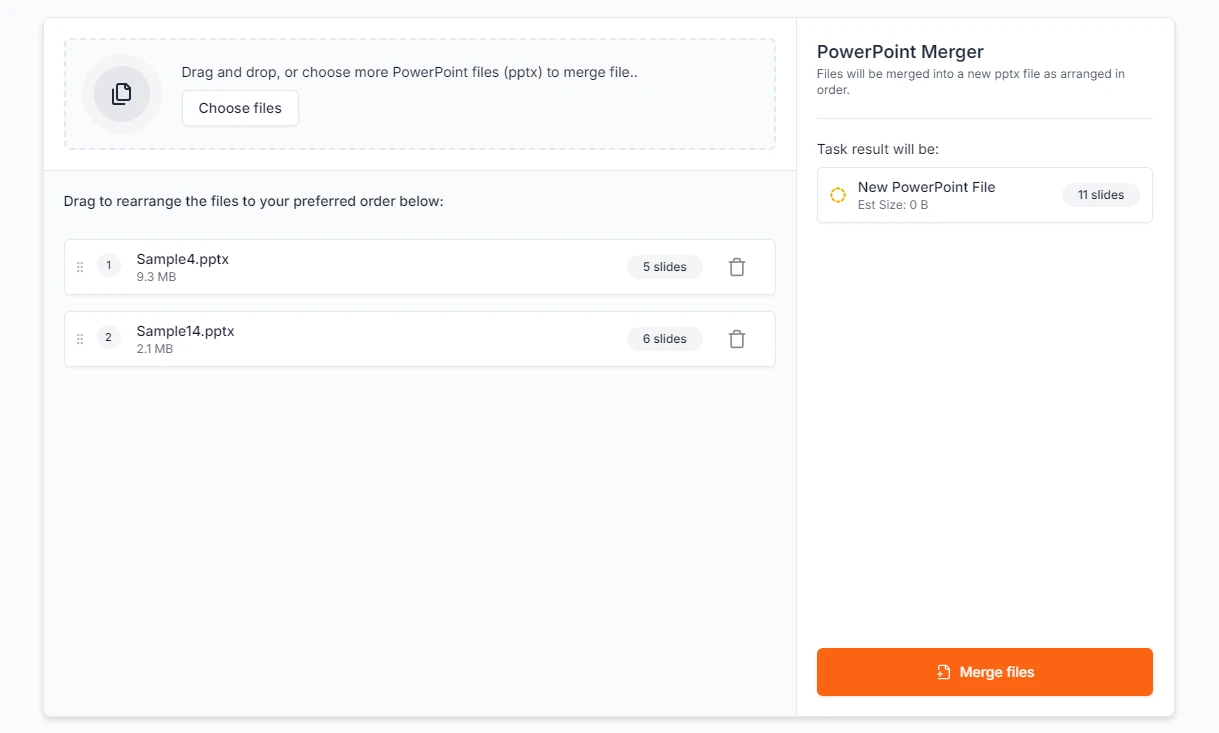
Fai clic e scegli o trascina per caricare i file PowerPoint che desideri combinare.

-
Fai clic su Unisci file per generare un singolo file.
-
Scarica la presentazione unita.
Vantaggi:
- Veloce e facile da usare.
- Funziona su qualsiasi dispositivo senza installazione.
Limitazioni:
- Restrizioni sulle dimensioni dei file o sul caricamento.
- Possibili incongruenze di formattazione.
- Preoccupazioni sulla privacy durante il caricamento di file riservati.
Suggerimento: per le presentazioni sensibili, utilizzare strumenti offline per evitare l'esposizione dei dati.
Se lavori spesso con PowerPoint online, puoi anche esplorare altri strumenti di modifica e conversione su CLOUDXDOCS.
Metodo 3 – Unire File PowerPoint Utilizzando Software Desktop Gratuito
Se preferisci lavorare offline o non hai un abbonamento a Microsoft 365, anche le suite per ufficio gratuite come LibreOffice Impress, WPS Office, o OpenOffice supportano l'unione di presentazioni PowerPoint.
Come unire usando LibreOffice Impress
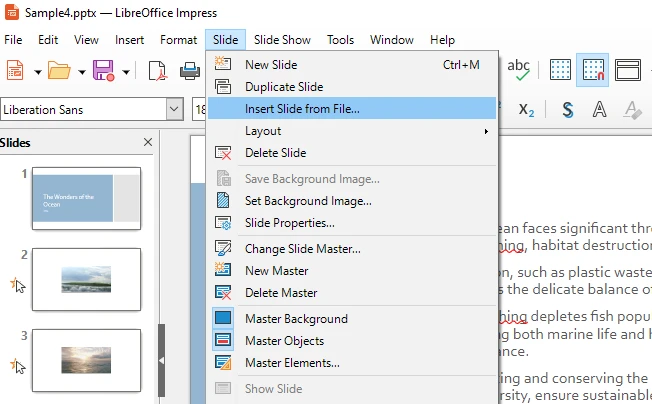
LibreOffice è una popolare suite per ufficio open source che include Impress, uno strumento di presentazione. È possibile unire le presentazioni inserendo diapositive da altri file utilizzando la funzione Inserisci diapositiva da file.
-
Apri la prima presentazione in Impress.
-
Vai su Diapositiva > Inserisci diapositiva da file.
-
Seleziona i file di presentazione che desideri combinare (se i file .pptx non sono visibili, imposta il filtro del tipo di file su Tutti i file).
-
Salva il risultato come un nuovo file.
Pro:
- Funziona offline e supporta più sistemi operativi.
- Completamente gratuito, nessuna licenza richiesta.
Contro:
- Alcune animazioni o caratteri avanzati potrebbero non essere visualizzati esattamente come in PowerPoint.
- L'interfaccia potrebbe sembrare diversa da Microsoft PowerPoint.
Metodo 4 – Unire Automaticamente i File di PowerPoint Utilizzando Python
Per gli utenti che hanno spesso bisogno di unire più presentazioni, ad esempio per l'automazione dei report o la preparazione delle lezioni, lo scripting Python può semplificare completamente il processo.
Utilizzando Free Spire.Presentation for Python, è possibile unire i file di PowerPoint a livello di codice con poche righe di codice.
Passaggio 1: installare la libreria
pip install spire.presentation
Passaggio 2: unire più file di PowerPoint
from spire.presentation import Presentation, FileFormat

# Crea una nuova presentazione per il risultato unito
merged_presentation = Presentation()

# Elenco dei file PowerPoint da unire
input_files = ["Sample1.pptx", "Sample2.pptx", "Sample3.pptx"]

# Unisci tutti i file
for index, file in enumerate(input_files):
    src_ppt = Presentation()
    src_ppt.LoadFromFile(file)
    for slide_index in range(src_ppt.Slides.Count):
        if index == 0 and slide_index == 0:
            merged_presentation.Slides.RemoveAt(0)
        merged_presentation.Slides.AppendBySlide(src_ppt.Slides[slide_index])

merged_presentation.SaveToFile("output/merged_presentation.pptx", FileFormat.Pptx2019)
merged_presentation.Dispose()

print("Unione completata con successo! Salvato come merged_presentation.pptx")
Passaggio 3: verifica e migliora
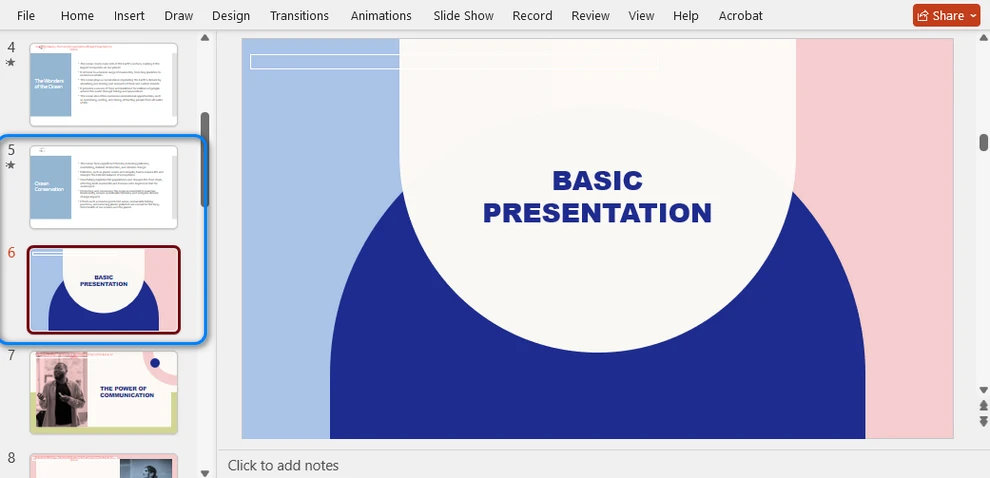
Apri il file di output (merged_presentation.pptx) per verificare che tutte le diapositive siano incluse. È quindi possibile applicare un design o transizioni uniformi, se necessario.
Di seguito è riportata un'anteprima della presentazione unita:
Oltre a unire le presentazioni di PowerPoint mantenendo intatti i loro design originali, puoi anche utilizzare Free Spire.Presentation for Python per unire presentazioni con modelli diversi e applicare una diapositiva master a tutte le diapositive. Per maggiori dettagli, fare riferimento a Come unire le presentazioni di PowerPoint con Python.
Perché usare questo metodo:
- Completamente automatizzato ed efficiente.
- Ideale per unioni su larga scala.
- Flessibile: può mantenere il design originale di ogni presentazione o applicare una diapositiva master unificata secondo necessità.
Per esigenze aziendali o di automazione avanzata, puoi provare l' edizione commerciale di Spire.Presentation for Python per sbloccare l'intera gamma di funzionalità di elaborazione di PowerPoint. È disponibile una licenza gratuita per la valutazione.
Tabella di confronto: quale metodo dovresti scegliere?
| Metodo | Utenti ideali | Internet richiesto | Vantaggi principali | Limitazioni |
|---|---|---|---|---|
| Microsoft PowerPoint | Utenti di tutti i giorni | No | Controllo preciso, formattazione accurata | Processo manuale |
| Strumenti online | Utenti occasionali | Sì | Veloce e accessibile | Rischi per la privacy |
| Software gratuito (Impress, ecc.) | Utenti offline | No | Gratuito, multipiattaforma | Possibile perdita di layout |
| Automazione Python (Spire.Presentation) | Sviluppatori, team di dati | No | Automatizzato, scalabile | Richiede codifica |
Suggerimenti per mantenere le diapositive coerenti dopo l'unione
Dopo aver unito più presentazioni, controlla quanto segue:
- Temi unificati: Vai su Visualizza > Schema diapositiva e applica un design coerente.
- Armonia di caratteri e colori: utilizza uno stile di carattere uniforme ovunque.
- Revisione dell'animazione: assicurati che le transizioni fluiscano in modo naturale.
- Media incorporati: verifica che audio e video vengano ancora riprodotti correttamente.
Suggerimento professionale: per unioni frequenti, prepara un file "modello master" tramite la funzione Schema diapositiva con il tuo tema preferito e importa altre diapositive al suo interno. Puoi anche creare e personalizzare automaticamente uno schema diapositiva di PowerPoint con Python, ideale per la generazione di batch o la creazione di report automatizzati.
Conclusione
L'unione di presentazioni di PowerPoint non deve più essere un processo noioso e manuale. Che tu stia combinando report di team, materiali per corsi o proposte per i clienti, l'approccio giusto può farti risparmiare ore di lavoro ripetitivo e mantenere le tue diapositive coerenti. Dalle funzionalità integrate di PowerPoint agli script automatizzati in Python, c'è sempre una soluzione che si adatta al tuo flusso di lavoro. Padroneggiando queste tecniche, puoi creare in modo efficiente presentazioni coese e professionali pronte per essere condivise o presentate.
Domande Frequenti
D1: Come posso combinare più file di PowerPoint in uno solo?
È possibile unire diverse presentazioni di PowerPoint in un unico file utilizzando la funzione Riutilizza diapositive in Microsoft PowerPoint. Vai su Home > Nuova diapositiva > Riutilizza diapositive, individua il file di origine e inserisci le diapositive di cui hai bisogno.
D2: Perché non c'è un'opzione "Unisci" in PowerPoint?
PowerPoint non include un pulsante "Unisci" dedicato. Fornisce invece la funzione Riutilizza diapositive, che consente di importare manualmente le diapositive da un'altra presentazione. Per l'automazione completa, è possibile utilizzare Python per unire le presentazioni a livello di codice.
D3: Posso unire solo diapositive specifiche da un'altra presentazione?
Sì. Quando si utilizza Riutilizza diapositive, fare clic sulle singole diapositive che si desidera inserire anziché scegliere "Inserisci tutte le diapositive". In questo modo, solo le diapositive selezionate vengono aggiunte alla presentazione corrente.
D4: Come posso mantenere una formattazione coerente dopo l'unione?
Dopo l'unione, apri la visualizzazione Schema diapositiva e applica un tema, un carattere e una combinazione di colori unificati per garantire la coerenza visiva in tutte le diapositive.
Vedi anche
4 maneiras práticas de mesclar facilmente apresentações do PowerPoint
Índice
Ao criar uma apresentação profissional do PowerPoint, muitas vezes você pode precisar combinar conteúdo de várias apresentações — por exemplo, ao colaborar com colegas de equipe, reutilizar slides de projetos mais antigos ou consolidar relatórios departamentais. Nesses casos, aprender como mesclar apresentações do PowerPoint de forma eficiente pode economizar um tempo significativo e garantir a consistência entre os slides.
Este guia aborda cinco maneiras práticas de mesclar arquivos do PowerPoint. Se você prefere usar o próprio Microsoft PowerPoint, ferramentas de mesclagem online, software de desktop gratuito ou scripts Python automatizados, encontrará o método que melhor se adapta ao seu fluxo de trabalho.
Conteúdo:
- Mesclar arquivos do PowerPoint usando o Microsoft PowerPoint
- Combinar arquivos do PowerPoint online
- Mesclar arquivos do PowerPoint usando software de desktop gratuito
- Automatizar a mesclagem do PowerPoint com Python
Por que mesclar apresentações do PowerPoint?
A mesclagem de apresentações do PowerPoint é uma necessidade comum tanto nos negócios quanto na educação. Permite que você:
- Colabore de forma eficiente: Combine slides de vários contribuidores em uma única apresentação unificada.
- Reutilize conteúdo: Integre slides de projetos anteriores sem precisar recriá-los.
- Simplifique relatórios: Colete atualizações semanais, mensais ou departamentais em um único arquivo organizado.
No entanto, a combinação de diferentes arquivos do PowerPoint pode levar a inconsistências, como temas incompatíveis ou animações quebradas. Os métodos a seguir ajudarão você a mesclar apresentações sem problemas, mantendo seu design intacto.
Método 1 – Mesclar arquivos do PowerPoint usando o Microsoft PowerPoint
Se você já tem o Microsoft PowerPoint instalado, pode mesclar apresentações diretamente no aplicativo usando o recurso Reutilizar Slides. Este método oferece controle total sobre layout, animações e formatação.
Guia passo a passo
-
Abra a apresentação onde você deseja importar outros slides.
-
Vá para Página Inicial > Novo Slide > Reutilizar Slides.
-
Navegue e selecione o arquivo do PowerPoint de origem.
-
Clique em slides específicos para inserir ou selecione Inserir Todos os Slides para adicionar o arquivo inteiro.
-
Marque Manter formatação original se desejar preservar o design de cada apresentação.
Dicas
- Após a mesclagem, abra Exibir > Slide Mestre para ajustar fontes e cores.
- Revise as transições e animações para garantir a consistência.
- Salve a apresentação mesclada com um novo nome (por exemplo, Mesclado_Final.pptx).
Prós: Confiável, preserva animações e oferece controle preciso do design.
Contras: Processo manual, não ideal para combinar muitos arquivos.
Para usuários corporativos do Microsoft 365: você também pode automatizar certas tarefas, como coletar apresentações de pastas do SharePoint ou OneDrive, usando o Power Automate. No entanto, esse fluxo de trabalho é mais adequado para o gerenciamento de arquivos e agendamento de relatórios do que para a mesclagem direta de slides do PowerPoint.
Artigo recomendado: Como converter apresentações do PowerPoint em documentos do Word
Método 2 – Combinar arquivos do PowerPoint online
Se você não tem o PowerPoint instalado ou só precisa mesclar alguns arquivos rapidamente, os mescladores de PowerPoint online são uma escolha conveniente. Ferramentas como Choladeck, PPT PowerMerge ou SlideSpeak permitem combinar slides do PowerPoint diretamente no seu navegador.
Nesta seção, usaremos o PPT Choladeck como exemplo.
Como fazer
-
Visite um site de mesclagem de PowerPoint online, como o Choladeck.
-
Clique e escolha ou arraste para enviar os arquivos do PowerPoint que você deseja combinar.
-
Clique em Mesclar arquivos para gerar um único arquivo.
-
Baixe a apresentação mesclada.
Vantagens:
- Rápido e fácil de usar.
- Funciona em qualquer dispositivo sem instalação.
Limitações:
- Restrições de tamanho de arquivo ou de upload.
- Possíveis inconsistências de formatação.
- Preocupações com a privacidade ao enviar arquivos confidenciais.
Dica: Para apresentações confidenciais, use ferramentas offline para evitar a exposição de dados.
Se você trabalha frequentemente com o PowerPoint online, também pode explorar outras ferramentas de edição e conversão em CLOUDXDOCS.
Método 3 – Mesclar arquivos do PowerPoint usando software de desktop gratuito
Se você prefere trabalhar offline ou não tem uma assinatura do Microsoft 365, suítes de escritório gratuitas como LibreOffice Impress, WPS Office ou OpenOffice também suportam a mesclagem de apresentações do PowerPoint.
Como mesclar usando o LibreOffice Impress
LibreOffice é uma popular suíte de escritório de código aberto que inclui o Impress, uma ferramenta de apresentação. Você pode mesclar apresentações inserindo slides de outros arquivos usando o recurso Inserir slide do arquivo.
-
Abra a primeira apresentação no Impress.
-
Vá para Slide > Inserir slide do arquivo.
-
Selecione os arquivos de apresentação que deseja combinar (se os arquivos .pptx não estiverem visíveis, defina o filtro de tipo de arquivo para Todos os arquivos).
-
Salve o resultado como um novo arquivo.
Prós:
- Funciona offline e suporta vários sistemas operacionais.
- Totalmente gratuito, sem necessidade de licença.
Contras:
- Algumas animações ou fontes avançadas podem não ser exibidas exatamente como no PowerPoint.
- A interface pode parecer diferente da do Microsoft PowerPoint.
Método 4 – Mesclar arquivos do PowerPoint automaticamente usando Python
Para usuários que precisam mesclar várias apresentações com frequência — como para automação de relatórios ou preparação de aulas — o script em Python pode otimizar completamente o processo.
Usando o Free Spire.Presentation for Python, você pode mesclar arquivos do PowerPoint programaticamente com apenas algumas linhas de código.
Passo 1: Instale a biblioteca
pip install spire.presentation
Passo 2: Mesclar vários arquivos do PowerPoint
from spire.presentation import Presentation, FileFormat

# Create a new presentation for the merged result
merged_presentation = Presentation()

# List of PowerPoint files to merge
input_files = ["Sample1.pptx", "Sample2.pptx", "Sample3.pptx"]

# Merge all files
for index, file in enumerate(input_files):
    src_ppt = Presentation()
    src_ppt.LoadFromFile(file)
    for slide_index in range(src_ppt.Slides.Count):
        if index == 0 and slide_index == 0:
            merged_presentation.Slides.RemoveAt(0)
        merged_presentation.Slides.AppendBySlide(src_ppt.Slides[slide_index])

merged_presentation.SaveToFile("output/merged_presentation.pptx", FileFormat.Pptx2019)
merged_presentation.Dispose()

print("Mesclagem concluída com sucesso! Salvo como merged_presentation.pptx")
Passo 3: Verifique e aprimore
Abra o arquivo de saída (merged_presentation.pptx) para verificar se todos os slides estão incluídos. Você pode então aplicar um design uniforme ou transições, se necessário.
Abaixo está uma prévia da apresentação mesclada:
Além de mesclar apresentações do PowerPoint mantendo seus designs originais intactos, você também pode usar o Free Spire.Presentation for Python para mesclar apresentações com diferentes modelos e aplicar um slide mestre a todos os slides. Para mais detalhes, consulte Como mesclar apresentações do PowerPoint com Python.
Por que usar este método:
- Totalmente automatizado e eficiente.
- Ideal para mesclagem em grande escala.
- Flexível — pode manter o design original de cada apresentação ou aplicar um slide mestre unificado, conforme necessário.
Para necessidades empresariais ou de automação avançada, você pode experimentar a edição comercial do Spire.Presentation for Python para desbloquear toda a gama de recursos de processamento do PowerPoint. Uma licença gratuita está disponível para avaliação.
Tabela de Comparação: Qual Método Você Deve Escolher?
| Método | Usuários Ideais | Internet Necessária | Principais Vantagens | Limitações |
|---|---|---|---|---|
| Microsoft PowerPoint | Usuários comuns | Não | Controle preciso, formatação exata | Processo manual |
| Ferramentas Online | Usuários ocasionais | Sim | Rápido e acessível | Riscos de privacidade |
| Software Gratuito (Impress, etc.) | Usuários offline | Não | Gratuito, multiplataforma | Possível perda de layout |
| Automação com Python (Spire.Presentation) | Desenvolvedores, equipes de dados | Não | Automatizado, escalável | Requer codificação |
Dicas para Manter a Consistência dos Slides Após a Mesclagem
Após mesclar várias apresentações, verifique o seguinte:
- Temas unificados: Vá para Exibir > Slide Mestre e aplique um design consistente.
- Harmonia de fontes e cores: Use um estilo de fonte uniforme em toda a apresentação.
- Revisão de animações: Garanta que as transições fluam naturalmente.
- Mídia incorporada: Verifique se o áudio e o vídeo ainda são reproduzidos corretamente.
Dica Profissional: Para mesclagens frequentes, prepare um arquivo de “modelo mestre” através do recurso Slide Mestre com seu tema preferido e importe outros slides para ele. Você também pode criar e personalizar um Slide Mestre do PowerPoint automaticamente com Python, o que é ideal para geração em lote ou relatórios automatizados.
Conclusão
Mesclar apresentações do PowerPoint não precisa mais ser um processo manual e tedioso. Seja combinando relatórios de equipe, materiais de curso ou propostas de clientes, a abordagem certa pode economizar horas de trabalho repetitivo e manter seus slides consistentes. Desde os recursos integrados do PowerPoint até scripts automatizados em Python, sempre há uma solução que se adapta ao seu fluxo de trabalho. Ao dominar essas técnicas, você pode criar com eficiência apresentações coesas e profissionais, prontas para compartilhar ou apresentar.
Perguntas Frequentes
P1: Como combino vários arquivos do PowerPoint em um só?
Você pode mesclar várias apresentações do PowerPoint em um único arquivo usando o recurso Reutilizar Slides no Microsoft PowerPoint. Vá para Página Inicial > Novo Slide > Reutilizar Slides, navegue até o arquivo de origem e insira os slides que você precisa.
P2: Por que não há uma opção “Mesclar” no PowerPoint?
O PowerPoint não inclui um botão “Mesclar” dedicado. Em vez disso, ele fornece a função Reutilizar Slides, que permite importar slides de outra apresentação manualmente. Para automação completa, você pode usar Python para mesclar apresentações programaticamente.
P3: Posso mesclar apenas slides específicos de outra apresentação?
Sim. Ao usar Reutilizar Slides, clique nos slides individuais que deseja inserir em vez de escolher “Inserir Todos os Slides”. Dessa forma, apenas os slides selecionados são adicionados à sua apresentação atual.
P4: Como posso manter a formatação consistente após a mesclagem?
Após a mesclagem, abra a visualização Slide Mestre e aplique um tema, fonte e esquema de cores unificados para garantir a consistência visual em todos os slides.
Veja Também
PowerPoint 프레젠테이션을 쉽게 병합하는 4가지 실용적인 방법
전문적인 PowerPoint 프레젠테이션을 만들 때 팀원과 공동 작업하거나, 이전 프로젝트의 슬라이드를 재사용하거나, 부서 보고서를 통합하는 등 여러 덱의 콘텐츠를 결합해야 하는 경우가 많습니다. 이러한 경우 PowerPoint 프레젠테이션을 효율적으로 병합하는 방법을 배우면 상당한 시간을 절약하고 슬라이드 전체의 일관성을 보장할 수 있습니다.
이 가이드에서는 PowerPoint 파일을 병합하는 다섯 가지 실용적인 방법을 다룹니다. Microsoft PowerPoint 자체, 온라인 병합 도구, 무료 데스크톱 소프트웨어 또는 자동화된 Python 스크립트 중 어떤 것을 선호하든 워크플로에 가장 적합한 방법을 찾을 수 있습니다.
내용:
- Microsoft PowerPoint를 사용하여 PowerPoint 파일 병합
- 온라인에서 PowerPoint 파일 결합
- 무료 데스크톱 소프트웨어를 사용하여 PowerPoint 파일 병합
- Python으로 PowerPoint 병합 자동화
PowerPoint 프레젠테이션을 병합하는 이유는 무엇입니까?
PowerPoint 덱 병합은 비즈니스와 교육 모두에서 공통적으로 필요한 작업입니다. 이를 통해 다음을 수행할 수 있습니다.
- 효율적인 공동 작업: 여러 기여자의 슬라이드를 단일 통합 프레젠테이션으로 결합합니다.
- 콘텐츠 재사용: 이전 프로젝트의 슬라이드를 다시 만들지 않고 통합합니다.
- 보고 간소화: 주간, 월간 또는 부서별 업데이트를 하나의 정리된 파일로 수집합니다.
그러나 다른 PowerPoint 파일을 결합하면 테마가 일치하지 않거나 애니메이션이 깨지는 등의 불일치가 발생할 수 있습니다. 다음 방법은 디자인을 그대로 유지하면서 프레젠테이션을 원활하게 병합하는 데 도움이 됩니다.
방법 1 – Microsoft PowerPoint를 사용하여 PowerPoint 파일 병합
Microsoft PowerPoint가 이미 설치되어 있는 경우 슬라이드 재사용 기능을 사용하여 응용 프로그램 내에서 직접 프레젠테이션을 병합할 수 있습니다. 이 방법은 레이아웃, 애니메이션 및 서식에 대한 완전한 제어를 제공합니다.
단계별 가이드
-
다른 슬라이드를 가져올 프레젠테이션을 엽니다.
-
홈 > 새 슬라이드 > 슬라이드 재사용으로 이동합니다.
-
소스 PowerPoint 파일을 찾아 선택합니다.
-
특정 슬라이드를 클릭하여 삽입하거나 모든 슬라이드 삽입을 선택하여 전체 파일을 추가합니다.
-
각 프레젠테이션의 디자인을 유지하려면 원본 서식 유지를 선택합니다.
팁
- 병합 후 보기 > 슬라이드 마스터를 열어 글꼴과 색상을 조정합니다.
- 전환 및 애니메이션의 일관성을 검토합니다.
- 병합된 덱을 새 이름(예: Merged_Final.pptx)으로 저장합니다.
장점: 신뢰할 수 있고 애니메이션을 보존하며 정밀한 디자인 제어가 가능합니다.
단점: 수동 프로세스이며 많은 파일을 결합하는 데 이상적이지 않습니다.
Microsoft 365 엔터프라이즈 사용자의 경우: Power Automate를 사용하여 SharePoint 또는 OneDrive 폴더에서 프레젠테이션을 수집하는 것과 같은 특정 작업을 자동화할 수도 있습니다. 그러나 이 워크플로는 직접적인 PowerPoint 슬라이드 병합보다는 파일 관리 및 보고서 예약에 더 적합합니다.
추천 기사: PowerPoint 프레젠테이션을 Word 문서로 변환하는 방법
방법 2 – 온라인에서 PowerPoint 파일 결합
PowerPoint가 설치되어 있지 않거나 몇 개의 파일을 빠르게 병합해야 하는 경우 온라인 PowerPoint 병합기가 편리한 선택입니다. Choladeck, PPT PowerMerge 또는 SlideSpeak과 같은 도구를 사용하면 브라우저에서 직접 PowerPoint 슬라이드를 결합할 수 있습니다.
이 섹션에서는 PPT Choladeck을 예로 들어 보겠습니다.
방법
-
Choladeck과 같은 온라인 PowerPoint 병합 웹사이트를 방문하십시오.
-
결합하려는 PowerPoint 파일을 클릭하여 선택하거나 끌어다 놓아 업로드합니다.
-
파일 병합을 클릭하여 단일 파일을 생성합니다.
-
병합된 프레젠테이션을 다운로드합니다.
장점:
- 빠르고 사용자 친화적입니다.
- 설치 없이 모든 장치에서 작동합니다.
제한 사항:
- 파일 크기 또는 업로드 제한.
- 서식 불일치 가능성.
- 기밀 파일 업로드 시 개인 정보 보호 문제.
팁: 중요한 프레젠테이션의 경우 오프라인 도구를 사용하여 데이터 노출을 방지하십시오.
CLOUDXDOCS에서 다른 편집 및 변환 도구를 탐색할 수도 있습니다.
방법 3 – 무료 데스크톱 소프트웨어를 사용하여 PowerPoint 파일 병합
오프라인 작업을 선호하거나 Microsoft 365 구독이 없는 경우 LibreOffice Impress, WPS Office 또는 OpenOffice와 같은 무료 오피스 제품군도 PowerPoint 프레젠테이션 병합을 지원합니다.
LibreOffice Impress를 사용하여 병합하는 방법
LibreOffice는 프레젠테이션 도구인 Impress를 포함하는 인기 있는 오픈 소스 오피스 제품군입니다. 파일에서 슬라이드 삽입 기능을 사용하여 다른 파일의 슬라이드를 삽입하여 프레젠테이션을 병합할 수 있습니다.
-
Impress에서 첫 번째 프레젠테이션을 엽니다.
-
슬라이드 > 파일에서 슬라이드 삽입으로 이동합니다.
-
결합하려는 프레젠테이션 파일을 선택합니다(.pptx 파일이 보이지 않으면 파일 형식 필터를 모든 파일로 설정).
-
결과를 새 파일로 저장합니다.
장점:
- 오프라인으로 작동하며 여러 운영 체제를 지원합니다.
- 라이선스가 필요 없이 완전히 무료로 사용할 수 있습니다.
단점:
- 일부 고급 애니메이션이나 글꼴은 PowerPoint에서와 똑같이 표시되지 않을 수 있습니다.
- 인터페이스가 Microsoft PowerPoint와 다르게 느껴질 수 있습니다.
방법 4 – Python을 사용하여 자동으로 PowerPoint 파일 병합
보고서 자동화나 강의 준비와 같이 여러 프레젠테이션을 자주 병합해야 하는 사용자의 경우 Python 스크립팅을 통해 프로세스를 완전히 간소화할 수 있습니다.
Free Spire.Presentation for Python을 사용하면 단 몇 줄의 코드로 프로그래밍 방식으로 PowerPoint 파일을 병합할 수 있습니다.
1단계: 라이브러리 설치
pip install spire.presentation
2단계: 여러 PowerPoint 파일 병합
from spire.presentation import Presentation, FileFormat

# 병합된 결과에 대한 새 프레젠테이션 만들기
merged_presentation = Presentation()

# 병합할 PowerPoint 파일 목록
input_files = ["Sample1.pptx", "Sample2.pptx", "Sample3.pptx"]

# 모든 파일 병합
for index, file in enumerate(input_files):
    src_ppt = Presentation()
    src_ppt.LoadFromFile(file)
    for slide_index in range(src_ppt.Slides.Count):
        if index == 0 and slide_index == 0:
            merged_presentation.Slides.RemoveAt(0)
        merged_presentation.Slides.AppendBySlide(src_ppt.Slides[slide_index])

merged_presentation.SaveToFile("output/merged_presentation.pptx", FileFormat.Pptx2019)
merged_presentation.Dispose()

print("병합이 성공적으로 완료되었습니다! merged_presentation.pptx로 저장됨")
3단계: 확인 및 향상
출력 파일(merged_presentation.pptx)을 열어 모든 슬라이드가 포함되었는지 확인합니다. 그런 다음 필요한 경우 균일한 디자인이나 전환을 적용할 수 있습니다.
다음은 병합된 프레젠테이션의 미리보기입니다.
원본 디자인을 그대로 유지하면서 PowerPoint 프레젠테이션을 병합하는 것 외에도 Free Spire.Presentation for Python을 사용하여 다른 템플릿으로 프레젠테이션을 병합하고 모든 슬라이드에 마스터 슬라이드를 적용할 수도 있습니다. 자세한 내용은 Python으로 PowerPoint 프레젠테이션을 병합하는 방법을 참조하십시오.
이 방법을 사용하는 이유:
- 완전 자동화되고 효율적입니다.
- 대규모 병합에 이상적입니다.
- 유연함 — 각 프레젠테이션의 원본 디자인을 유지하거나 필요에 따라 통합 마스터 슬라이드를 적용할 수 있습니다.
엔터프라이즈 또는 고급 자동화 요구 사항의 경우 Spire.Presentation for Python 상용 에디션을 사용하여 전체 PowerPoint 처리 기능 범위를 잠금 해제할 수 있습니다. 평가용으로 무료 라이선스를 사용할 수 있습니다.
비교표: 어떤 방법을 선택해야 할까요?
| 방법 | 이상적인 사용자 | 인터넷 필요 | 주요 장점 | 제한 사항 |
|---|---|---|---|---|
| Microsoft PowerPoint | 일반 사용자 | 아니요 | 정확한 제어, 정확한 서식 | 수동 프로세스 |
| 온라인 도구 | 가끔 사용하는 사용자 | 예 | 빠르고 접근 가능 | 개인 정보 보호 위험 |
| 무료 소프트웨어(Impress 등) | 오프라인 사용자 | 아니요 | 무료, 크로스 플랫폼 | 레이아웃 손실 가능성 |
| Python 자동화(Spire.Presentation) | 개발자, 데이터 팀 | 아니요 | 자동화, 확장 가능 | 코딩 필요 |
병합 후 슬라이드 일관성 유지를 위한 팁
여러 프레젠테이션을 병합한 후 다음을 확인하십시오.
- 통합 테마: 보기 > 슬라이드 마스터로 이동하여 일관된 디자인을 적용합니다.
- 글꼴 및 색상 조화: 전체적으로 균일한 글꼴 스타일을 사용합니다.
- 애니메이션 검토: 전환이 자연스럽게 흐르도록 합니다.
- 포함된 미디어: 오디오 및 비디오가 여전히 올바르게 재생되는지 확인합니다.
전문가 팁: 자주 병합하는 경우 슬라이드 마스터 기능을 통해 선호하는 테마로 “마스터 템플릿” 파일을 준비하고 다른 슬라이드를 가져옵니다. Python을 사용하여 PowerPoint 슬라이드 마스터를 자동으로 생성하고 사용자 지정할 수도 있으며, 이는 일괄 생성 또는 자동 보고에 이상적입니다.
결론
PowerPoint 프레젠테이션 병합은 더 이상 지루한 수동 프로세스가 아닙니다. 팀 보고서, 강의 자료 또는 고객 제안서를 결합하든 올바른 접근 방식을 사용하면 반복적인 작업을 몇 시간 절약하고 슬라이드를 일관성 있게 유지할 수 있습니다. 내장된 PowerPoint 기능부터 Python의 자동화된 스크립트에 이르기까지 워크플로에 맞는 솔루션이 항상 있습니다. 이러한 기술을 습득하면 공유하거나 발표할 준비가 된 응집력 있고 전문적인 프레젠테이션을 효율적으로 만들 수 있습니다.
자주 묻는 질문
Q1: 여러 PowerPoint 파일을 하나로 결합하려면 어떻게 해야 합니까?
Microsoft PowerPoint의 슬라이드 재사용 기능을 사용하여 여러 PowerPoint 프레젠테이션을 단일 파일로 병합할 수 있습니다. 홈 > 새 슬라이드 > 슬라이드 재사용으로 이동하여 원본 파일을 찾아 필요한 슬라이드를 삽입합니다.
Q2: PowerPoint에 "병합" 옵션이 없는 이유는 무엇입니까?
PowerPoint에는 전용 “병합” 버튼이 포함되어 있지 않습니다. 대신 다른 프레젠테이션에서 수동으로 슬라이드를 가져올 수 있는 슬라이드 재사용 기능을 제공합니다. 전체 자동화를 위해 Python을 사용하여 프로그래밍 방식으로 프레젠테이션을 병합할 수 있습니다.
Q3: 다른 프레젠테이션의 특정 슬라이드만 병합할 수 있습니까?
예. 슬라이드 재사용을 사용할 때 “모든 슬라이드 삽입”을 선택하는 대신 삽입하려는 개별 슬라이드를 클릭합니다. 이렇게 하면 선택한 슬라이드만 현재 프레젠테이션에 추가됩니다.
Q4: 병합 후 서식을 일관성 있게 유지하려면 어떻게 해야 합니까?
병합 후 슬라이드 마스터 보기를 열고 통합된 테마, 글꼴 및 색 구성표를 적용하여 모든 슬라이드에서 시각적 일관성을 보장합니다.
참고 항목
4 façons pratiques de fusionner facilement des présentations PowerPoint
Table des matières
Lors de la création d'une présentation PowerPoint professionnelle, vous devrez peut-être souvent combiner le contenu de plusieurs diaporamas, par exemple lors de la collaboration avec des coéquipiers, de la réutilisation de diapositives d'anciens projets ou de la consolidation de rapports départementaux. Dans de tels cas, apprendre comment fusionner des présentations PowerPoint efficacement peut vous faire gagner un temps considérable et garantir la cohérence entre les diapositives.
Ce guide présente cinq méthodes pratiques pour fusionner des fichiers PowerPoint. Que vous préfériez utiliser Microsoft PowerPoint lui-même, des outils de fusion en ligne, des logiciels de bureau gratuits ou des scripts Python automatisés, vous trouverez la méthode qui correspond le mieux à votre flux de travail.
Contenu :
- Fusionner des fichiers PowerPoint à l'aide de Microsoft PowerPoint
- Combiner des fichiers PowerPoint en ligne
- Fusionner des fichiers PowerPoint à l'aide de logiciels de bureau gratuits
- Automatiser la fusion de PowerPoint avec Python
Pourquoi fusionner des présentations PowerPoint ?
La fusion de diaporamas PowerPoint est un besoin courant dans les domaines des affaires et de l'éducation. Elle vous permet de :
- Collaborer efficacement : Combinez les diapositives de plusieurs contributeurs en une seule présentation unifiée.
- Réutiliser le contenu : Intégrez des diapositives de projets antérieurs sans les reconstruire.
- Simplifier les rapports : Rassemblez les mises à jour hebdomadaires, mensuelles ou départementales dans un seul fichier organisé.
Cependant, la combinaison de différents fichiers PowerPoint peut entraîner des incohérences, telles que des thèmes incompatibles ou des animations cassées. Les méthodes suivantes vous aideront à fusionner les présentations en douceur tout en conservant votre conception intacte.
Méthode 1 – Fusionner des fichiers PowerPoint à l'aide de Microsoft PowerPoint
Si vous avez déjà installé Microsoft PowerPoint, vous pouvez fusionner des présentations directement dans l'application à l'aide de la fonctionnalité Réutiliser les diapositives. Cette méthode offre un contrôle total sur la mise en page, les animations et la mise en forme.
Guide étape par étape
-
Ouvrez la présentation dans laquelle vous souhaitez importer d'autres diapositives.
-
Allez dans Accueil > Nouvelle diapositive > Réutiliser les diapositives.
-
Parcourez et sélectionnez le fichier PowerPoint source.
-
Cliquez sur des diapositives spécifiques à insérer, ou sélectionnez Insérer toutes les diapositives pour ajouter le fichier entier.
-
Cochez Conserver la mise en forme source si vous souhaitez préserver la conception de chaque présentation.
Conseils
- Après la fusion, ouvrez Affichage > Masque des diapositives pour ajuster les polices et les couleurs.
- Passez en revue les transitions et les animations pour assurer la cohérence.
- Enregistrez le diaporama fusionné sous un nouveau nom (par exemple, Fusion_Finale.pptx).
Avantages : Fiable, préserve les animations et offre un contrôle précis de la conception.
Inconvénients : Processus manuel, pas idéal pour combiner de nombreux fichiers.
Pour les utilisateurs de Microsoft 365 entreprise : Vous pouvez également automatiser certaines tâches, telles que la collecte de présentations à partir de dossiers SharePoint ou OneDrive, à l'aide de Power Automate. Cependant, ce flux de travail est mieux adapté à la gestion de fichiers et à la planification de rapports qu'à la fusion directe de diapositives PowerPoint.
Article recommandé : Comment convertir des présentations PowerPoint en documents Word
Méthode 2 – Combiner des fichiers PowerPoint en ligne
Si vous n'avez pas installé PowerPoint ou si vous avez seulement besoin de fusionner quelques fichiers rapidement, les fusionneurs de PowerPoint en ligne sont un choix pratique. Des outils comme Choladeck, PPT PowerMerge, ou SlideSpeak vous permettent de combiner des diapositives PowerPoint directement dans votre navigateur.
Dans cette section, nous prendrons PPT Choladeck comme exemple.
Comment faire
-
Visitez un site web de fusion de PowerPoint en ligne, tel que Choladeck.
-
Cliquez et choisissez ou déposez pour télécharger les fichiers PowerPoint que vous souhaitez combiner.
-
Cliquez sur Fusionner les fichiers pour générer un seul fichier.
-
Téléchargez la présentation fusionnée.
Avantages :
- Rapide et convivial.
- Fonctionne sur n'importe quel appareil sans installation.
Limites :
- Restrictions de taille de fichier ou de téléchargement.
- Incohérences de mise en forme possibles.
- Préoccupations de confidentialité lors du téléchargement de fichiers confidentiels.
Conseil : Pour les présentations sensibles, utilisez des outils hors ligne pour éviter l'exposition des données.
Si vous travaillez souvent avec PowerPoint en ligne, vous pouvez également explorer d'autres outils d'édition et de conversion sur CLOUDXDOCS.
Méthode 3 – Fusionner des fichiers PowerPoint à l'aide de logiciels de bureau gratuits
Si vous préférez travailler hors ligne ou si vous n'avez pas d'abonnement Microsoft 365, les suites bureautiques gratuites telles que LibreOffice Impress, WPS Office, ou OpenOffice prennent également en charge la fusion de présentations PowerPoint.
Comment fusionner avec LibreOffice Impress
LibreOffice est une suite bureautique open-source populaire qui inclut Impress, un outil de présentation. Vous pouvez fusionner des présentations en insérant des diapositives d'autres fichiers à l'aide de la fonctionnalité Insérer une diapositive à partir d'un fichier.
-
Ouvrez la première présentation dans Impress.
-
Allez dans Diapositive > Insérer une diapositive à partir d'un fichier.
-
Sélectionnez les fichiers de présentation que vous souhaitez combiner (si les fichiers .pptx ne sont pas visibles, réglez le filtre de type de fichier sur Tous les fichiers).
-
Enregistrez le résultat dans un nouveau fichier.
Avantages :
- Fonctionne hors ligne et prend en charge plusieurs systèmes d'exploitation.
- Utilisation entièrement gratuite, aucune licence requise.
Inconvénients :
- Certaines animations ou polices avancées peuvent ne pas s'afficher exactement comme dans PowerPoint.
- L'interface peut sembler différente de celle de Microsoft PowerPoint.
Méthode 4 – Fusionner automatiquement des fichiers PowerPoint à l'aide de Python
Pour les utilisateurs qui ont souvent besoin de fusionner plusieurs présentations, comme pour l'automatisation de rapports ou la préparation de cours, le scripting Python peut complètement rationaliser le processus.
En utilisant Free Spire.Presentation for Python, vous pouvez fusionner des fichiers PowerPoint par programme avec seulement quelques lignes de code.
Étape 1 : Installer la bibliothèque
pip install spire.presentation
Étape 2 : Fusionner plusieurs fichiers PowerPoint
from spire.presentation import Presentation, FileFormat

# Créer une nouvelle présentation pour le résultat fusionné
merged_presentation = Presentation()

# Liste des fichiers PowerPoint à fusionner
input_files = ["Sample1.pptx", "Sample2.pptx", "Sample3.pptx"]

# Fusionner tous les fichiers
for index, file in enumerate(input_files):
    src_ppt = Presentation()
    src_ppt.LoadFromFile(file)
    for slide_index in range(src_ppt.Slides.Count):
        if index == 0 and slide_index == 0:
            merged_presentation.Slides.RemoveAt(0)
        merged_presentation.Slides.AppendBySlide(src_ppt.Slides[slide_index])

merged_presentation.SaveToFile("output/merged_presentation.pptx", FileFormat.Pptx2019)
merged_presentation.Dispose()

print("Fusion terminée avec succès ! Enregistré sous merged_presentation.pptx")
Étape 3 : Vérifier et améliorer
Ouvrez le fichier de sortie (merged_presentation.pptx) pour vérifier que toutes les diapositives sont incluses. Vous pouvez ensuite appliquer une conception ou des transitions uniformes si nécessaire.
Voici un aperçu de la présentation fusionnée :
En plus de fusionner des présentations PowerPoint tout en conservant leurs conceptions originales intactes, vous pouvez également utiliser Free Spire.Presentation for Python pour fusionner des présentations avec différents modèles et appliquer un masque de diapositives à toutes les diapositives. Pour plus de détails, veuillez vous référer à Comment fusionner des présentations PowerPoint avec Python.
Pourquoi utiliser cette méthode :
- Entièrement automatisé et efficace.
- Idéal pour la fusion à grande échelle.
- Flexible — peut soit conserver la conception originale de chaque présentation, soit appliquer un masque de diapositives unifié selon les besoins.
Pour les besoins d'entreprise ou d'automatisation avancée, vous pouvez essayer l'édition commerciale de Spire.Presentation for Python pour débloquer la gamme complète de fonctionnalités de traitement PowerPoint. Une licence gratuite est disponible pour évaluation.
Tableau comparatif : Quelle méthode choisir ?
| Méthode | Utilisateurs idéaux | Internet requis | Principaux avantages | Limites |
|---|---|---|---|---|
| Microsoft PowerPoint | Utilisateurs quotidiens | Non | Contrôle précis, mise en forme exacte | Processus manuel |
| Outils en ligne | Utilisateurs occasionnels | Oui | Rapide et accessible | Risques de confidentialité |
| Logiciels gratuits (Impress, etc.) | Utilisateurs hors ligne | Non | Gratuit, multiplateforme | Perte de mise en page possible |
| Automatisation Python (Spire.Presentation) | Développeurs, équipes de données | Non | Automatisé, évolutif | Nécessite du codage |
Conseils pour garder les diapositives cohérentes après la fusion
Après avoir fusionné plusieurs présentations, vérifiez les points suivants :
- Thèmes unifiés : Allez dans Affichage > Masque des diapositives et appliquez une conception cohérente.
- Harmonie des polices et des couleurs : Utilisez un style de police uniforme partout.
- Examen des animations : Assurez-vous que les transitions s'enchaînent naturellement.
- Médias intégrés : Vérifiez que l'audio et la vidéo se lisent toujours correctement.
Conseil de pro : Pour les fusions fréquentes, préparez un fichier « modèle maître » via la fonctionnalité Masque des diapositives avec votre thème préféré et importez-y d'autres diapositives. Vous pouvez également créer et personnaliser automatiquement un masque de diapositives PowerPoint avec Python, ce qui est idéal pour la génération par lots ou les rapports automatisés.
Conclusion
La fusion de présentations PowerPoint n'a plus à être un processus manuel et fastidieux. Que vous combiniez des rapports d'équipe, des supports de cours ou des propositions de clients, la bonne approche peut vous faire économiser des heures de travail répétitif et garder vos diapositives cohérentes. Des fonctionnalités intégrées de PowerPoint aux scripts automatisés en Python, il existe toujours une solution adaptée à votre flux de travail. En maîtrisant ces techniques, vous pouvez créer efficacement des présentations cohérentes et professionnelles, prêtes à être partagées ou présentées.
Foire aux questions
Q1 : Comment combiner plusieurs fichiers PowerPoint en un seul ?
Vous pouvez fusionner plusieurs présentations PowerPoint en un seul fichier à l'aide de la fonctionnalité Réutiliser les diapositives dans Microsoft PowerPoint. Allez dans Accueil > Nouvelle diapositive > Réutiliser les diapositives, accédez au fichier source et insérez les diapositives dont vous avez besoin.
Q2 : Pourquoi n'y a-t-il pas d'option « Fusionner » dans PowerPoint ?
PowerPoint n'inclut pas de bouton « Fusionner » dédié. Au lieu de cela, il fournit la fonction Réutiliser les diapositives, qui vous permet d'importer manuellement des diapositives d'une autre présentation. Pour une automatisation complète, vous pouvez utiliser Python pour fusionner des présentations par programme.
Q3 : Puis-je fusionner uniquement des diapositives spécifiques d'une autre présentation ?
Oui. Lorsque vous utilisez Réutiliser les diapositives, cliquez sur les diapositives individuelles que vous souhaitez insérer plutôt que de choisir « Insérer toutes les diapositives ». De cette façon, seules les diapositives sélectionnées sont ajoutées à votre présentation actuelle.
Q4 : Comment puis-je conserver une mise en forme cohérente après la fusion ?
Après la fusion, ouvrez la vue Masque des diapositives et appliquez un thème, une police et un jeu de couleurs unifiés pour garantir la cohérence visuelle de toutes les diapositives.
Voir aussi
4 maneras prácticas de fusionar presentaciones de PowerPoint fácilmente
Tabla de Contenidos
Al crear una presentación de PowerPoint profesional, a menudo puede ser necesario combinar contenido de varias presentaciones, por ejemplo, al colaborar con compañeros de equipo, reutilizar diapositivas de proyectos antiguos o consolidar informes departamentales. En tales casos, aprender a combinar presentaciones de PowerPoint de manera eficiente puede ahorrar un tiempo significativo y garantizar la coherencia en todas las diapositivas.
Esta guía cubre cinco formas prácticas de combinar archivos de PowerPoint. Ya sea que prefiera usar Microsoft PowerPoint, herramientas de combinación en línea, software de escritorio gratuito o scripts de Python automatizados, encontrará el método que mejor se adapte a su flujo de trabajo.
Contenidos:
- Combinar Archivos de PowerPoint Usando Microsoft PowerPoint
- Combinar Archivos de PowerPoint en Línea
- Combinar Archivos de PowerPoint Usando Software de Escritorio Gratuito
- Automatizar la Combinación de PowerPoint con Python
¿Por Qué Combinar Presentaciones de PowerPoint?
Combinar presentaciones de PowerPoint es una necesidad común tanto en los negocios como en la educación. Le permite:
- Colaborar de manera eficiente: Combine diapositivas de múltiples colaboradores en una única presentación unificada.
- Reutilizar contenido: Integre diapositivas de proyectos anteriores sin tener que volver a crearlas.
- Simplificar informes: Recopile actualizaciones semanales, mensuales o departamentales en un solo archivo organizado.
Sin embargo, la combinación de diferentes archivos de PowerPoint puede generar inconsistencias, como temas que no coinciden o animaciones rotas. Los siguientes métodos le ayudarán a combinar presentaciones sin problemas manteniendo intacto su diseño.
Método 1 – Combinar Archivos de PowerPoint Usando Microsoft PowerPoint
Si ya tiene Microsoft PowerPoint instalado, puede combinar presentaciones directamente dentro de la aplicación utilizando la función Reutilizar diapositivas. Este método proporciona un control total sobre el diseño, las animaciones y el formato.
Guía paso a paso
-
Abra la presentación donde desea importar otras diapositivas.
-
Vaya a Inicio > Nueva diapositiva > Reutilizar diapositivas.
-
Busque y seleccione el archivo de PowerPoint de origen.
-
Haga clic en diapositivas específicas para insertarlas, o seleccione Insertar todas las diapositivas para agregar el archivo completo.
-
Marque Mantener formato de origen si desea conservar el diseño de cada presentación.
Consejos
- Después de combinar, abra Vista > Patrón de diapositivas para ajustar las fuentes y los colores.
- Revise las transiciones y animaciones para asegurar la coherencia.
- Guarde la presentación combinada con un nuevo nombre (p. ej., Combinado_Final.pptx).
Ventajas: Fiable, conserva las animaciones y ofrece un control preciso del diseño.
Desventajas: Proceso manual, no es ideal para combinar muchos archivos.
Para usuarios empresariales de Microsoft 365: También puede automatizar ciertas tareas, como recopilar presentaciones de carpetas de SharePoint o OneDrive, usando Power Automate. Sin embargo, este flujo de trabajo es más adecuado para la gestión de archivos y la programación de informes que para la combinación directa de diapositivas de PowerPoint.
Artículo recomendado: Cómo Convertir Presentaciones de PowerPoint a Documentos de Word
Método 2 – Combinar Archivos de PowerPoint en Línea
Si no tiene PowerPoint instalado o solo necesita combinar unos pocos archivos rápidamente, los combinadores de PowerPoint en línea son una opción conveniente. Herramientas como Choladeck, PPT PowerMerge, o SlideSpeak le permiten combinar diapositivas de PowerPoint directamente en su navegador.
En esta sección, tomaremos PPT Choladeck como ejemplo.
Cómo hacerlo
-
Visite un sitio web de combinación de PowerPoint en línea, como Choladeck.
-
Haga clic y elija o arrastre para cargar los archivos de PowerPoint que desea combinar.
-
Haga clic en Combinar archivos para generar un único archivo.
-
Descargue la presentación combinada.
Ventajas:
- Rápido y fácil de usar.
- Funciona en cualquier dispositivo sin instalación.
Limitaciones:
- Restricciones de tamaño de archivo o de carga.
- Posibles inconsistencias de formato.
- Preocupaciones de privacidad al cargar archivos confidenciales.
Consejo: Para presentaciones sensibles, utilice herramientas sin conexión para evitar la exposición de datos.
Si trabaja a menudo con PowerPoint en línea, también puede explorar otras herramientas de edición y conversión en CLOUDXDOCS.
Método 3 – Combinar Archivos de PowerPoint Usando Software de Escritorio Gratuito
Si prefiere trabajar sin conexión o no tiene una suscripción a Microsoft 365, las suites de ofimática gratuitas como LibreOffice Impress, WPS Office, u OpenOffice también admiten la combinación de presentaciones de PowerPoint.
Cómo combinar usando LibreOffice Impress
LibreOffice es una popular suite de ofimática de código abierto que incluye Impress, una herramienta de presentación. Puede combinar presentaciones insertando diapositivas de otros archivos mediante la función Insertar diapositiva desde archivo.
-
Abra la primera presentación en Impress.
-
Vaya a Diapositiva > Insertar diapositiva desde archivo.
-
Seleccione los archivos de presentación que desea combinar (si los archivos .pptx no son visibles, establezca el filtro de tipo de archivo en Todos los archivos).
-
Guarde el resultado como un archivo nuevo.
Ventajas:
- Funciona sin conexión y es compatible con múltiples sistemas operativos.
- Completamente gratis, no se requiere licencia.
Desventajas:
- Algunas animaciones o fuentes avanzadas pueden no mostrarse exactamente como en PowerPoint.
- La interfaz puede parecer diferente a la de Microsoft PowerPoint.
Método 4 – Combinar Archivos de PowerPoint Automáticamente Usando Python
Para los usuarios que necesitan combinar con frecuencia varias presentaciones, como para la automatización de informes o la preparación de conferencias, los scripts de Python pueden agilizar completamente el proceso.
Usando Free Spire.Presentation for Python, puede combinar archivos de PowerPoint programáticamente con solo unas pocas líneas de código.
Paso 1: Instale la biblioteca
pip install spire.presentation
Paso 2: Combine múltiples archivos de PowerPoint
from spire.presentation import Presentation, FileFormat

# Create a new presentation for the merged result
merged_presentation = Presentation()

# List of PowerPoint files to merge
input_files = ["Sample1.pptx", "Sample2.pptx", "Sample3.pptx"]

# Merge all files
for index, file in enumerate(input_files):
    src_ppt = Presentation()
    src_ppt.LoadFromFile(file)
    for slide_index in range(src_ppt.Slides.Count):
        if index == 0 and slide_index == 0:
            merged_presentation.Slides.RemoveAt(0)
        merged_presentation.Slides.AppendBySlide(src_ppt.Slides[slide_index])

merged_presentation.SaveToFile("output/merged_presentation.pptx", FileFormat.Pptx2019)
merged_presentation.Dispose()

print("¡Combinación completada con éxito! Guardado como merged_presentation.pptx")
Paso 3: Verifique y mejore
Abra el archivo de salida (merged_presentation.pptx) para verificar que todas las diapositivas estén incluidas. Luego puede aplicar un diseño uniforme o transiciones si es necesario.
A continuación se muestra una vista previa de la presentación combinada:
Además de combinar presentaciones de PowerPoint manteniendo intactos sus diseños originales, también puede usar Free Spire.Presentation for Python para combinar presentaciones con diferentes plantillas y aplicar una diapositiva maestra a todas las diapositivas. Para más detalles, consulte Cómo combinar presentaciones de PowerPoint con Python.
Por qué usar este método:
- Totalmente automatizado y eficiente.
- Ideal para la combinación a gran escala.
- Flexible: puede mantener el diseño original de cada presentación o aplicar una diapositiva maestra unificada según sea necesario.
Para necesidades empresariales o de automatización avanzada, puede probar la edición comercial de Spire.Presentation for Python para desbloquear la gama completa de funciones de procesamiento de PowerPoint. Hay disponible una licencia gratuita para evaluación.
Tabla Comparativa: ¿Qué Método Debería Elegir?
| Método | Usuarios Ideales | Requiere Internet | Ventajas Principales | Limitaciones |
|---|---|---|---|---|
| Microsoft PowerPoint | Usuarios cotidianos | No | Control preciso, formato exacto | Proceso manual |
| Herramientas en línea | Usuarios ocasionales | Sí | Rápido y accesible | Riesgos de privacidad |
| Software Gratuito (Impress, etc.) | Usuarios sin conexión | No | Gratuito, multiplataforma | Posible pérdida de diseño |
| Automatización con Python (Spire.Presentation) | Desarrolladores, equipos de datos | No | Automatizado, escalable | Requiere codificación |
Consejos para Mantener la Coherencia de las Diapositivas Después de Combinar
Después de combinar varias presentaciones, verifique lo siguiente:
- Temas unificados: Vaya a Vista > Patrón de diapositivas y aplique un diseño coherente.
- Armonía de fuentes y colores: Utilice un estilo de fuente uniforme en todo.
- Revisión de animaciones: Asegúrese de que las transiciones fluyan de forma natural.
- Medios incrustados: Verifique que el audio y el video todavía se reproduzcan correctamente.
Consejo profesional: Para combinaciones frecuentes, prepare un archivo de "plantilla maestra" a través de la función Patrón de diapositivas con su tema preferido e importe otras diapositivas en él. También puede crear y personalizar un Patrón de diapositivas de PowerPoint automáticamente con Python, lo cual es ideal para la generación por lotes o informes automatizados.
Conclusión
Combinar presentaciones de PowerPoint ya no tiene que ser un proceso manual y tedioso. Ya sea que esté combinando informes de equipo, materiales de cursos o propuestas para clientes, el enfoque correcto puede ahorrar horas de trabajo repetitivo y mantener la coherencia de sus diapositivas. Desde las funciones integradas de PowerPoint hasta los scripts automatizados en Python, siempre hay una solución que se adapta a su flujo de trabajo. Al dominar estas técnicas, puede crear de manera eficiente presentaciones coherentes y profesionales listas para compartir o presentar.
Preguntas Frecuentes
P1: ¿Cómo combino varios archivos de PowerPoint en uno solo?
Puede combinar varias presentaciones de PowerPoint en un solo archivo utilizando la función Reutilizar diapositivas en Microsoft PowerPoint. Vaya a Inicio > Nueva diapositiva > Reutilizar diapositivas, busque el archivo de origen e inserte las diapositivas que necesite.
P2: ¿Por qué no hay una opción de "Combinar" en PowerPoint?
PowerPoint no incluye un botón de "Combinar" dedicado. En su lugar, proporciona la función Reutilizar diapositivas, que le permite importar diapositivas de otra presentación manually. Para una automatización completa, puede usar Python para combinar presentaciones mediante programación.
P3: ¿Puedo combinar solo diapositivas específicas de otra presentación?
Sí. Al usar Reutilizar diapositivas, haga clic en las diapositivas individuales que desea insertar en lugar de elegir “Insertar todas las diapositivas.” De esta manera, solo se agregarán las diapositivas seleccionadas a su presentación actual.
P4: ¿Cómo puedo mantener un formato coherente después de combinar?
Después de combinar, abra la vista Patrón de diapositivas y aplique un tema, una fuente y una combinación de colores unificados para garantizar la coherencia visual en todas las diapositivas.
Ver También
4 praktische Wege, PowerPoint-Präsentationen einfach zusammenzuführen
Inhaltsverzeichnis
Beim Erstellen einer professionellen PowerPoint-Präsentation müssen Sie oft Inhalte aus mehreren Decks kombinieren – zum Beispiel bei der Zusammenarbeit mit Teamkollegen, der Wiederverwendung von Folien aus älteren Projekten oder der Konsolidierung von Abteilungsberichten. In solchen Fällen kann das Erlernen, wie man PowerPoint-Präsentationen zusammenführt, erheblich Zeit sparen und die Konsistenz über alle Folien hinweg gewährleisten.
Dieser Leitfaden behandelt fünf praktische Möglichkeiten, PowerPoint-Dateien zusammenzuführen. Egal, ob Sie Microsoft PowerPoint selbst, Online-Zusammenführungstools, kostenlose Desktop-Software oder automatisierte Python-Skripte bevorzugen, Sie werden die Methode finden, die am besten zu Ihrem Arbeitsablauf passt.
Inhalt:
- PowerPoint-Dateien mit Microsoft PowerPoint zusammenführen
- PowerPoint-Dateien online kombinieren
- PowerPoint-Dateien mit kostenloser Desktop-Software zusammenführen
- PowerPoint-Zusammenführung mit Python automatisieren
Warum PowerPoint-Präsentationen zusammenführen?
Das Zusammenführen von PowerPoint-Decks ist eine häufige Anforderung sowohl im Geschäfts- als auch im Bildungsbereich. Es ermöglicht Ihnen:
- Effizient zusammenarbeiten: Folien von mehreren Mitwirkenden in einer einzigen, einheitlichen Präsentation kombinieren.
- Inhalte wiederverwenden: Folien aus früheren Projekten integrieren, ohne sie neu erstellen zu müssen.
- Berichterstattung vereinfachen: Wöchentliche, monatliche oder abteilungsbezogene Updates in einer organisierten Datei sammeln.
Das Kombinieren verschiedener PowerPoint-Dateien kann jedoch zu Inkonsistenzen führen – wie z. B. nicht übereinstimmende Designs oder fehlerhafte Animationen. Die folgenden Methoden helfen Ihnen, Präsentationen reibungslos zusammenzuführen und dabei Ihr Design beizubehalten.
Methode 1 – PowerPoint-Dateien mit Microsoft PowerPoint zusammenführen
Wenn Sie Microsoft PowerPoint bereits installiert haben, können Sie Präsentationen direkt in der Anwendung mit der Funktion Folien wiederverwenden zusammenführen. Diese Methode bietet volle Kontrolle über Layout, Animationen und Formatierung.
Schritt-für-Schritt-Anleitung
-
Öffnen Sie die Präsentation, in die Sie andere Folien importieren möchten.
-
Gehen Sie zu Start > Neue Folie > Folien wiederverwenden.
-
Durchsuchen und wählen Sie die Quell-PowerPoint-Datei aus.
-
Klicken Sie auf bestimmte Folien, um sie einzufügen, oder wählen Sie Alle Folien einfügen, um die gesamte Datei hinzuzufügen.
-
Aktivieren Sie Quellformatierung beibehalten, wenn Sie das Design jeder Präsentation beibehalten möchten.
Tipps
- Öffnen Sie nach dem Zusammenführen Ansicht > Folienmaster, um Schriftarten und Farben anzupassen.
- Überprüfen Sie Übergänge und Animationen auf Konsistenz.
- Speichern Sie das zusammengeführte Deck unter einem neuen Namen (z. B. Zusammengeführt_Final.pptx).
Vorteile: Zuverlässig, bewahrt Animationen und bietet präzise Designkontrolle.
Nachteile: Manueller Prozess, nicht ideal zum Kombinieren vieler Dateien.
Für Benutzer von Microsoft 365 Enterprise: Sie können auch bestimmte Aufgaben automatisieren, z. B. das Sammeln von Präsentationen aus SharePoint- oder OneDrive-Ordnern mit Power Automate. Dieser Workflow eignet sich jedoch besser für die Dateiverwaltung und die Berichtsplanung als für das direkte Zusammenführen von PowerPoint-Folien.
Empfohlener Artikel: So konvertieren Sie PowerPoint-Präsentationen in Word-Dokumente
Methode 2 – PowerPoint-Dateien online kombinieren
Wenn Sie PowerPoint nicht installiert haben oder nur schnell ein paar Dateien zusammenführen müssen, sind Online-PowerPoint-Zusammenführungstools eine bequeme Wahl. Tools wie Choladeck, PPT PowerMerge oder SlideSpeak ermöglichen es Ihnen, PowerPoint-Folien direkt in Ihrem Browser zu kombinieren.
In diesem Abschnitt nehmen wir PPT Choladeck als Beispiel.
Wie es geht
-
Besuchen Sie eine Online-Website zum Zusammenführen von PowerPoint, wie z. B. Choladeck.
-
Klicken und wählen oder ziehen Sie die PowerPoint-Dateien, die Sie kombinieren möchten, zum Hochladen.
-
Klicken Sie auf Dateien zusammenführen, um eine einzelne Datei zu erstellen.
-
Laden Sie die zusammengeführte Präsentation herunter.
Vorteile:
- Schnell und benutzerfreundlich.
- Funktioniert auf jedem Gerät ohne Installation.
Einschränkungen:
- Dateigrößen- oder Upload-Beschränkungen.
- Mögliche Formatierungsinkonsistenzen.
- Datenschutzbedenken beim Hochladen vertraulicher Dateien.
Tipp: Verwenden Sie für sensible Präsentationen Offline-Tools, um die Preisgabe von Daten zu vermeiden.
Wenn Sie häufig online mit PowerPoint arbeiten, können Sie auch andere Bearbeitungs- und Konvertierungstools auf CLOUDXDOCS erkunden.
Methode 3 – PowerPoint-Dateien mit kostenloser Desktop-Software zusammenführen
Wenn Sie die Offline-Arbeit bevorzugen oder kein Microsoft 365-Abonnement haben, unterstützen auch kostenlose Office-Suiten wie LibreOffice Impress, WPS Office oder OpenOffice das Zusammenführen von PowerPoint-Präsentationen.
Wie man mit LibreOffice Impress zusammenführt
LibreOffice ist eine beliebte Open-Source-Office-Suite, die Impress, ein Präsentationstool, enthält. Sie können Präsentationen zusammenführen, indem Sie Folien aus anderen Dateien mit der Funktion Folie aus Datei einfügen einfügen.
-
Öffnen Sie die erste Präsentation in Impress.
-
Gehen Sie zu Folie > Folie aus Datei einfügen.
-
Wählen Sie die Präsentationsdateien aus, die Sie kombinieren möchten (wenn .pptx-Dateien nicht sichtbar sind, setzen Sie den Dateitypfilter auf Alle Dateien).
-
Speichern Sie das Ergebnis als neue Datei.
Vorteile:
- Funktioniert offline und unterstützt mehrere Betriebssysteme.
- Vollständig kostenlos nutzbar, keine Lizenz erforderlich.
Nachteile:
- Einige erweiterte Animationen oder Schriftarten werden möglicherweise nicht genau wie in PowerPoint angezeigt.
- Die Benutzeroberfläche kann sich von Microsoft PowerPoint unterscheiden.
Methode 4 – PowerPoint-Dateien automatisch mit Python zusammenführen
Für Benutzer, die häufig mehrere Präsentationen zusammenführen müssen – z. B. zur Automatisierung von Berichten oder zur Vorbereitung von Vorlesungen – kann Python-Scripting den Prozess vollständig rationalisieren.
Mit Free Spire.Presentation for Python können Sie PowerPoint-Dateien programmgesteuert mit nur wenigen Codezeilen zusammenführen.
Schritt 1: Installieren Sie die Bibliothek
pip install spire.presentation
Schritt 2: Mehrere PowerPoint-Dateien zusammenführen
from spire.presentation import Presentation, FileFormat

# Create a new presentation for the merged result
merged_presentation = Presentation()

# List of PowerPoint files to merge
input_files = ["Sample1.pptx", "Sample2.pptx", "Sample3.pptx"]

# Merge all files
for index, file in enumerate(input_files):
    src_ppt = Presentation()
    src_ppt.LoadFromFile(file)
    for slide_index in range(src_ppt.Slides.Count):
        if index == 0 and slide_index == 0:
            merged_presentation.Slides.RemoveAt(0)
        merged_presentation.Slides.AppendBySlide(src_ppt.Slides[slide_index])

merged_presentation.SaveToFile("output/merged_presentation.pptx", FileFormat.Pptx2019)
merged_presentation.Dispose()

print("Zusammenführung erfolgreich abgeschlossen! Gespeichert als merged_presentation.pptx")
Schritt 3: Überprüfen und verbessern
Öffnen Sie die Ausgabedatei (merged_presentation.pptx), um zu überprüfen, ob alle Folien enthalten sind. Sie können dann bei Bedarf ein einheitliches Design oder Übergänge anwenden.
Unten sehen Sie eine Vorschau der zusammengeführten Präsentation:
Neben dem Zusammenführen von PowerPoint-Präsentationen unter Beibehaltung ihrer ursprünglichen Designs können Sie Free Spire.Presentation for Python auch verwenden, um Präsentationen mit unterschiedlichen Vorlagen zusammenzuführen und eine Masterfolie auf alle Folien anzuwenden. Weitere Einzelheiten finden Sie unter Wie man PowerPoint-Präsentationen mit Python zusammenführt.
Warum diese Methode verwenden:
- Vollautomatisch und effizient.
- Ideal für das Zusammenführen in großem Maßstab.
- Flexibel – kann entweder das ursprüngliche Design jeder Präsentation beibehalten oder bei Bedarf eine einheitliche Masterfolie anwenden.
Für Unternehmens- oder erweiterte Automatisierungsanforderungen können Sie die kommerzielle Version von Spire.Presentation for Python ausprobieren, um den vollen Funktionsumfang der PowerPoint-Verarbeitung freizuschalten. Eine kostenlose Lizenz ist zur Evaluierung verfügbar.
Vergleichstabelle: Welche Methode sollten Sie wählen?
| Methode | Ideale Benutzer | Internet erforderlich | Hauptvorteile | Einschränkungen |
|---|---|---|---|---|
| Microsoft PowerPoint | Alltägliche Benutzer | Nein | Präzise Kontrolle, genaue Formatierung | Manueller Prozess |
| Online-Tools | Gelegentliche Benutzer | Ja | Schnell und zugänglich | Datenschutzrisiken |
| Kostenlose Software (Impress, etc.) | Offline-Benutzer | Nein | Kostenlos, plattformübergreifend | Möglicher Layoutverlust |
| Python-Automatisierung (Spire.Presentation) | Entwickler, Datenteams | Nein | Automatisiert, skalierbar | Erfordert Programmierkenntnisse |
Tipps zur Wahrung der Konsistenz nach dem Zusammenführen
Überprüfen Sie nach dem Zusammenführen mehrerer Präsentationen Folgendes:
- Einheitliche Designs: Gehen Sie zu Ansicht > Folienmaster und wenden Sie ein einheitliches Design an.
- Schrift- und Farbharmonie: Verwenden Sie durchgehend einen einheitlichen Schriftstil.
- Animationsüberprüfung: Stellen Sie sicher, dass die Übergänge natürlich fließen.
- Eingebettete Medien: Überprüfen Sie, ob Audio und Video immer noch korrekt abgespielt werden.
Profi-Tipp: Bereiten Sie für häufiges Zusammenführen eine „Master-Vorlage“-Datei über die Funktion Folienmaster mit Ihrem bevorzugten Design vor und importieren Sie andere Folien hinein. Sie können auch automatisch mit Python einen PowerPoint-Folienmaster erstellen und anpassen, was ideal für die Stapelgenerierung oder automatisierte Berichterstattung ist.
Fazit
Das Zusammenführen von PowerPoint-Präsentationen muss kein langwieriger, manueller Prozess mehr sein. Egal, ob Sie Teamberichte, Kursmaterialien oder Kundenvorschläge kombinieren, der richtige Ansatz kann Stunden an repetitiver Arbeit sparen und Ihre Folien konsistent halten. Von integrierten PowerPoint-Funktionen bis hin zu automatisierten Skripten in Python gibt es immer eine Lösung, die zu Ihrem Arbeitsablauf passt. Indem Sie diese Techniken beherrschen, können Sie effizient zusammenhängende, professionelle Präsentationen erstellen, die zum Teilen oder Präsentieren bereit sind.
Häufig gestellte Fragen
F1: Wie kombiniere ich mehrere PowerPoint-Dateien zu einer?
Sie können mehrere PowerPoint-Präsentationen mit der Funktion Folien wiederverwenden in Microsoft PowerPoint zu einer einzigen Datei zusammenführen. Gehen Sie zu Start > Neue Folie > Folien wiederverwenden, navigieren Sie zur Quelldatei und fügen Sie die benötigten Folien ein.
F2: Warum gibt es in PowerPoint keine „Zusammenführen“-Option?
PowerPoint enthält keine dedizierte „Zusammenführen“-Schaltfläche. Stattdessen bietet es die Funktion Folien wiederverwenden, mit der Sie Folien aus einer anderen Präsentation manuell importieren können. Für eine vollständige Automatisierung können Sie Python verwenden, um Präsentationen programmgesteuert zusammenzuführen.
F3: Kann ich nur bestimmte Folien aus einer anderen Präsentation zusammenführen?
Ja. Wenn Sie Folien wiederverwenden verwenden, klicken Sie auf einzelne Folien, die Sie einfügen möchten, anstatt „Alle Folien einfügen“ zu wählen. Auf diese Weise werden nur ausgewählte Folien zu Ihrer aktuellen Präsentation hinzugefügt.
F4: Wie kann ich nach dem Zusammenführen eine konsistente Formatierung beibehalten?
Öffnen Sie nach dem Zusammenführen die Ansicht Folienmaster und wenden Sie ein einheitliches Design, eine einheitliche Schriftart und ein einheitliches Farbschema an, um die visuelle Konsistenz über alle Folien hinweg zu gewährleisten.
Siehe auch
4 практических способа легко объединить презентации PowerPoint
Содержание
- Зачем объединять презентации
- Использование Microsoft PowerPoint
- Использование онлайн-инструментов для объединения
- Использование бесплатного программного обеспечения для настольных компьютеров
- Автоматизация объединения на Python
- Сравнение методов
- Советы по обеспечению согласованности
- Заключение
- Часто задаваемые вопросы
При создании профессиональной презентации PowerPoint часто возникает необходимость объединять содержимое из нескольких наборов слайдов — например, при совместной работе с коллегами, повторном использовании слайдов из старых проектов или консолидации отчетов отделов. В таких случаях знание как эффективно объединять презентации PowerPoint, может сэкономить значительное время и обеспечить согласованность всех слайдов.
Это руководство описывает пять практических способов объединения файлов PowerPoint. Независимо от того, предпочитаете ли вы использовать сам Microsoft PowerPoint, онлайн-инструменты для объединения, бесплатное программное обеспечение для настольных компьютеров или автоматизированные скрипты на Python, вы найдете метод, который лучше всего подходит для вашего рабочего процесса.
Содержание:
- Объединение файлов PowerPoint с помощью Microsoft PowerPoint
- Объединение файлов PowerPoint онлайн
- Объединение файлов PowerPoint с помощью бесплатного программного обеспечения для настольных компьютов
- Автоматизация объединения PowerPoint с помощью Python
Зачем объединять презентации PowerPoint?
Объединение презентаций PowerPoint — обычная потребность как в бизнесе, так и в образовании. Это позволяет вам:
- Эффективно сотрудничать: объединяйте слайды от нескольких авторов в единую унифицированную презентацию.
- Повторно использовать контент: интегрируйте слайды из прошлых проектов, не создавая их заново.
- Упростить отчетность: собирайте еженедельные, ежемесячные или ведомственные обновления в один организованный файл.
Однако объединение разных файлов PowerPoint может привести к несоответствиям, таким как несовпадающие темы или неработающие анимации. Следующие методы помогут вам плавно объединить презентации, сохранив при этом их дизайн.
Метод 1 – Объединение файлов PowerPoint с помощью Microsoft PowerPoint
Если у вас уже установлен Microsoft PowerPoint, вы можете объединять презентации непосредственно в приложении, используя функцию Повторное использование слайдов. Этот метод обеспечивает полный контроль над макетом, анимацией и форматированием.
Пошаговое руководство
-
Откройте презентацию, в которую вы хотите импортировать другие слайды.
-
Перейдите в Главная > Создать слайд > Повторное использование слайдов.
-
Найдите и выберите исходный файл PowerPoint.
-
Щелкните определенные слайды для вставки или выберите Вставить все слайды, чтобы добавить весь файл.
-
Установите флажок Сохранить исходное форматирование, если вы хотите сохранить дизайн каждой презентации.
Советы
- После объединения откройте Вид > Образец слайдов, чтобы настроить шрифты и цвета.
- Проверьте переходы и анимации на предмет согласованности.
- Сохраните объединенную презентацию под новым именем (например, Merged_Final.pptx).
Плюсы: надежность, сохранение анимации и точный контроль над дизайном.
Минусы: ручной процесс, не подходит для объединения большого количества файлов.
Для корпоративных пользователей Microsoft 365: вы также можете автоматизировать определенные задачи, такие как сбор презентаций из папок SharePoint или OneDrive, с помощью Power Automate. Однако этот рабочий процесс больше подходит для управления файлами и планирования отчетов, а не для прямого объединения слайдов PowerPoint.
Рекомендуемая статья: Как конвертировать презентации PowerPoint в документы Word
Метод 2 – Объединение файлов PowerPoint онлайн
Если у вас не установлен PowerPoint или вам нужно быстро объединить всего несколько файлов, онлайн-инструменты для объединения PowerPoint — удобный выбор. Инструменты, такие как Choladeck, PPT PowerMerge, или SlideSpeak позволяют объединять слайды PowerPoint прямо в браузере.
В этом разделе мы рассмотрим пример с PPT Choladeck.
Как это сделать
-
Посетите веб-сайт для онлайн-объединения PowerPoint, например Choladeck.
-
Нажмите, чтобы выбрать, или перетащите файлы PowerPoint, которые вы хотите объединить.
-
Нажмите Объединить файлы, чтобы создать один файл.
-
Загрузите объединенную презентацию.
Преимущества:
- Быстро и удобно.
- Работает на любом устройстве без установки.
Ограничения:
- Ограничения на размер файла или загрузку.
- Возможные несоответствия форматирования.
- Проблемы с конфиденциальностью при загрузке конфиденциальных файлов.
Совет: для конфиденциальных презентаций используйте офлайн-инструменты, чтобы избежать утечки данных.
Если вы часто работаете с PowerPoint онлайн, вы также можете изучить другие инструменты для редактирования и конвертации на CLOUDXDOCS.
Метод 3 – Объединение файлов PowerPoint с помощью бесплатного программного обеспечения для настольных компьютеров
Если вы предпочитаете работать в автономном режиме или у вас нет подписки на Microsoft 365, бесплатные офисные пакеты, такие как LibreOffice Impress, WPS Office, или OpenOffice также поддерживают объединение презентаций PowerPoint.
Как объединить с помощью LibreOffice Impress
LibreOffice — популярный офисный пакет с открытым исходным кодом, который включает Impress, инструмент для создания презентаций. Вы можете объединять презентации, вставляя слайды из других файлов с помощью функции Вставить слайд из файла.
-
Откройте первую презентацию в Impress.
-
Перейдите в Слайд > Вставить слайд из файла.
-
Выберите файлы презентаций, которые вы хотите объединить (если файлы .pptx не видны, установите фильтр типа файла на Все файлы).
-
Сохраните результат как новый файл.
Плюсы:
- Работает в автономном режиме и поддерживает несколько операционных систем.
- Полностью бесплатное использование, лицензия не требуется.
Минусы:
- Некоторые сложные анимации или шрифты могут отображаться не так, как в PowerPoint.
- Интерфейс может отличаться от Microsoft PowerPoint.
Метод 4 – Автоматическое объединение файлов PowerPoint с помощью Python
Для пользователей, которым часто требуется объединять несколько презентаций — например, для автоматизации отчетов или подготовки лекций — написание скриптов на Python может полностью оптимизировать этот процесс.
Используя Free Spire.Presentation for Python, вы можете программно объединять файлы PowerPoint всего несколькими строками кода.
Шаг 1: Установите библиотеку
pip install spire.presentation
Шаг 2: Объедините несколько файлов PowerPoint
from spire.presentation import Presentation, FileFormat

# Create a new presentation for the merged result
merged_presentation = Presentation()

# List of PowerPoint files to merge
input_files = ["Sample1.pptx", "Sample2.pptx", "Sample3.pptx"]

# Merge all files
for index, file in enumerate(input_files):
    src_ppt = Presentation()
    src_ppt.LoadFromFile(file)
    for slide_index in range(src_ppt.Slides.Count):
        if index == 0 and slide_index == 0:
            merged_presentation.Slides.RemoveAt(0)
        merged_presentation.Slides.AppendBySlide(src_ppt.Slides[slide_index])

merged_presentation.SaveToFile("output/merged_presentation.pptx", FileFormat.Pptx2019)
merged_presentation.Dispose()

print("Объединение успешно завершено! Сохранено как merged_presentation.pptx")
Шаг 3: Проверьте и улучшите
Откройте выходной файл (merged_presentation.pptx), чтобы убедиться, что все слайды включены. Затем при необходимости вы можете применить единый дизайн или переходы.
Ниже представлен предварительный просмотр объединенной презентации:
Помимо объединения презентаций PowerPoint с сохранением их оригинального дизайна, вы также можете использовать Free Spire.Presentation for Python для объединения презентаций с разными шаблонами и применения образца слайдов ко всем слайдам. Для получения дополнительной информации, пожалуйста, обратитесь к Как объединить презентации PowerPoint с помощью Python.
Зачем использовать этот метод:
- Полностью автоматизированный и эффективный.
- Идеально подходит для крупномасштабного объединения.
- Гибкость — можно либо сохранить оригинальный дизайн каждой презентации, либо применить единый образец слайдов по мере необходимости.
Для корпоративных или расширенных потребностей в автоматизации вы можете попробовать коммерческую версию Spire.Presentation for Python, чтобы разблокировать полный спектр функций обработки PowerPoint. бесплатная лицензия доступна для оценки.
Сравнительная таблица: какой метод выбрать?
| Метод | Идеальные пользователи | Требуется интернет | Основные преимущества | Ограничения |
|---|---|---|---|---|
| Microsoft PowerPoint | Обычные пользователи | Нет | Точный контроль, точное форматирование | Ручной процесс |
| Онлайн-инструменты | Нерегулярные пользователи | Да | Быстро и доступно | Риски для конфиденциальности |
| Бесплатное ПО (Impress и др.) | Офлайн-пользователи | Нет | Бесплатно, кроссплатформенно | Возможна потеря макета |
| Автоматизация на Python (Spire.Presentation) | Разработчики, команды данных | Нет | Автоматизировано, масштабируемо | Требует написания кода |
Советы по сохранению согласованности слайдов после объединения
После объединения нескольких презентаций проверьте следующее:
- Единые темы: перейдите в Вид > Образец слайдов и примените единый дизайн.
- Гармония шрифтов и цветов: используйте единый стиль шрифта во всей презентации.
- Проверка анимации: убедитесь, что переходы выглядят естественно.
- Встроенные медиа: убедитесь, что аудио и видео по-прежнему воспроизводятся правильно.
Профессиональный совет: для частого объединения подготовьте файл «главного шаблона» с помощью функции Образец слайдов с предпочитаемой темой и импортируйте в него другие слайды. Вы также можете автоматически создавать и настраивать образец слайдов PowerPoint с помощью Python, что идеально подходит для пакетной генерации или автоматизированной отчетности.
Заключение
Объединение презентаций PowerPoint больше не должно быть утомительным ручным процессом. Независимо от того, объединяете ли вы отчеты команды, учебные материалы или предложения для клиентов, правильный подход может сэкономить часы монотонной работы и обеспечить согласованность ваших слайдов. От встроенных функций PowerPoint до автоматизированных скриптов на Python — всегда найдется решение, которое подойдет для вашего рабочего процесса. Освоив эти методы, вы сможете эффективно создавать целостные, профессиональные презентации, готовые к демонстрации или представлению.
Часто задаваемые вопросы
В1: Как объединить несколько файлов PowerPoint в один?
Вы можете объединить несколько презентаций PowerPoint в один файл с помощью функции Повторное использование слайдов в Microsoft PowerPoint. Перейдите в Главная > Создать слайд > Повторное использование слайдов, найдите исходный файл и вставьте нужные слайды.
В2: Почему в PowerPoint нет опции «Объединить»?
В PowerPoint нет специальной кнопки «Объединить». Вместо этого он предоставляет функцию Повторное использование слайдов, которая позволяет вручную импортировать слайды из другой презентации. Для полной автоматизации вы можете использовать Python для программного объединения презентаций.
В3: Могу ли я объединить только определенные слайды из другой презентации?
Да. При использовании Повторное использование слайдов, щелкайте по отдельным слайдам, которые вы хотите вставить, а не выбирайте «Вставить все слайды». Таким образом, в вашу текущую презентацию будут добавлены только выбранные слайды.
В4: Как сохранить единообразное форматирование после объединения?
После объединения откройте вид Образец слайдов и примените единую тему, шрифт и цветовую схему, чтобы обеспечить визуальную согласованность всех слайдов.
Смотрите также
4 Practical Ways to Merge PowerPoint Presentations Easily
When creating a professional PowerPoint presentation, you may often need to combine content from multiple decks—for example, when collaborating with teammates, reusing slides from older projects, or consolidating departmental reports. In such cases, learning how to merge PowerPoint presentations efficiently can save significant time and ensure consistency across slides.
This guide covers five practical ways to merge PowerPoint files. Whether you prefer using Microsoft PowerPoint itself, online merging tools, free desktop software, or automated Python scripts, you’ll find the method that best fits your workflow.
Contents:
- Merge PowerPoint Files Using Microsoft PowerPoint
- Combine PowerPoint Files Online
- Merge PowerPoint Files Using Free Desktop Software
- Automate PowerPoint Merging with Python
Why Merge PowerPoint Presentations?
Merging PowerPoint decks is a common need in both business and education. It allows you to:
- Collaborate efficiently: Combine slides from multiple contributors into a single unified presentation.
- Reuse content: Integrate slides from past projects without rebuilding them.
- Simplify reporting: Collect weekly, monthly, or departmental updates into one organized file.
However, combining different PowerPoint files can lead to inconsistencies—such as mismatched themes or broken animations. The following methods will help you merge presentations smoothly while keeping your design intact.
Method 1 – Merge PowerPoint Files Using Microsoft PowerPoint
If you already have Microsoft PowerPoint installed, you can merge presentations directly within the application using the Reuse Slides feature. This method provides full control over layout, animations, and formatting.
Step-by-step guide
-
Open the presentation where you want to import other slides.
-
Go to Home > New Slide > Reuse Slides.
-
Browse and select the source PowerPoint file.
-
Click specific slides to insert, or select Insert All Slides to add the entire file.
-
Check Keep source formatting if you want to preserve each presentation’s design.
Tips
- After merging, open View > Slide Master to adjust fonts and colors.
- Review transitions and animations for consistency.
- Save the merged deck under a new name (e.g., Merged_Final.pptx).
Pros: Reliable, preserves animations, and gives precise design control.
Cons: Manual process, not ideal for combining many files.
For Microsoft 365 enterprise users: You can also automate certain tasks, such as collecting presentations from SharePoint or OneDrive folders, using Power Automate. However, this workflow is better suited for file management and report scheduling rather than direct PowerPoint slide merging.
Recommended article: How to Convert PowerPoint Presentations to Word Documents
Method 2 – Combine PowerPoint Files Online
If you don’t have PowerPoint installed or only need to merge a few files quickly, online PowerPoint mergers are a convenient choice. Tools like Choladeck, PPT PowerMerge, or SlideSpeak allow you to combine PowerPoint slides directly in your browser.
In this section, we'll take PPT Choladeck as an example.
How to do it
-
Visit an online PowerPoint merging websitem, such as Choladeck.
-
Click and choose or drop to upload the PowerPoint files you want to combine.
-
Click Merge files to generate a single file.
-
Download the merged presentation.
Advantages:
- Quick and user-friendly.
- Works on any device without installation.
Limitations:
- File size or upload restrictions.
- Possible formatting inconsistencies.
- Privacy concerns when uploading confidential files.
Tip: For sensitive presentations, use offline tools to avoid data exposure.
If you often work with PowerPoint online, you can also explore other editing and converting tools on CLOUDXDOCS.
Method 3 – Merge PowerPoint Files Using Free Desktop Software
If you prefer offline work or don’t have a Microsoft 365 subscription, free office suites such as LibreOffice Impress, WPS Office, or OpenOffice also support merging PowerPoint presentations.
How to merge using LibreOffice Impress
LibreOffice is a popular open-source office suite that includes Impress, a presentation tool. You can merge presentations by inserting slides from other files using the Insert Slide from File feature.
-
Open the first presentation in Impress.
-
Go to Slide > Insert Slide from File.
-
Select the presentation files you want to combine (if .pptx files are not visible, set the file type filter to All files).
-
Save the result as a new file.
Pros:
- Works offline and supports multiple operating systems.
- Completely free to use, no license required.
Cons:
- Some advanced animations or fonts may not display exactly as in PowerPoint.
- The interface may feel different from Microsoft PowerPoint.
Method 4 – Merge PowerPoint Files Automatically Using Python
For users who frequently need to merge multiple presentations—such as for report automation or lecture preparation—Python scripting can completely streamline the process.
Using Free Spire.Presentation for Python, you can merge PowerPoint files programmatically with just a few lines of code.
Step 1: Install the library
pip install spire.presentation
Step 2: Merge multiple PowerPoint files
from spire.presentation import Presentation, FileFormat

# Create a new presentation for the merged result
merged_presentation = Presentation()

# List of PowerPoint files to merge
input_files = ["Sample1.pptx", "Sample2.pptx", "Sample3.pptx"]

# Merge all files
for index, file in enumerate(input_files):
    src_ppt = Presentation()
    src_ppt.LoadFromFile(file)
    for slide_index in range(src_ppt.Slides.Count):
        if index == 0 and slide_index == 0:
            merged_presentation.Slides.RemoveAt(0)
        merged_presentation.Slides.AppendBySlide(src_ppt.Slides[slide_index])

merged_presentation.SaveToFile("output/merged_presentation.pptx", FileFormat.Pptx2019)
merged_presentation.Dispose()

print("Merge completed successfully! Saved as merged_presentation.pptx")
Step 3: Verify and enhance
Open the output file (merged_presentation.pptx) to verify that all slides are included. You can then apply a uniform design or transitions if necessary.
Below is a preview of the merged presentation:
Apart from merging PowerPoint presentations while keeping their original designs intact, you can also use Free Spire.Presentation for Python to merge presentations with different templates and apply a master slide to all slides. For more details, please refer to How to Merge PowerPoint Presentations with Python.
Why use this method:
- Fully automated and efficient.
- Ideal for large-scale merging.
- Flexible — can either keep each presentation’s original design or apply a unified master slide as needed.
For enterprise or advanced automation needs, you can try the commercial edition of Spire.Presentation for Python to unlock the full range of PowerPoint processing features. A free license is available for evaluation.
Comparison Table: Which Method Should You Choose?
| Method | Ideal Users | Internet Required | Main Advantages | Limitations |
|---|---|---|---|---|
| Microsoft PowerPoint | Everyday users | No | Precise control, accurate formatting | Manual process |
| Online Tools | Occasional users | Yes | Fast and accessible | Privacy risks |
| Free Software (Impress, etc.) | Offline users | No | Free, cross-platform | Possible layout loss |
| Python Automation (Spire.Presentation) | Developers, data teams | No | Automated, scalable | Requires coding |
Tips for Keeping Slides Consistent After Merging
After merging multiple presentations, check for the following:
- Unified themes: Go to View > Slide Master and apply a consistent design.
- Font and color harmony: Use a uniform font style throughout.
- Animation review: Ensure transitions flow naturally.
- Embedded media: Verify that audio and video still play correctly.
Pro Tip: For frequent merging, prepare a “master template” file through the Slide Master feature with your preferred theme and import other slides into it. You can also create and customize a PowerPoint Slide Master automatically with Python, which is ideal for batch generation or automated reporting.
Conclusion
Merging PowerPoint presentations no longer has to be a tedious, manual process. Whether you’re combining team reports, course materials, or client proposals, the right approach can save hours of repetitive work and keep your slides consistent. From built-in PowerPoint features to automated scripts in Python, there’s always a solution that fits your workflow. By mastering these techniques, you can efficiently create cohesive, professional presentations ready to share or present.
Frequently Asked Questions
Q1: How do I combine multiple PowerPoint files into one?
You can merge several PowerPoint presentations into a single file using the Reuse Slides feature in Microsoft PowerPoint. Go to Home > New Slide > Reuse Slides, browse to the source file, and insert the slides you need.
Q2: Why is there no “Merge” option in PowerPoint?
PowerPoint doesn’t include a dedicated “Merge” button. Instead, it provides the Reuse Slides function, which lets you import slides from another presentation manually. For full automation, you can use Python to merge presentations programmatically.
Q3: Can I merge only specific slides from another presentation?
Yes. When using Reuse Slides, click on individual slides you want to insert rather than choosing “Insert All Slides.” This way, only selected slides are added to your current presentation.
Q4: How can I keep consistent formatting after merging?
After merging, open the Slide Master view and apply a unified theme, font, and color scheme to ensure visual consistency across all slides.