Come allegare file a un documento Word (5 modi efficaci)
Indice
- Metodo 1: Inserire un File come Oggetto Incorporato
- Metodo 2: Inserire un File come Oggetto Collegato
- Metodo 3: Aggiungere un File come Collegamento Ipertestuale
- Metodo 4: Trascinare e Rilasciare per Allegare Rapidamente un File
- Metodo 5: Allegare File Programmaticamente con Python
- Tabella di Confronto: Quale Metodo Usare?
- Conclusione
- Domande Frequenti

In molti contesti aziendali o accademici, un documento Word è più di un semplice testo: funge spesso da hub per materiali correlati come report, fogli di calcolo, grafici o PDF di riferimento. Invece di inviare più file separatamente, allegali direttamente al tuo documento Word per mantenere tutto organizzato in un unico posto.
Questo è particolarmente utile quando si preparano report di progetto, proposte o documentazione tecnica che richiedono dati di supporto. In questa guida, imparerai cinque modi pratici per allegare un file a un documento Word, che vanno da semplici approcci manuali a metodi automatizzati che utilizzano Python.
Panoramica dei Metodi:
- Metodo 1: Inserire un File come Oggetto Incorporato
- Metodo 2: Inserire un File come Oggetto Collegato
- Metodo 3: Aggiungere un File come Collegamento Ipertestuale
- Metodo 4: Trascinare e Rilasciare per Allegare Rapidamente un File
- Metodo 5: Allegare File Programmaticamente con Python
Metodo 1: Inserire un File come Oggetto Incorporato
Se desideri che il file allegato diventi una parte permanente e autonoma del tuo documento Word, incorporarlo come oggetto è l'approccio più affidabile. Questo metodo memorizza l'intero file all'interno del documento Word stesso, consentendoti di condividere un unico file che include tutti i materiali correlati. È ideale quando hai bisogno che il documento rimanga completamente funzionale anche senza accesso a risorse esterne.
Passaggi:
- Apri il tuo documento Word.
- Vai alla scheda Inserisci.
- Fai clic su Oggetto nel gruppo Testo.
- Seleziona Crea da file.
- Fai clic su Sfoglia, seleziona il file e conferma.
- (Opzionale) Seleziona Visualizza come icona per un layout ordinato.
- Fai clic su OK.
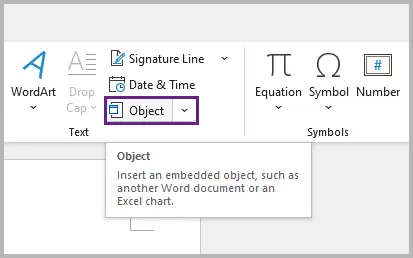
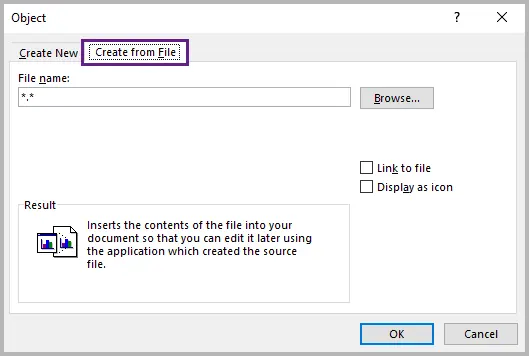
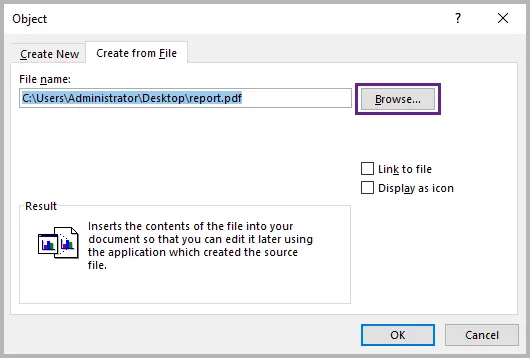
Il file scelto (ad es. PDF, Excel o immagine) diventa ora parte del documento. Puoi fare doppio clic sull'icona inserita per aprirlo in qualsiasi momento.
Vantaggi:
- Il file allegato viaggia con il documento.
- Funziona completamente offline.
Svantaggi:
- Aumenta le dimensioni del file.
- Non si aggiorna automaticamente se la fonte cambia.
Ideale per: report finalizzati, archivi e invii ufficiali.
Metodo 2: Inserire un File come Oggetto Collegato
Quando vuoi che il tuo documento Word rimanga leggero riflettendo al contempo gli aggiornamenti da una fonte esterna, inserire il file come oggetto collegato è la scelta più intelligente. Invece di incorporare una copia, Word mantiene un collegamento attivo al file originale, quindi qualsiasi modifica apportata alla fonte viene automaticamente riflessa nel tuo documento. Questo è perfetto per dati dinamici, come fogli finanziari o grafici che evolvono nel tempo.
Passaggi:
- Segui gli stessi passaggi del Metodo 1.
- Prima di confermare, seleziona Collega al file.
- Fai clic su OK.
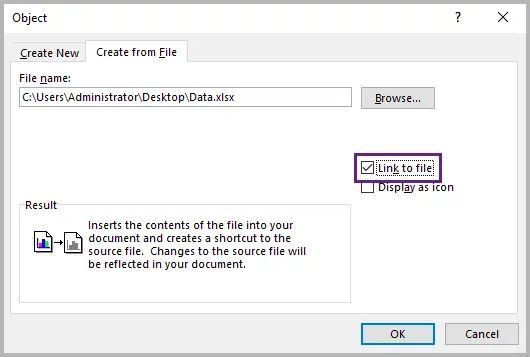
Vedrai un'icona di file o un'anteprima nel tuo documento Word, ma il contenuto è archiviato esternamente.
Vantaggi:
- Mantiene il tuo documento Word leggero.
- Si aggiorna automaticamente quando il file originale cambia.
- Funziona offline se il file collegato è archiviato localmente.
Svantaggi:
- Il collegamento si interrompe se il file di origine viene spostato, rinominato o eliminato.
- Richiede l'accesso al percorso o all'unità del file collegato (ad es. locale o di rete).
Ideale per: progetti collaborativi o documenti che si basano su dati aggiornati di frequente.
Metodo 3: Aggiungere un File come Collegamento Ipertestuale
Se hai solo bisogno di fare riferimento a un file piuttosto che includerne il contenuto, l'aggiunta di un collegamento ipertestuale offre una soluzione pulita ed efficiente. Questo metodo indirizza semplicemente i lettori alla posizione del file, che si trovi sull'unità locale, su un server condiviso o su un servizio cloud come OneDrive o SharePoint, senza incorporare o collegare il file effettivo. È leggero, veloce e ideale per i team distribuiti.
Passaggi:
- Evidenzia il testo o l'immagine in cui desideri aggiungere il collegamento.
- Fai clic con il pulsante destro del mouse sul testo o sull'immagine selezionata e scegli Collegamento dal menu visualizzato.
- Seleziona il tuo file o incolla il percorso/URL completo.
- Fai clic su OK.
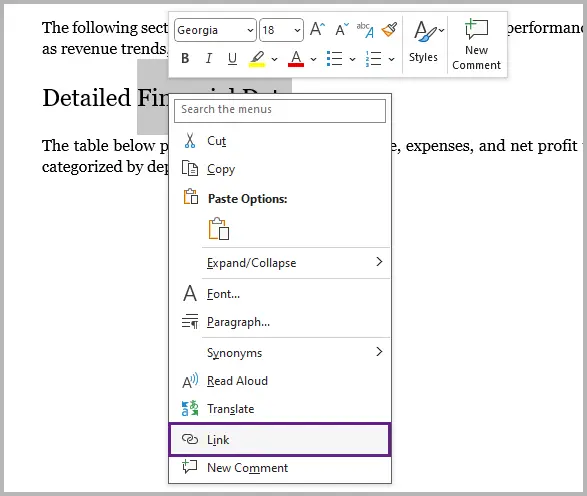
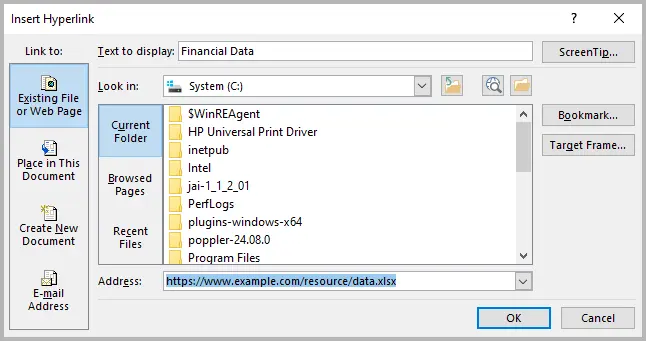
Quando si fa clic, il collegamento apre il file direttamente nel programma associato.
Vantaggi:
- Non aumenta le dimensioni del documento.
- Facile da modificare o aggiornare la destinazione del collegamento.
- Funziona offline se collegato a un percorso di file locale.
Svantaggi:
- Richiede l'accesso al file o alla posizione di rete.
- I collegamenti basati su cloud (ad es. OneDrive o SharePoint) richiedono una connessione a Internet.
Ideale per: collaborazione online, unità condivise o collegamento a risorse locali.
Metodo 4: Trascinare e Rilasciare per Allegare Rapidamente un File
Quando devi allegare un file al volo senza passare attraverso i menu, il metodo di trascinamento della selezione è l'approccio più veloce e intuitivo. Trascina semplicemente un file dal desktop o dall'esplora file direttamente nella finestra di Word aperta e Word si occuperà del resto.
A seconda del tipo di file:
- Le immagini vengono inserite automaticamente in linea.
- Altri tipi di file (ad es. PDF, fogli Excel) vengono visualizzati come icone che si aprono con un doppio clic.
Questo metodo funziona meglio per modifiche rapide o documenti informali in cui la praticità è fondamentale.
Vantaggi:
- Incredibilmente veloce e facile.
- Funziona per i formati di file più comuni.
Svantaggi:
- Dimensioni del file risultanti maggiori.
- Meno controllo su come l'allegato appare o si comporta.
Ideale per: inserimenti rapidi una tantum o quando è necessario inserire alcuni file durante la modifica.
Metodo 5: Allegare File Programmaticamente con Python
Per utenti e sviluppatori avanzati, l'automazione degli allegati di file utilizzando Python può far risparmiare tempo e garantire la coerenza, specialmente quando si generano grandi quantità di documenti o si assemblano report programmaticamente. Utilizzando Spire.Doc for Python, è possibile incorporare file esterni come oggetti OLE direttamente in Word senza passaggi manuali.
Questo è ideale per flussi di lavoro automatizzati, come la generazione di report settimanali, l'allegato di PDF o grafici o il raggruppamento dinamico di documenti di supporto.
Ecco un esempio di come incorporare un file PDF in un documento Word:
from spire.doc import *
from spire.doc.common import *

# Create a Document object
doc = Document()

# Load a Word document
doc.LoadFromFile("C:\\Users\\Administrator\\Desktop\\input.docx")

# Get the first section
section = doc.Sections.get_Item(0)

# Add a paragraph to the section
para = section.AddParagraph()

# Load an image which will be used as the icon of the OLE object
picture = DocPicture(doc)
picture.LoadImage("C:\\Users\\Administrator\\Desktop\\PDF-Icon.png")
picture.Width = 60
picture.Height = 60

# Append an OLE object (a PDF file) to the paragraph
object = para.AppendOleObject("C:\\Users\\Administrator\\Desktop\\report.pdf", picture, OleObjectType.AdobeAcrobatDocument)

# Display the object as icon
object.DisplayAsIcon = True

# Add a caption under the icon
object.OlePicture.AddCaption("Attachment", CaptionNumberingFormat.Number, CaptionPosition.BelowItem)
doc.IsUpdateFields = True

# Save the document
doc.SaveToFile("AttachFile.docx", FileFormat.Docx2013)
doc.Close()
È possibile sostituire il percorso del file e il tipo di oggetto OLE per altri formati come fogli Excel, immagini o documenti Word. Fare riferimento a questa guida per istruzioni dettagliate su inserimento o estrazione di oggetti OLE in Word utilizzando Python.
Output:

Oltre a incorporare file in un documento Word, Spire.Doc consente di allegare file come oggetti collegati utilizzando il metodo AppendOleObject(String, DocPicture, OleLinkType) o creare collegamenti ipertestuali da testo o immagini che reindirizzano a file esterni.
Perché usare l'automazione?
- Perfetto per l'elaborazione batch o la generazione di report.
- Si integra senza problemi con i sistemi basati sui dati.
- Garantisce risultati ripetibili e privi di errori.
Ideale per: professionisti o team che gestiscono la generazione di documenti su larga scala.
Tabella di Confronto: Quale Metodo Usare?
| Metodo | Incorporato | Collegato | Dimensione File | Funziona Offline | Ideale Per |
|---|---|---|---|---|---|
| Oggetto (Incorpora) | √ | x | Grande | √ | Archiviazione, condivisione di copie complete |
| Oggetto (Collega) | x | √ | Piccolo | √ (se il file è locale) / x (se il file è online) | Riferimenti dinamici o aggiornabili |
| Collegamento Ipertestuale | x | √ | Piccolo | √ (percorso locale) / x (percorso online) | Collegamento a file condivisi o su cloud |
| Trascina e Rilascia | √ | x | Grande | √ | Inserimenti rapidi una tantum |
| Automazione Python | √ | √ | Flessibile | √ | Flussi di lavoro automatizzati ed elaborazione batch |
Conclusione
Allegare file a un documento Word è un modo semplice ma potente per mantenere i materiali correlati organizzati e accessibili. Il metodo scelto dipende dalle tue esigenze: incorporare un file in Word assicura che tutto rimanga in un unico documento, collegare file in Word mantiene i documenti leggeri e aggiornati automaticamente, e aggiungere collegamenti ipertestuali rende la condivisione di risorse online semplicissima.
Per modifiche rapide, gli allegati tramite trascinamento offrono velocità e praticità, mentre l'automazione degli allegati di file con Python offre efficienza su larga scala. Che tu stia compilando un singolo report o gestendo la generazione automatizzata di documenti, selezionare il modo giusto per allegare file a Word ti aiuta a bilanciare portabilità, accessibilità e prestazioni per un flusso di lavoro più snello.
Domande Frequenti
D1. Quali tipi di file posso allegare a un documento Word?
Puoi allegare quasi ogni tipo di file, inclusi PDF, fogli di calcolo Excel, immagini e persino altri file di Word. Alcuni tipi di file potrebbero richiedere un software specifico per essere aperti.
D2. Posso allegare più file contemporaneamente?
Sì. Puoi incorporare o collegare più file in un unico documento. Per operazioni massive, l'uso dell'automazione (come Python) è più efficiente.
D3. Perché non riesco ad aprire il file allegato in Word?
Se l'allegato è stato collegato anziché incorporato, Word ha bisogno di accedere alla posizione del file originale. Controlla se è stato spostato o rinominato.
D4. Come allegare un file PDF all'interno di un documento Word?
Vai su Inserisci → Oggetto → Crea da file → Sfoglia, seleziona il tuo PDF e fai clic su OK. Seleziona Visualizza come icona se vuoi che venga mostrato come un'icona invece che come contenuto in linea.
D5. Come allegare un file Excel in un documento Word?
In Word, scegli Inserisci → Oggetto → Crea da file → Sfoglia, seleziona il file Excel e fai clic su OK. Per mantenerlo aggiornato automaticamente, seleziona Collega al file prima di inserirlo.
Vedi Anche
Como anexar arquivos a um documento do Word (5 maneiras eficazes)
Índice
- Método 1: Inserir um Ficheiro como um Objeto Incorporado
- Método 2: Inserir um Ficheiro como um Objeto Ligado
- Método 3: Adicionar um Ficheiro como uma Hiperligação
- Método 4: Arrastar e Largar para Anexar um Ficheiro Rapidamente
- Método 5: Anexar Ficheiros Programaticamente com Python
- Tabela de Comparação: Que Método Deve Utilizar?
- Conclusão
- Perguntas Frequentes
Em muitos contextos empresariais ou académicos, um documento Word é mais do que apenas texto — serve frequentemente como um centro para materiais relacionados, como relatórios, folhas de cálculo, gráficos ou PDFs de referência. Em vez de enviar vários ficheiros separadamente, anexe-os diretamente ao seu documento Word para manter tudo organizado num só lugar.
Isto é particularmente útil na preparação de relatórios de projetos, propostas ou documentação técnica que exija dados de apoio. Neste guia, aprenderá cinco formas práticas de anexar um ficheiro a um documento Word, desde abordagens manuais simples a métodos automatizados utilizando Python.
Visão Geral do Método:
- Método 1: Inserir um Ficheiro como um Objeto Incorporado
- Método 2: Inserir um Ficheiro como um Objeto Ligado
- Método 3: Adicionar um Ficheiro como uma Hiperligação
- Método 4: Arrastar e Largar para Anexar um Ficheiro Rapidamente
- Método 5: Anexar Ficheiros Programaticamente com Python
Método 1: Inserir um Ficheiro como um Objeto Incorporado
Se pretender que o ficheiro anexado se torne uma parte permanente e autónoma do seu documento Word, incorporá-lo como um objeto é a abordagem mais fiável. Este método armazena o ficheiro inteiro dentro do próprio documento Word, permitindo-lhe partilhar um único ficheiro que inclui todos os materiais relacionados. É ideal quando precisa que o documento permaneça totalmente funcional mesmo sem acesso a recursos externos.
Passos:
- Abra o seu documento Word.
- Vá para o separador Inserir.
- Clique em Objeto no grupo Texto.
- Selecione Criar a partir do Ficheiro.
- Clique em Procurar, selecione o ficheiro e confirme.
- (Opcional) Marque Apresentar como ícone para um layout organizado.
- Clique em OK.
O ficheiro escolhido (por exemplo, PDF, Excel ou imagem) passa a fazer parte do documento. Pode fazer duplo clique no ícone inserido para o abrir a qualquer momento.
Prós:
- O ficheiro anexado viaja com o documento.
- Funciona completamente offline.
Contras:
- Aumenta o tamanho do ficheiro.
- Não atualiza automaticamente se a origem for alterada.
Ideal para: relatórios finalizados, arquivos e submissões oficiais.
Método 2: Inserir um Ficheiro como um Objeto Ligado
Quando pretende que o seu documento Word se mantenha leve enquanto reflete as atualizações de uma fonte externa, inserir o ficheiro como um objeto ligado é a escolha mais inteligente. Em vez de incorporar uma cópia, o Word mantém uma ligação ativa ao ficheiro original — pelo que quaisquer alterações efetuadas na origem são automaticamente refletidas no seu documento. Isto é perfeito para dados dinâmicos, como folhas financeiras ou gráficos que evoluem ao longo do tempo.
Passos:
- Siga os mesmos passos do Método 1.
- Antes de confirmar, marque Ligar ao ficheiro.
- Clique em OK.
Verá um ícone de ficheiro ou uma pré-visualização no seu documento Word, mas o conteúdo está armazenado externamente.
Prós:
- Mantém o seu documento Word leve.
- Atualiza automaticamente quando o ficheiro original é alterado.
- Funciona offline se o ficheiro ligado estiver armazenado localmente.
Contras:
- A ligação quebra-se se o ficheiro de origem for movido, renomeado ou eliminado.
- Requer acesso ao caminho ou unidade do ficheiro ligado (por exemplo, local ou de rede).
Ideal para: projetos colaborativos ou documentos que dependem de dados atualizados com frequência.
Método 3: Adicionar um Ficheiro como uma Hiperligação
Se apenas precisar de referenciar um ficheiro em vez de incluir o seu conteúdo, adicionar uma hiperligação oferece uma solução limpa e eficiente. Este método simplesmente aponta os leitores para a localização do ficheiro — seja na sua unidade local, num servidor partilhado ou num serviço de nuvem como o OneDrive ou o SharePoint — sem incorporar ou ligar o ficheiro real. É leve, rápido e ideal para equipas distribuídas.
Passos:
- Realce o texto ou a imagem onde pretende adicionar a ligação.
- Clique com o botão direito do rato no texto ou imagem selecionado e escolha Ligação no menu apresentado.
- Selecione o seu ficheiro ou cole o caminho/URL completo.
- Clique em OK.
Quando clicada, a ligação abre o ficheiro diretamente no seu programa associado.
Prós:
- Não aumenta o tamanho do documento.
- Fácil de editar ou atualizar o destino da ligação.
- Funciona offline se estiver ligado a um caminho de ficheiro local.
Contras:
- Requer acesso ao ficheiro ou à localização de rede.
- As ligações baseadas na nuvem (por exemplo, OneDrive ou SharePoint) necessitam de uma ligação à Internet.
Ideal para: colaboração online, unidades partilhadas ou ligação a recursos locais.
Método 4: Arrastar e Largar para Anexar um Ficheiro Rapidamente
Quando precisa de anexar um ficheiro rapidamente sem passar por menus, o método de arrastar e largar é a abordagem mais rápida e intuitiva. Basta arrastar um ficheiro da sua área de trabalho ou explorador de ficheiros diretamente para a sua janela aberta do Word — e o Word tratará do resto.
Dependendo do tipo de ficheiro:
- As imagens são inseridas em linha automaticamente.
- Outros tipos de ficheiros (por exemplo, PDFs, folhas de Excel) são apresentados como ícones que abrem com um duplo clique.
Este método funciona melhor para edições rápidas ou documentos informais onde a conveniência é fundamental.
Prós:
- Incrivelmente rápido e fácil.
- Funciona para a maioria dos formatos de ficheiro comuns.
Contras:
- Tamanho de ficheiro resultante maior.
- Menos controlo sobre a forma como o anexo aparece ou se comporta.
Ideal para: inserções rápidas de uma só vez ou quando precisa de largar alguns ficheiros durante a edição.
Método 5: Anexar Ficheiros Programaticamente com Python
Para utilizadores e programadores avançados, a automatização de anexos de ficheiros utilizando Python pode poupar tempo e garantir a consistência — especialmente ao gerar um grande número de documentos ou ao montar relatórios programaticamente. Ao utilizar Spire.Doc for Python, pode incorporar ficheiros externos como objetos OLE diretamente no Word sem passos manuais.
Isto é ideal para fluxos de trabalho automatizados, como a geração de relatórios semanais, a anexação de PDFs ou gráficos, ou o agrupamento dinâmico de documentos de apoio.
Eis um exemplo de como incorporar um ficheiro PDF num documento Word:
from spire.doc import *
from spire.doc.common import *

# Create a Document object
doc = Document()

# Load a Word document
doc.LoadFromFile("C:\\Users\\Administrator\\Desktop\\input.docx")

# Get the first section
section = doc.Sections.get_Item(0)

# Add a paragraph to the section
para = section.AddParagraph()

# Load an image which will be used as the icon of the OLE object
picture = DocPicture(doc)
picture.LoadImage("C:\\Users\\Administrator\\Desktop\\PDF-Icon.png")
picture.Width = 60
picture.Height = 60

# Append an OLE object (a PDF file) to the paragraph
object = para.AppendOleObject("C:\\Users\\Administrator\\Desktop\\report.pdf", picture, OleObjectType.AdobeAcrobatDocument)

# Display the object as icon
object.DisplayAsIcon = True

# Add a caption under the icon
object.OlePicture.AddCaption("Attachment", CaptionNumberingFormat.Number, CaptionPosition.BelowItem)
doc.IsUpdateFields = True

# Save the document
doc.SaveToFile("AttachFile.docx", FileFormat.Docx2013)
doc.Close()
Pode substituir o caminho do ficheiro e o tipo de objeto OLE por outros formatos, como folhas do Excel, imagens ou documentos do Word. Consulte este guia para obter instruções detalhadas sobre como inserir ou extrair objetos OLE no Word utilizando Python.
Resultado:
Além de incorporar ficheiros num documento Word, o Spire.Doc permite-lhe anexar ficheiros como objetos ligados utilizando o método AppendOleObject(String, DocPicture, OleLinkType), ou criar hiperligações a partir de texto ou imagens que redirecionam para ficheiros externos.
Porquê usar a automatização?
- Perfeito para processamento em lote ou geração de relatórios.
- Integra-se suavemente com sistemas orientados por dados.
- Garante resultados repetíveis e sem erros.
Ideal para: profissionais ou equipas que gerem a geração de documentos em escala.
Tabela de Comparação: Que Método Deve Utilizar?
| Método | Incorporado | Ligado | Tamanho do Ficheiro | Funciona Offline | Ideal Para |
|---|---|---|---|---|---|
| Objeto (Incorporar) | √ | x | Grande | √ | Arquivamento, partilha de cópias completas |
| Objeto (Ligar) | x | √ | Pequeno | √ (se o ficheiro for local) / x (se o ficheiro for online) | Referências dinâmicas ou atualizáveis |
| Hiperligação | x | √ | Pequeno | √ (caminho local) / x (caminho online) | Ligação a ficheiros partilhados ou na nuvem |
| Arrastar e Largar | √ | x | Grande | √ | Inserções rápidas de uma só vez |
| Automação Python | √ | √ | Flexível | √ | Fluxos de trabalho automatizados e processamento em lote |
Conclusão
Anexar ficheiros a um documento Word é uma forma simples mas poderosa de manter os materiais relacionados organizados e acessíveis. O método que escolher depende das suas necessidades: incorporar um ficheiro no Word garante que tudo permanece num único documento, ligar ficheiros no Word mantém os documentos leves e atualizados automaticamente, e adicionar hiperligações torna a partilha de recursos online fácil.
Para edições rápidas, os anexos de arrastar e largar oferecem velocidade e conveniência, enquanto a automatização de anexos de ficheiros com Python proporciona eficiência em escala. Quer esteja a compilar um único relatório ou a gerir a geração automatizada de documentos, selecionar a forma correta de anexar ficheiros ao Word ajuda-o a equilibrar a portabilidade, a acessibilidade e o desempenho para um fluxo de trabalho mais simplificado.
Perguntas Frequentes
P1. Que tipos de ficheiros posso anexar a um documento Word?
Pode anexar quase qualquer tipo de ficheiro, incluindo PDFs, folhas de cálculo do Excel, imagens e até outros ficheiros Word. Alguns tipos de ficheiro podem exigir software específico para abrir.
P2. Posso anexar vários ficheiros de uma só vez?
Sim. Pode incorporar ou ligar vários ficheiros num único documento. Para operações em massa, a utilização da automatização (como o Python) é mais eficiente.
P3. Porque não consigo abrir o ficheiro anexado no Word?
Se o anexo foi ligado em vez de incorporado, o Word precisa de acesso à localização do ficheiro original. Verifique se foi movido ou renomeado.
P4. Como anexar um ficheiro PDF dentro de um documento Word?
Vá para Inserir → Objeto → Criar a partir do Ficheiro → Procurar, selecione o seu PDF e clique em OK. Marque Apresentar como ícone se pretender que seja apresentado como um ícone em vez de conteúdo em linha.
P5. Como anexar um ficheiro Excel num documento Word?
No Word, escolha Inserir → Objeto → Criar a partir do Ficheiro → Procurar, selecione o ficheiro Excel e clique em OK. Para o manter atualizado automaticamente, marque Ligar ao ficheiro antes de inserir.
Ver Também
Word 문서에 파일을 첨부하는 5가지 효과적인 방법
많은 비즈니스 또는 학업 환경에서 Word 문서는 단순한 텍스트 이상입니다. 보고서, 스프레드시트, 차트 또는 참조 PDF와 같은 관련 자료의 허브 역할을 하는 경우가 많습니다. 여러 파일을 별도로 보내는 대신 Word 문서에 직접 첨부하여 모든 것을 한 곳에 정리하세요.
이는 지원 데이터가 필요한 프로젝트 보고서, 제안서 또는 기술 문서를 준비할 때 특히 유용합니다. 이 가이드에서는 간단한 수동 접근 방식부터 Python을 사용한 자동화된 방법에 이르기까지 Word 문서에 파일을 첨부하는 다섯 가지 실용적인 방법을 배웁니다.
방법 개요:
- 방법 1: 파일을 포함된 개체로 삽입
- 방법 2: 파일을 연결된 개체로 삽입
- 방법 3: 파일을 하이퍼링크로 추가
- 방법 4: 드래그 앤 드롭으로 신속하게 파일 첨부
- 방법 5: Python을 사용하여 프로그래밍 방식으로 파일 첨부
방법 1: 파일을 포함된 개체로 삽입
첨부된 파일이 Word 문서의 영구적이고 독립적인 부분이 되기를 원한다면 개체로 포함하는 것이 가장 신뢰할 수 있는 방법입니다. 이 방법은 전체 파일을 Word 문서 자체 내에 저장하므로 모든 관련 자료가 포함된 단일 파일을 공유할 수 있습니다. 외부 리소스에 액세스하지 않고도 문서가 완벽하게 작동해야 할 때 이상적입니다.
단계:
- Word 문서를 엽니다.
- 삽입 탭으로 이동합니다.
- 텍스트 그룹에서 개체를 클릭합니다.
- 파일로부터 만들기를 선택합니다.
- 찾아보기를 클릭하고 파일을 선택한 다음 확인합니다.
- (선택 사항) 깔끔한 레이아웃을 위해 아이콘으로 표시를 선택합니다.
- 확인을 클릭합니다.
선택한 파일(예: PDF, Excel 또는 이미지)이 이제 문서의 일부가 됩니다. 삽입된 아이콘을 두 번 클릭하여 언제든지 열 수 있습니다.
장점:
- 첨부된 파일은 문서와 함께 이동합니다.
- 완전한 오프라인으로 작동합니다.
단점:
- 파일 크기가 증가합니다.
- 소스가 변경되어도 자동으로 업데이트되지 않습니다.
최적 대상: 최종 보고서, 아카이브 및 공식 제출물.
방법 2: 파일을 연결된 개체로 삽입
외부 소스의 업데이트를 반영하면서 Word 문서를 가볍게 유지하려면 파일을 연결된 개체로 삽입하는 것이 더 현명한 선택입니다. 복사본을 포함하는 대신 Word는 원본 파일에 대한 실시간 링크를 유지하므로 소스에 대한 모든 변경 사항이 문서에 자동으로 반영됩니다. 이는 시간이 지남에 따라 변하는 재무 시트나 차트와 같은 동적 데이터에 적합합니다.
단계:
- 방법 1과 동일한 단계를 따릅니다.
- 확인하기 전에 파일에 연결을 선택합니다.
- 확인을 클릭합니다.
Word 문서에 파일 아이콘이나 미리보기가 표시되지만 내용은 외부에 저장됩니다.
장점:
- Word 문서를 가볍게 유지합니다.
- 원본 파일이 변경되면 자동으로 업데이트됩니다.
- 연결된 파일이 로컬에 저장된 경우 오프라인으로 작동합니다.
단점:
- 소스 파일이 이동, 이름 변경 또는 삭제되면 링크가 끊어집니다.
- 연결된 파일의 경로 또는 드라이브(예: 로컬 또는 네트워크)에 대한 액세스가 필요합니다.
최적 대상: 공동 작업 프로젝트 또는 자주 업데이트되는 데이터에 의존하는 문서.
방법 3: 파일을 하이퍼링크로 추가
내용을 포함하는 대신 파일을 참조하기만 하면 되는 경우 하이퍼링크를 추가하면 깔끔하고 효율적인 솔루션을 얻을 수 있습니다. 이 방법은 실제 파일을 포함하거나 연결하지 않고 독자를 로컬 드라이브, 공유 서버 또는 OneDrive나 SharePoint와 같은 클라우드 서비스 등 파일 위치로 안내합니다. 가볍고 빠르며 분산된 팀에 이상적입니다.
단계:
- 링크를 추가할 텍스트나 이미지를 강조 표시합니다.
- 선택한 텍스트나 이미지를 마우스 오른쪽 버튼으로 클릭하고 나타나는 메뉴에서 링크를 선택합니다.
- 파일을 선택하거나 전체 경로/URL을 붙여넣습니다.
- 확인을 클릭합니다.
클릭하면 연결된 프로그램에서 파일이 직접 열립니다.
장점:
- 문서 크기를 늘리지 않습니다.
- 링크 대상을 쉽게 편집하거나 업데이트할 수 있습니다.
- 로컬 파일 경로에 연결된 경우 오프라인으로 작동합니다.
단점:
- 파일 또는 네트워크 위치에 대한 액세스가 필요합니다.
- 클라우드 기반 링크(예: OneDrive 또는 SharePoint)는 인터넷 연결이 필요합니다.
최적 대상: 온라인 공동 작업, 공유 드라이브 또는 로컬 리소스에 대한 링크.
방법 4: 드래그 앤 드롭으로 신속하게 파일 첨부
메뉴를 거치지 않고 즉시 파일을 첨부해야 할 때 드래그 앤 드롭 방법이 가장 빠르고 직관적인 접근 방식입니다. 바탕 화면이나 파일 탐색기에서 열려 있는 Word 창으로 파일을 직접 드래그하기만 하면 나머지는 Word가 알아서 처리합니다.
파일 유형에 따라:
- 이미지는 자동으로 인라인으로 삽입됩니다.
- 다른 파일 유형(예: PDF, Excel 시트)은 두 번 클릭하여 열 수 있는 아이콘으로 표시됩니다.
이 방법은 편의성이 중요한 빠른 편집이나 비공식 문서에 가장 적합합니다.
장점:
- 믿을 수 없을 정도로 빠르고 쉽습니다.
- 대부분의 일반적인 파일 형식에서 작동합니다.
단점:
- 결과 파일 크기가 더 큽니다.
- 첨부 파일의 모양이나 동작에 대한 제어가 적습니다.
최적 대상: 빠른 일회성 삽입 또는 편집 중에 몇 개의 파일을 드롭해야 할 때.
방법 5: Python을 사용하여 프로그래밍 방식으로 파일 첨부
고급 사용자 및 개발자의 경우 Python을 사용하여 파일 첨부를 자동화하면 시간을 절약하고 일관성을 보장할 수 있습니다. 특히 많은 수의 문서를 생성하거나 프로그래밍 방식으로 보고서를 조합할 때 그렇습니다. Spire.Doc for Python을 사용하면 외부 파일을 수동 단계 없이 OLE 개체로 Word에 직접 포함할 수 있습니다.
이는 주간 보고서 생성, PDF 또는 차트 첨부, 지원 문서 동적 번들링과 같은 자동화된 워크플로에 이상적입니다.
다음은 PDF 파일을 Word 문서에 포함하는 방법의 예입니다.
from spire.doc import *
from spire.doc.common import *

# Create a Document object
doc = Document()

# Load a Word document
doc.LoadFromFile("C:\\Users\\Administrator\\Desktop\\input.docx")

# Get the first section
section = doc.Sections.get_Item(0)

# Add a paragraph to the section
para = section.AddParagraph()

# Load an image which will be used as the icon of the OLE object
picture = DocPicture(doc)
picture.LoadImage("C:\\Users\\Administrator\\Desktop\\PDF-Icon.png")
picture.Width = 60
picture.Height = 60

# Append an OLE object (a PDF file) to the paragraph
object = para.AppendOleObject("C:\\Users\\Administrator\\Desktop\\report.pdf", picture, OleObjectType.AdobeAcrobatDocument)

# Display the object as icon
object.DisplayAsIcon = True

# Add a caption under the icon
object.OlePicture.AddCaption("Attachment", CaptionNumberingFormat.Number, CaptionPosition.BelowItem)
doc.IsUpdateFields = True

# Save the document
doc.SaveToFile("AttachFile.docx", FileFormat.Docx2013)
doc.Close()
Excel 시트, 이미지 또는 Word 문서와 같은 다른 형식의 파일 경로 및 OLE 개체 유형을 바꿀 수 있습니다. Python을 사용하여 Word에서 OLE 개체 삽입 또는 추출에 대한 자세한 지침은 이 가이드를 참조하십시오.
출력:
Word 문서에 파일을 포함하는 것 외에도 Spire.Doc을 사용하면 AppendOleObject(String, DocPicture, OleLinkType) 메서드를 사용하여 파일을 연결된 개체로 첨부하거나 외부 파일로 리디렉션되는 텍스트 또는 이미지에서 하이퍼링크를 만들 수 있습니다.
자동화를 사용하는 이유?
- 일괄 처리 또는 보고서 생성에 적합합니다.
- 데이터 기반 시스템과 원활하게 통합됩니다.
- 반복 가능하고 오류 없는 결과를 보장합니다.
최적 대상: 대규모로 문서 생성을 관리하는 전문가 또는 팀.
비교표: 어떤 방법을 사용해야 할까요?
| 방법 | 포함됨 | 연결됨 | 파일 크기 | 오프라인 작동 | 최적 대상 |
|---|---|---|---|---|---|
| 개체 (포함) | √ | x | 큼 | √ | 아카이빙, 전체 사본 공유 |
| 개체 (링크) | x | √ | 작음 | √ (파일이 로컬인 경우) / x (파일이 온라인인 경우) | 동적 또는 업데이트 가능한 참조 |
| 하이퍼링크 | x | √ | 작음 | √ (로컬 경로) / x (온라인 경로) | 공유 또는 클라우드 파일에 연결 |
| 드래그 앤 드롭 | √ | x | 큼 | √ | 빠른 일회성 삽입 |
| Python 자동화 | √ | √ | 유연함 | √ | 자동화된 워크플로 및 일괄 처리 |
결론
Word 문서에 파일을 첨부하는 것은 관련 자료를 정리하고 액세스할 수 있도록 유지하는 간단하면서도 강력한 방법입니다. 선택하는 방법은 필요에 따라 다릅니다. Word에 파일 포함은 모든 것이 하나의 문서에 유지되도록 하고, Word에서 파일 연결은 문서를 가볍게 유지하고 자동으로 업데이트하며, 하이퍼링크 추가는 온라인 리소스를 쉽게 공유할 수 있도록 합니다.
빠른 편집의 경우 드래그 앤 드롭 첨부는 속도와 편의성을 제공하는 반면, Python으로 파일 첨부 자동화는 대규모로 효율성을 제공합니다. 단일 보고서를 작성하든 자동화된 문서 생성을 관리하든, Word에 파일을 첨부하는 올바른 방법을 선택하면 이식성, 접근성 및 성능의 균형을 맞춰 보다 간소화된 워크플로를 만들 수 있습니다.
자주 묻는 질문
Q1. Word 문서에 어떤 유형의 파일을 첨부할 수 있나요?
PDF, Excel 스프레드시트, 이미지, 심지어 다른 Word 파일을 포함하여 거의 모든 파일 유형을 첨부할 수 있습니다. 일부 파일 유형은 열려면 특정 소프트웨어가 필요할 수 있습니다.
Q2. 한 번에 여러 파일을 첨부할 수 있나요?
예. 하나의 문서에 여러 파일을 포함하거나 연결할 수 있습니다. 대량 작업의 경우 자동화(예: Python)를 사용하는 것이 더 효율적입니다.
Q3. Word에서 첨부 파일을 열 수 없는 이유는 무엇인가요?
첨부 파일이 포함되지 않고 연결된 경우 Word는 원본 파일의 위치에 액세스해야 합니다. 이동되었거나 이름이 변경되었는지 확인하십시오.
Q4. Word 문서 안에 PDF 파일을 첨부하는 방법은 무엇인가요?
삽입 → 개체 → 파일로부터 만들기 → 찾아보기로 이동하여 PDF를 선택하고 확인을 클릭합니다. 인라인 콘텐츠 대신 아이콘으로 표시하려면 아이콘으로 표시를 선택합니다.
Q5. Word 문서에 Excel 파일을 첨부하는 방법은 무엇인가요?
Word에서 삽입 → 개체 → 파일로부터 만들기 → 찾아보기를 선택하고 Excel 파일을 선택한 다음 확인을 클릭합니다. 자동으로 업데이트되도록 하려면 삽입하기 전에 파일에 연결을 선택합니다.
참고 항목
Comment joindre des fichiers à un document Word (5 méthodes efficaces)
Table des matières
- Méthode 1 : Insérer un fichier en tant qu'objet incorporé
- Méthode 2 : Insérer un fichier en tant qu'objet lié
- Méthode 3 : Ajouter un fichier en tant que lien hypertexte
- Méthode 4 : Glisser-déposer pour joindre un fichier rapidement
- Méthode 5 : Joindre des fichiers par programmation avec Python
- Tableau comparatif : Quelle méthode devriez-vous utiliser ?
- Conclusion
- FAQ
Dans de nombreux contextes professionnels ou universitaires, un document Word est plus qu'un simple texte — il sert souvent de plaque tournante pour des documents connexes tels que des rapports, des feuilles de calcul, des graphiques ou des PDF de référence. Au lieu d'envoyer plusieurs fichiers séparément, joignez-les directement à votre document Word pour tout garder organisé en un seul endroit.
Ceci est particulièrement utile lors de la préparation de rapports de projet, de propositions ou de documentation technique nécessitant des données de support. Dans ce guide, vous apprendrez cinq façons pratiques de joindre un fichier à un document Word, allant des approches manuelles simples aux méthodes automatisées utilisant Python.
Aperçu de la méthode :
- Méthode 1 : Insérer un fichier en tant qu'objet incorporé
- Méthode 2 : Insérer un fichier en tant qu'objet lié
- Méthode 3 : Ajouter un fichier en tant que lien hypertexte
- Méthode 4 : Glisser-déposer pour joindre un fichier rapidement
- Méthode 5 : Joindre des fichiers par programmation avec Python
Méthode 1 : Insérer un fichier en tant qu'objet incorporé
Si vous souhaitez que le fichier joint devienne une partie permanente et autonome de votre document Word, l'incorporer en tant qu'objet est l'approche la plus fiable. Cette méthode stocke l'intégralité du fichier à l'intérieur du document Word lui-même, vous permettant de partager un seul fichier qui inclut tous les documents connexes. C'est idéal lorsque vous avez besoin que le document reste entièrement fonctionnel même sans accès à des ressources externes.
Étapes :
- Ouvrez votre document Word.
- Allez dans l'onglet Insertion.
- Cliquez sur Objet dans le groupe Texte.
- Sélectionnez Créer à partir du fichier.
- Cliquez sur Parcourir, sélectionnez le fichier et confirmez.
- (Facultatif) Cochez Afficher en tant qu'icône pour une mise en page soignée.
- Cliquez sur OK.
Le fichier que vous avez choisi (par exemple, PDF, Excel ou image) fait maintenant partie du document. Vous pouvez double-cliquer sur l'icône insérée pour l'ouvrir à tout moment.
Avantages :
- Le fichier joint voyage avec le document.
- Fonctionne complètement hors ligne.
Inconvénients :
- Augmente la taille du fichier.
- Ne se met pas à jour automatiquement si la source change.
Idéal pour : les rapports finalisés, les archives et les soumissions officielles.
Méthode 2 : Insérer un fichier en tant qu'objet lié
Lorsque vous souhaitez que votre document Word reste léger tout en reflétant les mises à jour d'une source externe, l'insertion du fichier en tant qu'objet lié est le choix le plus judicieux. Au lieu d'incorporer une copie, Word maintient un lien direct vers le fichier d'origine — ainsi, toute modification apportée à la source est automatiquement répercutée dans votre document. C'est parfait pour les données dynamiques, telles que les feuilles financières ou les graphiques qui évoluent avec le temps.
Étapes :
- Suivez les mêmes étapes que dans la méthode 1.
- Avant de confirmer, cochez Lier au fichier.
- Cliquez sur OK.
Vous verrez une icône de fichier ou un aperçu dans votre document Word, mais le contenu est stocké en externe.
Avantages :
- Garde votre document Word léger.
- Se met à jour automatiquement lorsque le fichier d'origine change.
- Fonctionne hors ligne si le fichier lié est stocké localement.
Inconvénients :
- Le lien se brise si le fichier source est déplacé, renommé ou supprimé.
- Nécessite un accès au chemin ou au lecteur du fichier lié (par exemple, local ou réseau).
Idéal pour : les projets collaboratifs ou les documents qui reposent sur des données fréquemment mises à jour.
Méthode 3 : Ajouter un fichier en tant que lien hypertexte
Si vous avez seulement besoin de référencer un fichier plutôt que d'inclure son contenu, l'ajout d'un lien hypertexte offre une solution propre et efficace. Cette méthode indique simplement aux lecteurs l'emplacement du fichier — que ce soit sur votre lecteur local, un serveur partagé ou un service cloud comme OneDrive ou SharePoint — sans incorporer ni lier le fichier réel. C'est léger, rapide et idéal pour les équipes distribuées.
Étapes :
- Surlignez le texte ou l'image où vous souhaitez ajouter le lien.
- Faites un clic droit sur le texte ou l'image sélectionné(e) et choisissez Lien dans le menu qui s'affiche.
- Sélectionnez votre fichier ou collez le chemin/URL complet.
- Cliquez sur OK.
Lorsque vous cliquez dessus, le lien ouvre le fichier directement dans son programme associé.
Avantages :
- N'augmente pas la taille du document.
- Facile à modifier ou à mettre à jour la cible du lien.
- Fonctionne hors ligne si lié à un chemin de fichier local.
Inconvénients :
- Nécessite un accès au fichier ou à l'emplacement réseau.
- Les liens basés sur le cloud (par exemple, OneDrive ou SharePoint) nécessitent une connexion Internet.
Idéal pour : la collaboration en ligne, les lecteurs partagés ou la liaison vers des ressources locales.
Méthode 4 : Glisser-déposer pour joindre un fichier rapidement
Lorsque vous devez joindre un fichier à la volée sans passer par les menus, la méthode du glisser-déposer est l'approche la plus rapide et la plus intuitive. Faites simplement glisser un fichier de votre bureau ou de l'explorateur de fichiers directement dans votre fenêtre Word ouverte — et Word s'occupera du reste.
Selon le type de fichier :
- Les images sont insérées en ligne automatiquement.
- Les autres types de fichiers (par exemple, les PDF, les feuilles Excel) sont affichés sous forme d'icônes qui s'ouvrent d'un double-clic.
Cette méthode fonctionne mieux pour les modifications rapides ou les documents informels où la commodité est essentielle.
Avantages :
- Incroyablement rapide et facile.
- Fonctionne pour la plupart des formats de fichiers courants.
Inconvénients :
- Taille de fichier résultante plus grande.
- Moins de contrôle sur l'apparence ou le comportement de la pièce jointe.
Idéal pour : les insertions rapides et uniques ou lorsque vous devez déposer quelques fichiers lors de la modification.
Méthode 5 : Joindre des fichiers par programmation avec Python
Pour les utilisateurs et les développeurs avancés, l'automatisation des pièces jointes à l'aide de Python peut faire gagner du temps et garantir la cohérence, en particulier lors de la génération d'un grand nombre de documents ou de l'assemblage de rapports par programme. En utilisant Spire.Doc for Python, vous pouvez incorporer des fichiers externes en tant qu'objets OLE directement dans Word sans étapes manuelles.
C'est idéal pour les flux de travail automatisés, tels que la génération de rapports hebdomadaires, la pièce jointe de PDF ou de graphiques, ou le regroupement dynamique de documents de support.
Voici un exemple de la façon d'incorporer un fichier PDF dans un document Word :
from spire.doc import *
from spire.doc.common import *

# Create a Document object
doc = Document()

# Load a Word document
doc.LoadFromFile("C:\\Users\\Administrator\\Desktop\\input.docx")

# Get the first section
section = doc.Sections.get_Item(0)

# Add a paragraph to the section
para = section.AddParagraph()

# Load an image which will be used as the icon of the OLE object
picture = DocPicture(doc)
picture.LoadImage("C:\\Users\\Administrator\\Desktop\\PDF-Icon.png")
picture.Width = 60
picture.Height = 60

# Append an OLE object (a PDF file) to the paragraph
object = para.AppendOleObject("C:\\Users\\Administrator\\Desktop\\report.pdf", picture, OleObjectType.AdobeAcrobatDocument)

# Display the object as icon
object.DisplayAsIcon = True

# Add a caption under the icon
object.OlePicture.AddCaption("Attachment", CaptionNumberingFormat.Number, CaptionPosition.BelowItem)
doc.IsUpdateFields = True

# Save the document
doc.SaveToFile("AttachFile.docx", FileFormat.Docx2013)
doc.Close()
Vous pouvez remplacer le chemin du fichier et le type d'objet OLE pour d'autres formats tels que des feuilles Excel, des images ou des documents Word. Consultez ce guide pour des instructions détaillées sur l'insertion ou l'extraction d'objets OLE dans Word à l'aide de Python.
Sortie :
En plus d'incorporer des fichiers dans un document Word, Spire.Doc vous permet de joindre des fichiers en tant qu'objets liés à l'aide de la méthode AppendOleObject(String, DocPicture, OleLinkType), ou de créer des liens hypertextes à partir de texte ou d'images qui redirigent vers des fichiers externes.
Pourquoi utiliser l'automatisation ?
- Parfait pour le traitement par lots ou la génération de rapports.
- S'intègre en douceur aux systèmes basés sur les données.
- Garantit des résultats reproductibles et sans erreur.
Idéal pour : les professionnels ou les équipes qui gèrent la génération de documents à grande échelle.
Tableau comparatif : Quelle méthode devriez-vous utiliser ?
| Méthode | Incorporé | Lié | Taille du fichier | Fonctionne hors ligne | Idéal pour |
|---|---|---|---|---|---|
| Objet (incorporer) | √ | x | Grand | √ | Archivage, partage de copies complètes |
| Objet (Lien) | x | √ | Petit | √ (si le fichier est local) / x (si le fichier est en ligne) | Références dynamiques ou pouvant être mises à jour |
| Lien hypertexte | x | √ | Petit | √ (chemin local) / x (chemin en ligne) | Liaison vers des fichiers partagés ou cloud |
| Glisser-déposer | √ | x | Grand | √ | Insertions rapides et uniques |
| Automatisation Python | √ | √ | Flexible | √ | Flux de travail automatisés et traitement par lots |
Conclusion
Joindre des fichiers à un document Word est un moyen simple mais puissant de garder les documents connexes organisés et accessibles. La méthode que vous choisissez dépend de vos besoins : l'incorporation d'un fichier dans Word garantit que tout reste dans un seul document, la liaison de fichiers dans Word maintient les documents légers et automatiquement mis à jour, et l'ajout de liens hypertextes facilite le partage des ressources en ligne.
Pour des modifications rapides, les pièces jointes par glisser-déposer offrent rapidité et commodité, tandis que l'automatisation des pièces jointes avec Python offre une efficacité à grande échelle. Que vous compiliez un seul rapport ou que vous gériez la génération automatisée de documents, la sélection de la bonne façon de joindre des fichiers à Word vous aide à équilibrer la portabilité, l'accessibilité et les performances pour un flux de travail plus rationalisé.
FAQ
Q1. Quels types de fichiers puis-je joindre à un document Word ?
Vous pouvez joindre presque tous les types de fichiers, y compris les PDF, les feuilles de calcul Excel, les images et même d'autres fichiers Word. Certains types de fichiers peuvent nécessiter un logiciel spécifique pour être ouverts.
Q2. Puis-je joindre plusieurs fichiers à la fois ?
Oui. Vous pouvez incorporer ou lier plusieurs fichiers dans un seul document. Pour les opérations en masse, l'utilisation de l'automatisation (comme Python) est plus efficace.
Q3. Pourquoi ne puis-je pas ouvrir le fichier joint dans Word ?
Si la pièce jointe a été liée plutôt qu'incorporée, Word a besoin d'accéder à l'emplacement du fichier d'origine. Vérifiez s'il a été déplacé ou renommé.
Q4. Comment joindre un fichier PDF à l'intérieur d'un document Word ?
Allez dans Insertion → Objet → Créer à partir du fichier → Parcourir, sélectionnez votre PDF et cliquez sur OK. Cochez Afficher en tant qu'icône si vous souhaitez qu'il s'affiche sous forme d'icône au lieu de contenu en ligne.
Q5. Comment joindre un fichier Excel dans un document Word ?
Dans Word, choisissez Insertion → Objet → Créer à partir du fichier → Parcourir, sélectionnez le fichier Excel et cliquez sur OK. Pour le maintenir à jour automatiquement, cochez Lier au fichier avant de l'insérer.
Voir également
Cómo adjuntar archivos a un documento de Word (5 maneras efectivas)
Tabla de Contenidos
- Método 1: Insertar un Archivo como Objeto Incrustado
- Método 2: Insertar un Archivo como Objeto Vinculado
- Método 3: Agregar un Archivo como Hipervínculo
- Método 4: Arrastrar y Soltar para Adjuntar un Archivo Rápidamente
- Método 5: Adjuntar Archivos Programáticamente con Python
- Tabla Comparativa: ¿Qué Método Deberías Usar?
- Conclusión
- Preguntas Frecuentes
En muchos entornos empresariales o académicos, un documento de Word es más que solo texto; a menudo sirve como un centro para materiales relacionados como informes, hojas de cálculo, gráficos o archivos PDF de referencia. En lugar de enviar varios archivos por separado, adjúntelos directamente a su documento de Word para mantener todo organizado en un solo lugar.
Esto es particularmente útil al preparar informes de proyectos, propuestas o documentación técnica que requiere datos de apoyo. En esta guía, aprenderá cinco formas prácticas de adjuntar un archivo a un documento de Word, que van desde enfoques manuales simples hasta métodos automatizados usando Python.
Resumen de Métodos:
- Método 1: Insertar un Archivo como Objeto Incrustado
- Método 2: Insertar un Archivo como Objeto Vinculado
- Método 3: Agregar un Archivo como Hipervínculo
- Método 4: Arrastrar y Soltar para Adjuntar un Archivo Rápidamente
- Método 5: Adjuntar Archivos Programáticamente con Python
Método 1: Insertar un Archivo como Objeto Incrustado
Si desea que el archivo adjunto se convierta en una parte permanente y autónoma de su documento de Word, incrustarlo como un objeto es el enfoque más confiable. Este método almacena el archivo completo dentro del propio documento de Word, lo que le permite compartir un único archivo que incluye todos los materiales relacionados. Es ideal cuando necesita que el documento permanezca completamente funcional incluso sin acceso a recursos externos.
Pasos:
- Abra su documento de Word.
- Vaya a la pestaña Insertar.
- Haga clic en Objeto en el grupo Texto.
- Seleccione Crear desde archivo.
- Haga clic en Examinar, seleccione el archivo y confirme.
- (Opcional) Marque Mostrar como icono para un diseño ordenado.
- Haga clic en Aceptar.
El archivo elegido (por ejemplo, PDF, Excel o imagen) ahora forma parte del documento. Puede hacer doble clic en el icono insertado para abrirlo en cualquier momento.
Ventajas:
- El archivo adjunto viaja con el documento.
- Funciona completamente sin conexión.
Desventajas:
- Aumenta el tamaño del archivo.
- No se actualiza automáticamente si la fuente cambia.
Ideal para: informes finalizados, archivos y entregas oficiales.
Método 2: Insertar un Archivo como Objeto Vinculado
Cuando desea que su documento de Word se mantenga ligero mientras refleja las actualizaciones de una fuente externa, insertar el archivo como un objeto vinculado es la opción más inteligente. En lugar de incrustar una copia, Word mantiene un vínculo activo con el archivo original, por lo que cualquier cambio realizado en la fuente se refleja automáticamente en su documento. Esto es perfecto para datos dinámicos, como hojas financieras o gráficos que evolucionan con el tiempo.
Pasos:
- Siga los mismos pasos que en el Método 1.
- Antes de confirmar, marque Vincular al archivo.
- Haga clic en Aceptar.
Verá un icono de archivo o una vista previa en su documento de Word, pero el contenido se almacena externamente.
Ventajas:
- Mantiene su documento de Word ligero.
- Se actualiza automáticamente cuando cambia el archivo original.
- Funciona sin conexión si el archivo vinculado se almacena localmente.
Desventajas:
- El vínculo se rompe si el archivo de origen se mueve, se renombra o se elimina.
- Requiere acceso a la ruta o unidad del archivo vinculado (por ejemplo, local o de red).
Ideal para: proyectos colaborativos o documentos que dependen de datos actualizados con frecuencia.
Método 3: Agregar un Archivo como Hipervínculo
Si solo necesita hacer referencia a un archivo en lugar de incluir su contenido, agregar un hipervínculo ofrece una solución limpia y eficiente. Este método simplemente dirige a los lectores a la ubicación del archivo, ya sea en su unidad local, un servidor compartido o un servicio en la nube como OneDrive o SharePoint, sin incrustar ni vincular el archivo real. Es ligero, rápido e ideal para equipos distribuidos.
Pasos:
- Resalte el texto o la imagen donde desea agregar el vínculo.
- Haga clic derecho en el texto o la imagen seleccionados y elija Vínculo en el menú que aparece.
- Seleccione su archivo o pegue la ruta completa/URL.
- Haga clic en Aceptar.
Al hacer clic, el vínculo abre el archivo directamente en su programa asociado.
Ventajas:
- No aumenta el tamaño del documento.
- Fácil de editar o actualizar el destino del vínculo.
- Funciona sin conexión si está vinculado a una ruta de archivo local.
Desventajas:
- Requiere acceso al archivo o a la ubicación de red.
- Los vínculos basados en la nube (por ejemplo, OneDrive o SharePoint) necesitan una conexión a Internet.
Ideal para: colaboración en línea, unidades compartidas o vinculación a recursos locales.
Método 4: Arrastrar y Soltar para Adjuntar un Archivo Rápidamente
Cuando necesita adjuntar un archivo sobre la marcha sin pasar por los menús, el método de arrastrar y soltar es el enfoque más rápido e intuitivo. Simplemente arrastre un archivo desde su escritorio o explorador de archivos directamente a su ventana de Word abierta, y Word se encargará del resto.
Dependiendo del tipo de archivo:
- Las imágenes se insertan en línea automáticamente.
- Otros tipos de archivos (por ejemplo, PDF, hojas de Excel) se muestran como iconos que se abren con un doble clic.
Este método funciona mejor para ediciones rápidas o documentos informales donde la comodidad es clave.
Ventajas:
- Increíblemente rápido y fácil.
- Funciona para la mayoría de los formatos de archivo comunes.
Desventajas:
- Mayor tamaño de archivo resultante.
- Menos control sobre cómo aparece o se comporta el archivo adjunto.
Ideal para: inserciones rápidas de una sola vez o cuando necesita agregar algunos archivos durante la edición.
Método 5: Adjuntar Archivos Programáticamente con Python
Para usuarios avanzados y desarrolladores, automatizar los archivos adjuntos usando Python puede ahorrar tiempo y garantizar la coherencia, especialmente al generar grandes cantidades de documentos o ensamblar informes programáticamente. Al usar Spire.Doc for Python, puede incrustar archivos externos como objetos OLE directamente en Word sin pasos manuales.
Esto es ideal para flujos de trabajo automatizados, como generar informes semanales, adjuntar PDF o gráficos, o agrupar documentos de apoyo dinámicamente.
Aquí hay un ejemplo de cómo incrustar un archivo PDF en un documento de Word:
from spire.doc import *
from spire.doc.common import *

# Create a Document object
doc = Document()

# Load a Word document
doc.LoadFromFile("C:\\Users\\Administrator\\Desktop\\input.docx")

# Get the first section
section = doc.Sections.get_Item(0)

# Add a paragraph to the section
para = section.AddParagraph()

# Load an image which will be used as the icon of the OLE object
picture = DocPicture(doc)
picture.LoadImage("C:\\Users\\Administrator\\Desktop\\PDF-Icon.png")
picture.Width = 60
picture.Height = 60

# Append an OLE object (a PDF file) to the paragraph
object = para.AppendOleObject("C:\\Users\\Administrator\\Desktop\\report.pdf", picture, OleObjectType.AdobeAcrobatDocument)

# Display the object as icon
object.DisplayAsIcon = True

# Add a caption under the icon
object.OlePicture.AddCaption("Attachment", CaptionNumberingFormat.Number, CaptionPosition.BelowItem)
doc.IsUpdateFields = True

# Save the document
doc.SaveToFile("AttachFile.docx", FileFormat.Docx2013)
doc.Close()
Puede reemplazar la ruta del archivo y el tipo de objeto OLE por otros formatos como hojas de Excel, imágenes o documentos de Word. Consulte esta guía para obtener instrucciones detalladas sobre insertar o extraer objetos OLE en Word usando Python.
Salida:
Además de incrustar archivos en un documento de Word, Spire.Doc le permite adjuntar archivos como objetos vinculados utilizando el método AppendOleObject(String, DocPicture, OleLinkType), o crear hipervínculos a partir de texto o imágenes que redirigen a archivos externos.
¿Por qué usar la automatización?
- Perfecto para el procesamiento por lotes o la generación de informes.
- Se integra sin problemas con los sistemas basados en datos.
- Garantiza resultados repetibles y sin errores.
Ideal para: profesionales o equipos que gestionan la generación de documentos a escala.
Tabla Comparativa: ¿Qué Método Deberías Usar?
| Método | Incrustado | Vinculado | Tamaño del Archivo | Funciona sin Conexión | Ideal Para |
|---|---|---|---|---|---|
| Objeto (Incrustar) | √ | x | Grande | √ | Archivar, compartir copias completas |
| Objeto (Vincular) | x | √ | Pequeño | √ (si el archivo es local) / x (si el archivo está en línea) | Referencias dinámicas o actualizables |
| Hipervínculo | x | √ | Pequeño | √ (ruta local) / x (ruta en línea) | Vincular a archivos compartidos o en la nube |
| Arrastrar y Soltar | √ | x | Grande | √ | Inserciones rápidas de una sola vez |
| Automatización con Python | √ | √ | Flexible | √ | Flujos de trabajo automatizados y procesamiento por lotes |
Conclusión
Adjuntar archivos a un documento de Word es una forma simple pero poderosa de mantener los materiales relacionados organizados y accesibles. El método que elija depende de sus necesidades: incrustar un archivo en Word asegura que todo permanezca en un solo documento, vincular archivos en Word mantiene los documentos ligeros y actualizados automáticamente, y agregar hipervínculos facilita el intercambio de recursos en línea.
Para ediciones rápidas, los adjuntos de arrastrar y soltar ofrecen velocidad y comodidad, mientras que automatizar los adjuntos de archivos con Python proporciona eficiencia a escala. Ya sea que esté compilando un solo informe o gestionando la generación automatizada de documentos, seleccionar la forma correcta de adjuntar archivos a Word le ayuda a equilibrar la portabilidad, la accesibilidad y el rendimiento para un flujo de trabajo más optimizado.
Preguntas Frecuentes
P1. ¿Qué tipos de archivos puedo adjuntar a un documento de Word?
Puede adjuntar casi cualquier tipo de archivo, incluidos PDF, hojas de cálculo de Excel, imágenes e incluso otros archivos de Word. Algunos tipos de archivos pueden requerir un software específico para abrirse.
P2. ¿Puedo adjuntar varios archivos a la vez?
Sí. Puede incrustar o vincular varios archivos en un solo documento. Para operaciones masivas, usar la automatización (como Python) es más eficiente.
P3. ¿Por qué no puedo abrir el archivo adjunto en Word?
Si el archivo adjunto fue vinculado en lugar de incrustado, Word necesita acceso a la ubicación del archivo original. Verifique si se ha movido o renombrado.
P4. ¿Cómo adjuntar un archivo PDF dentro de un documento de Word?
Vaya a Insertar → Objeto → Crear desde archivo → Examinar, seleccione su PDF y haga clic en Aceptar. Marque Mostrar como icono si desea que se muestre como un icono en lugar de contenido en línea.
P5. ¿Cómo adjuntar un archivo de Excel en un documento de Word?
En Word, elija Insertar → Objeto → Crear desde archivo → Examinar, seleccione el archivo de Excel y haga clic en Aceptar. Para mantenerlo actualizado automáticamente, marque Vincular al archivo antes de insertar.
Ver También
Wie man Dateien an ein Word-Dokument anhängt (5 effektive Methoden)
Inhaltsverzeichnis
- Methode 1: Eine Datei als eingebettetes Objekt einfügen
- Methode 2: Eine Datei als verknüpftes Objekt einfügen
- Methode 3: Eine Datei als Hyperlink hinzufügen
- Methode 4: Eine Datei per Drag & Drop schnell anhängen
- Methode 5: Dateien programmgesteuert mit Python anhängen
- Vergleichstabelle: Welche Methode sollten Sie verwenden?
- Fazit
- FAQs
In vielen geschäftlichen oder akademischen Umgebungen ist ein Word-Dokument mehr als nur Text – es dient oft als Drehscheibe für zugehörige Materialien wie Berichte, Tabellenkalkulationen, Diagramme oder Referenz-PDFs. Anstatt mehrere Dateien separat zu senden, hängen Sie sie direkt an Ihr Word-Dokument an, um alles an einem Ort organisiert zu halten.
Dies ist besonders nützlich bei der Erstellung von Projektberichten, Vorschlägen oder technischer Dokumentation, die unterstützende Daten erfordert. In diesem Leitfaden lernen Sie fünf praktische Möglichkeiten, eine Datei an ein Word-Dokument anzuhängen, von einfachen manuellen Ansätzen bis hin zu automatisierten Methoden mit Python.
Methodenübersicht:
- Methode 1: Eine Datei als eingebettetes Objekt einfügen
- Methode 2: Eine Datei als verknüpftes Objekt einfügen
- Methode 3: Eine Datei als Hyperlink hinzufügen
- Methode 4: Eine Datei per Drag & Drop schnell anhängen
- Methode 5: Dateien programmgesteuert mit Python anhängen
Methode 1: Eine Datei als eingebettetes Objekt einfügen
Wenn Sie möchten, dass die angehängte Datei ein dauerhafter und eigenständiger Teil Ihres Word-Dokuments wird, ist das Einbetten als Objekt der zuverlässigste Ansatz. Diese Methode speichert die gesamte Datei im Word-Dokument selbst, sodass Sie eine einzige Datei freigeben können, die alle zugehörigen Materialien enthält. Dies ist ideal, wenn das Dokument auch ohne Zugriff auf externe Ressourcen voll funktionsfähig bleiben muss.
Schritte:
- Öffnen Sie Ihr Word-Dokument.
- Gehen Sie zum Tab Einfügen.
- Klicken Sie in der Gruppe Text auf Objekt.
- Wählen Sie Aus Datei erstellen.
- Klicken Sie auf Durchsuchen, wählen Sie die Datei aus und bestätigen Sie.
- (Optional) Aktivieren Sie Als Symbol anzeigen für ein aufgeräumtes Layout.
- Klicken Sie auf OK.
Ihre ausgewählte Datei (z. B. PDF, Excel oder Bild) wird nun Teil des Dokuments. Sie können jederzeit auf das eingefügte Symbol doppelklicken, um es zu öffnen.
Vorteile:
- Die angehängte Datei wird mit dem Dokument weitergegeben.
- Funktioniert vollständig offline.
Nachteile:
- Erhöht die Dateigröße.
- Wird nicht automatisch aktualisiert, wenn sich die Quelle ändert.
Am besten für: abgeschlossene Berichte, Archive und offizielle Einreichungen.
Methode 2: Eine Datei als verknüpftes Objekt einfügen
Wenn Sie möchten, dass Ihr Word-Dokument schlank bleibt und gleichzeitig Aktualisierungen aus einer externen Quelle widerspiegelt, ist das Einfügen der Datei als verknüpftes Objekt die klügere Wahl. Anstatt eine Kopie einzubetten, behält Word einen Live-Link zur Originaldatei bei – so werden alle an der Quelle vorgenommenen Änderungen automatisch in Ihrem Dokument widergespiegelt. Dies ist perfekt für dynamische Daten wie Finanztabellen oder Diagramme, die sich im Laufe der Zeit entwickeln.
Schritte:
- Befolgen Sie die gleichen Schritte wie in Methode 1.
- Aktivieren Sie vor der Bestätigung Mit Datei verknüpfen.
- Klicken Sie auf OK.
Sie sehen ein Dateisymbol oder eine Vorschau in Ihrem Word-Dokument, aber der Inhalt wird extern gespeichert.
Vorteile:
- Hält Ihr Word-Dokument schlank.
- Wird automatisch aktualisiert, wenn sich die Originaldatei ändert.
- Funktioniert offline, wenn die verknüpfte Datei lokal gespeichert ist.
Nachteile:
- Die Verknüpfung wird unterbrochen, wenn die Quelldatei verschoben, umbenannt oder gelöscht wird.
- Erfordert Zugriff auf den Pfad oder das Laufwerk der verknüpften Datei (z. B. lokal oder im Netzwerk).
Am besten für: kollaborative Projekte oder Dokumente, die auf häufig aktualisierten Daten basieren.
Methode 3: Eine Datei als Hyperlink hinzufügen
Wenn Sie nur auf eine Datei verweisen müssen, anstatt deren Inhalt einzuschließen, bietet das Hinzufügen eines Hyperlinks eine saubere und effiziente Lösung. Diese Methode verweist die Leser einfach auf den Speicherort der Datei – sei es auf Ihrem lokalen Laufwerk, einem freigegebenen Server oder einem Cloud-Dienst wie OneDrive oder SharePoint – ohne die eigentliche Datei einzubetten oder zu verknüpfen. Es ist leichtgewichtig, schnell und ideal für verteilte Teams.
Schritte:
- Markieren Sie den Text oder das Bild, an dem Sie den Link hinzufügen möchten.
- Klicken Sie mit der rechten Maustaste auf den ausgewählten Text oder das Bild und wählen Sie Link aus dem angezeigten Menü.
- Wählen Sie Ihre Datei aus oder fügen Sie den vollständigen Pfad/URL ein.
- Klicken Sie auf OK.
Wenn darauf geklickt wird, öffnet der Link die Datei direkt in ihrem zugehörigen Programm.
Vorteile:
- Erhöht die Dokumentgröße nicht.
- Einfach zu bearbeiten oder das Linkziel zu aktualisieren.
- Funktioniert offline, wenn auf einen lokalen Dateipfad verlinkt wird.
Nachteile:
- Erfordert Zugriff auf die Datei oder den Netzwerkstandort.
- Cloud-basierte Links (z. B. OneDrive oder SharePoint) benötigen eine Internetverbindung.
Am besten für: Online-Zusammenarbeit, freigegebene Laufwerke oder die Verknüpfung mit lokalen Ressourcen.
Methode 4: Eine Datei per Drag & Drop schnell anhängen
Wenn Sie eine Datei spontan anhängen müssen, ohne durch Menüs zu gehen, ist die Drag-and-Drop-Methode der schnellste und intuitivste Ansatz. Ziehen Sie einfach eine Datei von Ihrem Desktop oder Datei-Explorer direkt in Ihr geöffnetes Word-Fenster – und Word erledigt den Rest.
Abhängig vom Dateityp:
- Bilder werden automatisch inline eingefügt.
- Andere Dateitypen (z. B. PDFs, Excel-Tabellen) werden als Symbole angezeigt, die sich mit einem Doppelklick öffnen.
Diese Methode eignet sich am besten für schnelle Bearbeitungen oder informelle Dokumente, bei denen Bequemlichkeit im Vordergrund steht.
Vorteile:
- Unglaublich schnell und einfach.
- Funktioniert für die meisten gängigen Dateiformate.
Nachteile:
- Größere resultierende Dateigröße.
- Weniger Kontrolle darüber, wie der Anhang erscheint oder sich verhält.
Am besten für: schnelle einmalige Einfügungen oder wenn Sie während der Bearbeitung einige Dateien einfügen müssen.
Methode 5: Dateien programmgesteuert mit Python anhängen
Für fortgeschrittene Benutzer und Entwickler kann die Automatisierung von Dateianhängen mit Python Zeit sparen und Konsistenz gewährleisten – insbesondere bei der Erstellung großer Mengen von Dokumenten oder der programmgesteuerten Zusammenstellung von Berichten. Mit Spire.Doc for Python können Sie externe Dateien als OLE-Objekte direkt in Word einbetten, ohne manuelle Schritte.
Dies ist ideal für automatisierte Arbeitsabläufe, wie z. B. die Erstellung wöchentlicher Berichte, das Anhängen von PDFs oder Diagrammen oder das dynamische Bündeln von unterstützenden Dokumenten.
Hier ist ein Beispiel, wie man eine PDF-Datei in ein Word-Dokument einbettet:
from spire.doc import *
from spire.doc.common import *

# Create a Document object
doc = Document()

# Load a Word document
doc.LoadFromFile("C:\\Users\\Administrator\\Desktop\\input.docx")

# Get the first section
section = doc.Sections.get_Item(0)

# Add a paragraph to the section
para = section.AddParagraph()

# Load an image which will be used as the icon of the OLE object
picture = DocPicture(doc)
picture.LoadImage("C:\\Users\\Administrator\\Desktop\\PDF-Icon.png")
picture.Width = 60
picture.Height = 60

# Append an OLE object (a PDF file) to the paragraph
object = para.AppendOleObject("C:\\Users\\Administrator\\Desktop\\report.pdf", picture, OleObjectType.AdobeAcrobatDocument)

# Display the object as icon
object.DisplayAsIcon = True

# Add a caption under the icon
object.OlePicture.AddCaption("Attachment", CaptionNumberingFormat.Number, CaptionPosition.BelowItem)
doc.IsUpdateFields = True

# Save the document
doc.SaveToFile("AttachFile.docx", FileFormat.Docx2013)
doc.Close()
Sie können den Dateipfad und den OLE-Objekttyp für andere Formate wie Excel-Tabellen, Bilder oder Word-Dokumente ersetzen. Eine detaillierte Anleitung zum Einfügen oder Extrahieren von OLE-Objekten in Word mit Python finden Sie in diesem Leitfaden.
Ausgabe:
Zusätzlich zum Einbetten von Dateien in ein Word-Dokument ermöglicht Spire.Doc das Anhängen von Dateien als verknüpfte Objekte mit der Methode AppendOleObject(String, DocPicture, OleLinkType) oder das Erstellen von Hyperlinks aus Text oder Bildern, die auf externe Dateien umleiten.
Warum Automatisierung verwenden?
- Perfekt für die Stapelverarbeitung oder die Erstellung von Berichten.
- Lässt sich reibungslos in datengesteuerte Systeme integrieren.
- Sorgt für wiederholbare, fehlerfreie Ergebnisse.
Am besten für: Fachleute oder Teams, die die Dokumentenerstellung im großen Stil verwalten.
Vergleichstabelle: Welche Methode sollten Sie verwenden?
| Methode | Eingebettet | Verknüpft | Dateigröße | Funktioniert offline | Am besten für |
|---|---|---|---|---|---|
| Objekt (Einbetten) | √ | x | Groß | √ | Archivierung, Weitergabe vollständiger Kopien |
| Objekt (Verknüpfen) | x | √ | Klein | √ (wenn Datei lokal) / x (wenn Datei online) | Dynamische oder aktualisierbare Referenzen |
| Hyperlink | x | √ | Klein | √ (lokaler Pfad) / x (Online-Pfad) | Verlinkung zu freigegebenen oder Cloud-Dateien |
| Drag & Drop | √ | x | Groß | √ | Schnelle einmalige Einfügungen |
| Python-Automatisierung | √ | √ | Flexibel | √ | Automatisierte Arbeitsabläufe und Stapelverarbeitung |
Fazit
Das Anhängen von Dateien an ein Word-Dokument ist eine einfache, aber leistungsstarke Möglichkeit, zugehörige Materialien organisiert und zugänglich zu halten. Die von Ihnen gewählte Methode hängt von Ihren Bedürfnissen ab: Das Einbetten einer Datei in Word stellt sicher, dass alles in einem Dokument bleibt, das Verknüpfen von Dateien in Word hält Dokumente schlank und automatisch aktualisiert, und das Hinzufügen von Hyperlinks erleichtert das Teilen von Online-Ressourcen.
Für schnelle Bearbeitungen bieten Drag-and-Drop-Anhänge Geschwindigkeit und Komfort, während die Automatisierung von Dateianhängen mit Python Effizienz im großen Stil bietet. Ob Sie einen einzelnen Bericht zusammenstellen oder die automatisierte Dokumentenerstellung verwalten, die Wahl der richtigen Methode zum Anhängen von Dateien an Word hilft Ihnen, Portabilität, Zugänglichkeit und Leistung für einen optimierten Arbeitsablauf in Einklang zu bringen.
FAQs
F1. Welche Dateitypen kann ich an ein Word-Dokument anhängen?
Sie können fast jeden Dateityp anhängen, einschließlich PDFs, Excel-Tabellen, Bilder und sogar andere Word-Dateien. Einige Dateitypen erfordern möglicherweise spezielle Software zum Öffnen.
F2. Kann ich mehrere Dateien auf einmal anhängen?
Ja. Sie können mehrere Dateien in einem Dokument einbetten oder verknüpfen. Für Massenoperationen ist die Verwendung von Automatisierung (wie Python) effizienter.
F3. Warum kann ich die angehängte Datei in Word nicht öffnen?
Wenn der Anhang verknüpft und nicht eingebettet wurde, benötigt Word Zugriff auf den Speicherort der Originaldatei. Überprüfen Sie, ob sie verschoben oder umbenannt wurde.
F4. Wie hängt man eine PDF-Datei in ein Word-Dokument an?
Gehen Sie zu Einfügen → Objekt → Aus Datei erstellen → Durchsuchen, wählen Sie Ihre PDF-Datei aus und klicken Sie auf OK. Aktivieren Sie Als Symbol anzeigen, wenn es als Symbol anstelle von Inline-Inhalt angezeigt werden soll.
F5. Wie hängt man eine Excel-Datei in ein Word-Dokument an?
Wählen Sie in Word Einfügen → Objekt → Aus Datei erstellen → Durchsuchen, wählen Sie die Excel-Datei aus und klicken Sie auf OK. Um sie automatisch auf dem neuesten Stand zu halten, aktivieren Sie Mit Datei verknüpfen vor dem Einfügen.
Siehe auch
Как прикрепить файлы к документу Word (5 эффективных способов)
Содержание
- Метод 1: Вставка файла как встроенного объекта
- Метод 2: Вставка файла как связанного объекта
- Метод 3: Добавление файла как гиперссылки
- Метод 4: Быстрое прикрепление файла перетаскиванием
- Метод 5: Программное прикрепление файлов с помощью Python
- Сравнительная таблица: Какой метод выбрать?
- Заключение
- Часто задаваемые вопросы
Во многих деловых или академических кругах документ Word — это больше, чем просто текст, он часто служит центром для сопутствующих материалов, таких как отчеты, электронные таблицы, диаграммы или справочные PDF-файлы. Вместо того чтобы отправлять несколько файлов по отдельности, прикрепите их непосредственно к документу Word, чтобы все было организовано в одном месте.
Это особенно полезно при подготовке отчетов по проектам, предложений или технической документации, требующей подтверждающих данных. В этом руководстве вы узнаете пять практических способов прикрепить файл к документу Word, от простых ручных подходов до автоматизированных методов с использованием Python.
Обзор методов:
- Метод 1: Вставка файла как встроенного объекта
- Метод 2: Вставка файла как связанного объекта
- Метод 3: Добавление файла как гиперссылки
- Метод 4: Быстрое прикрепление файла перетаскиванием
- Метод 5: Программное прикрепление файлов с помощью Python
Метод 1: Вставка файла как встроенного объекта
Если вы хотите, чтобы прикрепленный файл стал постоянной и автономной частью вашего документа Word, встраивание его как объекта является наиболее надежным подходом. Этот метод сохраняет весь файл внутри самого документа Word, что позволяет вам делиться одним файлом, который включает все сопутствующие материалы. Это идеально, когда вам нужно, чтобы документ оставался полностью функциональным даже без доступа к внешним ресурсам.
Шаги:
- Откройте ваш документ Word.
- Перейдите на вкладку Вставка.
- Нажмите Объект в группе Текст.
- Выберите Создать из файла.
- Нажмите Обзор, выберите файл и подтвердите.
- (Необязательно) Установите флажок Отображать как значок для аккуратного вида.
- Нажмите OK.
Выбранный вами файл (например, PDF, Excel или изображение) теперь становится частью документа. Вы можете дважды щелкнуть по вставленному значку, чтобы открыть его в любое время.
Плюсы:
- Прикрепленный файл перемещается вместе с документом.
- Работает полностью в автономном режиме.
Минусы:
- Увеличивает размер файла.
- Не обновляется автоматически при изменении источника.
Лучше всего подходит для: завершенных отчетов, архивов и официальных представлений.
Метод 2: Вставка файла как связанного объекта
Когда вы хотите, чтобы ваш документ Word оставался легковесным, отражая при этом обновления из внешнего источника, вставка файла как связанного объекта является более разумным выбором. Вместо встраивания копии Word поддерживает живую ссылку на исходный файл — поэтому любые изменения, внесенные в источник, автоматически отражаются в вашем документе. Это идеально подходит для динамических данных, таких как финансовые ведомости или диаграммы, которые со временем меняются.
Шаги:
- Выполните те же шаги, что и в Методе 1.
- Перед подтверждением установите флажок Связать с файлом.
- Нажмите OK.
Вы увидите значок файла или предварительный просмотр в вашем документе Word, но содержимое хранится извне.
Плюсы:
- Сохраняет ваш документ Word легковесным.
- Автоматически обновляется при изменении исходного файла.
- Работает в автономном режиме, если связанный файл хранится локально.
Минусы:
- Ссылка нарушается, если исходный файл перемещен, переименован или удален.
- Требуется доступ к пути или диску связанного файла (например, локальному или сетевому).
Лучше всего подходит для: совместных проектов или документов, которые зависят от часто обновляемых данных.
Метод 3: Добавление файла как гиперссылки
Если вам нужно только сослаться на файл, а не включать его содержимое, добавление гиперссылки предлагает чистое и эффективное решение. Этот метод просто указывает читателям на местоположение файла — будь то на вашем локальном диске, общем сервере или в облачном сервисе, таком как OneDrive или SharePoint — без встраивания или связывания самого файла. Это легковесно, быстро и идеально подходит для распределенных команд.
Шаги:
- Выделите текст или изображение, куда вы хотите добавить ссылку.
- Щелкните правой кнопкой мыши по выделенному тексту или изображению и выберите Ссылка в появившемся меню.
- Выберите ваш файл или вставьте полный путь/URL.
- Нажмите OK.
При нажатии ссылка открывает файл непосредственно в связанной с ним программе.
Плюсы:
- Не увеличивает размер документа.
- Легко редактировать или обновлять цель ссылки.
- Работает в автономном режиме, если ссылка ведет на локальный путь к файлу.
Минусы:
- Требуется доступ к файлу или сетевому расположению.
- Ссылки на облачные сервисы (например, OneDrive или SharePoint) требуют подключения к Интернету.
Лучше всего подходит для: онлайн-сотрудничества, общих дисков или ссылок на локальные ресурсы.
Метод 4: Быстрое прикрепление файла перетаскиванием
Когда вам нужно прикрепить файл на лету, не проходя через меню, метод перетаскивания является самым быстрым и интуитивно понятным подходом. Просто перетащите файл с рабочего стола или из проводника прямо в открытое окно Word — и Word сделает все остальное.
В зависимости от типа файла:
- Изображения вставляются в строку автоматически.
- Другие типы файлов (например, PDF, листы Excel) отображаются в виде значков, которые открываются двойным щелчком.
Этот метод лучше всего подходит для быстрых правок или неофициальных документов, где ключевым фактором является удобство.
Плюсы:
- Невероятно быстро и легко.
- Работает для большинства распространенных форматов файлов.
Минусы:
- Больший итоговый размер файла.
- Меньше контроля над тем, как вложение выглядит или ведет себя.
Лучше всего подходит для: быстрых одноразовых вставок или когда вам нужно добавить несколько файлов во время редактирования.
Метод 5: Программное прикрепление файлов с помощью Python
Для опытных пользователей и разработчиков автоматизация прикрепления файлов с помощью Python может сэкономить время и обеспечить согласованность — особенно при создании большого количества документов или программной сборке отчетов. Используя Spire.Doc for Python, вы можете встраивать внешние файлы как объекты OLE непосредственно в Word без ручных шагов.
Это идеально подходит для автоматизированных рабочих процессов, таких как создание еженедельных отчетов, прикрепление PDF-файлов или диаграмм или динамическое объединение подтверждающих документов.
Вот пример того, как встроить PDF-файл в документ Word:
from spire.doc import *
from spire.doc.common import *

# Create a Document object
doc = Document()

# Load a Word document
doc.LoadFromFile("C:\\Users\\Administrator\\Desktop\\input.docx")

# Get the first section
section = doc.Sections.get_Item(0)

# Add a paragraph to the section
para = section.AddParagraph()

# Load an image which will be used as the icon of the OLE object
picture = DocPicture(doc)
picture.LoadImage("C:\\Users\\Administrator\\Desktop\\PDF-Icon.png")
picture.Width = 60
picture.Height = 60

# Append an OLE object (a PDF file) to the paragraph
object = para.AppendOleObject("C:\\Users\\Administrator\\Desktop\\report.pdf", picture, OleObjectType.AdobeAcrobatDocument)

# Display the object as icon
object.DisplayAsIcon = True

# Add a caption under the icon
object.OlePicture.AddCaption("Attachment", CaptionNumberingFormat.Number, CaptionPosition.BelowItem)
doc.IsUpdateFields = True

# Save the document
doc.SaveToFile("AttachFile.docx", FileFormat.Docx2013)
doc.Close()
Вы можете заменить путь к файлу и тип объекта OLE для других форматов, таких как листы Excel, изображения или документы Word. Обратитесь к этому руководству для получения подробных инструкций по вставке или извлечению объектов OLE в Word с помощью Python.
Вывод:
В дополнение к встраиванию файлов в документ Word, Spire.Doc позволяет прикреплять файлы как связанные объекты с помощью метода AppendOleObject(String, DocPicture, OleLinkType) или создавать гиперссылки из текста или изображений, которые перенаправляют на внешние файлы.
Зачем использовать автоматизацию?
- Идеально подходит для пакетной обработки или создания отчетов.
- Плавно интегрируется с системами, управляемыми данными.
- Обеспечивает повторяемые, безошибочные результаты.
Лучше всего подходит для: профессионалов или команд, которые управляют созданием документов в больших масштабах.
Сравнительная таблица: Какой метод выбрать?
| Метод | Встроенный | Связанный | Размер файла | Работает в автономном режиме | Лучше всего подходит для |
|---|---|---|---|---|---|
| Объект (Встроить) | √ | x | Большой | √ | Архивирование, обмен полными копиями |
| Объект (Связать) | x | √ | Маленький | √ (если файл локальный) / x (если файл в сети) | Динамические или обновляемые ссылки |
| Гиперссылка | x | √ | Маленький | √ (локальный путь) / x (онлайн путь) | Ссылка на общие или облачные файлы |
| Перетаскивание | √ | x | Большой | √ | Быстрые одноразовые вставки |
| Автоматизация на Python | √ | √ | Гибкий | √ | Автоматизированные рабочие процессы и пакетная обработка |
Заключение
Прикрепление файлов к документу Word — это простой, но мощный способ поддерживать порядок и доступность сопутствующих материалов. Выбор метода зависит от ваших потребностей: встраивание файла в Word гарантирует, что все останется в одном документе, связывание файлов в Word сохраняет документы легковесными и автоматически обновляемыми, а добавление гиперссылок делает обмен онлайн-ресурсами легким.
Для быстрых правок прикрепление перетаскиванием предлагает скорость и удобство, в то время как автоматизация прикрепления файлов с помощью Python обеспечивает эффективность в больших масштабах. Независимо от того, составляете ли вы один отчет или управляете автоматизированным созданием документов, выбор правильного способа прикрепления файлов к Word помогает сбалансировать переносимость, доступность и производительность для более оптимизированного рабочего процесса.
Часто задаваемые вопросы
В1. Какие типы файлов я могу прикрепить к документу Word?
Вы можете прикрепить практически любой тип файла, включая PDF, электронные таблицы Excel, изображения и даже другие файлы Word. Для открытия некоторых типов файлов может потребоваться специальное программное обеспечение.
В2. Могу ли я прикрепить несколько файлов одновременно?
Да. Вы можете встроить или связать несколько файлов в одном документе. Для массовых операций более эффективно использовать автоматизацию (например, с помощью Python).
В3. Почему я не могу открыть прикрепленный файл в Word?
Если вложение было связано, а не встроено, Word требуется доступ к местоположению исходного файла. Проверьте, не был ли он перемещен или переименован.
В4. Как прикрепить PDF-файл к документу Word?
Перейдите в Вставка → Объект → Создать из файла → Обзор, выберите ваш PDF и нажмите OK. Установите флажок Отображать как значок, если вы хотите, чтобы он отображался как значок, а не как встроенное содержимое.
В5. Как прикрепить файл Excel к документу Word?
В Word выберите Вставка → Объект → Создать из файла → Обзор, выберите файл Excel и нажмите OK. Чтобы он обновлялся автоматически, установите флажок Связать с файлом перед вставкой.
Смотрите также
Convertire Word in PowerPoint: Microsoft 365, Online, Python
Nei report aziendali, nelle lezioni accademiche e nelle proposte di progetto, Microsoft Word e PowerPoint sono due degli strumenti più utilizzati. Mentre i documenti Word sono eccellenti per redigere informazioni e report dettagliati, le presentazioni PowerPoint sono molto più efficaci per riassumere e visualizzare tali approfondimenti.
Convertire da Word a PowerPoint è un'esigenza comune per gli utenti che desiderano trasformare rapidamente i loro contenuti testuali in diapositive coinvolgenti. Che tu stia cercando di convertire un documento Word in una presentazione PowerPoint manualmente o di automatizzare il processo, questa guida copre una serie di metodi pratici, dall'utilizzo delle funzionalità integrate di Microsoft 365 agli strumenti di conversione online, agli strumenti AI e all'automazione con Python.
Alla fine di questo articolo, sarai in possesso delle conoscenze necessarie per scegliere il metodo più adatto alle tue esigenze, risparmiando tempo e garantendo che le tue presentazioni abbiano un aspetto professionale e curato.
Panoramica dei Metodi di Conversione da Word a PowerPoint:
- Utilizzando Microsoft 365 (Metodo Ufficiale)
- Utilizzando Strumenti Online (Veloce e Gratuito)
- Utilizzando Modelli AI (Flessibile ma più Lento)
- Conversione Automatica con Python
Perché Convertire da Word a PowerPoint
Un documento Word è perfetto per redigere contenuti dettagliati, ma PowerPoint eccelle nel riassumere le idee visivamente. Convertire un documento Word in una presentazione PowerPoint offre diversi vantaggi:
- Migliore comunicazione visiva: Trasforma contenuti testuali in diapositive chiare e strutturate.
- Risparmio di tempo: Riutilizza i materiali esistenti invece di progettare diapositive da zero.
- Coerenza: Mantieni la stessa struttura e lo stesso tono tra i materiali scritti e visivi.
- Flessibilità: Ideale per riunioni, lezioni e presentazioni pubbliche.
Se prepari regolarmente report o proposte, imparare a convertire documenti Word in presentazioni PowerPoint può semplificare notevolmente il tuo lavoro.
Prima della conversione, assicurati che il tuo documento sia ben formattato per un processo di conversione più fluido: utilizza gli stili di intestazione, cambia l'orientamento della pagina in Orizzontale e rimuovi le informazioni non necessarie.
Metodo 1 – Convertire da Word a PowerPoint utilizzando Microsoft 365 (Metodo Ufficiale)
Il modo più semplice e affidabile per trasformare un documento Word in una presentazione PowerPoint è tramite la funzionalità integrata di esportazione da Word a PowerPoint di Microsoft 365.
Questa funzione ufficiale converte direttamente un documento Word ben strutturato in un file .pptx pronto all'uso, rendendola l'opzione più fluida per gli utenti di Microsoft 365. Non è necessario installare strumenti esterni o riformattare manualmente il contenuto: Word gestisce automaticamente la generazione delle diapositive e la progettazione del layout.
Passaggio 1 – Prepara il tuo documento Word
Prima di esportare, assicurati che il tuo documento sia strutturato correttamente utilizzando gli stili Intestazione 1, Intestazione 2 e Intestazione 3.
Questi livelli di intestazione determinano come verranno organizzate le diapositive di PowerPoint. Ad esempio, Intestazione 1 diventerà il titolo della diapositiva e Intestazione 2 apparirà come punti elenco sulla diapositiva.
Passaggio 2 – Esporta in presentazione PowerPoint
- Apri il tuo documento Word.
- Vai a File → Esporta → Esporta in presentazione PowerPoint.
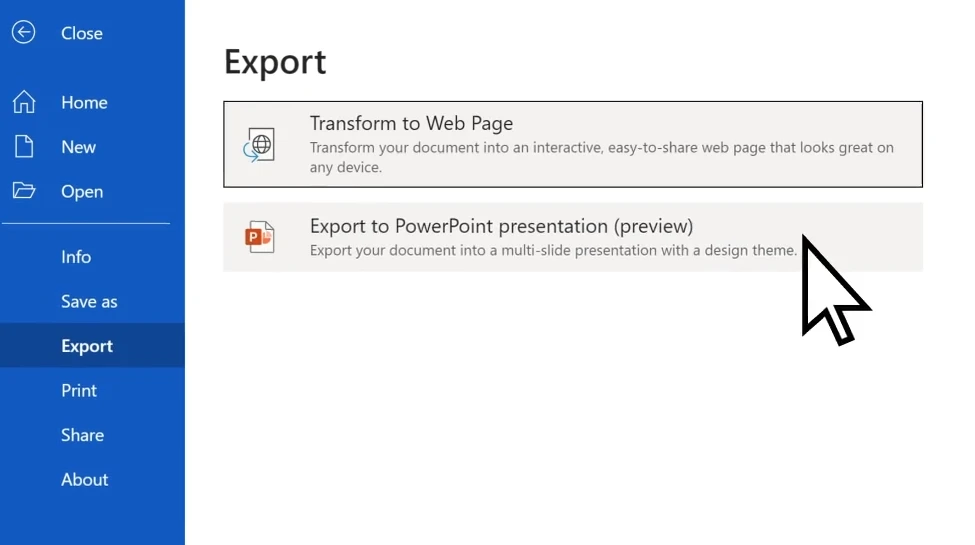
- Scegli un tema (PowerPoint suggerirà modelli di progettazione).
- Fai clic su Esporta e lascia che Word crei automaticamente un file
.pptx.
La funzione di progettazione basata sull'intelligenza artificiale di Microsoft suggerisce persino layout che corrispondono al tono e allo stile del tuo documento.
Passaggio 3 – Perfeziona le diapositive generate
Dopo l'esportazione, rivedi la tua presentazione:
- Regola immagini e layout se necessario.
- Aggiungi animazioni e transizioni.
- Usa Progettazione PowerPoint per migliorare l'aspetto delle diapositive.
Questo metodo è ideale per gli utenti di Microsoft 365 che cercano semplicità e coerenza. Se desideri convertire gratuitamente il tuo documento Word in PowerPoint, puoi consultare i metodi alternativi di seguito.
Metodo 2 – Convertire da Word a PowerPoint online (veloce e gratuito)
Se non hai Microsoft 365 o preferisci una soluzione basata su browser, gli strumenti di conversione online offrono un'alternativa comoda e gratuita.
Questi strumenti sono ideali per gli utenti che necessitano di una conversione rapida senza installare software. Con pochi clic, puoi caricare un file Word e scaricare una presentazione PowerPoint, rendendolo adatto per un uso occasionale o per documenti leggeri.
Strumenti online consigliati
- Word.to - Convertitore Word gratuito e facile da usare.
- Convertio – Funziona direttamente dal tuo browser, supporta il trascinamento della selezione.
- Online2PDF – Gratuito e flessibile, ma con limiti di dimensione per il caricamento dei file.
Come utilizzare un convertitore online
Qui prendiamo Word.to come esempio.
- Vai al convertitore da Word a PowerPoint di Word.to.
- Carica il tuo documento Word.
- Fai clic su Converti file per avviare la conversione.
- Attendi il completamento della conversione e scarica il tuo file PowerPoint.
Pro e contro
| Vantaggi | Svantaggi |
|---|---|
| Gratuito e veloce | Possibile perdita di layout |
| Nessuna installazione richiesta | Dimensioni file e tempo di conversione limitati |
| Funziona su qualsiasi sistema operativo | Preoccupazioni sulla privacy per i file sensibili |
I convertitori online sono ideali per conversioni occasionali e leggere. Tuttavia, per file più grandi, documenti complessi o quelli che richiedono una formattazione perfetta, potrebbe essere necessario un metodo più robusto.
Suggerimento: esplora altri convertitori online gratuiti su CLOUDXDOCS Online Converters.
Metodo 3 – Convertire da Word a PowerPoint con l'IA (flessibile ma più lento)
Per gli utenti che cercano una presentazione più creativa o personalizzata, gli strumenti basati sull'intelligenza artificiale come ChatGPT, Microsoft Copilot o generatori di diapositive AI dedicati possono fornire risultati di conversione flessibili e intelligenti.
Invece di una conversione uno a uno, questi strumenti analizzano il significato e la struttura del documento, quindi creano diapositive che riassumono e visualizzano il contenuto, ideali per lo storytelling e le presentazioni concettuali.
Come funziona
-
Carica il tuo documento Word (o incolla il contenuto).
-
Usa un prompt come:
Converti questo documento in una presentazione PowerPoint. Mantieni un'idea principale per diapositiva. -
In alternativa, se stai utilizzando strumenti di intelligenza artificiale dedicati, segui le loro istruzioni per personalizzare la presentazione.
-
Scarica e rivedi la presentazione PowerPoint generata.
Pro e contro
Vantaggi:
- Output altamente personalizzabili.
- Può riassumere o riformulare il testo in modo creativo.
- Ottimo per lo storytelling delle presentazioni.
Limitazioni:
- La precisione del layout potrebbe essere inferiore rispetto al metodo di Microsoft.
- Richiede la formattazione manuale se si utilizzano strumenti di intelligenza artificiale generici.
- L'elaborazione di file di grandi dimensioni potrebbe essere lenta.
- La maggior parte degli strumenti di intelligenza artificiale dedicati offre solo servizi a pagamento.
Questo approccio basato sull'intelligenza artificiale è adatto agli utenti che preferiscono la creatività alla velocità o alla precisione. Tuttavia, i servizi di conversione online hanno in genere limitazioni sul numero e sulle dimensioni dei file, mentre l'utilizzo dell'automazione Python può aiutare con la conversione batch precisa di grandi volumi di documenti.
Potrebbe piacerti anche: Come creare e modificare documenti online
Metodo 4 – Convertire automaticamente Word in PowerPoint con Python
Per i professionisti o i team che gestiscono frequentemente l'elaborazione di documenti, l'automazione può migliorare notevolmente l'efficienza. Utilizzando script Python e la libreria Free Spire.Office for Python, è possibile convertire in batch documenti Word in presentazioni PowerPoint con il minimo sforzo. Questo approccio è particolarmente adatto per aziende, educatori o sviluppatori che desiderano integrare la conversione in flussi di lavoro automatizzati o sistemi di reporting più ampi.
Flusso di lavoro di automazione semplice utilizzando Spire.Office
Il modo più semplice è utilizzare la suite Free Spire.Office for Python. Implica due brevi passaggi:
- Carica il documento Word e salvalo come file PDF temporaneo.
- Converti il PDF temporaneo in una presentazione PowerPoint.
Prima di iniziare il processo, assicurati di aver installato la libreria Spire.Office.
pip install spire.office.free
Dopo l'installazione, puoi utilizzare il seguente codice Python per convertire Word in PowerPoint.
Esempio Python: convertire documenti Word in presentazioni PowerPoint
from spire.doc import Document, FileFormat
from spire.pdf import PdfDocument, FileFormat as PdfFileFormat
import os

inputFile = "Sample.docx"
tempPdfFile = "output/temp.pdf"
outputFile = "output/DocxPptx.pptx"

# Load the Word document and save it as a temporary PDF file
doc = Document()
doc.LoadFromFile(inputFile)
doc.SaveToFile(tempPdfFile, FileFormat.PDF)

# Load the temporary PDF file and save it as a PowerPoint presentation
pdfDoc = PdfDocument()
pdfDoc.LoadFromFile(tempPdfFile)
pdfDoc.SaveToFile(outputFile, PdfFileFormat.PPTX)

# Check if the temporary PDF file exists and delete it
if os.path.exists(tempPdfFile):
   os.remove(tempPdfFile)
Di seguito è riportata un'anteprima del risultato della conversione:
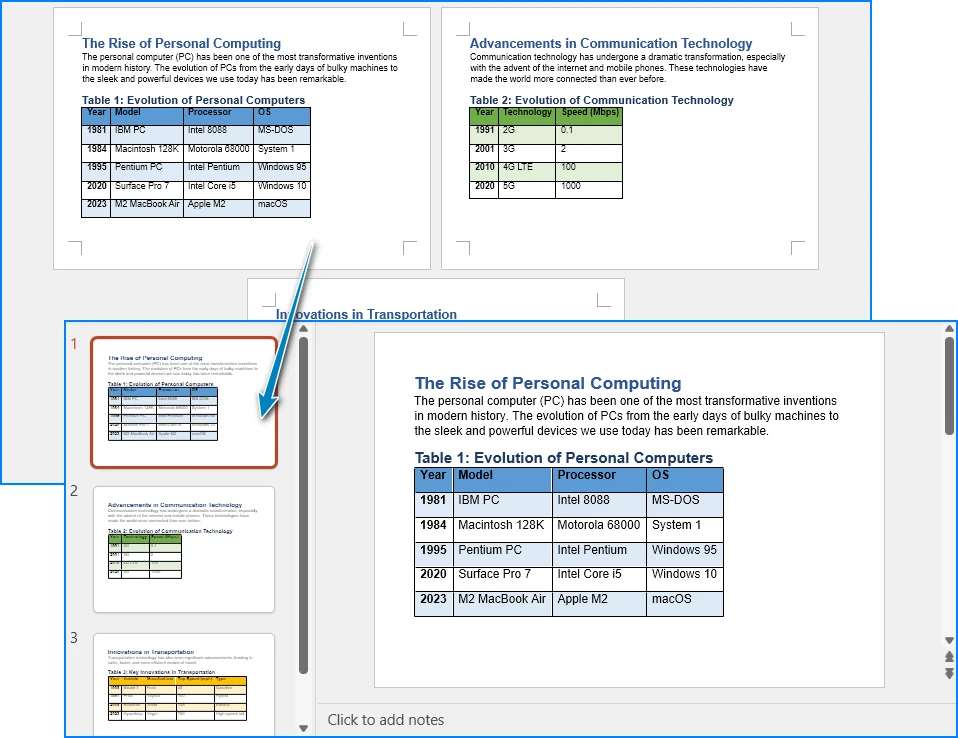
Vantaggi del metodo Python
- Ideale per la conversione batch e flussi di lavoro automatizzati.
- Funziona offline, preservando con precisione il layout del documento.
- Genera presentazioni PowerPoint altamente modificabili.
- Facilmente integrabile nei sistemi di generazione di report aziendali.
Questo approccio mantiene il processo breve e semplice, evitando operazioni manuali pur mantenendo la flessibilità.
Dopo aver convertito il documento Word in PowerPoint, puoi anche utilizzare Free Spire.Presentation for Python per eseguire la modifica in batch delle presentazioni PowerPoint.
Suggerimenti per un PowerPoint migliore dopo la conversione
Una volta generate le diapositive, la loro messa a punto fa una grande differenza. Anche se il processo di conversione fa risparmiare molto tempo, alcune modifiche al design possono migliorare significativamente l'aspetto visivo e la leggibilità delle diapositive. Questi perfezionamenti aiutano a garantire che la presentazione abbia un aspetto professionale e ben strutturato.
- Garantire caratteri e colori coerenti.
- Regola la spaziatura dei paragrafi per una migliore leggibilità.
- Sostituisci le immagini a bassa risoluzione se necessario.
- Aggiungi transizioni o animazioni con parsimonia per mantenere la professionalità.
- Usa i temi di PowerPoint per unificare il design della presentazione.
Conclusione
Convertire un documento Word in una presentazione PowerPoint può essere facile ed efficiente e il metodo scelto dipende dalle tue esigenze specifiche. Che tu utilizzi la funzione di esportazione integrata di Microsoft per semplicità, i convertitori online per un accesso rapido, gli strumenti di intelligenza artificiale per la creatività o l'automazione Python per la scalabilità, ogni approccio offre i propri vantaggi. Scegliendo il flusso di lavoro giusto, puoi trasformare i contenuti scritti in una presentazione PowerPoint professionale senza sforzo ed efficacemente.
Domande frequenti
Come importo un file DOCX in PowerPoint?
Se desideri semplicemente importare il contenuto, puoi semplicemente copiarlo e incollarlo in PowerPoint. Tuttavia, se desideri generare una presentazione PowerPoint dal tuo documento Word, puoi utilizzare la funzione Esporta in Microsoft 365, convertitori online, strumenti di intelligenza artificiale o script Python, che convertiranno l'intero documento Word in una presentazione PowerPoint.
Perché non riesco a esportare il mio documento Word in PowerPoint?
I problemi con l'esportazione potrebbero essere causati da funzionalità del documento non supportate, danneggiamento del file o utilizzo di una versione obsoleta di Word. Assicurati che il tuo documento sia strutturato utilizzando intestazioni appropriate e che la tua versione di Word sia aggiornata.
Come posso cambiare un file in PPTX?
Per cambiare un file in PPTX, puoi utilizzare la funzione File → Apri di Microsoft PowerPoint per aprire vari tipi di documenti e quindi salvarli come file PowerPoint. In alternativa, puoi utilizzare convertitori online o script Python.
Esiste un convertitore da Word a PowerPoint?
Sì, sono disponibili diversi convertitori, tra cui lo strumento integrato di Microsoft 365, convertitori online come Word.to e metodi di automazione che utilizzano Python (ad esempio, utilizzando Spire.Office for Python).
Vedi anche:
Converter Word em PowerPoint: Microsoft 365, Online, Python
Em relatórios de negócios, palestras acadêmicas e propostas de projetos, o Microsoft Word e o PowerPoint são duas das ferramentas mais utilizadas. Embora os documentos do Word sejam excelentes para redigir informações e relatórios detalhados, as apresentações do PowerPoint são muito mais eficazes para resumir e visualizar essas informações.
Converter Word para PowerPoint é uma necessidade comum para usuários que desejam transformar rapidamente seu conteúdo com muito texto em slides envolventes. Esteja você procurando converter um documento do Word em uma apresentação do PowerPoint manualmente ou automatizar o processo, este guia abrange uma variedade de métodos práticos, desde o uso dos recursos integrados do Microsoft 365 até conversores online, ferramentas de IA e automação com Python.
Ao final deste artigo, você estará equipado com o conhecimento para escolher o método mais adequado às suas necessidades, economizando tempo e garantindo que suas apresentações tenham uma aparência profissional e polida.
Visão Geral dos Métodos de Conversão de Word para PowerPoint:
- Usando o Microsoft 365 (Método Oficial)
- Usando Ferramentas Online (Rápido e Gratuito)
- Usando Modelos de IA (Flexível, mas mais Lento)
- Convertendo Automaticamente com Python
Por que Converter Word para PowerPoint
Um documento do Word é perfeito para redigir conteúdo detalhado, mas o PowerPoint se destaca ao resumir ideias visualmente. Converter um documento do Word em uma apresentação do PowerPoint oferece vários benefícios:
- Comunicação visual aprimorada: Transforme conteúdo com muito texto em slides claros e estruturados.
- Economia de tempo: Reutilize materiais existentes em vez de criar slides do zero.
- Consistência: Mantenha a mesma estrutura e tom entre os materiais escritos e visuais.
- Flexibilidade: Ideal para reuniões, palestras e apresentações públicas.
Se você prepara relatórios ou propostas regularmente, aprender a converter documentos do Word em apresentações do PowerPoint pode otimizar significativamente seu trabalho.
Antes de converter, certifique-se de que seu documento esteja bem formatado para um processo de conversão mais suave — use estilos de Título, altere a orientação da página para Paisagem e remova informações desnecessárias.
Método 1 – Converter Word para PowerPoint Usando o Microsoft 365 (Método Oficial)
A maneira mais fácil e confiável de transformar um documento do Word em uma apresentação do PowerPoint é através do recurso integrado de Exportação do Word para PowerPoint do Microsoft 365.
Este recurso oficial converte diretamente um documento do Word bem estruturado em um arquivo .pptx pronto para uso, tornando-o a opção mais integrada para usuários do Microsoft 365. Você não precisa instalar nenhuma ferramenta externa ou reformatar o conteúdo manualmente — o Word lida com a geração de slides e o design do layout automaticamente.
Passo 1 – Prepare Seu Documento do Word
Antes de exportar, certifique-se de que seu documento esteja devidamente estruturado usando os estilos Título 1, Título 2 e Título 3.
Esses níveis de título determinam como seus slides do PowerPoint serão organizados. Por exemplo, o Título 1 se tornará o título do slide, e o Título 2 aparecerá como marcadores no slide.
Passo 2 – Exportar para Apresentação do PowerPoint
- Abra seu documento do Word.
- Vá para Arquivo → Exportar → Exportar para Apresentação do PowerPoint.
- Escolha um tema (o PowerPoint sugerirá modelos de design).
- Clique em Exportar e deixe o Word criar automaticamente um arquivo
.pptx.
O recurso de design com tecnologia de IA da Microsoft até sugere layouts que combinam com o tom e o estilo do seu documento.
Passo 3 – Refine os Slides Gerados
Após exportar, revise sua apresentação:
- Ajuste imagens e layouts, se necessário.
- Adicione animações e transições.
- Use o Designer do PowerPoint para melhorar a aparência dos slides.
Este método é o melhor para usuários do Microsoft 365 que buscam simplicidade e consistência. Se você deseja converter seu documento do Word para PowerPoint gratuitamente, pode conferir os métodos alternativos abaixo.
Método 2 – Converter Word para PowerPoint Online (Rápido e Gratuito)
Se você não tem o Microsoft 365 ou prefere uma solução baseada em navegador, as ferramentas de conversão online oferecem uma alternativa conveniente e gratuita.
Essas ferramentas são ideais para usuários que precisam de uma conversão rápida sem instalar software. Com apenas alguns cliques, você pode enviar um arquivo do Word e baixar uma apresentação do PowerPoint, tornando-o adequado para uso ocasional ou documentos leves.
Ferramentas Online Recomendadas
- Word.to - Conversor de Word gratuito e fácil de usar.
- Convertio – Funciona diretamente do seu navegador, suporta arrastar e soltar.
- Online2PDF – Gratuito e flexível, mas com limites de tamanho de arquivo para upload.
Como Usar um Conversor Online
Aqui, tomamos o Word.to como exemplo.
- Acesse o conversor de Word para PowerPoint do Word.to.
- Envie seu documento do Word.
- Clique em Converter Arquivos para iniciar a conversão.
- Aguarde a conclusão da conversão e baixe seu arquivo do PowerPoint.
Prós e Contras
| Vantagens | Desvantagens |
|---|---|
| Gratuito e rápido | Possível perda de layout |
| Nenhuma instalação necessária | Tamanho de arquivo e tempo de conversão limitados |
| Funciona em qualquer SO | Preocupações com a privacidade de arquivos confidenciais |
Conversores online são ideais para conversões ocasionais e leves. No entanto, para arquivos maiores, documentos complexos ou aqueles que exigem formatação perfeita, um método mais robusto pode ser necessário.
Dica: Explore mais conversores online gratuitos em CLOUDXDOCS Online Converters.
Método 3 – Converter Word para PowerPoint com IA (Flexível, mas mais Lento)
Para usuários que procuram uma apresentação mais criativa ou personalizada, ferramentas com tecnologia de IA como ChatGPT, Microsoft Copilot ou geradores de slides de IA dedicados podem fornecer resultados de conversão flexíveis e inteligentes.
Em vez de uma conversão um-para-um, essas ferramentas analisam o significado e a estrutura do documento e, em seguida, criam slides que resumem e visualizam o conteúdo — ideal para contar histórias e apresentações conceituais.
Como Funciona
-
Envie seu documento do Word (ou cole o conteúdo).
-
Use um prompt como:
Converta este documento em uma apresentação do PowerPoint. Mantenha uma ideia principal por slide. -
Alternativamente, se você estiver usando ferramentas de IA dedicadas, siga suas instruções para personalizar a apresentação.
-
Baixe e revise a apresentação do PowerPoint gerada.
Prós e Contras
Vantagens:
- Resultados altamente personalizáveis.
- Pode resumir ou reformular o texto de forma criativa.
- Ótimo para contar histórias em apresentações.
Limitações:
- A precisão do layout pode ser menor do que o método da Microsoft.
- Requer formatação manual se estiver usando ferramentas de IA gerais.
- O processamento de arquivos grandes pode ser lento.
- A maioria das ferramentas de IA dedicadas oferece apenas serviços pagos.
Esta abordagem baseada em IA é adequada para usuários que preferem criatividade em vez de velocidade ou precisão. No entanto, os serviços de conversão online geralmente têm limitações quanto ao número e tamanho dos arquivos, enquanto o uso da automação com Python pode ajudar na conversão em lote precisa de grandes volumes de documentos.
Você também pode gostar: Como Criar e Editar Documentos Online
Método 4 – Converter Word para PowerPoint Automaticamente com Python
Para profissionais ou equipes que lidam frequentemente com o processamento de documentos, a automação pode melhorar muito a eficiência. Usando scripts Python e a biblioteca Free Spire.Office for Python, você pode converter em lote documentos do Word em apresentações do PowerPoint com o mínimo de esforço. Esta abordagem é particularmente adequada para empresas, educadores ou desenvolvedores que desejam integrar a conversão em fluxos de trabalho automatizados maiores ou sistemas de relatórios.
Fluxo de Trabalho de Automação Simples Usando o Spire.Office
A maneira mais fácil é usar o pacote Free Spire.Office for Python. Envolve dois passos curtos:
- Carregue o documento do Word e salve-o como um arquivo PDF temporário.
- Converta o PDF temporário em uma apresentação do PowerPoint.
Antes de iniciar o processo, certifique-se de ter instalado a biblioteca Spire.Office.
pip install spire.office.free
Após a instalação, você pode usar o seguinte código Python para converter Word para PowerPoint.
Exemplo em Python: Converter Documentos do Word em Apresentações do PowerPoint
from spire.doc import Document, FileFormat
from spire.pdf import PdfDocument, FileFormat as PdfFileFormat
import os

inputFile = "Sample.docx"
tempPdfFile = "output/temp.pdf"
outputFile = "output/DocxPptx.pptx"

# Load the Word document and save it as a temporary PDF file
doc = Document()
doc.LoadFromFile(inputFile)
doc.SaveToFile(tempPdfFile, FileFormat.PDF)

# Load the temporary PDF file and save it as a PowerPoint presentation
pdfDoc = PdfDocument()
pdfDoc.LoadFromFile(tempPdfFile)
pdfDoc.SaveToFile(outputFile, PdfFileFormat.PPTX)

# Check if the temporary PDF file exists and delete it
if os.path.exists(tempPdfFile):
   os.remove(tempPdfFile)
Abaixo está uma prévia do resultado da conversão:
Benefícios do Método Python
- Ideal para conversão em lote e fluxos de trabalho automatizados.
- Funciona offline, preservando precisamente o layout do documento.
- Gera apresentações do PowerPoint altamente editáveis.
- Facilmente integrado a sistemas de geração de relatórios empresariais.
Esta abordagem mantém o processo curto e simples, evitando operações manuais e mantendo a flexibilidade.
Depois de converter o documento do Word para PowerPoint, você também pode usar o Free Spire.Presentation for Python para realizar a edição em lote nas apresentações do PowerPoint.
Dicas para um PowerPoint Melhor Após a Conversão
Depois que seus slides são gerados, ajustá-los faz uma grande diferença. Embora o processo de conversão economize muito tempo, alguns ajustes de design podem melhorar significativamente o apelo visual e a legibilidade de seus slides. Esses refinamentos ajudam a garantir que sua apresentação tenha uma aparência profissional e bem estruturada.
- Garanta fontes e cores consistentes.
- Ajuste o espaçamento dos parágrafos para melhor legibilidade.
- Substitua imagens de baixa resolução, se necessário.
- Adicione transições ou animações com moderação para manter o profissionalismo.
- Use temas do PowerPoint para unificar o design da apresentação.
Conclusão
Converter um documento do Word em uma apresentação do PowerPoint pode ser fácil e eficiente, e o método que você escolher depende de suas necessidades específicas. Quer você use a função de exportação integrada da Microsoft para simplicidade, conversores online para acesso rápido, ferramentas de IA para criatividade ou automação com Python para escalabilidade — cada abordagem oferece suas próprias vantagens. Ao escolher o fluxo de trabalho certo, você pode transformar conteúdo escrito em uma apresentação profissional do PowerPoint sem esforço e com eficácia.
Perguntas Frequentes
Como importo um arquivo DOCX para o PowerPoint?
Se você deseja apenas importar o conteúdo, pode simplesmente copiá-lo e colá-lo no PowerPoint. No entanto, se desejar gerar uma apresentação do PowerPoint a partir do seu documento do Word, você pode usar o recurso Exportar no Microsoft 365, conversores online, ferramentas de IA ou scripts Python, que converterão todo o documento do Word em uma apresentação do PowerPoint.
Por que não consigo exportar meu documento do Word para o PowerPoint?
Problemas com a exportação podem ser causados por recursos de documento não suportados, corrupção de arquivo ou uso de uma versão desatualizada do Word. Certifique-se de que seu documento esteja estruturado com os títulos adequados e que sua versão do Word esteja atualizada.
Como altero um arquivo para PPTX?
Para alterar um arquivo para PPTX, você pode usar o recurso Arquivo → Abrir do Microsoft PowerPoint para abrir vários tipos de documentos e, em seguida, salvá-los como um arquivo do PowerPoint. Alternativamente, você pode usar conversores online ou scripts Python.
Existe um conversor de Word para PowerPoint?
Sim, existem vários conversores disponíveis, incluindo a ferramenta integrada do Microsoft 365, conversores online como o Word.to e métodos de automação usando Python (por exemplo, usando o Spire.Office for Python).
Veja Também:
Word를 PowerPoint로 변환: Microsoft 365, 온라인, Python
비즈니스 보고서, 학술 강의 및 프로젝트 제안서에서 Microsoft Word와 PowerPoint는 가장 자주 사용되는 두 가지 도구입니다. Word 문서는 자세한 정보와 보고서를 작성하는 데 탁월하지만 PowerPoint 프레젠테이션은 이러한 통찰력을 요약하고 시각화하는 데 훨씬 효과적입니다.
Word를 PowerPoint로 변환하는 것은 텍스트가 많은 콘텐츠를 매력적인 슬라이드로 빠르게 변환하려는 사용자에게 일반적인 요구 사항입니다. Word 문서를 PowerPoint 프레젠테이션으로 수동으로 변환하거나 프로세스를 자동화하려는 경우 이 가이드에서는 Microsoft 365의 기본 제공 기능부터 온라인 변환기, AI 도구 및 Python 자동화에 이르기까지 다양한 실용적인 방법을 다룹니다.
이 문서가 끝나면 필요에 가장 적합한 방법을 선택하고 시간을 절약하며 프레젠테이션이 전문적이고 세련되게 보이도록 하는 지식을 갖추게 될 것입니다.
Word를 PowerPoint로 변환하는 방법 개요:
Word를 PowerPoint로 변환하는 이유
Word 문서는 자세한 내용을 작성하는 데 적합하지만 PowerPoint는 아이디어를 시각적으로 요약하는 데 탁월합니다. Word 문서를 PowerPoint 프레젠테이션으로 변환하면 다음과 같은 몇 가지 이점이 있습니다.
- 향상된 시각적 커뮤니케이션: 텍스트가 많은 콘텐츠를 명확하고 구조화된 슬라이드로 변환합니다.
- 시간 절약: 처음부터 슬라이드를 디자인하는 대신 기존 자료를 재사용합니다.
- 일관성: 서면 자료와 시각 자료 간에 동일한 구조와 톤을 유지합니다.
- 유연성: 회의, 강의 및 공개 프레젠테이션에 이상적입니다.
정기적으로 보고서나 제안서를 준비하는 경우 Word 문서를 PowerPoint 프레젠테이션으로 변환하는 방법을 배우면 작업을 크게 간소화할 수 있습니다.
변환하기 전에 문서가 원활한 변환 프로세스를 위해 잘 서식되었는지 확인하십시오. 제목 스타일을 사용하고 페이지 방향을 가로로 변경하고 불필요한 정보를 제거하십시오.
방법 1 – Microsoft 365를 사용하여 Word를 PowerPoint로 변환(공식 방법)
Word 문서를 PowerPoint 프레젠테이션으로 바꾸는 가장 쉽고 안정적인 방법은 Microsoft 365의 기본 제공 Word를 PowerPoint로 내보내기 기능을 이용하는 것입니다.
이 공식 기능은 잘 구조화된 Word 문서를 바로 사용할 수 있는 .pptx 파일로 직접 변환하므로 Microsoft 365 사용자에게 가장 원활한 옵션입니다. 외부 도구를 설치하거나 콘텐츠를 수동으로 다시 포맷할 필요가 없습니다. Word가 슬라이드 생성 및 레이아웃 디자인을 자동으로 처리합니다.
1단계 – Word 문서 준비
내보내기 전에 문서가 제목 1, 제목 2 및 제목 3 스타일을 사용하여 올바르게 구조화되었는지 확인하십시오.
이러한 제목 수준은 PowerPoint 슬라이드가 구성되는 방식을 결정합니다. 예를 들어 제목 1은 슬라이드 제목이 되고 제목 2는 슬라이드에 글머리 기호로 나타납니다.
2단계 – PowerPoint 프레젠테이션으로 내보내기
- Word 문서를 엽니다.
- 파일 → 내보내기 → PowerPoint 프레젠테이션으로 내보내기로 이동합니다.
- 테마를 선택합니다(PowerPoint에서 디자인 템플릿을 제안합니다).
- 내보내기를 클릭하고 Word가 자동으로
.pptx파일을 만들도록 합니다.
Microsoft의 AI 기반 디자인 기능은 문서의 톤과 스타일에 맞는 레이아웃을 제안하기도 합니다.
3단계 – 생성된 슬라이드 다듬기
내보낸 후 프레젠테이션을 검토합니다.
- 필요한 경우 이미지와 레이아웃을 조정합니다.
- 애니메이션과 전환을 추가합니다.
- PowerPoint Designer를 사용하여 슬라이드 모양을 향상시킵니다.
이 방법은 단순성과 일관성을 추구하는 Microsoft 365 사용자에게 가장 적합합니다. Word 문서를 PowerPoint로 무료로 변환하려면 아래의 대체 방법을 확인할 수 있습니다.
방법 2 – 온라인에서 Word를 PowerPoint로 변환(빠르고 무료)
Microsoft 365가 없거나 브라우저 기반 솔루션을 선호하는 경우 온라인 변환 도구는 편리하고 무료인 대안을 제공합니다.
이러한 도구는 소프트웨어를 설치하지 않고 빠른 변환이 필요한 사용자에게 이상적입니다. 몇 번의 클릭만으로 Word 파일을 업로드하고 PowerPoint 프레젠테이션을 다운로드할 수 있으므로 가끔 사용하거나 가벼운 문서에 적합합니다.
권장 온라인 도구
- Word.to - 무료이며 사용하기 쉬운 Word 변환기입니다.
- Convertio – 브라우저에서 직접 작동하며 드래그 앤 드롭을 지원합니다.
- Online2PDF – 무료이며 유연하지만 파일 크기 업로드 제한이 있습니다.
온라인 변환기 사용 방법
여기서는 Word.to를 예로 들어 보겠습니다.
- Word.to Word to PowerPoint 변환기로 이동합니다.
- Word 문서를 업로드합니다.
- 변환을 시작하려면 파일 변환을 클릭하십시오.
- 변환이 완료될 때까지 기다렸다가 PowerPoint 파일을 다운로드합니다.
장단점
| 장점 | 단점 |
|---|---|
| 무료 및 빠름 | 레이아웃 손실 가능성 |
| 설치 필요 없음 | 제한된 파일 크기 및 변환 시간 |
| 모든 OS에서 작동 | 민감한 파일에 대한 개인 정보 보호 문제 |
온라인 변환기는 가끔 가벼운 변환에 이상적입니다. 그러나 더 큰 파일, 복잡한 문서 또는 완벽한 서식이 필요한 문서의 경우 더 강력한 방법이 필요할 수 있습니다.
팁: CLOUDXDOCS 온라인 변환기에서 더 많은 무료 온라인 변환기를 살펴보세요.
방법 3 – AI로 Word를 PowerPoint로 변환(유연하지만 느림)
보다 창의적이거나 개인화된 프레젠테이션을 찾는 사용자를 위해 AI 기반 도구(예: ChatGPT, Microsoft Copilot 또는 전용 AI 슬라이드 생성기)는 유연하고 지능적인 변환 결과를 제공할 수 있습니다.
일대일 변환 대신 이러한 도구는 문서의 의미와 구조를 분석한 다음 콘텐츠를 요약하고 시각화하는 슬라이드를 만듭니다. 이는 스토리텔링 및 개념적 프레젠테이션에 이상적입니다.
작동 방식
-
Word 문서를 업로드하거나 내용을 붙여넣습니다.
-
다음과 같은 프롬프트를 사용하십시오.
이 문서를 PowerPoint 프레젠테이션으로 변환합니다. 슬라이드당 하나의 주요 아이디어를 유지합니다. -
또는 전용 AI 도구를 사용하는 경우 해당 지침에 따라 프레젠테이션을 사용자 지정합니다.
-
생성된 PowerPoint 프레젠테이션을 다운로드하고 검토합니다.
장단점
장점:
- 고도로 사용자 정의 가능한 출력.
- 텍스트를 창의적으로 요약하거나 바꿔 말할 수 있습니다.
- 프레젠테이션 스토리텔링에 적합합니다.
제한 사항:
- 레이아웃 정확도가 Microsoft의 방법보다 낮을 수 있습니다.
- 일반 AI 도구를 사용하는 경우 수동 서식이 필요합니다.
- 큰 파일 처리가 느릴 수 있습니다.
- 대부분의 전용 AI 도구는 유료 서비스만 제공합니다.
이 AI 기반 접근 방식은 속도나 정밀도보다 창의성을 선호하는 사용자에게 적합합니다. 그러나 온라인 변환 서비스는 일반적으로 파일 수와 크기에 제한이 있는 반면, Python 자동화를 사용하면 대량의 문서를 정밀하게 일괄 변환하는 데 도움이 될 수 있습니다.
관심 있을 만한 다른 문서: 온라인으로 문서 만들기 및 편집하는 방법
방법 4 – Python으로 Word를 PowerPoint로 자동 변환
문서 처리를 자주 처리하는 전문가나 팀의 경우 자동화를 통해 효율성을 크게 향상시킬 수 있습니다. Python 스크립트와 Free Spire.Office for Python 라이브러리를 사용하면 최소한의 노력으로 Word 문서를 PowerPoint 프레젠테이션으로 일괄 변환할 수 있습니다. 이 접근 방식은 변환을 더 큰 자동화된 워크플로 또는 보고 시스템에 통합하려는 기업, 교육자 또는 개발자에게 특히 적합합니다.
Spire.Office를 사용한 간단한 자동화 워크플로
가장 쉬운 방법은 Free Spire.Office for Python 제품군을 사용하는 것입니다. 여기에는 두 가지 간단한 단계가 포함됩니다.
- Word 문서를 로드하고 임시 PDF 파일로 저장합니다.
- 임시 PDF를 PowerPoint 프레젠테이션으로 변환합니다.
프로세스를 시작하기 전에 Spire.Office 라이브러리를 설치했는지 확인하십시오.
pip install spire.office.free
설치 후 다음 Python 코드를 사용하여 Word를 PowerPoint로 변환할 수 있습니다.
Python 예제: Word 문서를 PowerPoint 프레젠테이션으로 변환
from spire.doc import Document, FileFormat
from spire.pdf import PdfDocument, FileFormat as PdfFileFormat
import os

inputFile = "Sample.docx"
tempPdfFile = "output/temp.pdf"
outputFile = "output/DocxPptx.pptx"

# Word 문서를 로드하고 임시 PDF 파일로 저장
doc = Document()
doc.LoadFromFile(inputFile)
doc.SaveToFile(tempPdfFile, FileFormat.PDF)

# 임시 PDF를 로드하고 PowerPoint 프레젠테이션으로 저장
pdfDoc = PdfDocument()
pdfDoc.LoadFromFile(tempPdfFile)
pdfDoc.SaveToFile(outputFile, PdfFileFormat.PPTX)

# 임시 PDF 파일이 있는지 확인하고 삭제
if os.path.exists(tempPdfFile):
   os.remove(tempPdfFile)
아래는 변환 결과 미리보기입니다.
Python 방법의 이점
- 일괄 변환 및 자동화된 워크플로에 이상적입니다.
- 오프라인으로 작동하여 문서 레이아웃을 정확하게 보존합니다.
- 고도로 편집 가능한 PowerPoint 프레젠테이션을 생성합니다.
- 엔터프라이즈 보고서 생성 시스템에 쉽게 통합됩니다.
이 접근 방식은 수동 작업을 피하면서 유연성을 유지하면서 프로세스를 짧고 간단하게 유지합니다.
Word 문서를 PowerPoint로 변환한 후 Free Spire.Presentation for Python을 사용하여 PowerPoint 프레젠테이션에 대한 일괄 편집을 수행할 수도 있습니다.
변환 후 더 나은 PowerPoint를 위한 팁
슬라이드가 생성되면 미세 조정하면 큰 차이를 만들 수 있습니다. 변환 프로세스는 많은 시간을 절약하지만 몇 가지 디자인 조정으로 슬라이드의 시각적 매력과 가독성을 크게 향상시킬 수 있습니다. 이러한 개선 사항은 프레젠테이션이 전문적이고 잘 구조화되도록 하는 데 도움이 됩니다.
- 일관된 글꼴과 색상을 확인합니다.
- 가독성을 높이기 위해 단락 간격을 조정합니다.
- 필요한 경우 저해상도 이미지를 교체합니다.
- 전문성을 유지하기 위해 전환 또는 애니메이션을 드물게 추가합니다.
- PowerPoint 테마를 사용하여 프레젠테이션 디자인을 통일합니다.
결론
Word 문서를 PowerPoint 프레젠테이션으로 변환하는 것은 쉽고 효율적일 수 있으며 선택하는 방법은 특정 요구에 따라 다릅니다. 단순성을 위해 Microsoft의 기본 제공 내보내기 기능을 사용하든, 빠른 액세스를 위해 온라인 변환기를 사용하든, 창의성을 위해 AI 도구를 사용하든, 확장성을 위해 Python 자동화를 사용하든 각 접근 방식에는 고유한 이점이 있습니다. 올바른 워크플로를 선택하면 서면 콘텐츠를 전문가 수준의 PowerPoint 프레젠테이션으로 손쉽고 효과적으로 변환할 수 있습니다.
자주 묻는 질문
DOCX 파일을 PowerPoint로 가져오려면 어떻게 해야 합니까?
콘텐츠를 가져오기만 하려면 PowerPoint에 복사하여 붙여넣기만 하면 됩니다. 그러나 Word 문서에서 PowerPoint 프레젠테이션을 생성하려면 Microsoft 365의 내보내기 기능, 온라인 변환기, AI 도구 또는 Python 스크립트를 사용할 수 있으며, 그러면 전체 Word 문서가 PowerPoint 프레젠테이션으로 변환됩니다.
Word 문서를 PowerPoint로 내보낼 수 없는 이유는 무엇입니까?
내보내기 문제는 지원되지 않는 문서 기능, 파일 손상 또는 오래된 버전의 Word 사용으로 인해 발생할 수 있습니다. 문서가 올바른 제목을 사용하여 구조화되었는지, Word 버전이 최신인지 확인하십시오.
파일을 PPTX로 변경하려면 어떻게 해야 합니까?
파일을 PPTX로 변경하려면 Microsoft PowerPoint의 파일 → 열기 기능을 사용하여 다양한 문서 유형을 연 다음 PowerPoint 파일로 저장할 수 있습니다. 또는 온라인 변환기나 Python 스크립트를 사용할 수 있습니다.
Word를 PowerPoint로 변환하는 변환기가 있습니까?
예, Microsoft 365의 기본 제공 도구, Word.to와 같은 온라인 변환기, Python을 사용한 자동화 방법(예: Spire.Office for Python 사용) 등 여러 변환기를 사용할 수 있습니다.