Как удалить макросы из Excel — 4 простых способа
Макросы Excel — это мощные инструменты, которые помогают автоматизировать повторяющиеся задачи, делая ваш рабочий процесс намного эффективнее. Однако бывают случаи, когда вам может потребоваться удалить макросы из Excel, будь то из соображений безопасности, совместимости или просто для очистки старой рабочей книги. В этой статье мы покажем вам четыре простых способа удаления макросов из Excel, чтобы вы могли сохранить свои файлы в безопасности, чистоте и простоте использования.
Что вы узнаете
- Зачем удалять макросы из Excel?
- Как удалить макросы из Excel?
- Лучшие практики по удалению макросов в Excel
Зачем удалять макросы из Excel?
Хотя макросы невероятно полезны, они также могут представлять значительные риски, если ими не управлять должным образом. Ниже приведены некоторые ключевые причины, по которым важно удалять макросы из Excel:
- Риски безопасности: Макросы могут содержать вредоносный код, подвергая ваши данные риску.
- Совместимость: Макросы могут не работать в разных версиях Excel или на разных платформах.
- Упрощение файлов: Старые макросы могут загромождать вашу рабочую книгу и увеличивать размер файла.
- Производительность: Сложные макросы могут замедлять работу Excel.
- Соответствие требованиям: В некоторых отраслях требуются файлы без макросов.
- Предотвращение случайного выполнения: Отключение макросов позволяет избежать непреднамеренных действий.
Как удалить макросы из Excel?
Теперь, когда мы понимаем, почему важно удалять макросы, давайте посмотрим, как это сделать. Мы рассмотрим четыре метода: удаление вручную, отключение макросов, сохранение файла в формате без макросов и автоматизация процесса с помощью Python.
Удаление макросов вручную с помощью вкладки «Разработчик» в Excel
Если вы имеете дело с небольшим количеством макросов, вкладка «Разработчик» в Excel — это самый простой способ их удалить. Вот как это можно сделать:
Шаги по удалению макросов:
-
Откройте Excel: Запустите Excel и откройте рабочую книгу, содержащую макросы, которые вы хотите удалить.
-
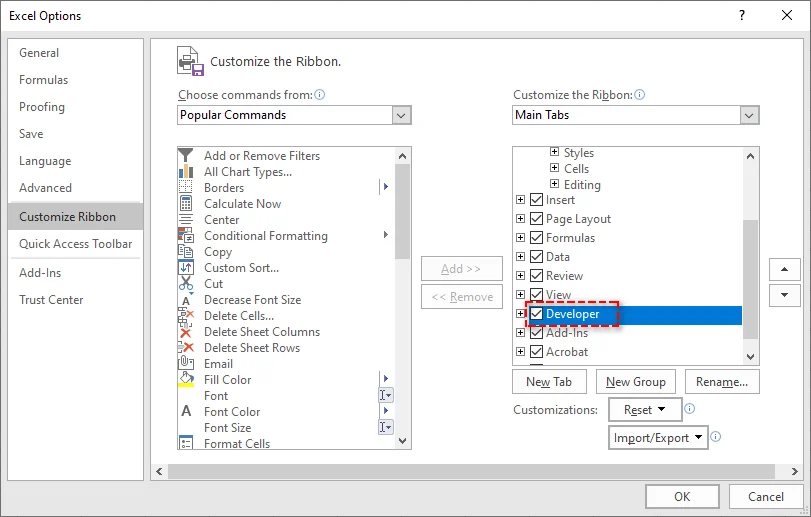
Включите вкладку «Разработчик»: Если вкладка «Разработчик» не видна, перейдите в Файл > Параметры > Настроить ленту и установите флажок Разработчик в списке основных вкладок.
-
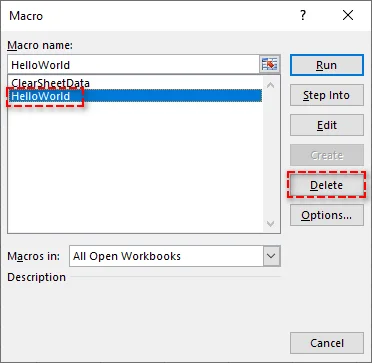
Откройте диалоговое окно «Макрос»: На вкладке «Разработчик» нажмите Макросы, чтобы открыть диалоговое окно «Макрос». Отобразится список всех макросов в рабочей книге.

-
Выберите и удалите макросы: Выберите макрос, который хотите удалить, и нажмите Удалить. Повторите этот процесс для всех других макросов, которые вы хотите удалить.
-
Сохраните рабочую книгу: После удаления макросов нажмите Файл > Сохранить как, чтобы сохранить рабочую книгу с удаленными макросами.
Плюсы:
- Быстрое и простое удаление отдельных макросов.
- Нет необходимости в дополнительных инструментах или сложных методах.
Минусы:
- Отнимает много времени при работе с большим количеством макросов или большими рабочими книгами.
Для получения дополнительной информации обратитесь к руководству Использование вкладки «Разработчик» для создания или удаления макроса в Excel от Microsoft.
Отключение макросов через Центр управления безопасностью Excel
Если вы не хотите окончательно удалять макросы, а хотите запретить их запуск, вы можете отключить их через Центр управления безопасностью Excel. Этот метод идеально подходит для обеспечения безопасности при совместном использовании рабочих книг с другими пользователями.
Шаги по отключению макросов:
-
Откройте Excel: Запустите Excel и откройте рабочую книгу.
-
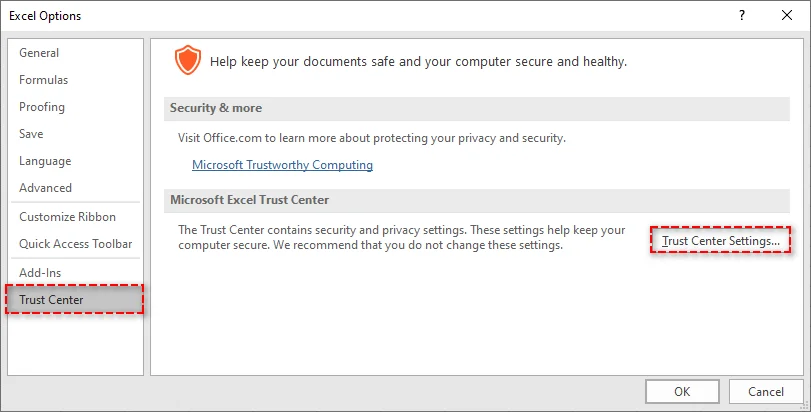
Доступ к Центру управления безопасностью: Перейдите в Файл > Параметры и выберите Центр управления безопасностью из списка слева. Затем нажмите Параметры центра управления безопасностью.
-
Настройте параметры макросов: В окне «Параметры центра управления безопасностью» выберите Параметры макросов на левой боковой панели.
-
Выберите «Отключить макросы»: Выберите Отключить все макросы без уведомления, чтобы запретить запуск любых макросов. Кроме того, вы можете выбрать Отключить все макросы с уведомлением, чтобы получать запрос при попытке запуска макроса.

-
Сохраните настройки: Нажмите ОК, чтобы применить изменения, и макросы будут отключены при следующем открытии рабочей книги.
Плюсы:
- Быстро и просто.
- Не удаляет макросы, позволяя сохранить их для дальнейшего использования.
Минусы:
- Макросы по-прежнему существуют в рабочей книге, но они не выполняются.
- Не идеально для обмена файлами, если получатель не доверяет макросам.
Удаление макросов путем сохранения файла в формате без макросов
Если вы хотите полностью удалить все макросы из рабочей книги Excel, не удаляя каждый вручную, сохранение рабочей книги в формате без макросов (.xlsx) удалит все макросы. Этот метод является самым простым для обеспечения файла без макросов.
Шаги по сохранению в виде файла без макросов:
-
Откройте рабочую книгу: Откройте файл Excel, содержащий макросы.
-
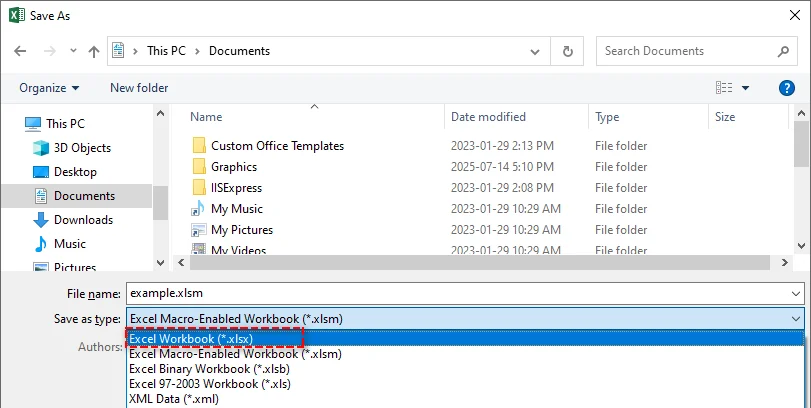
Сохранить как: Перейдите в Файл > Сохранить как и выберите место для сохранения нового файла.
-
Выберите формат рабочей книги Excel: В раскрывающемся списке Тип файла выберите Рабочая книга Excel (*.xlsx). Формат .xlsx не поддерживает макросы, поэтому сохранение файла в этом формате автоматически их удаляет.
-
Сохраните файл: Нажмите Сохранить, и ваш файл будет сохранен без макросов.
Плюсы:
- Простой и эффективный способ удаления всех макросов.
- Обеспечивает совместимость с системами, не поддерживающими макросы.
Минусы:
- Необратимо-после сохранения в формате .xlsx макросы исчезают навсегда.
- Не подходит, если вы хотите сохранить макросы для будущего использования.
Автоматизация удаления макросов из Excel с помощью Python
Для тех, кому нужно удалить макросы из нескольких файлов Excel или кто предпочитает автоматизировать этот процесс, Python предлагает эффективное решение. Spire.XLS для Python — это мощная библиотека, которая позволяет разработчикам легко управлять файлами Excel. Она предоставляет такие функции, как:
- Создание, редактирование и чтение файлов Excel: Создавайте новые рабочие книги, обновляйте существующие или извлекайте данные.
- Преобразование Excel в PDF и другие форматы: Преобразуйте файлы Excel в PDF, CSV и HTML для лучшей совместимости и обмена.
- Удаление макросов: Легко удаляйте макросы из файлов Excel для повышения безопасности и производительности файлов.
- Нет зависимости от Microsoft Excel: В отличие от традиционных методов, это решение не требует установки Excel, что делает его идеальным для серверных приложений и сред, в которых отсутствует Excel.
Используя Spire.XLS для Python, вы можете автоматизировать процесс удаления макросов, обеспечивая согласованные результаты для больших наборов файлов. Этот метод особенно эффективен для пакетной обработки, устраняя необходимость ручного вмешательства и ускоряя рабочий процесс.
Шаги по удалению макросов из файлов Excel с помощью Python:
-
Установите Spire.XLS для Python:
Установите библиотеку Spire.XLS из PyPI с помощью pip:pip install spire-xls -
Используйте фрагмент кода Python для удаления макросов:
После установки используйте следующий код для удаления макросов из файла Excel в Python:from spire.xls import * # Загрузите рабочую книгу workbook = Workbook() workbook.LoadFromFile("example.xlsm") # Удалите все макросы workbook.HasMacros = False # Сохраните рабочую книгу без макросов workbook.SaveToFile("remove_macros.xlsm") workbook.Dispose()
Этот код удалит все макросы из рабочей книги и сохранит ее как новый файл. Он работает как с форматами .xls, так и с .xlsm.
Плюсы:
- Эффективен для крупномасштабного удаления макросов.
- Автоматизирует процесс, обеспечивая согласованность между несколькими файлами.
- Нет необходимости в Excel.
Минусы:
- Требуются знания Python.
- Требуется установка библиотеки Spire.XLS.
Лучшие практики по удалению макросов из Excel
При работе с макросами в Excel следуйте этим рекомендациям для обеспечения безопасности и эффективности:
- Создавайте резервные копии ваших файлов: Всегда создавайте резервную копию перед удалением макросов из Excel, чтобы избежать потери важных данных.
- Используйте цифровые подписи: Если вам нужно сохранить макросы, подпишите их цифровой подписью, чтобы убедиться в их надежности.
- Включайте макросы только из надежных источников: Чтобы предотвратить вредоносный код, избегайте запуска макросов из ненадежных файлов.
- Регулярно очищайте: Если макросы больше не нужны, удалите их, чтобы ваши файлы оставались управляемыми.
- Используйте шаблоны без макросов: Начинайте новые проекты с шаблонов без макросов, чтобы избежать ненужных рисков.
- Обновляйте Excel: Регулярно обновляйте Excel и ваше программное обеспечение безопасности для защиты от уязвимостей, связанных с макросами.
Заключение
Удаление макросов из Excel имеет решающее значение для повышения безопасности, улучшения совместимости и оптимизации ваших рабочих книг. В зависимости от ваших потребностей вы можете удалять отдельные макросы, временно отключать их, сохранять файл в формате без макросов или даже автоматизировать процесс удаления макросов для нескольких файлов Excel с помощью Python. Следуя описанным выше методам, вы можете повысить безопасность своих рабочих книг Excel и избежать любых рисков, связанных с потенциально вредоносными макросами.
Часто задаваемые вопросы
В1: Могу ли я восстановить макросы после их удаления из Excel?
О1: Нет, после удаления макросов или сохранения в формате без макросов (.xlsx), их невозможно восстановить. Всегда сохраняйте резервную копию исходного файла, если это необходимо.
В2: Как я могу удалить определенные макросы из Excel?
О2: Вы можете удалять отдельные макросы с помощью вкладки «Разработчик» в Excel, выбирая и удаляя их вручную.
В3: Можно ли отключить макросы вместо их удаления?
О3: Да, вы можете отключить макросы в Excel через Параметры центра управления безопасностью Excel, что предотвратит их запуск, но сохранит их в рабочей книге.
В4: Как я могу автоматизировать удаление макросов из Excel?
О4: Вы можете автоматизировать процесс удаления макросов из Excel, используя Python с библиотекой Spire.XLS для Python. Этот метод особенно полезен для пакетной обработки нескольких файлов. Библиотека позволяет автоматически загружать файлы Excel, удалять макросы и сохранять их в формате без макросов.
Читайте также
Como extrair páginas de um PDF de graça — Sem precisar do Adobe
Muitas pessoas abrem o Adobe Acrobat apenas para descobrir que extrair páginas de um PDF é um recurso pago. A boa notícia é que você não precisa pagar por isso. Se você precisa manter páginas importantes de um contrato ou extrair uma seção de um relatório, este guia mostrará três maneiras fáceis e gratuitas de extrair páginas de um PDF com apenas alguns cliques.
- Extrair Páginas de PDF com o Google Chrome
- Salvar uma Página de um PDF Rapidamente com Ferramentas Online
- Extrair Páginas de um PDF Gratuitamente Usando Python
- A Conclusão
Como Extrair Páginas de PDF com o Google Chrome
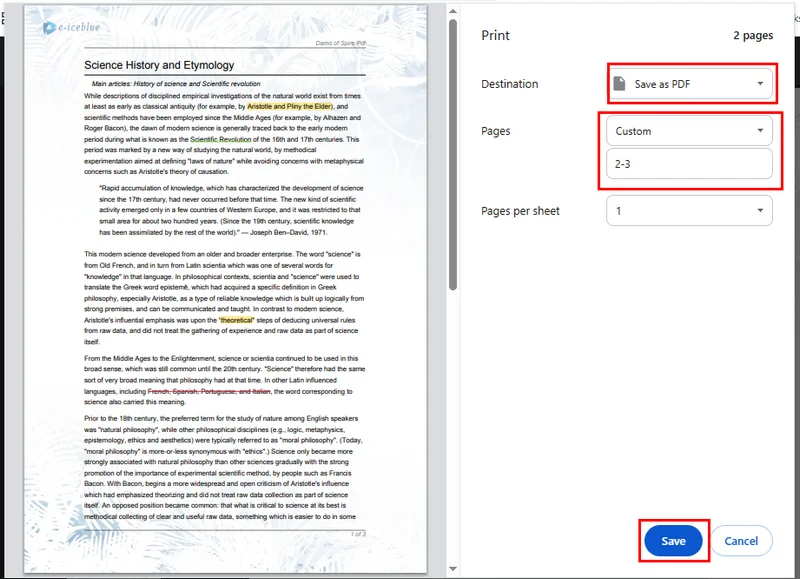
Você não precisa de nenhum software extra — o Google Chrome por si só pode extrair páginas específicas de um PDF online. Usando seu recurso de impressão integrado, você pode optar por salvar todas as páginas, apenas as páginas ímpares ou pares, ou qualquer intervalo de páginas personalizado que desejar. Basta selecionar as páginas que deseja manter e salvá-las como um novo arquivo PDF. Veja como extrair páginas de um PDF usando o Google Chrome:
- Localize o arquivo PDF do qual deseja extrair as páginas e clique com o botão direito para abri-lo no Google Chrome.
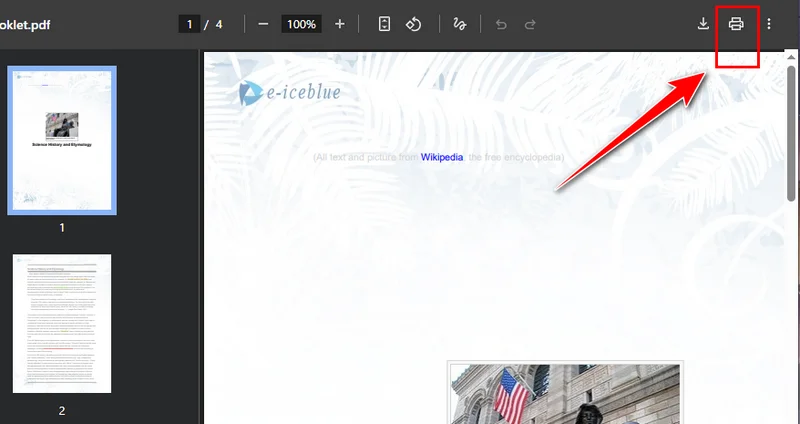
- Clique no botão Imprimir no canto superior direito e altere a impressora de destino para Salvar como PDF.
- Selecione as páginas que deseja manter e clique em Salvar. O Chrome fará o download automático do novo PDF para o seu dispositivo.
Prós
- Não é necessário instalar nenhum software de terceiros.
- Ideal para extrair rapidamente 1 a 2 páginas.
- Experiência suave e amplamente acessível (quase todos os usuários têm o Chrome).
Contras
- Não é adequado para extrair um grande número de páginas não consecutivas.
- As opções de saída são bastante básicas.
Como Salvar uma Página de um PDF Rapidamente com Ferramentas Online
Existem muitas maneiras de extrair páginas de um PDF. Além de usar o recurso integrado do Chrome, você também pode usar ferramentas online para dividir documentos PDF e salvar as páginas que você precisa. Como essas ferramentas são baseadas na web, elas funcionam tanto em computadores quanto em dispositivos móveis, e você não precisa baixar nada ou se inscrever. Basta pesquisar por “como extrair páginas de um PDF” em seu navegador e você encontrará muitas opções. Neste guia, demonstraremos o processo usando o Smallpdf, mas não se preocupe — a maioria das ferramentas online funciona de maneira muito semelhante.
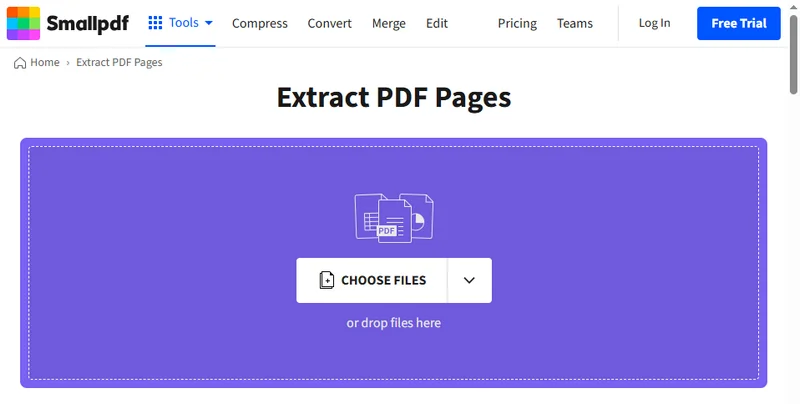
- Acesse a página Extrair PDF no Smallpdf.
- Arraste seu arquivo PDF para a ferramenta, que o processará automaticamente e exibirá todas as páginas.
- Selecione as páginas que deseja extrair e clique em Concluir. Você pode optar por exportar as páginas como um único PDF ou como arquivos PDF separados.
- Quando a extração estiver concluída, clique no botão Download para salvar o PDF resultante em seu dispositivo.
Prós
- Pode ser usado diretamente no seu navegador, sem downloads ou instalações.
- Suporta a extração de páginas únicas, páginas consecutivas ou páginas não consecutivas.
- Interface intuitiva — basta arrastar e soltar, fácil até para iniciantes.
- Funciona em qualquer dispositivo com navegador e conexão à internet, altamente compatível.
Contras
- Requer uma conexão com a internet; não pode ser usado offline.
- Algumas ferramentas limitam o tamanho do arquivo para usuários gratuitos.
- Os arquivos são enviados para o servidor, portanto, seja cauteloso com conteúdo sensível.
- Recursos avançados, como processamento em lote ou downloads sem marca d'água, podem exigir pagamento.
Como Extrair Páginas de um PDF Gratuitamente Usando Python
Ao lidar com PDFs, tanto o Chrome quanto as ferramentas online compartilham uma limitação — eles só podem processar um arquivo por vez. Se você estiver lidando com vários PDFs, existe uma solução mais rápida e profissional: Free Spire.PDF for Python.
Esta poderosa biblioteca oferece uma ampla gama de recursos de PDF, incluindo extração de páginas, conversão de formatos e edição de conteúdo. Com o Free Spire.PDF, você pode extrair facilmente páginas específicas, adicionando-as do PDF de origem a um novo documento usando o método PdfDocument.InsertPage().
O código de exemplo abaixo demonstra como extrair a 2ª e a 4ª páginas de um PDF e mesclá-las em um novo arquivo.
from spire.pdf import PdfDocument

# Load a PDF file
source_pdf = PdfDocument()
source_pdf.LoadFromFile("/input/Booklet.pdf")

# Create a new PdfDocument instance
new_pdf = PdfDocument()

# Extract page 2 and page 4
new_pdf.InsertPage(source_pdf, 1)
new_pdf.InsertPage(source_pdf, 3)

# Save the extracted pages
new_pdf.SaveToFile("/output/extracted_pages.pdf")
new_pdf.Close()
Aqui está a pré-visualização do arquivo resultante: 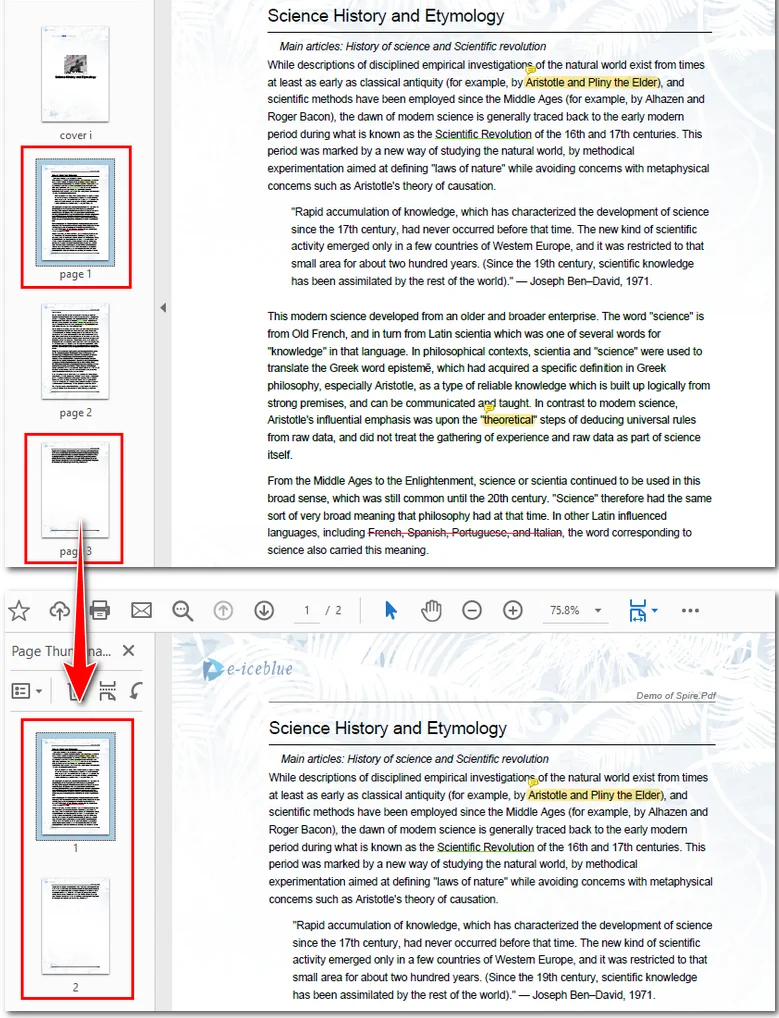
Se você precisar extrair um grande número de páginas, outra opção é excluir as páginas desnecessárias. Essa abordagem pode ser igualmente eficaz ao trabalhar com PDFs em Python.
A Conclusão
Esteja você extraindo uma única página ou gerenciando vários PDFs, escolher a ferramenta certa pode economizar muito tempo. Se você prefere uma solução mais flexível e baseada em código, o Free Spire.PDF for Python oferece uma maneira confiável de extrair, editar ou organizar arquivos PDF com eficiência. Você pode baixá-lo gratuitamente e explorar mais recursos no site oficial.
LEIA TAMBÉM
Come estrarre pagine da un PDF gratuitamente — Senza bisogno di Adobe
Molte persone aprono Adobe Acrobat solo per scoprire che l'estrazione di pagine da un PDF è una funzione a pagamento. La buona notizia è che non devi pagare per questo. Che tu abbia bisogno di conservare le pagine chiave di un contratto o di estrarre una sezione da un report, questa guida ti mostrerà tre modi facili e gratuiti per estrarre pagine da un PDF in pochi clic.
- Estrarre Pagine da PDF con Google Chrome
- Salvare Rapidamente una Pagina di un PDF con Strumenti Online
- Estrarre Pagine da un PDF Gratuitamente Usando Python
- La Conclusione
Come Estrarre Pagine da PDF con Google Chrome
Non hai bisogno di alcun software aggiuntivo: Google Chrome da solo può estrarre pagine specifiche da un PDF online. Utilizzando la sua funzione di stampa integrata, puoi scegliere di salvare tutte le pagine, solo le pagine dispari o pari, o qualsiasi intervallo di pagine personalizzato che desideri. Seleziona semplicemente le pagine che vuoi conservare e salvale come un nuovo file PDF. Ecco come estrarre pagine da un PDF utilizzando Google Chrome:
- Individua il file PDF da cui desideri estrarre le pagine e fai clic con il pulsante destro del mouse per aprirlo in Google Chrome.
- Fai clic sul pulsante Stampa nell'angolo in alto a destra e cambia la stampante di destinazione in Salva come PDF.
- Seleziona le pagine che desideri conservare, quindi fai clic su Salva. Chrome scaricherà automaticamente il nuovo PDF sul tuo dispositivo.
Vantaggi
- Non è necessario installare alcun software di terze parti.
- Ideale per estrarre rapidamente 1–2 pagine.
- Esperienza fluida e ampiamente accessibile (quasi tutti gli utenti hanno Chrome).
Svantaggi
- Non adatto per estrarre un gran numero di pagine non consecutive.
- Le opzioni di output sono piuttosto basilari.
Come Salvare Rapidamente una Pagina di un PDF con Strumenti Online
Ci sono molti modi per estrarre pagine da un PDF. Oltre a utilizzare la funzione integrata di Chrome, puoi anche utilizzare strumenti online per dividere documenti PDF e salvare le pagine di cui hai bisogno. Poiché questi strumenti sono basati sul web, funzionano sia su computer che su dispositivi mobili e non è necessario scaricare nulla o registrarsi. Cerca semplicemente "come estrarre pagine da un PDF" nel tuo browser e troverai molte opzioni. In questa guida, dimostreremo il processo utilizzando Smallpdf, ma non preoccuparti: la maggior parte degli strumenti online funziona in modo molto simile.
- Vai alla pagina Estrai Pagine PDF su Smallpdf.
- Trascina il tuo file PDF nello strumento, che lo elaborerà automaticamente e visualizzerà tutte le pagine.
- Seleziona le pagine che desideri estrarre, quindi fai clic su Fine. Puoi scegliere di esportare le pagine come un singolo PDF o come file PDF separati.
- Una volta completata l'estrazione, fai clic sul pulsante Scarica per salvare il PDF risultante sul tuo dispositivo.
Vantaggi
- Può essere utilizzato direttamente nel tuo browser, senza download o installazioni.
- Supporta l'estrazione di singole pagine, pagine consecutive o pagine non consecutive.
- Interfaccia intuitiva: basta trascinare e rilasciare, facile anche per i principianti.
- Funziona su qualsiasi dispositivo con un browser e una connessione Internet, altamente compatibile.
Svantaggi
- Richiede una connessione Internet; non può essere utilizzato offline.
- Alcuni strumenti limitano la dimensione del file per gli utenti gratuiti.
- I file vengono caricati sul server, quindi fai attenzione ai contenuti sensibili.
- Funzionalità avanzate, come l'elaborazione batch o i download senza filigrana, potrebbero richiedere un pagamento.
Come Estrarre Pagine da un PDF Gratuitamente Usando Python
Quando si ha a che fare con i PDF, sia Chrome che gli strumenti online condividono una limitazione: possono elaborare solo un file alla volta. Se gestisci più PDF, esiste una soluzione più rapida e professionale: Free Spire.PDF for Python.
Questa potente libreria offre una vasta gamma di funzionalità PDF, tra cui l'estrazione di pagine, la conversione di formati e la modifica dei contenuti. Con Free Spire.PDF, puoi estrarre facilmente pagine specifiche aggiungendole dal PDF di origine a un nuovo documento utilizzando il metodo PdfDocument.InsertPage().
Il codice di esempio seguente mostra come estrarre la 2a e la 4a pagina da un PDF e unirle in un nuovo file.
from spire.pdf import PdfDocument

# Load a PDF file
source_pdf = PdfDocument()
source_pdf.LoadFromFile("/input/Booklet.pdf")

# Create a new PdfDocument instance
new_pdf = PdfDocument()

# Extract page 2 and page 4
new_pdf.InsertPage(source_pdf, 1)
new_pdf.InsertPage(source_pdf, 3)

# Save the extracted pages
new_pdf.SaveToFile("/output/extracted_pages.pdf")
new_pdf.Close()
Ecco l'anteprima del file risultante:
Se devi estrarre un gran numero di pagine, un'altra opzione è eliminare le pagine non necessarie. Questo approccio può essere altrettanto efficace quando si lavora con i PDF in Python.
La Conclusione
Che tu stia estraendo una singola pagina o gestendo più PDF, la scelta dello strumento giusto può farti risparmiare molto tempo. Se preferisci una soluzione più flessibile e basata sul codice, Free Spire.PDF for Python offre un modo affidabile per estrarre, modificare o organizzare i file PDF in modo efficiente. Puoi scaricarlo gratuitamente ed esplorare più funzionalità sul sito ufficiale.
LEGGI ANCHE
무료로 PDF에서 페이지 추출하는 방법 — Adobe 필요 없음
많은 사람들이 PDF에서 페이지를 추출하는 기능이 유료라는 사실을 알게 되기 위해 Adobe Acrobat을 엽니다. 좋은 소식은 비용을 지불할 필요가 없다는 것입니다. 계약서에서 주요 페이지를 보관해야 하거나 보고서에서 섹션을 추출해야 하는 경우, 이 가이드는 단 몇 번의 클릭만으로 PDF에서 페이지를 추출하는 세 가지 무료하고 쉬운 방법을 보여줍니다.
Google Chrome으로 PDF에서 페이지 추출하는 방법
추가 소프트웨어가 필요 없습니다. Google Chrome만으로도 온라인에서 PDF의 특정 페이지를 추출할 수 있습니다. 내장된 인쇄 기능을 사용하여 모든 페이지, 홀수 또는 짝수 페이지만 저장하거나 원하는 사용자 지정 페이지 범위를 선택할 수 있습니다. 보관하려는 페이지를 선택하고 새 PDF 파일로 저장하기만 하면 됩니다. Google Chrome을 사용하여 PDF에서 페이지를 추출하는 방법은 다음과 같습니다.
- 페이지를 추출하려는 PDF 파일을 찾아 마우스 오른쪽 버튼을 클릭하여 Google Chrome에서 엽니다.
- 오른쪽 상단의 인쇄 버튼을 클릭하고 대상 프린터를 PDF로 저장으로 변경합니다.
- 보관할 페이지를 선택한 다음 저장을 클릭합니다. Chrome이 새 PDF를 장치에 자동으로 다운로드합니다.
장점
- 타사 소프트웨어를 설치할 필요가 없습니다.
- 1-2 페이지를 빠르게 추출하는 데 이상적입니다.
- 부드러운 경험과 폭넓은 접근성 (거의 모든 사용자가 Chrome을 사용함).
단점
- 연속되지 않은 많은 수의 페이지를 추출하는 데 적합하지 않습니다.
- 출력 옵션이 매우 기본적입니다.
온라인 도구로 PDF의 한 페이지를 빠르게 저장하는 방법
PDF에서 페이지를 추출하는 방법은 여러 가지가 있습니다. Chrome의 내장 기능을 사용하는 것 외에도 온라인 도구를 사용하여 PDF 문서를 분할하고 필요한 페이지를 저장할 수도 있습니다. 이러한 도구는 웹 기반이므로 컴퓨터와 모바일 장치 모두에서 작동하며 아무것도 다운로드하거나 가입할 필요가 없습니다. 브라우저에서 "PDF에서 페이지를 추출하는 방법"을 검색하기만 하면 다양한 옵션을 찾을 수 있습니다. 이 가이드에서는 Smallpdf를 사용하여 프로세스를 시연하지만 걱정하지 마십시오. 대부분의 온라인 도구는 매우 유사한 방식으로 작동합니다.
- Smallpdf의 PDF 페이지 추출 페이지로 이동합니다.
- PDF 파일을 도구로 끌어다 놓으면 자동으로 처리되어 모든 페이지가 표시됩니다.
- 추출할 페이지를 선택한 다음 마침을 클릭합니다. 페이지를 단일 PDF 또는 별도의 PDF 파일로 내보내도록 선택할 수 있습니다.
- 추출이 완료되면 다운로드 버튼을 클릭하여 결과 PDF를 장치에 저장합니다.
장점
- 다운로드나 설치 없이 브라우저에서 직접 사용할 수 있습니다.
- 단일 페이지, 연속 페이지 또는 비연속 페이지 추출을 지원합니다.
- 직관적인 인터페이스 — 끌어다 놓기만 하면 되므로 초보자도 쉽게 사용할 수 있습니다.
- 브라우저와 인터넷 연결이 있는 모든 장치에서 작동하며 호환성이 높습니다.
단점
- 인터넷 연결이 필요하며 오프라인에서는 사용할 수 없습니다.
- 일부 도구는 무료 사용자의 파일 크기를 제한합니다.
- 파일이 서버에 업로드되므로 민감한 콘텐츠에 주의하십시오.
- 일괄 처리나 워터마크 없는 다운로드와 같은 고급 기능은 유료일 수 있습니다.
Python을 사용하여 PDF에서 무료로 페이지를 추출하는 방법
PDF를 다룰 때 Chrome과 온라인 도구 모두 한 번에 하나의 파일만 처리할 수 있다는 한 가지 제한 사항을 공유합니다. 여러 PDF를 처리하는 경우 더 빠르고 전문적인 솔루션이 있습니다. 바로 Free Spire.PDF for Python입니다.
이 강력한 라이브러리는 페이지 추출, 형식 변환, 콘텐츠 편집 등 다양한 PDF 기능을 제공합니다. Free Spire.PDF를 사용하면 PdfDocument.InsertPage() 메서드를 사용하여 원본 PDF에서 새 문서로 페이지를 추가하여 특정 페이지를 쉽게 추출할 수 있습니다.
아래 샘플 코드는 PDF에서 2번째와 4번째 페이지를 추출하여 새 파일로 병합하는 방법을 보여줍니다.
from spire.pdf import PdfDocument

# Load a PDF file
source_pdf = PdfDocument()
source_pdf.LoadFromFile("/input/Booklet.pdf")

# Create a new PdfDocument instance
new_pdf = PdfDocument()

# Extract page 2 and page 4
new_pdf.InsertPage(source_pdf, 1)
new_pdf.InsertPage(source_pdf, 3)

# Save the extracted pages
new_pdf.SaveToFile("/output/extracted_pages.pdf")
new_pdf.Close()
결과 파일의 미리보기는 다음과 같습니다.
많은 수의 페이지를 추출해야 하는 경우 다른 옵션은 대신 불필요한 페이지를 삭제하는 것입니다. 이 접근 방식은 Python에서 PDF로 작업할 때 똑같이 효과적일 수 있습니다.
결론
단일 페이지를 추출하든 여러 PDF를 관리하든 올바른 도구를 선택하면 많은 시간을 절약할 수 있습니다. 보다 유연하고 코드 기반 솔루션을 선호하는 경우 Free Spire.PDF for Python은 PDF 파일을 효율적으로 추출, 편집 또는 구성할 수 있는 안정적인 방법을 제공합니다. 무료로 다운로드하고 공식 웹사이트에서 더 많은 기능을 탐색할 수 있습니다.
함께 읽기
Comment extraire gratuitement des pages d'un PDF — Sans Adobe
De nombreuses personnes ouvrent Adobe Acrobat pour découvrir que l'extraction de pages d'un PDF est une fonctionnalité payante. La bonne nouvelle, c'est que vous n'avez pas à payer pour cela. Que vous ayez besoin de conserver les pages clés d'un contrat ou d'extraire une section d'un rapport, ce guide vous montrera trois façons simples et gratuites d'extraire des pages d'un PDF en quelques clics.
- Extraire des pages d'un PDF avec Google Chrome
- Enregistrer rapidement une page d'un PDF avec des outils en ligne
- Extraire gratuitement des pages d'un PDF en utilisant Python
- La conclusion
Comment extraire des pages d'un PDF avec Google Chrome
Vous n'avez besoin d'aucun logiciel supplémentaire — Google Chrome peut à lui seul extraire des pages spécifiques d'un PDF en ligne. Grâce à sa fonction d'impression intégrée, vous pouvez choisir d'enregistrer toutes les pages, uniquement les pages paires ou impaires, ou toute plage de pages personnalisée de votre choix. Il vous suffit de sélectionner les pages que vous souhaitez conserver et de les enregistrer dans un nouveau fichier PDF. Voici comment extraire des pages d'un PDF à l'aide de Google Chrome :
- Localisez le fichier PDF dont vous souhaitez extraire les pages et faites un clic droit pour l'ouvrir dans Google Chrome.
- Cliquez sur le bouton Imprimer dans le coin supérieur droit et changez l'imprimante de destination en Enregistrer au format PDF.
- Sélectionnez les pages que vous souhaitez conserver, puis cliquez sur Enregistrer. Chrome téléchargera automatiquement le nouveau PDF sur votre appareil.
Avantages
- Aucune installation de logiciel tiers n'est nécessaire.
- Idéal pour extraire rapidement 1 à 2 pages.
- Expérience fluide et largement accessible (presque tous les utilisateurs ont Chrome).
Inconvénients
- Ne convient pas à l'extraction d'un grand nombre de pages non consécutives.
- Les options de sortie sont assez basiques.
Comment enregistrer rapidement une page d'un PDF avec des outils en ligne
Il existe de nombreuses façons d'extraire des pages d'un PDF. Outre l'utilisation de la fonctionnalité intégrée de Chrome, vous pouvez également utiliser des outils en ligne pour diviser des documents PDF et enregistrer les pages dont vous avez besoin. Comme ces outils sont basés sur le Web, ils fonctionnent aussi bien sur les ordinateurs que sur les appareils mobiles, et vous n'avez rien à télécharger ni à vous inscrire. Il vous suffit de rechercher « comment extraire des pages d'un PDF » dans votre navigateur pour trouver de nombreuses options. Dans ce guide, nous allons vous montrer le processus en utilisant Smallpdf, mais ne vous inquiétez pas, la plupart des outils en ligne fonctionnent de manière très similaire.
- Allez à la page Extraire des pages PDF sur Smallpdf.
- Faites glisser votre fichier PDF dans l'outil, qui le traitera automatiquement et affichera toutes les pages.
- Sélectionnez les pages que vous souhaitez extraire, puis cliquez sur Terminer. Vous pouvez choisir d'exporter les pages sous forme d'un seul PDF ou de fichiers PDF distincts.
- Une fois l'extraction terminée, cliquez sur le bouton Télécharger pour enregistrer le PDF résultant sur votre appareil.
Avantages
- Peut être utilisé directement dans votre navigateur, sans aucun téléchargement ni installation.
- Prend en charge l'extraction de pages uniques, de pages consécutives ou de pages non consécutives.
- Interface intuitive — il suffit de glisser-déposer, facile même pour les débutants.
- Fonctionne sur n'importe quel appareil doté d'un navigateur et d'une connexion Internet, hautement compatible.
Inconvénients
- Nécessite une connexion Internet ; ne peut pas être utilisé hors ligne.
- Certains outils limitent la taille des fichiers pour les utilisateurs gratuits.
- Les fichiers sont téléchargés sur le serveur, soyez donc prudent avec le contenu sensible.
- Les fonctionnalités avancées, telles que le traitement par lots ou les téléchargements sans filigrane, peuvent nécessiter un paiement.
Comment extraire gratuitement des pages d'un PDF en utilisant Python
Lorsqu'il s'agit de PDF, Chrome et les outils en ligne partagent une limitation : ils ne peuvent traiter qu'un seul fichier à la fois. Si vous manipulez plusieurs PDF, il existe une solution plus rapide et plus professionnelle : Free Spire.PDF for Python.
Cette puissante bibliothèque offre un large éventail de fonctionnalités PDF, notamment l'extraction de pages, la conversion de formats et la modification de contenu. Avec Free Spire.PDF, vous pouvez facilement extraire des pages spécifiques en les ajoutant du PDF source dans un nouveau document à l'aide de la méthode PdfDocument.InsertPage().
L'exemple de code ci-dessous montre comment extraire les 2ème et 4ème pages d'un PDF et les fusionner dans un nouveau fichier.
from spire.pdf import PdfDocument

# Load a PDF file
source_pdf = PdfDocument()
source_pdf.LoadFromFile("/input/Booklet.pdf")

# Create a new PdfDocument instance
new_pdf = PdfDocument()

# Extract page 2 and page 4
new_pdf.InsertPage(source_pdf, 1)
new_pdf.InsertPage(source_pdf, 3)

# Save the extracted pages
new_pdf.SaveToFile("/output/extracted_pages.pdf")
new_pdf.Close()
Voici l'aperçu du fichier résultant :
Si vous devez extraire un grand nombre de pages, une autre option consiste à supprimer les pages inutiles à la place. Cette approche peut être tout aussi efficace lorsque vous travaillez avec des PDF en Python.
La conclusion
Que vous extrayiez une seule page ou que vous gériez plusieurs PDF, choisir le bon outil peut vous faire gagner beaucoup de temps. Si vous préférez une solution plus flexible et basée sur le code, Free Spire.PDF for Python offre un moyen fiable d'extraire, de modifier ou d'organiser efficacement les fichiers PDF. Vous pouvez le télécharger gratuitement et explorer plus de fonctionnalités sur le site officiel.
LIRE AUSSI
Cómo extraer páginas de un PDF gratis — Sin necesidad de Adobe
Tabla de Contenidos
Mucha gente abre Adobe Acrobat solo para descubrir que extraer páginas de un PDF es una función de pago. La buena noticia es que no tienes que pagar por ello. Ya sea que necesites conservar páginas clave de un contrato o extraer una sección de un informe, esta guía te mostrará tres formas fáciles y gratuitas de extraer páginas de un PDF en solo unos pocos clics.
- Extraer Páginas de PDF con Google Chrome
- Guardar una Página de un PDF Rápidamente con Herramientas en Línea
- Extraer Páginas de un PDF Gratis Usando Python
- La Conclusión
Cómo Extraer Páginas de PDF con Google Chrome
No necesitas ningún software adicional: solo Google Chrome puede extraer páginas específicas de un PDF en línea. Usando su función de Impresión incorporada, puedes elegir guardar todas las páginas, solo las páginas impares o pares, o cualquier rango de páginas personalizado que desees. Simplemente selecciona las páginas que deseas conservar y guárdalas como un nuevo archivo PDF. A continuación, te explicamos cómo extraer páginas de un PDF usando Google Chrome:
- Localiza el archivo PDF del que deseas extraer páginas y haz clic derecho para abrirlo en Google Chrome.
- Haz clic en el botón Imprimir en la esquina superior derecha y cambia la impresora de destino a Guardar como PDF.
- Selecciona las páginas que deseas conservar, luego haz clic en Guardar. Chrome descargará automáticamente el nuevo PDF a tu dispositivo.
Pros
- No es necesario instalar ningún software de terceros.
- Ideal para extraer rápidamente 1–2 páginas.
- Experiencia fluida y ampliamente accesible (casi todos los usuarios tienen Chrome).
Contras
- No es adecuado para extraer una gran cantidad de páginas no consecutivas.
- Las opciones de salida son bastante básicas.
Cómo Guardar una Página de un PDF Rápidamente con Herramientas en Línea
Hay muchas formas de extraer páginas de un PDF. Además de usar la función incorporada de Chrome, también puedes usar herramientas en línea para dividir documentos PDF y guardar las páginas que necesitas. Como estas herramientas están basadas en la web, funcionan tanto en computadoras como en dispositivos móviles, y no necesitas descargar nada ni registrarte. Simplemente busca "cómo extraer páginas de un PDF" en tu navegador y encontrarás muchas opciones. En esta guía, demostraremos el proceso usando Smallpdf, pero no te preocupes, la mayoría de las herramientas en línea funcionan de manera muy similar.
- Ve a la página Extraer Páginas PDF en Smallpdf.
- Arrastra tu archivo PDF a la herramienta, que lo procesará automáticamente y mostrará todas las páginas.
- Selecciona las páginas que deseas extraer, luego haz clic en Finalizar. Puedes elegir exportar las páginas como un solo PDF o como archivos PDF separados.
- Una vez que se complete la extracción, haz clic en el botón Descargar para guardar el PDF resultante en tu dispositivo.
Pros
- Se puede usar directamente en tu navegador, sin descargas ni instalaciones.
- Admite la extracción de páginas individuales, páginas consecutivas o páginas no consecutivas.
- Interfaz intuitiva: solo arrastrar y soltar, fácil incluso para principiantes.
- Funciona en cualquier dispositivo con navegador y conexión a internet, alta compatibilidad.
Contras
- Requiere conexión a internet; no se puede usar sin conexión.
- Algunas herramientas limitan el tamaño del archivo para los usuarios gratuitos.
- Los archivos se suben al servidor, así que ten cuidado con el contenido sensible.
- Las funciones avanzadas, como el procesamiento por lotes o las descargas sin marcas de agua, pueden requerir pago.
Cómo Extraer Páginas de un PDF Gratis Usando Python
Al trabajar con archivos PDF, tanto Chrome como las herramientas en línea comparten una limitación: solo pueden procesar un archivo a la vez. Si manejas múltiples archivos PDF, existe una solución más rápida y profesional: Free Spire.PDF for Python.
Esta potente biblioteca ofrece una amplia gama de funciones para PDF, incluyendo la extracción de páginas, la conversión de formatos y la edición de contenido. Con Free Spire.PDF, puedes extraer fácilmente páginas específicas agregándolas desde el PDF de origen a un nuevo documento usando el método PdfDocument.InsertPage().
El código de muestra a continuación demuestra cómo extraer la 2ª y 4ª página de un PDF y combinarlas en un nuevo archivo.
from spire.pdf import PdfDocument

# Load a PDF file
source_pdf = PdfDocument()
source_pdf.LoadFromFile("/input/Booklet.pdf")

# Create a new PdfDocument instance
new_pdf = PdfDocument()

# Extract page 2 and page 4
new_pdf.InsertPage(source_pdf, 1)
new_pdf.InsertPage(source_pdf, 3)

# Save the extracted pages
new_pdf.SaveToFile("/output/extracted_pages.pdf")
new_pdf.Close()
Aquí está la vista previa del archivo resultante:
Si necesitas extraer una gran cantidad de páginas, otra opción es eliminar las páginas innecesarias en su lugar. Este enfoque puede ser igual de efectivo al trabajar con archivos PDF en Python.
La Conclusión
Ya sea que estés extrayendo una sola página o gestionando múltiples archivos PDF, elegir la herramienta adecuada puede ahorrarte mucho tiempo. Si prefieres una solución más flexible y basada en código, Free Spire.PDF for Python ofrece una forma fiable de extraer, editar u organizar archivos PDF de manera eficiente. Puedes descargarlo gratis y explorar más funciones en el sitio web oficial.
TAMBIÉN LEER
Wie man Seiten kostenlos aus einem PDF extrahiert — Ohne Adobe
Viele Leute öffnen Adobe Acrobat nur um festzustellen, dass das Extrahieren von Seiten aus einem PDF eine kostenpflichtige Funktion ist. Die gute Nachricht ist – Sie müssen nicht dafür bezahlen. Egal, ob Sie wichtige Seiten aus einem Vertrag behalten oder einen Abschnitt aus einem Bericht extrahieren müssen, dieser Leitfaden zeigt Ihnen drei kostenlose und einfache Möglichkeiten, Seiten aus einem PDF mit nur wenigen Klicks zu extrahieren.
- Seiten aus PDF mit Google Chrome extrahieren
- Eine Seite eines PDFs schnell mit Online-Tools speichern
- Seiten aus einem PDF kostenlos mit Python extrahieren
- Das Fazit
Wie man Seiten aus einem PDF mit Google Chrome extrahiert
Sie benötigen keine zusätzliche Software – Google Chrome allein kann bestimmte Seiten aus einem PDF online extrahieren. Mit der integrierten Druckfunktion können Sie alle Seiten, nur ungerade oder gerade Seiten oder einen beliebigen benutzerdefinierten Seitenbereich speichern. Wählen Sie einfach die Seiten aus, die Sie behalten möchten, und speichern Sie sie als neue PDF-Datei. So extrahieren Sie Seiten aus einem PDF mit Google Chrome:
- Suchen Sie die PDF-Datei, aus der Sie Seiten extrahieren möchten, und klicken Sie mit der rechten Maustaste, um sie in Google Chrome zu öffnen.
- Klicken Sie auf die Schaltfläche Drucken in der oberen rechten Ecke und ändern Sie den Zieldrucker auf Als PDF speichern.
- Wählen Sie die Seiten aus, die Sie behalten möchten, und klicken Sie dann auf Speichern. Chrome lädt die neue PDF-Datei automatisch auf Ihr Gerät herunter.
Vorteile
- Keine Notwendigkeit, Software von Drittanbietern zu installieren.
- Ideal zum schnellen Extrahieren von 1–2 Seiten.
- Reibungslose Erfahrung und weithin zugänglich (fast alle Benutzer haben Chrome).
Nachteile
- Nicht geeignet zum Extrahieren einer großen Anzahl nicht aufeinanderfolgender Seiten.
- Die Ausgabeoptionen sind ziemlich einfach.
Wie man eine Seite eines PDFs schnell mit Online-Tools speichert
Es gibt viele Möglichkeiten, Seiten aus einem PDF zu extrahieren. Neben der integrierten Funktion von Chrome können Sie auch Online-Tools verwenden, um PDF-Dokumente aufzuteilen und die benötigten Seiten zu speichern. Da diese Tools webbasiert sind, funktionieren sie sowohl auf Computern als auch auf mobilen Geräten, und Sie müssen nichts herunterladen oder sich anmelden. Suchen Sie einfach in Ihrem Browser nach „Wie man Seiten aus einem PDF extrahiert“, und Sie werden viele Optionen finden. In diesem Leitfaden demonstrieren wir den Prozess mit Smallpdf, aber keine Sorge – die meisten Online-Tools funktionieren auf sehr ähnliche Weise.
- Gehen Sie zur Seite PDF Extrahieren auf Smallpdf.
- Ziehen Sie Ihre PDF-Datei in das Tool, das sie automatisch verarbeitet und alle Seiten anzeigt.
- Wählen Sie die Seiten aus, die Sie extrahieren möchten, und klicken Sie dann auf Fertigstellen. Sie können wählen, ob Sie die Seiten als einzelne PDF-Datei oder als separate PDF-Dateien exportieren möchten.
- Sobald die Extraktion abgeschlossen ist, klicken Sie auf die Schaltfläche Herunterladen, um die resultierende PDF-Datei auf Ihrem Gerät zu speichern.
Vorteile
- Kann direkt in Ihrem Browser verwendet werden, ohne Downloads oder Installationen.
- Unterstützt das Extrahieren einzelner Seiten, aufeinanderfolgender Seiten oder nicht aufeinanderfolgender Seiten.
- Intuitive Benutzeroberfläche – einfach per Drag & Drop, auch für Anfänger einfach.
- Funktioniert auf jedem Gerät mit Browser und Internetverbindung, hochkompatibel.
Nachteile
- Erfordert eine Internetverbindung; kann nicht offline verwendet werden.
- Einige Tools begrenzen die Dateigröße für kostenlose Benutzer.
- Dateien werden auf den Server hochgeladen, seien Sie also vorsichtig mit sensiblen Inhalten.
- Erweiterte Funktionen wie Stapelverarbeitung oder wasserzeichenfreie Downloads können kostenpflichtig sein.
Wie man Seiten aus einem PDF kostenlos mit Python extrahiert
Beim Umgang mit PDFs haben sowohl Chrome als auch Online-Tools eine Einschränkung – sie können nur eine Datei gleichzeitig verarbeiten. Wenn Sie mehrere PDFs bearbeiten, gibt es eine schnellere und professionellere Lösung: Free Spire.PDF for Python.
Diese leistungsstarke Bibliothek bietet eine breite Palette von PDF-Funktionen, einschließlich dem Extrahieren von Seiten, dem Konvertieren von Formaten und dem Bearbeiten von Inhalten. Mit Free Spire.PDF können Sie ganz einfach bestimmte Seiten extrahieren, indem Sie sie aus dem Quell-PDF mit der Methode PdfDocument.InsertPage() in ein neues Dokument einfügen.
Der folgende Beispielcode zeigt, wie die 2. und 4. Seite aus einem PDF extrahiert und in einer neuen Datei zusammengeführt werden.
from spire.pdf import PdfDocument

# Load a PDF file
source_pdf = PdfDocument()
source_pdf.LoadFromFile("/input/Booklet.pdf")

# Create a new PdfDocument instance
new_pdf = PdfDocument()

# Extract page 2 and page 4
new_pdf.InsertPage(source_pdf, 1)
new_pdf.InsertPage(source_pdf, 3)

# Save the extracted pages
new_pdf.SaveToFile("/output/extracted_pages.pdf")
new_pdf.Close()
Hier ist die Vorschau der resultierenden Datei:
Wenn Sie eine große Anzahl von Seiten extrahieren müssen, besteht eine weitere Möglichkeit darin, stattdessen die nicht benötigten Seiten zu löschen. Dieser Ansatz kann bei der Arbeit mit PDFs in Python genauso effektiv sein.
Das Fazit
Egal, ob Sie eine einzelne Seite extrahieren oder mehrere PDFs verwalten, die Wahl des richtigen Tools kann Ihnen viel Zeit sparen. Wenn Sie eine flexiblere und codebasierte Lösung bevorzugen, bietet Free Spire.PDF for Python eine zuverlässige Möglichkeit, PDF-Dateien effizient zu extrahieren, zu bearbeiten oder zu organisieren. Sie können es kostenlos herunterladen und weitere Funktionen auf der offiziellen Website erkunden.
LESEN SIE AUCH
Как бесплатно извлечь страницы из PDF — Adobe не нужен
Многие открывают Adobe Acrobat и обнаруживают, что извлечение страниц из PDF — платная функция. Хорошая новость в том, что вам не нужно за это платить. Если вам нужно сохранить ключевые страницы из контракта или извлечь раздел из отчета, это руководство покажет вам три бесплатных и простых способа извлечь страницы из PDF всего за несколько кликов.
- Извлечение страниц из PDF с помощью Google Chrome
- Быстрое сохранение одной страницы PDF с помощью онлайн-инструментов
- Бесплатное извлечение страниц из PDF с помощью Python
- Заключение
Как извлечь страницы из PDF с помощью Google Chrome
Вам не нужно никакого дополнительного программного обеспечения — один только Google Chrome может извлекать определенные страницы из PDF онлайн. Используя встроенную функцию «Печать», вы можете выбрать сохранение всех страниц, только нечетных или четных страниц, или любой другой диапазон страниц по вашему выбору. Просто выберите страницы, которые вы хотите сохранить, и сохраните их как новый PDF-файл. Вот как извлечь страницы из PDF с помощью Google Chrome:
- Найдите PDF-файл, из которого вы хотите извлечь страницы, и щелкните правой кнопкой мыши, чтобы открыть его в Google Chrome.
- Нажмите кнопку Печать в правом верхнем углу и измените принтер назначения на Сохранить как PDF.
- Выберите страницы, которые хотите сохранить, затем нажмите Сохранить. Chrome автоматически загрузит новый PDF-файл на ваше устройство.
Плюсы
- Не нужно устанавливать стороннее программное обеспечение.
- Идеально для быстрого извлечения 1–2 страниц.
- Плавная работа и широкая доступность (почти у всех пользователей есть Chrome).
Минусы
- Не подходит для извлечения большого количества непоследовательных страниц.
- Возможности вывода довольно ограничены.
Как быстро сохранить одну страницу PDF с помощью онлайн-инструментов
Существует много способов извлечь страницы из PDF. Помимо использования встроенной функции Chrome, вы также можете использовать онлайн-инструменты для разделения PDF-документов и сохранения нужных страниц. Поскольку эти инструменты работают через веб, они доступны как на компьютерах, так и на мобильных устройствах, и вам не нужно ничего скачивать или регистрироваться. Просто введите в поиске «как извлечь страницы из PDF», и вы найдете множество вариантов. В этом руководстве мы продемонстрируем процесс на примере Smallpdf, но не волнуйтесь — большинство онлайн-инструментов работают очень похоже.
- Перейдите на страницу извлечения PDF на Smallpdf.
- Перетащите ваш PDF-файл в инструмент, который автоматически обработает его и отобразит все страницы.
- Выберите страницы, которые хотите извлечь, затем нажмите Готово. Вы можете экспортировать страницы как один PDF-файл или как отдельные PDF-файлы.
- После завершения извлечения нажмите кнопку Скачать, чтобы сохранить полученный PDF-файл на ваше устройство.
Плюсы
- Можно использовать прямо в браузере, без скачиваний и установок.
- Поддерживает извлечение отдельных, последовательных или непоследовательных страниц.
- Интуитивно понятный интерфейс — просто перетащите, легко даже для новичков.
- Работает на любом устройстве с браузером и подключением к интернету, высокая совместимость.
Минусы
- Требуется подключение к интернету; нельзя использовать офлайн.
- Некоторые инструменты ограничивают размер файла для бесплатных пользователей.
- Файлы загружаются на сервер, поэтому будьте осторожны с конфиденциальным содержимым.
- Расширенные функции, такие как пакетная обработка или загрузка без водяных знаков, могут требовать оплаты.
Как бесплатно извлечь страницы из PDF с помощью Python
При работе с PDF и Chrome, и онлайн-инструменты имеют одно ограничение — они могут обрабатывать только один файл за раз. Если вы работаете с несколькими PDF-файлами, есть более быстрое и профессиональное решение: Free Spire.PDF for Python.
Эта мощная библиотека предоставляет широкий спектр функций для работы с PDF, включая извлечение страниц, преобразование форматов и редактирование содержимого. С помощью Free Spire.PDF вы можете легко извлекать определенные страницы, добавляя их из исходного PDF в новый документ с помощью метода PdfDocument.InsertPage().
Приведенный ниже пример кода демонстрирует, как извлечь 2-ю и 4-ю страницы из PDF и объединить их в новый файл.
from spire.pdf import PdfDocument

# Load a PDF file
source_pdf = PdfDocument()
source_pdf.LoadFromFile("/input/Booklet.pdf")

# Create a new PdfDocument instance
new_pdf = PdfDocument()

# Extract page 2 and page 4
new_pdf.InsertPage(source_pdf, 1)
new_pdf.InsertPage(source_pdf, 3)

# Save the extracted pages
new_pdf.SaveToFile("/output/extracted_pages.pdf")
new_pdf.Close()
Вот предварительный просмотр полученного файла:
Если вам нужно извлечь большое количество страниц, другой вариант — удалить ненужные страницы. Этот подход может быть столь же эффективным при работе с PDF в Python.
Заключение
Независимо от того, извлекаете ли вы одну страницу или управляете несколькими PDF-файлами, выбор правильного инструмента может сэкономить вам много времени. Если вы предпочитаете более гибкое и основанное на коде решение, Free Spire.PDF for Python предлагает надежный способ эффективного извлечения, редактирования или организации PDF-файлов. Вы можете скачать его бесплатно и изучить больше функций на официальном сайте.
ЧИТАЙТЕ ТАКЖЕ
Come convertire immagini in PPT – 3 metodi semplici
Indice
- Perché convertire le immagini in PPT
- Metodo 1. Convertire manualmente le immagini in PPT utilizzando Microsoft PowerPoint
- Metodo 2. Convertire le immagini in PPT utilizzando strumenti online gratuiti
- Metodo 3. Automatizzare la conversione da immagine a PPT utilizzando Python
- Migliori pratiche per la conversione di immagini in PPT
- Conclusione
- Domande frequenti: conversione di immagini in PowerPoint
La conversione di immagini in PPT è un modo rapido ed efficiente per presentare contenuti visivi in un formato dinamico. Che si tratti di foto, grafici o infografiche, trasformarli in diapositive di PowerPoint può rendere le tue presentazioni più coinvolgenti e di impatto.
In questa guida, ti mostreremo tre semplici metodi per convertire le immagini in PPT, incluse tecniche manuali, strumenti online e automazione con Python. Questi metodi sono adatti a tutti i livelli di abilità, dai principianti agli utenti avanzati, fornendo soluzioni facili per aiutarti a creare presentazioni professionali e visivamente accattivanti dalle tue immagini.
Panoramica dei contenuti
- Perché convertire le immagini in PPT
- Metodo 1. Convertire manualmente le immagini in PPT utilizzando Microsoft PowerPoint
- Metodo 2. Convertire le immagini in PPT utilizzando strumenti online gratuiti
- Metodo 3. Automatizzare la conversione da immagine a PPT utilizzando Python
- Migliori pratiche per la conversione di immagini in PPT
- Conclusione
- Domande frequenti: conversione di immagini in PowerPoint
Perché convertire le immagini in PPT?
Prima di esplorare i metodi, diamo prima un'occhiata ai vantaggi della conversione delle immagini in diapositive PPT:
- Mostrare contenuti visivi: le immagini spesso parlano più delle parole. Che si tratti di una foto, un'infografica o un grafico, l'inserimento di immagini nelle diapositive di PowerPoint consente di evidenziarle e discuterle in modo più efficace durante le presentazioni.
- Facilità di modifica: le immagini in PowerPoint sono più facili da gestire, ridimensionare e riposizionare rispetto alle immagini grezze inserite in documenti o e-mail.
- Presentazioni professionali: PowerPoint consente di creare diapositive professionali con animazioni aggiunte, sovrapposizioni di testo e transizioni che migliorano l'esperienza della presentazione.
- Integrazione con altri contenuti: le diapositive di PowerPoint vengono spesso utilizzate insieme ad altre forme di media. La conversione di immagini in PPT consente una perfetta integrazione di elementi visivi con testo e grafici.
Ora, esploriamo i diversi modi per convertire le immagini in diapositive di PowerPoint.
Metodo 1. Convertire manualmente le immagini in PPT utilizzando Microsoft PowerPoint
Microsoft PowerPoint offre due metodi per inserire immagini in una presentazione di PowerPoint. Ecco una guida passo passo per entrambi i metodi.
Opzione 1: utilizzo della scheda Inserisci in PowerPoint
Se stai lavorando con un numero limitato di immagini, la scheda Inserisci è ideale per aggiungere singole immagini alle tue diapositive. Ti consente di controllare completamente il modo in cui le immagini vengono posizionate e formattate.
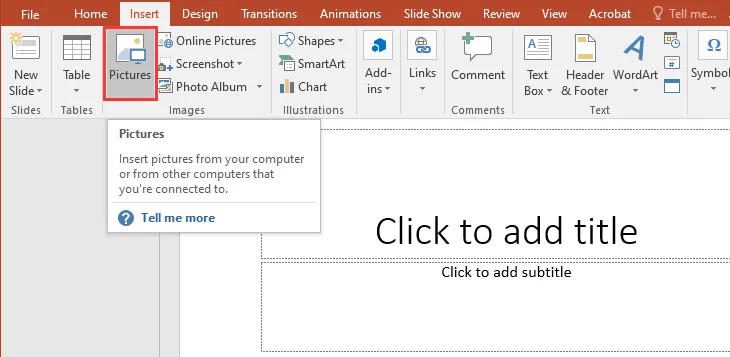
Passaggi per inserire manualmente le immagini:
- Apri PowerPoint: per prima cosa, avvia PowerPoint e scegli l'opzione "Presentazione vuota" per avviare una nuova presentazione.
- Aggiungi una diapositiva vuota: Quindi, vai alla scheda Home e fai clic sul pulsante "Nuova diapositiva". Dal menu a discesa, seleziona "Vuota" per aggiungere una diapositiva senza segnaposto preformattati.
- Inserisci un'immagine: quindi, vai alla scheda Inserisci sulla barra multifunzione. Fai clic su Immagini (o Immagini online se desideri utilizzare immagini dal Web). Passa all'immagine che desideri inserire, selezionala e fai clic su Inserisci.
- Regola la posizione e le dimensioni dell'immagine: dopo aver inserito l'immagine, ridimensionala trascinando gli angoli e spostala sulla diapositiva nella posizione preferita.
- Ripeti per immagini aggiuntive: per aggiungere altre immagini, ripeti i passaggi 2-4.
- Salva la tua presentazione: una volta aggiunte e disposte tutte le immagini, fai clic su File > Salva con nome per salvare il file di PowerPoint nella posizione desiderata.
Vantaggi:
- Semplice e facile da usare.
- Fornisce il pieno controllo sul posizionamento e la formattazione delle immagini.
- Nessuno strumento o software aggiuntivo richiesto.
Svantaggi:
- Può richiedere molto tempo se si dispone di molte immagini da inserire.
Opzione 2: utilizzo della funzione Album foto in PowerPoint
Se si dispone di più immagini o foto e si ha la necessità di convertirle rapidamente in diapositive separate, la funzione Album foto di PowerPoint è una soluzione più efficiente.
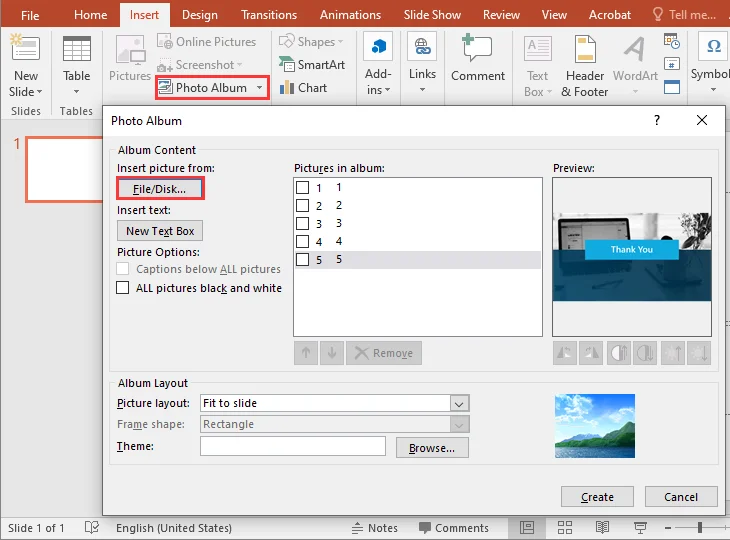
Passaggi per convertire più immagini:
- Apri PowerPoint: per prima cosa, avvia PowerPoint e seleziona l'opzione "Presentazione vuota" per avviare una nuova presentazione.
- Vai alla funzione Album foto: quindi, vai alla scheda Inserisci sulla barra multifunzione, fai clic su Album foto e seleziona Nuovo album foto dal menu a discesa.
- Seleziona le tue immagini: nella finestra di dialogo Album foto, fai clic su File/Disco per sfogliare e selezionare le immagini che desideri aggiungere. Scegli tutte le immagini che desideri convertire e fai clic su Inserisci.
- Personalizza il layout (opzionale): scegli come le immagini devono apparire sulle diapositive, ad esempio un'immagine per diapositiva o più immagini su ciascuna diapositiva. Puoi anche aggiungere didascalie e selezionare un tema per le diapositive, se lo desideri.
- Crea l'album: dopo aver effettuato le selezioni, fai clic su Crea. PowerPoint genererà automaticamente una nuova diapositiva for ogni immagine.
- Salva la tua presentazione: una volta creato l'album, fai clic su File > Salva con nome per salvare il file di PowerPoint nella posizione desiderata.
Vantaggi:
- Veloce ed efficiente per la conversione di immagini in blocco.
- Layout delle diapositive personalizzabili.
- Risparmia tempo quando si aggiungono più immagini contemporaneamente.
Svantaggi:
- Controllo limitato sulla formattazione delle singole immagini.
- Non ideale per layout complessi o editing dettagliato delle immagini.
Suggerimento professionale: per un design più raffinato ed efficiente, puoi scaricare modelli di album fotografici di PowerPoint realizzati professionalmente da Microsoft. Questi modelli pronti all'uso possono semplificare il processo, conferendo alla tua presentazione un aspetto elegante e visivamente accattivante in pochissimo tempo.
Metodo 2. Convertire le immagini in PPT utilizzando strumenti online gratuiti
Se non hai installato Microsoft PowerPoint, alcuni strumenti online offrono un modo semplice e gratuito per convertire le immagini in PowerPoint. Uno di questi strumenti è Online2PDF.
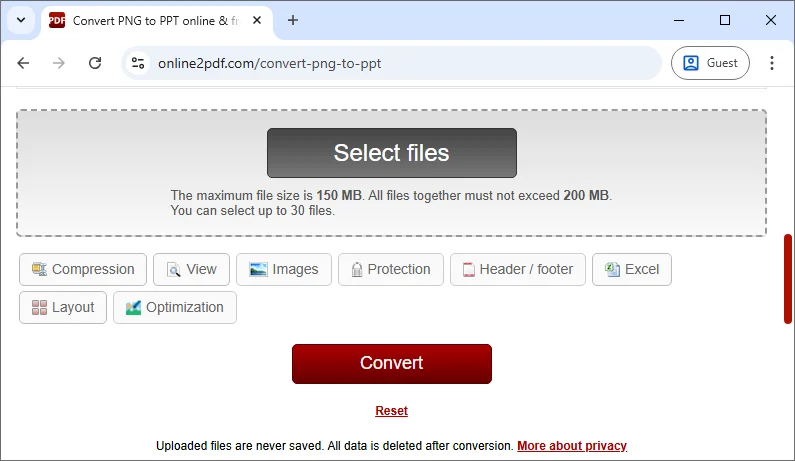
Passaggi per convertire le immagini utilizzando lo strumento online:
- Vai su Online2PDF: visita il convertitore online da immagine a PPT.
- Carica le tue immagini: fai clic su Seleziona file e carica le immagini dal tuo computer. Puoi anche trascinare e rilasciare le tue immagini direttamente nell'area di conversione.
- Seleziona il formato di output: scegli .ppt o .pptx come formato di output.
- Converti i file: fai clic su Converti per avviare il processo di conversione.
- Scarica il PPT: al termine della conversione, scarica il tuo file PPT.
Vantaggi:
- Nessuna installazione di software necessaria.
- Processo di conversione veloce e semplice.
- Funziona su tutti i dispositivi, basato sul web.
Svantaggi:
- Preoccupazioni sulla privacy durante il caricamento di file su siti Web di terze parti.
- Alcuni convertitori potrebbero avere limitazioni di dimensione o formato sugli account gratuiti.
- Opzioni di personalizzazione limitate per il layout e la formattazione delle immagini.
Metodo 3. Convertire automaticamente le immagini in PPT usando Python
Per coloro che desiderano automatizzare la conversione di più immagini in presentazioni PowerPoint, Python offre una soluzione potente. Sfruttando la libreria Spire.Presentation for Python, gli utenti possono automatizzare il processo di inserimento di immagini, regolazione dei layout e salvataggio delle presentazioni, il tutto con un codice minimo.
Caratteristiche principali:
- Crea e gestisci diapositive: aggiungi o rimuovi facilmente diapositive all'interno di una presentazione di PowerPoint.
- Inserisci immagini e forme: inserisci immagini, testo, forme, grafici e altri oggetti nelle diapositive.
- Layout personalizzabili: regola le dimensioni, la posizione e il formato dell'immagine in modo che corrispondano al layout desiderato.
- Applica animazioni e transizioni: migliora le presentazioni con transizioni e animazioni personalizzabili.
- Esporta in vari formati: salva le presentazioni in formati come PPTX, PDF e immagini.
- Nessuna dipendenza da Microsoft Office: funziona in modo indipendente, offrendo tutte le funzionalità necessarie per creare e modificare presentazioni senza richiedere Microsoft Office.
Passaggi per convertire le immagini in una presentazione di PowerPoint utilizzando Python:
-
Installa la libreria Spire.Presentation for Python da PyPI:
pip install spire-presentation -
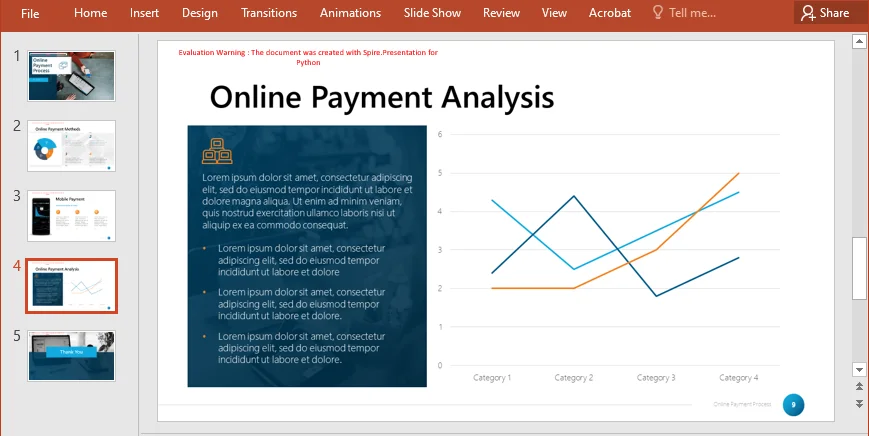
Aggiungi il seguente codice per convertire le immagini in una presentazione di PowerPoint:
  import os
  from spire.presentation import *

  # Create a new Presentation object
  presentation = Presentation()

  # Remove the default first slide
  presentation.Slides.RemoveAt(0)

  # Define the image directory
  baseDir = r"C:\Users\Administrator\Downloads\Images"

  # Get all file paths in the specified directory
  picFiles = [f for f in os.listdir(baseDir) if os.path.isfile(os.path.join(baseDir, f))]

  # Loop through the images
  for picFile in picFiles:
      # Add a new slide
      slide = presentation.Slides.Append()

      # Create the full image path
      imagePath = os.path.join(baseDir, picFile)

      # Load the image using Stream and get image data
      stream = Stream(imagePath)
      imageData = presentation.Images.AppendStream(stream)
      stream.Close()

      # Get the image width and height from the imageData
      imageWidth = float(imageData.Width)
      imageHeight = float(imageData.Height)

      # Set the slide size to match the image size
      presentation.SlideSize.Type = SlideSizeType.Custom
      presentation.SlideSize.Size = SizeF(imageWidth, imageHeight)

      # Define the position for the image (position at top-left corner)
      rect = RectangleF(0.0, 0.0, imageWidth, imageHeight)  # Use full image size

      # Insert the image into the slide (make it fit the entire slide)
      pptImage = slide.Shapes.AppendEmbedImageByImageData(ShapeType.Rectangle, imageData, rect)

      # Remove the border around the shape (optional)
      pptImage.Line.FillType = FillFormatType.none

  # Save the presentation to a file
  presentation.SaveToFile("ImagesToPPT.pptx", FileFormat.Pptx2013)
  # Clean up resources
  presentation.Dispose()
Vantaggi:
- Completamente automatizzato per l'elaborazione in batch.
- Personalizzabile per diverse dimensioni, layout e formattazione delle immagini.
- Ideale per attività su larga scala o ricorrenti.
Svantaggi:
- Richiede conoscenza e configurazione di Python.
- Necessita di Python e delle librerie necessarie installate.
Per maggiori dettagli, fare riferimento alla guida ufficiale completa: Python: Aggiungere immagini alle presentazioni di PowerPoint.
Migliori pratiche per la conversione di immagini in PPT
Indipendentemente dal metodo scelto per creare diapositive di PowerPoint da immagini, l'adesione ad alcune best practice può aiutare a garantire che le diapositive siano professionali, efficienti e visivamente accattivanti. Ecco alcuni suggerimenti da tenere a mente:
- Ottimizza le dimensioni dell'immagine: le immagini di grandi dimensioni possono aumentare le dimensioni del file della presentazione di PowerPoint, rallentandone il caricamento. Ridimensiona le immagini se necessario prima di aggiungerle.
- Usa layout coerenti: quando inserisci più immagini, usa una formattazione coerente per un aspetto curato e professionale.
- Considera le proporzioni: assicurati che le immagini si adattino bene alle dimensioni della diapositiva senza distorsioni.
- Aggiungi didascalie o descrizioni: usa le caselle di testo per descrivere le immagini o fornire un contesto aggiuntivo.
Conclusione
La conversione di immagini in diapositive PPT può migliorare notevolmente la qualità della presentazione. Sia che tu preferisca il metodo manuale per piccoli progetti, abbia bisogno di uno strumento online per conversioni rapide o desideri automatizzare il processo con Python, ogni metodo ha i suoi vantaggi.
- I metodi manuali sono ottimi per attività semplici e su piccola scala.
- I convertitori online sono perfetti per conversioni rapide e una tantum.
- L'automazione di Python è ideale per attività in blocco o quando è richiesta l'automazione.
Scegli il metodo che meglio si adatta alle tue esigenze e inizia a convertire le tue immagini in PowerPoint oggi stesso!
Domande frequenti: conversione di immagini in PowerPoint
D1: Qual è il metodo più semplice per convertire le immagini in PPT?
R1: Per i principianti, l'utilizzo della scheda Inserisci di Microsoft PowerPoint o della funzione Album foto è il modo più semplice e veloce per aggiungere manualmente le immagini alle diapositive.
D2: Posso convertire le immagini in PPT senza PowerPoint?
R2: Sì, strumenti online gratuiti come online2pdf ti consentono di convertire le immagini in PPT senza la necessità di installare alcun software.
D3: Come posso automatizzare la conversione di immagini in PPT?
R3: È possibile automatizzare il processo utilizzando Python e Spire.Presentation, che consente l'elaborazione in batch e la personalizzazione per un gran numero di immagini.
Vedi anche
- 5 modi semplici per esportare diapositive PPT come immagini (PNG, JPG, TIFF)
- Converti PowerPoint in HTML: metodi semplici per ogni utente
- Come creare un grafico a torta in PowerPoint passo dopo passo
- Rimuovere una tabella in Excel (convertire in intervallo, cancellare la formattazione, VBA & Python)
Como converter imagens em PPT – 3 métodos fáceis
Índice
- Por que converter imagens para PPT
- Método 1. Converter imagens para PPT manualmente usando o Microsoft PowerPoint
- Método 2. Converter imagens para PPT usando ferramentas online gratuitas
- Método 3. Automatizar a conversão de imagem para PPT usando Python
- Melhores práticas para converter imagens para PPT
- Conclusão
- FAQs: Convertendo Imagens para PowerPoint
Converter imagens para PPT é uma maneira rápida e eficiente de apresentar conteúdo visual em um formato dinâmico. Sejam fotos, gráficos ou infográficos, transformá-los em slides do PowerPoint pode tornar suas apresentações mais envolventes e impactantes.
Neste guia, mostraremos três métodos simples para converter imagens para PPT, incluindo técnicas manuais, ferramentas online e automação com Python. Esses métodos são adequados para todos os níveis de habilidade, de iniciantes a usuários avançados, fornecendo soluções fáceis para ajudá-lo a criar apresentações profissionais e visualmente atraentes a partir de suas imagens.
Visão Geral do Conteúdo
- Por que converter imagens para PPT
- Método 1. Converter imagens para PPT manualmente usando o Microsoft PowerPoint
- Método 2. Converter imagens para PPT usando ferramentas online gratuitas
- Método 3. Automatizar a conversão de imagem para PPT usando Python
- Melhores práticas para converter imagens para PPT
- Conclusão
- FAQs: Convertendo Imagens para PowerPoint
Por que converter imagens para PPT?
Antes de explorarmos os métodos, vamos primeiro analisar os benefícios de converter imagens em slides de PPT:
- Apresentação de Conteúdo Visual: Imagens muitas vezes falam mais alto que palavras. Seja uma foto, infográfico ou gráfico, inserir imagens em slides do PowerPoint permite destacá-las e discuti-las de forma mais eficaz durante as apresentações.
- Facilidade de Edição: Imagens no PowerPoint são mais fáceis de gerenciar, redimensionar e reposicionar em comparação com imagens brutas inseridas em documentos ou e-mails.
- Apresentações Profissionais: O PowerPoint permite criar slides profissionais com animações adicionadas, sobreposições de texto e transições que melhoram a experiência da apresentação.
- Integração com Outro Conteúdo: Os slides do PowerPoint são frequentemente usados em conjunto com outras formas de mídia. Converter imagens para PPT permite a integração perfeita de elementos visuais com texto e gráficos.
Agora, vamos explorar as diferentes maneiras de converter imagens em slides do PowerPoint.
Método 1. Converter Imagens para PPT Manualmente Usando o Microsoft PowerPoint
O Microsoft PowerPoint oferece dois métodos para inserir imagens em uma apresentação do PowerPoint. Aqui está um guia passo a passo para ambos os métodos.
Opção 1: Usando a Guia Inserir no PowerPoint
Se você está trabalhando com um pequeno número de imagens, a guia Inserir é ideal para adicionar imagens individuais aos seus slides. Ela permite que você controle completamente como as imagens são posicionadas e formatadas.
Passos para Inserir Imagens Manualmente:
- Abra o PowerPoint: Primeiro, inicie o PowerPoint e escolha a opção "Apresentação em Branco" para iniciar uma nova apresentação.
- Adicionar um Slide em Branco: Em seguida, vá para a guia Página Inicial e clique no botão "Novo Slide". No menu suspenso, selecione "Em Branco" para adicionar um slide sem espaços reservados pré-formatados.
- Inserir uma Imagem: Em seguida, vá para a guia Inserir na faixa de opções. Clique em Imagens (ou Imagens Online se quiser usar imagens da web). Navegue até a imagem que deseja inserir, selecione-a e clique em Inserir.
- Ajustar Posição e Tamanho da Imagem: Após inserir a imagem, redimensione-a arrastando os cantos e mova-a pelo slide para a posição de sua preferência.
- Repetir para Imagens Adicionais: Para adicionar mais imagens, repita os passos 2-4.
- Salve Sua Apresentação: Depois que todas as imagens forem adicionadas e organizadas, clique em Arquivo > Salvar Como para salvar seu arquivo do PowerPoint no local desejado.
Prós:
- Simples e fácil de usar.
- Fornece controle total sobre o posicionamento e a formatação da imagem.
- Nenhuma ferramenta ou software adicional necessário.
Contras:
- Pode ser demorado se você tiver muitas imagens para inserir.
Opção 2: Usando o Recurso de Álbum de Fotos no PowerPoint
Se você tem várias imagens ou fotos e precisa convertê-las em slides separados rapidamente, o recurso Álbum de Fotos no PowerPoint é uma solução mais eficiente.
Passos para Converter Múltiplas Imagens:
- Abra o PowerPoint: Primeiro, inicie o PowerPoint e selecione a opção "Apresentação em Branco" para iniciar uma nova apresentação.
- Navegue até o Recurso de Álbum de Fotos: Em seguida, vá para a guia Inserir na faixa de opções, clique em Álbum de Fotos e selecione Novo Álbum de Fotos no menu suspenso.
- Selecione Suas Imagens: Na caixa de diálogo Álbum de Fotos, clique em Arquivo/Disco para procurar e selecionar as imagens que deseja adicionar. Escolha todas as imagens que deseja converter e clique em Inserir.
- Personalize o Layout (Opcional): Escolha como as imagens devem aparecer nos slides, como uma imagem por slide ou várias imagens em cada slide. Você também pode adicionar legendas e selecionar um tema para os slides, se desejar.
- Crie o Álbum: Após fazer suas seleções, clique em Criar. O PowerPoint gerará automaticamente um novo slide para cada imagem.
- Salve Sua Apresentação: Depois que o álbum for criado, clique em Arquivo > Salvar Como para salvar seu arquivo do PowerPoint no local desejado.
Prós:
- Rápido e eficiente para conversão de imagens em massa.
- Layouts de slide personalizáveis.
- Economiza tempo ao adicionar várias imagens de uma vez.
Contras:
- Controle limitado sobre a formatação de imagens individuais.
- Não é ideal para layouts complexos ou edição detalhada de imagens.
Dica Profissional: Para um design mais polido e eficiente, você pode baixar modelos de Álbum de Fotos do PowerPoint criados profissionalmente da Microsoft. Esses modelos prontos podem agilizar o processo, dando à sua apresentação uma aparência elegante e visualmente atraente em pouco tempo.
Método 2. Converter Imagens para PPT usando Ferramentas Online Gratuitas
Se você não tem o Microsoft PowerPoint instalado, algumas ferramentas online oferecem uma maneira fácil e gratuita de converter imagens para o PowerPoint. Uma dessas ferramentas é o Online2PDF.
Passos para Converter Imagens usando a Ferramenta Online:
- Acesse o Online2PDF: Visite o conversor online de Imagem para PPT.
- Envie Suas Imagens: Clique em Selecionar arquivos e envie as imagens do seu computador. Você também pode arrastar e soltar suas imagens diretamente na área de conversão.
- Selecione o Formato de Saída: Escolha .ppt ou .pptx como o formato de saída.
- Converta os Arquivos: Clique em Converter para iniciar o processo de conversão.
- Baixe o PPT: Após a conclusão da conversão, baixe seu arquivo PPT.
Prós:
- Nenhuma instalação de software necessária.
- Processo de conversão rápido e simples.
- Funciona em todos os dispositivos, baseado na web.
Contras:
- Preocupações com a privacidade ao enviar arquivos para sites de terceiros.
- Alguns conversores podem ter limitações de tamanho ou formato em contas gratuitas.
- Opções de personalização limitadas para layout e formatação de imagem.
Método 3. Converter Imagens para PPT Automaticamente usando Python
Para aqueles que procuram automatizar a conversão de várias imagens em apresentações do PowerPoint, o Python oferece uma solução poderosa. Ao aproveitar a biblioteca Spire.Presentation for Python, os usuários podem automatizar o processo de inserção de imagens, ajuste de layouts e salvamento de apresentações - tudo com o mínimo de código.
Principais Características:
- Criar e Gerenciar Slides: Adicione ou remova slides sem esforço em uma apresentação do PowerPoint.
- Inserir Imagens e Formas: Insira imagens, texto, formas, gráficos e outros objetos nos slides.
- Layouts Personalizáveis: Ajuste o tamanho, a posição e o formato da imagem para corresponder ao layout desejado.
- Aplicar Animações e Transições: Melhore as apresentações com transições e animações personalizáveis.
- Exportar em Vários Formatos: Salve apresentações em formatos como PPTX, PDF e imagens.
- Sem Dependência do Microsoft Office: Opera de forma independente, oferecendo toda a funcionalidade necessária para criar e modificar apresentações sem a necessidade do Microsoft Office.
Passos para Converter Imagens para uma Apresentação do PowerPoint usando Python:
-
Instale a biblioteca Spire.Presentation for Python do PyPI:
pip install spire-presentation -
Adicione o seguinte código para converter imagens em uma apresentação do PowerPoint:
  import os
  from spire.presentation import *

  # Create a new Presentation object
  presentation = Presentation()

  # Remove the default first slide
  presentation.Slides.RemoveAt(0)

  # Define the image directory
  baseDir = r"C:\Users\Administrator\Downloads\Images"

  # Get all file paths in the specified directory
  picFiles = [f for f in os.listdir(baseDir) if os.path.isfile(os.path.join(baseDir, f))]

  # Loop through the images
  for picFile in picFiles:
      # Add a new slide
      slide = presentation.Slides.Append()

      # Create the full image path
      imagePath = os.path.join(baseDir, picFile)

      # Load the image using Stream and get image data
      stream = Stream(imagePath)
      imageData = presentation.Images.AppendStream(stream)
      stream.Close()

      # Get the image width and height from the imageData
      imageWidth = float(imageData.Width)
      imageHeight = float(imageData.Height)

      # Set the slide size to match the image size
      presentation.SlideSize.Type = SlideSizeType.Custom
      presentation.SlideSize.Size = SizeF(imageWidth, imageHeight)

      # Define the position for the image (position at top-left corner)
      rect = RectangleF(0.0, 0.0, imageWidth, imageHeight)  # Use full image size

      # Insert the image into the slide (make it fit the entire slide)
      pptImage = slide.Shapes.AppendEmbedImageByImageData(ShapeType.Rectangle, imageData, rect)

      # Remove the border around the shape (optional)
      pptImage.Line.FillType = FillFormatType.none

  # Save the presentation to a file
  presentation.SaveToFile("ImagesToPPT.pptx", FileFormat.Pptx2013)
  # Clean up resources
  presentation.Dispose()
Prós:
- Totalmente automatizado para processamento em lote.
- Personalizável para diferentes tamanhos de imagem, layouts e formatação.
- Ideal para tarefas de grande escala ou recorrentes.
Contras:
- Requer conhecimento e configuração de Python.
- Precisa do Python e das bibliotecas necessárias instaladas.
Para mais detalhes, consulte o guia oficial completo: Python: Adicionar Imagens a Apresentações do PowerPoint.
Melhores Práticas para Converter Imagens para PPT
Independentemente do método que você escolher para criar slides do PowerPoint a partir de imagens, seguir algumas práticas recomendadas pode ajudar a garantir que seus slides sejam profissionais, eficientes e visualmente atraentes. Aqui estão algumas dicas a serem lembradas:
- Otimize o Tamanho da Imagem: Imagens grandes podem aumentar o tamanho do arquivo da sua apresentação do PowerPoint, tornando-a lenta para carregar. Redimensione as imagens, se necessário, antes de adicioná-las.
- Use Layouts Consistentes: Ao inserir várias imagens, use uma formatação consistente para uma aparência polida e profissional.
- Considere a Proporção: Certifique-se de que as imagens se encaixem bem nas dimensões do slide sem distorção.
- Adicione Legendas ou Descrições: Use caixas de texto para descrever as imagens ou fornecer contexto adicional.
Conclusão
Converter imagens em slides de PPT pode melhorar significativamente a qualidade da sua apresentação. Se você prefere o método manual para pequenos projetos, precisa de uma ferramenta online para conversões rápidas ou deseja automatizar o processo com Python, cada método tem suas próprias vantagens.
- Métodos manuais são ótimos para tarefas simples e de pequena escala.
- Conversores online são perfeitos para conversões rápidas e únicas.
- A automação com Python é ideal para tarefas em massa ou quando a automação é necessária.
Escolha o método que melhor se adapta às suas necessidades e comece a converter suas imagens para o PowerPoint hoje mesmo!
FAQs: Convertendo Imagens para PowerPoint
P1: Qual é o método mais fácil para converter imagens para PPT?
R1: Para iniciantes, usar a Guia Inserir ou o Recurso de Álbum de Fotos do Microsoft PowerPoint é a maneira mais fácil e rápida de adicionar imagens aos slides manualmente.
P2: Posso converter imagens para PPT sem o PowerPoint?
R2: Sim, ferramentas online gratuitas como o online2pdf permitem que você converta imagens para PPT sem a necessidade de instalar nenhum software.
P3: Como posso automatizar a conversão de imagens para PPT?
R3: Você pode automatizar o processo usando Python e Spire.Presentation, que permite o processamento em lote e a personalização para um grande número de imagens.