
Knowledgebase (2417)
Children categories
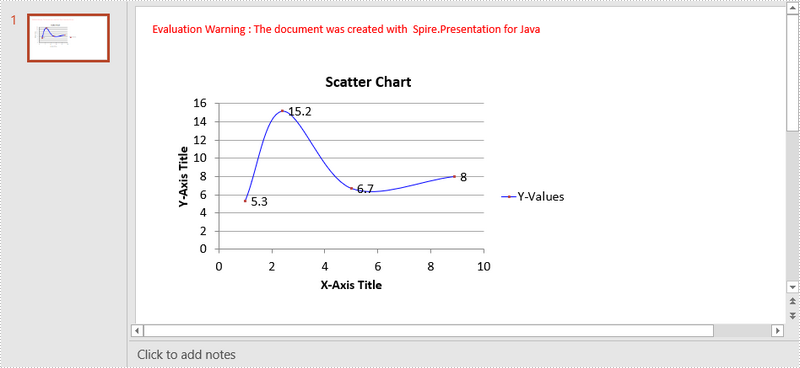
A scatter (XY) chart is a two-dimensional chart that shows the relationship between two sets of variables. Each scatter chart has two axes: a horizontal axis (x-axis) and a vertical axis (y-axis), and it accepts only one data series. In this article, you will learn how to add a scatter chart to a PowerPoint slide using Spire.Presentation for Java.
Install Spire.Presentation for Java
First of all, you're required to add the Spire.Presentation.jar file as a dependency in your Java program. The JAR file can be downloaded from this link. If you use Maven, you can easily import the JAR file in your application by adding the following code to your project's pom.xml file.
<repositories>
    <repository>
        <id>com.e-iceblue</id>
        <name>e-iceblue</name>
        <url>https://repo.e-iceblue.com/nexus/content/groups/public/</url>
    </repository>
</repositories>
<dependencies>
    <dependency>
        <groupId>e-iceblue</groupId>
        <artifactId>spire.presentation</artifactId>
        <version>11.8.3</version>
    </dependency>
</dependencies>
Create a Scatter Chart in PowerPoint
Spire.Presentation for Java provides the ShapeCollection.appendChart(ChartType type, Rectangle2D rectangle, boolean init) method to add charts of a certain type to a presentation slide. The ChartType enumeration pre-defines 73 chart types, including scatter chart, column chart, pie chart, etc. The following are the main steps to add a scatter chart in PowerPoint.
- Create a Presentation object.
- Append a scatter chart to the specific slide using ShapeCollection.appendChart() method.
- Set the chart data through ChartData.get().setValue() method.
- Set the chart title, axes titles, series labels, etc. using the methods under IChart interface.
- Set the grid line style and data point line style.
- Save the document to file using Presentation.saveToFile() method.
- Java
import com.spire.presentation.FileFormat;
import com.spire.presentation.Presentation;
import com.spire.presentation.SlideSizeType;
import com.spire.presentation.TextLineStyle;
import com.spire.presentation.charts.ChartType;
import com.spire.presentation.charts.IChart;
import com.spire.presentation.charts.entity.ChartDataLabel;
import com.spire.presentation.drawing.FillFormatType;

import java.awt.*;
import java.awt.geom.Rectangle2D;

public class CreateScatterChart {

    public static void main(String[] args) throws Exception {

        //Create a Presentation object
        Presentation presentation = new Presentation();
        presentation.getSlideSize().setType(SlideSizeType.SCREEN_16_X_9);

        //Add a scatter chart to the first slide
        IChart chart = presentation.getSlides().get(0).getShapes().appendChart(ChartType.SCATTER_SMOOTH_LINES_AND_MARKERS,new Rectangle2D.Float(40, 80, 550, 320),false);

        //Set the chart title
        chart.getChartTitle().getTextProperties().setText("Scatter Chart");
        chart.getChartTitle().getTextProperties().isCentered(true);
        chart.getChartTitle().setHeight(20f);
        chart.hasTitle(true);

        //Set the chart data
        Double[] xData = new Double[] { 1.0, 2.4, 5.0, 8.9 };
        Double[] yData = new Double[] { 5.3, 15.2, 6.7, 8.0 };
        chart.getChartData().get(0,0).setText("X-Values");
        chart.getChartData().get(0,1).setText("Y-Values");
        for (int i = 0; i < xData.length; i++) {
            chart.getChartData().get(i+1,0).setValue(xData[i]);
            chart.getChartData().get(i+1,1).setValue(yData[i]);
        }

        //Set the series label
        chart.getSeries().setSeriesLabel(chart.getChartData().get("B1","B1"));

        //Set the X and Y values
        chart.getSeries().get(0).setXValues(chart.getChartData().get("A2","A5"));
        chart.getSeries().get(0).setYValues(chart.getChartData().get("B2","B5"));

        //Add data labels
        for (int i = 0; i < 4; i++)
        {
            ChartDataLabel dataLabel = chart.getSeries().get(0).getDataLabels().add();
            dataLabel.setLabelValueVisible(true);
        }

        //Set the primary axis title and the secondary axis title
        chart.getPrimaryValueAxis().hasTitle(true);
        chart.getPrimaryValueAxis().getTitle().getTextProperties().setText("X-Axis Title");
        chart.getSecondaryValueAxis().hasTitle(true);
        chart.getSecondaryValueAxis().getTitle().getTextProperties().setText("Y-Axis Title");

        //Set the grid line
        chart.getSecondaryValueAxis().getMajorGridTextLines().setFillType(FillFormatType.SOLID);
        chart.getSecondaryValueAxis().getMajorGridTextLines().setStyle(TextLineStyle.THIN_THIN);
        chart.getSecondaryValueAxis().getMajorGridTextLines().getSolidFillColor().setColor(Color.GRAY);
        chart.getPrimaryValueAxis().getMajorGridTextLines().setFillType(FillFormatType.NONE);

        //Set the data point line
        chart.getSeries().get(0).getLine().setFillType(FillFormatType.SOLID);
        chart.getSeries().get(0).getLine().setWidth(0.1f);
        chart.getSeries().get(0).getLine().getSolidFillColor().setColor(Color.BLUE);

        //Save the document to file
        presentation.saveToFile("output/ScatterChart.pptx", FileFormat.PPTX_2016);
    }
}
Apply for a Temporary License
If you'd like to remove the evaluation message from the generated documents, or to get rid of the function limitations, please request a 30-day trial license for yourself.
To extract values from an Excel document, you can copy and paste cell data. Alternatively, you can obtain it automatically by utilizing Java code, which will not only save time and improve efficiency, but ensure there will be no errors. In this tutorial, you will learn how to extract the value of a specified cell by its name using Spire.XLS for Java.
Install Spire.XLS for Java
First of all, you're required to add the Spire.Xls.jar file as a dependency in your Java program. The JAR file can be downloaded from this link. If you use Maven, you can easily import the JAR file in your application by adding the following code to your project's pom.xml file.
<repositories>
    <repository>
        <id>com.e-iceblue</id>
        <name>e-iceblue</name>
        <url>https://repo.e-iceblue.com/nexus/content/groups/public/</url>
    </repository>
</repositories>
<dependencies>
    <dependency>
        <groupId>e-iceblue</groupId>
        <artifactId>spire.xls</artifactId>
        <version>16.8.4</version>
    </dependency>
</dependencies>
Get Cell Values by Cell Names in Excel
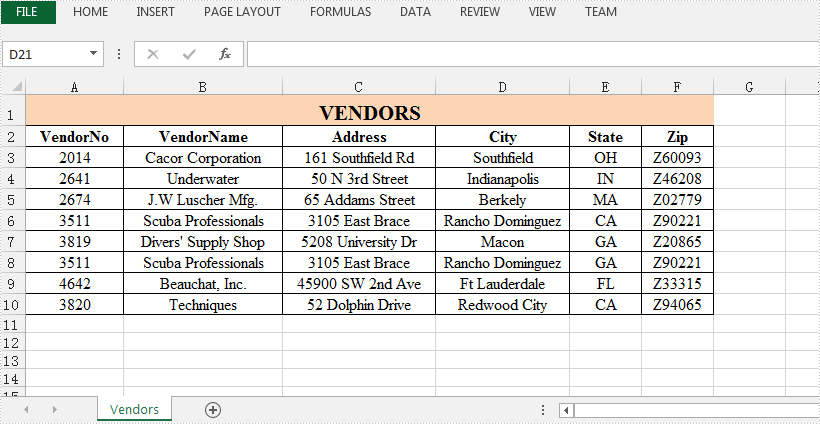
Spire.XLS for Java offers Worksheet.getRange().get() method to specify a cell in Excel by its name, and CellRange.getValue() method to obtain the cell value. The detailed steps are listed as below.
- Create a Workbook instance.
- Load an Excel sample document using Workbook.loadFromFile() method.
- Get a specified worksheet using Workbook.getWorksheets().get() method.
- Get a specific cell by its name using Worksheet.getRange().get() method.
- Create a StringBulider instance.
- Obtain the cell value using CellRange.getValue() method, and then append the value to the StringBuilder instance using StringBuilder.append() method.
- Java
import com.spire.xls.*;

public class GetCellValue {
    public static void main(String[] args) {
        //Create a Workbook instance
        Workbook workbook = new Workbook();

        //Load an Excel sample document
        workbook.loadFromFile( "C:\\Users\\Test1\\Desktop\\sample.xlsx");

        //Get the first worksheet
        Worksheet sheet = workbook.getWorksheets().get(0);

        //Get the specified cell by its name
        CellRange cell = sheet.getRange().get("D6");

        //Create a StringBuilder instance
        StringBuilder content = new StringBuilder();

        //Get value of the cell "D6"
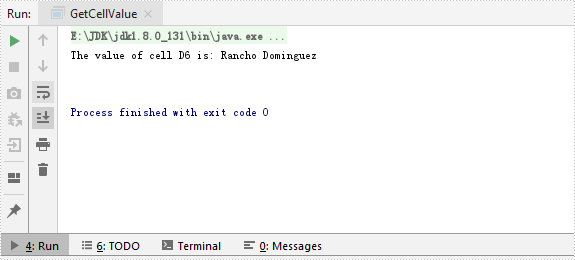
        content.append("The value of cell D6 is: " + cell.getValue()+"\n");

//Output the result
        System.out.println(content);
    }
}
The input Excel:
The output result:
Apply for a Temporary License
If you'd like to remove the evaluation message from the generated documents, or to get rid of the function limitations, please request a 30-day trial license for yourself.
Spire.Doc for Java allows developers to convert Word documents to password-protected PDF documents by using the Document.saveToFile(String, ToPdfParameterList) method. The ToPdfParameterList parameter controls how a Word document will be converted to PDF, for example, whether to encrypt the document while converting.
Install Spire.Doc for Java
First of all, you're required to add the Spire.Doc.jar file as a dependency in your Java program. The JAR file can be downloaded from this link. If you use Maven, you can easily import the JAR file in your application by adding the following code to your project's pom.xml file.
<repositories>
    <repository>
        <id>com.e-iceblue</id>
        <name>e-iceblue</name>
        <url>https://repo.e-iceblue.com/nexus/content/groups/public/</url>
    </repository>
</repositories>
<dependencies>
    <dependency>
        <groupId>e-iceblue</groupId>
        <artifactId>spire.doc</artifactId>
        <version>14.8.4</version>
    </dependency>
</dependencies>
Convert Word to Password-Protected PDF
The following are the steps to convert a Word document to password-protected PDF:
- Create a Document instance.
- Load a Word document using Document.loadFromFile() method.
- Create a ToPdfParameterList instance.
- Set open password and permission password for PDF using ToPdfParameterList.getPdfSecurity().encrypt() method.
- Save the Word document to PDF with password using Document.saveToFile(String, ToPdfParameterList) method.
- Java
import com.spire.doc.Document;
import com.spire.doc.ToPdfParameterList;
import com.spire.pdf.security.PdfEncryptionKeySize;
import com.spire.pdf.security.PdfPermissionsFlags;

public class ConvertWordToPasswordProtectedPDF {
    public static void main(String[] args){

        //Create a Document instance
        Document document = new Document(false);
        //Load a Word document
        document.loadFromFile("Sample.docx");

        //Create a ToPdfParameterList instance
        ToPdfParameterList toPdf = new ToPdfParameterList();
        //Set open password and permission password for PDF
        String password = "password";
        toPdf.getPdfSecurity().encrypt(password, password, PdfPermissionsFlags.None, PdfEncryptionKeySize.Key_128_Bit);

        //Save the Word document to PDF with password
        document.saveToFile("ToPdfWithPassword.pdf", toPdf);
    }
}

Apply for a Temporary License
If you'd like to remove the evaluation message from the generated documents, or to get rid of the function limitations, please request a 30-day trial license for yourself.
