
Knowledgebase (2417)
Children categories
Convert Shapes and SmartArt in Excel to Image in C#, VB.NET
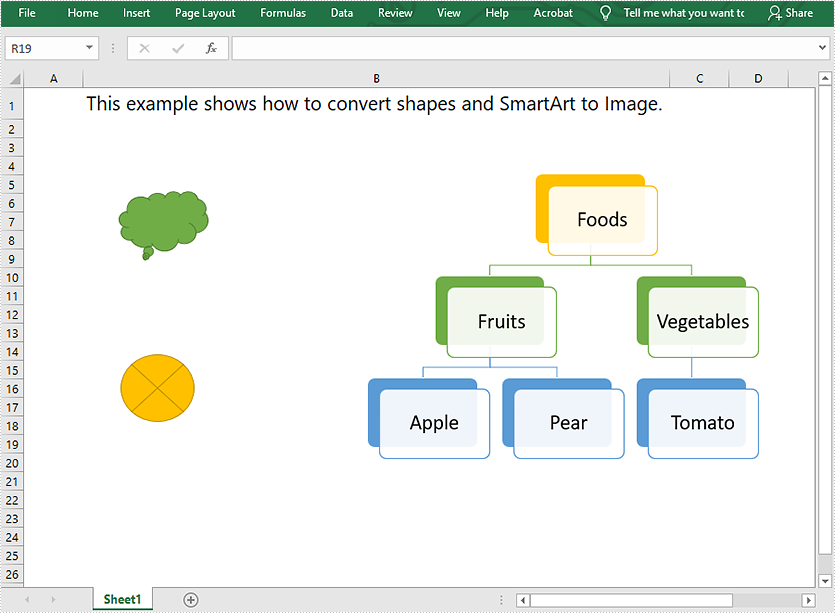
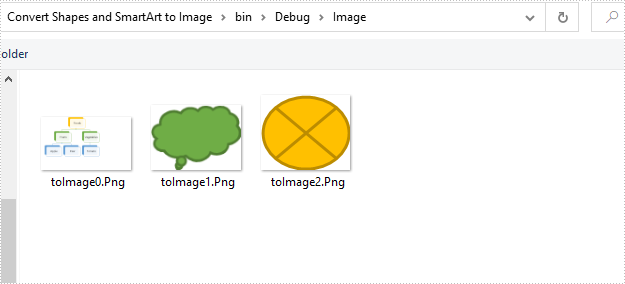
2021-08-10 07:09:45 Written by AdministratorThis article demonstrates how to convert shapes and SmartArt graphics in Excel to Image in C# using Spire.XLS for .NET.
The input Excel file:
using Spire.Xls;
using System.Collections.Generic;
using System.Drawing;
using System.Drawing.Imaging;

namespace Convert_Shapes_and_SmartArt_to_Image
{
    class Program
    {
        static void Main(string[] args)
        {
            //Create a Workbook object
            Workbook workbook = new Workbook();
            //Load the Excel file
            workbook.LoadFromFile("Sample.xlsx");

            //Get the first worksheet
            Worksheet sheet = workbook.Worksheets[0];

            //Create a SaveShapeTypeOption object
            SaveShapeTypeOption shapelist = new SaveShapeTypeOption();
            //Save shapes and SmartArt graphics in the worksheet to images
            List<Bitmap> images = sheet.SaveShapesToImage(shapelist);

            //Save images to file
            int index = 0;
            foreach (Image img in images)
            {
                img.Save("Image/" + "toImage" + index + ".Png", ImageFormat.Png);
                index++;
            }
        }
    }
}
Imports Spire.Xls
Imports System.Collections.Generic
Imports System.Drawing.Imaging

Namespace Convert_Shapes_and_SmartArt_to_Image
    Friend Class Program
        Private Shared Sub Main(ByVal args As String())
            'Create a Workbook object
            Dim workbook As Workbook = New Workbook()
            'Load the Excel file
            workbook.LoadFromFile("Sample.xlsx")

            'Get the first worksheet
            Dim sheet As Worksheet = workbook.Worksheets(0)

            'Create a SaveShapeTypeOption object
            Dim shapelist As SaveShapeTypeOption = New SaveShapeTypeOption()
            'Save shapes and SmartArt graphics in the worksheet to images
            Dim images As List(Of Bitmap) = sheet.SaveShapesToImage(shapelist)

            'Save images to file
            Dim index As Integer = 0

            For Each img As Image In images
                img.Save("Image/" & "toImage" & index & ".Png", ImageFormat.Png)
                index += 1
            Next
        End Sub
    End Class
End Namespace
Converted images:
Verify If a Word Document is Password Protected in Java
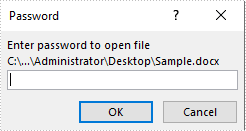
2021-08-04 08:12:37 Written by AdministratorThis article demonstrates how to verify if a Word document is password protected or not using Spire.Doc for Java.
The following image shows that the input Word document is protected with password:
import com.spire.doc.Document;

public class DetectIfWordIsPasswordProtected {
    public static void main(String []args){
        //Detect if the Word document is password protected
        boolean isPasswordProtected = Document.isEncrypted("C:\\Users\\Administrator\\Desktop\\Sample.docx");
        if(isPasswordProtected)
        {
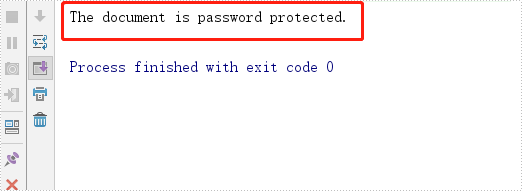
            System.out.println("The document is password protected.");
        }
        else
        {
            System.out.println("The document is not password protected.");
        }
    }
}
Output:
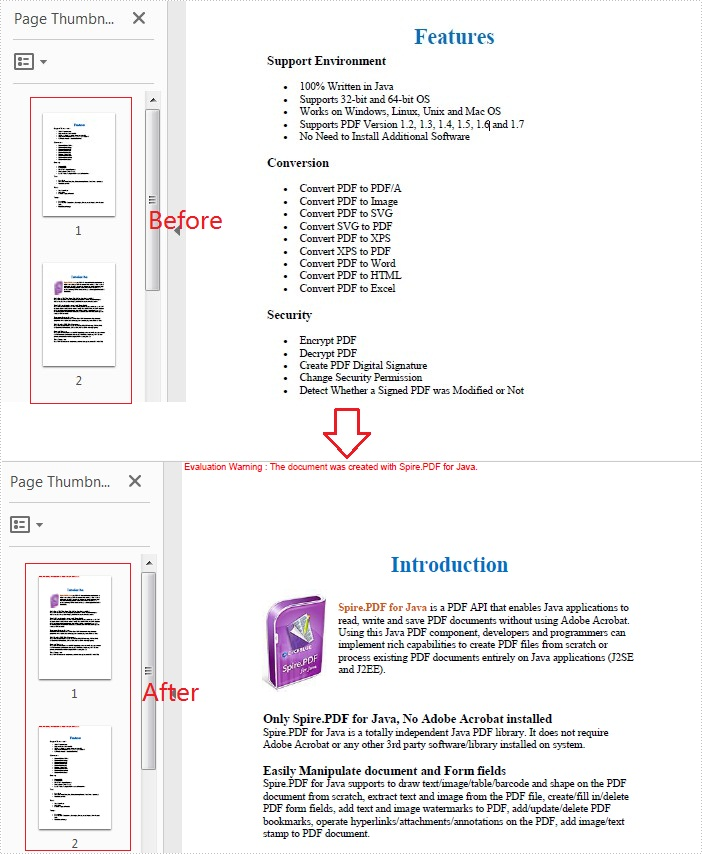
When you receive a PDF file with pages out of order, you may need to change the page order for a better viewing experience. In this article, you will learn how to programmatically rearrange pages in a PDF file using Spire.PDF for Java.
Install Spire.PDF for Java
First of all, you're required to add the Spire.PDF.jar file as a dependency in your Java program. The JAR file can be downloaded from this link. If you use Maven, you can easily import the JAR file in your application by adding the following code to your project's pom.xml file.
<repositories>
    <repository>
        <id>com.e-iceblue</id>
        <name>e-iceblue</name>
        <url>https://repo.e-iceblue.com/nexus/content/groups/public/</url>
    </repository>
</repositories>
<dependencies>
    <dependency>
        <groupId>e-iceblue</groupId>
        <artifactId>spire.pdf</artifactId>
        <version>12.9.0</version>
    </dependency>
</dependencies>
Rearrange Pages in PDF
The PdfDocument.getPages().reArrange() method offered by Spire.PDF for Java allows you to change the PDF page order quickly and effortlessly. The detailed steps are as follows.
- Create a PdfDocument object.
- Load a sample PDF file using PdfDocument.loadFromFile() method.
- Rearrange the pages using PdfDocument.getPages().reArrange() method.
- Save the document to another file using PdfDocument.saveToFile() method.
- Java
import com.spire.pdf.PdfDocument;

public class RearrangePages {

    public static void main(String[] args) {

        //Create a PdfDocument object
        PdfDocument doc = new PdfDocument();

        //Load a sample PDF file
        doc.loadFromFile("input.pdf");

        //Rearrange pages by setting a new page order
        doc.getPages().reArrange(new int[]{0, 2, 1, 3});

        //Save the document to another file
        doc.saveToFile("ChangeOrder.pdf");
        doc.close();
    }
}
Apply for a Temporary License
If you'd like to remove the evaluation message from the generated documents, or to get rid of the function limitations, please request a 30-day trial license for yourself.
