Knowledgebase (2417)
Children categories
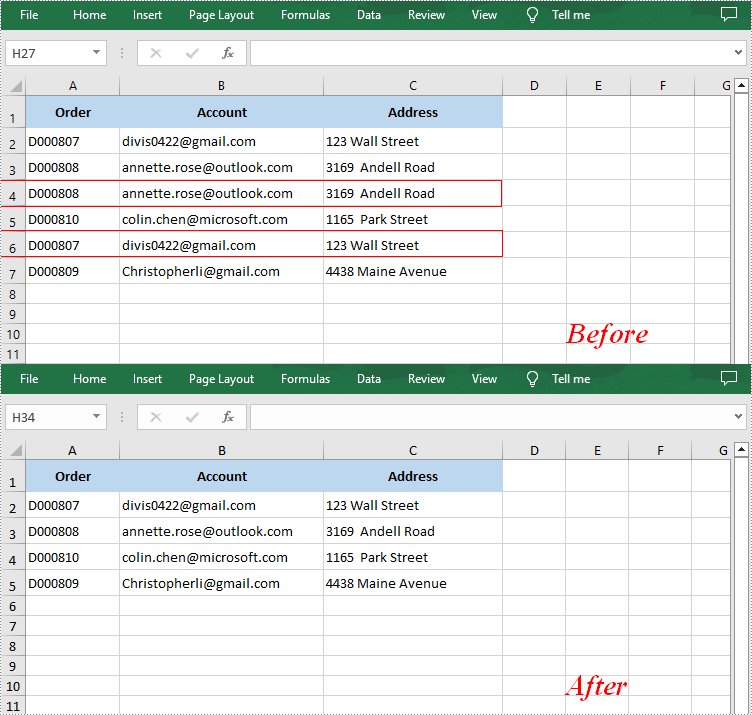
When merging datasets from different sources or copying data from other worksheets, duplicate rows may appear if the data are not properly matched. These duplicate rows may distort data analysis and calculations, leading to incorrect results. Therefore, removing duplicate rows is a frequently needed task, and this article demonstrates how to accomplish this task programmatically using Spire.XLS for .NET.
Install Spire.XLS for .NET
To begin with, you need to add the DLL files included in the Spire.XLS for .NET package as references in your .NET project. The DLL files can be either downloaded from this link or installed via NuGet.
PM> Install-Package Spire.XLS
Remove Duplicate Rows in Excel in C# and VB.NET
Removing duplicate rows manually is a very repetitive and time-consuming task. With Spire.XLS for .NET, you can identify and remove all duplicate rows at once. The following are the detailed steps.
- Create a Workbook instance.
- Load a sample Excel document using Workbook.LoadFromFile() method.
- Get a specified worksheet by its index using Workbook.Worksheets[sheetIndex] property.
- Specify the cell range where duplicate records need to be deleted using Worksheet.Range property.
- Get the rows that contain duplicate content in the specified cell range.
- Loop through all duplicated rows and delete them using Worksheet.DeleteRow() method.
- Save the result document using Workbook.SaveToFile() method.
- C#
- VB.NET
using Spire.Xls;
using System.Linq;

namespace RemoveDuplicateRows
{
    class Program
    {
        static void Main(string[] args)
        {
            //Create a Workbook instance
            Workbook workbook = new Workbook();

            //Load a sample Excel document
            workbook.LoadFromFile("Test.xlsx");

            //Get the first worksheet
            Worksheet sheet = workbook.Worksheets[0];

            //Specify the cell range where duplicate records need to be deleted
            var range = sheet.Range["A1:A" + sheet.LastRow];

            //Get the duplicate row numbers
            var duplicatedRows = range.Rows
                   .GroupBy(x => x.Columns[0].DisplayedText)
                   .Where(x => x.Count() > 1)
                   .SelectMany(x => x.Skip(1))
                   .Select(x => x.Columns[0].Row)
                   .ToList();

            //Remove the duplicate rows
            for (int i = 0; i < duplicatedRows.Count; i++)
            {
                sheet.DeleteRow(duplicatedRows[i] - i);
            }

            //Save the result document
            workbook.SaveToFile("RemoveDuplicateRows.xlsx");
        }
    }
}
Apply for a Temporary License
If you'd like to remove the evaluation message from the generated documents, or to get rid of the function limitations, please request a 30-day trial license for yourself.
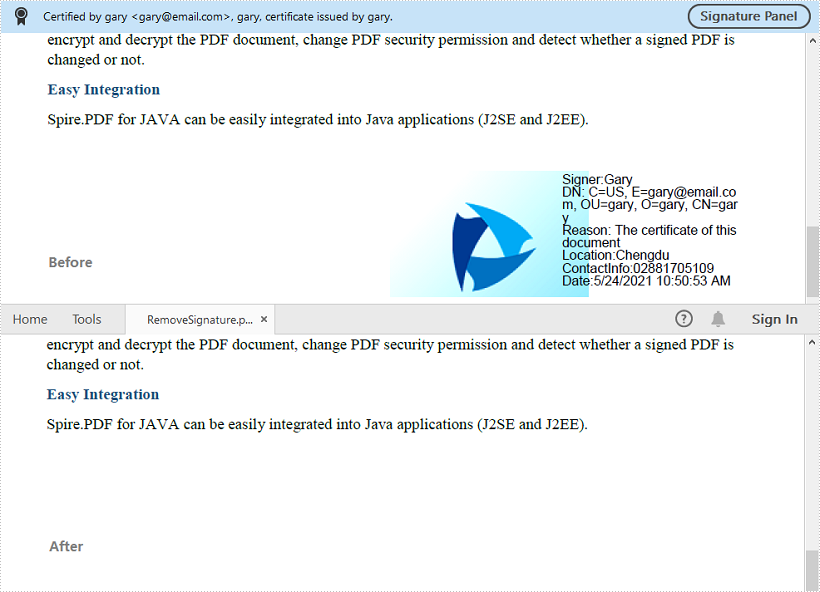
This article shows you how to remove digital signatures from a PDF document using Spire.PDF for Java.
import com.spire.pdf.PdfDocument;
import com.spire.pdf.widget.PdfFieldWidget;
import com.spire.pdf.widget.PdfFormWidget;
import com.spire.pdf.widget.PdfSignatureFieldWidget;

public class RemoveSignature {

    public static void main(String[] args) {

        //Create a PdfDocument object
        PdfDocument pdf = new PdfDocument();

        //Load the sample PDF document
        pdf.loadFromFile("C:\\Users\\Administrator\\Desktop\\Signature.pdf");

        //Get form widgets collection from the document
        PdfFormWidget widgets = (PdfFormWidget) pdf.getForm();

        //Loop through the widgets collection
        for (int i = 0; i < widgets.getFieldsWidget().getList().size(); i++)
        {
            //Get the specific widget
            PdfFieldWidget widget = (PdfFieldWidget)widgets.getFieldsWidget().getList().get(i);

            //Check if the widget is a PdfSignatureFieldWidget
            if (widget instanceof PdfSignatureFieldWidget)
            {
                //Remove the signature widget
                widgets.getFieldsWidget().remove(widget);;
            }
        }

        //Save to file
        pdf.saveToFile("RemoveSignature.pdf");
    }
}
Verify the Restrict Editing Password of a Word Document in Java
2021-05-17 08:34:18 Written by KoohjiThis article demonstrates how to verify if the restrict editing password of a Word document is correct using Spire.Doc for Java.
import com.spire.doc.Document;

public class VerifyRestrictEditingPassword {
    public static void main(String[] args) {
        //Create a Document instance
        Document document = new Document();
        //Load a Word document
        document.loadFromFile("Input.docx");

        //Verify if the password is valid
        boolean result = document.checkProtectionPassWord("123");

        if(!result) {
            System.out.println("Oops! The password is invalid.");
        }
        else {
            System.out.println("Congrats! The password is valid.");
        }
    }
}
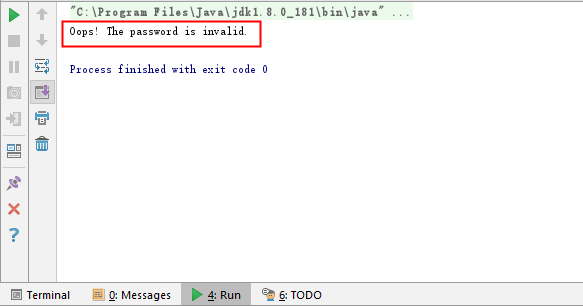
Output: