
Knowledgebase (2417)
Children categories
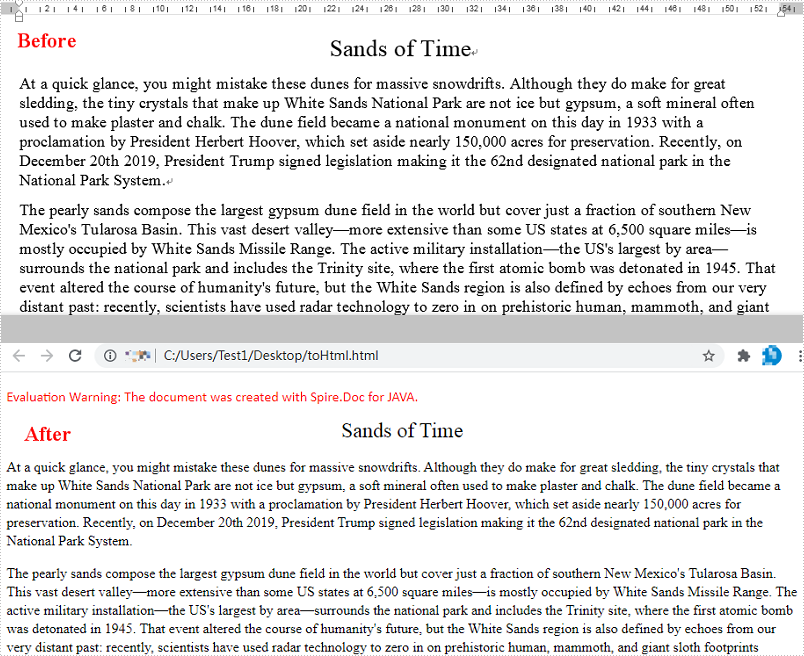
An HTML (Hyper Text Markup Language) file is a webpage coded in HTML that can be displayed in a Web browser. It is widely used on the Web as most static webpages have an .html extension. In some cases, you need to convert some document formats (such as Word) to HTML. This tutorial will demonstrate how to convert Word to HTML using Spire.Doc for Java.
Install Spire.Doc for Java
First of all, you're required to add the Spire.Doc.jar file as a dependency in your Java program. The JAR file can be downloaded from this link. If you use Maven, you can easily import the JAR file in your application by adding the following code to your project's pom.xml file.
<repositories>
    <repository>
        <id>com.e-iceblue</id>
        <name>e-iceblue</name>
        <url>https://repo.e-iceblue.com/nexus/content/groups/public/</url>
    </repository>
</repositories>
<dependencies>
    <dependency>
        <groupId>e-iceblue</groupId>
        <artifactId>spire.doc</artifactId>
        <version>14.8.4</version>
    </dependency>
</dependencies>
Convert Word to HTML
Spire.Doc for Java can easily convert Word to HTML using Document.saveToFile() method. You can find the steps as blow.
- Create a Document instance.
- Load a Word document using Document.loadFromFile() method.
- Save the document as an HTML file using Document.saveToFile() method.
- Java
import com.spire.doc.*;

public class WordToHtml {
    public static void main(String[] args) {
        //Create a Document instance
        Document document = new Document();
        //Load a Word document
        document.loadFromFile("C:\\Users\\Test1\\Desktop\\sample.docx");

        //Save the document as HTML
        document.saveToFile("output/toHtml.html", FileFormat.Html);
    }
}
Apply for a Temporary License
If you'd like to remove the evaluation message from the generated documents, or to get rid of the function limitations, please request a 30-day trial license for yourself.
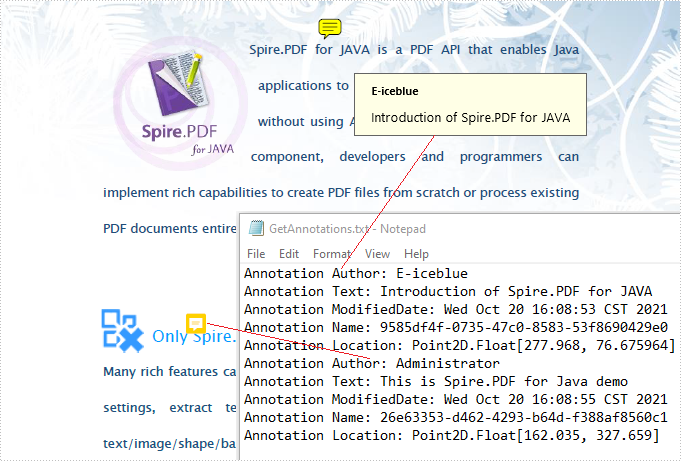
PDF Annotations are additional objects added to a PDF document. Sometimes you may need to extract these additional data from the PDF file so as to learn about the annotation details without opening the document. In this article, we will describe how to get the annotations from PDF in Java using Spire.PDF for Java.
Install Spire.PDF for Java
First of all, you need to add the Spire.PDF.jar file as a dependency in your Java program. The JAR file can be downloaded from this link. If you use Maven, you can easily import the JAR file by adding the following code to your project's pom.xml file.
<repositories>
    <repository>
        <id>com.e-iceblue</id>
        <name>e-iceblue</name>
        <url>https://repo.e-iceblue.com/nexus/content/groups/public/</url>
    </repository>
</repositories>
<dependencies>
    <dependency>
        <groupId>e-iceblue</groupId>
        <artifactId>spire.pdf</artifactId>
        <version>12.9.0</version>
    </dependency>
</dependencies>
Get Annotations from a PDF File
Spire.PDF for Java offers PdfPageBase.getAnnotationsWidget() method to get the annotation collection of the specified page of the document.
The following are the steps to get all the annotations from the first page of PDF file:
- Create an object of PdfDocument class.
- Load a sample PDF document using PdfDocument.loadFromFile() method.
- Create a StringBuilder object.
- Get the annotation collection of the first page of the document by using PdfPageBase.getAnnotationsWidget() method.
- Loop through the pop-up annotations, after extract data from each annotation using PdfAnnotation.getText()method, then append the data to the StringBuilder instance using StringBuilder.append() method.
- Write the extracted data to a txt document using Writer.write() method.
- Java
import com.spire.pdf.*;
import com.spire.pdf.annotations.*;

import java.io.FileWriter;

public class Test {
    public static void main(String[] args) throws Exception {
        //Create an object of PdfDocument class.
        PdfDocument pdf = new PdfDocument();
        //Load the sample PDF document
        pdf.loadFromFile("Annotations.pdf");

        //Get the annotation collection of the first page of the document.
        PdfAnnotationCollection annotations = pdf.getPages().get(0).getAnnotationsWidget();

        //Create a StringBuilder object
        StringBuilder content = new StringBuilder();

        //Traverse all the annotations
        for (int i = 0; i < annotations.getCount(); i++) {

            //If it is the pop-up annotations, continue
              if (annotations.get(i) instanceof PdfPopupAnnotationWidget)
              continue;

                //Get the annotations’ author
                content.append("Annotation Author: " + annotations.get(i).getAuthor()+"\n");

                //Get the annotations’ text
                content.append("Annotation Text: " + annotations.get(i).getText()+"\n");

                //Get the annotations’ modified date
                String modifiedDate = annotations.get(i).getModifiedDate().toString();
                content.append("Annotation ModifiedDate: " + modifiedDate+"\n");

                //Get the annotations’ name
                content.append("Annotation Name: " + annotations.get(i).getName()+"\n");

                //Get the annotations’ location
                content.append ("Annotation Location: " + annotations.get(i).getLocation()+"\n");
                }

        //Write to a .txt file
        FileWriter fw = new FileWriter("GetAnnotations.txt");
        fw.write(content.toString());
        fw.flush();
        fw.close();
        }
    }
Apply for a Temporary License
If you'd like to remove the evaluation message from the generated documents, or to get rid of the function limitations, please request a 30-day trial license for yourself.
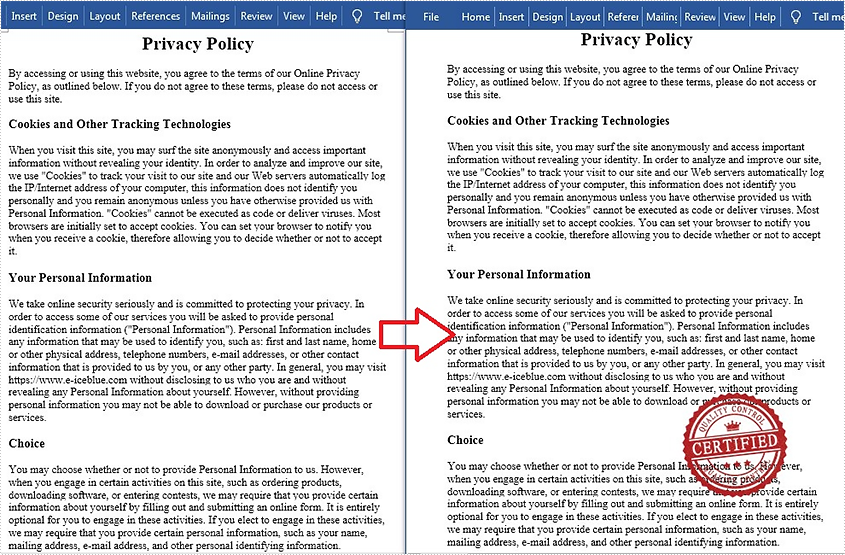
Stamps can guarantee the authenticity and validity of a document and also make the document look more professional. Since Microsoft Word doesn't provide a built-in stamp feature, you can add an image to your Word documents to mimic the stamp effect. This is useful when the document will be printed to paper or PDF. In this article, you will learn how to add a "stamp" to a Word document using Spire.Doc for Java.
Install Spire.Doc for Java
First of all, you're required to add the Spire.Doc.jar file as a dependency in your Java program. The JAR file can be downloaded from this link. If you use Maven, you can easily import the JAR file in your application by adding the following code to your project's pom.xml file.
<repositories>
    <repository>
        <id>com.e-iceblue</id>
        <name>e-iceblue</name>
        <url>https://repo.e-iceblue.com/nexus/content/groups/public/</url>
    </repository>
</repositories>
<dependencies>
    <dependency>
        <groupId>e-iceblue</groupId>
        <artifactId>spire.doc</artifactId>
        <version>14.8.4</version>
    </dependency>
</dependencies>
Add an Image Stamp to Word Document
Spire.Doc for Java allow developers to use the core classes and method listed in the below table to add and format an image to make it look like a stamp in the Word document.
| Name | Description |
| DocPicture Class | Represents a picture in a Word document. |
| Paragraph.appendPicture() Method | Appends an image to end of paragraph. |
| DocPicture.setHorizontalPosition() Method | Sets absolute horizontal position of the picture. |
| DocPicture.setVerticalPosition() Method | Sets absolute vertical position of the picture. |
| DocPicture.setWidth() Method | Sets picture width. |
| DocPicture.setHeight Method | Sets picture height. |
| DocPicture.setTextWrappingStyle() Method | Sets text wrapping type of the picture. |
The detailed steps are as follows:
- Create a Document instance.
- Load a Word document using Document.loadFromFile() method.
- Get the specific paragraph using ParagraphCollection.get() method.
- Add an image to the Word document using Paragraph.appendPicture() method.
- Set position, size and wrapping style of the image using the methods offered by DocPicture class.
- Save the document to another file using Document.saveToFile() method.
- Java
import com.spire.doc.*;
import com.spire.doc.documents.Paragraph;
import com.spire.doc.documents.TextWrappingStyle;
import com.spire.doc.fields.DocPicture;

public class AddStamp {
    public static void main(String[] args) {
        //Create a Document instance
        Document doc = new Document();

        //Load a Word document
        doc.loadFromFile("test.docx");

        //Get the specific paragraph
        Section section = doc.getSections().get(0);
        Paragraph paragraph = section.getParagraphs().get(4);

        //Add an image
        DocPicture picture = paragraph.appendPicture("cert.png");

        //Set the position of the image
        picture.setHorizontalPosition(240f);
        picture.setVerticalPosition(120f);

        //Set width and height of the image
        picture.setWidth(150);
        picture.setHeight(150);

        //Set wrapping style of the image to In_Front_Of_Text, so that it looks like a stamp
        picture.setTextWrappingStyle(TextWrappingStyle.In_Front_Of_Text);

        //Save the document to file
        doc.saveToFile("AddStamp.docx", FileFormat.Docx);
        doc.dispose();
    }
}
Apply for a Temporary License
If you'd like to remove the evaluation message from the generated documents, or to get rid of the function limitations, please request a 30-day trial license for yourself.
