Knowledgebase (2417)
Children categories
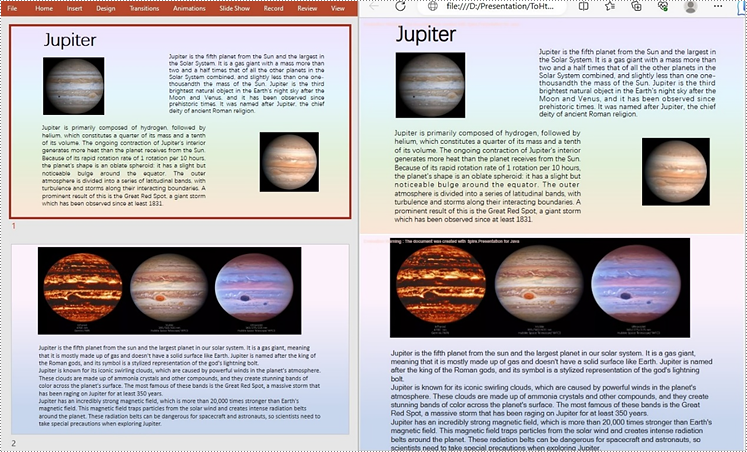
PowerPoint to HTML conversion opens up opportunities for wider accessibility and enhanced interactivity. By transforming your presentations into HTML format, you can effortlessly distribute them across various platforms and devices. Whether you aim to share slides online or integrate them seamlessly within a web page, converting PowerPoint to HTML provides a flexible and versatile solution. In this article, we will explore how to convert PowerPoint files to HTML in Java using Spire.Presentation for Java.
- Convert a PowerPoint Presentation to HTML in Java
- Convert a Specific PowerPoint Slide to HTML in Java
Install Spire.Presentation for Java
First, you're required to add the Spire.Presentation.jar file as a dependency in your Java program. The JAR file can be downloaded from this link. If you use Maven, you can easily import the JAR file in your application by adding the following code to your project's pom.xml file.
<repositories>
    <repository>
        <id>com.e-iceblue</id>
        <name>e-iceblue</name>
        <url>https://repo.e-iceblue.com/nexus/content/groups/public/</url>
    </repository>
</repositories>
<dependencies>
    <dependency>
        <groupId>e-iceblue</groupId>
        <artifactId>spire.presentation</artifactId>
        <version>11.8.3</version>
    </dependency>
</dependencies>
Convert a PowerPoint Presentation to HTML in Java
With Spire.Presentation for Java, you can convert PowerPoint files to HTML format in just three steps. The detailed steps are as follows:
- Initialize an instance of the Presentation class.
- Load a sample PowerPoint document using Presentation.loadFromFile() method.
- Save the PowerPoint presentation as HTML using Presentation.saveToFile() method.
- Java
import com.spire.presentation.FileFormat;
import com.spire.presentation.Presentation;

public class ToHtml {
    public static void main(String[] args) throws Exception {

        //Create a Presentation object
        Presentation presentation = new Presentation();

        //Load the sample document       presentation.loadFromFile("C:\\Users\\Administrator\\Desktop\\sample.pptx");

        //Save the document to HTML format       presentation.saveToFile("C:\\Users\\Administrator\\Desktop\\ToHtml.html", FileFormat.HTML);
        presentation.dispose();
   }
}
Convert a Specific PowerPoint Slide to HTML in Java
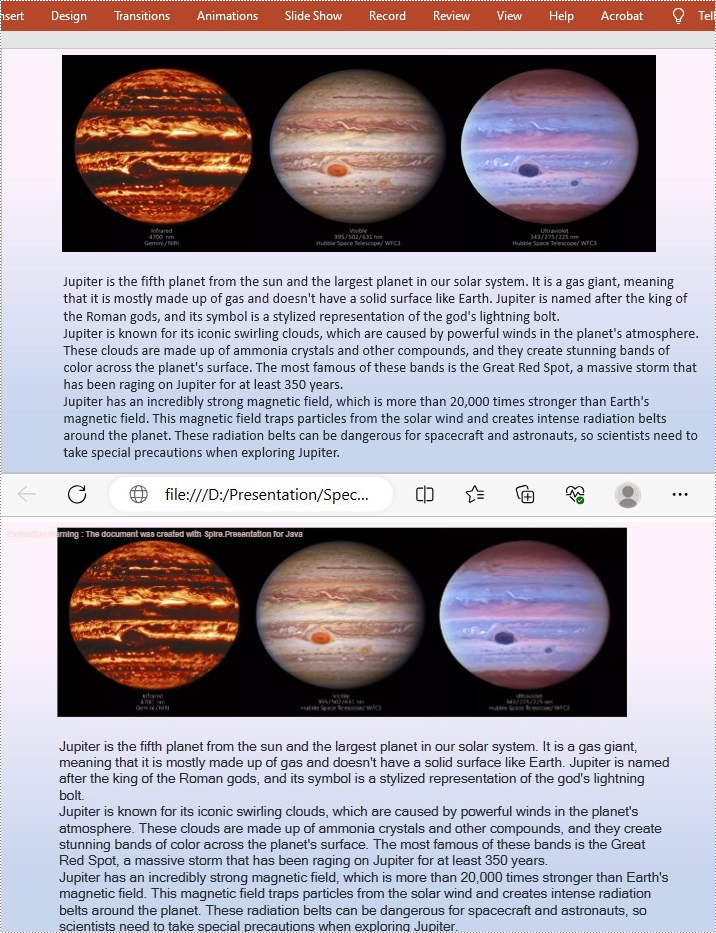
Sometimes, it may be necessary to convert a single slide rather than the entire presentation to HTML. In such cases, Spire.Presentation for Java provides the ISlide.saveToFile() method for converting a PowerPoint slide to HTML format. The following are the detailed steps:
- Initialize an instance of the Presentation class.
- Load a sample PowerPoint document using Presentation.loadFromFile() method.
- Get the specific slide using Presentation.getSlides().get() method.
- Save the PowerPoint slide to HTML using ISlide.saveToFile() method.
- Java
import com.spire.presentation.FileFormat;
import com.spire.presentation.Presentation;
import com.spire.presentation.ISlide;

public class ConvertSpecificSlideToHtml { public static void main(String[] args) throws Exception {
    // Create a Presentation object
    Presentation presentation = new Presentation();

    // Load the sample document  presentation.loadFromFile("C:\\Users\\Administrator\\Desktop\\sample.pptx");

    // Get the specific slide by index (e.g., index 0 for the second slide)
    ISlide slide = presentation.getSlides().get(1);

    // Save the specific slide to HTML format  slide.saveToFile("C:\\Users\\Administrator\\Desktop\\SpecificSlideToHtml.html", FileFormat.HTML);
    slide.dispose();
   }
}
Apply for a Temporary License
If you'd like to remove the evaluation message from the generated documents, or to get rid of the function limitations, please request a 30-day trial license for yourself.
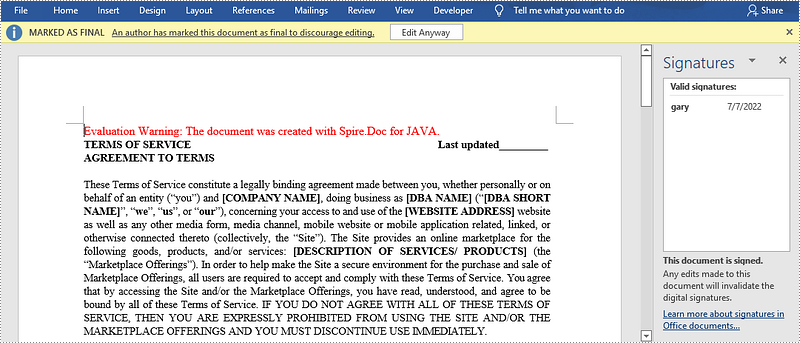
A digital signature is a specific type of signature that is backed by a digital certificate, providing proof of your identity. Digital signatures are used to protect documents in a wide range of fields such as life insurance, invoices, rental agreements, and employment contracts and so on. This article will show you how to digitally sign a Word document in Java using Spire.Doc for Java.
Install Spire.Doc for Java
First, you're required to add the Spire.Doc.jar file as a dependency in your Java program. The JAR file can be downloaded from this link. If you use Maven, you can easily import the JAR file in your application by adding the following code to your project's pom.xml file.
<repositories>
    <repository>
        <id>com.e-iceblue</id>
        <name>e-iceblue</name>
        <url>https://repo.e-iceblue.com/nexus/content/groups/public/</url>
    </repository>
</repositories>
<dependencies>
    <dependency>
        <groupId>e-iceblue</groupId>
        <artifactId>spire.doc</artifactId>
        <version>14.8.4</version>
    </dependency>
</dependencies>
Add a Digital Signature to a Word Document in Java
The follows are the steps to digitally sign a Word document using Spire.Doc for Java.
- Create a Document object.
- Load a Word document using Document.loadFromFile() method.
- Specify the path and the password of a PFX certificate.
- Digitally sign the document while saving the document using Document.saveToFile(string fileName, FileFormat fileFormat, string certificatePath, string securePassword) method. There are some other methods that you can use to digitally sign a Word document.
- public void saveToFile(string fileName, FileFormat fileFormat, byte[] certificateData, string securePassword);
- public void saveToStream(Stream stream, FileFormat fileFormat, byte[] certificateData, string securePassword);
- public void saveToStream(Stream stream, FileFormat fileFormat, string certificatePath, string securePassword);
- public static byte[] Document.sign(Stream sourceStream, byte[] certificateData, string securePassword);
- public static byte[] Document.sign(Stream sourceStream, string certificatePath, string securePassword);
- Java
import com.spire.doc.Document;
import com.spire.doc.FileFormat;

public class DigitallySignWordDocument {

    public static void main(String[] args) {

        //Create a Document object
        Document doc = new Document();

        //Load a Word file
        doc.loadFromFile("C:\\Users\\Administrator\\Desktop\\sample.docx");

        //Specify the certificate path
        String certificatePath = "C:\\Users\\Administrator\\Desktop\\certificate.pfx";

        //Specify the password of the certificate
        String password = "e-iceblue";

        //Digitally sign the document while saving it to a .docx file
        doc.saveToFile("AddDigitalSignature.docx", FileFormat.Docx_2013, certificatePath, password);
    }
}
Apply for a Temporary License
If you'd like to remove the evaluation message from the generated documents, or to get rid of the function limitations, please request a 30-day trial license for yourself.
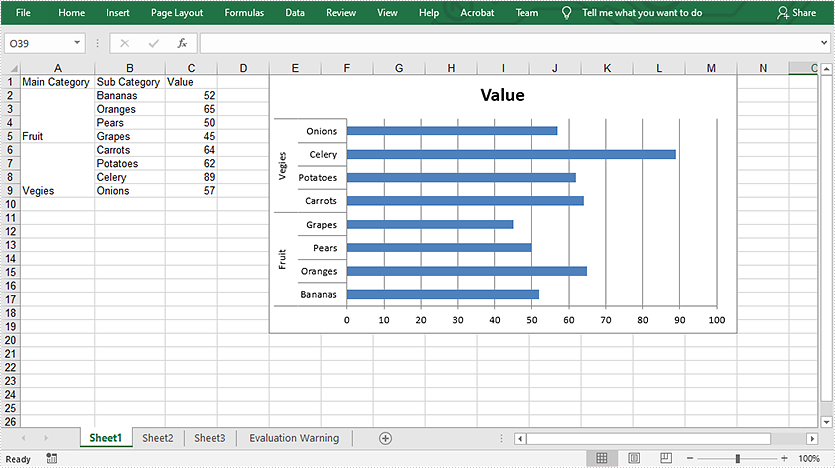
This article demonstrates how to create multi-level category chart in Excel using Spire.XLS for Java.
import com.spire.xls.*;
import com.spire.xls.charts.*;

public class CreateMultiLevelChart {
    public static void main(String []args) throws Exception {
        //create a workbook
        Workbook workbook = new Workbook();
        Worksheet sheet = workbook.getWorksheets().get(0);

        //write data to cells
        sheet.getCellRange("A1").setText( "Main Category");
        sheet.getCellRange("A2").setText("Fruit");
        sheet.getCellRange("A6").setText("Vegies");
        sheet.getCellRange("B1").setText("Sub Category");
        sheet.getCellRange("B2").setText( "Bananas");
        sheet.getCellRange("B3").setText( "Oranges");
        sheet.getCellRange("B4").setText( "Pears");
        sheet.getCellRange("B5").setText("Grapes");
        sheet.getCellRange("B6").setText( "Carrots");
        sheet.getCellRange("B7").setText( "Potatoes");
        sheet.getCellRange("B8").setText( "Celery");
        sheet.getCellRange("B9").setText( "Onions");
        sheet.getCellRange("C1").setText("Value");
        sheet.getCellRange("C2").setValue("52");
        sheet.getCellRange("C3").setValue( "65");
        sheet.getCellRange("C4").setValue( "50");
        sheet.getCellRange("C5").setValue( "45");
        sheet.getCellRange("C6").setValue( "64");
        sheet.getCellRange("C7").setValue( "62");
        sheet.getCellRange("C8").setValue( "89");
        sheet.getCellRange("C9").setValue( "57");

        //vertically merge cells from A2 to A5, A6 to A9
        sheet.getCellRange("A2:A5").merge();
        sheet.getCellRange("A6:A9").merge();
        sheet.autoFitColumn(1);
        sheet.autoFitColumn(2);

        //add a clustered bar chart to worksheet
        Chart chart = sheet.getCharts().add(ExcelChartType.BarClustered);
        chart.setChartTitle( "Value");
        chart.getPlotArea().getFill().setFillType( ShapeFillType.NoFill);
        chart.getLegend().delete();
        chart.setLeftColumn(5);
        chart.setTopRow(1);
        chart.setRightColumn(14);

        //set the data source of series data
        chart.setDataRange(sheet.getCellRange("C2:C9"));
        chart.setSeriesDataFromRange(false);

        //set the data source of category labels
        ChartSerie serie = chart.getSeries().get(0);
        serie.setCategoryLabels( sheet.getCellRange("A2:B9"));

        //show multi-level category labels
        chart.getPrimaryCategoryAxis().setMultiLevelLable( true);

        //save the document
        workbook.saveToFile("output/createMultiLevelChart.xlsx", ExcelVersion.Version2013);
    }
}
Output: