Knowledgebase (2417)
Children categories
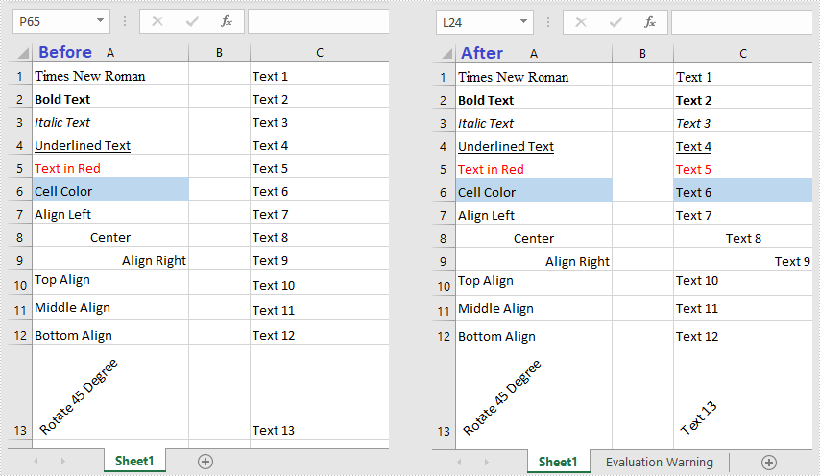
Spire.XLS for Java provides the getStyle() method and setStyle() method under the IXLSRange interface to get or set the style of a specific cell range. To copy formatting from one cell to another, get the style first and then apply it to another cell.
import com.spire.xls.ExcelVersion;
import com.spire.xls.Workbook;
import com.spire.xls.Worksheet;

public class CopyCellFormatting {
    public static void main(String[] args) {

        //Create a Workbook object
        Workbook workbook = new Workbook();

        //Load the sample Excel file
        workbook.loadFromFile("C:\\Users\\Administrator\\Desktop\\sample.xlsx");

        //Get the first worksheet
        Worksheet sheet = workbook.getWorksheets().get(0);

        //Get the number of rows used
        int rowCount = sheet.getRows().length;

        //Loop through the rows
        for (int i = 1; i < rowCount + 1; i++)
        {
            //Copy the formatting from a certain cell to another
            sheet.getRange().get(String.format("C%d",i)).setStyle(sheet.getRange().get(String.format("A%d",i)).getStyle());
        }

        //Save the result to file
        workbook.saveToFile("output/CopyFormatting.xlsx", ExcelVersion.Version2016);
    }
}
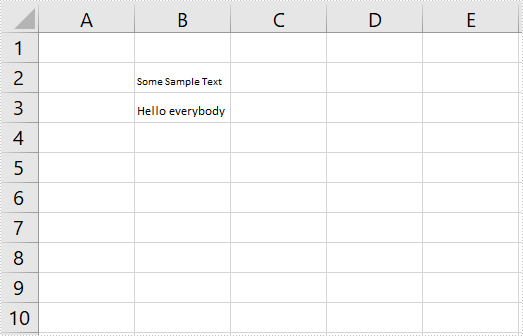
Spire.XLS for Java provides you with the ability to shrink text to fit in a cell by using the setShrinkToFit method of the CellStyleObject class. The setShrinkToFit method accepts the following parameter:
boolean: specify whether to shrink text to fit in a cell.
The following example shows how to shrink text to fit in a cell in Excel using Spire.XLS for Java.
import com.spire.xls.*;

public class ShrinkTextToFitInACell {
    public static void main(String []args) throws Exception {
        //Create a workbook instance
        Workbook workbook = new Workbook();

        //Load the Excel file
        workbook.loadFromFile("Sample.xlsx");

        //Get the first worksheet
        Worksheet sheet = workbook.getWorksheets().get(0);

        //Get the cell range to shrink text
        CellRange cell = sheet.getRange().get("B2:B3");

        //Enable “shrink to fit”
        cell.getCellStyle().setShrinkToFit(true);

        //Save the file
        workbook.saveToFile("ShrinkTextToFitInACell.xlsx", ExcelVersion.Version2013);
    }
}
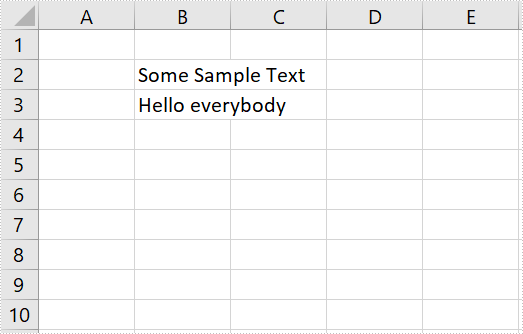
The input Excel:
The output Excel:
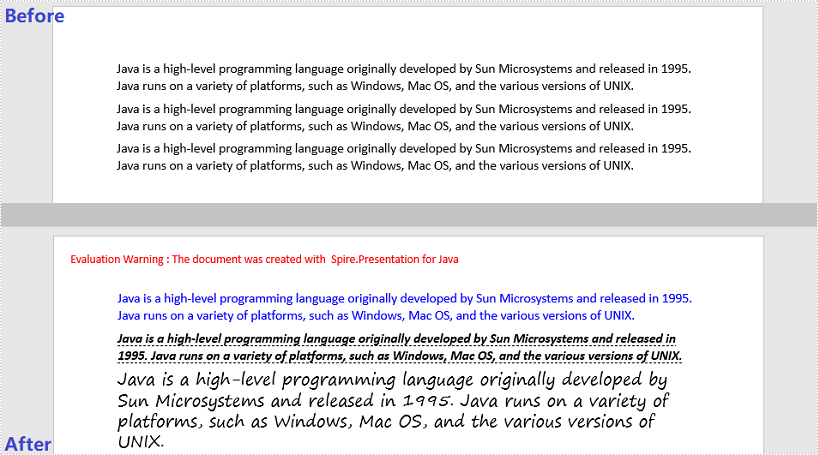
This article demonstrates how to change font styles (font name, font size, font color, bold, italic and underlined) of an existing PowerPoint document by using Spire.Presentation for Java.
import com.spire.presentation.*;
import com.spire.presentation.drawing.FillFormatType;

import java.awt.*;

public class ChangeFontStyles {

    public static void main(String[] args) throws Exception {

        //Create a Presentation object
        Presentation presentation = new Presentation();

        //Load the sample PowerPoint file
        presentation.loadFromFile("C:\\Users\\Administrator\\Desktop\\sample.pptx");

        //Get the text shape
        IAutoShape shape = (IAutoShape) presentation.getSlides().get(0).getShapes().get(0);

        //Get the first paragraph and change the font color of it
        ParagraphEx paragraph = shape.getTextFrame().getParagraphs().get(0);
        PortionEx textRange =  paragraph.getFirstTextRange();
        textRange.getFormat().getFill().setFillType(FillFormatType.SOLID);
        textRange.getFormat().getFill().getSolidColor().setColor(Color.blue);

        //Get the second paragraph and make the text bold, italic and unlined
        paragraph = shape.getTextFrame().getParagraphs().get(1);
        textRange = paragraph.getFirstTextRange();
        textRange.getFormat().isBold(TriState.TRUE);
        textRange.getFormat().isItalic(TriState.TRUE);
        textRange.getFormat().setTextUnderlineType(TextUnderlineType.DASHED);

        //Get the third paragraph and change the font name and size
        paragraph = shape.getTextFrame().getParagraphs().get(2);
        textRange = paragraph.getFirstTextRange();
        textRange.getFormat().setLatinFont(new TextFont("Segoe Print"));
        textRange.getFormat().setFontHeight(22f);

        //Save the document
        presentation.saveToFile("output/ChangeFontStyles.pptx", FileFormat.PPTX_2013);
    }
}