
Knowledgebase (2417)
Children categories
How to highlight different searched texts with different colors in WPF
2016-04-28 01:44:46 Written by KoohjiNowadays, many files are saved as PDF format. PDF has many advantages and its Find and Highlight feature makes it easier for us to find important information inside a lengthy PDF document.
In the following sections, I will demonstrate how to highlight different searched texts with different colors in WPF.
The code snippets are as followed:
Step 1: Initialize a new instance of PdfDocument class and load the PDF document from the file.
PdfDocument pdf = new PdfDocument("ToHelen.pdf");
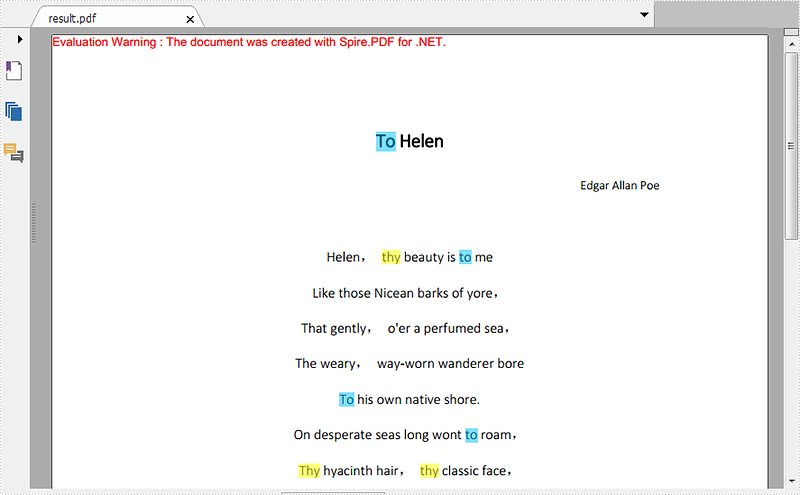
Step 2: Call FindText() method to search the string "thy" in the first page of the file, then return to Result1. Traverse result1 and call ApplyHighLight() method to highlight all elements in result1. Set the highlight color as yellow.
PdfTextFind[] result1 = null;
result1 = pdf.Pages[0].FindText("thy").Finds;
foreach (PdfTextFind find in result1)
{
    find.ApplyHighLight(System.Drawing.Color.Yellow);
}
Step 3: Repeat step 2 to highlight all the texts "to" on Page 1 with the color of DeepSkyBlue.
PdfTextFind[] result2 = null;
result2 = pdf.Pages[0].FindText("to").Finds;
foreach (PdfTextFind find in result2)
{
    find.ApplyHighLight(System.Drawing.Color.DeepSkyBlue);
}
Step 4: Save the PDF document and launch the file.
pdf.SaveToFile("HighlightedToHelen.pdf", Spire.Pdf.FileFormat.PDF);
System.Diagnostics.Process.Start("HighlightedToHelen.pdf");
Effective screenshot:
Full Codes:
//load the PDF document from the file
PdfDocument pdf = new PdfDocument("ToHelen.pdf");

//highlight searched text "thy" with Yellow
PdfTextFind[] result1 = null;
result1 = pdf.Pages[0].FindText("thy").Finds;
foreach (PdfTextFind find in result1)
{
    find.ApplyHighLight(System.Drawing.Color.Yellow);
}

//highlight searched text “to” with DeepSkyBlue
PdfTextFind[] result2 = null;
result2 = pdf.Pages[0].FindText("to").Finds;
foreach (PdfTextFind find in result2)
{
    find.ApplyHighLight(System.Drawing.Color.DeepSkyBlue);
}

//save and launch the file
pdf.SaveToFile("HighlightedToHelen.pdf", Spire.Pdf.FileFormat.PDF);
System.Diagnostics.Process.Start("HighlightedToHelen.pdf");
'load the PDF document from the file
Dim pdf As New PdfDocument("ToHelen.pdf")

'highlight searched text "thy" with Yellow
Dim result1 As PdfTextFind() = Nothing
result1 = pdf.Pages(0).FindText("thy").Finds
For Each find As PdfTextFind In result1
	 find.ApplyHighLight(System.Drawing.Color.Yellow)
Next

'highlight searched text "to" with DeepSkyBlue
Dim result2 As PdfTextFind() = Nothing
result2 = pdf.Pages(0).FindText("to").Finds
For Each find As PdfTextFind In result2
	 find.ApplyHighLight(System.Drawing.Color.DeepSkyBlue)
Next

'save and launch the file
pdf.SaveToFile("HighlightedToHelen.pdf", Spire.Pdf.FileFormat.PDF)
System.Diagnostics.Process.Start("HighlightedToHelen.pdf")
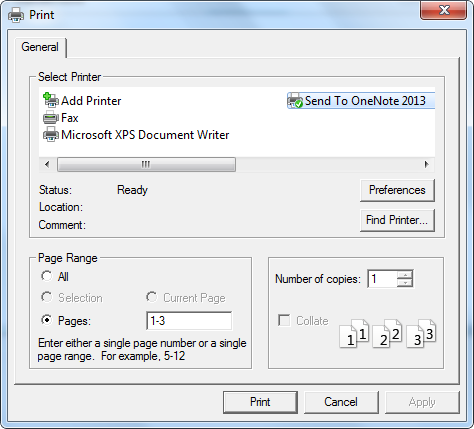
Spire.XLS supports to silently print an Excel file as well as print document with a print dialog, which is provided by System.Windows.Controls namespace in WPF, allowing users to select a specified printer and also the print pages. This article demonstrates how to print Excel file from a WPF application by invoking the print dialog in C# and VB.NET.
Necessary Namespaces:
using System.Windows;
using System.Windows.Controls;
using System.Drawing.Printing;
using Spire.Xls;
Code Snippet:
Step 1: Initialize an instance of Workbook and load a sample Excel file that you want to print.
Workbook workbook = new Workbook();
workbook.LoadFromFile("sample.xlsx");
Step 2: Create a new object of PrintDialog and set its properties such as PageRangeSelection and UserPageRangeEnabled.
PrintDialog dialog = new PrintDialog();
dialog.UserPageRangeEnabled = true;
PageRange rang = new PageRange(1, 3);
dialog.PageRange = rang;
PageRangeSelection seletion = PageRangeSelection.UserPages;
dialog.PageRangeSelection =seletion;
Step 3: Get the print document and invoke the print dialog to print.
PrintDocument pd = workbook.PrintDocument;
if (dialog.ShowDialog() == true)
{
    pd.Print();
}
Output:
Full Code:
using Spire.Xls;
using System.Drawing;
using System.Drawing.Printing;
using System.Windows;
using System.Windows.Controls;

namespace WpfApplication1
{
    public partial class MainWindow : Window
    {
        public MainWindow()
        {
            InitializeComponent();
        }
        private void button1_Click(object sender, RoutedEventArgs e)
        {
            Workbook workbook = new Workbook();
            workbook.LoadFromFile("sample.xlsx");
            PrintDialog dialog = new PrintDialog();
            dialog.UserPageRangeEnabled = true;
            PageRange rang = new PageRange(1, 3);
            dialog.PageRange = rang;
            PageRangeSelection seletion = PageRangeSelection.UserPages;
            dialog.PageRangeSelection = seletion;
            PrintDocument pd = workbook.PrintDocument;
            if (dialog.ShowDialog() == true)
            {
                pd.Print();
            }
        }
    }
}
Imports Spire.Xls
Imports System.Drawing
Imports System.Drawing.Printing
Imports System.Windows
Imports System.Windows.Controls

Namespace WpfApplication1
	Public Partial Class MainWindow
		Inherits Window
		Public Sub New()
			InitializeComponent()
		End Sub
		Private Sub button1_Click(sender As Object, e As RoutedEventArgs)
			Dim workbook As New Workbook()
			workbook.LoadFromFile("sample.xlsx")
			Dim dialog As New PrintDialog()
			dialog.UserPageRangeEnabled = True
			Dim rang As New PageRange(1, 3)
			dialog.PageRange = rang
			Dim seletion As PageRangeSelection = PageRangeSelection.UserPages
			dialog.PageRangeSelection = seletion
			Dim pd As PrintDocument = workbook.PrintDocument
			If dialog.ShowDialog() = True Then
				pd.Print()
			End If
		End Sub
	End Class
End Namespace
It's well known that we can add a variety of bullet styles to paragraphs in Word, such as various symbols, pictures, fonts and numbers. Bullet makes these paragraphs to be a bulleted list, so that we can easily create a well-structured and professional document.
This article will demonstrate how to set bullet style for word paragraphs in WPF applications using Spire.Doc for WPF.
Below is the effective screenshot after setting bullet style:

Code snippets:
Use namespace:
using System.Windows;
using Spire.Doc;
using Spire.Doc.Documents;
Step 1: Create a new instance of Document class and load the sample word document from file.
Document doc = new Document();
doc.LoadFromFile("Instruction.docx");
Step 2: Create a bulleted list.
Get the first section, then apply bullet style to paragraphs from 5th to 13th and set bullet position.
Section sec = doc.Sections[0];
for (int i = 4; i < 13; i++)
{
    Paragraph paragraph = sec.Paragraphs[i];
    paragraph.ListFormat.ApplyBulletStyle();
    paragraph.ListFormat.CurrentListLevel.NumberPosition = -20;
}
In addition, we can also use following code to create a numbered list:
paragraph.ListFormat.ApplyNumberedStyle();
Step 3: Save and launch the file.
doc.SaveToFile("Bullet.docx", FileFormat.Docx);
System.Diagnostics.Process.Start("Bullet.docx");
Full codes:
private void button1_Click(object sender, RoutedEventArgs e)
{
    //Load Document
    Document doc = new Document();
    doc.LoadFromFile("Instruction.docx");

    //Set Bullet Style
    Section sec = doc.Sections[0];
    for (int i = 4; i < 13; i++)
    {
    Paragraph paragraph = sec.Paragraphs[i];

    //Create a bulleted list
    paragraph.ListFormat.ApplyBulletStyle();

        //Create a numbered list
    // paragraph.ListFormat.ApplyNumberedStyle();

        paragraph.ListFormat.CurrentListLevel.NumberPosition = -20;
    }

    //Save and Launch
    doc.SaveToFile("Bullet.docx", FileFormat.Docx);
    System.Diagnostics.Process.Start("Bullet.docx");
}
