
Knowledgebase (2417)
Children categories
Spire.XLS can help developers to write rich text into the spreadsheet easily, such as set the text in bold, italic, and set the colour and font for them. We have already shown you how to set Subscript and Superscript in Excel files by using Spire.XLS. This article will focus on demonstrate how to formatting text in Excel sheet in C#.
Spire.Xls offers ExcelFont class and developers can format the text of cells easily. By using RichText, we can add the text into cells and set font for it. Here comes to the steps of how to write rich text into excel cells.
Step 1: Create an excel document and get its first worksheet.
Workbook workbook = new Workbook();
Worksheet sheet = workbook.Worksheets[0];
Step 2: Create the fonts and sent the format for each font.
//create a font and set the format to bold.
ExcelFont fontBold = workbook.CreateFont();
fontBold.IsBold = true;

//create a font and set the format to underline.
ExcelFont fontUnderline = workbook.CreateFont();
fontUnderline.Underline = FontUnderlineType.Single;

//create a font and set the format to italic.
ExcelFont fontItalic = workbook.CreateFont();
fontItalic.IsItalic = true;

//create a font and set the color to green.
ExcelFont fontColor = workbook.CreateFont();
fontColor.KnownColor = ExcelColors.Green;
Step 3: Set the font for specified cell range.
RichText richText = sheet.Range["A1"].RichText;
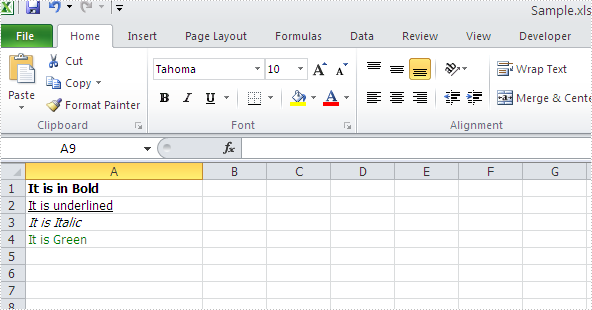
richText.Text="It is in Bold";
richText.SetFont(0, richText.Text.Length-1, fontBold);

richText = sheet.Range["A2"].RichText;
richText.Text = "It is underlined";
richText.SetFont(0, richText.Text.Length-1, fontUnderline);

richText = sheet.Range["A3"].RichText;
richText.Text = "It is Italic";
richText.SetFont(0, richText.Text.Length - 1, fontItalic);

richText = sheet.Range["A4"].RichText;
richText.Text = "It is Green";
richText.SetFont(0, richText.Text.Length - 1, fontColor);
Step 4: Save the document to file.
workbook.SaveToFile("Sample.xls",ExcelVersion.Version97to2003);
Effective screenshot of writing rich text into excel worksheet:
Full codes:
using Spire.Xls;
namespace WriteRichtextinExcel
{
    class Program
    {
        static void Main(string[] args)
        {
            Workbook workbook = new Workbook();
            Worksheet sheet = workbook.Worksheets[0];

            ExcelFont fontBold = workbook.CreateFont();
            fontBold.IsBold = true;

            ExcelFont fontUnderline = workbook.CreateFont();
            fontUnderline.Underline = FontUnderlineType.Single;

            ExcelFont fontItalic = workbook.CreateFont();
            fontItalic.IsItalic = true;

            ExcelFont fontColor = workbook.CreateFont();
            fontColor.KnownColor = ExcelColors.Green;

            RichText richText = sheet.Range["A1"].RichText;
            richText.Text = "It is in Bold";
            richText.SetFont(0, richText.Text.Length - 1, fontBold);

            richText = sheet.Range["A2"].RichText;
            richText.Text = "It is underlined";
            richText.SetFont(0, richText.Text.Length - 1, fontUnderline);

            richText = sheet.Range["A3"].RichText;
            richText.Text = "It is Italic";
            richText.SetFont(0, richText.Text.Length - 1, fontItalic);

            richText = sheet.Range["A4"].RichText;
            richText.Text = "It is Green";
            richText.SetFont(0, richText.Text.Length - 1, fontColor);

            workbook.SaveToFile("Sample.xls", ExcelVersion.Version97to2003);

        }
    }
}
Zoom is a basic as well useful function in any text file reader. Users can chose to zoom out or zoom in of a document depending on how small the font is, or on their own view preference. In this article, I’ll introduce two ways to zoom Word file using Spire.DocViewer:
- Zoom with a particular zoom mode
- Zoom by entering a percentage
Now, I will explain more by creating a Windows Forms Application. Some steps about how to add DocVierwer control to toolbox and how to open Word file using Spire.DocViewer have been demonstrated previously. In the following section, I only add a MenuItem and a TextBox to Form1.
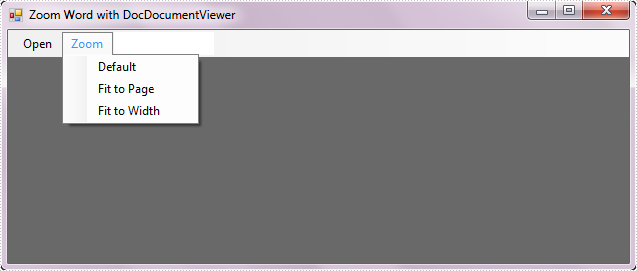
In the MenuItem, named Zoom, I create three sub-items which are used to save three particular zoom modes.
- Default: View page in its original size.
- Fit to page: When this option is selected, the document will be resized to match the dimensions of your view window.
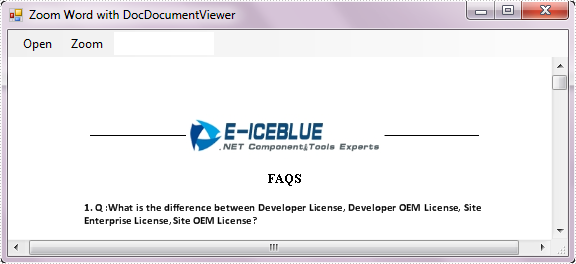
- Fit to width: When this option is selected, the document will best fit to width of window.
Code behind:
        private void defaultToolStripMenuItem_Click(object sender, EventArgs e)
        {
            this.docDocumentViewer1.ZoomMode = ZoomMode.Default;
        }
        private void fitToPageToolStripMenuItem_Click(object sender, EventArgs e)
        {
            this.docDocumentViewer1.ZoomMode = ZoomMode.FitPage;
        }
        private void fitToWidthToolStripMenuItem_Click(object sender, EventArgs e)
        {
            this.docDocumentViewer1.ZoomMode = ZoomMode.FitWidth;
        }
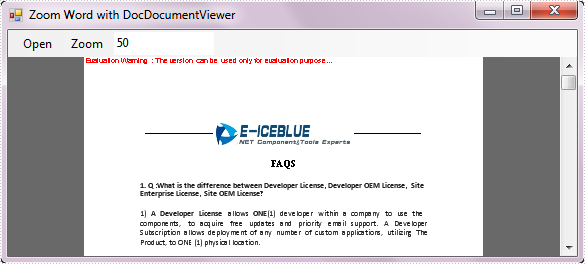
Another way to zoom in or out of Word document is enter a desired percentage in TextBox.
Code for TextBox:
      private void toolStripTextBox1_KeyDown(object sender, KeyEventArgs e)
        {
            if (Keys.Enter == e.KeyCode)
            {
                int p;
                if (int.TryParse(this.toolStripTextBox1.Text, out p))
                {
                    this.docDocumentViewer1.ZoomTo(p);
                }
            }
        }
Run the program, you can get following windows application.
Fit to Width:
Zoom with 50 percentages:
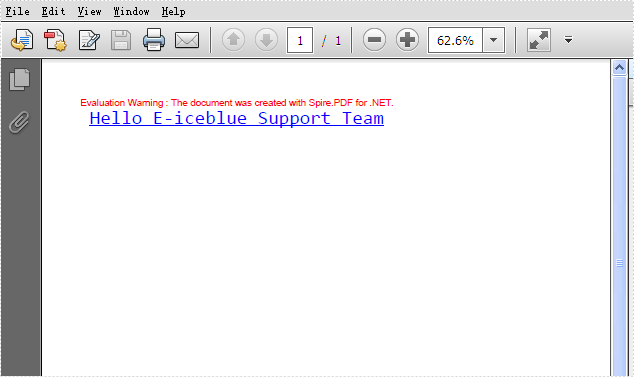
Adding text into the PDF files is one of the most important requirements for developers. With the help of Spire.PDF, developer can draw transform text, alignment text and rotate text in PDF files easily. This tutorial will show you how to add underline text in C#.
By using the method canvas.drawstring offered by Spire.PDF, developers can set the position, font, brush and style for the adding texts. With the PdfFontStyle, developers can set the style to underline, bold, italic, regular and strikeout. Here comes to the code snippet of how to add underline text in PDF.
Step 1: Create a new PDF document.
PdfDocument pdf = new PdfDocument();
Step 2: Add a new page to the PDF file.
PdfPageBase page = pdf.Pages.Add();
Step 3: Create a true type font with size 20f, underline style.
PdfTrueTypeFont font = new PdfTrueTypeFont(@"C:\WINDOWS\Fonts\CONSOLA.TTF", 20f, PdfFontStyle.Underline);
Step 4: Create a blue brush.
PdfSolidBrush brush = new PdfSolidBrush(Color.Blue);
Step 5: Draw the text string at the specified location with the specified Brush and Font objects.
page.Canvas.DrawString("Hello E-iceblue Support Team", font, brush, new PointF(10, 10));
Step 6: Save the PDF file.
pdf.SaveToFile("Result.pdf", FileFormat.PDF);
Effective screenshot:
Full codes:
using Spire.Pdf;
using Spire.Pdf.Graphics;
using System.Drawing;


namespace AddUnderlinetext
{
    class Program
    {
        static void Main(string[] args)
        {
            PdfDocument pdf = new PdfDocument();
            PdfPageBase page = pdf.Pages.Add();
            PdfTrueTypeFont font = new PdfTrueTypeFont(@"C:\WINDOWS\Fonts\CONSOLA.TTF", 20f, PdfFontStyle.Underline);
            PdfSolidBrush brush = new PdfSolidBrush(Color.Blue);
            page.Canvas.DrawString("Hello E-iceblue Support Team", font, brush, new PointF(10, 10));
            pdf.SaveToFile("Result.pdf", FileFormat.PDF);
        }
    }
}
