
Knowledgebase (2417)
Children categories
A barcode is a small image of lines and spaces that is often used in a store to reflect the description and price of a product, moreover, barcodes can be used in many other aspects in our daily life, such as tickets, medicine prescriptions, library books. In this article, I'll introduce you a way to add extra information in TopText of a barcode using Spire.Barcode in WinForm.
By default, 'E-iceblue' will be shown as TopText in a barcode if you don't request a key to remove it. Click here to see how to remove 'E-iceblue' logo in barcode. In this sample, more than one line of text will be added in TopText to replace 'E-iceblue'. Let's see detailed steps.
Step 1: Add Spire.Barcode controls to Visual Studio Toolbox.
Step 2: Create a Windows Forms project. Drag 'BarCodeControl' to your Form1. Here I changed the barcode type as EAN13.
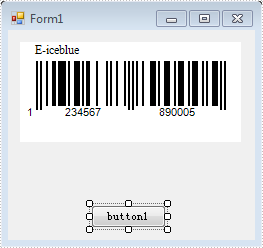
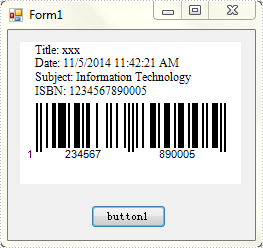
Step 3: Double click 'button1' to write code. Customized TopText can be saved in BarCodeControl.TopText string.
string title = "Title: xxx" + Environment.NewLine;
string subject = "Subject: Information Technology" + Environment.NewLine;
string date = "Date: " + DateTime.Now.ToString() + Environment.NewLine;
string isbn = "ISBN: 1234567890005";
this.barCodeControl1.TopText = title + date + subject + isbn;
Step 4: Run the sample code and click 'button1' to get the new barcode. In addition, you can call BarCodeControl.SaveToFile() method to save the barcode as an image.
Full Code:
using System;
using System.Collections.Generic;
using System.ComponentModel;
using System.Data;
using System.Drawing;
using System.Linq;
using System.Text;
using System.Windows.Forms;
using System.Drawing.Imaging;

namespace SetTopText
{
    public partial class Form1 : Form
    {
        public Form1()
        {
            InitializeComponent();
        }

        private void button1_Click(object sender, EventArgs e)
        {
            string title = "Title: xxx" + Environment.NewLine;
            string date = "Date: " + DateTime.Now.ToString() + Environment.NewLine;
            string subject = "Subject: Information Technology" + Environment.NewLine;
            string isbn = "ISBN: 1234567890005";
            this.barCodeControl1.TopText = title + date + subject + isbn;

        }
    }
}
In some case, we need make some modifications in an existing table but don't want destroy the original data, so we would like to copy the existing table then make some changes in the new table. How could we get the copied table? The easiest method is clone. There would introduce a solution to copy table and modify some data then insert the new table after original table via Spire.Doc.
Spire.Doc for .NET, a stand-alone .NET Word component, provides a method, Table.clone() to allow users to copy an existing table.
The main steps of the solution:
Firstly: load the word document with a table.
Document doc = new Document();
doc.LoadFromFile(@"CopyTable.doc");
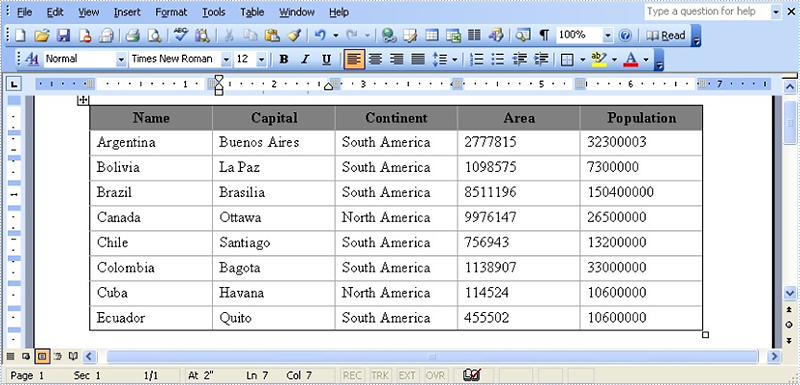
The original document effect screenshot:
Secondly: extract the existing table and call the table.clone () method to copy it.
Section se = doc.Sections[0];
Table original_Table =(Table) se.Tables[0];
Table copied_Table = original_Table.Clone();
Thirdly: extract the last row then traversal its cells to modify data.
string[] st = new string[] { "Guyana", "Georgetown", "South America", "214969", "800000" };
//get the last row of copied table
TableRow lastRow = copied_Table.Rows[copied_Table.Rows.Count - 1];
//change lastRow data.
lastRow.Cells[i].CellFormat.Shading.BackgroundPatternColor = Color.Gray;
for (int i = 0; i < lastRow.Cells.Count; i++)
    {
    lastRow.Cells[i].Paragraphs[0].Text = st[i];
     }
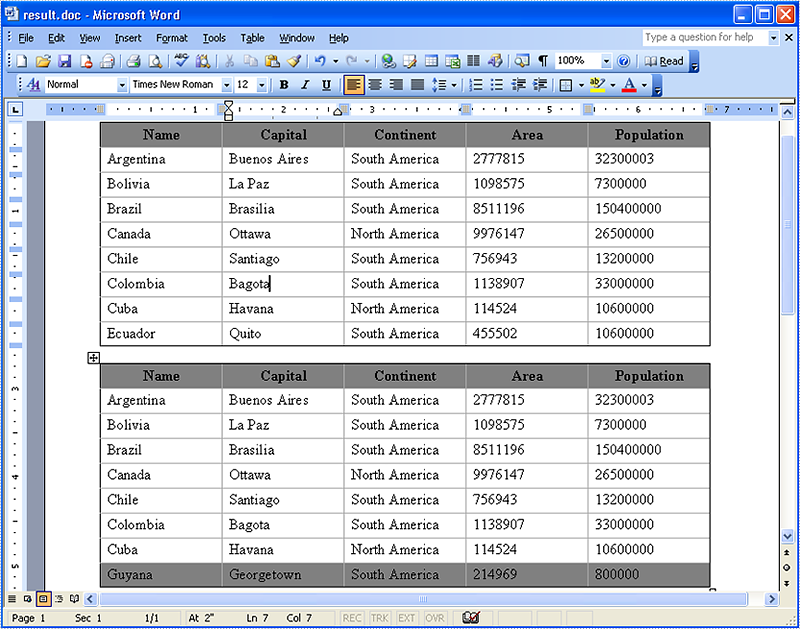
Finally: call Section. tables.add() method to add the copied table in section and save this document.
se.Tables.Add(copied_Table);
doc.SaveToFile("result.doc", FileFormat.Doc);
The result document effect screenshot:
Full code:
using Spire.Doc;
using System.Drawing;

namespace InsertingaAnExistingTable
{
    class Program
    {
        static void Main(string[] args)
        {
//load a word document
            Document doc = new Document();
            doc.LoadFromFile(@"CopyTable.doc");

// extract the existing table
            Section se = doc.Sections[0];
            Table original_Table =(Table) se.Tables[0];

// copy the existing table to copied_Table via Table.clone()
            Table copied_Table = original_Table.Clone();
string[] st = new string[] { "Guyana", "Georgetown", "South America", "214969", "800000" };
            //get the last row of table
            TableRow lastRow = copied_Table.Rows[copied_Table.Rows.Count - 1];
            //change last row data.
            lastRow.Cells[i].CellFormat.Shading.BackgroundPatternColor = Color.Gray;
            for (int i = 0; i < lastRow.Cells.Count; i++)
            {
                lastRow.Cells[i].Paragraphs[0].Text = st[i];
            }
// add copied_Table in section
            se.Tables.Add(copied_Table);
            doc.SaveToFile("result.doc", FileFormat.Doc);
        }
    }
}
In some circumstances, we may need to convert or save Word documents as pictures. For one reason, a picture is difficult to edit; for another, compared with Word, pictures are much easier to be published for browsing. This article is aimed to explore how we can convert .doc/.docx to popular image formats such as Jpg, Png, Gif and Bmp in WPF using Spire.Doc.
Spire.Doc for WPF, as a professional Word component, provides a plenty of useful methods to manipulate Word documents in your WPF applications. Using Spire.Doc, developers are able to export Word documents as images with high quality. Here comes the method:
Step 1: Create a new project by choosing WPF Application in Visual Studio, add a button in MainWindow, double click the button to write code.
public partial class MainWindow : Window
    public partial class MainWindow : Window
    {
        public MainWindow()
        {
            InitializeComponent();
        }

        private void button1_Click(object sender, RoutedEventArgs e)
        {

        }
Step 2: Initialize a new instance of Spire.Doc.Document class and load the sample Word file.
Document doc = new Document("sample.docx", FileFormat.Docx2010);
Step 3: To convert Word to image in WPF, we need firstly save Word as BitmapSource by calling the method Document.SaveAsImage(ImageType type), then convert BitmapSource to Bitmap, then save the Bitmap as image with a specified format using Image.Save(). Here, I saved Bitmap as .Png.
       BitmapSource[] bss = doc.SaveToImages(ImageType.Bitmap);
            for (int i = 0; i < bss.Length; i++)
            {
                SourceToBitmap(bss[i]).Save(string.Format("img-{0}.png", i));
            }
        }

        private Bitmap SourceToBitmap(BitmapSource source)
        {

            Bitmap bmp;
            using (MemoryStream ms = new MemoryStream())
            {
                PngBitmapEncoder encoder = new PngBitmapEncoder();
                encoder.Frames.Add(BitmapFrame.Create(source));
                encoder.Save(ms);
                bmp = new Bitmap(ms);
            }
            return bmp;
        }
Output of the first page:
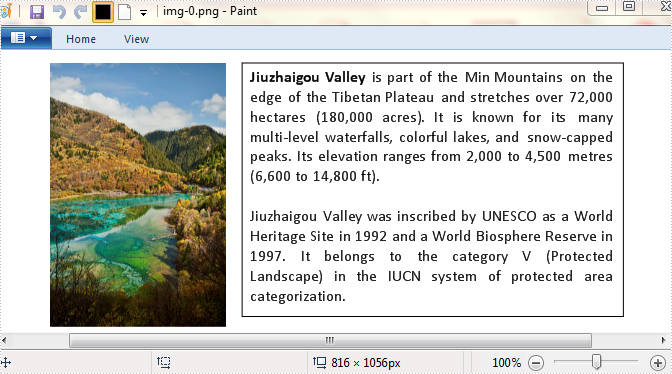
Entire Code:
using Spire.Doc;
using Spire.Doc.Documents;

namespace Word2Image
{
    ///
    /// Interaction logic for MainWindow.xaml
    ///
    public partial class MainWindow : Window
    {
        public MainWindow()
        {
            InitializeComponent();
        }

        private void button1_Click(object sender, RoutedEventArgs e)
        {
            Document doc = new Document("sample.docx", FileFormat.Docx2010);
            BitmapSource[] bss = doc.SaveToImages(ImageType.Bitmap);
            for (int i = 0; i < bss.Length; i++)
            {
                SourceToBitmap(bss[i]).Save(string.Format("img-{0}.png", i));
            }
        }

        private Bitmap SourceToBitmap(BitmapSource source)
        {

            Bitmap bmp;
            using (MemoryStream ms = new MemoryStream())
            {
                PngBitmapEncoder encoder = new PngBitmapEncoder();
                encoder.Frames.Add(BitmapFrame.Create(source));
                encoder.Save(ms);
                bmp = new Bitmap(ms);
            }
            return bmp;
        }
    }
}
