Knowledgebase (2417)
Children categories
This article introduces how to export Word file pages as png images in Windows Forms Application using Spire.DocViewer. Let’s see detailed steps.
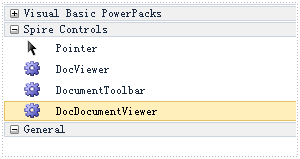
First, download Spire.DocViewer, add DocViewer Control to VS Toolbox.
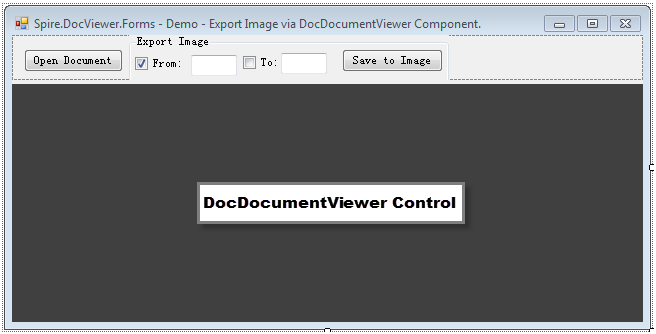
Then create a Windows Forms Application, design your Form1 as below.
- Add 'Open Document' button to open an existing Word file.
- Add two check boxes and two text boxes, which are designed for choosing a range of pages to do the conversion.
- Add 'Save to Image' button to save selected pages as images.
- Drag 'DocDocumentViewer Control' into Form1, which is used to display Word document.
Code Snippet:
Step 1: Create an OpenFileDialog to select the correct file type that you want to load. If you try to open with another file type except .doc and .docx, error message 'Cannot detect current file type' will appear.
       private void btnOpen_Click(object sender, EventArgs e)
        {
            //Open a Doc Document
            OpenFileDialog dialog = new OpenFileDialog();
            dialog.Filter="Word97-2003 files(*.doc)|*.doc|Word2007-2010 files (*.docx)|*.docx|All files (*.*)|*.*";
            dialog.Title="Select a DOC file";
            dialog.Multiselect=false;
            dialog.InitialDirectory=System.IO.Path.GetFullPath(@"..\..\..\..\..\..\Data");

            DialogResult result = dialog.ShowDialog();
            if (result==DialogResult.OK)
            {
                try
                {
                    // Load doc document from file.
                    this.docDocumentViewer1.LoadFromFile(dialog.FileName);
                    this.textBox2.Text = this.docDocumentViewer1.PageCount.ToString();
                }
                catch (Exception ex)
                {
                    MessageBox.Show(ex.Message, "Error", MessageBoxButtons.OK, MessageBoxIcon.Error);
                }
            }
        }
Step 2: The code behind 'Save to Image' button enables users to export the specified pages (from textbox1 to textBox2) as Bitmapsource, then convert Bitmapsource to images.
        private void btnSaveImage_Click(object sender, EventArgs e)
        {
            this.Enabled = false;
            bitMap.Clear();
            try
            {
                if (ckbFrom.Checked && ckbTo.Checked)
                {
                    try
                    {
                        int startIndex = 0;
                        int.TryParse(textBox1.Text, out startIndex);
                        m_CurrentPageNum = startIndex;
                        int endIndex = 0;
                        int.TryParse(textBox2.Text, out endIndex);

                        // Exports the specified pages as Images
                        Image[] bitmapsource = this.docDocumentViewer1.SaveImage((ushort)(startIndex), (ushort)(endIndex));
                        SaveImageToFile(bitmapsource);
                    }
                    catch (Exception ex)
                    {
                        MessageBox.Show(ex.Message, "Error", MessageBoxButtons.OK, MessageBoxIcon.Error);
                    }
                }
                else if (ckbFrom.Checked && !ckbTo.Checked)
                {
                    try
                    {
                        int currepageIndex = 0;
                        int.TryParse(textBox1.Text, out currepageIndex);
                        m_CurrentPageNum = currepageIndex;
                        //Saves the specified page as Image
                        Image bitmapsource = this.docDocumentViewer1.SaveImage((ushort)(currepageIndex));
                        SaveImageToFile(new Image[] { bitmapsource });
                    }
                    catch (Exception ex)
                    {
                        MessageBox.Show(ex.Message, "Error", MessageBoxButtons.OK, MessageBoxIcon.Error);
                    }
                }
            }
            catch { };
            this.Enabled = true;
        }
Step 3: In step 2, SaveImageToFile() has been invoked. This part creates two customized methods SaveImageToFile() and WriteImageFile(), which is meant to save Bitmapsource as png images with the page index as its file name.
       private void SaveImageToFile(Image[] bitmpaSource)
        {
            int startIndex = 1;
            int.TryParse(textBox1.Text, out startIndex);
            foreach (Image bitmap in bitmpaSource)
            {
                WriteImageFile(bitmap, startIndex);
                startIndex++;
            }
        }

        // BitmapSource Write to File
        private void WriteImageFile(Image bitMapImg, int currentPageIndex)
        {
            try
            {
                if (bitMapImg != null)
                {
                    string FullfileName = currentPageIndex.ToString() + ".png";

                    bitMapImg.Save(FullfileName, System.Drawing.Imaging.ImageFormat.Png);
                    bitMap.Add(FullfileName, bitMapImg);
                }
            }
            catch (Exception ex)
            {
#if DEBUG
                System.Diagnostics.Debug.WriteLine(ex.Message + ex.Source);
#endif
            }
        }
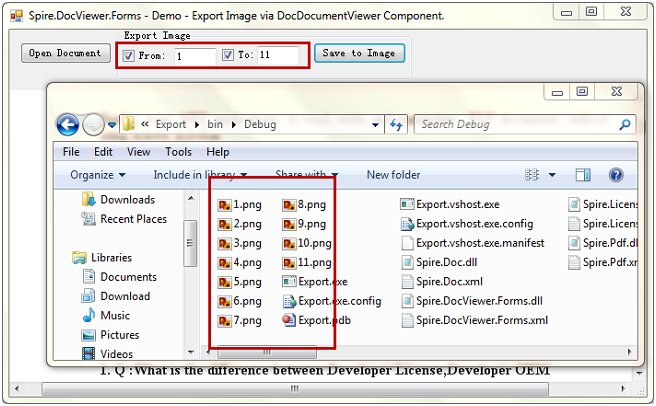
Debug the code, you'll get a Windows application as designed. Here, I open a sample Word file and select page 1 to page 11, selected pages will be saved as images in bin folder by clicking 'Save to Image'.
This article presents how to create a Windows Forms Application to open a Word file and convert it to PDF format using Spire.DocViewer. In fact, conversion from Word to HTML, RTF, DOC, DOCX are also supported with this DocViewer control. You can try almost the same way demonstrated in the following section to convert Word to any other format.
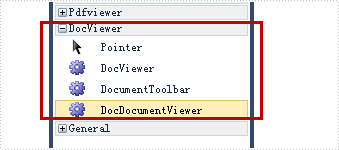
First of all, download Spire.DocViewer, add DocViewer Control to VS Toolbox.
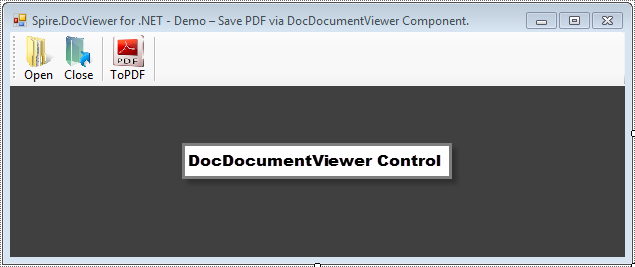
Then create a Windows Forms application, design your Form1 as below.
- Add 'Open' button to open a file from existing Word document.
- Add 'Close' button to shut down the open file.
- Add 'ToPDF' button to save Word file as PDF format.
- Drag 'DocDocumentViewer Control' into Form1, which is used to display Word document.
Code Snippet:
Step 1: Initialize components in Form1.
       public Form1()
       {
          InitializeComponent();
       }
Step 2: Create an OpenFileDialog to select the correct file type that we want to load, otherwise error message 'Cannot detect current file type' will appear.
       private void bntOpen_Click(object sender, EventArgs e)
        {
            //Open a doc document
            OpenFileDialog dialog = new OpenFileDialog();
            dialog.Filter = "Word97-2003 files(*.doc)|*.doc|Word2007-2010 files (*.docx)|*.docx|All files (*.*)|*.*";
            dialog.Title = "Select a DOC file";
            dialog.Multiselect = false;
            dialog.InitialDirectory = System.IO.Path.GetFullPath(@"..\..\..\..\..\..\Data");

            DialogResult result = dialog.ShowDialog();

            if (result == DialogResult.OK)
            {
                try
                {
                    this.docDocumentViewer1.LoadFromFile(dialog.FileName);
                }
                catch (Exception ex)
                {
                    MessageBox.Show(ex.Message, "Error!", MessageBoxButtons.OK, MessageBoxIcon.Error);
                }
            }
        }
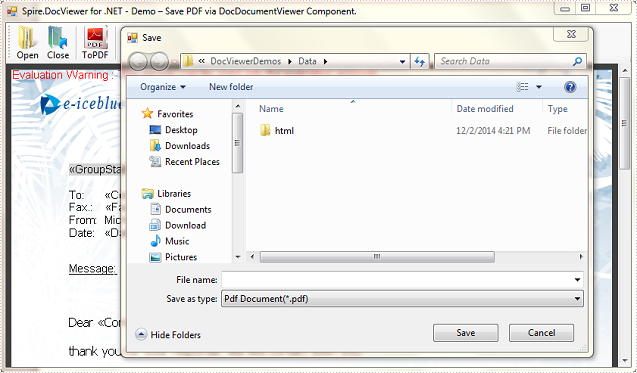
Step 3: In the 'ToPDF' button click event, create a SaveFileDialog, set filter as PDF type, then call DocDocumentViewer.SaveAs() method to save Word as PDF with customized file name.
       private void btnSaveToPdf_Click(object sender, EventArgs e)
        {
            SaveFileDialog savefile = new SaveFileDialog();
            savefile.Filter = "Pdf Document(*.pdf)|*.pdf";
            savefile.Title = "Save";

            DialogResult result = savefile.ShowDialog();
            if (result == DialogResult.OK)
            {
                try
                {
                    //Save PDF documetns
                    this.docDocumentViewer1.SaveAs(savefile.FileName);
                }
                catch (Exception ex)
                {
                    MessageBox.Show(ex.Message, "Error", MessageBoxButtons.OK, MessageBoxIcon.Error);
                }
            }
        }
Step 4: Close the open file.
        private void btnClose_Click(object sender, EventArgs e)
        {
            //Close current doc document.
            this.docDocumentViewer1.CloseDocument();
        }
After debugging the code, I opened a sample Word file. The save dialog box will pop up by clicking 'ToPDF' button.
This article presents how to create a Windows Forms application to open and close your Word files using Spire.DocViewer component. Detailed steps would be as follows:
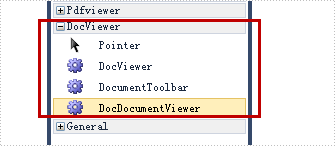
First of all, download Spire.DocViewer, add DocViewer Control to VS Toolbox.
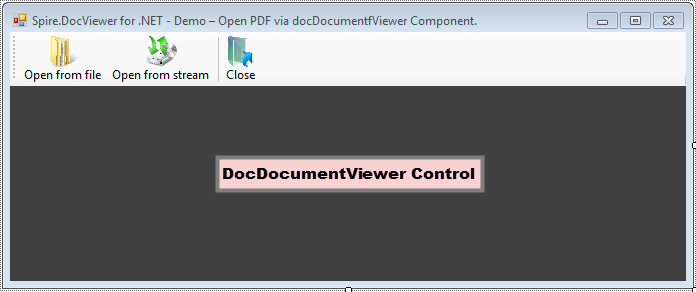
Then create a Windows Forms application, design your Form1 as below.
- Add 'Open from file' button to open a file from existing Word document.
- Add 'Open from stream' button to load a Word file from steam.
- Add 'Close' button to shut down the open file.
- Drag 'DocDocumentViewer Control' into Form1, which is used to display Word document.
Code Snippet:
Step 1: Initialize components in Form1.
        System.IO.FileStream stream;
        public Form1()
        {
            InitializeComponent();

        }
Step 2: Create an OpenFileDialog to select the correct file type that we want to load, otherwise error message 'Cannot detect current file type' will occur.
private void btnOpen_Click(object sender, EventArgs e)
        {
            //open a DOC document
            OpenFileDialog dialog = new OpenFileDialog();
            dialog.Filter = "Word97-2003 files(*.doc)|*.doc|Word2007-2010 files (*.docx)|*.docx|All files (*.*)|*.*";
            dialog.Title = "Select a DOC file";
            dialog.Multiselect = false;
            dialog.InitialDirectory = System.IO.Path.GetFullPath(@"..\..\..\..\..\..\Data");

            DialogResult result = dialog.ShowDialog();

            if (result == DialogResult.OK)
            {
                try
                {
                    //Load DOC document from file.
                    this.docDocumentViewer1.LoadFromFile(dialog.FileName);
                }
                catch (Exception ex)
                {
                    MessageBox.Show(ex.Message, "Error!", MessageBoxButtons.OK, MessageBoxIcon.Error);
                }
            }
        }
Step 3: This button code enables users to open Word files from a stream in Xml or Microsoft Word format.
        private void btnOpenStream_Click(object sender, EventArgs e)
        {
            //open a doc document
            OpenFileDialog dialog = new OpenFileDialog();
            dialog.Filter = "Word97-2003 files(*.doc)|*.doc|Word2007-2010 files (*.docx)|*.docx|All files (*.*)|*.*";
            dialog.Title = "Select a DOC file";
            dialog.Multiselect = false;
            dialog.InitialDirectory = System.IO.Path.GetFullPath(@"..\..\..\..\..\..\Data");

            DialogResult result = dialog.ShowDialog();

            if (result == DialogResult.OK)
            {
                try
                {
                    string docFile = dialog.FileName;
                    stream = new System.IO.FileStream(docFile, System.IO.FileMode.Open, System.IO.FileAccess.Read, System.IO.FileShare.Read);
                    if (stream != null)
                    {
                        //Load doc document from stream.
                        this.docDocumentViewer1.LoadFromStream(stream, Spire.Doc.FileFormat.Auto);
                    }
                }
                catch (Exception ex)
                {
                    MessageBox.Show(ex.Message, "Error!", MessageBoxButtons.OK, MessageBoxIcon.Error);
                }
            }
        }
Step 4: Close the open file.
        private void btnClose_Click(object sender, EventArgs e)
        {
            //Close current doc document.
            this.docDocumentViewer1.CloseDocument();
        }
After running the code, I opened a test file with this Windows application. Here is the screenshot of effect: