
Knowledgebase (2417)
Children categories
Optimizing the order of slides in a PowerPoint presentation is a simple skill. By rearranging slides, you can refine the logic and flow of your presentation, group related points together, or move slides to more impactful locations. This flexibility enables you to create a cohesive, engaging narrative that captivates your audience.
This article demonstrates how to programmatically change the slide order in a PowerPoint document in C# by using the Spire.Presentation for .NET library.
Install Spire.Presentation for .NET
To begin with, you need to add the DLL files included in the Spire.Presentation for .NET package as references in your .NET project. The DLL files can be either downloaded from this link or installed via NuGet.
PM> Install-Package Spire.Presentation
Change the Slide Order in a PowerPoint Document in C#
To reorder slides in a PowerPoint presentation, create two Presentation objects - one to load the original document and another to create a new document. By copying the slides from the original document to the new one in the desired sequence, you can easily rearrange the slide order.
The steps to rearrange slides in a PowerPoint document using C# are as follows.
- Create a Presentation object.
- Load a PowerPoint document using Presentation.LoadFromFile() method.
- Specify the slide order within an array.
- Create another Presentation object for creating a new presentation.
- Add the slides from the original document to the new presentation in the specified order using Presentation.Slides.Append() method.
- Save the new presentation to a PPTX file using Presentation.SaveToFile() method.
- C#
using Spire.Presentation;

namespace ChangeSlideOrder
{
    class Program
    {
        static void Main(string[] args)
        {
            // Create a Presentation object
            Presentation presentation = new Presentation();

            // Load a PowerPoint file
            presentation.LoadFromFile("C:\\Users\\Administrator\\Desktop\\input.pptx");

            // Specify the new slide order within an array
            int[] newSlideOrder = new int[] { 4, 2, 1, 3 };

            // Create another Presentation object
            Presentation new_presentation = new Presentation();

            // Remove the default slide
            new_presentation.Slides.RemoveAt(0);

            // Iterate through the array
            for (int i = 0; i < newSlideOrder.Length; i++)
            {
                // Add the slides from the original PowerPoint file to the new PowerPoint document in the new order
                new_presentation.Slides.Append(presentation.Slides[newSlideOrder[i] - 1]);
            }

            // Save the new presentation to file
            new_presentation.SaveToFile("NewOrder.pptx", FileFormat.Pptx2019);

            // Dispose resources
            presentation.Dispose();
            new_presentation.Dispose();
        }
    }
}

Apply for a Temporary License
If you'd like to remove the evaluation message from the generated documents, or to get rid of the function limitations, please request a 30-day trial license for yourself.
Spire.Presentation supports to work with multiple functions in chart, such as set number format and remove tick marks, format data labels of series. This article will focus on demonstrate how to set the color for datapoints of series in the PowerPoint document in C#.
In the class of ChartDataPoint, it represents a data point on the chart. Developers can access it to set the color, fill type and set the line property, etc. Now let's access to the datapoints to set color for datapoints of series with following code snippet:
Step 1: Create a new instance of Presentation class and load the file that contains the column chart.
Presentation ppt = new Presentation();
ppt.LoadFromFile("sample.pptx ");
Step 2: Get the chart in the document
IChart chart = ppt.Slides[0].Shapes[3] as IChart;
chart.Categories.CategoryLabels = chart.ChartData["A2", "A5"];
chart.Series.SeriesLabel = chart.ChartData["B1", "C1"];
chart.Series[0].Values = chart.ChartData["B2", "B5"];
Step 3: Access datapoints to set the property
ChartDataPoint cdp = new ChartDataPoint(chart.Series[0]);
chart.Series[1].Values = chart.ChartData["C2", "C5"];
cdp.Index = 1;
//set the type of filling
cdp.Fill.FillType = FillFormatType.Solid;
//set the fill color
cdp.Fill.SolidColor.KnownColor = KnownColors.Red;
chart.Series[0].DataPoints.Add(cdp);
Step 4: Save and Launch to view the resulted PPTX file.
ppt.SaveToFile("Accessdatapoint.pptx", FileFormat.Pptx2007);
System.Diagnostics.Process.Start("Accessdatapoint.pptx");
Effective screenshot:

Full codes:
using Spire.Presentation;
using Spire.Presentation.Charts;
using Spire.Presentation.Drawing;

namespace FormatData
{

    class Program
    {
        static void Main(string[] args)
        {

            Presentation ppt = new Presentation();
            ppt.LoadFromFile("sample.pptx ");
            IChart chart = ppt.Slides[0].Shapes[3] as IChart;
            chart.Categories.CategoryLabels = chart.ChartData["A2", "A5"];
            chart.Series.SeriesLabel = chart.ChartData["B1", "C1"];
            chart.Series[0].Values = chart.ChartData["B2", "B5"];

            ChartDataPoint cdp = new ChartDataPoint(chart.Series[0]);
            chart.Series[1].Values = chart.ChartData["C2", "C5"];
            cdp.Index = 1;
            cdp.Fill.FillType = FillFormatType.Solid;
            cdp.Fill.SolidColor.KnownColor = KnownColors.Red;
            chart.Series[0].DataPoints.Add(cdp);

            ppt.SaveToFile("Accessdatapoint.pptx", FileFormat.Pptx2007);
            System.Diagnostics.Process.Start("Accessdatapoint.pptx");

        }
    }
}
Since Excel spreadsheets or diagrams are difficult to distribute, it is reasonable that we frequently convert our Excel files to a web-friendly format, such as image. Plus, if we convert Excel to image, the data cannot be formatted and modified directly. In this article, I’ll introduce how to save each worksheet in an Excel file as an image to local folder in WPF using Spire.XLS for WPF.
The sample file for test contains three worksheets, sheet 1 and sheet 2 have some contents in them. What we need is to convert each worksheet that contains contents to image respectively.

Detailed Steps:
Step 1: Create a new project by choosing WPF Application in Visual Studio, add a button in MainWindow, double click the button to write code.
Step 2: Create a new instance of Spire.Xls.Workbook class and load the sample Excel file.
Workbook workbook = new Workbook();
workbook.LoadFromFile("sample.xlsx", ExcelVersion.Version2010);
Step 3: Use for sentence to traverse each worksheet in the Excel. Call Worksheet.SaveToImage() to save worksheet as image, set image format as png.
for (int i = 0; i < workbook.Worksheets.Count; i++)
{
    workbook.Worksheets[i].SaveToImage(string.Format("result-{0}.png", i));
}
Result:
Image 1
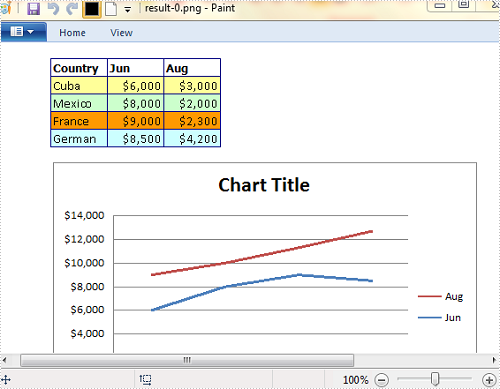
Image 2

Full Code:
using Spire.Xls;

namespace WpfApplication
{
    ///
    /// Interaction logic for MainWindow.xaml
    ///
    public partial class MainWindow : Window
    {
        public MainWindow()
        {
            InitializeComponent();
        }

        private void button1_Click(object sender, RoutedEventArgs e)
        {
            Workbook workbook = new Workbook();
            workbook.LoadFromFile("sample.xlsx", ExcelVersion.Version2010);
            for (int i = 0; i < workbook.Worksheets.Count; i++)
            {
                workbook.Worksheets[i].SaveToImage(string.Format("result-{0}.png", i));
            }
        }
    }
}
