
Knowledgebase (2417)
Children categories
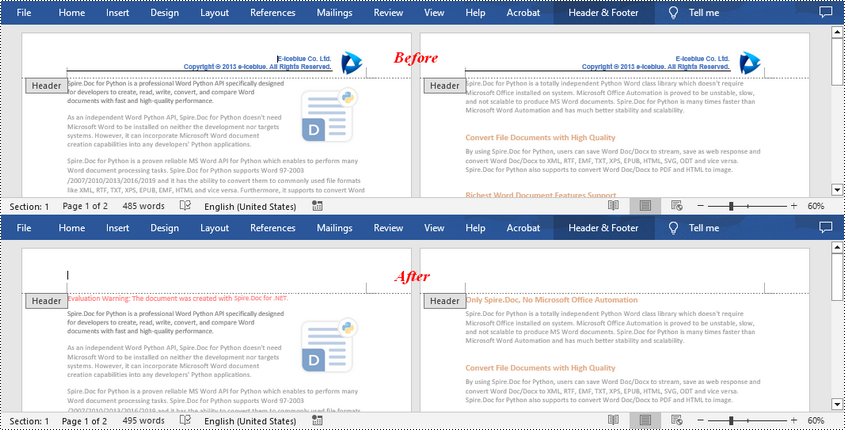
If the headers or footers in a Word document contains unnecessary information, such as outdated version numbers, redundant company logos, or incorrect author names, removing them can make the document look more professional and concise. In this article, you will learn how to remove headers or footers in Word in C# using Spire.Doc for .NET.
Install Spire.Doc for .NET
To begin with, you need to add the DLL files included in the Spire.Doc for.NET package as references in your .NET project. The DLL files can be either downloaded from this link or installed via NuGet.
PM> Install-Package Spire.Doc
Remove Headers in Word in C#
Spire.Doc for .NET supports getting different headers in the first pages, odd pages, and even pages, and then delete all of them through the HeaderFooter.ChildObjects.Clear() method. The following are the detailed steps:
- Create a Document instance.
- Load a Word document using Document.LoadFromFile() method.
- Get a specified section using Document.Sections[] property.
- Iterate through all paragraphs in the section, and then all child objects in each paragraph.
- Get the headers for the first, odd, and even pages using Section.HeadersFooters[HeaderFooterType hfType] property, and then delete them using HeaderFooter.ChildObjects.Clear() method.
- Save the result document using Document.SaveToFile() method.
- C#
using Spire.Doc;
using Spire.Doc.Documents;

namespace RemoveHeader
{
    class Program
    {
        static void Main(string[] args)
        {
            //Create a Document instance
            Document doc = new Document();

            //Load a Word document
            doc.LoadFromFile("HeaderFooter.docx");

            //Get the first section
            Section section = doc.Sections[0];

            //Iterate through all paragraphs in the section
            foreach (Paragraph para in section.Paragraphs)
            {
                //Iterate through all child objects in each paragraph
                foreach (DocumentObject obj in para.ChildObjects)
                {
                    //Delete header in the first page
                    HeaderFooter header;
                    header = section.HeadersFooters[HeaderFooterType.HeaderFirstPage];
                    if (header != null)
                        header.ChildObjects.Clear();

                    //Delete headers in the odd pages
                    header = section.HeadersFooters[HeaderFooterType.HeaderOdd];
                    if (header != null)
                        header.ChildObjects.Clear();

                    //Delete headers in the even pages
                    header = section.HeadersFooters[HeaderFooterType.HeaderEven];
                    if (header != null)
                        header.ChildObjects.Clear();
                }
            }

            //Save the result document
            doc.SaveToFile("RemoveHeader.docx", FileFormat.Docx);
        }
    }
}
Remove Footers in Word in C#
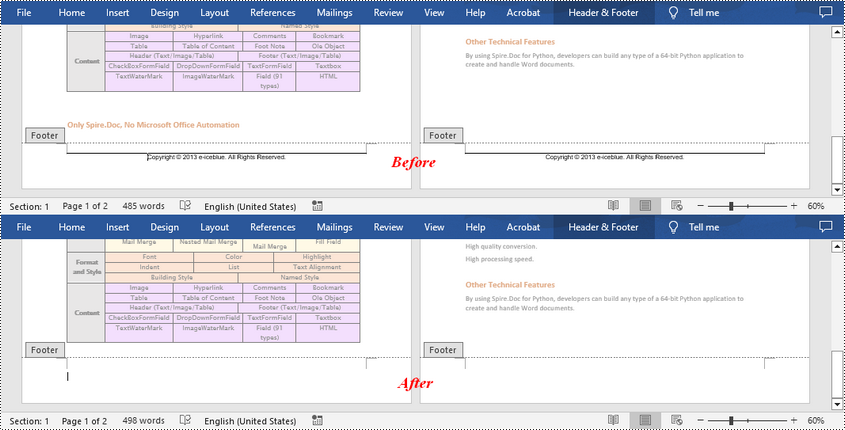
Deleting footers is similar to that of deleting headers, you can also get the footers on different pages first and then delete them at once. The following are the detailed steps:
- Create a Document instance.
- Load a Word document using Document.LoadFromFile() method.
- Get a specified section using Document.Sections[] property.
- Iterate through all paragraphs in the section, and then all child objects in each paragraph.
- Get the footers for the first, odd, and even pages using Section.HeadersFooters[HeaderFooterType hfType] property, and then delete them using HeaderFooter.ChildObjects.Clear() method.
- Save the result document using Document.SaveToFile() method.
- C#
using Spire.Doc;
using Spire.Doc.Documents;

namespace RemoveHeader
{
    class Program
    {
        static void Main(string[] args)
        {
            //Create a Document instance
            Document doc = new Document();

            //Load a Word document
            doc.LoadFromFile("HeaderFooter.docx");

            //Get the first section
            Section section = doc.Sections[0];

            //Iterate through all paragraphs in the section
            foreach (Paragraph para in section.Paragraphs)
            {
                //Iterate through all child objects in each paragraph
                foreach (DocumentObject obj in para.ChildObjects)
                {
                    //Delete footer in the first page
                    HeaderFooter footer;
                    footer = section.HeadersFooters[HeaderFooterType.FooterFirstPage];
                    if (footer != null)
                        footer.ChildObjects.Clear();

                    //Delete footer in the odd page
                    footer = section.HeadersFooters[HeaderFooterType.FooterOdd];
                    if (footer != null)
                        footer.ChildObjects.Clear();

                    //Delete footer in the even page
                    footer = section.HeadersFooters[HeaderFooterType.FooterEven];
                    if (footer != null)
                        footer.ChildObjects.Clear();
                }
            }

            //Save the result document
            doc.SaveToFile("RemoveFooter.docx", FileFormat.Docx);
        }
    }
}
Apply for a Temporary License
If you'd like to remove the evaluation message from the generated documents, or to get rid of the function limitations, please request a 30-day trial license for yourself.
When we print Word and PDF documents which have regular page size, we can clearly know the pagination information for Word and PDF by delimiters. Excel document is different since Excel pagination is based on its content when we print Excel document or convert to Pdf. So get Excel pagination information is important to developer. Below would introduce a solution to get pagination information in Excel document.
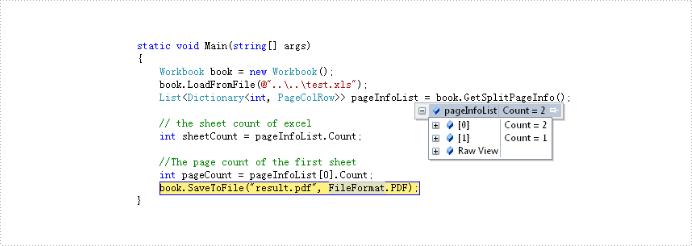
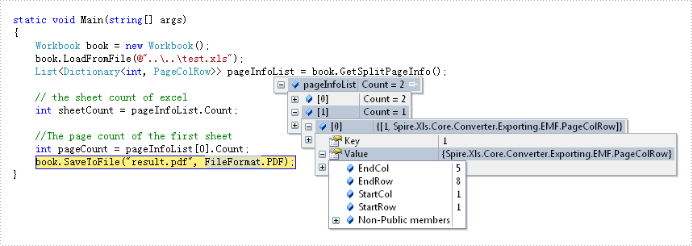
The solution call book.GetSplitPageInfo() method to obtain information of excel document and return this information to the List<Dictionary<int, PageColRow>> object via Spire.XLS. By the object we can get this information about: sheet count, page count and the start and end column and row of every page in excel document. Below is effect screenshots:
The main steps of the solution are:
Step 1: Create and load an excel document.
Workbook book = new Workbook();
book.LoadFromFile(@"test.xlsx");
Step 2: Call GetSplitPageInfo() method to Excel information.
List> pageInfoList = book.GetSplitPageInfo();
The full code:
using Spire.Xls;

namespace GetPageInformation
{
    class Program
    {
        static void Main(string[] args)
        {
            // create and load Excel document
            Workbook book = new Workbook();
            book.LoadFromFile(@"test.xlsx");
            // get the Excel document information and save in pageInfoList object
            var pageInfoList = book.GetSplitPageInfo();

            // the sheet count of excel
            int sheetCount = pageInfoList.Count;

            //The page count of the first sheet
            int pageCount = pageInfoList[0].Count;
            book.SaveToFile("result.pdf", FileFormat.PDF);
        }
    }
}
Imports Spire.Xls
Module Module1

    Sub Main()
        'create and load Excel document
        Dim book As New Workbook()
        book.LoadFromFile("test.xlsx")
        ' get the Excel document information and save in pageInfoList object
        Dim pageInfoList As List(Of Dictionary(Of Integer, PageColRow)) = book.GetSplitPageInfo()

        ' the sheet count of excel
        Dim sheetCount As Integer = pageInfoList.Count

        'The page count of the first sheet
        Dim pageCount As Integer = pageInfoList(0).Count
        book.SaveToFile("result.pdf", FileFormat.PDF)
    End Sub

End Module
Why we convert PDF to image?
- PDF requires an external application like Adobe Acrobat Reader while image does not.
- Browsers have the built-in capability to display images while handling PDF documents requires an external application or plug-in.
So, in some specific cases converting your PDF documents to an image format like PNG or JPEG could be the solution we are looking for.
How to convert PDF to image in WPF?
For developers, we can easily render PDF pages to images with high quality by using Spire.PDF for WPF, which is a professional PDF component providing tons of useful methods to manipulate PDF document in your WPF applications. Now, follow the below steps to achieve this purpose.
Detailed steps:
Step 1: Create a new project by choosing WPF Application in Visual Studio, add a button in MainWindow, double click the button to write code.
    public partial class MainWindow : Window
    {
        public MainWindow()
        {
            InitializeComponent();
        }

        private void button1_Click(object sender, RoutedEventArgs e)
        {

        }
}
Step 2: Create a new instance of Spire.Pdf.Document and load the sample PDF file.
PdfDocument pdf = new PdfDocument();
pdf.LoadFromFile("sample.pdf");
Step 3: To convert PDF to image, we need firstly save PDF pages as BitmapSource by calling the method pdf.SaveAsImage, then convert BitmapSource to Bitmap, then save the Bitmap as image with a specified format using Image.Save().
               BitmapSource source;
            Bitmap bmp;

            for(int i=0;i<pdf.Pages.Count;i++)
            {
                source = pdf.SaveAsImage(i);
                bmp = SourceToBitmap(source);
                bmp.Save(string.Format("result-{0}.png", i), ImageFormat.Png);
            }
        }

        private Bitmap SourceToBitmap(BitmapSource source)
        {
            Bitmap bmp;
            using (MemoryStream ms = new MemoryStream())
            {
                PngBitmapEncoder encoder = new PngBitmapEncoder();
                encoder.Frames.Add(BitmapFrame.Create(source));
                encoder.Save(ms);
                bmp = new Bitmap(ms);
            }
            return bmp;
        }
Output of the first page:

Full code:
using Spire.Pdf;

namespace ConvertPdfToImage
{
    ///
    /// Interaction logic for MainWindow.xaml
    ///
    public partial class MainWindow : Window
    {
        public MainWindow()
        {
            InitializeComponent();
        }

        private void button1_Click(object sender, RoutedEventArgs e)
        {
            PdfDocument pdf = new PdfDocument();
            pdf.LoadFromFile("1.pdf");

            BitmapSource source;
            Bitmap bmp;

            for(int i=0;i<pdf.Pages.Count;i++)
            {
                source = pdf.SaveAsImage(i);
                bmp = SourceToBitmap(source);
                bmp.Save(string.Format("result-{0}.png", i), ImageFormat.Png);
            }
        }

        private Bitmap SourceToBitmap(BitmapSource source)
        {
            Bitmap bmp;
            using (MemoryStream ms = new MemoryStream())
            {
                PngBitmapEncoder encoder = new PngBitmapEncoder();
                encoder.Frames.Add(BitmapFrame.Create(source));
                encoder.Save(ms);
                bmp = new Bitmap(ms);
            }
            return bmp;
        }

    }
}
